Creating Conceptual mass in REVIT and Creation of Sinusoidal curve and a Parametric stadium using Dynamo
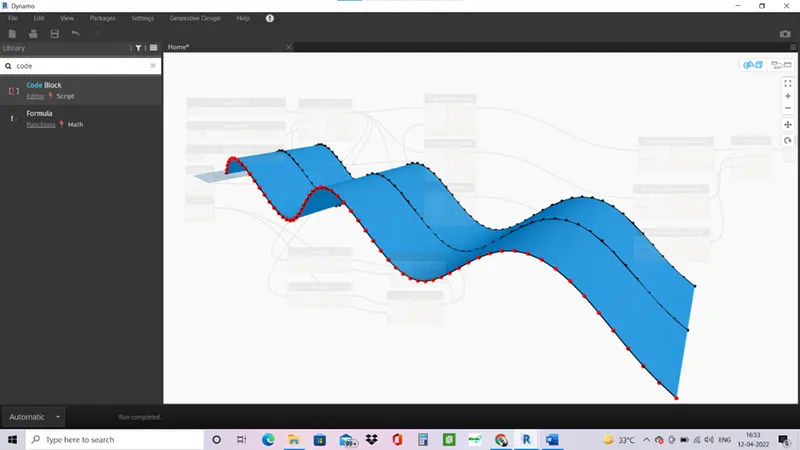
1- Aim – Use Dynamo to create a set of sinusoidal points and create a curve and create a surface out of the curve.
Procedure –
- Open the revit software and go to mange and select dynamo.
- Dynamo will open select new.
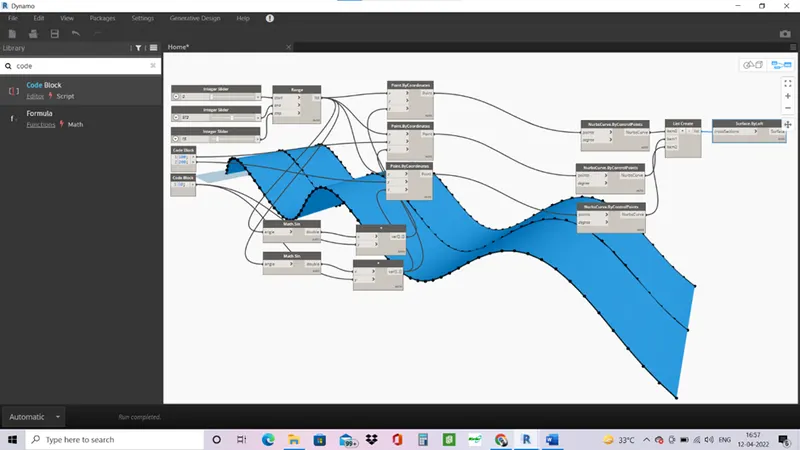
- Add three integer slider for curve points range, distance and step.
- Add range and make a connection with the integer sliders.
- Add points.by co ordinates.
- Now to make a a sinusoidal curve add maths.sin and product.
- Add a code block to give the sin value.
- Join the range>maths.sin (angle)> product (x)> variable to z axis.
- This will give a curve on the axis.
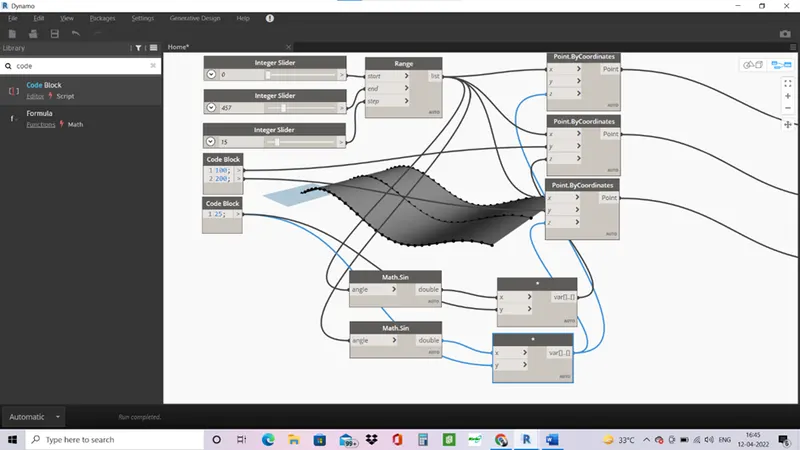
- Move the integers sliders to adjust the start, end and distance between the points.
- To make the surface add nurbs.bycontrolpoints.
- Join the points by coordinates to the points on nurbs cuve.
- Since the are multiple, create a list and make a link between nurbs by curve and list.
- Add surface using surface by loft command.
- Join the list and the cross section of the surface by loft.
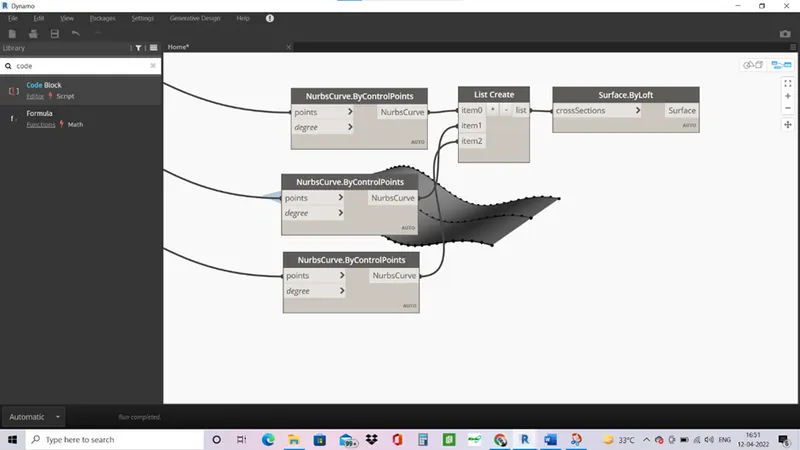
Result-
- A surface of sinusoidal curve is created using dynamo in revit.
2- Aim- To Create a conceptual layout of floor plan in dynamo.
Procedure-
- Open a new architectural template and open dynamo.
- First create four points by points by coordinates origin(0,0,0), control point 1 (x,0,0), control point 2 (0,y,0), control point 3 (x,y,0).
- Add 2 integer slider 1 for length and 1 for width.
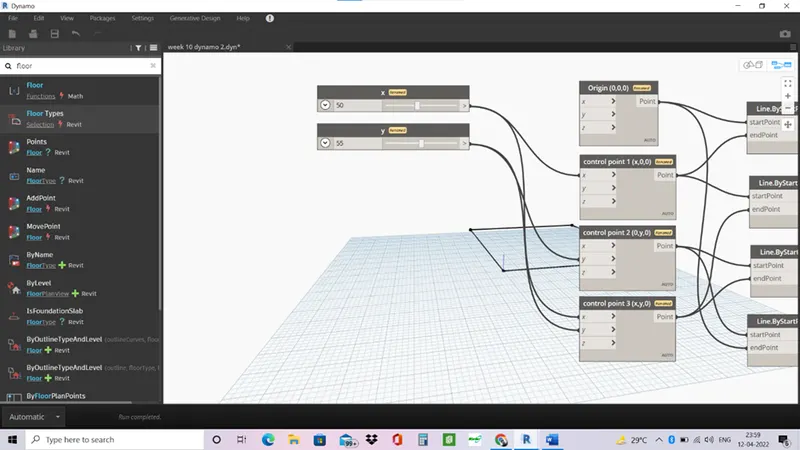
- Now to join the points add line by startendpoint.
- Join the lines from start point and end point with points.
- Now create a list and connect the lines in the list.
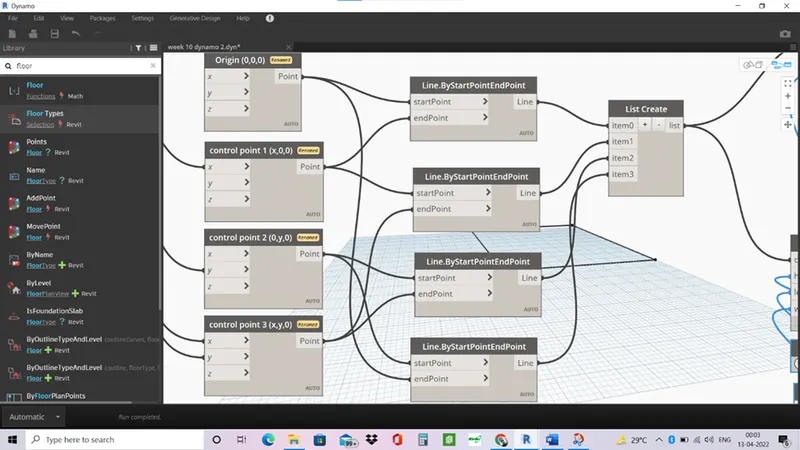
- List is added to create walls, add wall by curve height level.
- Add level and integer slider for height and wall type.
- Connect the list to the curve, slider to height, level to level and wall type.
- Similar add floor type and floor byoutlinetypelevel.
- Select the floor type, level and list to the outline curve.
Result
- Layout of the plan is created in the dynamo, wall and floor are added.
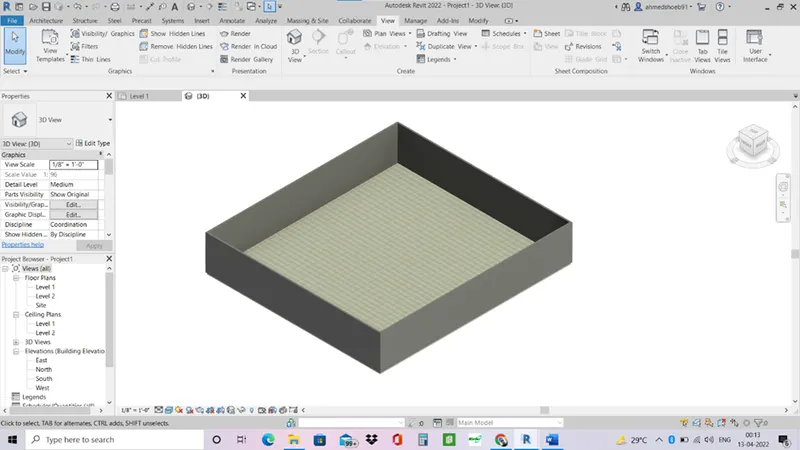
3- Aim- To Create an array of model elements in Revit. Use dynamo to vary the properties of model elements by using the slider or code block.
Procedure-
- Open the revit software and place some columns.
- Then open dynamo.
- Search for select model elements (multiple) since multiple elemnets are to be selected.
- Press select and go in revit software and select the columns.
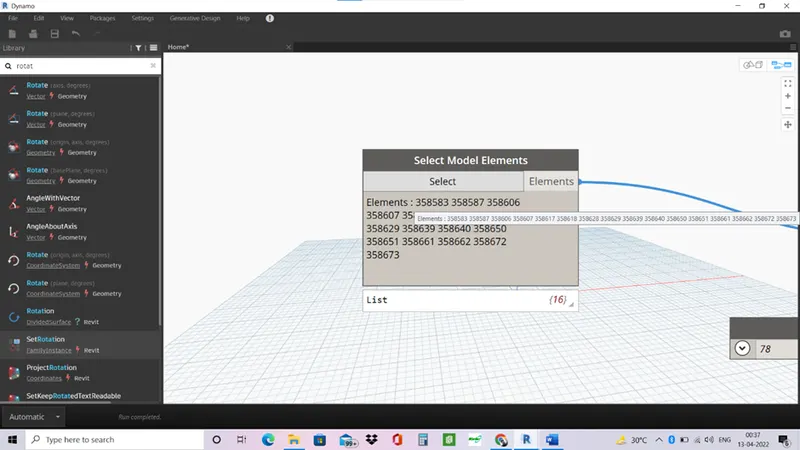
- Now add an integer slider or code block for angle and rotation by family instance.
- Link the select model elements and integer slider to the rotation.
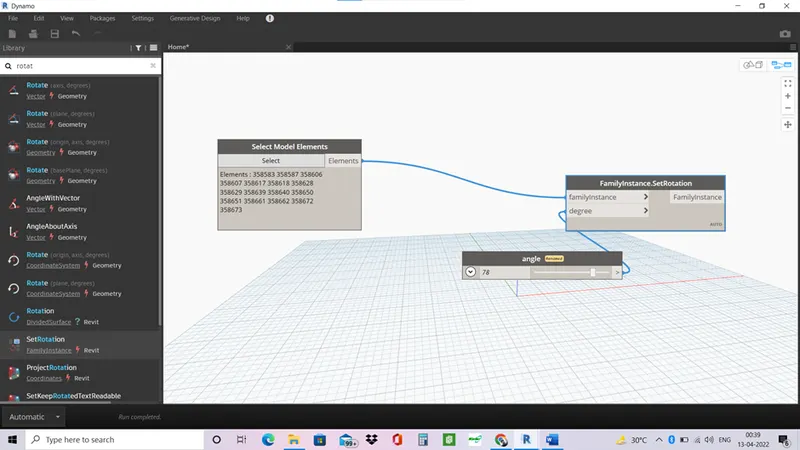
- Change the angle in the slider the columns angle will also rotate simultaneously.
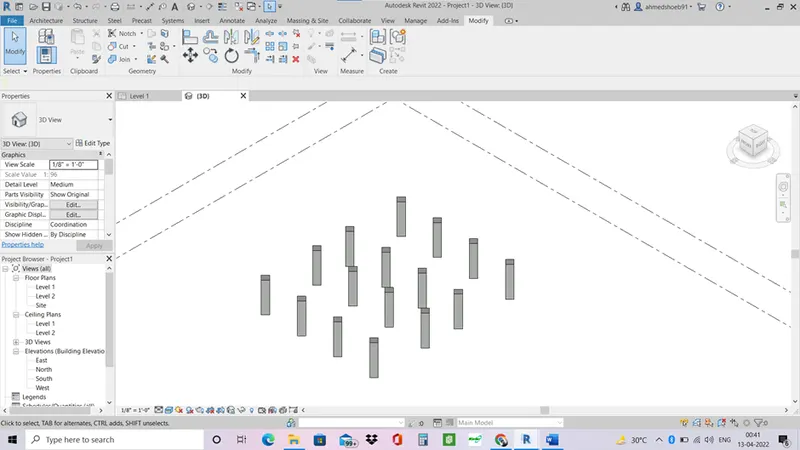
Result-
- Dynamo is used to change the properties of the selected elements in the revit.
4- Aim- to Create a conceptual mass in Revit and develop a parametric column by dividing the surfaces and apply the concepts similar to used in parametric walkway modelling. Use triangular bent or square shaped panels to add finish to the parametric column.
Procedure-
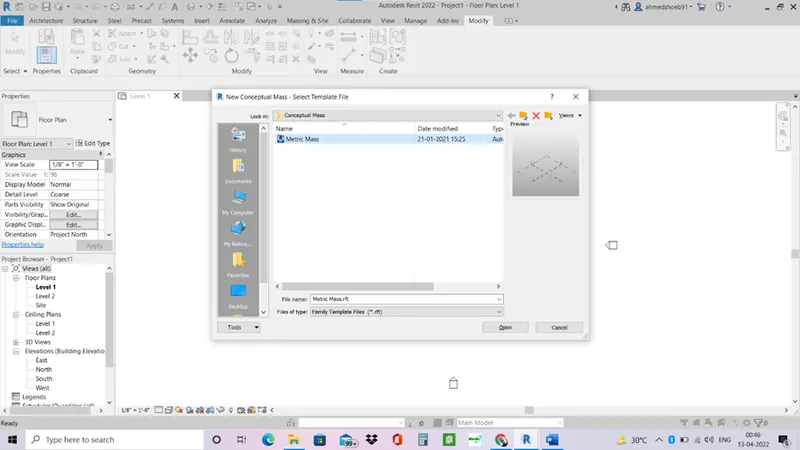
- Open revit and open new conceptual mass.
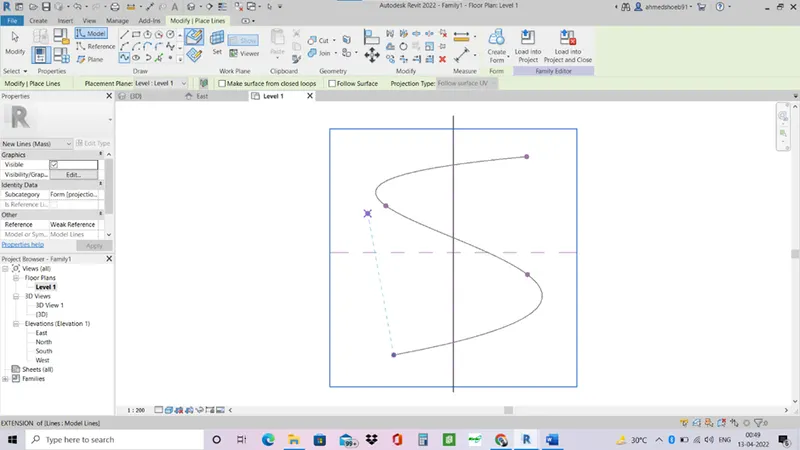
- Go in level 1 and add spline line in the model.
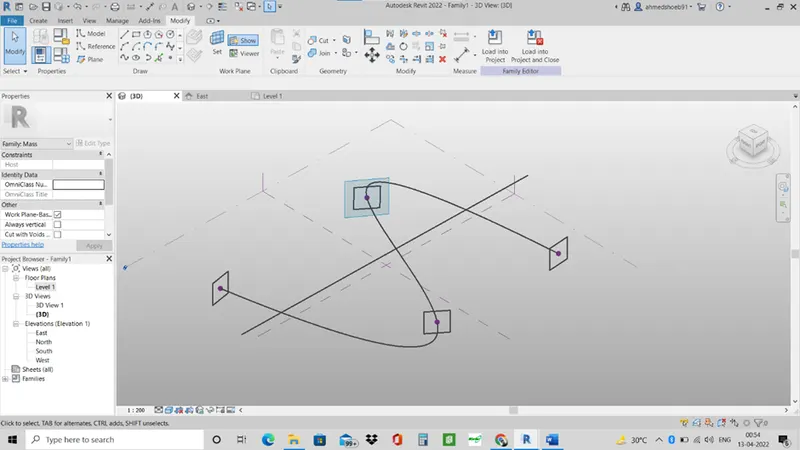
- Go in 3d view select each points set plane, and draw a polygon with four side on each point.
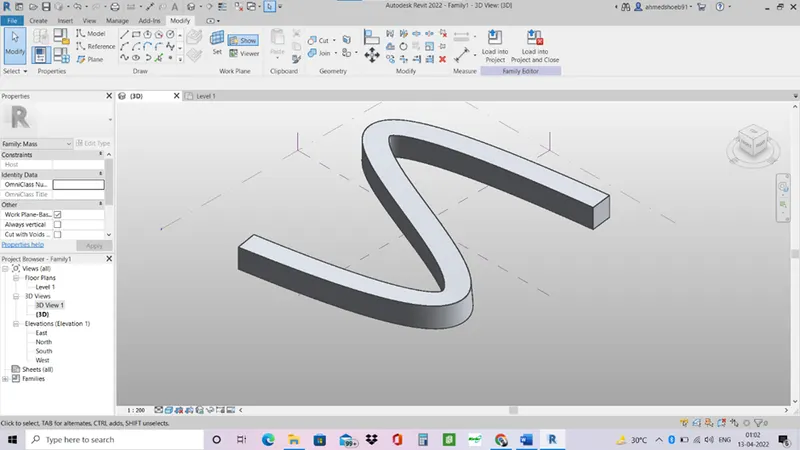
- Select the line and polygons and soild form option will appear select it.
- A sweep is formed of the curve.
- Now select the form of the model and divide surface option will appear select it.
- Now you can apply the triangle bent surface from the properties.
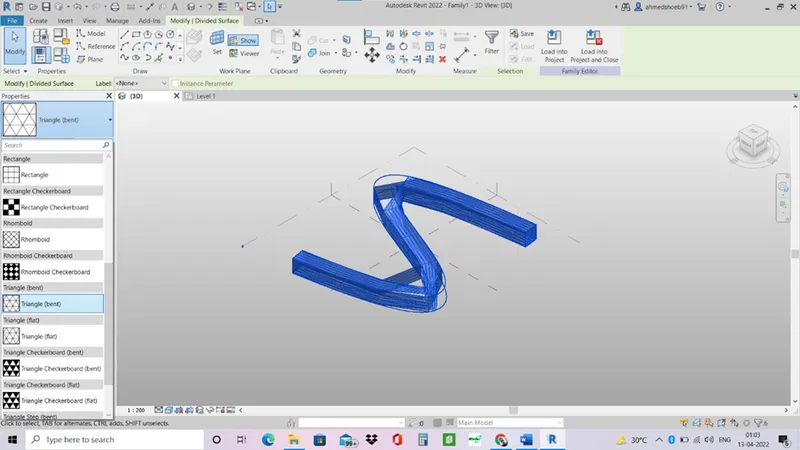
- Edit the u and v values to make a smooth curve.
Result-
- A conceptual mass is of a walkway is created in revit.
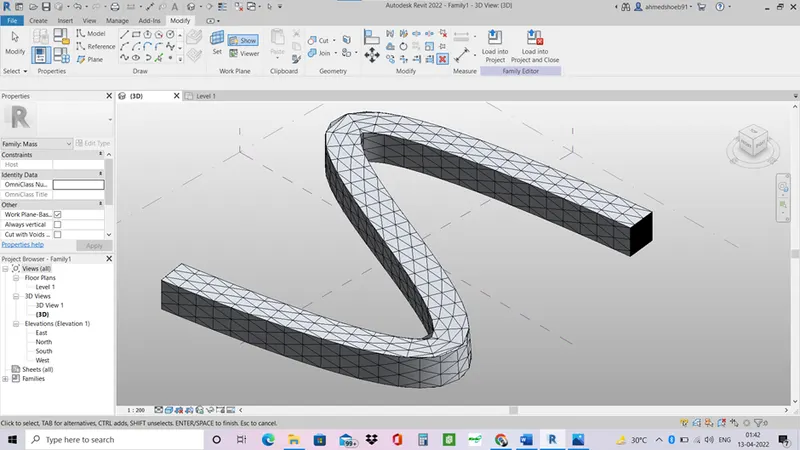
5- Aim- to Use Dynamo to work on developing a Parametric Stadium. List your parameters and use the visual programming approach to complete the modelling, You can use the concepts discussed in parametric high rise tower in class for reference.
Procedure-
- Open revit and open dynamo.
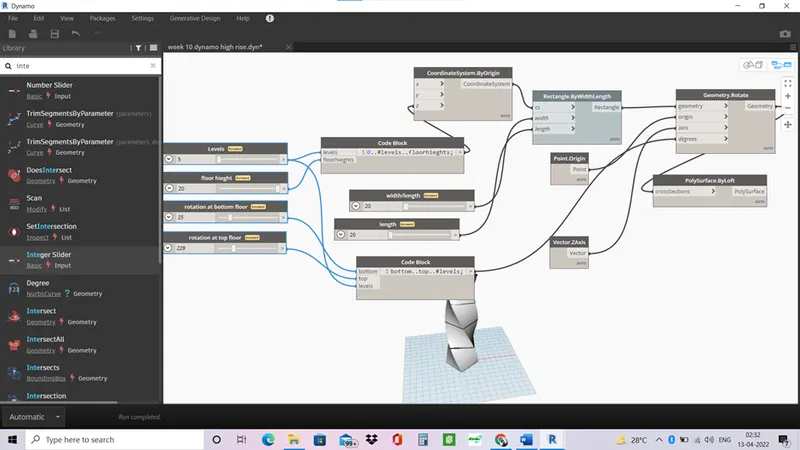
- Add 4 integer slider, for levels, floor height, rotation at top floor, rotation at bottom floor.
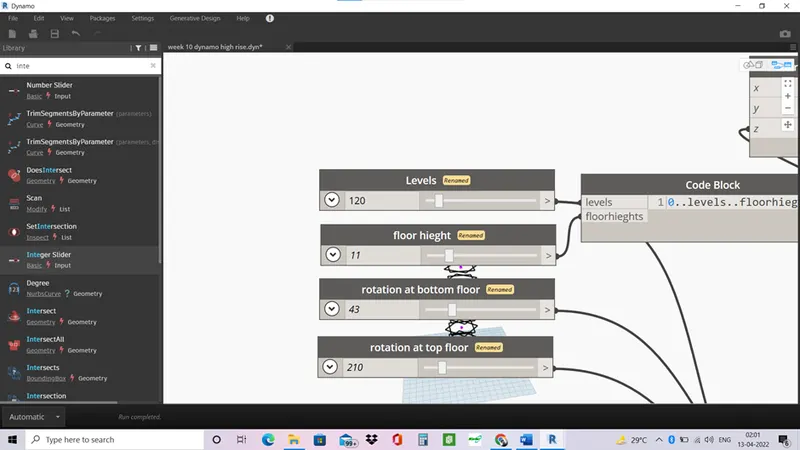
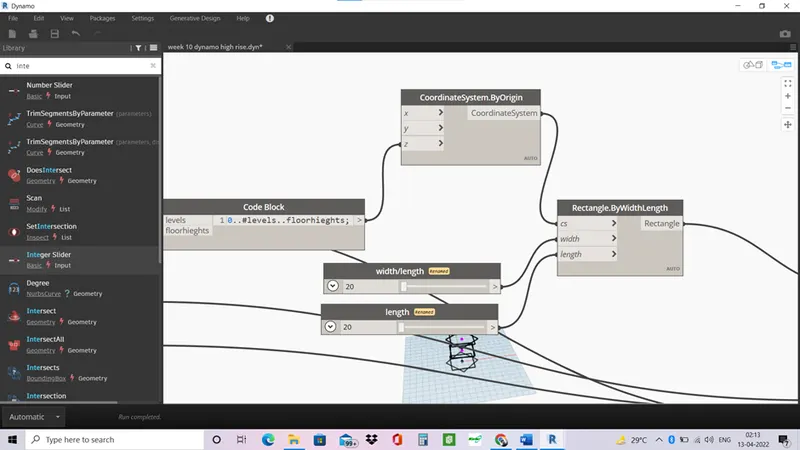
- Open code block and write a script for 0..#levels..floorhieght.
- Connect the links to the code code block.
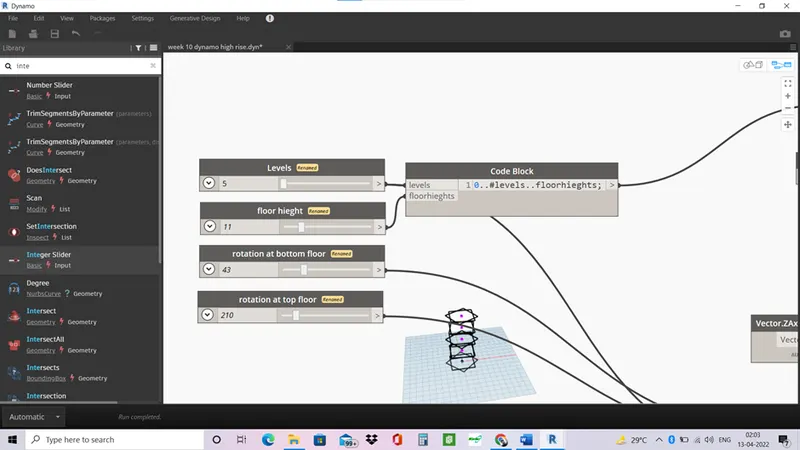
- Add coordinatebyorigin and join code block to the z axis for the levels.
- Create a rectangle at the point by z axis by rectangle.width and length.
- Add two integer slider for width and length of the rectangle. Connect the links with rectangle.
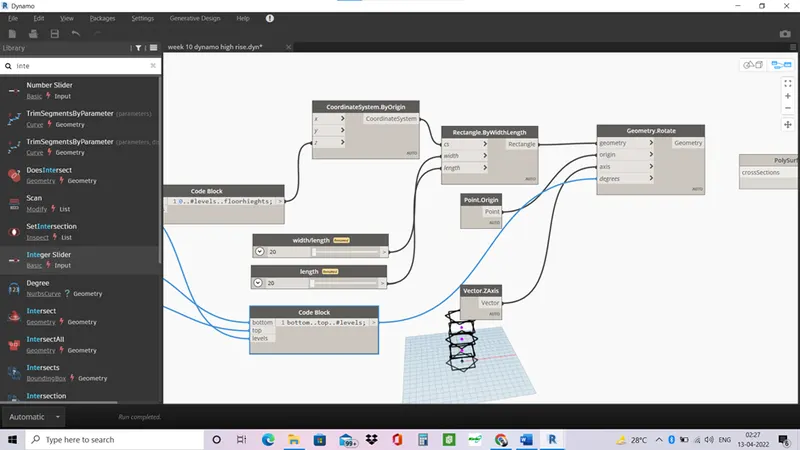
- Now to rotate the geometry add geometry.rotate.
- Add a code clock and write a script of bottom..top..#levels.
- Connect the rotaion of top and bottom floor and levels to the code block and coonect it to degrees in geometry.rotate
- Connect rectangle to the geometry.
- Add point.origin an vector.z axis.
- Connect them to the rotate command.
- Now to surface to the model use by polysurface.byloft surface command.
- Connect the geometry to the cross section command.
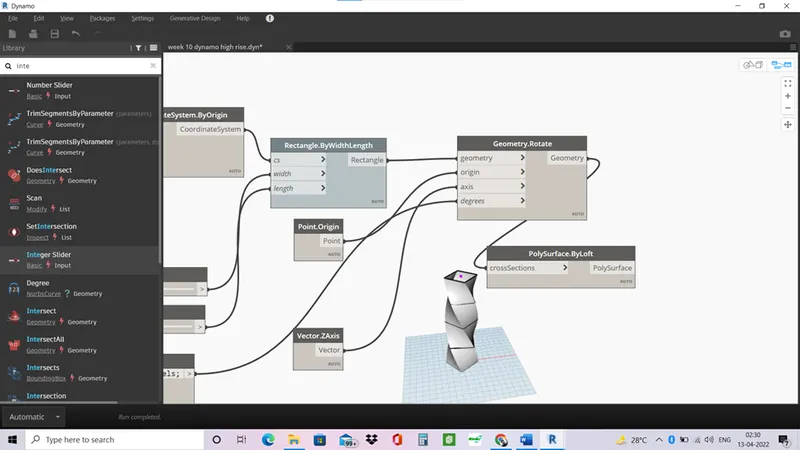
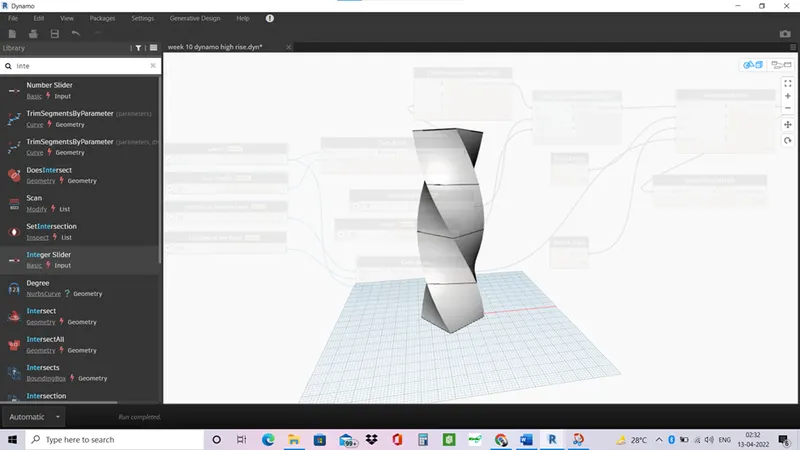
Result-
- A parometric high rise tower is built in dynamo.