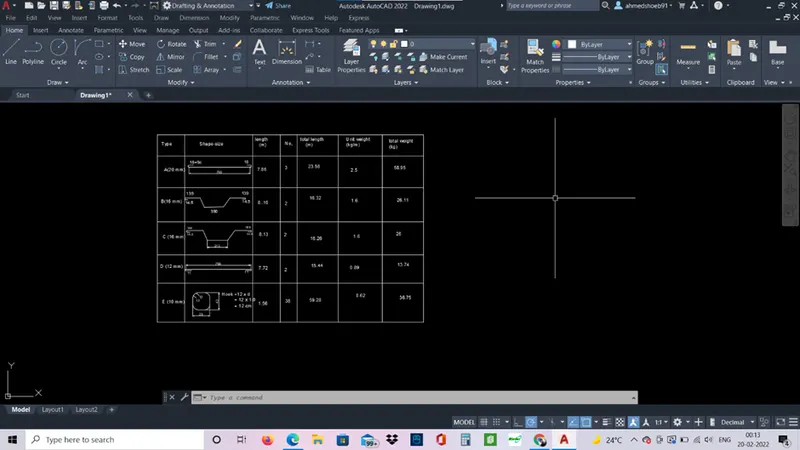
Creating Bar Bending schedule, Different Door types, and Creation of standard drawing templates using AutoCad
Aim: - To create title template and save as it as blocks.
Procedure-
- Use line command and offset command to create the title frame.
- Use mtext command to write the required text.
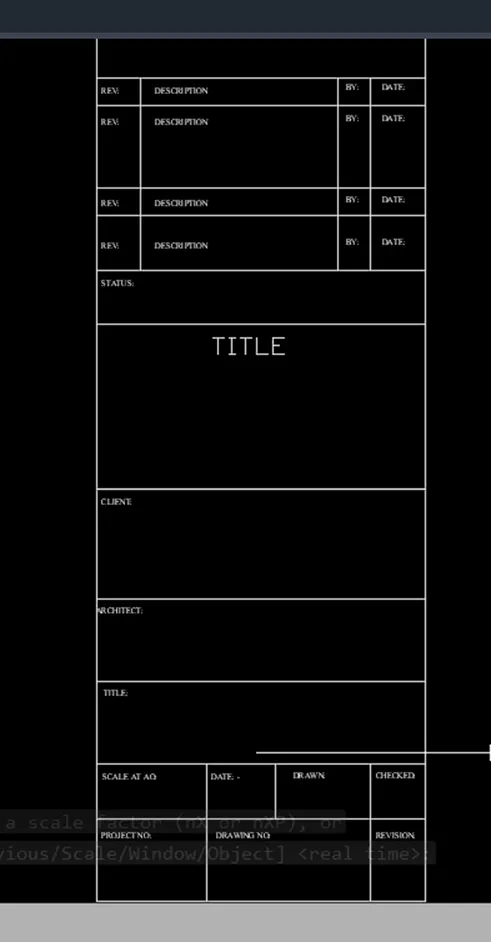
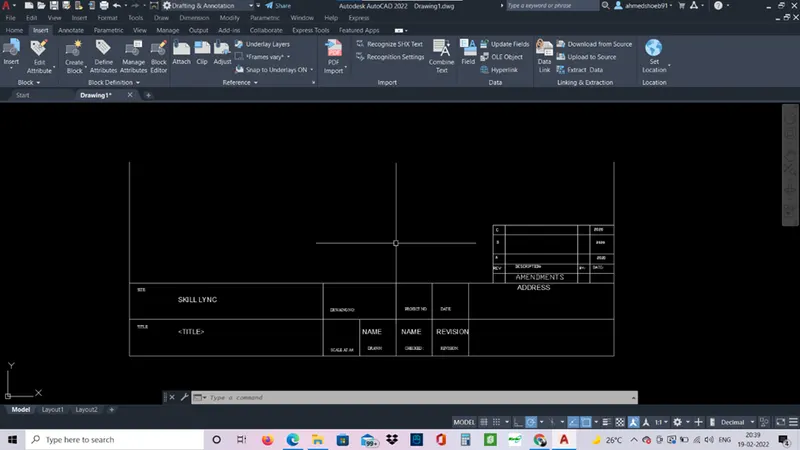
- Create the block of the template.
- Use block command and select the required block and name it respectively.
- You can insert the blocks by insert commands.
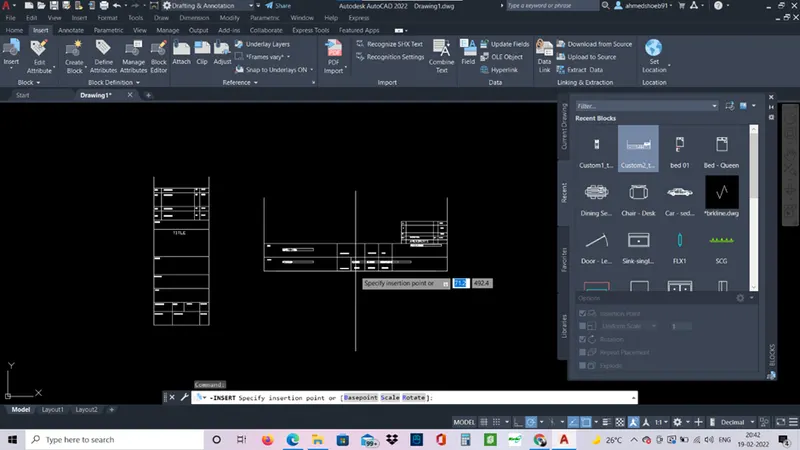
Result: -
The given template is created as blocks and can be inserted when required.
Aim: - To create the doors of the warehouse and make it as the blocks.
Procedure: -
- Units: decimal
- Use line command and draw a horizontal line of 2750mm and vertical line of 2330mm.
- Use div command and dive the vertical line in 4 parts.
- Give required offsets.
- Also div the horizontal line.
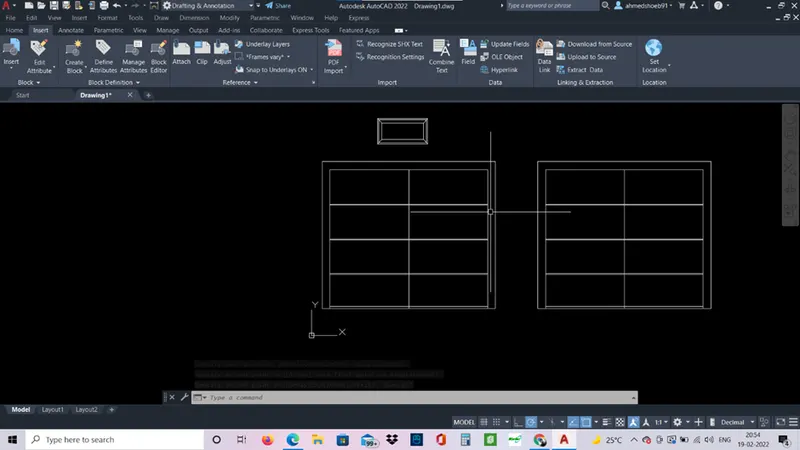
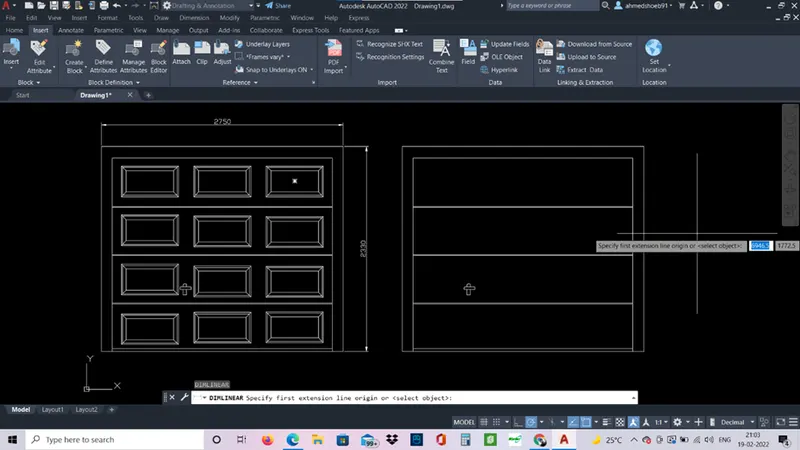
- Use block command to make the blocks of the doors.
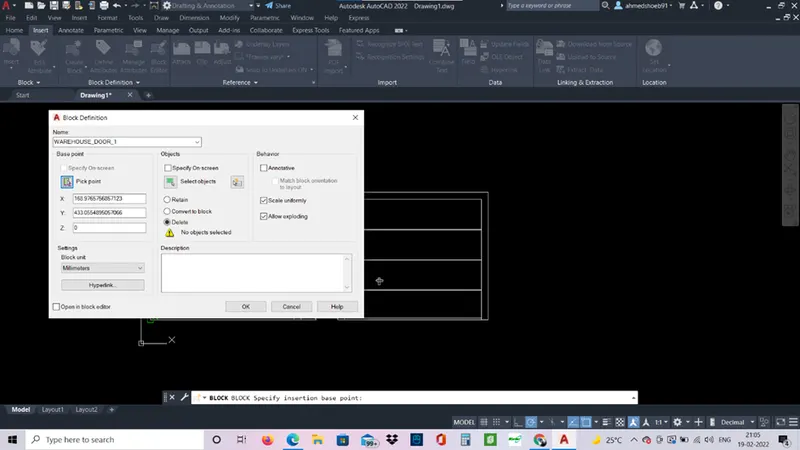
Result: -
The blocks of the warehouse doors are created.
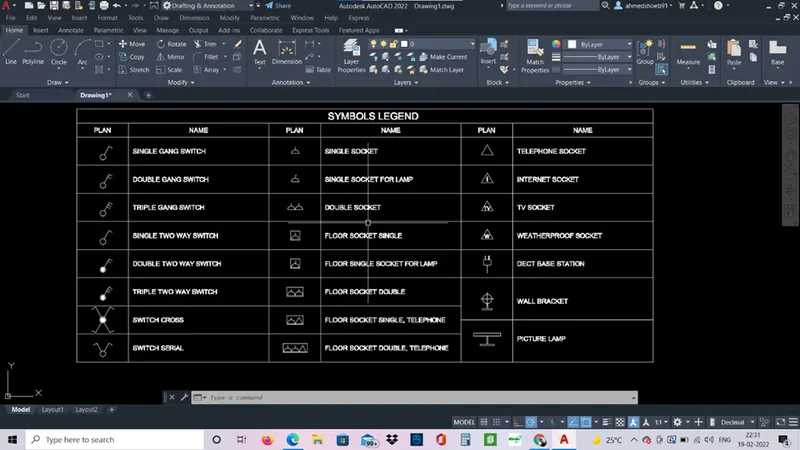
Aim: - Create each symbol as a block with the name given in the legend.
Procedure: -
- First make a table template of the legends using line command.
- Then give the required annotations in each row.
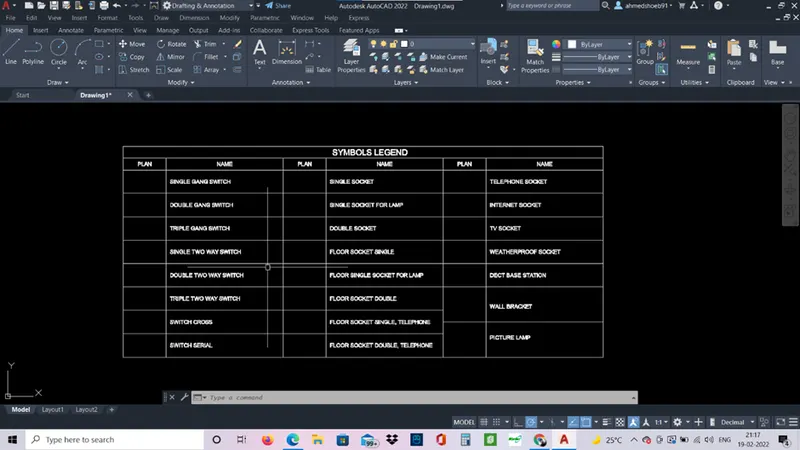
- Then make individual blocks.
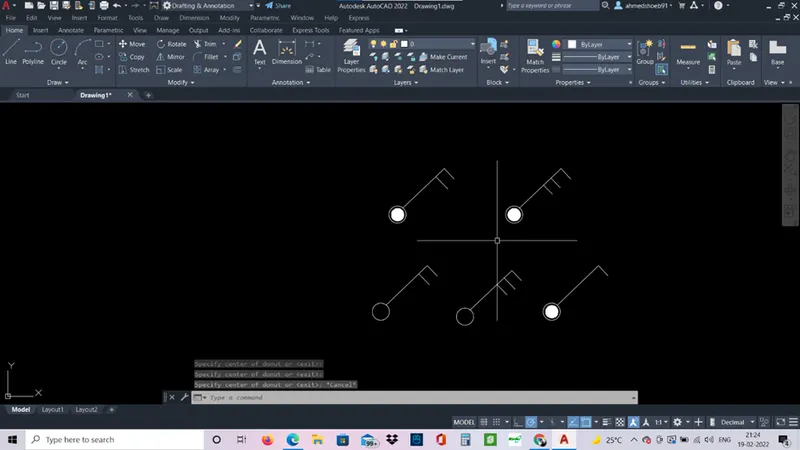
- Save them as the given blocks name.
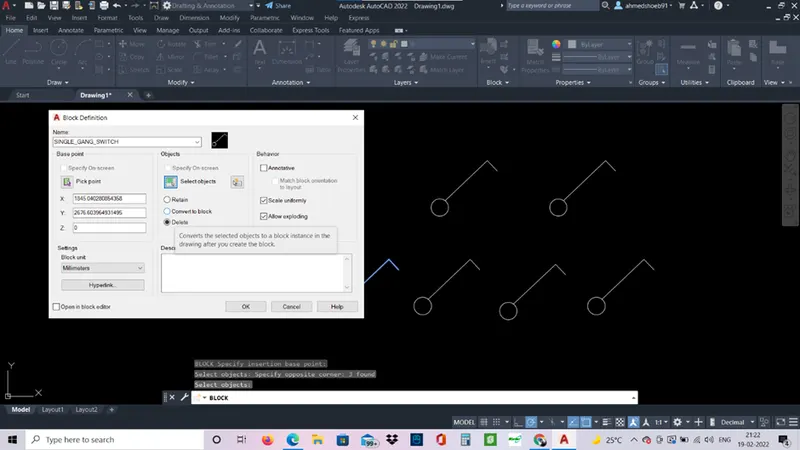
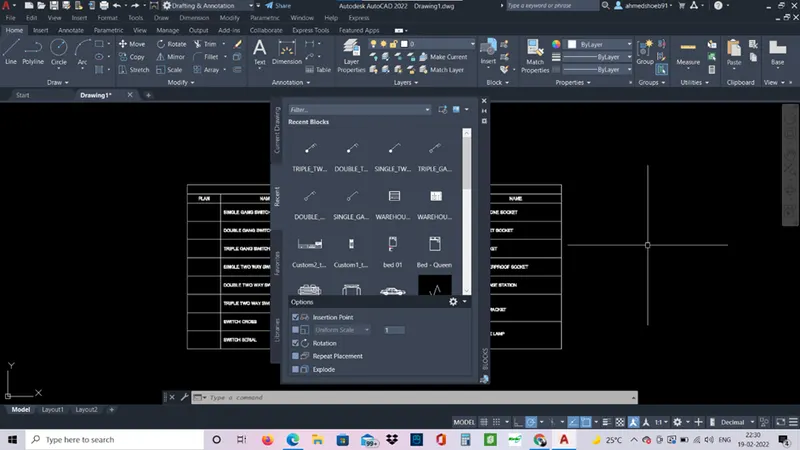
- Use insert command to insert the blocks at required position.
Result-
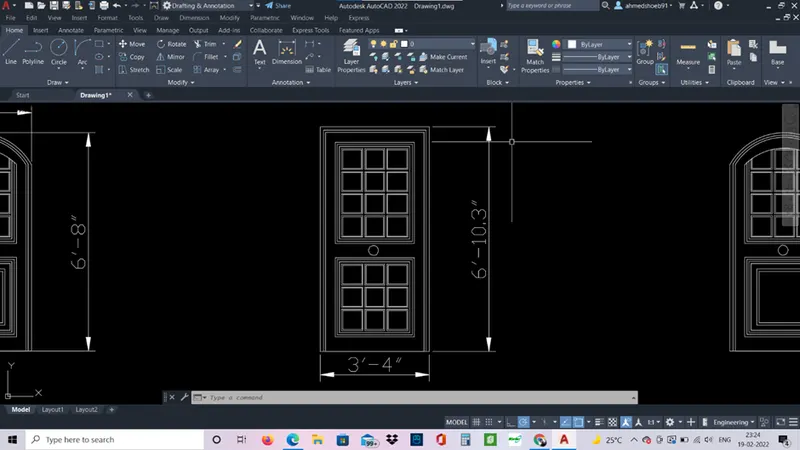
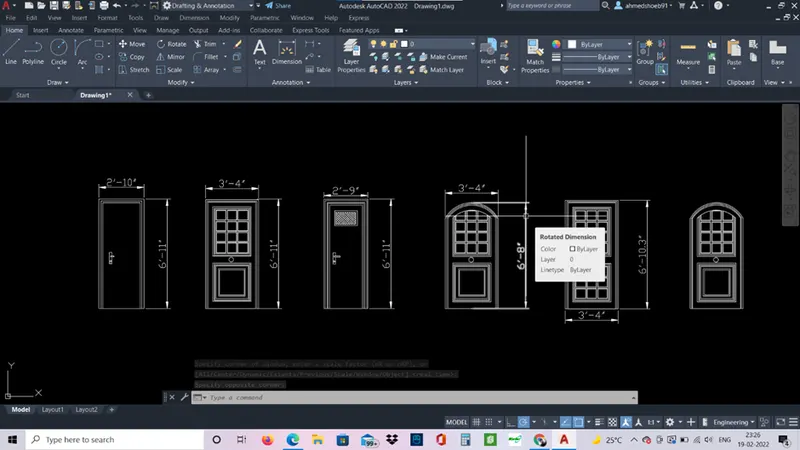
Aim: - to create the doors for the residential buildings.
Procedure: -
- Units- engineering.
- Use line command to draw the lines.
- Give offsets required.
- Use arc command to make arcs in door 4 and 6 at the top.
- Trim the excess lines.
- Use dimlinear command and give dimensions.
- Use blocks commands and save them as the blocks
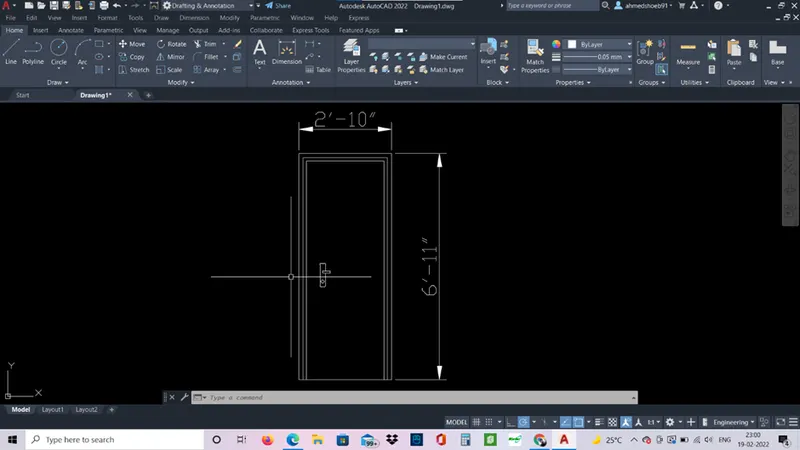
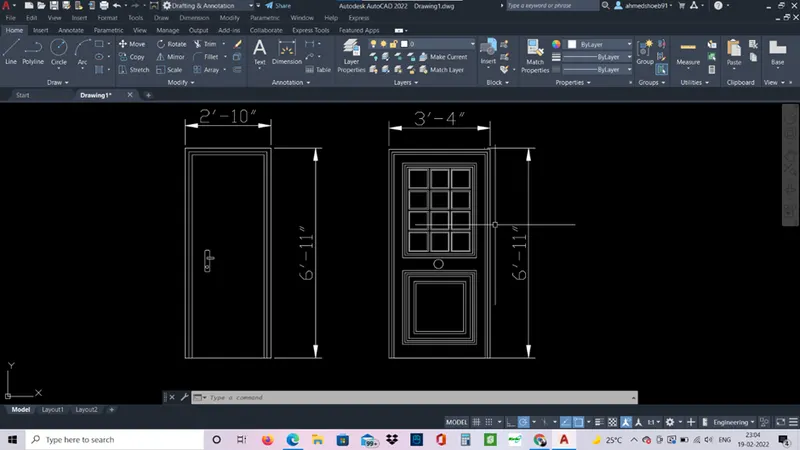
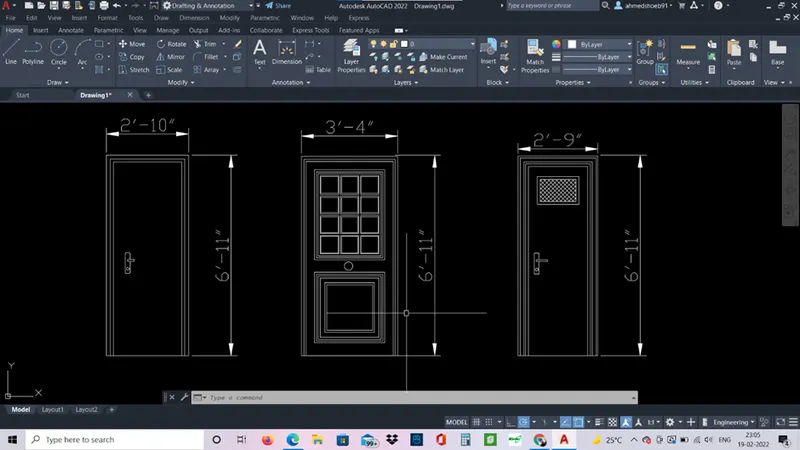
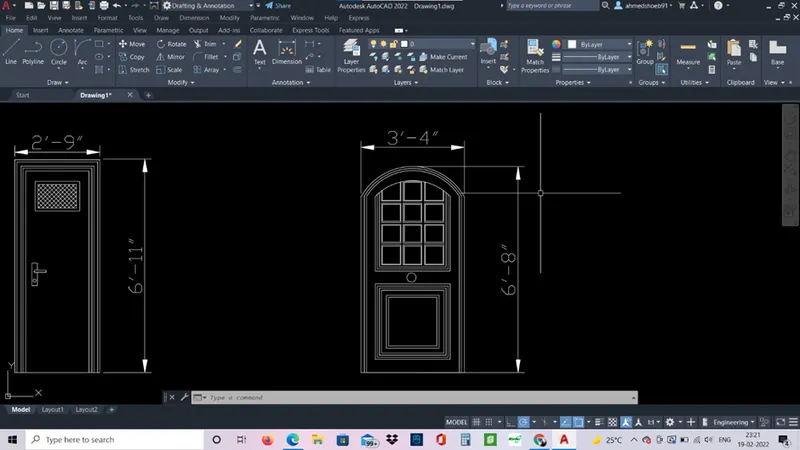
Result: -
Doors are created and saved as blocks.
Aim: - To create bar bending schedule in AutoCAD.
Procedure: -
- Use line command and create the template of the bar bending schedule.
- Use dtext command and write the required texts.
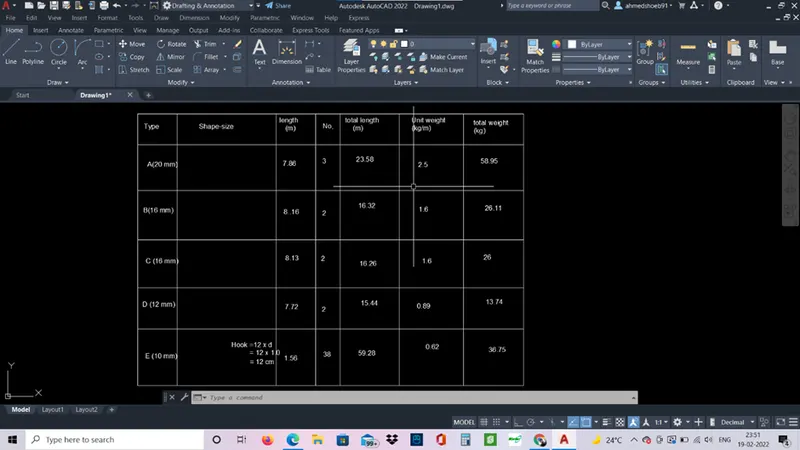
- Now create each shape as the blocks.
- Use lines command and make 1st rebar shape.
- Make it as the block.
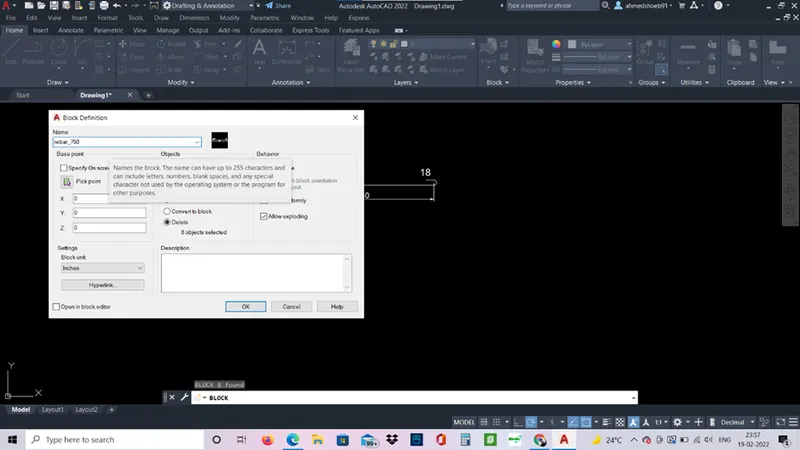
- Make each rebar shape and make it as the block.
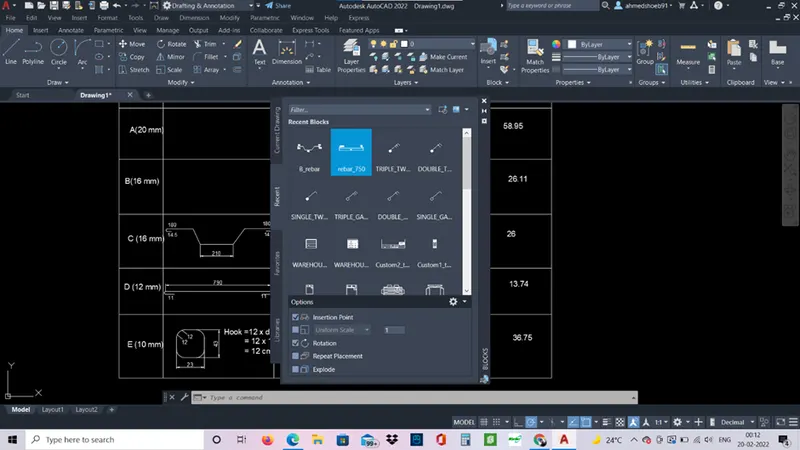
- Use insert command to insert the blocks in the required positions.
Result: -