Project - 2 - Meshing on the suspension Assembly
Aim-
In this project for the given assembly, we have to check for the geometrical errors and mesh with the given element Quality criteria. After meshing the component the thickness has to be assigned for mid surfaces. Use tetra elements to model non-uniform thickness components. Also use Appropriate connections to connect the component as suggested in the Project-2 video (Use PBAR elements to model suspension spring). At last perform Symmetry command to reflect the half finished model to the other side.
Common Note:
- Use Volume mesh for Tyre and Rim with below Quality criteria. (Use Tria Element)
- Use mid surface only when the thickness is uniform and less than 5 mm. (Use Mixed elements)
Quality Criteria for Surface Meshing of Tyre and Rim (Element type: Tria) :
|
S.No |
Quality Criteria |
Value |
|
1 |
Target/Average length |
6.5 |
|
2 |
Minimum Length |
5 |
|
3 |
Maximum Length |
10 |
|
4 |
Skewness |
45 |
Quality criteria for Surface Meshing of Non Uniform thickness components other than Tyre and Rim (Element type: Tria) :
|
S.No |
Quality Criteria |
Value |
|
1 |
Target/Average length |
4 |
|
2 |
Minimum Length |
2 |
|
3 |
Maximum Length |
6 |
|
4 |
Skewness |
45 |
Quality Criteria for Volume meshing of all Non Uniform thickness components (Element type: Tetra Elements):
|
S.No |
Quality Criteria |
Value |
|
1 |
Tet-collapse |
0.2 |
Quality criteria for Mid surfacing of Uniform thickness part which has thickness less than 5 mm (Element type: Mixed elements) :
|
S.No |
Quality Criteria |
Value |
|
1 |
Target/Average length |
4 |
|
2 |
Minimum Length |
2 |
|
3 |
Maximum Length |
6 |
|
4 |
Aspect |
3 |
|
5 |
Warpage |
15 |
|
6 |
Skewness |
45 |
|
7 |
Jacobian |
0.7 |
|
8 |
Minimum Quad Angle |
45 |
|
9 |
Maximum Quad Angle |
135 |
|
10 |
Minimum Tria Angle |
30 |
|
11 |
Maximum Tria Angle |
120 |
Note: All the elements in your model should clear the above-mentioned quality criteria and the features in the model have to be captured properly with good mesh flow.
Procedure-
- We will first import the given model to ansa.
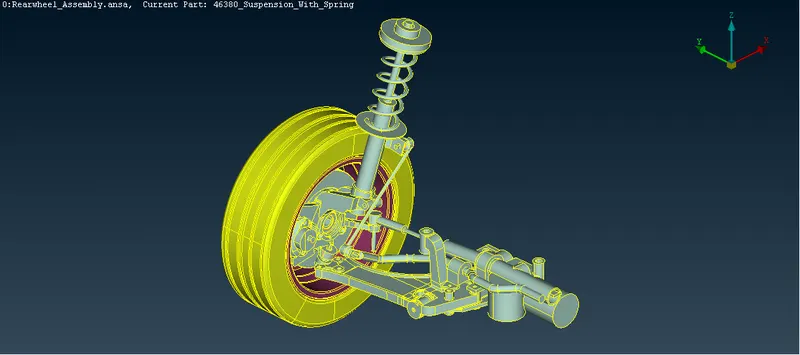
- Now we have perform a geometry check for the model, to do so go to tools>>checks>>geometry>>visible>>exceute.
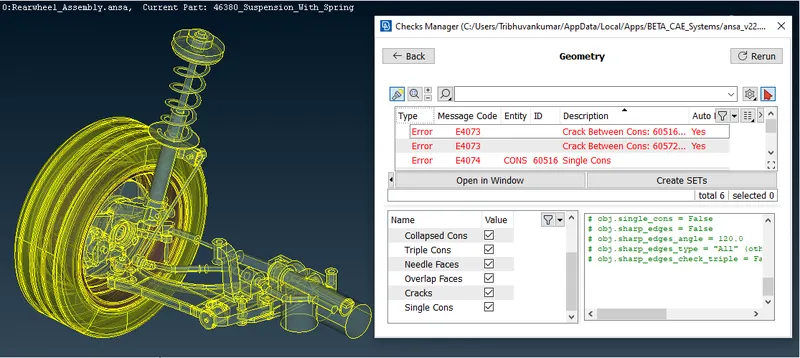
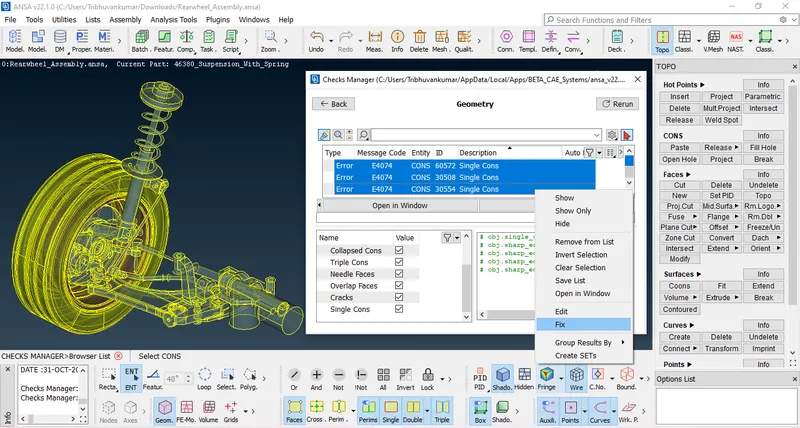
- Since we have found some errors in the model we have to fix them Fo that select all errors at once then right click and hit fix it will fix all the geometrical errors.
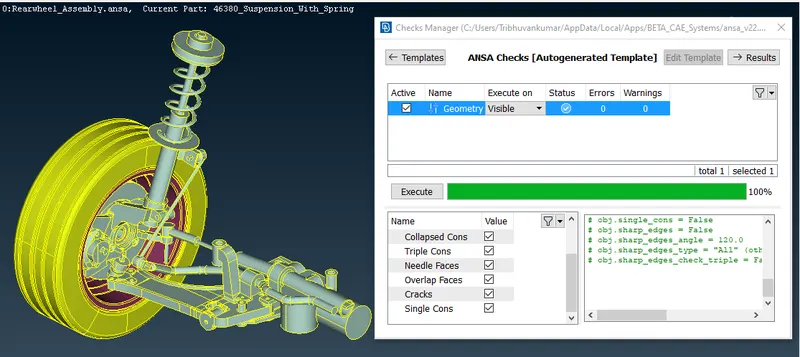
- Now once Geometry cleanup is done we have to set different PID's for all components seperatly in suspension parts. For doing so go to tools>>PID>>new>>Pshell>>Give Name to PID.
- For Part selection go to topo module>>faces>>Set PID>>Select entity and select PID from popuped window and hit ok.
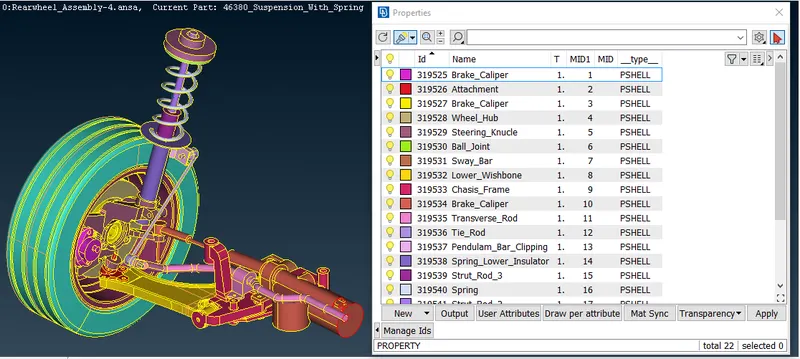
- Now after this we have to Do some topological cleanup by cut options in Faces.
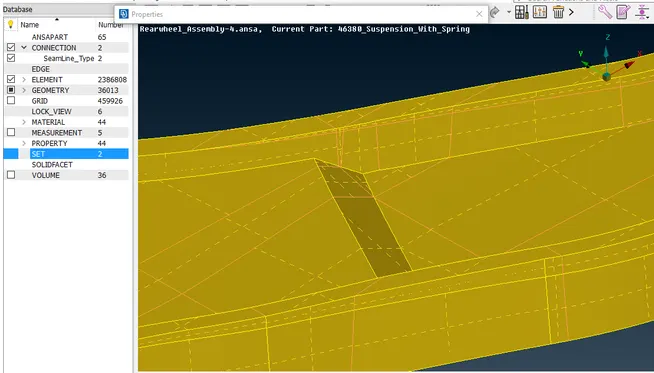
- Now we can directly jump to meshing a tyre and rim parts by below given quality criteria.
|
S.No |
Quality Criteria |
Value |
|
1 |
Target/Average length |
6.5 |
|
2 |
Minimum Length |
5 |
|
3 |
Maximum Length |
10 |
|
4 |
Skewness |
45 |
- Now we have to set the mesh parameters as its going to be a volume mesh we have select tria for flat faces and ortho trai for curved faces.
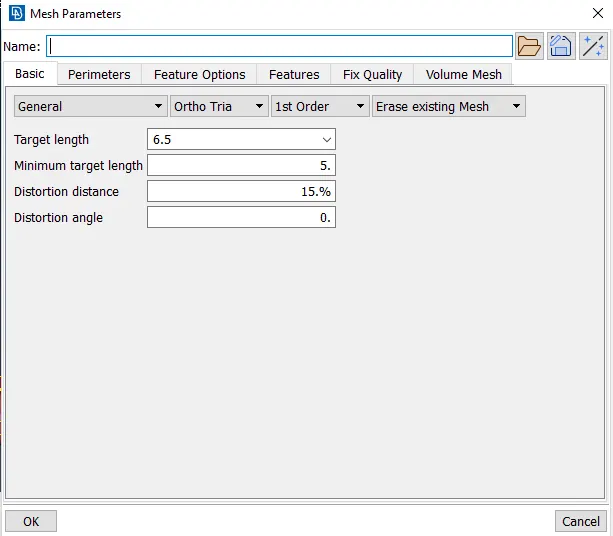
- Similar way we have to set quality criteria as well for that hit F11 key from keyboard and set quality criteria.
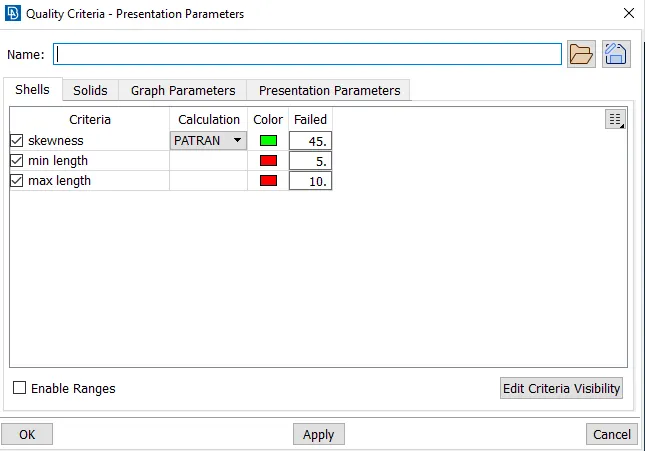
- Go to mesh module>>classic mesh>>Mesh generation>>best select areas and mesh components.
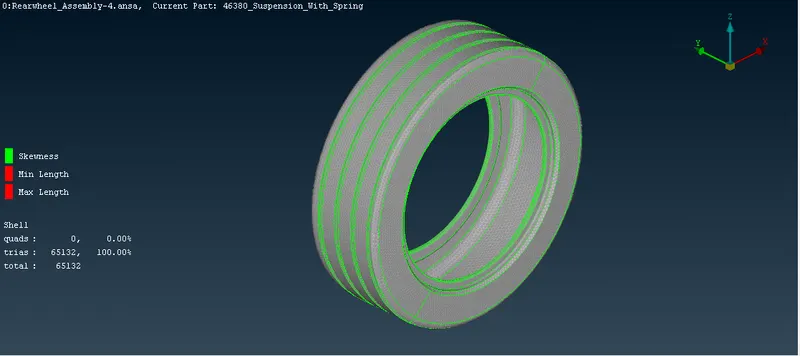
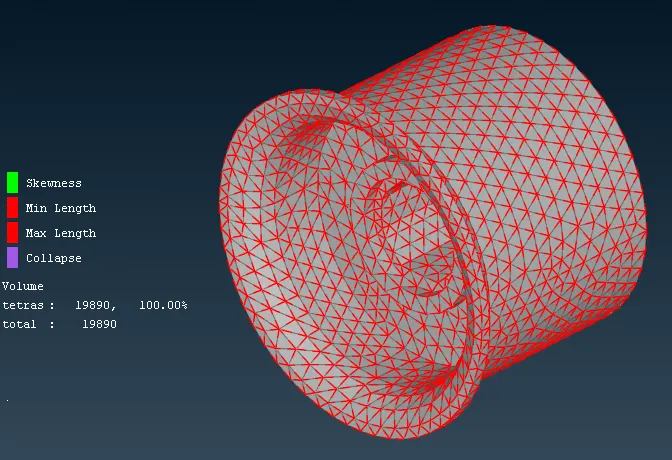
- Now we have to generate Volume mesh for the given model, for that go to volume mesh>>Define>>select entities>>new window will open there right click on type and select Tetra Rapid.
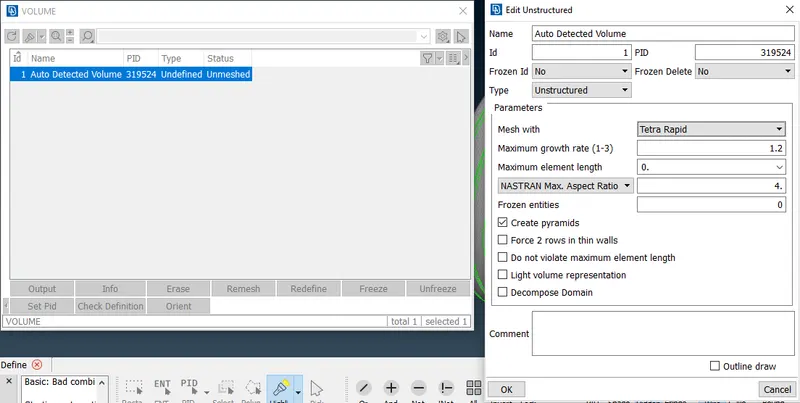
- Hit ok and the from below window hit remesh.
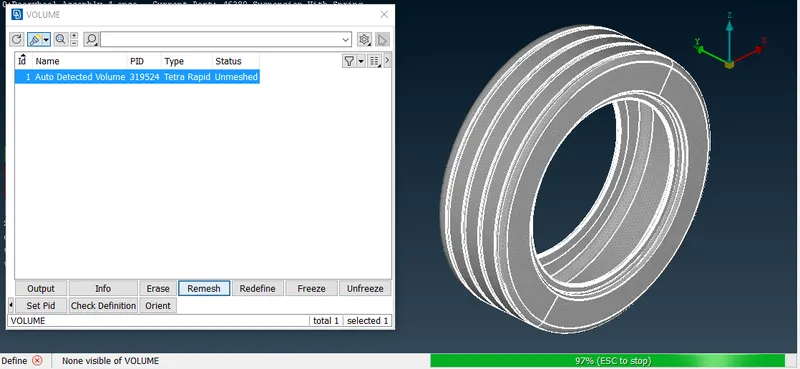
- After clicking remesh status will change to meshed and then we have to check if there is any tet collapse errors are coming or not.
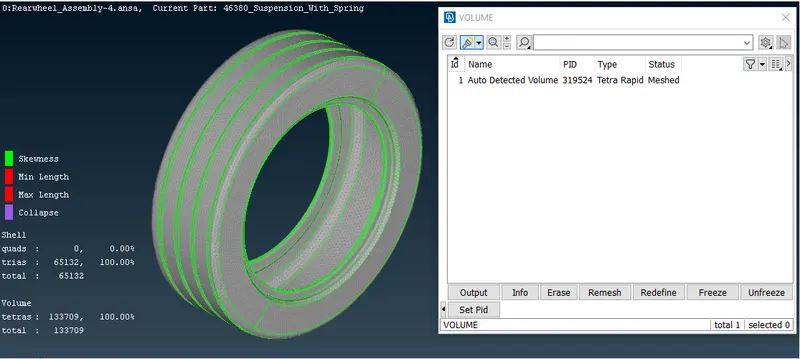
- As there is no tet cllapse errors are found then we can go for next part and in same way we can mesh rim as well.
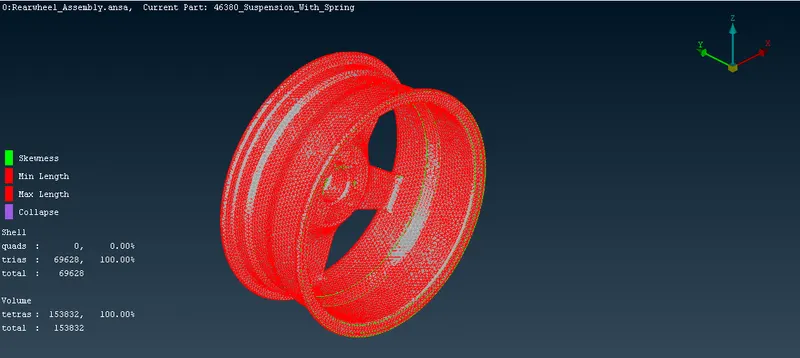
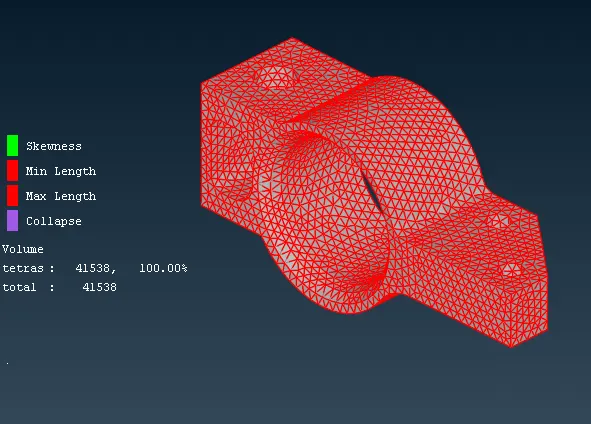
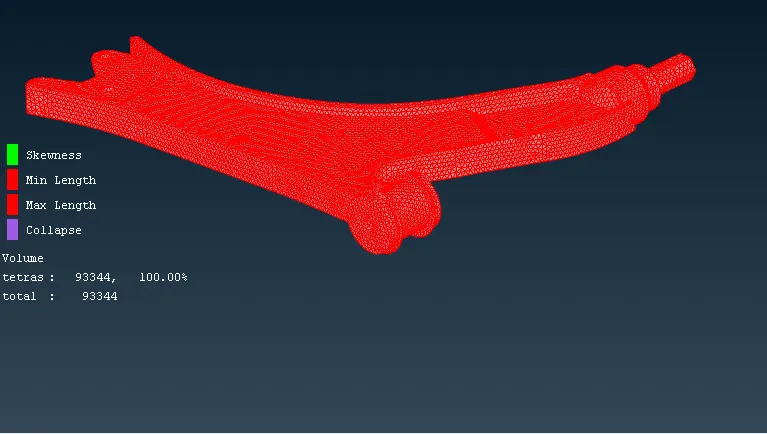
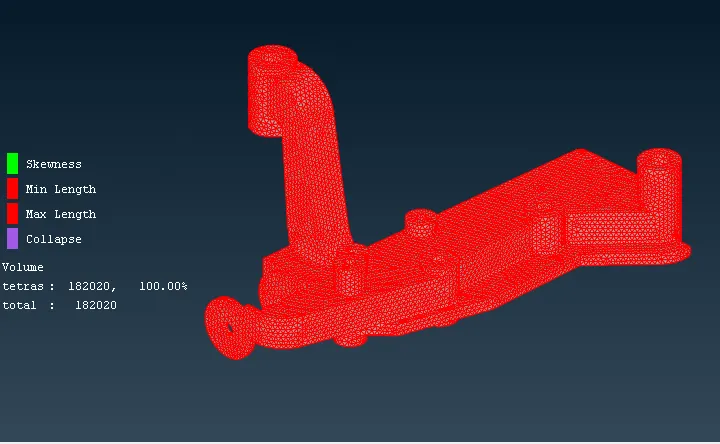
- Now we have to repeat above volume mesh procedure for reaming parts which do not have thickness less than 5mm by below mentioned quality criteria.
|
S.No |
Quality Criteria |
Value |
|
1 |
Target/Average length |
4 |
|
2 |
Minimum Length |
2 |
|
3 |
Maximum Length |
6 |
|
4 |
Skewness |
45 |
- From above condition we have to set mesh parameters and quality criteria.
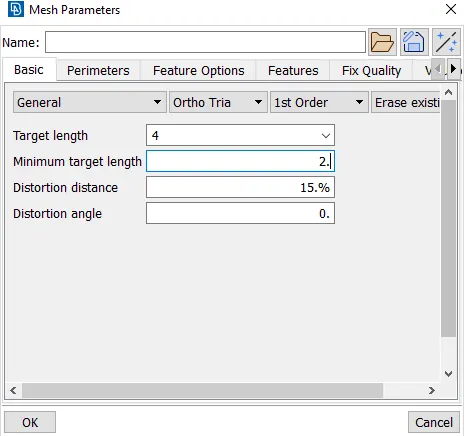
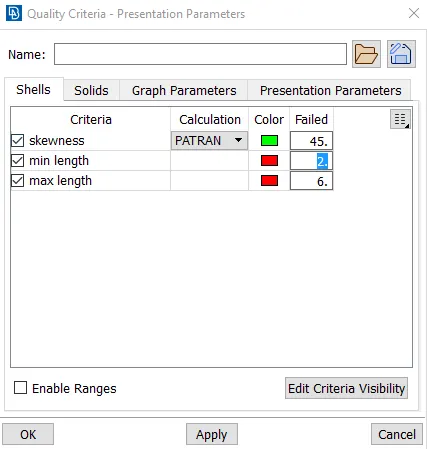
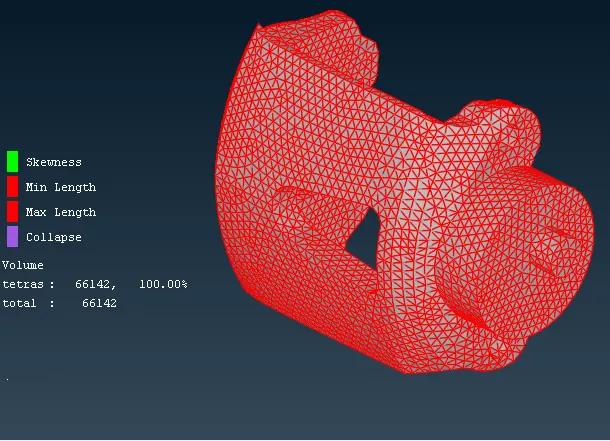
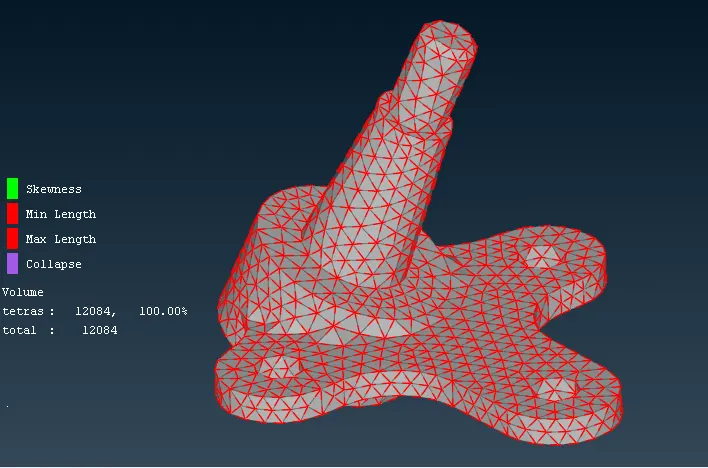
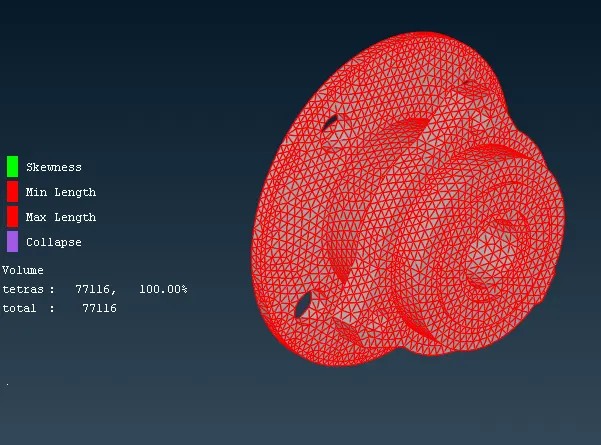
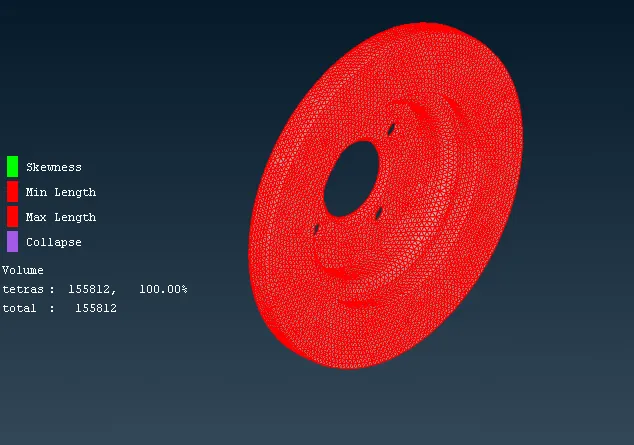
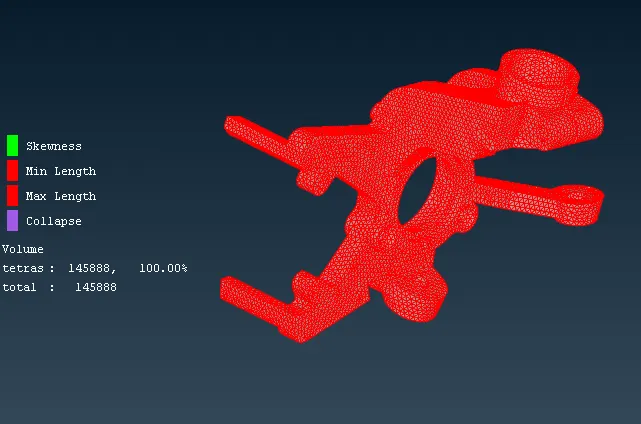
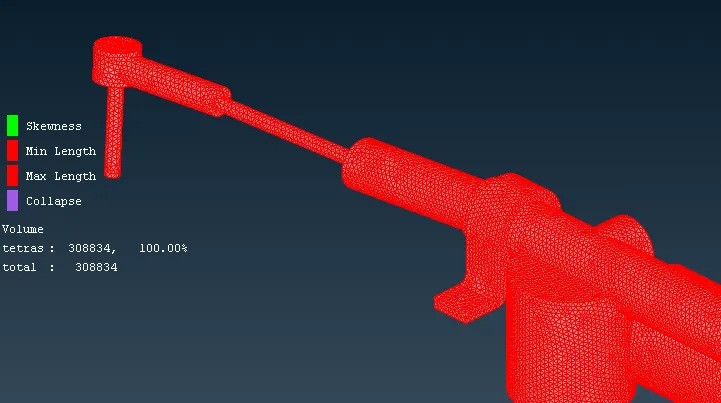
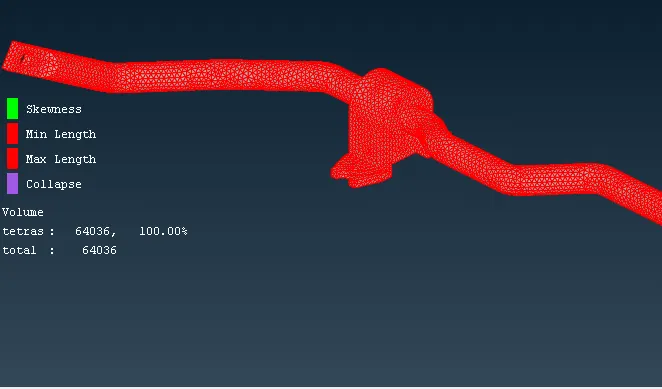
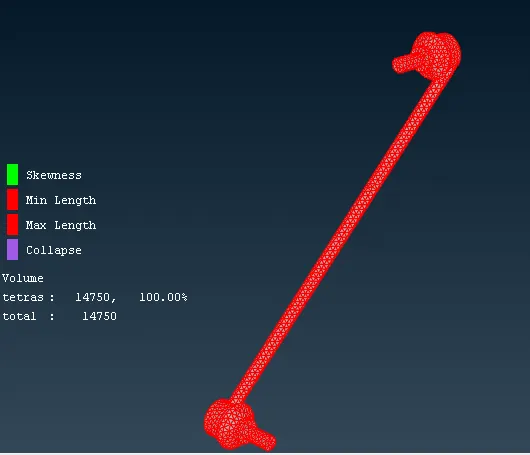
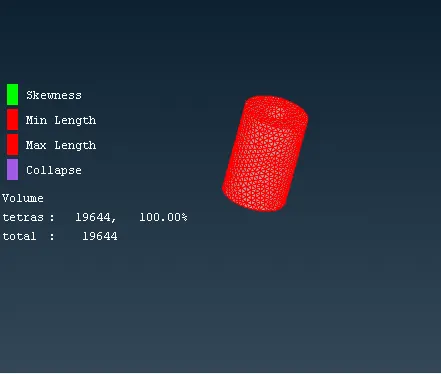
- After meshing all the parts are look as per below snaps.
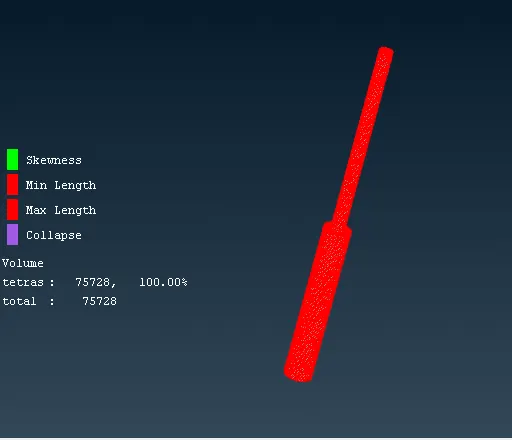
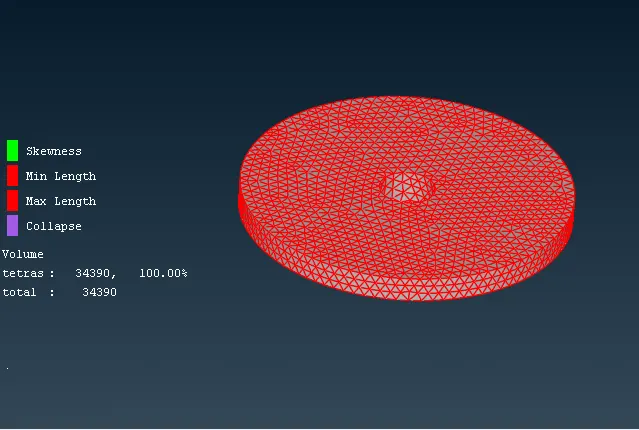
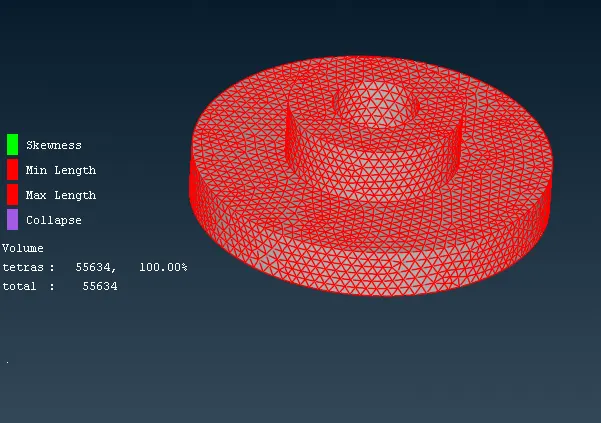
- Now comes the Constant thickness part with less that 5mm thickness.
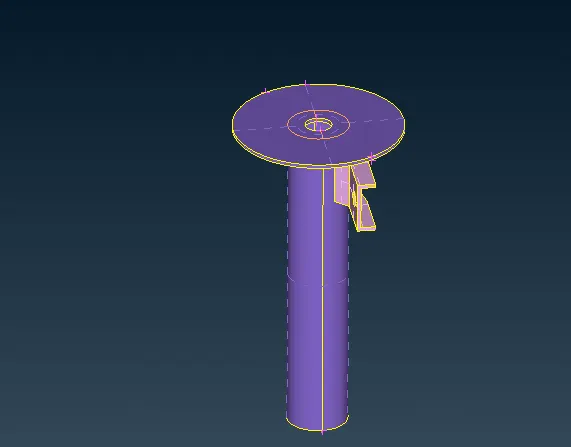
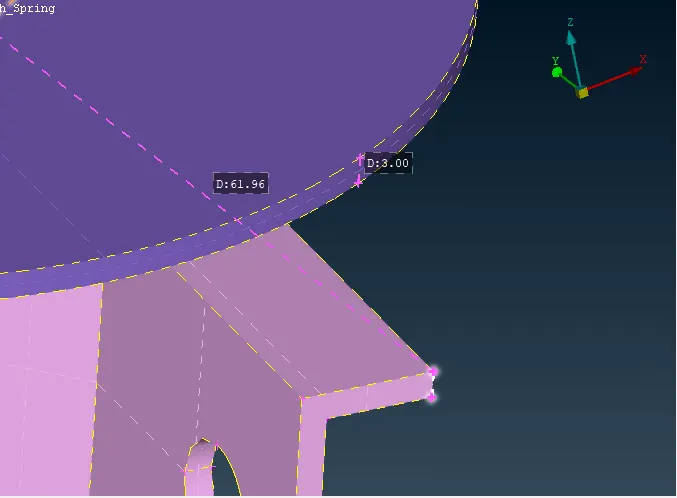
- Now we have to extract the mid-surface for this parts
- For doing so go to topo>>faces>>offset>>select faces and hit of the as per arrow direction set thickness half value as 1.5 and middle mouse click.
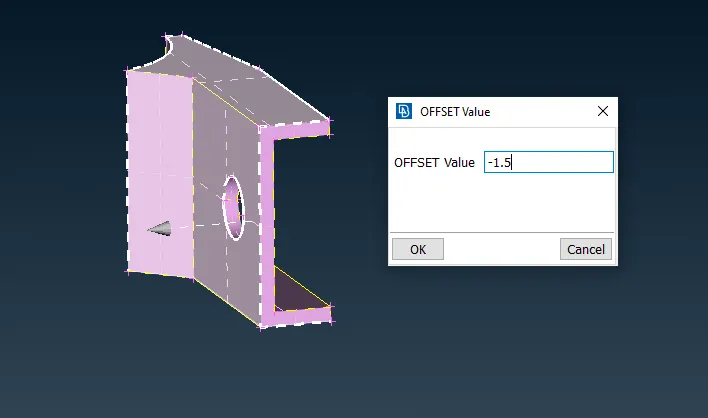
- Repeat the same procedure for extracting mid surfaces.
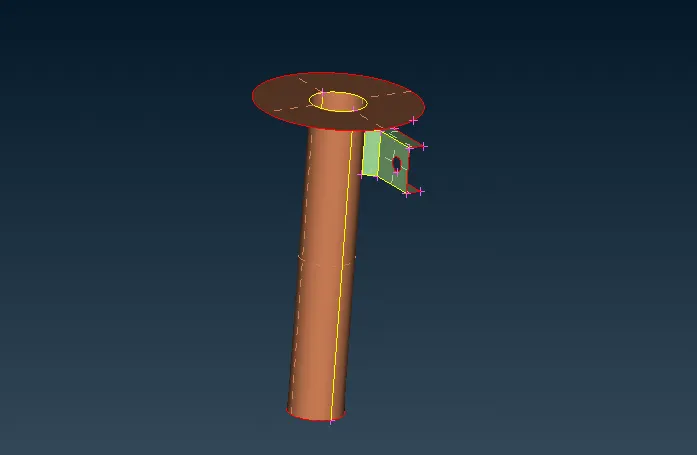
- Now we have mesh this component and assign PID with suitable thickness to it and to satisfy quality criteria.
- Before going to mesh we have to first set mesh quality and mesh parameters.
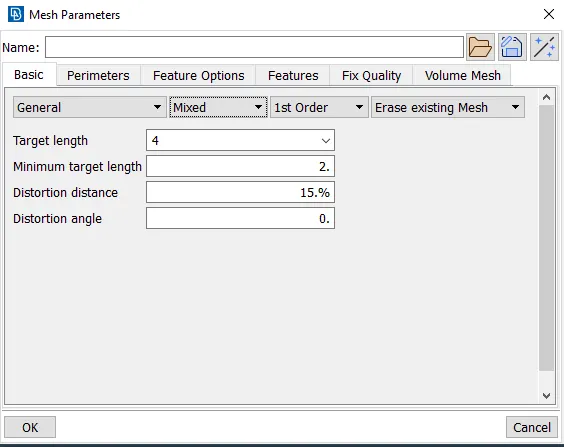
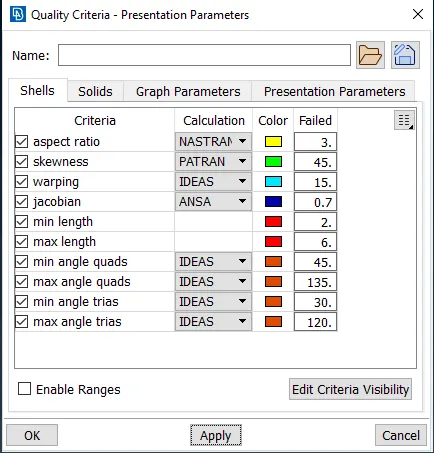
- Now go to mesh module>>classic mesh>>Mesh generation>>best select areas and mesh components.
- Now we have to clear any quality issue present in the mesh and proceed for nex process.
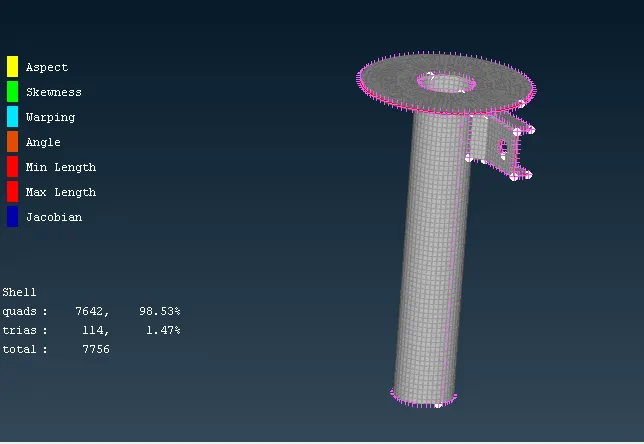
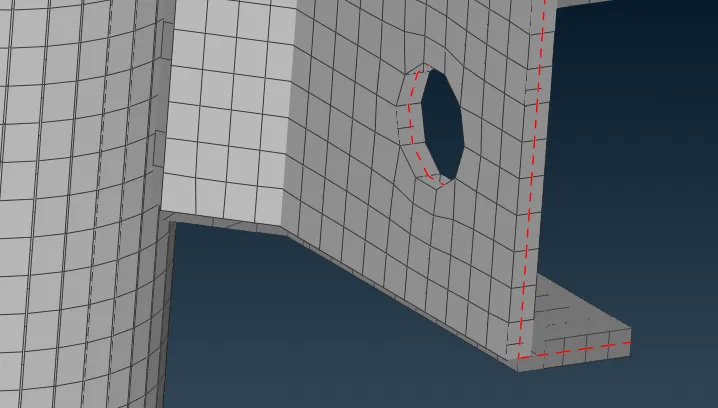
- Now we have to create the connections for the given model for that go to Nastran deck and start giving RBE2 elements and RBE2 cluster elements for fixed and bolted joints.
- Go to RBE2 multi nodes and select the nodes by nodes or by path method and after selection click next and hit ok once done.
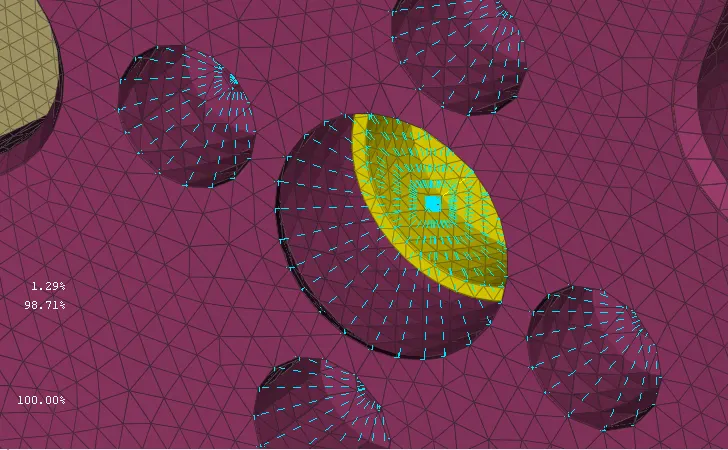
- To create Bolted joints go to RBE2>>two nodes and select cluster element centre node and hit ok.
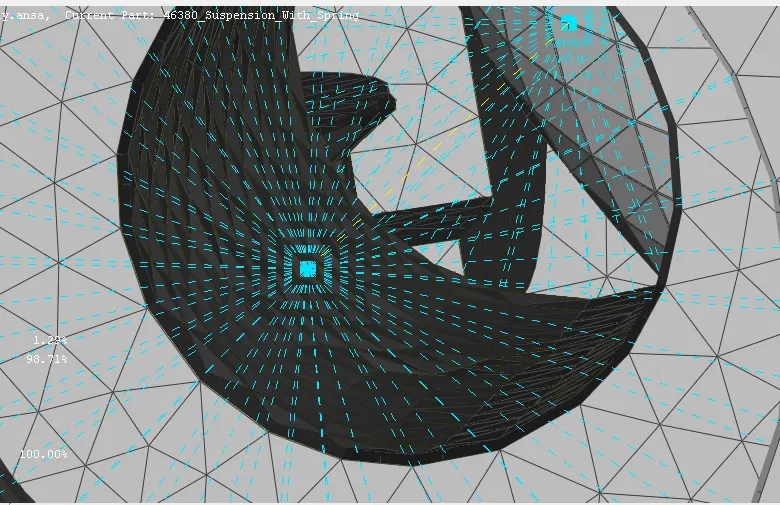
- Similarly at this region we have to generate Seam weld connection. Refer below snap.
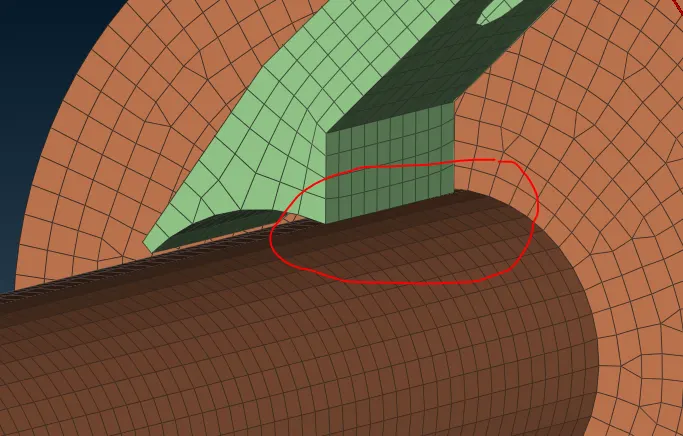
- For that first go to Mesh>>FE to curve the create a curve there.
- Now go to Assembly>>convert>>curves>>seam line>>hit ok.
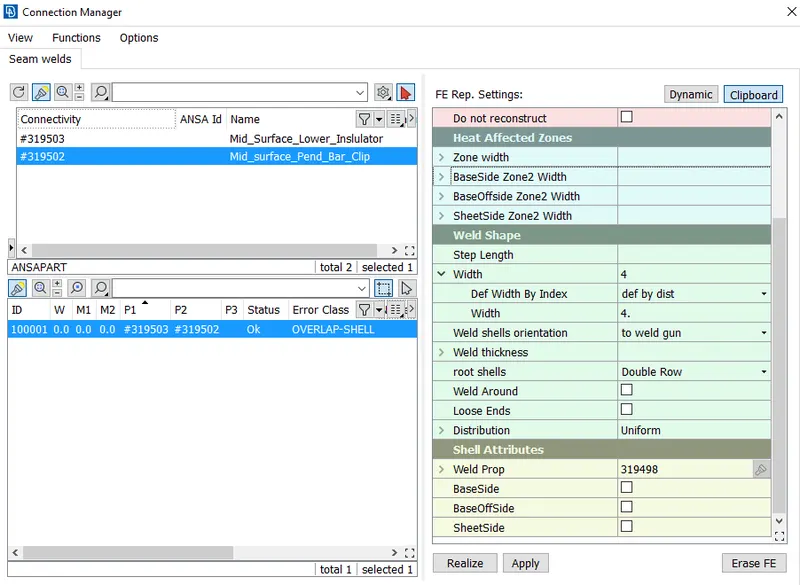
- Go to Conection Manager>>select converted connection>>select P1 & P2.
- In FE type Select overlap shells, give search distance as 20 then width as 4, create Weld PID and then hit apply then realise.
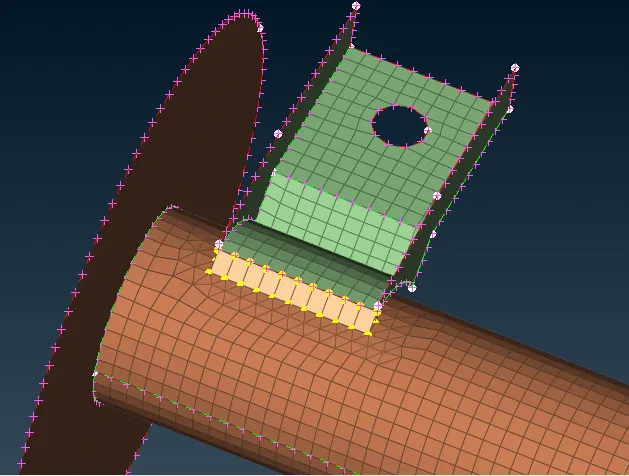
- Weld joint has been created.
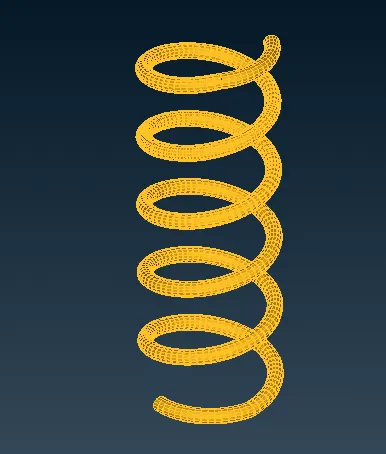
- Now at last we have to represent Spring element as CBAR before doing this we have to create mid-curve for spring.
- For creating mid surface for spring go to topo module>>curves>>middle>> select coons present on the perifery of the spring cross section for first part and for second select opposite coons and hit ok.
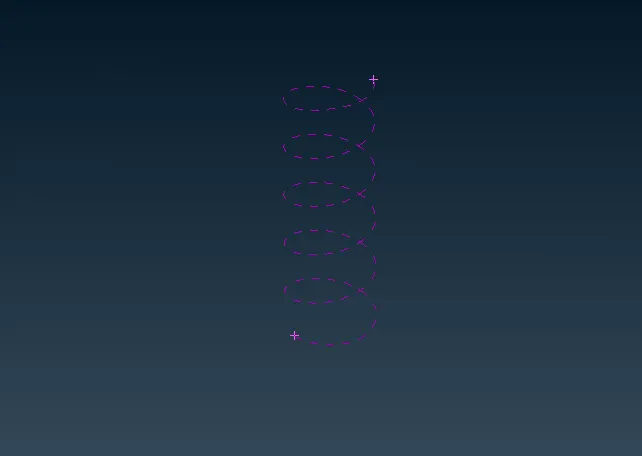
- Now go to >>topo module>>curves>>connect>>multi>>select all curves and then hit ok, all curves are now joined.
- Create COG point on the curve, for that go to topo mosule>>points>>on COG and select curve hit ok.
- now go to nastran deck>>CBAR>>Tick orientation with nodes>>pick curve(box)>>select curve then middle mouse click>>select COG point middle mouse click. Now add element length as 4.
- Now we have to create PID for this in PID we have calculate area and then for that we have give radius value and hit ok it will automatically calculate Area & Inertia. for getting radius input window click on area the shift & ? button together.
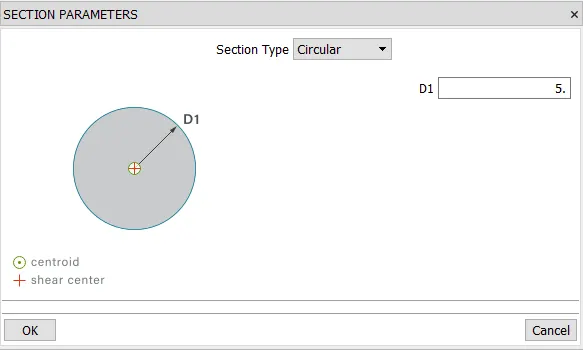
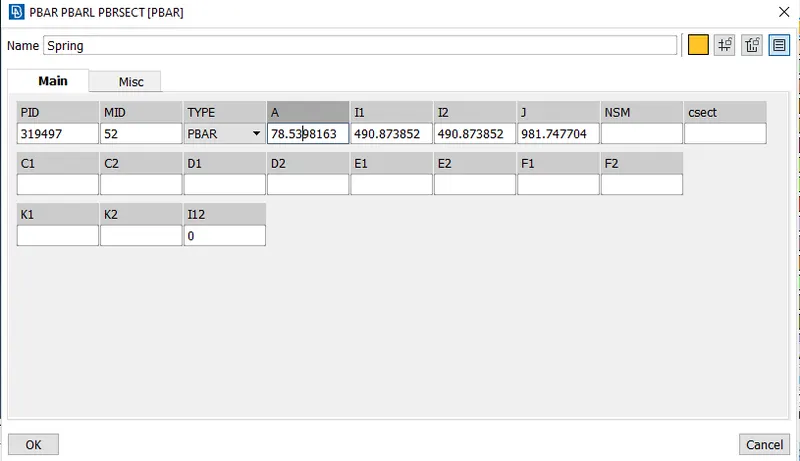
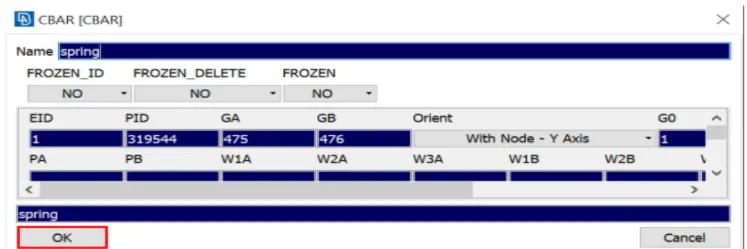
- then hit ok then again ok and CBAR has been created.
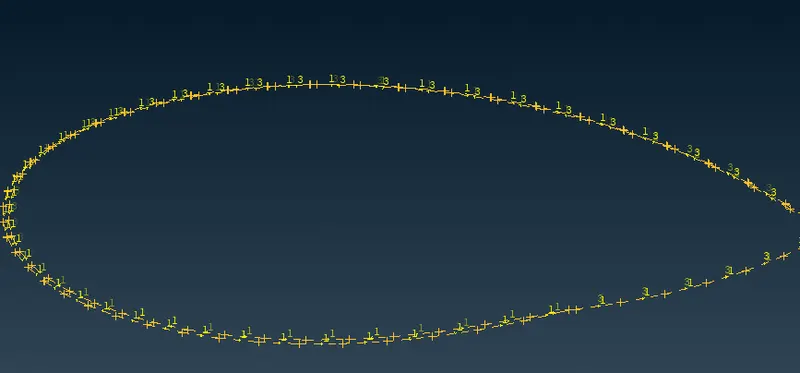
- To see 3D representation, go to quality criteria in presentation parameters window>> Line element Cross section>>as solids and ok.
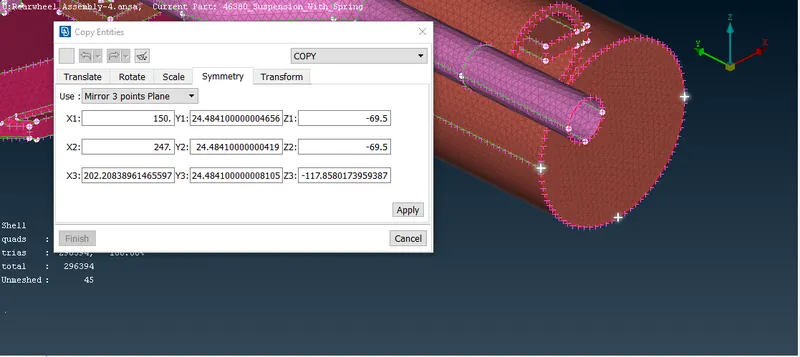
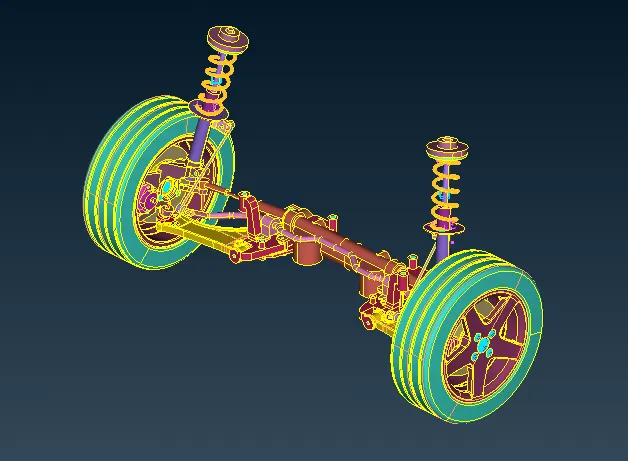
- Now the only thing has been remaining is Mirroring the model to complete the assembly properly.
- For that go to utility>>transform>>copy>>select utility>>symmetry>>select by three point>>select three points to create plane the hit accept then ok.
Learning Outcome-
- Learnt about PID segrigation of different model.
- 2D mesh and 3D mesh generation with quality criteria clearance.
- Generating Connection and C-BAR elements.
Conclusion-
In this project we have successfully created mesh and with given quality criteria and deployed connection to it with successful mirroring of element using symmetry command.