Assignment 1-2D Meshing Challenge
Aim-
To Mesh the given model passing all quality criteria by extracting mid-surface.
Objective-
- Carry out geometry cleanup operation on the given models.
- Extract mid surface.
- Clean mid-surface geometry.
- Ignore holes less than dia 5mm.
- Create a 2D mesh with target length 5mm, min 3.5mm max 7mm.
- Assign proper thickness, by creating a generic property.
Procedure-
- Initially we will start with importing a given model to hypermesh.
- Go to Import>> file type>> select file destination>>>click import.
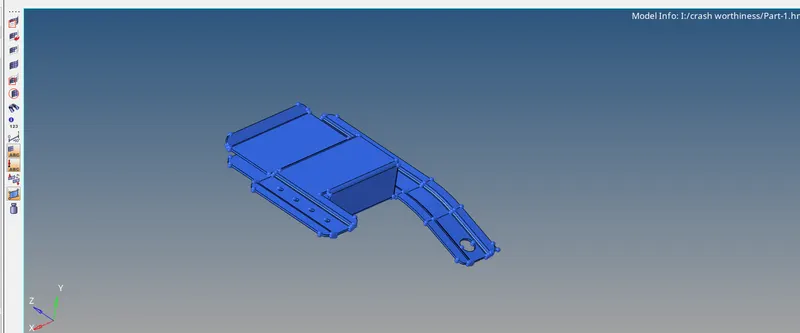
- Part-1 Topo View:
- The given model is viewed in topo mode to view the surface edges.
Part 1:-
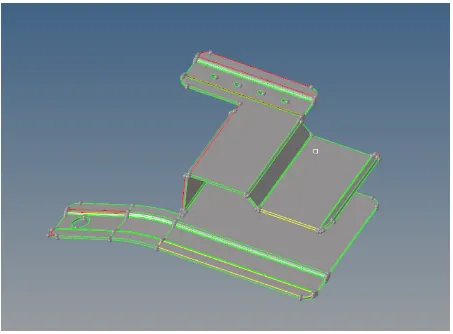
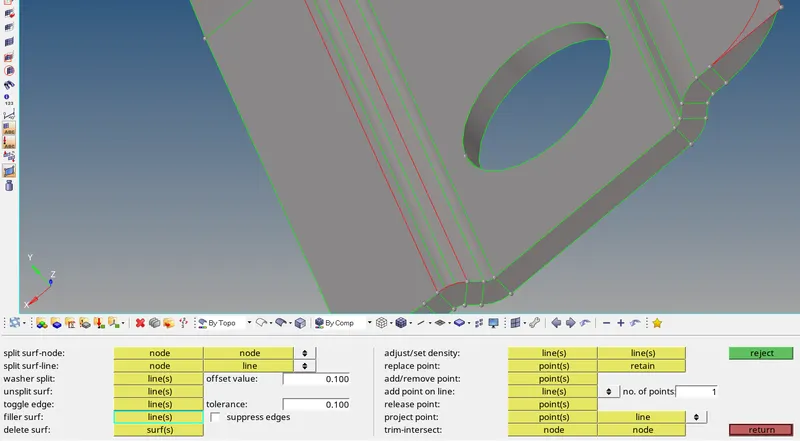
part 2:-
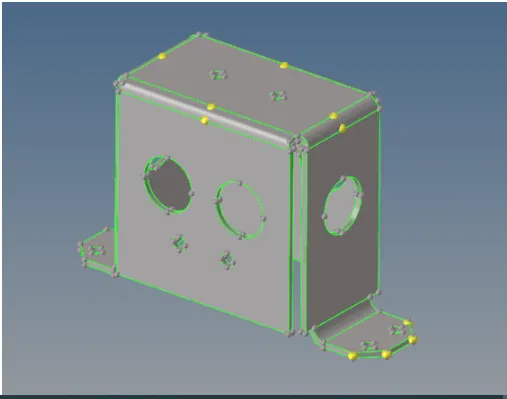
part 3:-
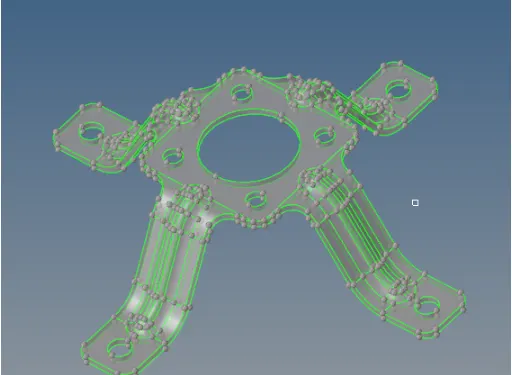
- The many number of missing surface and duplicate surface present in the model
- create surfaces used to Geometry > Surface > spline/filler.
- Unwanted surface trim in the trim surface used to Geometry > Surface edit > trim with lines.
- Duplicate surface deleted used to Geometry > Delete > Surface.
- Ignore holes less than 5mm.fill the holes used to Geometry > Quick edit > filler surface.
- Extract midsurface used to Geometry > Midsurface > Auto.
- To clean the Geometry and suppress the edges use Geometry >Quick edit > toggle.
- The Geometry cleanup show as given below.
Part 1:-
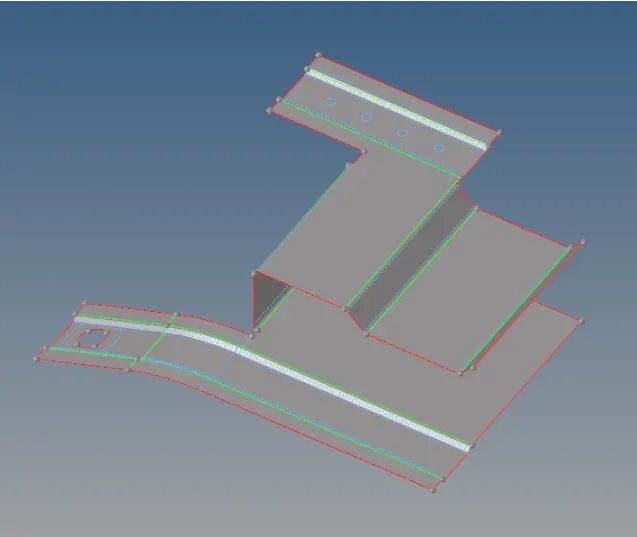
Part 2:-
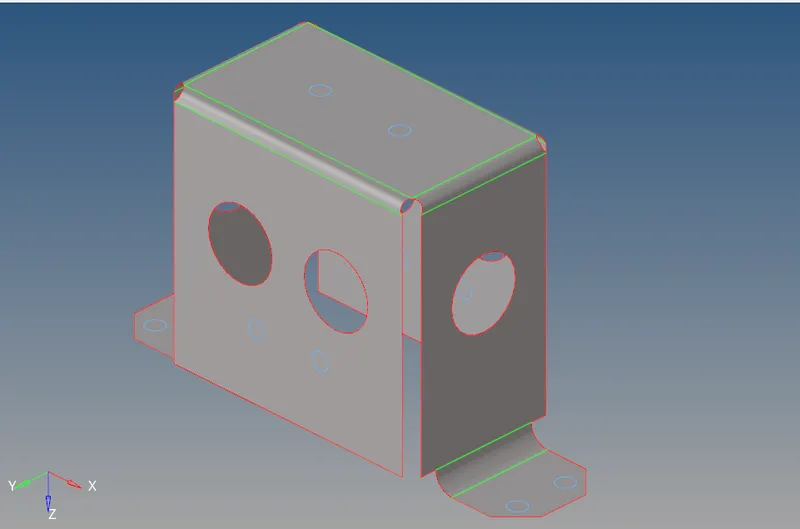
Part 3:-
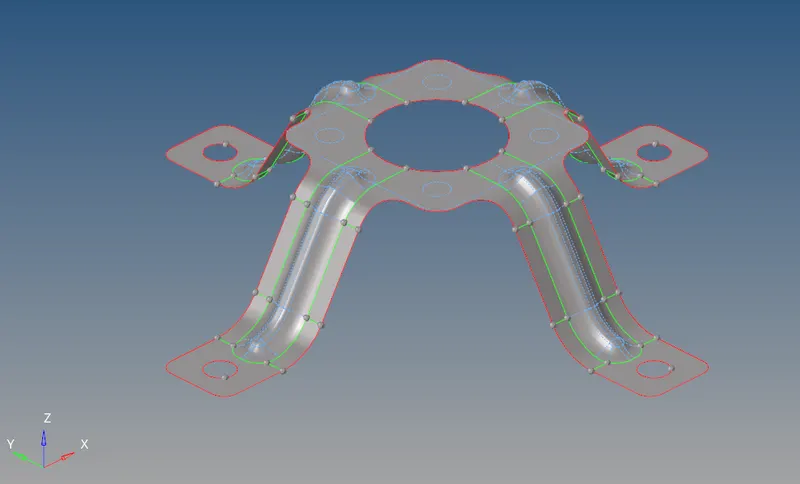
- After geometry clean up, the next step is to generate the mesh. Before generating the mesh, there are some prerequisites. They are filling up the criteria editor
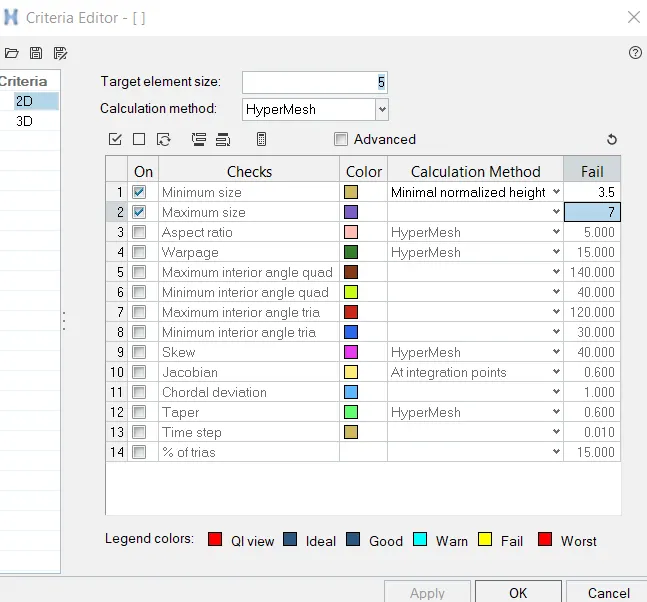
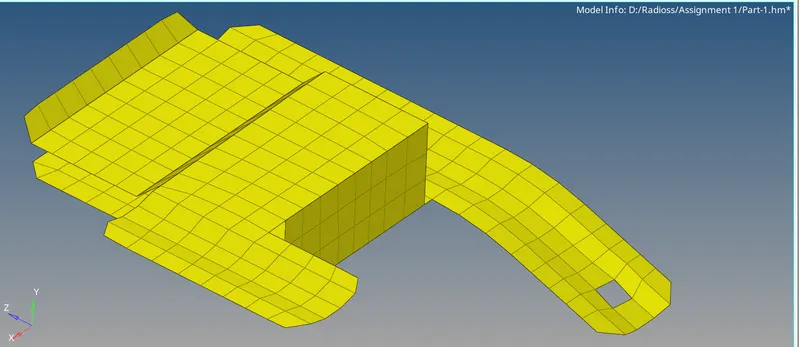
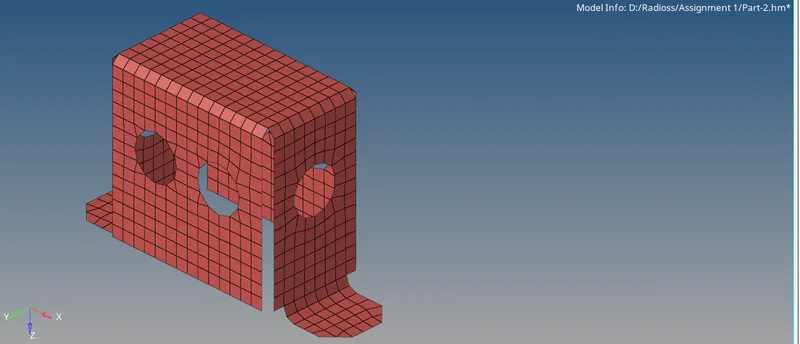
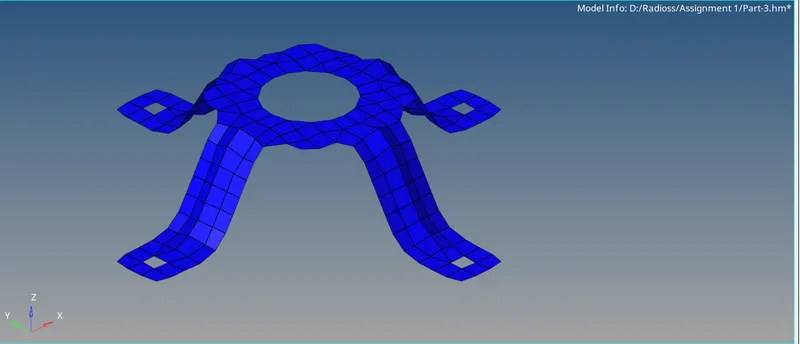
- The meshing is done by using auto mesh tool under the 2-D tab with elements size as 5 and element type as mixed.
- The meshing of each component is done surface wise from one small surface.

- Similarly, meshing is progressed into adjacent attached surfaces to mesh the whole model.
Part 1:-
Part 2:-
Part 3:-
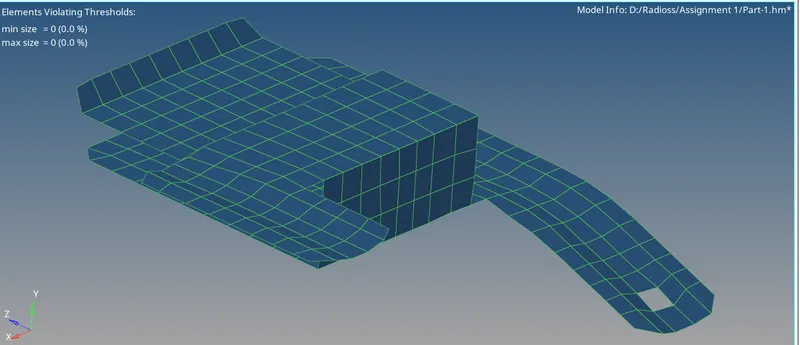
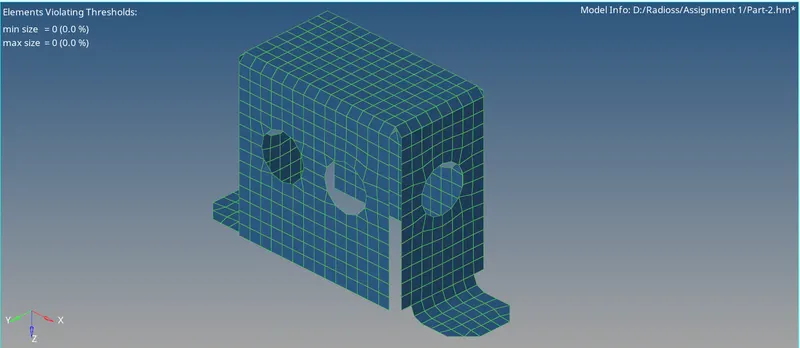
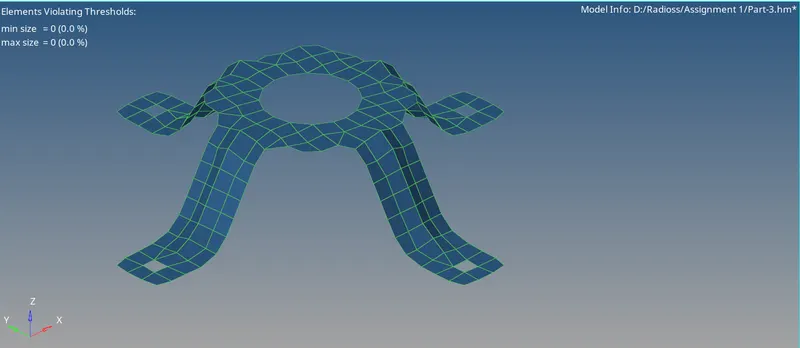
- The meshed elements of all components are checked using the quality index tool.
- The elements violating the specified quality criteria are marked yellow and red.
- Cleanup tools like element optimize and place node within the quality index is used to optimize the violating elements.
- For elements that are not optimized to within the criteria range with the quality index tool, the Elem cleanup tool is used.
- In situations where quality index and elem cleanup tools failed to rectify the violating elements, the auto mesh tool is used to remesh the non-optimized elements.
- The elements of all components are checked if any more violating elements are present.
- If present, the above steps are repeated until all elements fall under the given quality criteria.
Part 1:-
Part 2:-
Part 3:-
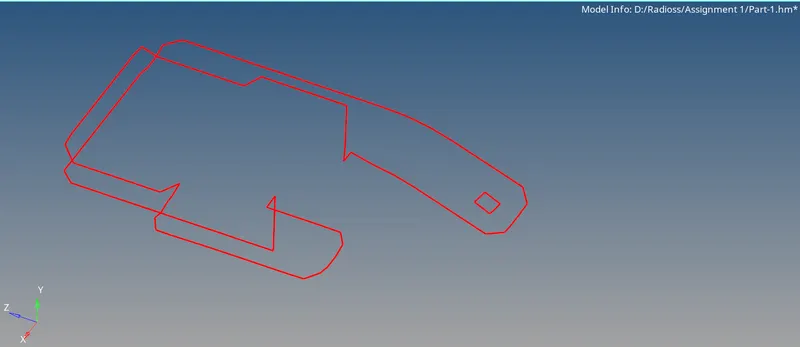
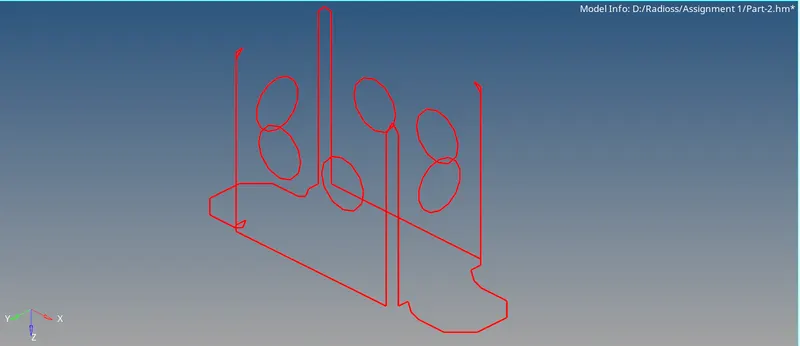
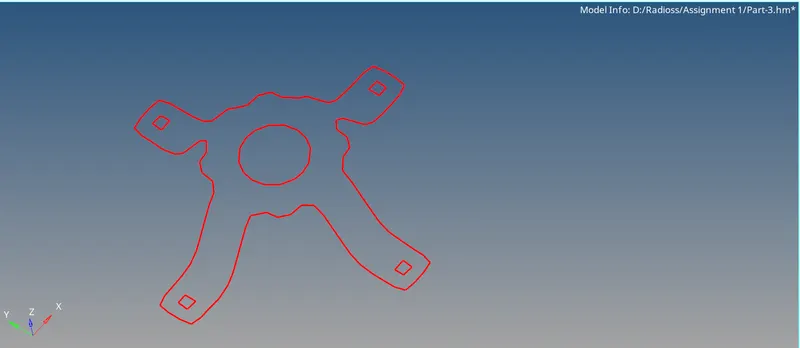
- The next step is to check the free-edges. The shortcut for that is Shift+F3 (edges). By entering into the edges panel, selecting the component, and click on "Find edges". The free edges are obtained.
Part 1:-
Part 2:-
Part 3:-
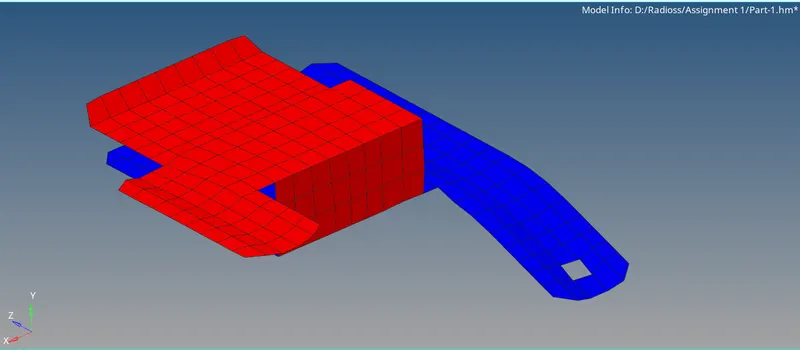
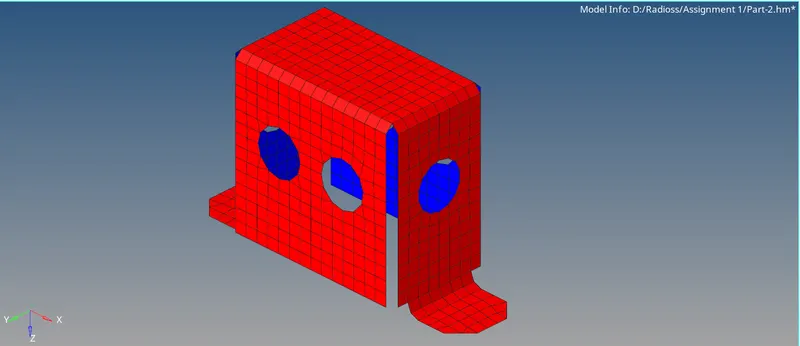
- The next step is to check for "Normals". The normals option is available in the "Tool" panel. After entering into the normal option, all elements are selected. In order to view the normals for every element.
Part 1:-
Part 2:-
Part 3:-
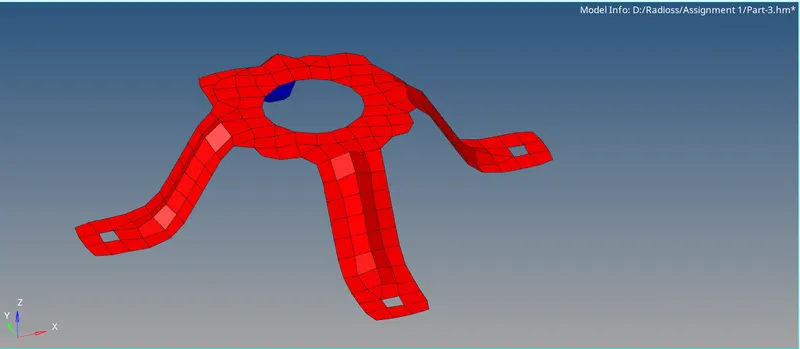
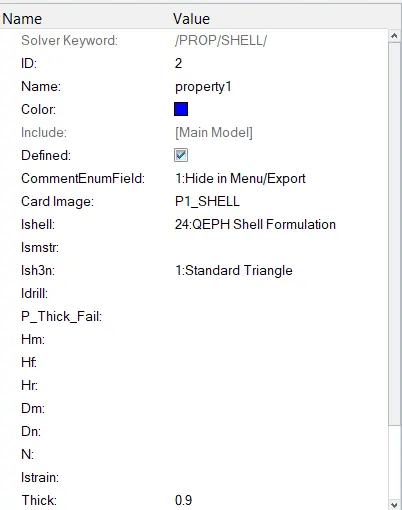
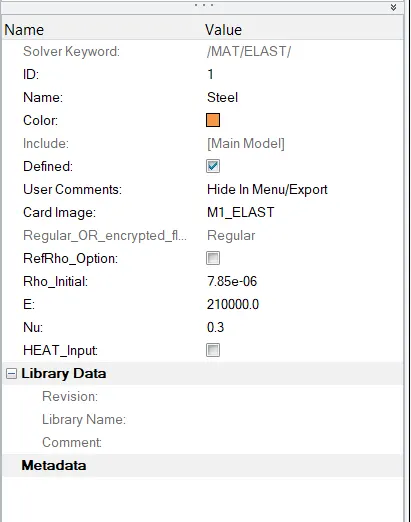
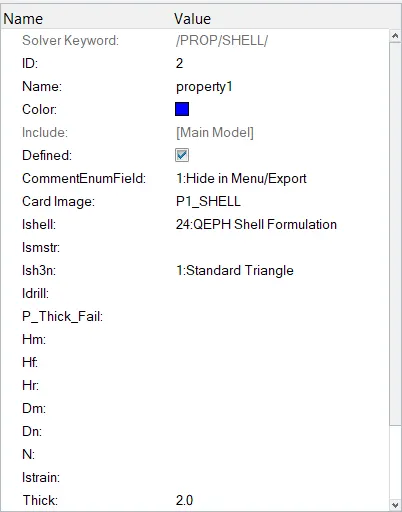
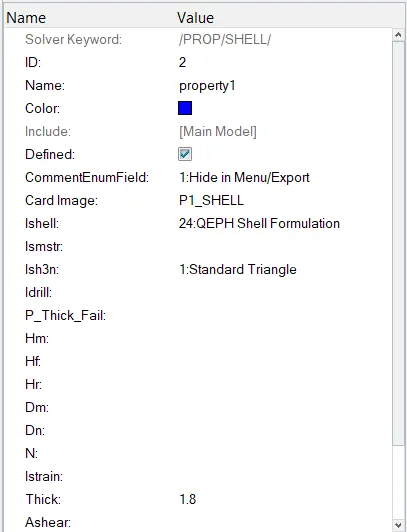
- After generating the mesh, the next step is to assign the thickness. For assigning thickness, a property needs to be created. Property can be created by right-clicking on the Tab bar. And the created property can be renamed for easy understanding, appears in the tab bar.
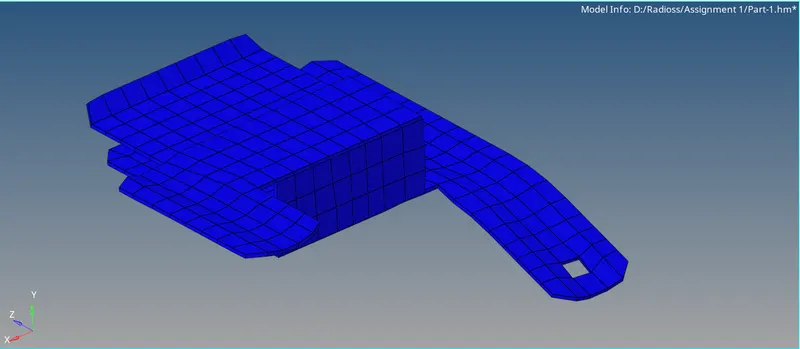
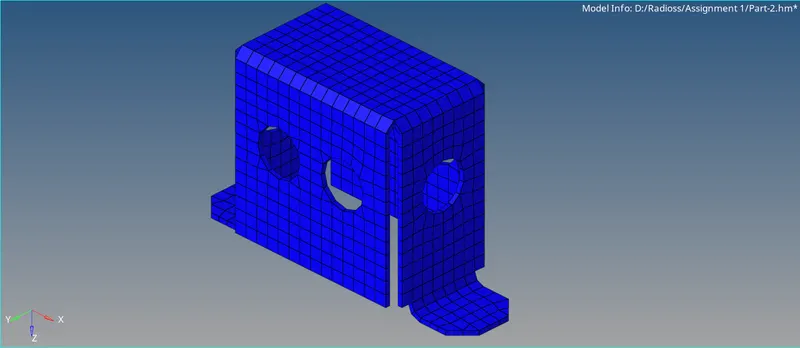
- After creating a property, By clicking on it the parameters with respect to that property are shown. By assigning the value to be 0.9 mm for part 1, 2mm for part 2 and 1.8mm for part 3 respectively.
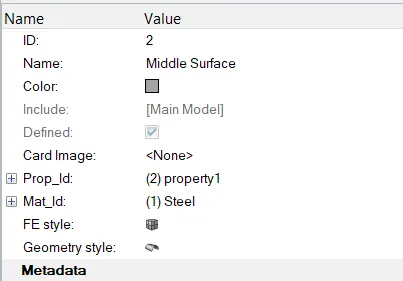
- The next step is to assign the property to the mid-surface component, where the elements are present. Assigning can be done by right-clicking on the component to which the thickness should be assigned. Immediately, A dialog box appears, in that there will be an assigned option. By clicking on it, a dialog box. In that, the property is chosen and applied.
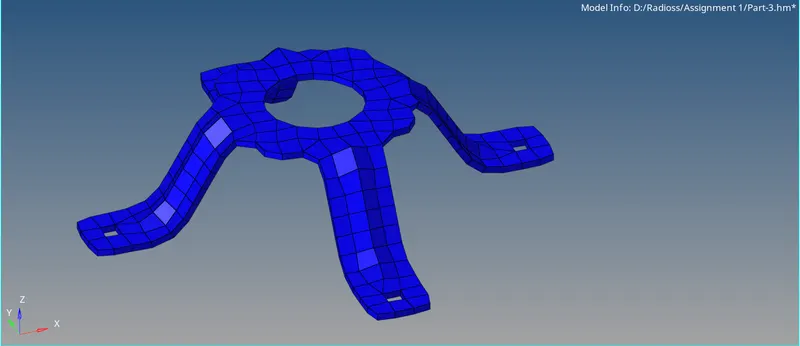
- Therefore, The final component after assigning the thickness.
Part 1:-
Part 2:-
Part 3:-
Conclusion-
- Extracted the mid surface and performed the geometry clean-up on the given components.
- Generated a 2D mesh on the given components by following the element quality criteria.
- Finally, assign the thickness for the given components.