Week 12:Project 2-Meshing of Rear Wheel Holder challenge
Aim-
Our goal is to generate mid surface of given component and create mesh and to satisfy quality criteria mentioned in the challenge.
Procedure-
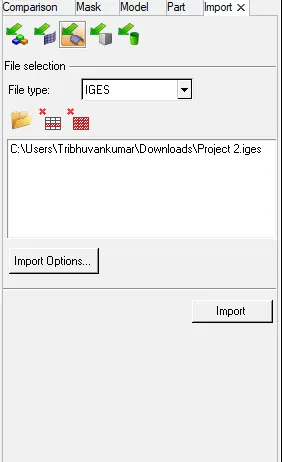
- We will start with importing the model for that go to import>>import model>>select file format as IGES>>Select file location then select file>>hit import.
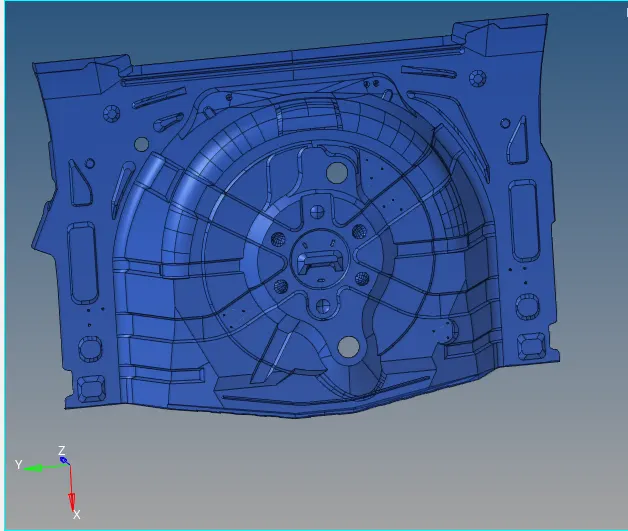
- we will check for any solid present in the model and try to delete the solids.
- Now we will swich the geoemtry color mode and select by topo which will let us check for geometry errors.
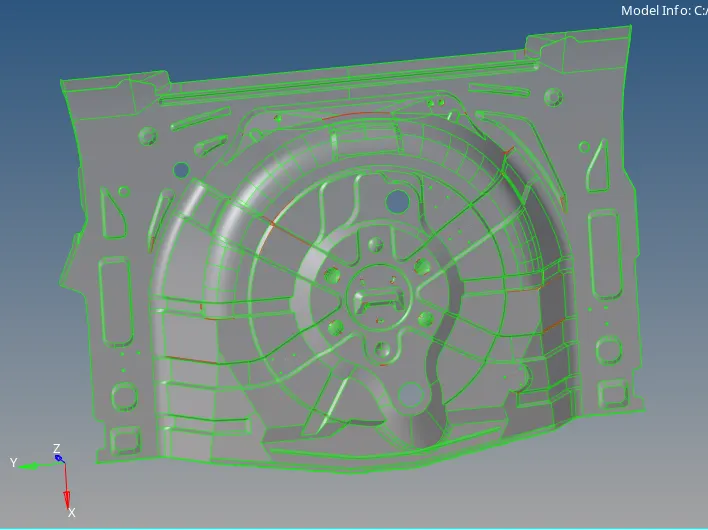
- Since the component have some geometrical issues we have to resolve it, for that go to quick edit panel and togle edges, remove red lines, remove button elements.
- Go to mid-surface generation and create mid surface and also do element clean-up on that and toggle edges properly.
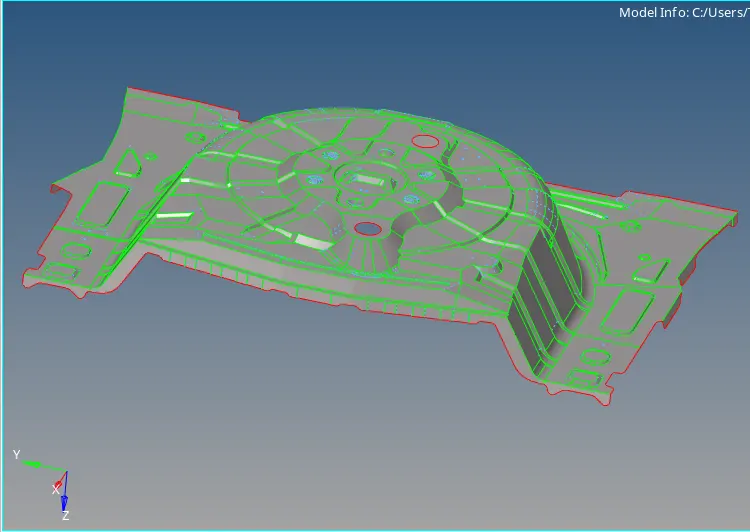
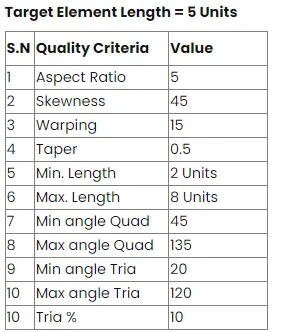
- Once every thing is done set-up the quality criteria as mentioned in the problem and go for meshing the component.
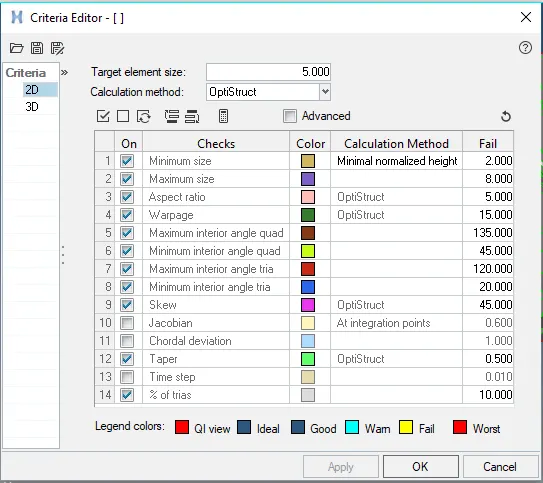
- For setting quality criteria go to preference tab>>then criteria file setting>>update the required values as shown below and hit apply then hit ok.
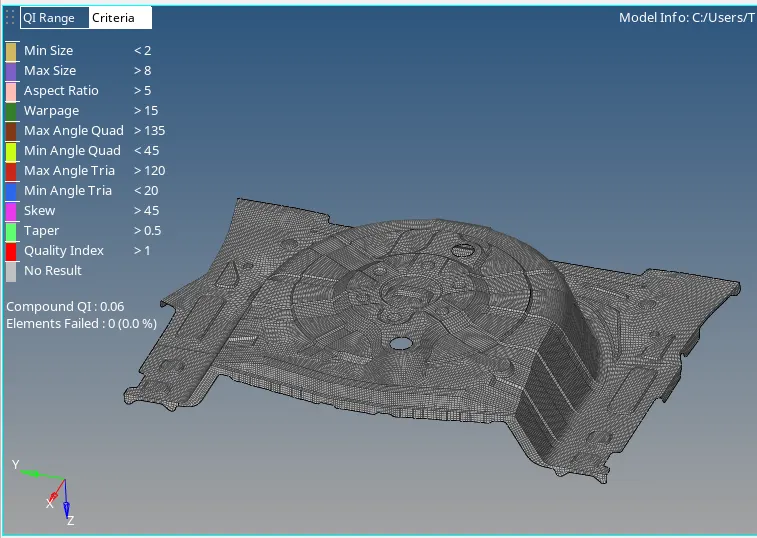
- Go to 2D>>Automesh (F12) and select required surface, element size-5, element type-mixed and hit mesh.
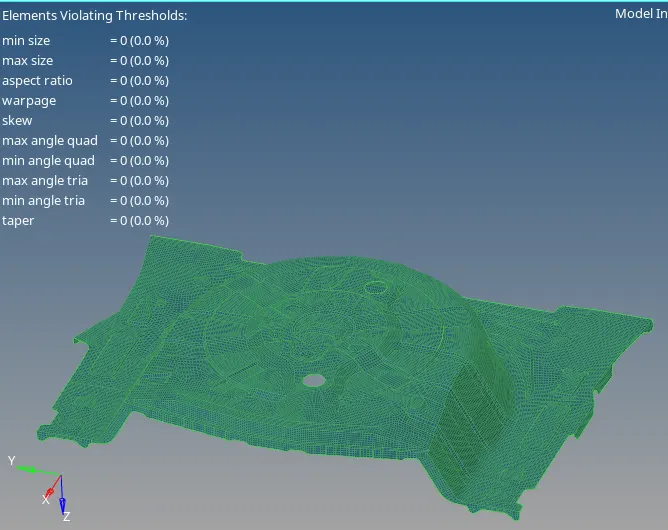
- Since After meshing we get many elements which are failing quality criteria, so we have to remove those errors by element optimize, node optimize, by tria movement or by remeshing the element.
- After all the errors has been eliminated we have to again check the quality parameters and zero error should be there.
- Now we have to check the presence of free edges and if present then try to resolve it, by replacing the nodes with required nodes.
- For checking free edges go to tool>>edges(shift+F3 key)>>select elements and hit find edges and it will show free edges peresent or not.
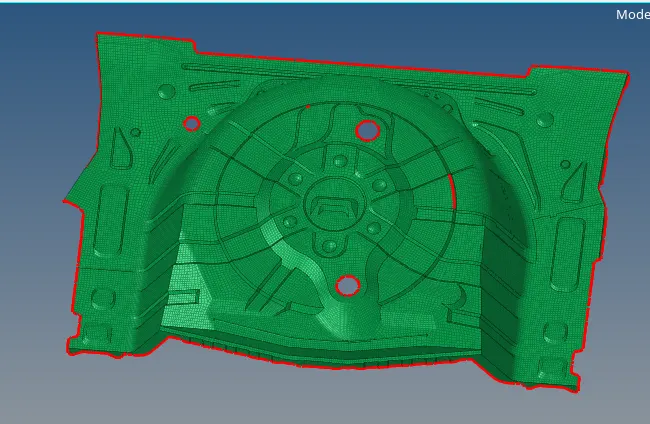
- From oabove snap it is clear that there are some free edges present in the model which we have to remove. for that press F3 from keyboard and start replacing the elements node properly.
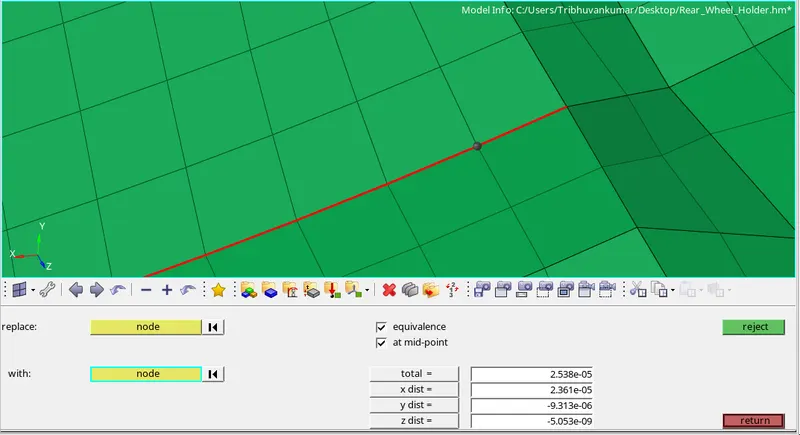
- After replacing all the nodes check free edges again.
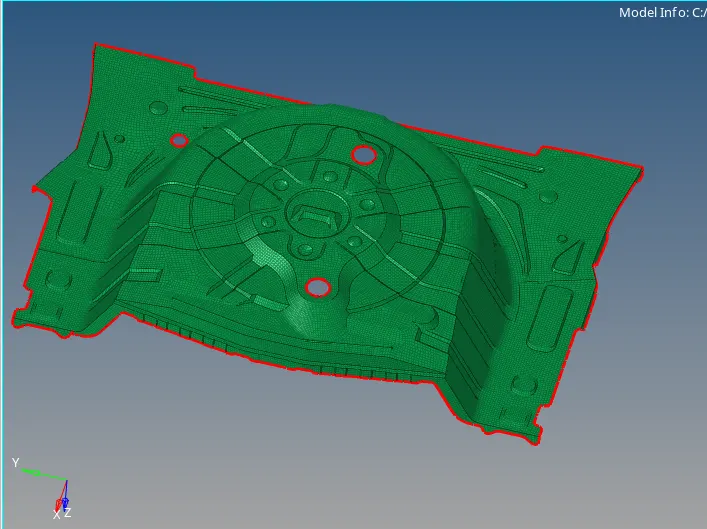
- From above snap it is clear that there are no free edges except for holes and outer boundry, now we move ahead for equivalence, again press Shift+F3 and select all the elements and hit preview equivalence.
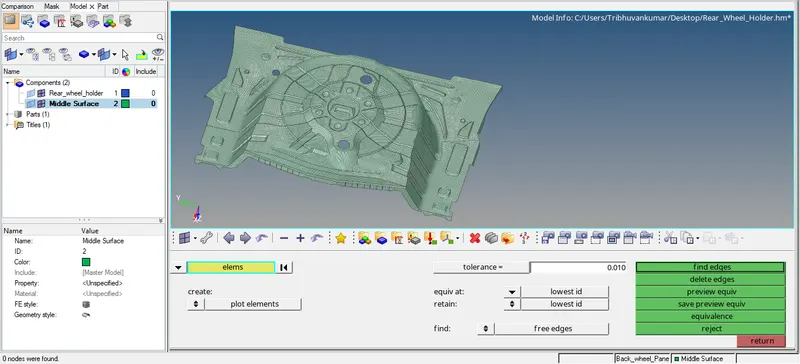
- From above snap it is clear that there is no nodes which needs to be equivalenced.
- No we have to create property card for component as per thickness and assign it to component.
- After checking the distance between 2 point the thickness we will get is 0.75mm so we have to give thickness of 0.75mm the created propety card.
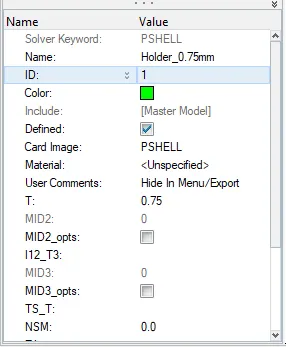
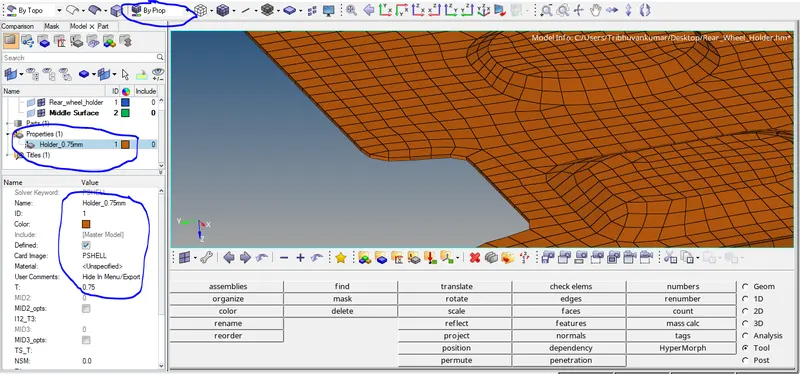
- No we have to check whether we have assigned the property properly or not got to 2D element detail repesentation and check thickness also we have to change elelment color mode to by prop.
Conclusion-
- We have learnt about meshing critical components and asiigning property card.
- We have also aware about how quality criteria is very important in meshing creation and for further processes.