Week 8-3D Tetra Meshing Challenge
Aim-
To perform 3D terta mesh on given models and satisfy given quality criteria.
Procedure-
1.Model-1(Housing Assembly)-
- Initially ww will import the given model for that go to import>>import geometry>>Step file then hit import.
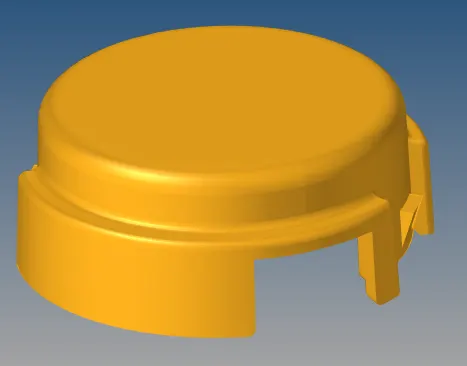
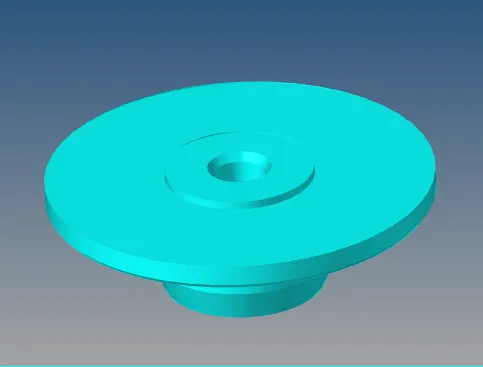
- then go to topo mode and do manual geometry cleanup, also defeature the fillets which are less that the min element size.
- For that go to quick edit panel, geom>>quick edit (F11), try to toggle the lines failing for min element size.
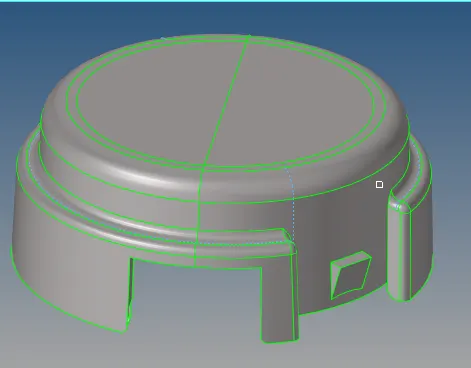
- Now go to 2D>>automesh(F12)>>select surface>>element size-5 & element type- tria.
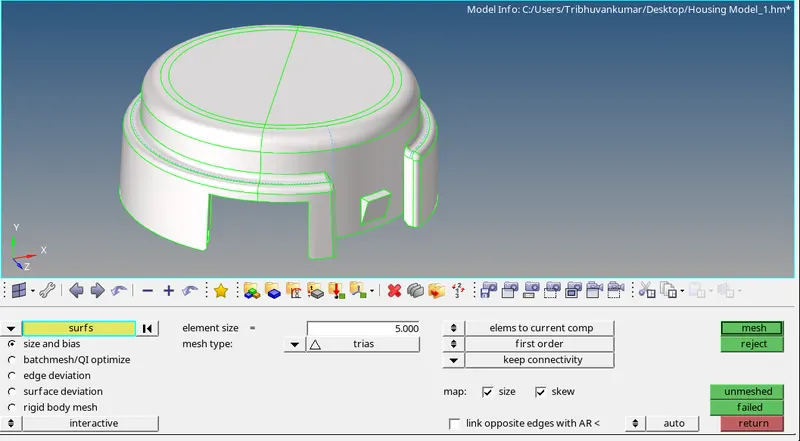
- Now we will check for quality criteria for min and max element size and try to resolve that as well.
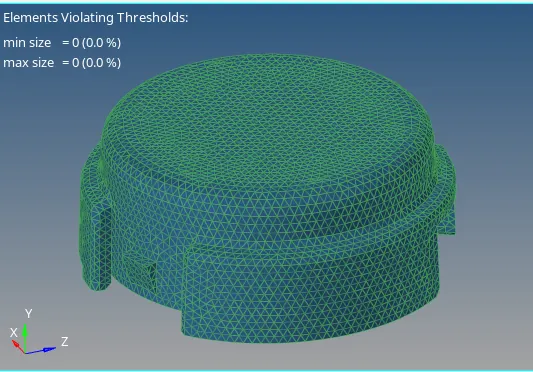
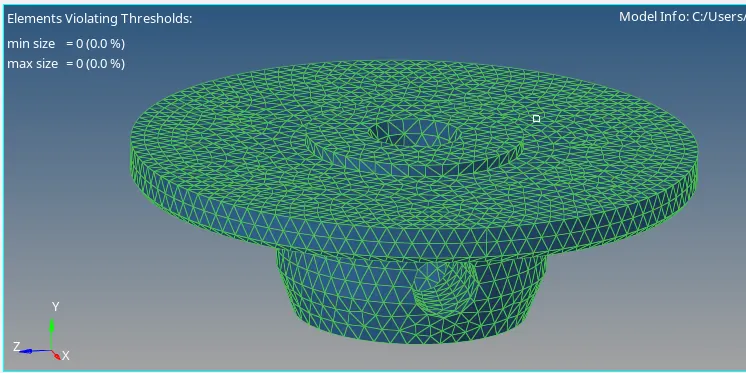
- below image shows that there is no any element failing for min criteria, so we are good to go for 3D, mesh.
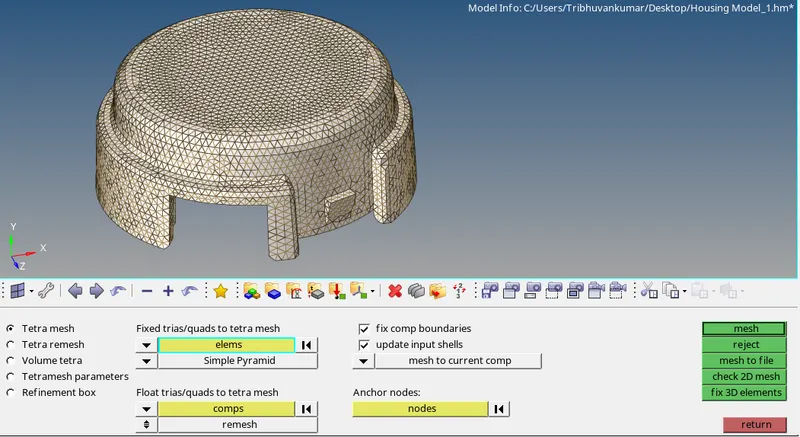
- For 3D mesh go to 3D panel and select tertamesh, then go to tetra mesh select 2D Tria element and hit mesh.
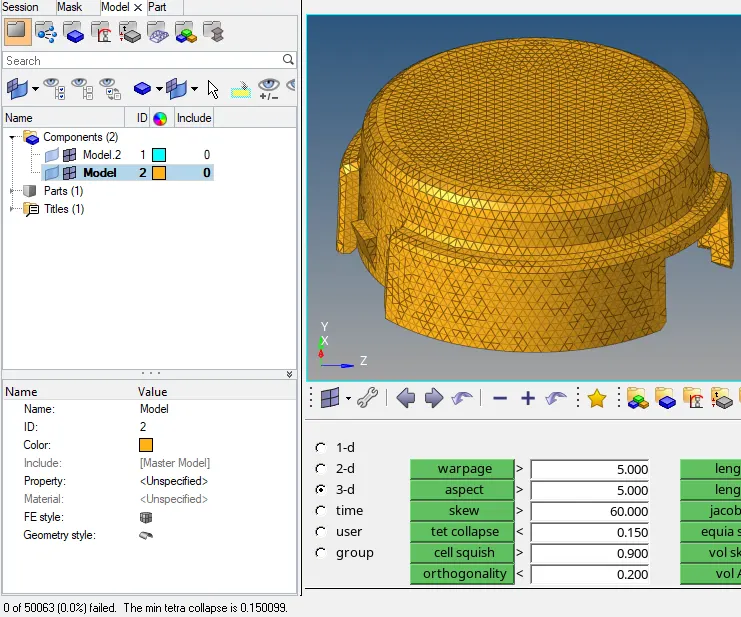
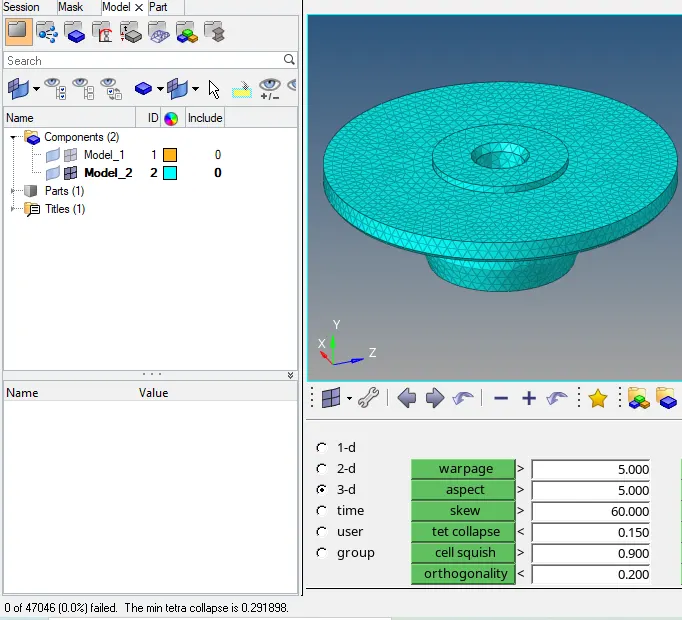
- once we are done with meshing we will go to tool>>check elems here select 3D and go to tet collapse and set value as per given to 0.15.
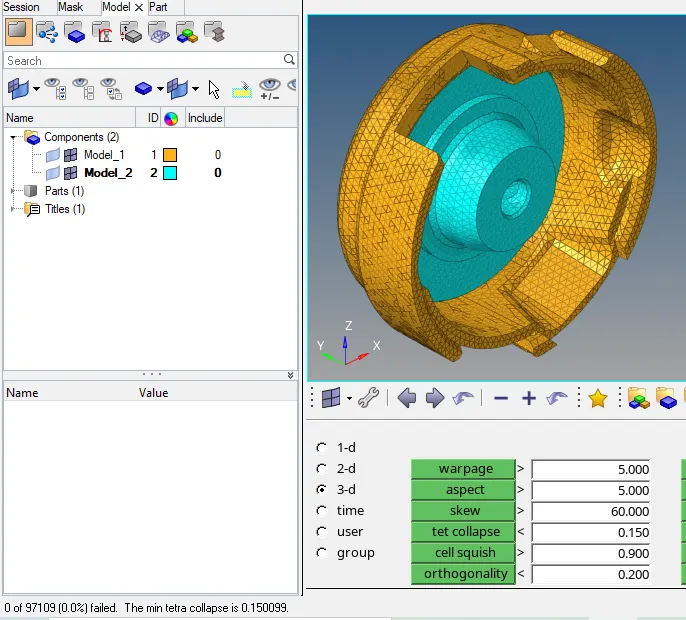
- So we found some elements failing for that so to fix go to tetramesh>> tetra remesh>> select failed element and try to remesh as resolve the issue, below snap shows there are 0 elements failing for tet collapse after error resolution.
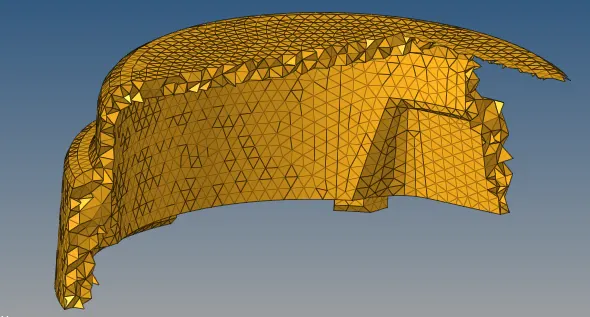
- we will follow above mentioned procedure for the next part and check for tet collapse and quality criteria for min element size in 2D.
- Below snap shows that the part is not failing for any criteria.
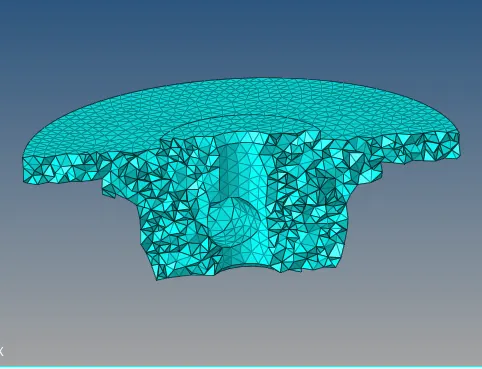
Final Result-
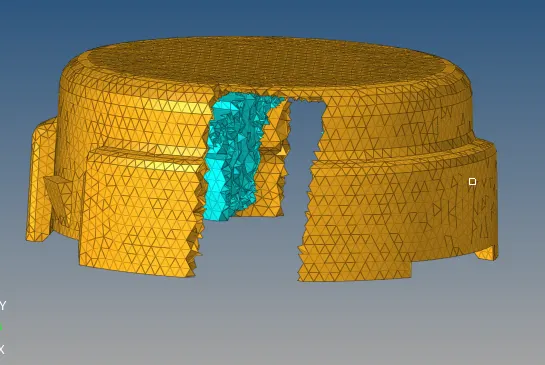
2. Model 2 (
- Initially we will import the given model for that go to import>>import geometry>>iges file then hit import.
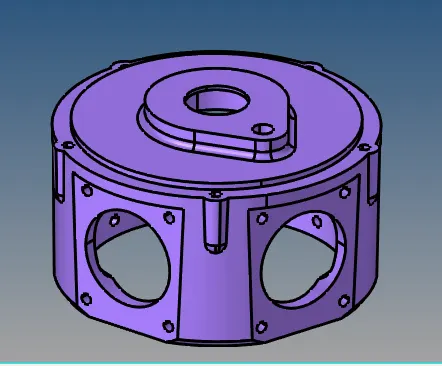
- Since the given model is in Solid so we directly go to 3D>>tetramesh>>volume tetra and we will select target element size as 3.
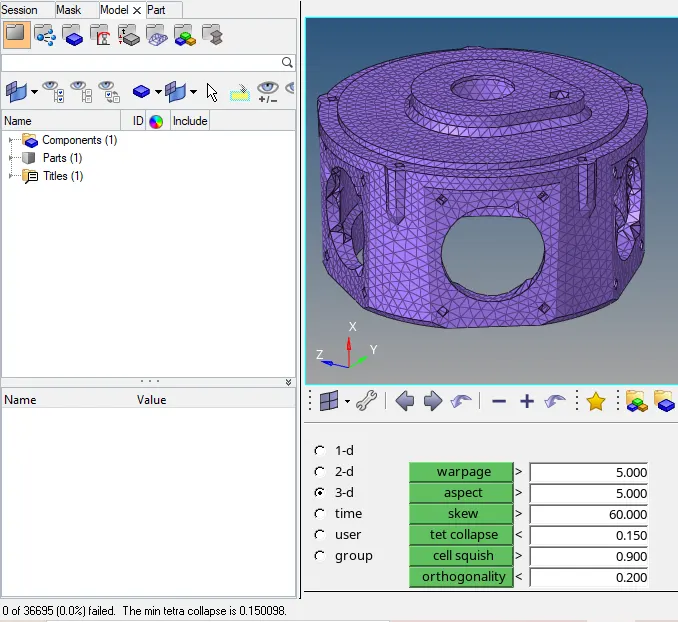
- Now we will check the mesh for tet collapse at 0.15 and try to eliminate all the failing elements.
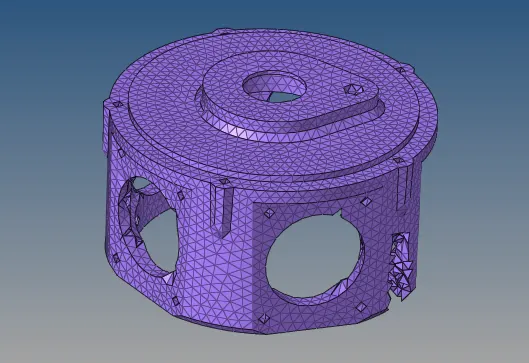
Final Result-
3. Model 3-
- Initially we will import the given model for that go to import>>import geometry>>iges file then hit import.
- since there are in all 4 major parts are there which we need to mesh them either by quick mesh or by volume mesh.
- So for quick mesh go to view>>hypermesh>>utility>>geom/mesh>>select component>>select element size>>select mesh type (tria)>>hit mesh.
- since this mesh will be generated in different collector so we have to move to our desired collector, for that go to tool>>organise>>select element>>select disired collector>>hit move.
- as the middle coupling are 2 in number and we will mirror the first half.
- For that go to tool>>reflect >>select element (duplicate the element to component)>>select direction and base point>>hit reflect, again we have to move it to required collector.
- For that go to tool>>organise>>select element>>select disired collector>>hit move.
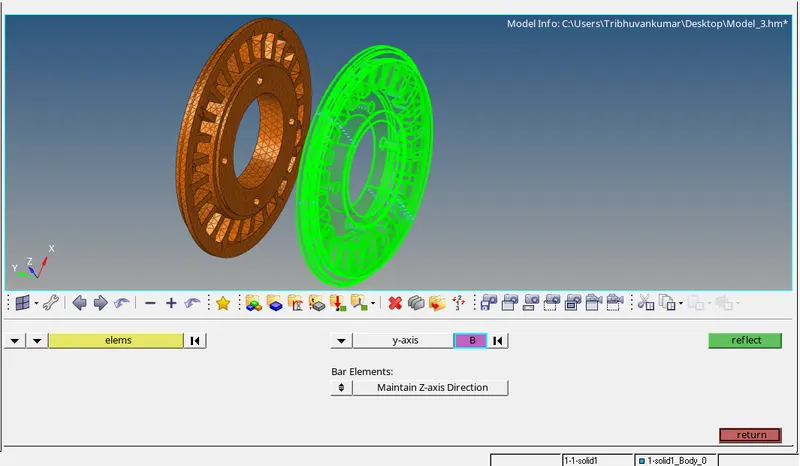
- Now one by one we will mesh all component using both mesh type and try to eliminate tet collapse error.
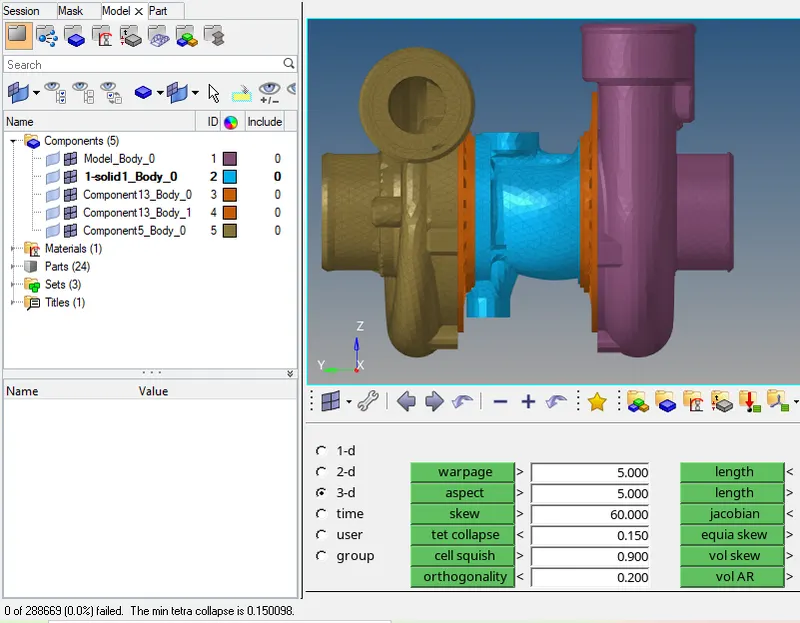
- below snap shows all the components having 0 tet collapse error.
Conclusion-
- Learnt about 3D tetra mesh using 2D tria mesh.
- Quick tetra mesh of solid part, Volume tetra mesh.
- How to do remesh of failed elements.