Week 4-1D Element Creation Challenge
Aim-
Our aim is to create 1D Element for given set of model using different cross section mentioned below all by using Hypermesh Software.
Objective-
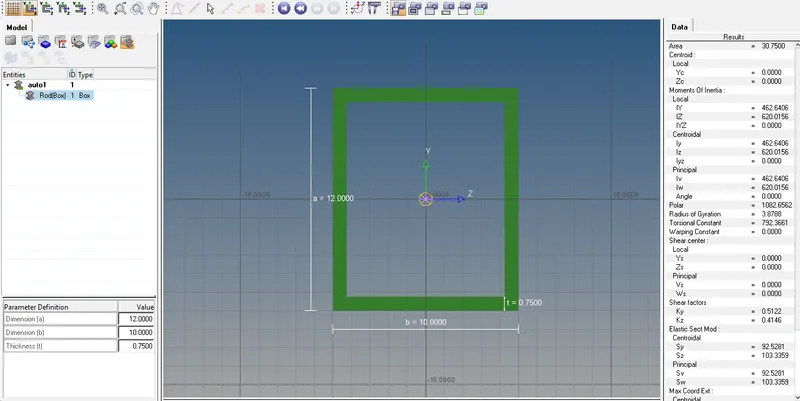
a. Rod element:- Translational DOF should be Constrained with RBE2 link
Cross-Section: BOX- Dimension a= 12 mm
dimension b=10 mm
Thickness t= 0.75 mm
b. Beam element:- All DOF should be constrained with RBE3 link
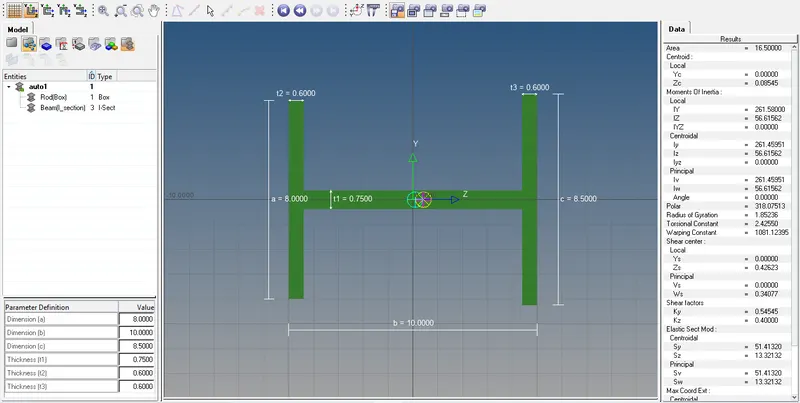
Cross-Section: I Section- Dimension a= 8 mm
Dimension b= 10 mm
Dimension c= 8.5 mm
Thickness t1= 0.75 mm
Thickness t2= .6 mm
Thickness t3= .6 mm
c. Bar element:- Constrain only x and y DOFs With RBE3 link
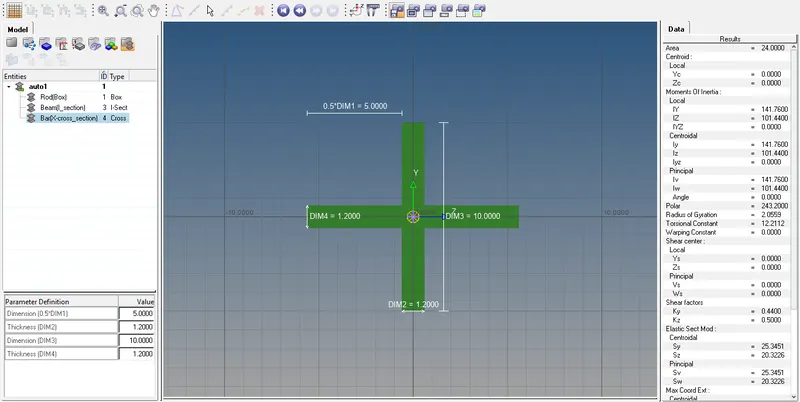
Cross-section: X section- Dimension DIM1= 5 mm
Thickness DIM2= 1.2 mm
Dimension DIM3= 10 mm
Thickness DIM4= 1.2mm
d. & e. Apply the mass of magnitude 10 with the RBE2 link
f. Join the two components with Spring elements
Description (1D Element)-
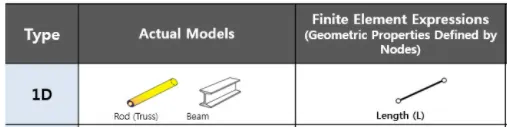
1D Element-All line elements, whether straight or curved, are called 1D element in which they have translational and rotational displacement functions only. generally made up of 2 nodes.
Ex.-Long Shafts, Truss elements, beams.
Procedure-
Initially we will start with importing the given model, go to 'import'>>'import geometry>>select iges format and import file from saved path.
Imported 3D model
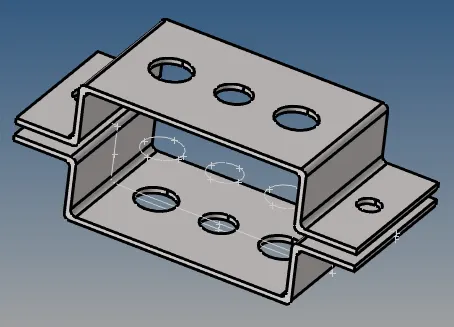
here we have to mask all lines as it is not required.
Go to 'Tools'>>Mask>>Select Lines from drop down Select All and mask.
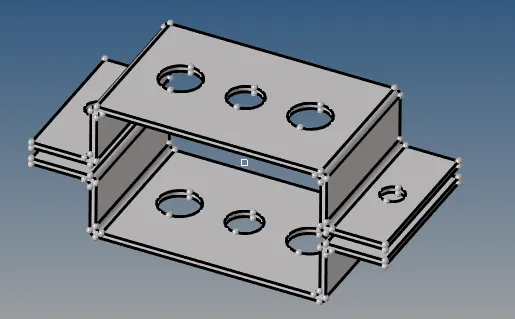
Now go to geometry>>mid surface and generate mid surface for each bracket seperately, since thickness of given model is uniform so mid surface will be taken to whole surface at once.
1. Give 1st midsurface a siutable name.
2. create new component (assign a suitable name to it) and the again create mid surface of bottom face.
3. Now delete 3D model using delete command.
4. now go to tool>> organise and move 2nd mid surface to new added component.
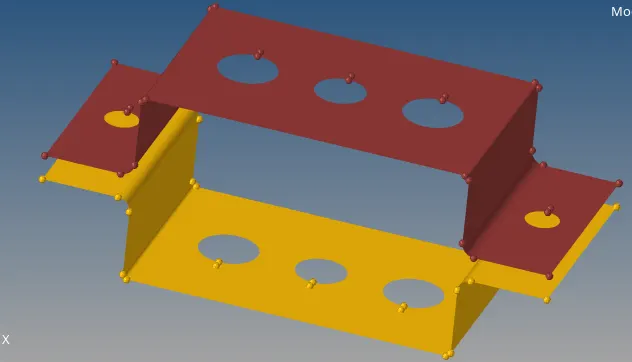
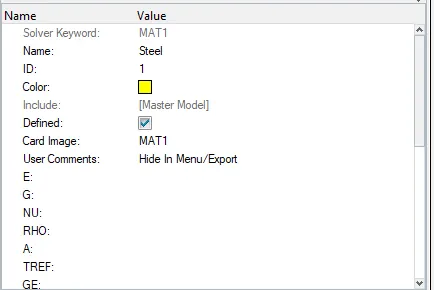
Now add material and properties to model and asiign it to generated mid surfaces.
Material
Property_(bracket_1) Property_(Bracket_2)
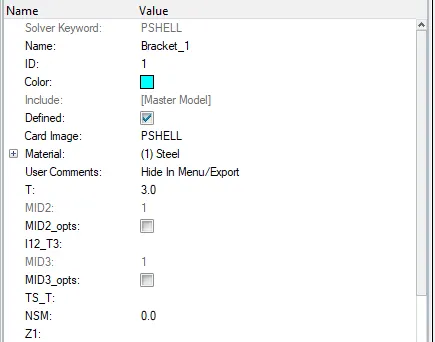
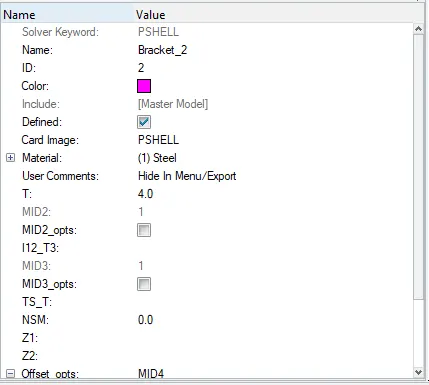
Assigned Property and material to both mid-surfaces
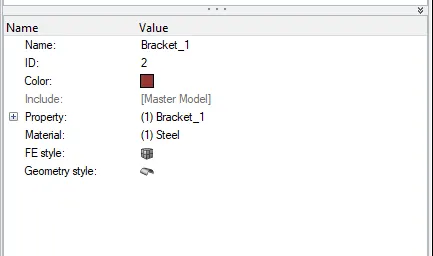
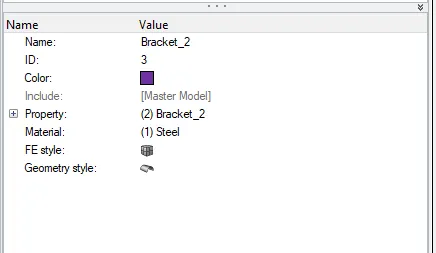
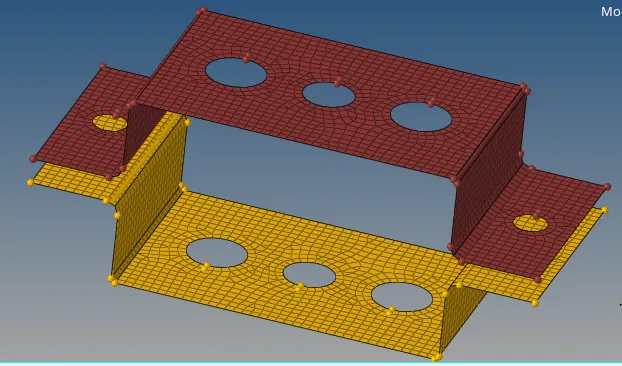
Now once the material and properties are assigned, create 2D mesh of mid-surface keeping given unit size of 5 units.
before doing mesh first create washer split for holes and then go mesh.
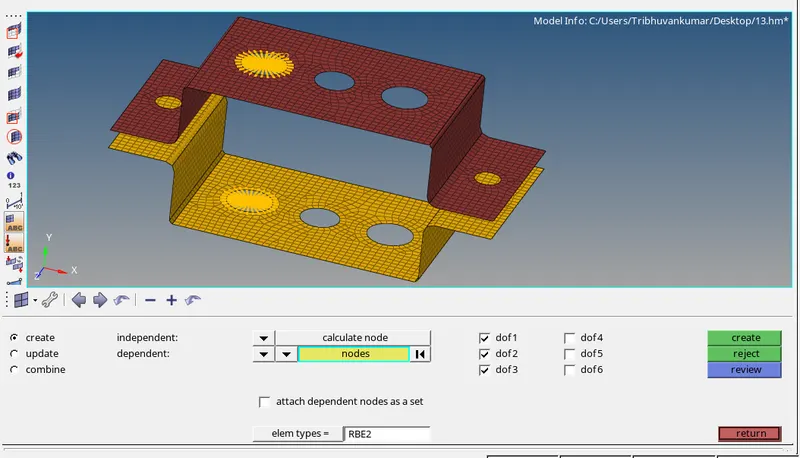
Now we create RBE2 link to 'a-a' and give translational DOF to all the axes'X-Y-Z' as mentioned in case one.
Go to rigids to create RBE2 link.
 Now we Create RBE3 link for 'b-b' and provide all DOF's to all elements in 'X-Y-Z' axes as per second case.
Go to RBE3 to create elements.
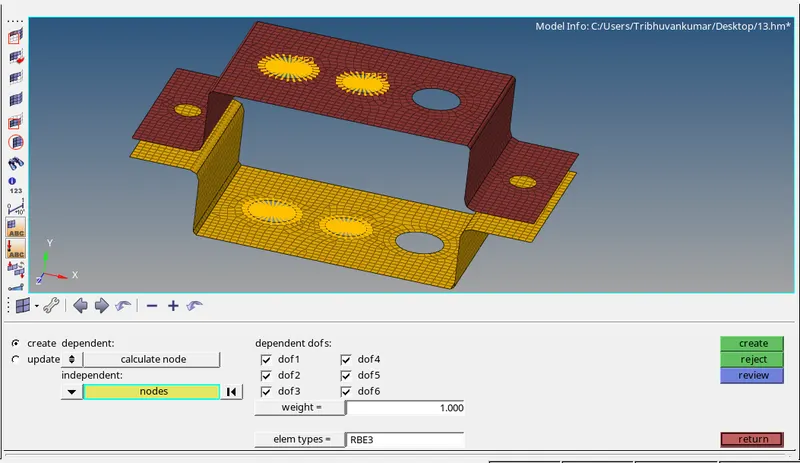
Now we Create RBE3 link for 'c-c' and provide DOF's to elements in 'X-Y' axis as per third case.
Go to RBE3 to create elements.
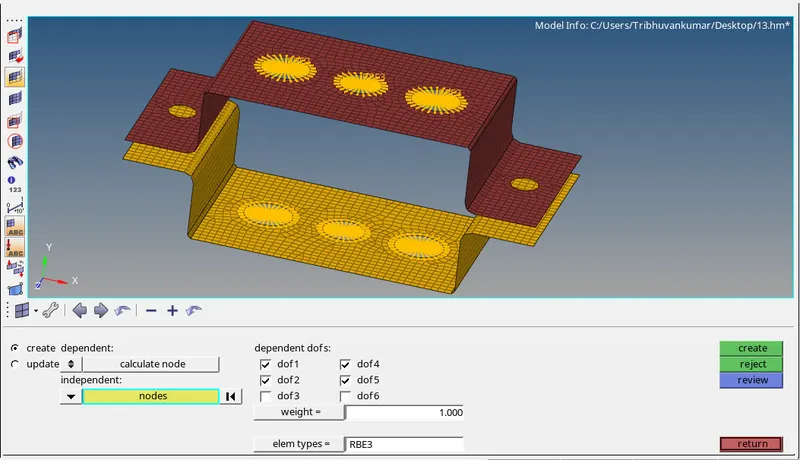
now we will create sections (Rod, Bar, Beam) using hyperbeam command as per given dimensions
for that right click on browser menu>create>Standard section>hypermesh>thin-walled box.
We create Bar element as box.
Now we Create beam element as mentioned as I-beam section as per second case.
for that right click on browser menu>create>Standard section>hypermesh>standard I-section.
Now we create X-section as per given condition in third case.
for that right click on browser menu>create>Standard section>hypermesh>Cross
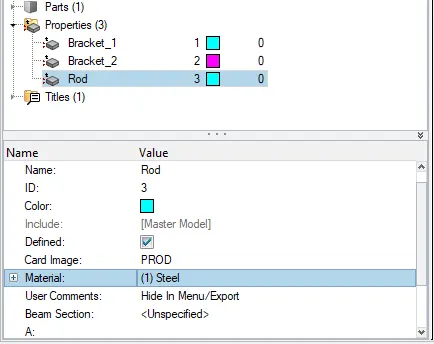
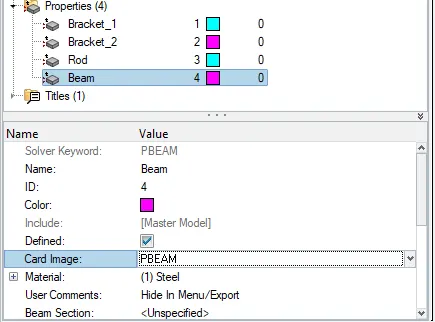
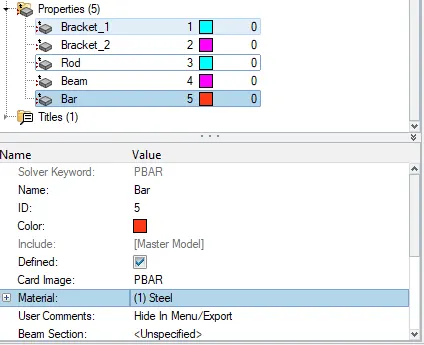
now we create Different properties for Rod, Beam and Bar also asiign material properties for each.
1. Rod
2. Beam
3. Bar
Now We create Rod, bar and beam sections to our mid-surface.
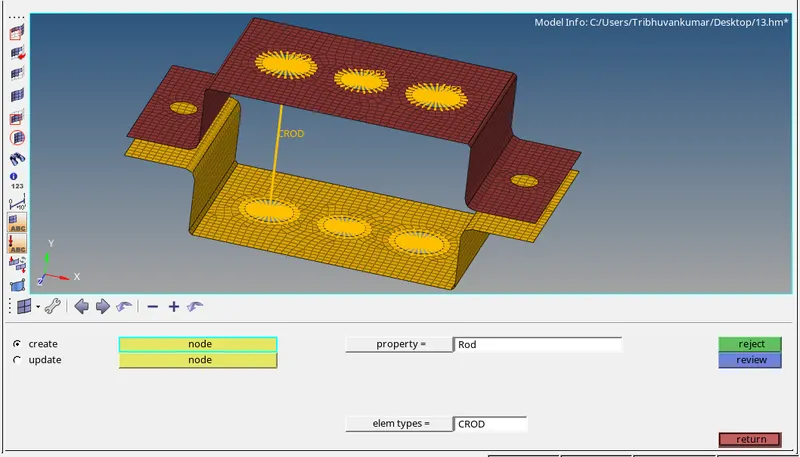
1.Rod
go to 1D>>Rod>>Select node1 & node2>> property(rod)>> element type (CROD)
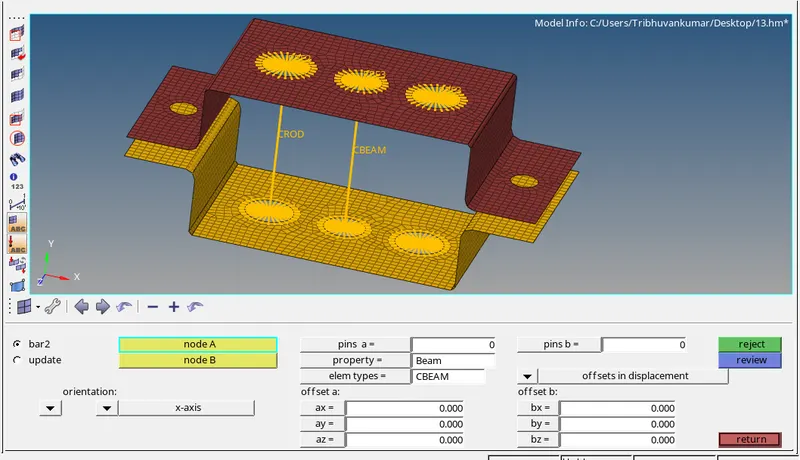
2.Beam.
go to 1D>>Bar>>Select nodeA & nodeB>> property(beam)>> element type (CBEAM)
give proper direction to it and return.
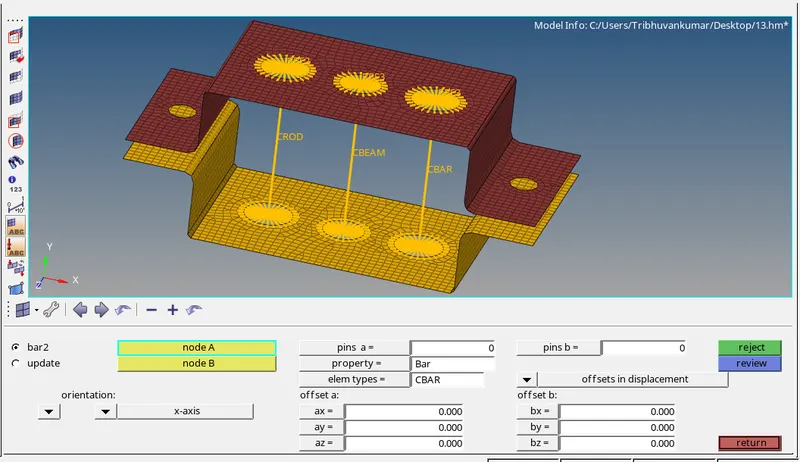
3.Bar.
go to 1D>>Bar>>Select nodeA & nodeB>> property(Bar)>> element type (CBAR)
give proper direction to it and return.
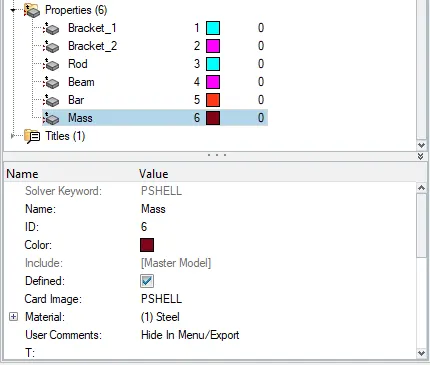
Adding Mass to d & e
Create Property for mass and assign material to it as steel
now create RBE2 elements to both side and of mis surface hole and create RBE2 elements.
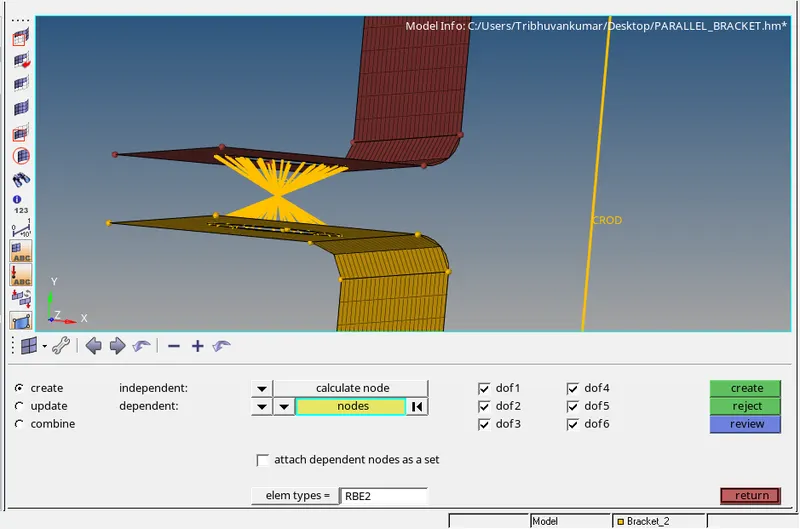
now we create mass to master centre node to it.
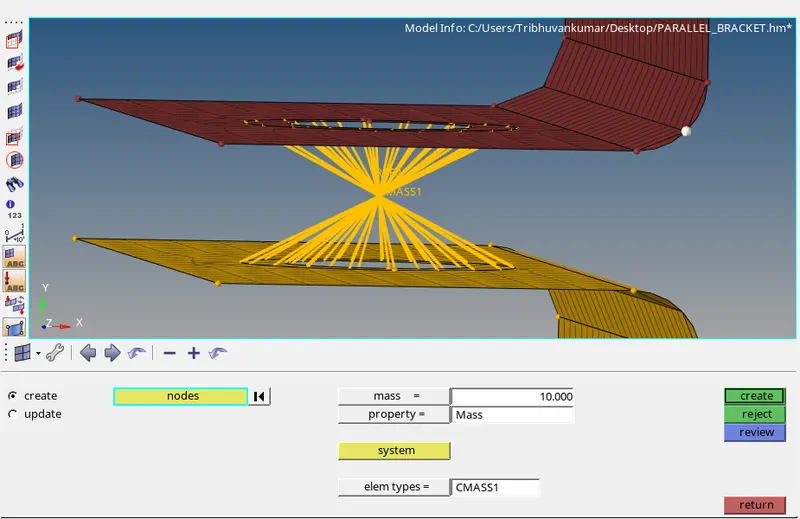
Now we will create spring elements as per last condition f-f.
before that create a property for spring and select material as steel.
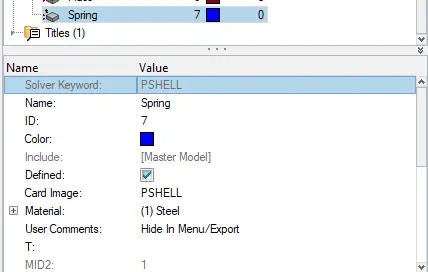
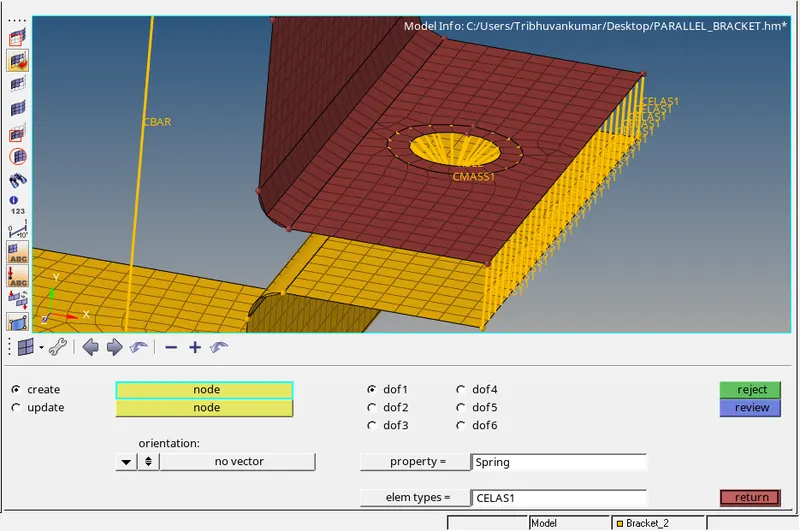
Now go to 1D elements>> springs and select to nodes to create spring element
select property as spring & element type as CELAS1, refer snap.
Conclusion-
Generated 1D elements using given cross section with help of mid surface, using Hypemesh software.
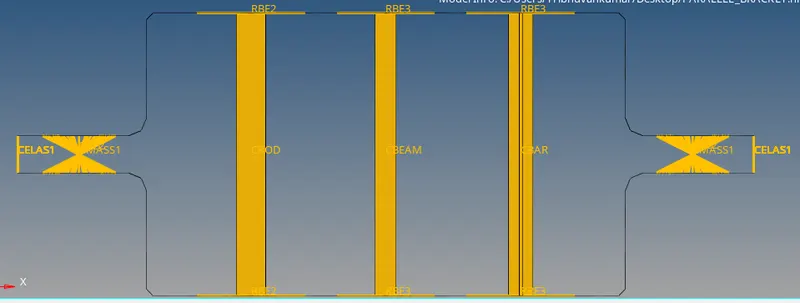
a-a- Created rod element with Box cross-section, translational DOF using RBE2 link.
b-b- Created beam element with I-cross-section, all DOF's using RBE3 link.
c-c- Created beam element with X-cross-section, for X&Y DOF's using RBE3 link.
d-e- Mass added to master node of RBE2 link.
f-f- Created Spring Elements by joining two nodes and joined two elements.
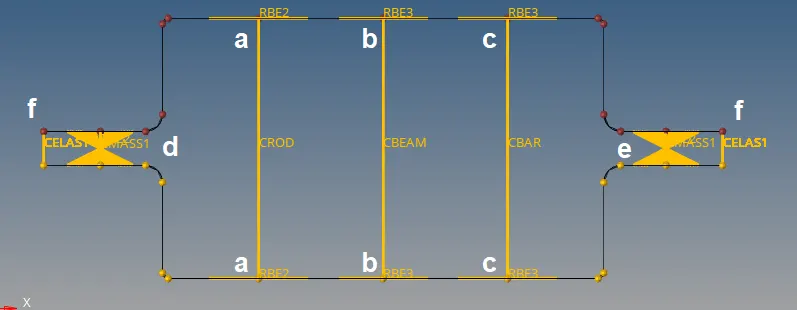
1D Traditional Represenatation of Elements
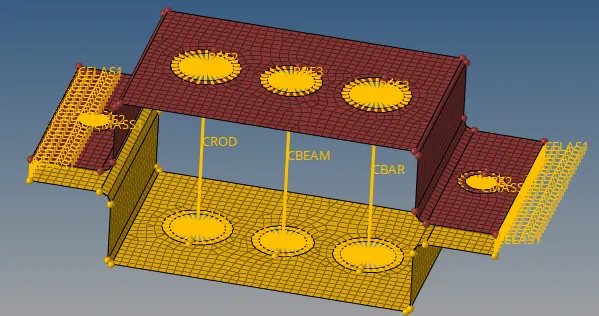
1D Detailed represenatation of element
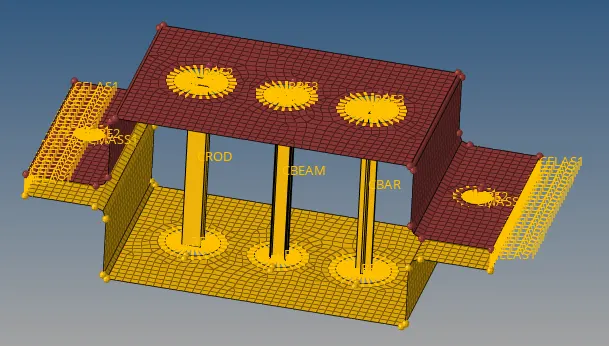
Top View of cross-section
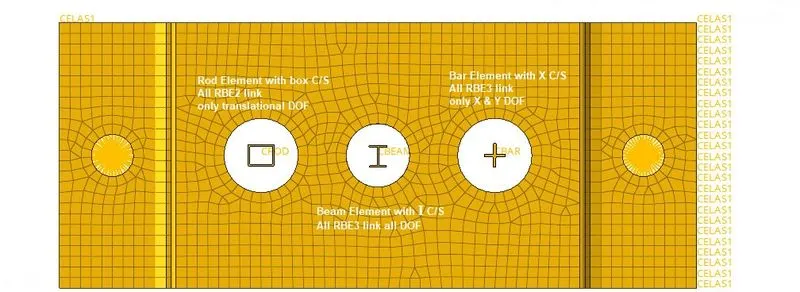
Front View