Preparing Schedule & Cost Estimation for a building using REVIT
1 ans:
|
Using 3D model create a section box |
BX |
| To create similar doors and windows in a floor plan | CS |
| To reduce the thickness of lines visible in plan views | TL |
| To apply override settings to a floor in the model section view | EOD |
| To increase the range of visibility in a plan view | VR |
| To select the previously selected items | CTRL+< |
| To add annotations to the model views | DI |
| To bring the model elements in line | AL |
| To rotate the model elements- | RO |
| To move an object to another location- | MV |
| To copy a model element- | CO |
| To mirror an element about an axis | MM |
| To create an array of model elements | AR |
2 ans:
Aim:To prepare a schedule for given materials
Procedure:
- Open Revit 7 week architecture file
- Now go to the View tab and click schedules and select schedule/Quantities as shown

- Now we get a new schedule tab as shown
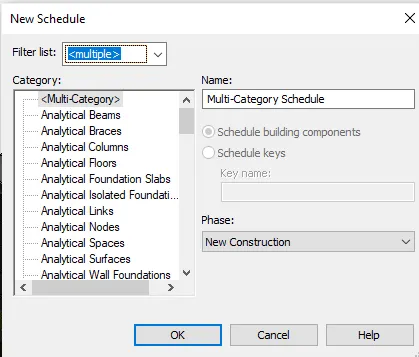
- Now select walls and click ok in the tab as shown
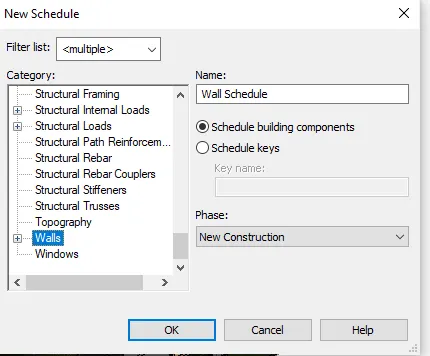
- Now we get a schedule properties tab
- Now select the required schedule fields as shown and click ok
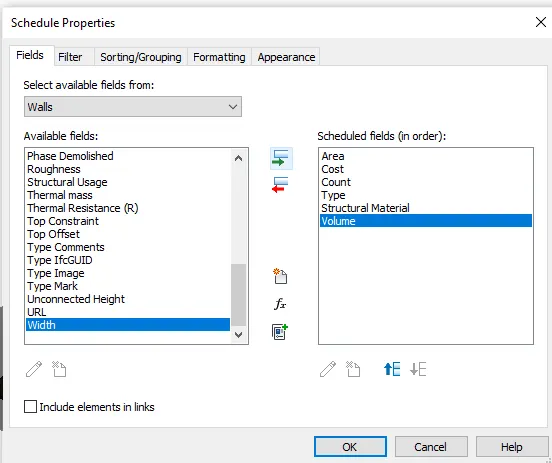
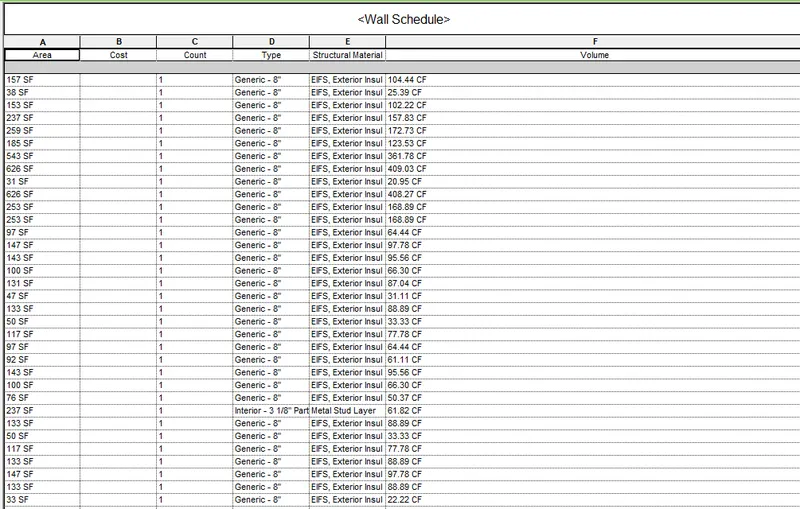
- Now we get the wall schedule as shown
- Now similarly with doors
- Now go to the View tab and click schedules and select schedule/Quantities as shown
- Now select Doors and click ok in the tab as shown
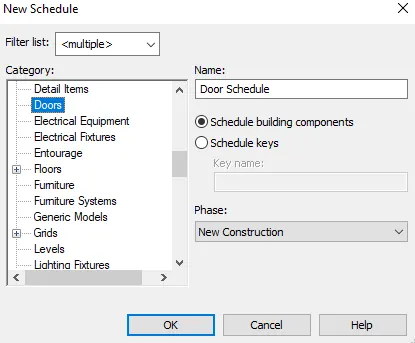
- Now we get a schedule properties tab
- Now select the required schedule fields and click ok
- Now we get the door schedule as shown
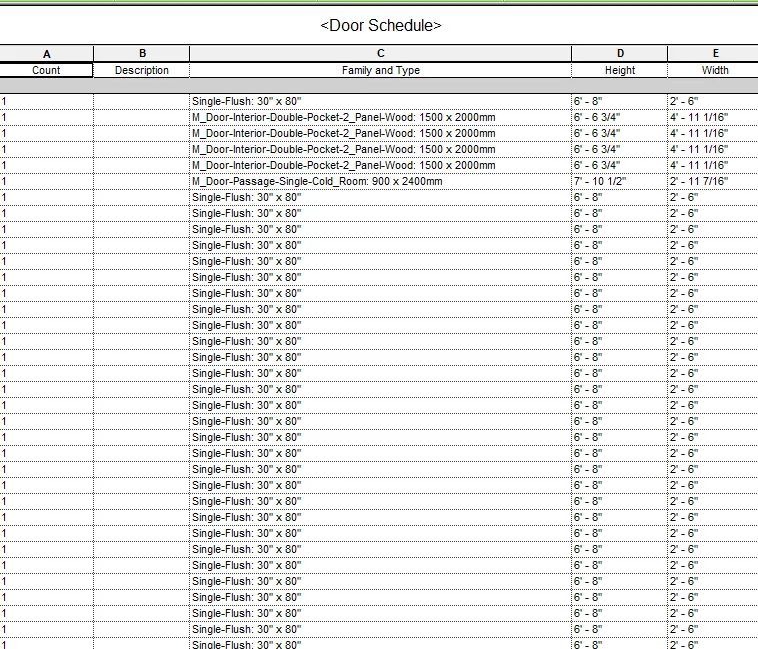
- Now similarly with Windows
- Now go to the View tab and click schedules and select schedule/Quantities as shown
- Now select Windows and click ok in the tab as shown
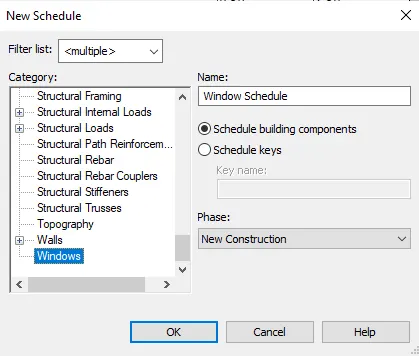
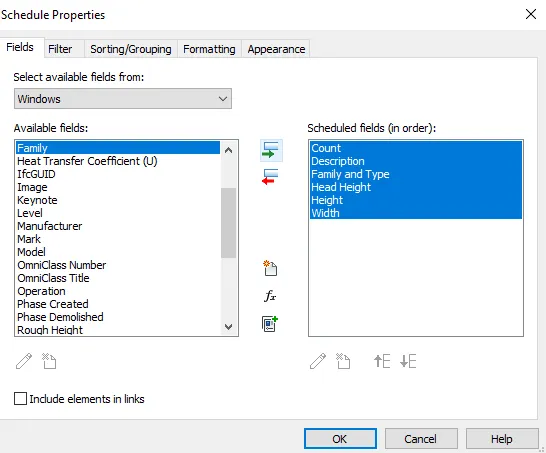
- Now we get a schedule properties tab
- Now select the required schedule fields as shown and click ok
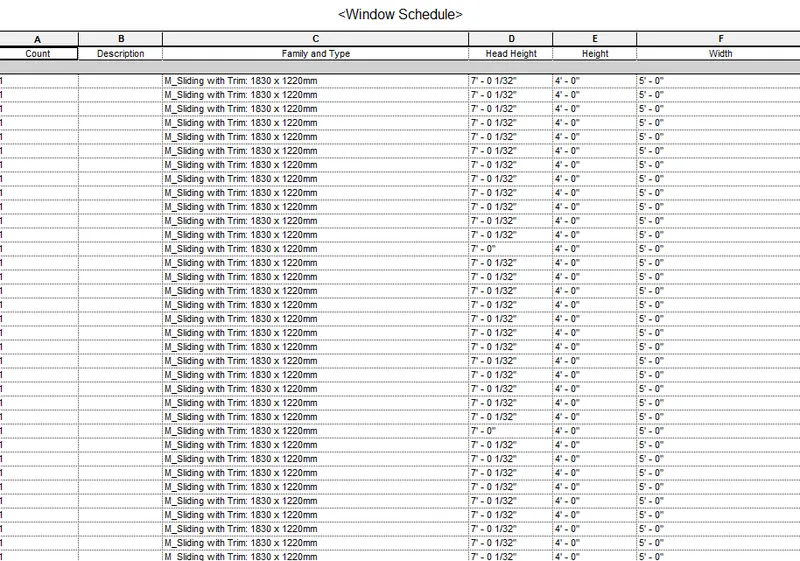
- Now we get the Windows schedule as shown
- Now go to View tab and click schedules and select Material takeoff as shown

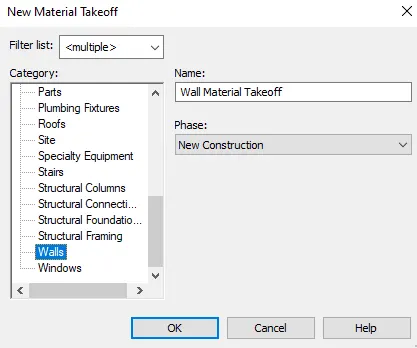
- Now we get material Takeoff tab
- Now select walls and click ok in the tab as shown
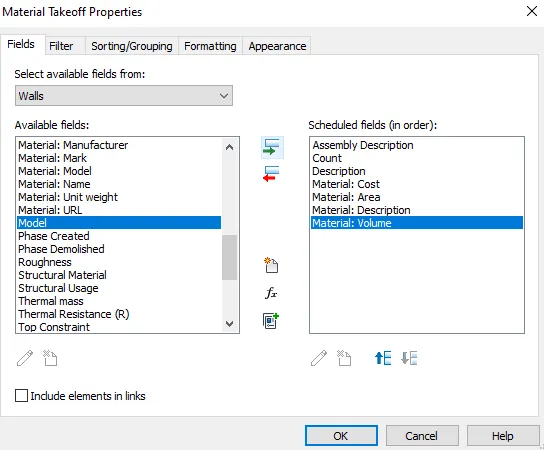
- Now we get material Takeoff Properties tab
- Now select the required schedule fields
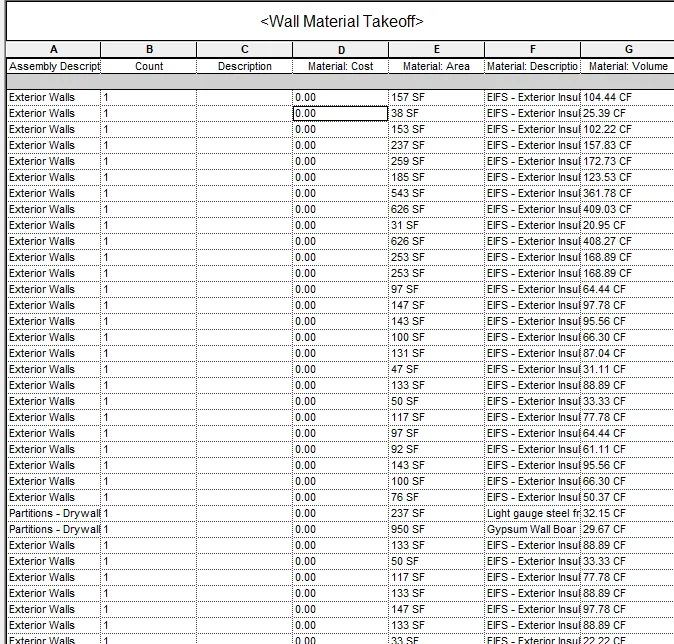
Now we get the Wall Material Takeoff as shown
Result: The given task has been completed successfully
3 ans:
Aim: To prepare a schedule report for the area and volume of each room in model
Procedure:
- Open Revit 7 week architecture file
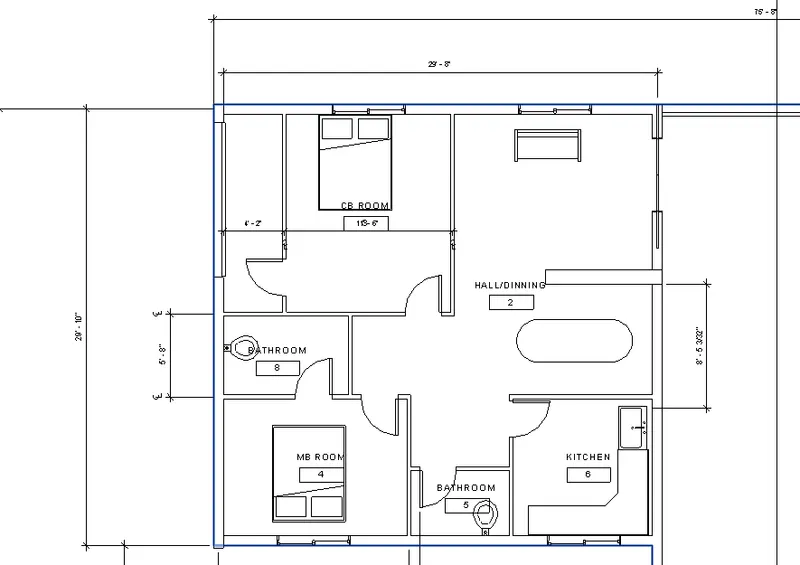
- Now go to the architecture tab and select the Room tool as shown

- Now using the room tool select the rooms in the drawn model
- Now go to the View tab and click schedules and select schedule/Quantities as shown
- Now we get a New Schedule tab
- Now select the room and click ok
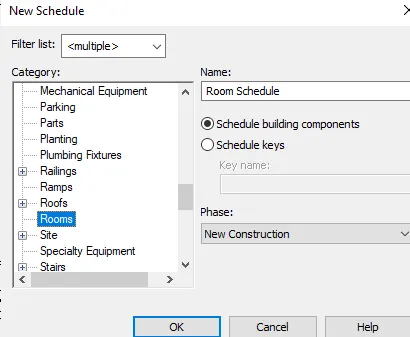
- Now we get a schedule properties tab
- Now select the required schedule fields and click ok
- Now we get the Room schedule as shown
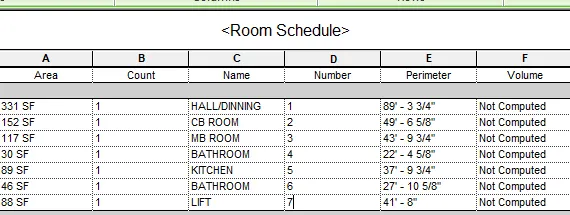
Result: The given task has been completed successfully
4 ans:
Aim: To prepare the total cost of materials using the unit cost rate of materials availabe in internet
Procedure:
- Open Revit week 7 architecture file
- Now go to the View tab and click schedules and select Material takeoff as shown
- Now we get material Takeoff tab
- Now select walls and click ok in the tab as shown
- Now we get material Takeoff Properties tab
- Now select the required schedule fields
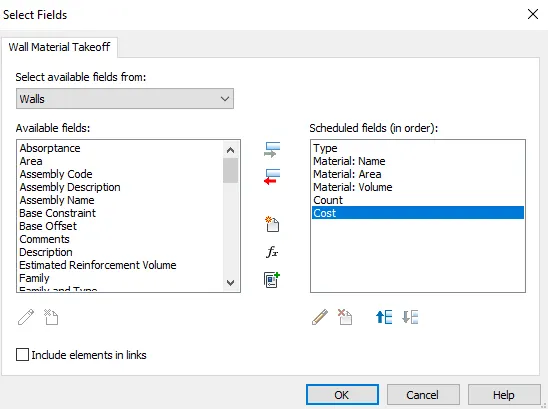
- Now click on the fx button to give a formula for Total cost as shown
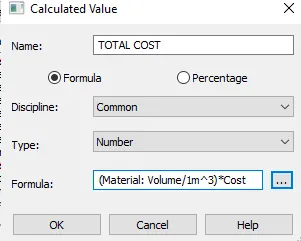
- Now we get the total cost
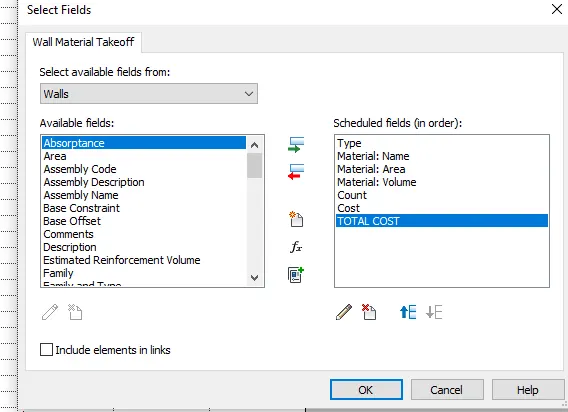
- Now we get the Wall Material Takeoff as shown
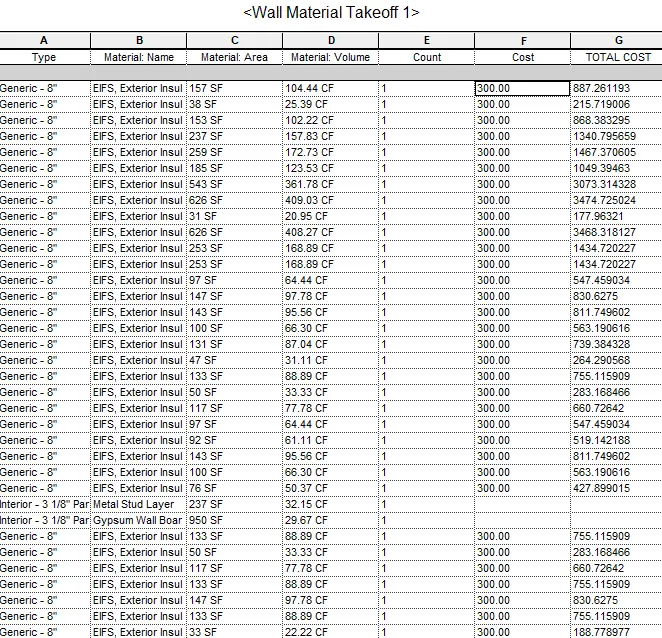
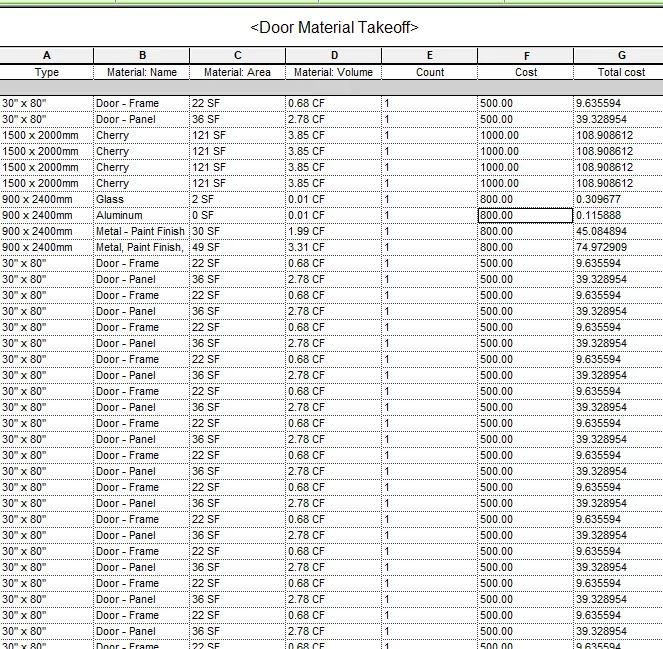
- Simillarly we follow the same steps with doors,windows, floor, and furniture materials takeoff
- Door Material Takeoff
- Window Material Takeoff
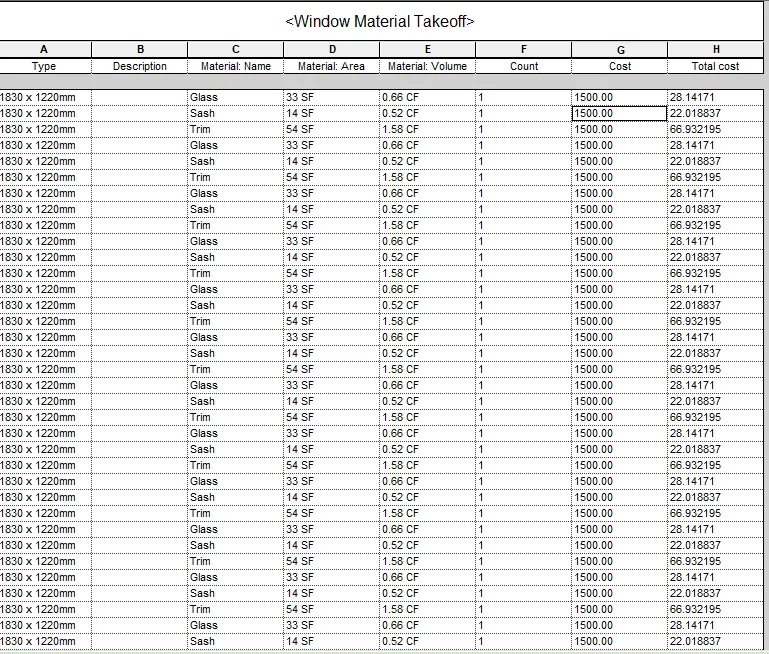
- Floor Material Takeoff
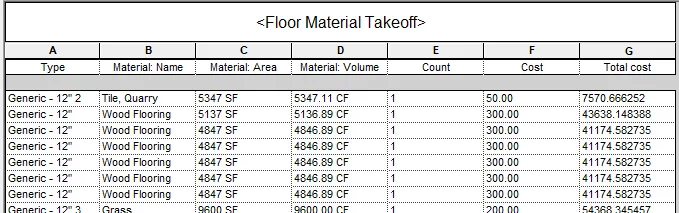
- Furniture Material Takeoff
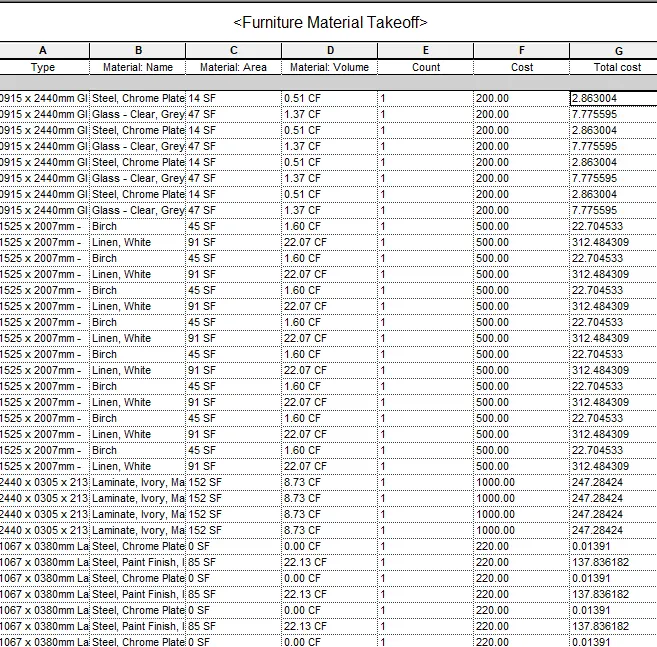
Result: The given task has been successfully completed
5 ans:
a)
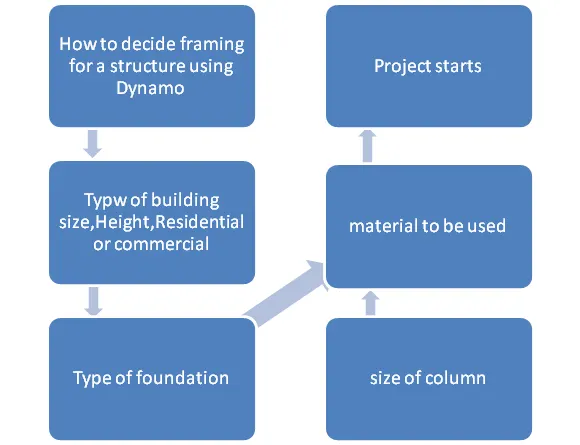
b)
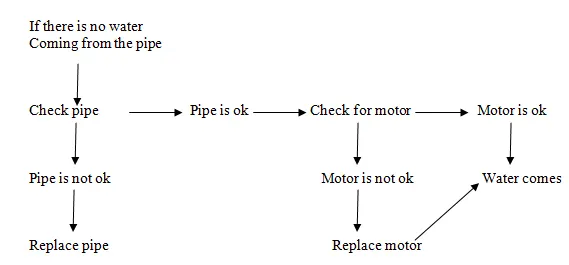
c)
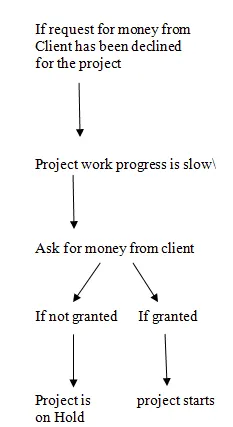
6 ans:
- Wall -Length,width,height ,materials,thickness,cost ,type of wall
- Floor- Length ,width, type of floor,area,volume ,thickness,cost
- Door -Length ,width,materials,type of door, height of lintel,thickness
- Window - Length, width. materials, type of window, the height of lintel.thickness
- Table - Material, the purpose of table, height, width
- Building - The type of building, no of floors, height, width, area, location, loads applied