Usage of Navigation tool , Timeliner and Clash Detection test using Naviswork
1 ans:
Aim: To Export the Revit architecture and structure model to Navisworks Cache file
Procedure:
- Open Structural file which we have designed in week 6-8in Revit
- Now go to the File option and click on export
- Now select Dwf/Dwfx as show
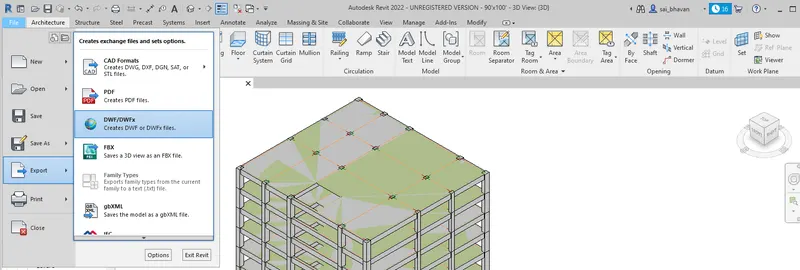
- Now we get a DWF export setting click next
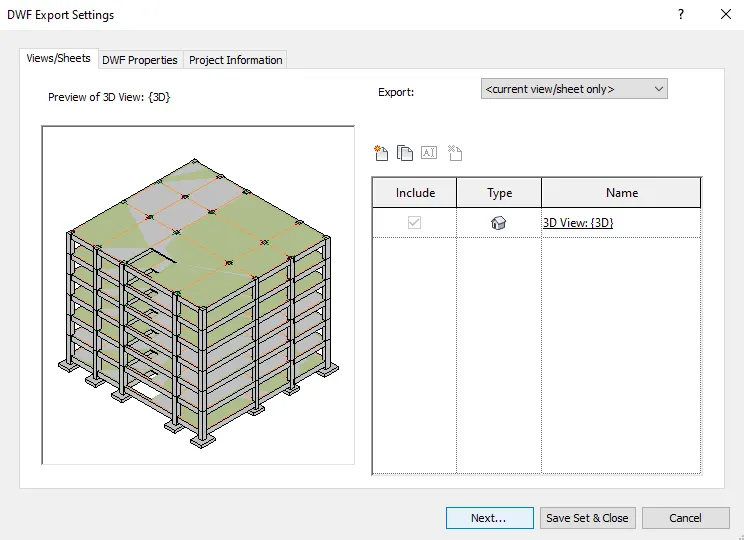
- Now we get Export Dwf Dialogue box
- Now change the file type to Dwf as shown and click on ok
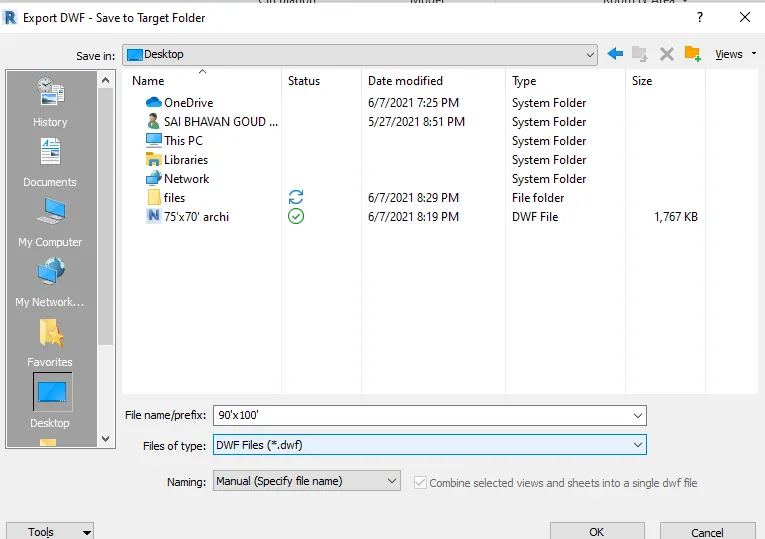
- Now go file saved location and right-click on the file
- Now select Navisworks and tick the box and click ok as shown below
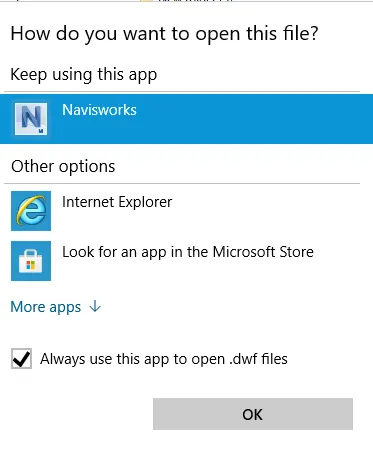
- Now we get the file in Navisworks as shown
- Now click on save to save it as NWC file format
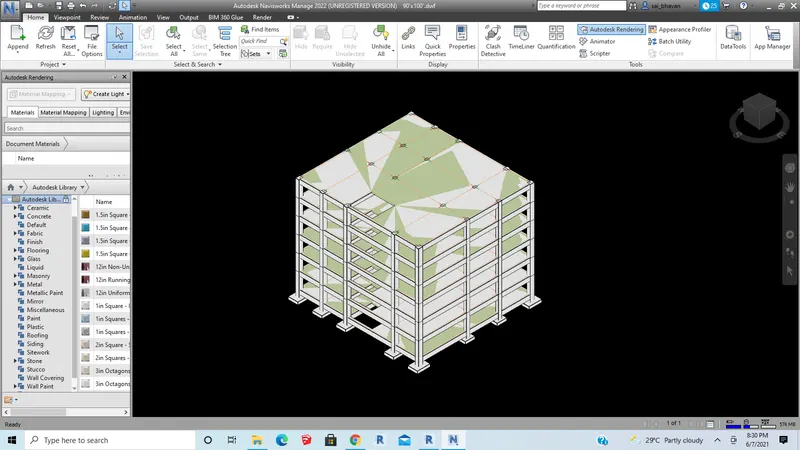
- similarly, follow the steps for the Architecture file also
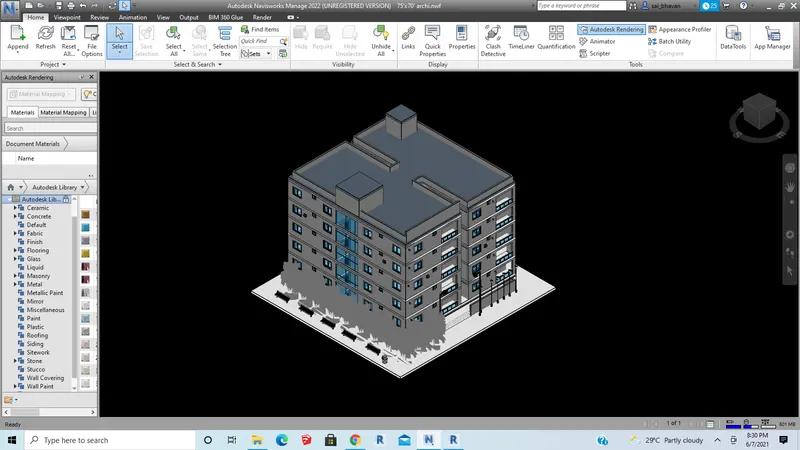
Result: The Revit architecture and structure model are successfully exported to the Navisworks Cache file
2 ans:
Aim: To use Navigate Tool to walk around the model and walk through the rooms created and record your moving as animation in Navisworks file
Procedure:
- Open Revit architecture model in Navisworks
- Now go to the viewpoint tab and go to Navigate and select Walk

- Now go to the Animation Tab and go to Create and select Record

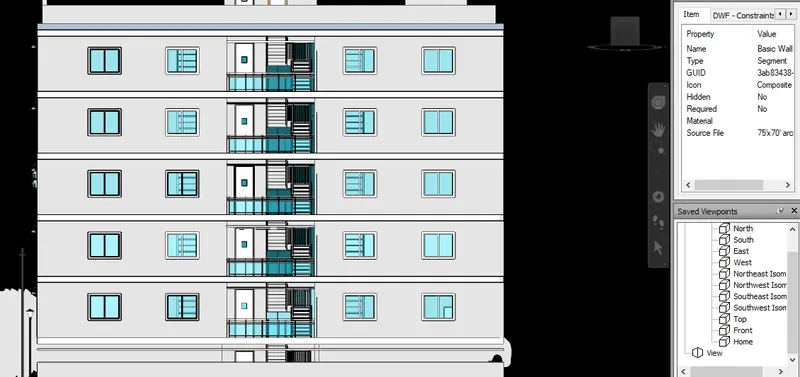
- Next, Keep the model in the North view as shown
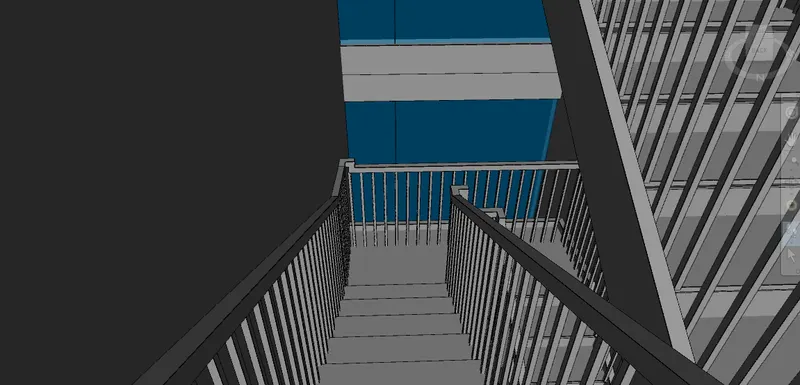
- Next, we walk around the model and walk through the rooms as shown below
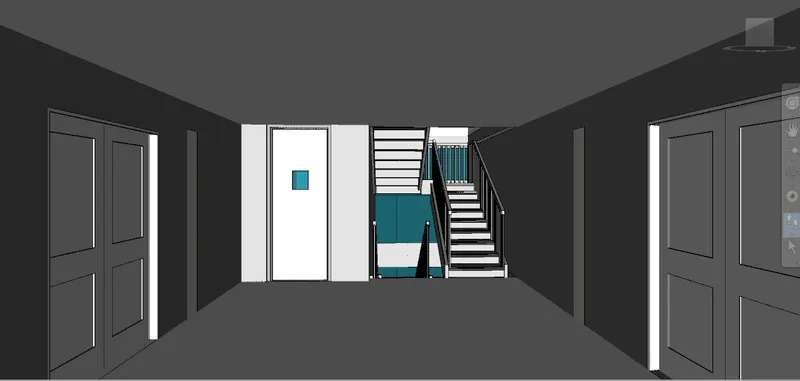
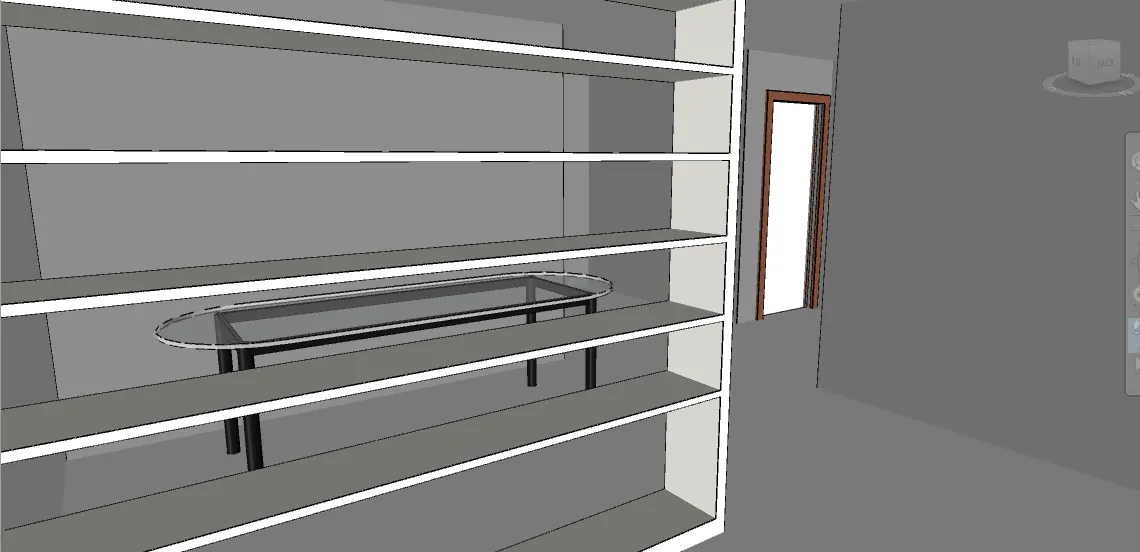
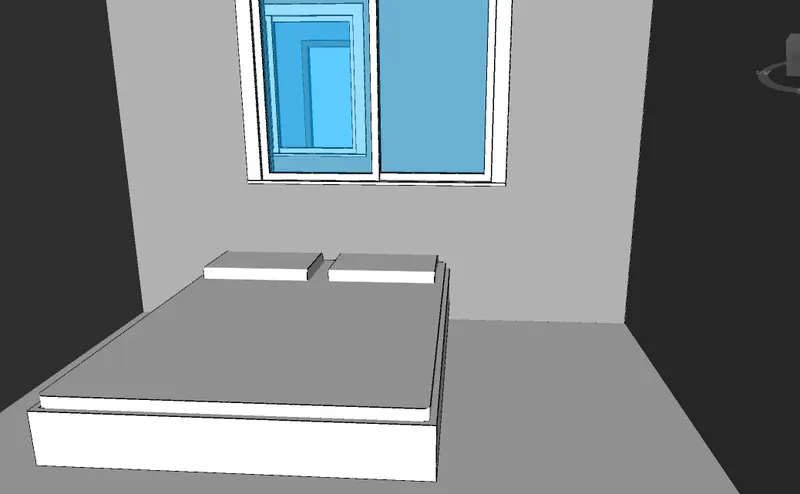
- We can see the animation created in the saved Viewports as shown
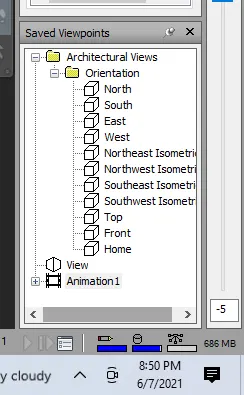
Result: The given task has been successfully completed
3 ans:
Aim: Use Navigate tool to use Realism feature to walk through the model and record your moving as animation in Navisworks file
Procedure:
- Open Revit architecture model in Navisworks
- Now go to the viewpoint tab and go to Navigate and select Realism
- Now go to the Animation Tab and go to Create and select Record
- Next, Keep the model in the North view as shown
- Next, we walk around the model and walk through the rooms as shown below
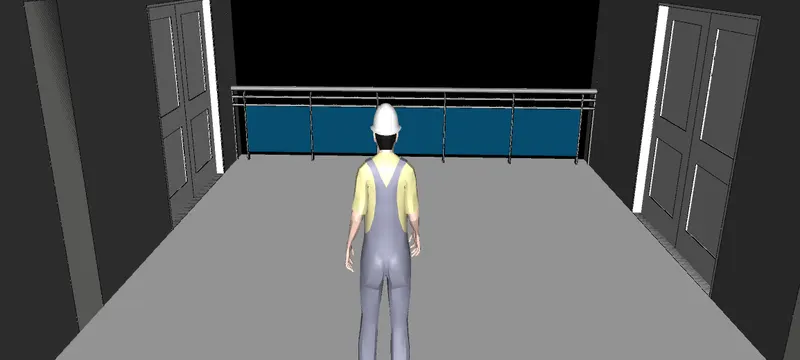
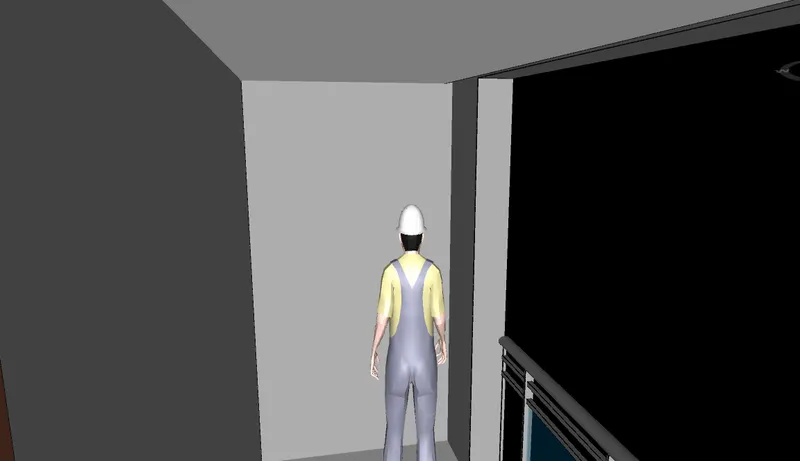
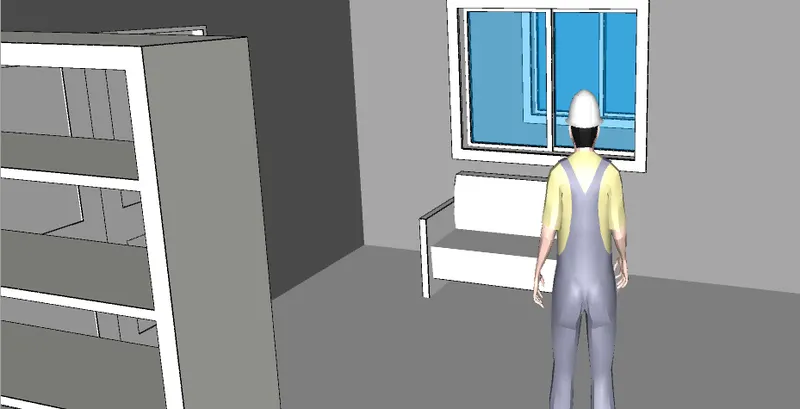
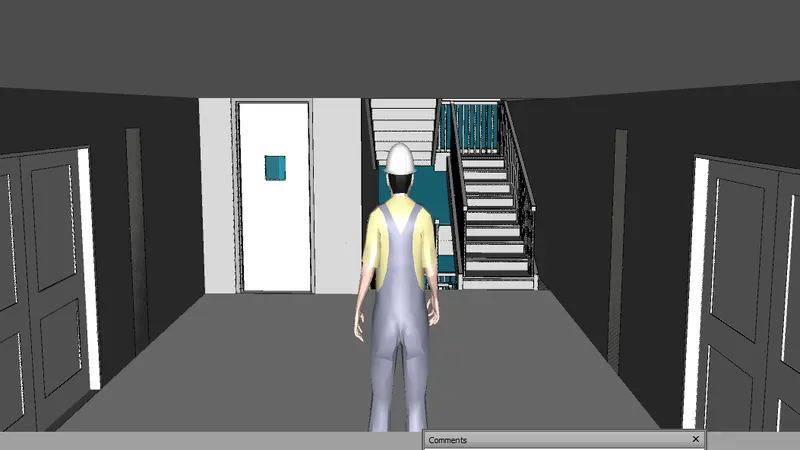
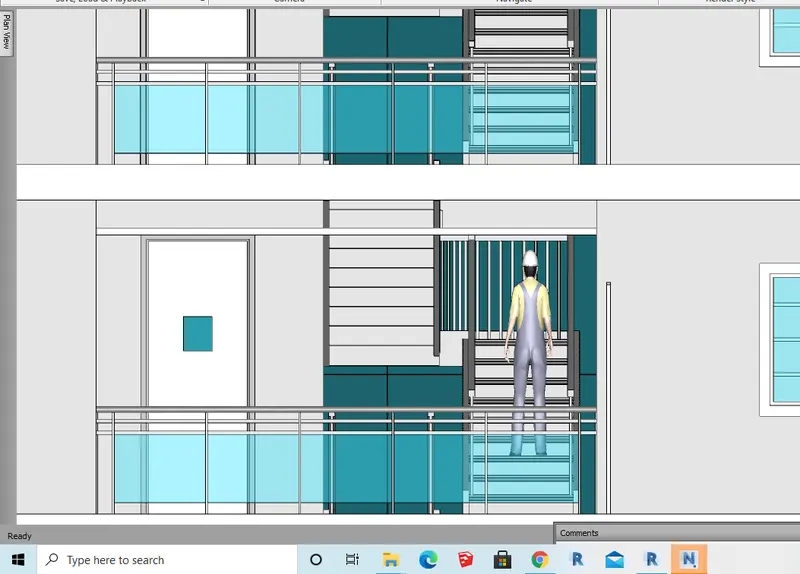
- We can see the animation created in the saved Viewports as shown
Result: The given task has been successfully completed
4 ans:
Aim: To Create a clash detection test between the two models
Procedure:
- Open Architecture model in Navisworks
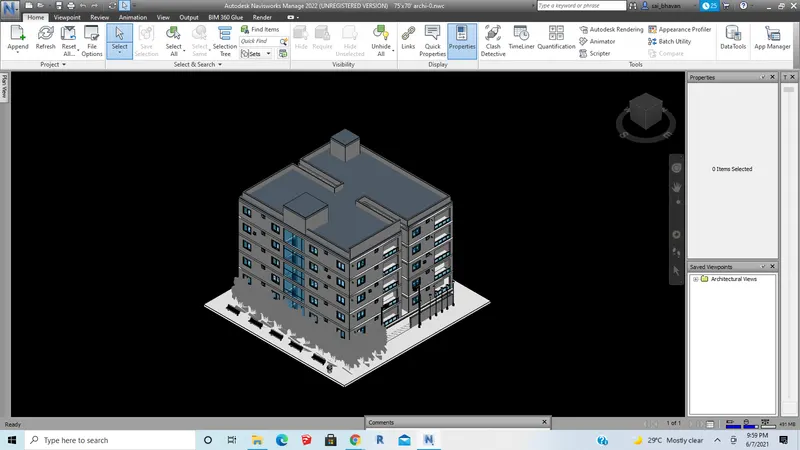
- Now click on append
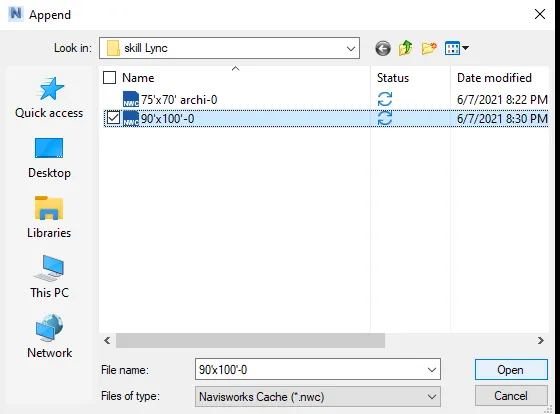
- Now the Append dialogue box opens
- Now select the structural file and click open as shown
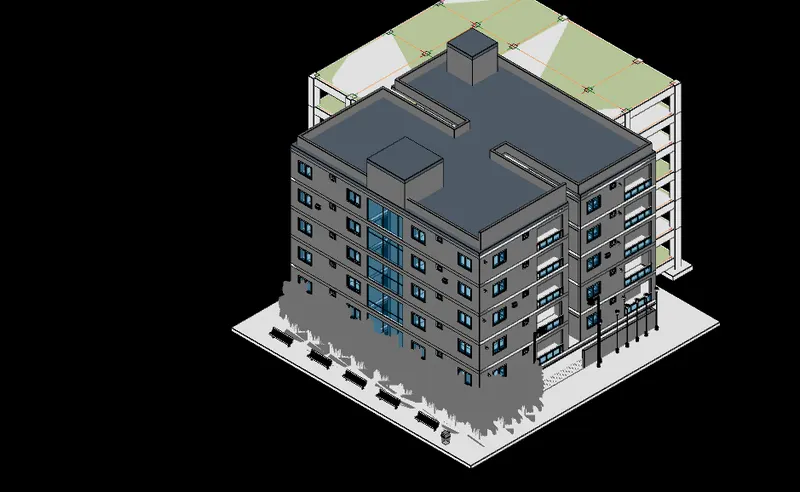
- Now we get the structural model in the Navisworks as shown
- Now go to tools and select Clash Detective as shown

- Now a clash detective dialogue box opens
- Now click on add test as shown
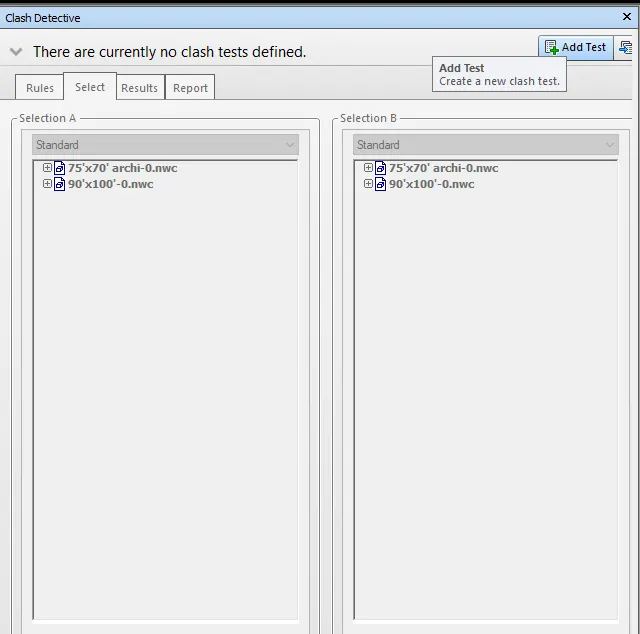
- Now select architecture and structural file as shown below and click on RUN Test
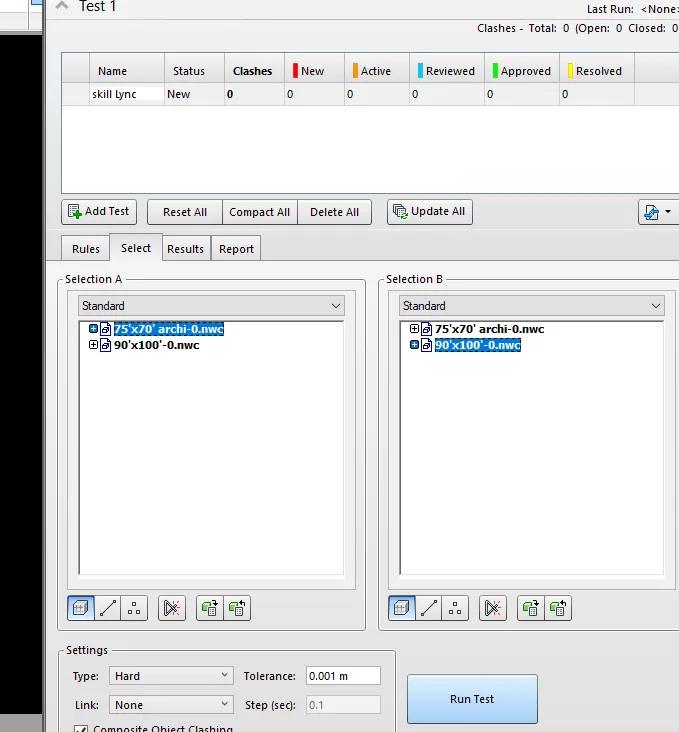
- Now we get the test results as shown
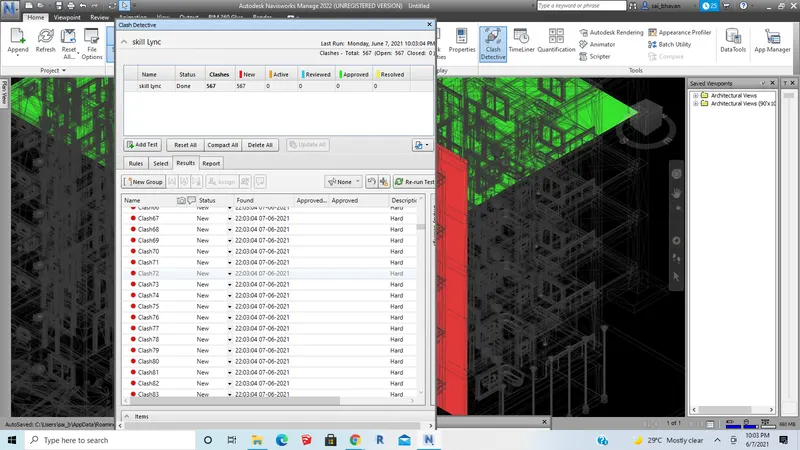
- Now change the Clashes to Active, Reviewed, approved and resolved by clicking on status as shown below
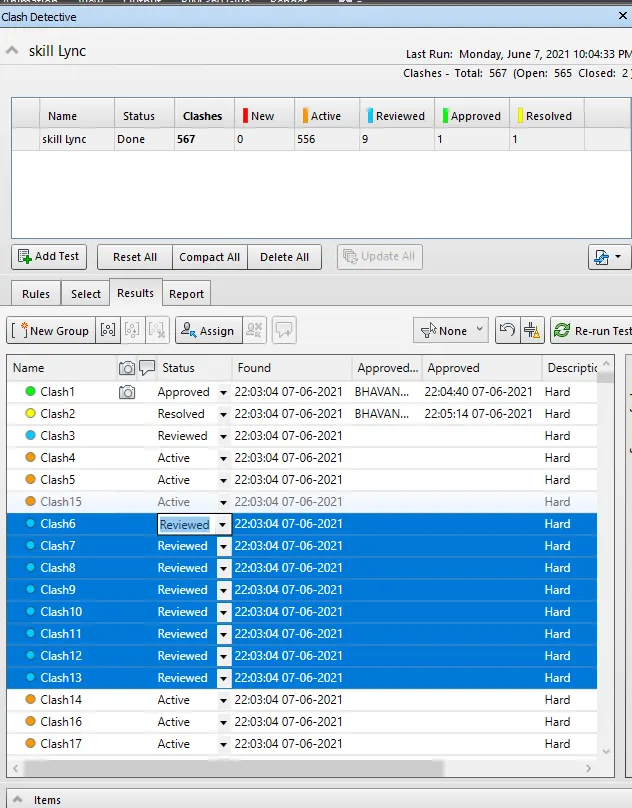
- Now by changing the status we have to save the file
- Now the file is ready and we can send it for review
Result: The task has been successfully completed
5 ans:
Aim: To use the Timeliner feature in Navisworks to prepare a schedule for the project
Procedure:
- Open the structural project in Navisworks
- Now select the selection tree so that the selection tree tab opens as shown
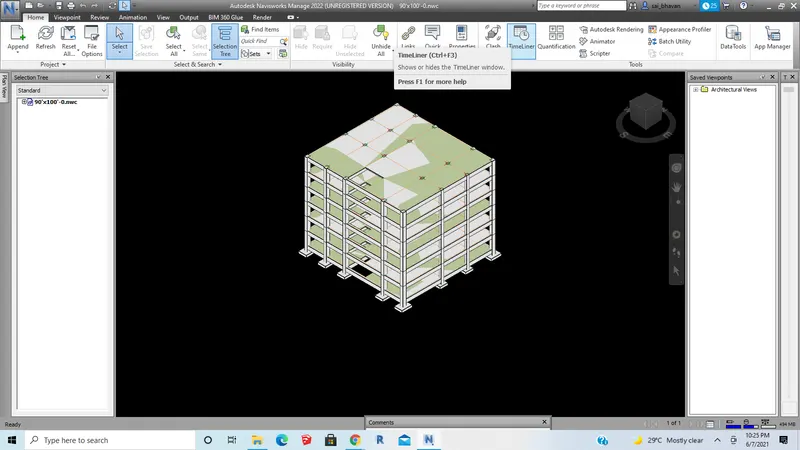
- Now Go to Home and in tools select TimeLiner as shown

- Now a Timeliner Tab opens
- Now select the Footing in the selection tree
- Now add planned start date and planned end date and actual start and actual end as shown
- Now click on add task to add footings as task as shown
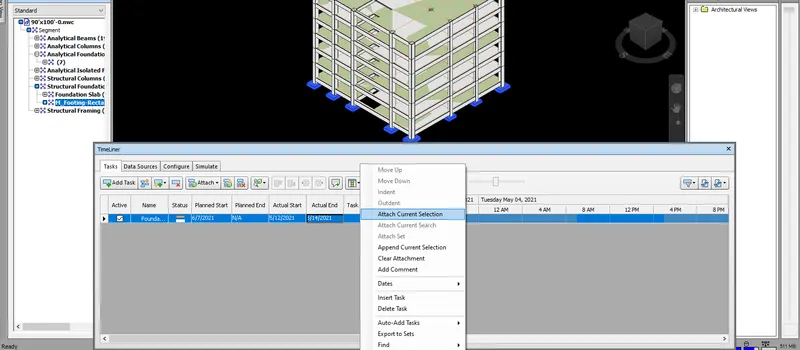
- Now click enter to add a new Task
- Now select the beams, columns, and slabs in the selection tree
- Now add planned start date and planned end date and actual start and actual end as shown
- Now click on add task to add footings as task as shown
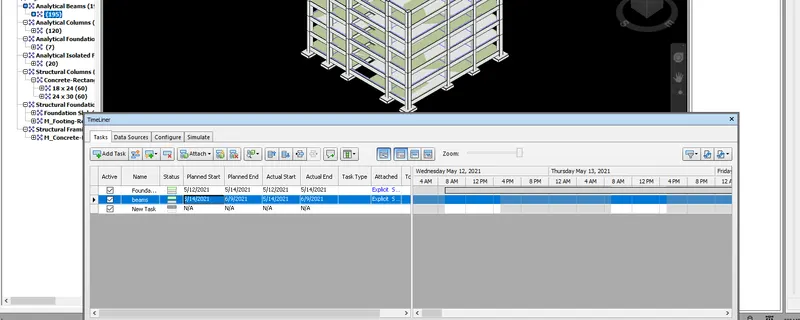
- Now click on simulate
- Now click on play to see the recorded task
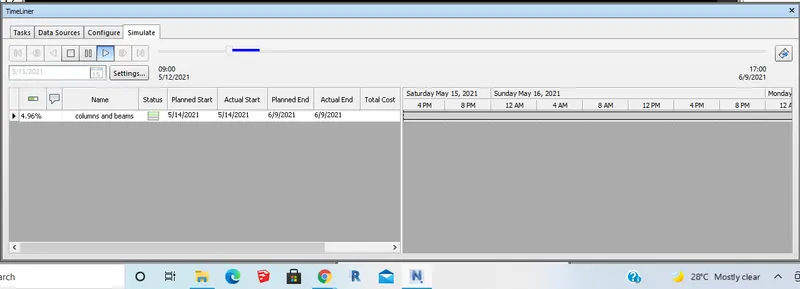
- Now save the project
Result:The task has been successfully completed