Drafting of various geometries using Chamfer, Fillet tool in AutoCad
Aim:
To Draft various geometries using Chamfer, Fillet tool in Autocad.
Introduction:
AutoCAD tools make drafting very simple with drafting and modification tools
Modification tools are:
Chamfer
Fillet
Offset
Rotate
Object snapping
Trim
Extend
Lengthen
Mirror
Join
PRODUCURE:
1ans:
Set the limits
Lower limits as 0,0
Upper limits as 10,10
LINE
Specify first point: 0,0
Specify next point or [Undo]: @3<0
Specify next point or [Undo]: @2.12<45
Specify next point or [Close/Undo]: @2.83<135
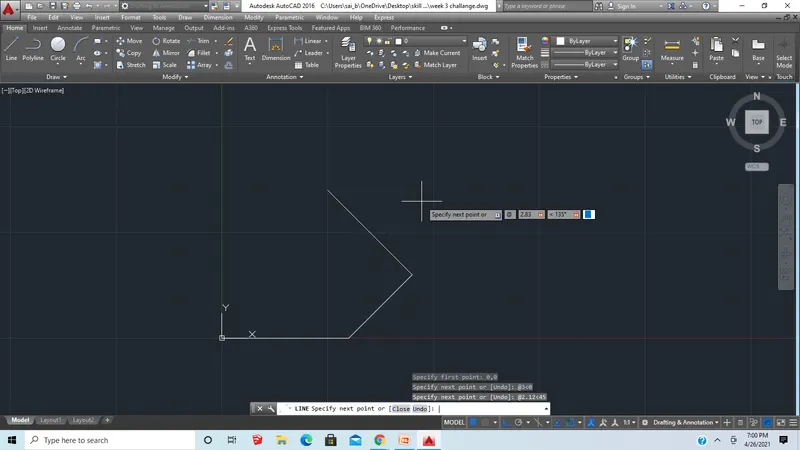
Specify next point or [Close/Undo]: @2<180
Specify next point or [Close/Undo]: c
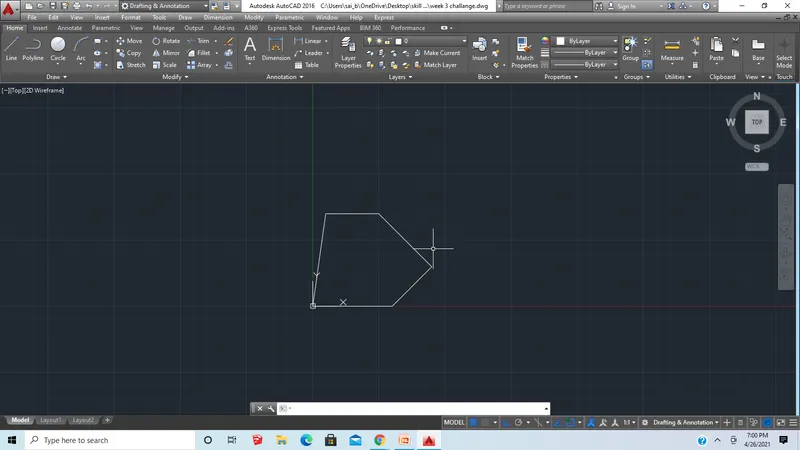
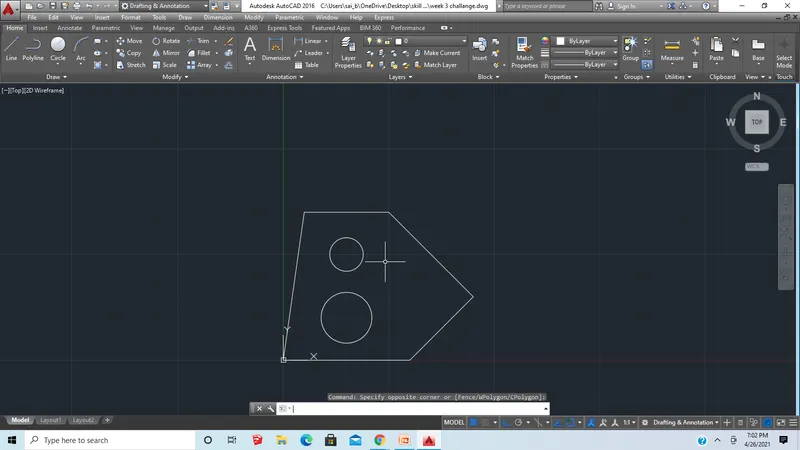
Command: CIRCLE
Specify center point for circle : 1.5,1
Specify radius of circle or [Diameter]: 0.6
Command:CIRCLE
Specify center point for circle : 1.5,2.5
Specify radius of circle : 0.4
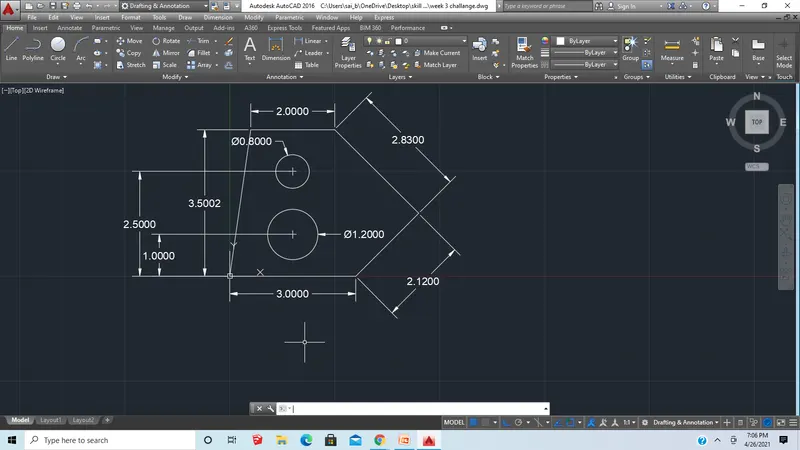
Now give Dimensions
2 ans:
First change the units to architecture
Set the limits
Lower limits as 0’,0’
Upper limits as 100’,100’
Command: L
LINE
Specify first point: 0',5'
Specify next point or [Undo]: @2'5"<270
Specify next point or [Undo]: @3'<300
Specify next point or [Close/Undo]: @2'6"<30
Specify next point or [Close/Undo]: *Cancel*
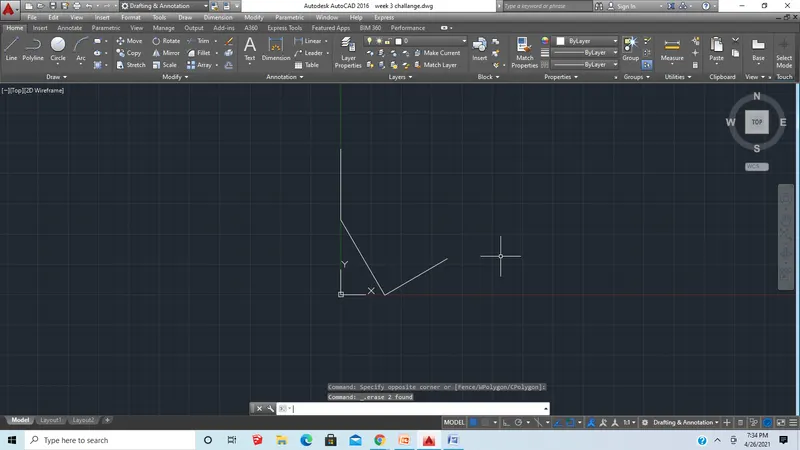
Command: L
LINE
Specify first point: 0',5'
Specify next point or [Undo]: @8'<0
Specify next point or [Undo]: @1'9"<270
Specify next point or [Close/Undo]: @2'10"<225
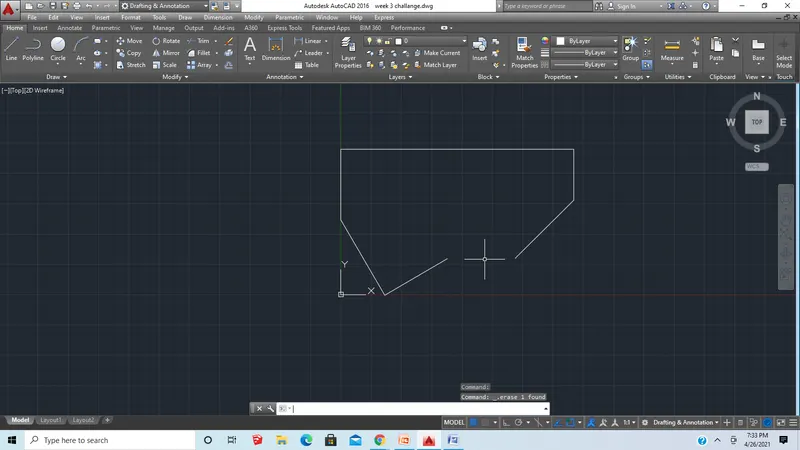
Now press esc and join the two end points to make it closed figure.
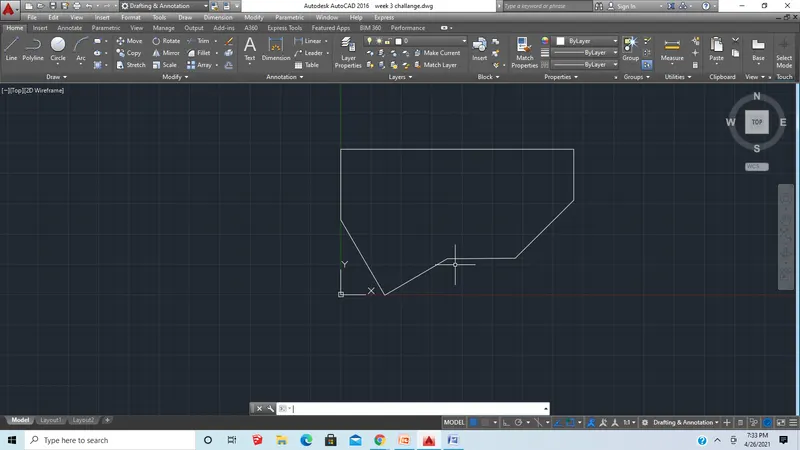
Now we got the image give dimensions
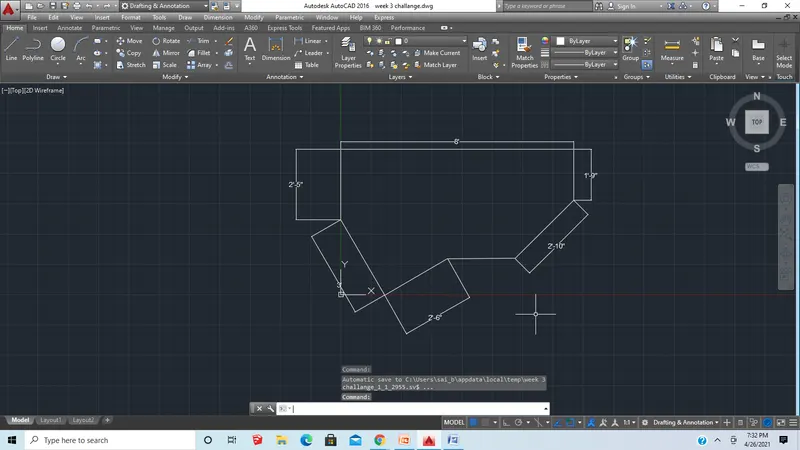
3 ans:
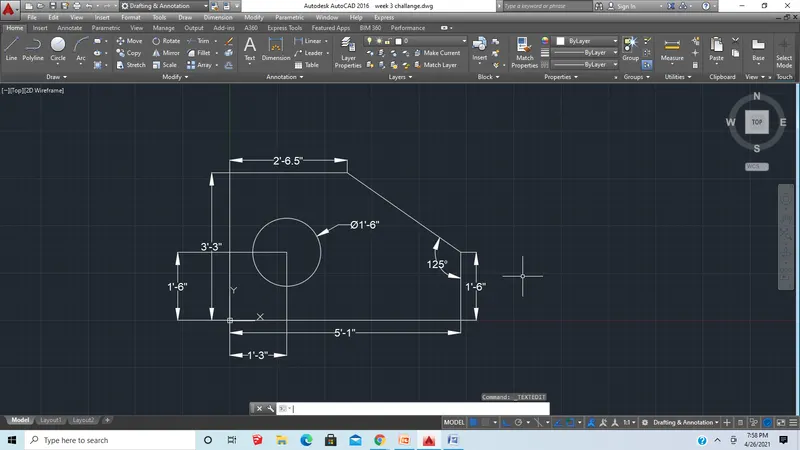
Command: RECTANGLE
Specify first corner point or [Chamfer/Elevation/Fillet/Thickness/Width]: 0',0'
Specify other corner point or [Area/Dimensions/Rotation]: @5'1",3'3"
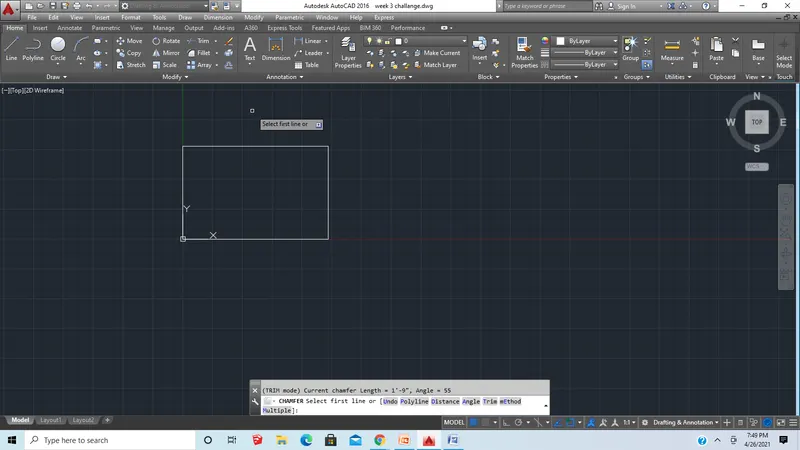
Command: CHAMFER
(TRIM mode) Current chamfer Length = 1'-9", Angle = 55
Select first line or [Undo/Polyline/Distance/Angle/Trim/mEthod/Multiple]: Angle
Specify chamfer length on the first line : 1'9"
Specify chamfer angle from the first line : 55
Now Select first line
Now Select second line
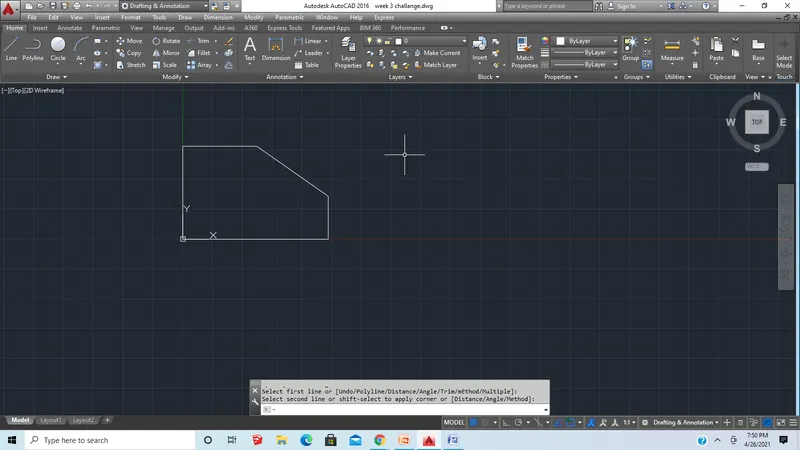
Command: C
CIRCLE
Specify center point for circle or [3P/2P/Ttr (tan tan radius)]: 1'3",1'6"
Specify radius of circle or [Diameter] <0'-9">: d
Specify diameter of circle <1'-6">: 1'6"
and give dimesions
4 ans:
Set limits:
lower left corner : 0,0
Upper right corner: 100,100
Command: L
LINE
Specify first point: 0,0.5
Specify next point or [Undo]: @3,0
Specify next point or [Undo]: @0,-0.5
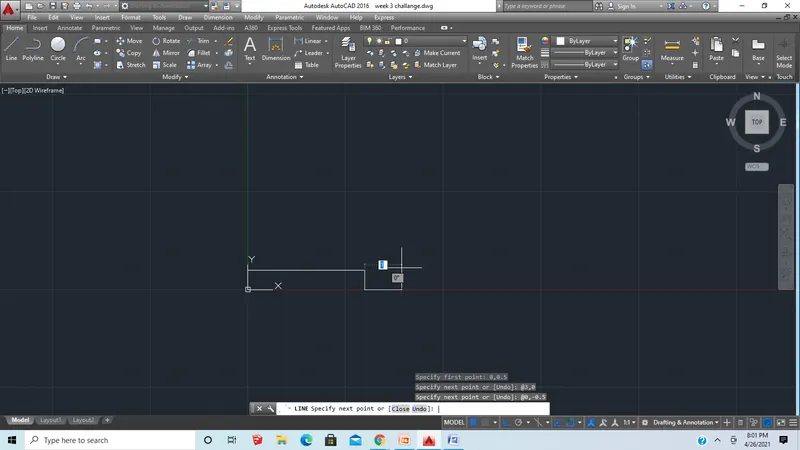
Specify next point or [Close/Undo]: @2.5,0
Specify next point or [Close/Undo]: @0,2.5
Specify next point or [Close/Undo]: @-2,0
Specify next point or [Close/Undo]: @0,3
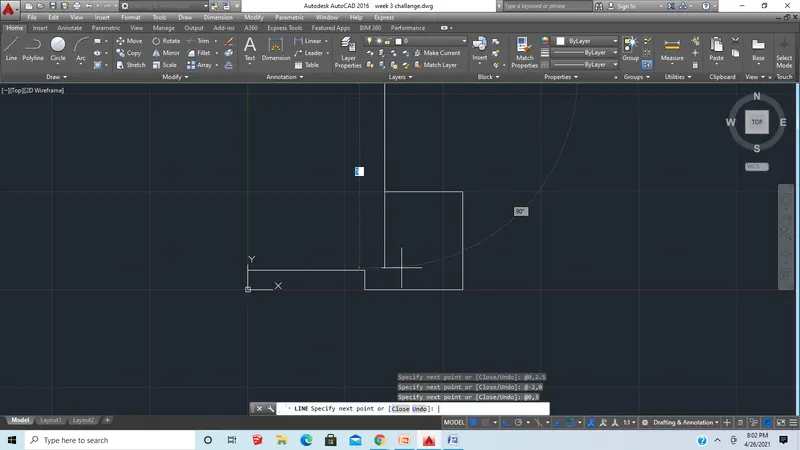
Specify next point or [Close/Undo]: @-2.5,0
Specify next point or [Close/Undo]: @0,-2
Specify next point or [Close/Undo]: @-1,0
Specify next point or [Close/Undo]: c
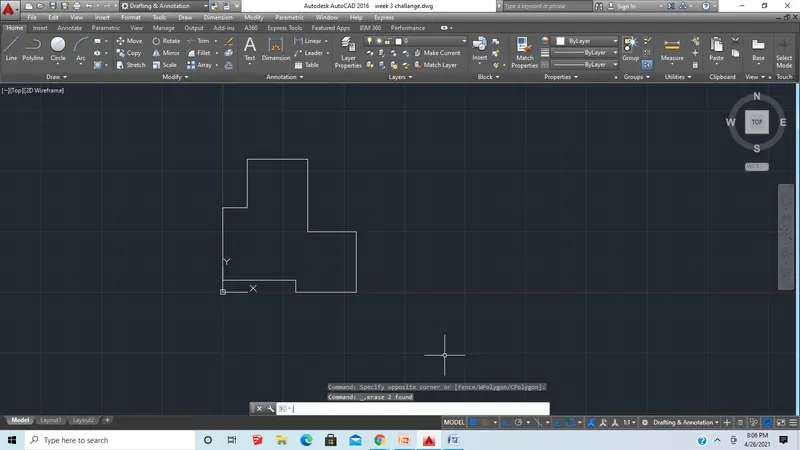
now give dimensions
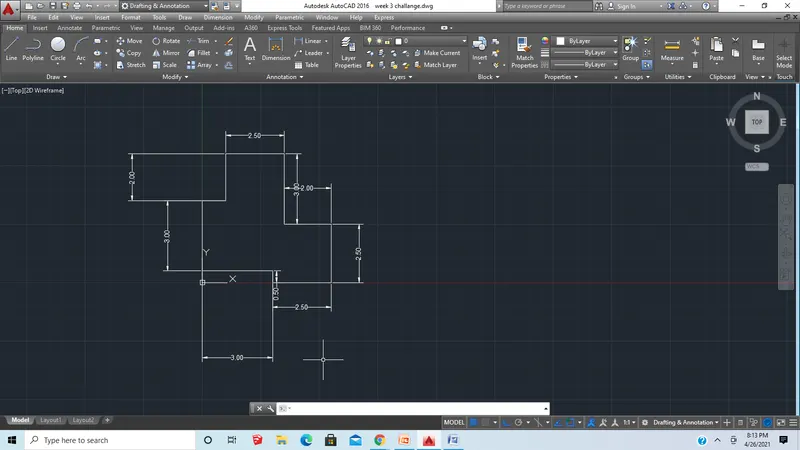
5 ans:
Command: REC
RECTANG
Specify first corner point or [Chamfer/Elevation/Fillet/Thickness/Width]: 0,0
Specify other corner point or [Area/Dimensions/Rotation]: @11.5,6
Command: *Cancel*
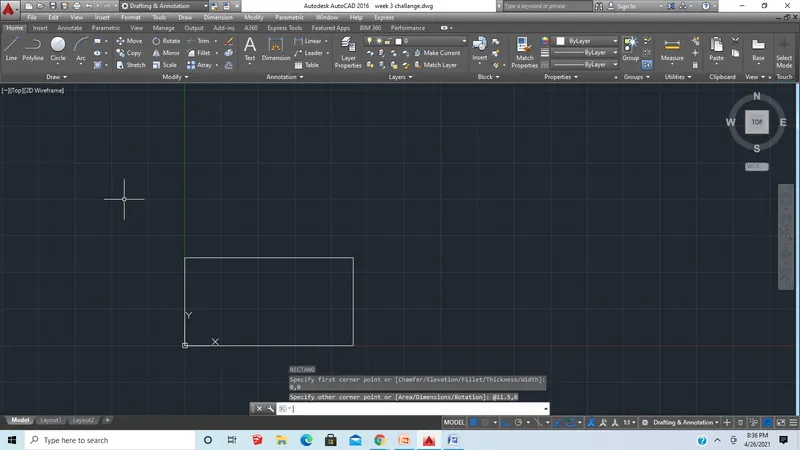
Command: LINE
Specify first point: 3,0
Specify next point or [Undo]: 3,6
Specify next point or [Undo]: *Cancel*
Command: O
OFFSET
Specify offset distance :5.5 towards right
Command: CIRCLE
Specify center point for circle or [3P/2P/Ttr (tan tan radius)]: 1.5,3
Specify radius of circle or [Diameter] <2>: d
Specify diameter of circle <3>: 2
Command: O
OFFSET
Specify offset distance :0.5 inside
Select object to offset or [Exit/Undo] : *Cancel*
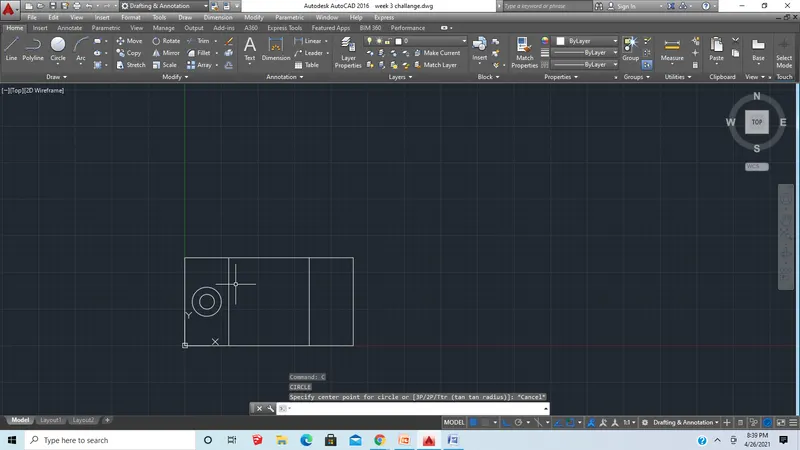
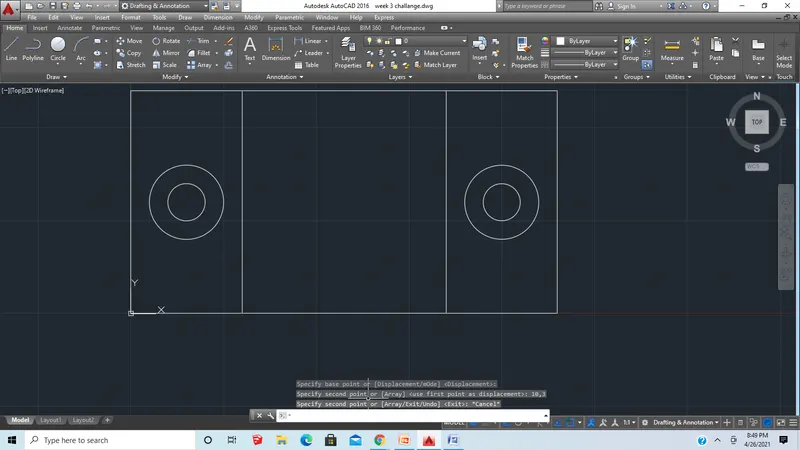
Now select two circles copy on the other end (10,3)
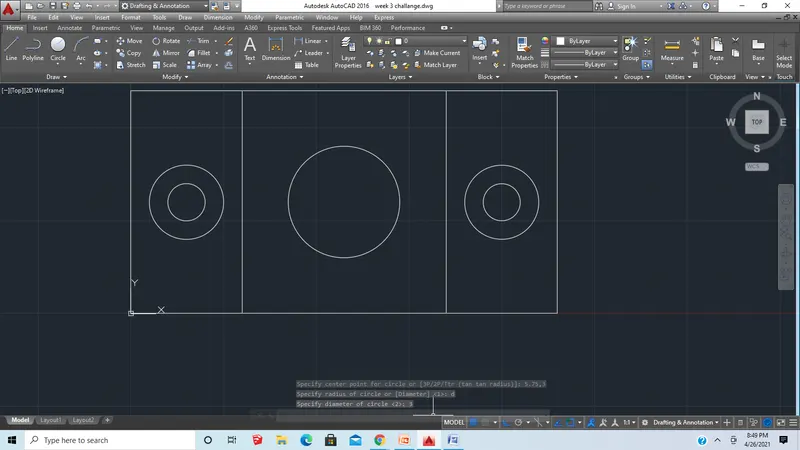
Command: CIRCLE
Specify center point for circle : 5.75,3
Specify radius of circle or [Diameter] <1>: d
Specify diameter of circle : 3
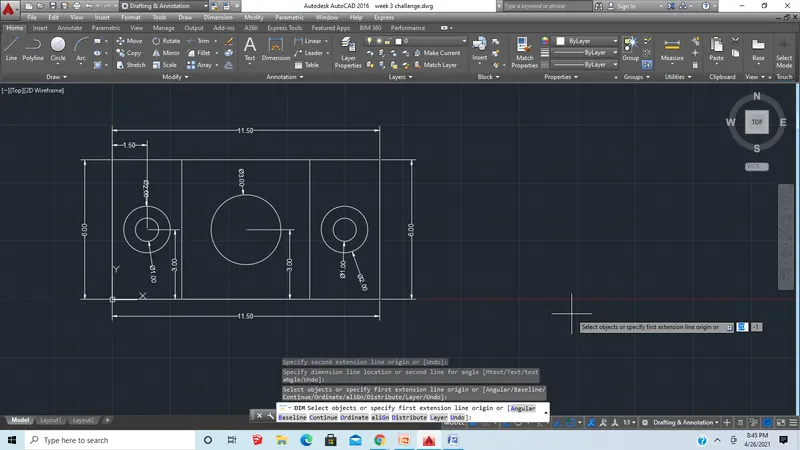
Now give dimensions
6 ans:
Command: L
LINE
Specify first point: 0,0
Specify next point or [Undo]: 1.5,0
Specify next point or [Undo]: 1.5,1.5
Specify next point or [Close/Undo]: 0,1.5
Specify next point or [Close/Undo]: c
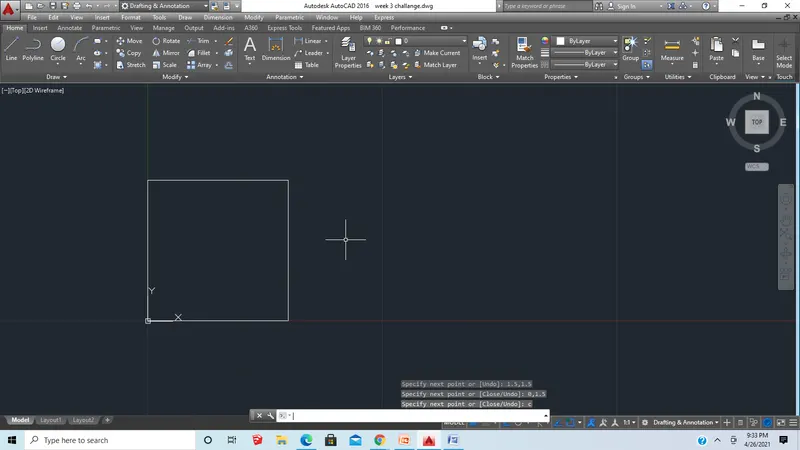
Now offset the bottom line at distance of 0.5 inwards
Also offset the side 0.5 units and 1 unit in wards
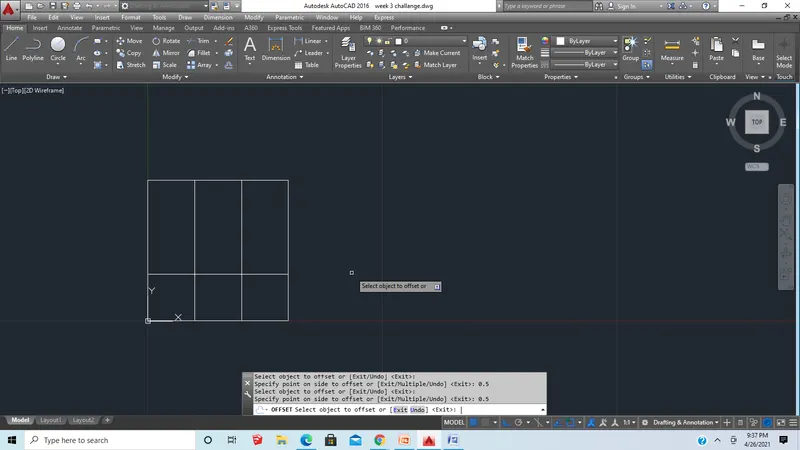
Now trim the two offsets in the bottom
Command: L
LINE
Specify first point: 2.5,0
Specify next point or [Undo]: 4.5,0
Specify next point or [Undo]: 4.5,1.5
Specify next point or [Close/Undo]: 4,1.5
Specify next point or [Close/Undo]: 4,0.5
Specify next point or [Close/Undo]: 2.5,0.5
Specify next point or [Close/Undo]: c
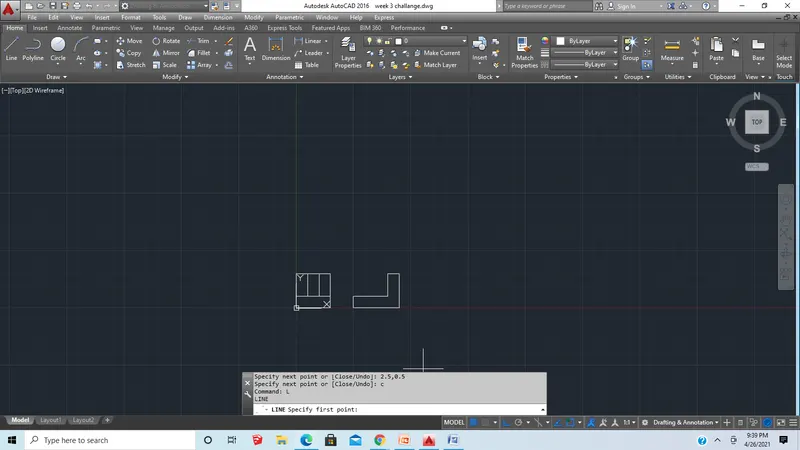
Command: L
LINE
Specify first point: 2.5,0.5
Specify next point or [Undo]: 4,1.5
Specify next point or [Undo]: *Cancel*
Command: L
LINE
Specify first point: 2.5,2.5
Specify next point or [Undo]: 4.5,2.5
Specify next point or [Undo]: 4.5,4
Specify next point or [Close/Undo]: 2.5,4
Specify next point or [Close/Undo]: c
Now offset the bottom line at distance of 0.5 and 1 inwards
Also offset the side 0.5 unit in wards
Now trim the two offsets in the side.
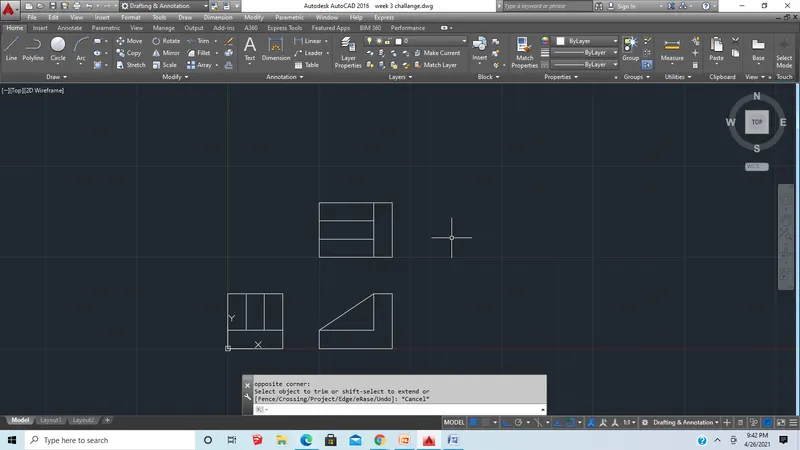
Now Give dimensions
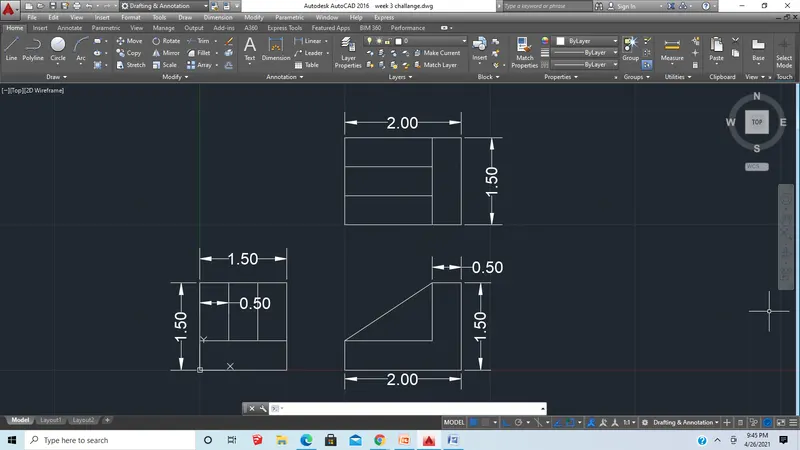
7 ans:
Command: L
LINE
Specify first point: 0,150
Specify next point or [Undo]: 210,150
Specify next point or [Undo]: 210,75
Specify next point or [Close/Undo]: *Cancel*
Command: ARC
Specify start point of arc or [Center]: 210,75
Specify second point of arc or [Center/End]: e
Specify end point of arc: 160,75
Specify center point of arc (hold Ctrl to switch direction)
Specify radius of arc 25
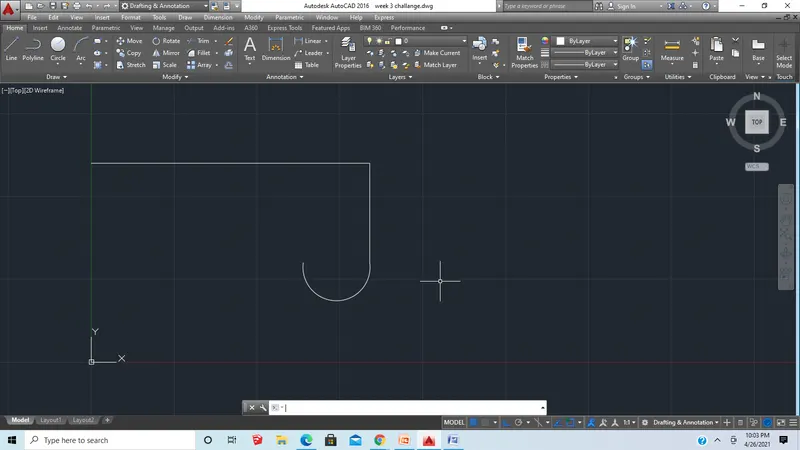
LINE
Specify first point: 160,75
Specify next point or [Undo]: 160,90
Specify next point or [Undo]: 70,90
Specify next point or [Close/Undo]: 70,50
Command: ARC
Specify start point of arc or [Center]: 70,50
Specify second point of arc or [Center/End]: e
Specify end point of arc: 0,50
Specify center point of arc (hold Ctrl to switch direction) or [Angle/Direction/Radius]: r
Specify radius of arc (hold Ctrl to switch direction):35
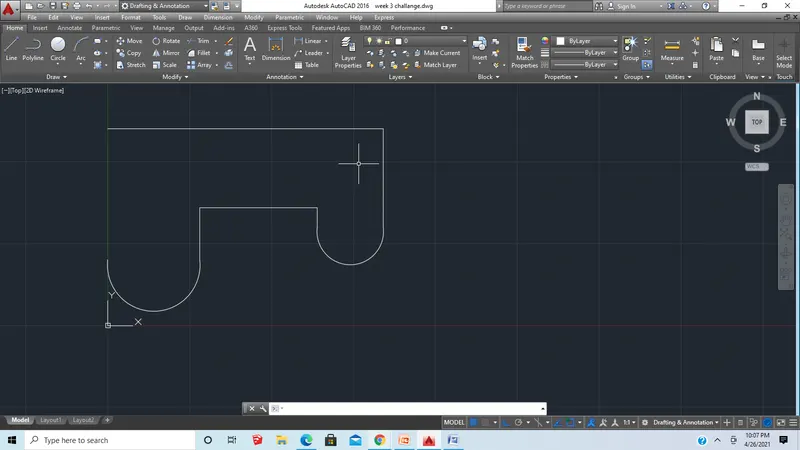
Now the join the two end points
Now use fillet command in corners
In first and 2nd corner use 15 units as radius
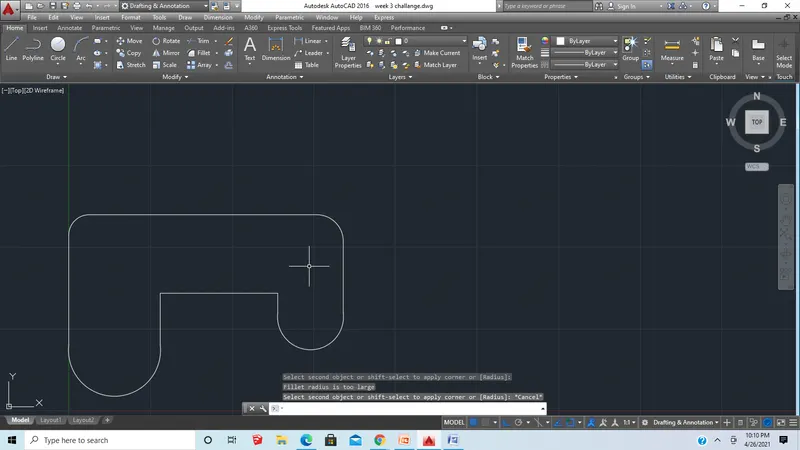
Command: C
CIRCLE
Specify center point for circle or [3P/2P/Ttr (tan tan radius)]: 35,50
Specify radius of circle or [Diameter] <2>: 25
now use fillet command and use 20 units and 6 units as radius in down
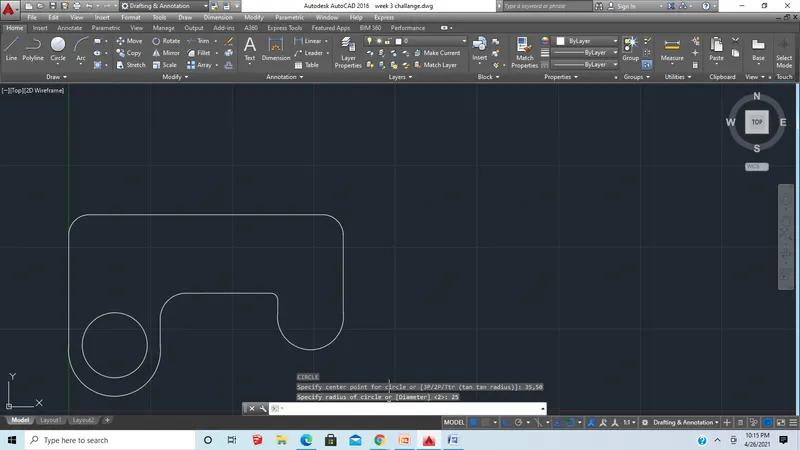
Command: C
CIRCLE
Specify center point for circle or [3P/2P/Ttr (tan tan radius)]: 185,75
Specify radius of circle or [Diameter] <25>: 15
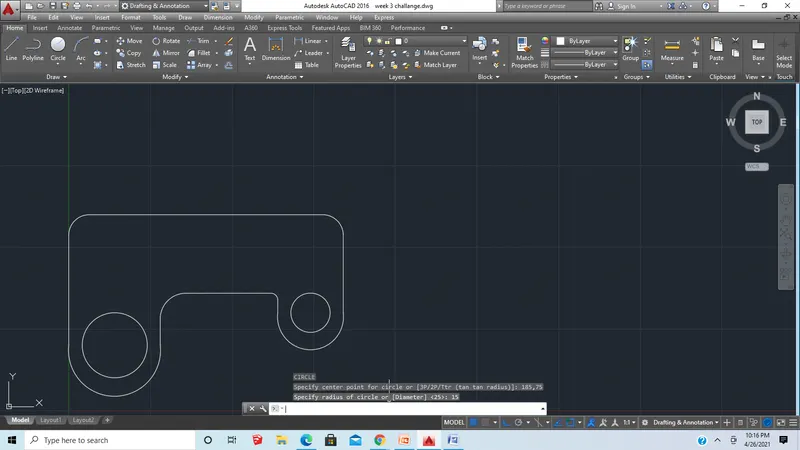
Command: REC
RECTANG
Specify first corner point or [Chamfer/Elevation/Fillet/Thickness/Width]: 20,110
Specify other corner point or [Area/Dimensions/Rotation]: 90,140
Now copy the rectangle by choosing left bottom corner as base point to point having coordinates (120,110)
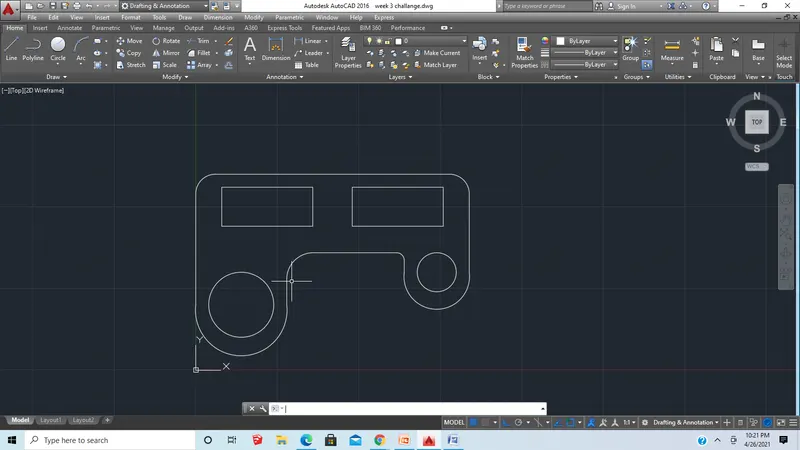
Now give dimensions
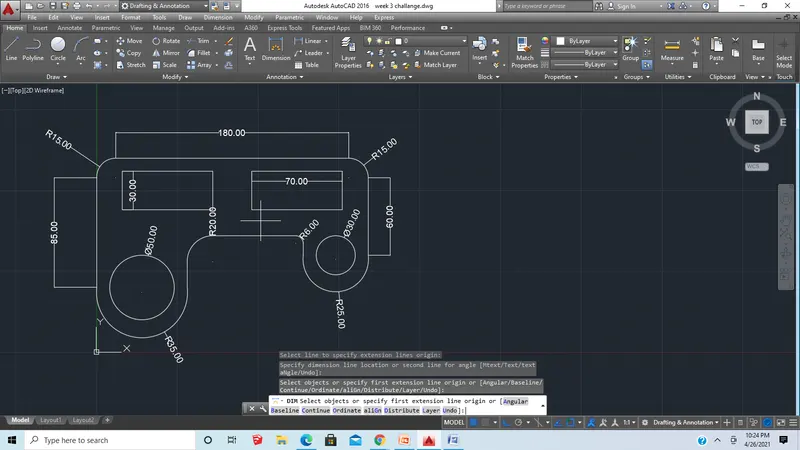
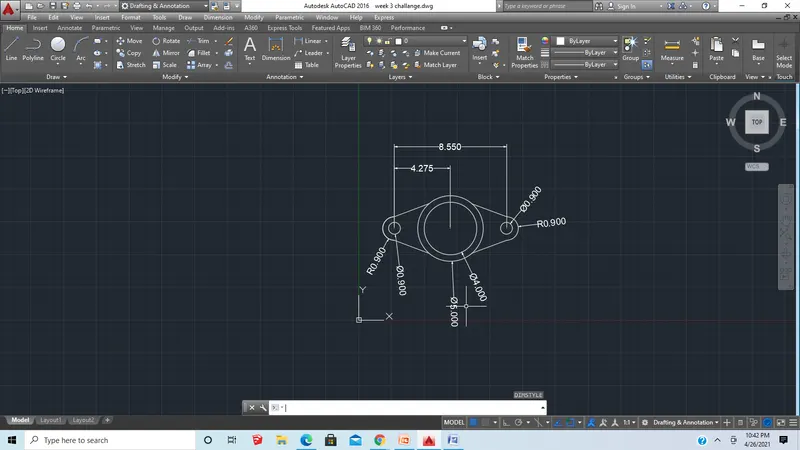
8 ans:
Command: c
CIRCLE
Specify center point for circle or [3P/2P/Ttr (tan tan radius)]: 7,7
Specify radius of circle or [Diameter] <15>: d
Specify diameter of circle <30>: 5
Command: O
OFFSET
Now by using offset command make 0.5 units offsets inside the circle
Now choose line command
And draw two straight lines perpendicular to each other
Now make a offset for vertical line as 4.75units
Now extend or trim the horizontal lines till vertical lines outside the circle
Now make offset of 0.9units for vertical line and trim the extra lines
Now draw tangents on four sides of circle
Now choose circle command and draw circle of dia 0.9units on either side by keeping the intersection point as the center
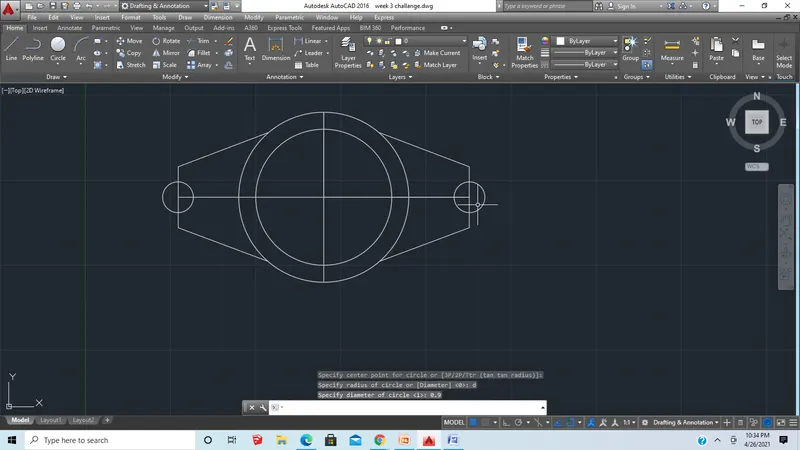
Now choose arc
Specify start point: 2.72, 6.1
Choose end option in the arc command
Specify the end point of arc: 2.72, 7.9
In order to switch the direction of arc hold ctrl
Specify the radius of arc as 0.9
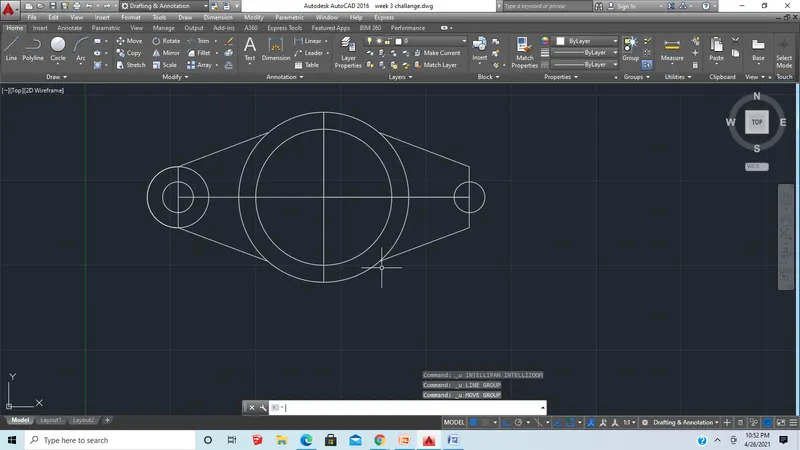
Now mirror the arc on the other end
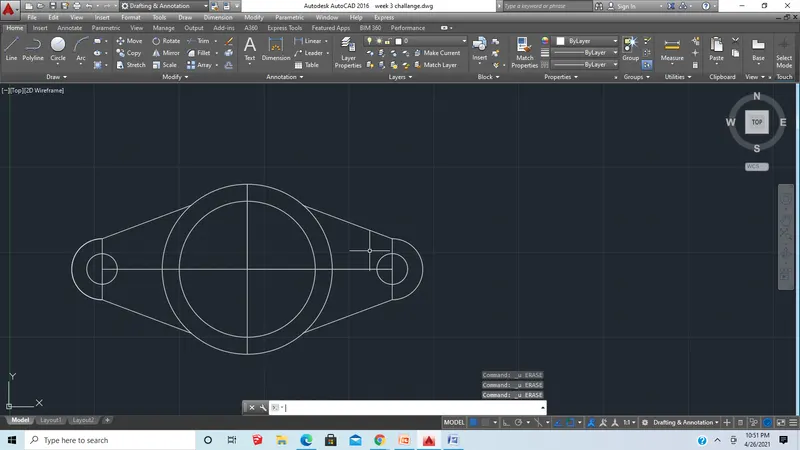
Now remove all unwanted lines
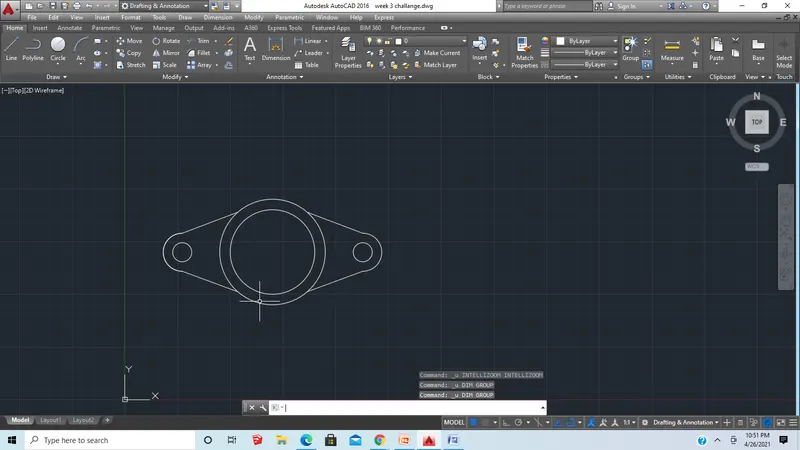
Now give dimensions
9 ans:
First change the units to architecture
Set the limits
Lower limits as 0’,0’
Upper limits as 100’,100’
Command: C
CIRCLE
Specify center point for circle or [3P/2P/Ttr (tan tan radius)]: 15',15'
Specify radius of circle or [Diameter] <0'-0">: 8'
Command: C
CIRCLE
Specify center point for circle or [3P/2P/Ttr (tan tan radius)]: 47'6",15'
Specify radius of circle or [Diameter] <8'-0">: 9'
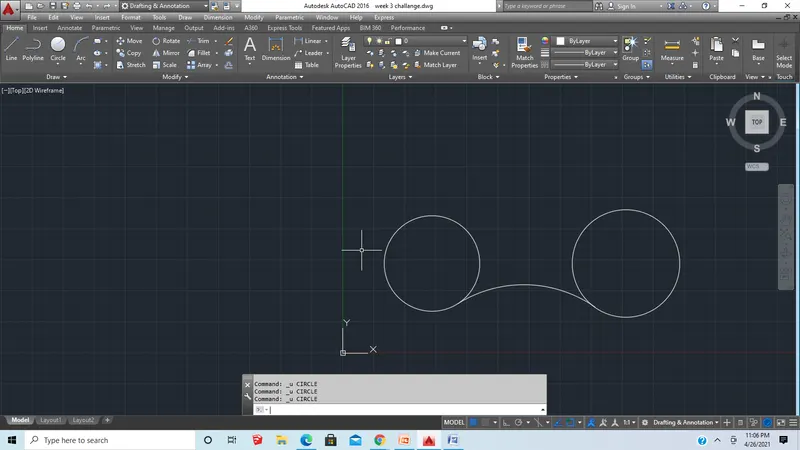
Command: F
FILLET
Current settings: Mode = TRIM, Radius = 0'-6"
Select first object or [Undo/Polyline/Radius/Trim/Multiple]: R
Specify fillet radius <0'-6">: 20'10"
Now select two circles bottom to get a fillet
Command: C
CIRCLE
Specify center point for circle or [3P/2P/Ttr (tan tan radius)]: 47'6",15'
Specify radius of circle or [Diameter] <9'-0">: 32'8"
Command: C
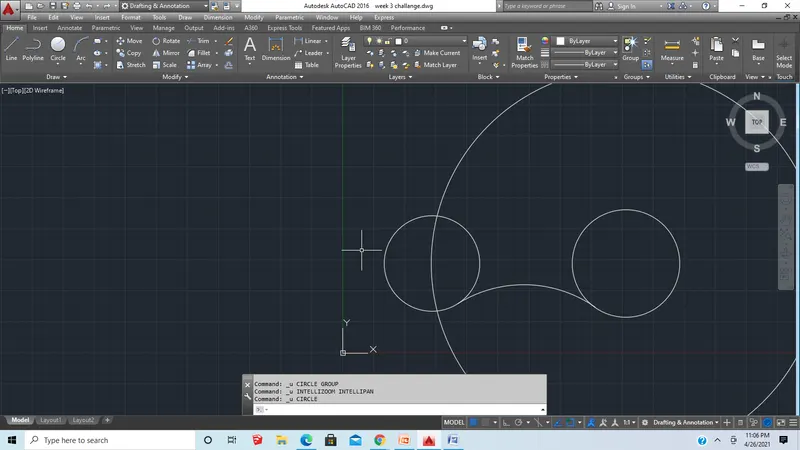
CIRCLE
Specify center point for circle or [3P/2P/Ttr (tan tan radius)]: 15',15
Specify radius of circle or [Diameter] <32'-8">: _u
Requires numeric radius, point on circumference, or "D".
Specify radius of circle or [Diameter] <32'-8">: *Cancel*
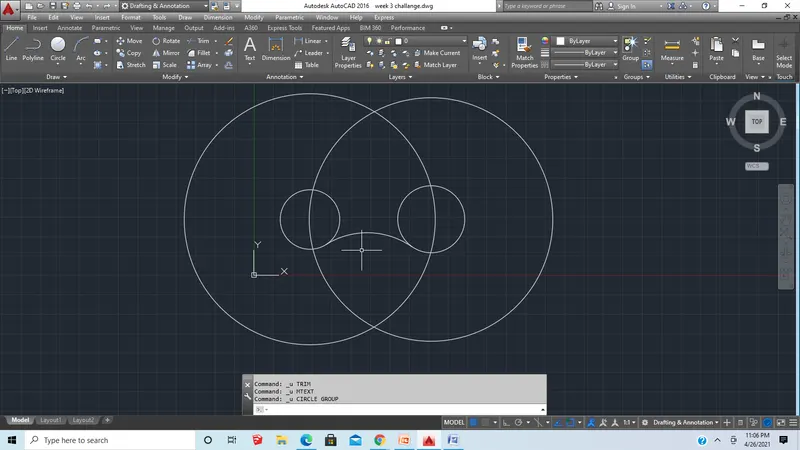
Command: C
CIRCLE
Specify center point for circle or [3P/2P/Ttr (tan tan radius)]: 15',15'
Specify radius of circle or [Diameter] <32'-8">: 33'8"
Now at the point of intersection of the two circle in the bottom keep it as a center and with radius 41’8” draw a circle
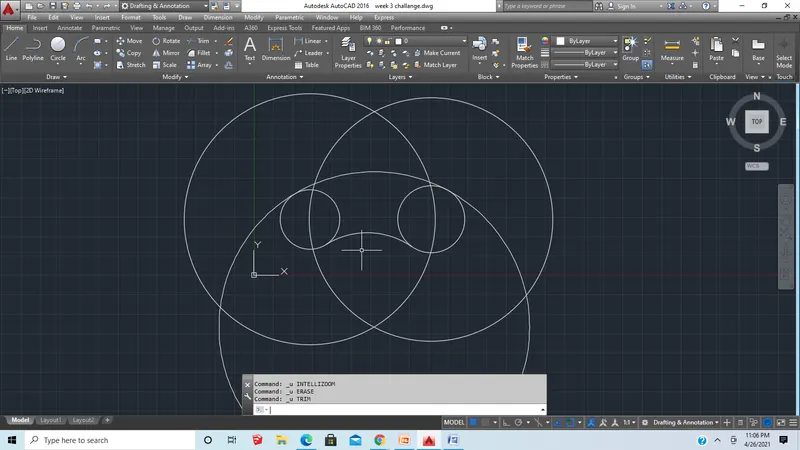
Now trim all the unwanted lines
Now give dimensions
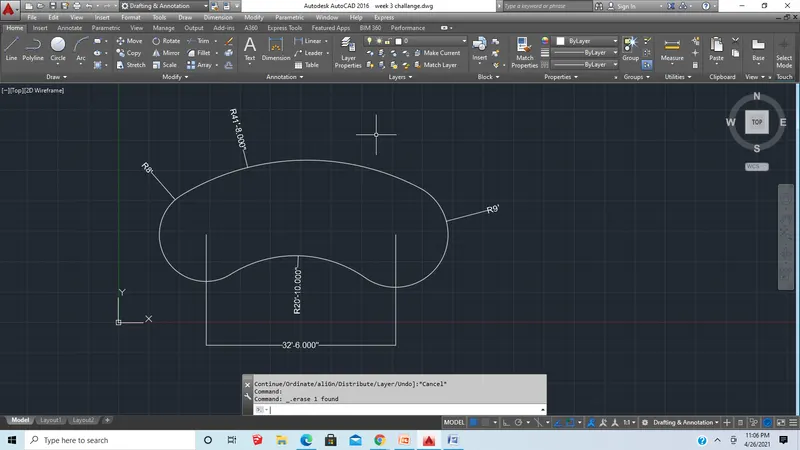
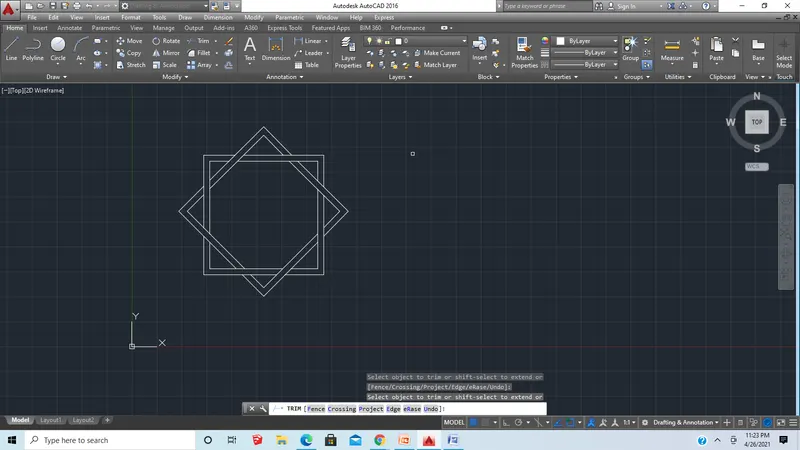
10 ans:
Command: REC
RECTANG
Specify first corner point or [Chamfer/Elevation/Fillet/Thickness/Width]: 3',3'
Specify other corner point or [Area/Dimensions/Rotation]: 8',8'
Command: *Cancel*
Command:
Command: OFFSET
Specify offset distance : 3"
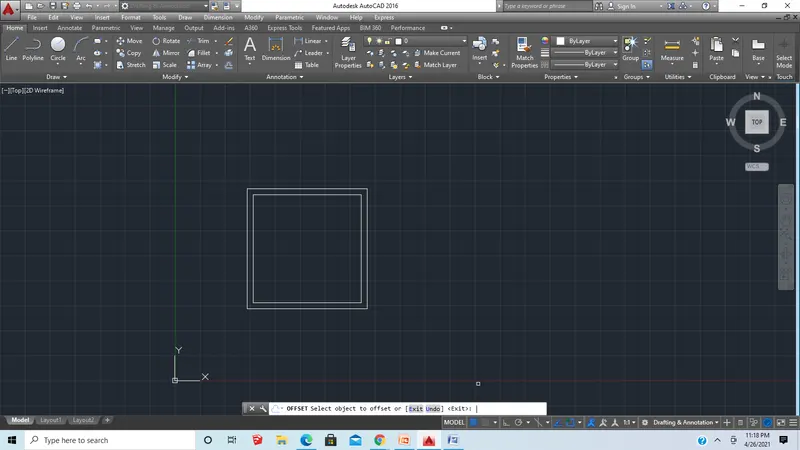
Now press esc
Now select rotate command and rotate the figure using copy command in command bar with angle 45 degrees
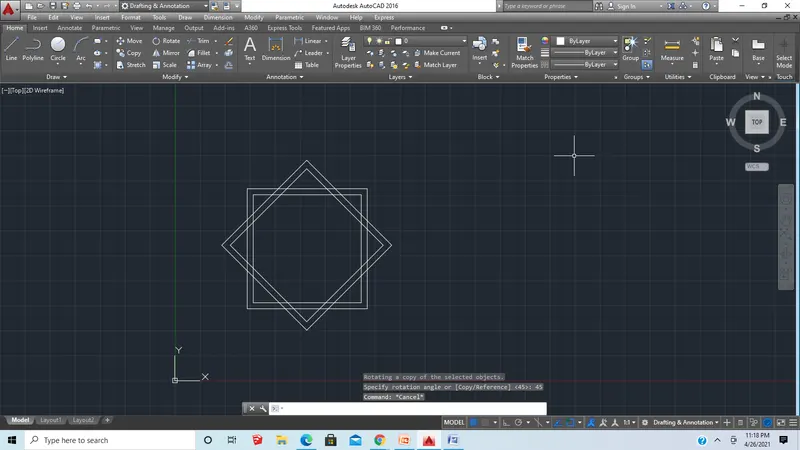
Now trim unwanted lines
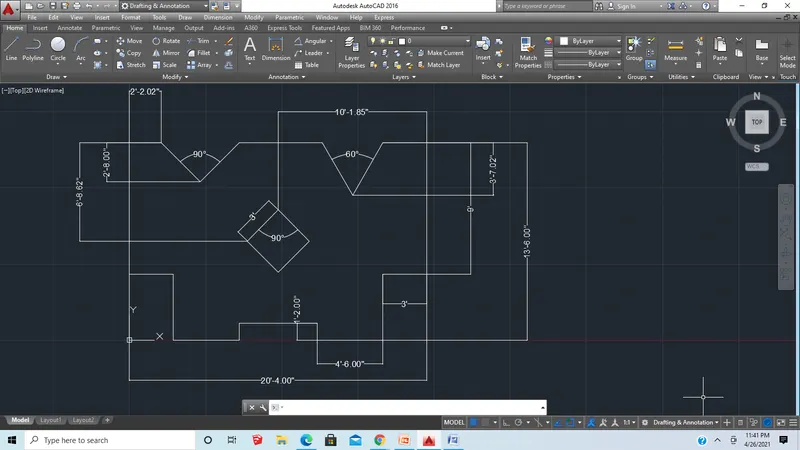
11 ans:
Command: L
LINE
Specify first point: 0',13'6"
Specify next point or [Undo]: @9'<270
Specify next point or [Undo]: @3'<0
Specify next point or [Close/Undo]: @4'6"<270
Specify next point or [Close/Undo]: @4'6"<0
Specify next point or [Close/Undo]: @1'2"<90
Specify next point or [Close/Undo]: @2'8"<0
Specify next point or [Close/Undo]: *Cancel*
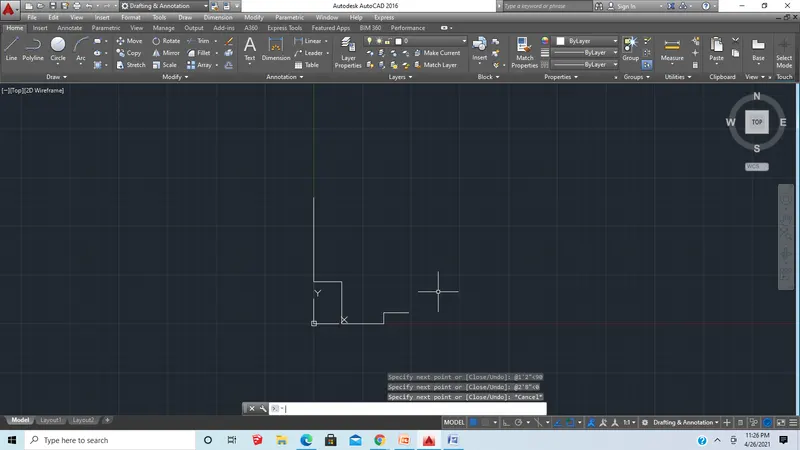
Now mirror this figure to obtain this exact geometry on the other side
Now use LINE
Specify first point: 20'4",13'6"
Specify next point or [Undo]: @3'<180
Specify next point or [Undo]: @4'1.67"<240
Specify next point or [Close/Undo]: @4'1.67"<120
Specify next point or [Close/Undo]: @5'8.32"<180
Specify next point or [Close/Undo]: @3'9.25"<225
Specify next point or [Close/Undo]: @3'9.25"<135
Now join last end points to make a closed figure
Command: REC
RECTANGLE
Specify first corner point: 8'8", 5’3"
Specify other corner point: 11'8", 8’3"
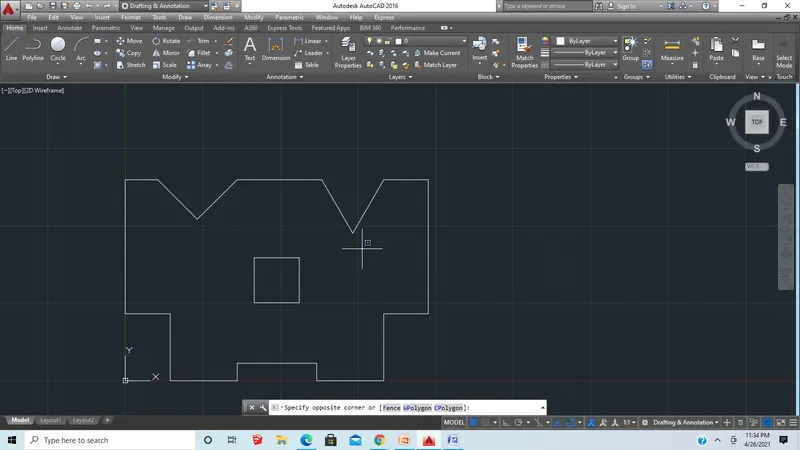
Now select rotate command and rotate the figure 45 degrees
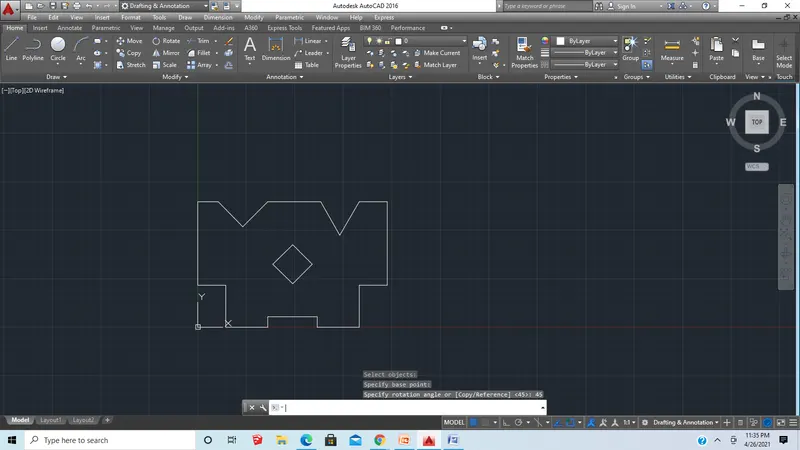
Now give dimensions
Results:
1
2
3
4
5
6
7
8
9
10
11