Wiring harness design in CATIA V5 - 3D modeling Week 5 & 6 Challenge
First of all I am download all connectors from the given link and extract all zip files from folder.
After extracting all files I am opening CATIA V5 and drag and drop all connectors IGS files and then I am defining all electrical parameters for the all connectors and then save them and also add them to the catalouge browser.
Procedure for electrically define as connector and add them into catalouge browser.
First of all drag and drop the connector igs file to the CATIA V5 software and then go to the part worbench.
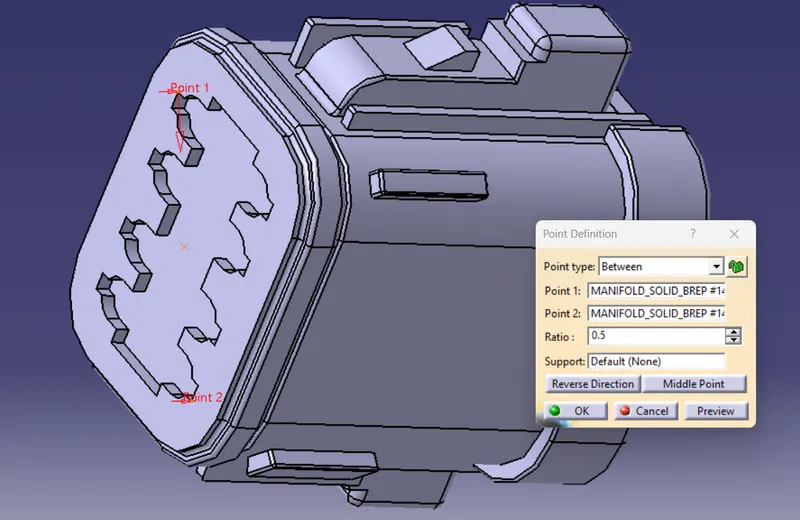
After that we need to define the some geometrical parameter for the connector. For that first of all click on the point button and then from the drop down menu choose the between option and select the required two point in which the point is between them. After that click on ok button. In this way I am creating the connector connection point. rename this point as "connector connection point".
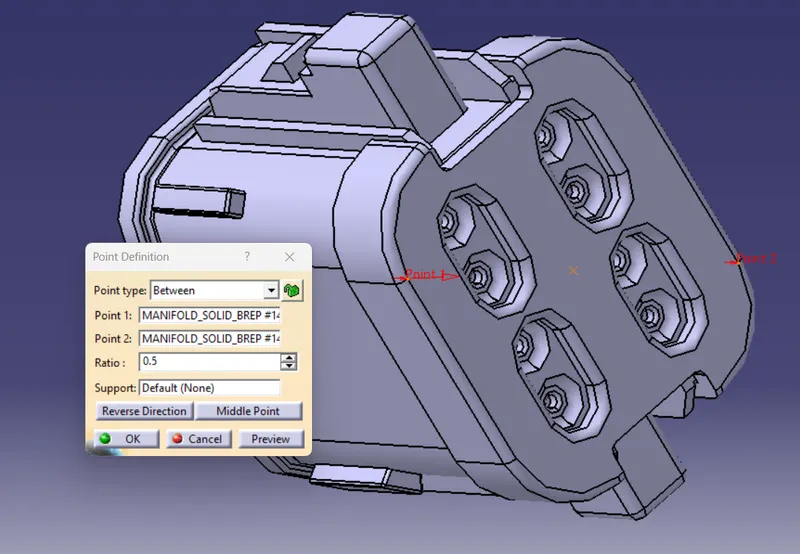
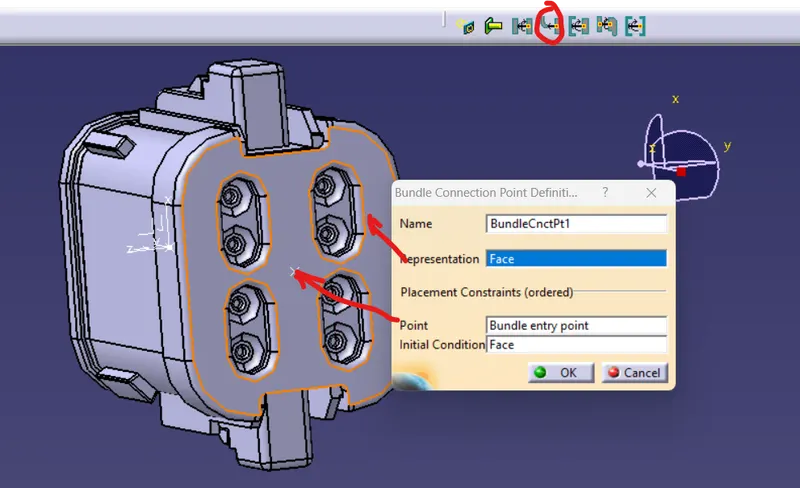
Same as for backside face select the point and name that point as "Bundle entry point". In this way the bundle entry point is creating.
Now for creating the connector connection axis go to the axis system and select the connector connection point and the rotate the axis as per below image.
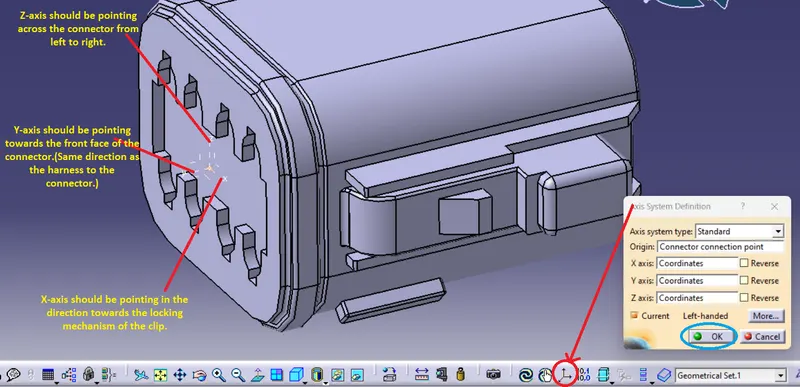
After rotating the axis click ok button.
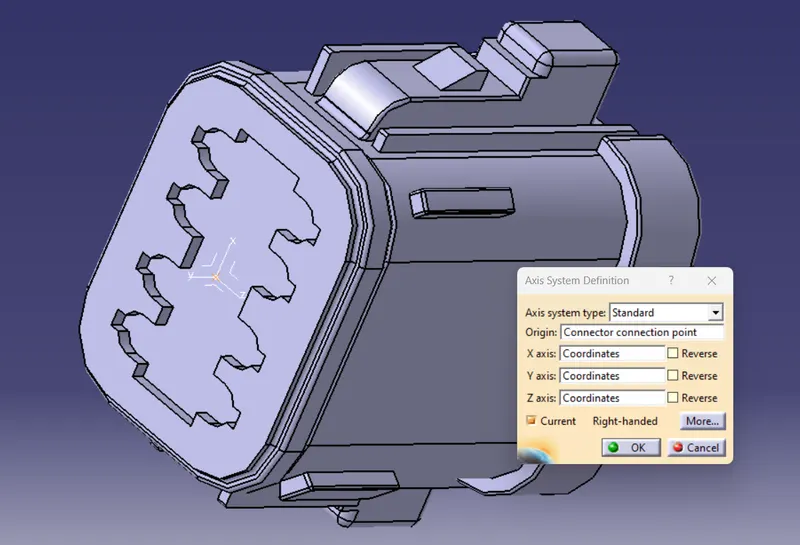
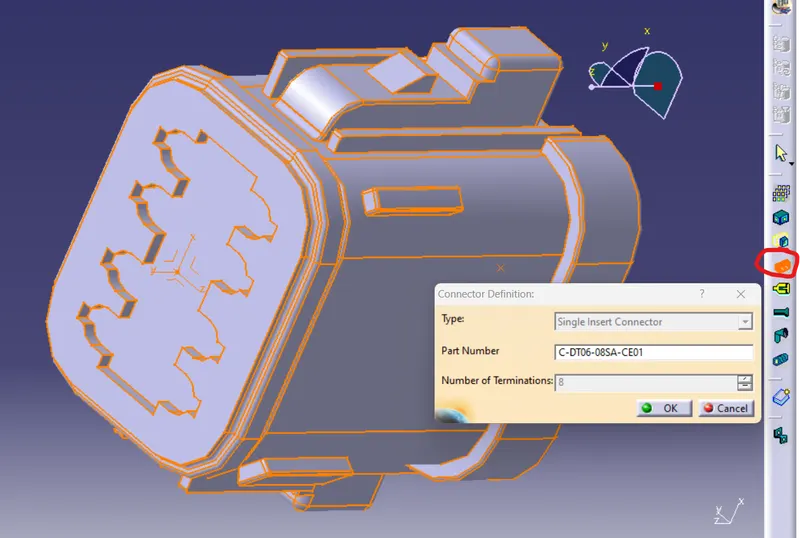
Now go to the electric part design workbench and select the icon define as connector as per the below image. and click the connector so the dialouge box is open in this dialouge box enter the how many terminations are given and then click ok button.
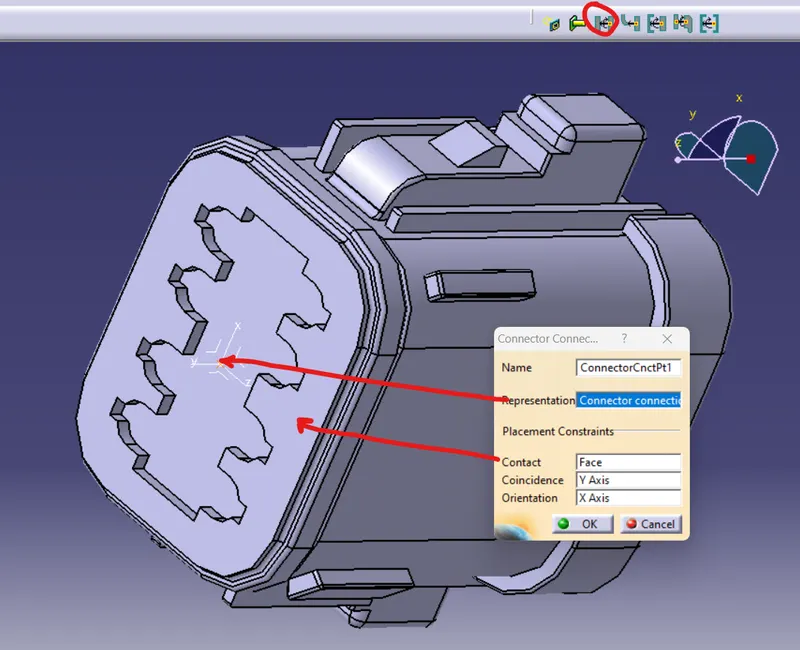
After defining the connector as electric part we need to define the parameter of the connector in the electric part workbench. We have to define the connector connection poin for that we have to select the coinsidence axis as the Y -axis and orientaion as X-axis as per the below image give the input and click on ok.
I am defining the bundle entry of the connector. Click on the icon as shown in the below image and give the input as per the below image and after that click on ok button.
Now for adding the connector in the catalouge , we have to click on the icon for the "device storage" as shown in below image. click on that icon and dialouge box is open here in the first option catalouge select the location where the catalouge is save and select the catalouge. then in the second option family select the family in which the connector have to add shown in drop down menu. and then click on ok button the connector is stored in the catalouge browser.
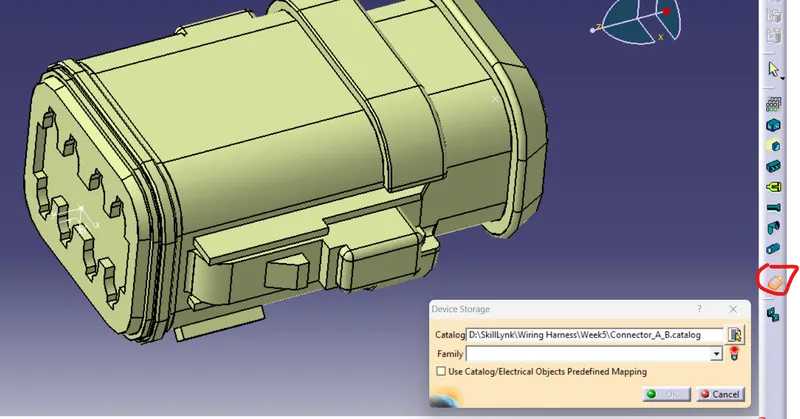
In this way all connectors are saved as electrical part and all connectors are added in the catalouge browser.
Creating Harness A:
For creating harness A first of all we need to open the new product file. and right click on the product file name in tree and select the option componenets and go to the new part file.
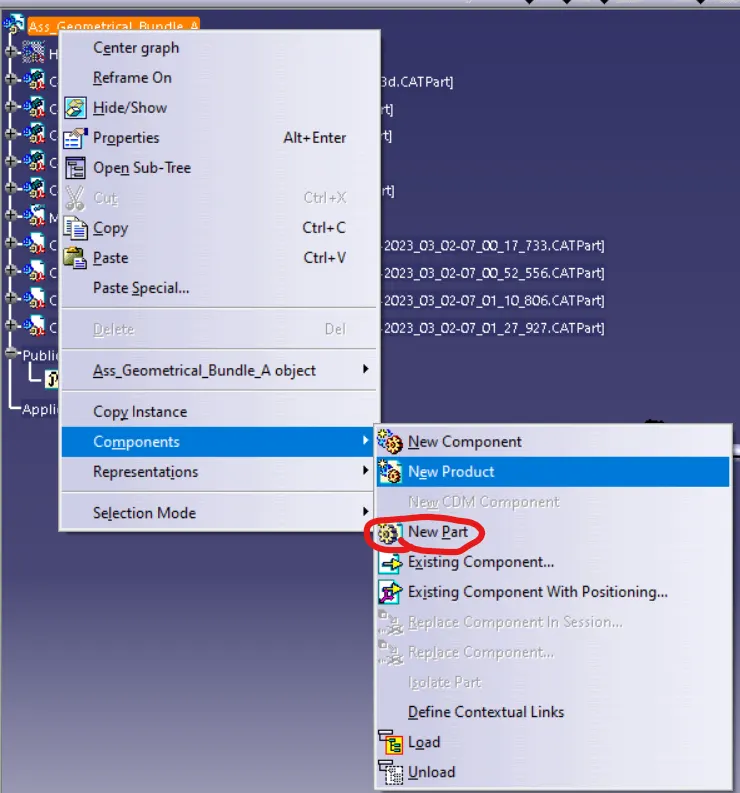
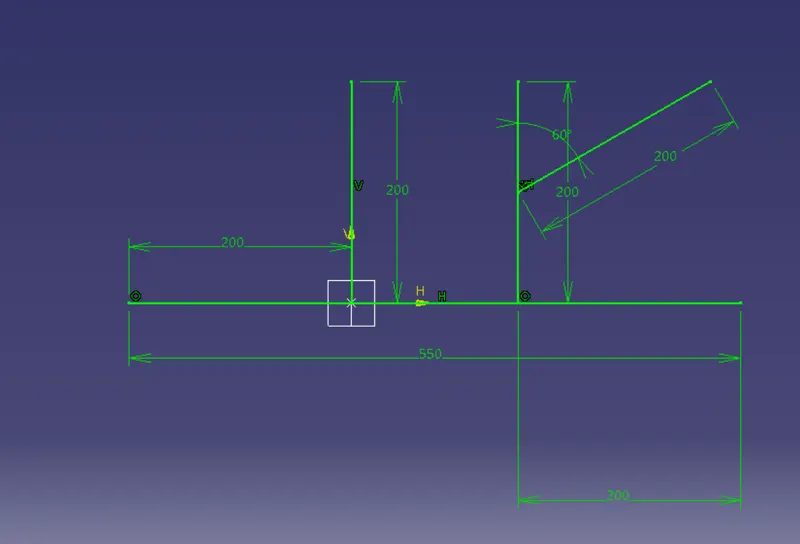
The new part file is created under the product file and open it in the new window and create a sketch in that part file as per the below image.
or we can directly create new part file with the below sketch and after save that file we can load the file in the product file. The below skecth is used for the routing harness and connector position. so we can rearrange the connector as per desired location.
After sketch is done now for addding the connector in the product file go to the catalouge browser icon and click on it. as shown in below image. and find the browser where you have saved it and from that browser add all required connector for the assembly wiring harness.
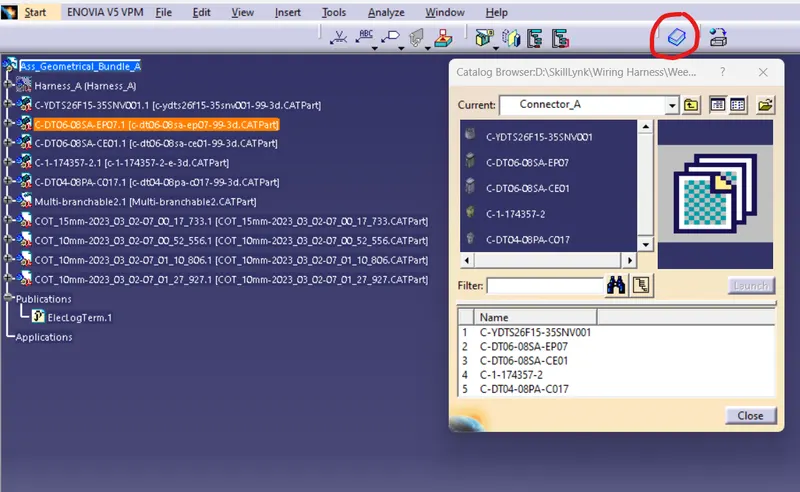
After adding all connector first we need to rearrange the connector as per desired location for that we are crearting the sketch. So move the connector by using compass or snap command and rearrange all connector at their location and after that save the file. Now after rearranging the connector the assembly need to electrically defined so Go to the electrical harness assembly workbench and click the icon "geometrical bundle" as shown in below image and click the product file from the tree. Now the hole assembly is converted in to the electrical assembly.
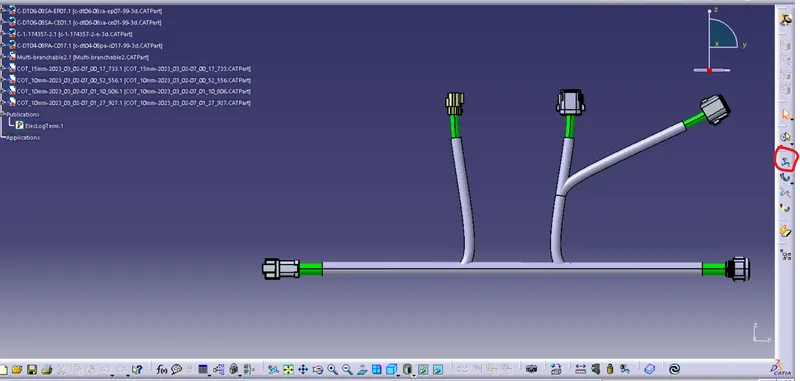
After that for defining the harness bundle go to the icon "Multi brancheable document" and click on it and the new branchable window is opened.
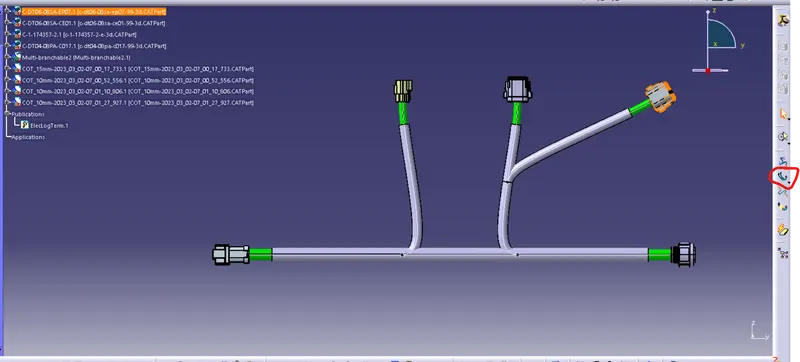
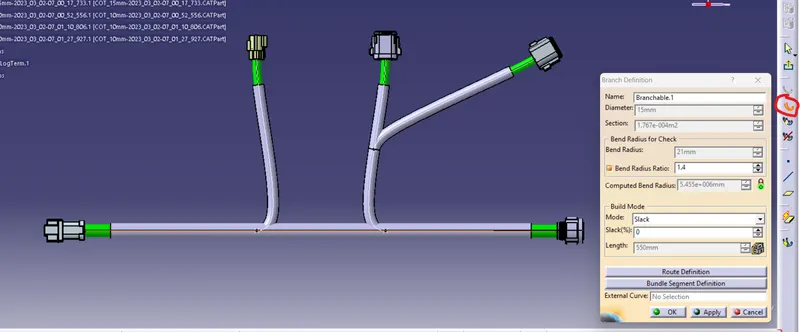
In this branchable window click on the icon " branch definition" as per below image and the dialouge box is open in this dialouge box enter the diameter and required bend radius value and select the other option as per below image and then click on the route definition.
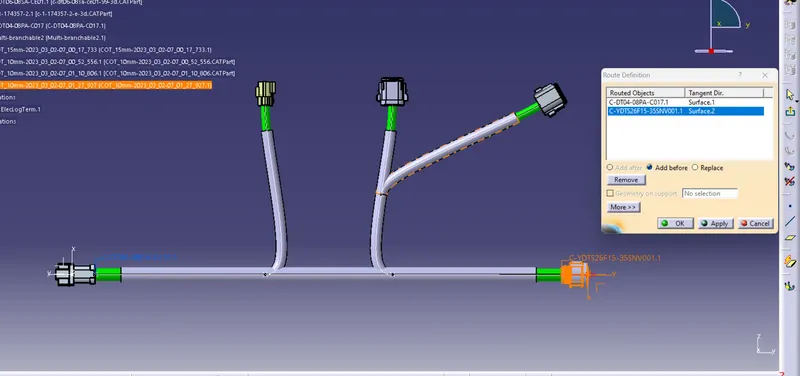
In the route definition click the two connector which between the routing is need and then click more option and you can set the routing as per required inputs and after this all inputs is done click on the ok button and then click on again ok button and the wiring harness routing is done between those two connecctors. In this way I am doing the routing for all other connectors.
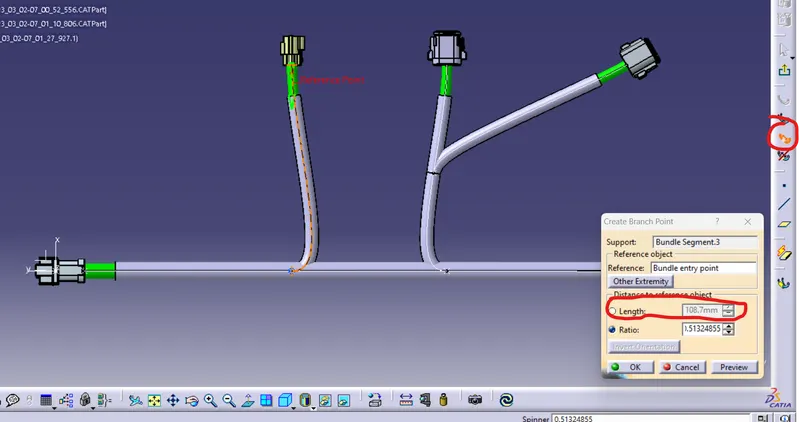
For branch point defining I am selecting the icon create branch point as per below image and then selecting the branch in which I want to create the branch point after that the dialouge box is open as per below image in this dialouge box either we can enter the ratio for the brnach point or we can enter the distance for the branch point and then click on ok button the branch point is creating. In this way I am crearting the branch point at required place.
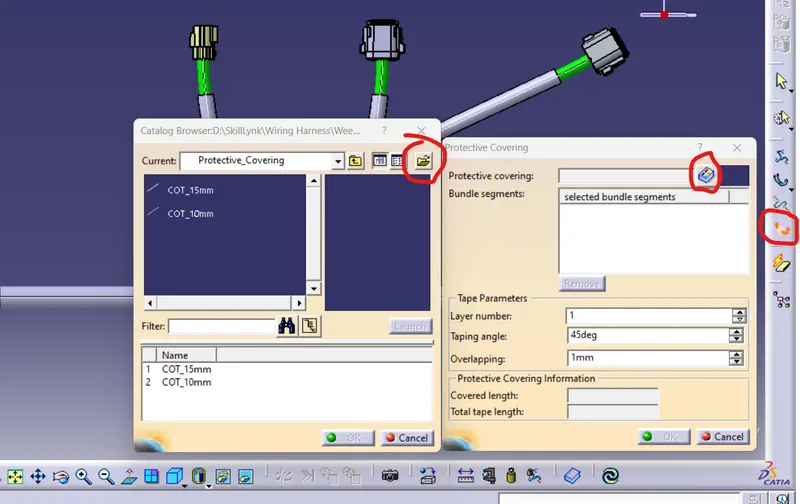
Noww for adding the protective covering to the harness bundle I am click on the icon protective covering as per below image and in the dialouge box open I am opening the catalouge brawser where the protective covering is save and then selecting the required size protective covering for the wiring harness and then click ok. As per below image.
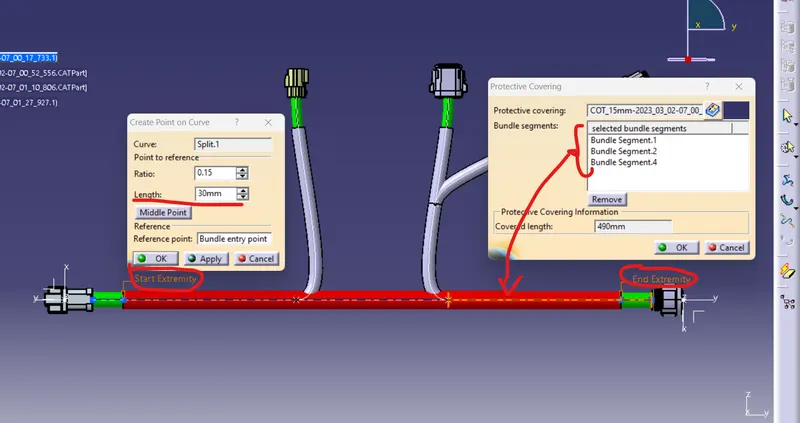
Now in the bundle segment option I am selecting the wiring harness bundle where I want to apply protective covering and then selecting all required bundle and also click on the start extrimity and end extrimiity point as per below image. Here I am defing the distance from where to start the protecctive covering and where to end it. Here providing the distance for start extrimity point as per shown in below image and then click ok. after giving all value click ok button and the protective covering is created as shown in below image. In this way I am defining all protective covering for all wiring harness bundle.
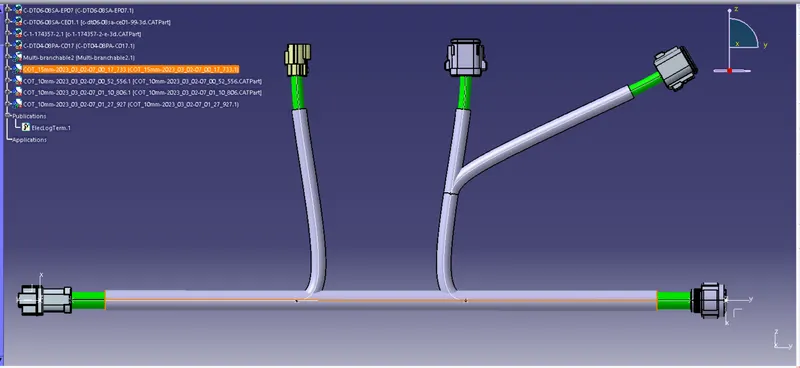
After creating all harness bundle and protective covering the Harness A is done and save it .
Harness A:
The Harness A is creating as per below image.
For creating harness B same following all steps explained in the above and the harness B is creating done.
Harness B:
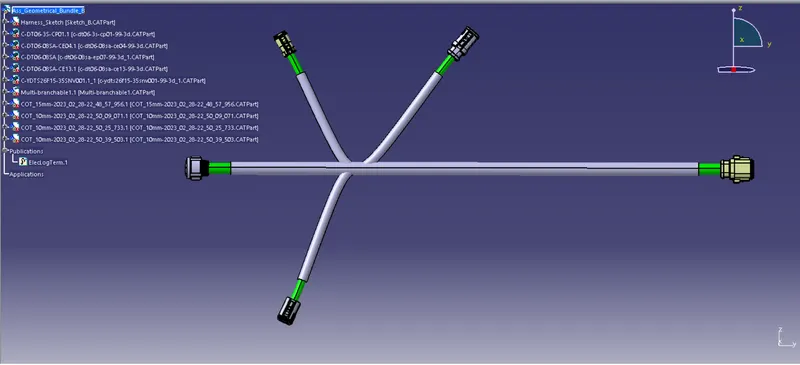
The Harness B is creating as per below image.
Final Assembly:
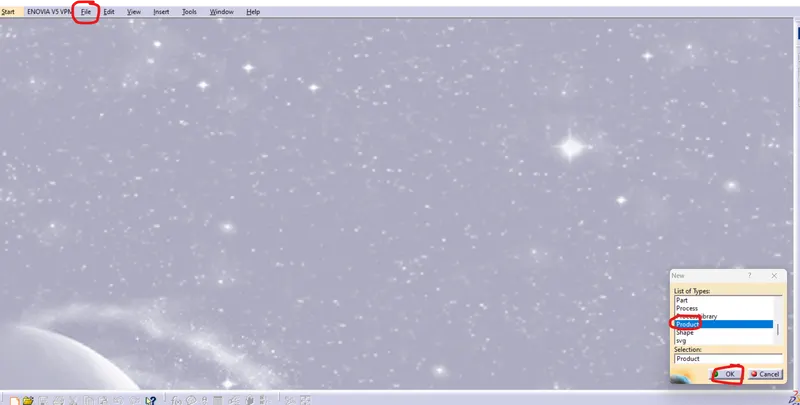
Now for connecting this two harness we need to create new product file. for that click on the file and click on new and go to the new product file and click ok as per below image.
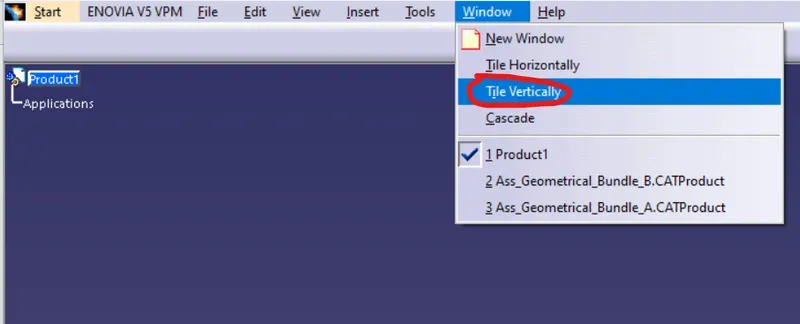
Now go to the window and select the tile vertically option so, we can easily visible of the all window in the vertical mode. as shown in the below image.
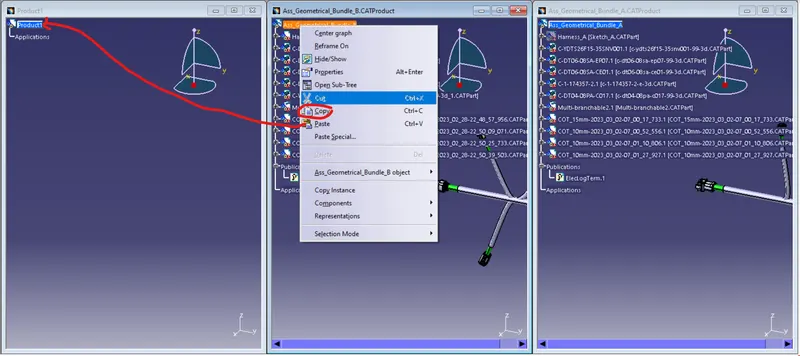
After that right click on the harness A assembly from the tree structure and click copy and come back to the product file and click on product file from the tree structure and click paste, same as do for the harness B assembly.
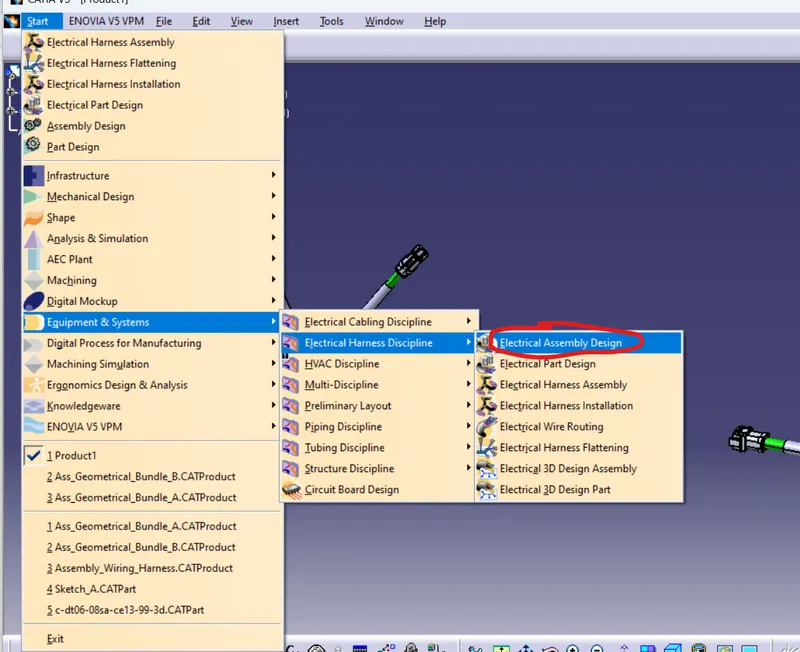
Now maximize the product file. For connecting this both assembly we need electrical assembly design workbench for that go to the start and go to the equipment and systems and then select the electrical harness discipline and click on the electrical assembly design.
Now go to the icon "connect electrical device" and click on the two connector where we want to connect bioth harness and then the both harness is connected with each other.
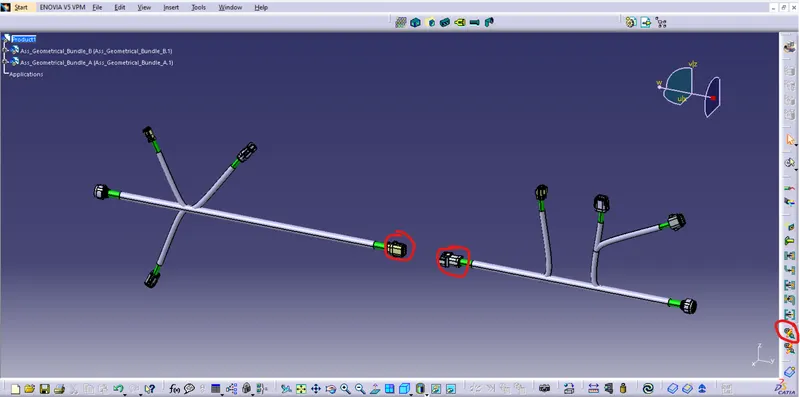
After connecting this both harness need to check for the bundle continuity.
Check the bundle Continuity:
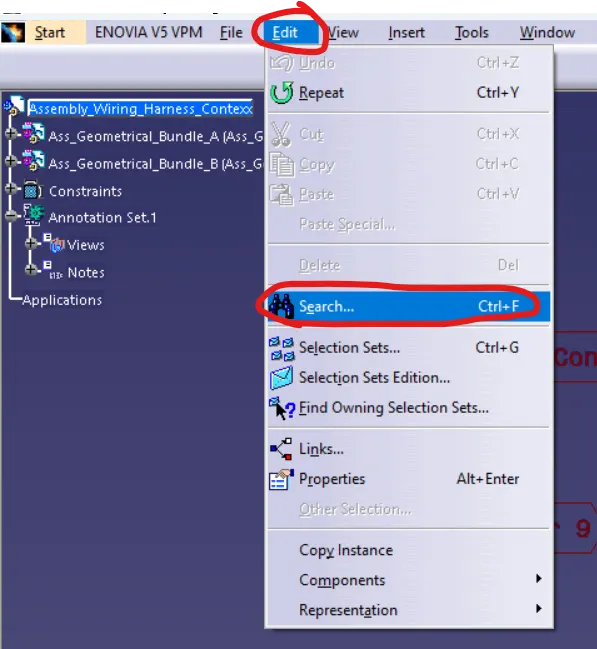
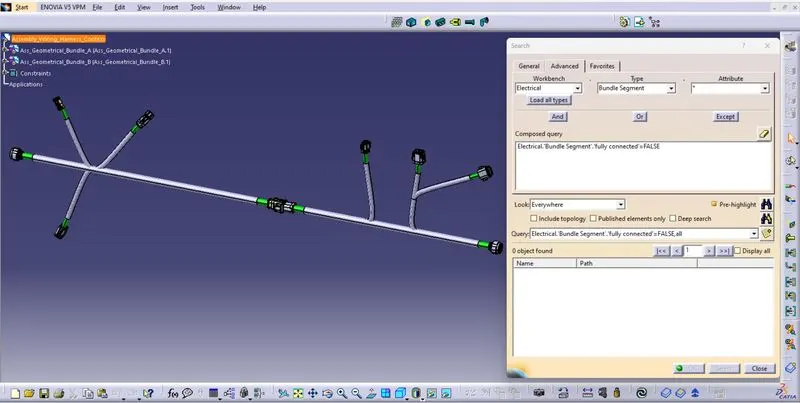
For that go to the edit and click on search button as per below image. and the dialouge box is open.
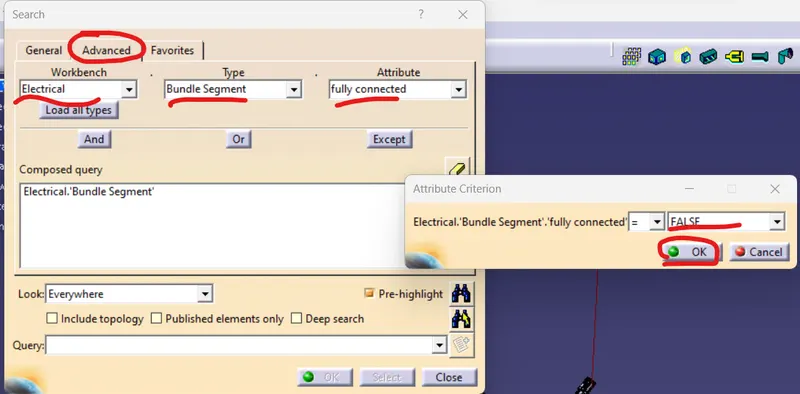
In this dialouge box go to the advance and select all parameters as per below image and then click ok.
And the status of the bundle continuity shown as per below image.
Add Annotation to all connectors:
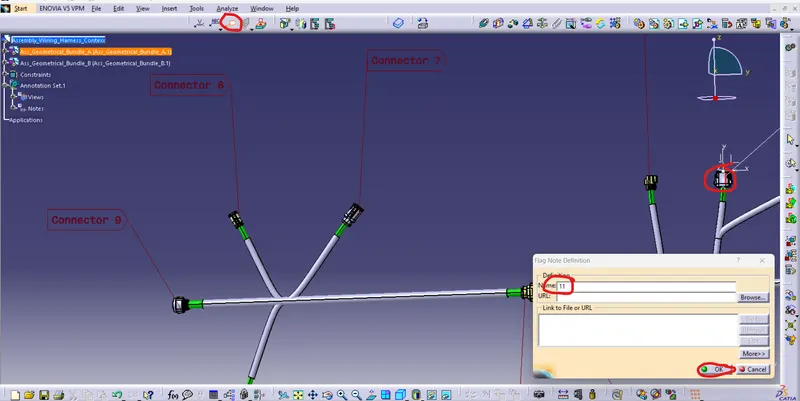
For adding annotation to the connector first go to the part assembly workbench and the select the icon "Flag note with ladder" as shown in below image and select the normal face of the connector where we want to put the annotation and the dialouge box is opened here we can add the required note and title and then click ok.
In this way I am providing the annotation to the all connectors.
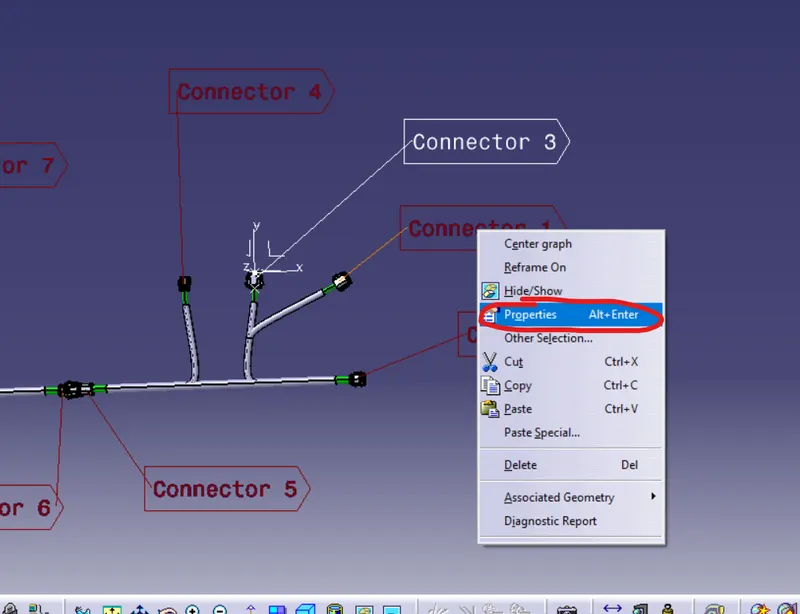
For displaying the annotation properly while you rotating the assembly we can choose the option from the properties. for that right click on the annotation and go to the proprties and click on it.
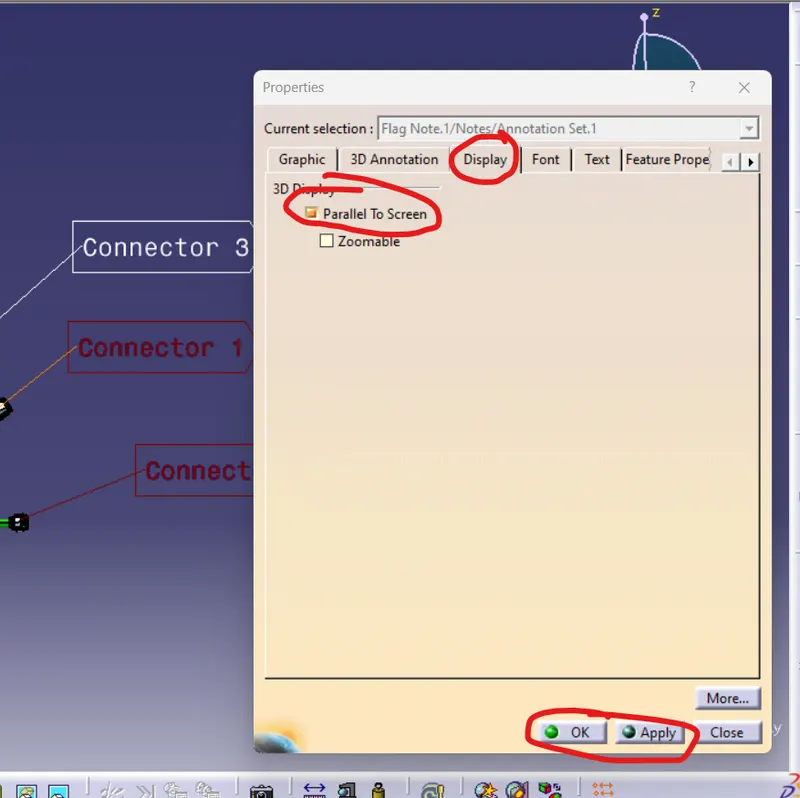
In the properties window go to the display and in the 3D display option tick the parallel to screen and then click apply and ok. So while we rotating the assembly we can easily visible of the annotation to the screen.
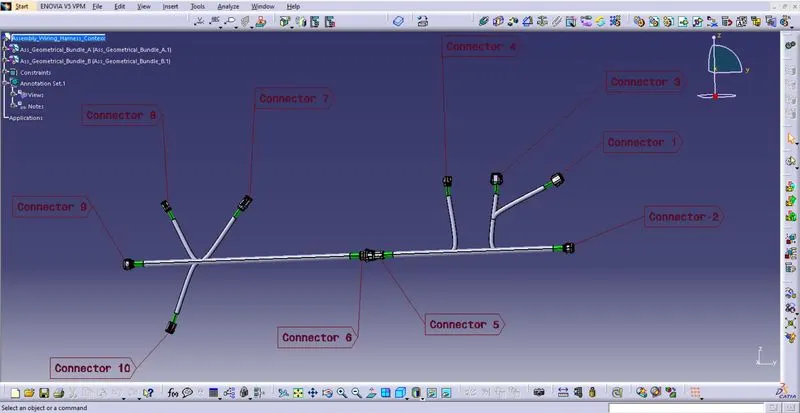
The Whole assembly with the annotation is shown in below image.
Generate CAT.part of harness assembly and convert is in. igs format:
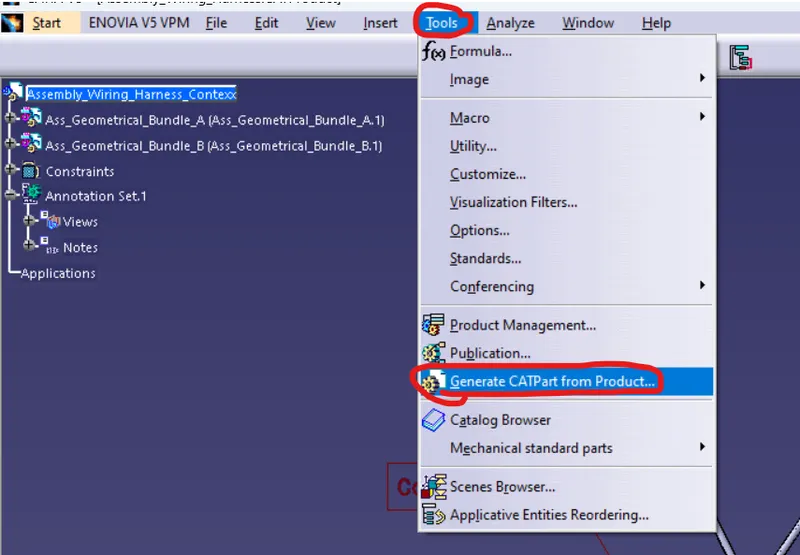
For generating the CAT.part of the harness assembly go to the Tools and click on the "Generate catpart from product" option and the dialogue box is open.
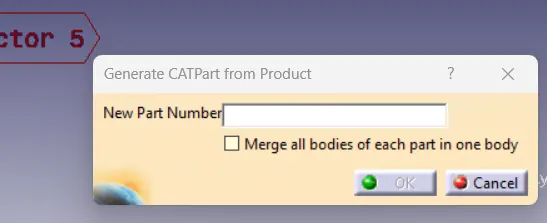
In this dialouge box give the name for the new part and then click ok button so the CATpart is generted.
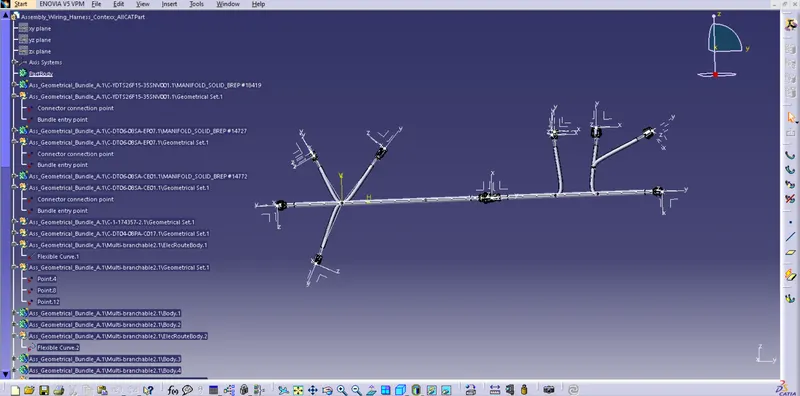
The CATPart file is opened and shown in below image.
Now for converting file in igs formate. Go to the file and click on save as option.
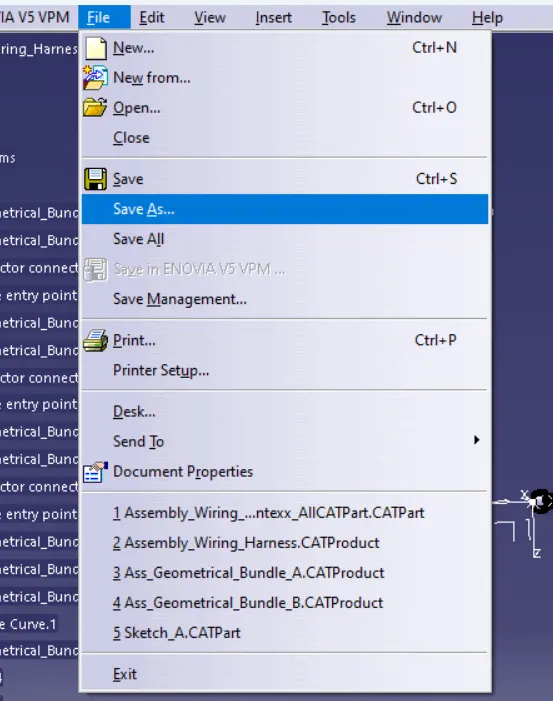
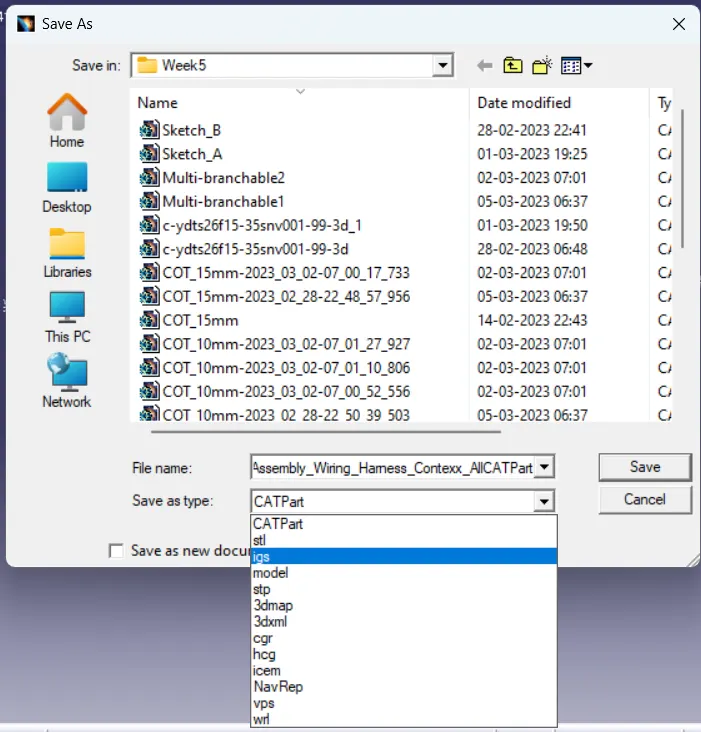
In the save as dialouge box drop down menu select the file type as igs and then give the part name and click on save button.