Week - 8 - Morphing
Morphing:
Aim:
To morph the given model as per the video shown in Model-1.
Procedure:
- Firstly import the CAD model from the syatem files into ANSA.
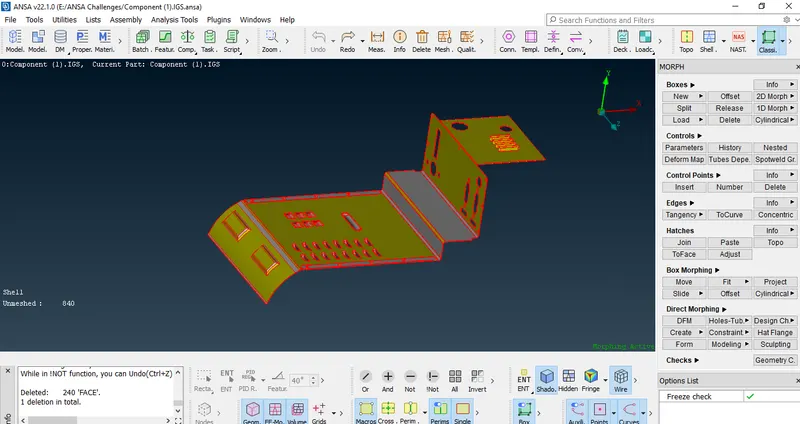
- The imported model is as follows.
- Then after 'Topo' the whole model using topo option in Faces.
- Goto>Topo Module>Faces>Topo.
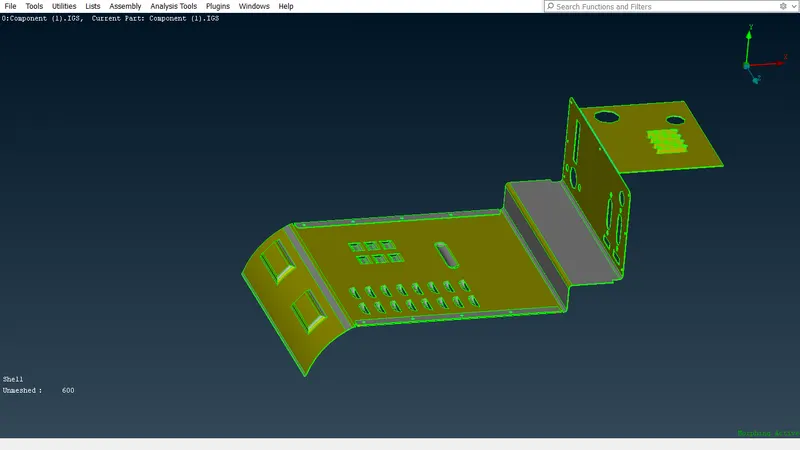
- The model after doing topo is as follows.
- Then after check for the geometrical errors in the model using Check geometry.
- Then we can go ahead for morphing.
- Select the 'Morph' tab at the top right corner of the application.
- Then select the region to be morphed as Goto>Morph module>Boxes>New>Ortho.
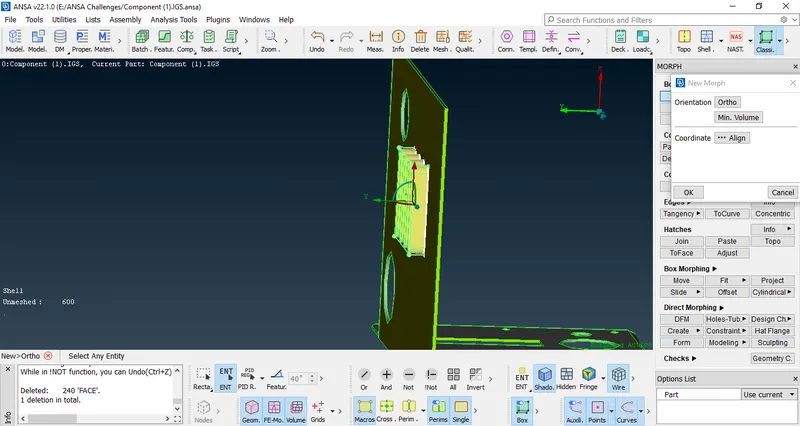
- And then box type structure is formed around the selected parts with the control points at edges.
- By using these control points we can transform the model into a desired shape.
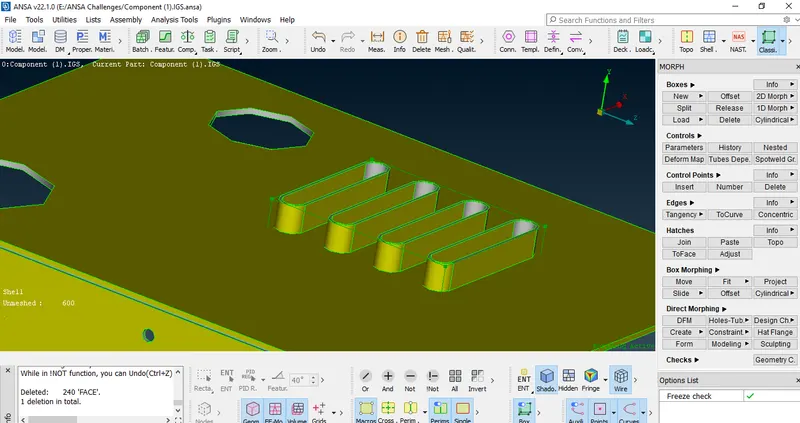
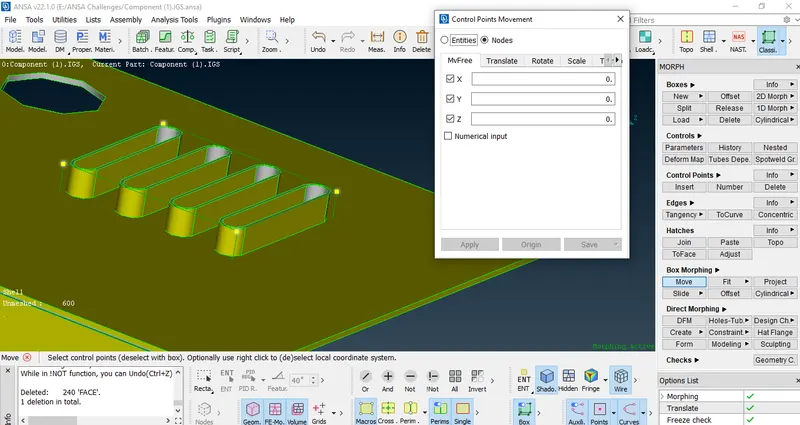
- For moving or control the points Goto>Morph module>Box morphing>move.
- Then select the edges to transform the model in any direction using Co-ordinate axis.
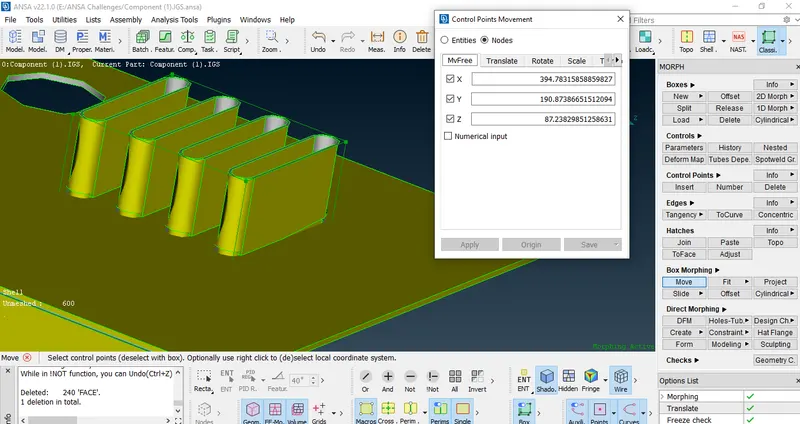
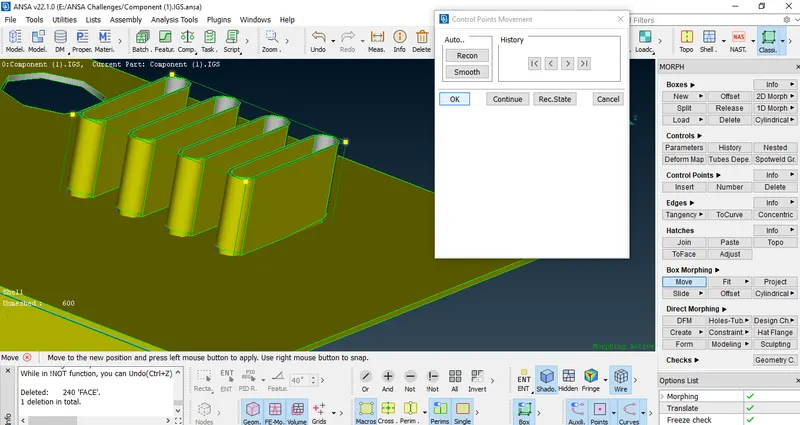
- Then after transforming all the required entitities in a different shape the image is as follows.
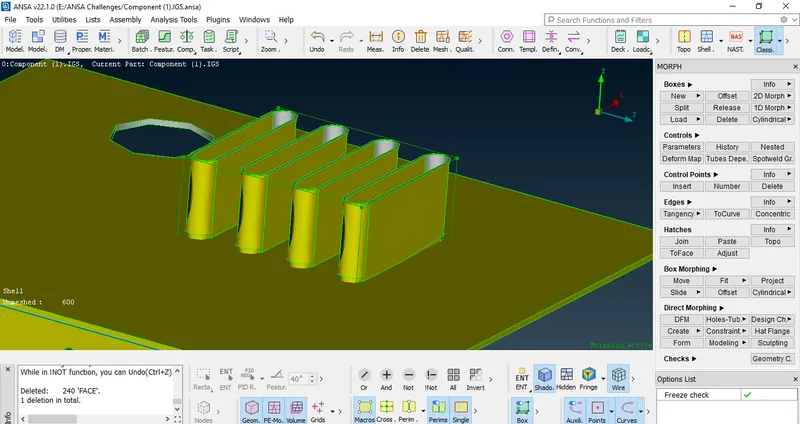
- Likewise, will perform the same morphing techniques for different entities which are as follows.
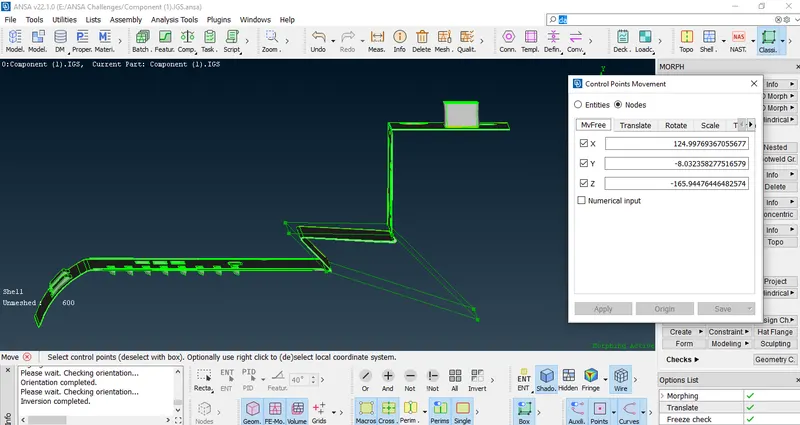
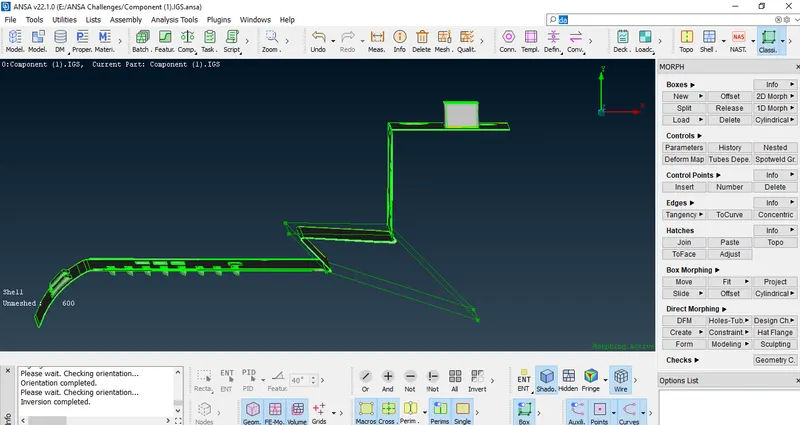
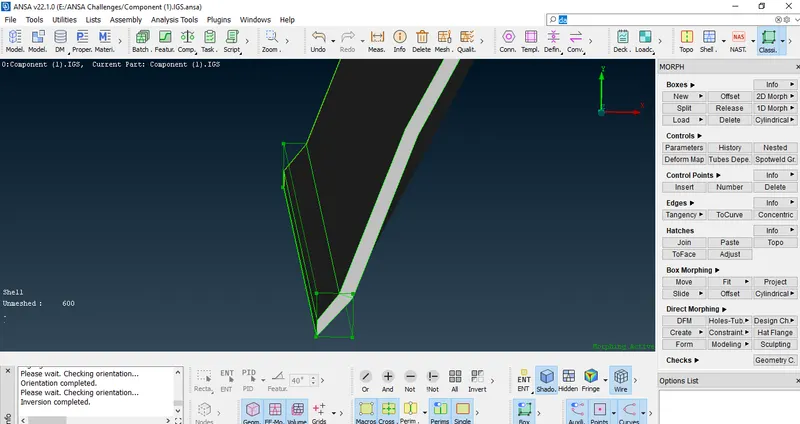
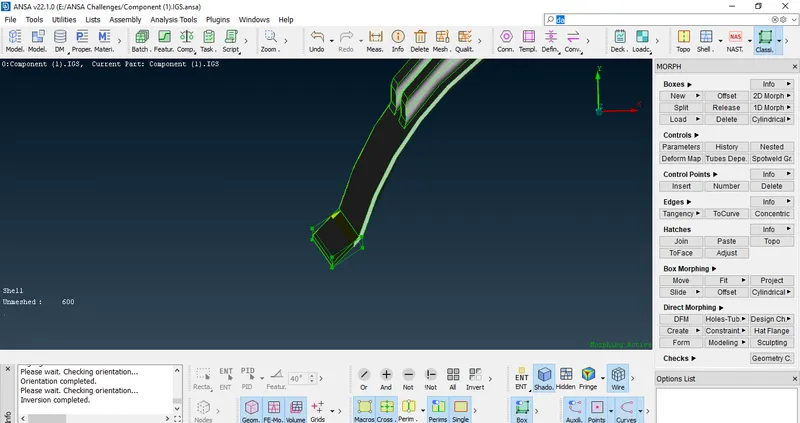
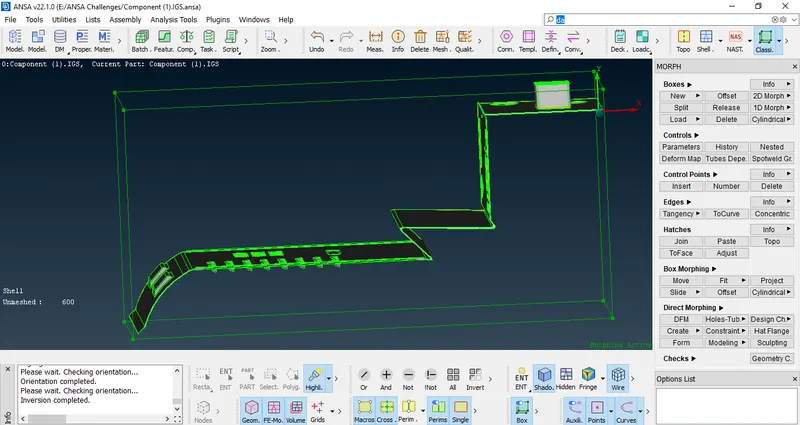
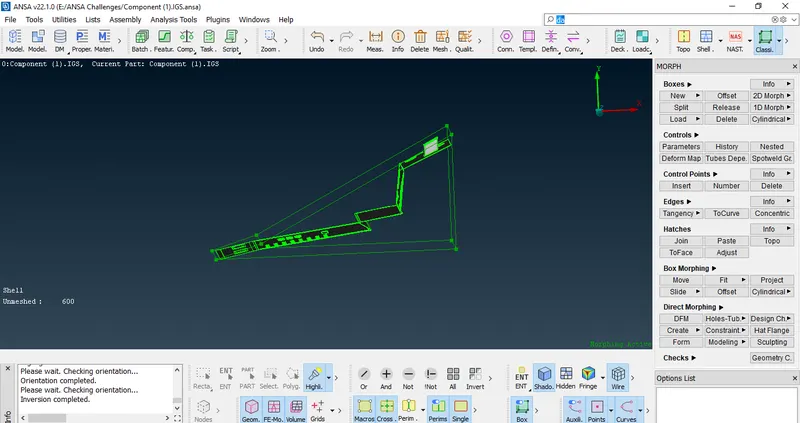
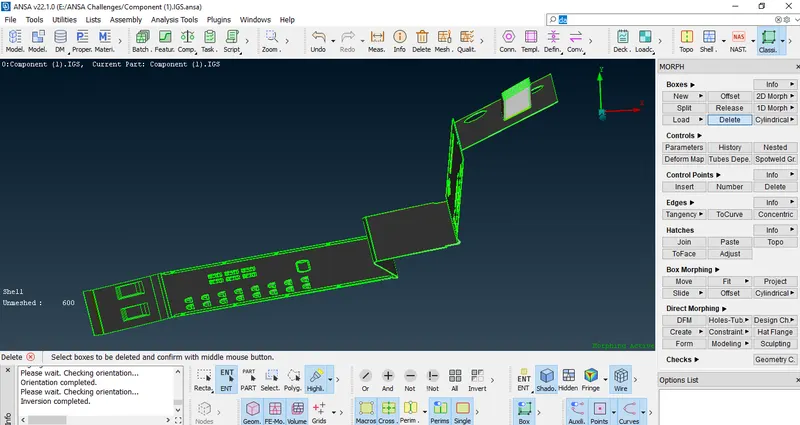
- Then after doing all the morphing on the component the final component is as follows.
Model 2 (Hand Rest):
- Firstly import the model from system files into ANSA.
- The imported model is as follows.
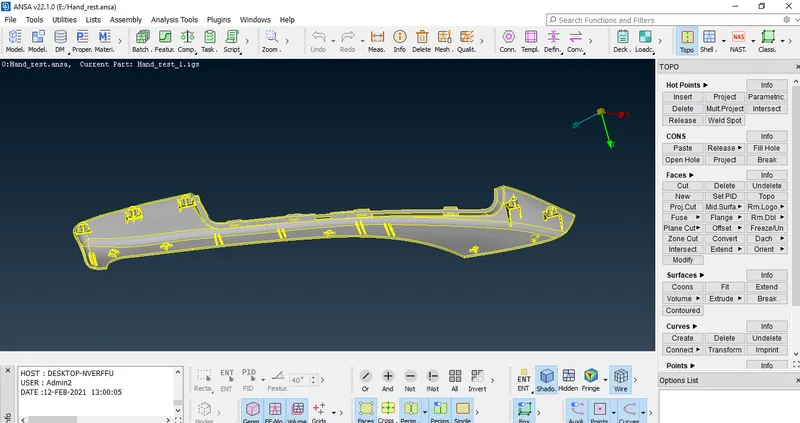
- Then check for the geometrical errors in the model .
- If found any errors we need to fix them.
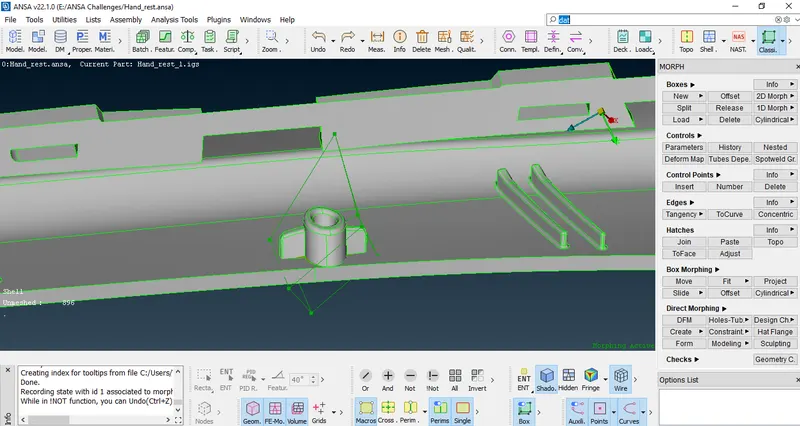
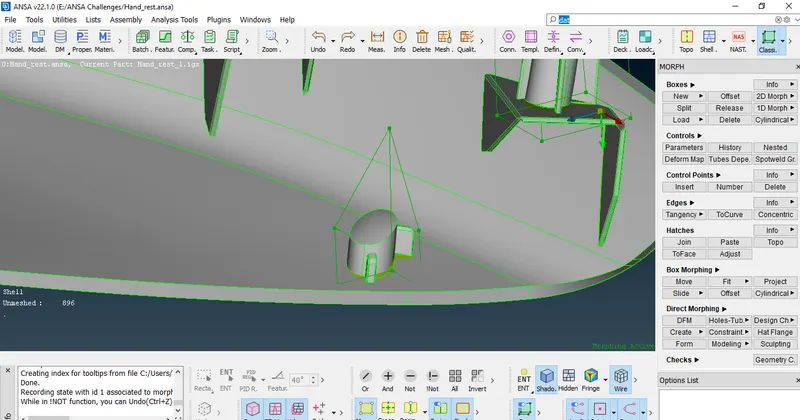
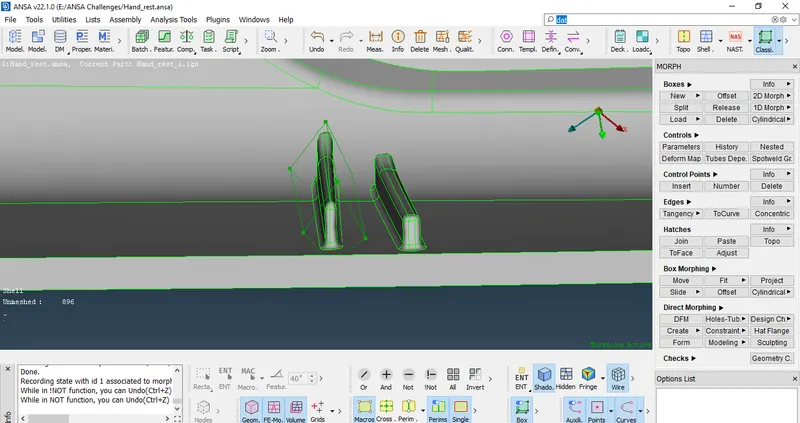
- Here in this model we should increase the height of the dog houses and ribs.
- Then for that Goto>Morph module>Boxes>new>Ortho.
- Then select the dog house that are to be transformed and click on the middle mouse button and it will create a morphing box around the selected entity.
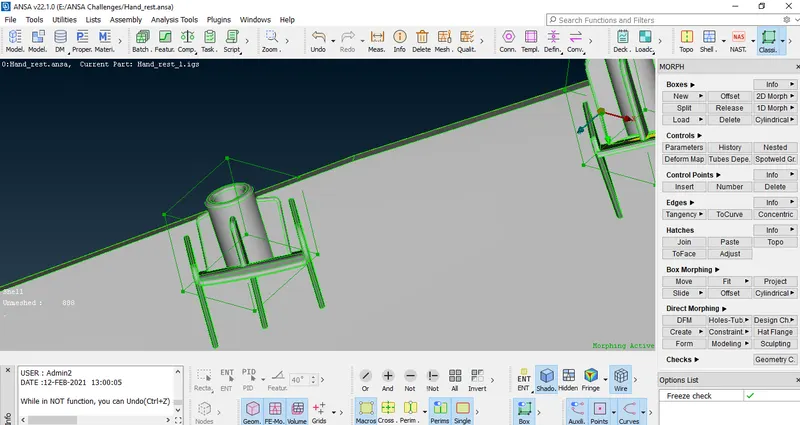
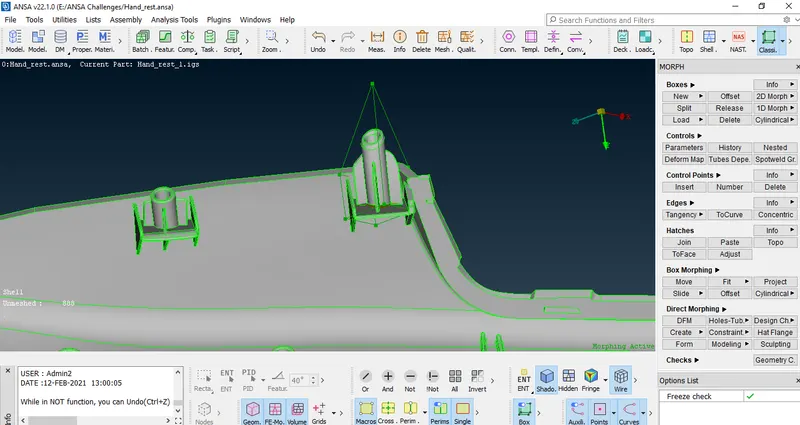
- By using 'Move' option in box morphing increase the height of the dog house as per our requirement.
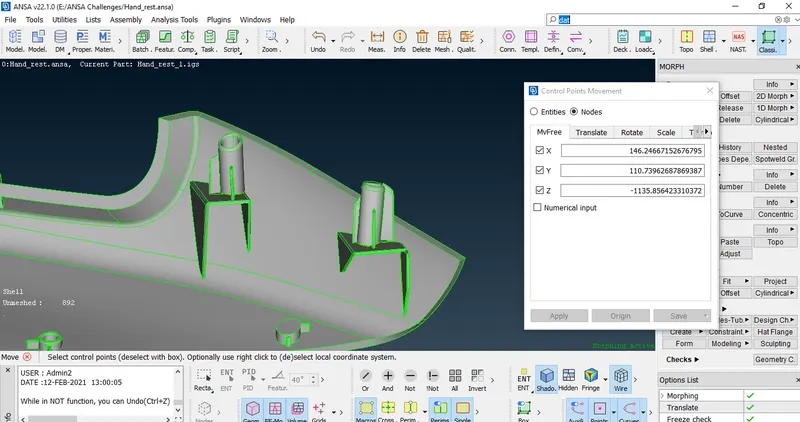
- Then after increasing the height of the dog houses the images are as follows.
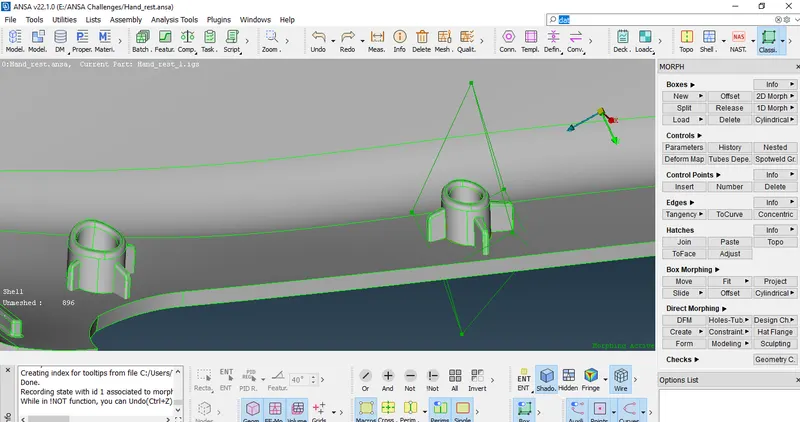
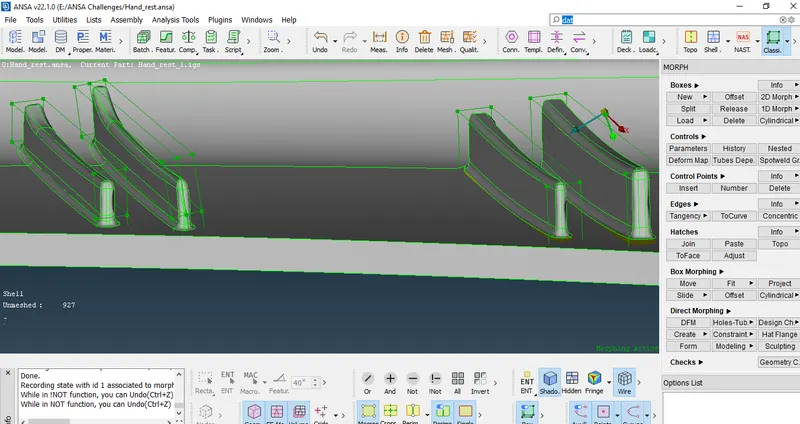
- Likewise we should increase the height of the ribs using the same Box morphing process.
- And for ribs we can use 'ortho' option in New tab or use 'Minimum' option to create a morph box around the entity.
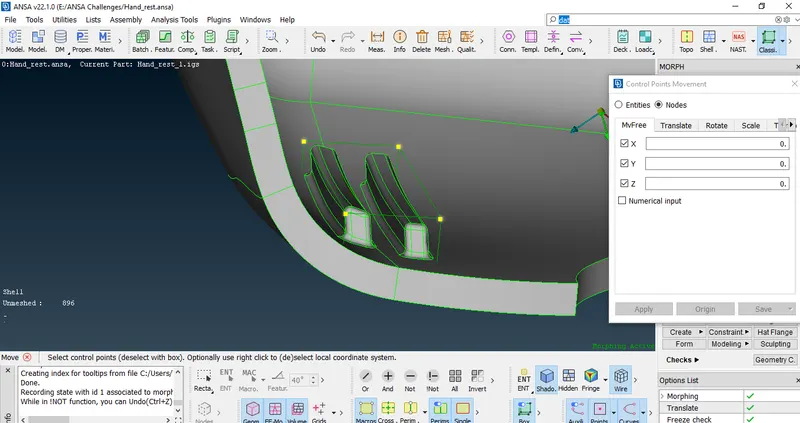
- And also for easy morphing we can split the morph box as per our requirement.
- For split option Goto>Morph module>Boxes>Split>user.
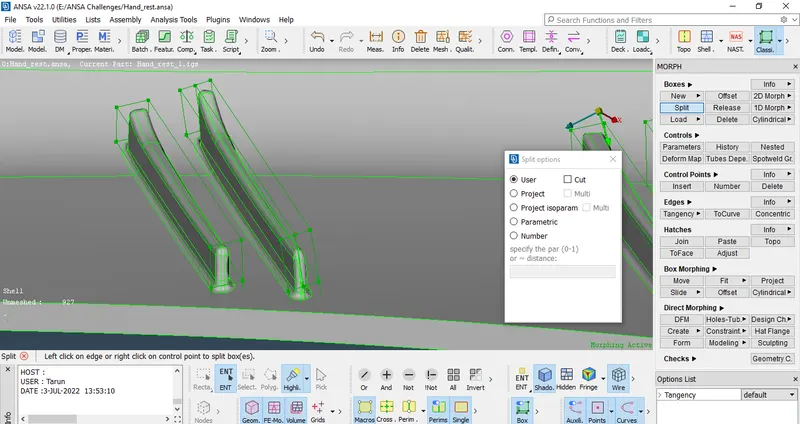
- The morphed images of the ribs are as follows.
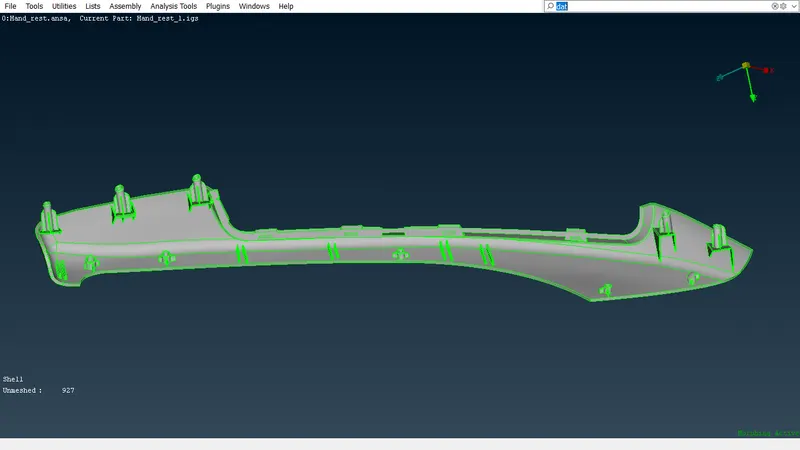
- Then finally morphed image of the component is as follows.
Morphing applications in automobiles:
Morphing structures are structures that alter their shape and size upon application of a stimulus.This field had been of interest to numerous researchers all over the world due to its advantages over conventionally used materials.Most reperted morphing studies are confined to aerospcae applications and studies conducted specifically for automotive applications are limited.
- For example of morphing is sedan model of a car into a hatch back using morphing techniques within a short period of time.
Learning Outcomes:
- Learnt the concept of morphng.
- Learnt about the applications of morphing.
- Learnt about various tools in morphing and how to use them.
- Learnt about Box morphing.
Conclusion:
Morphing is done on the given as per the video in the model Test 1.The heights of the ribs and dog houses have been increased.