Week - 4 - 2D meshing for Plastic components
2D Meshing for Plastic Components:
Aim:
To extract the mid surface for the given plastic bottle cap model and assigning the thickness and mesh them with the given or mentioned quality parameters.
Objective:
For the given Plastic Bottle Cap model, check for the geometrical errors and take the mid surface by suitable mid surfacing techniques. PID and Thickness assignment has to be done for all the mid surfaces. Mesh the same with given element Quality criteria. (Refer the table Below for the Quality criteria)
|
S.No |
Quality Criteria |
Value |
|
1 |
Target/Average length |
1 |
|
2 |
Minimum Length |
0.5 |
|
3 |
Maximum Length |
3 |
|
4 |
Aspect |
3 |
|
5 |
Warpage |
15 |
|
6 |
Skewness |
45 |
|
7 |
Jacobian |
0.7 |
|
8 |
Minimum Quad Angle |
45 |
|
9 |
Maximum Quad Angle |
135 |
|
10 |
Minimum Tria Angle |
30 |
|
11 |
Maximum Tria Angle |
120 |
|
10 |
Tria Percentage |
15 |
Note:
1. There might be some Failed elements near to Triple CONS or at smaller regions which are bounded by two Triple CONS. Keep those OFF elements as it is if not possible to solve.
Procedure:
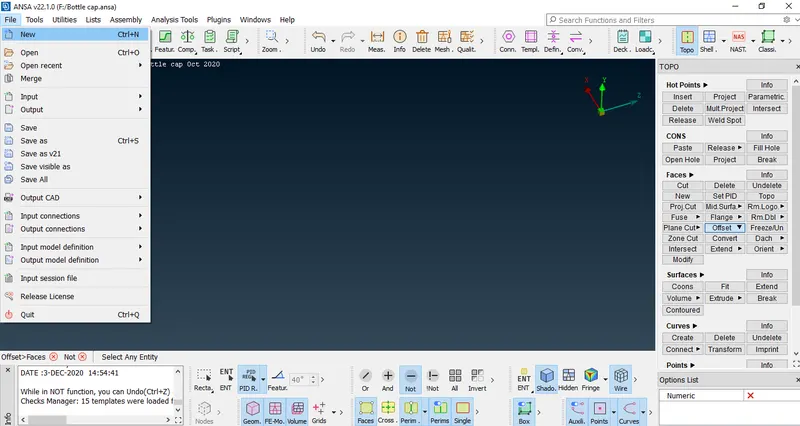
- Firstly import the model from the system files.
- For importing the model Goto>File>Open>Select file>ok.
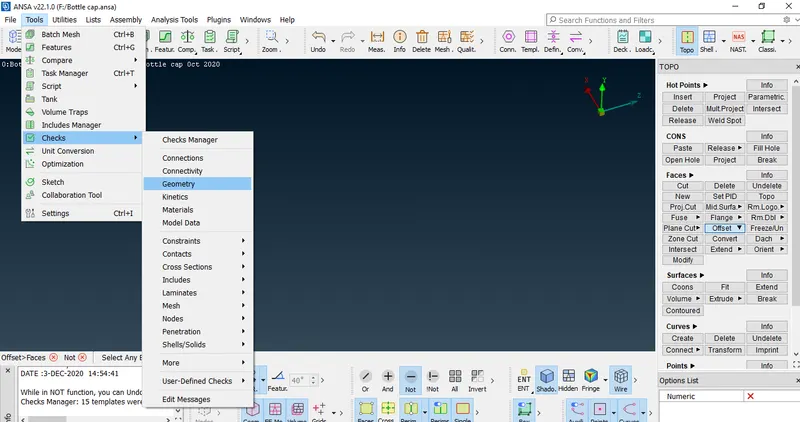
- After importing the model check for the geometrical errors in the model as follows.
- Goto>Tools>Checks>ChecksManager>Geometry.
- After that click on execute if any errors are present in the model it shows as in the below fig.It can be fixed automatically using fix option if error still exists it should be cleared manually.
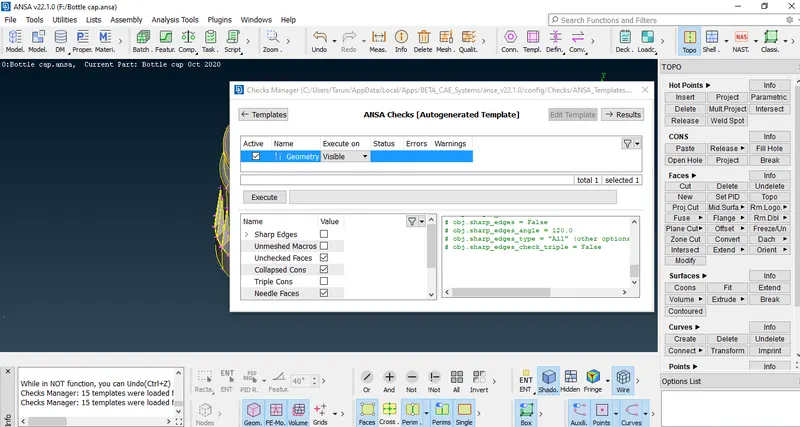
- After the fixation of all the errors check them for confirmation by clicking on execute.
- After that define the property to the material.
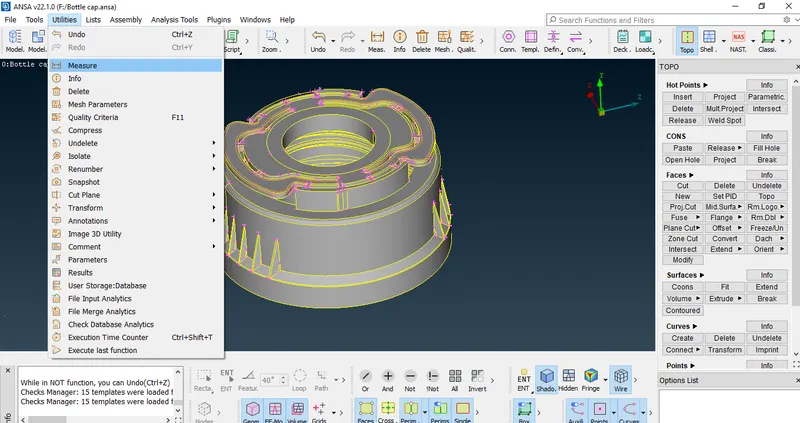
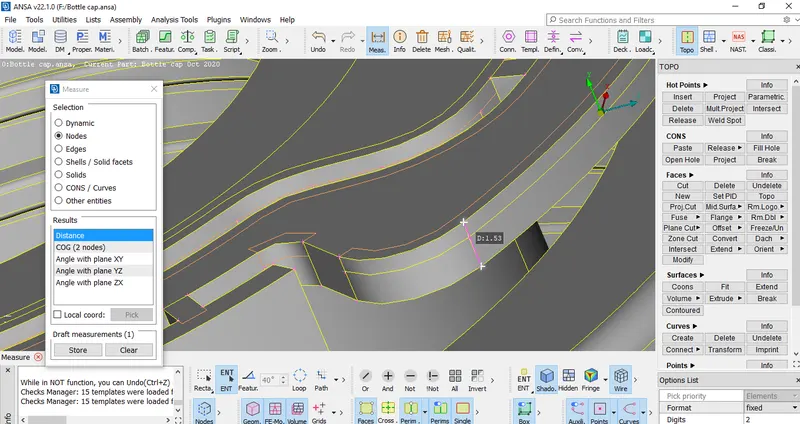
- We need to measure the thickness of the given model to extract the mid surface.
- For measuring the thickness Goto>Utilities>Measure.
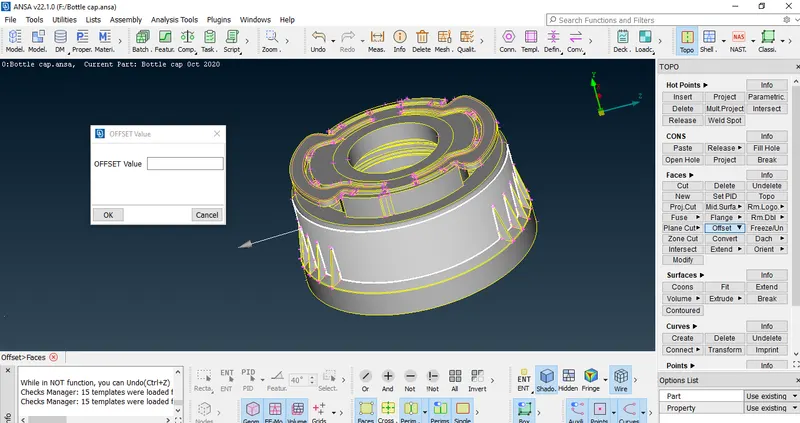
- Based upon the measured thickness we need to offset the model to extract the mid surface.
- Select the entity to offset based upon the thickness Goto>Faces>Offset>Select the entity>Assign the value and click on 'Ok'.
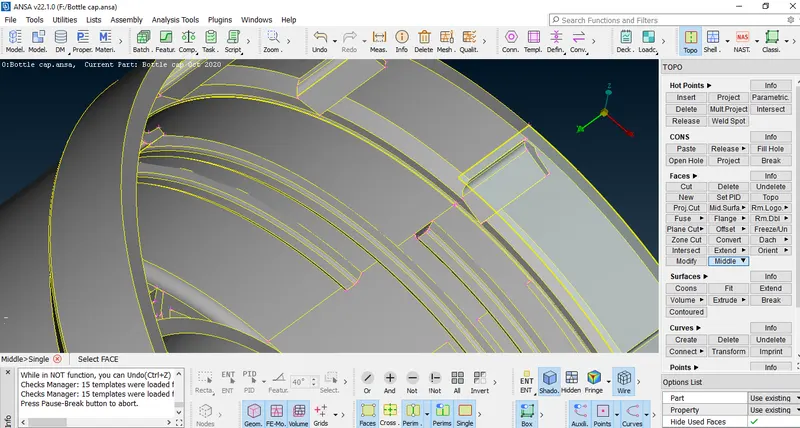
- For some surface it is impossible to extract the mid surface ,so we use middle option to extract (or) create a mid surface.
- For threads we use the 'Middle option' to create a mid surface.
- For that middle option Goto>Faces>Middle.
- Select the faces and click on the middle mouse button to get the mid surface.
- Select the two cons of the thread for middle curve generation.
- And then by using 'Fine' option we need to click on the purple coloured lines to increase the resolution.
- Then after middle curve is projected in normal direction to the base mid surface.
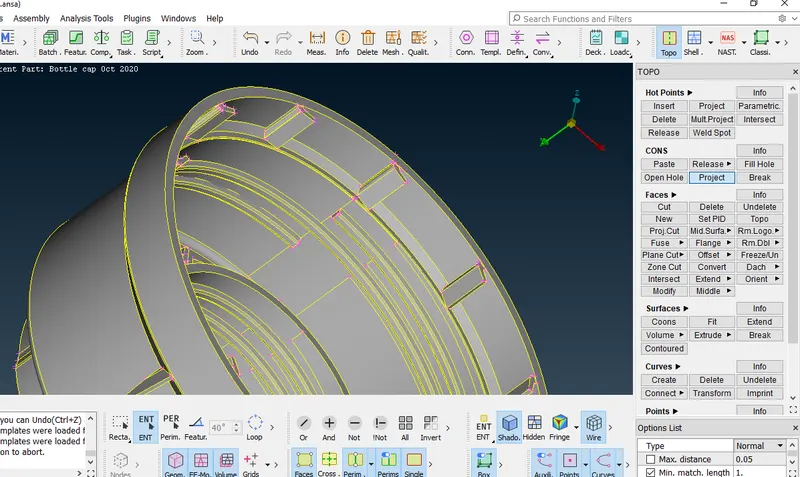
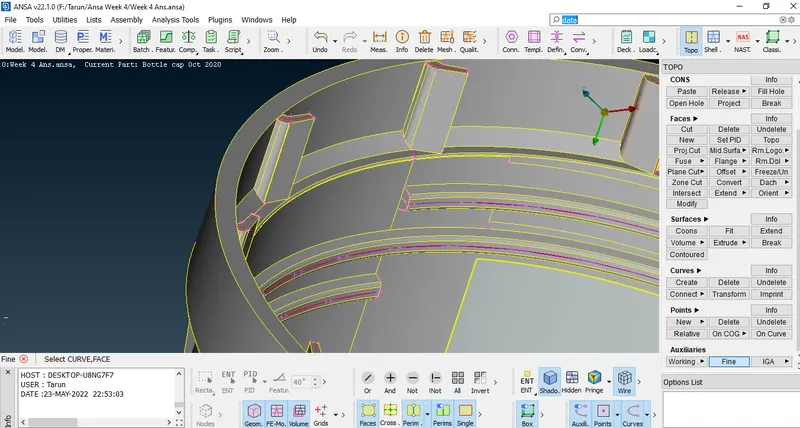
- After projecting the middle curve to the mid surface.Then we need to create a new surface which is the mid surface of the thread.
- Goto>Faces>New>Cons.
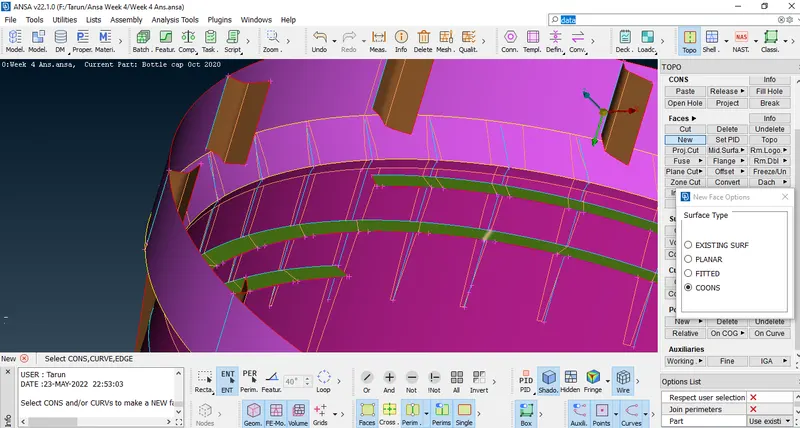
- After that we need to extract the mid surface for the teeth.
- For extracting the mid surface of the teeth we use middle option to create a curve as same as threads.
- Then after we have to project the curve to the mid surface as by selecting the line from backside and project the line to mid surface.
- And after that we need to select both the curve to create a new surface as same as 'Threads' which will be the mid surface of tooth.
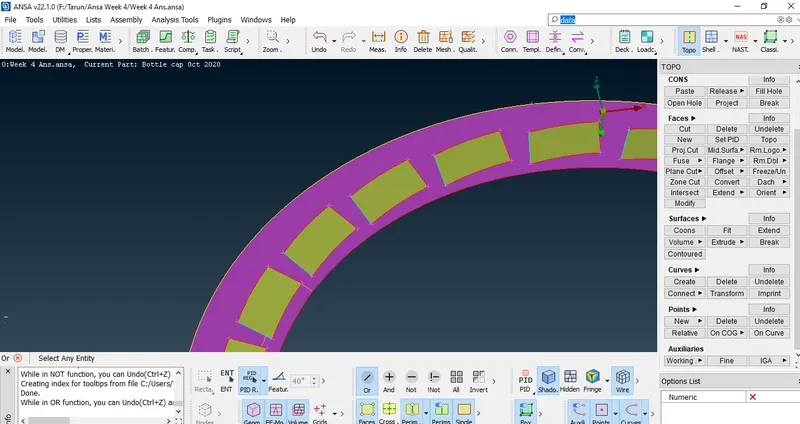
- Hence mid surface is created for the tooth.
- For all the tooth we can easily extract the mid surface by rotate option by duplicating the mid surface of the tooth.
- For rotation we need to create two center points, for that we need to use an 'COG' option.
- Goto>Points>COG.
- In order to create two center points we need to select two circular line which are at different heights.
- By selecting the one circle we create a center point for one circular line.
- And same for the other circular line as follows.
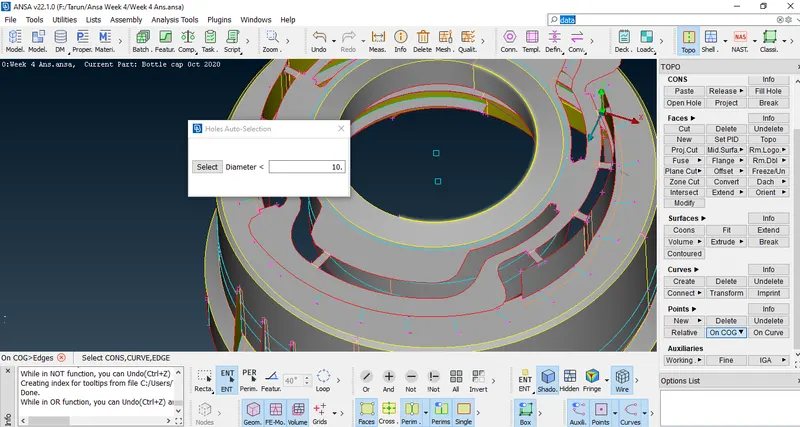
- And after that we need to transform the tooth as in required no's.
- For that Goto>Transform>Copy.
- Then we should select the entity or existing tooth mid surface.
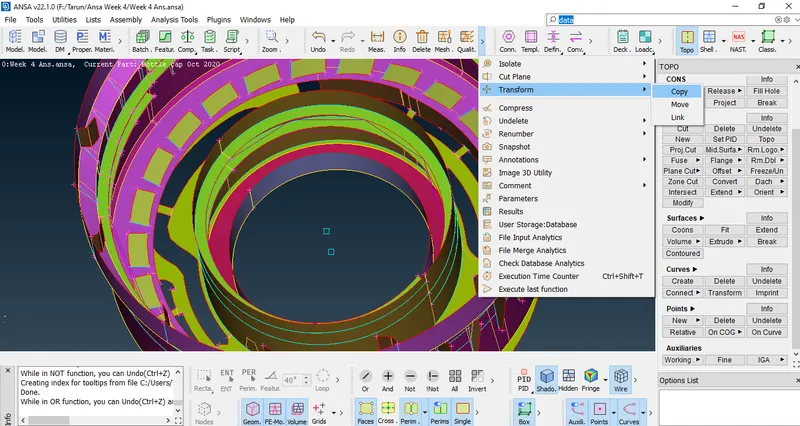
- After selecting the entity or mid surface then click on middle mouse button to proceed further.
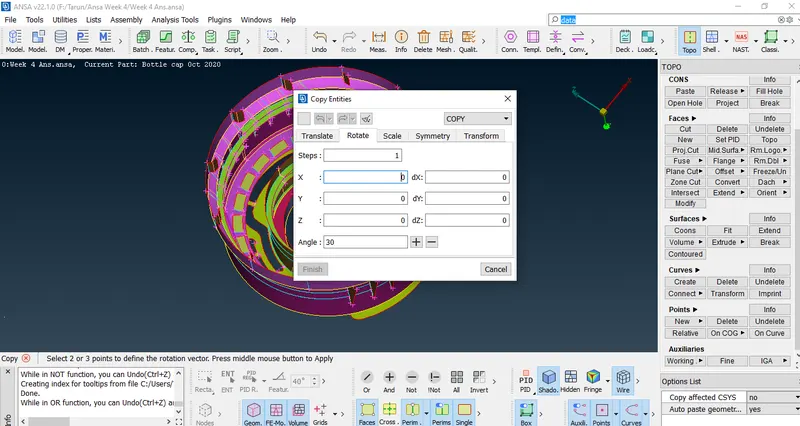
- And then we need to select the COG points based upon them.So, click on the 'X' box and select COG point 1 and then click on 'dX' box and select COG point 2.By this axis of rotation will be created.
- And we should assign the no of teeths to be transformed,then we have overall 24 tooth but we have extracted the mid surface for 1.
- Then we shall assign the steps as 23.
- After that we should calculate the distance b/w the each tooth as follows.
Angle b/w Entities=Total Angle of circle/No of teeth.
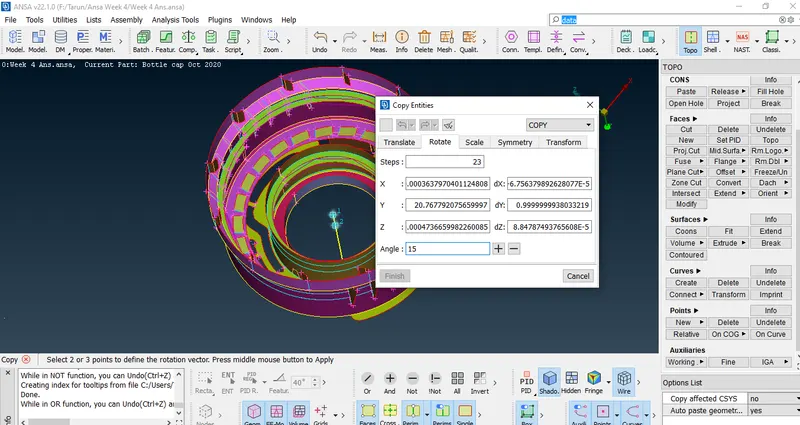
- 15*is the angle or distance b/w each tooth.
- After mentioning all the values we need to press the middle mouse button to apply.
- And finally we extracted the mid surface of the tooth as follows.
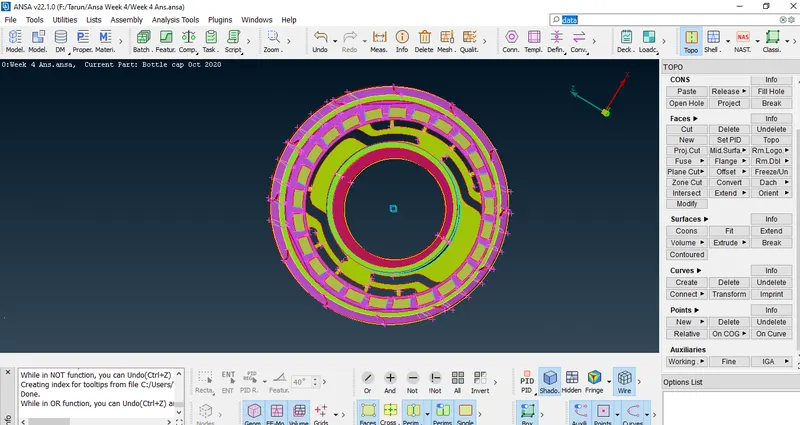
- After that extract the mid surface for the remaining components or entities as follows.
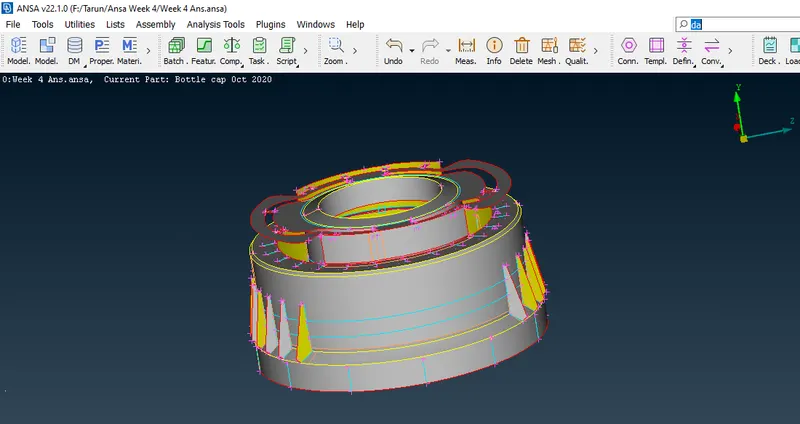
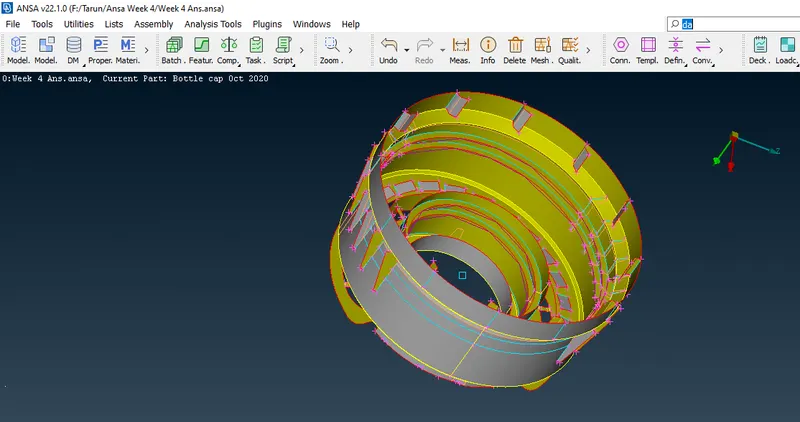
- And do the same process of mid surface extraction for other threads as well .
- And after completion of mid surface extraction extend the mid surface to the base if surface as follows.
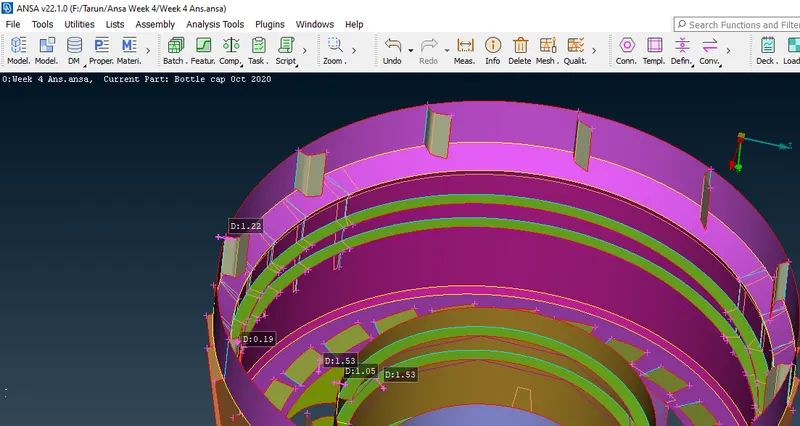
- After completion of mid surface extraction of all the entities we can proceed for meshing of the entities.
- For meshing firstly we need to assign the mesh parameters as follows.
- Goto>Utilities>Quality criteria (or) press F11.
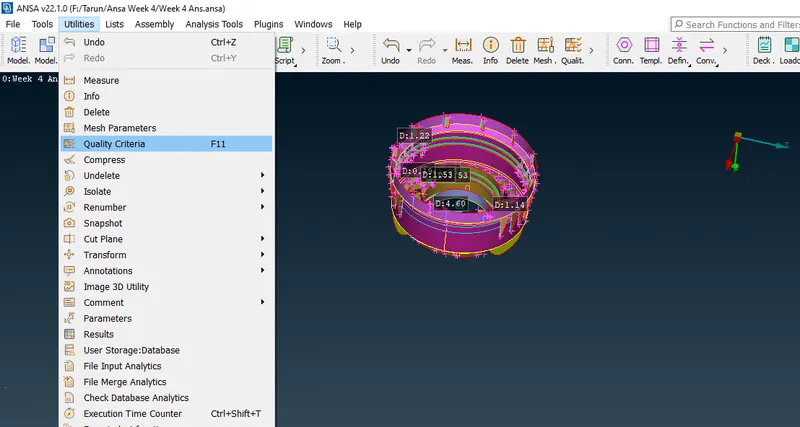
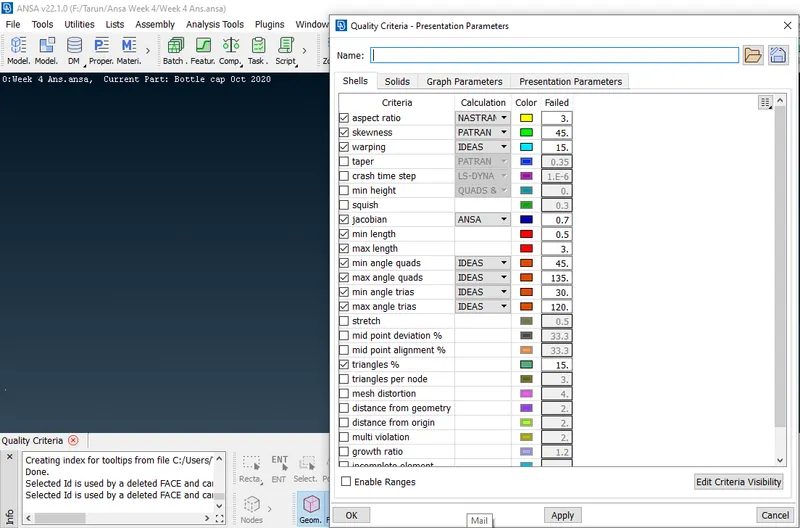
- And after we need to assign mesh parameters as follows.
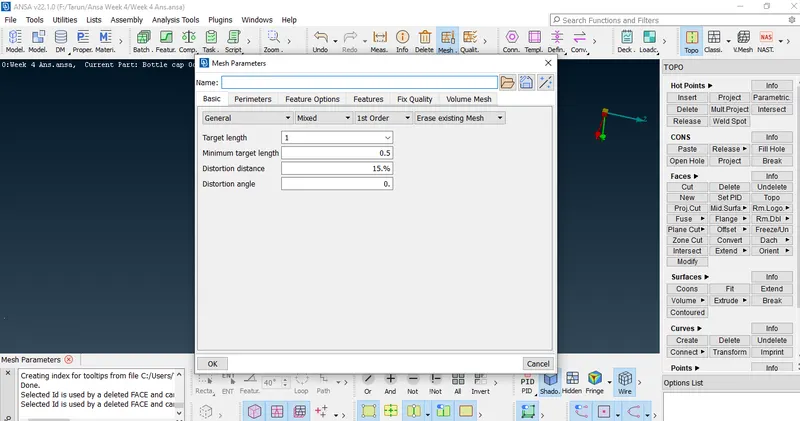
- Goto>Utilities>Mesh Parameters.
- We need to assign the target length and Minimum target length.
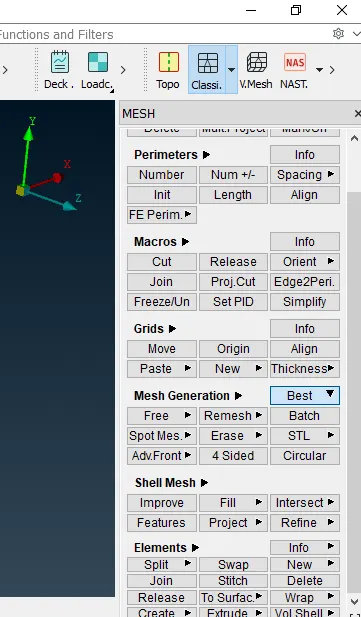
- For meshing Goto>Utilities>Mesh Generation>Best.
- After meshing is done we need to eliminate the max no trias,opposite trias,rotating quads and trias at corner.
- For eliminating the trias Goto>Elements>Split>Edges & Nodes.
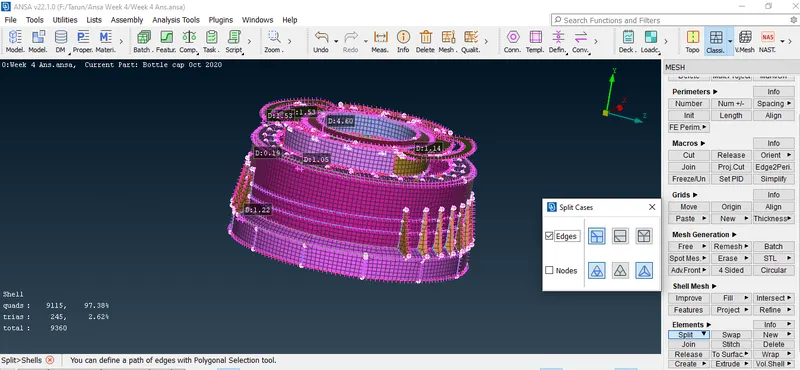
- Mesh improvement can be carried out using various tools such as 'Split option' by edges & nodes.
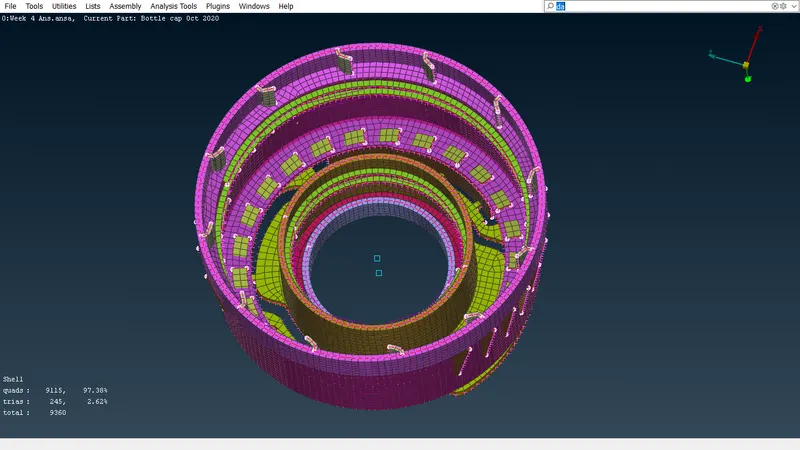
- Hence finally the meshed bottle cap is as follows.
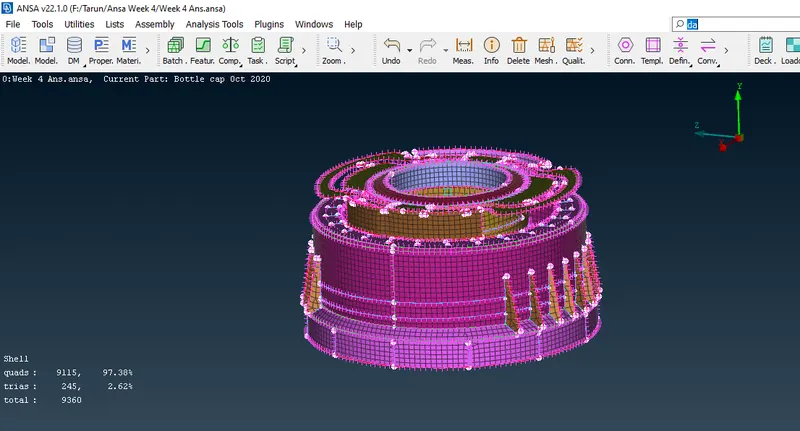
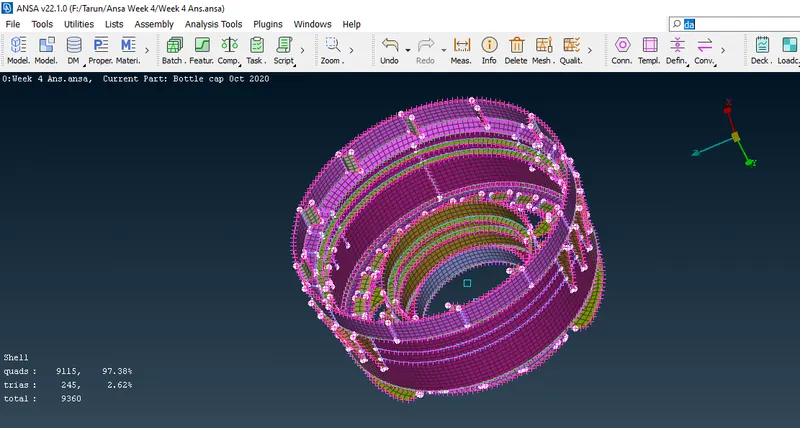
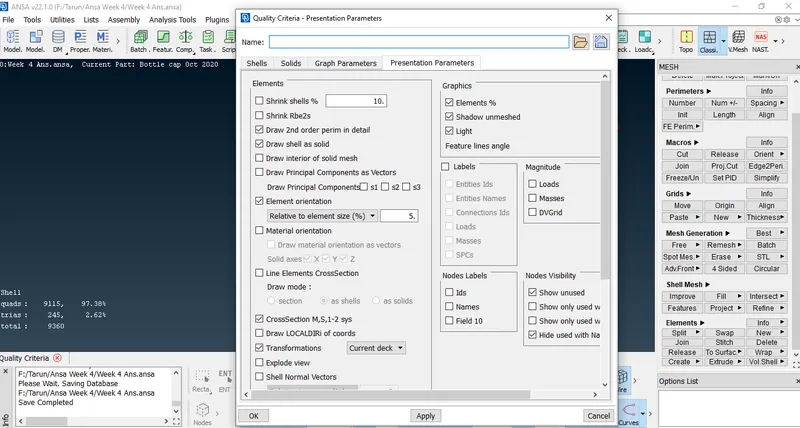
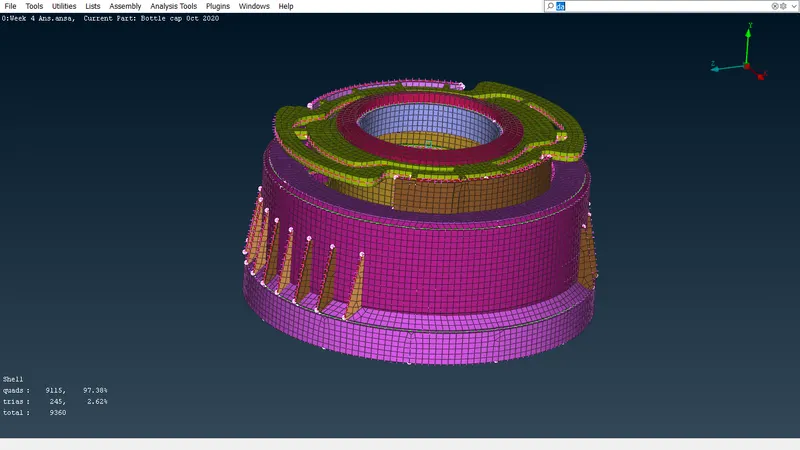
- And finally we should enable shell as solid option. Goto>Utilities>Quality criteria>Presentation parameters.
- Draw shell as solid image is as follows.
Learning Outcomes:
- Got to know how to extract the mid suraface for plastic components and complicated surfaces as threads or teeth in the model.
- Assigning the thickness to the various parts in the model.
- Creating the PID's with different types of thickness for different surfaces of the component.
Conclusion:
The given model is checked for geometrical errors and those errors were cleared and mid surface was extracted manually for various parts.For some threads & tooth we followed different process to obtain the mid surface .The PID's are set with proper thickness and meshing has been done with given quality or mesh parameters.Some failed elements are there in the model due to the intersection of triple cons at some regions causing minimum lenth or skewness errors.