Week 8-3D Tetra Meshing Challenge
Housing Model:
Objective:
To create a tetramesh for housing component by using Tetramesh generation method by converting the model from 2D to 3D with mentioned criteria.
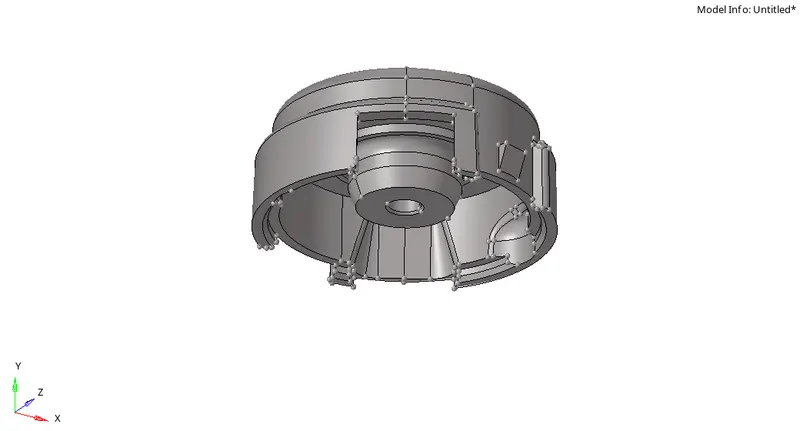
CAD Model Image:
Procedure:
- Firstly import the Geometry(IGES) file from the System files.
- After importing the model 'Delete' the solid parts of the component.
- Defeature the surface fillets which are having low fillet radius that may result in failure of elements.
- Perform the Geometry cleanup wherever it is required to get rid of failed elements.
- Go to 2D mesh panel>Automesh,select the preferred element size as 4mm.
- Select the 'Tria' elements as we have to generate a tetramesh.
- Generate the mesh with the mentioned criteria.
- After meshing check the elements for quality checkup in Tools>Check elements panel>2D.
- Do the quality checkup for the minimum and maximum lengths.
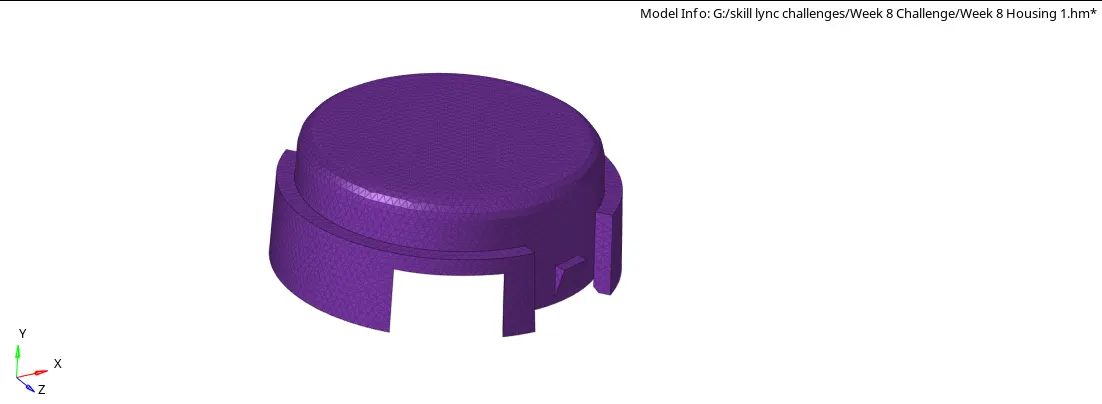
- After quality checkup is done,convert the model from 2D tria elements to 3D tetra elements.
- Then Go to 3D mesh>Tetra mesh and select the elements option that has to be converted from 2D tria to 3D tetra.
- Generate the 3D tetramesh of the component.
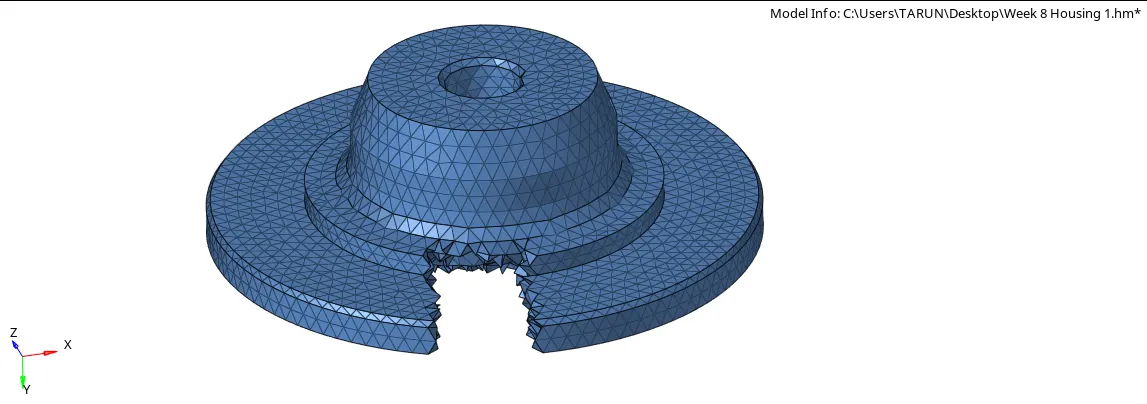
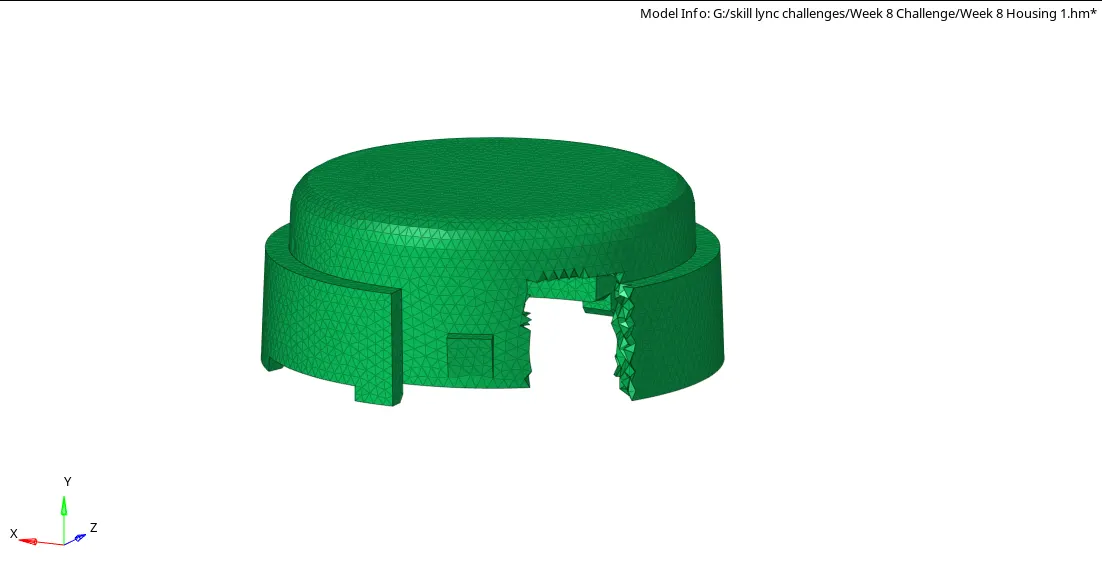
- After that 3D tetra meshing check the elements for quality checkup in Tools>check elements >3D for Tet collapse.
- Do the quality check for the tet-collapse elements.
- And then for the failed tet-collapse elements we have to do tetra-remesh by assigning the tetra mesh parameters in the 'Tetramesh' parameters panel.
- By performing Tetra-remesh we can get rid of the failed tet-collapse elements.
- For tetra-remesh go the Tools>tetramesh>Tetramesh parameters.
- After that assign the max-tetra and min-tetra size by checking the check-box in 'Tetra-mesh parameter' panel.
- Under 'Element quality target' assign the tet-collapse value and tick the check-boxs of fill-voids,fix mid-nodes and smoothing.
Result:
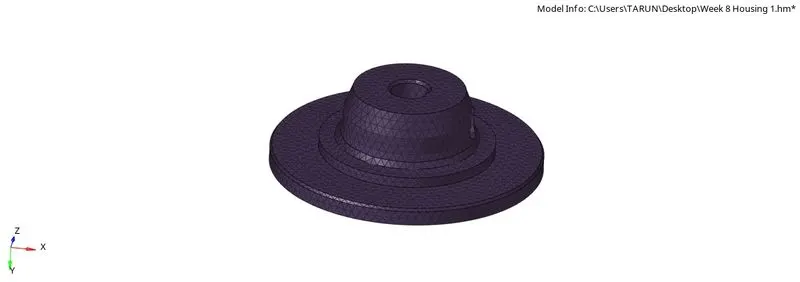
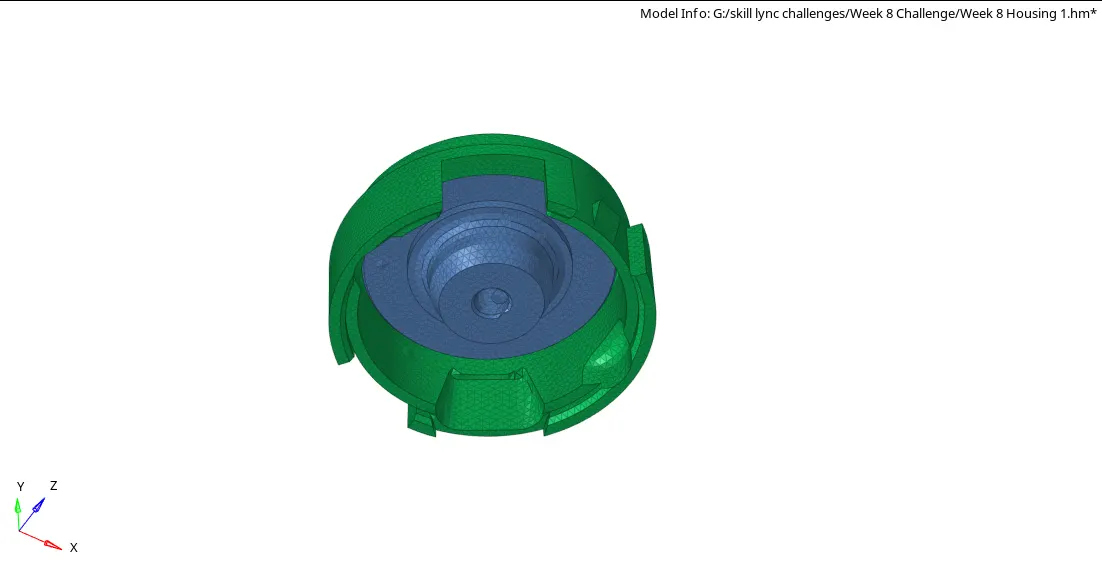
For the given housing component Tetra mesh is generated by converting 2D tria elements to 3D tetra elements,The Final model image is as follows.
Final Model Image:
Model-2:
Objective:
To create a 3D Tetra mesh by using 'Quick Tetra mesh method for the given component with the mentioned quality criteria.
CAD Model Image:
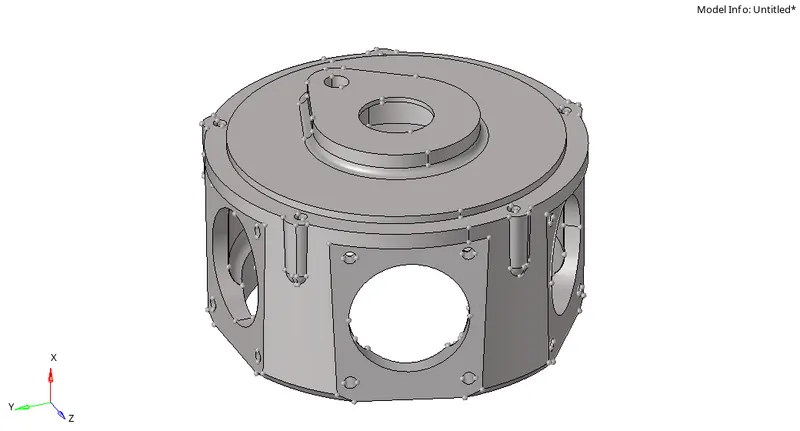
Procedure:
- Firstly import the IGES model from the system files.
- After importing the model delete the solid parts of the component.
- Defeature the surface fillets which are having low fillet radius which may result in element failures.
- perform the geometry cleanup wherever it is required.
- For meshing the model using the 'Quick Tetra mesh method we have to go to the Utility panel.
- For Utility panel use view option view>Browsers>Hypermesh>utility.
- After that select Geom/Mesh from 'Utility Menu'.
- Then select Quick Tetra mesh as it opens a panel named as 'Quick Tetar panel'.
- In that panel select the component to be meshed and specify the mesh size,minimum element size and change the mesh type to 'Trias only'.
- Click on the 'Mesh' option to generate the tetra mesh.
- After generating the tetramesh we need to check for the Failed tet-collapse elements.
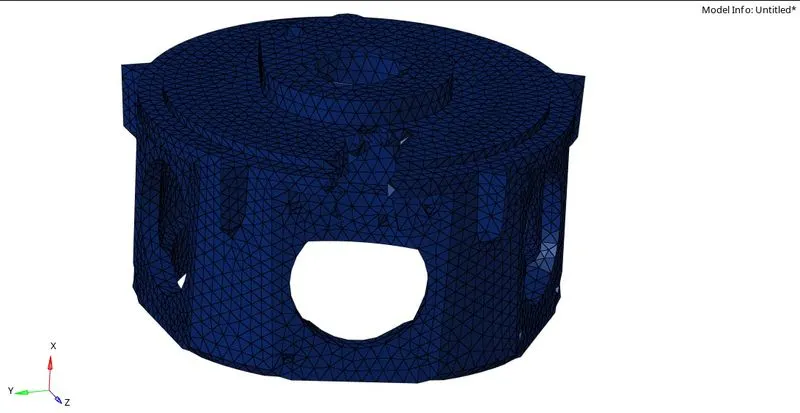
- For checking the failed elements select Tools>check elements>3D>tet collapse.
- For clearing the Tet-collapse elements we have to try to remesh the failed elements.
- If the failed tet-collapse elements still exists we have to follow other method as 'Translate' command in Tools option.
- To clear tet-collapse select Tools>translate option.
- Pick a node of the failed element which has minimum height.
- Select other nodes as N1,N2 & N3 for the translation.
- Assign the magnitude for Translating the node.
- After correction of the Failed elements check the tet-collapse value in 'Check elements' option.
Result:
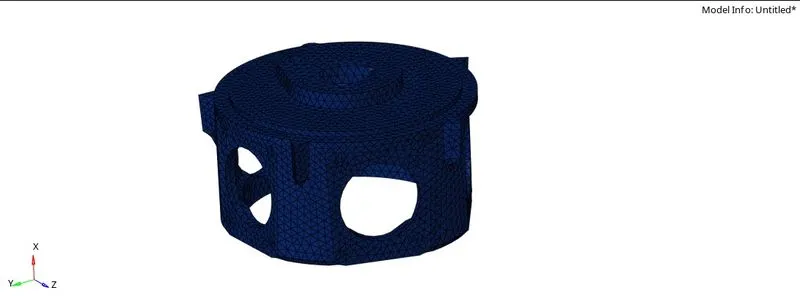
For the given model tetra mesh is generated by using 'Quick Tetra mesh method' with the mentioned criteria,The final model image is as follows.
Final Model Image:
Model-3:
Objective:
To create a 3D tetramesh by using 'Volume tetra method' for the given component with mentioned quality criteria.
CAD Model Image:
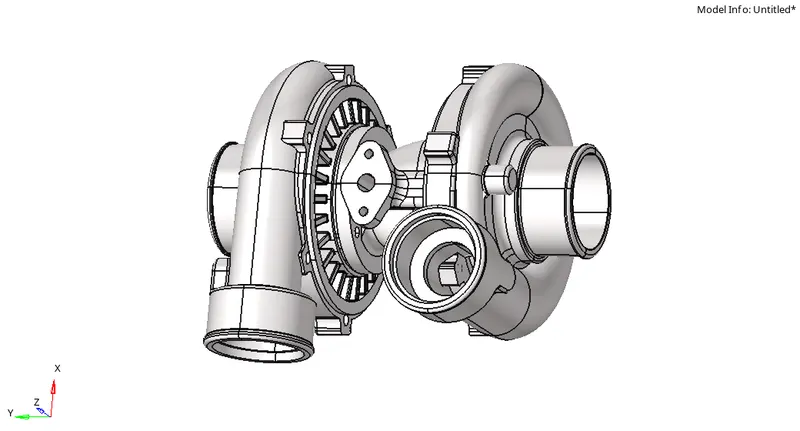
Procedure:
- Firstly import the IGES model from the system files.
- For volume tetra mesh method we can mesh it without deleting the solid component of the model.
- After importing the model into the hypermesh cleanup the geometry.
- After that keep the solid of the model and then select 3D>tetramesh and then click on the Volume tetra option by selecting the solid of the model.
- Check the checkboxes 'Use curvature' and 'Use proximity'.
- And after that,specify the minimum element size and select the checkbox of 'Cleanup elements'.
- Then click on the 'Mesh' to generate the volume tetramesh.
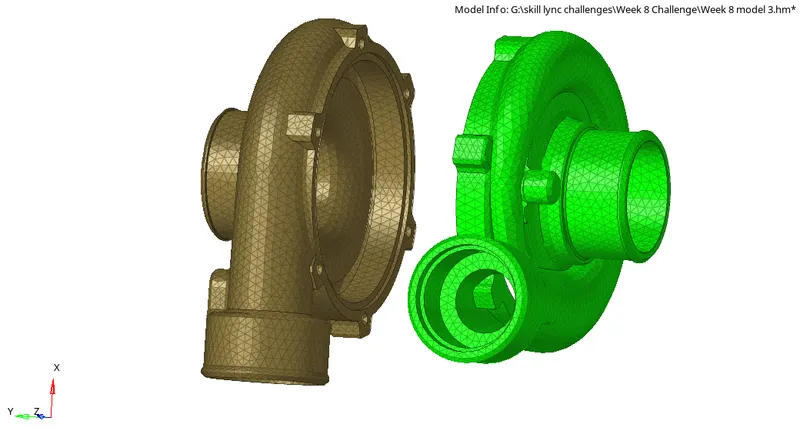
- After generating the volume tetramesh check for the failed tet-collapse elements.
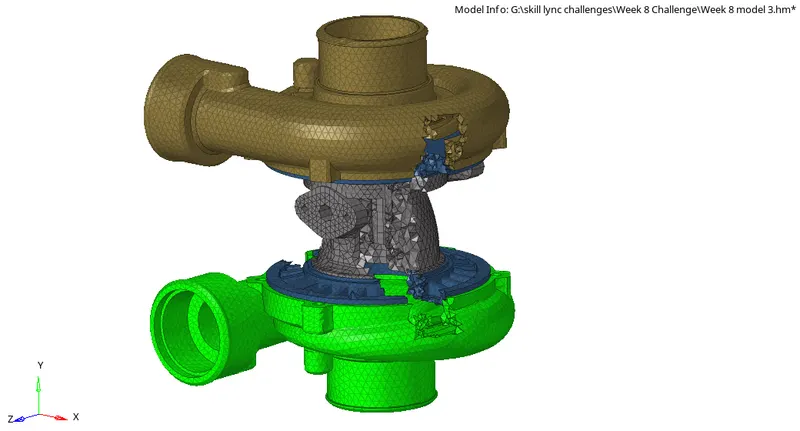
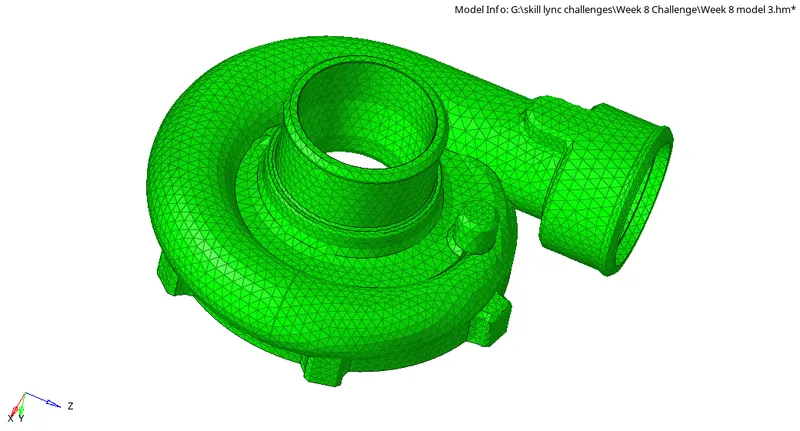
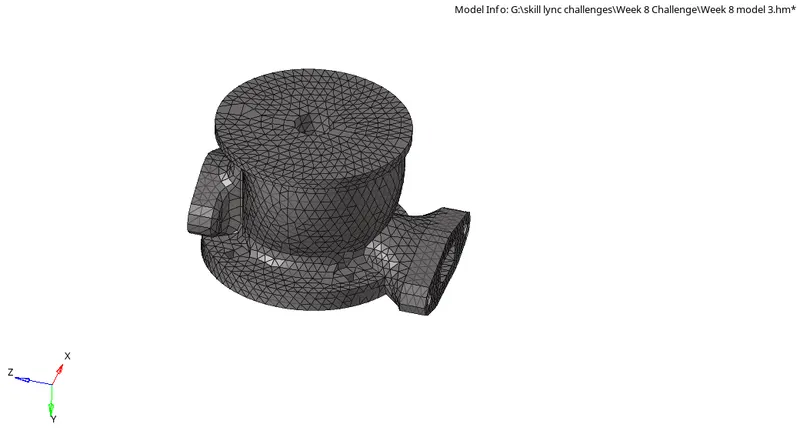
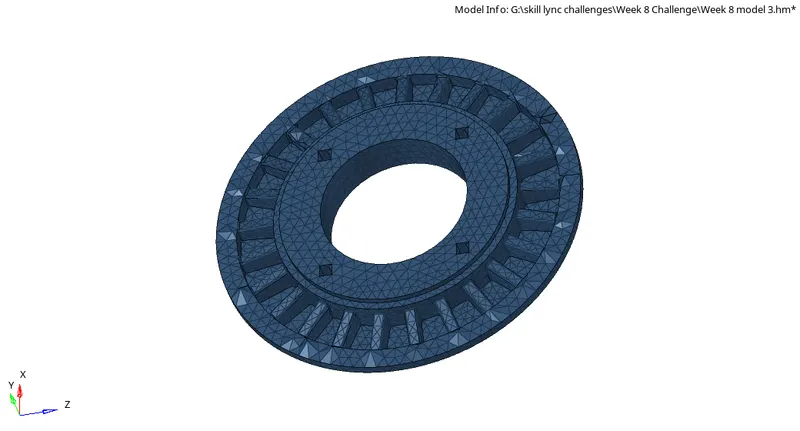
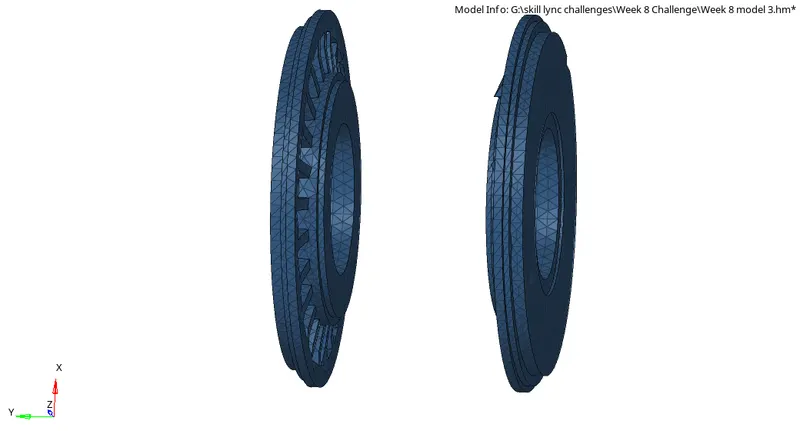
The Volume Generated tetra mesh components are as follows:
- For checking the failed elements select Tools>check elements.
- Then after to get rid of the Tet-collapse failed elements use Tetra re-mesh method (or) 'Translate' command option.
- For tetramesh Select Tools>tetramesh>tetramesh parameters.
- Then after assign the Max tetra and Min tetra size by checking the checkbox in tetramesh parameters panel.
- Under element quality target assign the tet-collpase value and tick the checkbox Fill voids,Fix mid-node and smoothing.
- And there is another way of getting rid of tet-collapse failed elements.
- To clear tet-collapse select Tools>Translate option.
- Pick a node of the failed element which has minimum height.
- Select the nodes N1,N2 & N3 for translation.
- Assign the magnitude for translating the nodes.
- Do the translate process for all the failed elements until it reaches the failure elements to zero.
Result:
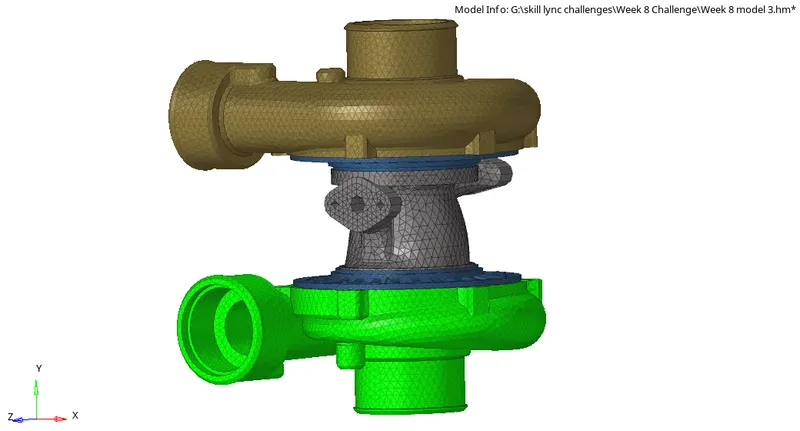
For the given model Tetra mesh is generated by using 'Volume Tetra mesh method' with the mentioned criteria,The final model image is as follows.
Final Model Image: