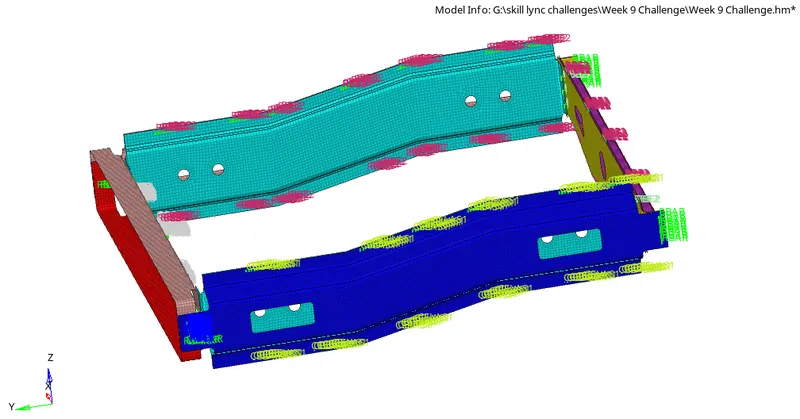
Week 9-Creation of 1D Connectors Challenge
Creation of 1D connectors challenge:
Objective:
To generate the 2D mesh for the given geometry and also to create connectors to attach the various parts of the model as mentioned below.
Target Element size - 5 Units
|
S.N |
Quality Criteria |
Value |
|
1 |
Aspect Ratio |
5 |
|
2 |
Skewness |
45 |
|
3 |
Warping |
15 |
|
4 |
Taper |
0.5 |
|
5 |
Min. Length |
2 Units |
|
6 |
Max. Length |
8 Units |
|
7 |
Min angle Quad |
45 |
|
8 |
Max angle Quad |
135 |
|
9 |
Min angle Tria |
30 |
|
10 |
Max angle Tria |
110 |
|
10 |
Tria % |
15 |
Create connector and Attach the various parts of the given model
1. Right_Rail_2 & Front_truss_1:- Seam-Quad(angled+capped+L)
2. Left_Rail_2 & Front_truss_1:- Quad elements
3. Front_truss_2, Front_truss_1 & Right_Rail_1:- Spot weld with 2 Layers and 5 mm Diameter
4. Front_truss_2, Front_truss_1 & Left_Rail_1:- Hexa (Adhesive)
5. Rear_truss_2 & Right_Rail_2:- Bolt Connector
6. Rear_truss_2 & Left_Rail_2:- Bolt Connector
7. Right_Rail_1 & Right_Rail_2:- Spot-weld with Rigid Elements
8. Left_Rail_1 & Left_Rail_2:- Spot-weld with Spring Elements
9. Rest all the component left Join them with suitable connectors
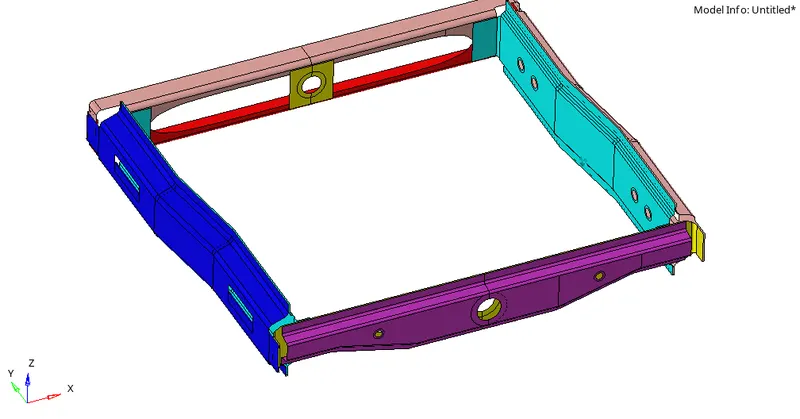
CAD Model Image:
Procedure:
- Firstly import the model from the system files.
- Perform the geometry cleanup wherever it is required.
- Generate the mesh with the mentioned target element size.
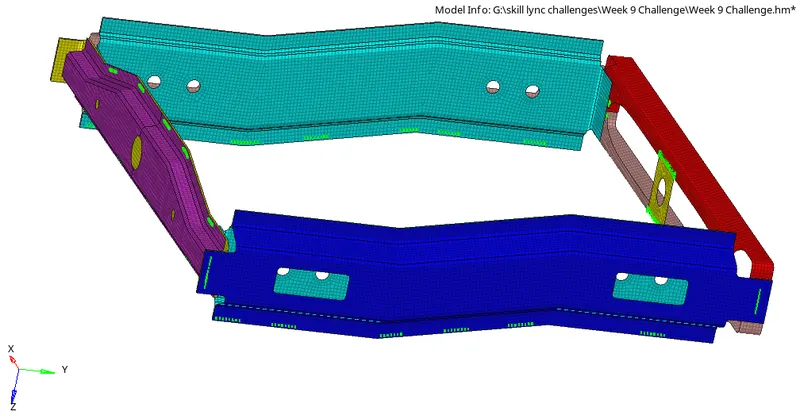
- After meshing attach the various parts of the model as follows.
- Right_Rail_2 & Front_truss_1:- Seam-Quad(angled+capped+L)
- To create a Seam-Quad(angled+capped+L) Connector>Go to 1D panel>Connectors>Seam.
- To create a seam weld we need to select nodes and components.
- And after that select the location where to create a connector using node or line option.
- And assign the spacing value,it is which as same as target element size.
- Select the type of connector as Seam-Quad(angled+capped+L).
- Assign the tolerance value as 10 which is most commonly used and which sometimes depends upon the industry specific.
- And most commonly select the component carefully for creating a connector.
- After all the criterias are assigned select 'Create' option to create a connector.
- For 'Connector' panel select View>Browsers>hypermesh>Connector.
- The connectors we created will be located in the connectors panel.
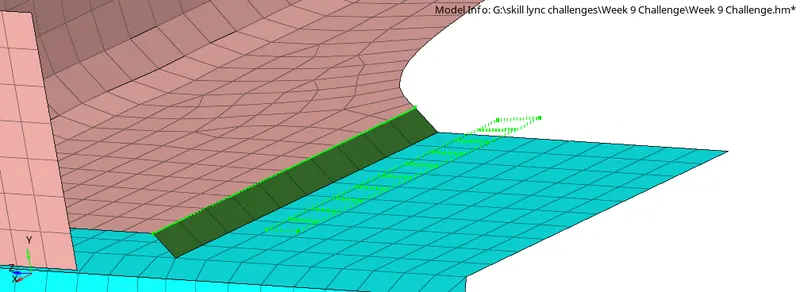
- After creation of connectors check whether it is realized or not by the colour as follows.
- Realized connector will represents in 'Green' colour.
- Un realized connector will represents in 'Yellow' colour.
- Failed connector will represents in 'Red' colour.
- It is possible that sometimes the connectors may not br realized due to tolerance value which should be large enough so gap between the parts is taken into consideration.
The formed connectors image is as follows:
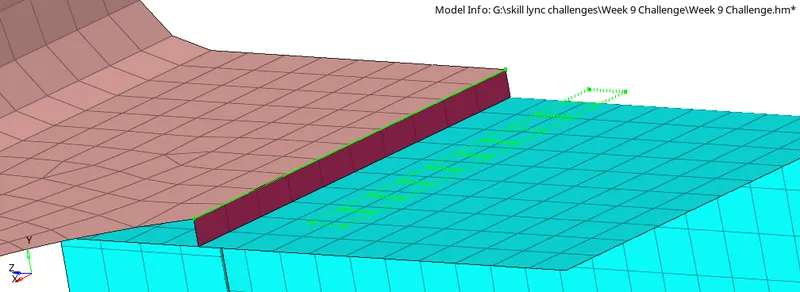
2.Left_Rail_2 & Front_truss_1:- Quad elements
- To create Quad element connector>1D>Connectors>Seam.
- To create a seam quad element we need to select node and components.
- Select the nodes along which weld is created.
- Select the type of weld as 'Quad'.
- Assign the spacing value as 5mm.
- Assign the tolerance value as 10.
- Select the two parts or components for joining.
- And finally select 'Create' option to form a connector.
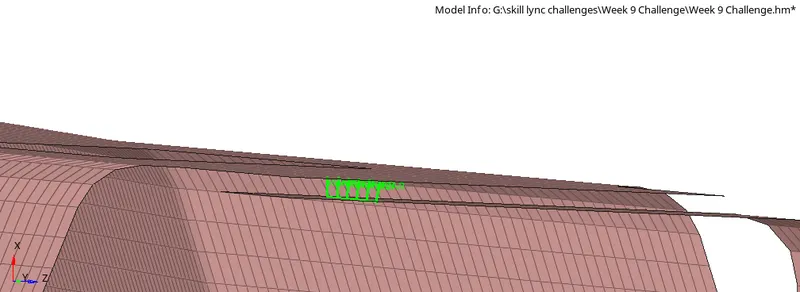
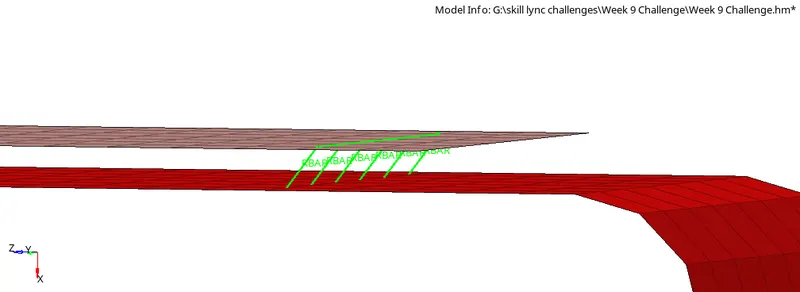
3.Front_truss_2, Front_truss_1 & Right_Rail_1:- Spot weld with 2 Layers and 5 mm Diameter
- To create a Spot weld connector>1D>Connectors>Spot.
- To create a spot weld element we need to select node and components.
- Select the nodes along which weld is created.
- Select the type of connector as 'Weld'.
- Assign the spacing value as 5mm.
- Assign the tolerance value as 10.
- Assign the diameter as 5mm.
- Assign the number of layers as 2.
- Select the parts that are to be joined.
- And finally select 'Create' option to form a connector.
The Images are as follows:
Front Truss 1 and right rail 1:
Front Truss 1 and Front truss 2:
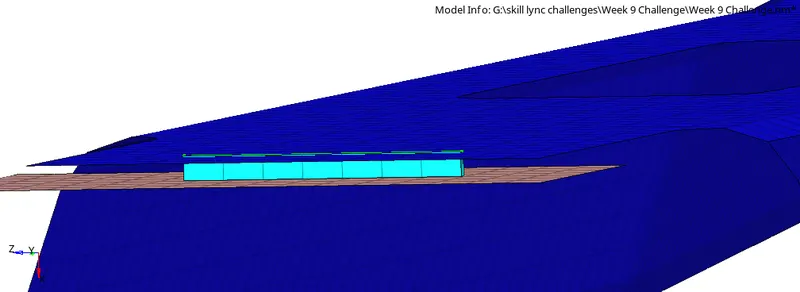
4.Front_truss_2, Front_truss_1 & Left_Rail_1:- Hexa (Adhesive)
- To create a Hexa(Adhesive) connector>1D>Connector>Seam.
- Select the nodes along which adhesives are created.
- Select the type of connector as Hexa(Adhesive).
- Assign the spacing value as 5mm.
- Assign the tolerance value as 10.
- Assign the Strips & Coats value as 1.
- Select the parts that are to be joined.
- And finally select 'Create' option to form a connector.
The Images are as follows:
Front truss 1 & Left rail 1:
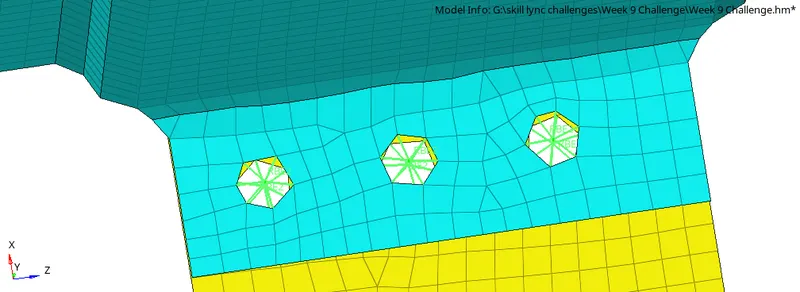
5.Rear_truss_2 & Right_Rail_2:- Bolt Connector
- To create a Bolt connector>1D>connectors>Bolt.
- To create Bolt connectoe we need to select nodes and components.
- Select the nodes along which bolt is created.
- Select the type of connector as Bolt(General).
- As number of layers is not mentoined assign it to Auto.
- Assign the tolerance value as 10.
- And the important point is that the parts do not contain holes for bolt attachment,Hence in the bolt option select 'Create hole, if none' for the creation of hole.
- Select the parts that are to be joined.
- And finally select 'Create' option to form a bolt connector.
Rear_truss_2 & Right_Rail_2:
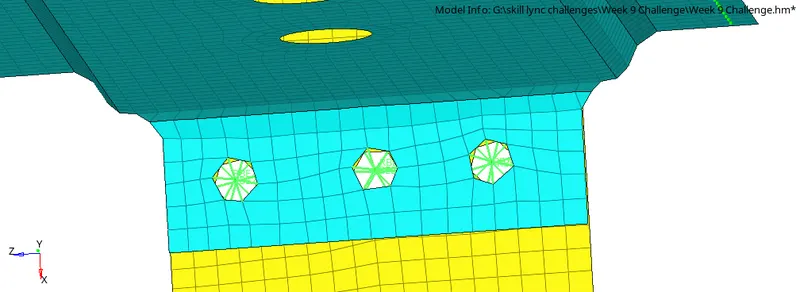
6.Rear_truss_2 & Left_Rail_2:- Bolt Connector
- To create a Bolt connector>1D>connectors>Bolt.
- Select the type of connector as Bolt(General).
- To create Bolt connector we need to select nodes and components.
- Select the nodes along which bolt is created.
- As number of layers is not mentoined assign it to Auto.
- Assign the tolerance value as 10.
- And the important point is that the parts do not contain holes for bolt attachment,Hence in the bolt option select 'Create hole, if none' for the creation of hole.
- Select the parts that are to be joined.
- And finally select 'Create' option to form a bolt connector.
Rear_truss_2 & Left_Rail_2:
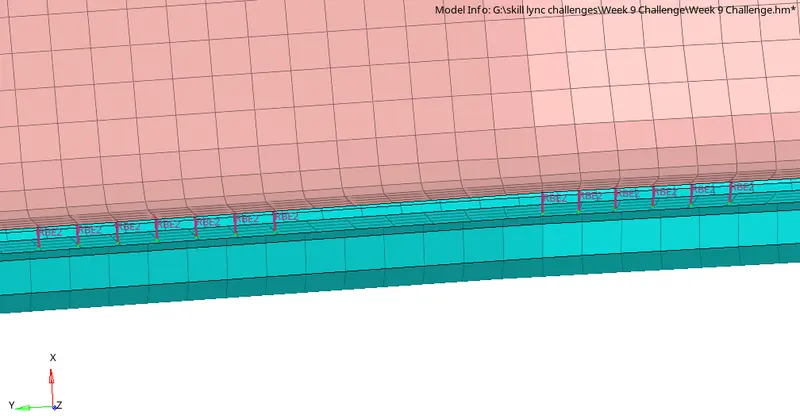
7.Right_Rail_1 & Right_Rail_2:- Spot-weld with Rigid Elements
- To create a spot weld with rigid elements.
- To create Spot weld with rigid elements we need to select nodes and components.
- Select the nodes along which spot weld is created.
- Select the type of connector as Rigid.
- Number of layers should be assigned to Auto mode.
- Assign the tolerance value as 10.
- Assign the diameter as 1mm.
- Select the parts that are to be joined.
- And finally select 'Create' option to form a Spot weld with rigid elements connector.
Right_Rail_1 & Right_Rail_2:
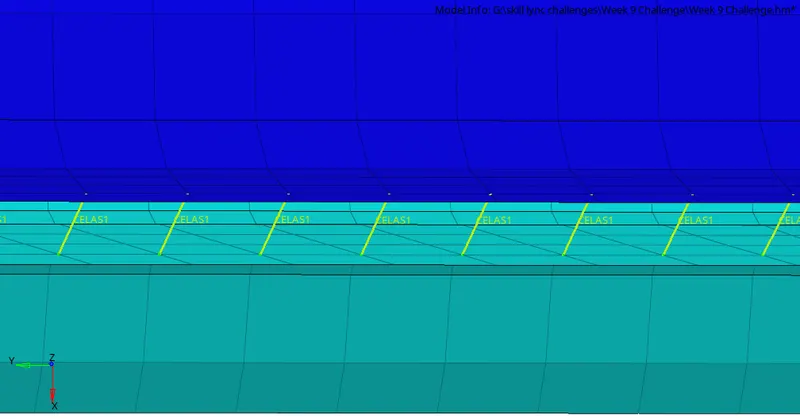
8.Left_Rail_1 & Left_Rail_2:- Spot-weld with Spring Elements
- To create a spot weld with Spring elements.
- To create Spot weld with Spring elements we need to select nodes and components.
- Select the nodes along which spot weld is created.
- Select the type of connector as Spring.
- Number of layers should be assigned to Auto mode.
- Assign the tolerance value as 10.
- Assign the diameter as 1mm.
- Select the parts that are to be joined.
- And finally select 'Create' option to form a Spot weld with Spring elements connector.
Left_Rail_1 & Left_Rail_2
9.Rest all the components are connected with suitable connectors as per the image
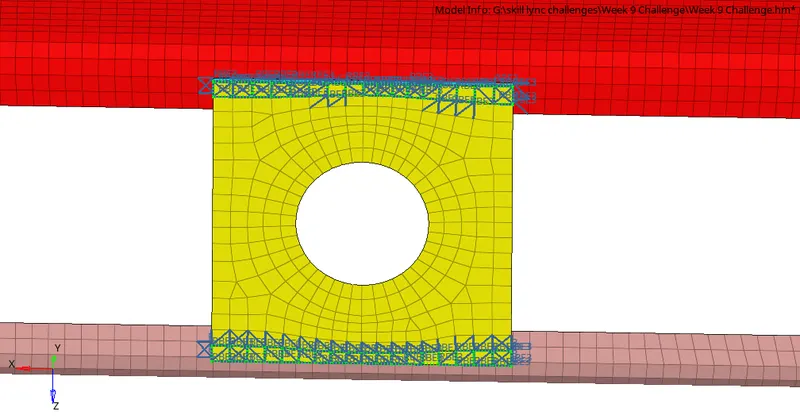
Result:
For the given model mesh is generated and connectors are attached as mentioned.
Final Model Image: