Week 12:Project-1-Meshing of Door Inner Panel Challenge
Meshing Of Door Inner panel Challenge:
Objective:
To mesh the given Door's inner panel with the mentioned quality criteria and assigning them the thickness.
Target Element Length = 4 Units
| S.N | Quality Criteria | Value |
| 1 | Aspect Ratio | 5 |
| 2 | Skewness | 45 |
| 3 | Warping | 15 |
| 4 | Taper | 0.5 |
| 5 | Min. Length | 2 Units |
| 6 | Max. Length | 6 Units |
| 7 | Min angle Quad | 45 |
| 8 | Max angle Quad | 135 |
| 9 | Min angle Tria | 20 |
| 10 | Max angle Tria | 120 |
| 10 | Tria % | 10 |
CAD Model Image:
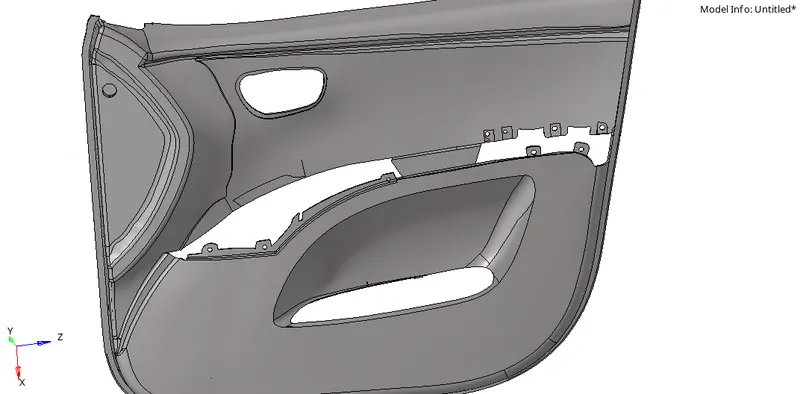
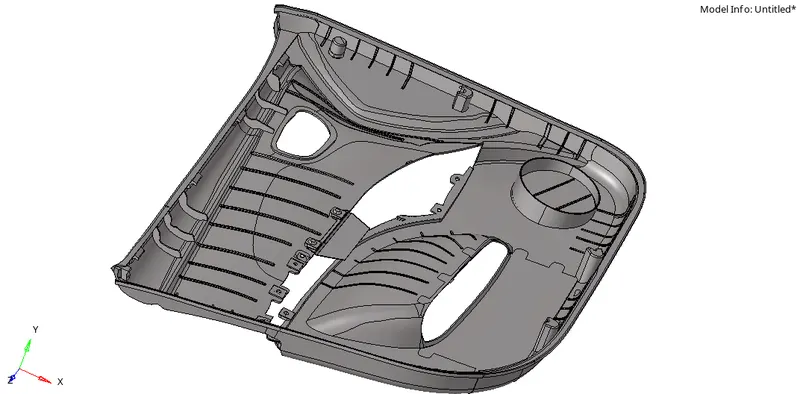
Procedure:
- Firstly import the model from the system files.
- Do remember the points as mentioned in the question before extracting the mid surface.
- Clean up the geometry by using 'Quick edit' option in geometry tab.
- And then extarct the mid surface of the component manually by using offset option.
- For Extracting the mid surface using offset option Goto>Geom>Surface edit>offset.
- Select one surface of the component and duplicate it,then select vector normal (or) reverse normal tp offset the component.
- Do manual mid surface for all the components seperately by using offset method.
- Ribs are also present on the component there is a seperate method to obtain mid surface for them.
- For mid surface extraction of ribs firstly create a mid line from the existing line as follows
- For creating mid line Goto>Geom>lines>mid line. Select two line lists to create a mid line between them.
- After creating the mid line Turn off the parent geometry and trim the mid line as follows.
- Goto> Geom>surface edit>Trim with lines.

- In that select with line option and then select 'normal to surface' option,then select the line as well and then click trim option to trim the lines.
- Then after create a surface between the lines by using ruled option Goto>Geom>Surfaces>Ruled.
- Select the two line lists to create a surface between them.
- And make sure that ribs must be attached to the surface,if not extend ribs to the surface as follows.
- Goto>Geom>Surface edit>Extend.
- After selecting the extend option select 'extend over edges and then after select the line to extend and as well as surface that line has to be extended.
- And then click 'Extend' that extends the line to the surface which will be represents in Yellow colour as follows.
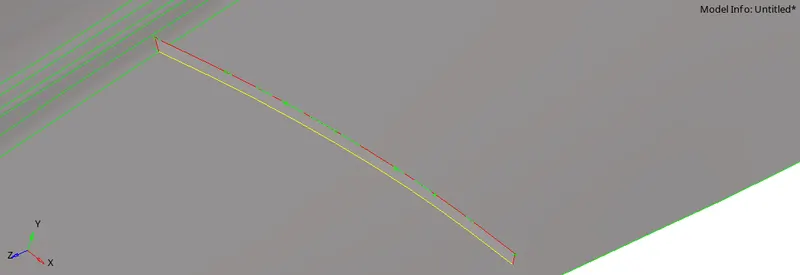
- Do follow the same procedure for all the ribs to extract the mid surface.
- And for plates along the sides for extracting the mid surface we follow a process by using 'Final edit tools' in mid surface option.
- For that Goto>Geom>Mid surface>Final edit tools .
- In final edit tools option select the opposite surfaces of the component and click extract to get the mid surface.
- In this make sure that select 'Result in current component' to extract the mid surface into that.

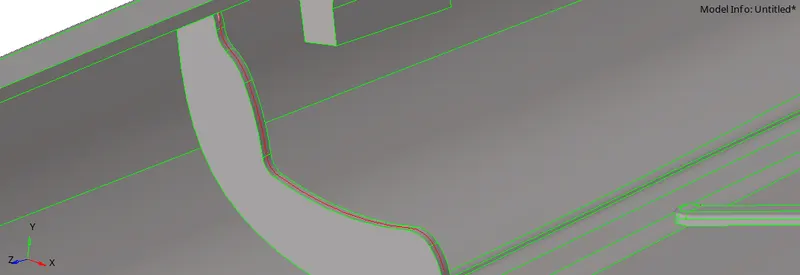
- Before meshing do the topology clean up wherever it is neccesary.
- Before meshing assign the meshing parameters and quality criteria.
- For assigning go to Goto>Preferences>criteria file settings as follows
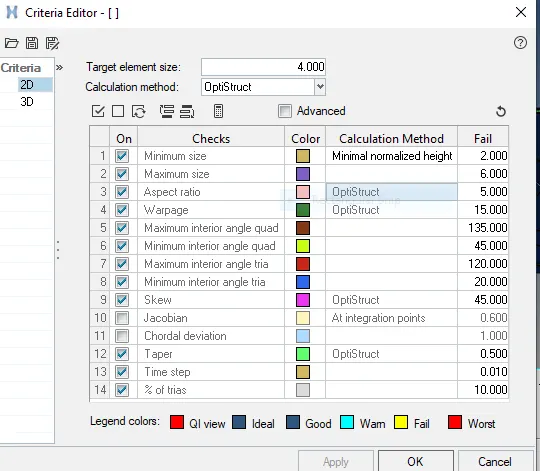
- In criteria file settings assign the values as mentioned and click on apply.
- Then after perform meshing Goto>2D>Automesh>Mesh.
- Assign the element size as 4mm and perform meshing,select the mesh type as 'mixed'.
- After meshing check the mesh flow and confirm the mesh.
- After that check for elemental failures in the model as Goto>Tool>Check elements.
- To get rid of elemental failures Goto>2D>Quality Index panel.
- In quality index panel use the following options element optimise,place node and combine tria elements to get rid of failed elements.
- Make sure that tria concentration is very less.To get rid of trias use an option called 'Drag tria element' for merging of opposite tria elements.
- Check for the proper mesh flow of the component.
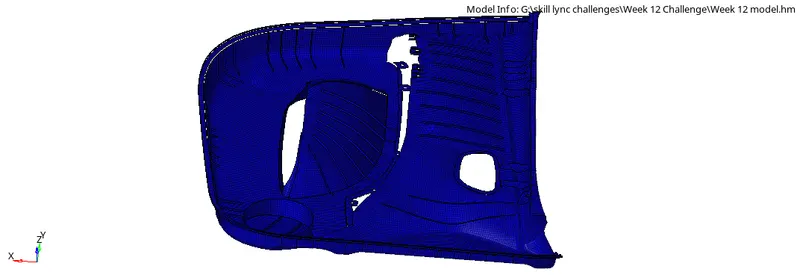
- And after meshing create individual components for all of them according to the thickness.
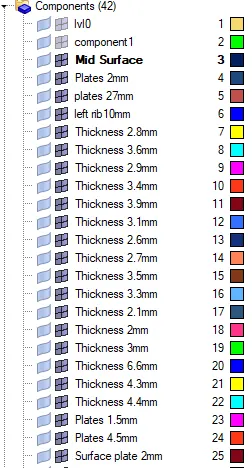
- And also create a individual property for the components.
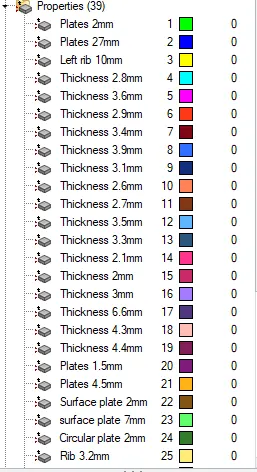
- Assign the thickness to the property and after that assign property for each individual components.
- Assign the individual components with colour for easy recognization.
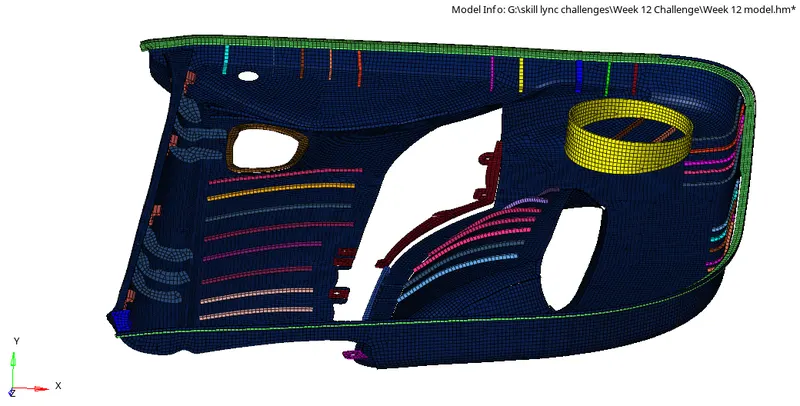
- The 2D detailed represenation image of the component is as follows
Result:
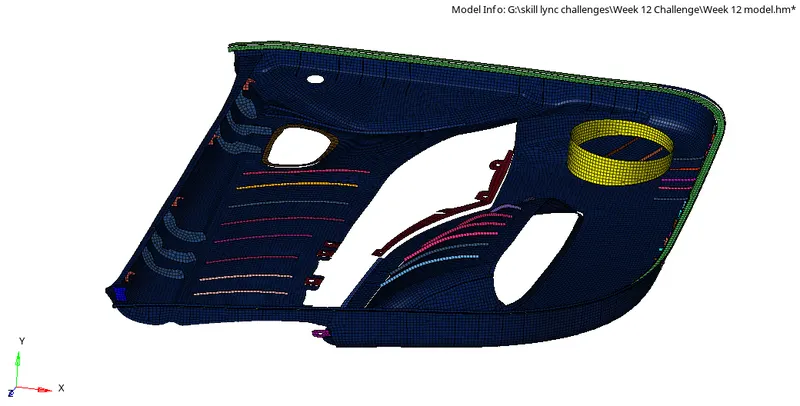
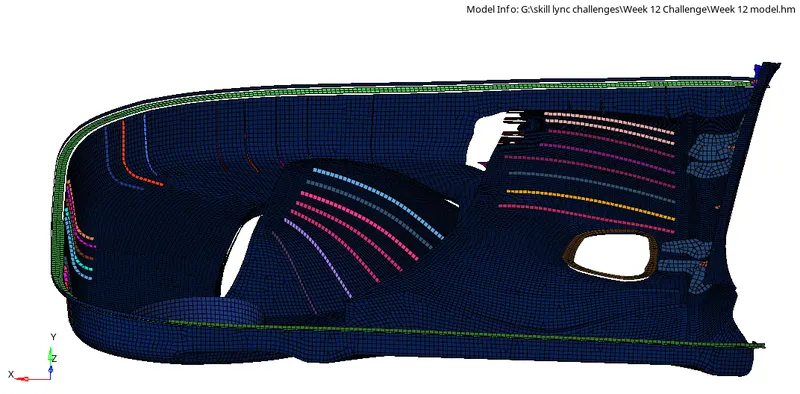
The given inner panel component of the side door is meshed accordingly as per mentioned quality criteria by extracting the mid surface and assigning the thickness to the components.
Final Model Image: