Week 6 - Creating connection for Rear door
Creating Connection for Rear Door:
Aim:
To perform suitable connections on the rear door model by creating and applying different PID'S for the component.
CAD Model Image:
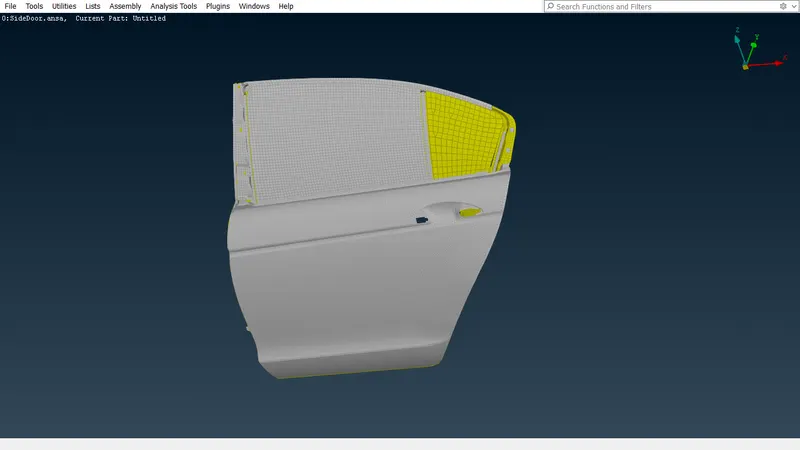
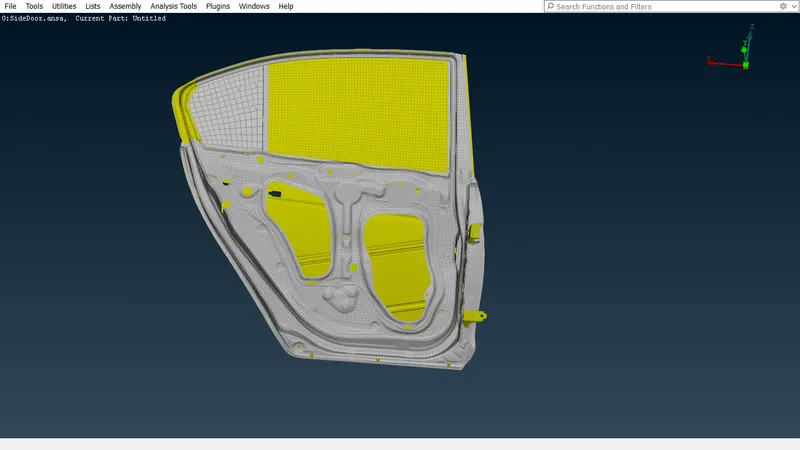
Procedure:
- Firstly import the model from the system files.
- Before creating connections for the model firstly we need to assign PID'S for the various components.
- For assigning PID'S first we need to create 'P-Shell' component in the properties.
- Goto>properties>New>PShell.
- After creating that p shell we need to go to 'Set PID' option in Faces panel, Faces>Set PID.
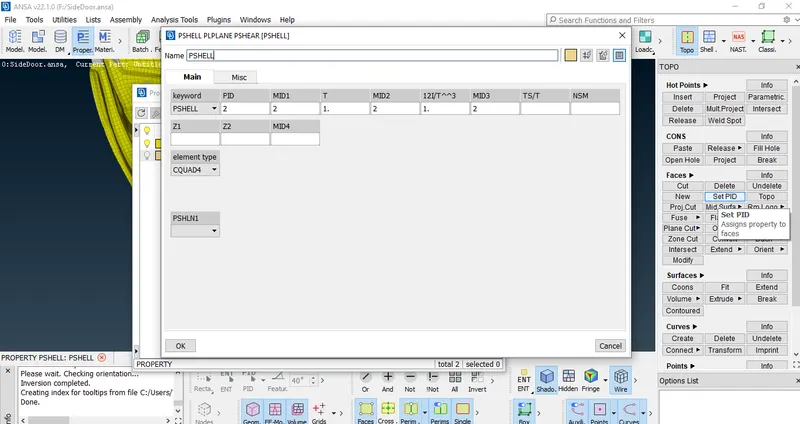
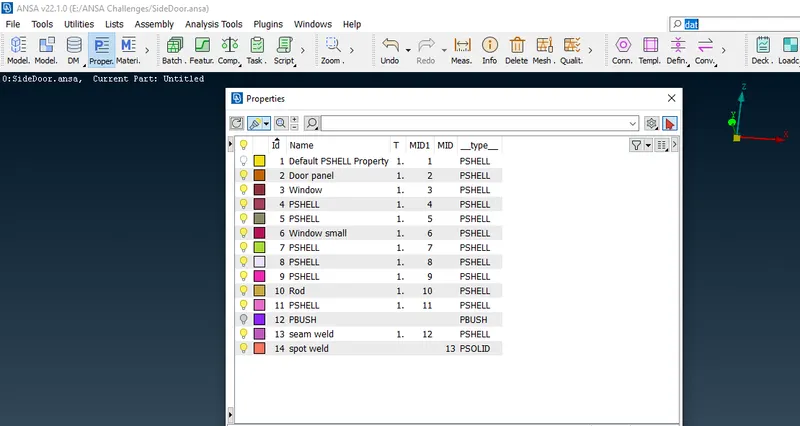
- After that we need to select the component and click middle mouse button to bring properties tab window.
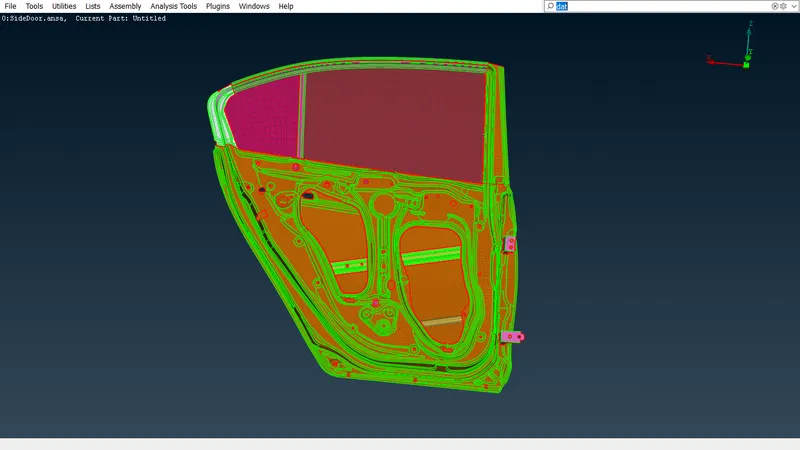
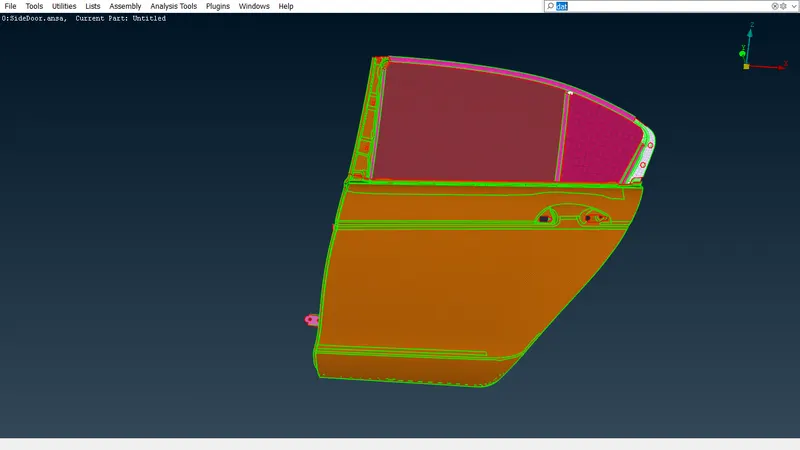
- Bolt Connection(RBE2):
It is used in places where the bolt and nut are used to join or connect part with any degrees of freedom to get a movement.
Example:Door Hinge.
- For bolt connection we should Goto>Nastran deck>Elements>Rbe2>Many nodes.
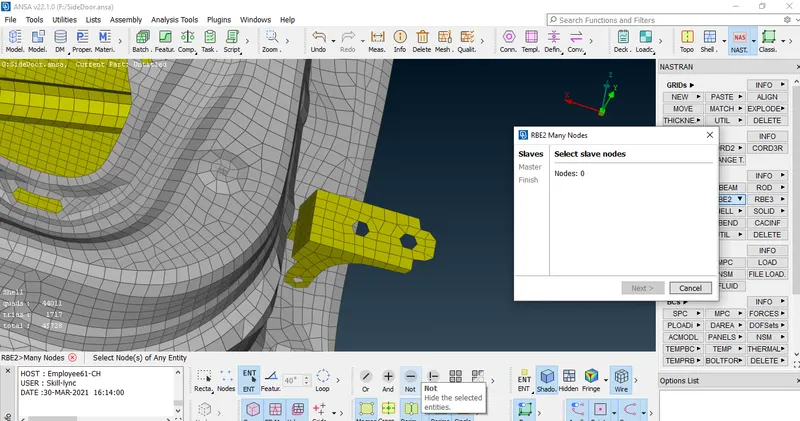
- We need to select the nodes and click on the middle mouse button to confirm.
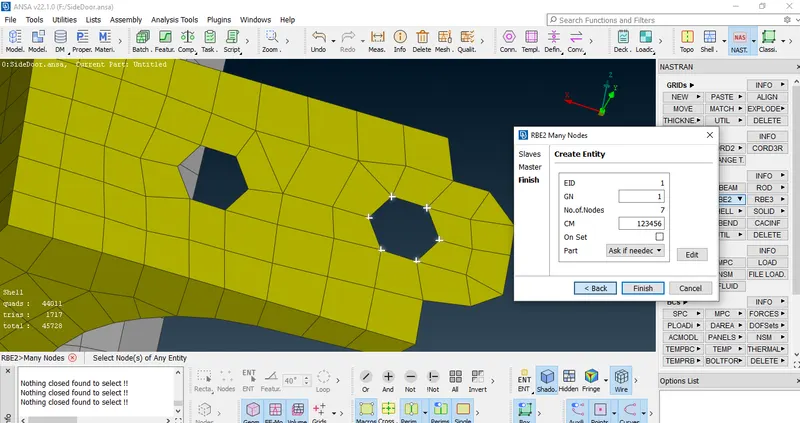
- After that 'Create Entity' Folder is generated with DOF mentioning in it.
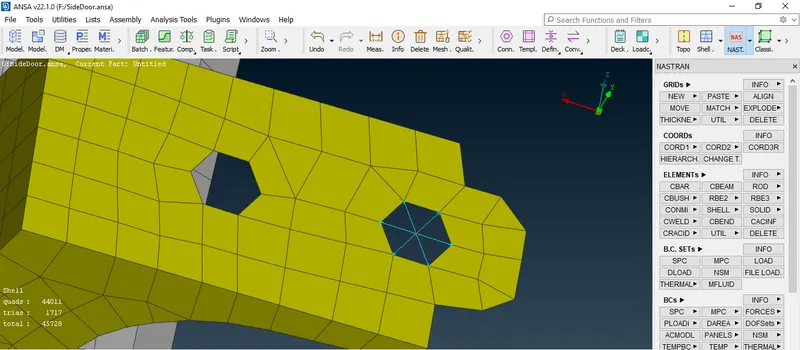
- And we can create two node Rbe2 which connects two Rbe2 elements one as bolt and another as nut.
- For that two nodes Goto>Nastran>Elements>Rbe2>Two nodes.
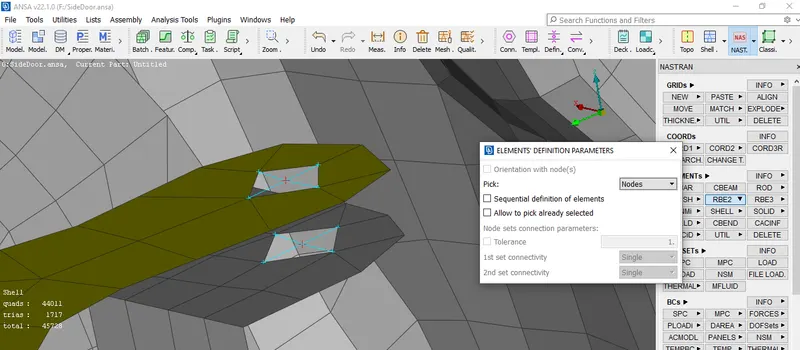
- After selecting the two nodes then click on the middle mouse button then Rbe2 dialogue box will be shown as below.
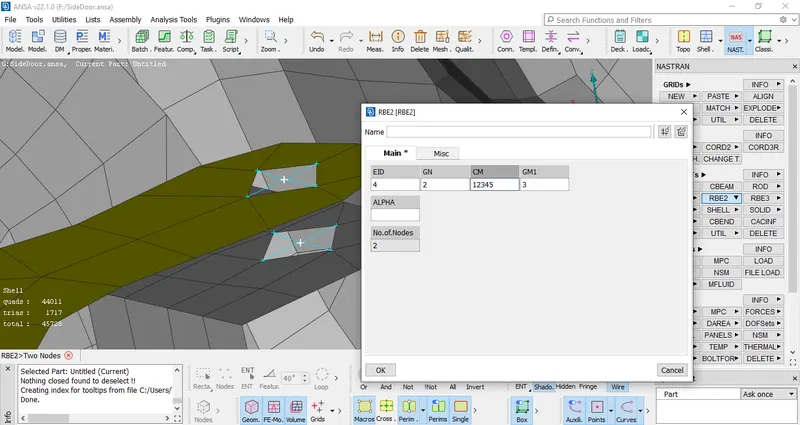
- After that for the door hinge connection the Degrees of freedom will be 5 but 6th one is restricted as it rotates in a particular direction or axis.
- And then click on OK to create a node between them as follows.
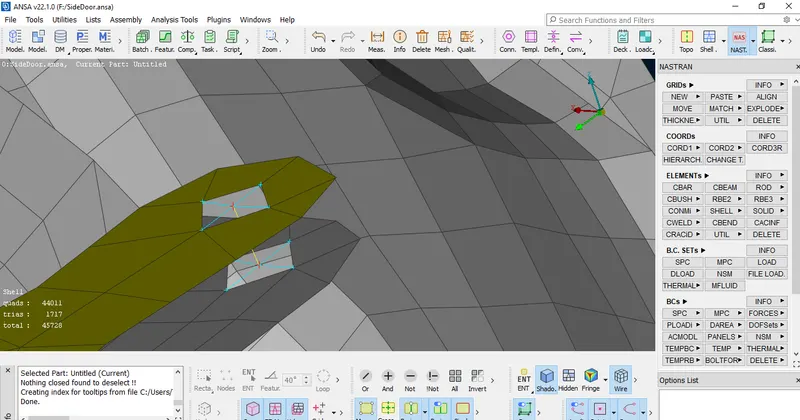
- Rigid Rbe2 or cluster Rbe2 can also be created by selecting all the required nodes to form a cluster Rbe2 connection with one master node.
- The cluster Rbe2 connection is shown as below.
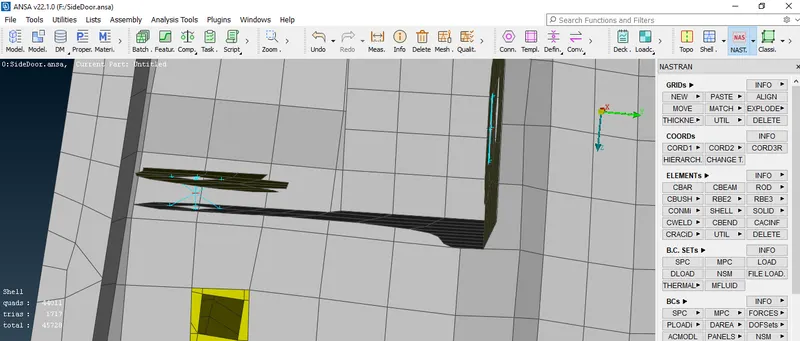
- Rbe2 is also generated using Zone cut option to gain extra strength or force at a particular hole.
- To create a Zone cut Goto>Mesh>Shell Mesh>Zone cut.
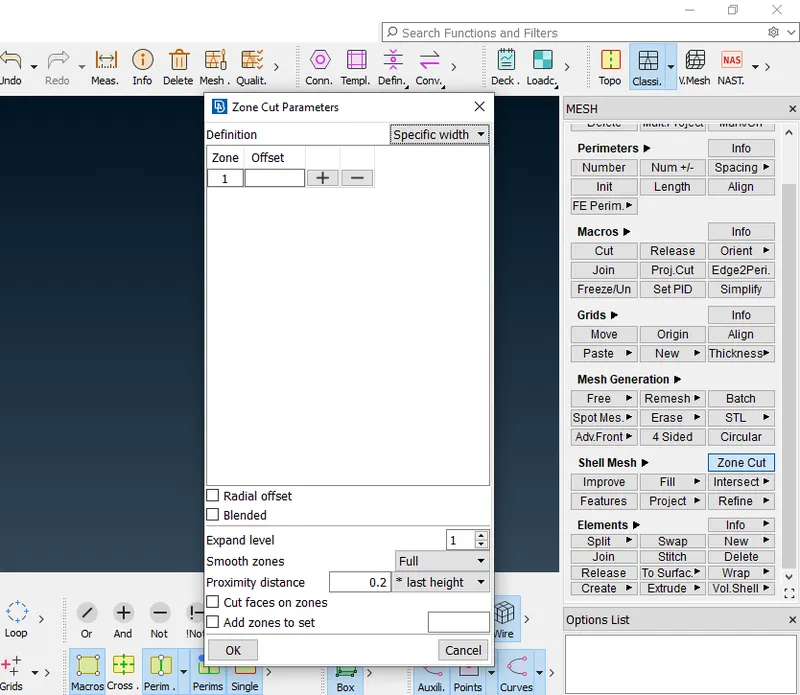
- Select the mesh entities and then select offset value and click on ok.
- After that it will re-direct to the zone cut edit perimeters tab where we can adjust the mesh.
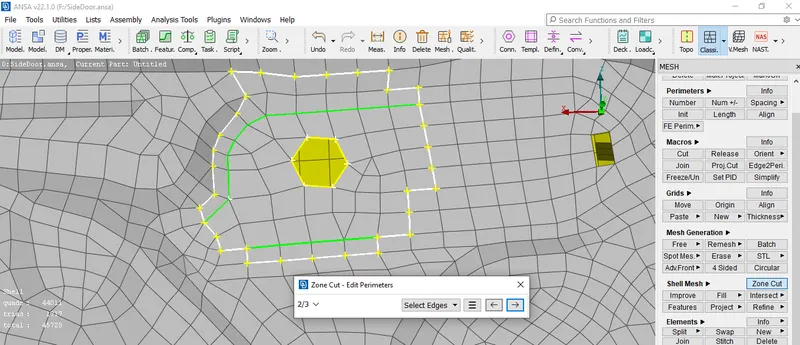
- And then select the entities to create Rbe2 joint as shown below.
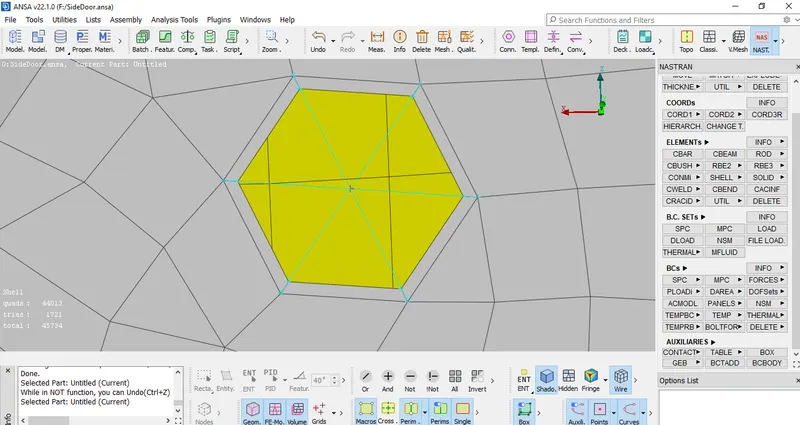
- Spot Weld Connections:
- It is used where we cannot use bolt or nut to join the connections.
- For creating spot weld connection firstly we need to create COG point.
- For creating COG Goto>Topo>points>On COG.
- Then select the edges to create a point.
- Then Go to 'Convert' option and select the point as 3D point and click on middle mouse button and it opens a 'connection type' dialogue box and there we should select 'Spot weld' point and click on Ok.
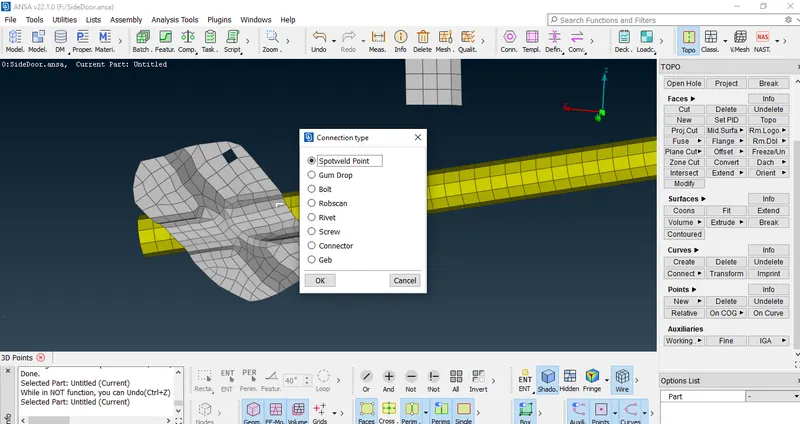
- After clicking on ok the 'connection manager' Dialogue box will be opened.
- In that we need to select the FE type as RBE3-HEXA-RBE3 and we need to assign or mention the parts to make the connection between them.
- We need to assign the search distance, Rfc pin flags as 123456, where it is prevouisly mentioned DOF is 123 and later we need to add DOF 456.
- And we need to create PSOLID ID and assign that.
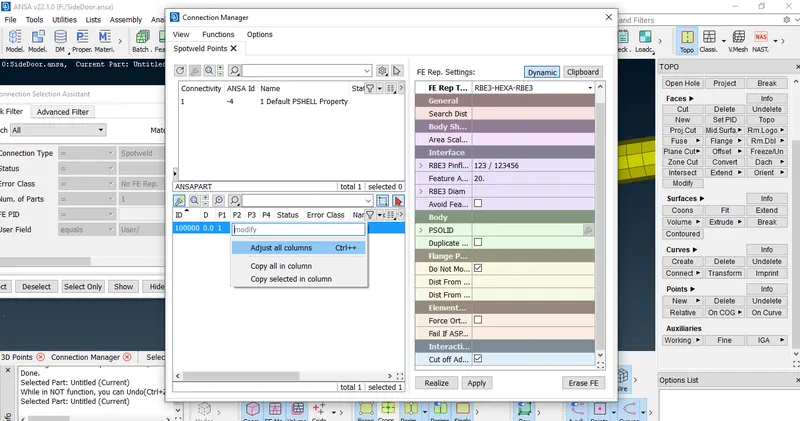
- After assigning all the values and then click on apply and realize as it created a RBE3-HEXA-RBE3 element.
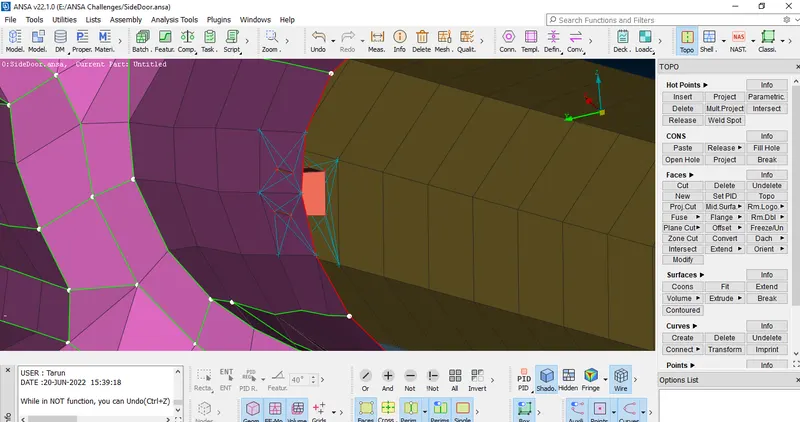
- Bolt connection between two or more holes or some elements such as bolt and nut connect through center of the holes can be used.
- For creating a bolt connection firstly we need to create a bolt point Goto>topo>points>COG.
- And then we need to select the edge to create a point.
- Then after creating, convert the point to 3D points.
- Then select the connection type as 'Bolt' and then click on Ok. It is then re-directs to connection manager panel where we will assign P1,P2 and P3.
- Then we should select the FE type as bolt and assign the Search distance,Zones and DOF.
- Then maximum no of components for Bolt connections are 4.
- Then click on apply and realize, it creates a bolt connection as follows.
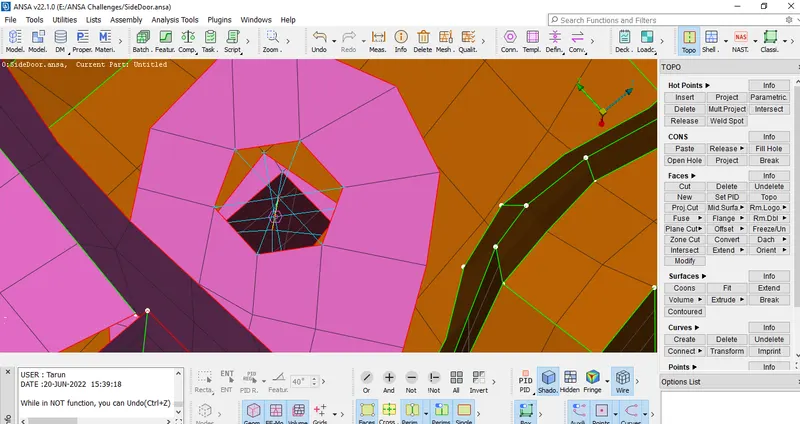
Seam Line Connection:
It is used where two components are parallel or perpendicular in direction.
- To create a seam connection first we need to create a curve.
- For Curve Goto>Topo>Curves>Cons2curve.
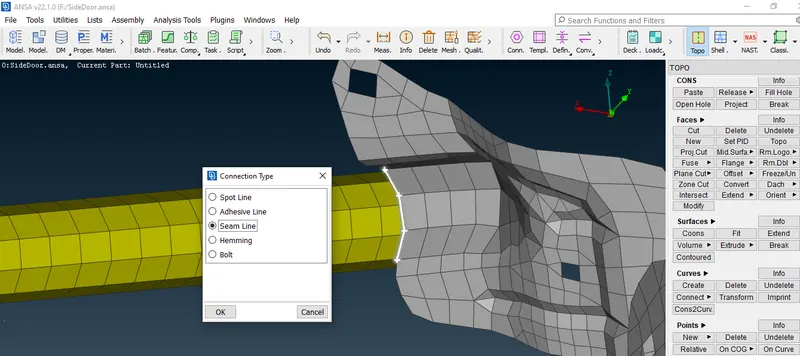
- Select the cons and then click on the middle mouse button then it creates a curve.
- After creation of curve convert to curves in convert tab.
- Then select the curve and click on middle button then a connection type dialogue box is opened.
- Then select the seam line option and click on ok.
- Then after connection Manager dialogue box is displayed in that we need to select the FE type as Overlap shell.
- Then assign the search distance,base sheet,step length and weld PID.
- We need to select the P1 and P2 to form a connection between them.
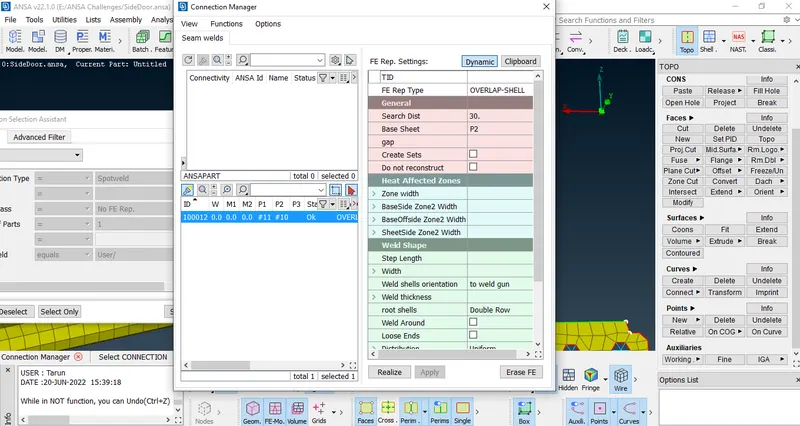
- After all the values are assigned click on Apply and realize.Then the overlap shell connector is created.
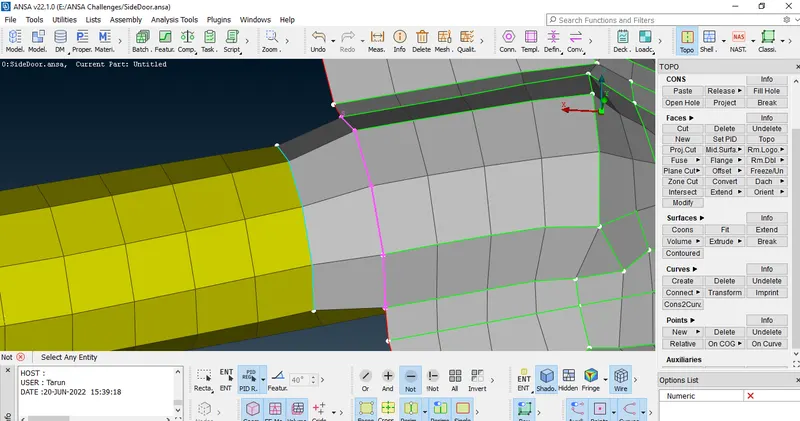
C-BUSH Connectors:
It is a connection present between a door and window.
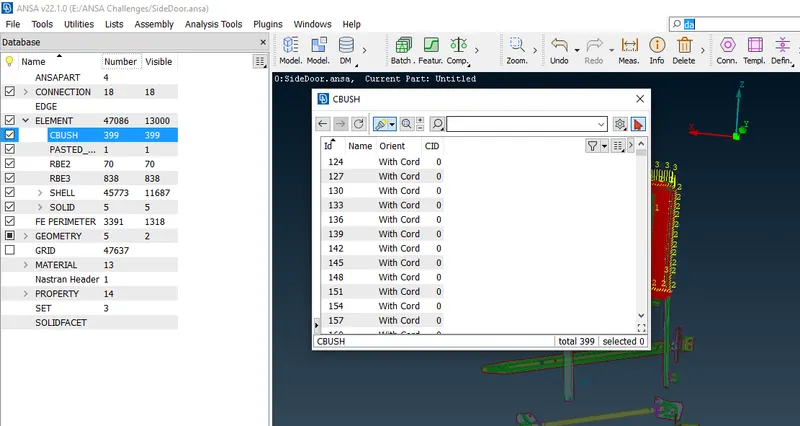
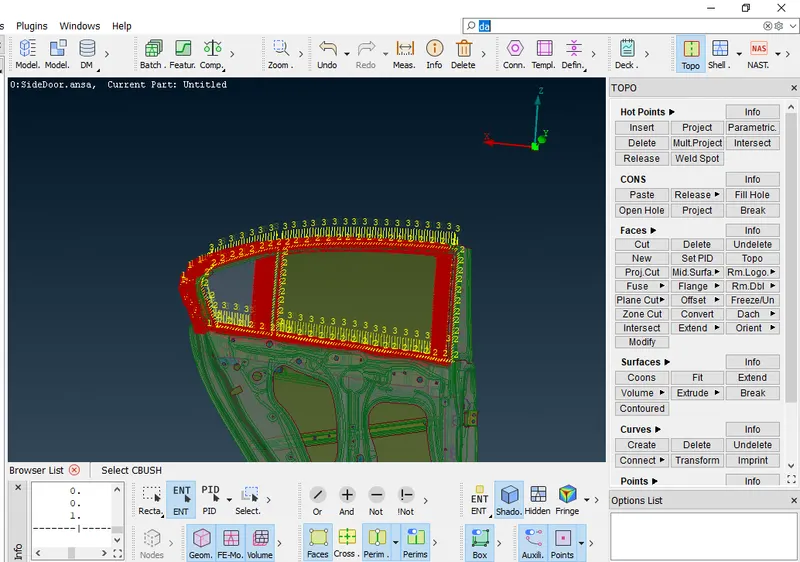
- To create a c-bush connector we need to have weld line which is a curve created alongside of the window which is shown as below.
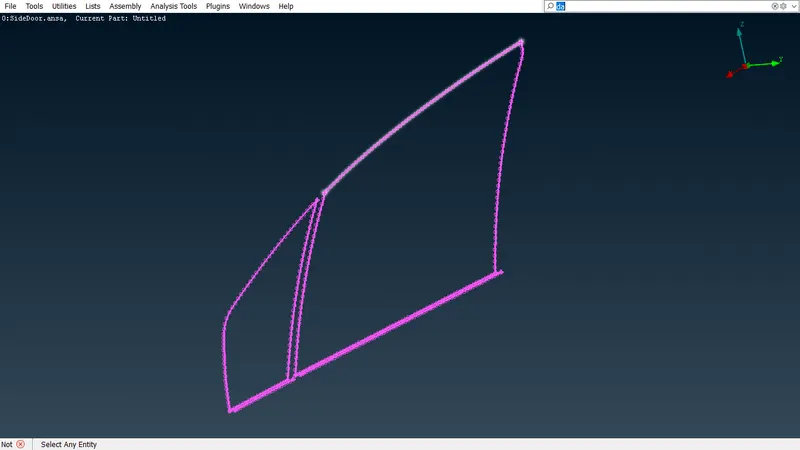
- Then after creating a curve select the curves and click on the middle button and it opens a dialogue box as connection type and in that select the spot line.
- After that go to Connection tab and select the spot line and click on the middle button and it opens a connection manager where we have to select the FE type as RBE3-CBUSH-RBE3,search distance,DOF and PBUSH Id.
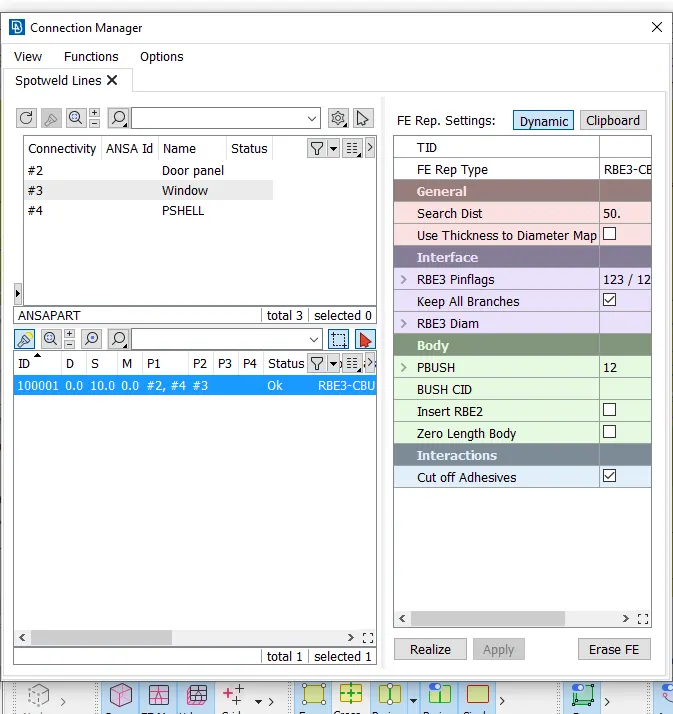
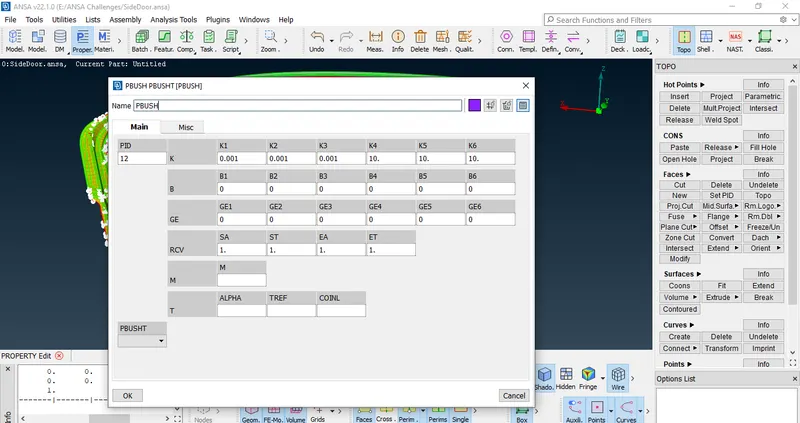
- Create a seperate PBUSH ID and connection is applied.
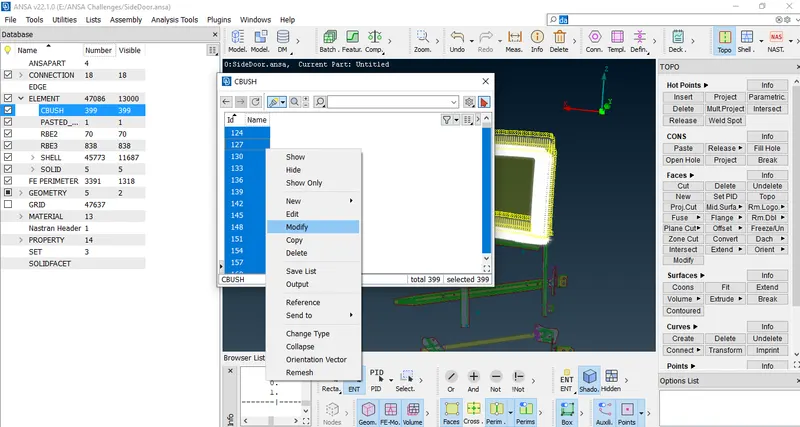
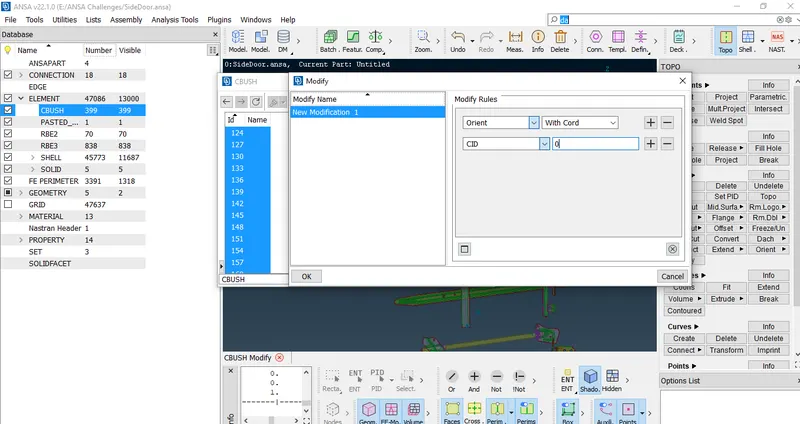
- The orientation of CBUSH needs to be changed for aligning the Co-ordinates for that CID value is set to Zero as shown below.
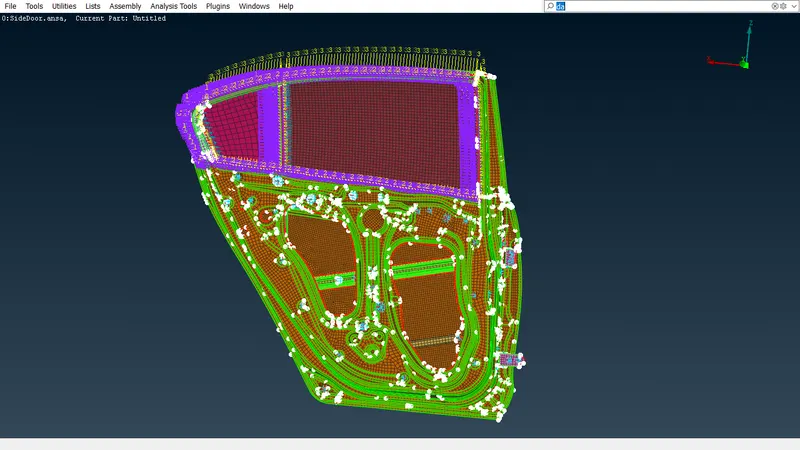
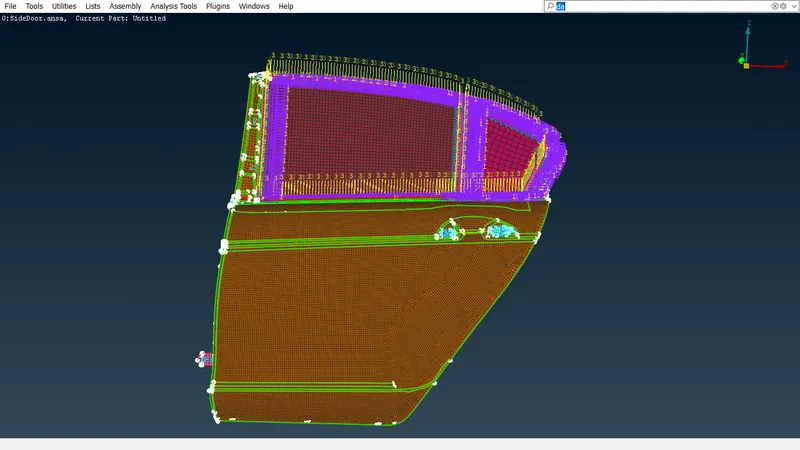
- After completion of all the connections the model is as follows.
Learning Outcomes:
- Learnt how to create connectors such as Two Node Rbe2,spot weld,Seam line,C-BUSH etc.
- Learnt to convert the points and curves into 3D points and curves.
- And how to assign the connections in connection type dialogue box.
- Learnt how to assign P1,P2 and FE types search distance in connection manager panel to create and realize the required connections.
Conclusion:
All the connections are performed on the rear door as mentioned.