Week 3 - 2D meshing for sheet metal
Week 3:
2D Meshing for Sheet Metal:
Aim:
To extract the mid surface for the given hood model after cleaning up all the geometrical errors and then mesh the model with the given element quality criteria.
Objective:
For the given Hood model, Take the mid surface for all the components after checking the geometrical errors and mesh the mid surface with the given element Quality criteria. (Refer the table Below for the Quality criteria)
|
S.No |
Quality Criteria |
Value |
|
1 |
Target/Average length |
5 |
|
2 |
Minimum Length |
2 |
|
3 |
Maximum Length |
7 |
|
4 |
Aspect |
3 |
|
5 |
Warpage |
15 |
|
6 |
Skewness |
45 |
|
7 |
Jacobian |
0.7 |
|
8 |
Minimum Quad Angle |
45 |
|
9 |
Maximum Quad Angle |
135 |
|
10 |
Minimum Tria Angle |
30 |
|
11 |
Maximum Tria Angle |
120 |
|
10 |
Tria Percentage |
15 |
Procedure:
- Firstly import the model from the system files.
- For Importing the model Goto>File>open>select file>ok.
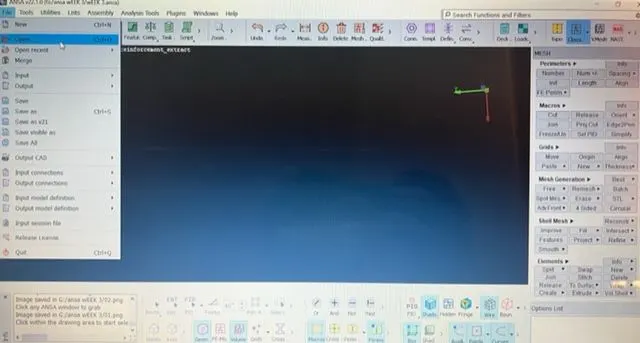
- After Importing the model check for the geometrical errors in the model as follows.
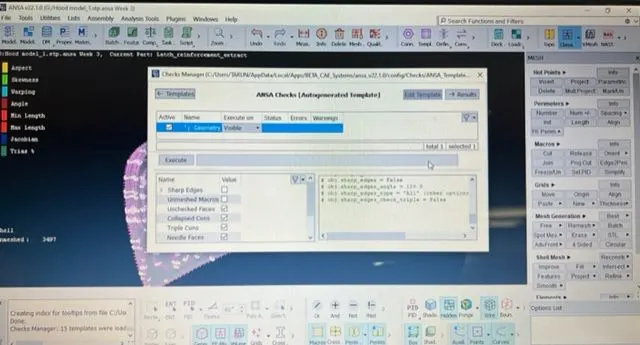
- Goto>Tools>checks>checks manager>Geometry.
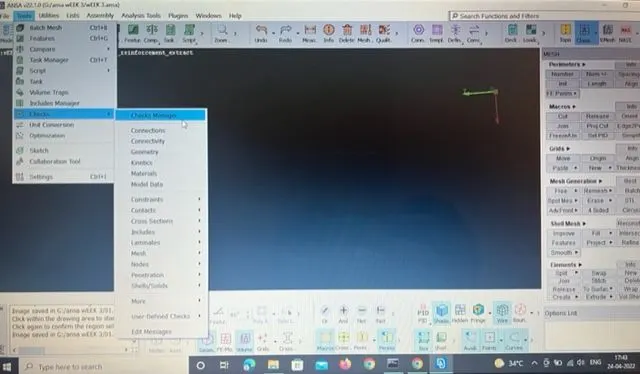
- After that click on execute if any errors are present in the model it shows as in the below figure.It can be fixed automatically using 'Fix' option or if error still exists it should be cleared manually.
- After the fixation of all the errors check them for confirmation by clicking on execute.
- Set PID for the component for creating a property for the model Goto>Set PID>Select the component and do the middle click on the mouse to confirm,then it opens the properties which are created.
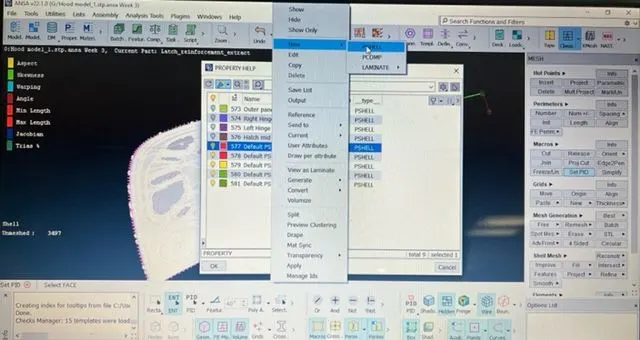
- Then select the property right click on that and drop down appears click on 'New'.
New>PSHELL>Pshell
The Image below shows as follows:
- Then click on the 'PShell' it re-directs to the created PID as follows:
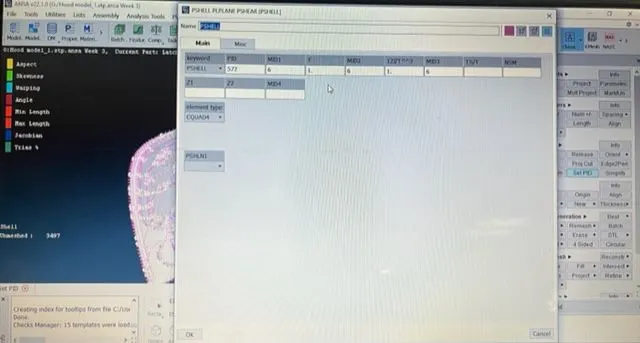
- Then name the P-shell as per the model components.
- Then Assign the thickness as mentioned in the question and click on 'Ok' to confirm.
- And after that defining the property to the material is must.
- Then after completion of all these we need to measure the thickness of the given model to extarct the mid-surface.
- For measuring the thickness Goto>Utilities>Measure.
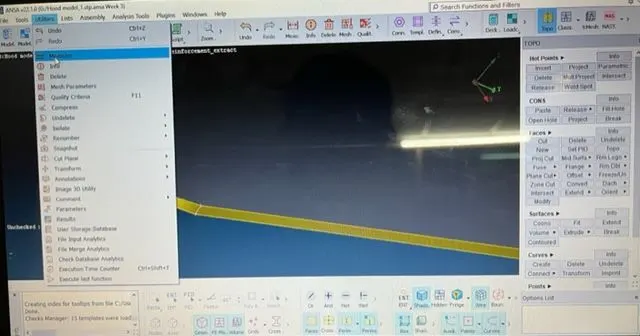
- Select any of the two hot points and measure the thickness between them to extract the mid surface.
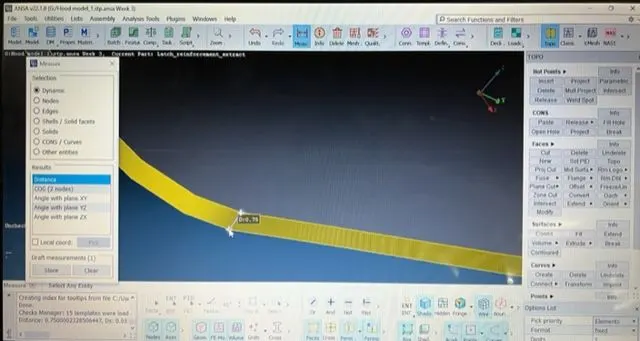
- After that check the orientation of the model and make sure that grey orientation is better over yellow in the entity mode.
- After that we have to generate the mid surface for the model.
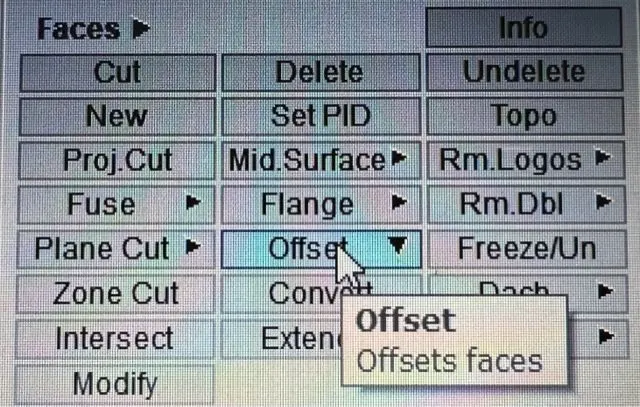
Goto>Faces>Offset.
 \
\
- Select the faces to offset and click on the middle mouse button to accept.
- Then provide the offset value as in '-' value as if we select oneside of the face it shows the same direction to extract,for that reason we need to assign the value in '-' .
- The Extracted mid surface image are as follows.
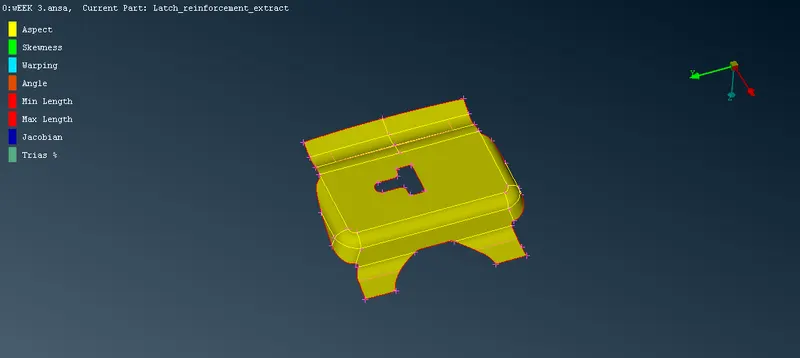
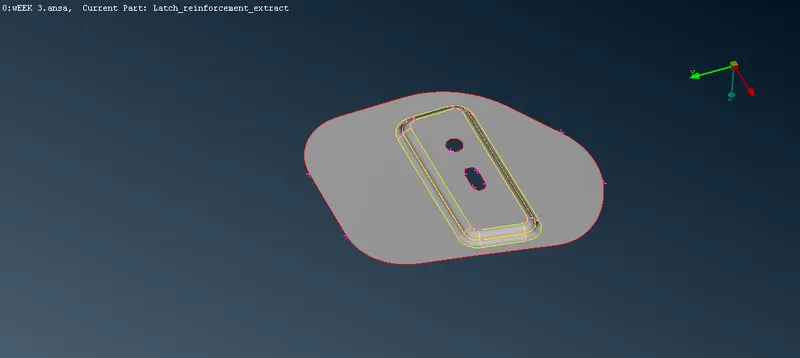
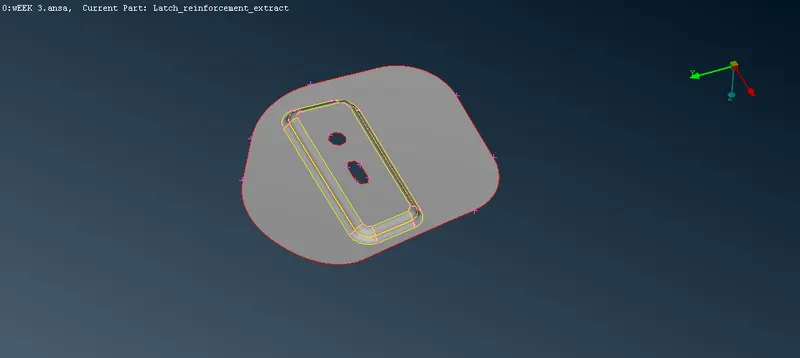
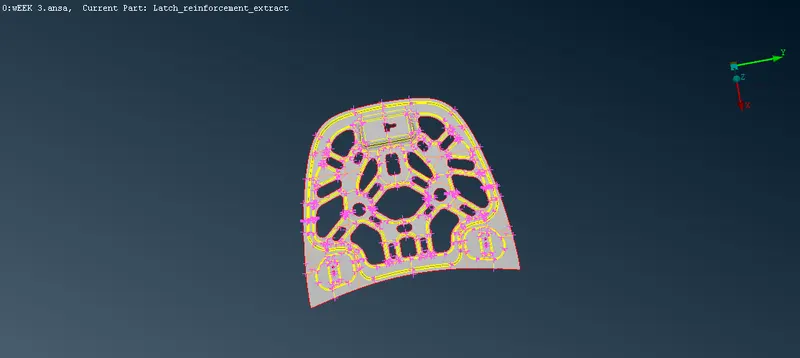
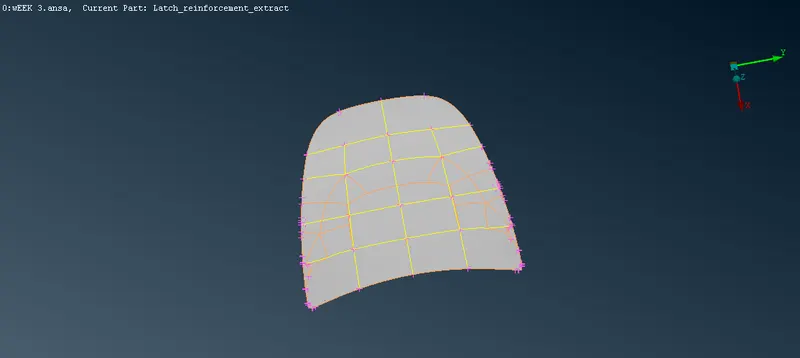
- After assigning the offset value click on 'Ok' to confirm the extraction of mid surface.
- After clicking on 'Ok' it shows a dialogue box as 'Delete parent geometry or not,we need to confirm any of them.
- Then after mid surface is extracted again we have to check the geometrical errors in the model.
- Then defeature the model where it is necessary to avoid the elemental failures in the model for maximum or minimum length according to the target element size.
- After that we proceed for meshing.
- Before meshing we have to assign the quality criteria and mesh quality as well.
- For assigning quality criteria Goto>Utilities>Quality criteria.
- Check the necessary criteria and assign the value for them.
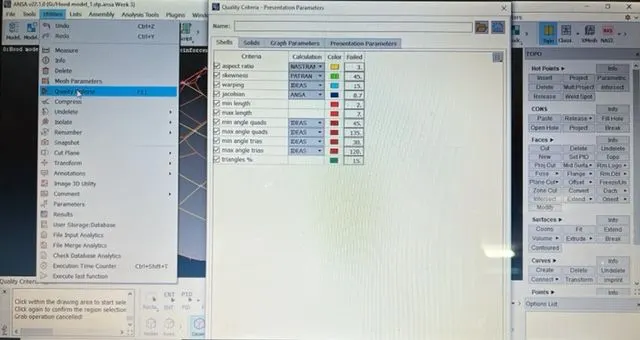
- And we need to assign mesh parameters to the model Goto>Utilities>Mesh parameters.
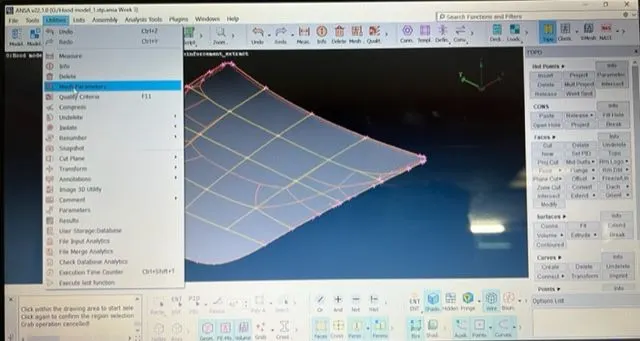
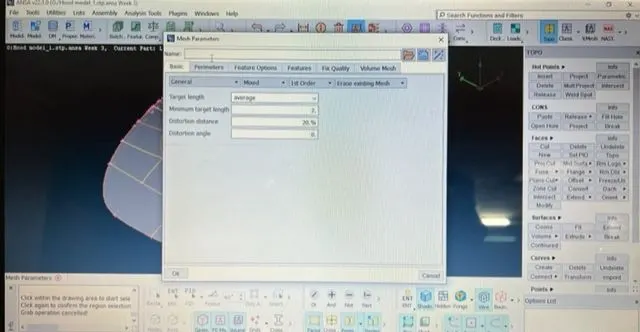
- After that in the quality criteria option select 'presentation parameters' and in that graphics option 'Check' the element % option and in detail on demand effect set it to all details.
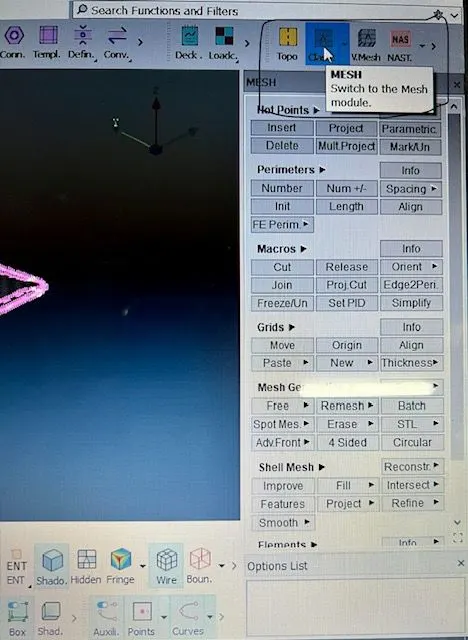
- Then we select the 'Mesh' option at the 'Top right corner'.
- And we need to set the model from 'ENT' mode to 'PID' mode in drawing styles option.
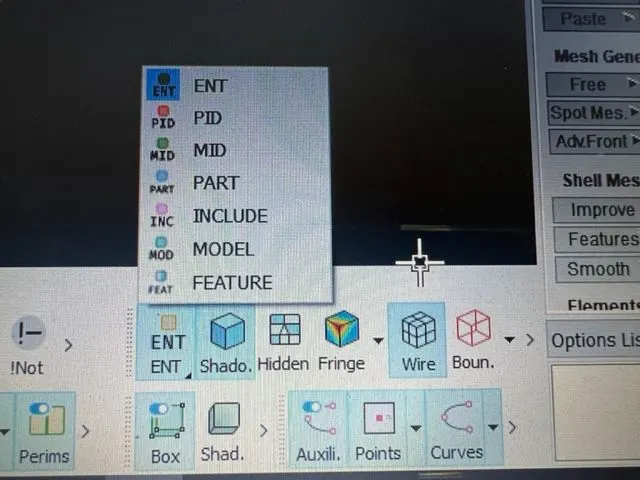
- For meshing the component Goto>Mesh Generation> Best>select.
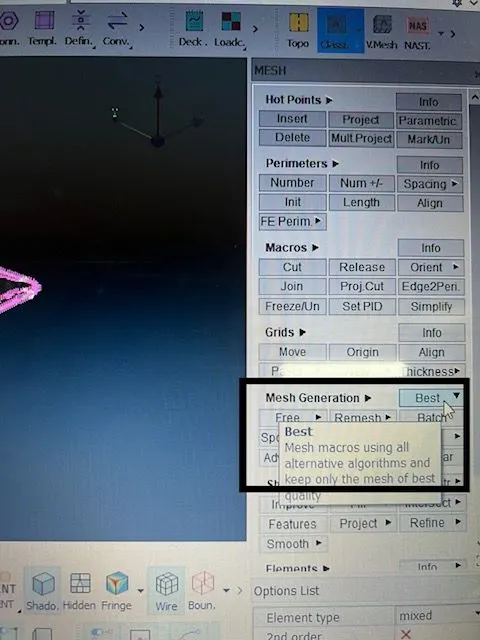
- Place the mode of drawing styles in 'Shadow' mode.
- After meshing for visibility of failed elements we need to select 'Hidden' drawing style in order to see the elements which have been failed will be coloured accordingly.
- For getting rid of failed elements we need to 'smooth' the meshed surface as follows.
- Goto>Shellmesh>Smooth>Select.
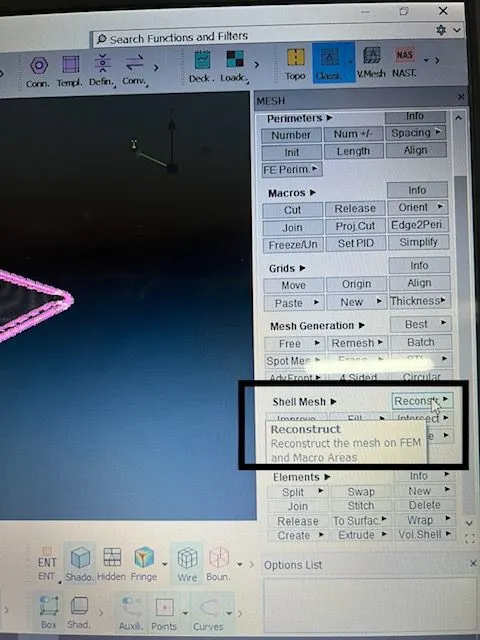
- If the failed elements are still visible we need to re-construct the mesh accordingly.
- Goto>Shellmesh>smooth>select.
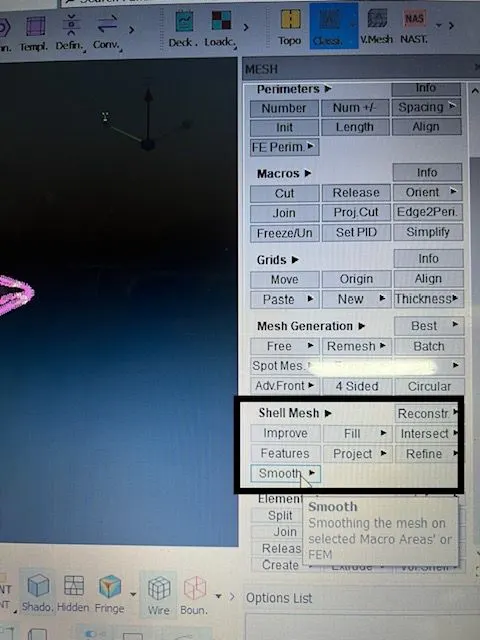
- If the failed elements are still visible we need to re-construct the mesh accordingly.
- Goto>Shellmesh>Reconstruct>select.
- After meshing is completed we need to eliminate the maximum no of trias,opposite trias and trias at corners.
- For eliminating those trias Goto>Elements>Split>Edges and nodes.
- Select the required edges or nodes of elements to eliminate trias or removing the trias at the corners.
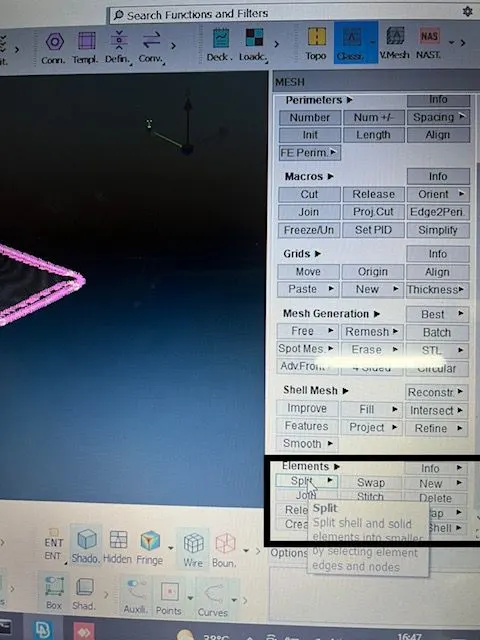
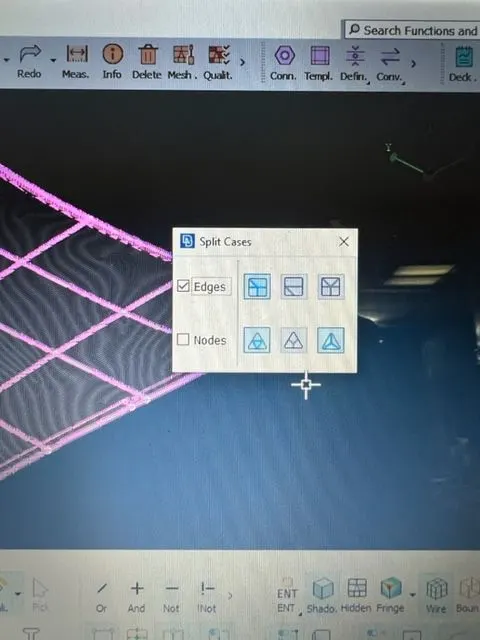
- Rotating quads should be eliminated and we have an other option called 'Join' for joining the two tria elements to create a quad elements.
- For better mesh flow cut the cons using 'cut' option in Macros. Goto>Macros>cut.
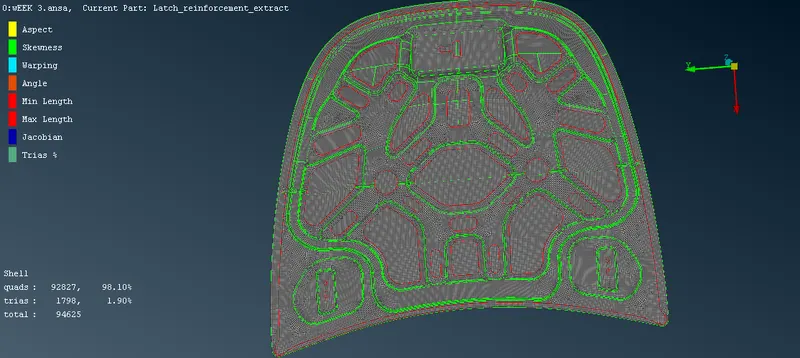
- After completion of meshing we finally can see the total no of 'Quads' and tria elements at the left down corner along with 'OFF' elements.
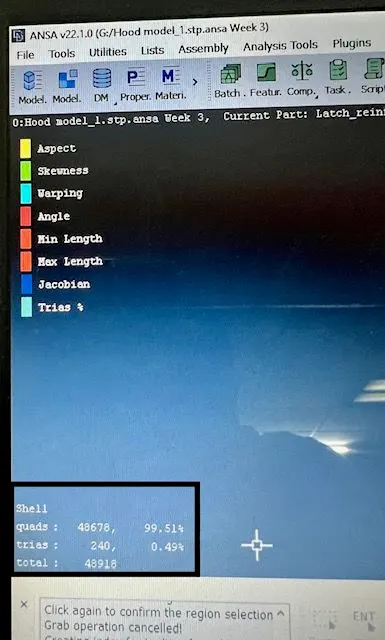
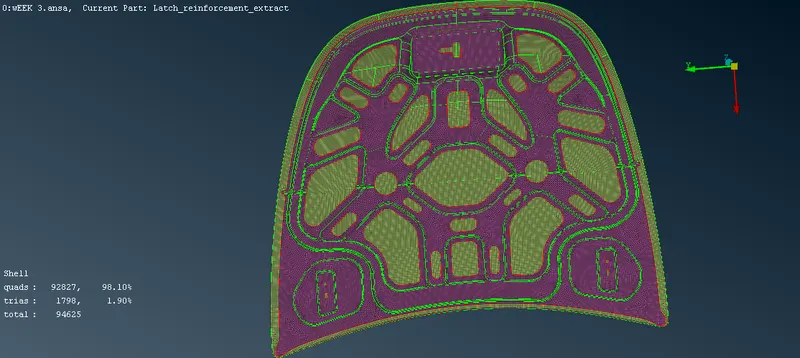
- The Meshed components are as follows.
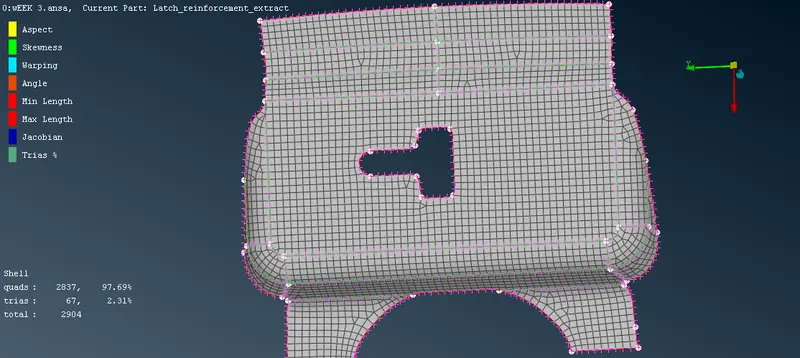
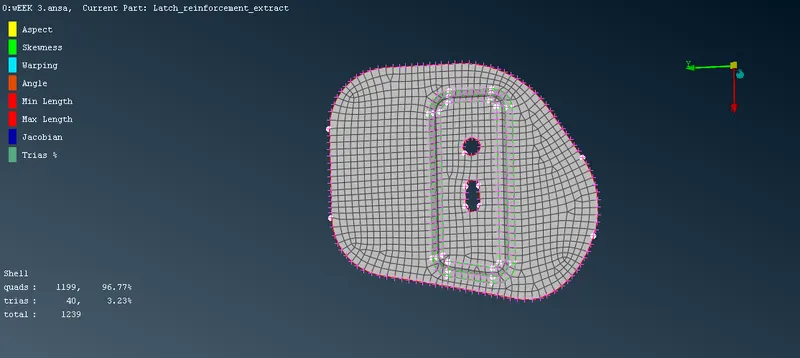
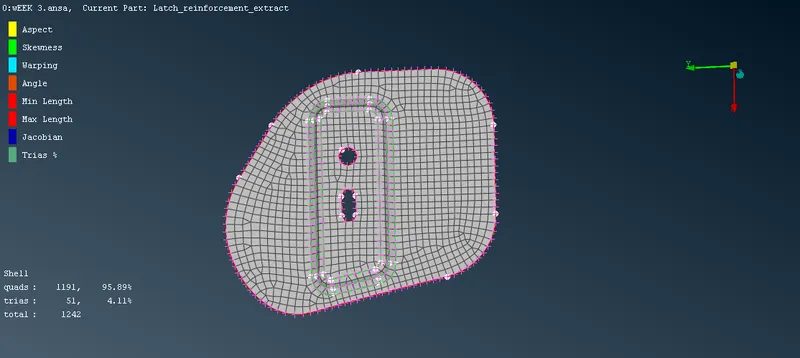
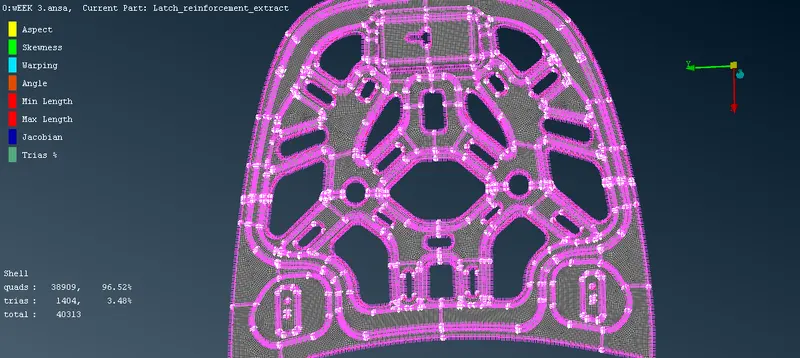
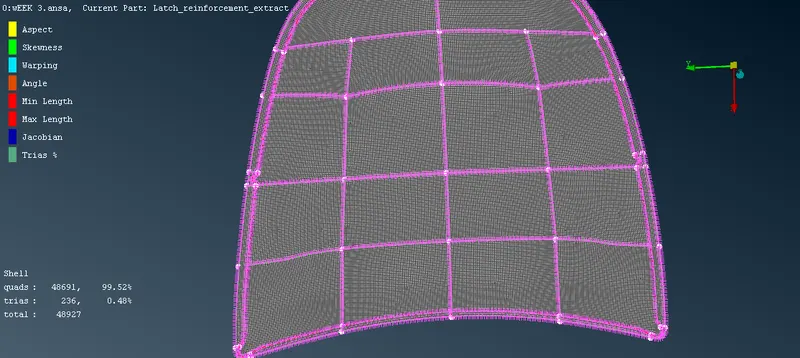
- Goto>Utilities>Quality criteria>Presentation parameters>elements>Draw sheel as solid.
- After completing the meshing of the component we need to select the 'Draw Shell as solid'.
Learning Outcomes:
- Operating of ANSA Software.
- How to do geometry cleanup and fixing the errors.
- Setting the PID and assigning thickness.
- Extarcting the mid surface of the given component,
- Meshing the component with the mentioned quality criteria.
- Clearing the elemental failures,opposite trias,rotating quads or trias at corners.
Conclusion:
Given component is checked for Geometrical errors along with mid surface extraction by assigning the PID and thickness.Meshing has been done with the mentioned quality criteria by eliminating the opposite trias,rotating quads and trias at corners and finally 'Draw shell as solid is activated.
Final Model Image: