Week 8-3D Tetra Meshing Challenge
Tetramesh
Tetramesh is a 3-D type of mesh. When we talk about the 3-D mesh, Tetramesh is more preferable as compared to the Hexa mesh in the industry. Because we can create the tetramesh easily in the complex geometry as compare to the hexa mesh. We can do the 3-D mesh by two methods. First is we can do the tetramesh from 3-D panel directly. Second is we create the 2-D mesh on the surface of the component and then we convert it into the 3-D mesh.
So to create the tetramesh we do the tria mesh on the surface of the component and than we convert it into tetra mesh by the many methods.
When the thickness of the component is more than 6 mm then we can't do the 2-D mesh on the component and give the thickness to that component so in that case we do the 3-D meshing. The simulation done on the 3-D mesh are more accurate than the result of the 2-D mesh.
Tet Collapse
Tet collapse is nothing but the height of the tetra element.
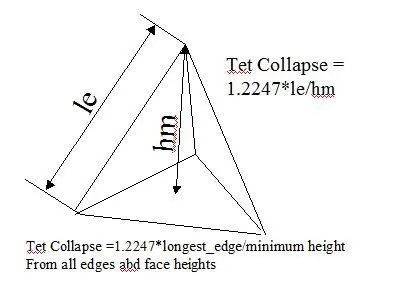
(i). Create a Teramesh for Housing component
Quality Criteria:-
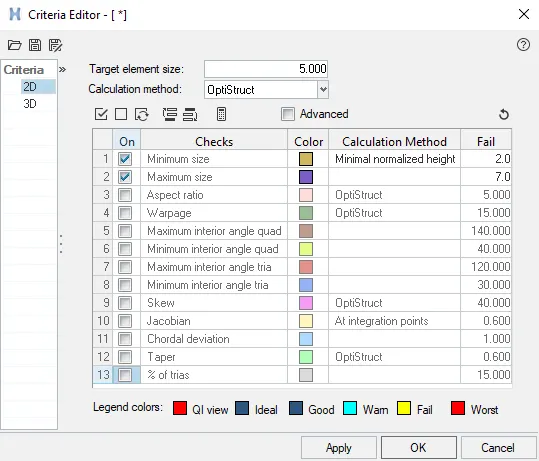
Elements sizes: Min- 2 Units, Target- 5 Units, Max- 7 Units
Tet collapse: 0.15
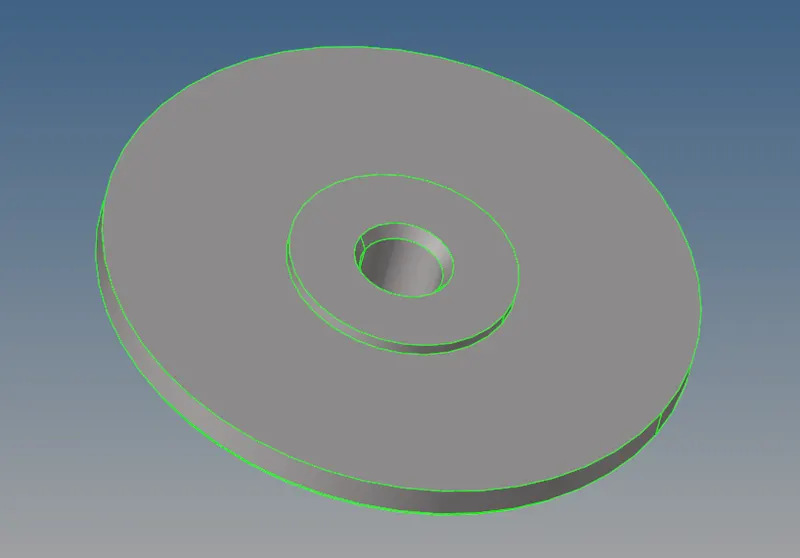
1. First we are going to import the model. It is a STEP file.
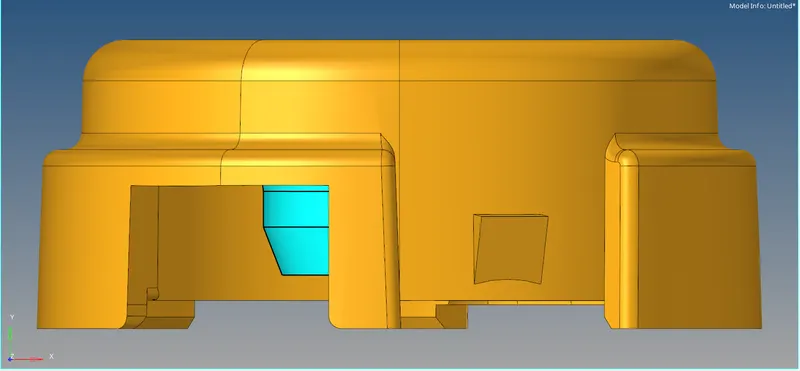
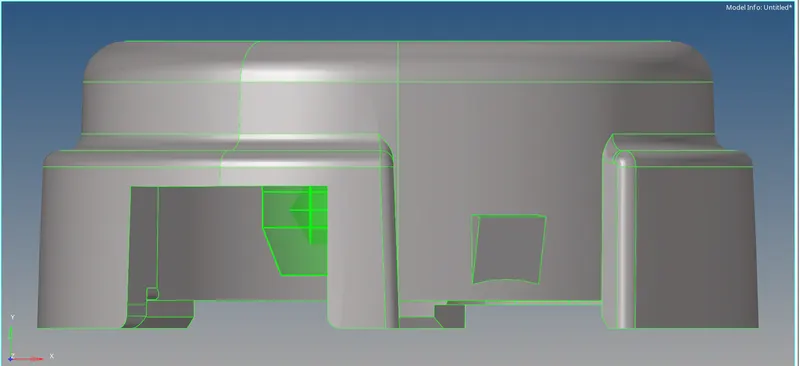
2. First we are going to delete the solid from the component.
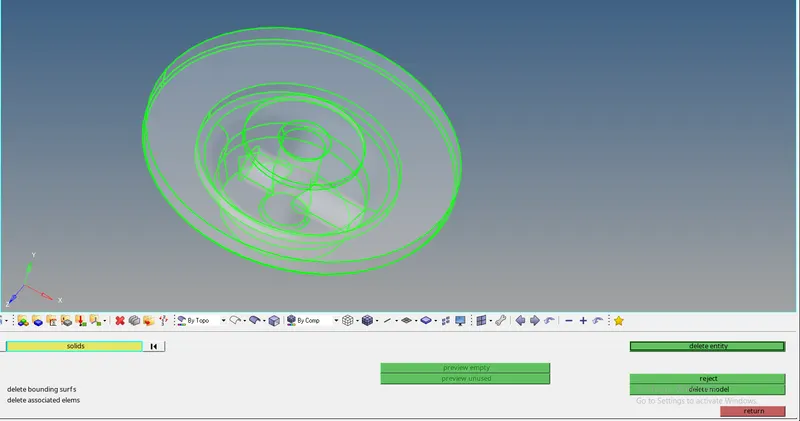
3. We are going to give the criteria file setting.
4. Now we are going to do the geometry cleanup. We check the areas where if we mesh it fails for the quality criteria and according to that we are going to do the changes in the geometry.
5. Now we are going to do the 2-D meshing with the trias on the surface of the component.

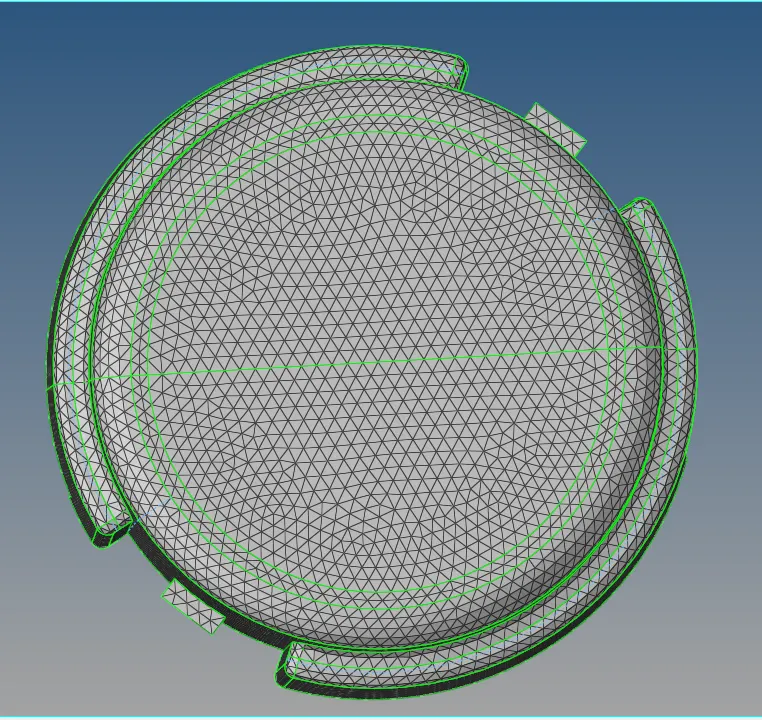
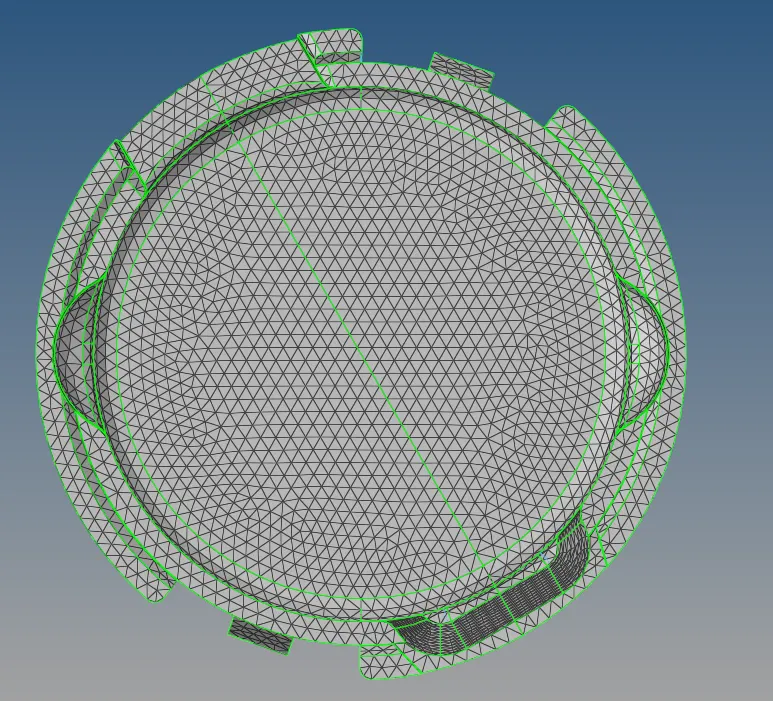
We have to make sure that it is not failing for the quality criteria.
6. Now we are going to create the tetra meshing with the 2-D elements. So for that, we are going to go the 3-D--> tetramesh.

Here we are going to select the 2-d elements and then we are going to click on the mesh.
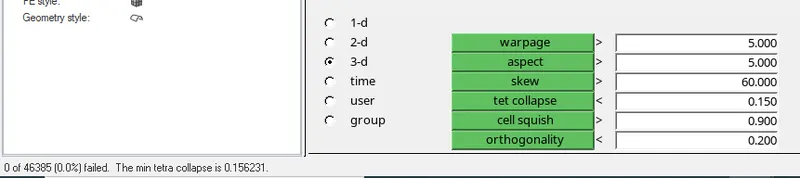
7. Now we want the tet collapse to be less than 0.15. So we are going to check that from the check elements. In that, we are going to the 3-d and we are going to give the value of tet collapse to be 0.15 and we are going to check that how many of the elements are failing for the tet collapse.
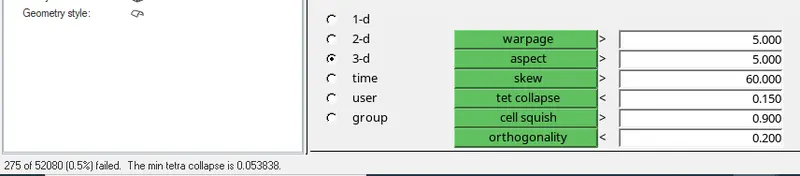
So 275 elements are failing for the tet collapse.
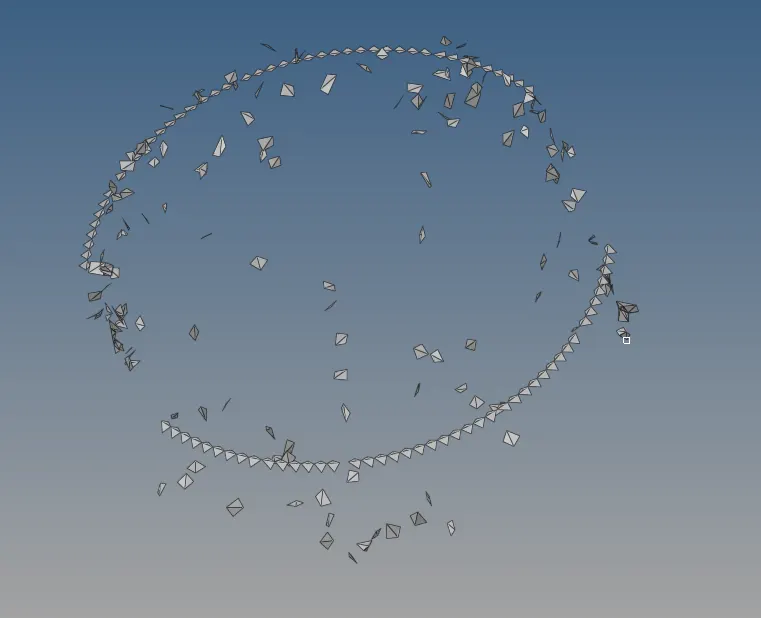
8. To remove the tet collapse we are going to do the tetra remesh. So again we go to the tetramesh and we are going to give the Tetramesh parameter and there we are going to give the tet collapse to be 0.15. There we can also give the maximum and minimum tetra size.

9. Now we are going to do the remesh.

10. After that we check the tet collapse again in the mesh and check that if any elements are failing for the tet collapse.
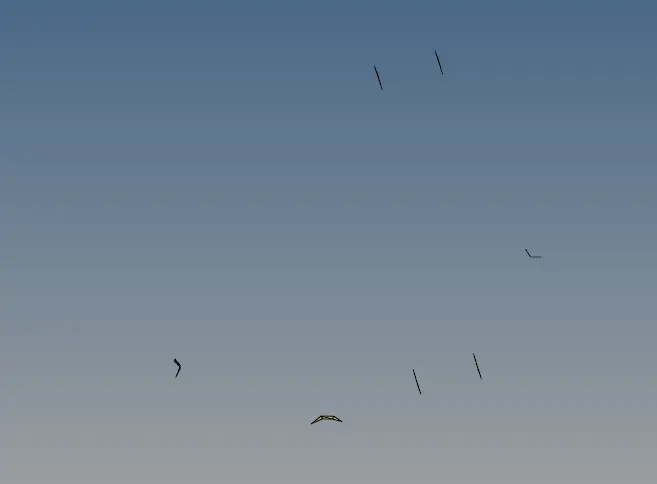
Some of the elements are failing for the tet collapse. Which we have to remove manually. So for that, we will go to the distance tool. and change the distance between two nodes of the tetra element and remove all the tet collapse failure.
11. 3-D tetra mesh is complete in one component of the model.
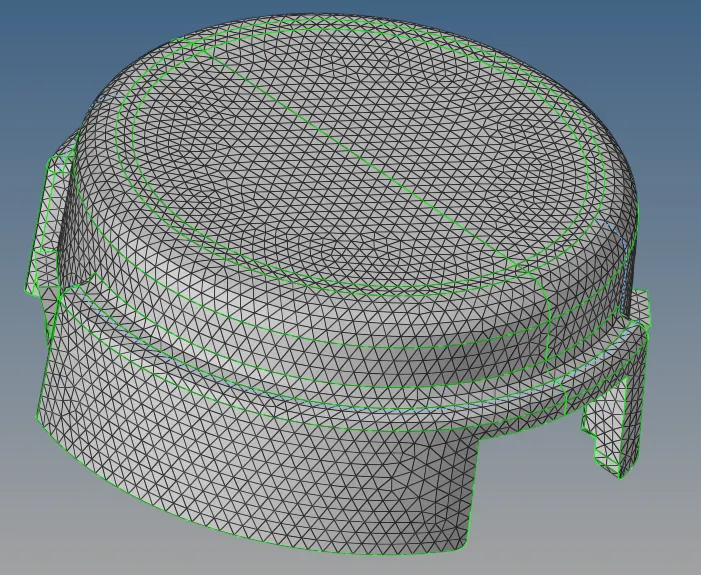
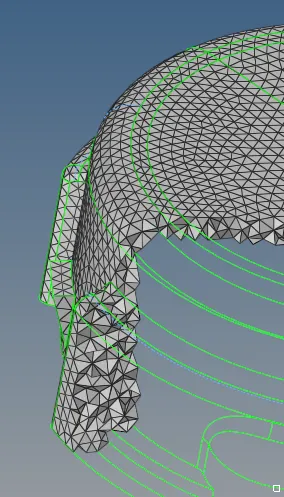
12. Now we follow the same process for the second component.
13. The component has some issues that we have to solve by the geometry cleanup.
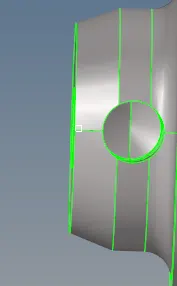
The hole should be proper in the component. So we are going to create a hole in the surface.
14. So for that we are going to trim the surface by the lines and we are going to delete that surface.
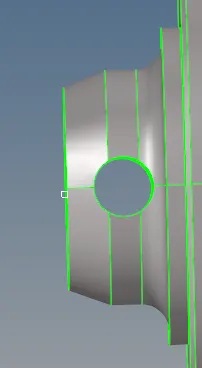
Now we have the proper surface to create the 2-D mesh.
15.Now we are going to do the 3-D tetramesh.
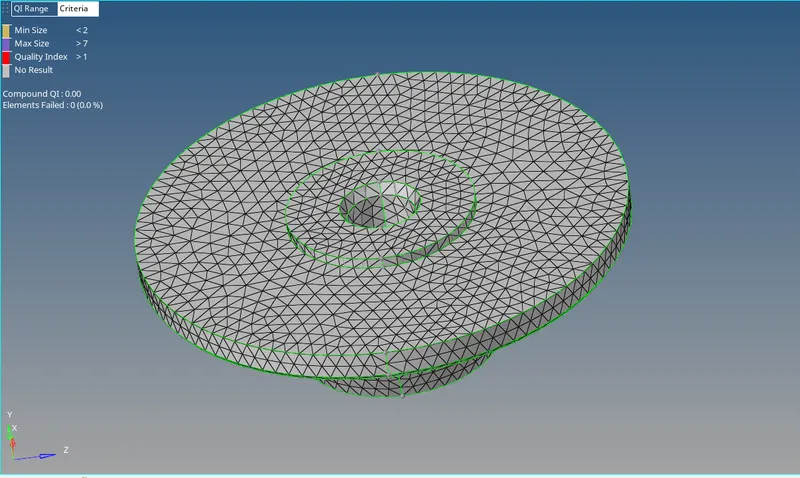
Checking for the tet Collapse.
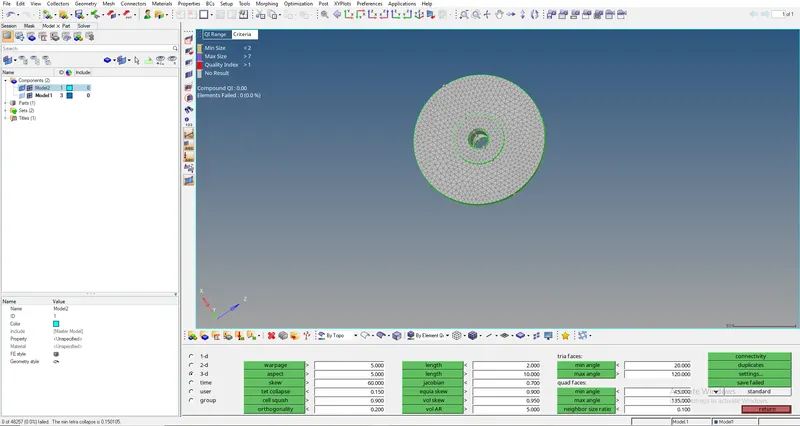
No elements are failing for the tet Collapse.
16. Now we are going to delete the 2-D elements from the component.
(ii). Create a 3D Tetramesh with the following quality criteria:-
Target Element size: 3 Units.
Tet Collapse: 0.15
1. First we are going to import the model.
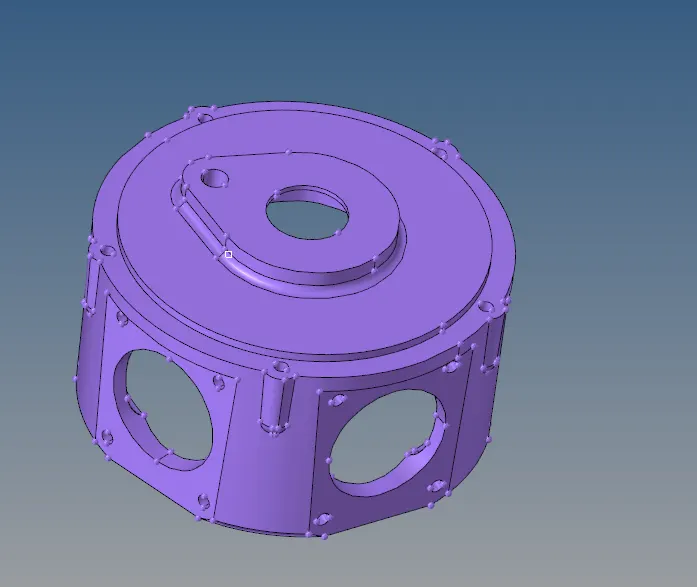
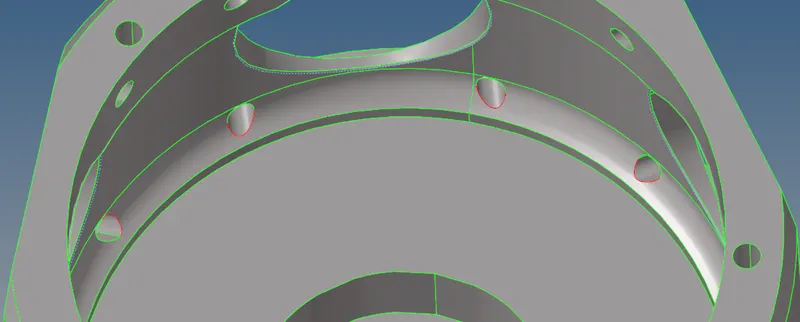
2. Now we are going to do the geometry cleanup. We check the areas where if we mesh it fails for the quality criteria and according to that we are going to do the changes in the geometry.
In this model, there are some free edges present in the geometry. So we are going to fix that by the toggle.
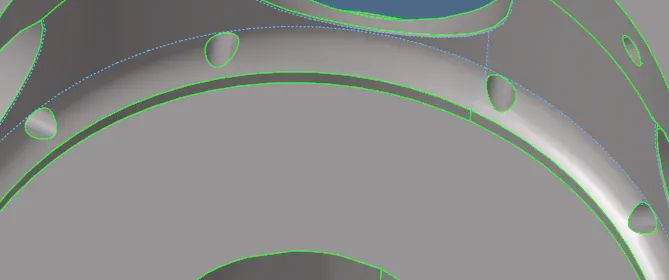
After the geometry cleanup, we have the model where we can do the meshing.
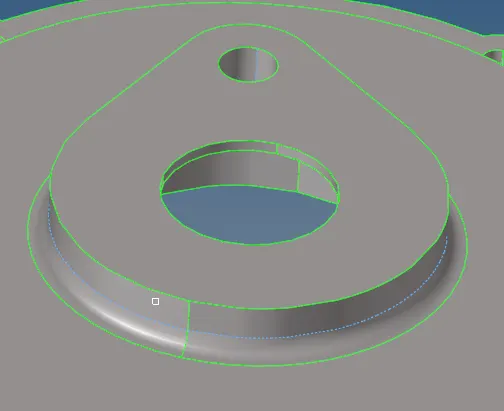
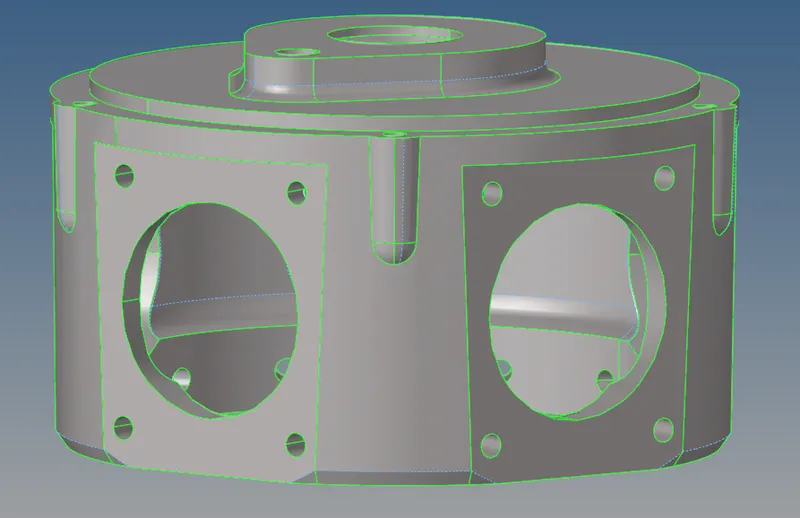
3. Now we are going to do the tetra mesh. For that, we will go the
View--> Browser--> Hypermesh--> Utility--> Quick Tetra mesh--> Geom/mesh
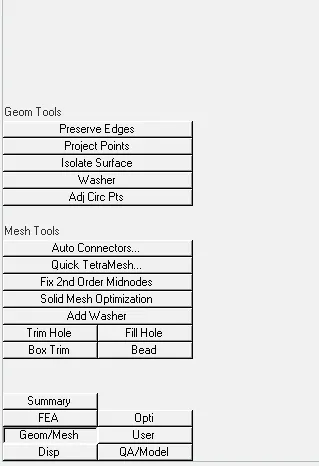
4. Now we are going to select the component and we are going to mesh the component.
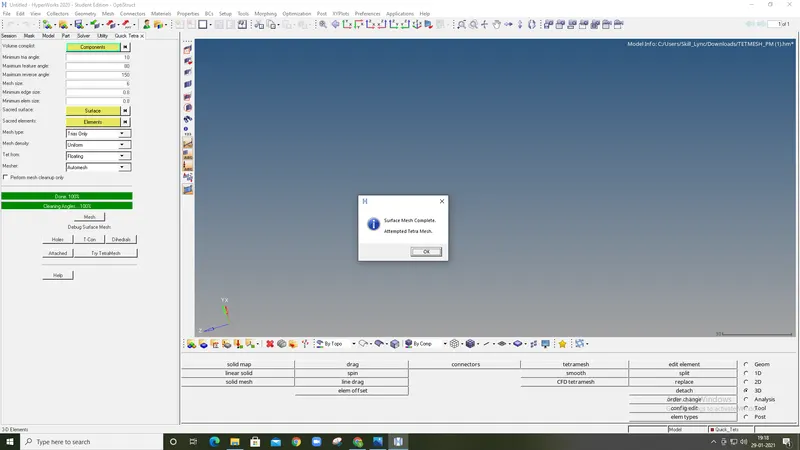
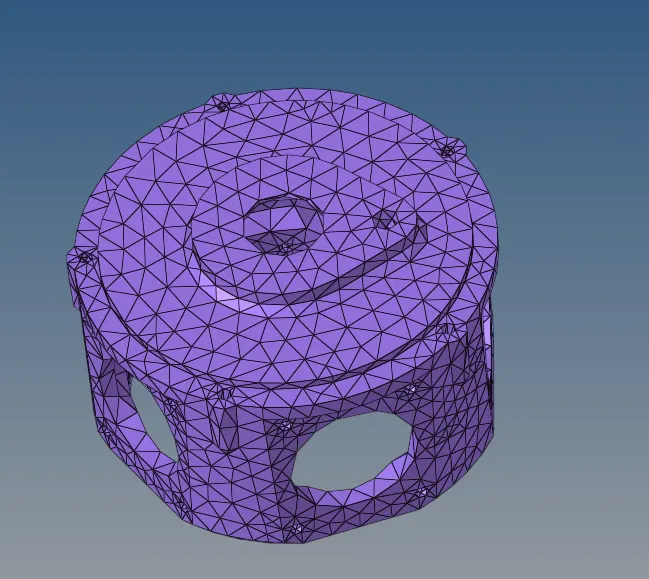
5. Now we want the tet collapse to be less than 0.15. So we are going to check that from the check elements. In that, we are going to the 3-d and we are going to give the value of tet collapse to be 0.15 and we are going to check that how many of the elements are failing for the tet collapse
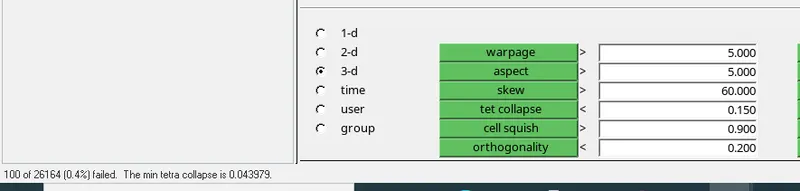
So 100 elements are failing for the tet collapse.
6. To remove the tet collapse we are going to do the tetra remesh. So again we go to the tetramesh and we are going to give the Tetramesh parameter and there we are going to give the tet collapse to be 0.15. There we can also give the maximum and minimum tetra size.
7. Now we are going to do the remesh.
8. After that, we check the tet collapse again in the mesh and check that if any elements are failing for the tet collapse.
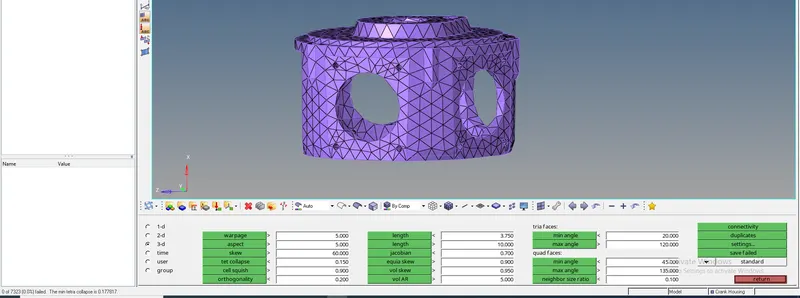
All the elements are now passed the quality criteria.
3. Create a 3D Tetramesh with the following quality criteria:-
Target Element size: 6 Units.
Tet Collapse: 0.15
1. First we are going to import the model.
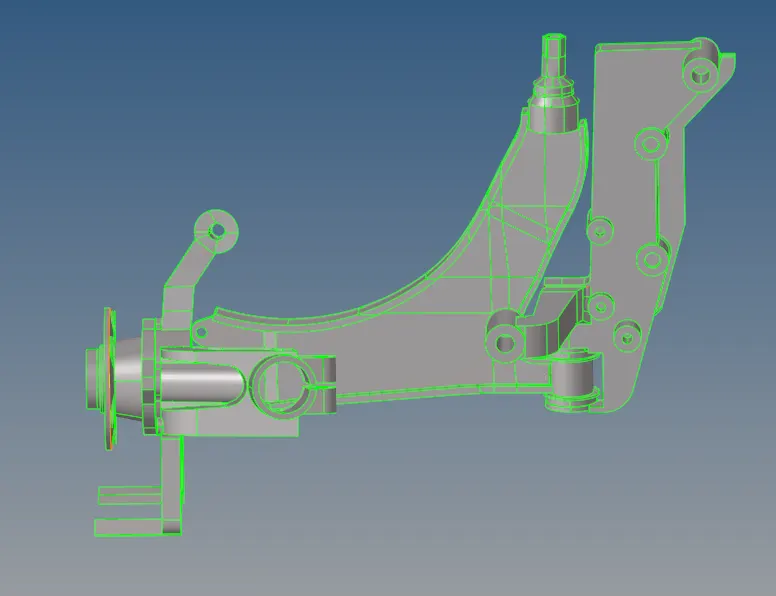
2. We are going to delete the unnecessary component which we have in this model.
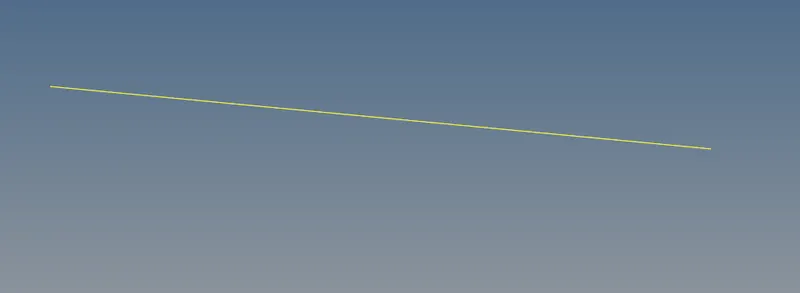
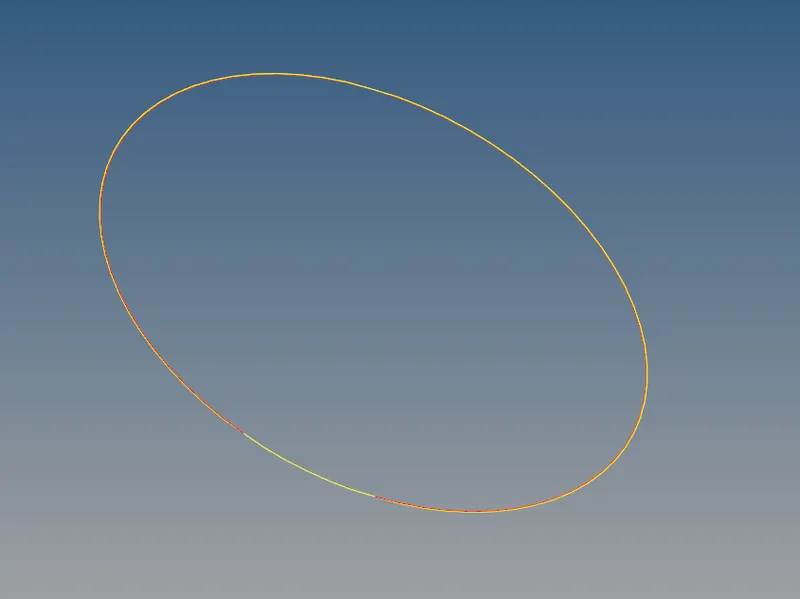
After deleting these two-component we have the other 4 components. So we are going to do the 3-D mesh in them one by one.
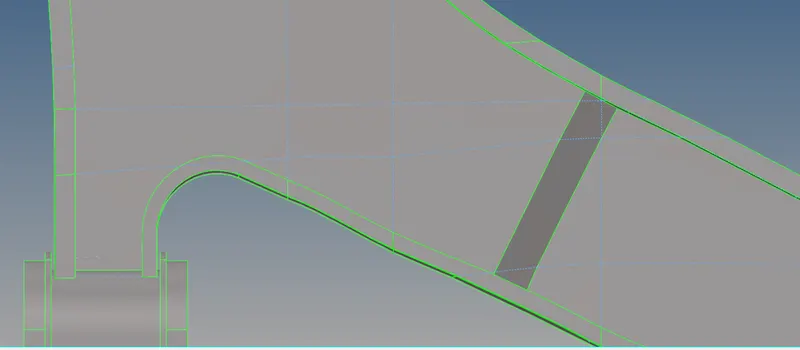
3. Now we are going to do the geometry cleanup. We check the areas where if we mesh it fails for the quality criteria and according to that we are going to do the changes in the geometry.
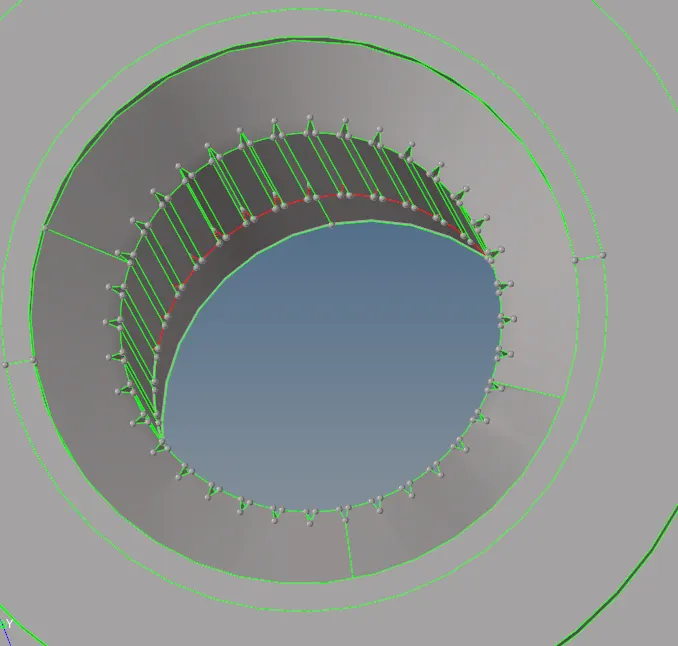
We are going to remove these teeth because they will fail for the minimum length. So first we are going to cut the surface and we are going to delete these teeth.
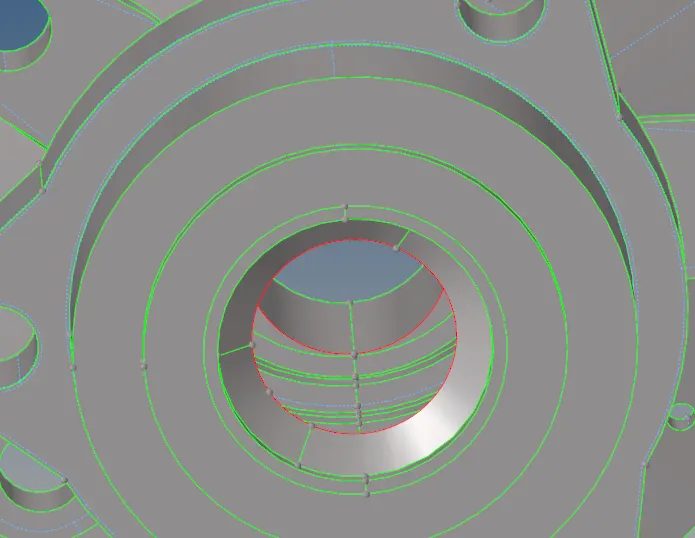
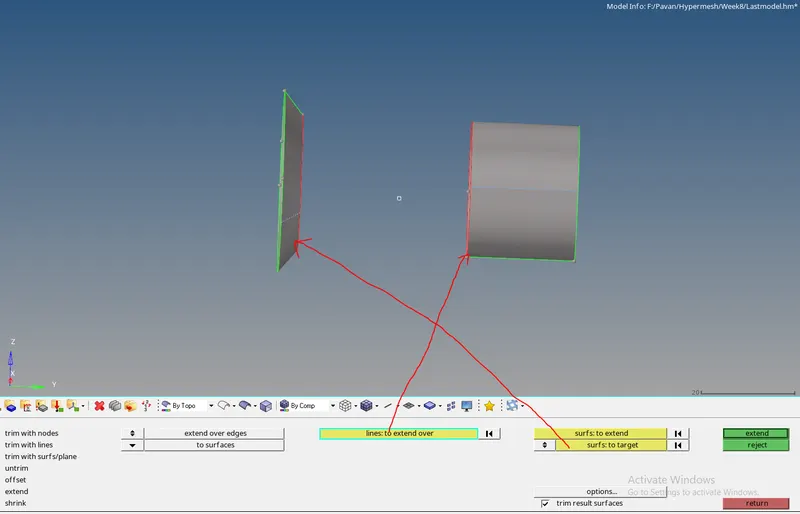
4. Now we get the free edges in the component. There we have to create the surface. So we are going to extend the surface. For that, we will go to the surface edit tool (Shift+F9).
We are going to extend the surface.
We will get the surface like this
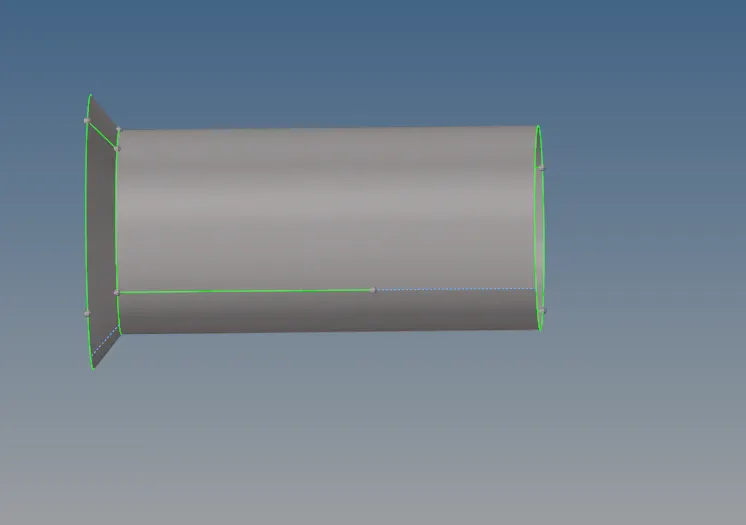
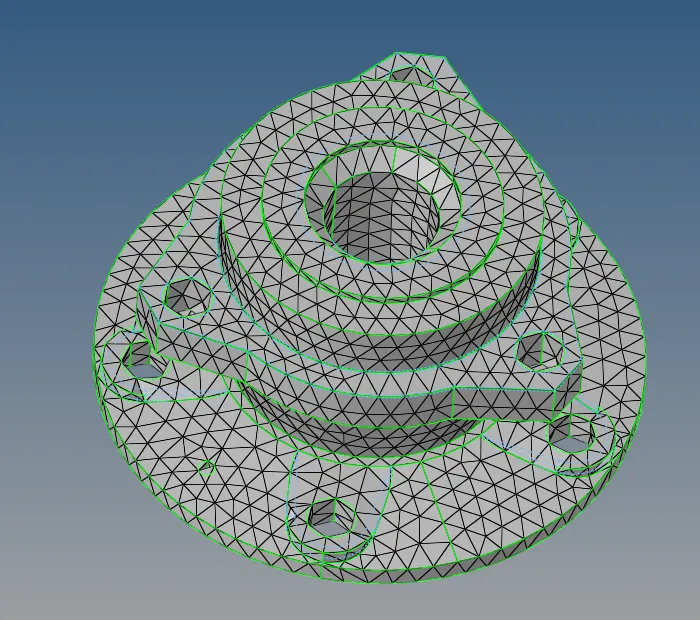
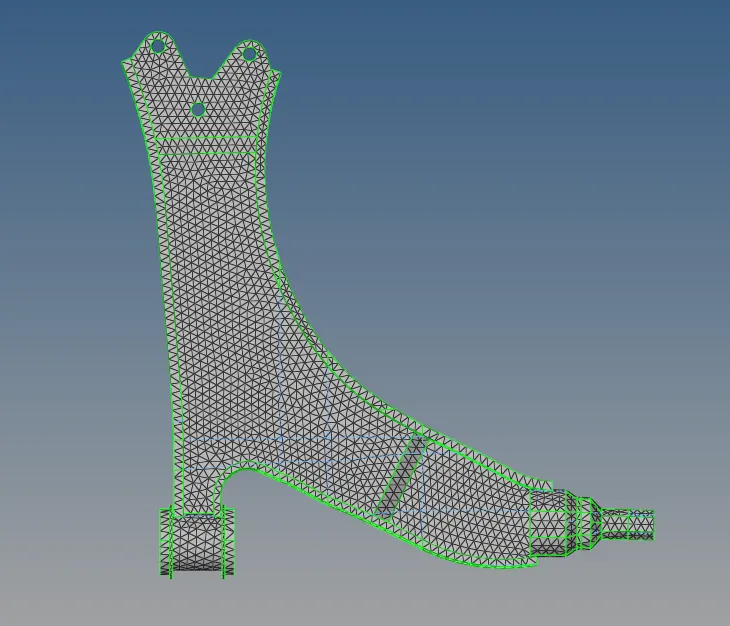
5. Now we will do the volume tetra mesh. We will select the surface and give the necessary parameters and we are gonna mesh.

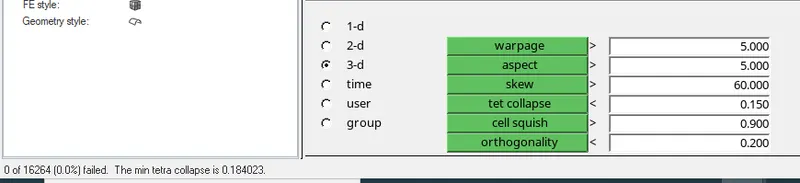
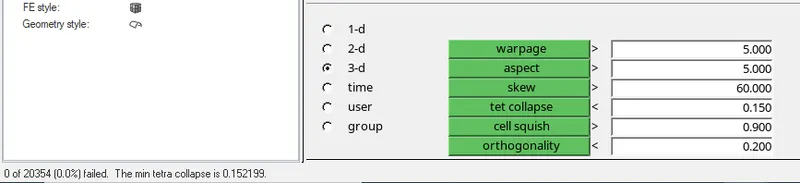
6. Now we want the tet collapse to be less than 0.15. So we are going to check that from the check elements. In that, we are going to the 3-d and we are going to give the value of tet collapse to be 0.15 and we are going to check that how many of the elements are failing for the tet collapse
7. Now we are going to follow the same procedure with the rest of the components.
Component
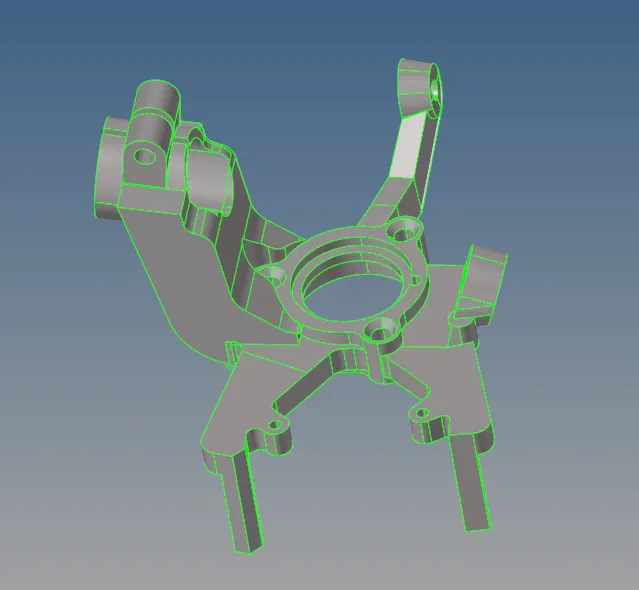
Default Surface
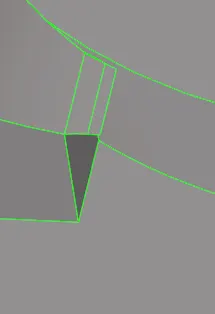
After:-
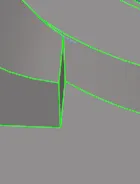
After geometry cleanup:-
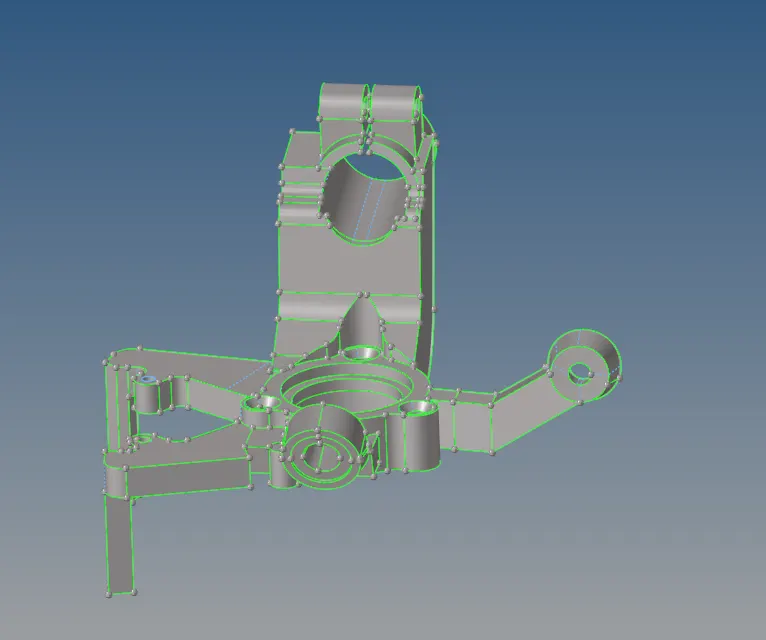
3-D mesh:-
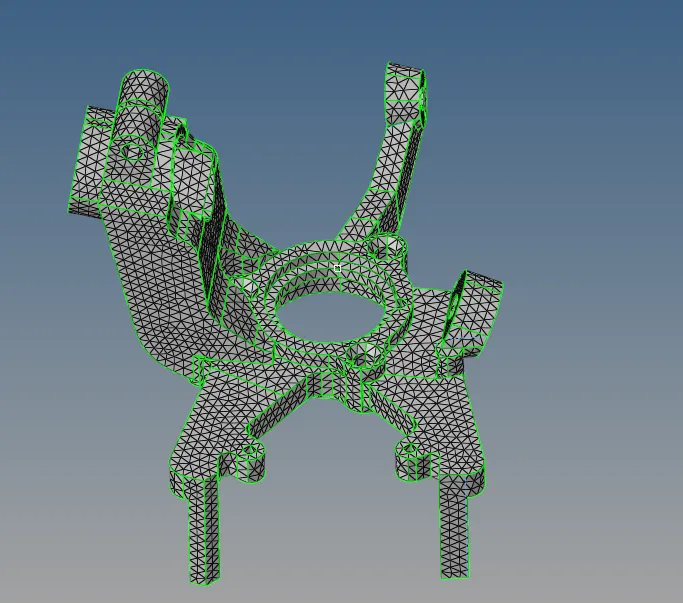
tet collapse:-
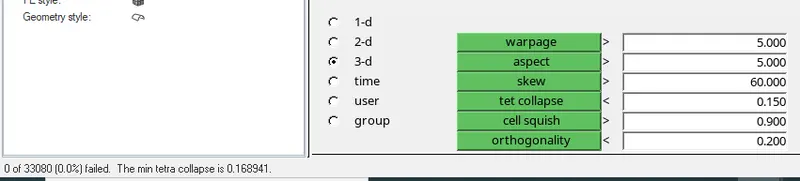
Component
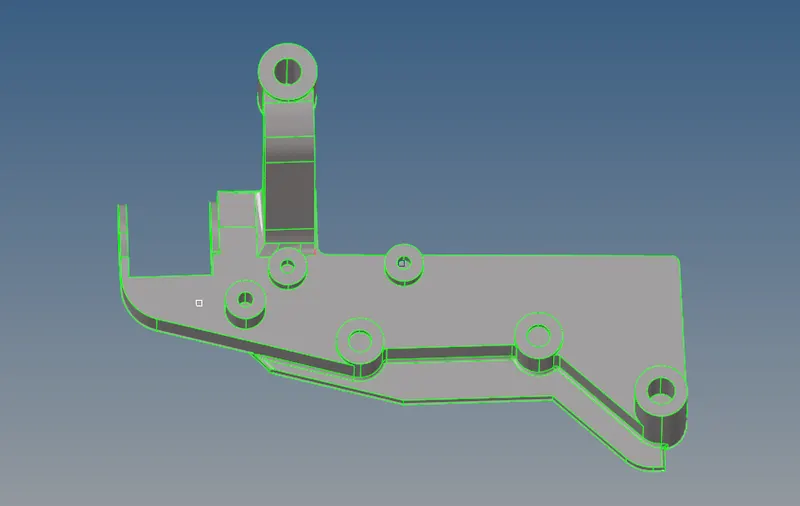
Default Surface
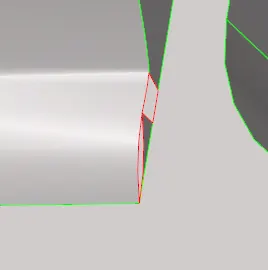
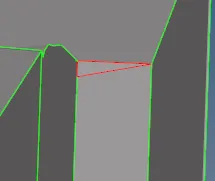
After:-
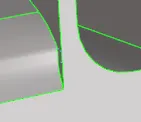
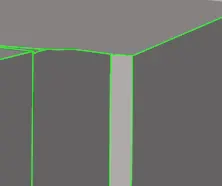
After geometry cleanup:-
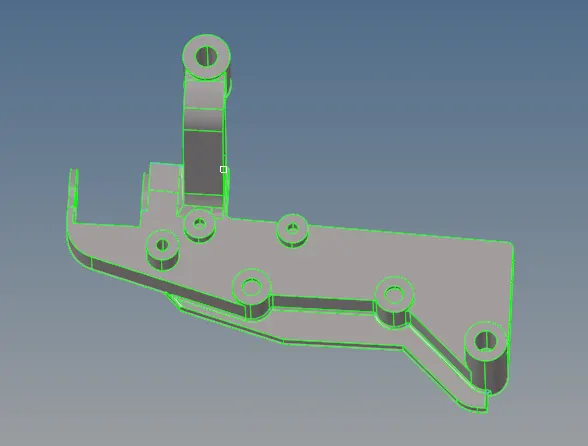
3-D mesh:-
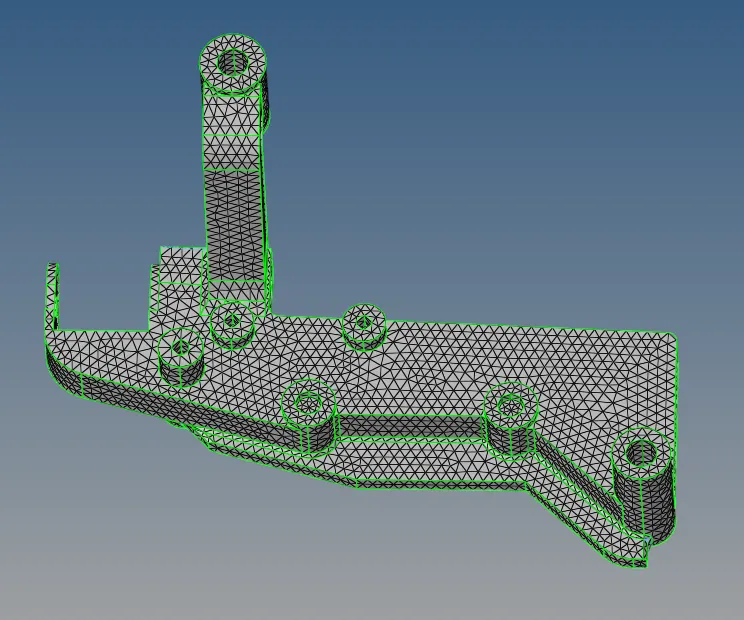
tet collapse:-
Component
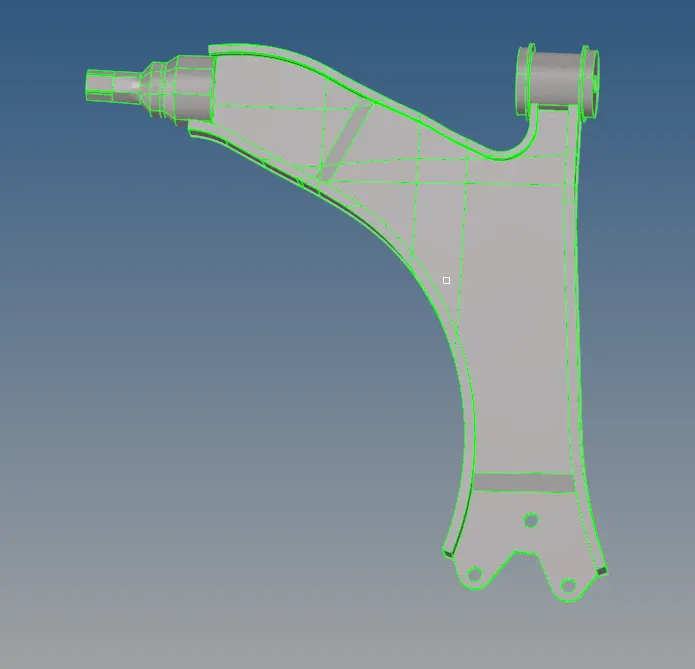
After geometry cleanup:-
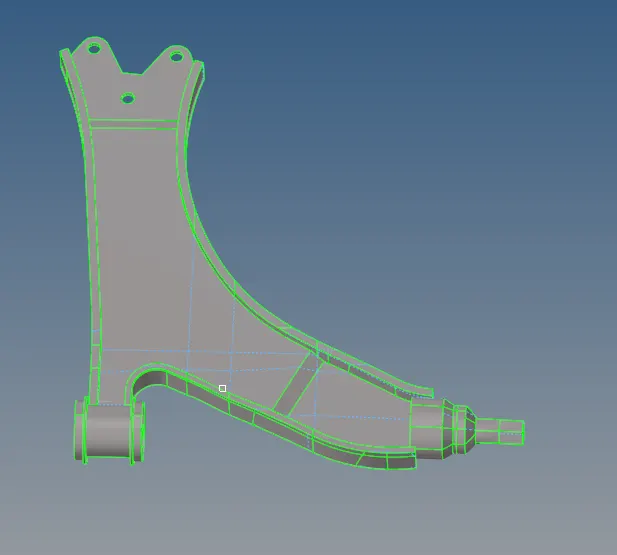
3-D mesh:-
tet collapse:-
Learning Outcome:-
1. Learn to create 3-D meshing.
2. Learn how to create Tetra Mesh.
3. Learn about the tet collapse.