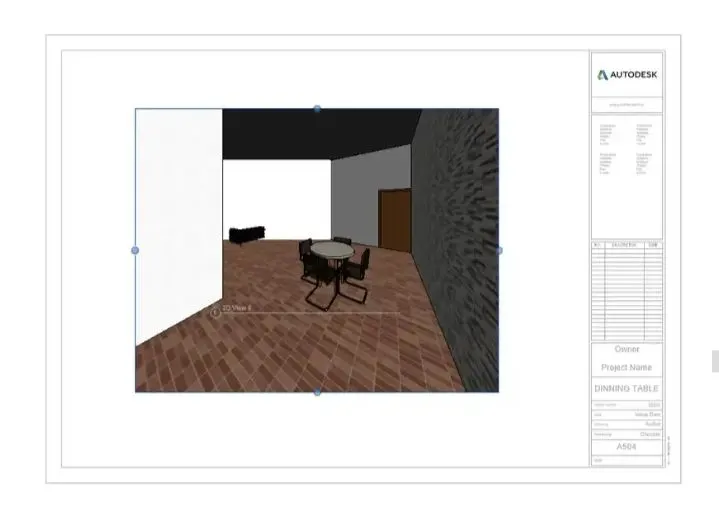
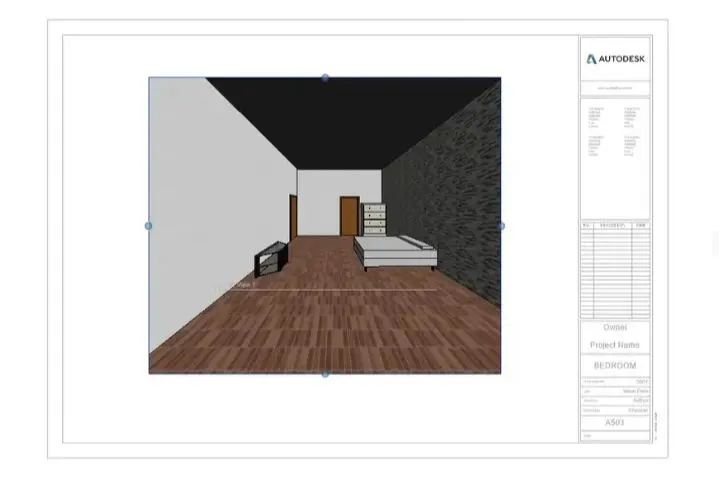
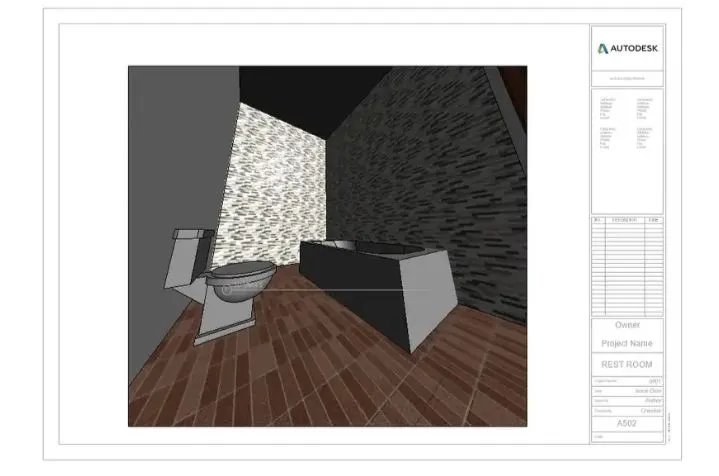
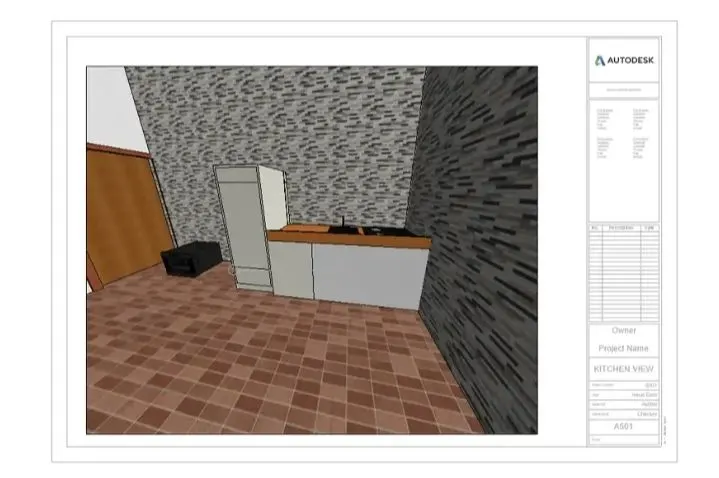
3D Creation of Celing, Roof, Architectural plan, Structural plan, Sectional view, Elevation view and Camera specific view for a house plan using REVIT
AIM:
To model a celling from architecture tab above the walls at first floor level
TOOLS:
a. Celling
b. boundary lines > > rectangle
PROCEDURE:
STEP 1 (Celling for first floor)
open week 3 project
go to architectural tab > celling > boundary > rectangle.
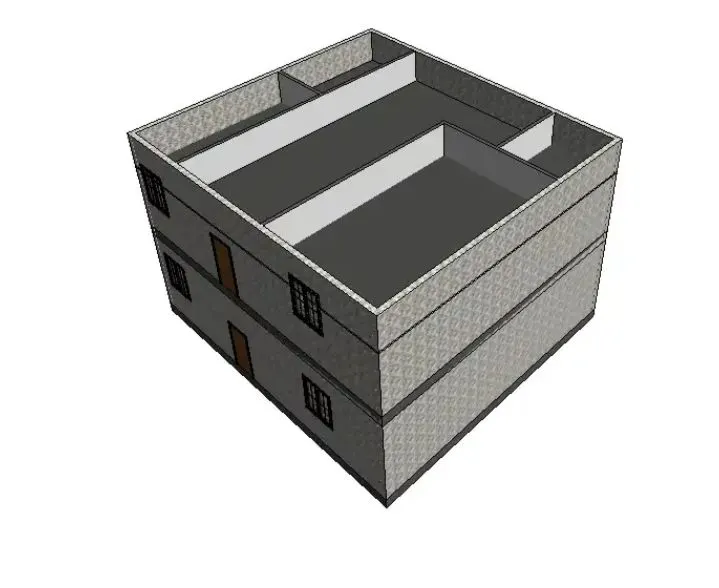
2) AIM:
To model a roof
TOOLS:
a. Roof
b. boundary lines > rectangle /pick lines
PROCEDURE:
STEP 1:
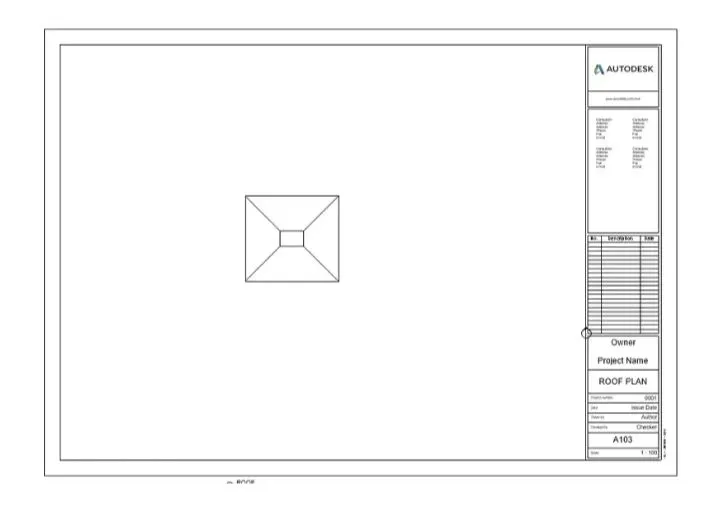
Go to architecture tab > roof > boundary lines > pick lines >select the desired lines
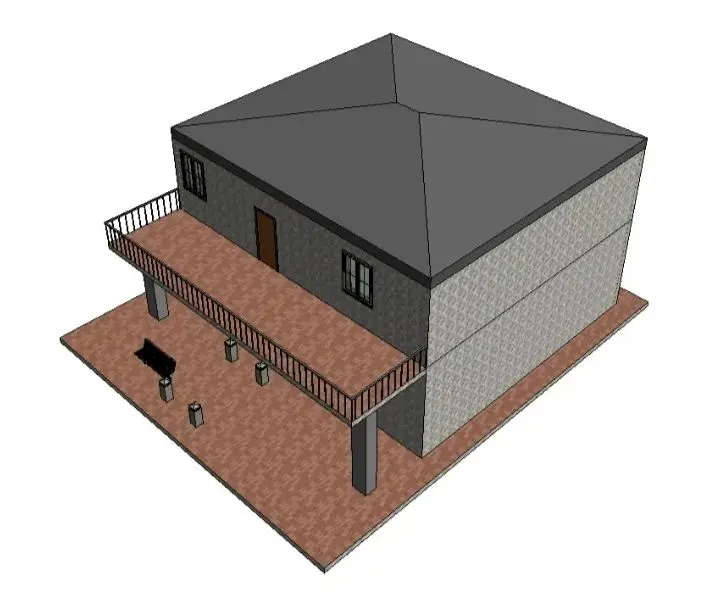
3) a. AIM:
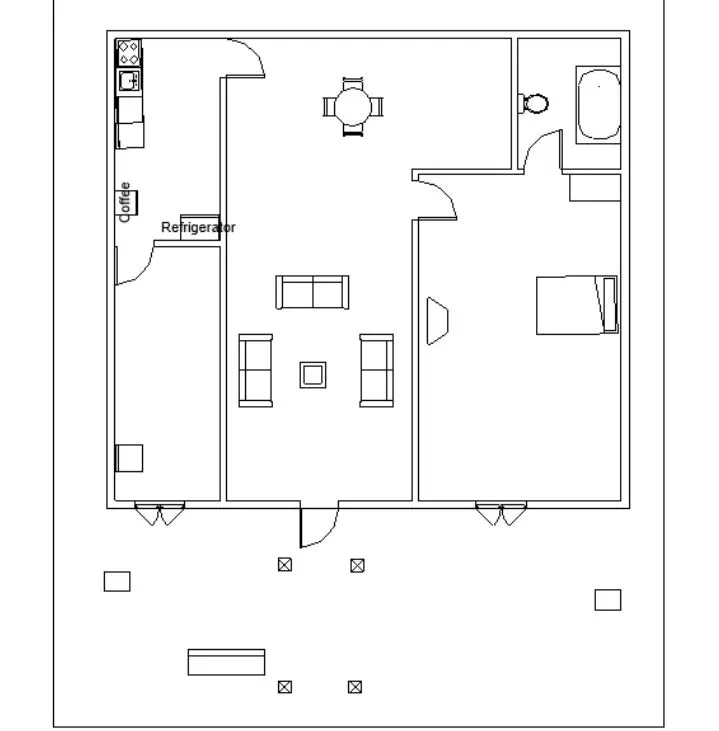
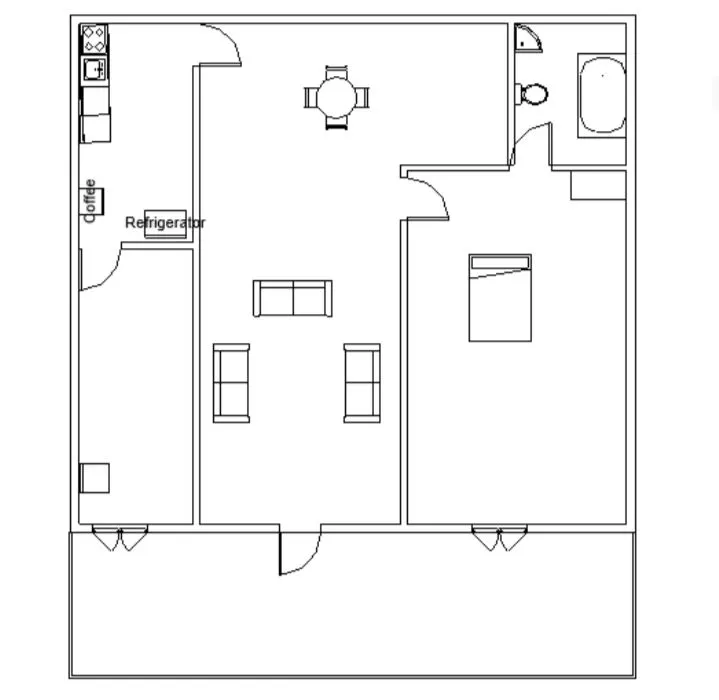
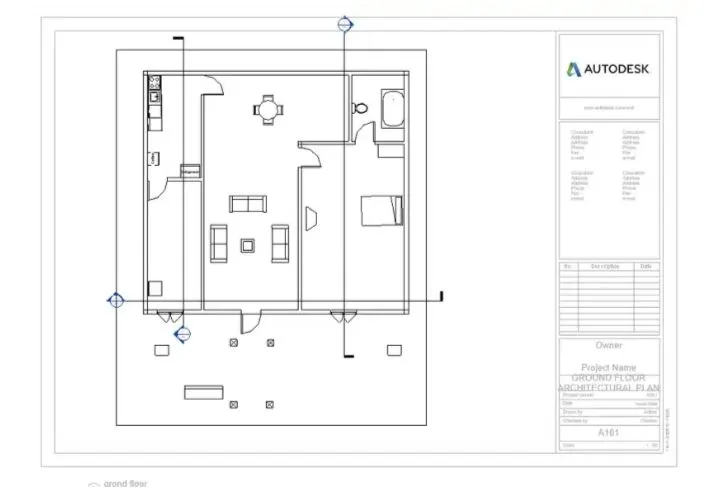
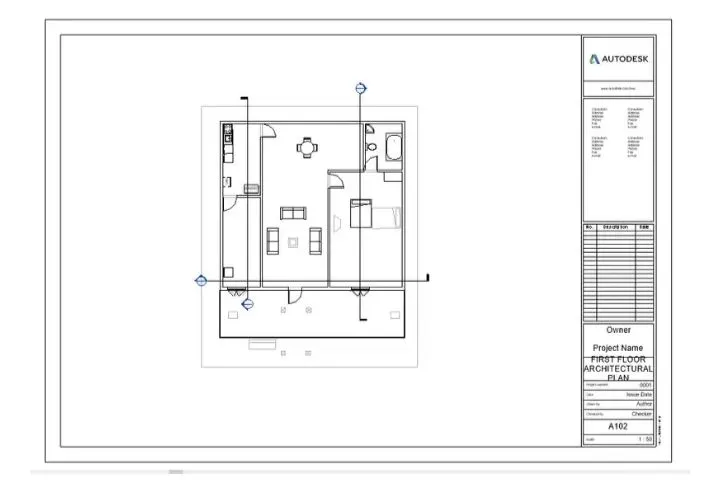
To create architecture plan that has walls ,floors and all the components placed within the building
PROCEDURE:
Go to plan views in view tab
Then go to edit type and click architectural plan
click apply same for ground floor, first floor and roof
Ground Floor:
First Floor:
b. AIM:
To create a structural plan
PROCEDURE:
Go to view tab > view plan > structural plan
Same procedure is followed for first floor
Ground Floor:
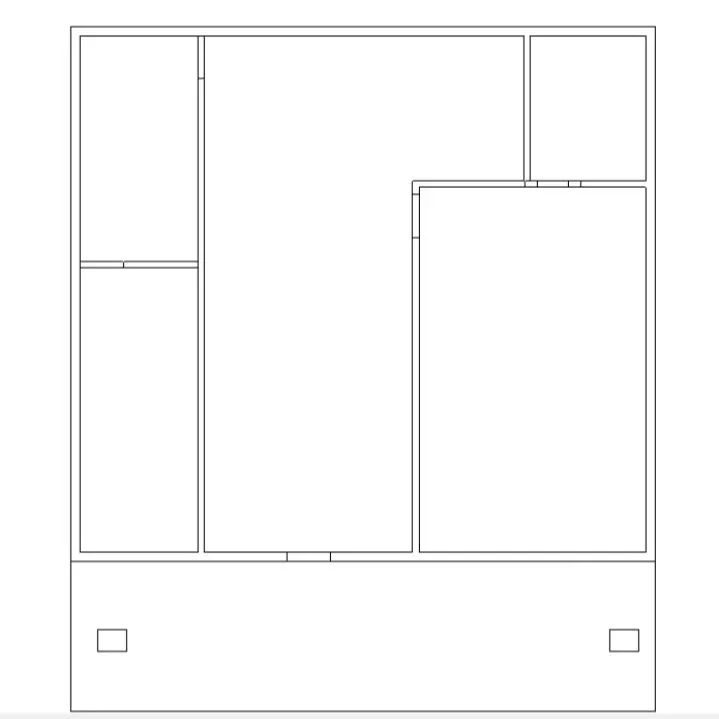
First Floor:
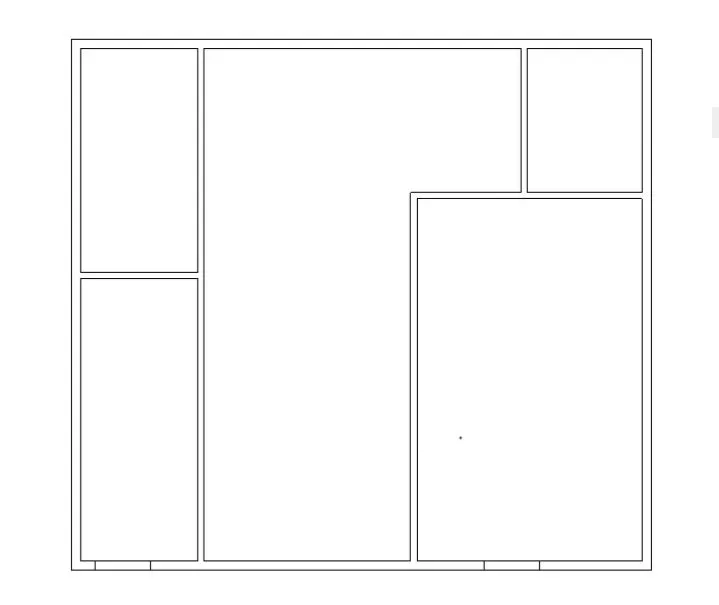
4) AIM:
To give dimensions and grid lines to the project
PROCEDURE:
STEP 1:
Go to annotate tool bar> linear dimenisions
Go to architectural tab > tag rooms
Ground Floor:
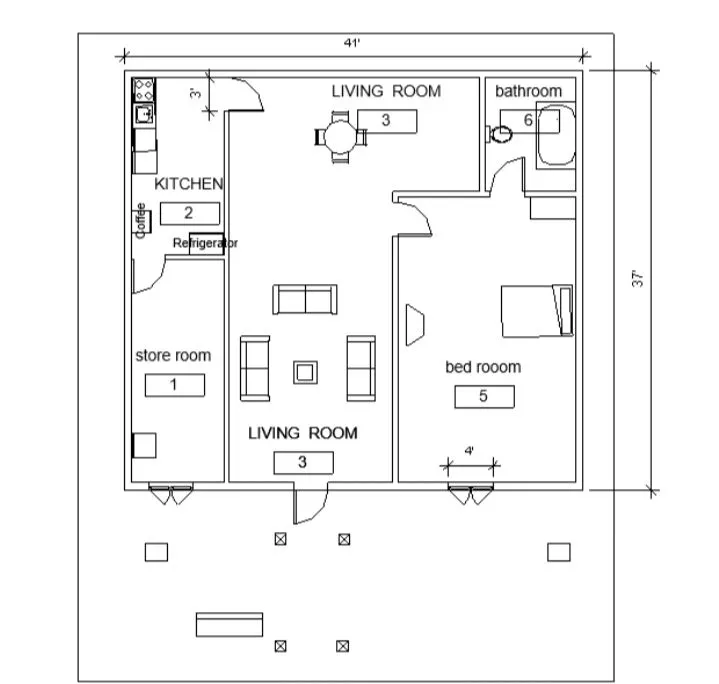
First Floor:
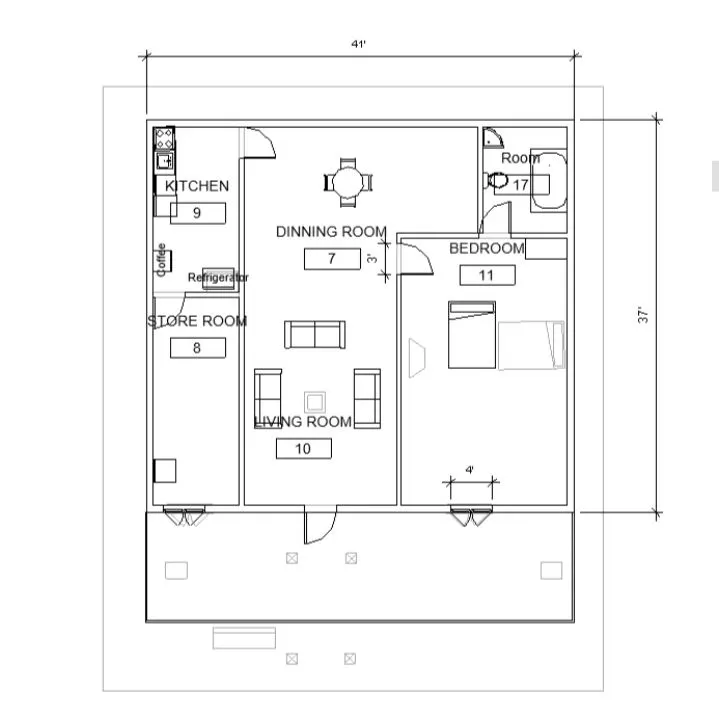
b. AIM:
To give dimensions and grid lines to the project
PROCEDURE:
Go to structural plan
Then go to architectural tab > grids > draw grids along the walls
Ground Floor:
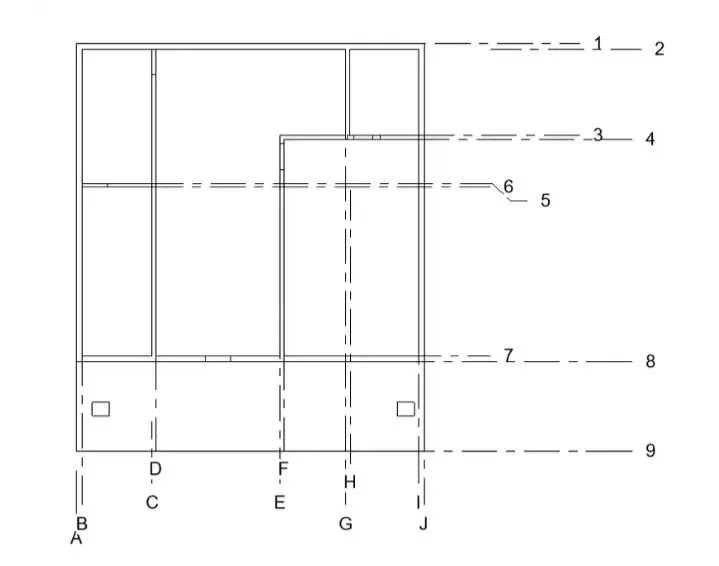
First Floor:
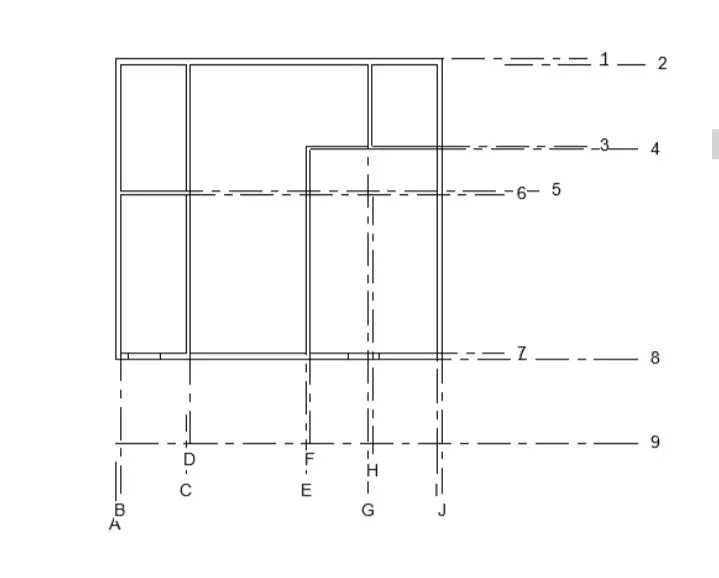
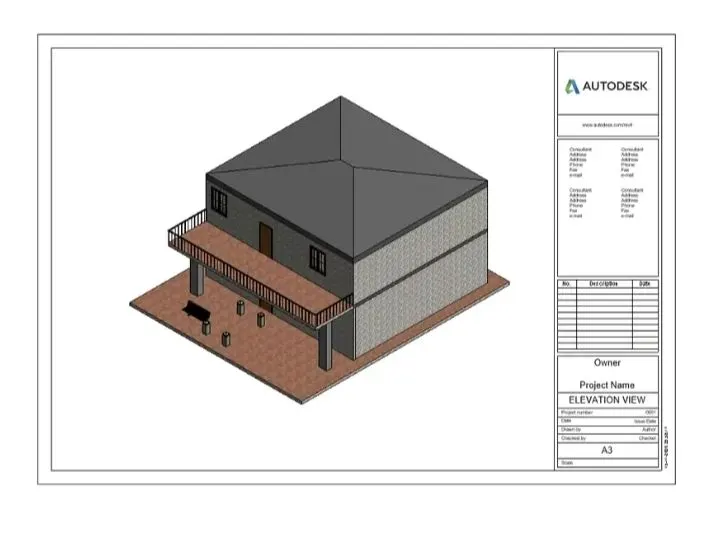
5) AIM:
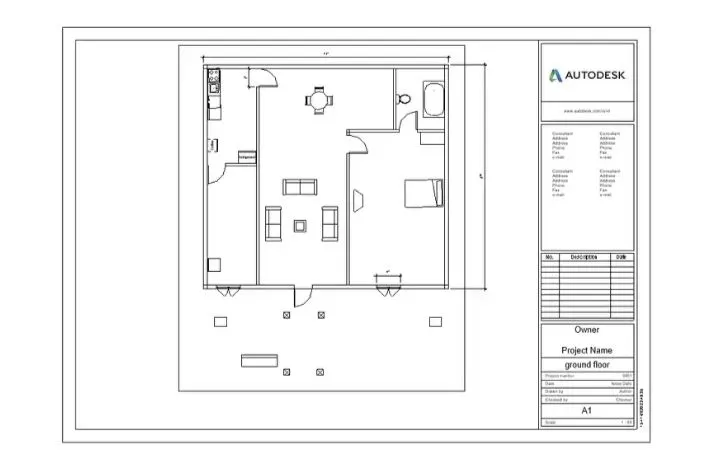
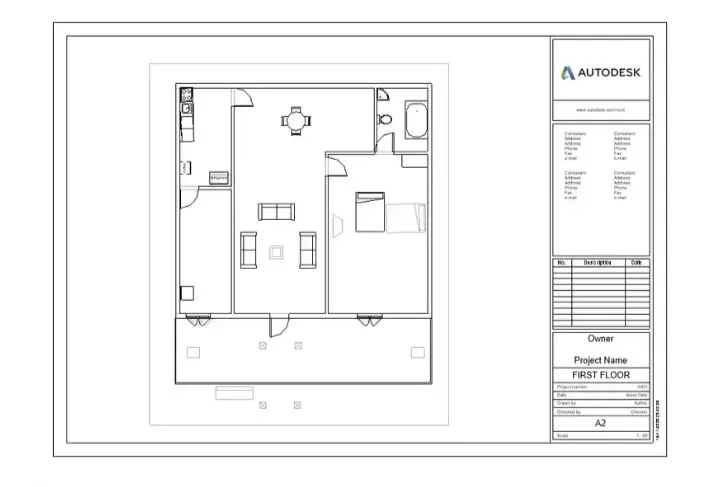
To create a sheet template from the view tab and to adjust the parameters on the sheet to add appropriate views
PROCEDURE:
go to view tab > sheet template >add view
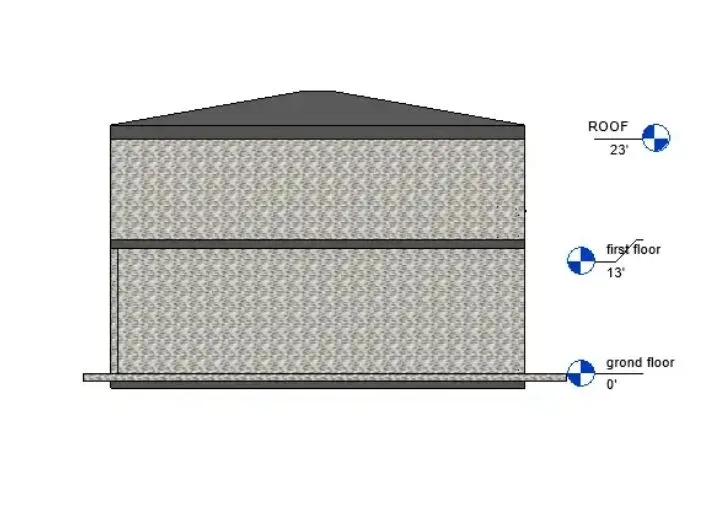
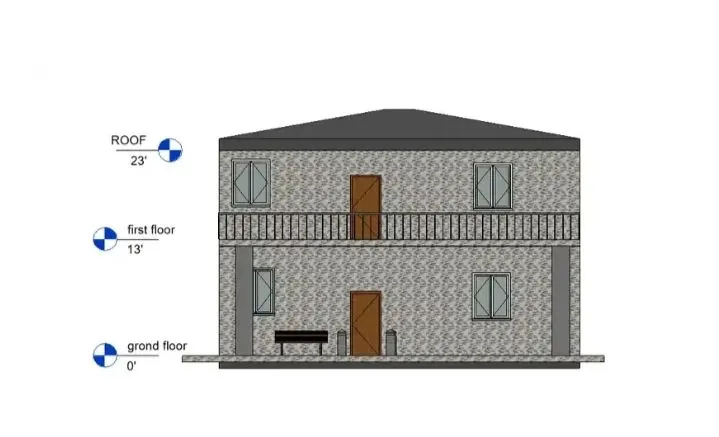
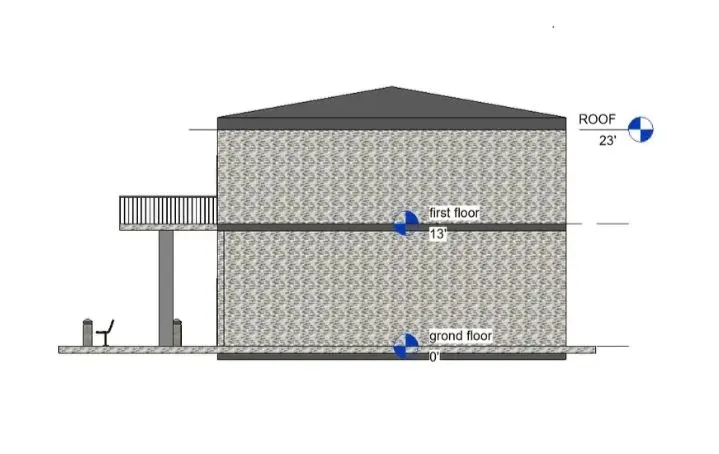
6) AIM:
To create elevation tab
PROCEDURE:
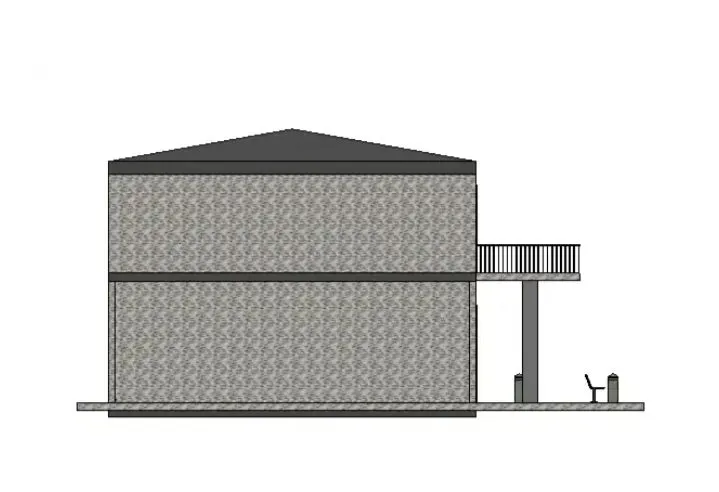
go to elavation view > north> south>east >west
North:
South:
East:
West:
7) AIM:
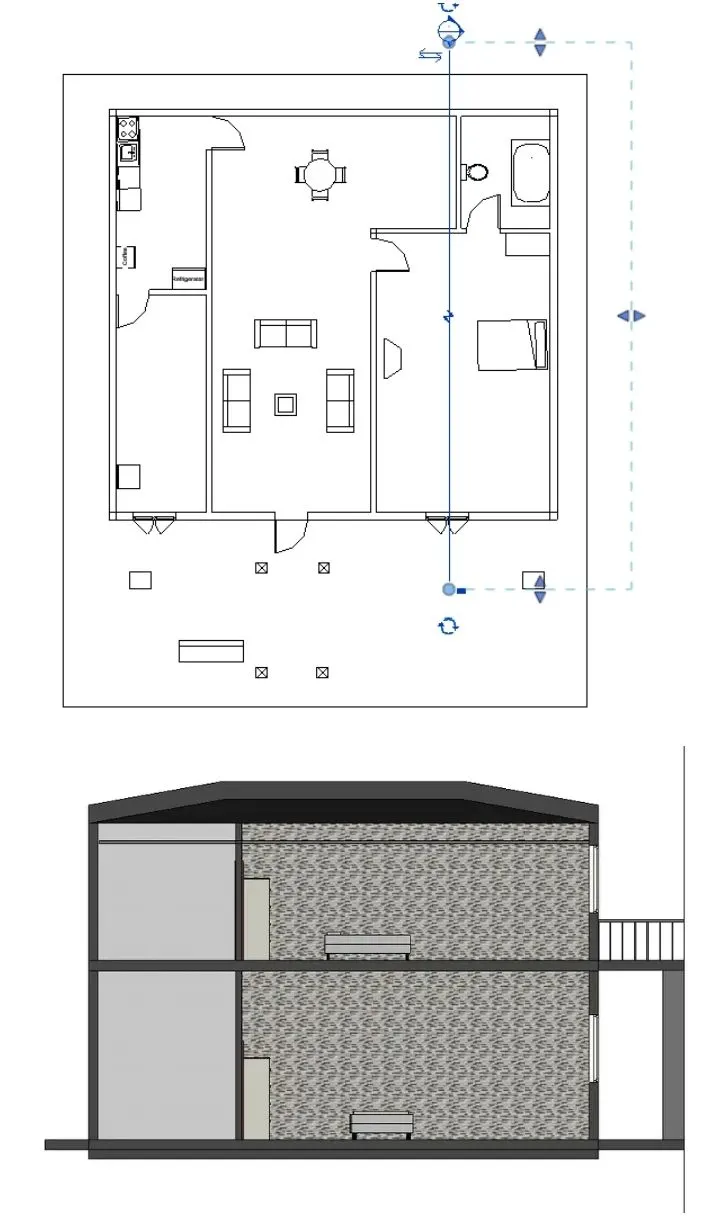
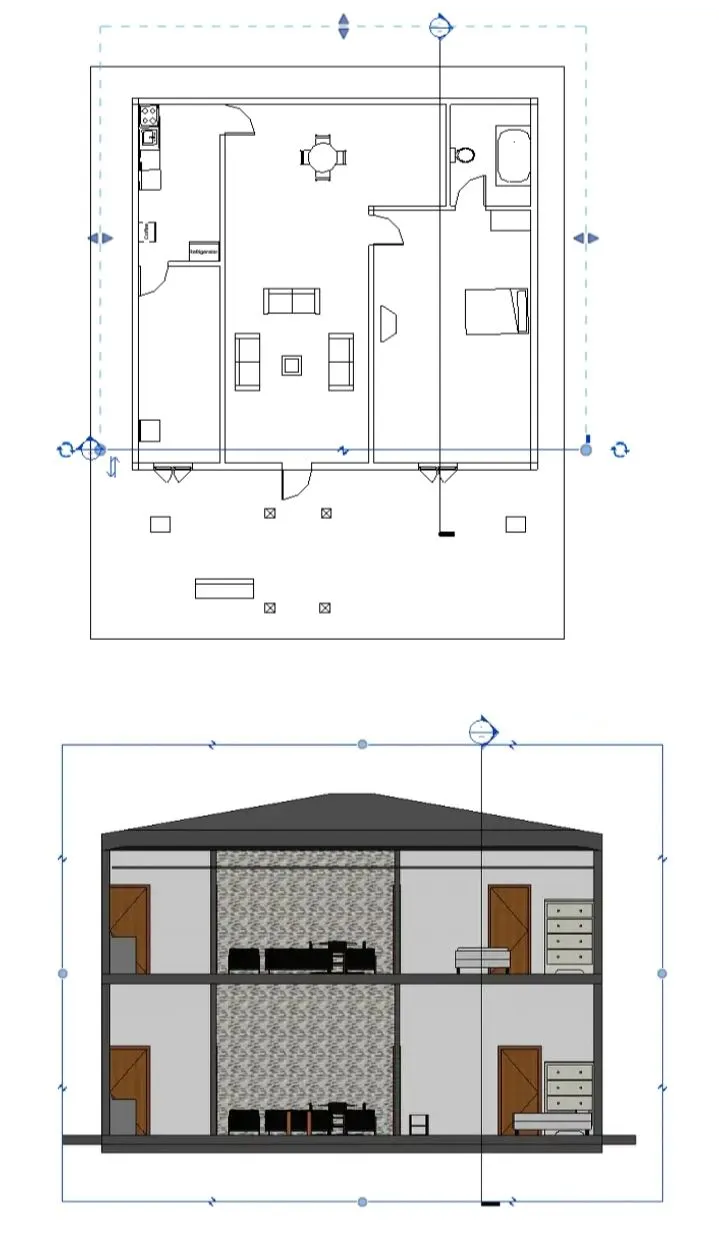
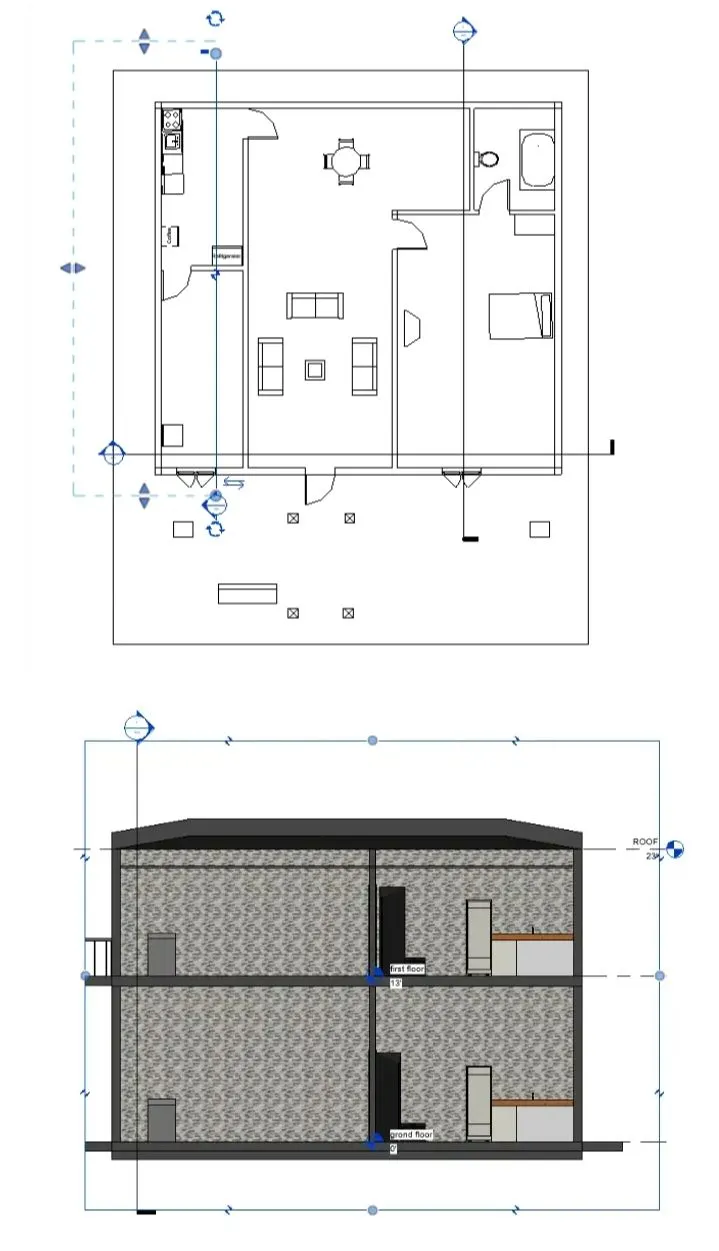
To produce section cut through each room
PROCEDURE:
Go to view tab > section view> section the required view
8) AIM:
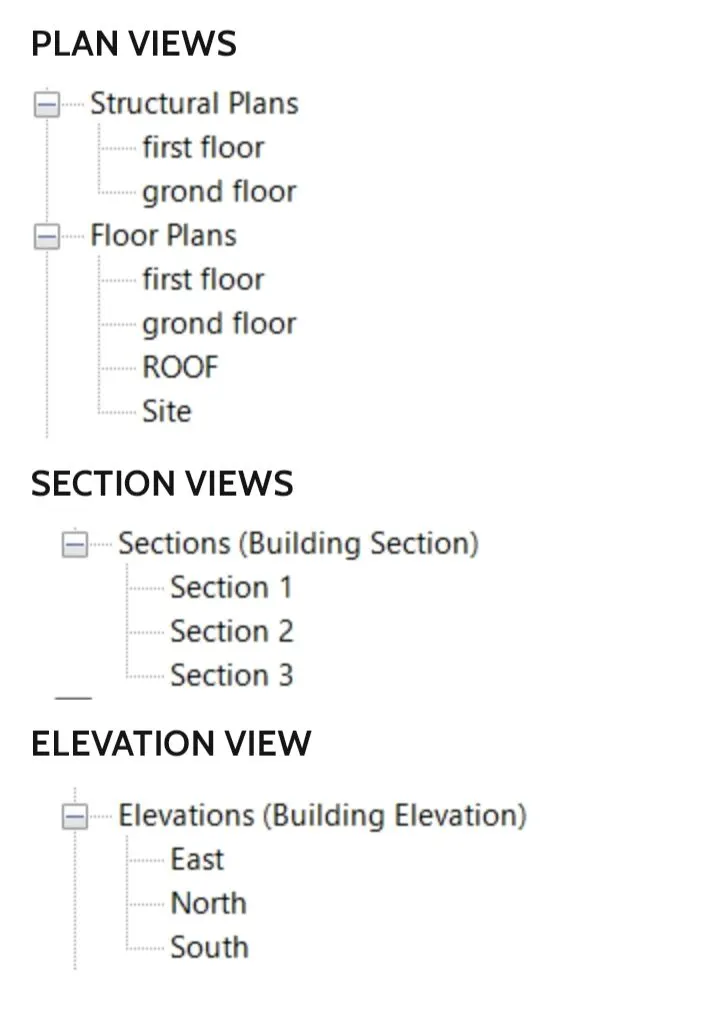
To Classify the views, Plan Views, Section Views and Elevation views
PROCEDURE:
Go to view tab > property browser.
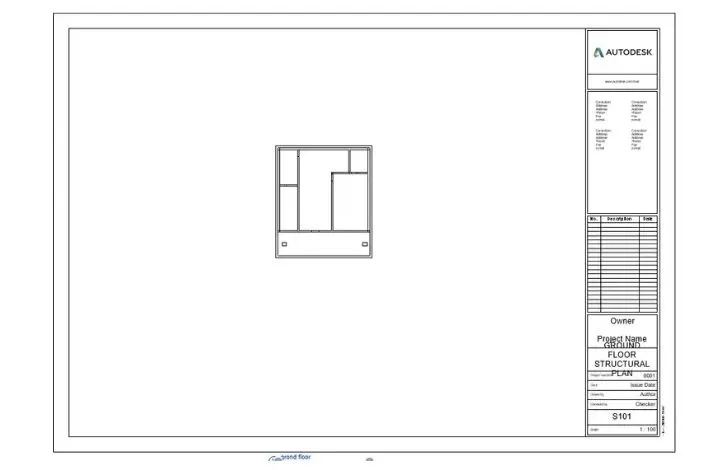
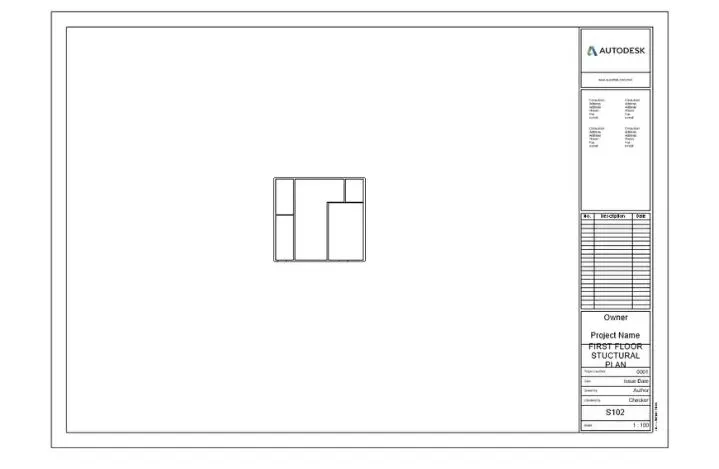
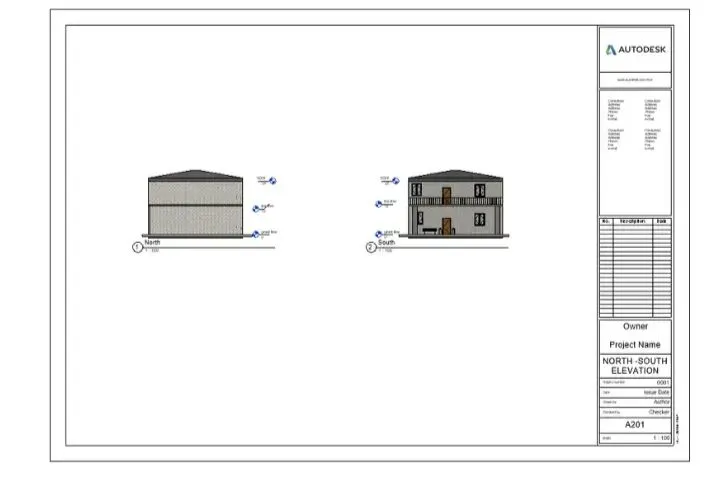
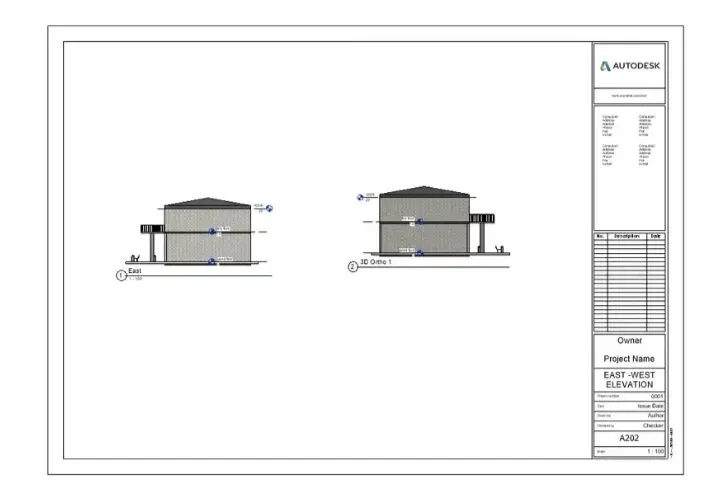
9) Using the sheet template produced create multiple sheets as follows
AIM:
To create sheet template
PROCEDURE:
Go to view tab > sheet templete > add view
AIM:
To Create a camera specific view or a 3D view in each room
PROCEDURE:
• go to view tab > camera > place the camera in the desired view