Creation of Column Schedule and Drawing Template using AutoCad
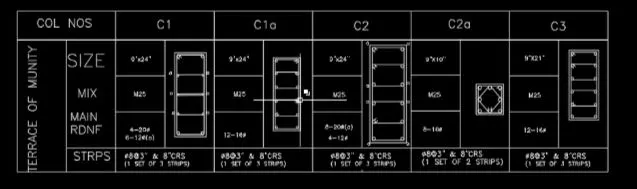
Aim: To schedule the column given.
Commands Used:
• LINE
• OFFSET
• DDPTYPE
• DIVIDE
• CIRCLE
• TRIM
• FILLET
• LWEIGHT
• SCALE
• TEXT
Procedure:
1. Open AutoCad
2. Open AutoCad Select new and Imperial system
3. Select Engineering with precision 0'-0.0"
4. Type Command Limits and enter lower left corner as O'-0.0" and upper right corner as 50'-0.0".
For the table:
1. Type Command TEXT and selecting a single line text of height of 8" and angle of 90 degree and type TERRACE OF MUNITY
2. Type Command TEXT and selecting a single line text of height of 8" and angle of O degree and type COL NOS, SIZE, MIX, MAIN RDNF and STRIPS
To draw column:
1. Type Command LINE and draw 9" horizontal line and 24" vertical line on both the sides
2. Type Command OFFSET and draw an offset of 0.6" on all 4 sides
3. Type Command TRIM and trim the unwanted lines
4. Type Command DDPTYPE and select suitable point type
5. Type Command DIVIDE and divide the line into 5 segments on 24" of both sides
6. Type Command CIRCLE of diameter of 20mm=0.79" of 4 numbers at suitable place
7. Type Command CIRCLE of diameter of 12mm=0.472" of 6 numbers at a place where a is marked
8. Type Command FILLET of radius of
9mm at 4 corners
9. Type Command TEXT of height 8" and style of Roman.shx and angle of 0 degree and type 9"X24", M25, 4 20dia( type %%C for diameter)
10. Command LWEIGHT and draw a stirups of 8mm dia at the required places
11. Command SCALE and scale the texts and diagram
12. Command LINE and draw a line like table and place the texts and diagram in suitable places.
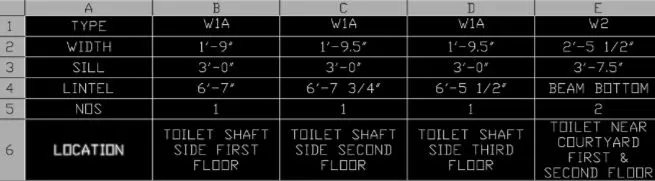
Aim: To Schedule the Window
Command Used:
• TABLE
• TEXT
Procedure:
1. Open AutoCad
2. Open AutoCad Select new and
Imperial system
3. Select Architectural with precision 0-0 1/256"
4. Type Command TABLE without title and header with 5 columns and 6 rows with column width 2 1/2" and row height 1
5. Type TEXT and enter the relevent texts on the relevent columns and rows
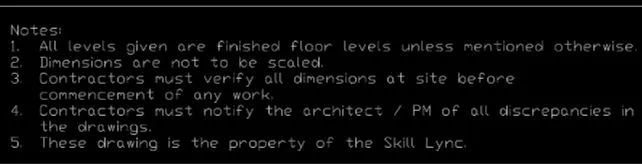
Challenge 3
Aim: To create the template
Commands used:
• TEXT
Procedure:
1.Open AutoCad
2.Open AutoCad Select new and Imperial system
3.Open Annotate tab and select Standard
4.Type TEXT and selecting multiline text of height 8" and type the relevent information given in the template.
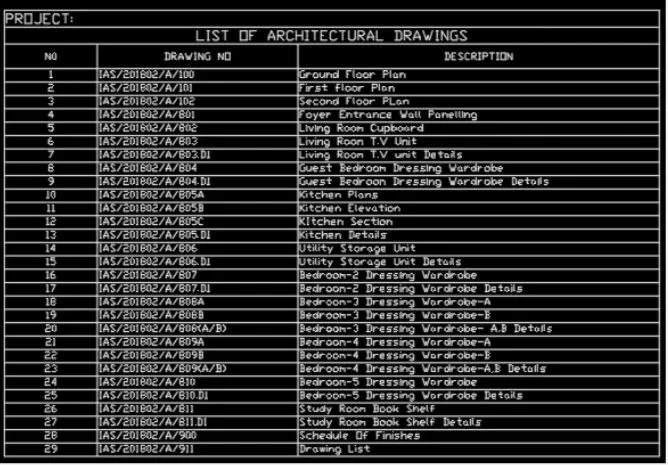
Challenge 4
Aim:To create the Drawing Schedule
Commands used:
• TABLE
• TEXT
Procedure:
1.Open AutoCad
2.Open AutoCad Select new and Imperial system
3.Open Annotate tab and select Standard
4.Type Command TABLE with 2 title and header with 3 columns and 30 rows with column width 2.5" and row height 1
5.Type TEXT and type PROJECT and justify left
6.Type TEXT and type LIST OF ARCHITECTURAL DRAWINGS and justify center
7.Type TEXT and enter the relevent texts on the relevent columns and rows.
Challenge 5
Aim: To create the Beam Detail
Commands used:
• LINE
• OFFSET
• HATCH
• MLEADER
• DIMLEADER
• TEXT
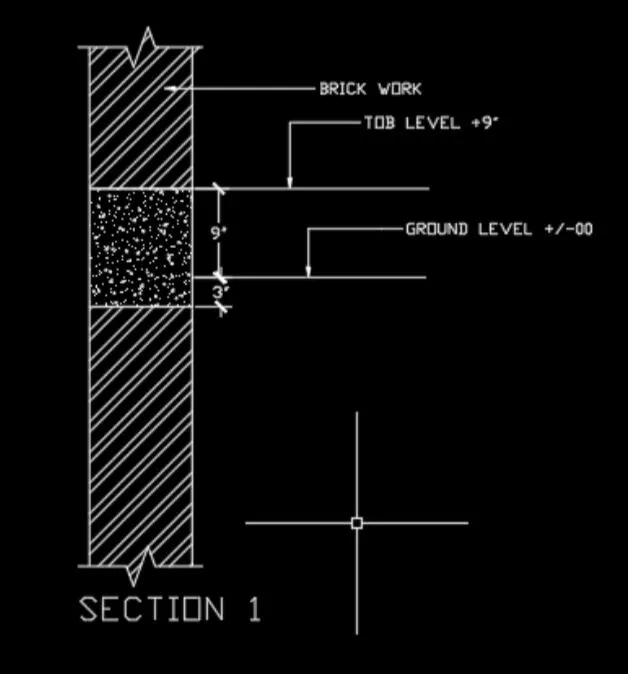
Procedure:
1.Open AutoCad
2.Open AutoCad Select new and Imperial system
3.Selecting Engineering with precision O'-0"
4. Command LINE drawing vertical line with 12" of concrete portion including in it
5.Command OFFSET of 2" to that vertical line
6. In Express tool Tab selecting the Break-line symbol and specifying two point to break the line on both sides
7.Command HATCH and selecting AR CONC and selecting the concrete portion to hatch
8.Clicking on AR-CONC hatch and opting properties and changing the scale to 0.05
9.Selecting multileader style manager and modify in leader structure and making 2 as maximum leader points and type BRICK WORK
10.Selecting multileader style manager and modify in leader structure and making 3 as maximum leader points and type TOP LEVEL +9" and GROUND LEVEL +/-00
11. In annotate tab selecting manage dimension style and in symbols and arrows changing arrowheads to Architectural tick
12. Command DIMLINEAR and dimensioning the concrete portion
13.Command TEXT with angle 0 typing section 1.
RESULT: The schedules have been created.