Wiring harness design in CATIA V5 - 3D modeling Week 5 & 6 Challenge
Aim:
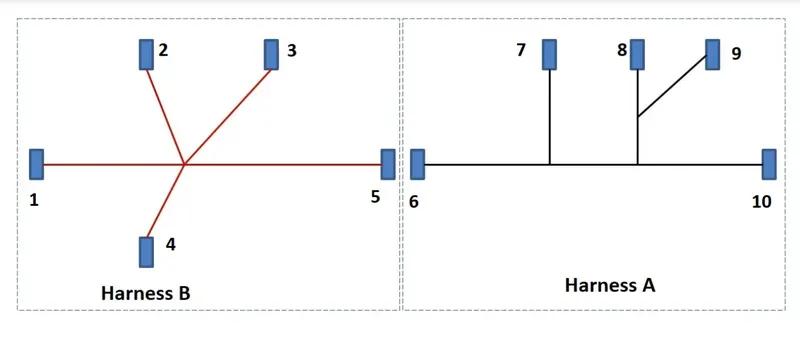
- To Route the following harness layout in Electrical workbench. Make assumption for harness bundle diameters. Use the connectors provided. After completion of routing,
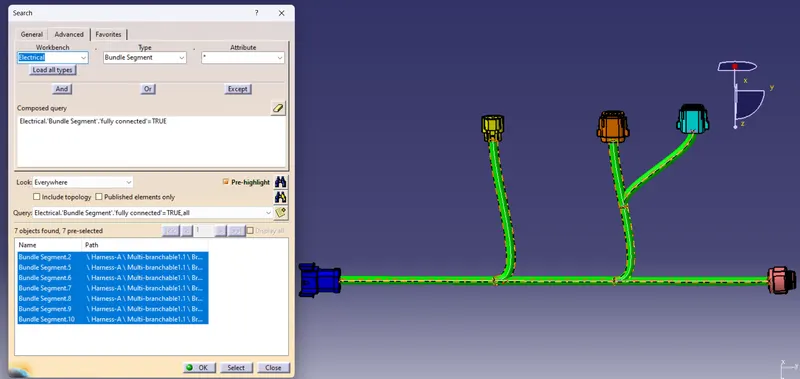
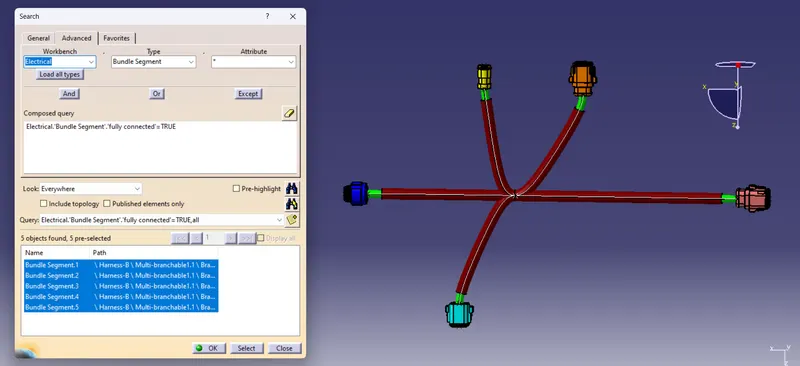
- Check the bundle Continuity. Add snap of result in submission
- Add annotation to all connectors. Make an assumptions for annotations like connect 1 , 2 etc
- Check for the bundle warning. Add snap.
- Generate CAT.part of harness assembly and convert is in. igs format.
Harness-A:
6.C-DT04-08PA:
Step-1:
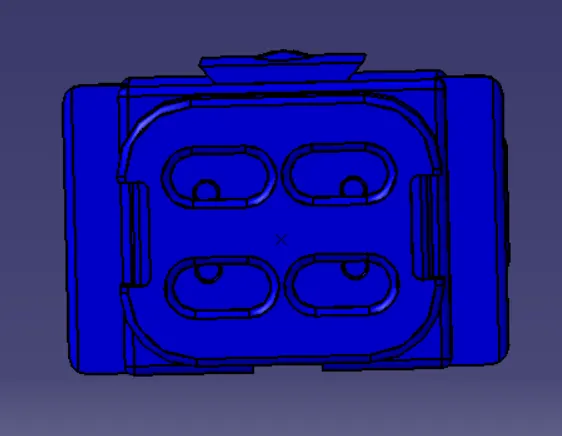
- Download the connector Parts and open in Catia V5 Software
Connector side:
- Create Midpt and axis for the connector side
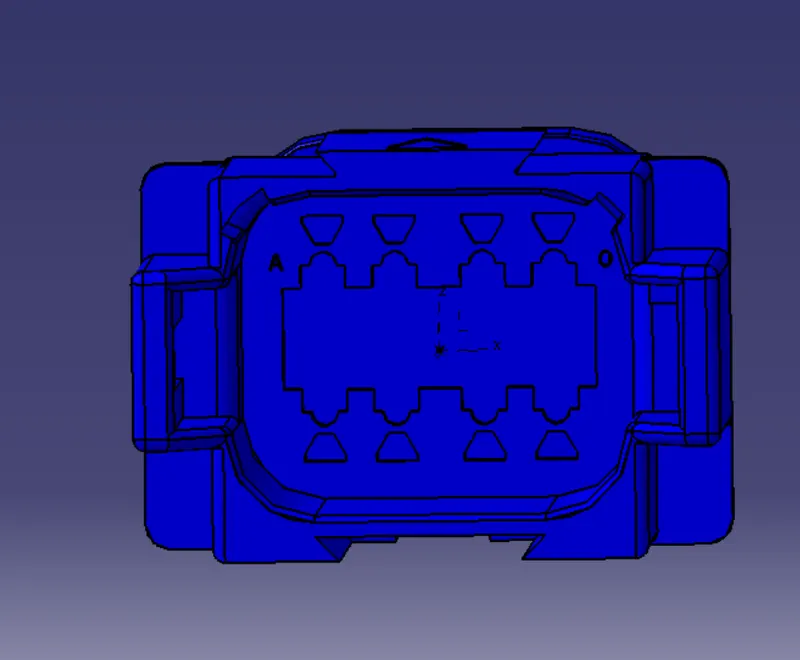
Bundle side:
- Create Midpt for the bundle side
Step-2:
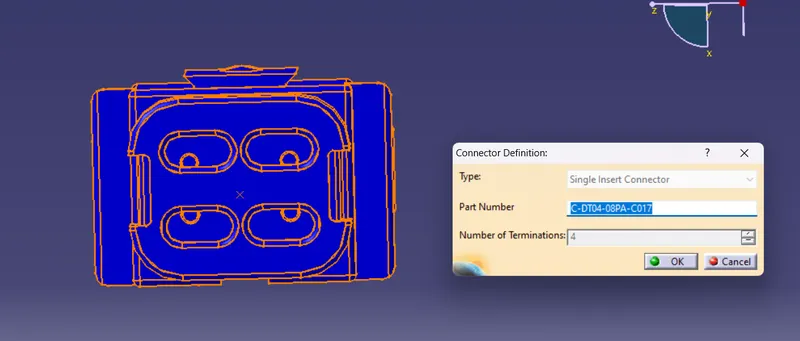
- Navigate to Electrical part design workbench and define the part as connector
Step-3:
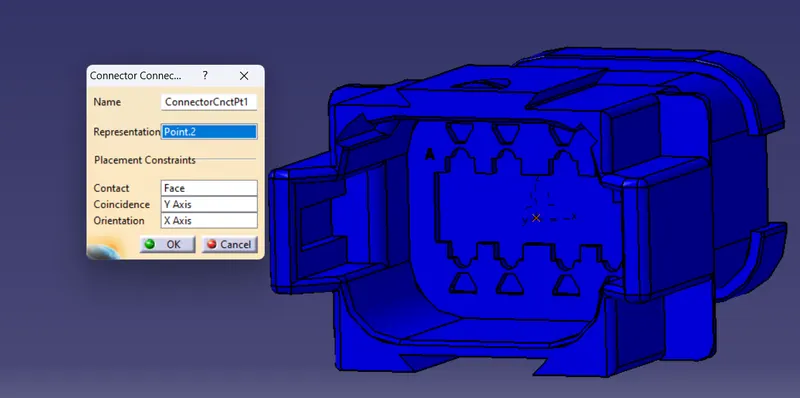
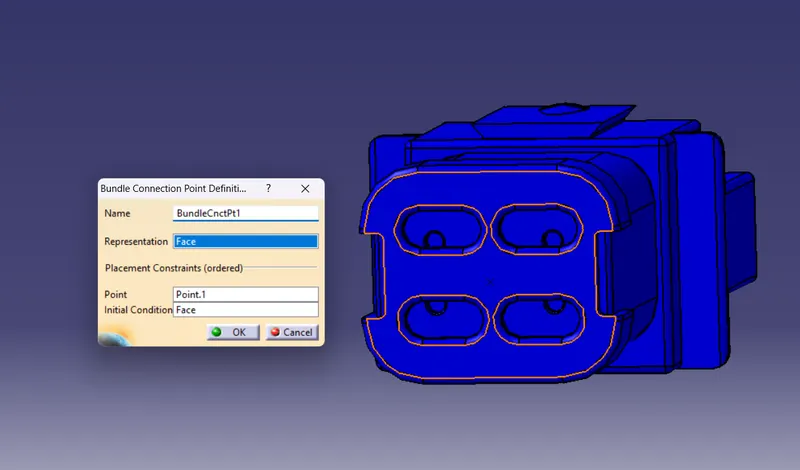
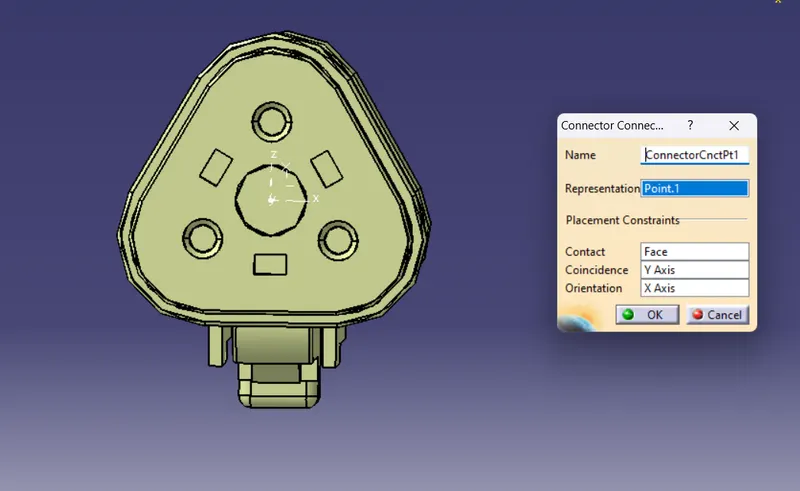
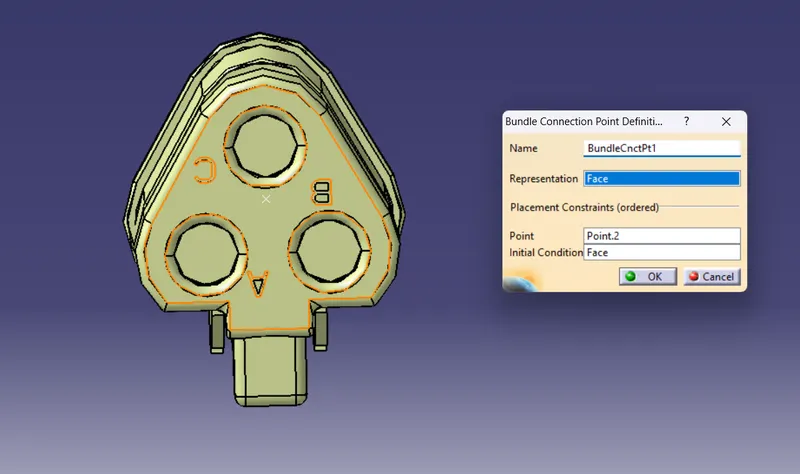
- Define the connector connection pt and bundle connection pt
Connector Connection Point:
Bundle Connection Point:
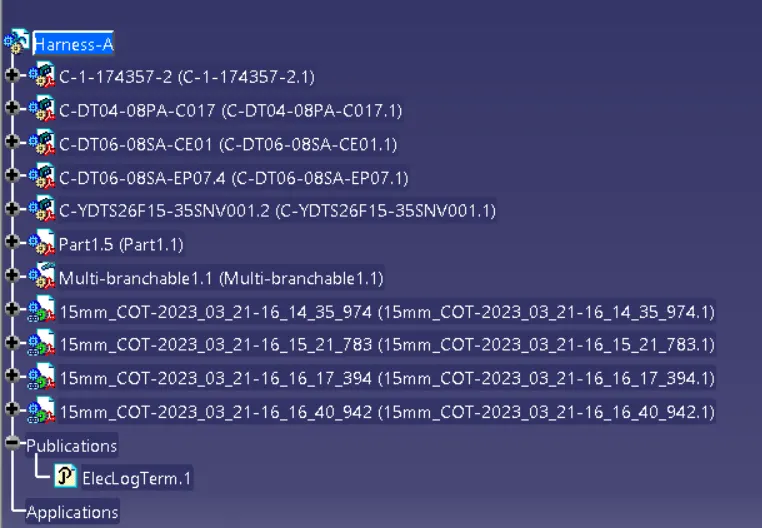
Tree Structure :
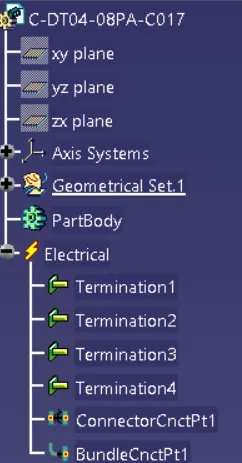
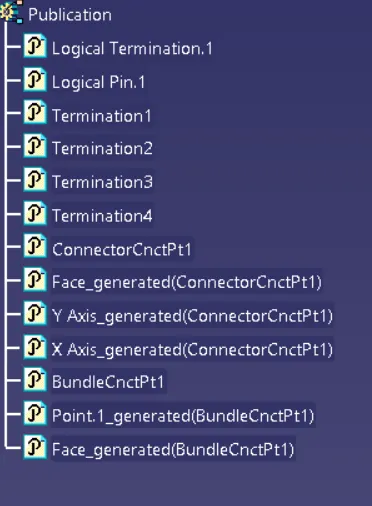
7.C-1-174357-2:
Step-1:
- Download the connector Parts and open in Catia V5 Software
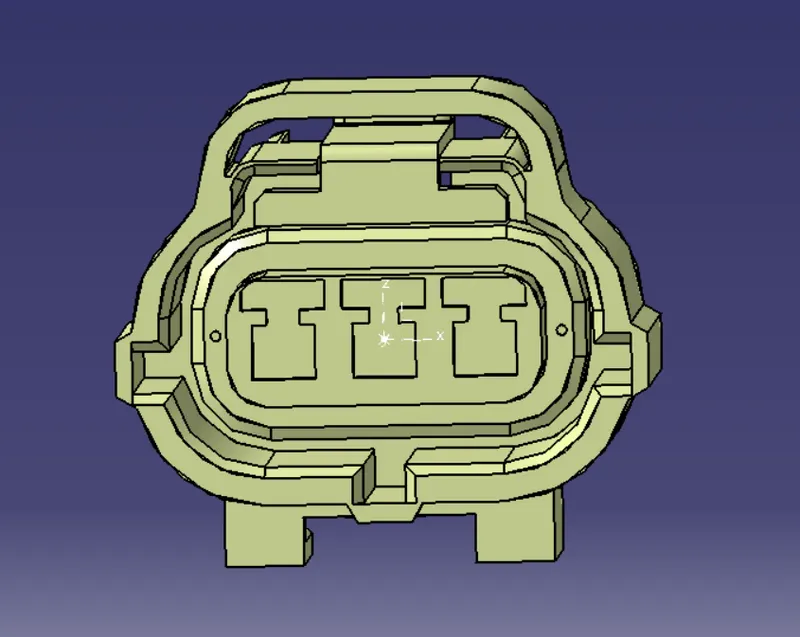
Connector side:
- Create Midpt and axis for the connector side
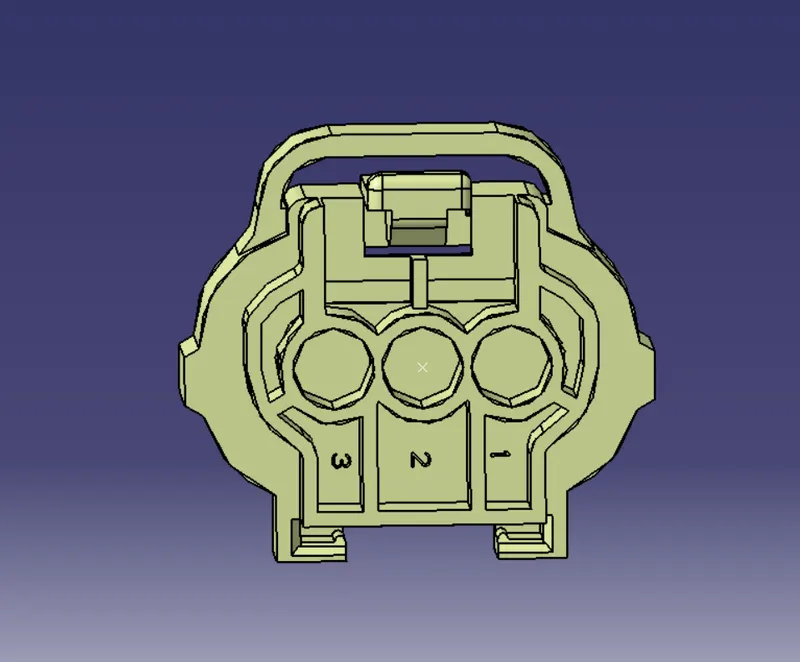
Bundle side:
- Create Midpt for the bundle side
Step-2:
- Navigate to Electrical part design workbench and define the part as connector
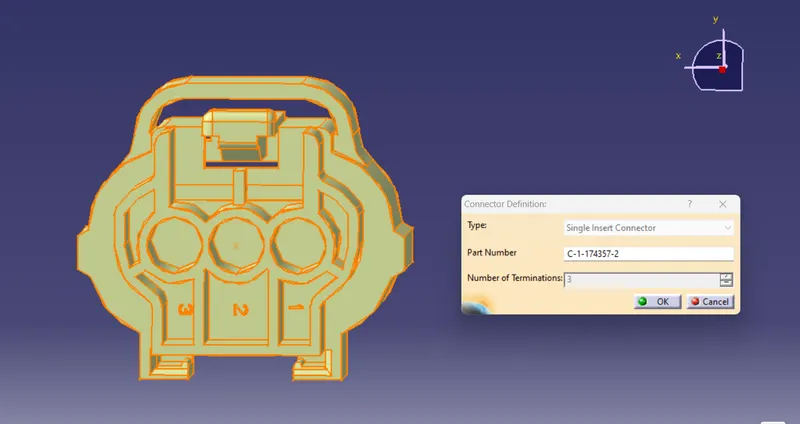
Step-3:
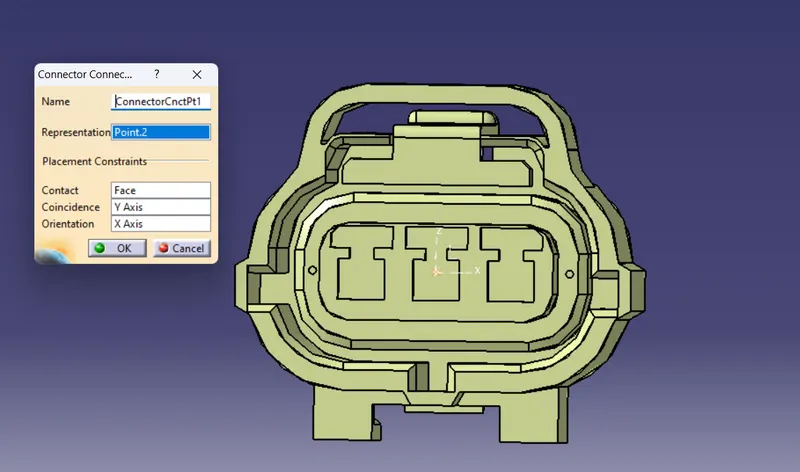
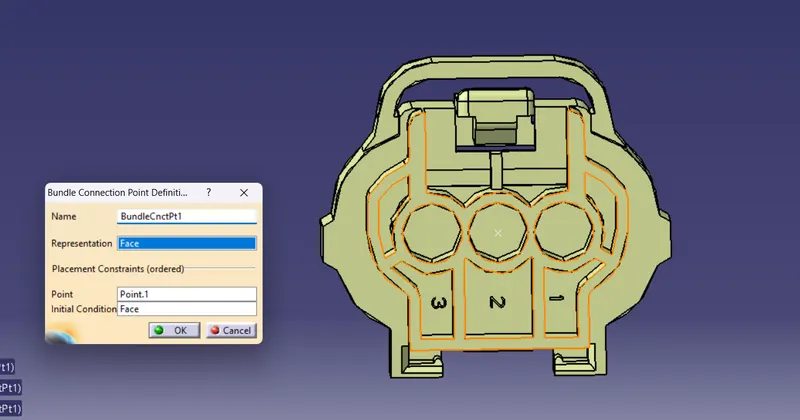
- Define the connector connection pt and bundle connection pt
Connector Connection Point:
Bundle Connection Point:
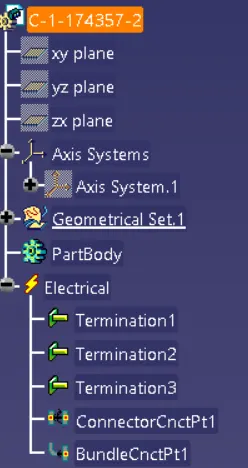
Tree Structure :
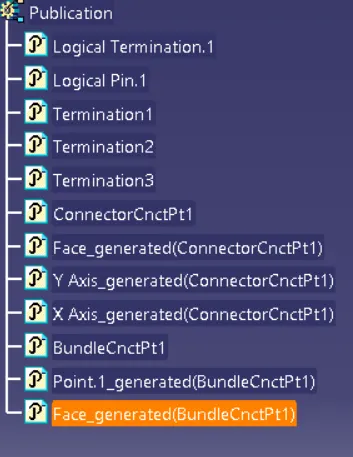
8.C-DT06-08SA-CE01:
Step-1:
- Download the connector Parts and open in Catia V5 Software
Connector side:
- Create Midpt and axis for the connector side
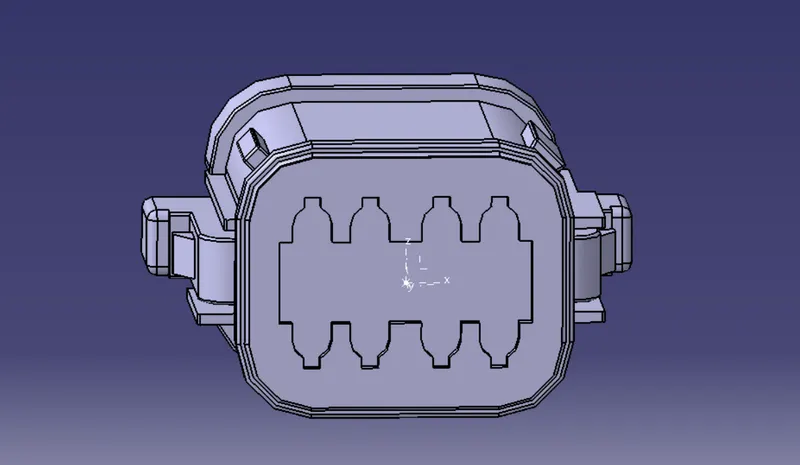
Bundle side:
- Create Midpt for the bundle side
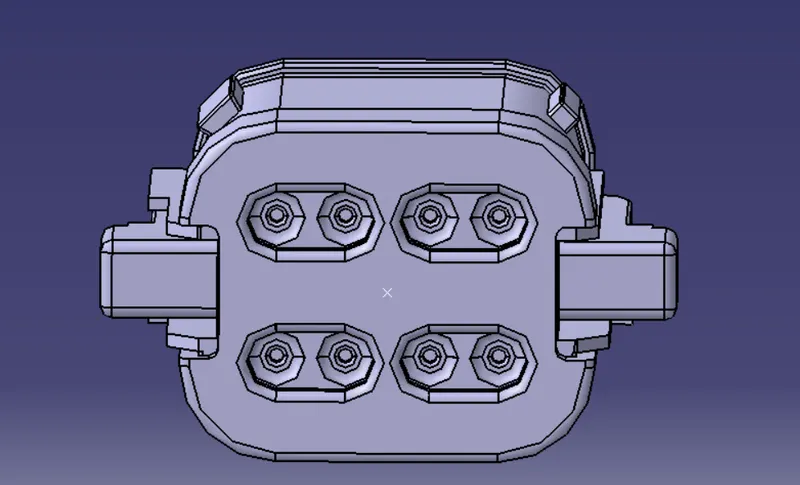
Step-2:
- Navigate to Electrical part design workbench and define the part as connector
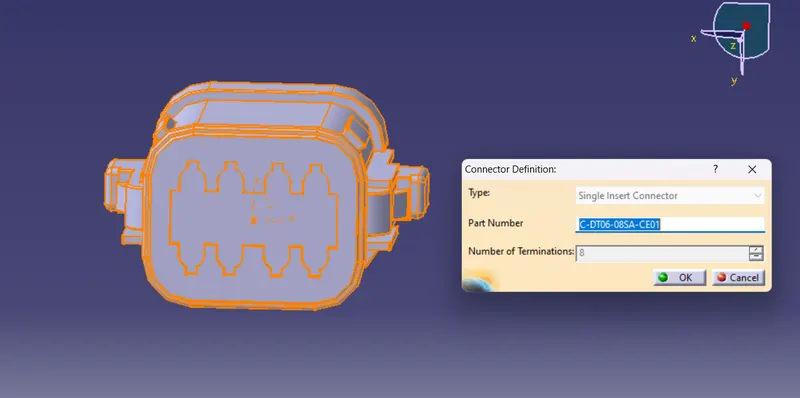
Step-3:
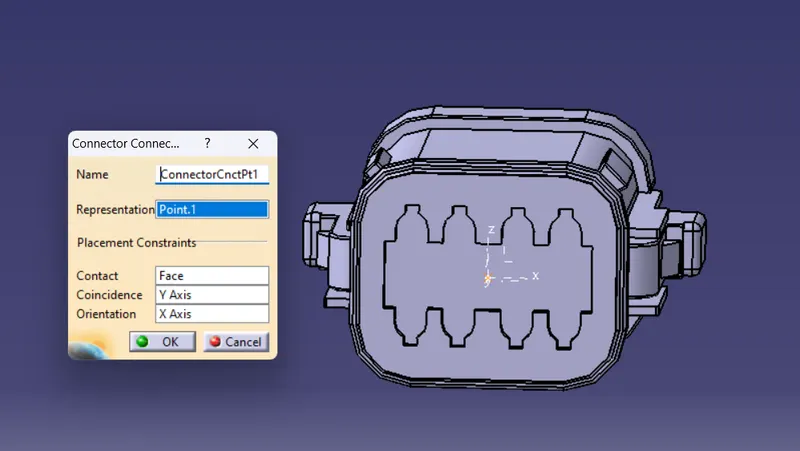
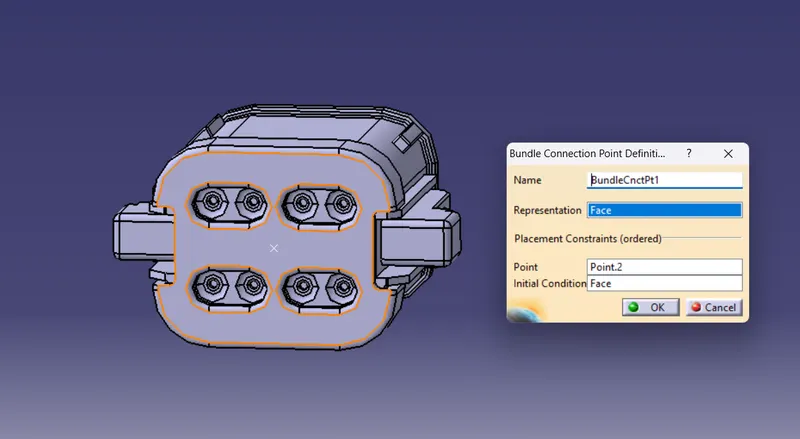
- Define the connector connection pt and bundle connection pt.
Connector Connection Point:
Bundle Connection Point:
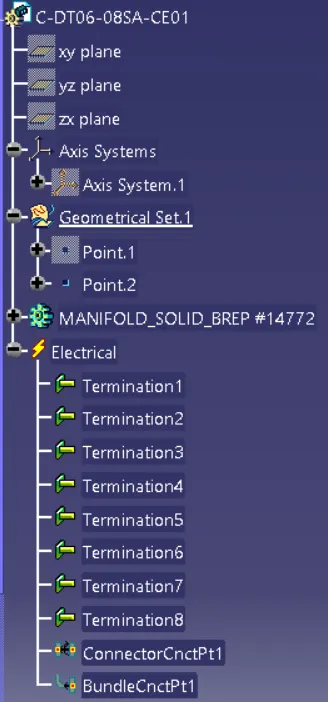
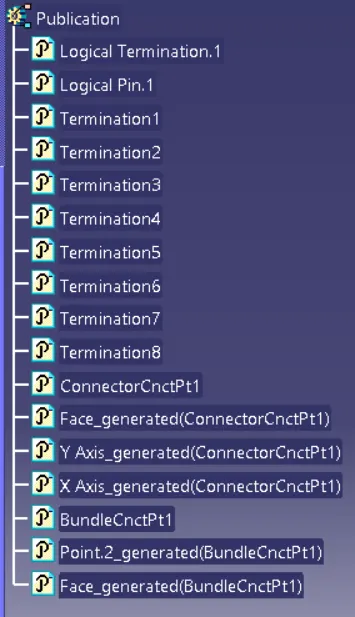
Tree Structure :
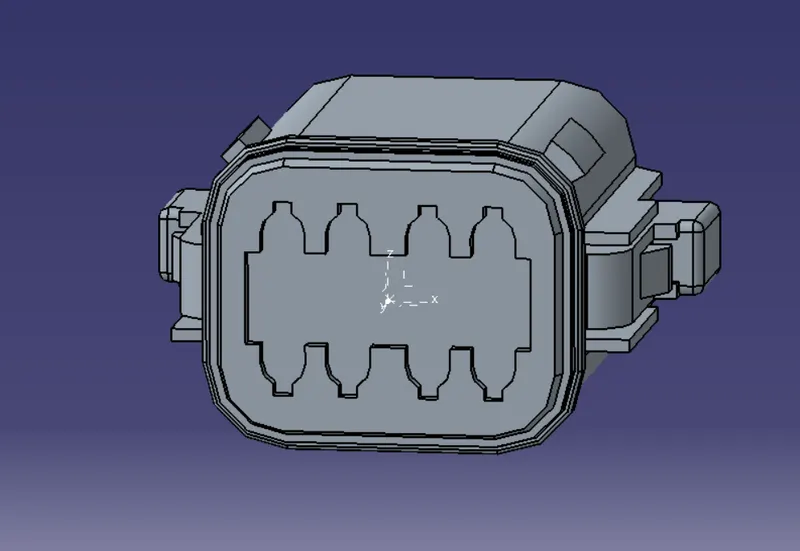
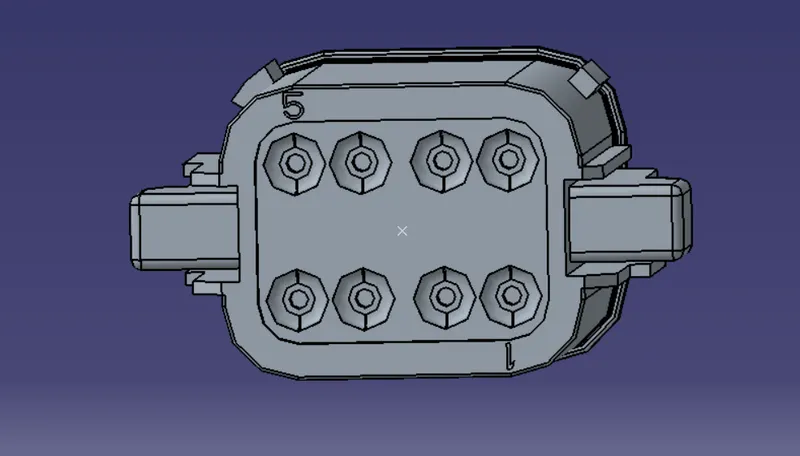
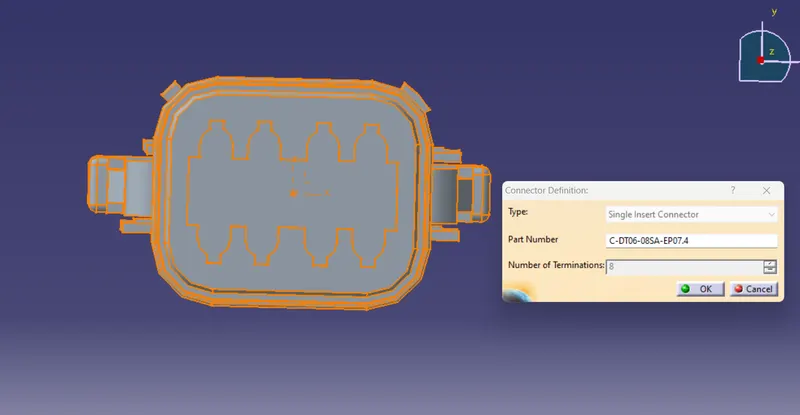
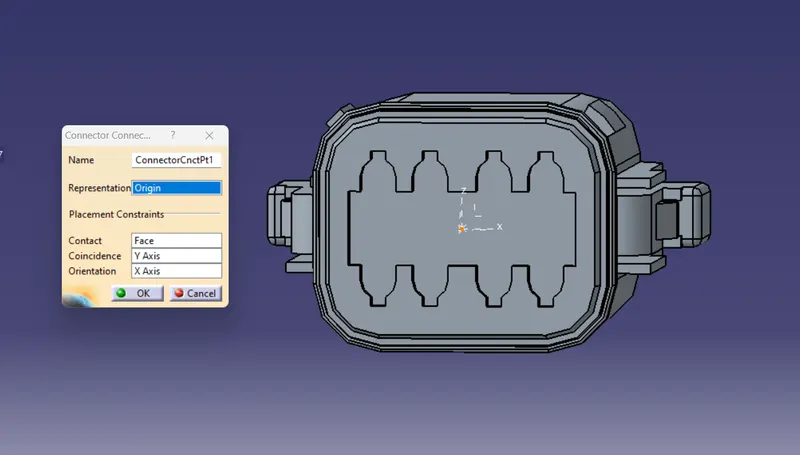
9.C-DT06-08SA-EP07:
Step-1:
- Download the connector Parts and open in Catia V5 Software
Connector side:
- Create Midpt and axis for the connector side
Bundle side:
- Create Midpt for the bundle side
Step-2:
- Navigate to Electrical part design workbench and define the part as connector
Step-3:
- Define the connector connection pt and bundle connection
Connector Connection Point:
Bundle Connection Point:
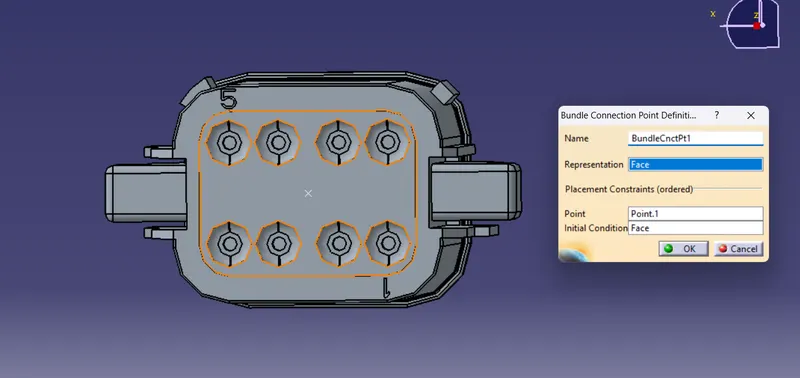
Tree Structure :
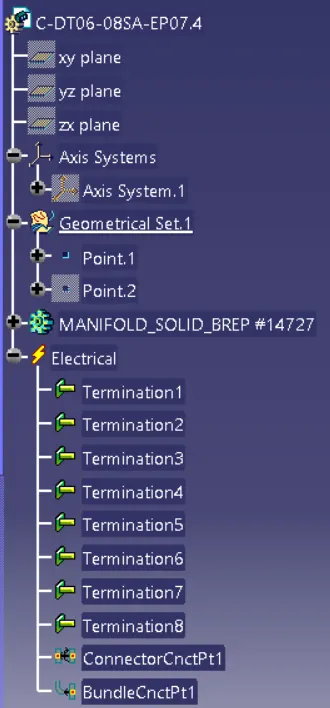
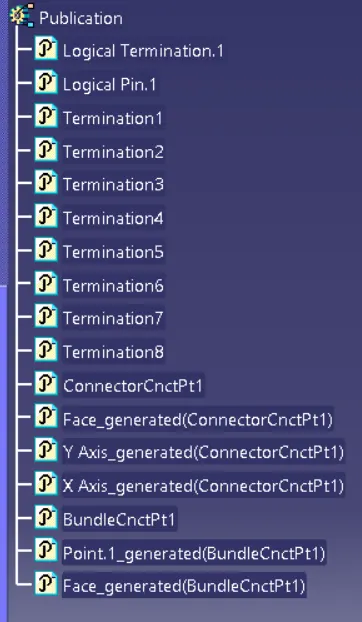
10.C-YDTS26F15:
Step-1:
- Download the connector Parts and open in Catia V5 Software
Connector side:
- Create Midpt and axis for the connector side
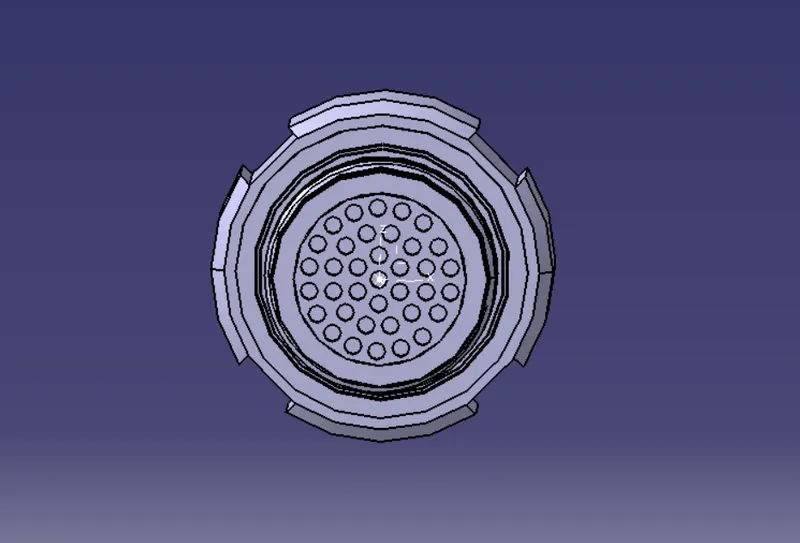
Bundle side:
- Create Midpt for the bundle side
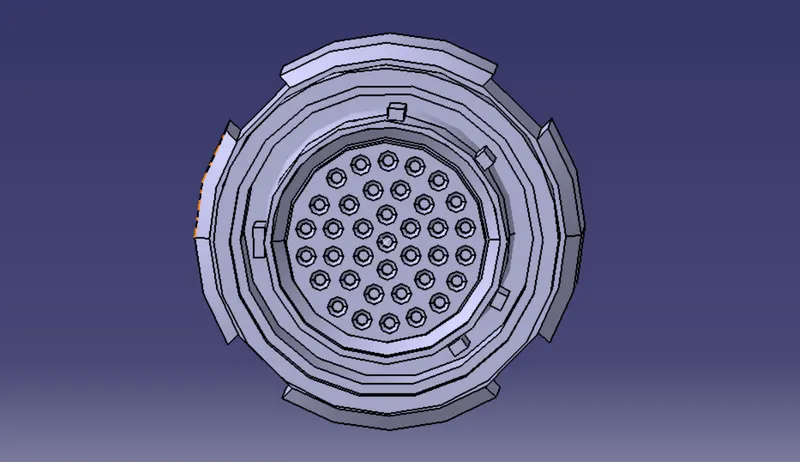
Step-2:
- Navigate to Electrical part design workbench and define the part as connector
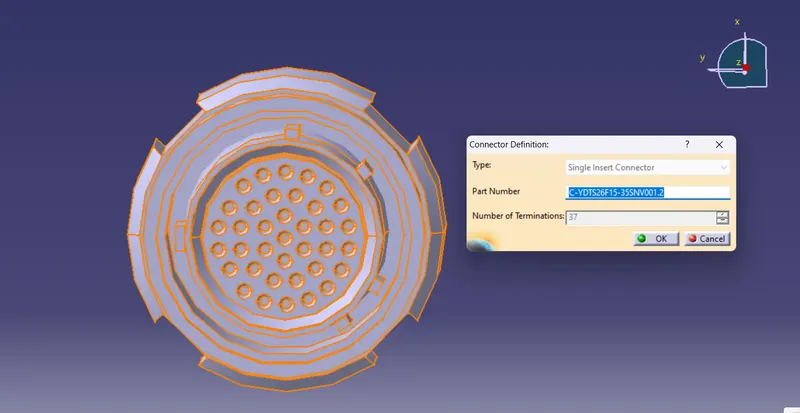
Step-3:
- Define the connector connection pt and bundle connection
Connector Connection Point:
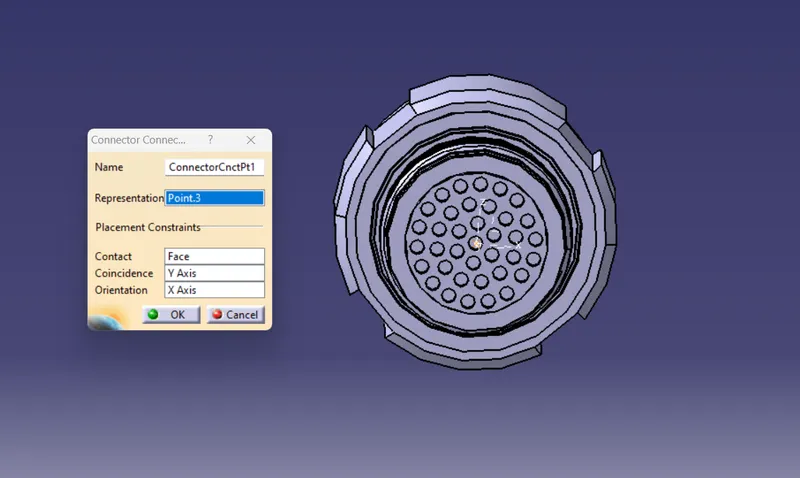
Bundle Connection Point:
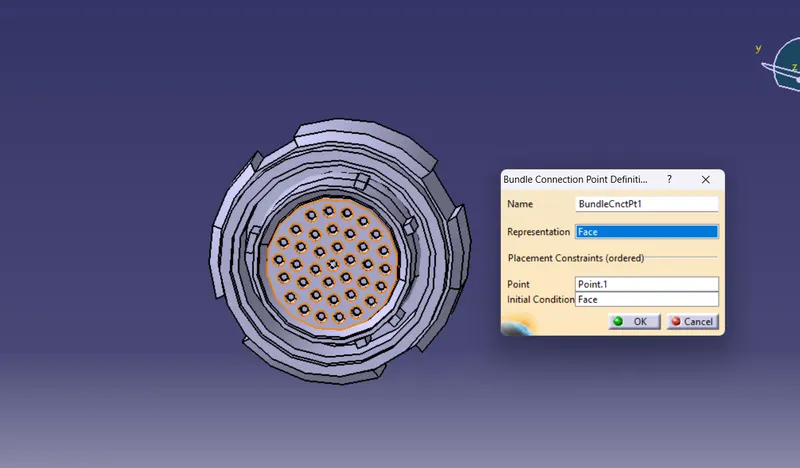
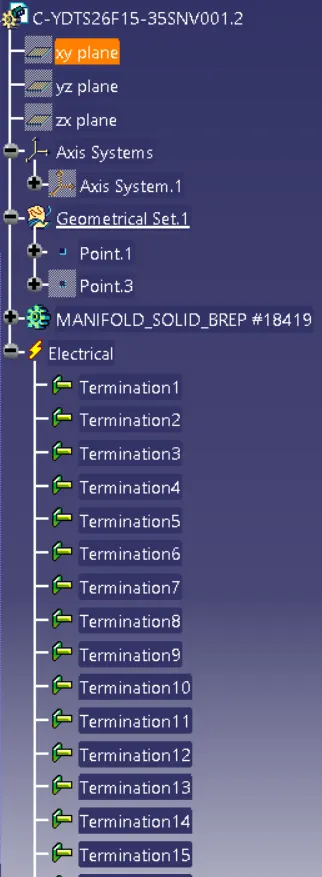
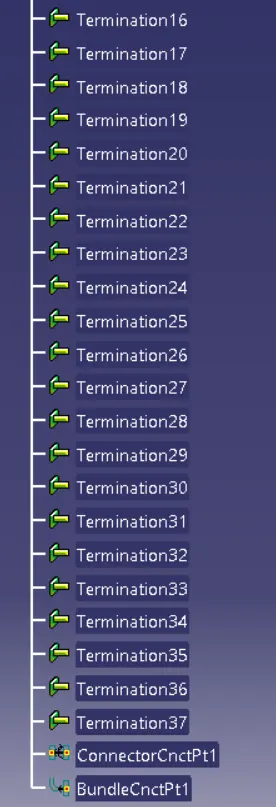
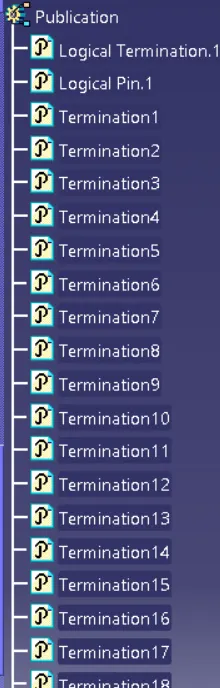
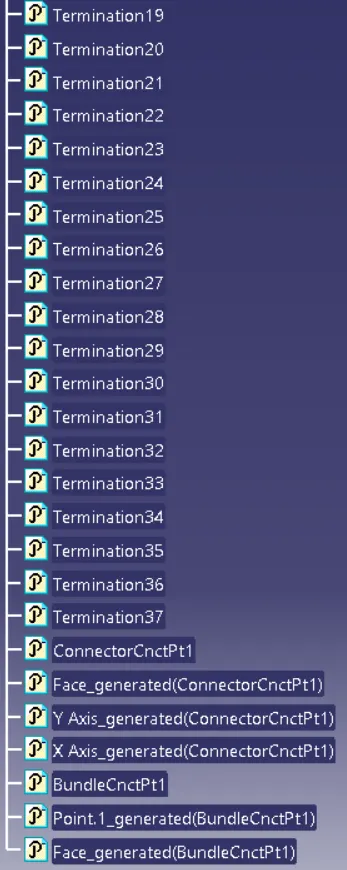
Tree Structure :
Step-4:
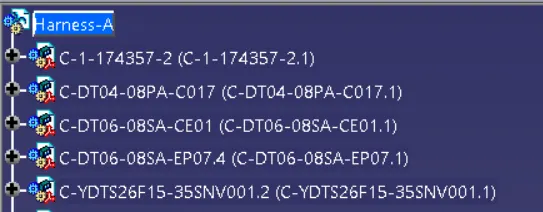
- Add the all connectors which are electricaly defined to the Geomteric bundle assembly.
- Navigate to Electrical Harness Assembly and determine geometric bundle to the assembly.
Step-5:
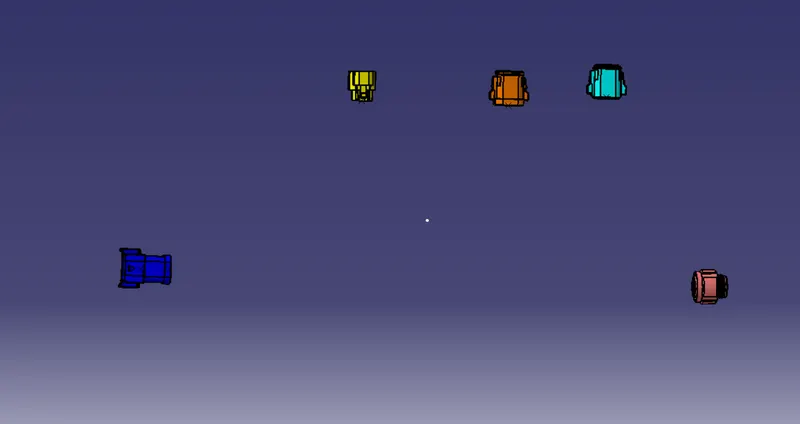
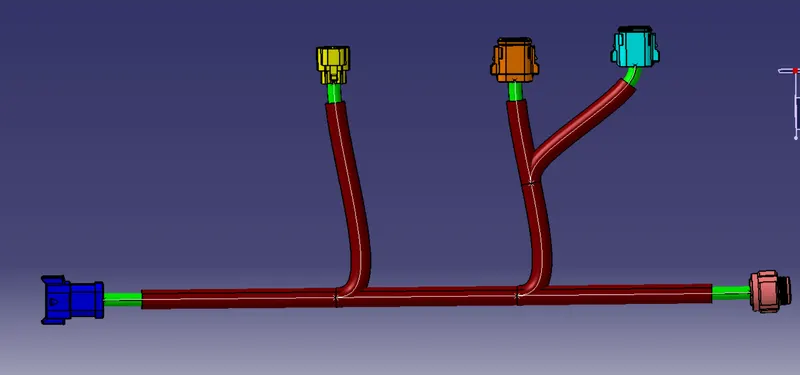
- Position the connectors as per the given Diagram:
Step-6:
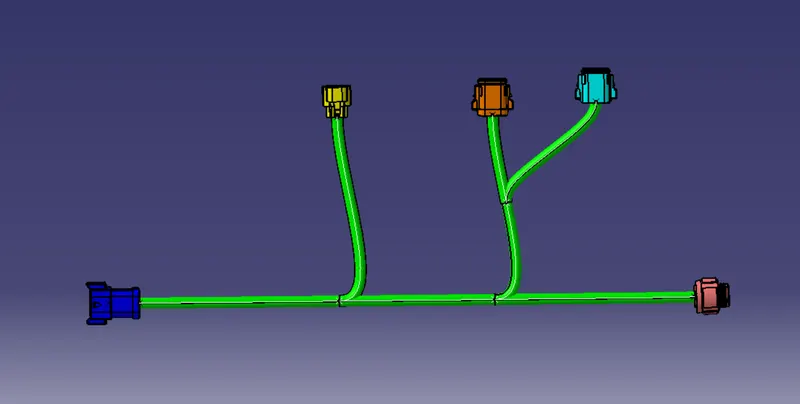
- Create the wire harness bundle segments:
- Click on Branch defination and then click on route definition and select connectors in between we want to create branch.
Step-7:
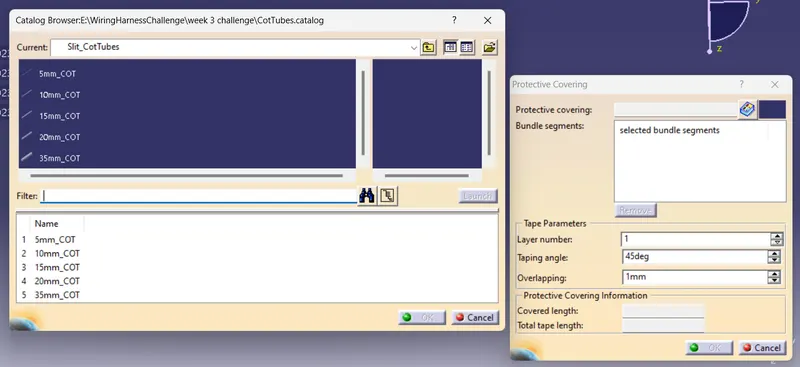
select protective covering then select branch - select catalog - select approprite slit cot tubes - give extrimity at start and end (30mm) :
CONNECTIVITY CHECK :-
Tree Structure:
Harness-B:
1.C-DT06-08SA-CE13:
Step-1:
- Download the connector Parts and open in Catia V5 Software
Connector side:
- Create Midpt and axis for the connector side
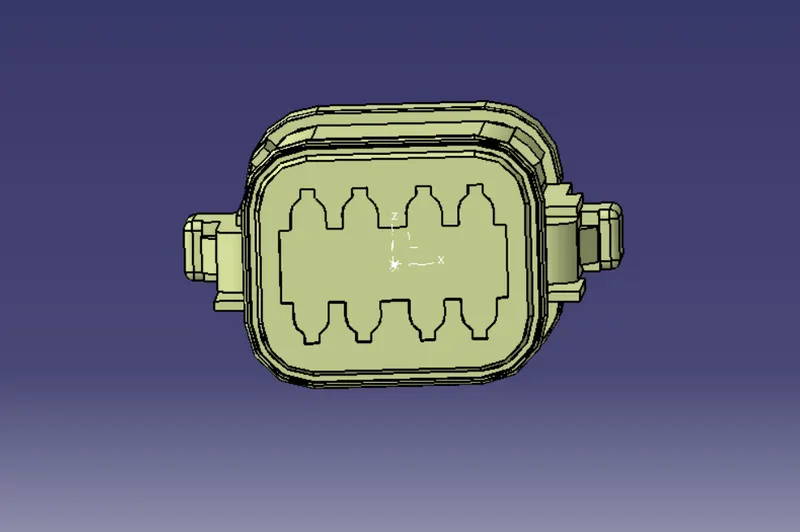
Bundle side:
- Create Midpt for the bundle side
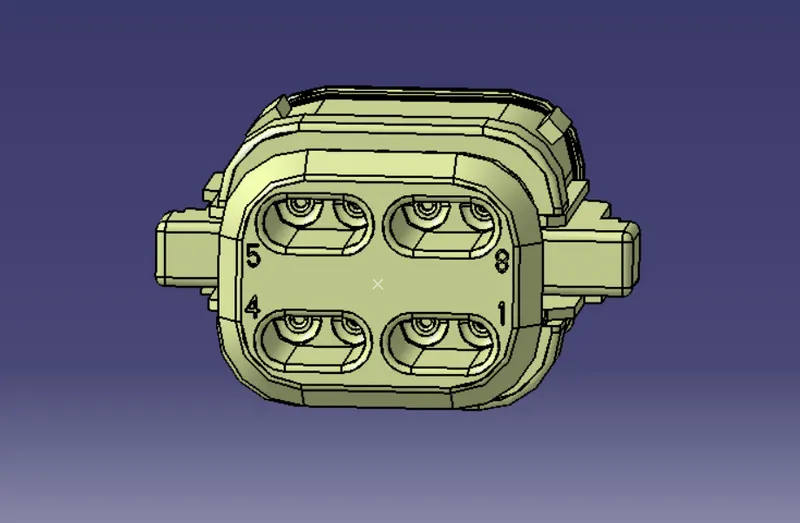
Step-2:
- Navigate to Electrical part design workbench and define the part as connector
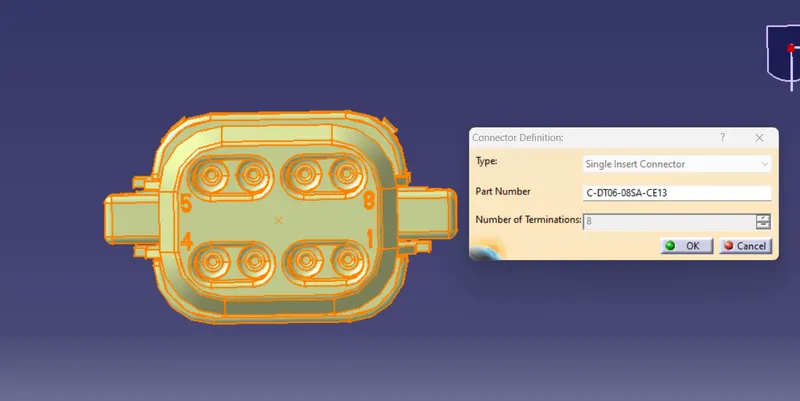
Step-3:
- Define the connector connection pt and bundle connection pt
Connector Connection Point:
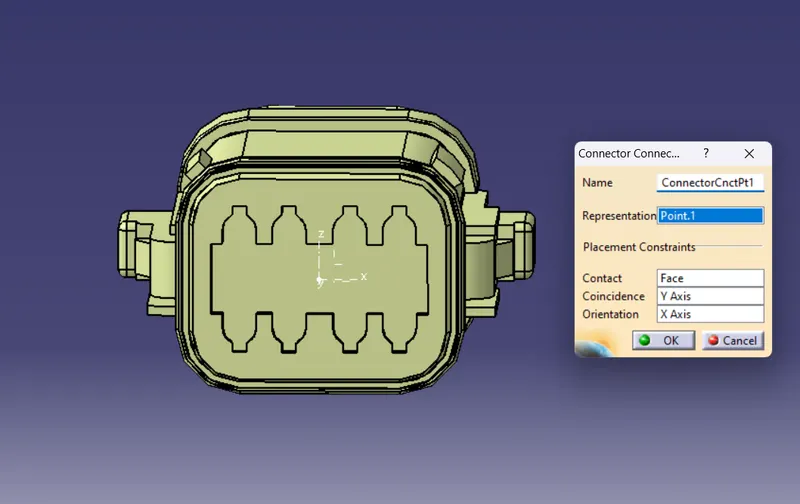
Bundle Connection Point:
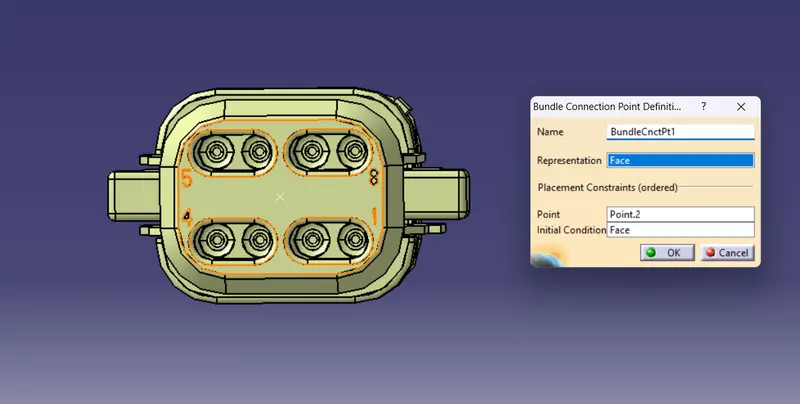
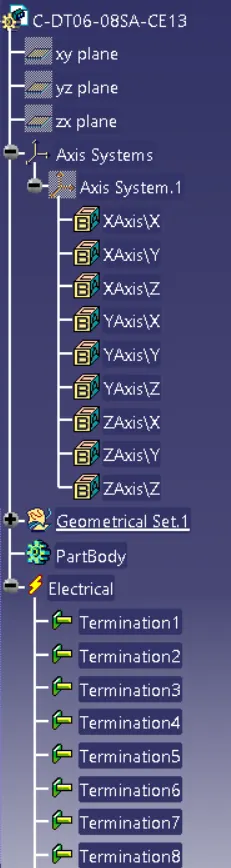
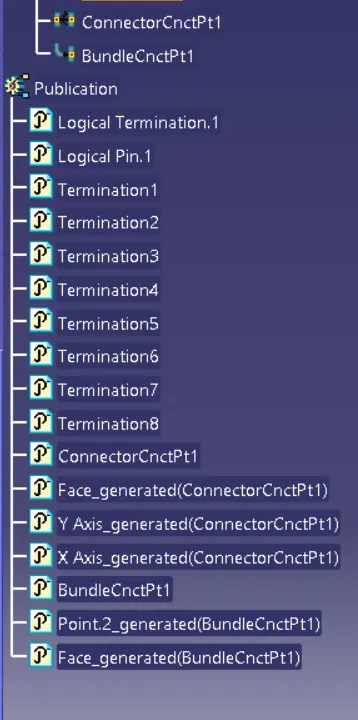
Tree Structure :
2. C-DT06-08SA-CE04 :
Step-1:
- Download the connector Parts and open in Catia V5 Software
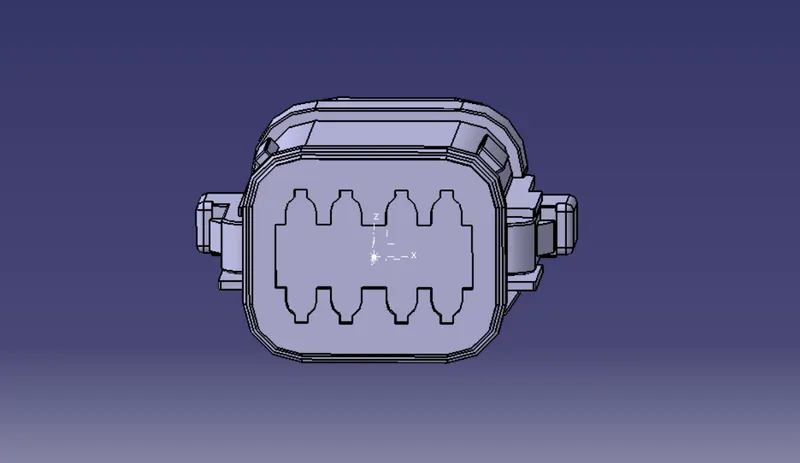
Connector side:
- Create Midpt and axis for the connector side
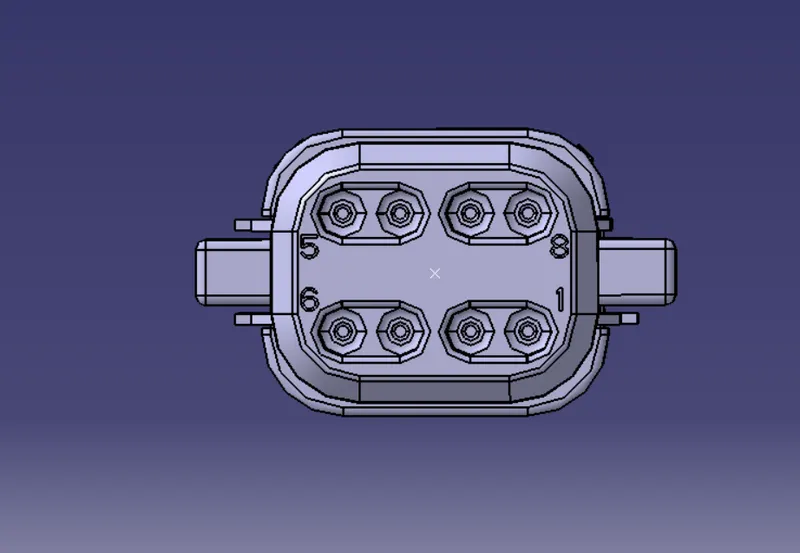
Bundle side:
- Create Midpt for the bundle side
Step-2:
- Navigate to Electrical part design workbench and define the part as connector
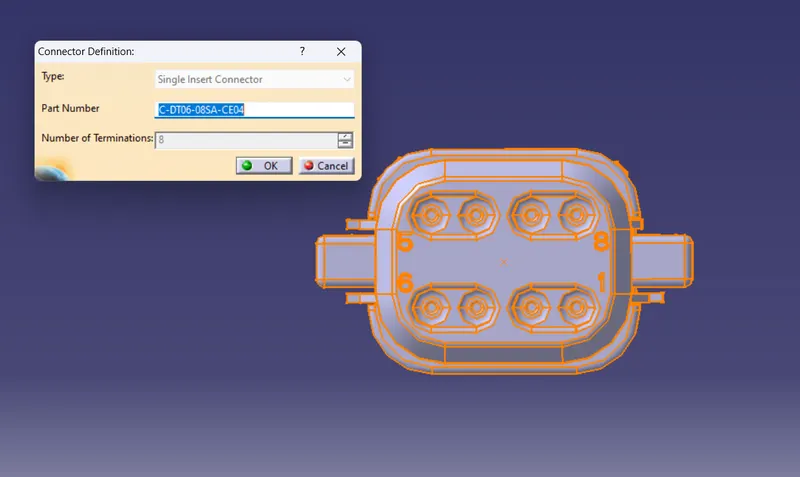
Step-3:
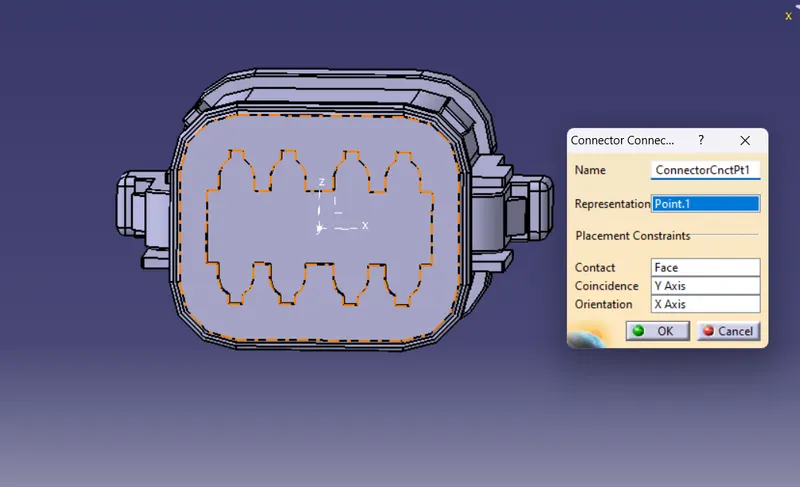
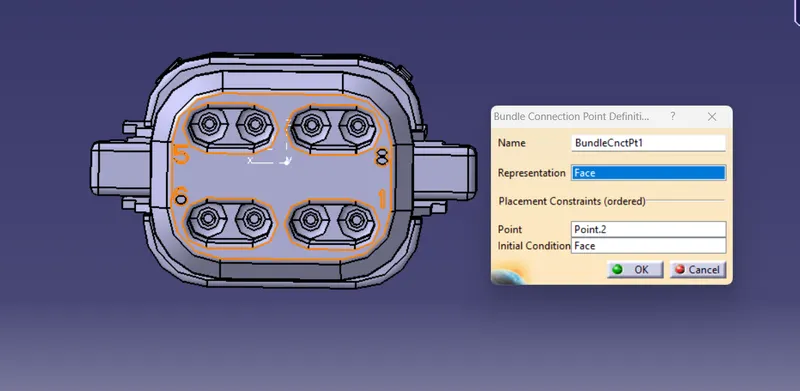
- Define the connector connection pt and bundle connection pt
Connector Connection Point:
Bundle Connection Point:
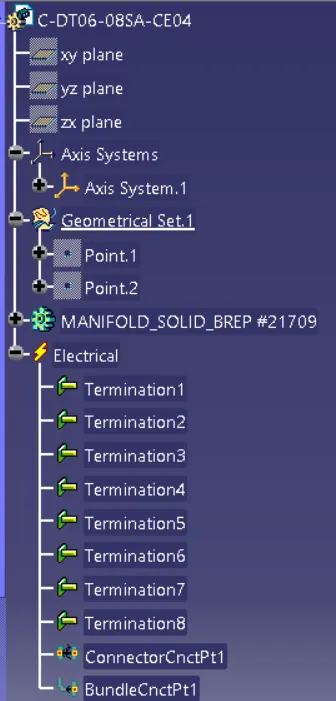
Tree Structure :
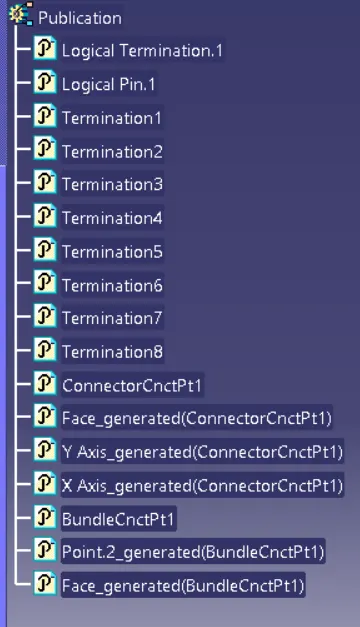
3.C-DT06-3S-CP01:
Step-1:
- Download the connector Parts and open in Catia V5 Software
Connector side:
- Create Midpt and axis for the connector side
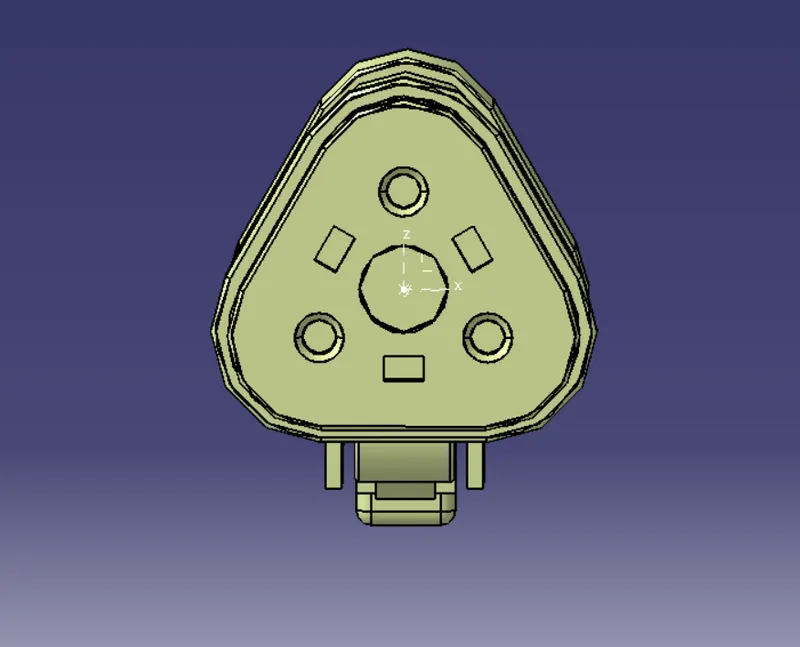
Bundle side:
- Create Midpt for the bundle side
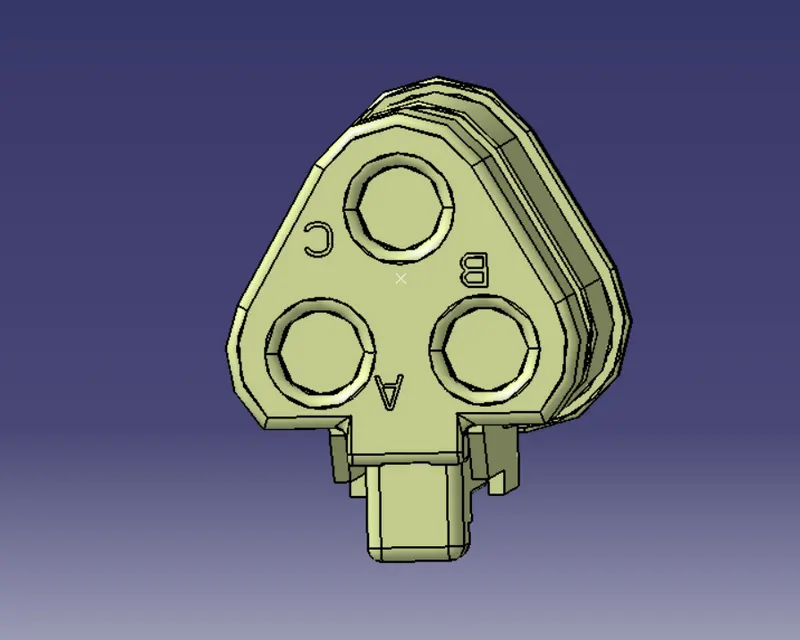
Step-2:
- Navigate to Electrical part design workbench and define the part as connector
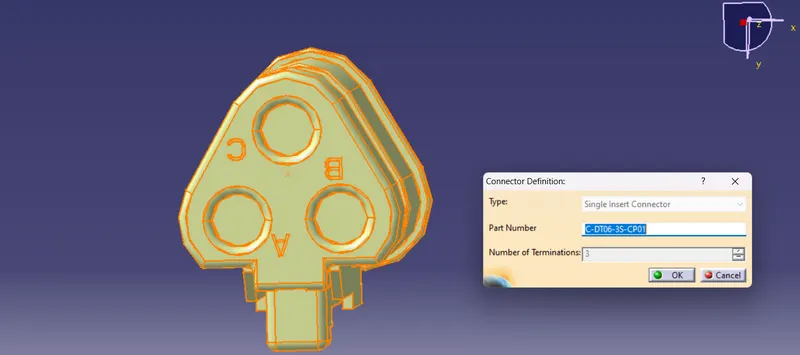
Step-3:
- Define the connector connection pt and bundle connection pt
Connector Connection Point:
Bundle Connection Point:
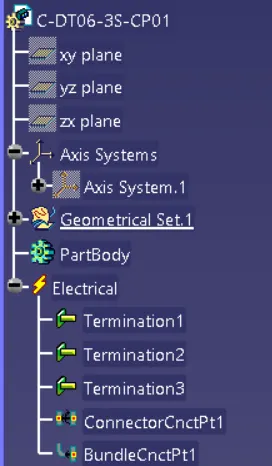
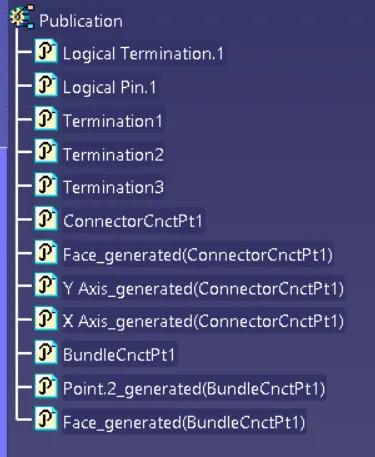
Tree Structure :
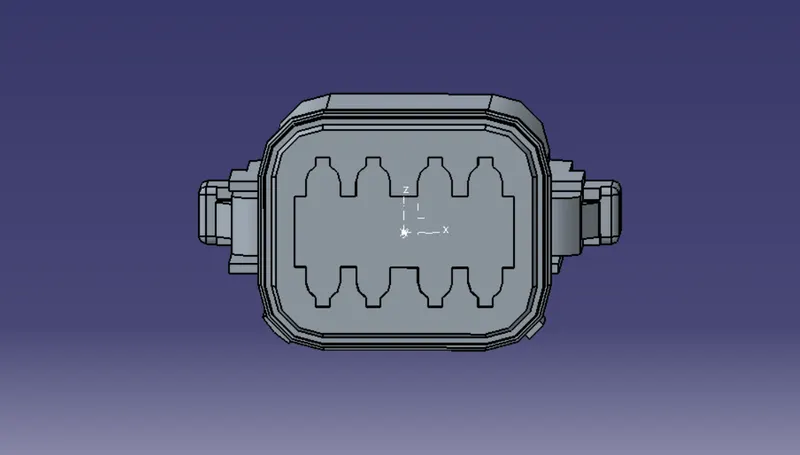
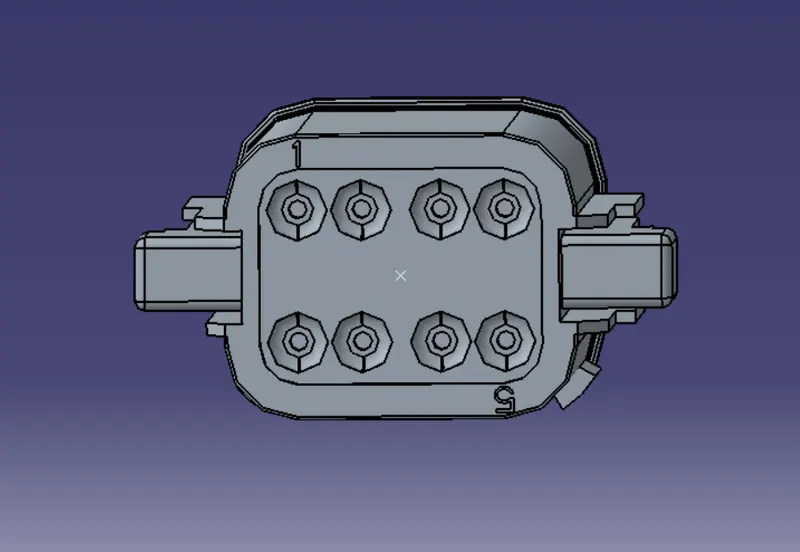
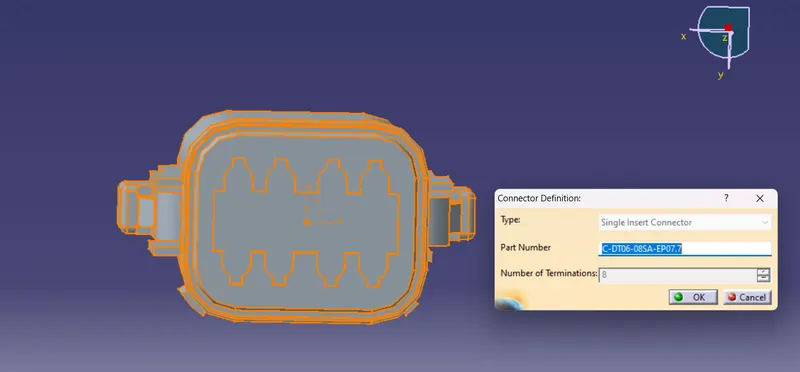
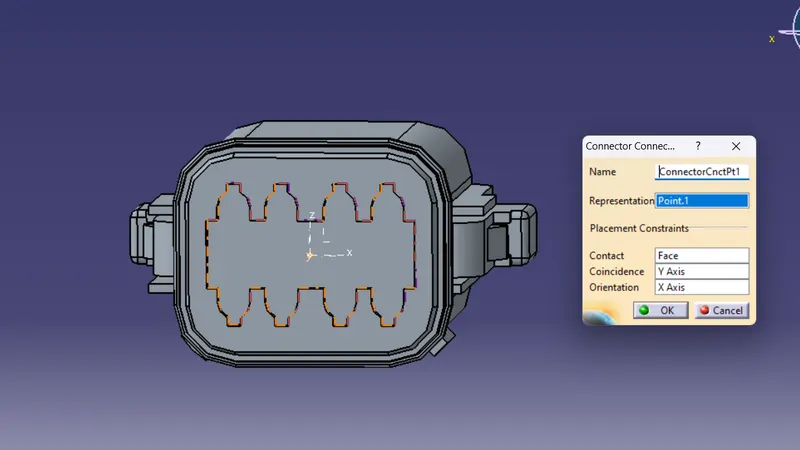
4.C-DT06-08SA-EP07:
Step-1:
- Download the connector Parts and open in Catia V5 Software
Connector side:
- Create Midpt and axis for the connector side
Bundle side:
- Create Midpt for the bundle side
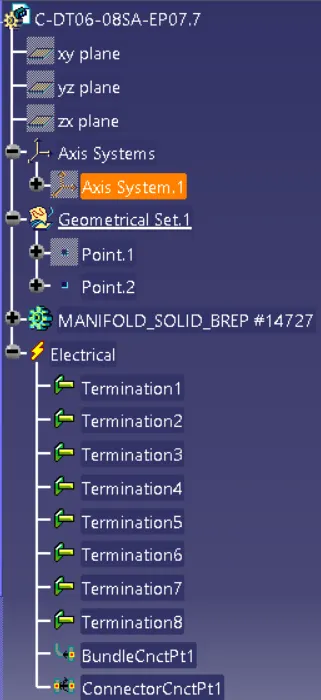
Step-2:
- Navigate to Electrical part design workbench and define the part as connector
Step-3:
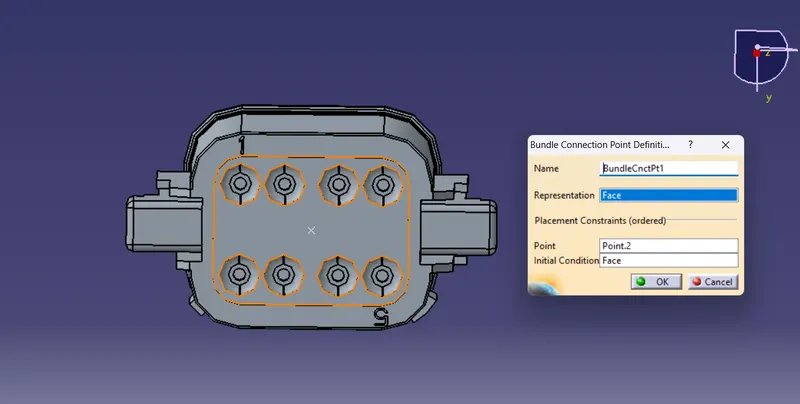
- Define the connector connection pt and bundle connection pt.
Connector Connection Point:
Bundle Connection Point:
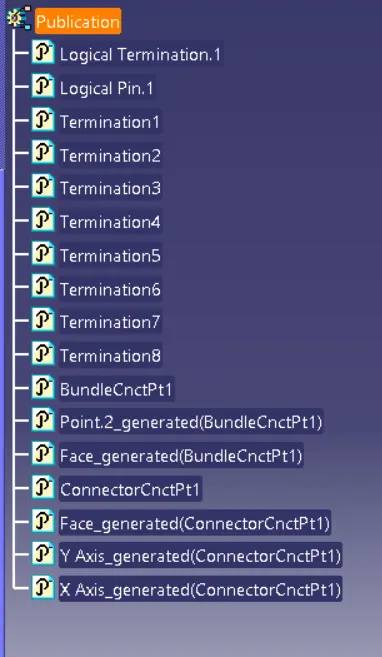
Tree Structure :
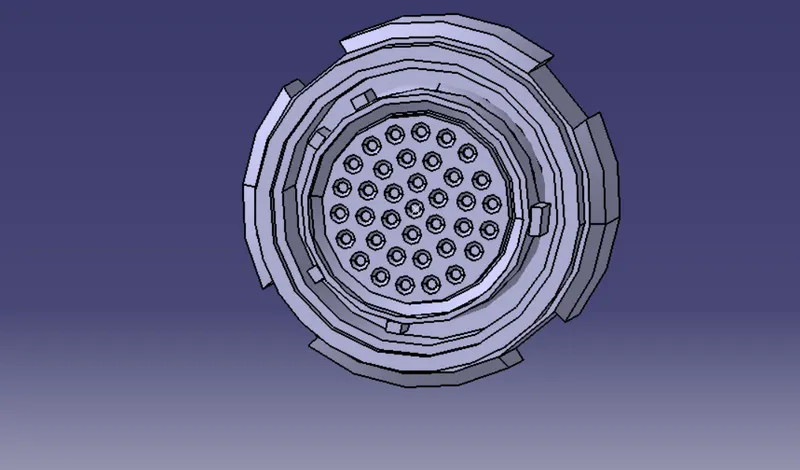
5.C-YDTS26F15:
Step-1:
- Download the connector Parts and open in Catia V5 Software
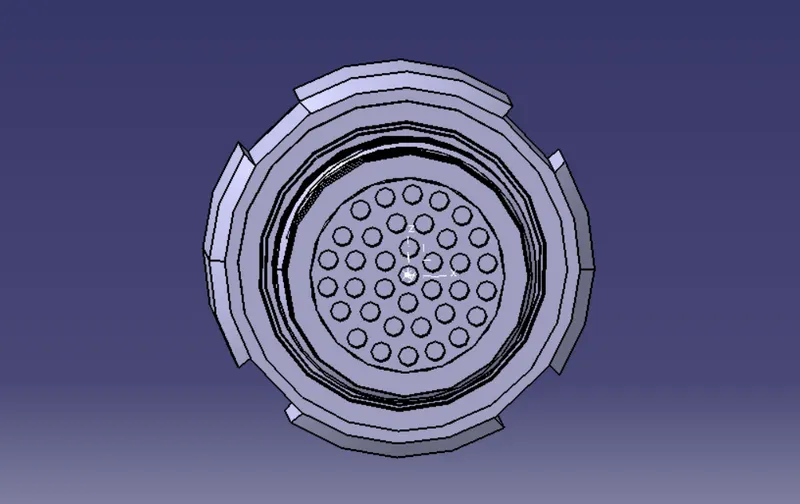
Connector side:
- Create Midpt and axis for the connector side
Bundle side:
- Create Midpt for the bundle side
Step-2:
- Navigate to Electrical part design workbench and define the part as connector
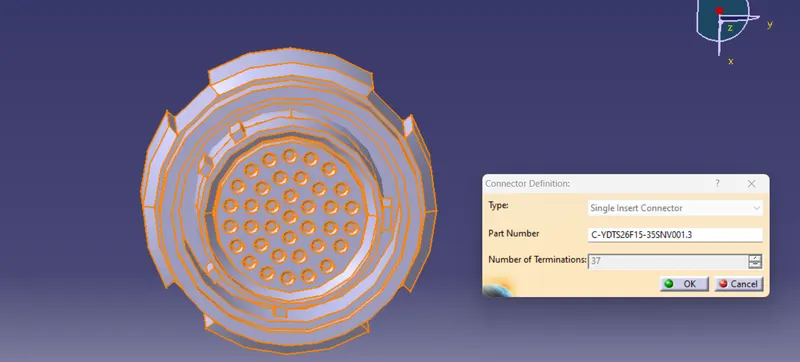
Step-3:
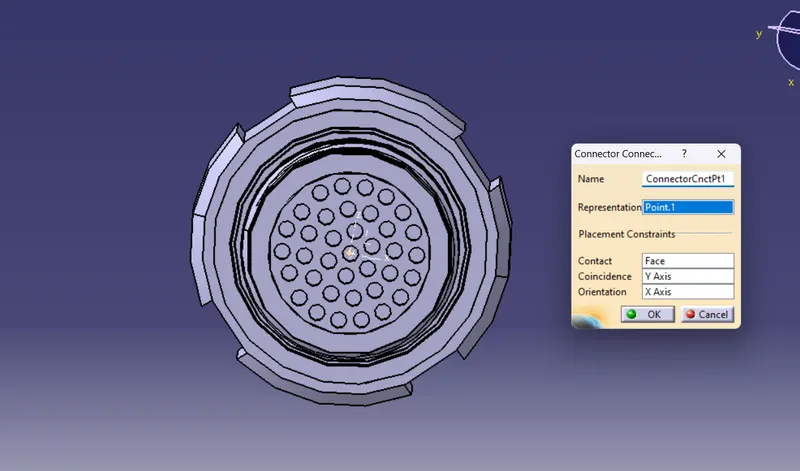
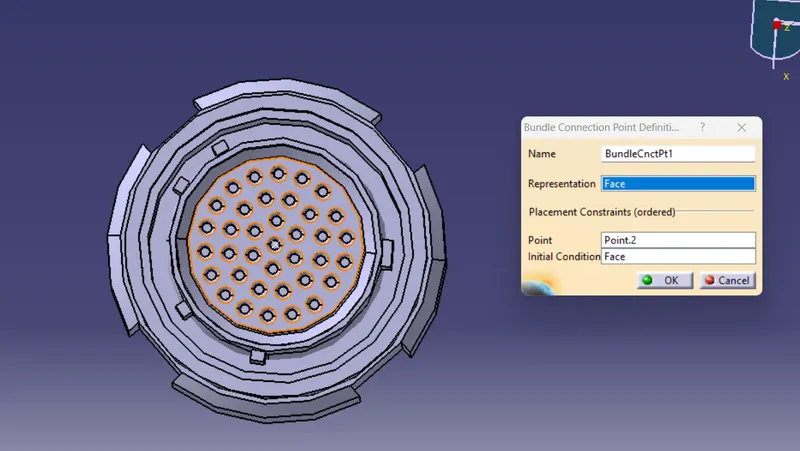
- Define the connector connection pt and bundle connection pt
Connector Connection Point:
Bundle Connection Point:
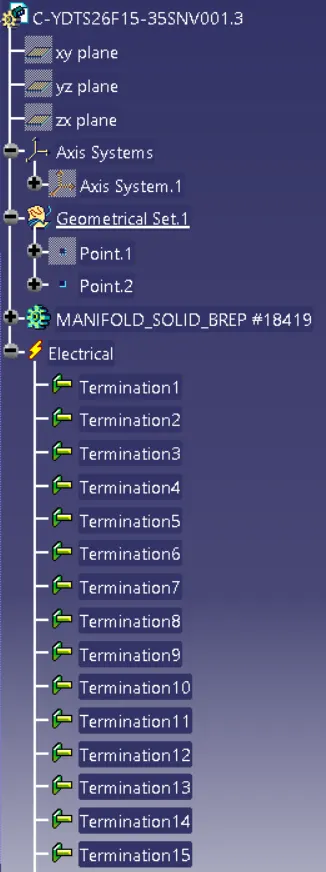
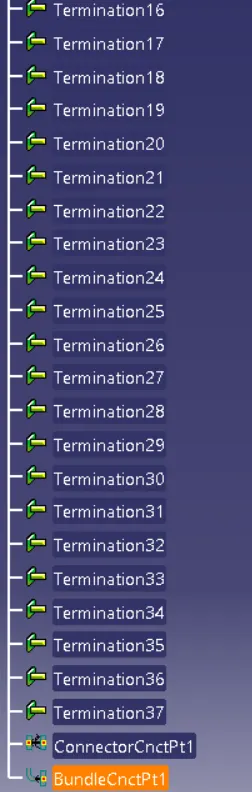
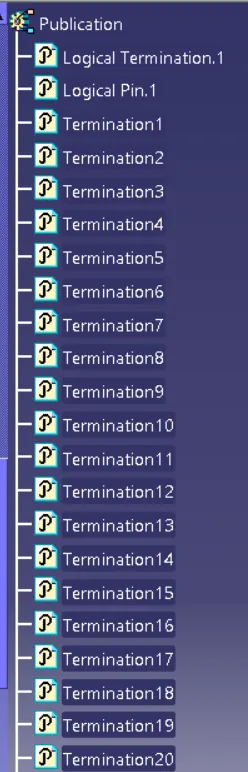
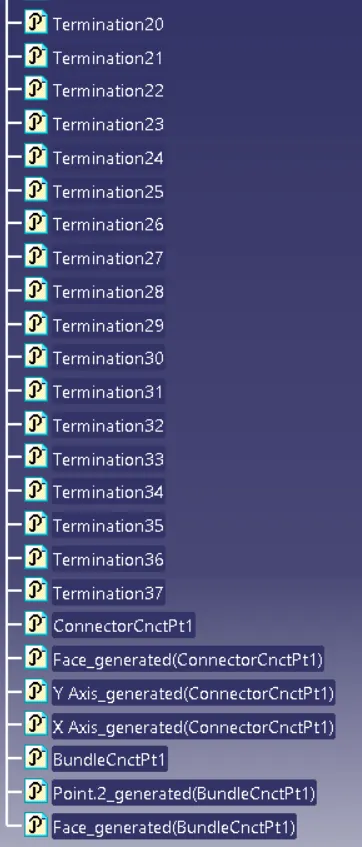
Tree Structure :
Step-4:
- Add the all connectors which are electricaly defined to the Geomteric bundle assembly.
- Navigate to Electrical Harness Assembly and determine geometric bundle to the assembly.
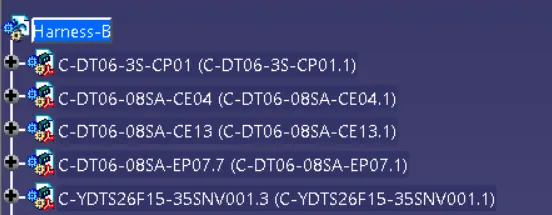
Step-5:
- Position the connectors as per the given Diagram:
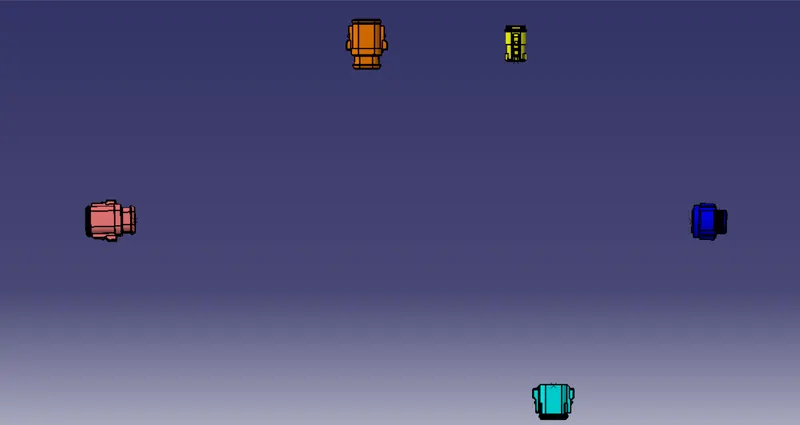
Step-6:
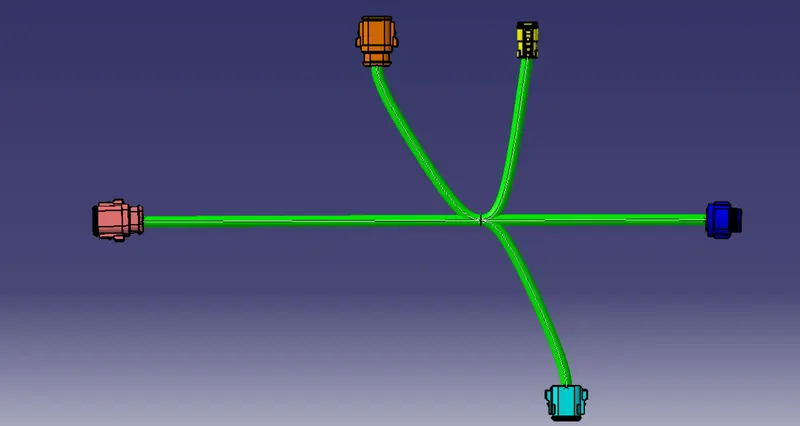
- Create the wire harness bundle segments:
- Click on Branch defination and then click on route definition and select connectors in between we want to create branch.
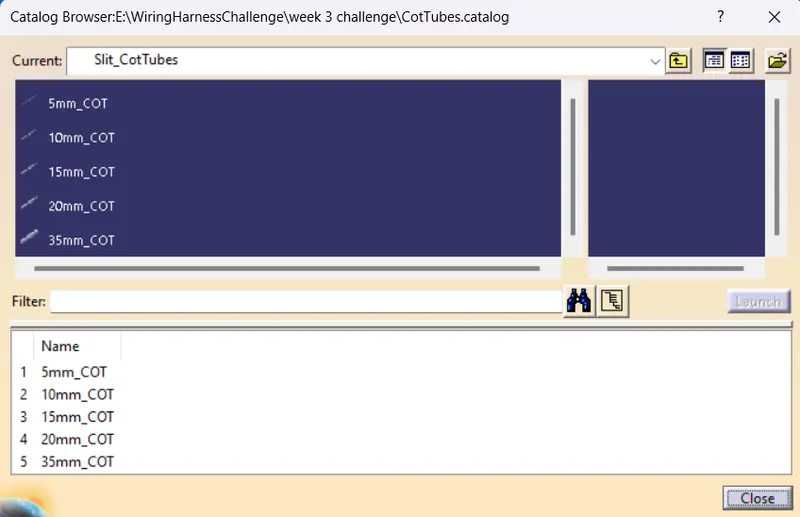
Step-7:
- select protective covering then select branch - select catalog - select approprite slit cot tubes - give extrimity at start and end (30mm) :
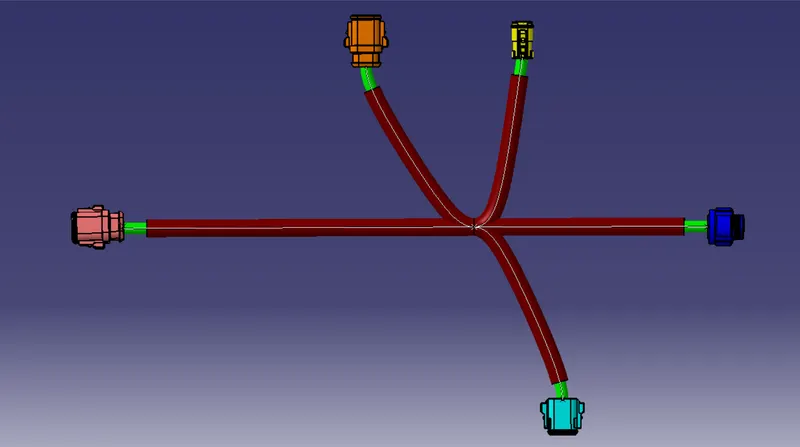
CONNECTIVITY CHECK :-
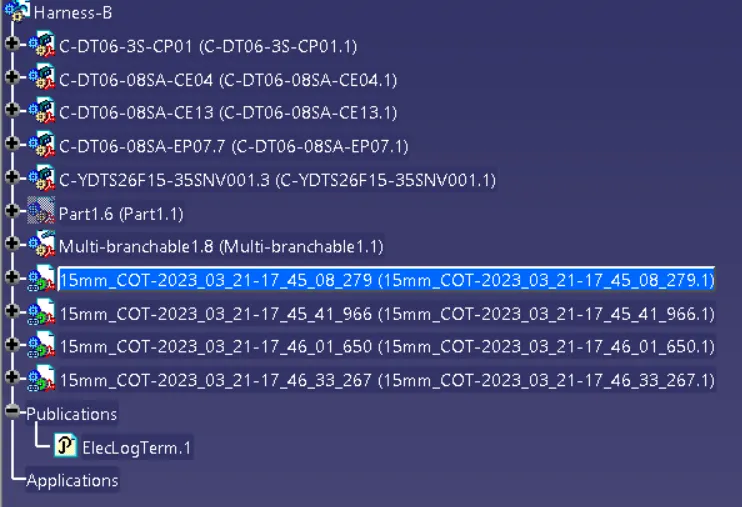
Tree Structure:
CONNECTIVITY ERROR:-
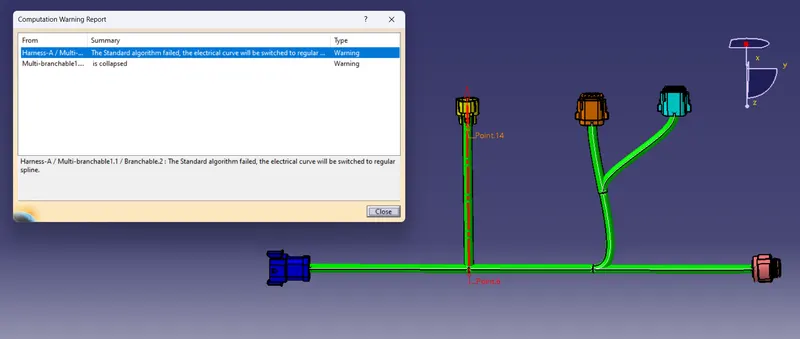
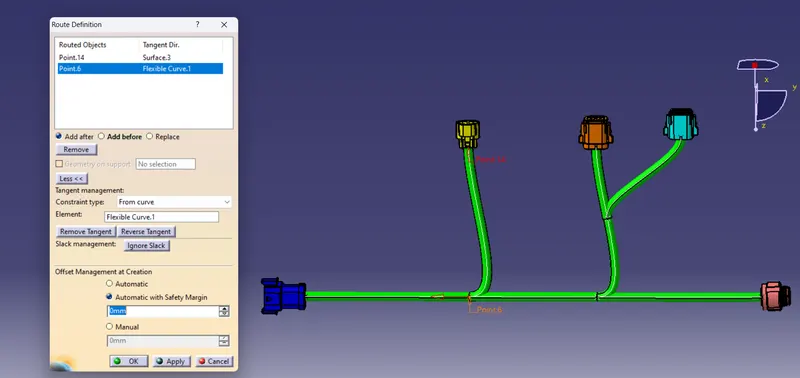
- When Error found in the Geometrical Tree,Solve the resolution of bundle ,Change direction or add slack%,and change connector direction.There are many options to resolve the error as per the requirment it must be changed.
- make sure to update the required changes .
HARNESS ASSEMBLY:-
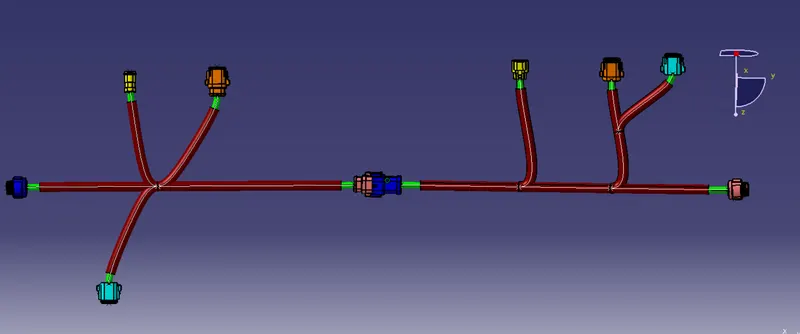
CONNECTIVITY CHECK :-
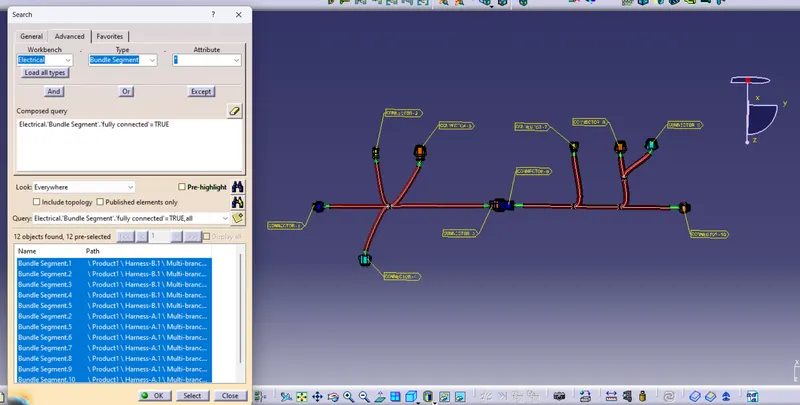
ANNOTATIONS:-
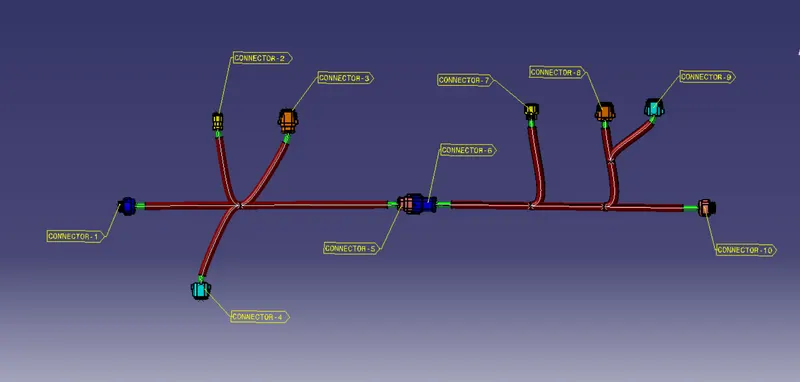
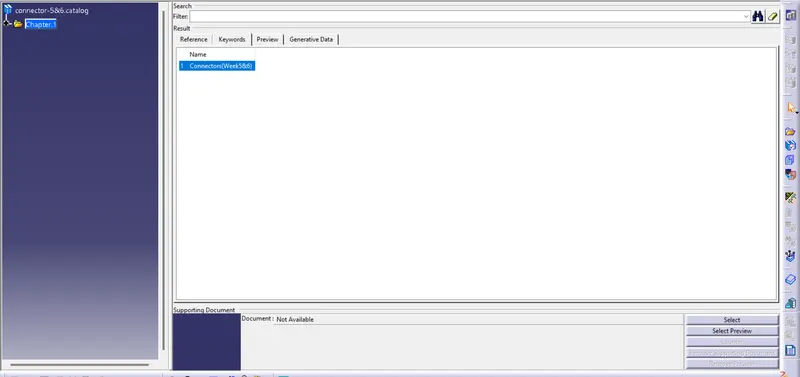
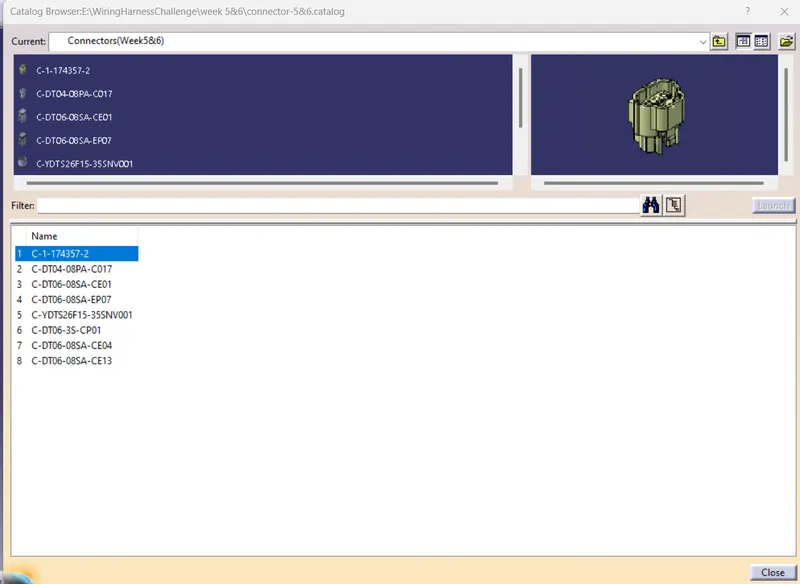
Catalogue Document of Connectors: