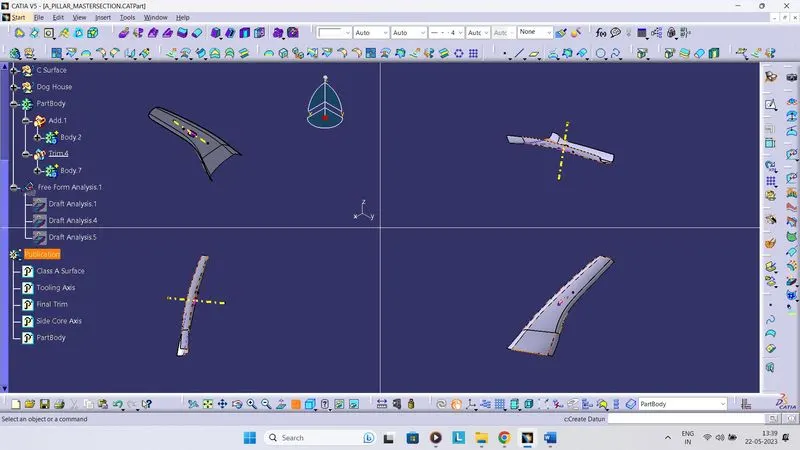
Week 11 - Project - A pillar Design with Master Section
Step 1: Creation of Tooling Axis
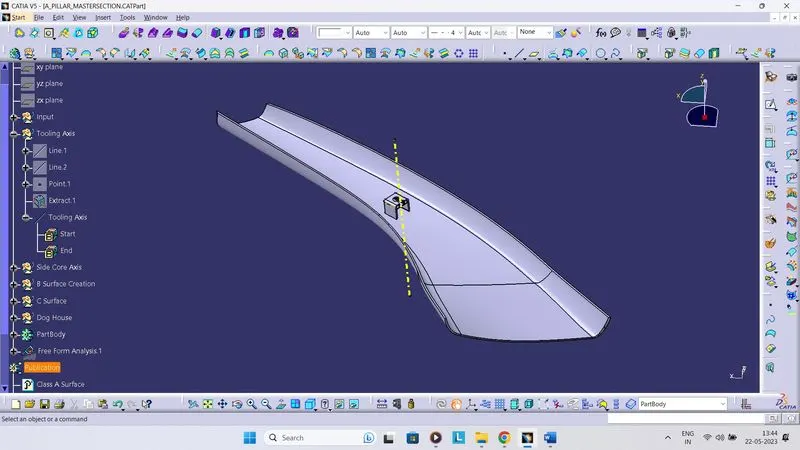
The Tooling Direction is the direction in which mould pulls a part. The mould is built with two unconnected parts named as Core and Cavity. The Core and the Cavity are pulled apart along the Tooling Axis in the Tooling Direction.
- For the given input check the best possible tooling direction.
- Extract the lines from master section and use bisecting lines to generate tooling axis.
- Bisecting Line were used to get the exact medium from the two lines so that maximum positive draft angle can be achieved.
Tooling Axis
Step 2: Performing the Draft Analysis
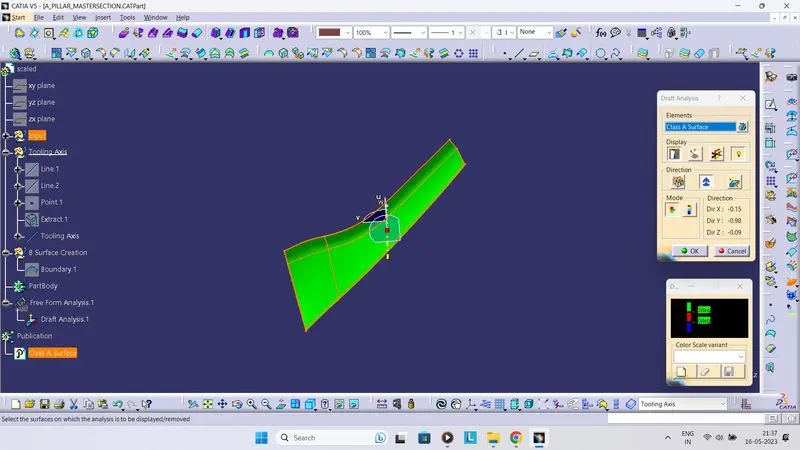
The draft analysis technique is used to analyse whether the part model created in CAD is manufacturable or not based on the draft condition applied. This type of analysis is performed on the basis of colour. Different colours identify different zones on the analyzed element. On the basis of colour deviation from the draft direction at any point can be visualized and if necessary, the main component could be adjusted. It can correspond to specified values which are pre-defined.
- For performing the draft analysis check the customized view parameter and under mesh select material.
- For draft analyses use the compass to define the draft direction.
- In the colour scale make the draft angle to 30 for performing draft analyses.
- If the component changes to green it indicates of passing draft angle.
- The Draft Analysis is complete now.
Draft Analysis Class A Surface
Step 3: Creation of Class B Surface
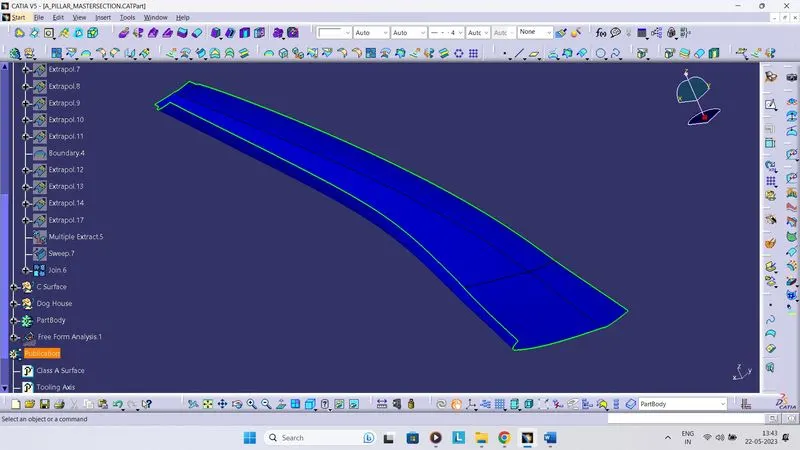
- For generating the Class B Surface offset the Class A Surface for the value of 2.5 mm.
- Complete the Class B Surface using sweep, join and trim command.
- Extrapolate the Class B surface as necessary so that it gets trim with the join of Class A & C surface.
Class B Surface
Step 4: Creation of Class C Surface
- Create the boundary of the Class A Surface using boundary command.
- By using Sweep command create C Surface using 30 as draft angles.
- Join the Class A & C surface properly checking for any gaps.
- If there are gaps extrapolate Class A Surface and Sweep both sides and trim them.
- This trim is the Class A and C Surface.
- Extrapolate the surface if necessary to perform trim.
- After getting the output trim it with class B surface to get final output.
- Create the solid component by switching to part design workbench and using close body surface.
Class A and C Surface
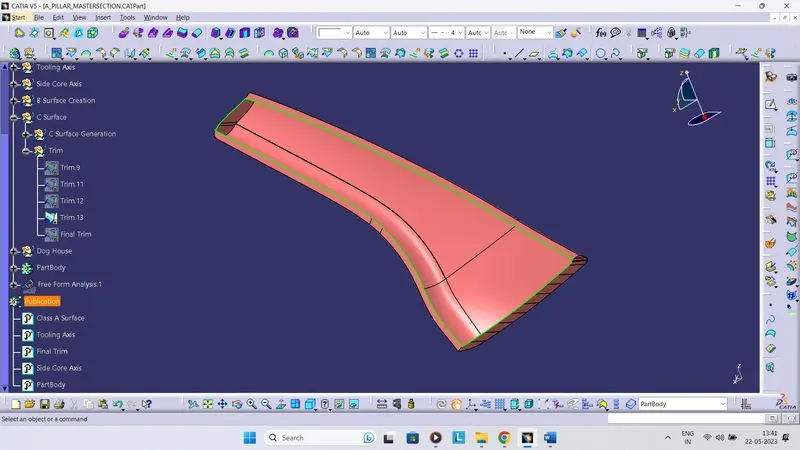
Final Trim
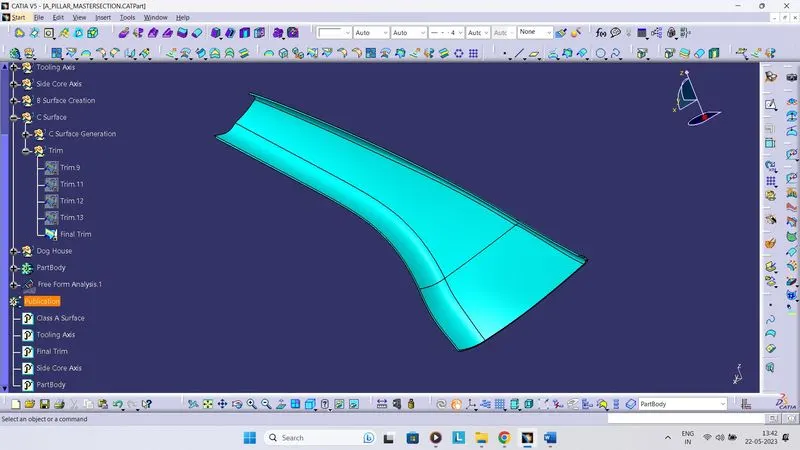
Closed Body
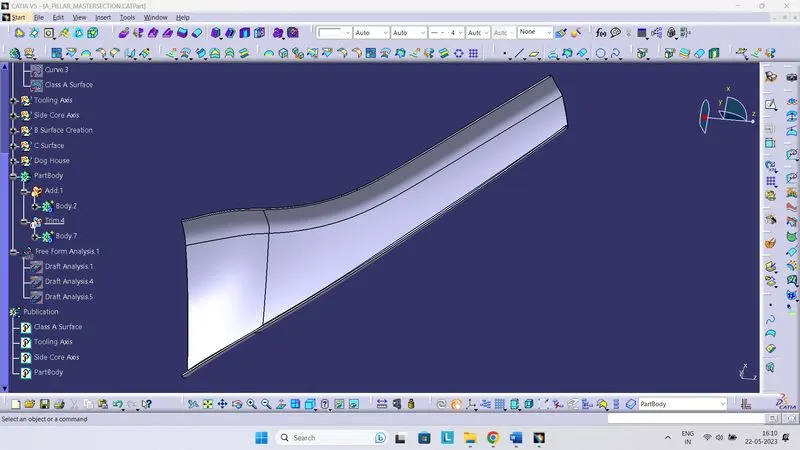
Step 5: Creation of Side Core Axis
- Create a line along the perpendicular direction of tooling axis.
- Use the points from the given inputs of master section.
- This is side core tooling axis which will be used for giving draft for the dog house.
Side Core Axis
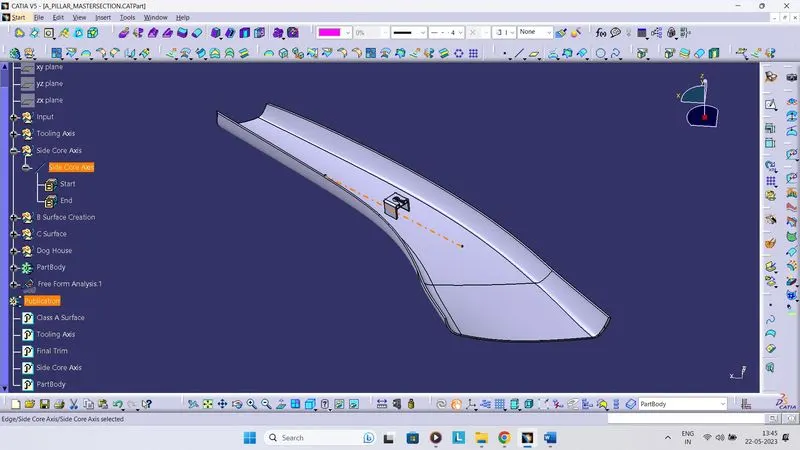
Step 6: Creation of Dog House
- Create the drawing for dog house and give proper constraints to make it Iso-constraint.
- Sweep the dog house for draft angle of 1.50 and use thick surface to make dog house.
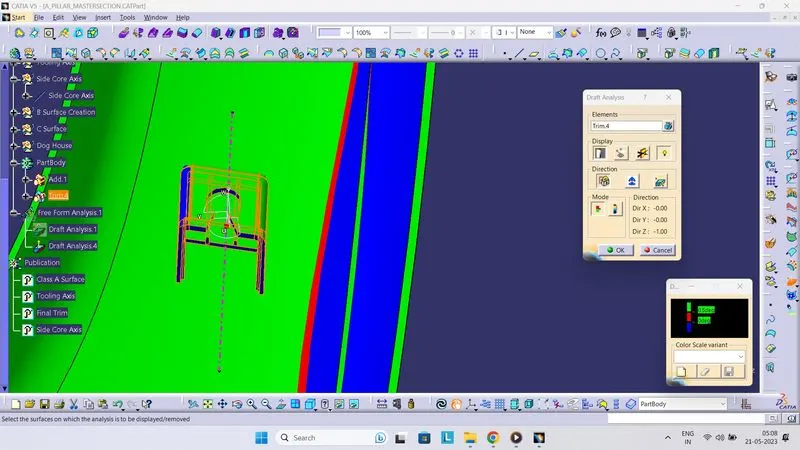
- Perform split give final Draft value using pulling direction as side core axis and fillet on the dog house.
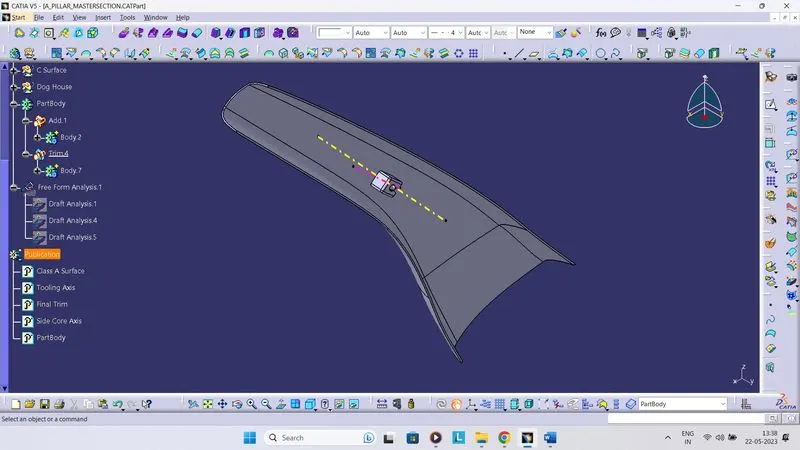
- Union Trim the Dog House with the main body to get final output.
Dog House Drawing
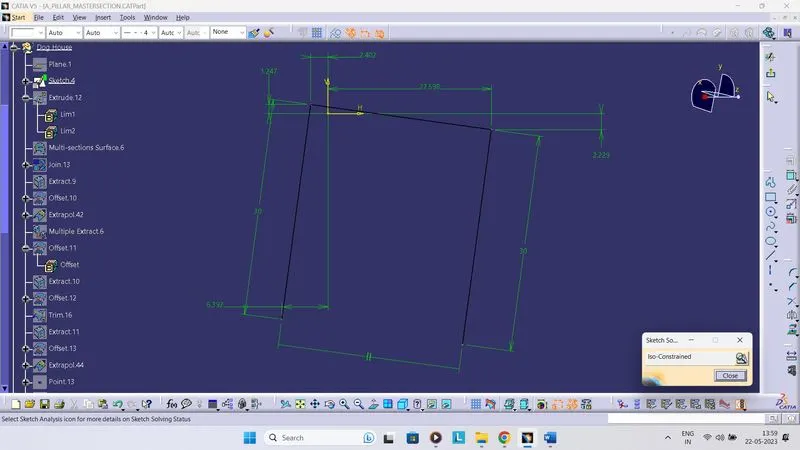
Dog House Drawing Spline 1
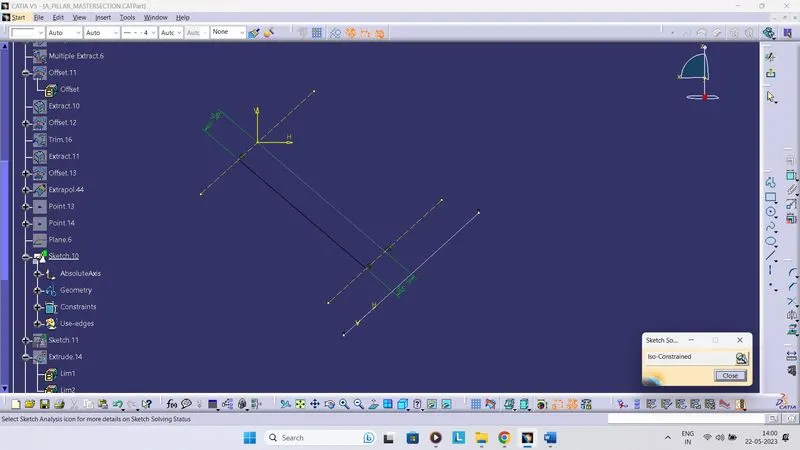
Dog House Drawing Spline 2
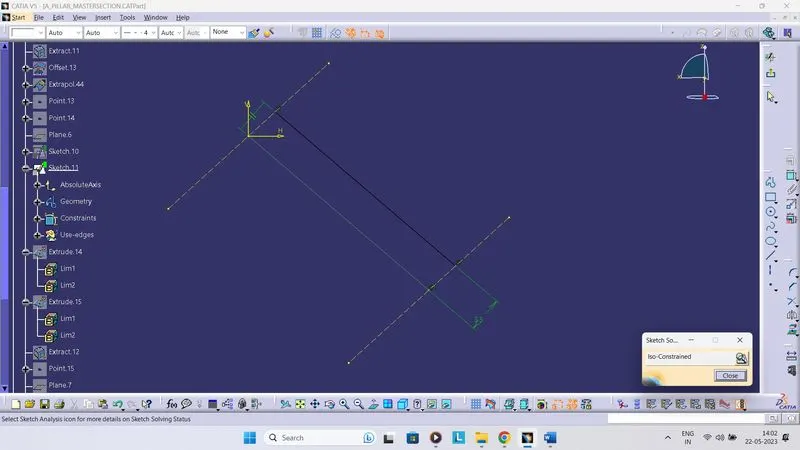
Dog House Uppercut Drawing
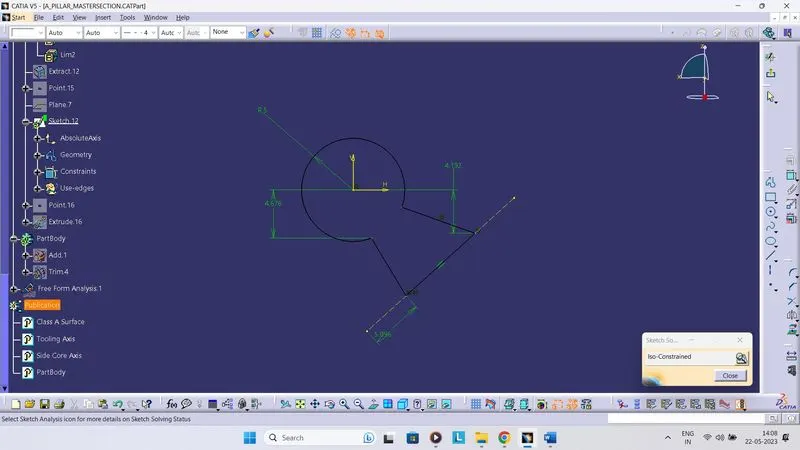
Draft Analysis for Dog House
Isometric View
Multi View