Week 8-3D Tetra Meshing Challenge
Week 8-3D Tetra Meshing Challenge
- Component 1
Aim- Create a Teramesh for Housing component with the following quality criteria and 2D to 3D Conversion for given condition.
Procedure-
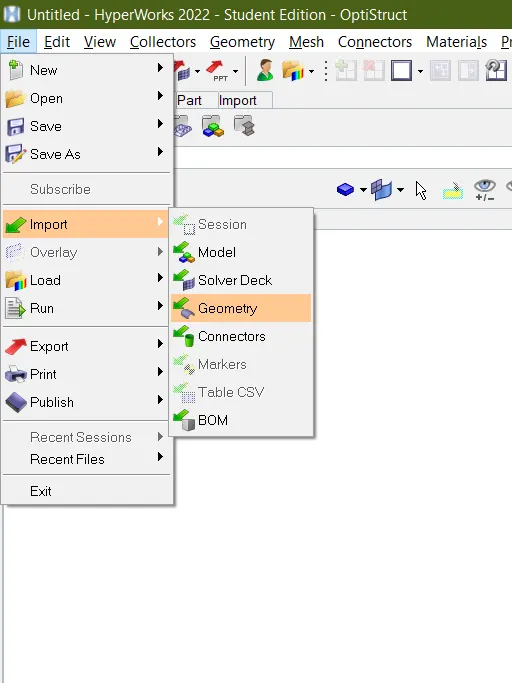
1) Import CAD model:-
this cad model file in .Stp so that import this file by using option (File>Import>Geometry>select CAd model>import)
the cad model look like in below image-
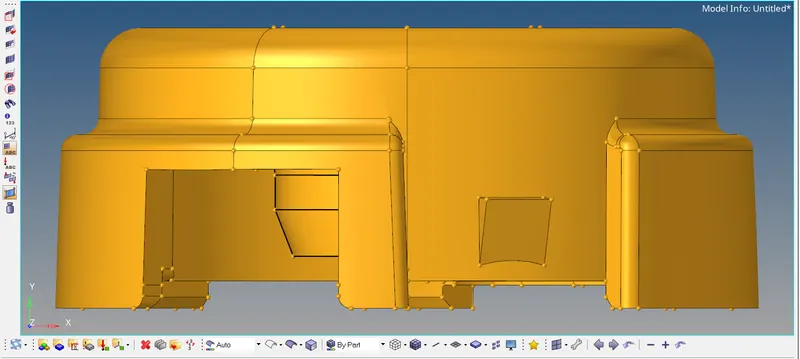
After import the model provided CAD model of consisting of Two components given below-
1) Hub.
2) Outer cover.
1) Hub:- 2D to 3D Convert.
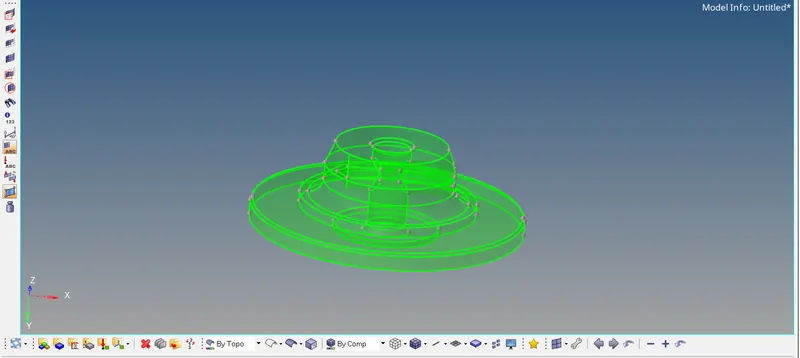
First delete solid part by using (Delete>Solid>Display>Delete entity)
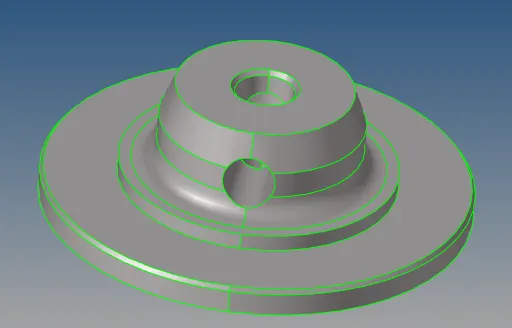
For this component do the 2D mesh as per the given condition.
(2D>Automesh>Surfs>Display>Elemitnt size_5>Mesh type_Trias>Mesh)

mension the target element size is 5 and select the mesh type as trias. select the surface and mesh the given componen
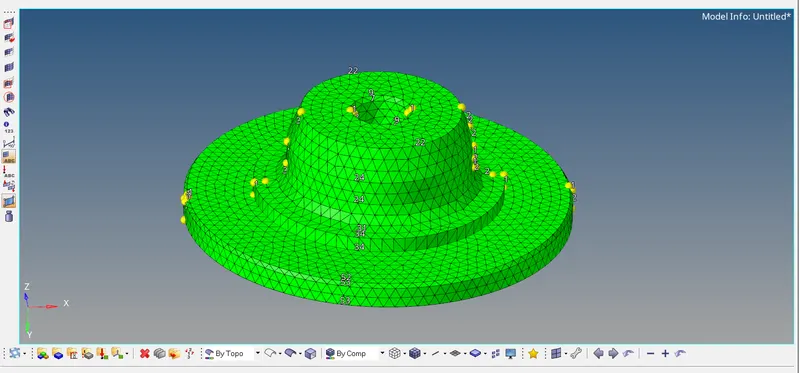
Once 2d creeated than convert this 2d into 3d by using (3D>Tetra Mesh>2dElement>Display>mesh)

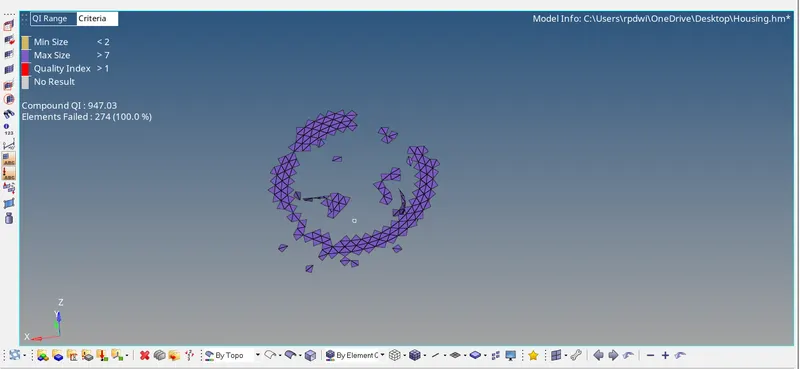
After converting as showing below image hear 274 Element failed show this by using (Tool>Check element>2D>enter value as 7 >Click Max size > save failed>Return>Press f5>select element by displayed>Mask>Reverse)
To elemenate this error by using following step;-
- using rebuild option (2d>Rebuild mesh)
- Decrise size of the element (Distance tool)
- Quality Index( 2D >Quality index > Element Optimize)
Below image with no error
Since we have 0 tet collapse failures, we can move on to the next component and repeat the process.
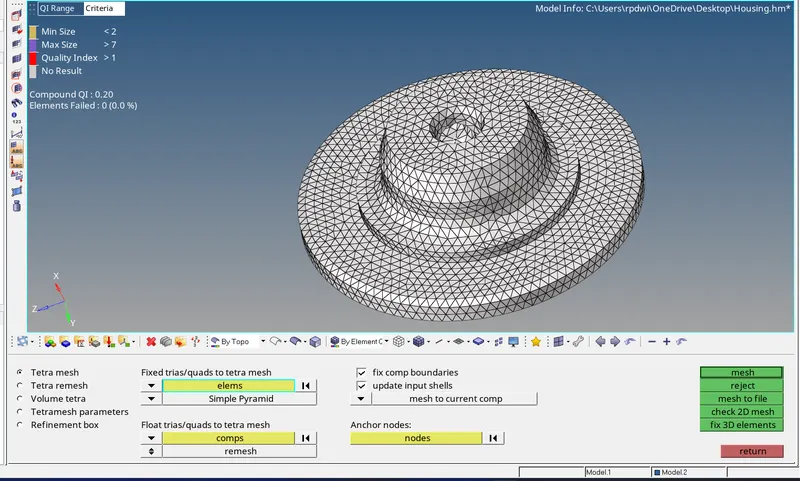
Final image with 3D Element Showing by using (F5/Mask>select element>Mask)
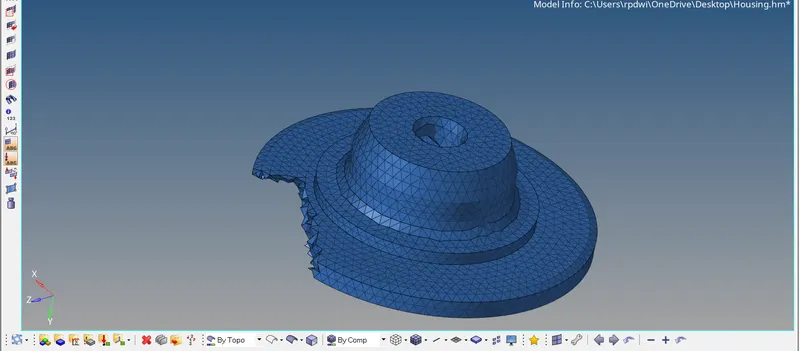
Outer cover-
- In the second component, there are certain areas where we can toggle unnecessary construction lines for better mesh.
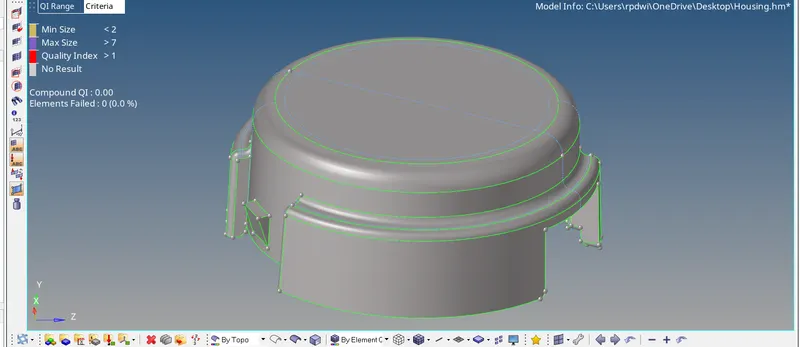
- After meshing with tria elements, we generate the volume and check for tet collapse of 0.15.
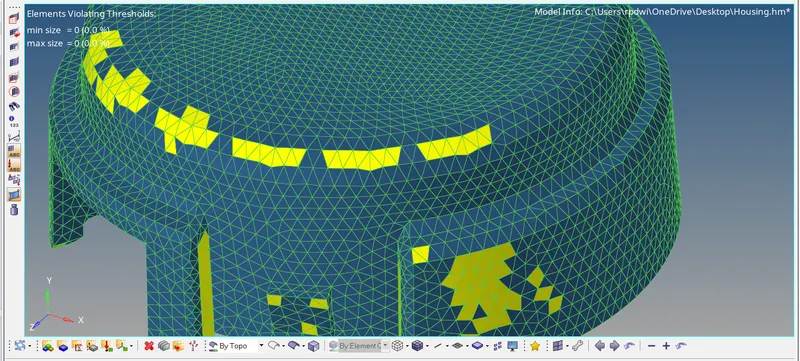
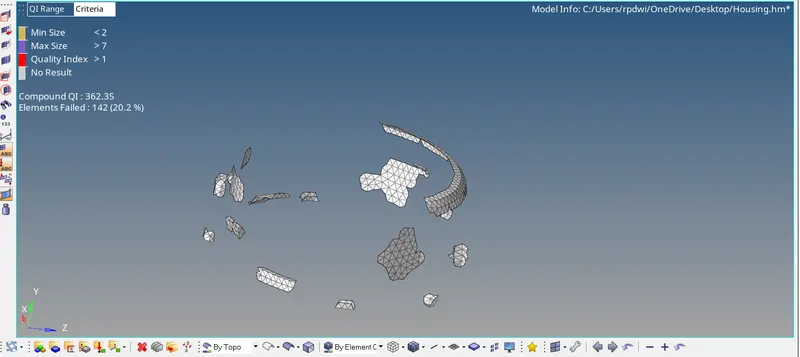
After converting as showing below image hear 142 Element failed show this by using (Tool>Check element>2D>Click faliour element> save failed>Return>Press f5>select element by displayed>Mask>Reverse)
Tetra With No error
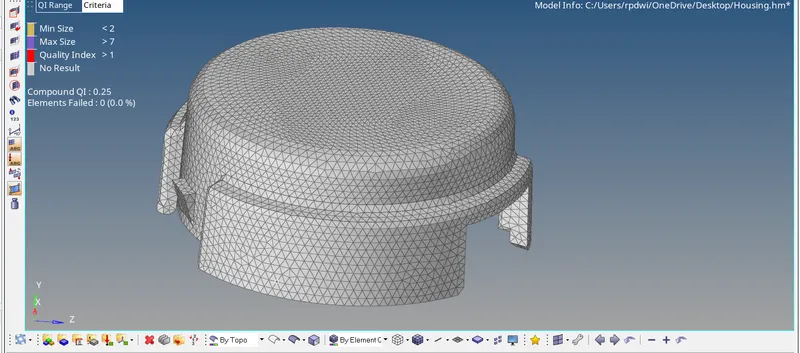
The final generated mesh is displayed below.
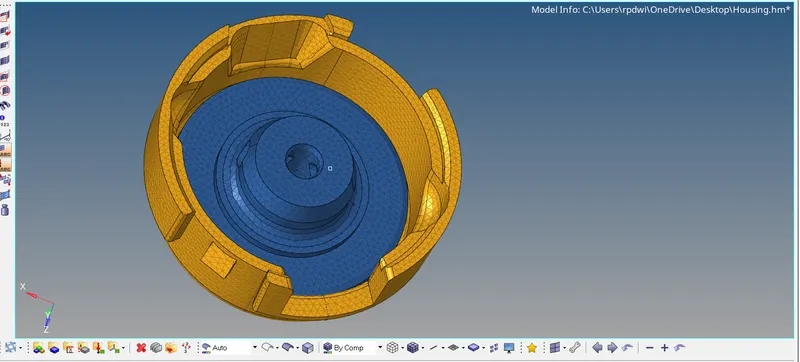
Model-2
Import CAD model:-
this cad model file in .Stp so that import this file by using option (File>Import>Geometry>select CAd model>import)
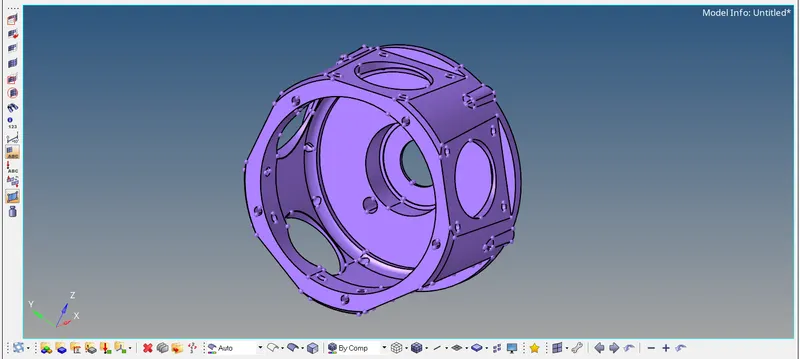
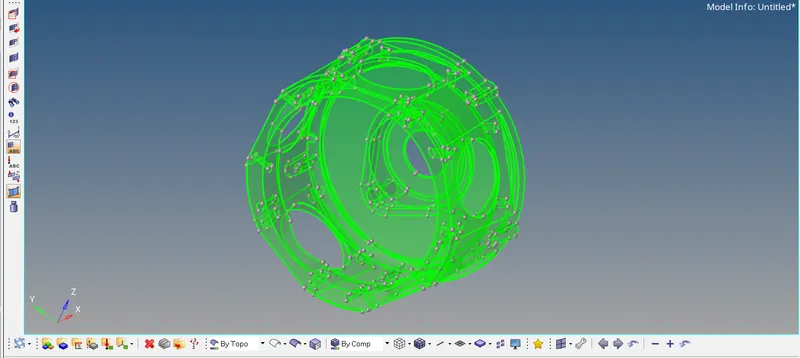
In the second model, we will perform Volume tetra mesh on the model.
by using this tool (3D>Volume tetra>Select Solid >Enter element size_3>2D_Trias>3D_Tetras>Tik_Use curvature and Use proximity>mesh)

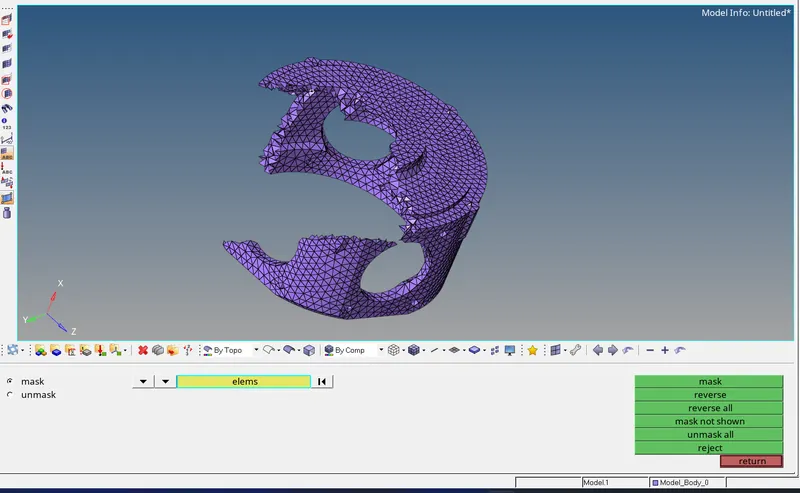
As below image Sowing 86 tet collapse elemenate this by using Tetra remesh
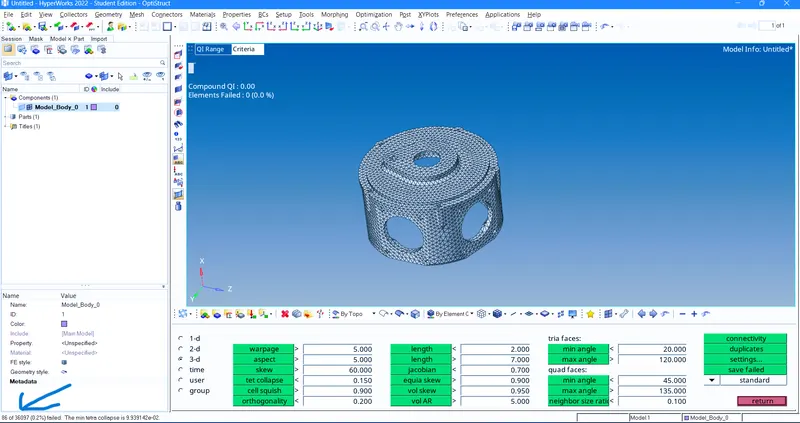
All the Operation NO tet collapse Present in this component Final image as below-
Model-3
In the Third model, we will perform quick tetra mesh on the model.
First we enable utility menu from (view->browsers->hypermesh->Utility>Gemo/mesh>Quick Tetra mesh)
In utitlity,select quick tetra mesh this opens it in a new tab.
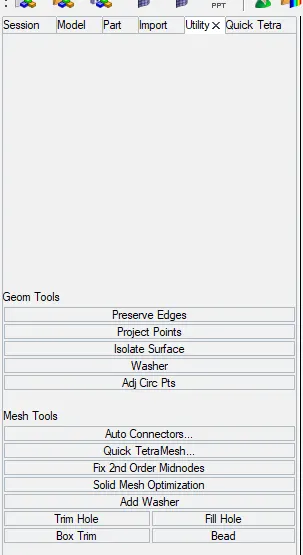
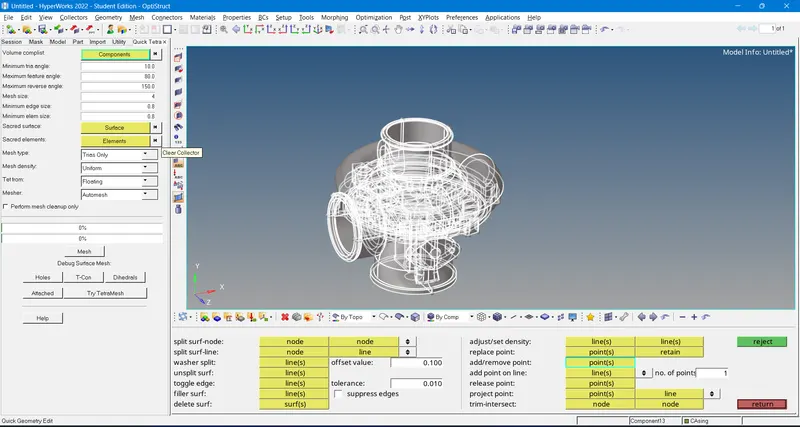
- In Quick Tetra, select the component and set the element size and type accordingly.
- Select mesh and let hypermesh generate the mesh, after completion you should get the message displayed in below image
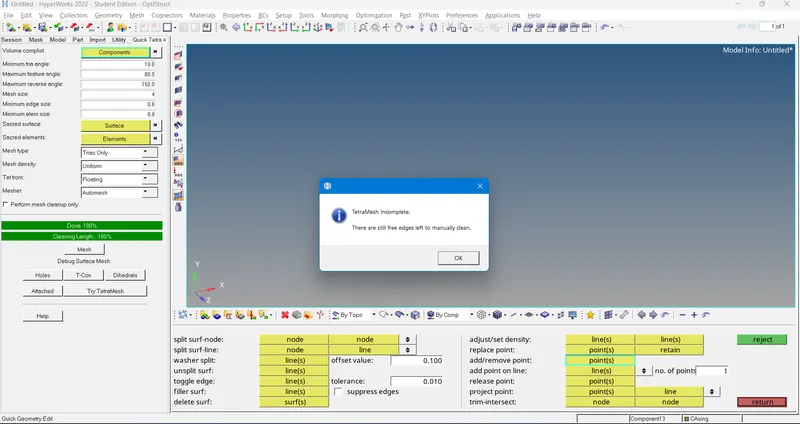
in above image showing incomplete tetramesh because in this component having solid surface 2 option i'll do in this type of error
1) Delete Surface inside the surface.
2) delete all the element which is created by Quick tetra mesh and do this operation by using(3D>Tetramesh>Volume tetra>Select the surface>Enter Element Size>Mesh).
I'm using only this component by using volume tetra mesh.
Also in this operation having 186 Tet collapse present So i Resolve this isue by using Distance Tool And 3D trtra remesh Tool.
Hear is Result As below image.
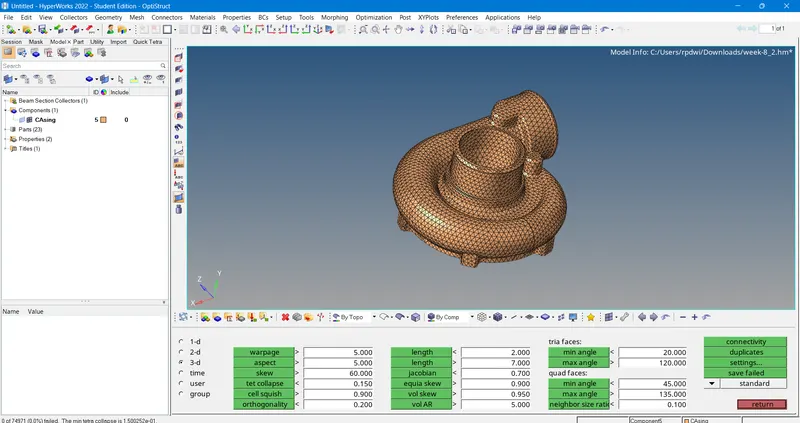
- Remesh the volume to solve tetra collapse elements and proceed with the same process for the other components
- The final mesh is shown in Image.below.
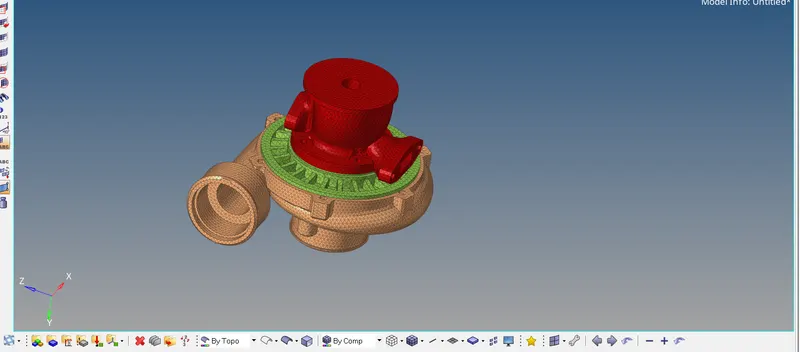
- It should be noted that quick tetra and volume tetra mesh should only be performed when quality of the mesh can be neglected.
- Always proceed with 2d->3d generation when quality of mesh is needed.
- Model 3 Casing Part is uploaded in different .Hm file due to high node count of each component.