Assignment 1-2D Meshing Challenge
2D Meshing Challenge
Aim -To perform pre-processing on the given three models according to the given requirements using hypermesh pre-processing software.
Objective -
- Import the model.
- Clean the geometry.
- Extract And Clean mid-surface.
- Ignore holes less than dia 5mm.
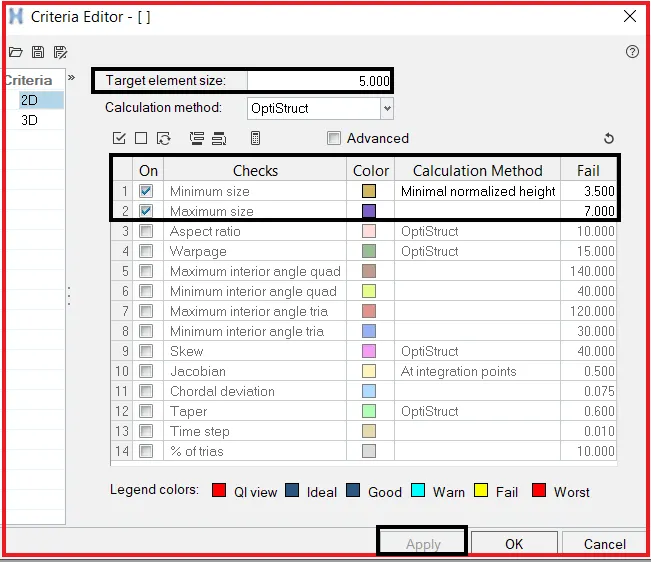
- Create a 2D mesh with a target length of 5mm, min 3.5mm max of 7mm.
- And assign proper thickness, by creating a generic property.
- Check Normal to the surface.
Model-1
- Import the model:-
(Files-> import-> geometry-> iges format -> select required file-> import)
2) Clean the geometry-
- Before working on the model.We have to check the geometry if there are any errors like
- Damaged Geometry.
- Free edges in unnecessary areas.
- Unnecessary points on the lines.
- Unnecessary Connections and connectivity error.
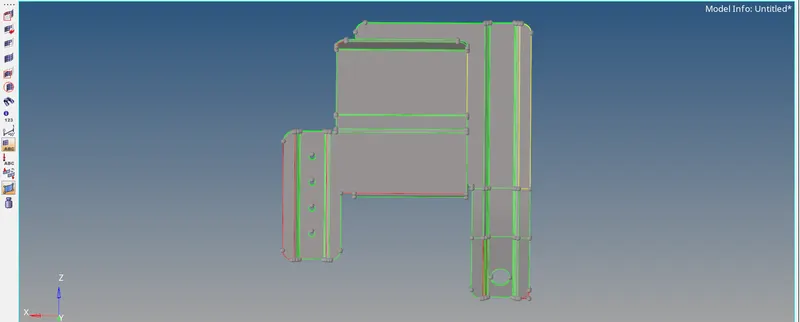
- By assessing the model 1,There are some errors like
- Free Edges [Red Lines].- to elemenate this kind of error by using option (Geom>Quick Edit>Toggle edge)

- T Junction Edges [Yellow Lines].it elemenate this kind of error by using Delete the duplicate surface (Delete /f2>Select the surface >Delete)
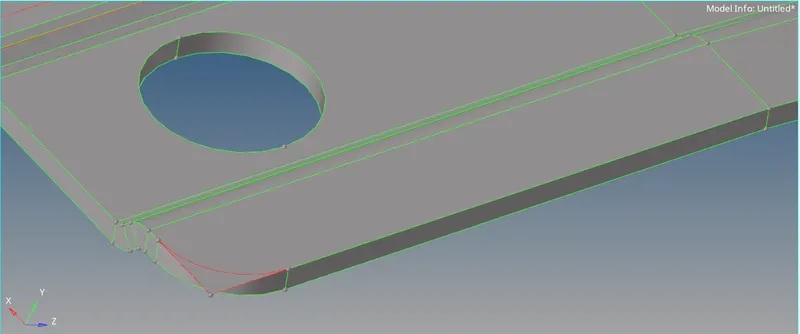
Here you can Self Intersect the surfaces by using (Surface Edit Panel >Trim with Surf/Plane >Self Intersecting > Select Surfaces)
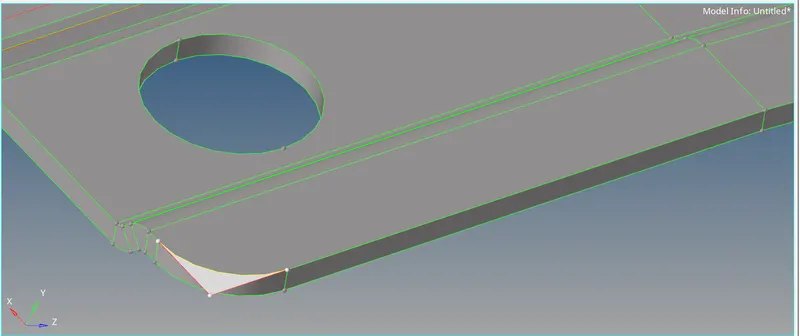
3)Extract And Clean mid-surface:-
Midsurface extraction is the next step after geometry cleanup and for that, goto (Geom > midsurface > extraction options > skin offset > auto extraction > surfs > displayed > extract)
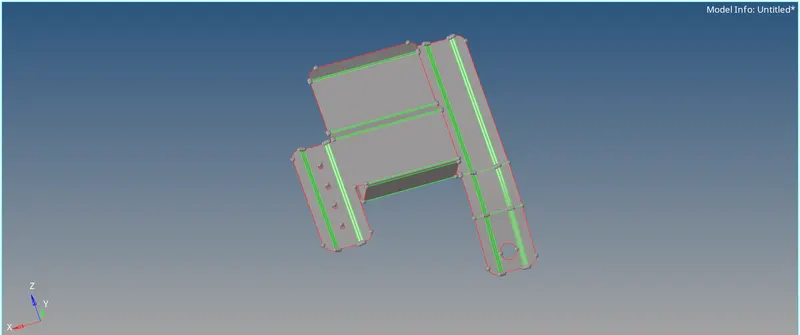
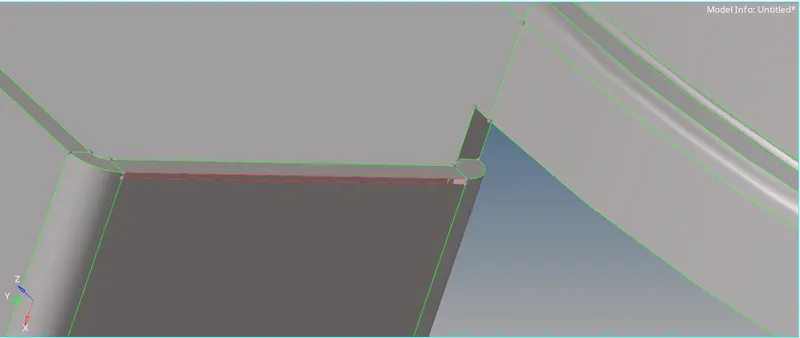
As below image to elemenate this error using two method 1-fill the surface 2-Paste this node with eachother.
using (Geom>Quick edit>Replace point)
4) Ignore holes less than dia 5mm:-
- After extracting the mid surface,we have to some manual clean up before meshing.
- If your feature line is failing for the minimum length,then toggle that line or extract the mid line to capture feature line.
- If mid line extraction dosen't work,then toggle that feature,cozz there will be no options.
- Fill all holewhich is less than 5mm dia to using ( (Geom>Quick Edit>Filler Surf>)
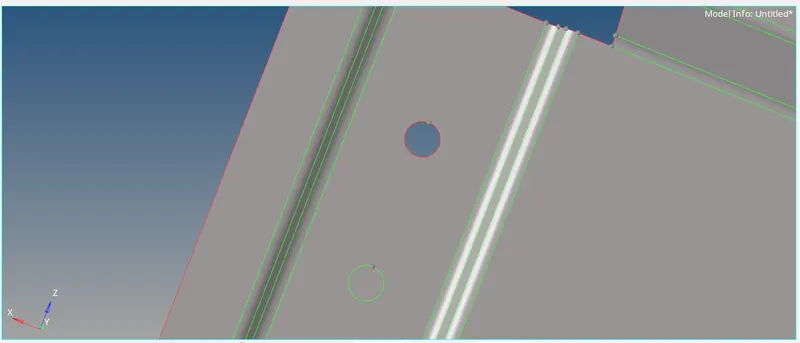
- Geometry >> Lines >> Midlines >> Line List 1,2 >> Create.
- We can use the Midline subpanel to create lines by interpolating between existing lines.

- Now extract the midline for every region.
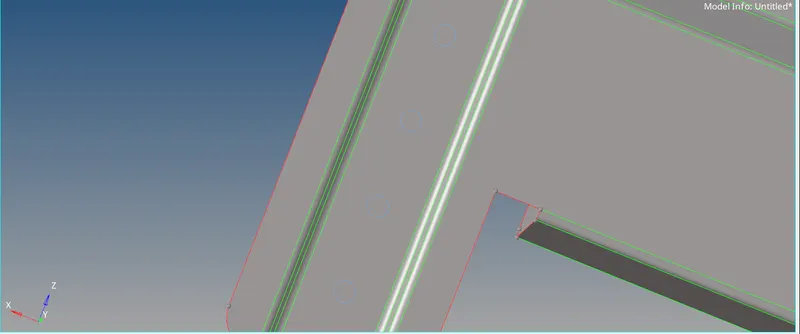
- And to project that lines to the mid-surface.
- Use trim with lines tool to project on the mid surface.
- Make sure to set mid surface component as a current component, Then only the lines will exist in that component.
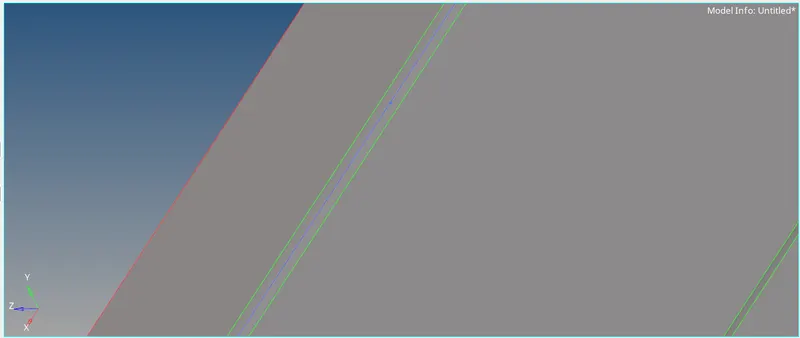
- Now project the Mid lines extracted to the surface using trim with lines from the surface edit tool.
- And toggle the other two lines and keep the midline only and go on.

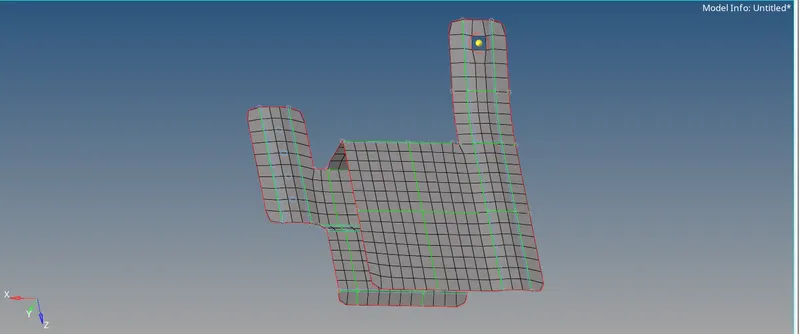
5) Create a 2D mesh with a target length of 5mm, min 3.5mm max of 7mm:-
(Tool bar >preferences >criteria file settings >checks for the element criteria >Enter values >apply >ok)
6) Check for Normals:-
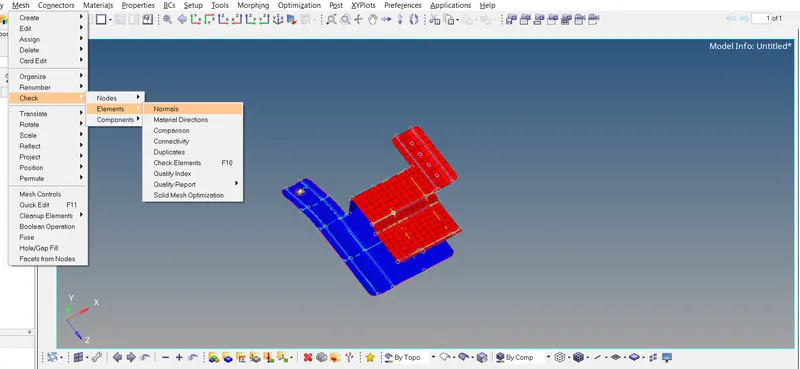
7) Thickness assignment:-
- First Create a property on the browser.
- To create a property,(Right click on browser >Create > Property)
- After Creating a property rename it and start assigning thickness to the component.
- After Creating the property, Give a thickness value in the thickness tab.
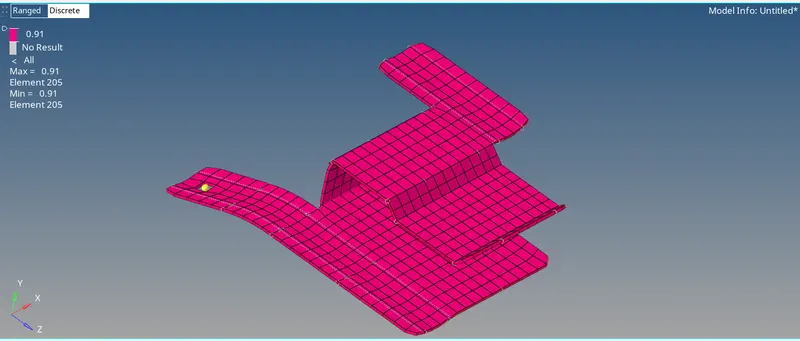
- And assign that property to the mid-surface.
Model-2
- Import the model:-
(Files-> import-> geometry-> iges format -> select required file-> import)
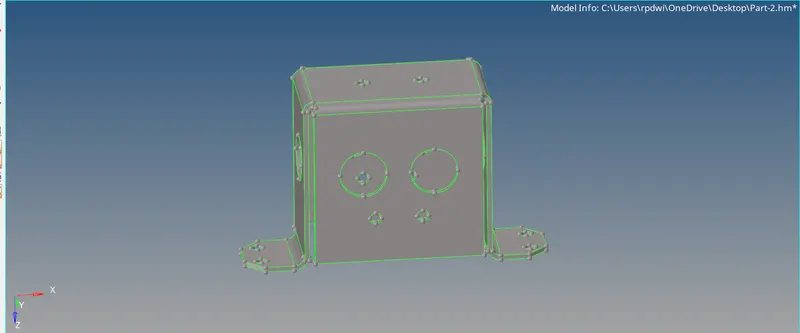
- Midsurface extraction:-
Midsurface extraction is the next step after geometry cleanup and for that, goto (Geom > mid surface > extraction options > skin offset > auto extraction > surfs > displayed > extract)
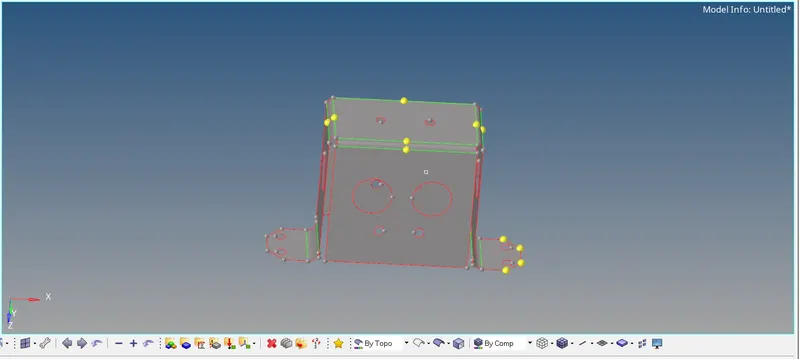
- made a split of the geometry by using (Geom>Surface edit>Trim with surface)
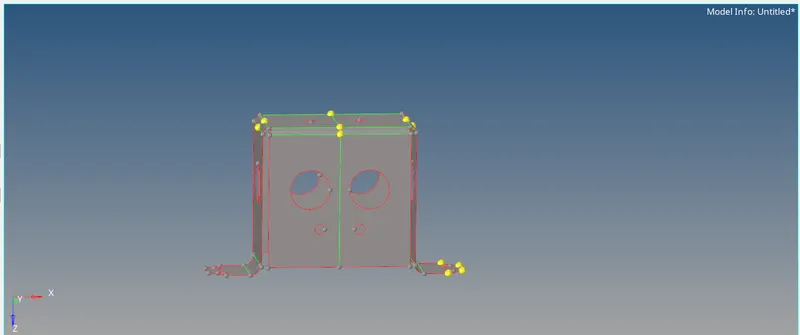
- Delete half of the geometry by using (F2/Delete>Select Surface)
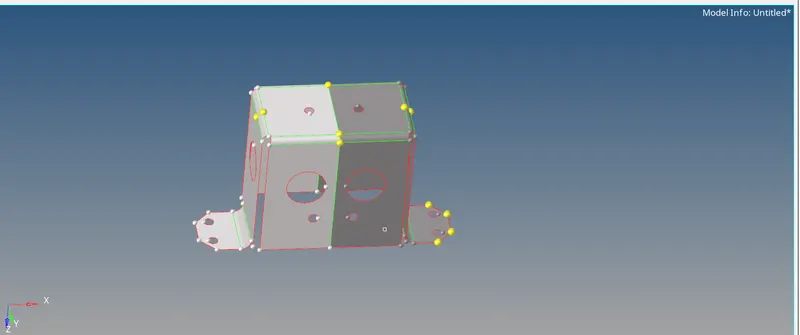
- Perform Mesh on the Surfaces:-
- Before going to a mesh fill the hole which has a dia less than 5mm.
- Now after extracting the mid surface and performing geometric clean up on the mid surface, Mesh the surfaces according to the given quality criteria.
below image, the mesh flow is not in a proper way to remesh the region by using (2D>Rebuild mesh)
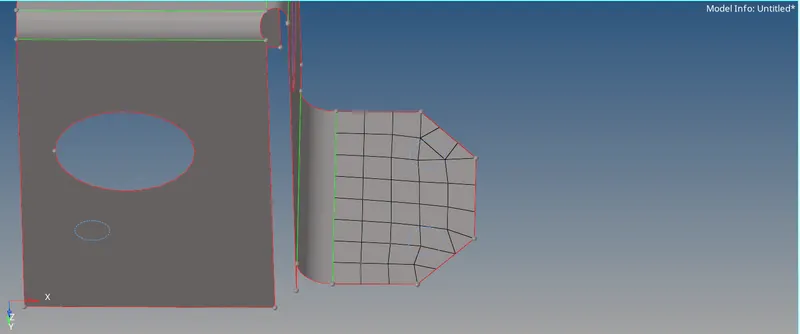
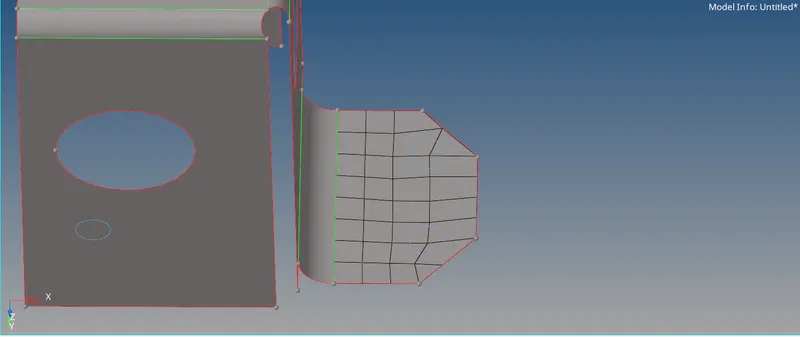
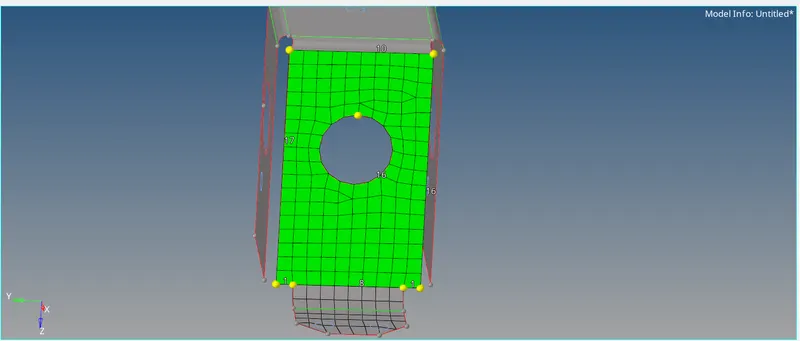
- As below in image 1 element fails because of min element size to eliminate this kind of error by using use clean the element.
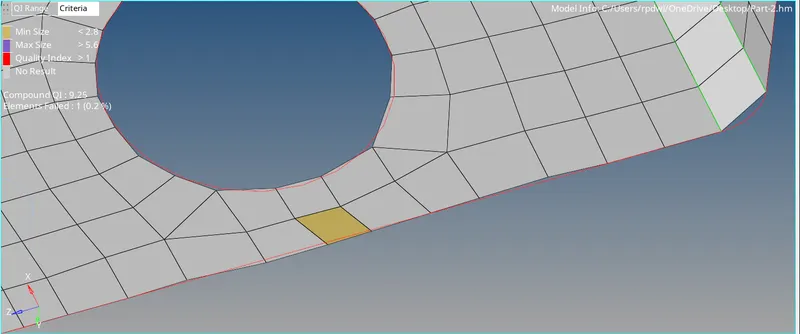
No error
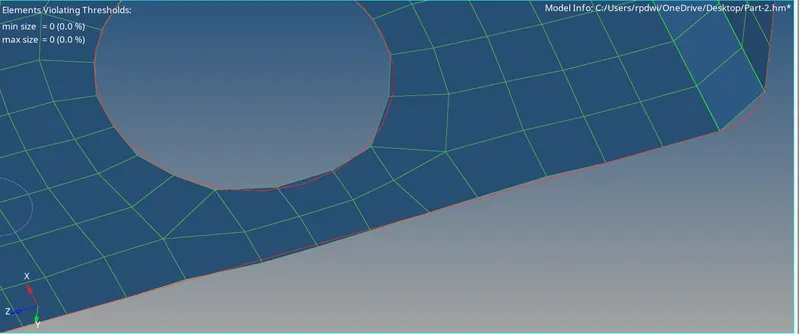
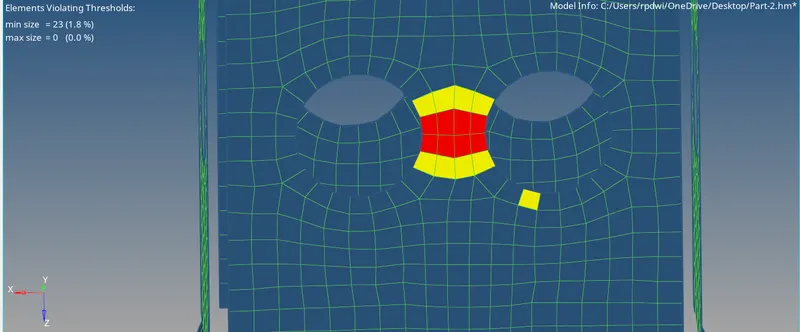
- Now reflect the elements to the other side of surfaces using reflect from tool panel.
- While reflecting make sure to make the elements duplicates and reflect them.

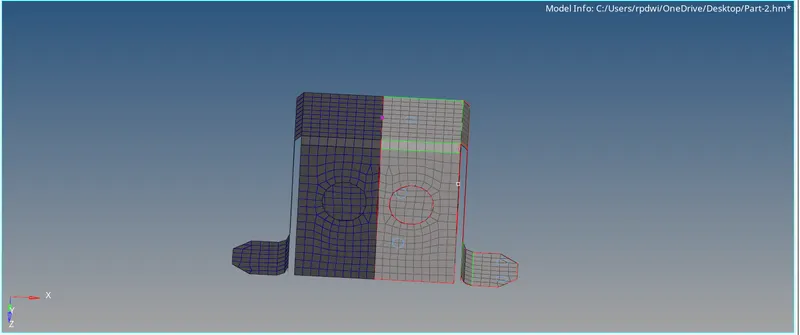
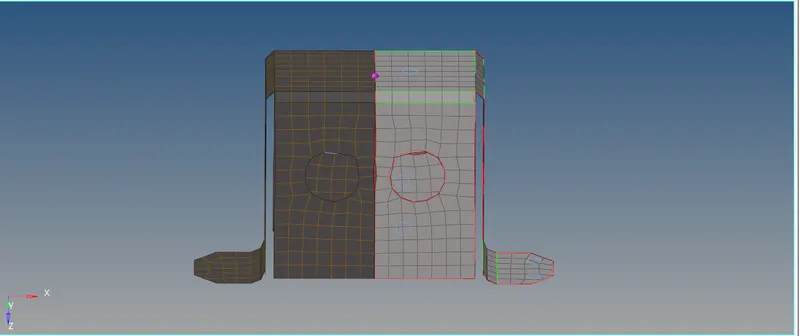
- Now check for the connectivity, Whether all the elements have been equivalenced, If not Equivalence them.
- To check for the connectivity, Go to (Tool >Edges >Elements >Preview Equivalence >Equivalence)
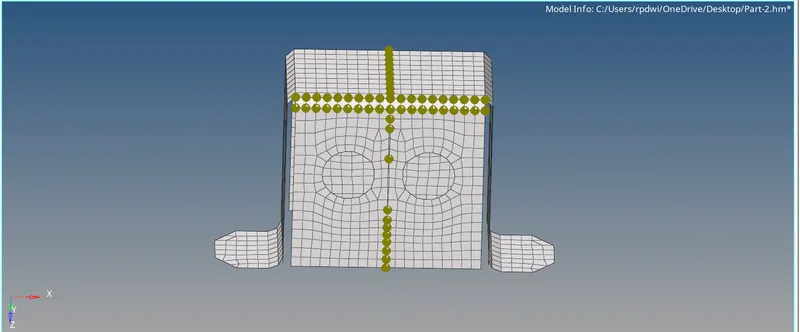
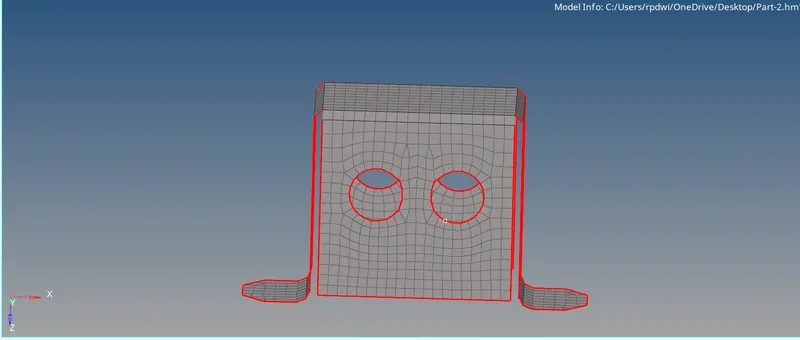
- And assign that property to the mid-surface.
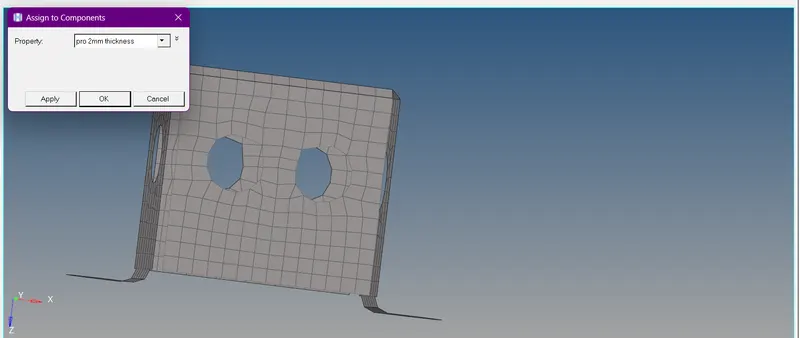
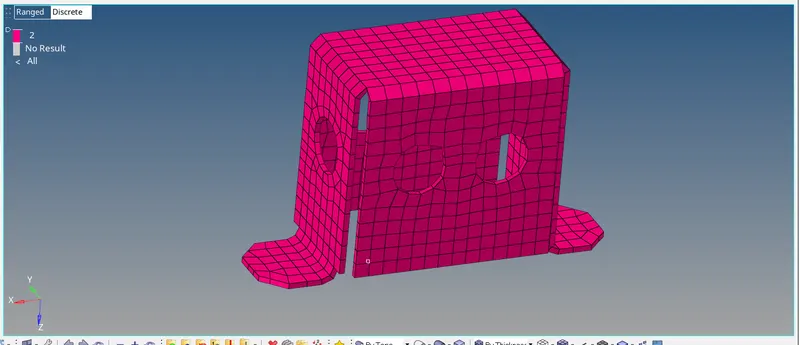
- Next check for the normals.
- To check normals go to (Toolbar >Mesh >Check >Elements >Normals)
MODEL-3
- Import the model:-
(Files-> import-> geometry-> iges format -> select required file-> import)
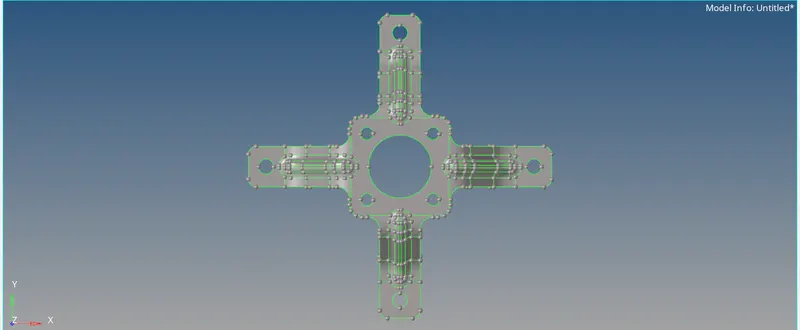
- Extract mid-surface:-
Midsurface extraction is the next step after geometry cleanup and for that, goto (Geom > mid surface > extraction options > skin offset > auto extraction > surfs > displayed > extract)
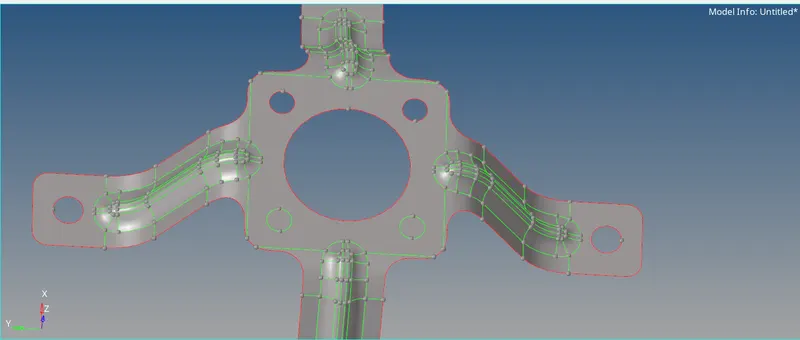
- Eliminate the holes which are less than 5mm dia.
- Eliminate the holes by using an unsplit surface.
- Now after extracting the mid surface, Do a geometric cleanup on the mid surface.
- Eliminate the holes which are less than mm dia using the unsplit line tool from the quick edit panel.
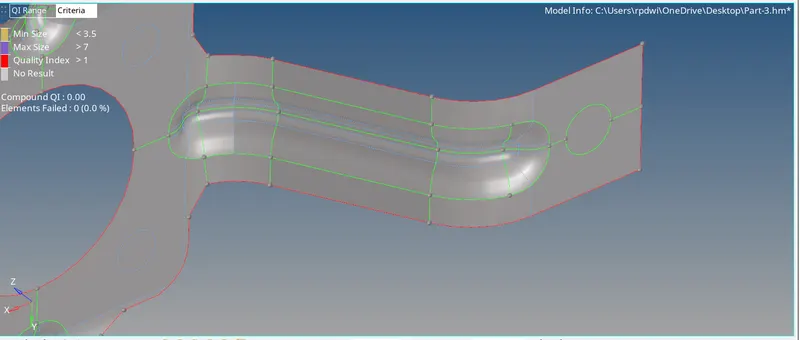
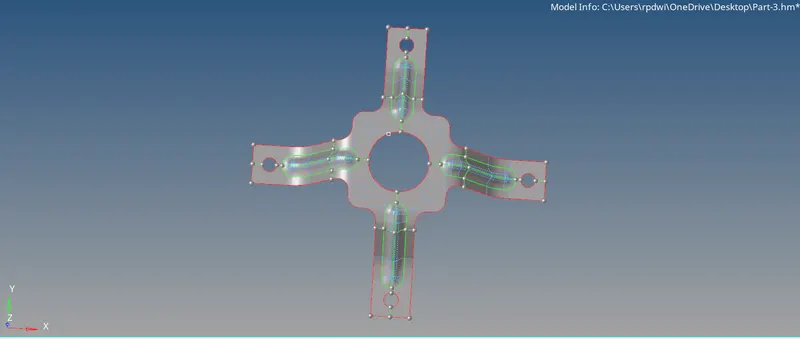
- After defeaturing the edge fillets, Extract the Mid Line on the top surface fillet regions to capture the feature properly.
- Here the mid line has been extracted for only that small region,After projecting that mid line to the surface,You can extract a mid line completley for that fillet region using split surface line.
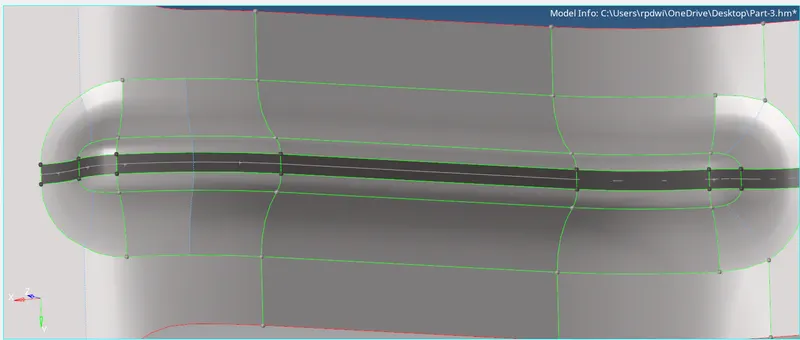
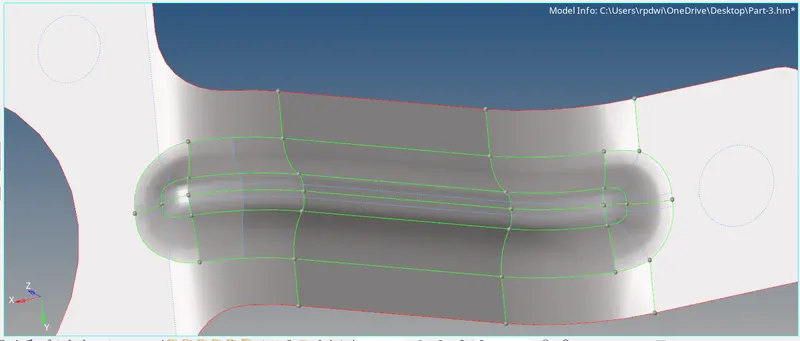
- Perform Mesh on the Surfaces:-
- Now after extracting the mid surface and performing geometric celan up on the mid surface,Mesh the surfaces according to the given quality criteria.
Selecting the nodes to rotate.

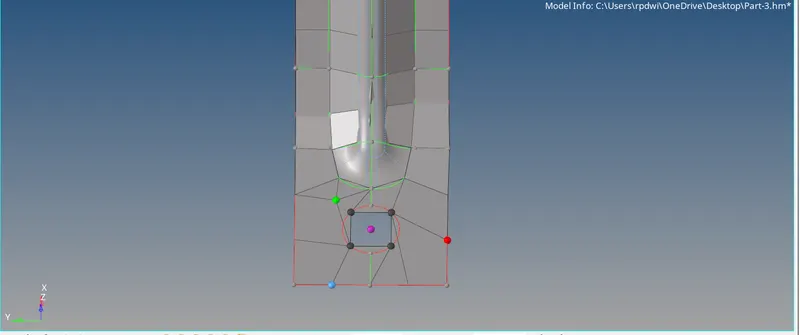
Proper Mesh Flow.
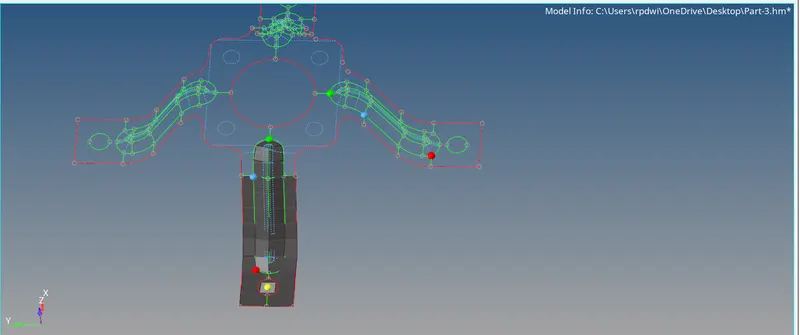
Positioning the Elements to a New Position

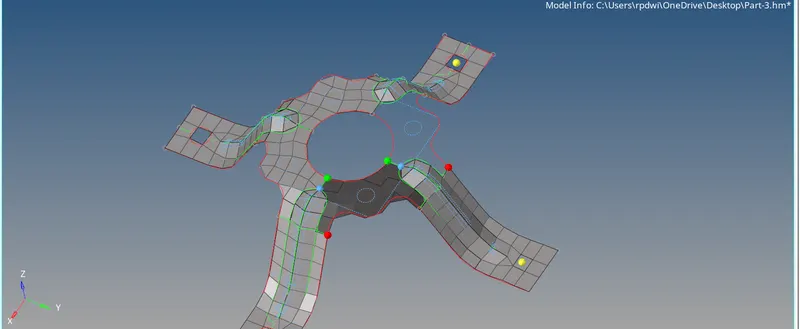
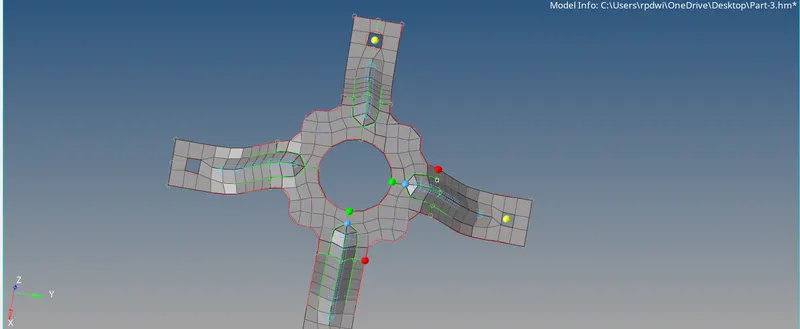
- Now check for the connectivity, Whether all the elements have been equivalenced, If not Equivalence them.
- To check for the connectivity, Go to (Tool >Edges >Elements >Preview Equivalence >Equivalence)
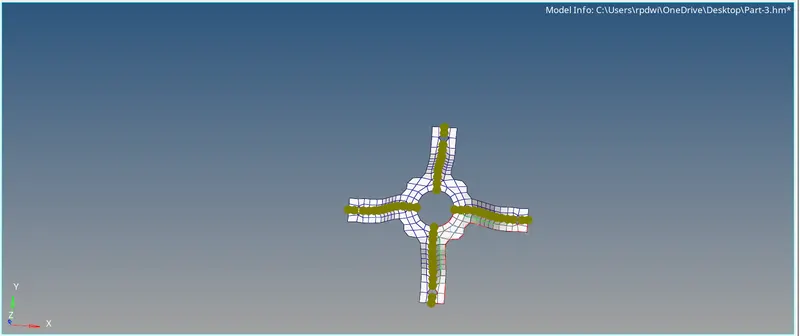
- No Free edge on the surface.
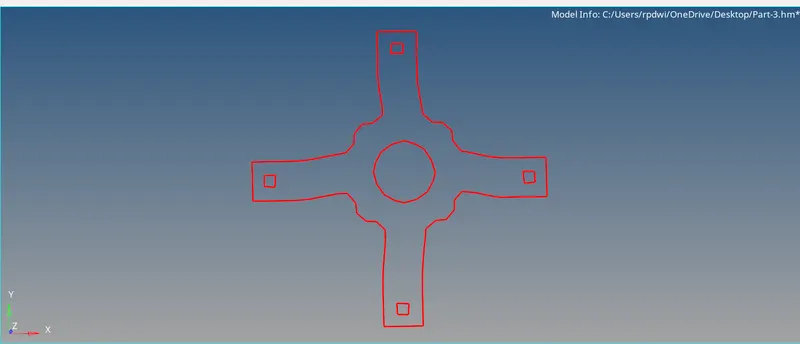
Check for Normals:-
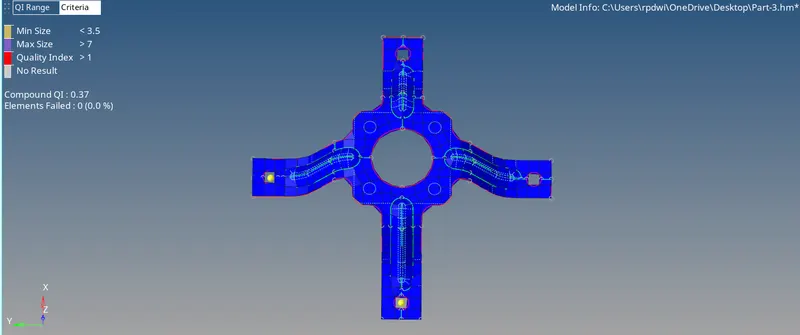
- Thickness assigned.
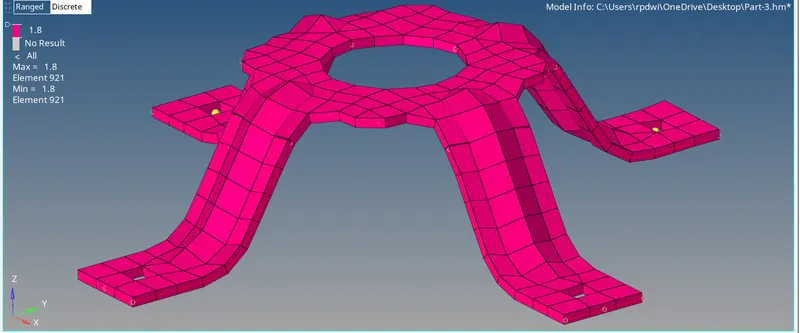
Result -
- Mid Surface has been Extracted for all the three models.
- Performed Geomertic Clean Up on all the three Models.
- Performed 2D Meshing for all the three Models according to the given Quality Criteria.
- Assigned Thickness to all the three Models.
Learning Outcome -
- In this 2D Meshing Challenge, I relearned and enchanced the things like
- Extracting the Mid Surface.
- Performing Geometric Clean-Up on Parent and Mid Surface.
- 2D Meshing according to the given Quality Criteria.
- Maintaining the Element Quality.
- Assigning Thickness to the Components.