Week - 8 - Morphing
Week - 8 - Morphing
Aim:To do morphing for the given CAD model using ANSA.
procedure:-
- CAD Model.
- Clean geometry.
- Morphing.
Morphing:-Morphing is one of the ANSA feature which is used to change the shape of the model without changing the numerical values. Transforming the whole shape will take lot of time and effort whereas through morphing changing the shape will be quick and easy process.
- CAD Model:-
Using ANSA sowftwere V22.1.0.
To import car hood model in ANSA folloeing step's-
(FILE>OPEN>DOWNLOAD>OPEN MODEL)
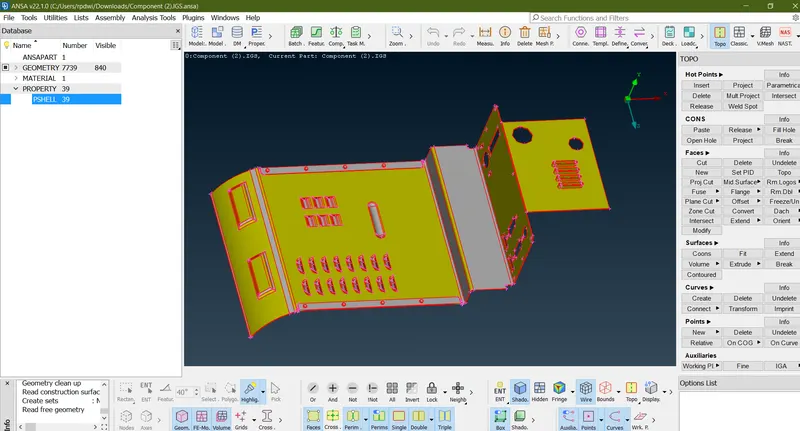
Performing topo for the geometry:-
Go To (Tool>Faces>TOPO)
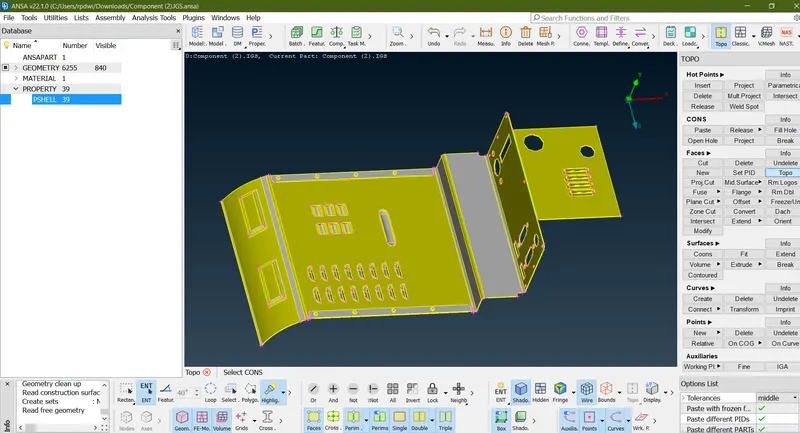
1) Check The Geometry:
After importing the model or Gemetry there will be some topological error's to firt rectifiy them.
To do a geometry clen-up it is an oimportant stage's-
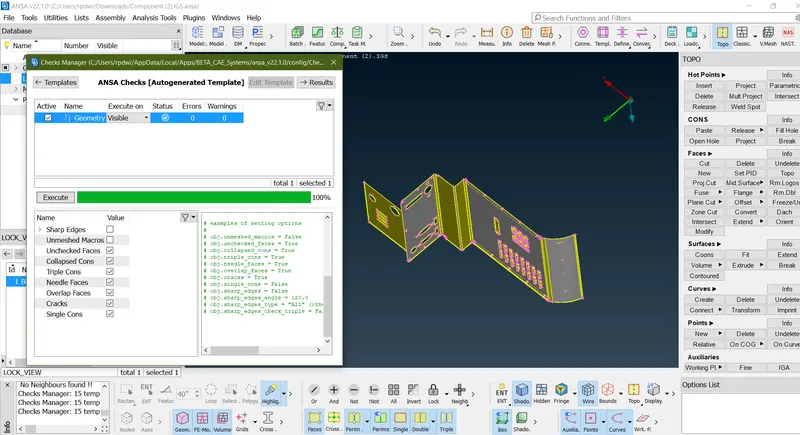
(TOOL>CHECK MANAGER>GEOMETRY)
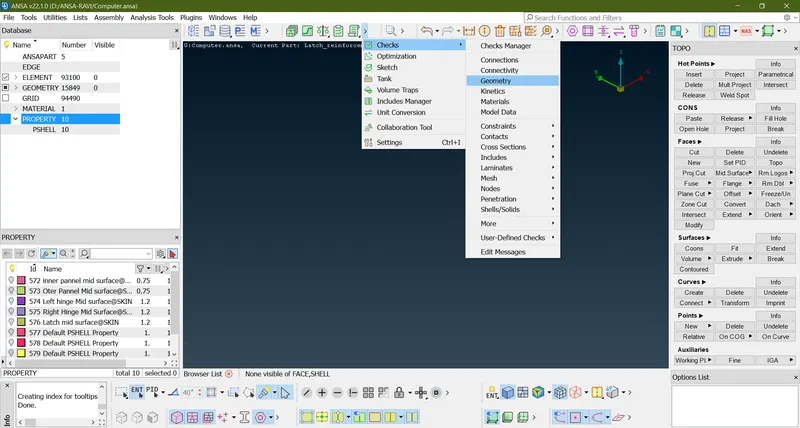
As shown in below here it was 17 error present.
you have two method to fix this error either go mannual or go auto fix method.
Manual Method- First Go (check manager> check geometry> Execute)
In below image here 17 error go triple cone and right click of mouse new option pop-up where click show only so in this operation wher this error persent that area highlighted than remove manualy this are and using topo.
Auto Fix Method-First G0(check manager> check geometry> Execute)
In This method Select all error's in Ctrl+A Or click left click of mouse and Drag mouse upword & downword direction and than a right click of mouse and than choose FIX option
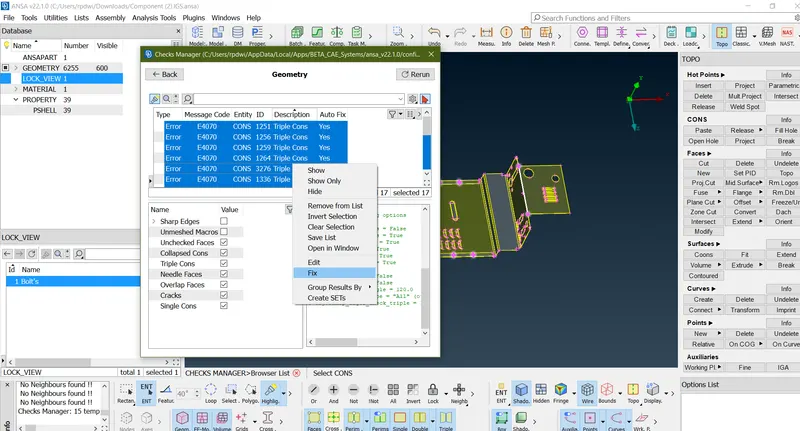
As shown below image NO error found.
3)Morphing:-
select the face where to morph then goto morph mode
select the area to morph by new option under boxes
Under new the sub option called ortho then select geometry select the face by box selection
(MORPH MODE > BOXES > NEW > ORTHO > GEOMETRY)
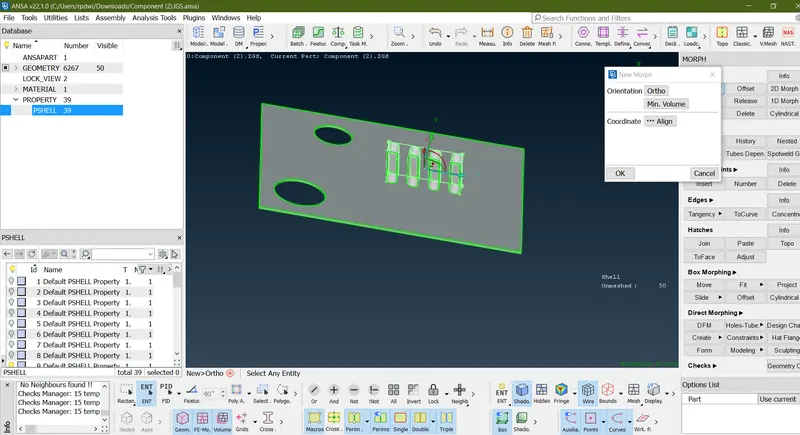
In the selected area green colour line is formed with nodes at the edges. Use split command( divide line into two)
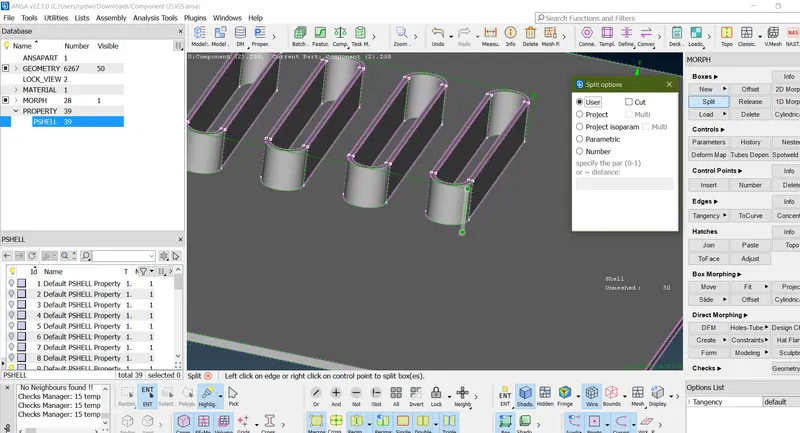
BOX MORPHING:-
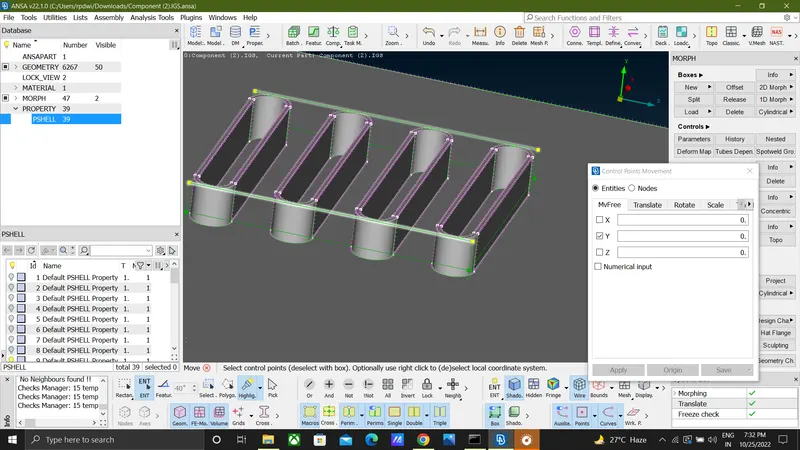
use move option under box morphing to move the control points to the required axis.
move option has 5 modes of operation like MvFree,translate,rotate,scal etc...
MvFree is used to move the control points in any direction.
translate is used in the situation were the morph is done for one part if the same part is located at some distance we can tranlate the morphed part to that part.so,that the time to morph
As below image select any two element and VChange the hight of the morph box.
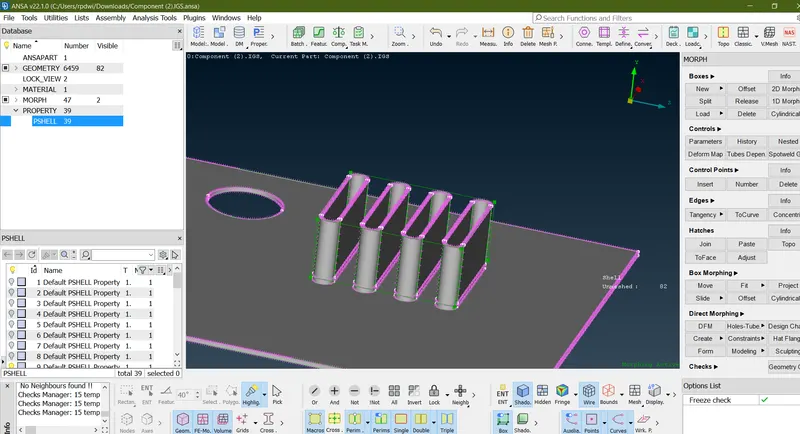
Do the same operation like above mention strep's,to morph other area.
below image is final output of morph cad part.
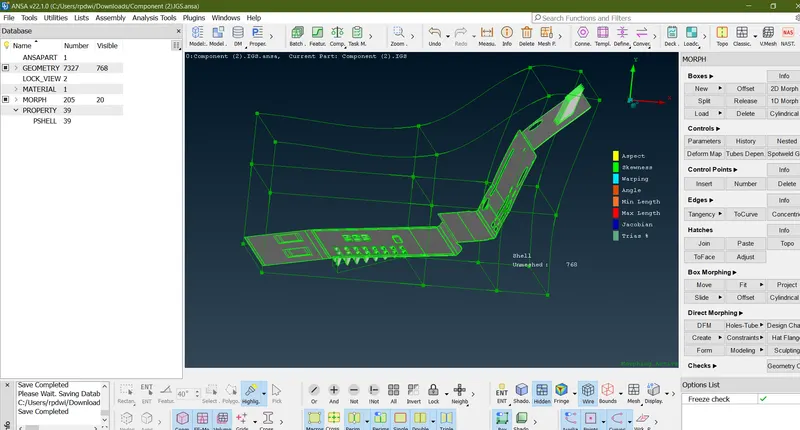
MODEL-2 (Handel Rest)
first import the geometry and check the geomentical errors of the model and fix them and now.
1) import geometry-
(FILE>OPEN>DOWNLOAD>OPEN MODEL)
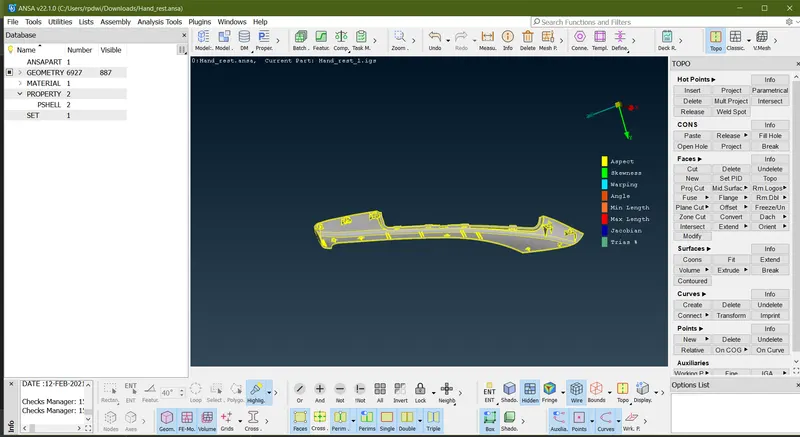
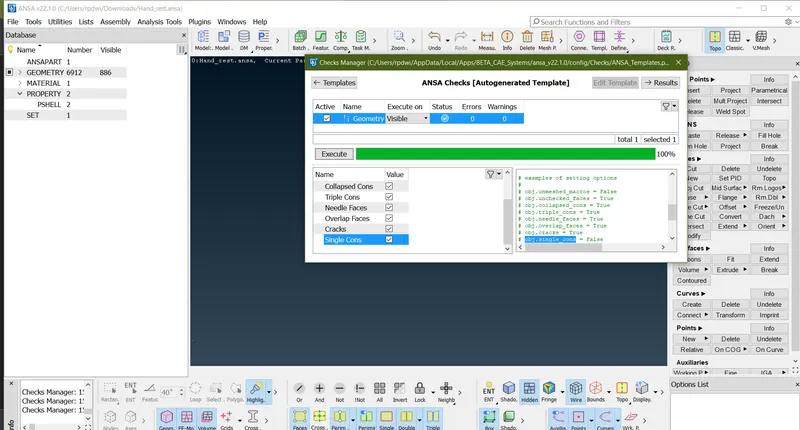
2) Check The Geometry:
After importing the model or Gemetry there will be some topological error's to firt rectifiy them.
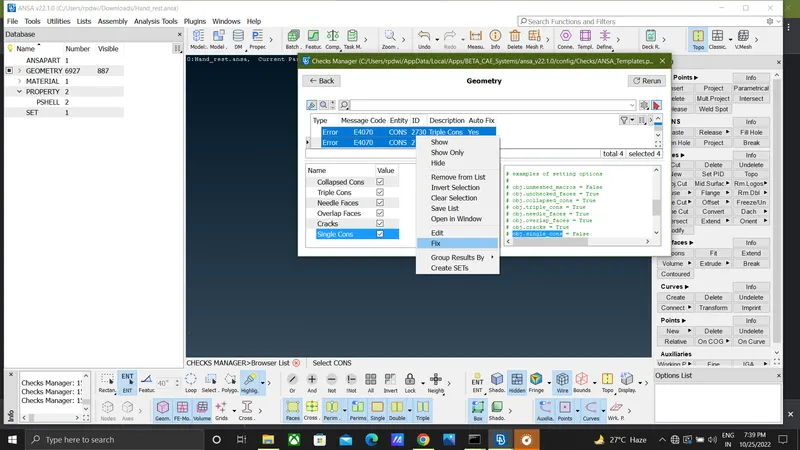
NO ERROR
3)Morphing:-
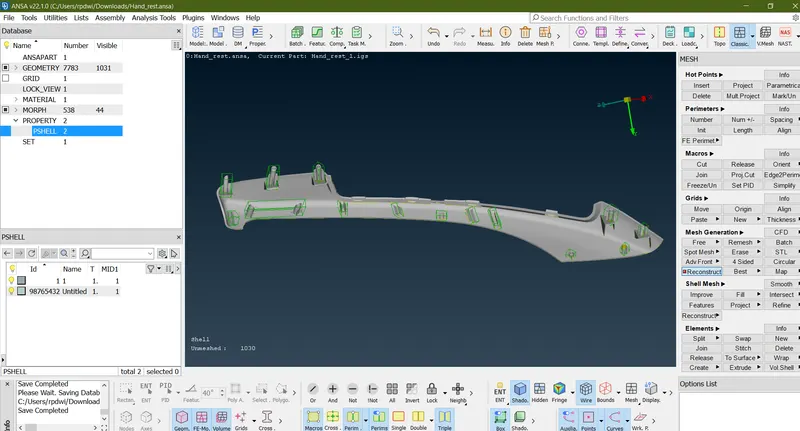
Final
LEARNING OUTCOMES :
- Learned how to do basic of morphing techniques .
- Learned how to create a morph box .
- Learned how to move morph box by selecting entities or nodes .
- Learned how to change the design of given CAD model.
CONCLUSION :
Successfully performed basic morphing technique for a given CAD model and reshape or change in design has been done.