Week- 5 - Solid meshing
Week- 5 - Solid meshing
AIM :
In the Rearview Mirror model check for the geometrical errors and mesh with volume tetra elements as per the given quality criteria and there should not kinks and dips on the surface of the component.
OBJECTIVE :
For the given component, check for the geometrical errors and mesh with the given element Quality criteria. Use tetra elements to model the component and there should not and kinks and dips on the surface of the component.
|
S.No |
Quality Criteria |
Value |
|
1 |
Target/Average length |
1 |
|
2 |
Minimum Length |
0.5 |
|
3 |
Maximum Length |
2 |
|
4 |
Tetcolapse |
0.2 |
PROCEDURE :
- CAD MODEL.
- orientation.
- Con's Resolution And Check connectivity.
- Geometry clean-up.
- Defining Quality Criteria & Meshing Parameters of Each Part-
- Check thickness.
- Generating 2D Mesh & Pre Volume Defination.
- Genetrating 3D mesh.
1) CAD Model -
Using ANSA sowftwere V22.1.0.
To import Rear view mirror model in ANSA folloeing step's-
(FILE>OPEN>DOWNLOAD>OPEN Rear view mirror)
After import the model provided CAD model of Rear view mirror consisting of 4 components given below-
1)Spherical Shape.
2)Mirror.
3)Mirror case.
4)Mirror handel.
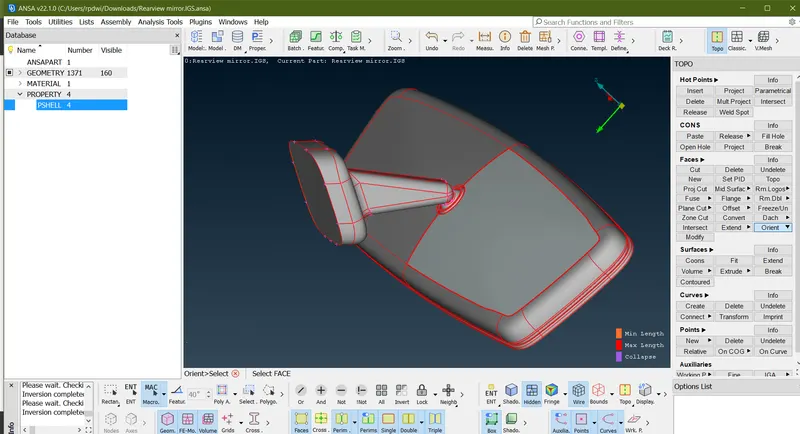
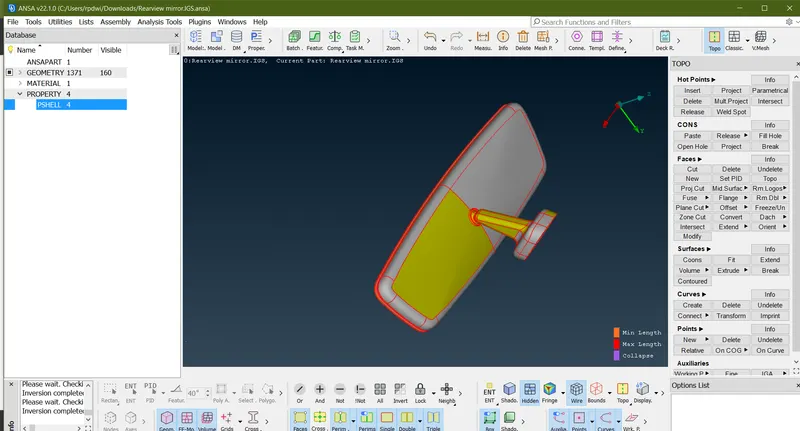
2) Orientation-
As Shown in above image in CAD MODEL orientation issue to fix it by below stage.
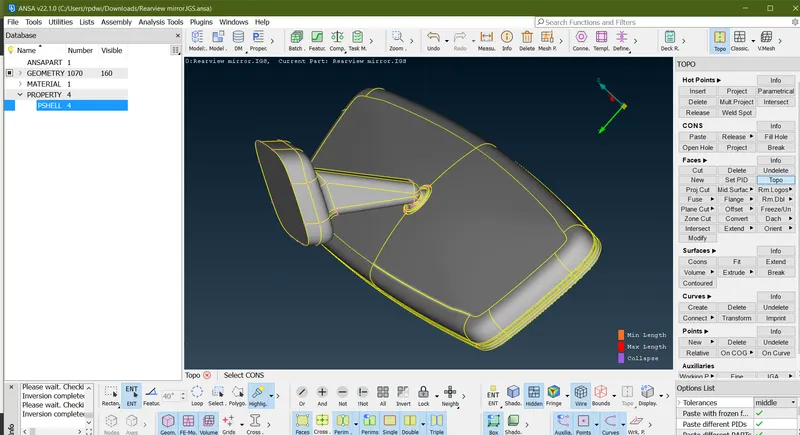
GO To (Tool>Faces>Orient>Select/Auto>Comfermation by mouse operation) than see the result in below image.
3) Con's Resolution And Check connectivity-
Go to (Mesh-->Perimeters--> Length) Option and Select the Component to Mesh and enter the Value of Perimeter Length and Macro Length for Meshing is 1.
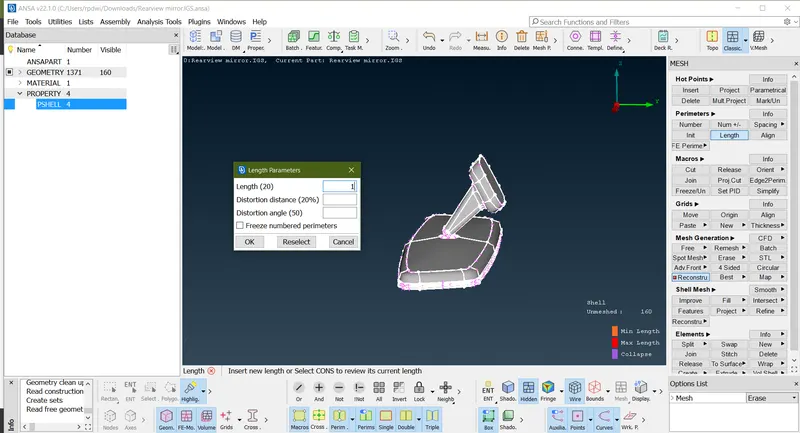
once the con resolution done check the connectivety of the model by using (Topo>Faces>Topo>)option and select all CONS and Click ok to stitch all CONS with each other busing mouse operation.
in this operation single con convertated into the double cone.
4) Geometry clean-up-
After importing the model or Gemetry there will be some topological error's to first rectifiy them.
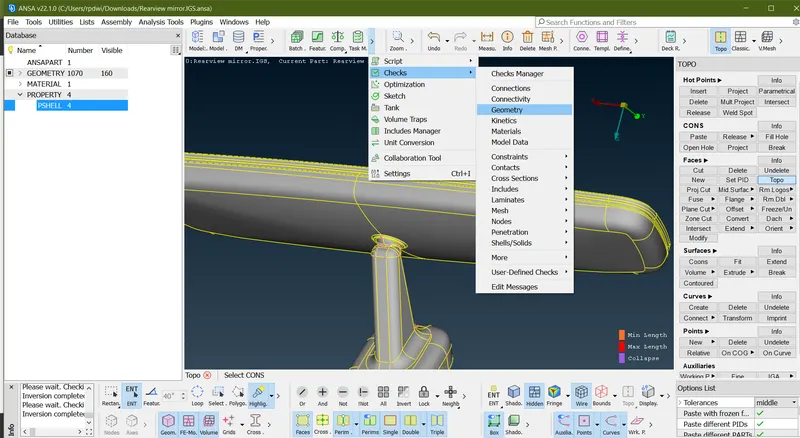
To do a geometry clen-up it is an important stage's-
(TOOL>CHECK MANAGER>GEOMETRY)
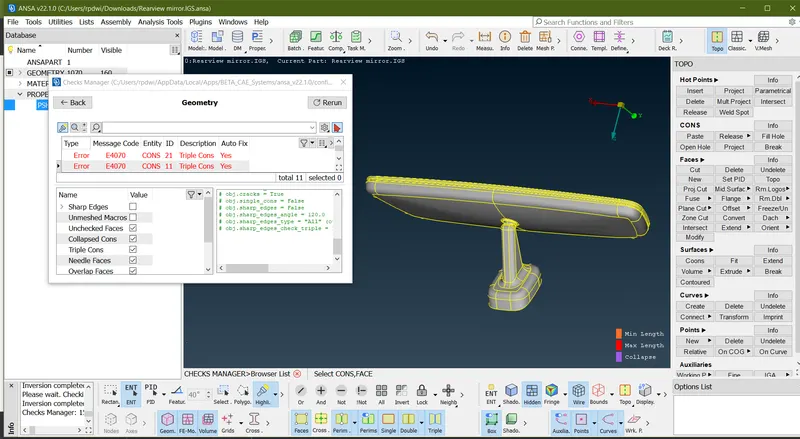
As shown in above part right hinge here it was 11 error present.
you have two method to fix this error either go mannual or go auto fix method.
Manual Method- First Go (check manager> check geometry> Execute)
In Above image here 11 error go triple cone and right click of mouse new option pop-up where click show only so in this operation wher this error persent that area highlighted than remove manualy this are and using topo.
Auto Fix Method-First G0(check manager> check geometry> Execute)
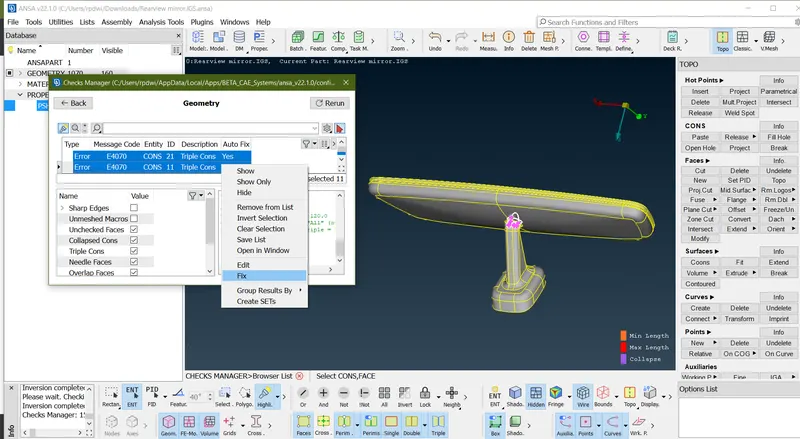
In This method Select all error's in Ctrl+A Or click left click of mouse and Drag mouse upword & downword direction and than a right click of mouse and than choose FIX option.
fix this 11 error by using Auto fix method
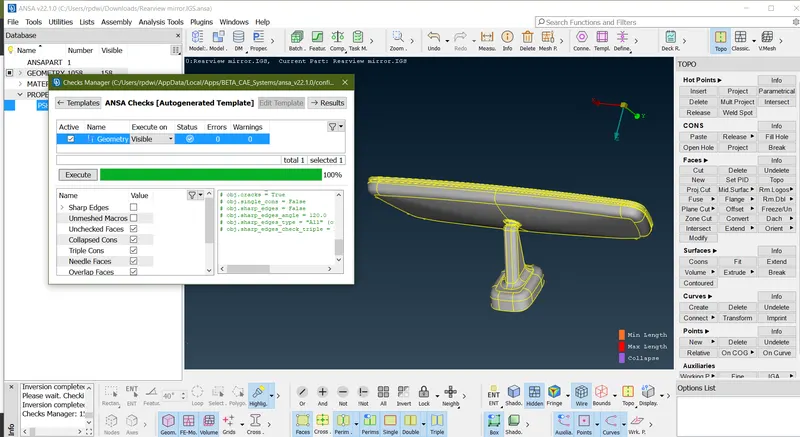
After fix geometrical error result shown below image-
5) Defining Quality Criteria & Meshing Parameters-
To enter the given quality criteria values Click quality criteria / press F11 to open quality criteria window (for shortcut) --> Quality criteria window will open. In shells & solids. Enter the given quality value to the particular tab and edit the colours for the better visualization of quality failure.
|
S.No |
Quality Criteria |
Value |
|
1 |
Target/Average length |
1 |
|
2 |
Minimum Length |
0.5 |
|
3 |
Maximum Length |
2 |
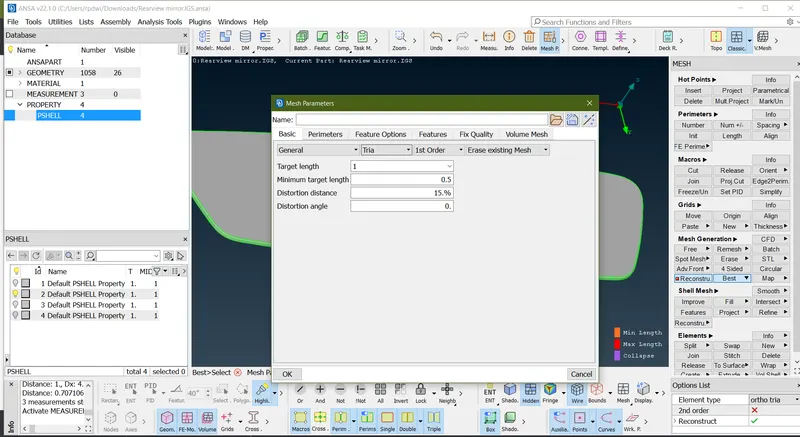
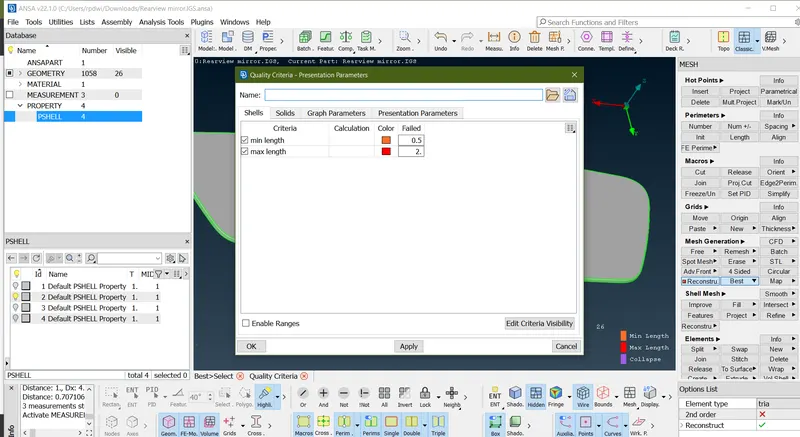
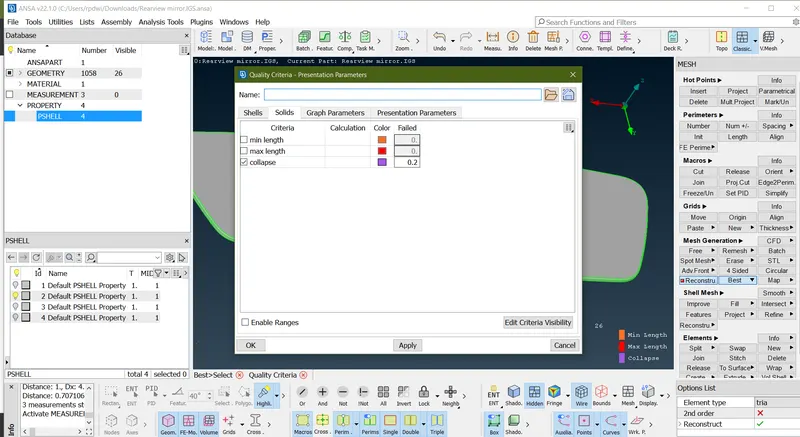
Tet Collapse-This can be measuring the distance of node from the opposite face,than each of the four Values will be divided by the Squre Root of opposite face of area.
the minimum of four resulting values is divided by 1.24.
NOTE if the tet collapse less than <0.2 ---- Bed Element.
if the tet collapse more than >0.2---- Good Element.
|
4 |
Tetcolapse |
0.2 |
For tet collapse option Go To (F11>Solid>Edit criteria visibility>select Tet collapse>Apply>Ok)
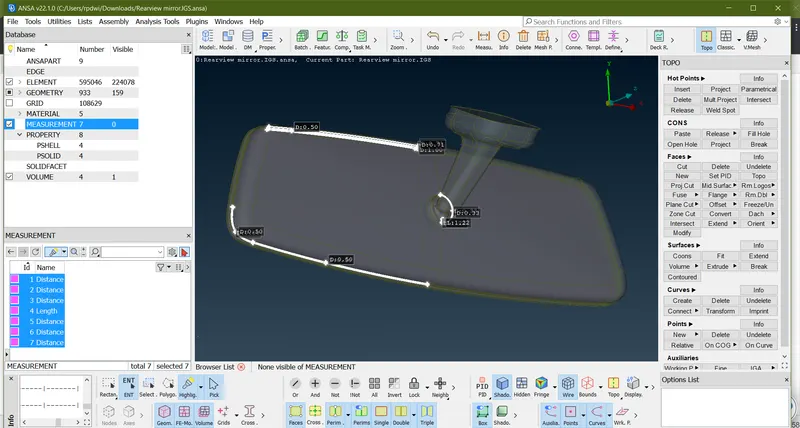
6) Check thickness-
(Utilities>Messure>select the cons)
7) Generating 2D Mesh & Pre Volume Defination Of Each Part-
before genetrating the mesh one think always keep in mind that- when generating mesh in flat surface -using Tria And When generating mesh in curve surface using ORTHO-TRIA
NOTE- This is not mendatory to using flat in tria or curve in ortho tria but most of the some surface generating mesh with tria encect of Ortho Tria For Good mesh flow.
- mirror part-
Now Examin first which surface is flat or which surface is curve And Than start meshing by using mesh generation tool- (Tool>Mesh Generation>Spot Mesh>Ortho-Tria>Select the face
>Middle click of mouse)
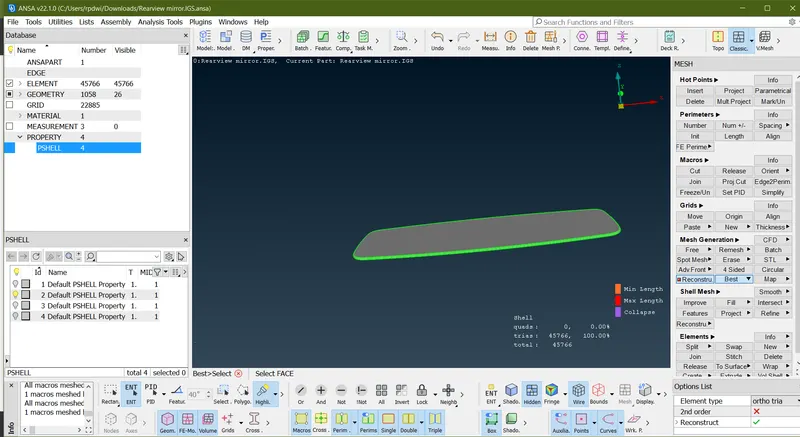
while meshing per volume check of every part where including as follwed-
- Un-Meashed area Check
- Penetration Check.
- intersection Check.
- Single and triple cone check.
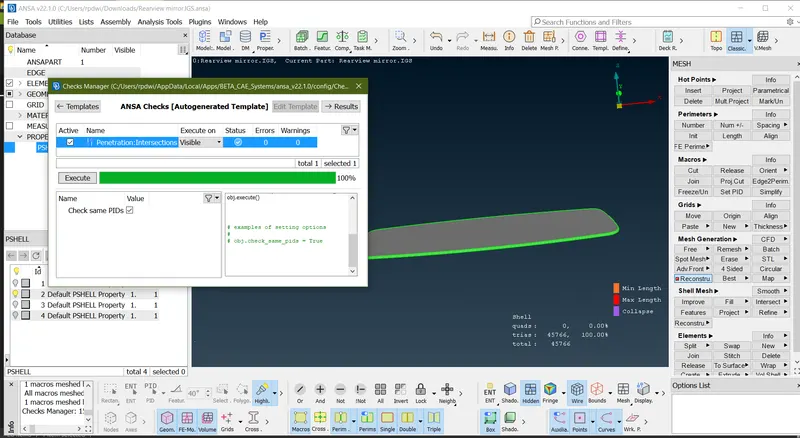
- Penetration Check & intersection Check Of mirror part- Go to (Check manager>Penetration>intersection>)
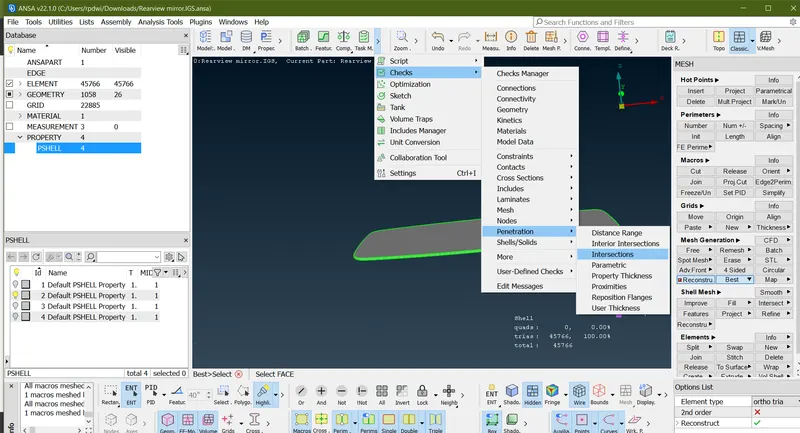
in below image there is no penetration intersection error.
Volume Tetra meshing :
- After completing the tria mesh it should be converted to tetra mesh.
- Tetra mesh are the unstructured mesh where ANSA uses to generate tetra elements inside any component where the surface is meshed by trias/ortho tria elements.
- Before making to the tetra identify that the geometry has a closed volume.
- Step 1: In Volume mesh module, Go to (V.Mesh>volumes> define>Visible>ok).By doing this we will be able to create a Psolid property.
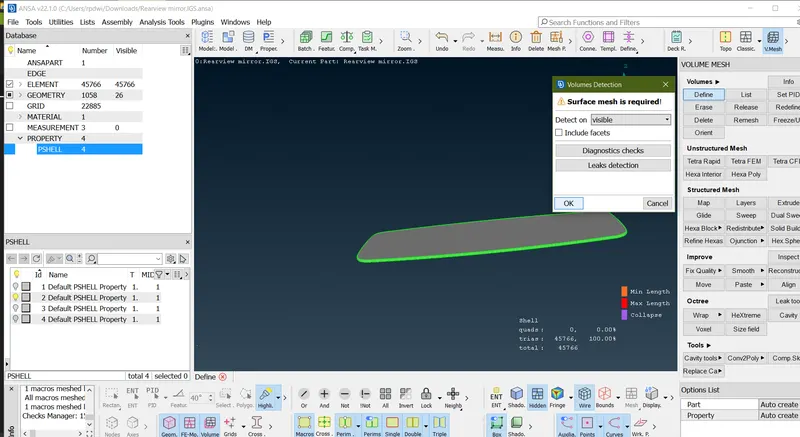
-
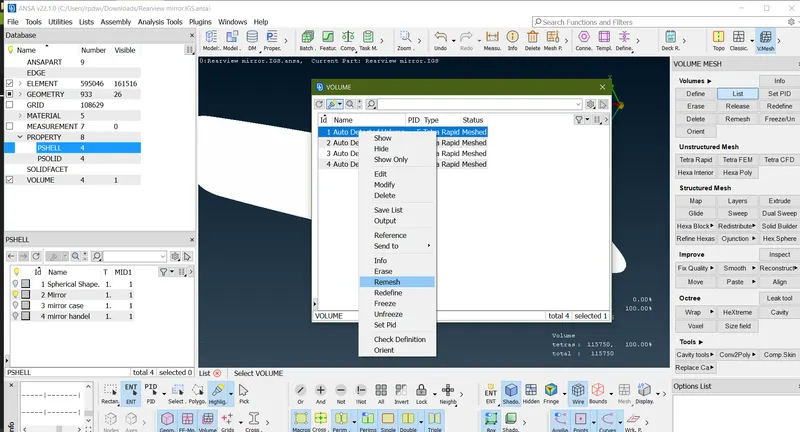
- Step 2: Then, Go to (V.Mesh>volumes> List). Now the volume PID will be open as shown in below figure. Also you can see the volume property as type : undefined & status : unmeshed. Now,
- These should be defined and meshed by right clicking the PID and clicking remesh.
- Step 2: Then, Go to (V.Mesh>volumes> List). Now the volume PID will be open as shown in below figure. Also you can see the volume property as type : undefined & status : unmeshed. Now,
8) Genetrating 3D mesh-
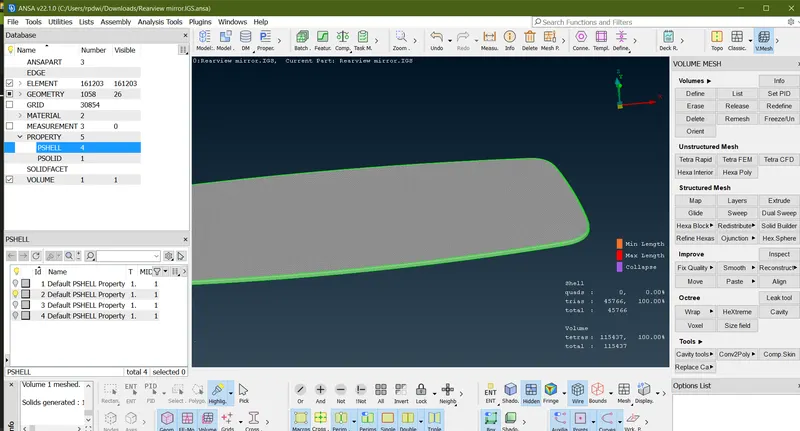
Go to (V.Mesh>Unstructured Mesh>Tetra Rapid/Tetra FEM) option and select the Volume and start meshing.
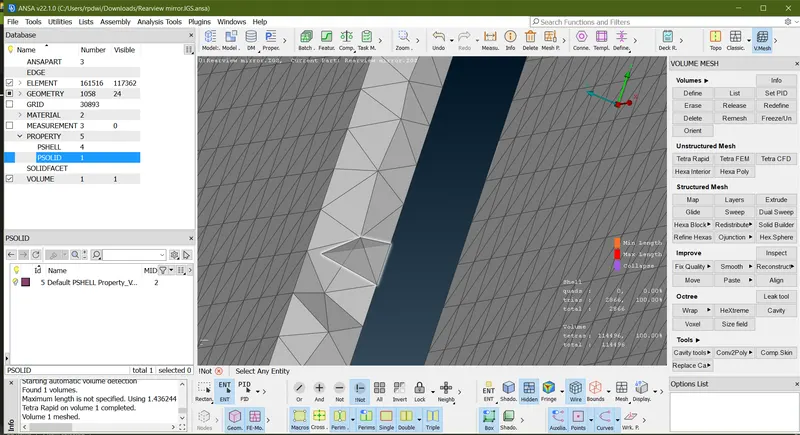
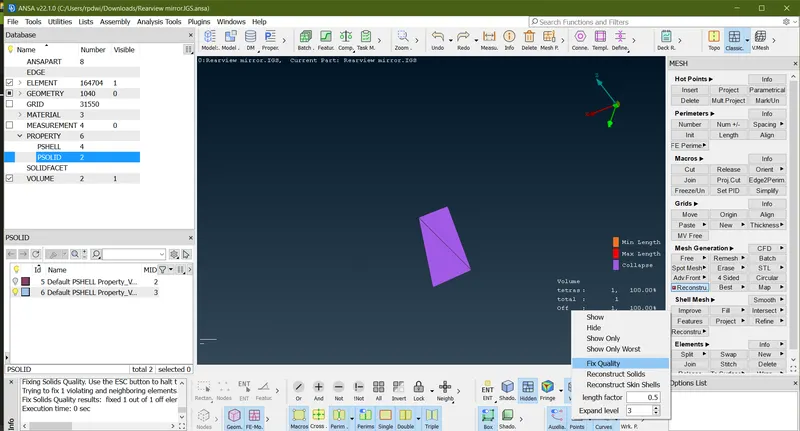
While donig mesh Some OFF Element present in Spherical Shape Shown Below-
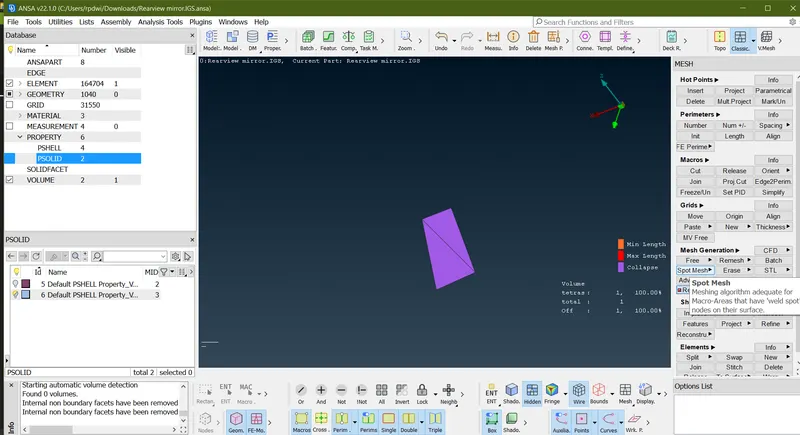
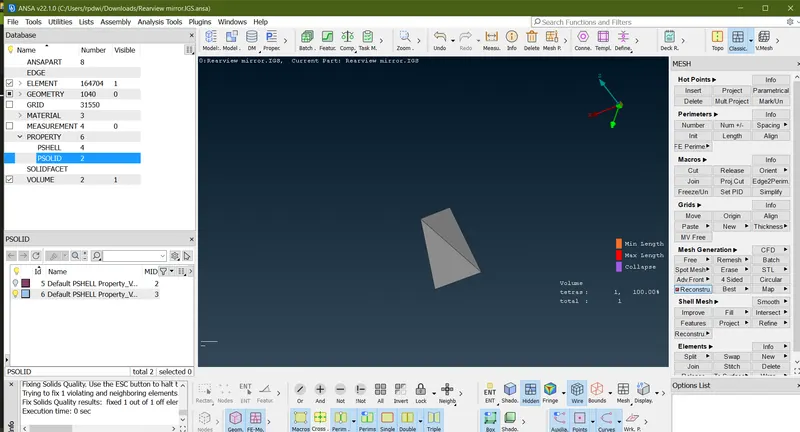
One Tet collapse Error to eleminate this error by using (Right click OFF >Fix Quality)
Result
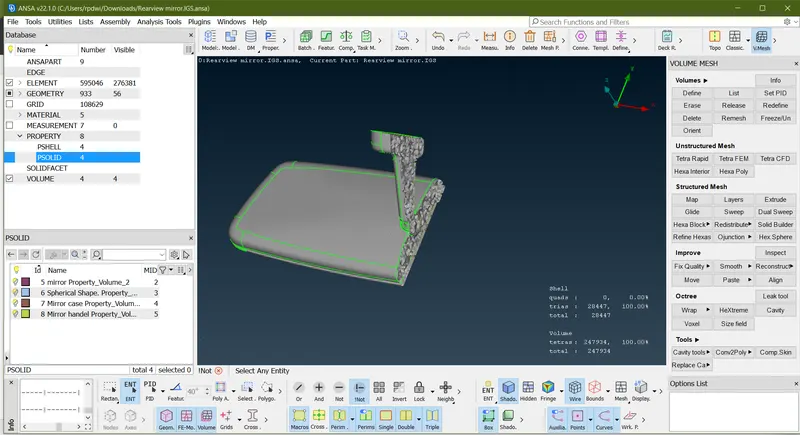
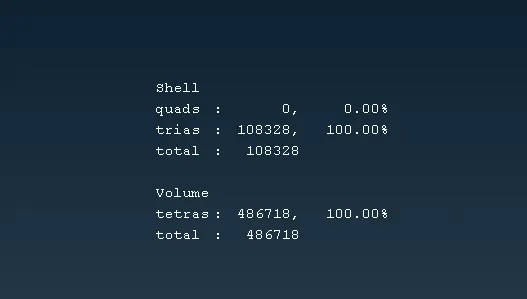
Similarly Do the same operation remains part's with below step's-
- Geometry cleanup.
- Generating 2D Mesh.
- Per-Volume Check.
- Volume Defination.
- Generating The 3D mesh( Using Trtra Rapid)
10) LEARNING OUTCOMES :
At the end of this challenge, I can able to
- Learned to Mesh the fillet area using element type as ortho tria and for normal surface mesh using element type as tria.
- Learned to mesh the Volume using Unstructured mesh (Tetra Rapid & Tetra FEM).
- Learned to eliminate the off elements (Min length, Max length & collapse) by using MV Free option
11) RESULT :
For the given Rearview Mirror model, checked for the geometrical errors and meshed with element type as ortho tria & tria as per given quality criteria. After meshing defined the volume and meshed the volume by using unstructured mesh (Tetra Rapid & Tetra FEM type). After mesh eliminated the off elements (Min length, Max length & collapse).