3D Creation of Celing, Roof, Architectural plan, Structural plan, Sectional view, Elevation view and Camera specific view for a house plan using REVIT
1. Based on the project saved from Week 3, proceed from the First Floor Level. Model a Ceiling from the architecture tab above the walls at the first-floor level.
(ANSWER):
1. Modeling of ceiling
Aim: To model a ceiling above the architectural plan created
Procedure:
Step 1: Open the project created
Step 2: Click on first floor in plan view
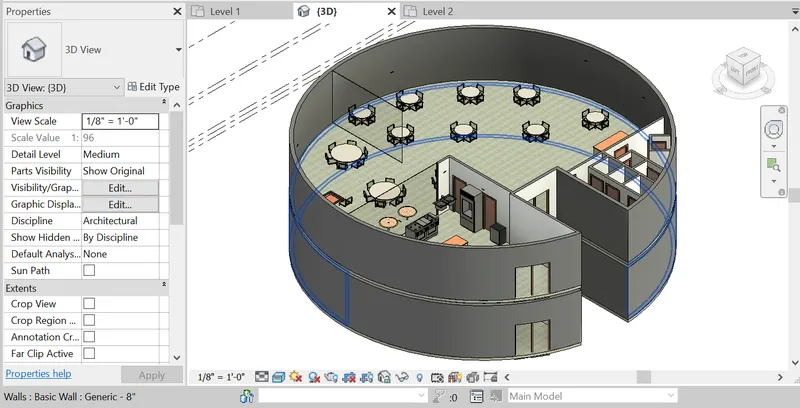
Step 3: Click on ceiling from the architectural tab.
Step 4: Click on automatic ceiling.
Step 5: Go to level 2 plan view and click on the rooms to create ceiling.
Step 6: Give the offset from level 2 as 3000 in the property browse bser.
Step 7: Create ceiling above the open terrace by sketching.
Result:
Ceiling is modelled above the architectural plan.
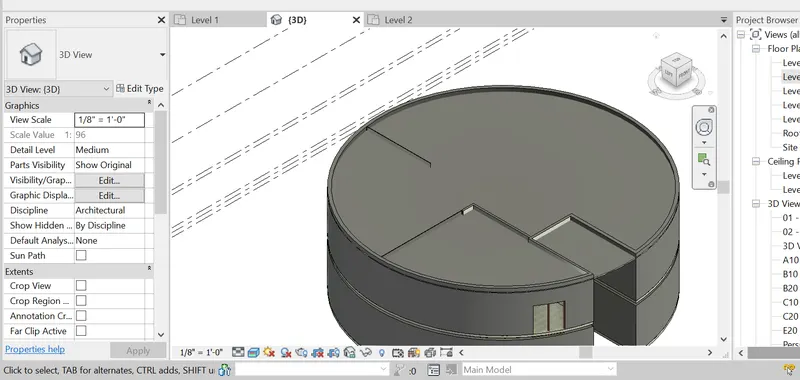
2. Modelling roof above the ceiling:
Aim: To create roof above the ceiling and adjusting the roof slope to 10 degree.
Procedure
Step 1: Go to level 3 floor plan
Step 2: Click on roof tab under architecture tab.
Step 3: Click on pick lines and with draw lines to connect the roof in level 3
Step 4: Go to 3d view.
Step 5: Click on the roof in 3d view.
Step 6: We can drag the arrows provided to adust the slopes.
Step 7: In property browser, we can change the roof slope to 10 degree.
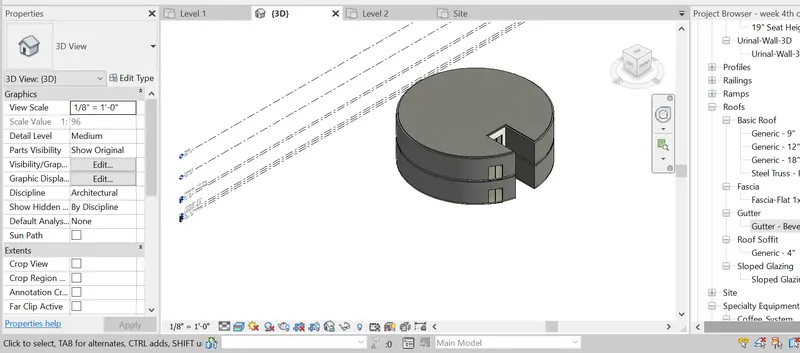
Result: Roof is created above the ceiling and slope is adjusted to 10 degree.
3. Creating architectural and structural plans:
Aim: To create plan views for ground floor and first floor levels and seperate them to architectural and structural.
Procedure:
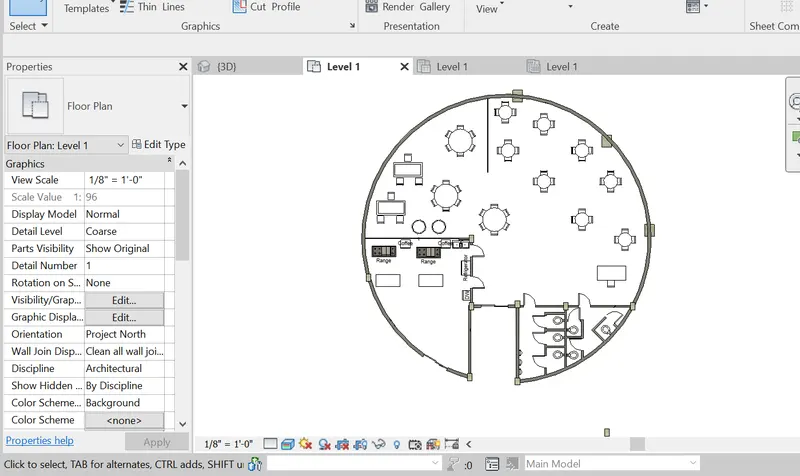
a. Architectural plan - walls , floors and all components inside building,
Step 1: In architetcural tab click on walls and draw the walls.
Step 2: Click on doors and window tab under architectural, and place it wherever required,
Step 3: Click on floors and click on pick lines and click on the outline lines
Step 4: Click on place a component under architectural tab and if the componets are present place it or click on load family
Step 5: Load the components we need to place.
Step 6: Place the coofee tables for cafe shop building.
Step 7: Place dinning set in dinning room.
Step 8: Place the table , chair,desk.
Step 9: Place water closet and sink in the toilet
Step 10: Place hood and hob and cabinets in kitchen
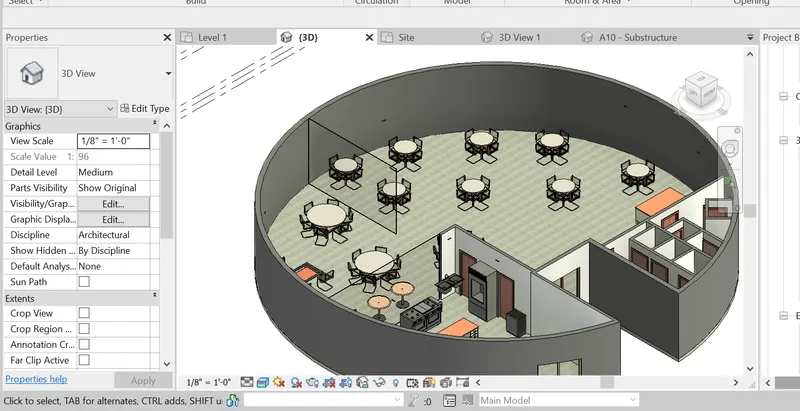
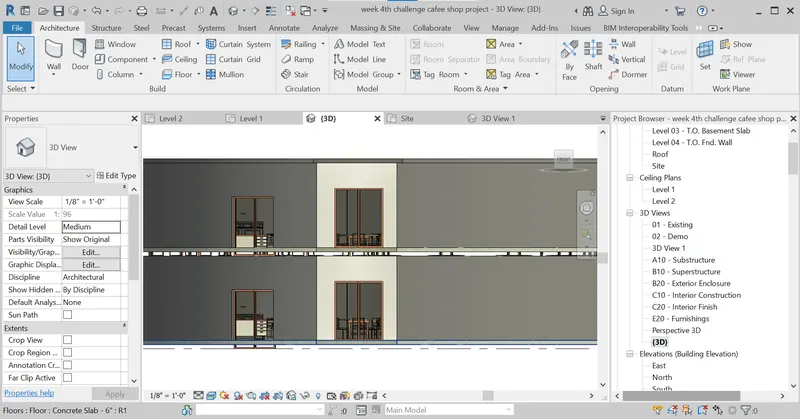
front view :
b. Structural plan:
Columns and beams
Step 1: Create walls by clickng walls in architectural tab.
Step 2: Create doors and windows.
Step 3: Floor is created by clicking on floor tab and pick lines and select the lines.
Step 4: Place columns by clicking on column tab under architectural tab.
Step 5: Click on architectural column and place the columns in all corners of the wall and also wherever required.
Step 6: As the column is bigger in size, go to edit type dupilcate and change the size of column- 200x200mm.
Step 7: Similarly place the column in all the corners and wherever required.
Step 8: Delete the walls and floors.
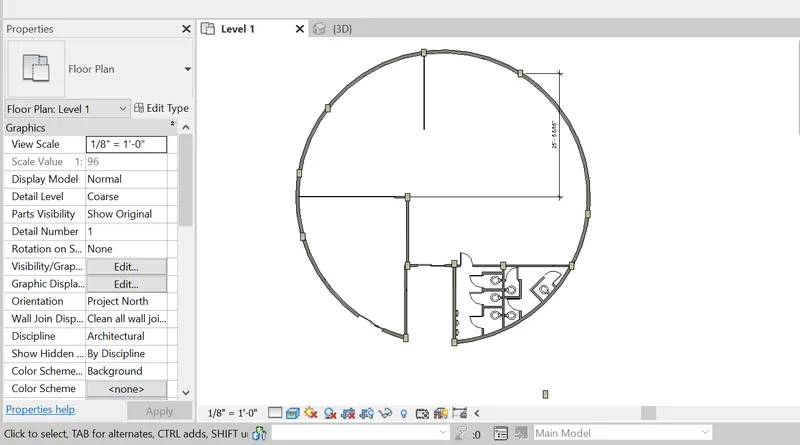
Step 9: Select beam from structural tab, and draw beams connecting the column.
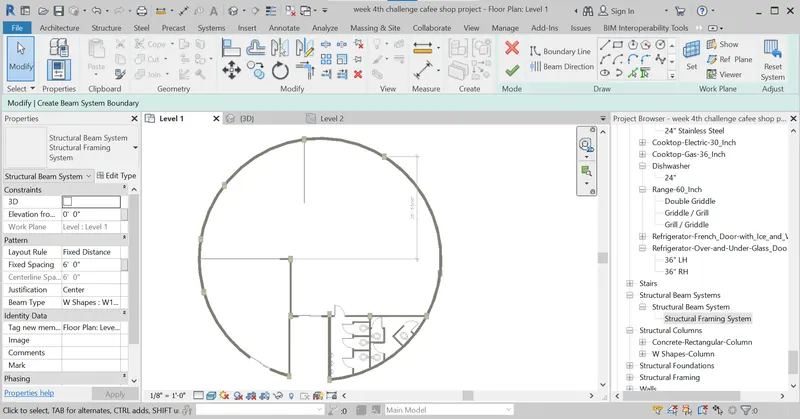
Result: The architectural plan and structural plan has been created.
4. Adding dimensions to the architectural and structural plan
Aim: To add dimension using annotate toolbar to the architetcural and structural plan
Procedure:
a. Architectural plan - dimensions with respect to the grids
Step 1: The grids are created along walls.
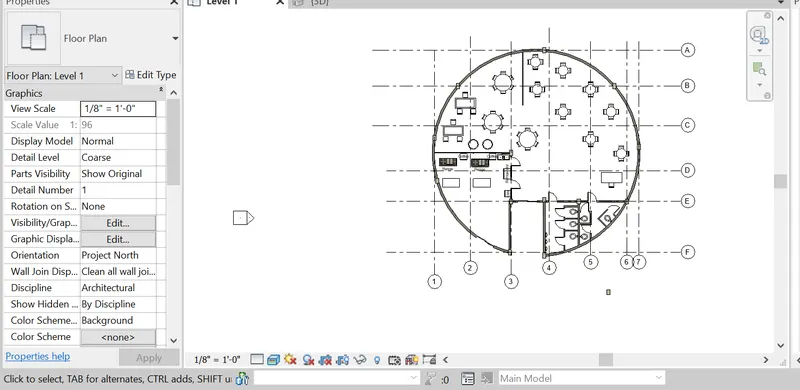
Step 2: Click on annotate tab, select linear dimension
Step 3: Click on the two walls, to get the distance of the rooms.
Step 4: Again click on annotate, linear and select the grid points and the components
Living and dinning:
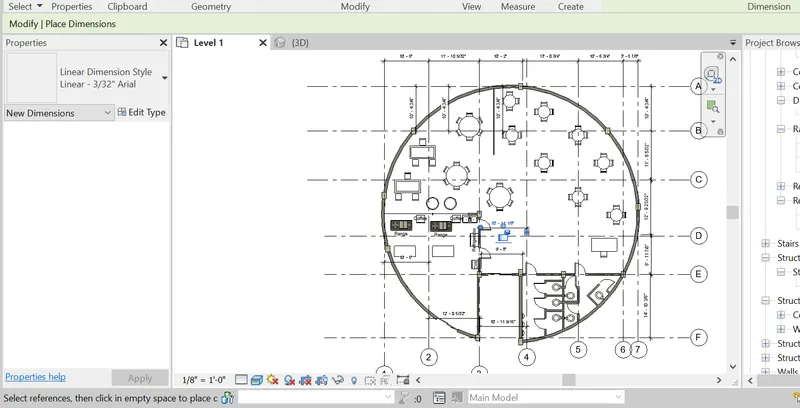
b. Structural - dimensions with respect to the grids
Step 1: Create columns on all comers of wall.
Step 2: Create beams connecting the columns.
Step 3: Using grid tab. place the grids at the centre of the column.
Step 4: Use annotate tab aligned and linear to measure the dimension between the grids. grids and wall.
Step 5: Measure the dimension from grid and partition walls.
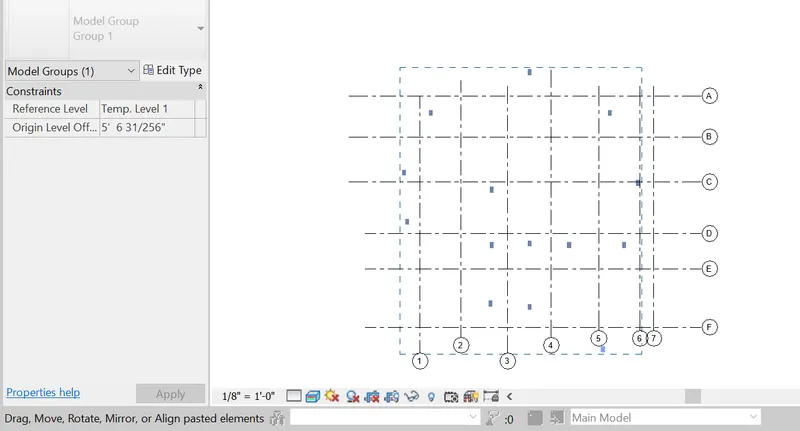
Result: Dimensions with respect to the grids are measured using annotate tool.
5. Creating sheet template:
Aim: To create sheet template from the view tab and adjusting the parameters to add views.
Procedure:
Step 1: Click on view tab, select sheet option, select A1 metric.
Step 2: If we need more sheet click on load button select title blocks and select the sheet we need.
Step 3: A sheet will be created.
Step 4: We can edit the template by double clicking the letters.
Step 5: To add views, click on place views under view tab.
Step 6: Select the views created to place it in the sheet.
Click on add view to sheet.
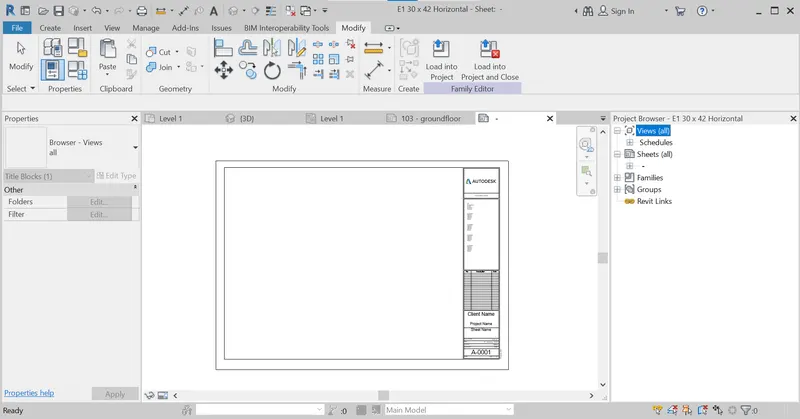
Step 7: When adding if the size is large, click on size crop, select scale and give a value here 500) and apply.
Step 8: Click on dining views and add them.
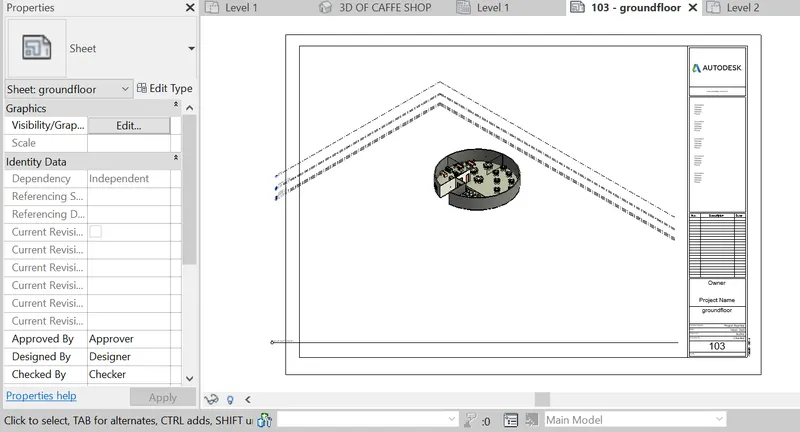
Step 9: Click on 3d view of restorom and 3d view of full building and place in the sheet.
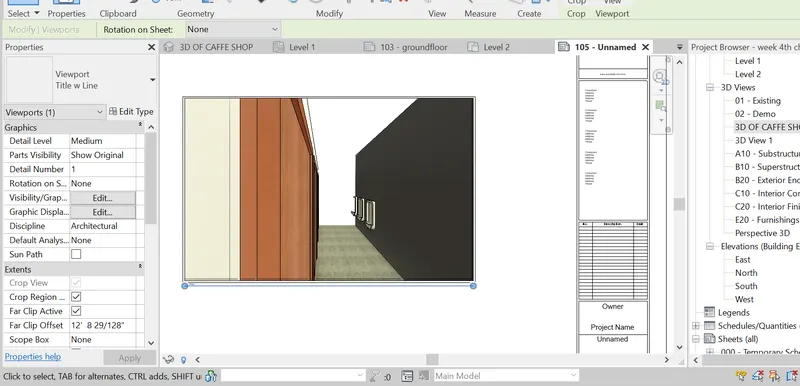
Result:
Sheet template is created and views are placed in the sheet template.
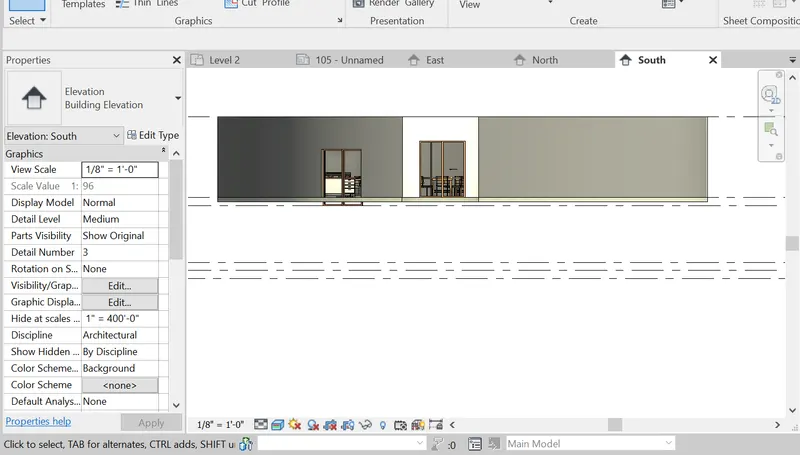
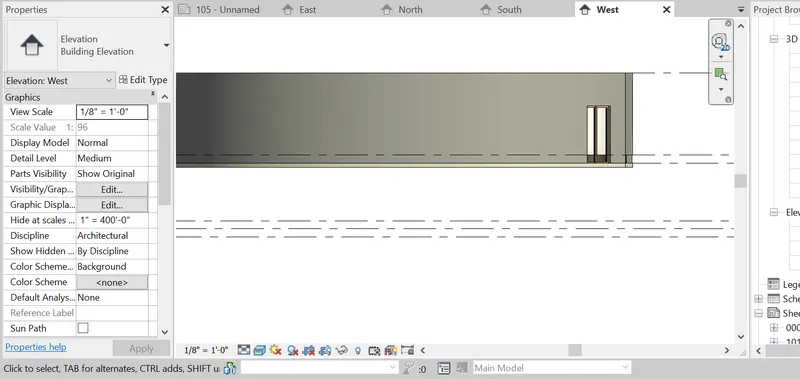
6. Creating elevations:
Aim: Creating elevations views using elevation tab from North, South. East and West.
Procedure:
Step 1: In view tab. click on elevation in level 1 view.
Step 2: Place the view where we need, elevation 1 will be created in the property browser.
Step 3: Click on elevation 1 to see the view.
Step 4: Similarly place the elevation blocks in North South East and West and rename it espectively.
Step 5: Click on elevation tab from the project browser.
Step 6: Expand the elevation tab, we can see different elevations of North East West and South.
Step 7: Click on East view.
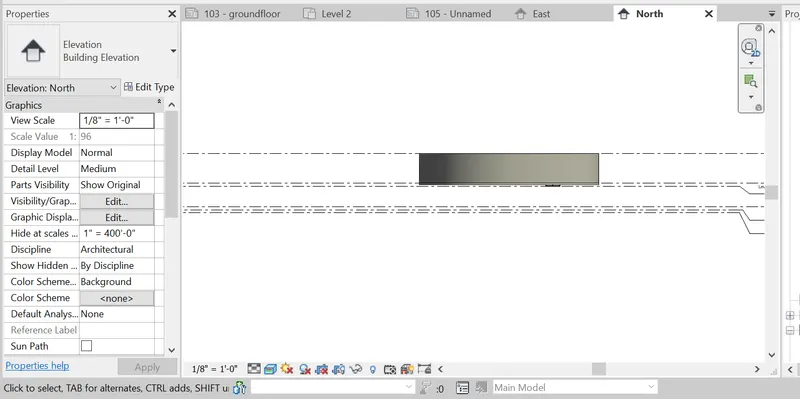
SteP 8: Click on North view.
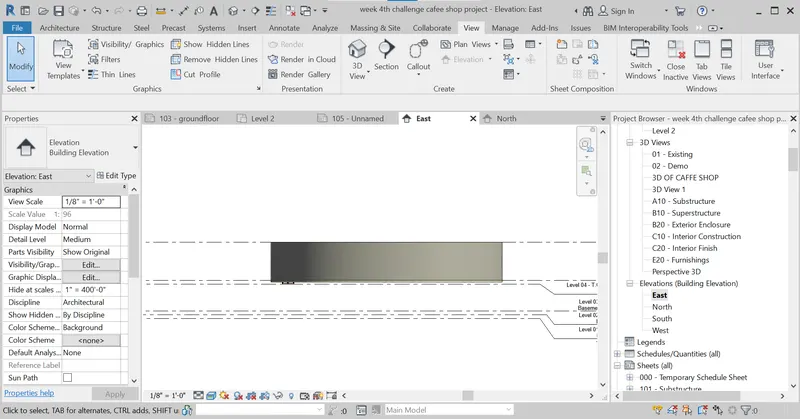
Result:
North, South, East and West elevations are created using elevation tab.
7. Section cut through each room cutting longitudinally and transversely.
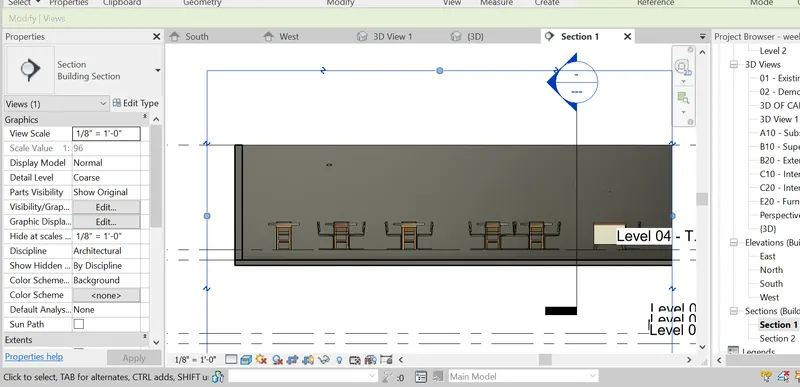
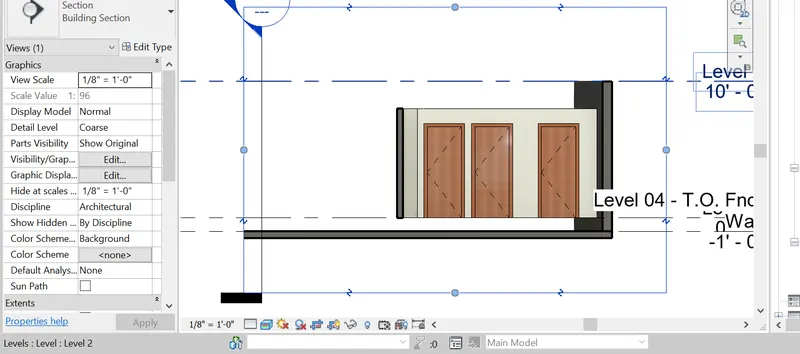
Aim: To create section through each room creating sections longitudinally and transversely.
Procedure:
Step 1: Click on section tab from view tab draw the section through the living and dinning longitudinally.
Step 2: Click on section view from the property browser, we can see the view.
Step 3: Click on section tab from view tab and place the section through thebuilding longitudinally.
Step 4: Click on section view and select the created section from property browser,
Step 6: Click on section from the view tab and draw the section transversity in the restroom.
Step 7: Click on section tab from property browserand rename the section to restroom
Step 8: Click on section view from view tab, and draw section line through transverese direction in kitchen.
RESULT:
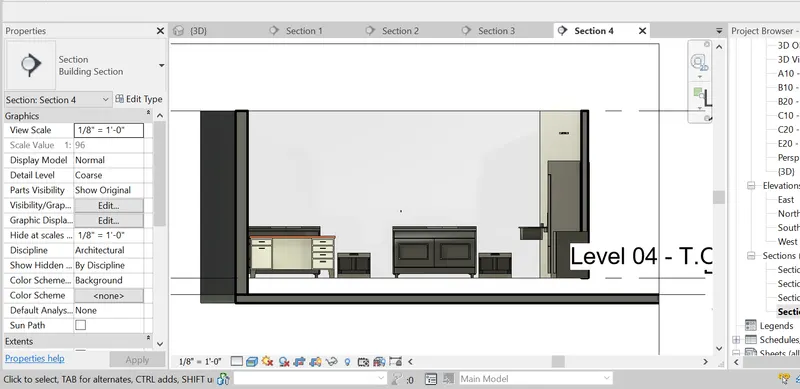
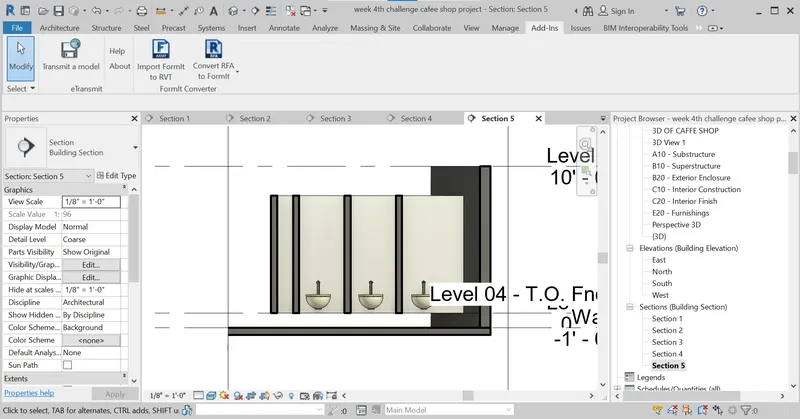
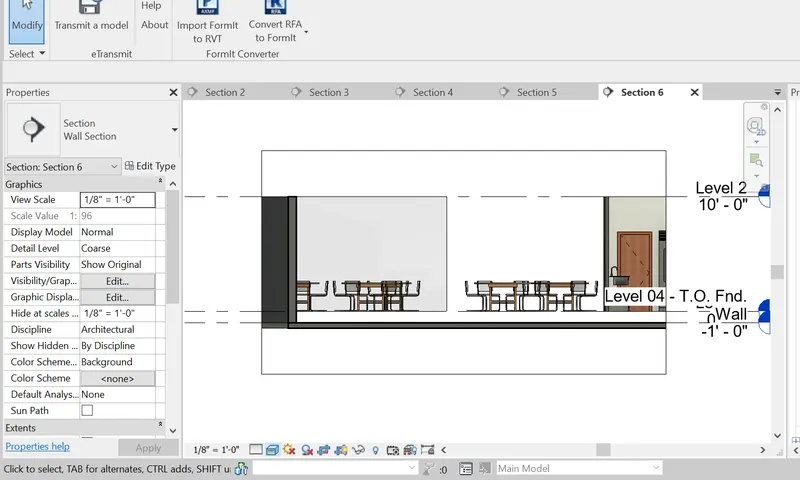
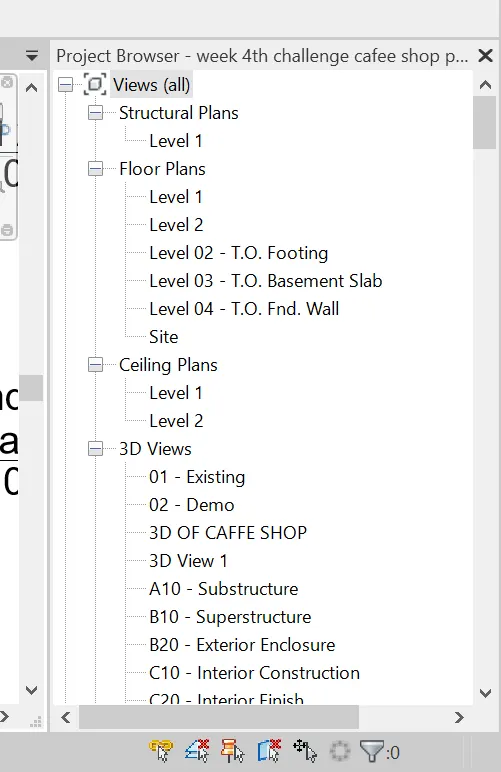
8. Classifying different views:
Aim: To classify different views like plan views, section views and elevation views and document in project browser.
Procedure:
Step 1: In the property browser we can see all the views are visible.
In Project Browser challenge 4
Structural Plans
Floor Plans
Celing Plans
E 30 Views
Elevations (building Elevation)
Sections Building Section
Step 2: Click on each of the tab to expand it so that we can see the plans, elevations and section view created.
Step3: For plan view , click on the floor plans and expand it.
Step 4: We can see that level 1, level2, level 3 which are created are visible
In Project Browser challenge
Views all
Structural Plans
e Floor Plans
Level 1 Level 2
Level 3
Step 5: Select on each level to see the floorplan of that level.
-level 2 created at 3000mm and level 3 at 6000mm.
Step 6: Select level 2 so that we can see the plan view of first floor level.
Step 7: Click on elevation in property browser, expand it and we can see that different elevations views are there.
Elevations Building Elevation.
East North
Step 8: Click on East to see the east elevation view.
Step 9: Click on North elevation.
Step 10: Click on South elevation.
Step 11: Click on West.
Step 12: Click on section, to expand the views
(Sections Building Section).
kitchen.
living and dining.
restroom.
Step 13: Select bedroom view.
Step 14: Seelct living and dinning.
Result:
Views are classified and are documented in the project browser.
9. Creating multiple sheet from sheet templates
Aim: Creating multiple sheets using sheet template
a A101- Ground Floor Architectural Plan
b. A102 - First Floor Architectural Plan
C. AI03- Roof Plan
d. S101- Ground Floor Structural Plan
e S102- First Floor Structural plan.
f. S103- Roofframing Plan
g. A201- North -South elevations
h. A202- East West elevations
i. A203-A206 Sections
a. A101 - Ground floor architectural plan
Step 1: Click on create sheet from the view tab
Step 2: Select the sheet or load another if needed.
AS same as procedure for the other plans also.
RESULT:
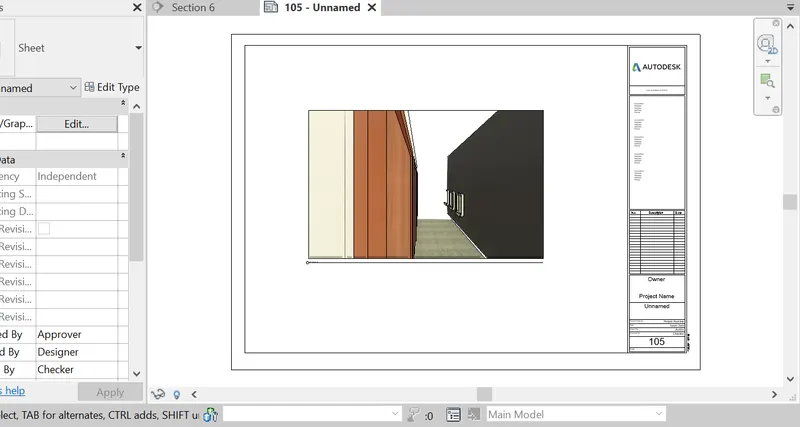
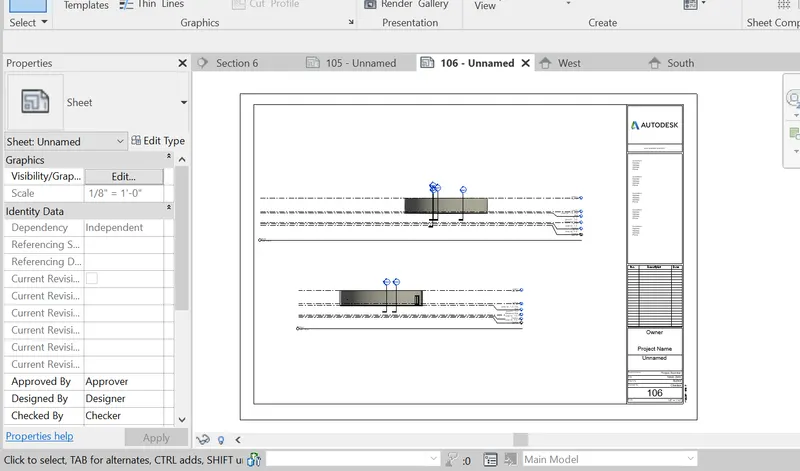
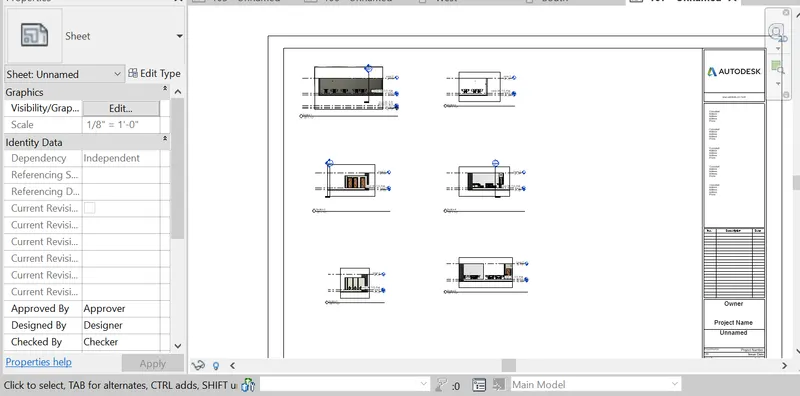
Respective sheets are created using sheet template
a. A101- Ground Floor Architectural Plan
b. A102 - First Floor Architectural Plan
c. A103- Roof Plan
d. S101- Ground Floor Structural Plan
e. S102- First Fllor Structural plan
f. 5103- Roofframing Plan
g. A201- North -South elevations
h. A202- East West elevations
A203-A206 Sections.
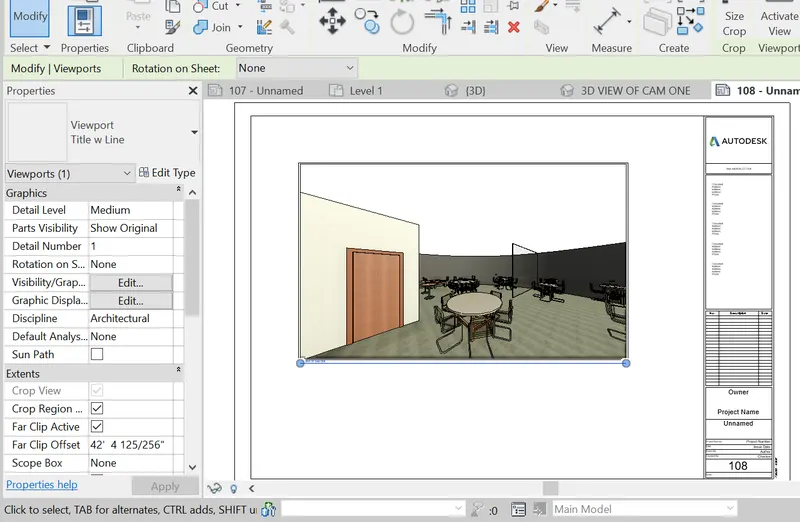
10. Creating camera views for each room and creating sheets for the views
Aim: Creating camera views for each rooms and creating sheets for each of the 3d view.
Procedure:
Creating views :
Step 1: Go to floor plan, from the view option-3d view- click on camera, and place the camera in which room we need the view. Step 2: Created views will be seen under 3d in property browser.
Living:
Step 3: Place the camera in the living room, in the floor plan.
Step 4: Click on the 3d view created from the property browser and rename it to living
Dinning:
Step 5: Click on camera from view tab under 3d view.
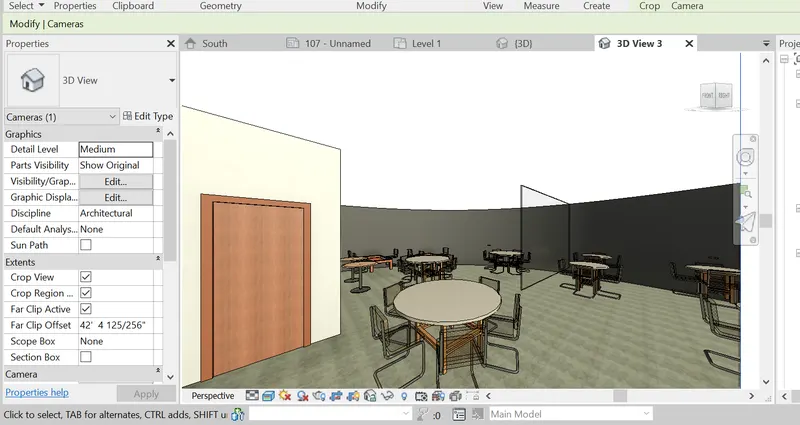
Step 6: Place the camera such that the dinning view is visible.
Step 7: Expand the 3d view from the property browser and rename it to dinning
Step 8: Click on the dinning view.
Creating sheets:
Projects
Step 9: To create sheet, go to view tab click on sheet, seelct the sheet we need or load more and seelct the required.
Step 10: Rename the sheet name as A501 - Living room
Step 11: Click on place view and click on the living from the dialogue box.
Result:
Courses
Projects
Workshops
Camera views of all rooms are created and sheets are created accordngly.
Views:
Living
Dinning
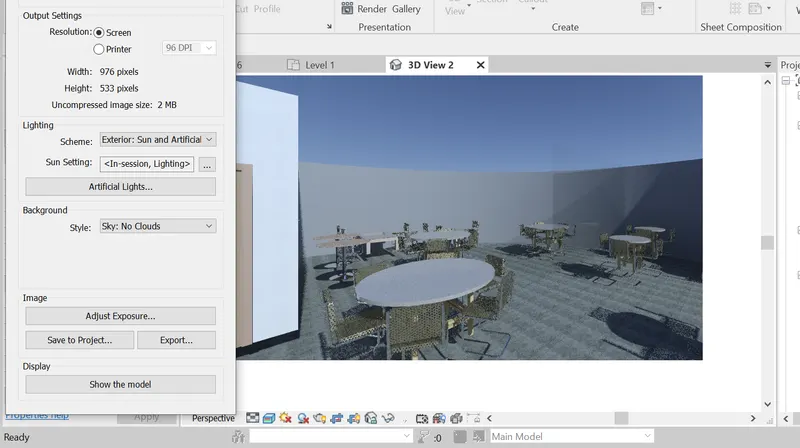
Rest room
Kitchen
Sheets:
A501- Living room
A502- Dinning Room
A504- Kitchen