Usage of Collaborate tool in REVIT
1) Open an architectural template. Using the Manage tab set project base point and project shared coordinates for the project.
AIM:
To Open an architectural template. Using the Manage tab set project base point and project shared coordinates for the project.
TOOLS USED IN SOFTWARE:
Architectural template,
Grid,
Manage tab,
Collabarate.
PROCEDURE:
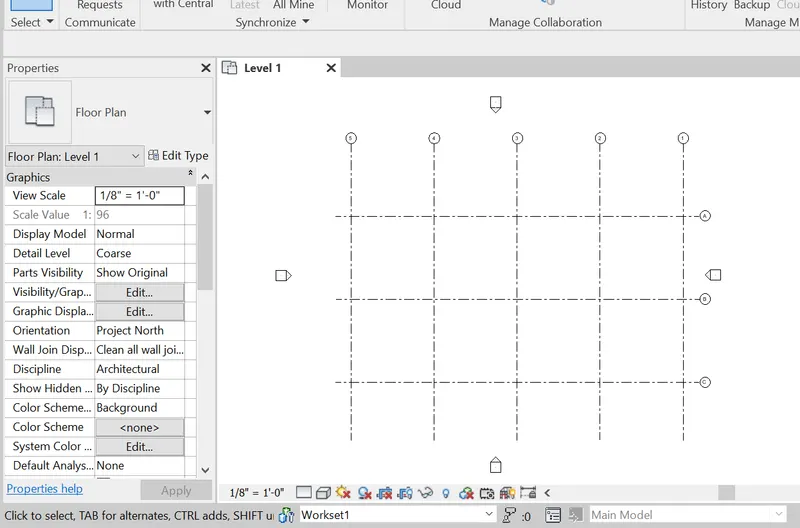
1). Select the architectural tab, 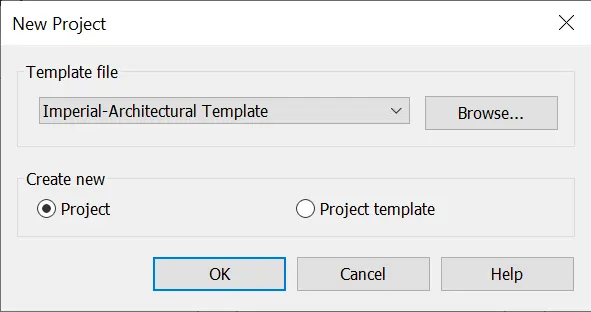 select the grids and draw the grids.
2). Rename the grids in horizontal in (A), Vertical in(1).
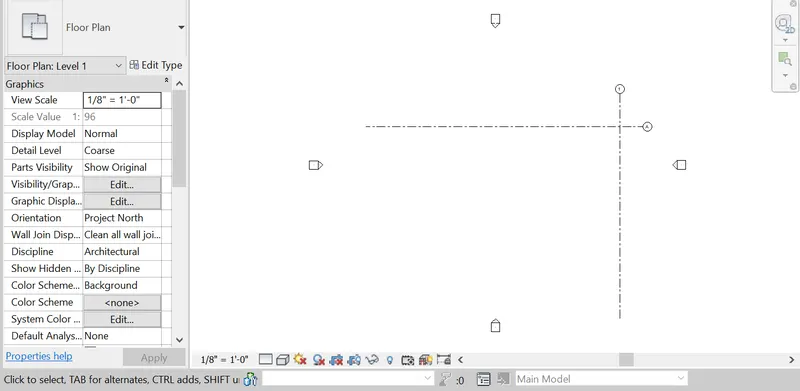
3). Select the manage tab and Specify coordinate at point and select one grid to specify as a point 0'0"
4). Select the specify coordinate at a point and point and sdelect gthe other grids and specify the point as a 0' 0"
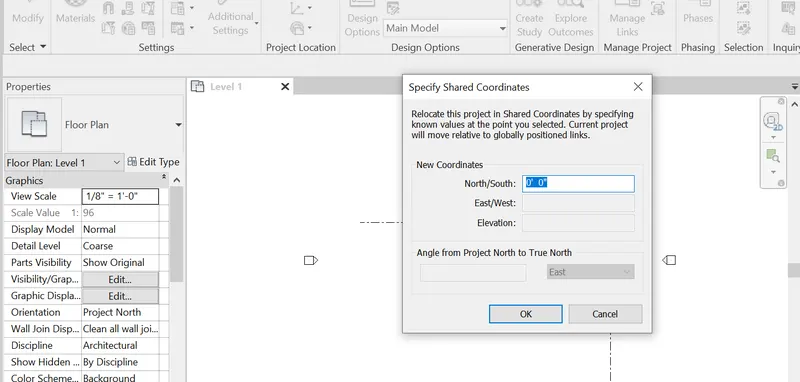
5). And then, pick the collaborate tab and collaborate the architectural drawing.
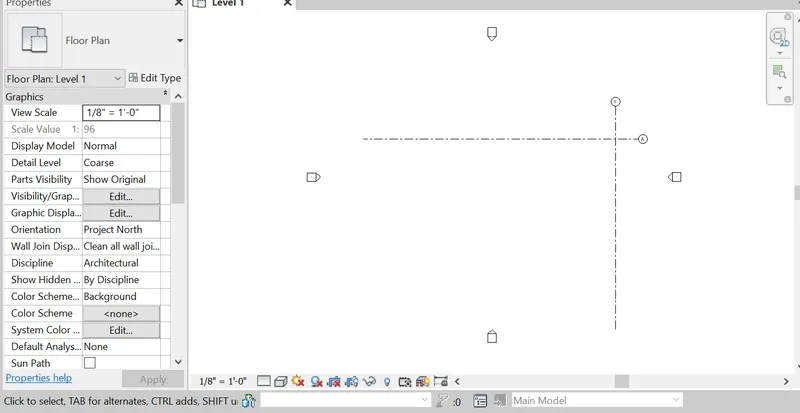
6). Finally, save the file it in Residential building-Architectural template.
Result:
2) Open another new file but with a structural template. Using the manage tab set project parameters the same as the architectural model. Copy the parameters from the architectural model to the structural template or enter the parameters manually into the structural model.
AIM:
To create the structural template and using manage tab select the parameters same as architectural template.
Tools used in software:
- Structural template
- grid
- manage tab
- Specify coordinate
- collaborate
PROCEDURE:
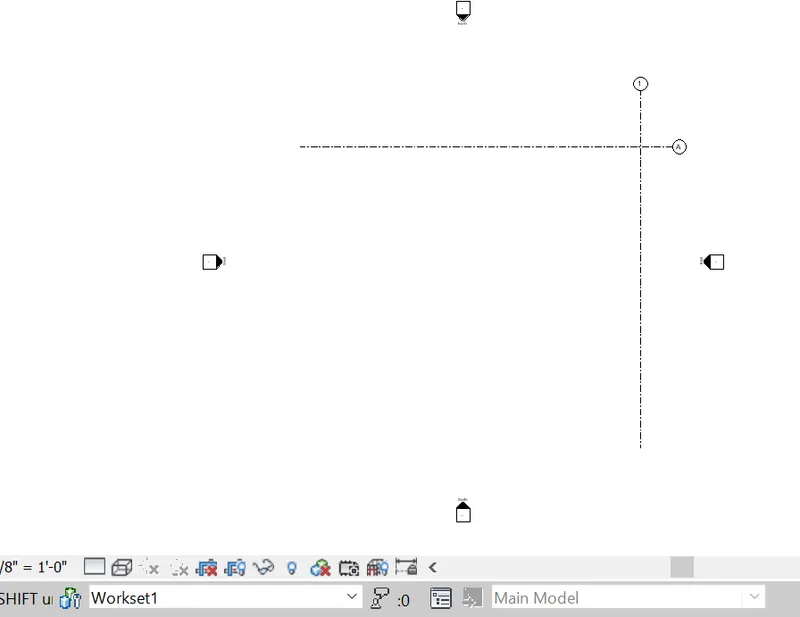
1). Select the structural tab and set the structural template and then select the grids,
2). Draw the grids( longitutinal and transverse)
3). Rename the grids in (horizontal)A and(vertical)1.
4). Select the manage tab and set the specify coordinate at a point o'o" to both grids.
5). Save the file with Residential Building-Structural Template.
RESULT:
3) Re-open the architectural model. Using the tools under the Collaborate tab make the architectural model a central model (enabling simultaneous working on the model).
AIM:
To collabrate the Architectural model as a central model.
Tools used in software:
- Collabrate.
Procedure:
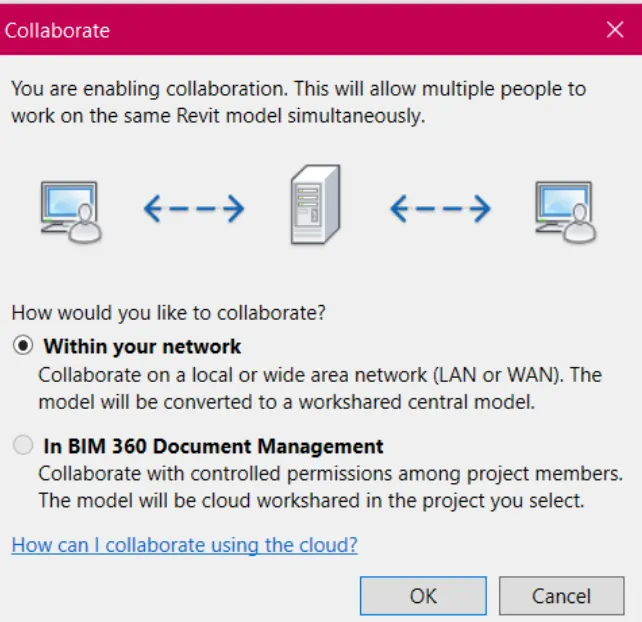
1). Open the arch template file in revit.
2). Select the collaborate tab and select collaborate.
3). Option will appear as how will be collaborate the file
4). Select the option within the network and press enter ok.
Result:
4) Create the Grids Longitudinal and Transverse pattern for the project similar to the task done in Week 2.
AIM:
To Create Longitudinal and transverse pattern.
Tools used :
- Architectural template.
- Grids
Procedure:
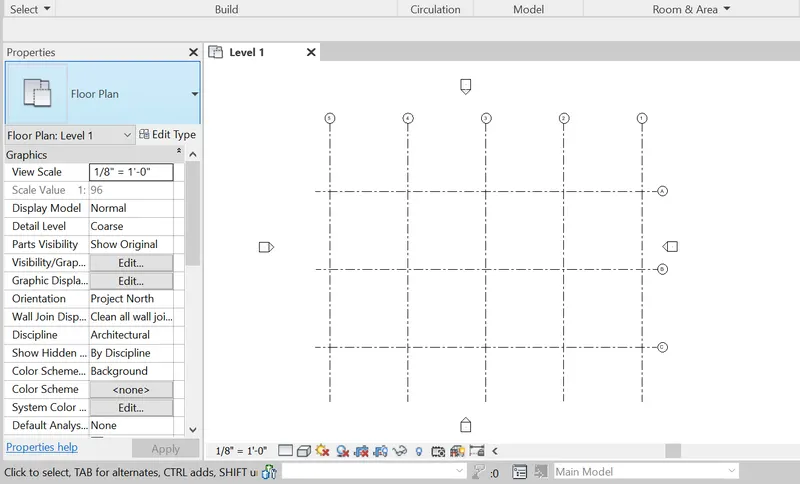
1). Open the Architectural template file in revit.
2). Select the architectural tab and select grids
3). Draw the grids in equal distance by 30'
4). Do the same procedure for transverse and longitudinal grids
5). Save the file.
RESULT:
5) Synchronize the changes from the local copy to the central file of the architectural model..
AIM:
To Synchronize the changes from the local copy to the central file of the architectural model.
PROCEDURE:
1). Open the file.
2). Select the manage tab
3). Select the Synchronize tab and press ok.
4). Then, the drawing will be synchronized with the central file.
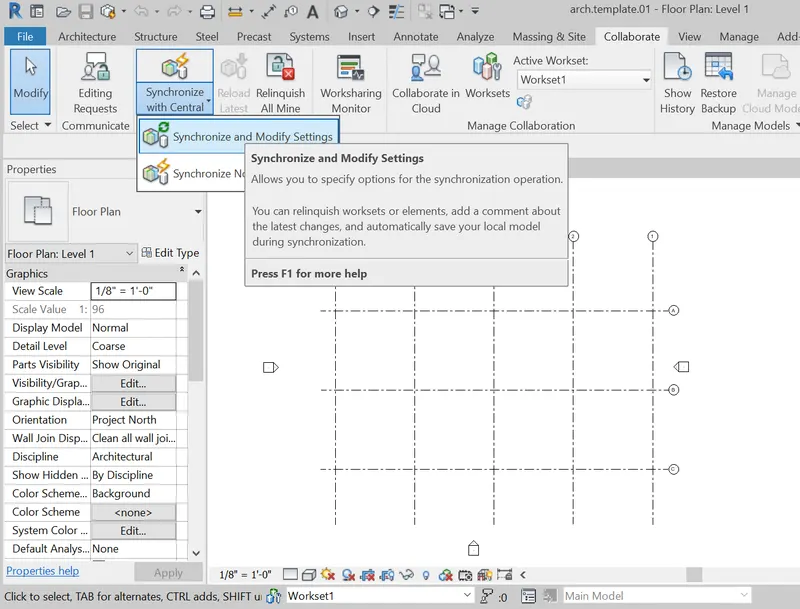
RESULT:
6) Open the structural model and use the collaborate tools to save the model as a central file.
AIM:
To Open the structural model and use the collaborate tools to save the model as a central file.
PROCEDURE:
1). Open the structural template in revit file.
2). Select the collaborate tab to collaboate the drawing.
3). Select the collabrate within your network and save it as saving for the central file.
RESULT:
7) Under the Collaborate tab, select the grids and levels from the architectural model, and using Copy Monitor try to copy the grids to the structural model. See what happens when the copy monitored grid is moved around in the structural model.
AIM:
Under the Collaborate tab, select the grids and levels from the architectural model, and using Copy Monitor try to copy the grids to the structural model.
PROCEDURE:
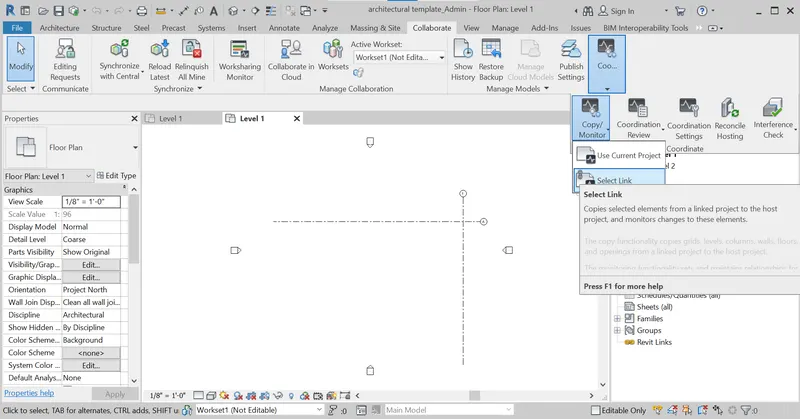
1). Open the architctural tab and select the collaborate tab.
2). Select the copy monitor and select the link to structural drawing, then its linked.
3). Select the grid levels and select multiple and copy.
4). Then click, finish command.
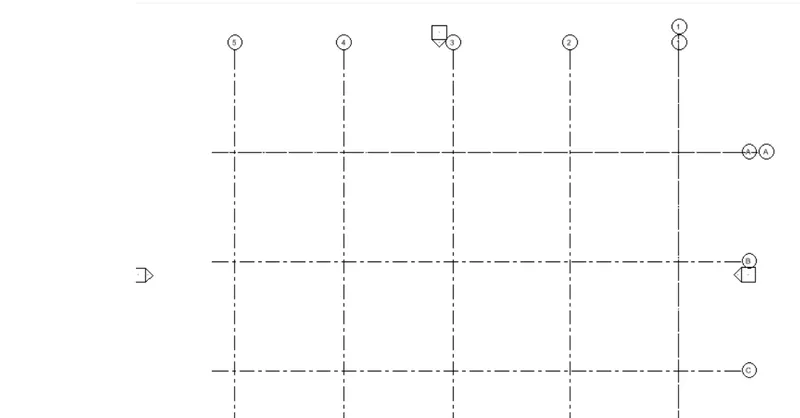
5). Finally, Open the Structural template file and grids and columns will be in structural template.
RESULT:
8) Create another new file with a construction template. Save the new file as a central model. This file will include both architectural and structural model. Under the manage tab, Click manage links to link both architectural and structural files. Save the file and close all the files.
AIM:
This file will include both architectural and structural model.
PROCEDURE:
1). Open the new file and save it as construction template.
2). Then, select the collaborate tab and collaborate the file as central file.
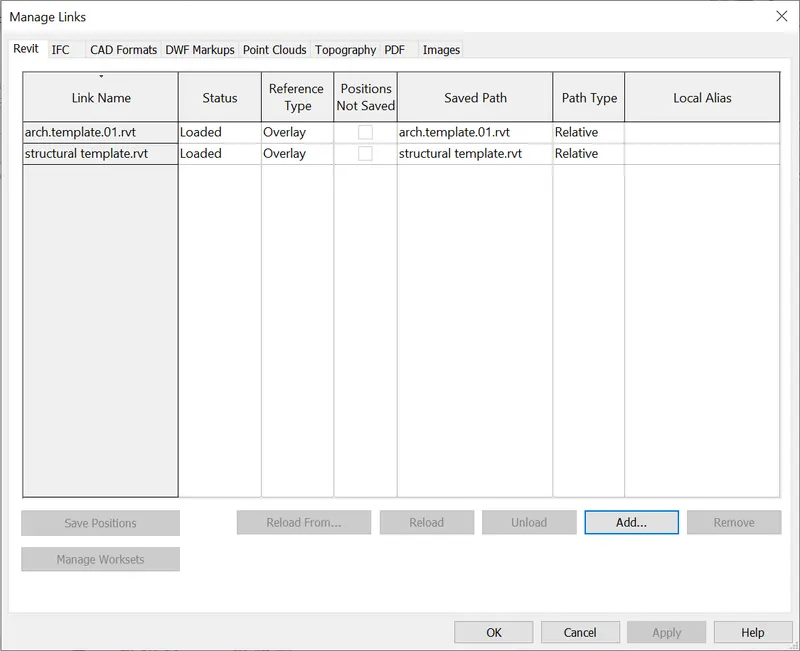
3). Select the manage tab, to manage the link.
4). Then, select both architectural and structural template and press ok.
5). Both the files open in combined file.
RESULT:
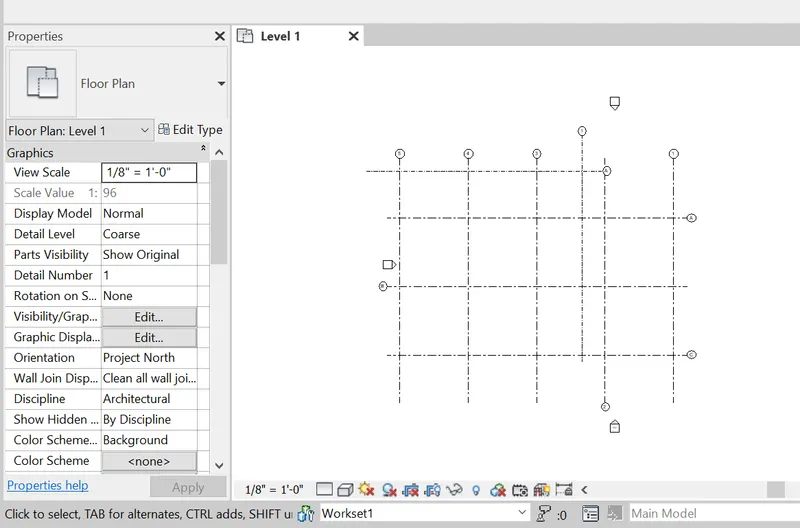
9) Are the grids from structural and architectural model matching in the construction template created?
If yes the model is set up for project 2.
If not work on the shared parameters and linking options under Manage links.
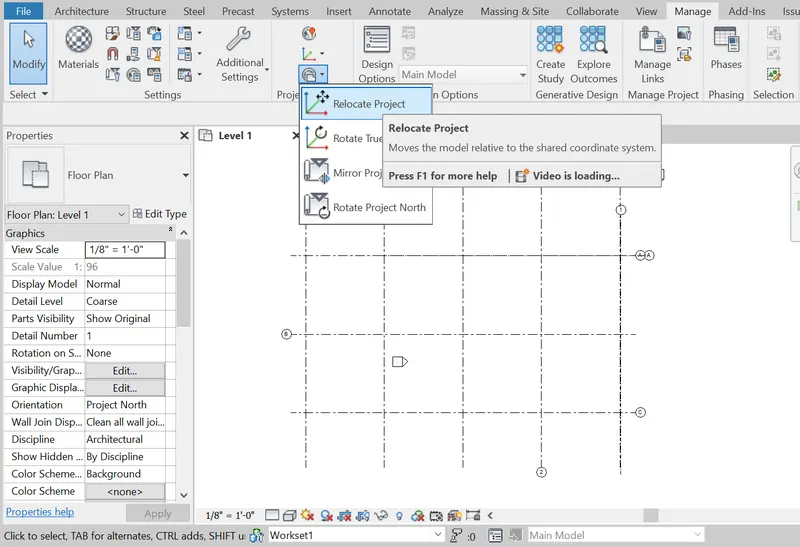
( Hint: origin to origin, by shared coordinates or by project base point to base point ) to link the models in an appropriate manner.
AIM: grids from structural and architectural model matching in the construction template created.
PROCEDURE:
1). open the architectural template and select manage tab.
2). Then go to structural template to link in it,
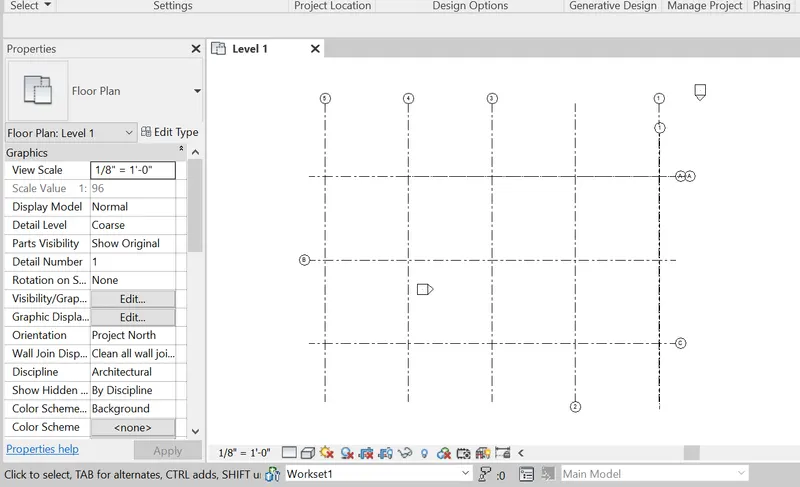
3). Now, both grids will appear in the architectural template.
4). If inserting of the both grids will not intersecting in the template.
5). Then select the architectural grid and select acquired coordinates and select architectural template grid.
6). Select the position icon and click relocate the position and the point of the grid is intersecting eachother.
RESULT:
10) List a flow chart of a project tree set up in terms of Construction model, Architecture & Structure model, in this exercise and understand how many people can work on the same project using Revit simultaneously.
AIM:
To List a flow chart of a project tree set up in terms of Construction model, Architecture & Structure model,
CONSTRUCTION MODEL
ARCHITECTURAL MODEL STRUCTURAL MODEL
Creating a wall creating a beam
creating a door creating a truss
creating a window creating a brace
creating a column creating a connection system
creating a roof creating a load and load combinations
creating a partition wall creation of rebars, foundations and connections
creation of floor
craetion of ceiling
creation of slab
creation of staircase
creation of ramp
creation of shaft