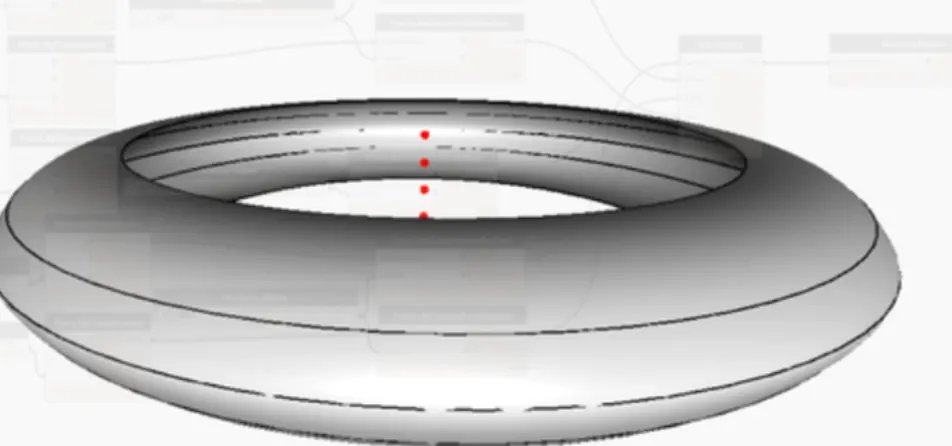
Creating Conceptual mass in REVIT and Creation of Sinusoidal curve and a Parametric stadium using Dynamo
1) Using Dynamo create a set of sinusoidal points and create a curve and create a surface out of the curve.
(ANSWER):
AIM:
To Using Dynamo create a set of sinusoidal points and create a curve and create a surface out of the curve.
TOOL ARE USED:
- Dynamo
- Points
- Curve
- Loft
PROCEDURE:
1). Open a Dynamo tool by click the manage tab in the revit.
2). open the dynamo into revit.
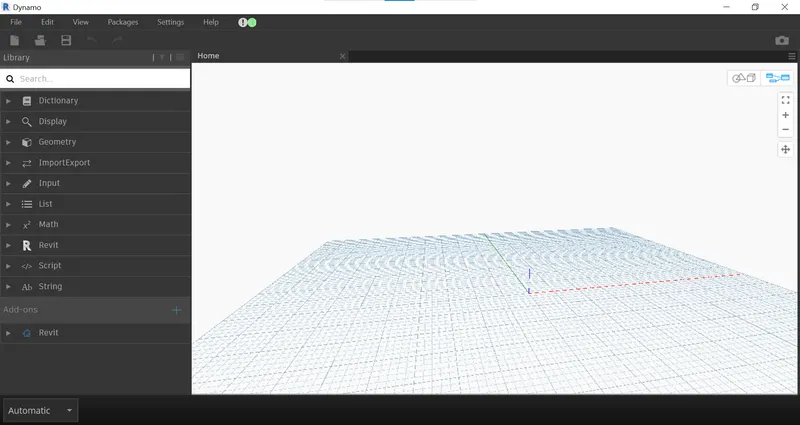
3). set orgin points then rename it into origin, mid and endpoint.
4). Create a code block and enter the value. a,b.
5). Create an integer slide and set the minimum and maximum values.
6). connect the integer slider and code block.
7). connect the code block with the points which we are created.
8). To the a origin point, b to the endpoin t x, and formula to midpoint x .
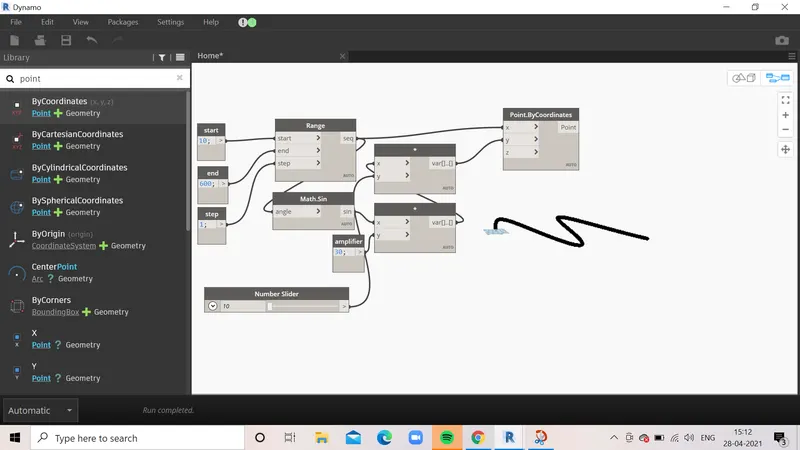
Then, change the view in 3d view.
9). Now the screen will show the 3 straight points which is in origin, midpoint, and endpoints.
10). To create the curve from a sinusoidal points.
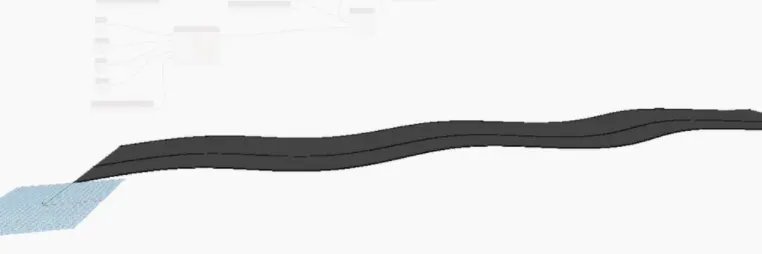
11). Now the curve has been successfull created from the sinusoidal point.
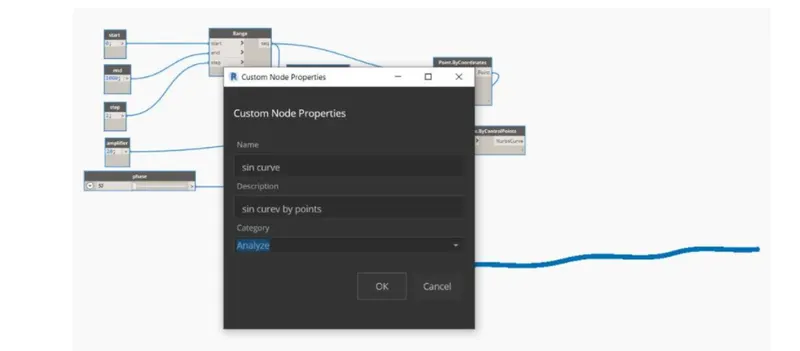
12). then, create the surface of the curve.
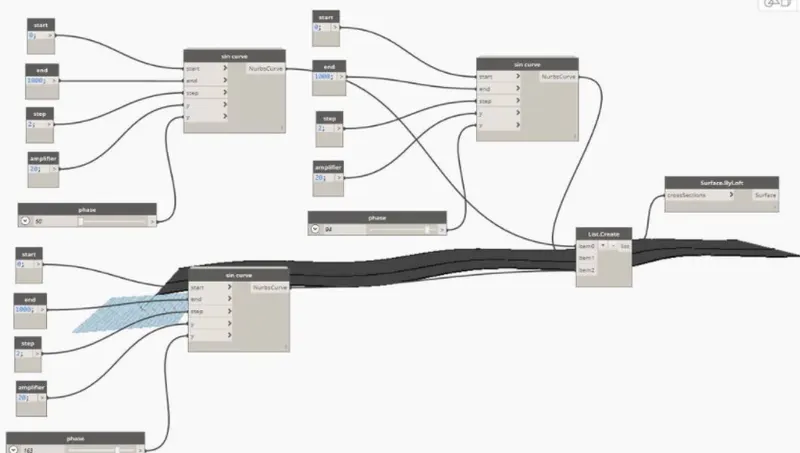
13). Create the plan parameter and connect wit a cod block to it.
14). Create the list and connect it to a nurbs curve.
RESULT:
Finally, the surface of the curve has been created.
2) Create a conceptual layout of floor plan in dynamo . Using the tools available in dynamo link the lines to appropriate model elements in Revit by choosing the wall types and wall parameters. Make use of the sliders to slide through the height of the wall and length of the wall.
(ANSWER):
AIM:
To create the layout of wall types and wall parameters using dynamo.
TOOLS USED:
- Dynamo
- Wall type
- Wall
- parameters.
PROCEDURE:
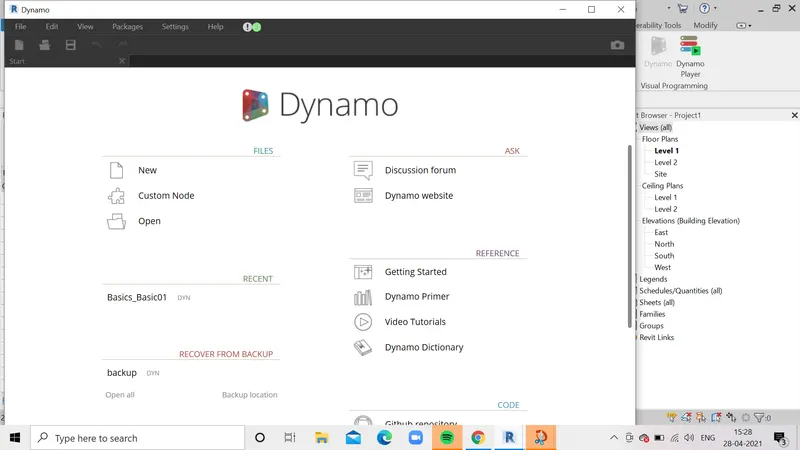
1). Open a Dynamo using revit software.
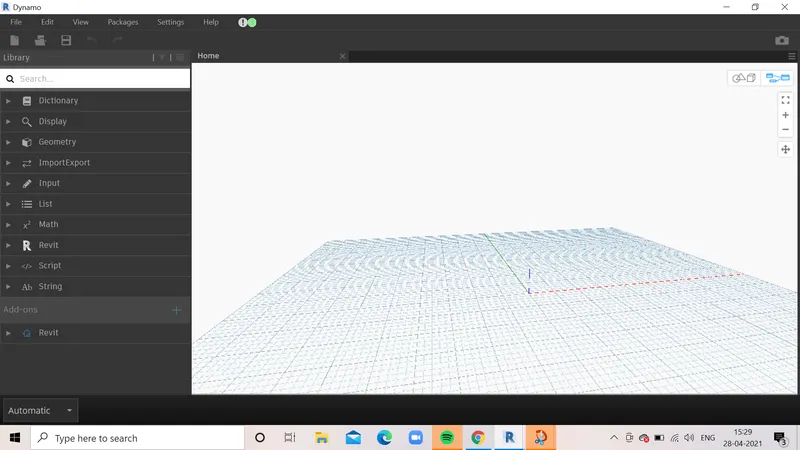
2). set the point coordinate and insert .
3). Rename it into orgin point, control point 2,3.
4). Create an integer slide and rename it also x and y.
5). Edit minimum and maximum value
6). Connect the points where created.
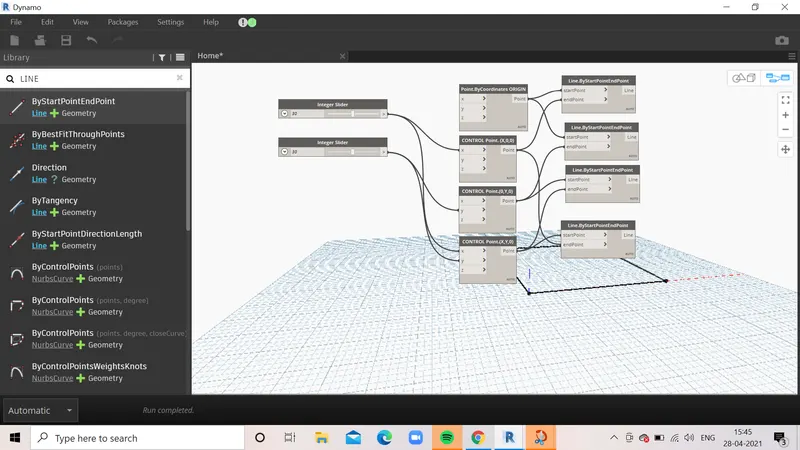
7). After creating the x and y integer slide, then preivewing in 3d view tab.
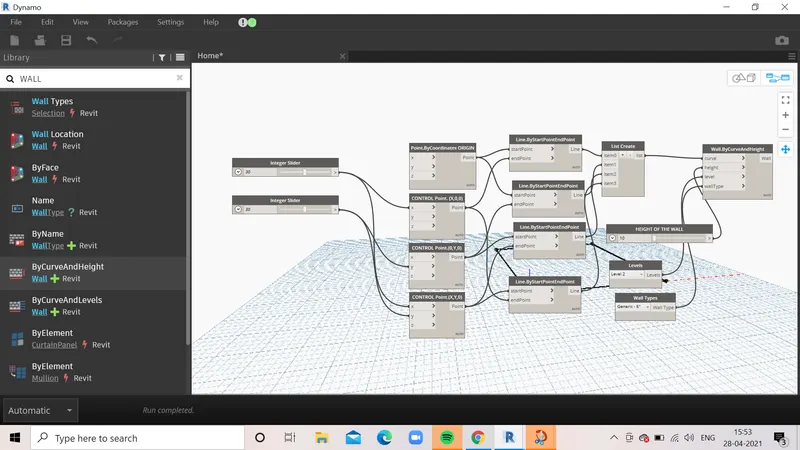
8). 4 points have created into the dynamo screen.
9). Then, join the 4 points and make it a wall.
10). Create s line and connect it with a point where it created.
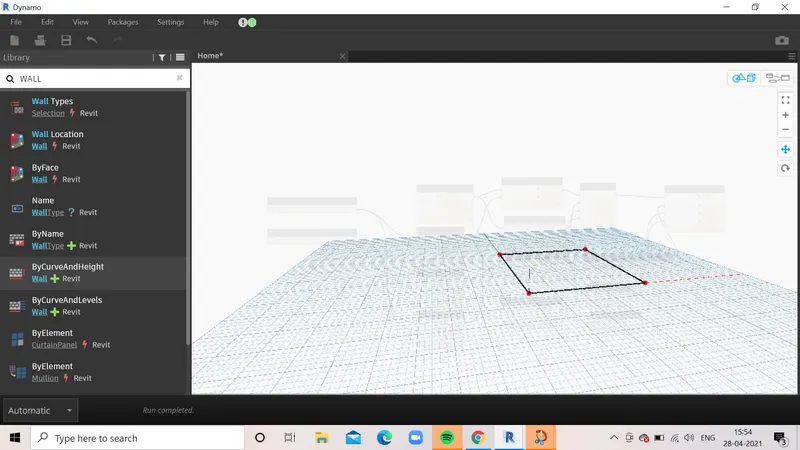
11). Now, the points connected by a line.
12). Then, we make it into wall.
13). Create the wall type and choose the wall type as our wish.
14). then, connect it with a wall curve contains height, curve, wall type.
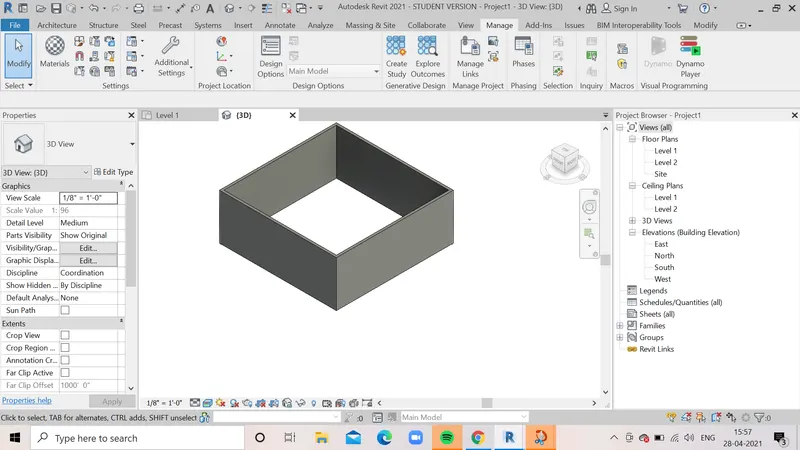
Result:
Finally, wall are succesfully, created.
we can also edit the height and width by adjusting integer slider in dynamo.
3) Create an array of model elements in Revit. Use dynamo to vary the properties of model elements by using the slider or code block.
(ANSWER):
AIM:
To Create an array of model elements in Revit. Use dynamo to vary the properties of model elements by using the slider or code block.
TOOLS USED:
- Dynamo
- Rotate
- Column.
PROCEDURE:
1). Open a architectural template in revit.
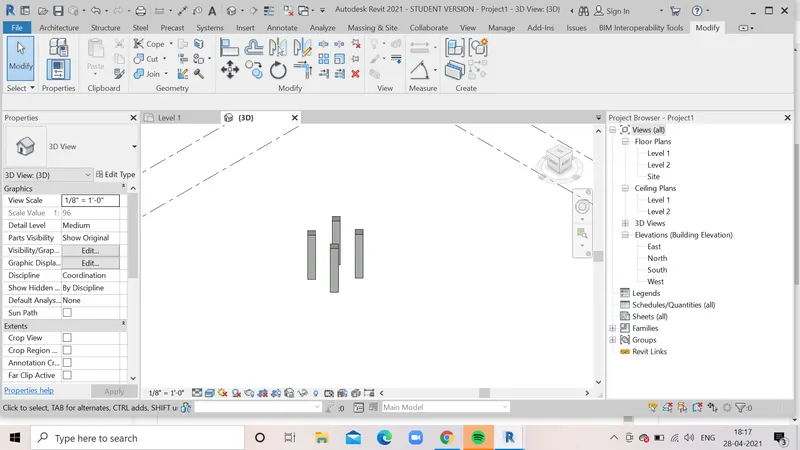
2). add the column in both horizontal and vertical position make it in 4.
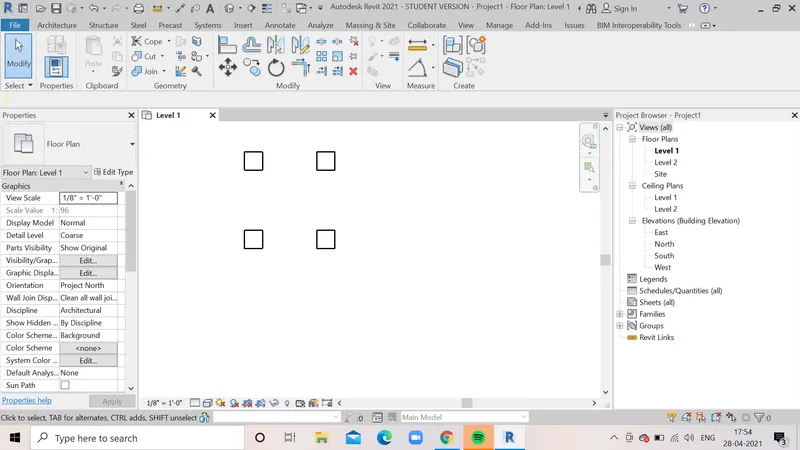
3). Open a dynamo in revit software.
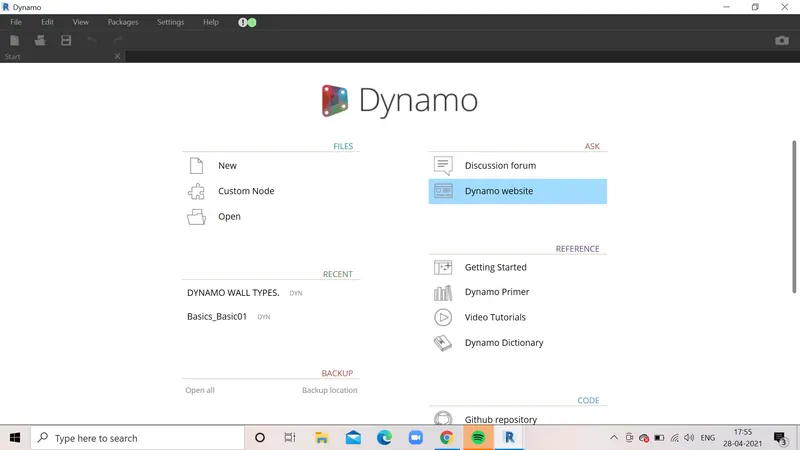
4). Select model elements and insert into dynamoscreen,
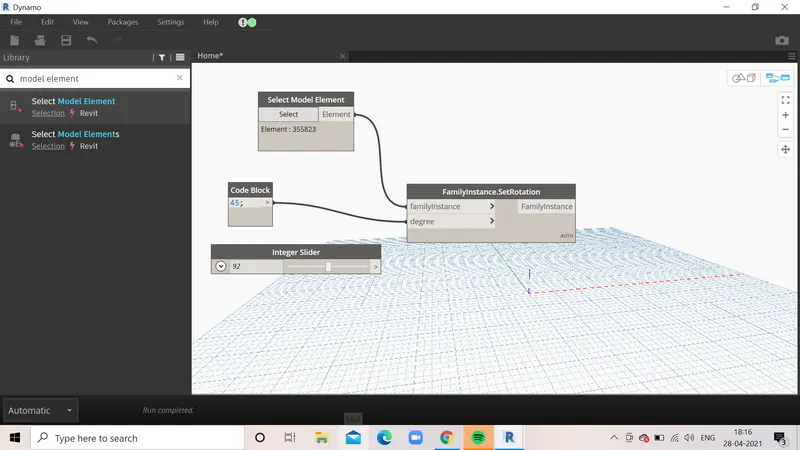
5). Select the objects select the elements where created it in revit.
6). Create the code block and note the degree as 45
7). Then, create a family instance and connect it with degree and model elements.
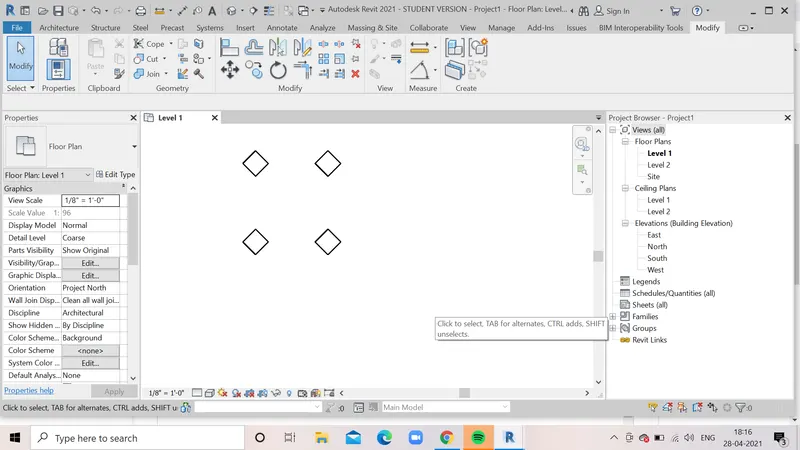
8). Switch the revit software ,then the columns will be rotate exactly at 45 degree.
RESULT:
Finally, we created the Rotational degree by adjusting the integer slide in dynamo.
4) Create a conceptual mass in Revit and develop a parametric column by dividing the surfaces and apply the concepts similar to used in parametric walkway modelling. Use triangular bent or square shaped panels to add finish to the parametric column.
(ANSWER):
AIM:
To Create a conceptual mass in Revit and develop a parametric column by dividing the surfaces and apply the concepts similar to used in parametric walkway modelling. Use triangular bent or square shaped panels to add finish to the parametric column.
TOOLS USED:
- FAMILIES
- Conceptual mass.
- Level.
- Set
- reference.
- Filter.
- Pattern.
- Divide surface.
- Create form.
- parametric model.
PROCEDURE:
1). First open Refvit software and select new family that the selection of conceptual mass folder and click ok.
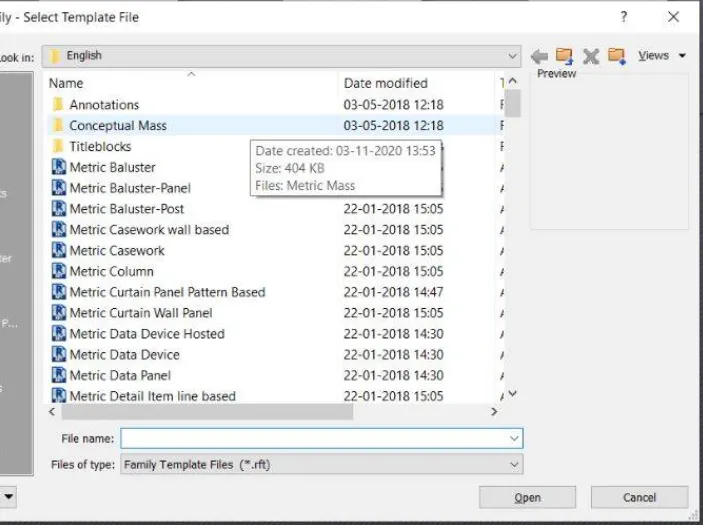
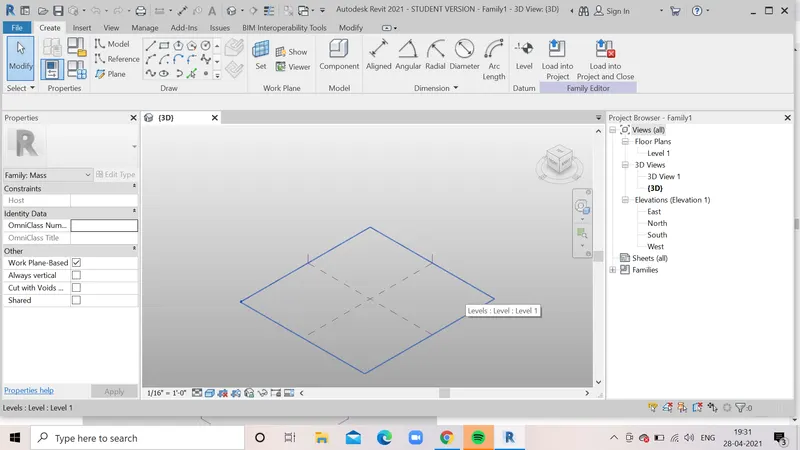
2). conceptual mass family opens.
3). Next select north view and add a level say 10'
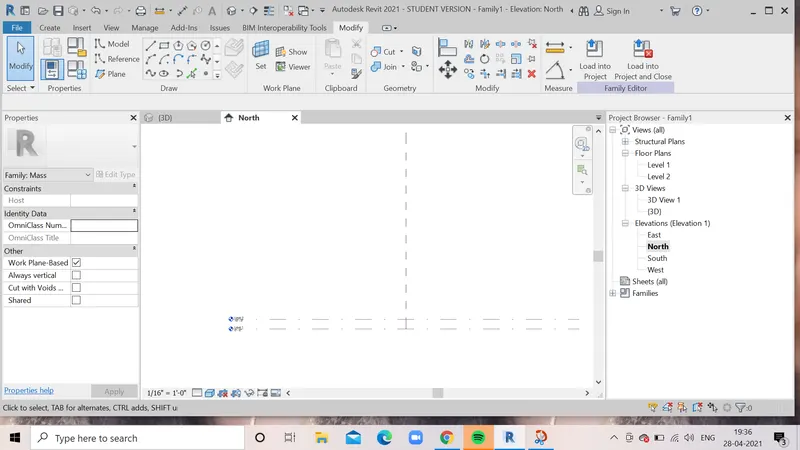
4). select line option and draw a line of 10' between both of the levels.
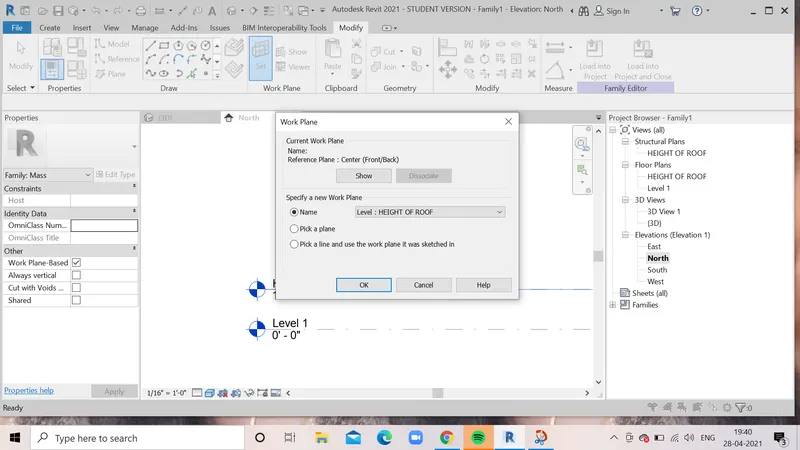
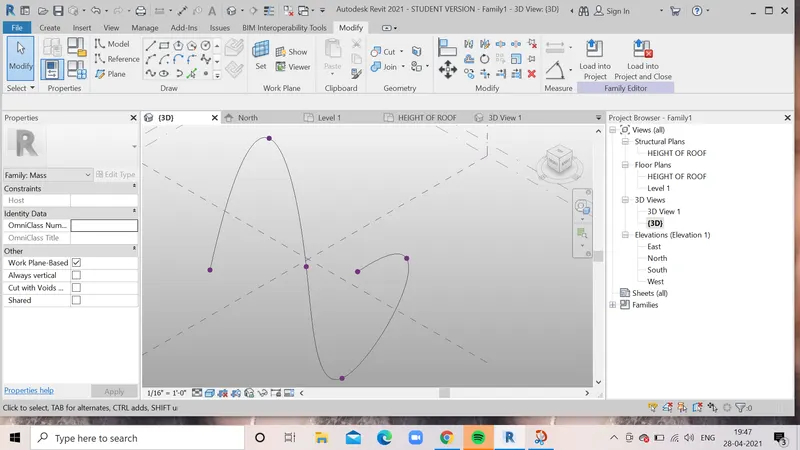
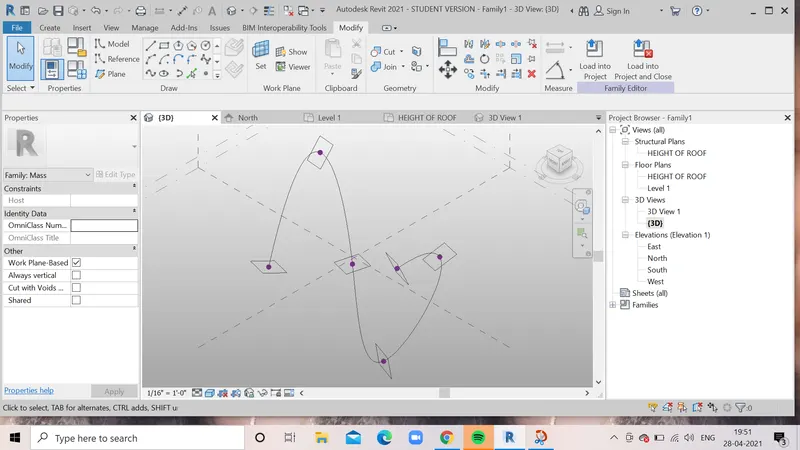
5). Go to 3D view and add reference points on the line at appropriate distances.
6). Now select set option at the points and draw polygons at reference points which were assigned before.
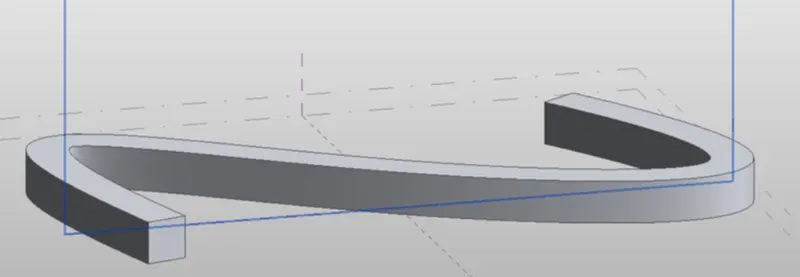
7). Select all the components and click on create form.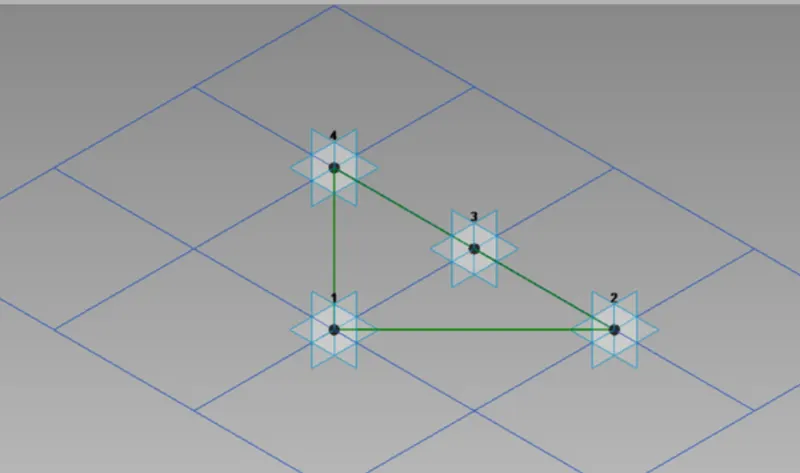
8). Select the elements and click on divided surface tool.
9). Now, we can create new families by going into curtain panel pattern based and select ok.
10). Next we can load the family into the project of conceptional mass and change the pattern to our desired wish.
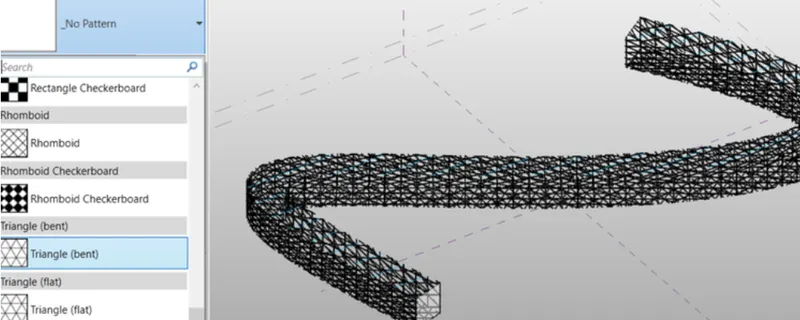
RESULT:
Now, we can create a conceptional mass in revit and develop a parametric column by dividing the surfaces and add triangular bent shaped panels.
5) Use Dynamo to work on developing a Parametric Stadium. List your parameters and use the visual programming approach to complete the modelling, You can use the concepts discussed in parametric high rise tower in class for reference.
(ANSWER):
AIM:
To create a parametric stadium with help of dynamo.
TOOLS USED:
- Dynamo.
- Integer slider.
- Code block.
- Coordinate system by origin.
- Rectangle by width and length.
PROCEDURE:
1). First open te revit file and go to the manage tab and open
dynamo tools.
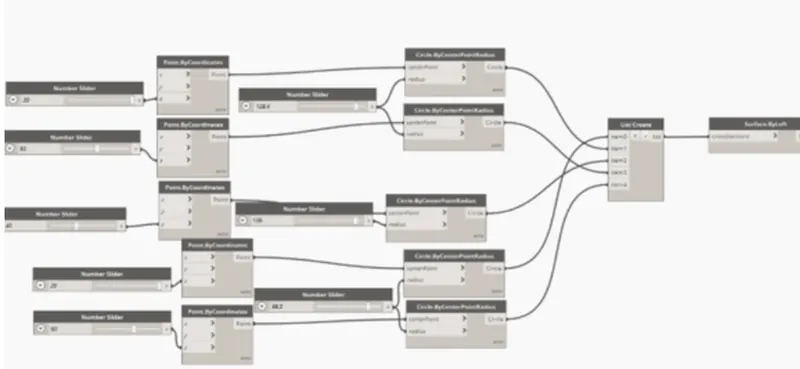
2). Add 4 integer sliders and assign them for number of levels, floor to floor distance, bottom floor rotation and top floor rotation.
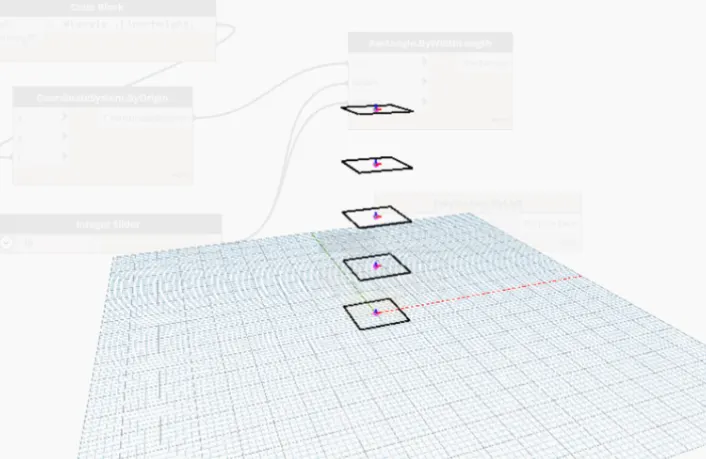
3). Add code block, coordinates by origin, rectangle by width and length and geometry rotation.
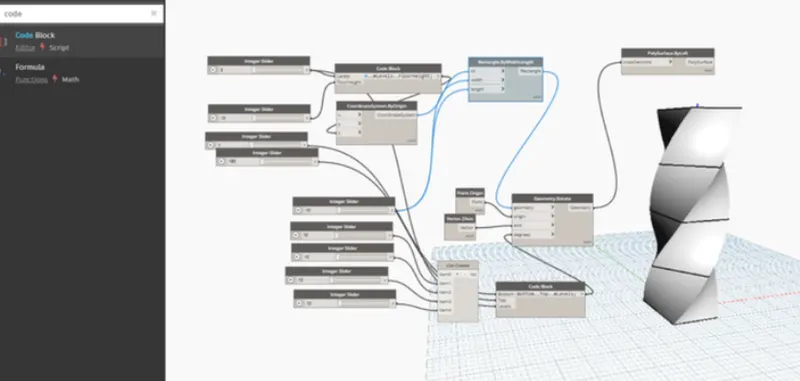
4). Now connect the integer sliders to code block and width and length sliders to width and length in rectangle by width and length.
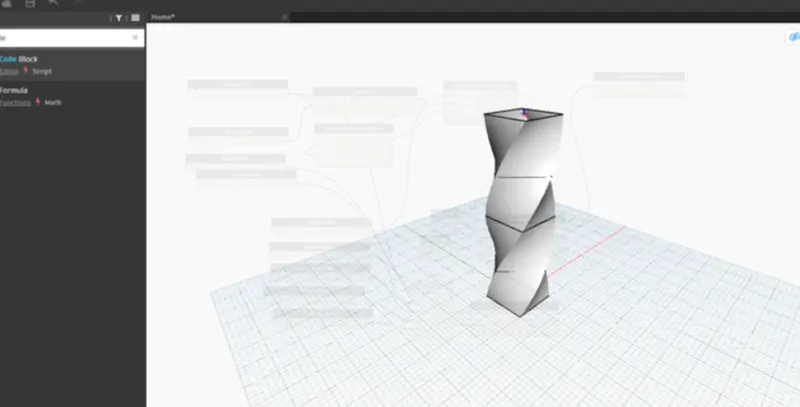
5). Now,connect rectangle, point, axis and degrees parameters to geometry rotate.
6). Now, we can change the top and bottom rotation to see the twist in the building. We can also change the height of floor and number of floors.
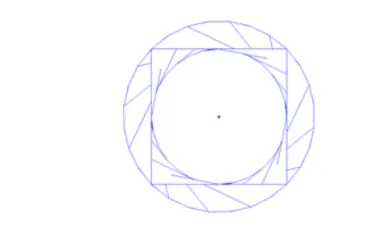
7). Now, we can open in revit and see the structure in revit tab.
RESULT:
With the above steps we will be successfully creating a parametric stadium with help of dynamo.