AutoCAD_Layout of Kitchen Cabinet, Elevation of a Residential Building and Industrial Building section_Week 9
1. AIM:
To Create the layouts of the Kitchen and provide hatches pattern.
DESCRIPTION:
The plan is an essential documents for the building going to be construted.
The plan contains the various details of the building such as the floor plan and sections.
To draw the plan with necessary views,annotations, and other details in AUTOCAD.
You can use all the commands learned in AUTOCAD software to complete this drawing.
DRAFTING PROCEDURE:
1. Begin a new drawing file with imperial template.
2. Create standard border with title block.
3. Create the necessary layers and dimension styles with different properties.
4. Create the following views: Kitchen layout details.
5. Create necessary dimensions, notes, joinery details and other annotations.
6. Organize the various the entities in the respective layer.
7. Save the drawing file as .dwg.
8. Scan the QR code to see the virtual model to better understanding.
INTRODUCTION:
SETTING THE STANDARDS: In the following topics,
we will learn about the standard setting used in AutoCAD before starting the drafting process.
UNIT COMMAND: units command is used to control the presicion and display formats for coordinates,
distances, and angles.
For example, we can use inches or millimeters depending upon needs.
units types are decimal, architectural, engineering, fractional and scienticfic.
PROCEDURE:
1. command:UNITS press enter
2. shortcut key: UN press enter
3. Access from: Menubar>Format>Units
4. Access from: Applications menu>Drawing utilities>units.
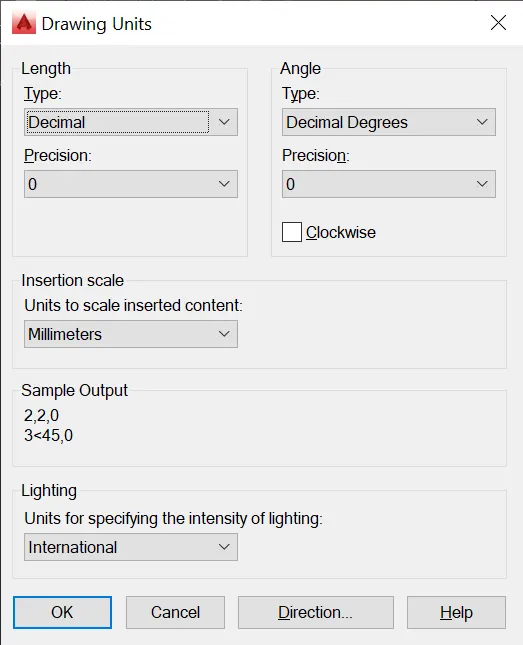
set the units in DECIMAL ,Insertion scale in Millimeters. And press ok.
To save that settings.
LIMITS;
LIMITS command sets an invisible rectangular boundary inthe drawing area that can
limit the grid display and limit clicking the entire point locations.
PROCEDURE TO ACCESS:
1. command : LIMITS Press enter
2. Shortcut key: LIMI press enter.
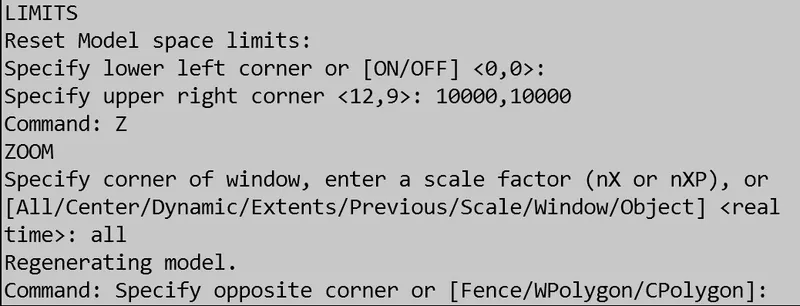
Set the limits:
Z enter
ALL enter
1. LINE COMMAND: Type the line command.
2. TRIM COMMAND:
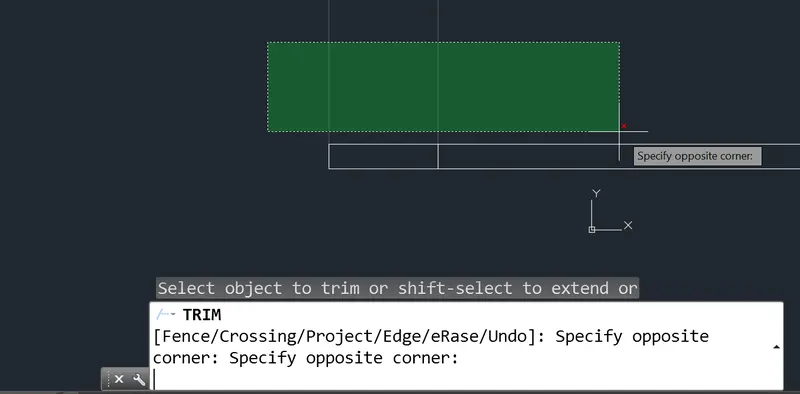
TRIM COMMAND is usd to delete the unwanted part of an object.
Procedure to access:
1. Command key: TRIM and press enter.
2. Shortcut key: TR and press enter.
3. Ribbon menu: Home> Modify Panel> TRim.
4. Access from: Menu bar>mOdify> Trim.
3. XREF COMMAND:
XREF COMMAND is used o start the EXTERNALREFEENCES command.
The EXTERNAL References palettes is used to organize, display and manage
referenced files such as DWG FILES(xref), DWF, DWFx, PDF or DGN overlays,raster images,
points clouds(RCP and RCS files) and coordinates models (NWD AND NWC Files).
Only DWG, DWF, DWFx, PDF, and raster image files can be opened directly from the
External References Palette.
Procedure to access:
1. Command : EXTERNALREFERENCES and press enter.
2. Shortcut key: XREF and press enter.
3. Ribbon menu: Insert> Reference panel> External Reference
4. Access from: Menu bar> Insert > External Reerence
OPTIONS:
ATTACH- ATTACHES files to the currrent drawing.
Refresh- Refreshes the list display or reloads all references to display any changes
that may have occured in the referenced files.
Changes path: Modifies the path of the selected files.
You can set the path to be absolute or relative. If the referenced file is stored in the same
location as the current drawing, you can also remove the path.
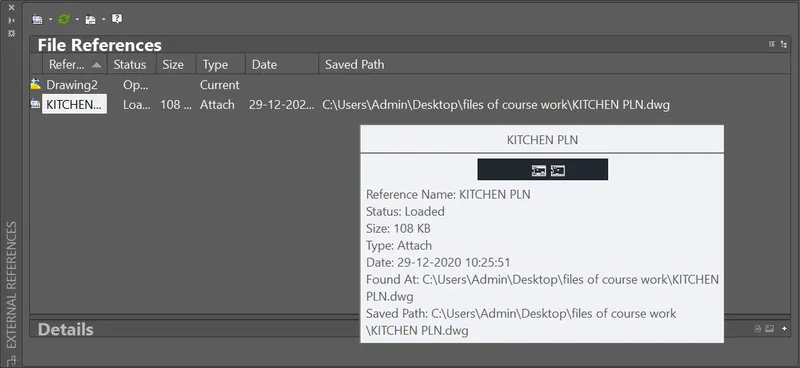
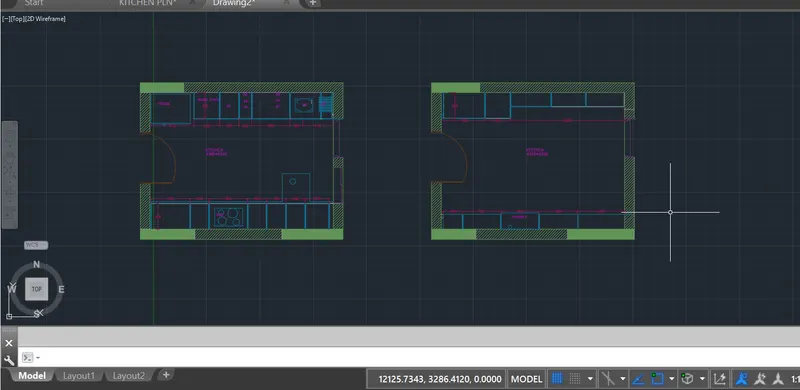
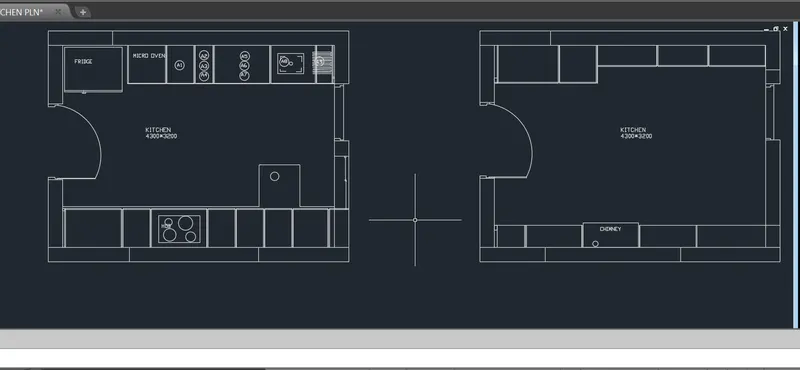
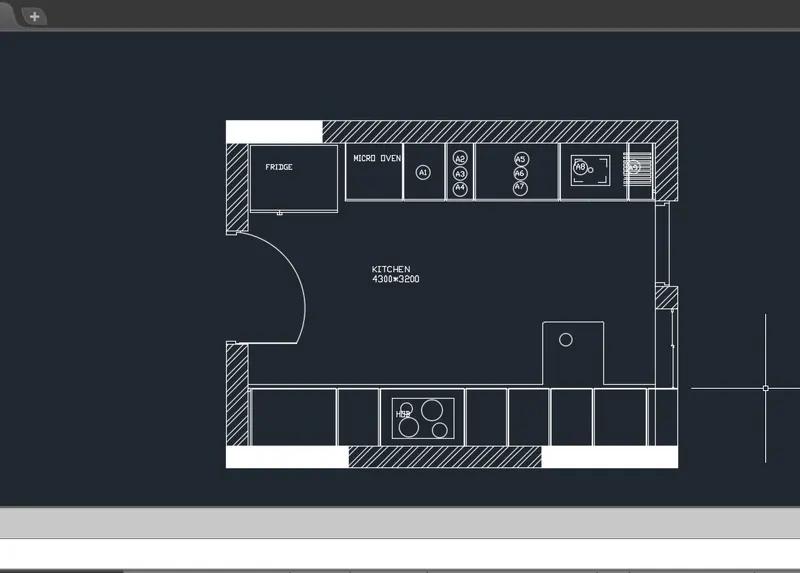
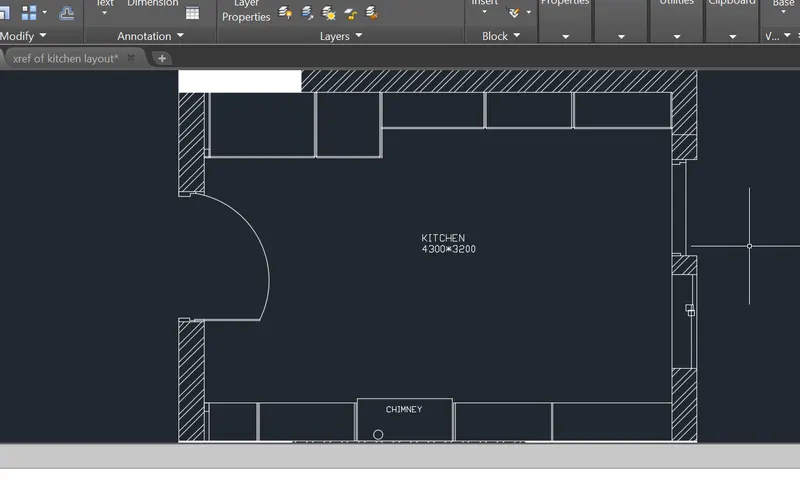
And did the kitchen layout in xref command.
4. HATCH :
INTRODUCTION TO HATCHING:
HATCHING is a shading technique that implies shade, tone, and texture. Hatching is done with a series
of thin, parallel lines that give the appearance of show in varying degrees. Hatching can be done by using various
hatch patterns, solid colour fills or gradients.
Hatching is used to represent the sectioned the areas in mechanical drawings and to represnt the various material of civil drawings and
also architectural drawings.
HATCH COMMAND:
HATCH command is used to fill an enclosed area or selected hatch pattern, solid fill or a gradient fill.
When the ribbon is ON, the HATCH Creation contextual tab is displayed. When the ribbon is off,
The Hatch and Gradient dialog box are displayed.
PROCEDURE TO ACCESS;
1. Command : HATCH and press enter.
2. Shortcut key: H and press enter
3. Riboon menu: Home > Draw panel>Hatch.
4. Access from: Menu bar> Draw> Hatch .
The following prompts are displayed:
options.
Pick internal point:
Automatically determines a boundary from existing objects that from an
enclosed area around the specified point.
Select point:
Determines a boundary from selected objects that from an enclosed area.
Remove boundries:
This options is available only when adding hatches from within the HATCH AND GRADIENT dialog box.
This optoin removes the hatch pattern added during the currently active HATCH command.
ADD BOUNDARIES-
This option is available only when adding hatches from within the HATCHES AND GRADIENT dialog box.
This option switches from the Remove Boundaries mode so you can add hatch paterns again.
UNDO:
Removes the last hatch pattern you inserted with the currently active HATCH COMMAND.
SETTINGS:
Opens the HATCH AND GRADIENT DIALOG BOX, where you can change settings.
HATCHEDIT COMMAND:
HATCHEDIT COMMAND is used to modify the existing hatch properties such as pattern, scale and.
Once you execute this command, software will prompt you to select the existing hatch to edit.
PROCEDURE TO ACCESS:
1. Command : HATCHEDIT and press enter.
2. Shortcut key: HE and press enter.
3. Ribbon menu: Home> Modify panel> Hatch edit
4. Access from: Menu Bar> Draw> Hatch edit
GRADIENT COMMAND:
GRADIENT COMMAND is used for filling an enclosed area or object with a
gradient fill. A gradient fill creates a smooth transition between one or two
colors.
PROCEDURE TO ACCESS:
1. Command: GRADIENT and press enter.
2. Shortcut key: GD and press enter.
3. Ribbon menu: Home> Draw panel> Gradient
4. Access from: Menu bar>draw> Gradient.
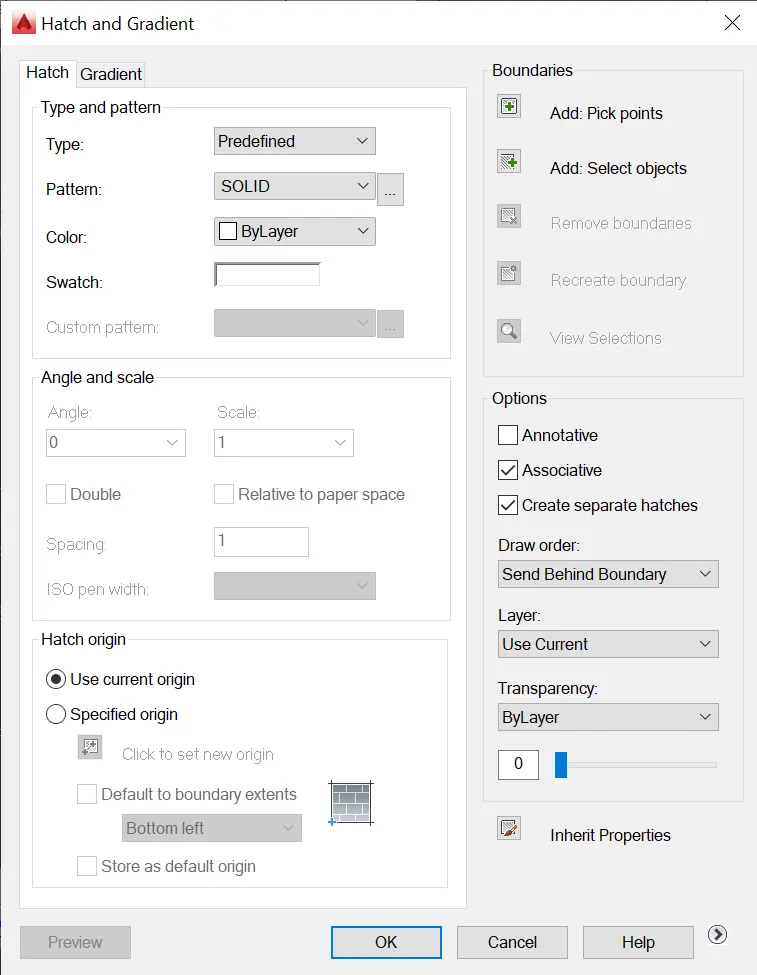
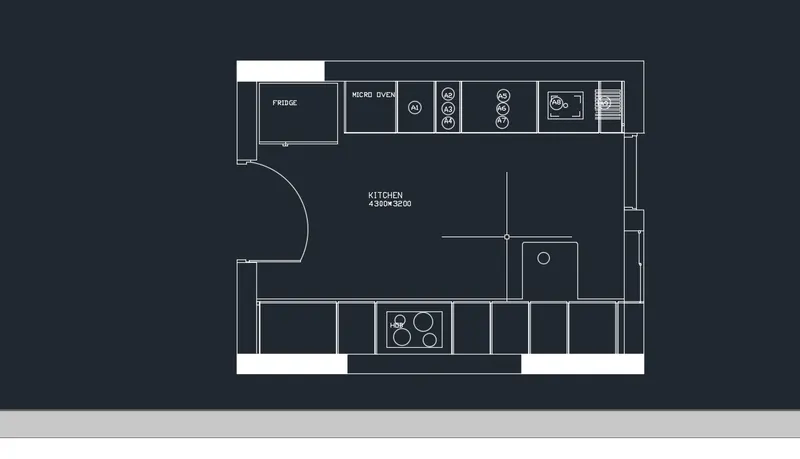
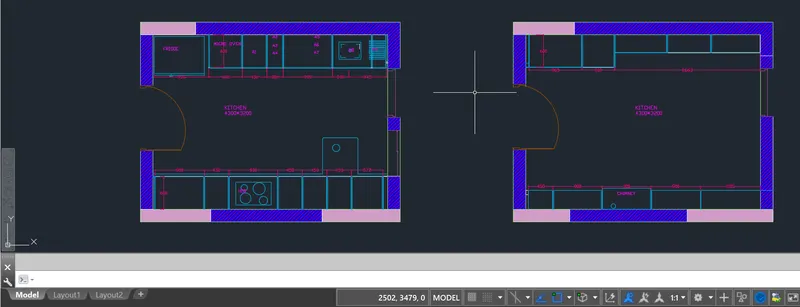
And we did the HATCH COMMAND, To the kitchen layout.
RESULT:
2. AIM:
To Create the elevation of the plan created in the Challenges 7 and apply proper hatch in the walls, doors,
windows, and other architectural elements. Refer to the dimensions in Plans and sections in Challenges 7.
Refer to the elevation that needed to be created.
DESCRIPTION:
The plan is an essential documents for the building going to be construted.
The plan contains the various details of the building such as the floor plan and sections.
To draw the plan with necessary views,annotations, and other details in AUTOCAD.
You can use all the commands learned in AUTOCAD software to complete this drawing.
DRAFTING PROCEDURE:
1. Begin a new drawing file with imperial template.
2. Create standard border with title block.
3. Create the necessary layers and dimension styles with different properties.
4. Create the following views: Kitchen layout details.
5. Create necessary dimensions, notes, joinery details and other annotations.
6. Organize the various the entities in the respective layer.
7. Save the drawing file as .dwg.
8. Scan the QR code to see the virtual model to better understanding.
INTRODUCTION:
SETTING THE STANDARDS: In the following topics,
we will learn about the standard setting used in AutoCAD before starting the drafting process.
UNIT COMMAND: units command is used to control the presicion and display formats for coordinates,
distances, and angles.
For example, we can use inches or millimeters depending upon needs.
units types are decimal, architectural, engineering, fractional and scienticfic.
PROCEDURE:
1. command:UNITS press enter
2. shortcut key: UN press enter
3. Access from: Menubar>Format>Units
4. Access from: Applications menu>Drawing utilities>units.
set the units in DECIMAL ,Insertion scale in Millimeters. And press ok.
To save that settings.
LIMITS;
LIMITS command sets an invisible rectangular boundary inthe drawing area that can
limit the grid display and limit clicking the entire point locations.
PROCEDURE TO ACCESS:
1. command : LIMITS Press enter
2. Shortcut key: LIMI press enter.
Set the limits:
Z enter
ALL enter
1. LINE COMMAND: Type the line command.
2. TRIM COMMAND:
TRIM COMMAND is usd to delete the unwanted part of an object.
Procedure to access:
1. Command key: TRIM and press enter.
2. Shortcut key: TR and press enter.
3. Ribbon menu: Home> Modify Panel> TRim.
4. Access from: Menu bar>mOdify> Trim.
3. XREF COMMAND:
XREF COMMAND is used o start the EXTERNALREFEENCES command.
The EXTERNAL References palettes is used to organize, display and manage
referenced files such as DWG FILES(xref), DWF, DWFx, PDF or DGN overlays,raster images,
points clouds(RCP and RCS files) and coordinates models (NWD AND NWC Files).
Only DWG, DWF, DWFx, PDF, and raster image files can be opened directly from the
External References Palette.
Procedure to access:
1. Command : EXTERNALREFERENCES and press enter.
2. Shortcut key: XREF and press enter.
3. Ribbon menu: Insert> Reference panel> External Reference
4. Access from: Menu bar> Insert > External Reerence
OPTIONS:
ATTACH- ATTACHES files to the currrent drawing.
Refresh- Refreshes the list display or reloads all references to display any changes
that may have occured in the referenced files.
Changes path: Modifies the path of the selected files.
You can set the path to be absolute or relative. If the referenced file is stored in the same
location as the current drawing, you can also remove the path.
4. HATCH :
INTRODUCTION TO HATCHING:
HATCHING is a shading technique that implies shade, tone, and texture. Hatching is done with a series
of thin, parallel lines that give the appearance of show in varying degrees. Hatching can be done by using various
hatch patterns, solid colour fills or gradients.
Hatching is used to represent the sectioned the areas in mechanical drawings and to represnt the various material of civil drawings and
also architectural drawings.
HATCH COMMAND:
HATCH command is used to fill an enclosed area or selected hatch pattern, solid fill or a gradient fill.
When the ribbon is ON, the HATCH Creation contextual tab is displayed. When the ribbon is off,
The Hatch and Gradient dialog box are displayed.
PROCEDURE TO ACCESS;
1. Command : HATCH and press enter.
2. Shortcut key: H and press enter
3. Riboon menu: Home > Draw panel>Hatch.
4. Access from: Menu bar> Draw> Hatch .
The following prompts are displayed:
options.
Pick internal point:
Automatically determines a boundary from existing objects that from an
enclosed area around the specified point.
Select point:
Determines a boundary from selected objects that from an enclosed area.
Remove boundries:
This options is available only when adding hatches from within the HATCH AND GRADIENT dialog box.
This optoin removes the hatch pattern added during the currently active HATCH command.
ADD BOUNDARIES-
This option is available only when adding hatches from within the HATCHES AND GRADIENT dialog box.
This option switches from the Remove Boundaries mode so you can add hatch paterns again.
UNDO:
Removes the last hatch pattern you inserted with the currently active HATCH COMMAND.
SETTINGS:
Opens the HATCH AND GRADIENT DIALOG BOX, where you can change settings.
HATCHEDIT COMMAND:
HATCHEDIT COMMAND is used to modify the existing hatch properties such as pattern, scale and.
Once you execute this command, software will prompt you to select the existing hatch to edit.
PROCEDURE TO ACCESS:
1. Command : HATCHEDIT and press enter.
2. Shortcut key: HE and press enter.
3. Ribbon menu: Home> Modify panel> Hatch edit
4. Access from: Menu Bar> Draw> Hatch edit
GRADIENT COMMAND:
GRADIENT COMMAND is used for filling an enclosed area or object with a
gradient fill. A gradient fill creates a smooth transition between one or two
colors.
PROCEDURE TO ACCESS:
1. Command: GRADIENT and press enter.
2. Shortcut key: GD and press enter.
3. Ribbon menu: Home> Draw panel> Gradient
4. Access from: Menu bar>draw> Gradient.
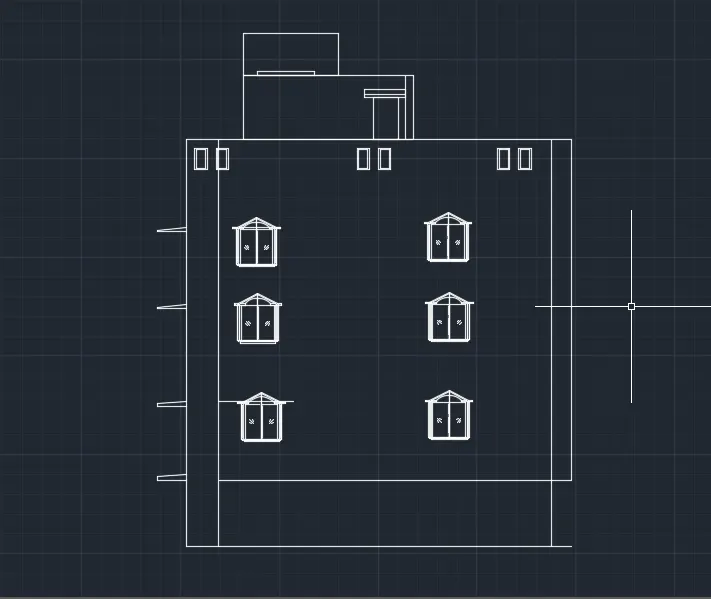
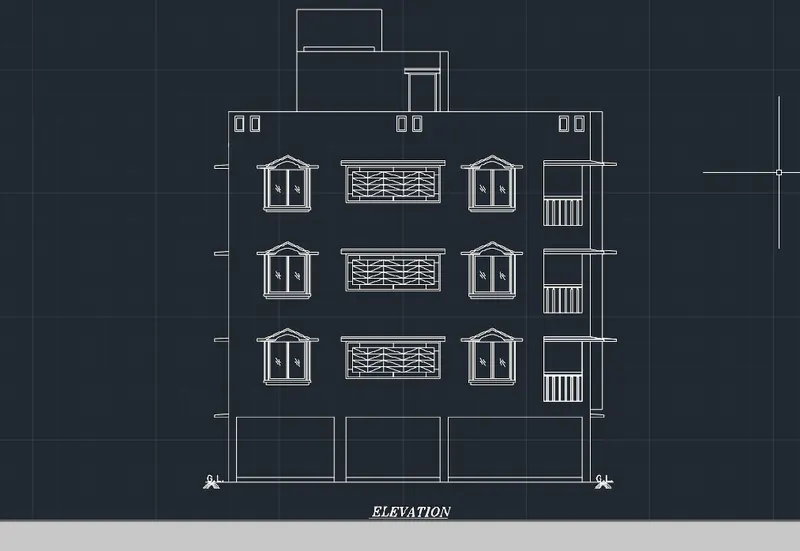
NOW, hatching is completed.
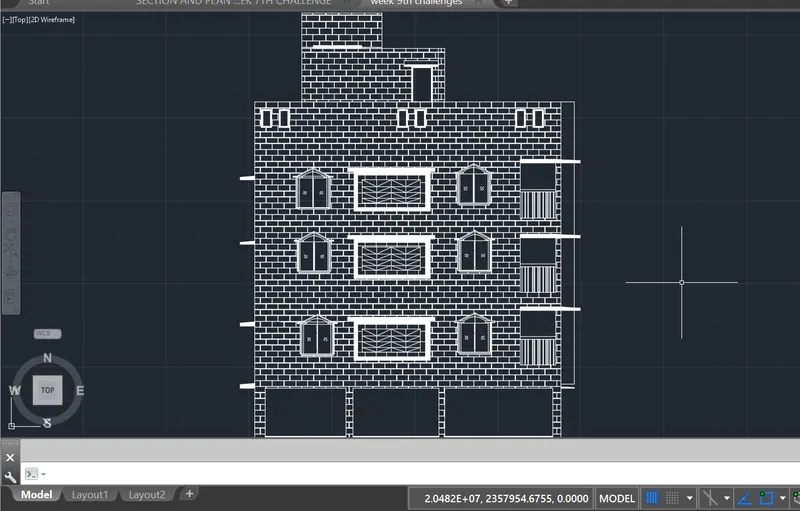
RESULT:
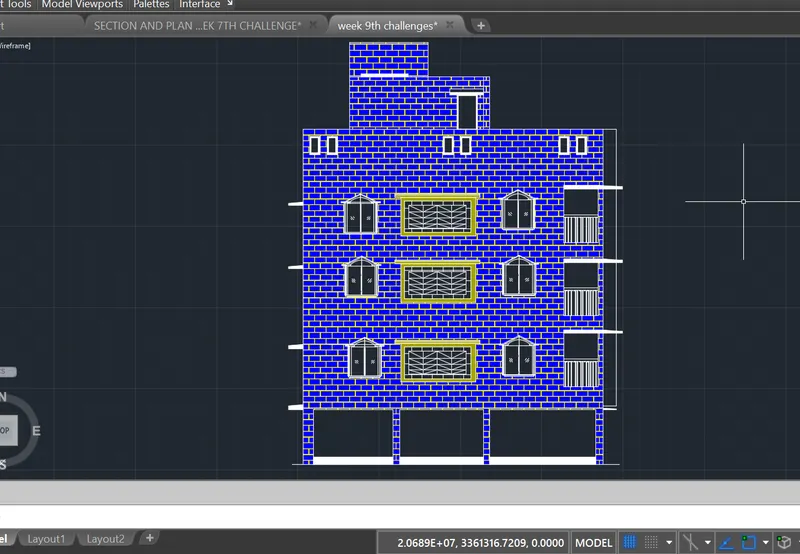
3. AIM:
To Create the section view of an industrial building as shown in Figure. Provide appropriate hatches and
dimensions wherever required. Also, provide annotations to the drawing.
DESCRIPTION:
The plan is an essential documents for the building going to be construted.
The plan contains the various details of the building such as the floor plan and sections.
To draw the plan with necessary views,annotations, and other details in AUTOCAD.
You can use all the commands learned in AUTOCAD software to complete this drawing.
DRAFTING PROCEDURE:
1. Begin a new drawing file with imperial template.
2. Create standard border with title block.
3. Create the necessary layers and dimension styles with different properties.
4. Create the following views: Kitchen layout details.
5. Create necessary dimensions, notes, joinery details and other annotations.
6. Organize the various the entities in the respective layer.
7. Save the drawing file as .dwg.
8. Scan the QR code to see the virtual model to better understanding.
INTRODUCTION:
SETTING THE STANDARDS: In the following topics,
we will learn about the standard setting used in AutoCAD before starting the drafting process.
UNIT COMMAND: units command is used to control the presicion and display formats for coordinates,
distances, and angles.
For example, we can use inches or millimeters depending upon needs.
units types are decimal, architectural, engineering, fractional and scienticfic.
PROCEDURE:
1. command:UNITS press enter
2. shortcut key: UN press enter
3. Access from: Menubar>Format>Units
4. Access from: Applications menu>Drawing utilities>units.
set the units in DECIMAL ,Insertion scale in Millimeters. And press ok.
To save that settings.
LIMITS;
LIMITS command sets an invisible rectangular boundary inthe drawing area that can
limit the grid display and limit clicking the entire point locations.
PROCEDURE TO ACCESS:
1. command : LIMITS Press enter
2. Shortcut key: LIMI press enter.
Set the limits:
Z enter
ALL enter
1. LINE COMMAND: Type the line command.
3. XREF COMMAND:
XREF COMMAND is used o start the EXTERNALREFEENCES command.
The EXTERNAL References palettes is used to organize, display and manage
referenced files such as DWG FILES(xref), DWF, DWFx, PDF or DGN overlays,raster images,
points clouds(RCP and RCS files) and coordinates models (NWD AND NWC Files).
Only DWG, DWF, DWFx, PDF, and raster image files can be opened directly from the
External References Palette.
Procedure to access:
1. Command : EXTERNALREFERENCES and press enter.
2. Shortcut key: XREF and press enter.
3. Ribbon menu: Insert> Reference panel> External Reference
4. Access from: Menu bar> Insert > External Reerence
OPTIONS:
ATTACH- ATTACHES files to the currrent drawing.
Refresh- Refreshes the list display or reloads all references to display any changes
that may have occured in the referenced files.
Changes path: Modifies the path of the selected files.
You can set the path to be absolute or relative. If the referenced file is stored in the same
location as the current drawing, you can also remove the path.
4. HATCH :
INTRODUCTION TO HATCHING:
HATCHING is a shading technique that implies shade, tone, and texture. Hatching is done with a series
of thin, parallel lines that give the appearance of show in varying degrees. Hatching can be done by using various
hatch patterns, solid colour fills or gradients.
Hatching is used to represent the sectioned the areas in mechanical drawings and to represnt the various material of civil drawings and
also architectural drawings.
HATCH COMMAND:
HATCH command is used to fill an enclosed area or selected hatch pattern, solid fill or a gradient fill.
When the ribbon is ON, the HATCH Creation contextual tab is displayed. When the ribbon is off,
The Hatch and Gradient dialog box are displayed.
PROCEDURE TO ACCESS;
1. Command : HATCH and press enter.
2. Shortcut key: H and press enter
3. Riboon menu: Home > Draw panel>Hatch.
4. Access from: Menu bar> Draw> Hatch .
The following prompts are displayed:
options.
Pick internal point:
Automatically determines a boundary from existing objects that from an
enclosed area around the specified point.
Select point:
Determines a boundary from selected objects that from an enclosed area.
Remove boundries:
This options is available only when adding hatches from within the HATCH AND GRADIENT dialog box.
This optoin removes the hatch pattern added during the currently active HATCH command.
ADD BOUNDARIES-
This option is available only when adding hatches from within the HATCHES AND GRADIENT dialog box.
This option switches from the Remove Boundaries mode so you can add hatch paterns again.
UNDO:
Removes the last hatch pattern you inserted with the currently active HATCH COMMAND.
SETTINGS:
Opens the HATCH AND GRADIENT DIALOG BOX, where you can change settings.
HATCHEDIT COMMAND:
HATCHEDIT COMMAND is used to modify the existing hatch properties such as pattern, scale and.
Once you execute this command, software will prompt you to select the existing hatch to edit.
PROCEDURE TO ACCESS:
1. Command : HATCHEDIT and press enter.
2. Shortcut key: HE and press enter.
3. Ribbon menu: Home> Modify panel> Hatch edit
4. Access from: Menu Bar> Draw> Hatch edit
GRADIENT COMMAND:
GRADIENT COMMAND is used for filling an enclosed area or object with a
gradient fill. A gradient fill creates a smooth transition between one or two
colors.
PROCEDURE TO ACCESS:
1. Command: GRADIENT and press enter.
2. Shortcut key: GD and press enter.
3. Ribbon menu: Home> Draw panel> Gradient
4. Access from: Menu bar>draw> Gradient.
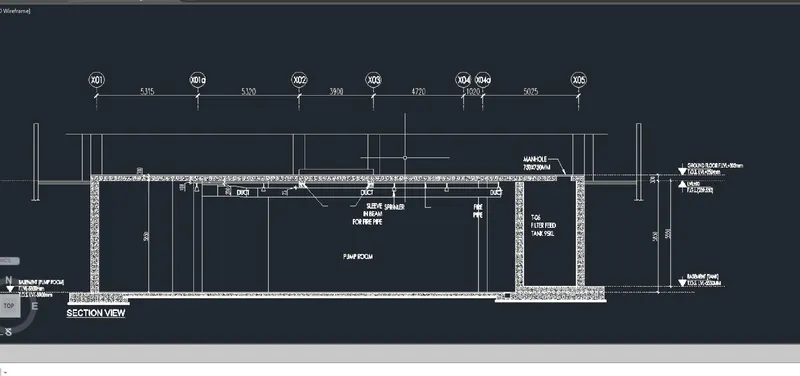
RESULT: