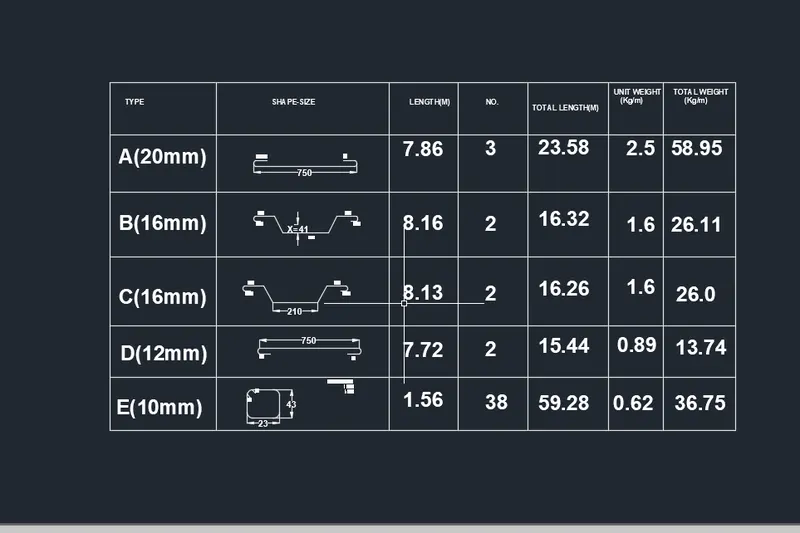
AutoCAD_Reinforcement Bar Shapes, Types of Doors, Creating symbols legend and Creating standard template_Week 8
AIM:
To create BLOCK ATTRIBUTES AND BLOCKS.
use proper dimension and text style.
DESCRIPTION:
The plan is an essential documents for the building going to be construted.
The plan contains the various details of the building such as the floor plan and sections.
To draw the plan with necessary views,annotations, and other details in AUTOCAD.
You can use all the commands learned in AUTOCAD software to complete this drawing.
DRAFTING PROCEDURE:
1. Begin a new drawing file with imperial template.
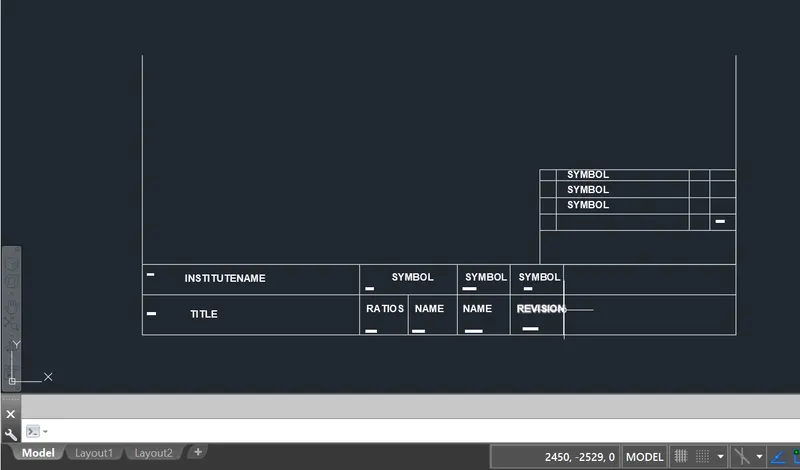
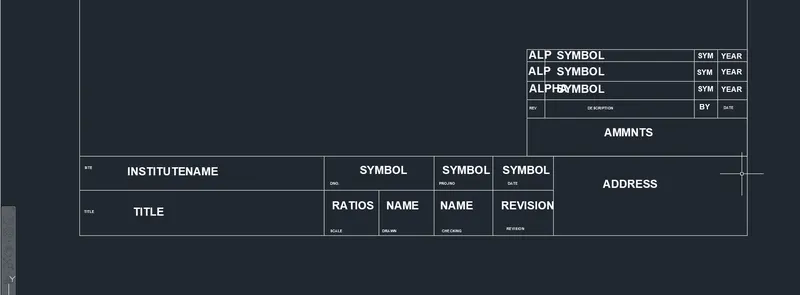
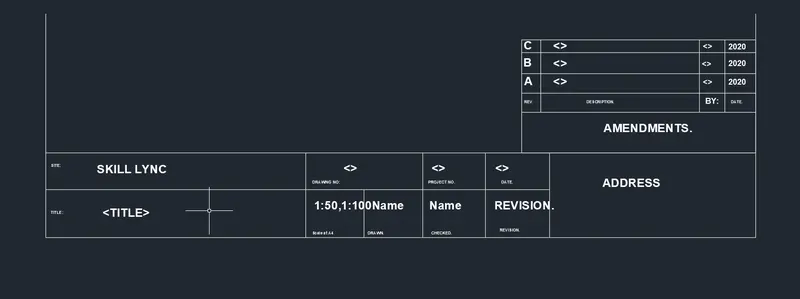
2. Create standard border with title block.
3. Create the necessary layers and dimension styles with different properties.
4. Create the following views: BLOCK AND BLOCK ATTRIBUTES.
5. Create necessary dimensions, notes, joinery details and other annotations.
6. Organize the various the entities in the respective layer.
7. Save the drawing file as .dwg.
8. Scan the QR code to see the virtual model to better understanding.
INTRODUCTION:
SETTING THE STANDARDS: In the following topics,
we will learn about the standard setting used in AutoCAD before starting the drafting process.
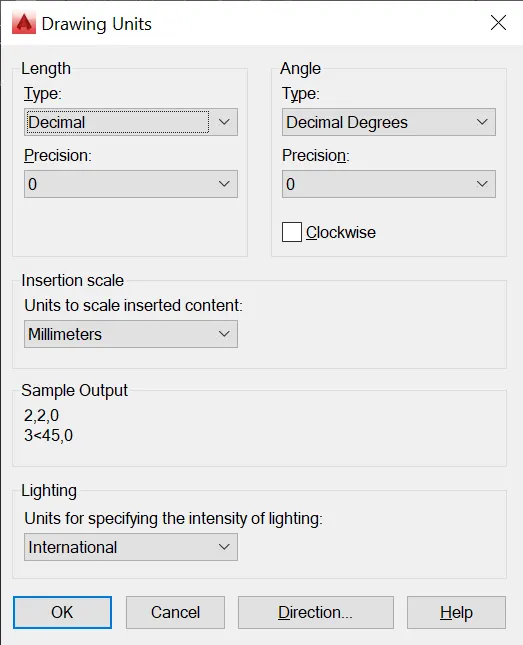
UNIT COMMAND: units command is used to control the presicion and display formats for coordinates,
distances, and angles.
For example, we can use inches or millimeters depending upon needs.
units types are decimal, architectural, engineering, fractional and scienticfic.
PROCEDURE:
1. command:UNITS press enter
2. shortcut key: UN press enter
3. Access from: Menubar>Format>Units
4. Access from: Applications menu>Drawing utilities>units.
set the units in DECIMAL ,Insertion scale in Millimeters. And press ok.
To save that settings.
LIMITS;
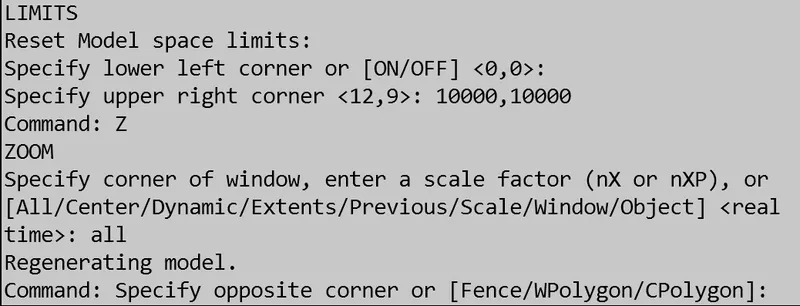
LIMITS command sets an invisible rectangular boundary inthe drawing area that can
limit the grid display and limit clicking the entire point locations.
PROCEDURE TO ACCESS:
1. command : LIMITS Press enter
2. Shortcut key: LIMI press enter.
Set the limits:
Z enter
ALL enter
1. LINE COMMAND: Type the line command.
2. TRIM COMMAND:
TRIM COMMAND is usd to delete the unwanted part of an object.
Procedure to access:
1. Command key: TRIM and press enter.
2. Shortcut key: TR and press enter.
3. Ribbon menu: Home> Modify Panel> TRim.
4. Access from: Menu bar>mOdify> Trim.
INTRODUCTION TO BLOCK:
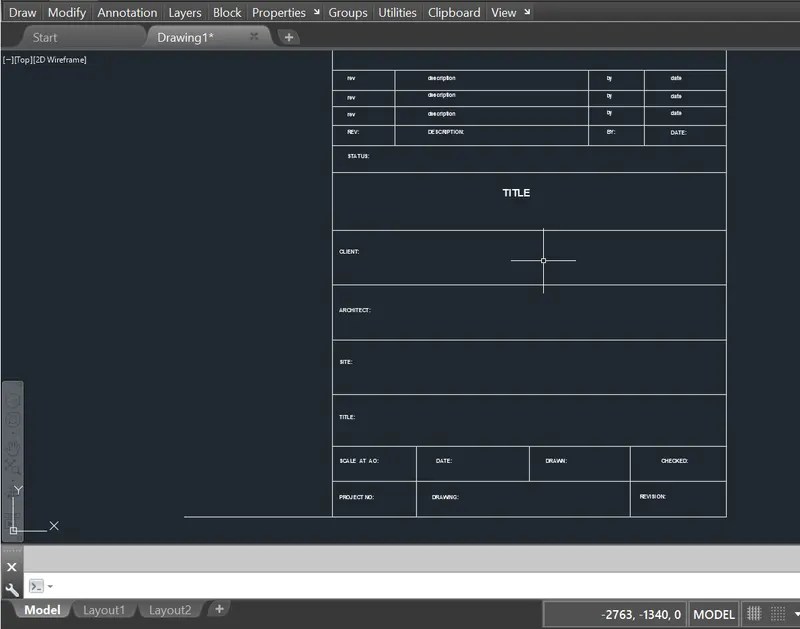
A BLOCK i an object with a name, geometry, a base point which can be created,
stored and retrived any number of times, with its associated attribute data.
Block feature enhances the user productivity as the user can be reuse the
block in any drawing. You can reference it in the same or a different
drawing.
In the following segment, you will learn about the various tools and techincs
used to create, store and reusing a block in AutoCAD.
ATTRIBUTES:
An attributes is a label or tag that attaches a data to a block.
Example of data that migh be contained in an attribute are part numbers,
prices, comments and owners' names. The following illustrations
shows a "BOLt" block with four attributes: type, manufacturer, model
and cost. Because the tags were set up as variables, specific information
about each instance could be added for each inserted block reference
Attribute information extracted from a drawing can be used in a spreadsheet
or database to produce a part list or a bill of materials.
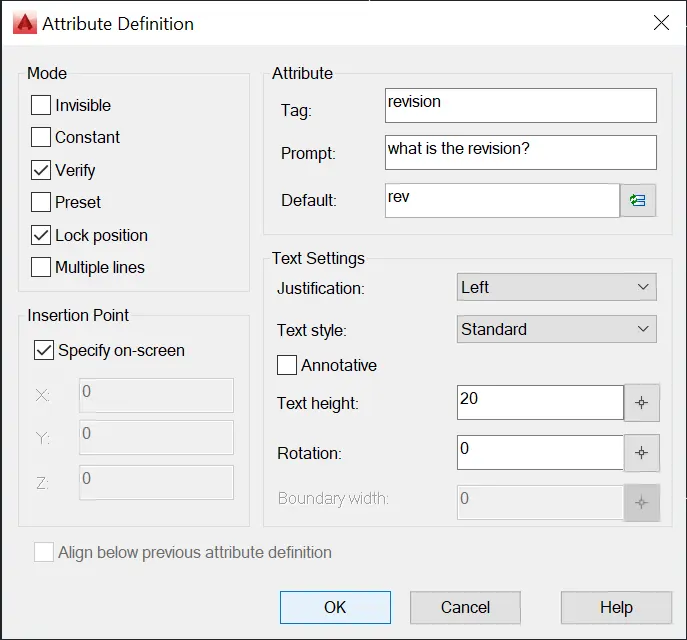
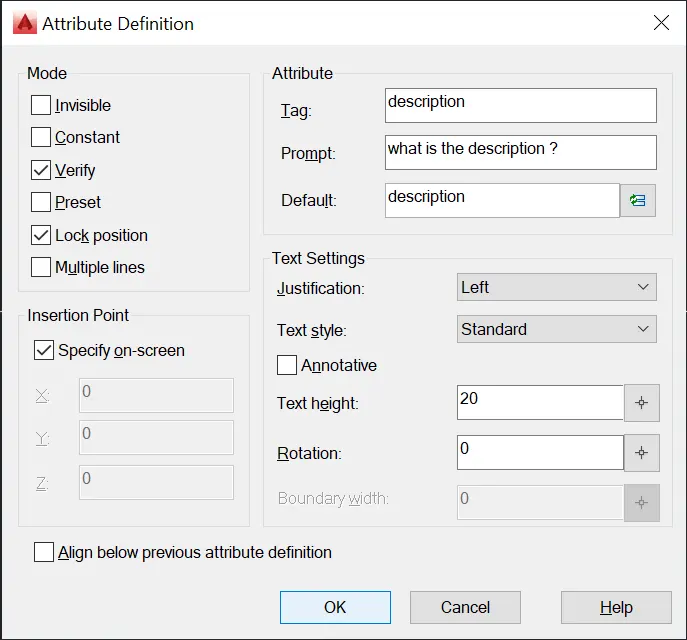
An unique tag that identifies the attributes by name.
A prompt that can be displayed as the block is inserted.
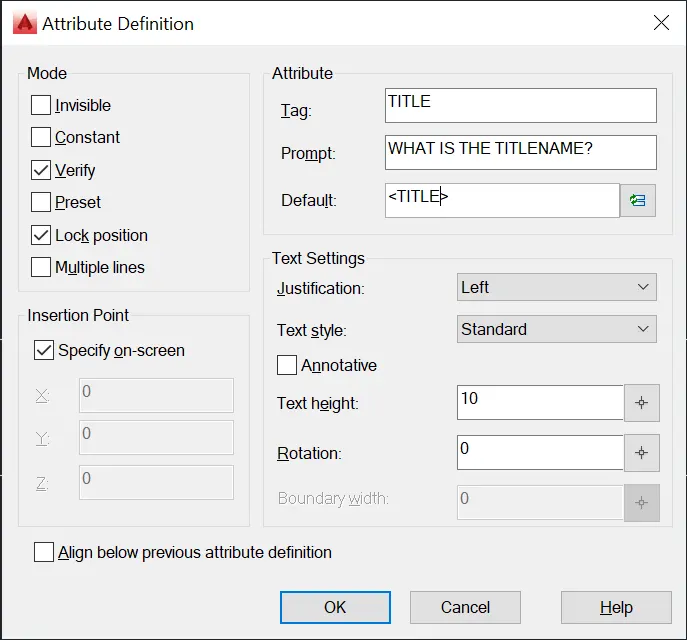
ATTRIBUTE COMMAND:
ATTDEF COMMAND
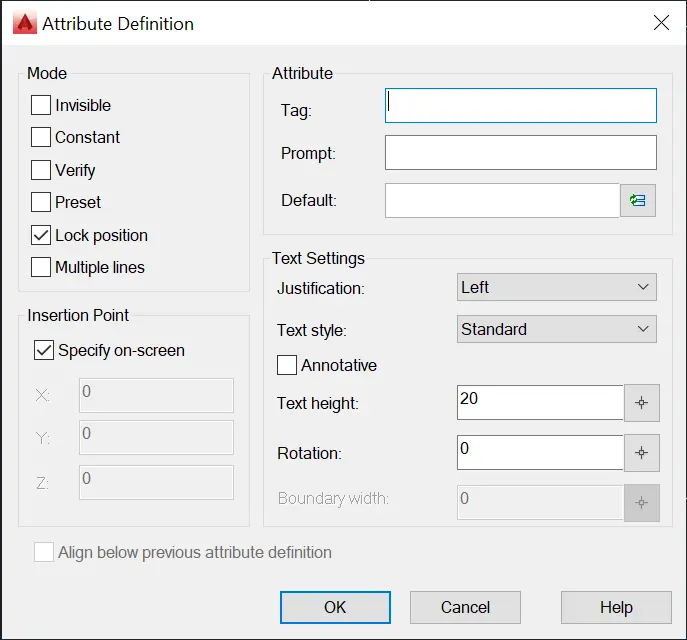
ATTDEF COMMAND is used to create an attribute definition for storing the data
in a block. An attribute is an object that is create and included in a block attributes.
PROCEDURE TO ACCESS:
1. Command: ATTDF and press enter.
2. shortcutkey: ATT and press enter.
3. Ribbon menu: Insert> Block definition panel> Define attributes.
BLOCK COMMAND:
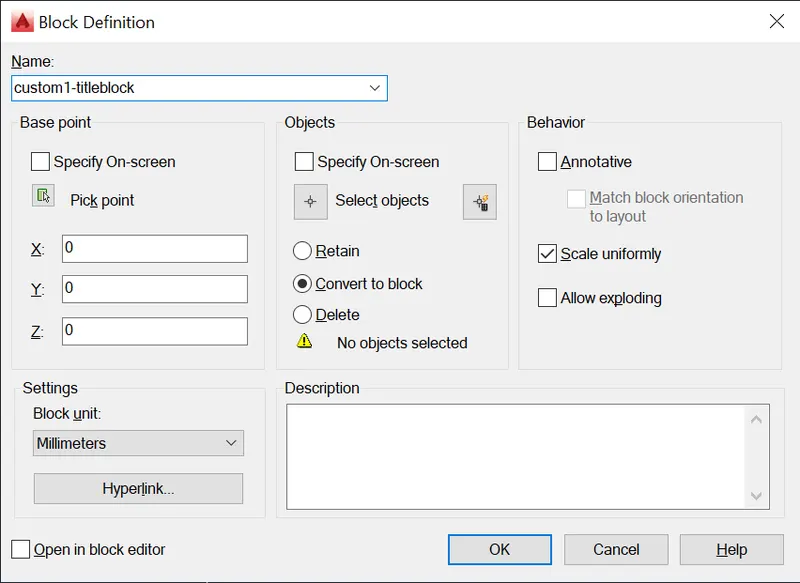
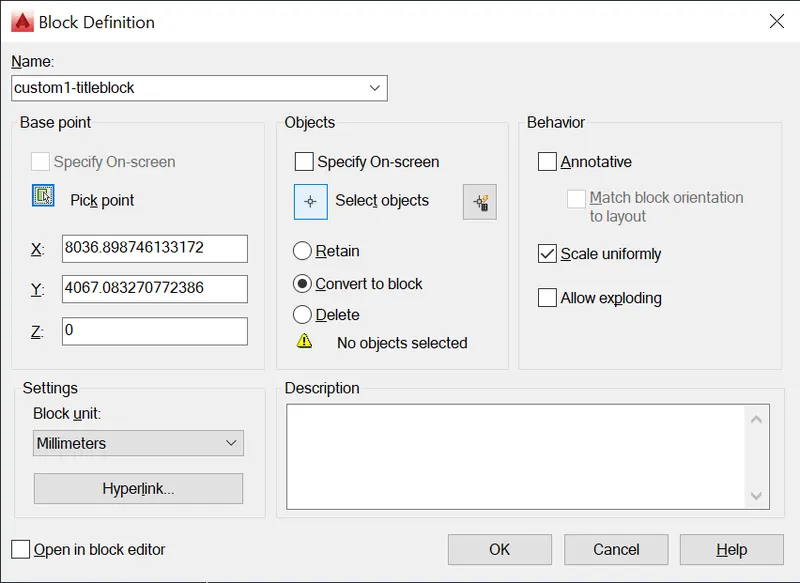
BLOCK COMMAND is used to create a block definition from selected objects.
PROCEDURE TO ACCESS:
1. COMMAND: BLOCK and press enter.
2. shortcut key: B and press enter.
3. Ribbon menu: INSERT> BLOCK DEFINITION PANEL>
Create block
4. Access from: Menu bar> MOdify >Object > Block description.
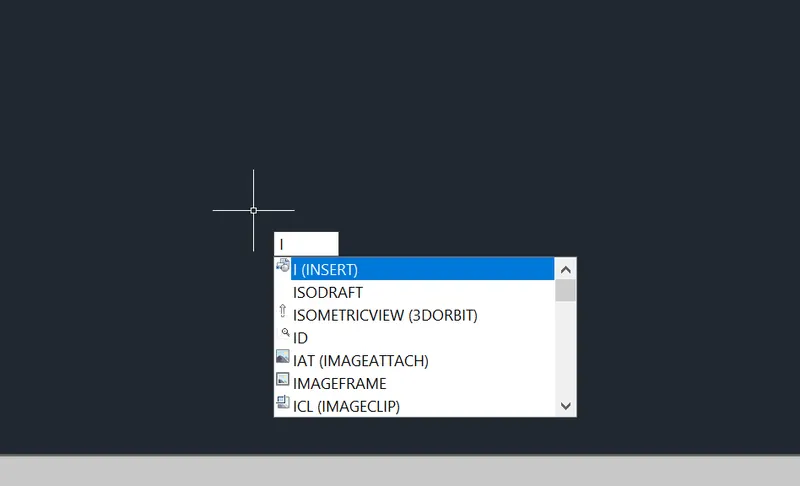
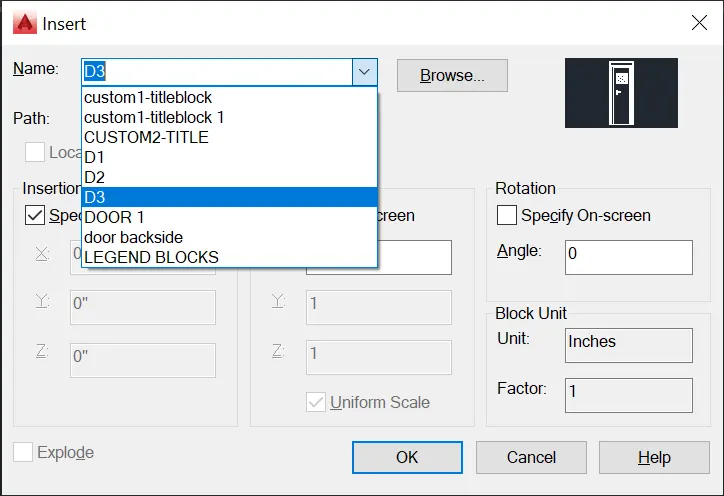
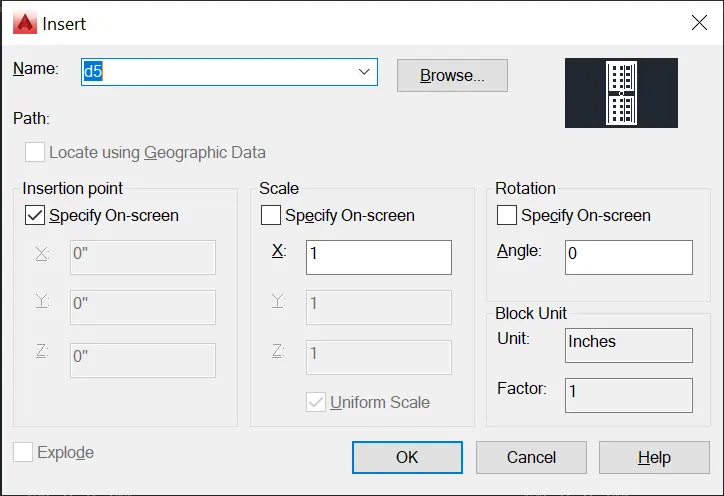
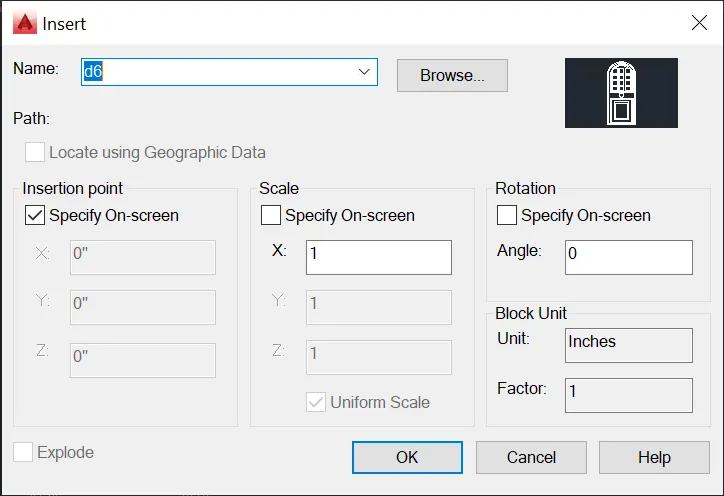
INSERT COMMAND :
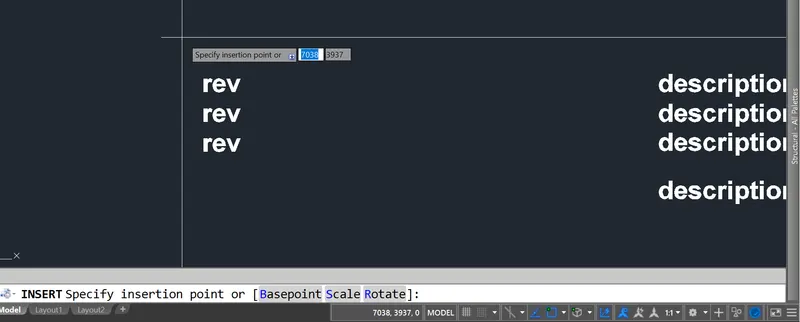
INSERT COMMAND is used to insert the already saved block or drawing into the current drawing.
Procedure to accesss:
1. Command : INSERT and press enter.
2. Shortcut key: I and press enter
3. Ribbon menu : Insert > Block Panel> Insert block
4. Access from: Menu bar > Insert > Block
Second block same as procedure doing.
RESULT:
2. AIM:
To create BLOCK ATTRIBUTES AND BLOCKS.
use proper dimension and text style.
DESCRIPTION:
The plan is an essential documents for the building going to be construted.
The plan contains the various details of the building such as the floor plan and sections.
To draw the plan with necessary views,annotations, and other details in AUTOCAD.
You can use all the commands learned in AUTOCAD software to complete this drawing.
DRAFTING PROCEDURE:
1. Begin a new drawing file with imperial template.
2. Create standard border with title block.
3. Create the necessary layers and dimension styles with different properties.
4. Create the following views: BLOCK AND BLOCK ATTRIBUTES.
5. Create necessary dimensions, notes, joinery details and other annotations.
6. Organize the various the entities in the respective layer.
7. Save the drawing file as .dwg.
8. Scan the QR code to see the virtual model to better understanding.
INTRODUCTION:
SETTING THE STANDARDS: In the following topics,
we will learn about the standard setting used in AutoCAD before starting the drafting process.
UNIT COMMAND: units command is used to control the presicion and display formats for coordinates,
distances, and angles.
For example, we can use inches or millimeters depending upon needs.
units types are decimal, architectural, engineering, fractional and scienticfic.
PROCEDURE:
1. command:UNITS press enter
2. shortcut key: UN press enter
3. Access from: Menubar>Format>Units
4. Access from: Applications menu>Drawing utilities>units.
set the units in DECIMAL ,Insertion scale in Millimeters. And press ok.
To save that settings.
LIMITS;
LIMITS command sets an invisible rectangular boundary inthe drawing area that can
limit the grid display and limit clicking the entire point locations.
PROCEDURE TO ACCESS:
1. command : LIMITS Press enter
2. Shortcut key: LIMI press enter.
Set the limits:
Z enter
ALL enter
1. LINE COMMAND: Type the line command.
2. TRIM COMMAND:
TRIM COMMAND is usd to delete the unwanted part of an object.
Procedure to access:
1. Command key: TRIM and press enter.
2. Shortcut key: TR and press enter.
3. Ribbon menu: Home> Modify Panel> TRim.
4. Access from: Menu bar>mOdify> Trim.
INTRODUCTION TO BLOCK:
A BLOCK i an object with a name, geometry, a base point which can be created,
stored and retrived any number of times, with its associated attribute data.
Block feature enhances the user productivity as the user can be reuse the
block in any drawing. You can reference it in the same or a different
drawing.
In the following segment, you will learn about the various tools and techincs
used to create, store and reusing a block in AutoCAD.
ATTRIBUTES:
An attributes is a label or tag that attaches a data to a block.
Example of data that migh be contained in an attribute are part numbers,
prices, comments and owners' names. The following illustrations
shows a "BOLt" block with four attributes: type, manufacturer, model
and cost. Because the tags were set up as variables, specific information
about each instance could be added for each inserted block reference
Attribute information extracted from a drawing can be used in a spreadsheet
or database to produce a part list or a bill of materials.
An unique tag that identifies the attributes by name.
A prompt that can be displayed as the block is inserted.
ATTRIBUTE COMMAND:
ATTDEF COMMAND
ATTDEF COMMAND is used to create an attribute definition for storing the data
in a block. An attribute is an object that is create and included in a block attributes.
PROCEDURE TO ACCESS:
1. Command: ATTDF and press enter.
2. shortcutkey: ATT and press enter.
3. Ribbon menu: Insert> Block definition panel> Define attributes.
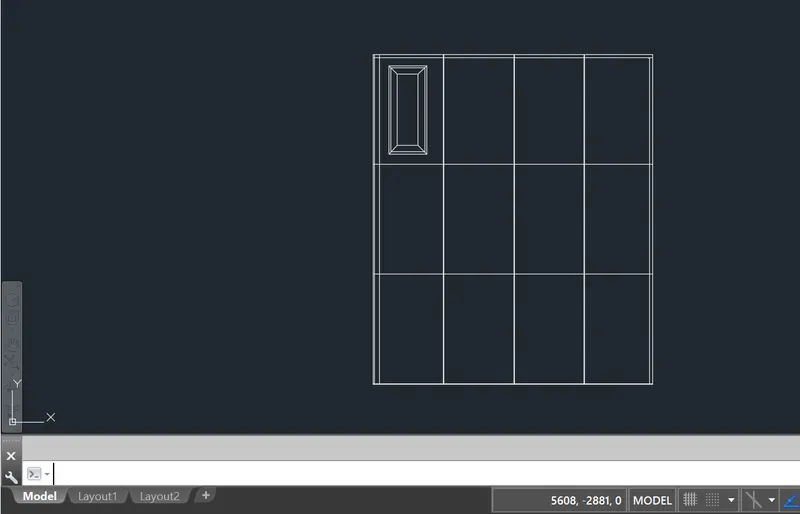
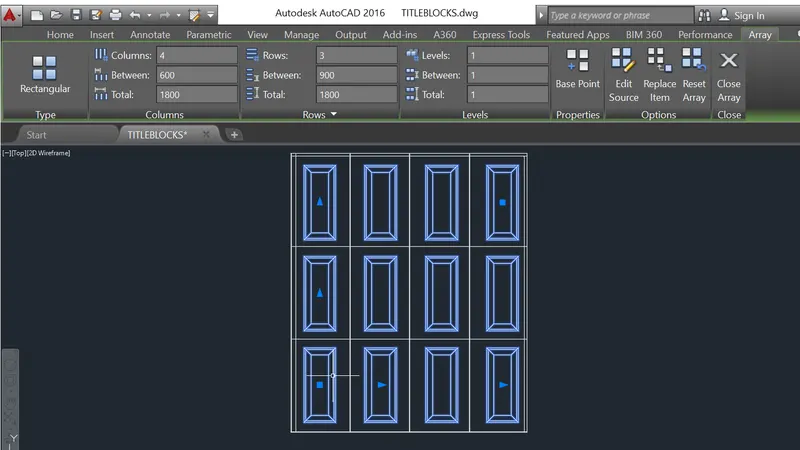
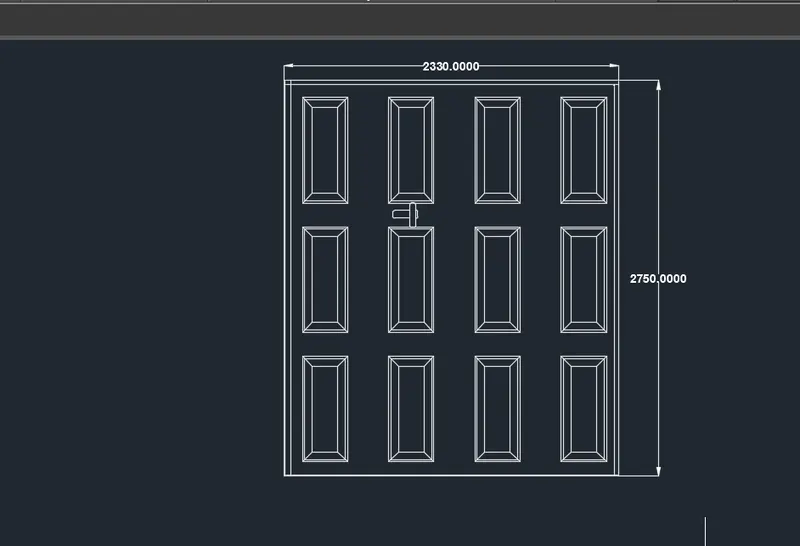
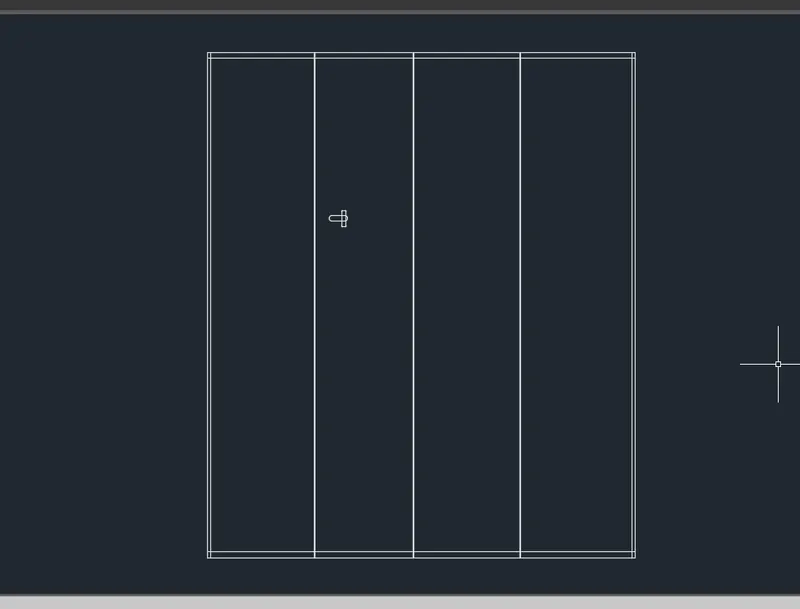
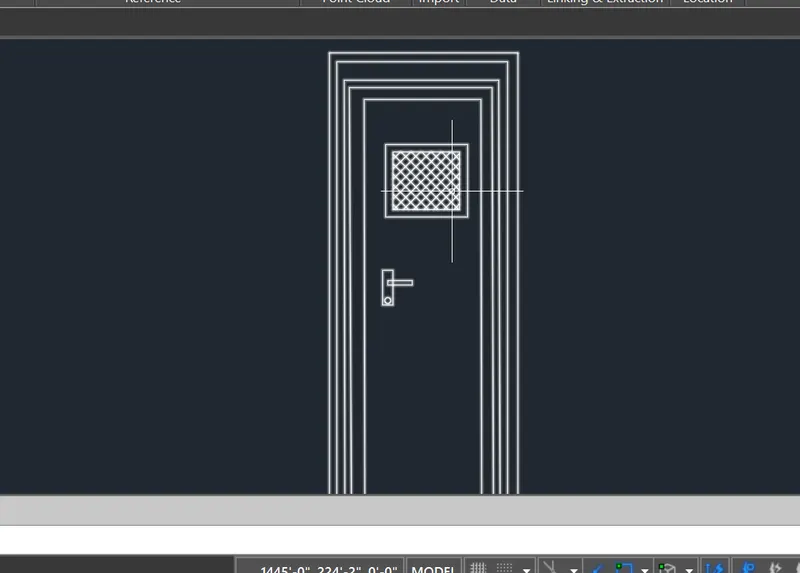
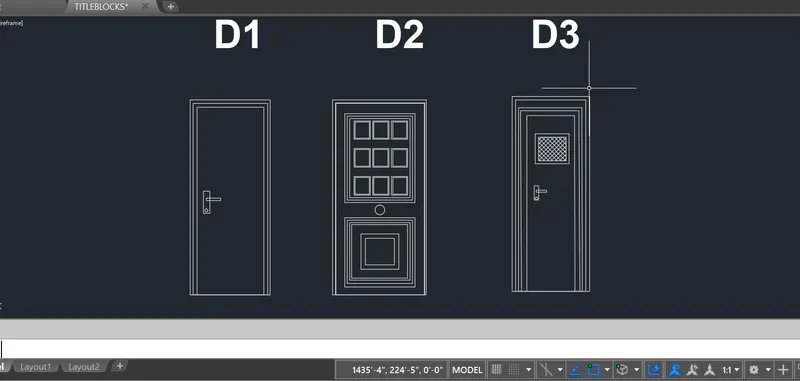
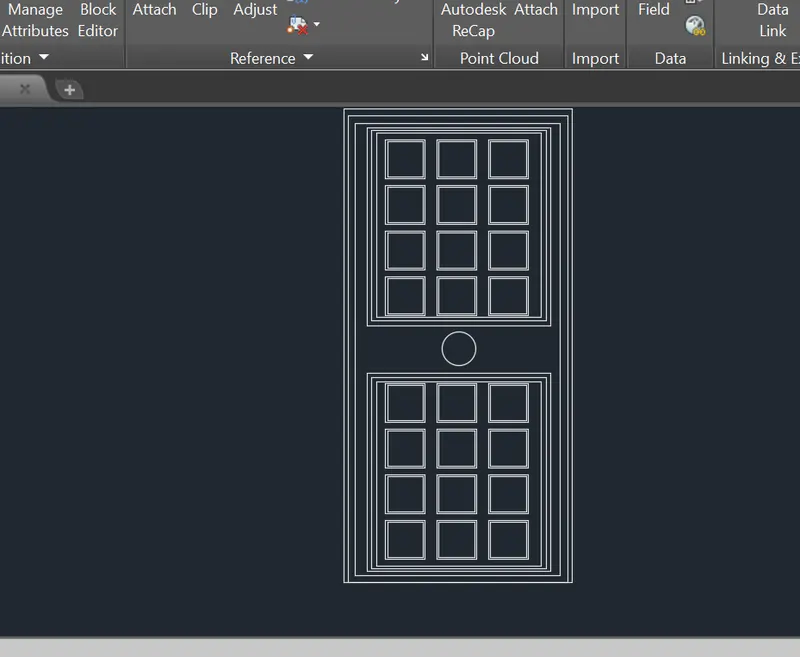
create the doors as per procedure of standard size.
BLOCK COMMAND:
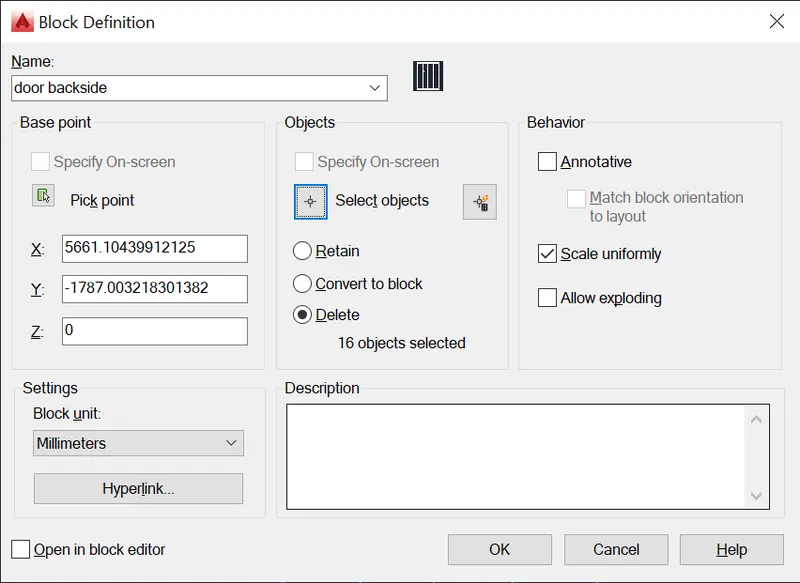
BLOCK COMMAND is used to create a block definition from selected objects.
PROCEDURE TO ACCESS:
1. COMMAND: BLOCK and press enter.
2. shortcut key: B and press enter.
3. Ribbon menu: INSERT> BLOCK DEFINITION PANEL>
Create block
4. Access from: Menu bar> MOdify >Object > Block description.
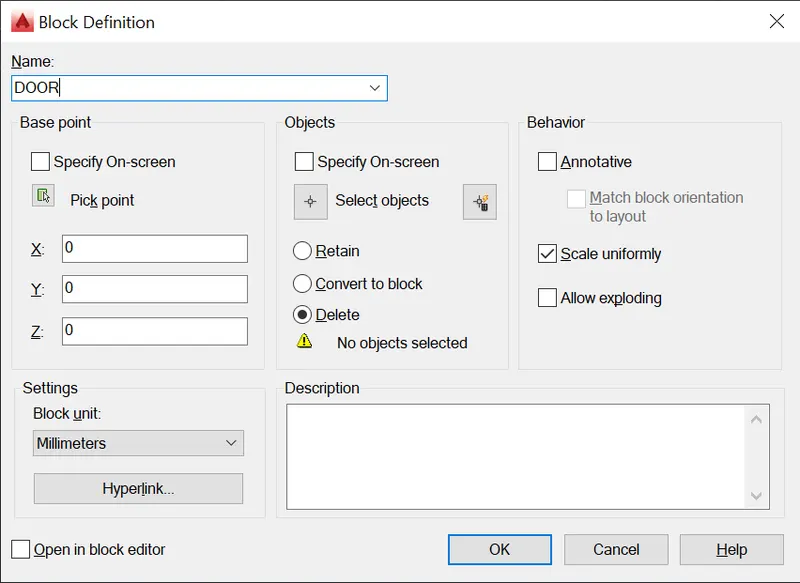
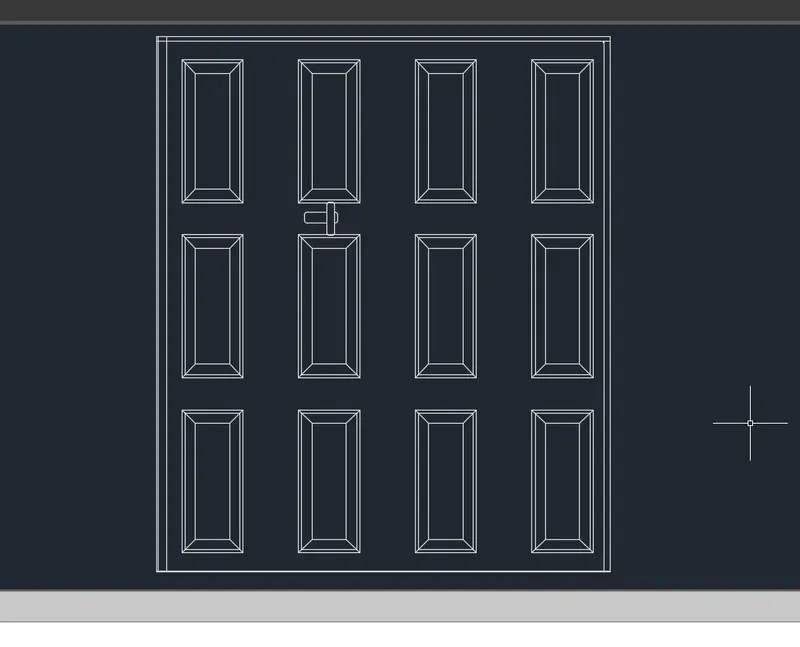
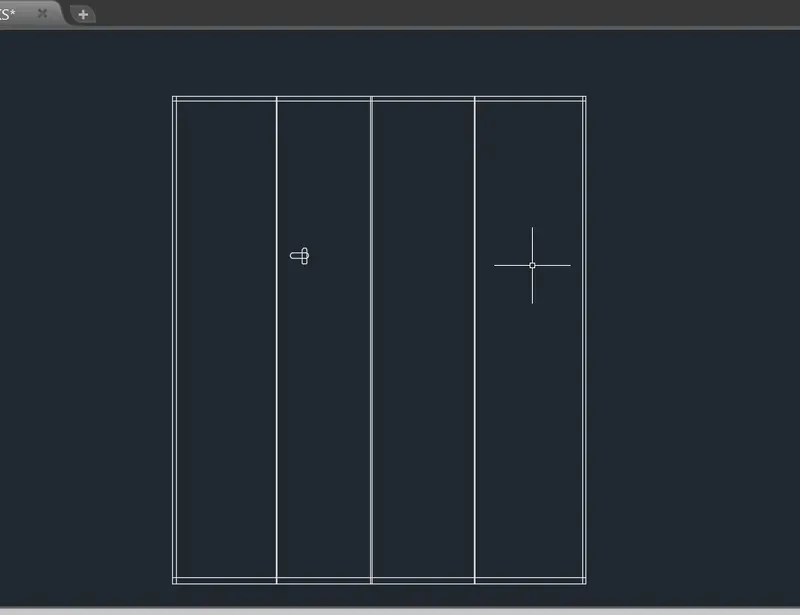
As per same procedure while doing the second door also.
RESULT:
3. AIM:
To create BLOCK ATTRIBUTES AND BLOCKS.
use proper dimension and text style.
DESCRIPTION:
The plan is an essential documents for the building going to be construted.
The plan contains the various details of the building such as the floor plan and sections.
To draw the plan with necessary views,annotations, and other details in AUTOCAD.
You can use all the commands learned in AUTOCAD software to complete this drawing.
DRAFTING PROCEDURE:
1. Begin a new drawing file with imperial template.
2. Create standard border with title block.
3. Create the necessary layers and dimension styles with different properties.
4. Create the following views: BLOCK AND BLOCK ATTRIBUTES.
5. Create necessary dimensions, notes, joinery details and other annotations.
6. Organize the various the entities in the respective layer.
7. Save the drawing file as .dwg.
8. Scan the QR code to see the virtual model to better understanding.
INTRODUCTION:
SETTING THE STANDARDS: In the following topics,
we will learn about the standard setting used in AutoCAD before starting the drafting process.
UNIT COMMAND: units command is used to control the presicion and display formats for coordinates,
distances, and angles.
For example, we can use inches or millimeters depending upon needs.
units types are decimal, architectural, engineering, fractional and scienticfic.
PROCEDURE:
1. command:UNITS press enter
2. shortcut key: UN press enter
3. Access from: Menubar>Format>Units
4. Access from: Applications menu>Drawing utilities>units.
set the units in DECIMAL ,Insertion scale in Millimeters. And press ok.
To save that settings.
LIMITS;
LIMITS command sets an invisible rectangular boundary inthe drawing area that can
limit the grid display and limit clicking the entire point locations.
PROCEDURE TO ACCESS:
1. command : LIMITS Press enter
2. Shortcut key: LIMI press enter.
Set the limits:
Z enter
ALL enter
1. LINE COMMAND: Type the line command.
2. TRIM COMMAND:
TRIM COMMAND is usd to delete the unwanted part of an object.
Procedure to access:
1. Command key: TRIM and press enter.
2. Shortcut key: TR and press enter.
3. Ribbon menu: Home> Modify Panel> TRim.
4. Access from: Menu bar>mOdify> Trim.
INTRODUCTION TO BLOCK:
A BLOCK i an object with a name, geometry, a base point which can be created,
stored and retrived any number of times, with its associated attribute data.
Block feature enhances the user productivity as the user can be reuse the
block in any drawing. You can reference it in the same or a different
drawing.
In the following segment, you will learn about the various tools and techincs
used to create, store and reusing a block in AutoCAD.
ATTRIBUTES:
An attributes is a label or tag that attaches a data to a block.
Example of data that migh be contained in an attribute are part numbers,
prices, comments and owners' names. The following illustrations
shows a "BOLt" block with four attributes: type, manufacturer, model
and cost. Because the tags were set up as variables, specific information
about each instance could be added for each inserted block reference
Attribute information extracted from a drawing can be used in a spreadsheet
or database to produce a part list or a bill of materials.
An unique tag that identifies the attributes by name.
A prompt that can be displayed as the block is inserted.
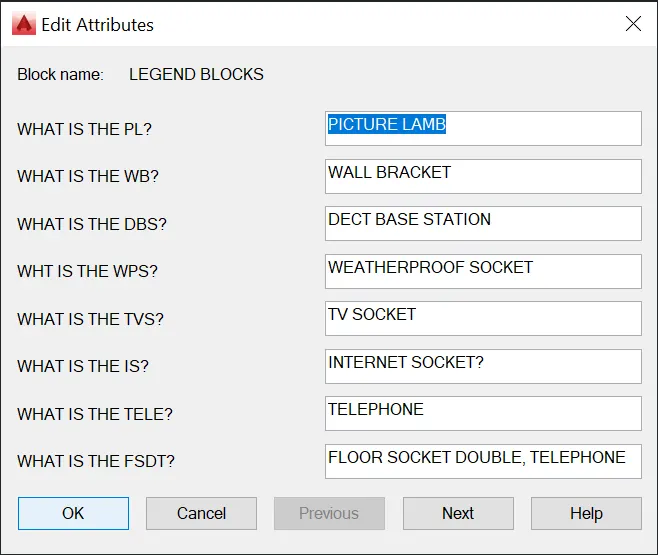
ATTRIBUTE COMMAND:
ATTDEF COMMAND
ATTDEF COMMAND is used to create an attribute definition for storing the data
in a block. An attribute is an object that is create and included in a block attributes.
PROCEDURE TO ACCESS:
1. Command: ATTDF and press enter.
2. shortcutkey: ATT and press enter.
3. Ribbon menu: Insert> Block definition panel> Define attributes.
BLOCK COMMAND:
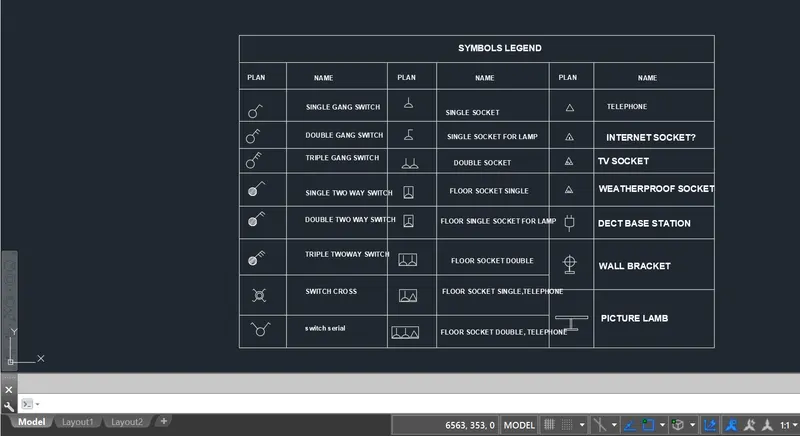
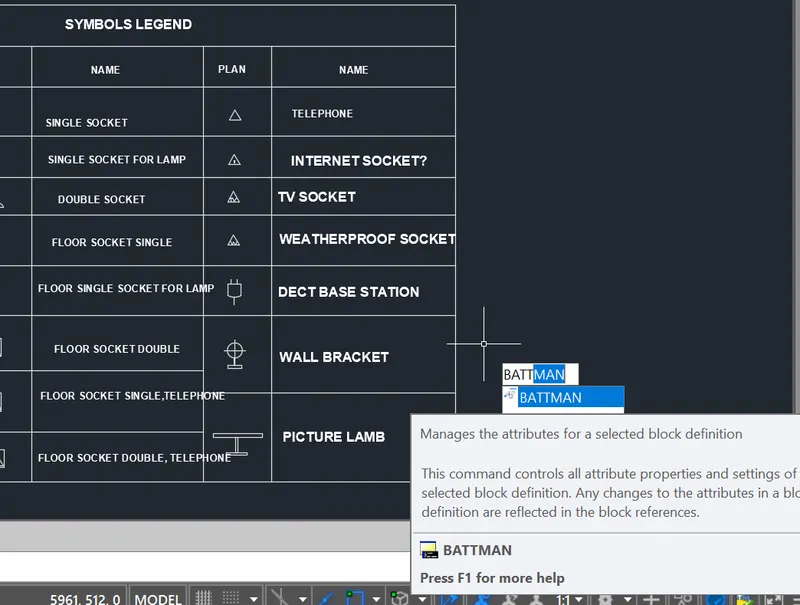
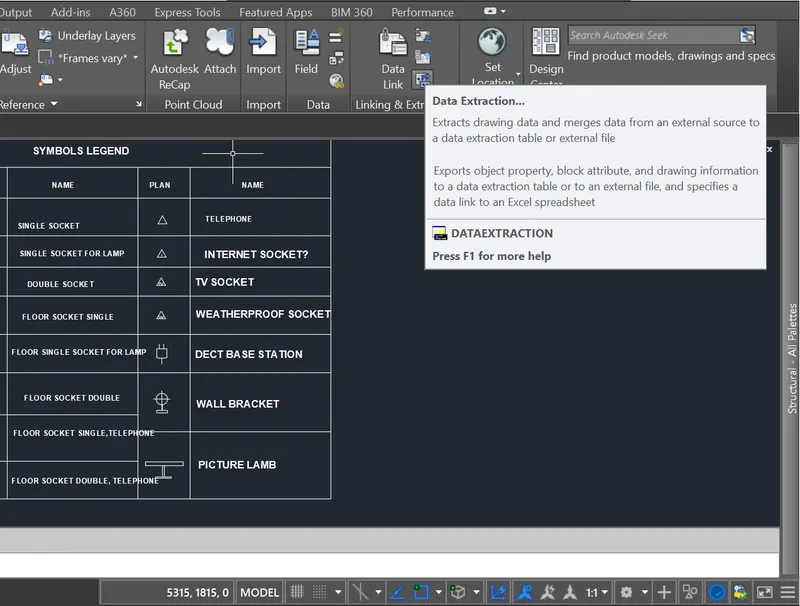
BLOCK COMMAND is used to create a block definition from selected objects.
PROCEDURE TO ACCESS:
1. COMMAND: BLOCK and press enter.
2. shortcut key: B and press enter.
3. Ribbon menu: INSERT> BLOCK DEFINITION PANEL>
Create block
4. Access from: Menu bar> MOdify >Object > Block description.
RESULT:
4. AIM:
To create BLOCK ATTRIBUTES AND BLOCKS.
use proper dimension and text style.
DESCRIPTION:
The plan is an essential documents for the building going to be construted.
The plan contains the various details of the building such as the floor plan and sections.
To draw the plan with necessary views,annotations, and other details in AUTOCAD.
You can use all the commands learned in AUTOCAD software to complete this drawing.
DRAFTING PROCEDURE:
1. Begin a new drawing file with imperial template.
2. Create standard border with title block.
3. Create the necessary layers and dimension styles with different properties.
4. Create the following views: BLOCK AND BLOCK ATTRIBUTES.
5. Create necessary dimensions, notes, joinery details and other annotations.
6. Organize the various the entities in the respective layer.
7. Save the drawing file as .dwg.
8. Scan the QR code to see the virtual model to better understanding.
INTRODUCTION:
SETTING THE STANDARDS: In the following topics,
we will learn about the standard setting used in AutoCAD before starting the drafting process.
UNIT COMMAND: units command is used to control the presicion and display formats for coordinates,
distances, and angles.
For example, we can use inches or millimeters depending upon needs.
units types are decimal, architectural, engineering, fractional and scienticfic.
PROCEDURE:
1. command:UNITS press enter
2. shortcut key: UN press enter
3. Access from: Menubar>Format>Units
4. Access from: Applications menu>Drawing utilities>units.
set the units in DECIMAL ,Insertion scale in Millimeters. And press ok.
To save that settings.
LIMITS;
LIMITS command sets an invisible rectangular boundary inthe drawing area that can
limit the grid display and limit clicking the entire point locations.
PROCEDURE TO ACCESS:
1. command : LIMITS Press enter
2. Shortcut key: LIMI press enter.
Set the limits:
Z enter
ALL enter
1. LINE COMMAND: Type the line command.
2. TRIM COMMAND:
TRIM COMMAND is usd to delete the unwanted part of an object.
Procedure to access:
1. Command key: TRIM and press enter.
2. Shortcut key: TR and press enter.
3. Ribbon menu: Home> Modify Panel> TRim.
4. Access from: Menu bar>mOdify> Trim.
INTRODUCTION TO BLOCK:
A BLOCK i an object with a name, geometry, a base point which can be created,
stored and retrived any number of times, with its associated attribute data.
Block feature enhances the user productivity as the user can be reuse the
block in any drawing. You can reference it in the same or a different
drawing.
In the following segment, you will learn about the various tools and techincs
used to create, store and reusing a block in AutoCAD.
ATTRIBUTES:
An attributes is a label or tag that attaches a data to a block.
Example of data that migh be contained in an attribute are part numbers,
prices, comments and owners' names. The following illustrations
shows a "BOLt" block with four attributes: type, manufacturer, model
and cost. Because the tags were set up as variables, specific information
about each instance could be added for each inserted block reference
Attribute information extracted from a drawing can be used in a spreadsheet
or database to produce a part list or a bill of materials.
An unique tag that identifies the attributes by name.
A prompt that can be displayed as the block is inserted.
ATTRIBUTE COMMAND:
ATTDEF COMMAND
ATTDEF COMMAND is used to create an attribute definition for storing the data
in a block. An attribute is an object that is create and included in a block attributes.
PROCEDURE TO ACCESS:
1. Command: ATTDF and press enter.
2. shortcutkey: ATT and press enter.
3. Ribbon menu: Insert> Block definition panel> Define attributes.
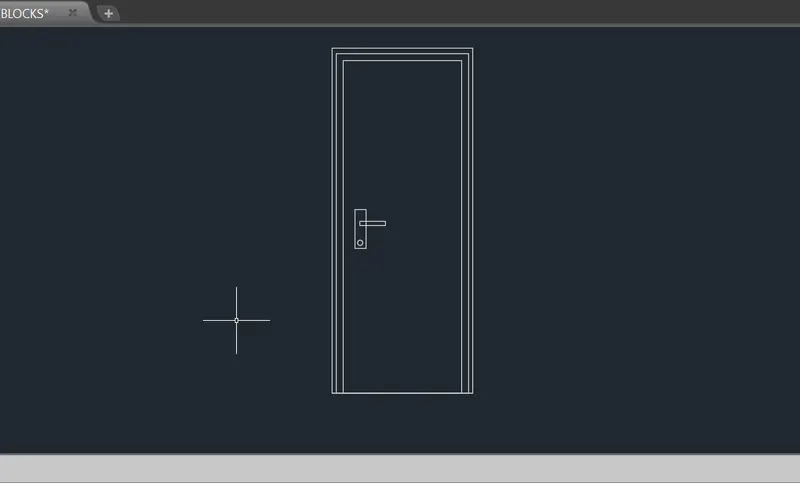
BLOCK COMMAND:
BLOCK COMMAND is used to create a block definition from selected objects.
PROCEDURE TO ACCESS:
1. COMMAND: BLOCK and press enter.
2. shortcut key: B and press enter.
3. Ribbon menu: INSERT> BLOCK DEFINITION PANEL>
Create block
4. Access from: Menu bar> MOdify >Object > Block description.
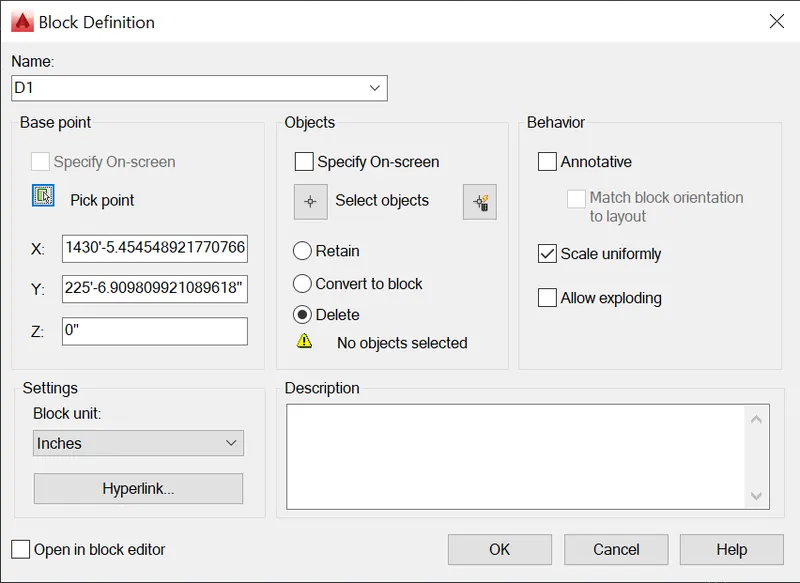
INSERT COMMAND :
INSERT COMMAND is used to insert the already saved block or drawing into the current drawing.
Procedure to accesss:
1. Command : INSERT and press enter.
2. Shortcut key: I and press enter
3. Ribbon menu : Insert > Block Panel> Insert block
4. Access from: Menu bar > Insert > Block
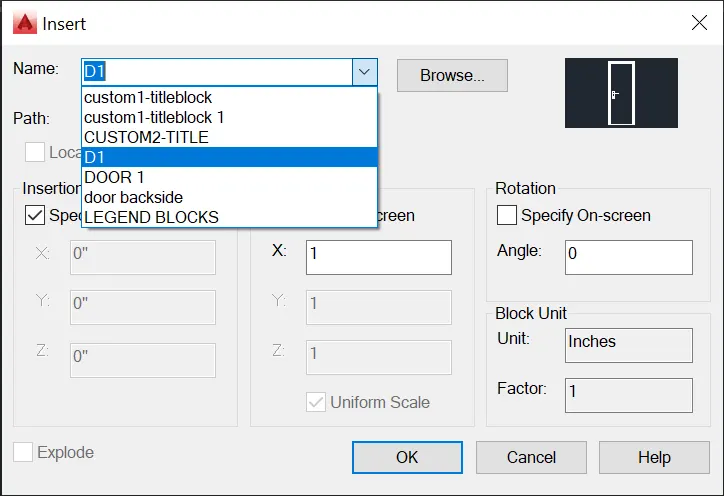
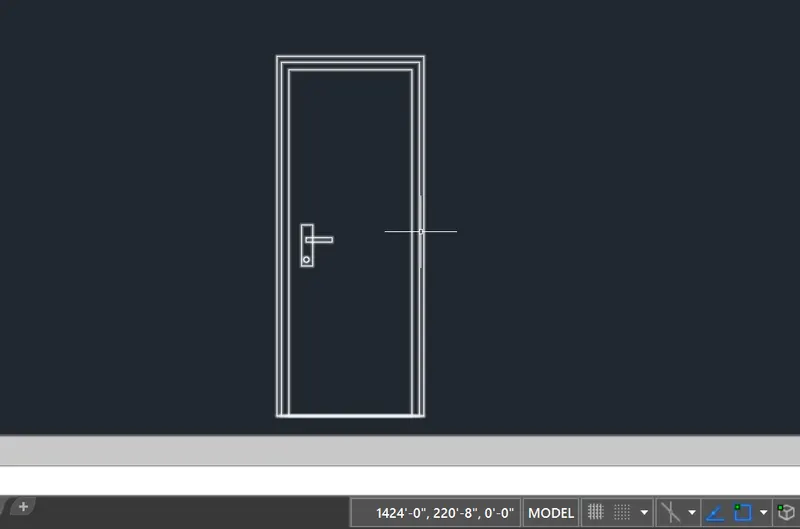
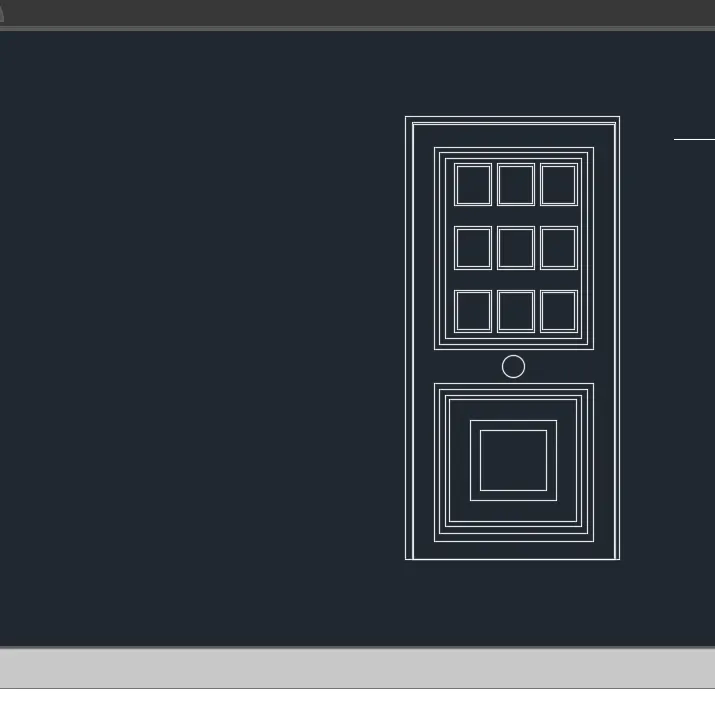
BLOCK COMMAND:
BLOCK COMMAND is used to create a block definition from selected objects.
PROCEDURE TO ACCESS:
1. COMMAND: BLOCK and press enter.
2. shortcut key: B and press enter.
3. Ribbon menu: INSERT> BLOCK DEFINITION PANEL>
Create block
4. Access from: Menu bar> MOdify >Object > Block description.
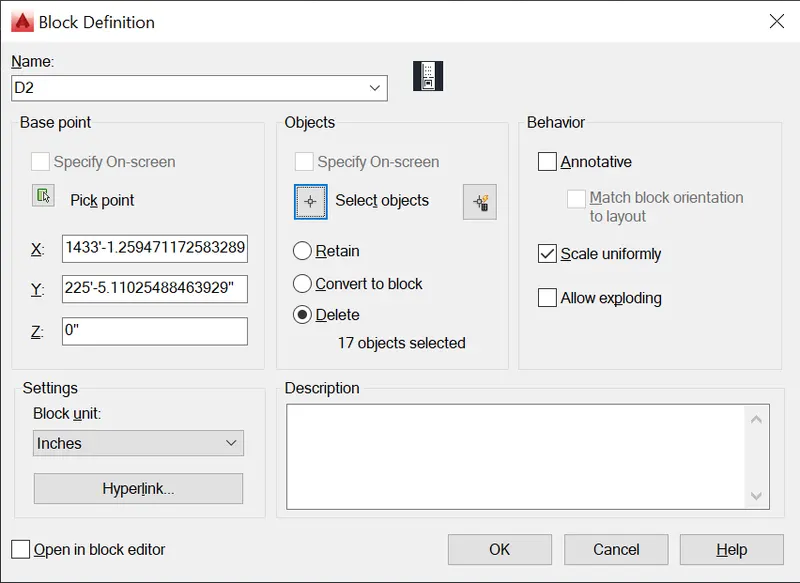
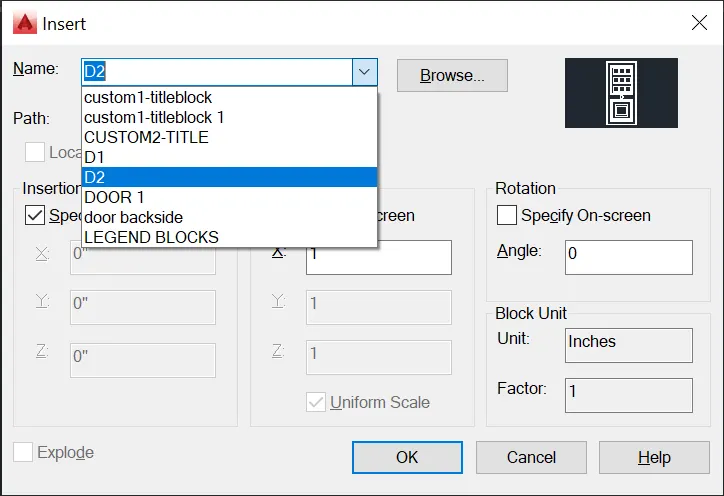
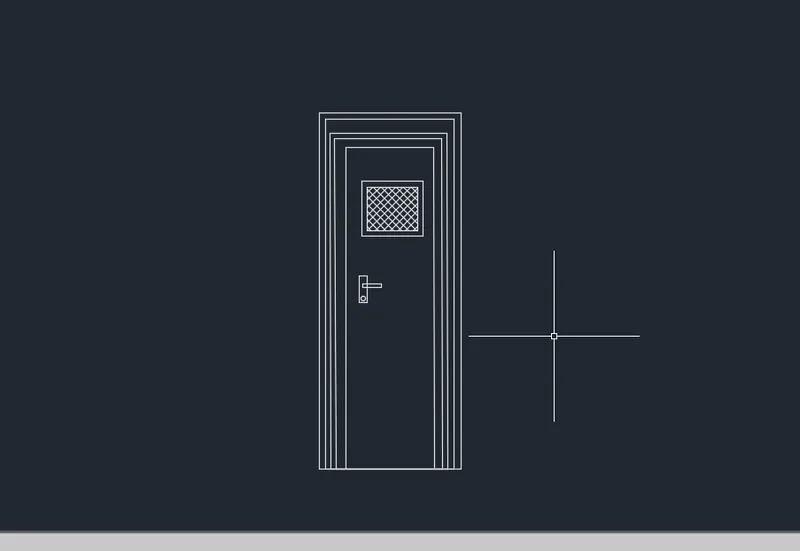
BLOCK COMMAND:
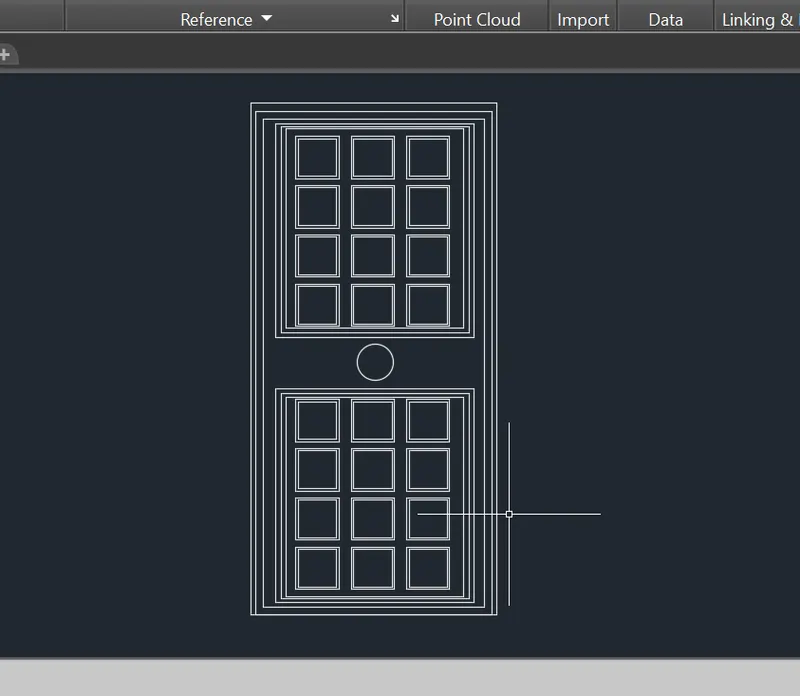
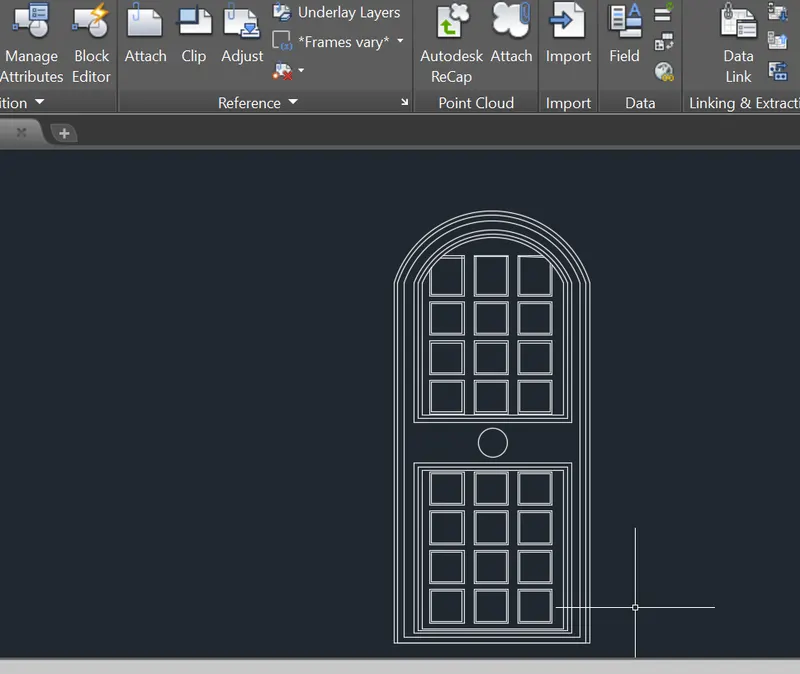
BLOCK COMMAND is used to create a block definition from selected objects.
PROCEDURE TO ACCESS:
1. COMMAND: BLOCK and press enter.
2. shortcut key: B and press enter.
3. Ribbon menu: INSERT> BLOCK DEFINITION PANEL>
Create block
4. Access from: Menu bar> MOdify >Object > Block description.
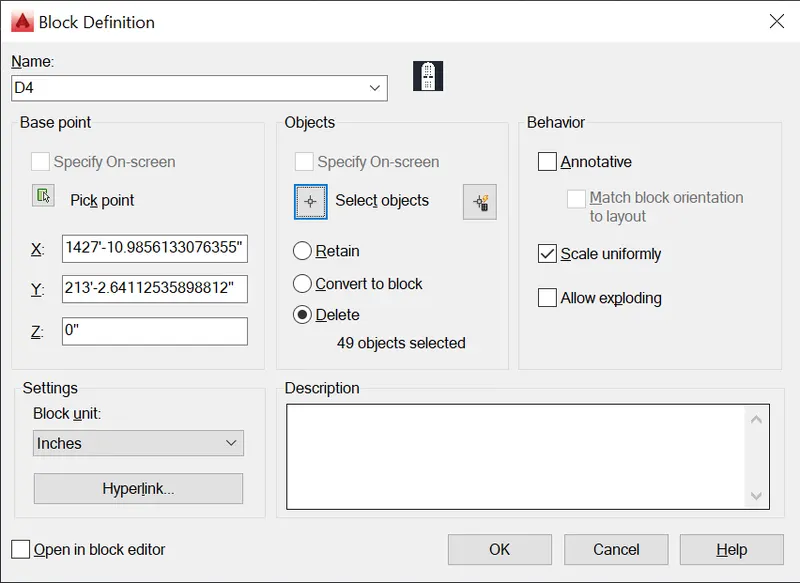
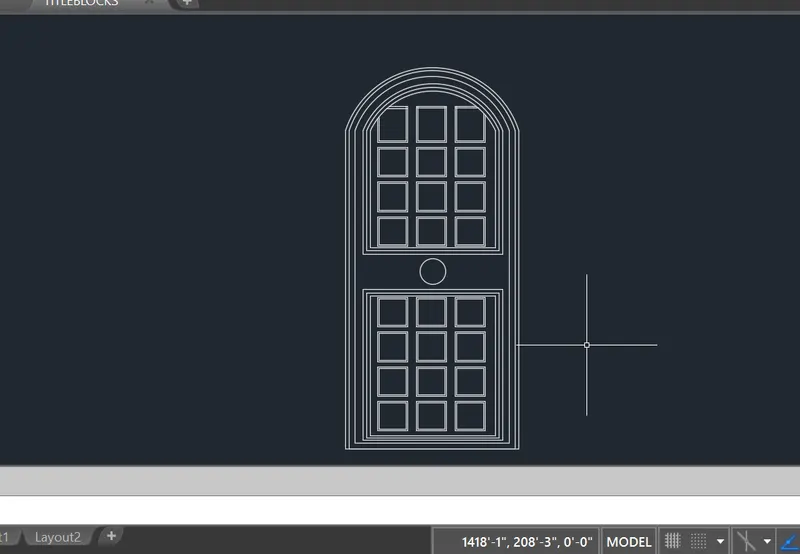
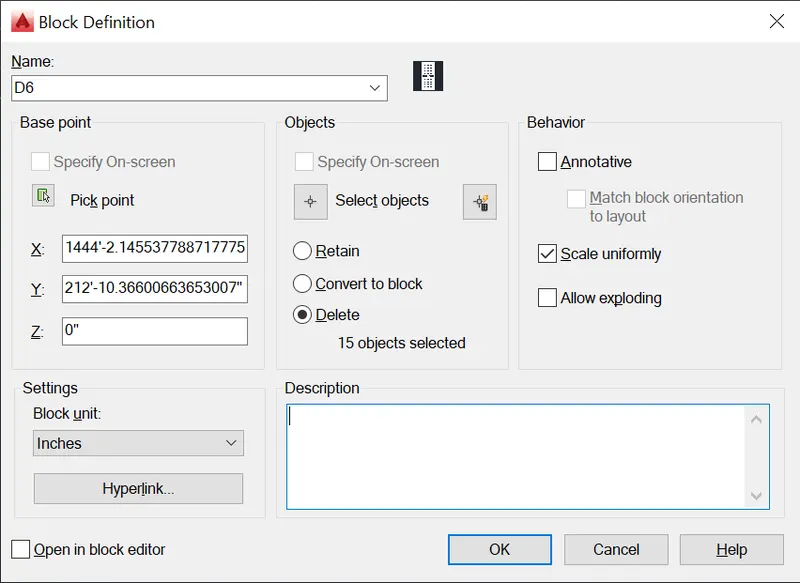
BLOCK COMMAND:
BLOCK COMMAND is used to create a block definition from selected objects.
PROCEDURE TO ACCESS:
1. COMMAND: BLOCK and press enter.
2. shortcut key: B and press enter.
3. Ribbon menu: INSERT> BLOCK DEFINITION PANEL>
Create block
4. Access from: Menu bar> MOdify >Object > Block description.
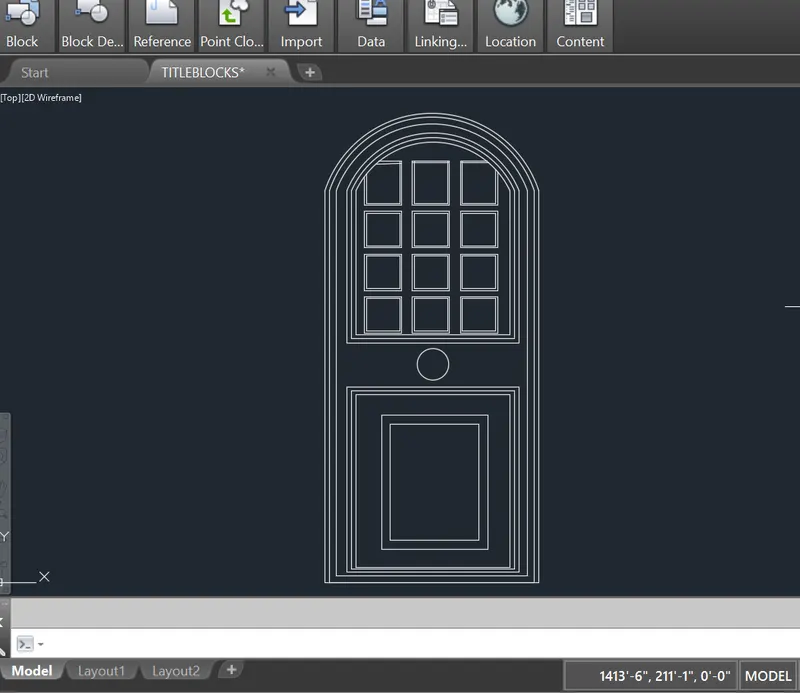
RESULT:
5. AIM:
To create BLOCK ATTRIBUTES AND BLOCKS.
use proper dimension and text style.
DESCRIPTION:
The plan is an essential documents for the building going to be construted.
The plan contains the various details of the building such as the floor plan and sections.
To draw the plan with necessary views,annotations, and other details in AUTOCAD.
You can use all the commands learned in AUTOCAD software to complete this drawing.
DRAFTING PROCEDURE:
1. Begin a new drawing file with imperial template.
2. Create standard border with title block.
3. Create the necessary layers and dimension styles with different properties.
4. Create the following views: BLOCK AND BLOCK ATTRIBUTES.
5. Create necessary dimensions, notes, joinery details and other annotations.
6. Organize the various the entities in the respective layer.
7. Save the drawing file as .dwg.
8. Scan the QR code to see the virtual model to better understanding.
INTRODUCTION:
SETTING THE STANDARDS: In the following topics,
we will learn about the standard setting used in AutoCAD before starting the drafting process.
UNIT COMMAND: units command is used to control the presicion and display formats for coordinates,
distances, and angles.
For example, we can use inches or millimeters depending upon needs.
units types are decimal, architectural, engineering, fractional and scienticfic.
PROCEDURE:
1. command:UNITS press enter
2. shortcut key: UN press enter
3. Access from: Menubar>Format>Units
4. Access from: Applications menu>Drawing utilities>units.
set the units in DECIMAL ,Insertion scale in Millimeters. And press ok.
To save that settings.
LIMITS;
LIMITS command sets an invisible rectangular boundary inthe drawing area that can
limit the grid display and limit clicking the entire point locations.
PROCEDURE TO ACCESS:
1. command : LIMITS Press enter
2. Shortcut key: LIMI press enter.
Set the limits:
Z enter
ALL enter
1. LINE COMMAND: Type the line command.
2. TRIM COMMAND:
TRIM COMMAND is usd to delete the unwanted part of an object.
Procedure to access:
1. Command key: TRIM and press enter.
2. Shortcut key: TR and press enter.
3. Ribbon menu: Home> Modify Panel> TRim.
4. Access from: Menu bar>mOdify> Trim.
INTRODUCTION TO BLOCK:
A BLOCK i an object with a name, geometry, a base point which can be created,
stored and retrived any number of times, with its associated attribute data.
Block feature enhances the user productivity as the user can be reuse the
block in any drawing. You can reference it in the same or a different
drawing.
In the following segment, you will learn about the various tools and techincs
used to create, store and reusing a block in AutoCAD.
ATTRIBUTES:
An attributes is a label or tag that attaches a data to a block.
Example of data that migh be contained in an attribute are part numbers,
prices, comments and owners' names. The following illustrations
shows a "BOLt" block with four attributes: type, manufacturer, model
and cost. Because the tags were set up as variables, specific information
about each instance could be added for each inserted block reference
Attribute information extracted from a drawing can be used in a spreadsheet
or database to produce a part list or a bill of materials.
An unique tag that identifies the attributes by name.
A prompt that can be displayed as the block is inserted.
ATTRIBUTE COMMAND:
ATTDEF COMMAND
ATTDEF COMMAND is used to create an attribute definition for storing the data
in a block. An attribute is an object that is create and included in a block attributes.
PROCEDURE TO ACCESS:
1. Command: ATTDF and press enter.
2. shortcutkey: ATT and press enter.
3. Ribbon menu: Insert> Block definition panel> Define attributes.
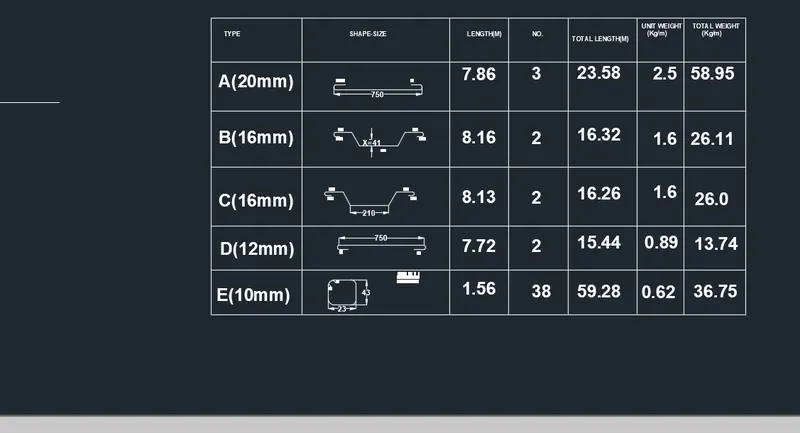
BLOCK COMMAND:
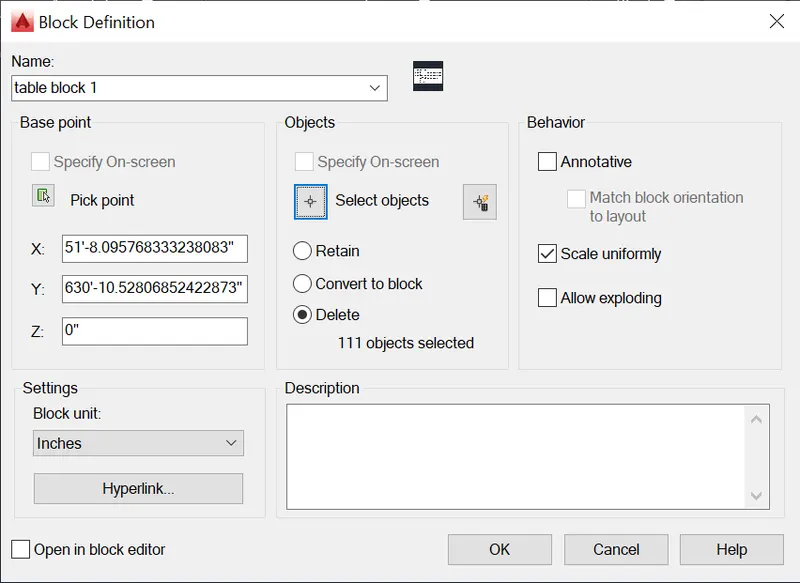
BLOCK COMMAND is used to create a block definition from selected objects.
PROCEDURE TO ACCESS:
1. COMMAND: BLOCK and press enter.
2. shortcut key: B and press enter.
3. Ribbon menu: INSERT> BLOCK DEFINITION PANEL>
Create block
4. Access from: Menu bar> MOdify >Object > Block description.
RESULT: