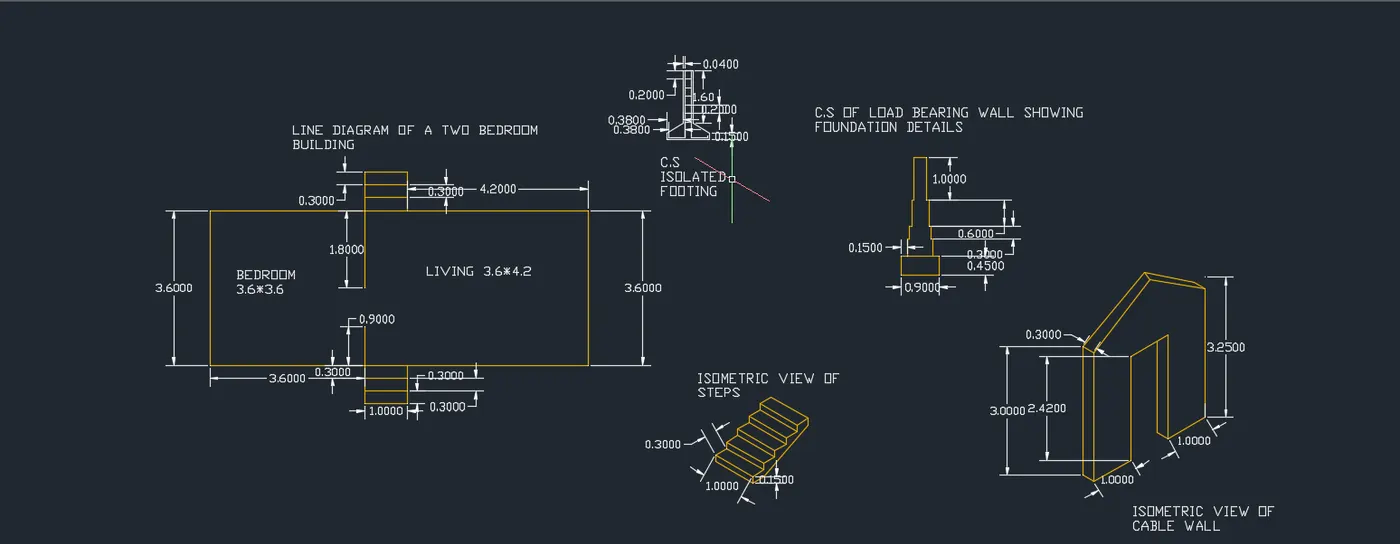
Load bearing wall spread footing
AIM:
To create the MODEL OF C1 TO C6 IN Autocad software and wrote the procedure in report format shown as a given below.
INTRODUCTION:
1. Click the Autocad icon from destop or go to the start>all program>Autocad
2. click New icon to open a new drawing.
3. Type L command By using the commands line command,
PROCEDURE:
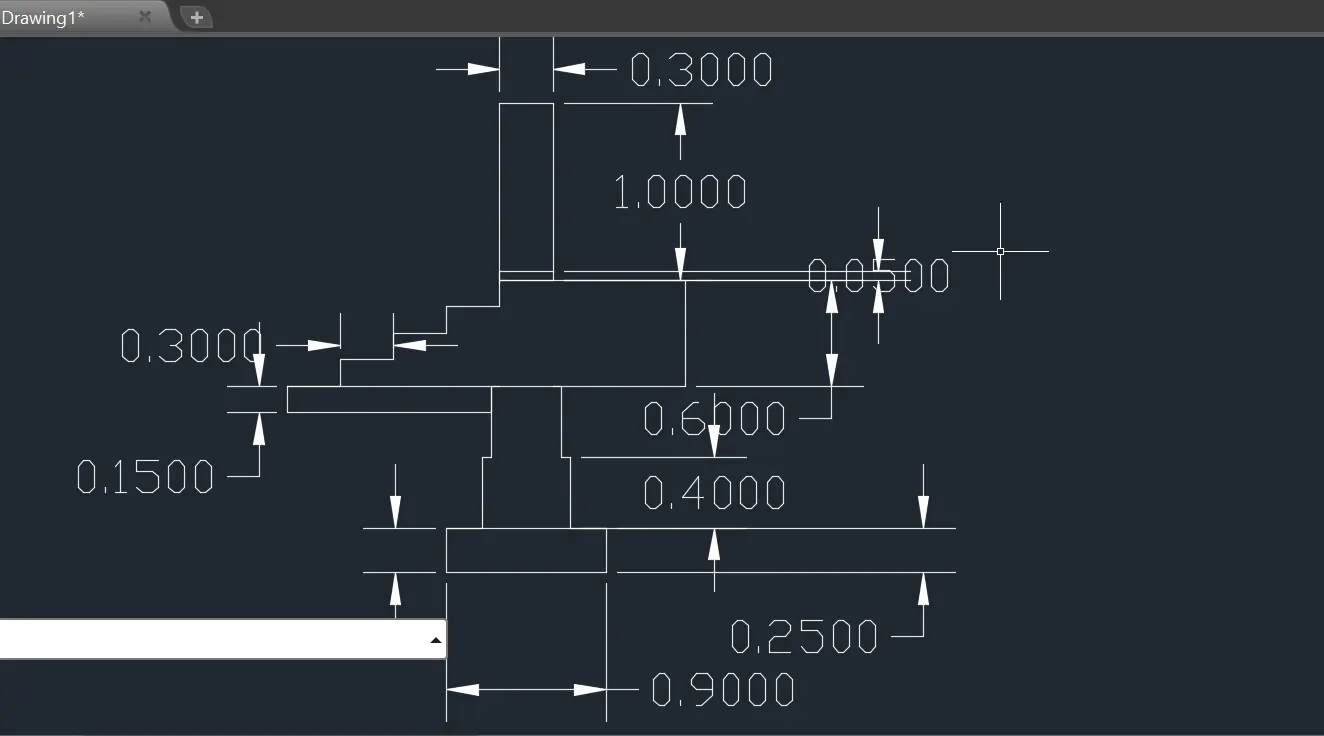
C1: C.S. OF LOAD BEARING WALL OVER SPREAD FOOTING.
SOLVE the model in polar coordinate system:
TO create the C.S. OF LOAD BEARING WALL OVER SPREAD FOOTING.
Set the units to decimal , and milimeter, then press the enter.
Then the set the limits to size the model sheet, then z enter , all enter.
Then, type L command to the command box, and enter
specify the first point 1,1 and press enter.
specify the next point @0.90<0 and press enter
specify the next point @ 0.25<90 and press enter
specify the next point @0.10<180 and press enter
specify the next point @0.50<180 and press enter
specify the next point @0.10<180 and press enter
specify the next point @0.25<270 and press enter
specify the next point @0.40<90 and press enter
specify the next point @0.05<0 and press the enter
specify the next point @0.40<90 and press enter
specify the next point @ 0.25<90 and press enter
specify the next point @1.15<180 and press the enter
specify the next point @0.15<90and press enter
specifyt the next point @0.30<0 and press enter
specify the next point @0.15<90 and press enter
specify the next point @0.15<90 and press enter
specify the next point @0.30<0 and press enter
specify the next point @0.15<90 and press enter
specify the next point @0.30<0 and press enter
specify the next point @1<90 and presss enter
specify the next point @0.30<0 and press enter
specify the next point @1.75<270 and press enter
specify the next point @0.05<270 and press enter
specify the next point @0.30<180 and press enter
specify the next point @0.05<270 and press enter
Again enter line command and press enter
specify the same line point and press enter
specify the next point @0.65<0 and press enter
specify the next point @0.60<270 and press enter
specify the next point @0.65<180 and press enter
specify the next point @0.40<270 and press enter
specify the next point @0.15<180 and press enter
specify the next point @0.40<270 and press enter
specify the next point @0.20<180 and press enter
specify the next point @0.25<270 and press enter
2.C2:
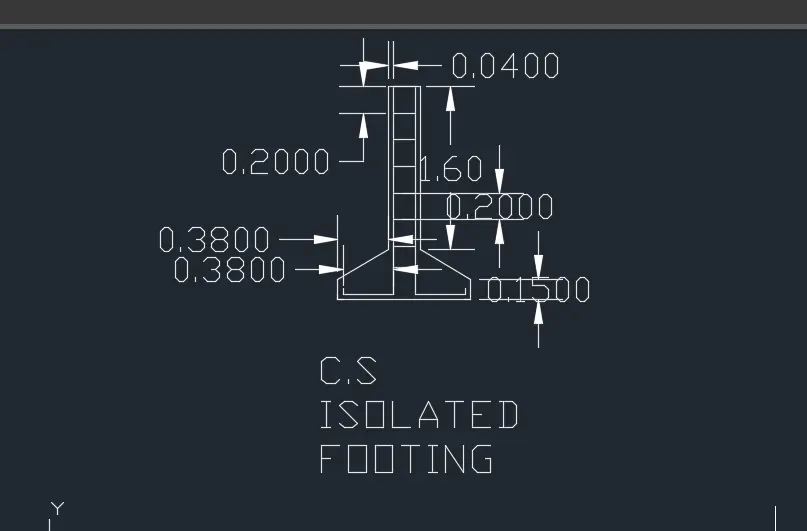
C.S. ISOLATED FOOTING:
Isolated FOOTING:
Then, type L command to the command box, and enter
specify the first point 1,1 and press enter.
specify the next point @1<0 and press enter
specify the next point @ 0.15<90 and press enter
specify the next point @0.38<150 and press enter
specify the next point @1.60<90 and press enter
specify the next point @0.24<180 and press enter
specify the next point @1.60<270 and press enter
specify the next point @0.38<200 and press enter
specify the next point close or undo and press enter
again type line command, sfp0.04,0.04 and press enter
specify the next point @0.04<270 and press enter
specify the next point @0.38<0 and press enter
specify the next point @0.20<90 and press enter
specify the next point @0.20<90 and press enter
specify the next point @0.20<90and press enter
specify the next point @0.20<90 and press enter
specify the next point @0.20<90 and press enter
specify the next point @0.20<90 and press enter
specify the next point @0.20<90 and press enter
specify the next point @0.20<90 and press enter
specify the next point @0.20<90 and press enter
specify the next point @0.20<90 and press enter
specify the next point @0.16<0 and press enter
specify the next point close or undo it and press enter.
Then, type offset command in command box, "o" enter
and offset the top of the lines (0.16) to through 0.20 and press enter
Repaet the same offset process to 9 times
Then exist the command and enter.
Then , give the "ALL DIMENSIONS IN mm"
Named the c2 model.
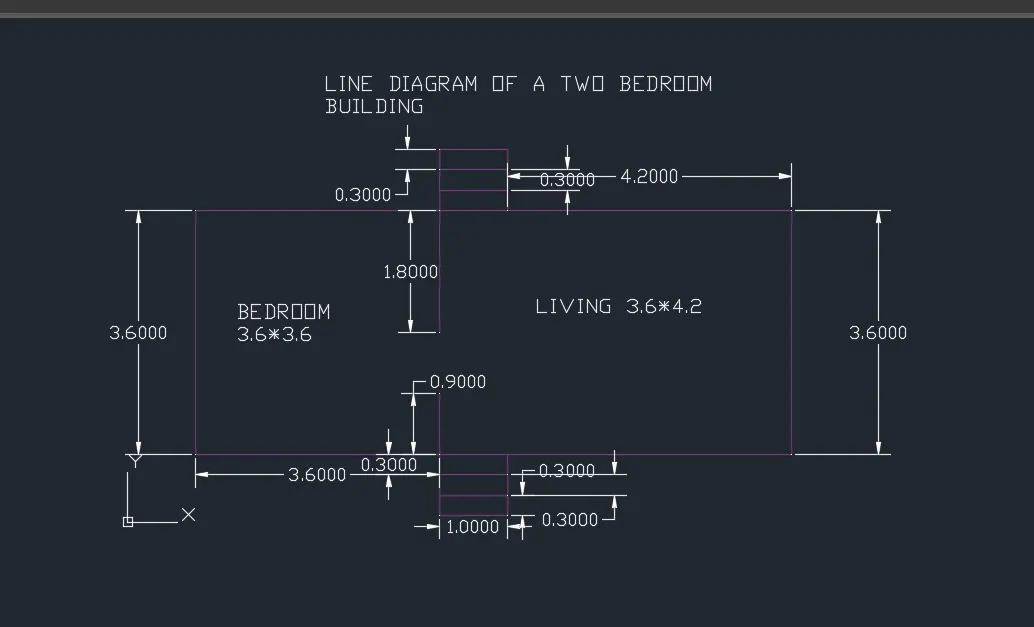
3. C3: LINE DIAGRAM OF A TWO BEDROOM BUILDING:
Then, type L command to the command box, and enter
specify the first point 1,1 and press enter.
specify the next point @3.60<0 and press enter
specify the next point @ 0.30<270and press enter
specify the next point @0.30<270 and press enter
specify the next point @0.30<270 and press enter
specify the next point @1.00<0 and press enter
specify the next point @ 0.30<90 and press enter
specify the next point @ 0.30<90 and press enter
specify the next point @ 0.30<90 and press enter
specify the next point @4.20<0 and press enter
specify the next point @ 3.60<90 and press enter
specify the next point @4.20<180 and press enter
specify the next point @ 0.30<90 and press enter
specify the next point @ 0.30<90 and press enter
specify the next point @ 0.30<90 and press enter
specify the next point @1.00<180 and press enter
specify the next point @0.30<270 and press enter
specify the next point @0.30<270 and press enter
specify the next point @ 0.30<270 and press enter
specify the next point @3.60<180 and press enter
Exist the line command,
Then the type the offset command to the command box
"o" enter to 1.00mm offset through 0.30mm 2 times
again offset the line bottom line 1.0mm through 0.30mm into 2 times.
Then, exist the offset command.
Give the "ALL DIMENSIONS IN mm".
Named the c2 model IN Mtext command and press enter:, as a " LINE DIAGRAM OF A TWO BEDROOM BUILDING "
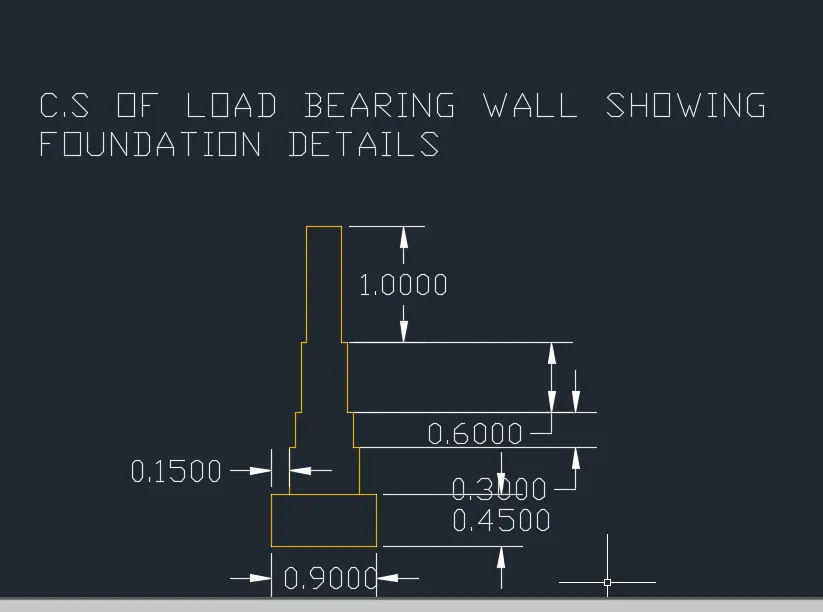
4. C4: C.S LOAD BEARING WALL SHOWING FOUNDATION DETAILS:
Then, type L command to the command box, and enter
specify the first point 1,1 and press enter.
specify the next point @0.90<0 and press enter
specify the next point @ 0.45<90 and press enter
specify the next point @0.15<180 and press enter
specify the next point @0.60<180 and press enter
specify the next point @0.15<180 and press enter
exist the line command and again type "l" enter
specify the first point pick the 0.40 point in x axis
specify the next point @0.40<90 and press enter
specify the next point @0.05<0 and press enter
specify the next point @0.30<90 and press enter
specify the next point @ 0.05<0 and press enter
specify the next point @0.60<90 and press enter
specify the next point @0.05<0 and press enter
specify the next point @0.30<0 and press enter
specify the next point @0.05<0 and press enter
specify the next point @ 0.60<270 and press enter
specify the next point @0.05<0 and press enter
specify the next point @0.30<270 and press enter
specify the next point @0.05<0 and press enter
specify the next point @0.40<270 and press enter
exist the line command, again enter the line command
specify the first point to pick the same point 0.30
specify the next point @ 1.00<90 and press enter
specify the next point @0.30<0 and press enter
specify the next point @1<270 and press enter and exist the line command.
Give the "ALL DIMENSIONS IN mm"
Named the c4 model with Mtext command as a " C.S. OF LOAD BEARING WALL SHOWING FOUNDATION DETAILS"
ISOMETRIC DRAWINGS:
A 2D isometric drawing is a planar representation of a 3D isometric projections.
Isometric view quickly communicates about the model for better
understandings in addition to the other ;projection methods.
In AutoCAD, Isometric drawings are drawn using Iso-planes.
By using the ISODRAFT command, several system variables and settings
automatically changed to values that facilitate isometric angles.
Followings are the Iso-planes in AutoCAD.
- Right- Aligns snap and grid along 30- and 90- degree axes.
- left- Aligns snap and grid along 90- and 150- degree axes.
- top- Aligns snap and grid along 30-and 150- degree axes.
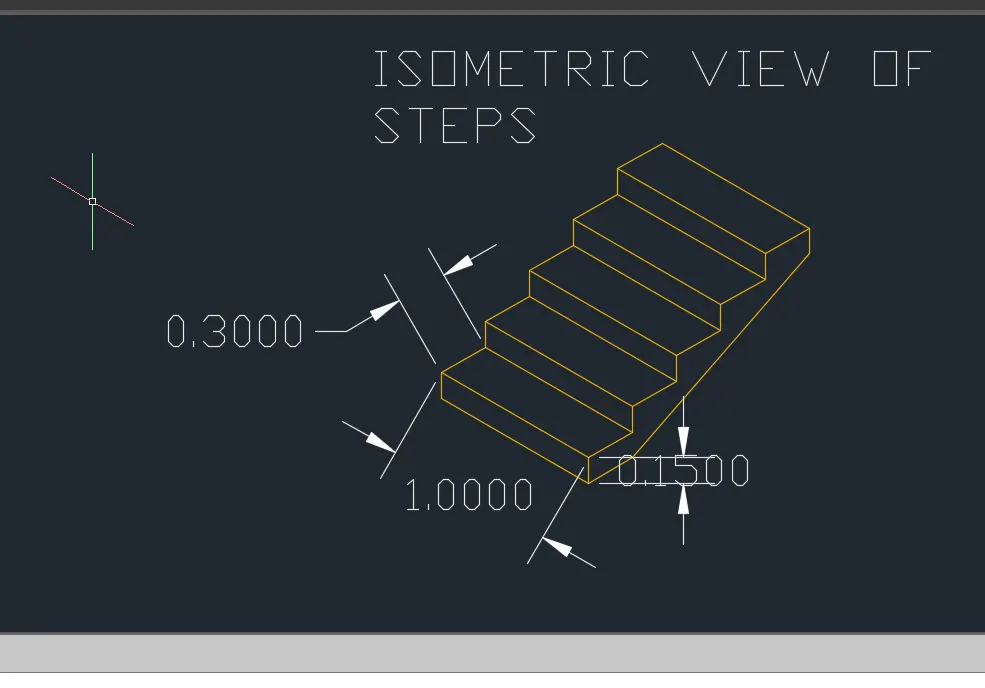
5. C5: ISOMETRIC VIEW OF STEPS:
Then, type L command to the command box, and enter
specify the first point 1,1 and press enter.
specify the next point @0.15<90 and press enter
specify the next point @ 0.30<30 and press enter
specify the next point @0.15<90 and press enter
specify the next point @0.30<30 and press enter
specify the next point @0.15<90 and press enter
specify the next point @0.30<30 and press enter
specify the next point @ 0.15<90 and press enter
specify the next point @0.30<30 and press enter
specify the next point @0.15<90 and press enter
specify the next point @0.30<30 and press enter
specify the next point @1.00<110 and press enter
specify the next point @ 0.30<200 and press enter
specify the next point @0.15<270 and press enter
specify the next point @0.30<200 and press enter
specify the next point @0.15<270 and press enter
specify the next point @0.30<200 and press enter
specify the next point @0.15<270 and press enter
specify the next point @0.30<200 and press enter
specify the next point @0.15<270 and press enter
specify the next point @0.30<200 and press enter
specify the next point @0.15<270 and press enter
Exists the line command and, offset the above line (1.00mm) to through 0.30mm into 4 times
then adain offset the next line to 0.15 into 5 times and enter exist.
Give the "ALL THE DIMENSIONS IN mm"
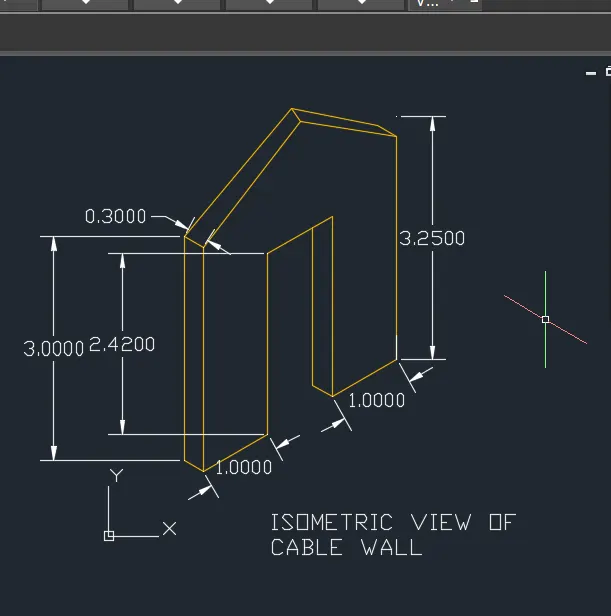
6. ISOMETRIC VIEW OF CABLE WALL:
Then, type L command to the command box, and enter
specify the first point 1,1 and press enter.
specify the next point @0.30<110 and press enter
specify the next point @ 1.00<30 and press enter
specify the next point @2.42<90 and press enter
specify the next point @1.00<30 and press enter
specify the next point @2.42<270 and press enter
specify the next point @ 3.00<90 and press enter
specify the next point @0.30<110 and press enter
specify the next point @1.50<120 and press enter
specify the next point @1.50<225 and press enter
close the line comand and press enter
Give the "ALL THE DIMENSIONS IN mm"
Named the model in Mtext command as a" ISOMETRIC VIEW OF GABLE WALL"
RESULT:
Complete the all models in Autocad and also give the detailed report.