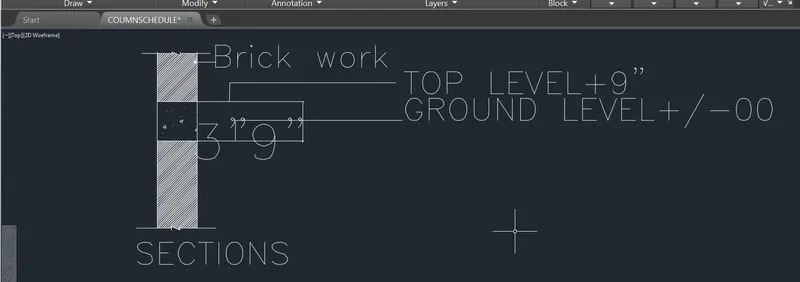
AutoCAD_Creating Column Schedule and Drawing Template_Week 5
AIM:
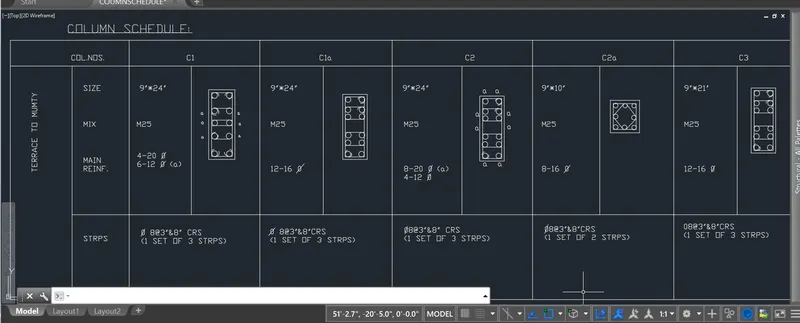
To Create a column schedule with the help of lines.
Also, insert text with the help of Dtext command or Single Line text.
INTRODUCTION:
This tutorial will explain to you the step by step procedure to apply different types of dimensions to the column schedule.
PROCEDURE:
TEXT ANNOTATION TOOLS:
Text annotation tools are used to create the text to be used in a drawing.
The text is used as leader iformation, notes,and other information.
Following Segment of topics will explain the various tools used for text annotation.
TEXT COMMAND.
Text command is used to create a single-line text objects.
Procedure to access:DRaw > Text> Single -line Text.
1. Command : TEXT and press enter.
2. Ribbon menu: Annotate>text panel> single -line text.
3. Access from : Menu bar >Draw > Text> Single -line Text.
You can use single-line text to create one or more lines of text,
where each text line is an independent object that you can move, format or modify.
Options:
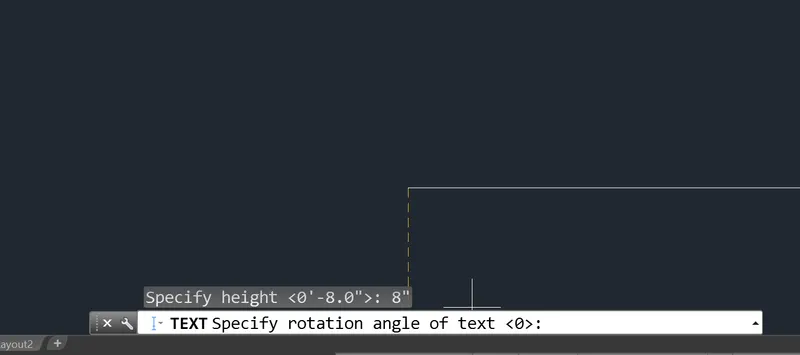
Start point _ Specifies a start point for the text object.
Justify - controls justifications of the Text.
- LEFT- Left-justifies the text at the baseline which you specify with a point.

- Center- aligns text from the horizontal center of the baseline, which you specify the point .
- Right - Right -justifies the text at the baseline which you specify with a point.
- Align - Specifies both text height and text orientation by designatin the endpoints of the base line.
- The size of the characters adjusts in proportions to their height. The longer the text string, The shorter the characters.
- Middle- Aligns text at the horizontal center of the baseline and the vertical center of the height you specify.
- Fit- Specifies that text fis within an area and at an oreintation defined by two points and a height.
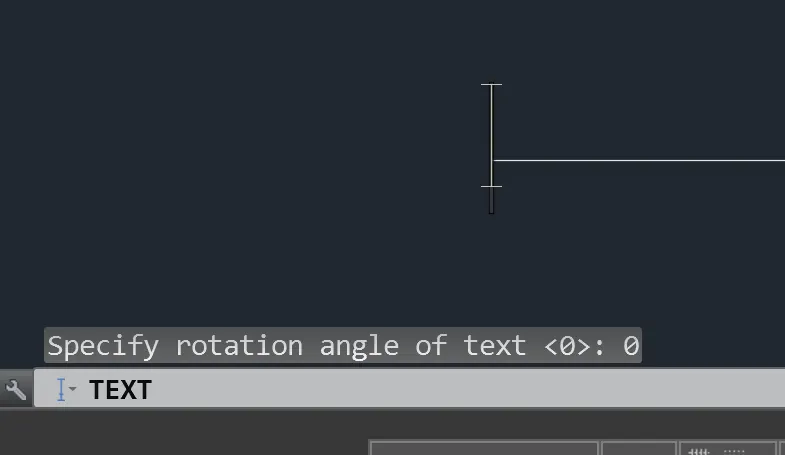
Similar to this you can choose the justification types like TL (Two Left), TC(Top Center), TR, ML, MC, MR, BL, BC, BR.
DTEXT COMMAND :
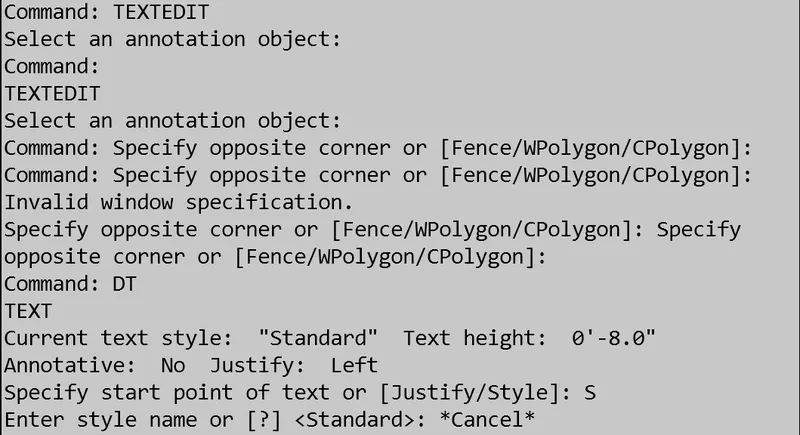
DTEXT command and is used to create a singleline text.
Procedure to access:
1. Command : DTEXT and press enter.
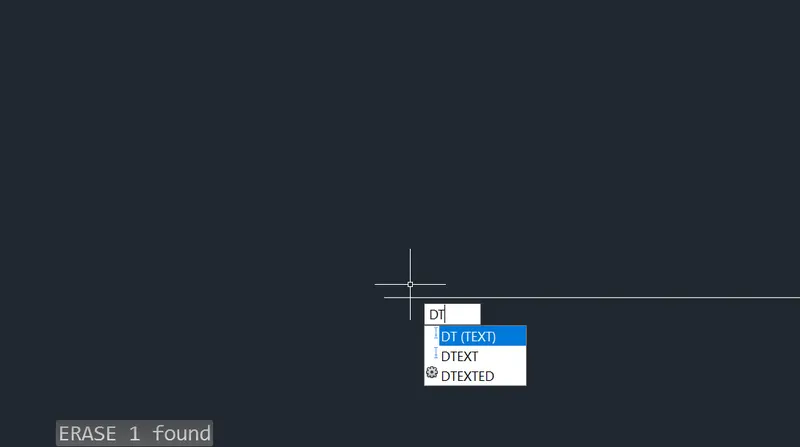
2. Shortcut key : Dt
3. Ribbon menu: Annotate >Text panel>Single line text.

STYLE COMMAND:
STYLE Command is used to create, modify or specify text styles,
When you execute style command, the TEXT Style dialog box is displayed.
Procedure to access:
1. Command : Style and press enter.
2. Shortcut key: ST and press enter.
3. Ribbon menu: Annotate>Text panel>TExt style.
SCALE TEXT COMMAND:
SCALE TEXT command is used to enlarge or reduce selected text object without changing their locations.
Procedure to access:
1. command: SCALETEXT and press enter.
2. Roibbon menu: Annotate> text panel> Scale text.
3. Access from: Menu bar > modify >object >text >Scale.
SPELL COMMAND:
SPELL command us used to check spelling in a drawing text.
Procedure to access:
1. Command: SPELL and press enter.
2. shortcut key: SP and press enter;
3. Ribbon menu: Annotate > TExt panel> check spelling.
4. Access from: menu bar > Tools> Spelling.
TABLE COMMAND:
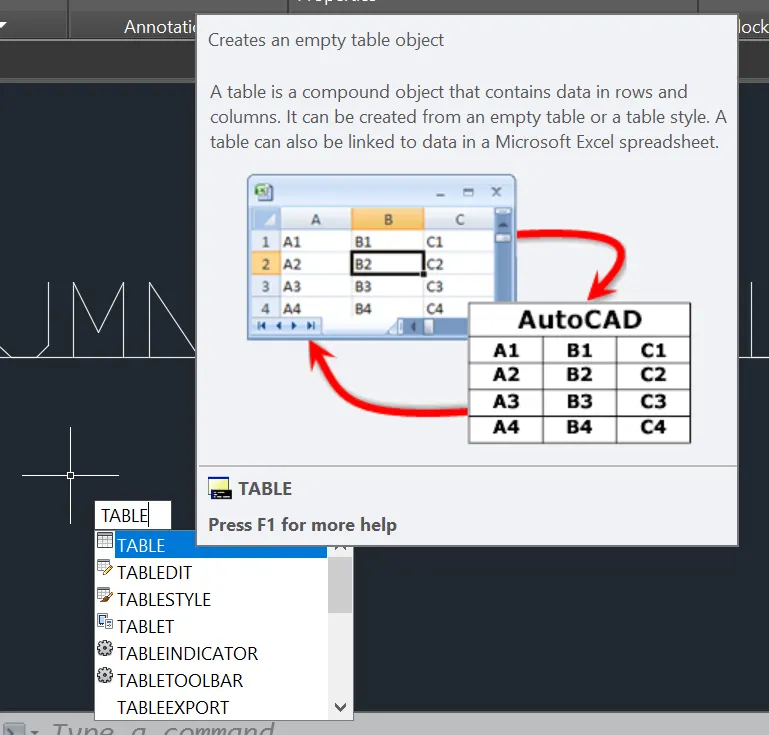
TABLE COMMAND is used to create an empty table object, which is used to fill the data in a row against column.
The table can be created an empty table or with different table style.
A table can also be linked to data in a microsoft Excel spreadsheet.
Procedure to access :
1. Command : TABLE and press enter.
2. Ribbon menu: ANNOTATE>Table panel>Table.
3. Access from: Menu bar> draw> Table.
OPTIONS:
TABLE STYLE:
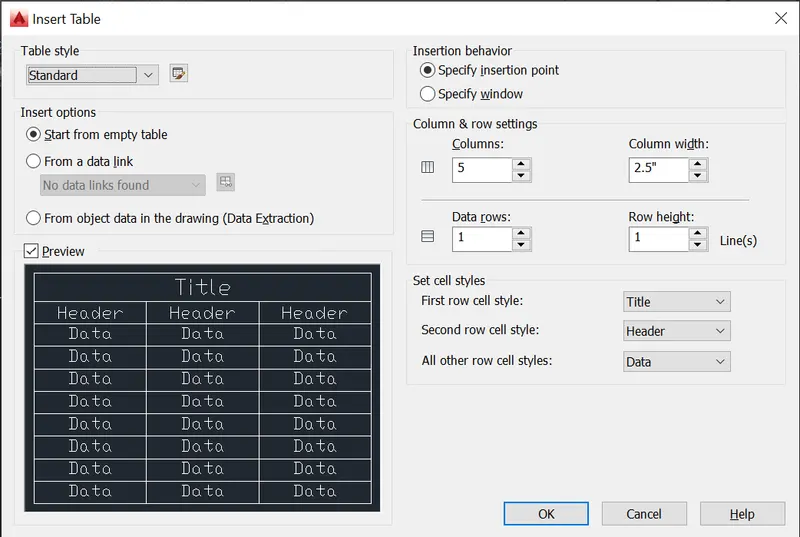
Create a new table style by clicking the button next to the drop-down list.
Insert Options- Specifies any of the following methods for inserting your table.
1. Start from Empty Table - creates an empty table that can be filled in with data manually.
2. Start from Data link - Creates a table from data in an external spreadsheet .
3. Start from Data Extraction- lanuces the data Extraction wizards.
PROCEDURE TO ACCESS:
1. COMMAND : TABLESTLYE and press enter
2. Shortcut key: TS and press enter.
3. Ribbon menu : Annotate > Table> panel> Tablestyle.
RESULT:
2. AIM:
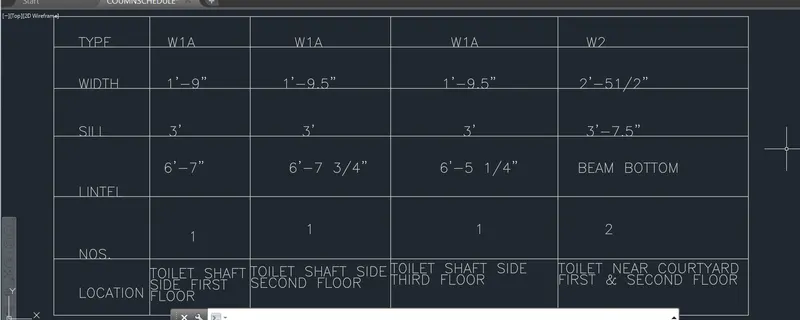
To Create a window schedule with the help of lines.
Also, insert text with the help of Dtext command or Single Line text.
INTRODUCTION:
This tutorial will explain to you the step by step procedure to apply different types of dimensions to the window schedule.
PROCEDURE:
TEXT ANNOTATION TOOLS:
Text annotation tools are used to create the text to be used in a drawing.
The text is used as leader iformation, notes,and other information.
Following Segment of topics will explain the various tools used for text annotation.
TEXT COMMAND.
Text command is used to create a single-line text objects.
Procedure to access:DRaw > Text> Single -line Text.
1. Command : TEXT and press enter.
2. Ribbon menu: Annotate>text panel> single -line text.
3. Access from : Menu bar >Draw > Text> Single -line Text.
You can use single-line text to create one or more lines of text,
where each text line is an independent object that you can move, format or modify.
Options:
Start point _ Specifies a start point for the text object.
Justify - controls justifications of the Text.
- LEFT- Left-justifies the text at the baseline which you specify with a point.
- Center- aligns text from the horizontal center of the baseline, which you specify the point .
- Right - Right -justifies the text at the baseline which you specify with a point.
- Align - Specifies both text height and text orientation by designatin the endpoints of the base line.
- The size of the characters adjusts in proportions to their height. The longer the text string, The shorter the characters.
- Middle- Aligns text at the horizontal center of the baseline and the vertical center of the height you specify.
- Fit- Specifies that text fis within an area and at an oreintation defined by two points and a height.
Similar to this you can choose the justification types like TL (Two Left), TC(Top Center), TR, ML, MC, MR, BL, BC, BR.
DTEXT COMMAND :
DTEXT command and is used to create a singleline text.
Procedure to access:
1. Command : DTEXT and press enter.
2. Shortcut key : Dt
3. Ribbon menu: Annotate >Text panel>Single line text.
STYLE COMMAND:
STYLE Command is used to create, modify or specify text styles,
When you execute style command, the TEXT Style dialog box is displayed.
Procedure to access:
1. Command : Style and press enter.
2. Shortcut key: ST and press enter.
3. Ribbon menu: Annotate>Text panel>TExt style.
SCALE TEXT COMMAND:
SCALE TEXT command is used to enlarge or reduce selected text object without changing their locations.
Procedure to access:
1. command: SCALETEXT and press enter.
2. Roibbon menu: Annotate> text panel> Scale text.
3. Access from: Menu bar > modify >object >text >Scale.
SPELL COMMAND:
SPELL command us used to check spelling in a drawing text.
Procedure to access:
1. Command: SPELL and press enter.
2. shortcut key: SP and press enter;
3. Ribbon menu: Annotate > TExt panel> check spelling.
4. Access from: menu bar > Tools> Spelling.
TABLE COMMAND:
TABLE COMMAND is used to create an empty table object, which is used to fill the data in a row against column.
The table can be created an empty table or with different table style.
A table can also be linked to data in a microsoft Excel spreadsheet.
Procedure to access :
1. Command : TABLE and press enter.
2. Ribbon menu: ANNOTATE>Table panel>Table.
3. Access from: Menu bar> draw> Table.
OPTIONS:
TABLE STYLE:
Create a new table style by clicking the button next to the drop-down list.
Insert Options- Specifies any of the following methods for inserting your table.
1. Start from Empty Table - creates an empty table that can be filled in with data manually.
2. Start from Data link - Creates a table from data in an external spreadsheet .
3. Start from Data Extraction- lanuces the data Extraction wizards.
PROCEDURE TO ACCESS:
1. COMMAND : TABLESTLYE and press enter
2. Shortcut key: TS and press enter.
3. Ribbon menu : Annotate > Table> panel> Tablestyle.
RESULT:
3. AIM:
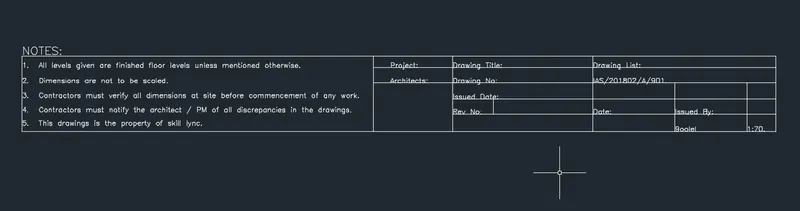
To Create a drawing template with the help of lines.
Also, insert text with the help of Dtext command or Single Line text.
INTRODUCTION:
This tutorial will explain to you the step by step procedure to apply different types of dimensions to the drawing template.
PROCEDURE:
TEXT ANNOTATION TOOLS:
Text annotation tools are used to create the text to be used in a drawing.
The text is used as leader iformation, notes,and other information.
Following Segment of topics will explain the various tools used for text annotation.
TEXT COMMAND.
Text command is used to create a single-line text objects.
Procedure to access:DRaw > Text> Single -line Text.
1. Command : TEXT and press enter.
2. Ribbon menu: Annotate>text panel> single -line text.
3. Access from : Menu bar >Draw > Text> Single -line Text.
You can use single-line text to create one or more lines of text,
where each text line is an independent object that you can move, format or modify.
Options:
Start point _ Specifies a start point for the text object.
Justify - controls justifications of the Text.
- LEFT- Left-justifies the text at the baseline which you specify with a point.
- Center- aligns text from the horizontal center of the baseline, which you specify the point .
- Right - Right -justifies the text at the baseline which you specify with a point.
- Align - Specifies both text height and text orientation by designatin the endpoints of the base line.
- The size of the characters adjusts in proportions to their height. The longer the text string, The shorter the characters.
- Middle- Aligns text at the horizontal center of the baseline and the vertical center of the height you specify.
- Fit- Specifies that text fis within an area and at an oreintation defined by two points and a height.
Similar to this you can choose the justification types like TL (Two Left), TC(Top Center), TR, ML, MC, MR, BL, BC, BR.
DTEXT COMMAND :
DTEXT command and is used to create a singleline text.
Procedure to access:
1. Command : DTEXT and press enter.
2. Shortcut key : Dt
3. Ribbon menu: Annotate >Text panel>Single line text.
STYLE COMMAND:
STYLE Command is used to create, modify or specify text styles,
When you execute style command, the TEXT Style dialog box is displayed.
Procedure to access:
1. Command : Style and press enter.
2. Shortcut key: ST and press enter.
3. Ribbon menu: Annotate>Text panel>TExt style.
SCALE TEXT COMMAND:
SCALE TEXT command is used to enlarge or reduce selected text object without changing their locations.
Procedure to access:
1. command: SCALETEXT and press enter.
2. Roibbon menu: Annotate> text panel> Scale text.
3. Access from: Menu bar > modify >object >text >Scale.
SPELL COMMAND:
SPELL command us used to check spelling in a drawing text.
Procedure to access:
1. Command: SPELL and press enter.
2. shortcut key: SP and press enter;
3. Ribbon menu: Annotate > TExt panel> check spelling.
4. Access from: menu bar > Tools> Spelling.
TABLE COMMAND:
TABLE COMMAND is used to create an empty table object, which is used to fill the data in a row against column.
The table can be created an empty table or with different table style.
A table can also be linked to data in a microsoft Excel spreadsheet.
Procedure to access :
1. Command : TABLE and press enter.
2. Ribbon menu: ANNOTATE>Table panel>Table.
3. Access from: Menu bar> draw> Table.
OPTIONS:
TABLE STYLE:
Create a new table style by clicking the button next to the drop-down list.
Insert Options- Specifies any of the following methods for inserting your table.
1. Start from Empty Table - creates an empty table that can be filled in with data manually.
2. Start from Data link - Creates a table from data in an external spreadsheet .
3. Start from Data Extraction- lanuces the data Extraction wizards.
PROCEDURE TO ACCESS:
1. COMMAND : TABLESTLYE and press enter
2. Shortcut key: TS and press enter.
3. Ribbon menu : Annotate > Table> panel> Tablestyle.
RESULT:
4. AIM:
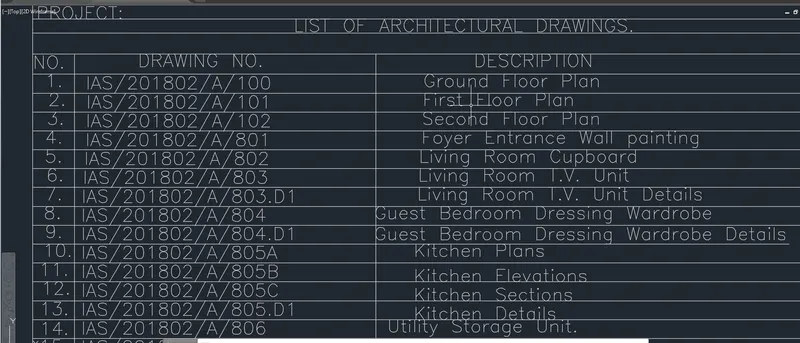
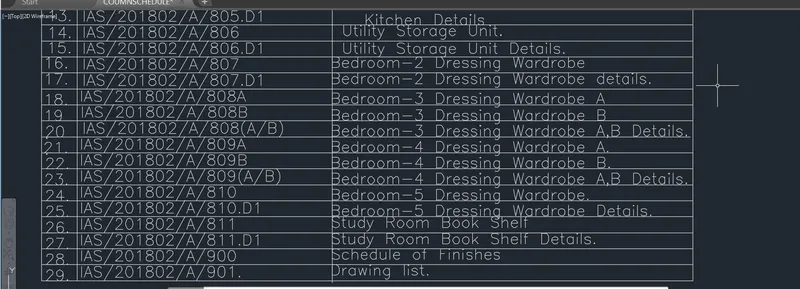
To Create a LIST OF DRAWING schedule with the help of lines.
Also, insert text with the help of Dtext command or Single Line text.
INTRODUCTION:
This tutorial will explain to you the step by step procedure to apply different types of dimensions to the drawing schedule.
PROCEDURE:
TEXT ANNOTATION TOOLS:
Text annotation tools are used to create the text to be used in a drawing.
The text is used as leader iformation, notes,and other information.
Following Segment of topics will explain the various tools used for text annotation.
TEXT COMMAND.
Text command is used to create a single-line text objects.
Procedure to access:DRaw > Text> Single -line Text.
1. Command : TEXT and press enter.
2. Ribbon menu: Annotate>text panel> single -line text.
3. Access from : Menu bar >Draw > Text> Single -line Text.
You can use single-line text to create one or more lines of text,
where each text line is an independent object that you can move, format or modify.
Options:
Start point _ Specifies a start point for the text object.
Justify - controls justifications of the Text.
- LEFT- Left-justifies the text at the baseline which you specify with a point.
- Center- aligns text from the horizontal center of the baseline, which you specify the point .
- Right - Right -justifies the text at the baseline which you specify with a point.
- Align - Specifies both text height and text orientation by designatin the endpoints of the base line.
- The size of the characters adjusts in proportions to their height. The longer the text string, The shorter the characters.
- Middle- Aligns text at the horizontal center of the baseline and the vertical center of the height you specify.
- Fit- Specifies that text fis within an area and at an oreintation defined by two points and a height.
Similar to this you can choose the justification types like TL (Two Left), TC(Top Center), TR, ML, MC, MR, BL, BC, BR.
DTEXT COMMAND :
DTEXT command and is used to create a singleline text.
Procedure to access:
1. Command : DTEXT and press enter.
2. Shortcut key : Dt
3. Ribbon menu: Annotate >Text panel>Single line text.
STYLE COMMAND:
STYLE Command is used to create, modify or specify text styles,
When you execute style command, the TEXT Style dialog box is displayed.
Procedure to access:
1. Command : Style and press enter.
2. Shortcut key: ST and press enter.
3. Ribbon menu: Annotate>Text panel>TExt style.
SCALE TEXT COMMAND:
SCALE TEXT command is used to enlarge or reduce selected text object without changing their locations.
Procedure to access:
1. command: SCALETEXT and press enter.
2. Roibbon menu: Annotate> text panel> Scale text.
3. Access from: Menu bar > modify >object >text >Scale.
SPELL COMMAND:
SPELL command us used to check spelling in a drawing text.
Procedure to access:
1. Command: SPELL and press enter.
2. shortcut key: SP and press enter;
3. Ribbon menu: Annotate > TExt panel> check spelling.
4. Access from: menu bar > Tools> Spelling.
TABLE COMMAND:
TABLE COMMAND is used to create an empty table object, which is used to fill the data in a row against column.
The table can be created an empty table or with different table style.
A table can also be linked to data in a microsoft Excel spreadsheet.
Procedure to access :
1. Command : TABLE and press enter.
2. Ribbon menu: ANNOTATE>Table panel>Table.
3. Access from: Menu bar> draw> Table.
OPTIONS:
TABLE STYLE:
Create a new table style by clicking the button next to the drop-down list.
Insert Options- Specifies any of the following methods for inserting your table.
1. Start from Empty Table - creates an empty table that can be filled in with data manually.
2. Start from Data link - Creates a table from data in an external spreadsheet .
3. Start from Data Extraction- lanuces the data Extraction wizards.
PROCEDURE TO ACCESS:
1. COMMAND : TABLESTLYE and press enter
2. Shortcut key: TS and press enter.
3. Ribbon menu : Annotate > Table> panel> Tablestyle.
RESULT:
5. AIM:
To Create the Beam detail as shown in the figure and provide text for Top level and Ground level wherever given.
Also, insert text with the help of Dtext command or Single Line text.
INTRODUCTION:
This tutorial will explain to you the step by step procedure to apply different types of dimensions to the drawing.
PROCEDURE:
TEXT ANNOTATION TOOLS:
Text annotation tools are used to create the text to be used in a drawing.
The text is used as leader iformation, notes,and other information.
Following Segment of topics will explain the various tools used for text annotation.
TEXT COMMAND.
Text command is used to create a single-line text objects.
Procedure to access:DRaw > Text> Single -line Text.
1. Command : TEXT and press enter.
2. Ribbon menu: Annotate>text panel> single -line text.
3. Access from : Menu bar >Draw > Text> Single -line Text.
You can use single-line text to create one or more lines of text,
where each text line is an independent object that you can move, format or modify.
Options:
Start point _ Specifies a start point for the text object.
Justify - controls justifications of the Text.
- LEFT- Left-justifies the text at the baseline which you specify with a point.
- Center- aligns text from the horizontal center of the baseline, which you specify the point .
- Right - Right -justifies the text at the baseline which you specify with a point.
- Align - Specifies both text height and text orientation by designatin the endpoints of the base line.
- The size of the characters adjusts in proportions to their height. The longer the text string, The shorter the characters.
- Middle- Aligns text at the horizontal center of the baseline and the vertical center of the height you specify.
- Fit- Specifies that text fis within an area and at an oreintation defined by two points and a height.
Similar to this you can choose the justification types like TL (Two Left), TC(Top Center), TR, ML, MC, MR, BL, BC, BR.
DTEXT COMMAND :
DTEXT command and is used to create a singleline text.
Procedure to access:
1. Command : DTEXT and press enter.
2. Shortcut key : Dt
3. Ribbon menu: Annotate >Text panel>Single line text.
STYLE COMMAND:
STYLE Command is used to create, modify or specify text styles,
When you execute style command, the TEXT Style dialog box is displayed.
Procedure to access:
1. Command : Style and press enter.
2. Shortcut key: ST and press enter.
3. Ribbon menu: Annotate>Text panel>TExt style.
SCALE TEXT COMMAND:
SCALE TEXT command is used to enlarge or reduce selected text object without changing their locations.
Procedure to access:
1. command: SCALETEXT and press enter.
2. Roibbon menu: Annotate> text panel> Scale text.
3. Access from: Menu bar > modify >object >text >Scale.
SPELL COMMAND:
SPELL command us used to check spelling in a drawing text.
Procedure to access:
1. Command: SPELL and press enter.
2. shortcut key: SP and press enter;
3. Ribbon menu: Annotate > TExt panel> check spelling.
4. Access from: menu bar > Tools> Spelling.
Type the line command to draw the beam as measurements asummed.
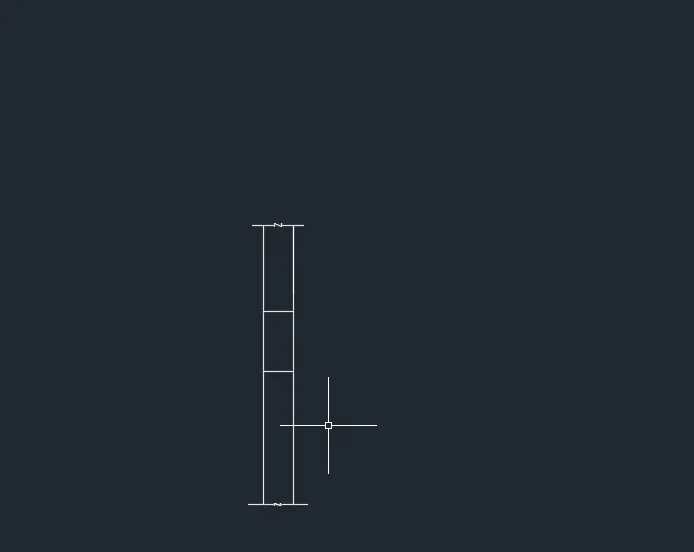
Then hatch the properties ,with hatch command.
Hatch command is used to fill an enclosed area or selected objects with a selected hatch patterns, solid fill or a gradient fill.
When the ribbon is ON, the HATCH Creations contexual tab is displayed. When the ribbon is OFF, the HATCH and GRADIENT
dialog box are displayed.
PROCEDURE TO ACCESS:
1. Command : HATCH and pres enter.
2. Shortcut key: H and press enter.
3. Ribbon menu : Home>Draw Panel>Hatch.
4. Access From: Menu Bar> Draw> Hatch.

Pick the internal points and select the objest to hatch it.
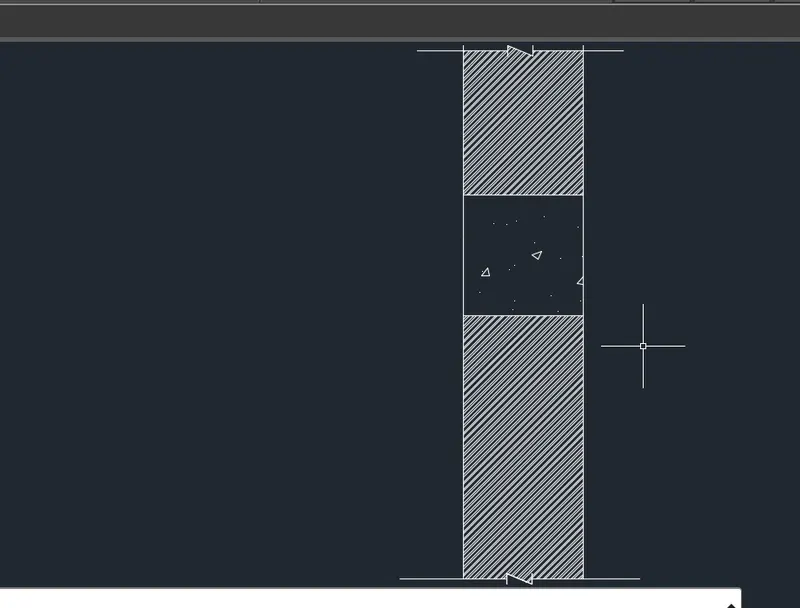
RESULT: