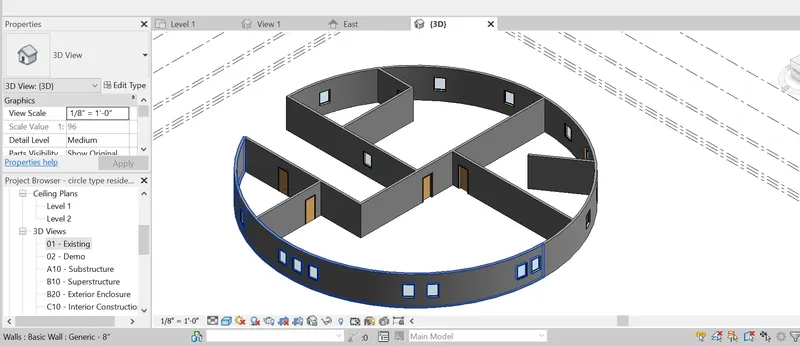
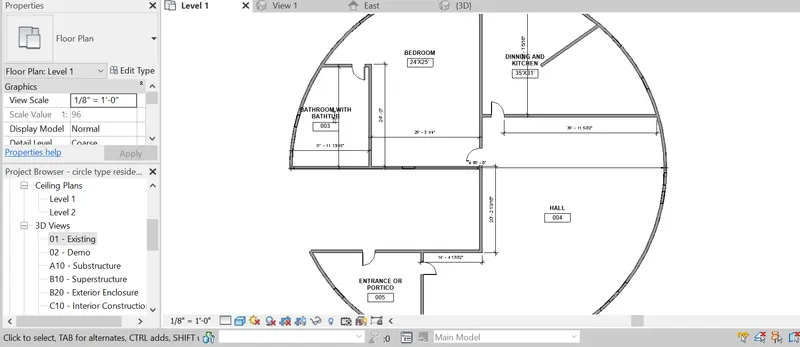
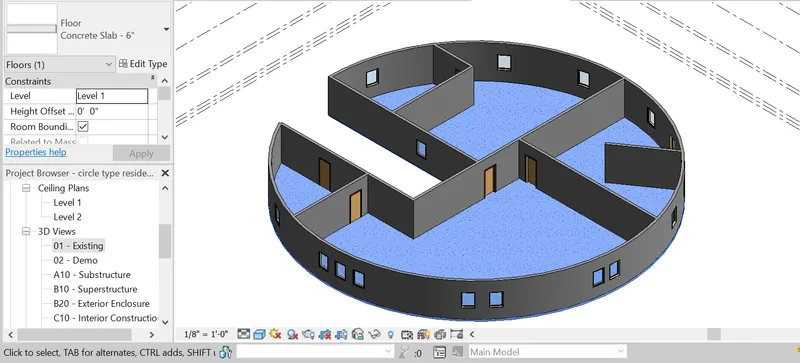
design, construct, and manage buildings and infrastructure.
BIM is used to design and document building and infrastructure designs.
Every detail of a building is modeled in BIM. The model can be
help stakeholders understand what the building will look like before it’s built.
The model is then used to generate the design documentation for construction.
implementation in project management. These
attributes, developed.
BENEFITS AND ADVANTAGES OF
BIM:
Various construction project.
management sources recognize certain BIM.
advantages which are indicated as follows .
Better performance and quality of the
project.
Improved productivity.
Reduction of wastages.
Faster delivery.
New opportunities for revenue and
business.
Low construction cost.
2). Understand the concept of Categories, Families, Elements, Instances in Revit.
Go to Insert Tab, choose a category. Pick a family and element.
Understand the instances and insert it to Revit model?
(ANSWER)
- The common properties of the categories are group of elements of the revit software.
- Its predefined by software.
- For eg: Wall, doors, window, columns, beam, slabs, roofs, etc., and other material is in the category.
- we can also insert the elements of model by the category.
- In te project, it can also control organization, visibility, graphic representation and scheduling point of the families.
FAMILY:
- It is the different elements having same properties.
- Like a doors, sub-category like- single panel or single flush door .
- It has a different measurements and size of the doors having the same property.
- Family is a grouping of 2D or 3D information that serves to represent a distance building or documentation element in the project.
- It defines parametric, graphical and documentary requirements.
ELEMENTS:
- It is a basic feature of the category, and families.
- It is the different between the model of element in such a way of sizes alone.
- Like a single flush door has a sizes, 30" X 80" , 30" X 84", 32" X 84" like wise.
- Element is a specific representation in a family defined by parameters, graphical and documentation chacteristics which makes it unique from other type in the family.
INSTANCES:
It is an indiviual representation of a type in the project defined by unique parametric,
graphical and documentation characteristics which make it unique from other instances in the project.
FOR eg.,
Go to insert tab, click on load family.
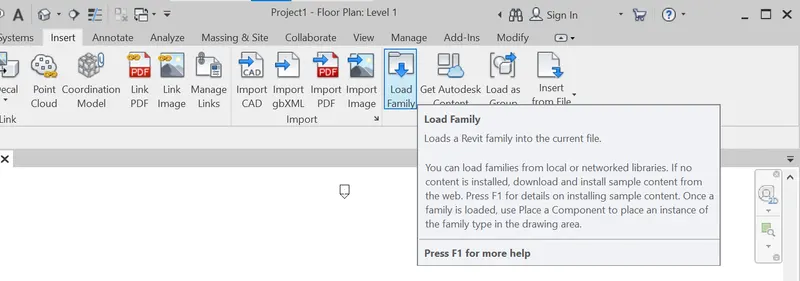
A dialogue box appears, from that click on doors, which is the category.
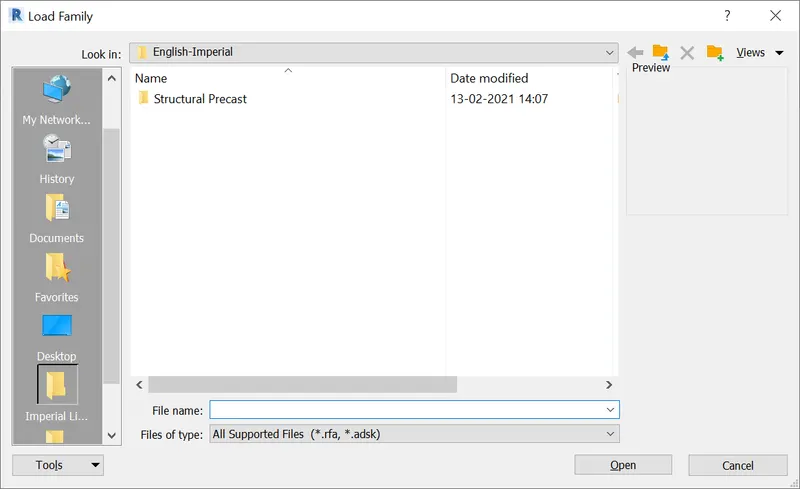
Another list of doors appears of sub-category.
Then, click on the door single panel.
Then , a dialogue box showing different sizes of doors appears, the different sizes represent elements.30"X80",
30"X84", 32"X84", 34"X80".
Select 30"X80"(element) and press ok button, then the doors gets loaded in the door properties in architectural tab.
Go to the architectural tab, select doors (category)
Go to single flush (family), and select 30"X 80" (element) which is loaded.
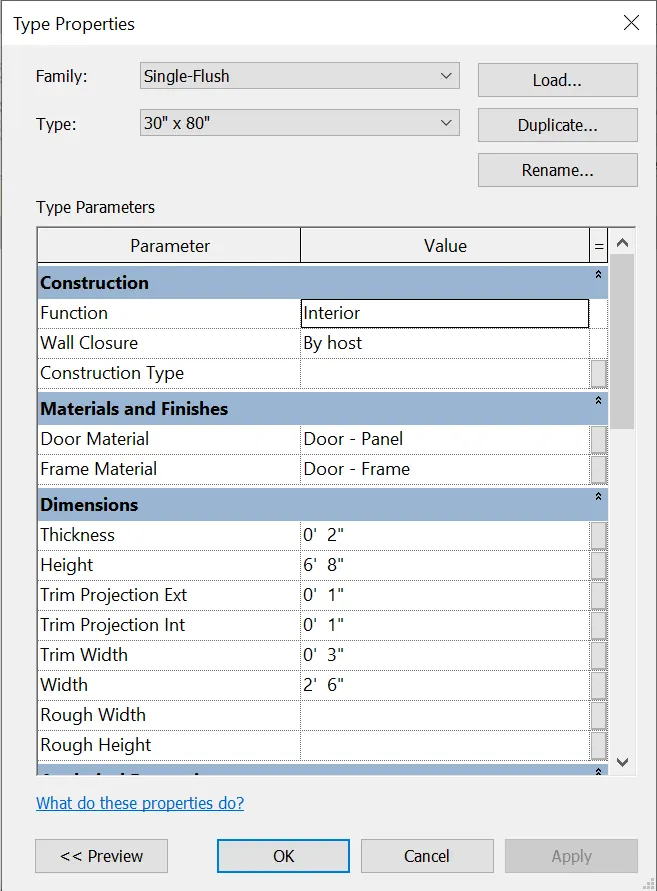
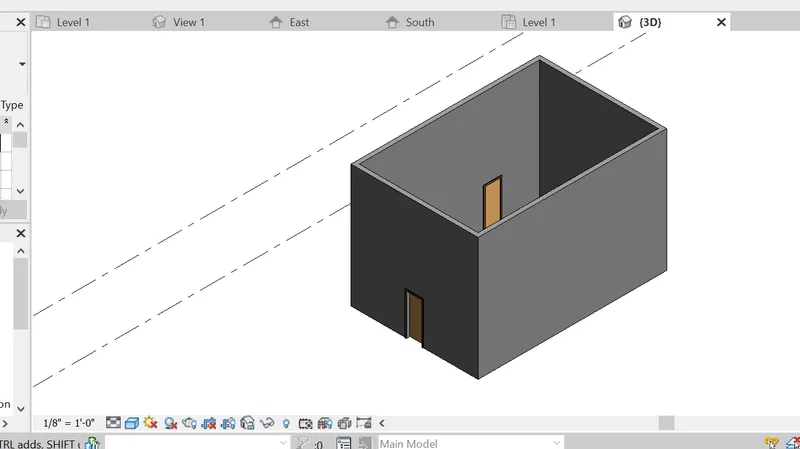
Click on the 30"X 80" size doors and place it in a wall created, this in the instances.
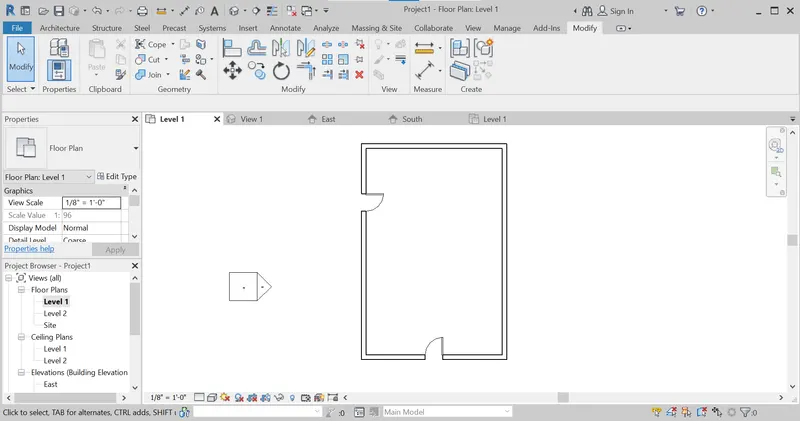
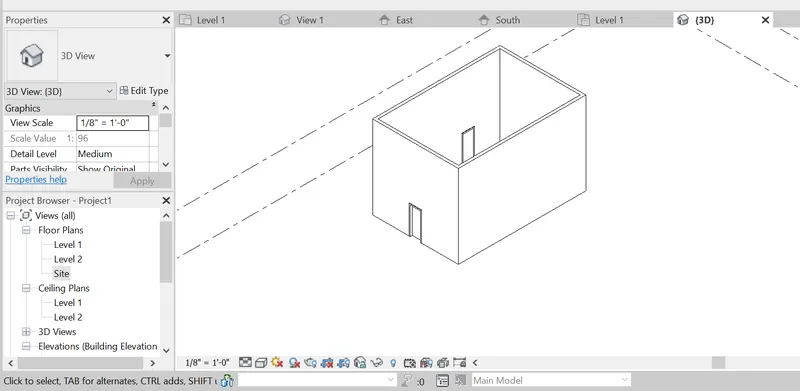
RESULT:
3). Setting up a Project – Open a project file with architectural template.
Save the file with appropriate name.
Set up the project units to Imperial / Metric based on your convenience of modelling.
Complete the project information under Manage tab.
set up the maximum backups for project file to 3.
(ANSWER)
AIM:
To open a project in the Rivet software.
Creating template and setting units.
saving the file.
Adding project informations.
creating backups.
PROCEDURE:
STEP1: Open the project file, select architectural template imperial for units.
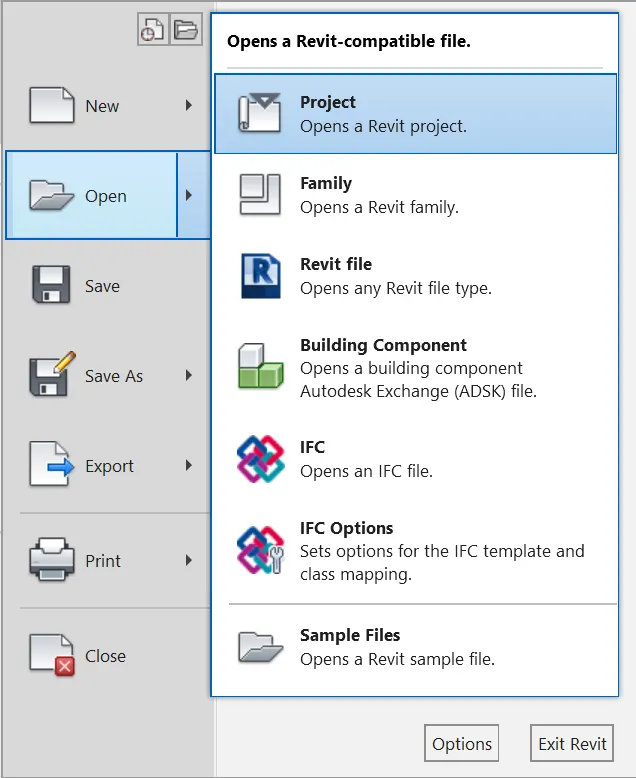
STEP2: To save file; Go to file tab and click on save options and save
the name as "project 2"
and save it.
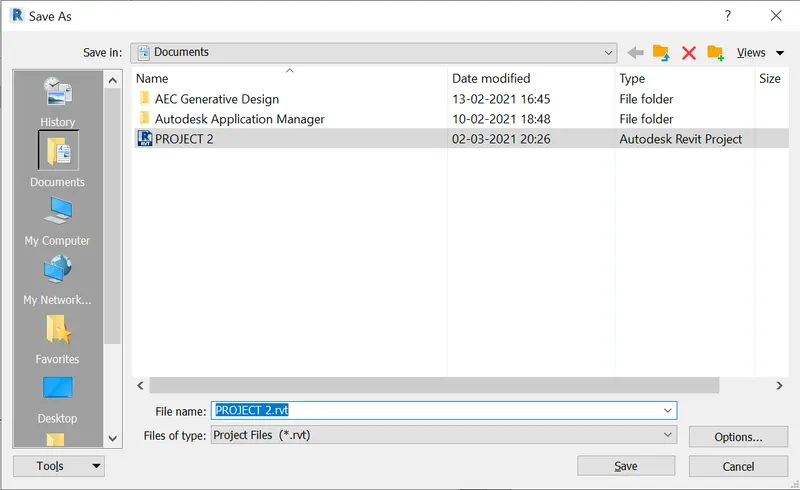
STEP3: Go to manage tab, click on project informations tab.

- The project information dialogue box apperas, enter the organisation name, project details etc.
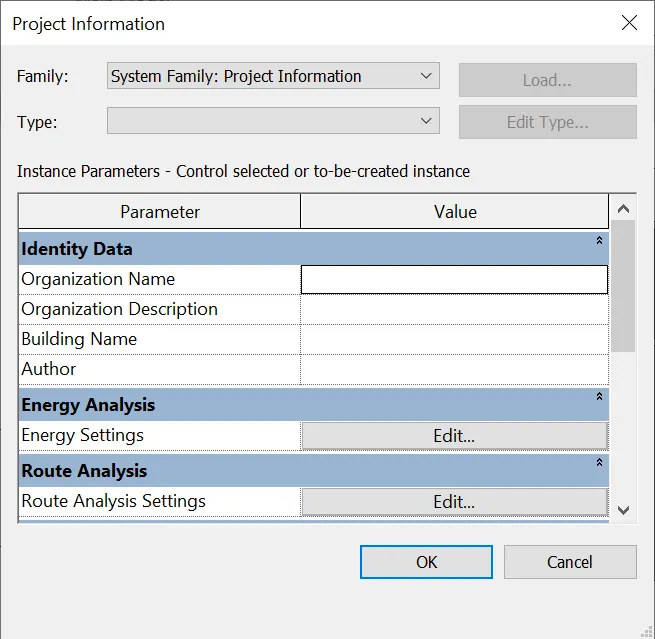
Step 4: Setting backups :
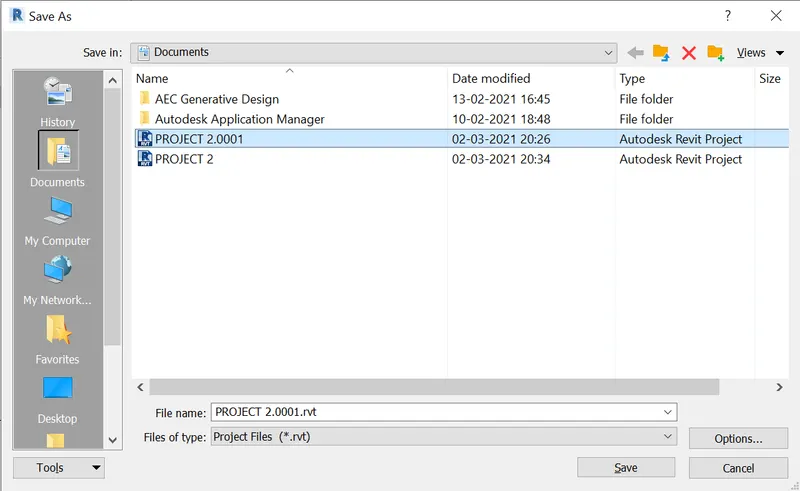
- - Go to file menu, click on save as, go to the project.
- Click on the options, in the save as dialogue box.
- File save option will be appears, enter the no. of backups as 3.
- Then, press ok and click save.
RESULT:
Setting up of the Revit project.
- creating template.
- saving the file.
- Adding project informations.
- Creating backups.
4).
Understand the concept of Levels and Grids. Follow the naming and conventions.
Create the following Levels: ( Convert to metric equivalents if metric is your units)
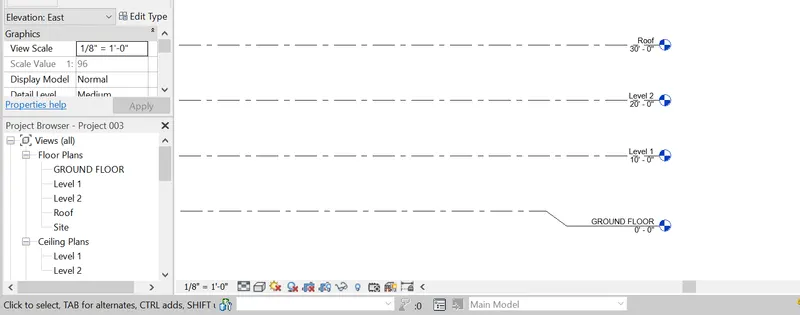
Ground Floor @ 0’
First Floor @ 10’
Second Floor @ 20’
Roof @ 30’
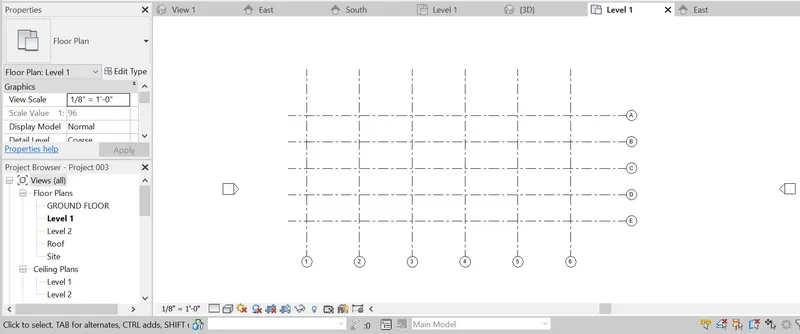
Grids Transverse Grids A, B,C,D, E @ 10’ spacing
Longitudinal Grids from 1 to 10 @ 20’ spacing
AIM:- To create the grids and levels using the given details.
INTRODUCTION:
• Grid lines are finite planes, We can drag their extents in elevation views so that they do not intersect level lines.
• This allows you to determine whether grid lines appear in each new plan view that you create for a project
• Grids can be straight lines, arcs or multi-segmented. You can hide grid lines after you add them.
• Use the Grid tool to place column grid lines in the building design.
• We can then add columns along the column grid lines. • As we start to construct our 3D model, we need some method of controlling the vertical height of our elements- be it floor heights, the base
and top of columns, window cill heights, etc. This is where Levels come into play. In order to create an effective and efficient model, it is crucial that you understand the use of Levels. The correct use of Levels will ensure that your model can readily be adjusted with the minimum of effort
PROCEDURE
Step:-1
• For creating the levels, first we select the levels in the project browse.
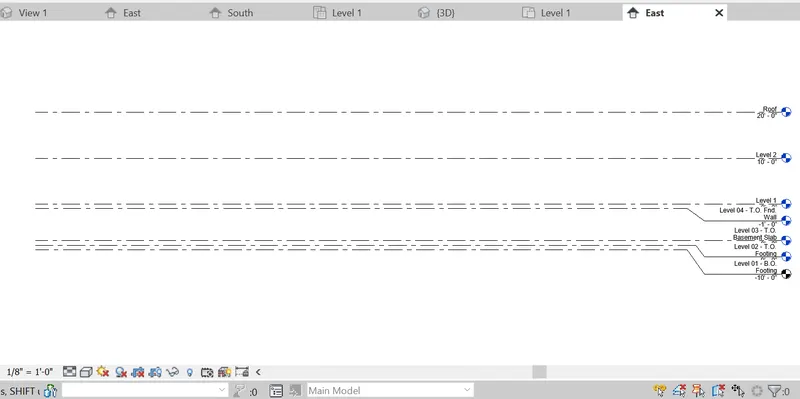
Step: 2
• Next the levels will be displayed on the screen, as shown below.
Step:-3
Next we draw the grid lines horizantally, indicating the grids with A, B, CDE
Step:-4
• Next we draw the vetical grid lines on the horizontal grids, indicating the grids with numbers from 1 to 10.
RESULT:
The levels and the grid lines are drawn successfully in the revit in detailed manner.
5) 3D modelling of residential unit – From looking at your house / or a place you aspire.
Create a conceptual layout of the residential unit.
You can measure using a tape or
you can access your residential plan to create a similar layout.
AIM:- To create a conceptual layout of the residential unit in the revit.
INTRODUCTION
• Three-dimensional (3D) models represent a Physical body using a collection
of points in 3D space, connected by various geometric entities such as triangles, lines, curved surfaces, etc
Being a collection of data, 3D models can be created manually, or by scanning
• Their surfaces may be further defined with texture mapping.
PROCEDURES
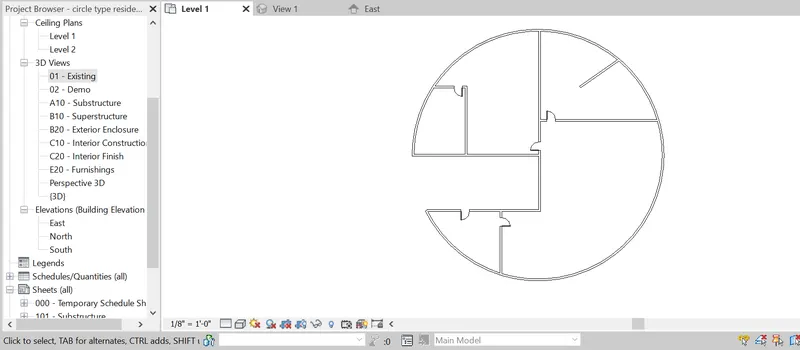
Step:-1
• First we have to draw the residential layout with the standard dimensions, as shown in the below figure.
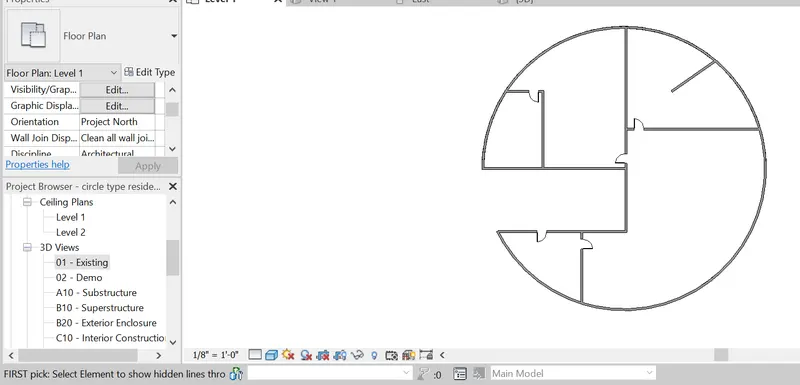
Step-2
• Next we change the visibility of layout as shaded, as shown in below figure.
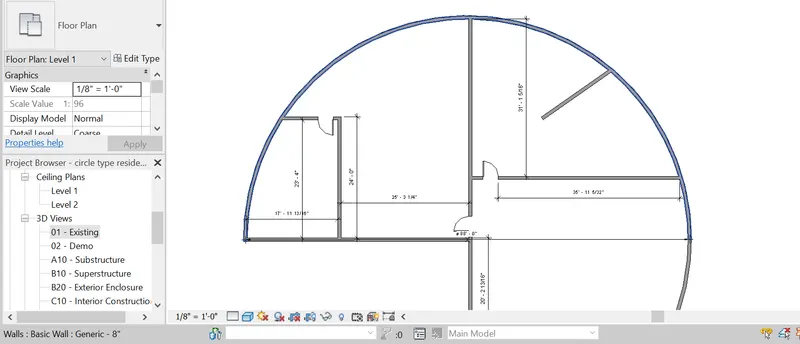
•Next add dimensions to the layout plan, shown below,
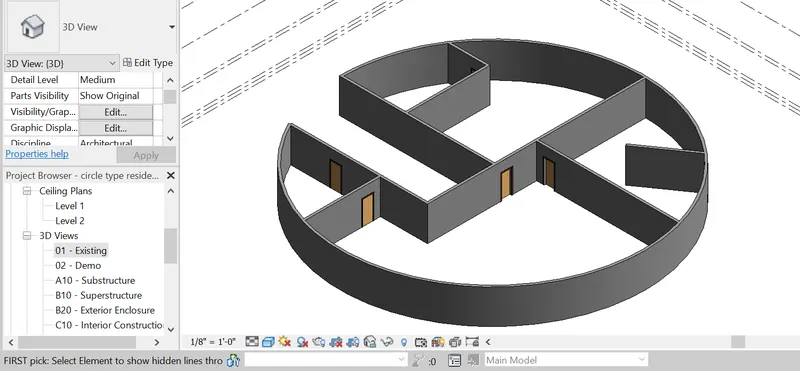
Step:-3
• Next change the residential layout plan to the 3d view as shown below.
RESULT:
Finally, create the residential layout plan to the 3D view.
6) In the layout created draft the level of details you are planning to include – Dimensions of room,
components you plan to add in the residential unit.
AIM:-To draft the level of details which include dimensions of room, components to add in the residential unit.
INTRODUCTION:
• Dimensioning on a floor plan usually requires two or three continuous
dimension lines to locate exterior walls, wall jogs, interior
walls,
windows, doors, and other elements
• Exterior walls of a building are dimensioned outside the floor plan.
The outermost dimension line is the overall building dimension.
• The next dimension line, moving toward the plan, indicates wall locations and centerlines to doors and windows.
• Other miscellaneous details in the plan in it.
Step:-2
• Next we need to add the doors to the layout using the door option in the architecture toolbar.
Step:-3
• Next we need to add the windows to the layout using the window option in the architecture toolbar.
Step:-4
Next we write the room name and its dimensions using the text tool, the text tool will be at the top of the screen, as shown below
Step:-5
• Next we use the floor option to provide the floor for the residential unit, as shown below
• The floor option will be there in the architecture toolbar.
Step:-6
• Next the residential unit is changed to the three dimensional view, as shown below.
RESULT:
• The level of details which include dimensions of room, components are successfully added in the residential unit.
7) Identify the residential model elements such as Door, Windows, Tables Chair, Couch, Bed, Lamps from the library and insert them to the
model. Save the project for use for Assignment 3
AIM:- To insert the residential model elements such as Door Windows, Tables. Chair, Couch, Bed, Lamps from the library to the model Need to save the project for use.
INTRODUCTION:
• The residential model elements are door, windows, chair, couch, bed, lamps.
STEP 1:
• These elements are very important in the building model for construction
• Coming to the 3d modeling in the revit, these elements are present in the library and we need to insert them into…
Step-2
Next we need to add the windows to the layout using the window option in the architecture toolbar.
Step:-3
• Next we need insert the dining table, kitchen stove and washing sink, as shown below.
Step:-4
• Coming to the bedroom we insert the beds, chairs, and tables from the library as shown below.
Step:-5
• Next comming to the toilet room, we insert the urinals from the library as shown in the below figure.
Step:-6
• Next we insert the furniture things in the hall from the library, as shown in the below figure
Step:- 7
• The residential model elements are inserted from the library, as shown below.
Step:-8
The all model elements are inserted successfully and the layout plan is turned to the different views, as shown below.
RESULT:
• Residential model elements such as Door Windows, Tables, Chair, Couch,
Bed, Lamps are successfully inserted in the model from the library.