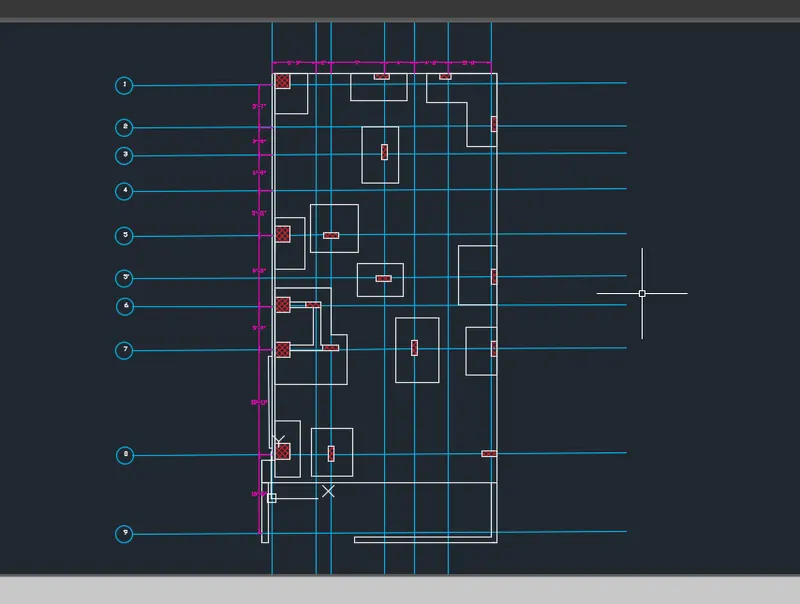
AutoCAD_Detailing of Wardrobe, Floor Plan, Kitchen Layout and Column Details_Week 6
AIM:
To draw the elevation and details of a wardrobe.
And after sketching the drawing to provide the dimensions and text with use of layers.
And proper text styles and dimension methods too.
INTRODUCTION:
INTRODUCTION:
SETTING THE STANDARDS: In the following topics,
we will learn about the standard setting used in AutoCAD before starting the drafting process.
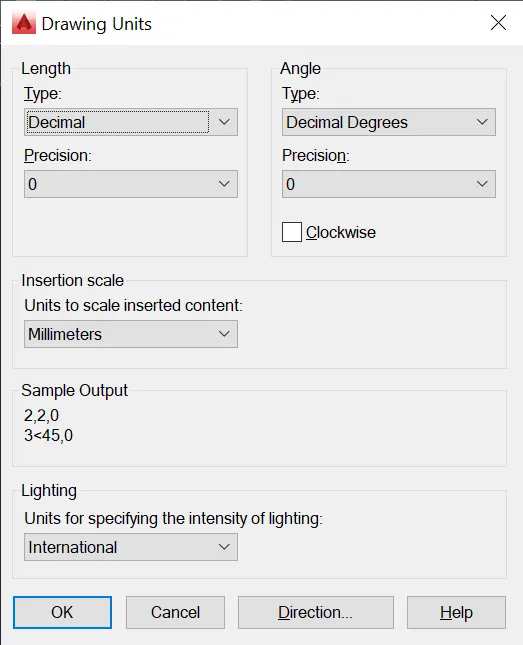
UNIT COMMAND: units command is used to control the presicion and display formats for coordinates,
distances, and angles.
For example, we can use inches or millimeters depending upon needs.
units types are decimal, architectural, engineering, fractional and scienticfic.
PROCEDURE:
1. command:UNITS press enter
2. shortcut key: UN press enter
3. Access from: Menubar>Format>Units
4. Access from: Applications menu>Drawing utilities>units.
set the units in DECIMAL ,Insertion scale in Millimeters. And press ok.
To save that settings.
LIMITS;
LIMITS command sets an invisible rectangular boundary inthe drawing area that can
limit the grid display and limit clicking the entire point locations.
PROCEDURE TO ACCESS:
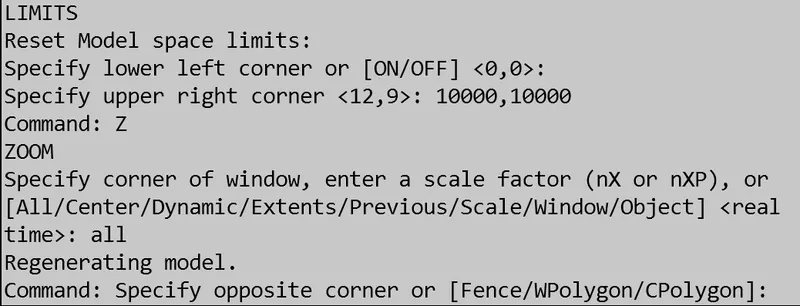
1. command : LIMITS Press enter
2. Shortcut key: LIMI press enter.
Set the limits:
Z enter
ALL enter
1. LINE COMMAND: Type the line command.
2. TRIM COMMAND:
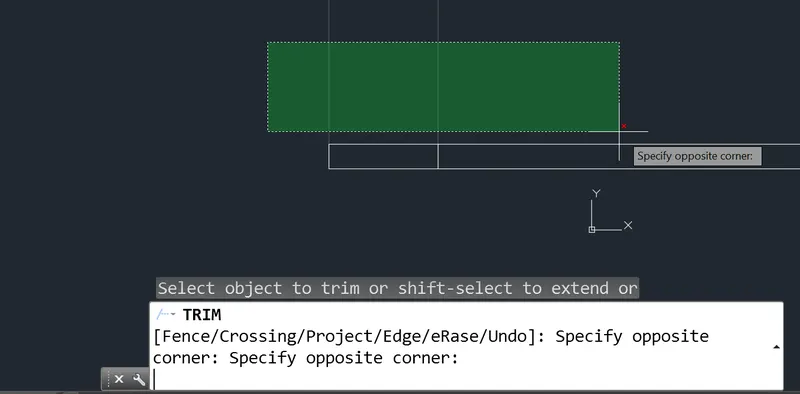
TRIM COMMAND is usd to delete the unwanted part of an object.
Procedure to access:
1. Command key: TRIM and press enter.
2. Shortcut key: TR and press enter.
3. Ribbon menu: Home> Modify Panel> TRim.
4. Access from: Menu bar>mOdify> Trim.
3. OFFSET COMMAND:
OFFSET command is used to create concentric circles,
parrallel lines and parallel curves from the existing curve the geometry.
Procedure to access:
1. Cpommand : OFFSET.
2. Shortcut key: O and press enter
3. Ribbon menu: Home>Modify panel>OFFSET
4. Access from: Menu bar> Modify> Offset.
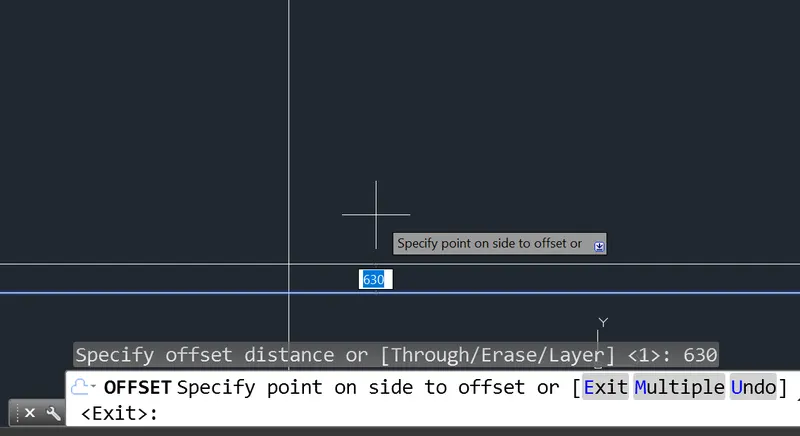
Options:
Offset distance, Through, erase, layer.
4. HATCH COMMAND:
HATCH COMMAND is used to fill an enclosed area or selected objects with a selected hatch pattern, solid fill or a gradient fill.
When the ribbon ON, the Hatch Creation contextual tab is displayed. When the ribbon is OFF, the Hatch and Gradient
dialog box are displayed.
PROCEDURE TO ACCESS:
1. Command: HATCH and press
2. Shortcut key: H and pres enter.
3. Ribbon menu: Home> Draw panel> Hatch.
4. Access from: Menu Bar> Draw> Hatch.
The following prompts are displayed.
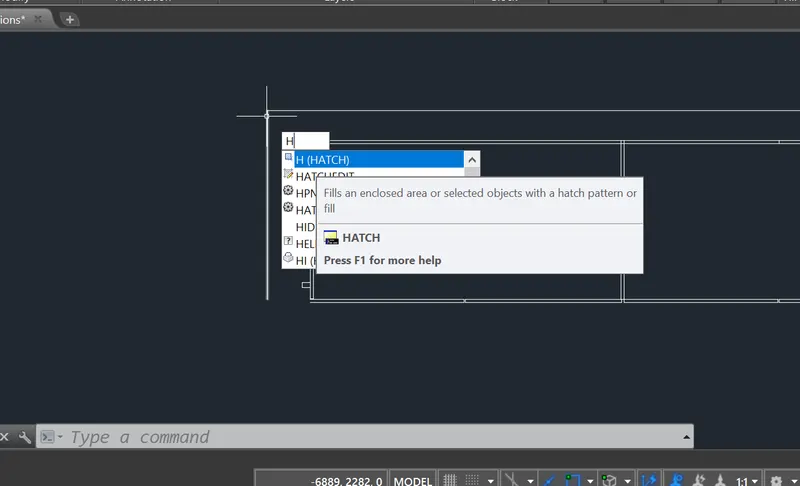
HATCHEDIT COMMAND :
HATCHEDIT COMMAND is used to modify the existing hatch properties such as pateern, scale and.
Once you execute this comand, software
will prompt you are to select existing hatch to edit.
Procedure to access:
1. command: HATCHEDIT and press enter.
2. shortcut key: HE and press enter.
3. Ribbon menu: Home> Modify panel> Hatch edit.
4. Access from: Menu Bar>draw>Hatchedit.
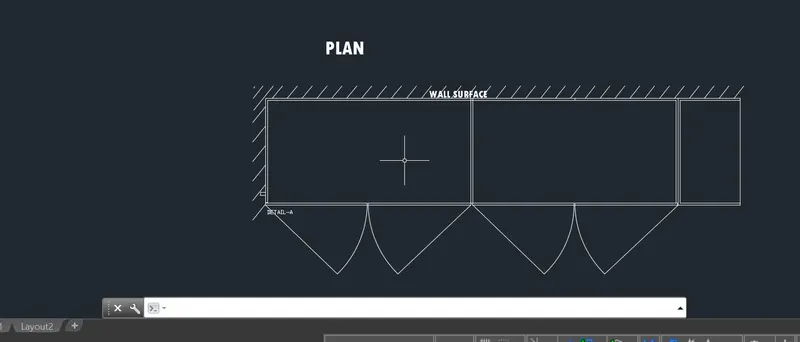
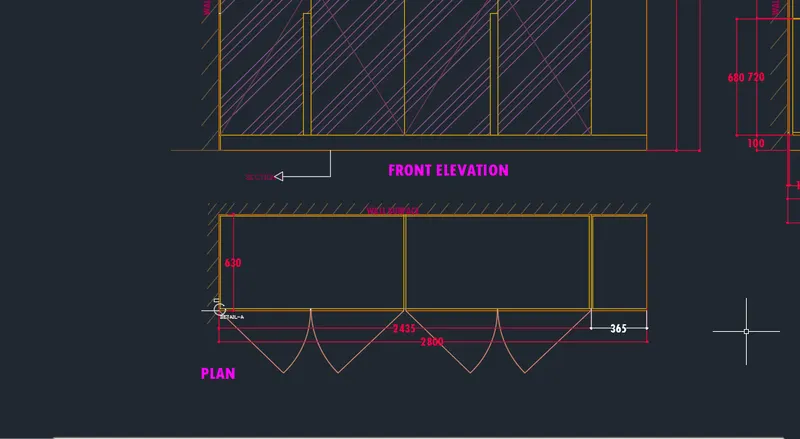
PLAN OF WARDROBE:
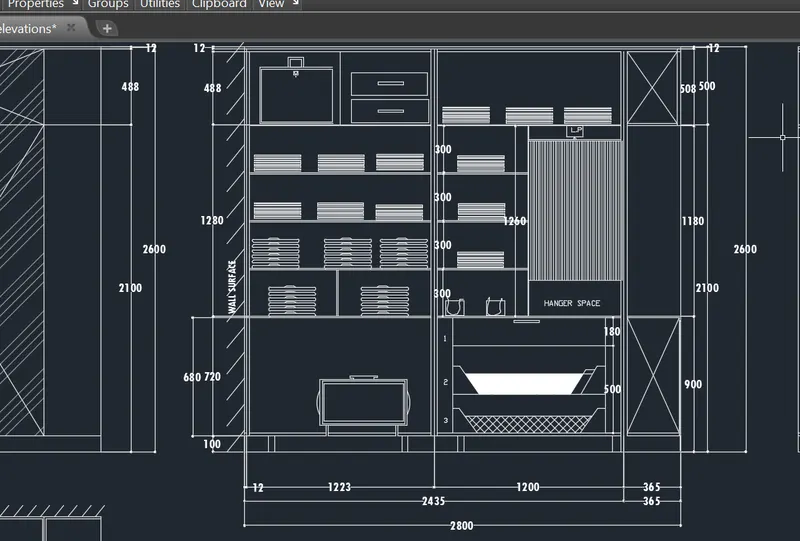
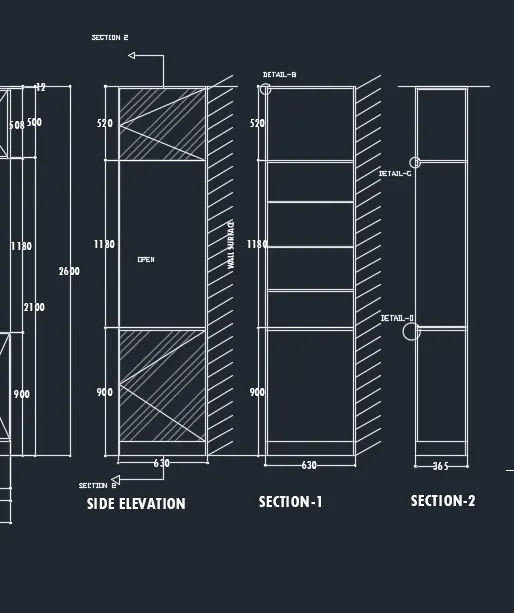
6. DIMENSION COMMAND:
LINEAR DIMENSION is used to measure and display the linear distance value of a line or between two points.
Linear dimension can be horizontal,vertical or aligned
PROCEDURE TO ACCESS:(Linear Dimension)
1. Command : DIMLI and press enter
2. Shortcut key : DLI and press enter
3. Riboon menu : Annotate> dimension panel> Linear.
4. Access from: Menu bar> Dimensions> Linear .
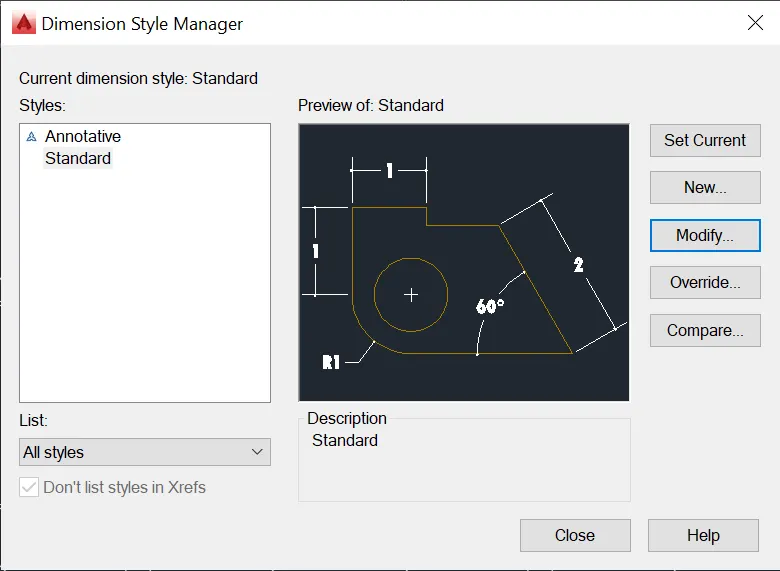
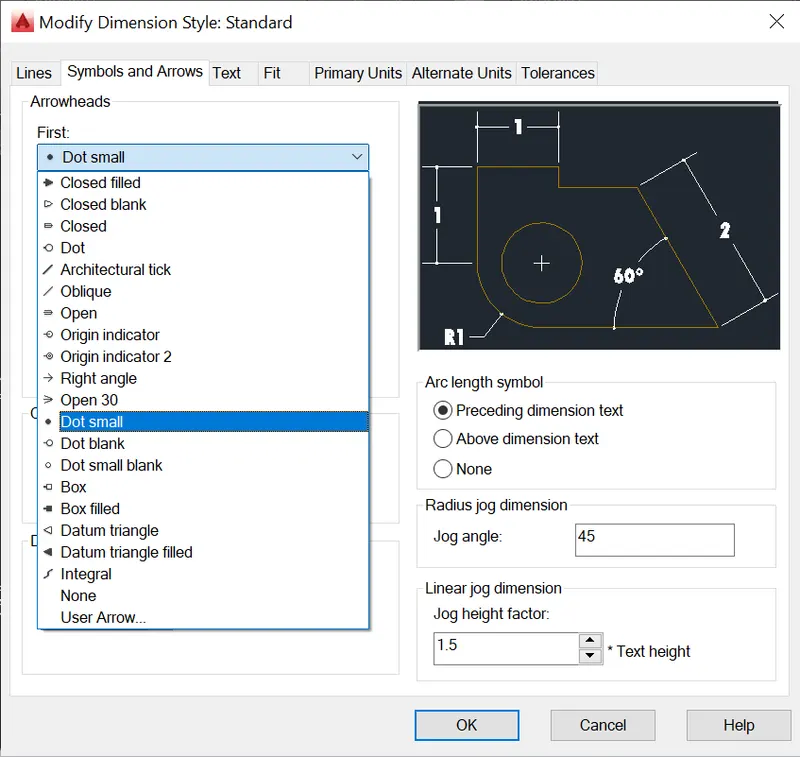
MODIFY the symbol and arrow styles.
After the specifying the start and end points, the software prompts as below
for more options.
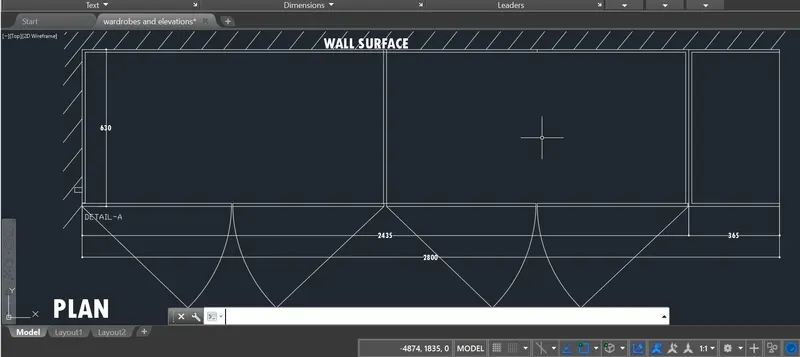
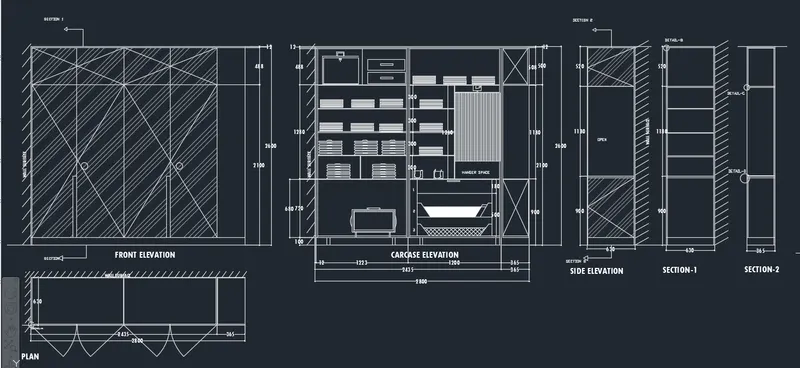
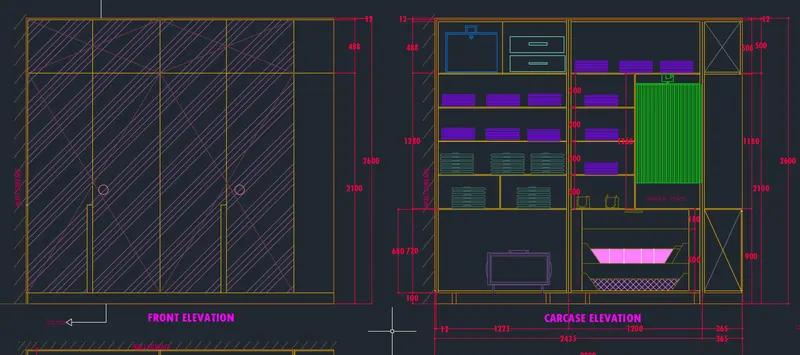
FRONT ELEVATIONS WARDROBE:
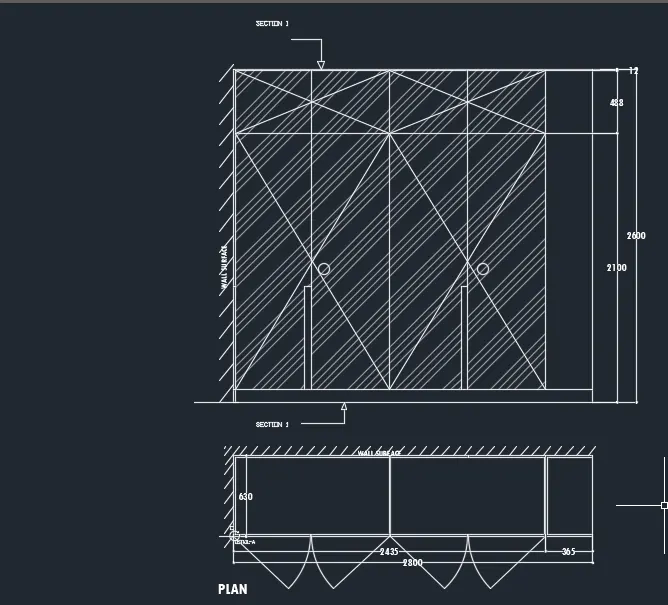
FRONT ELEVATION AND PLAN:
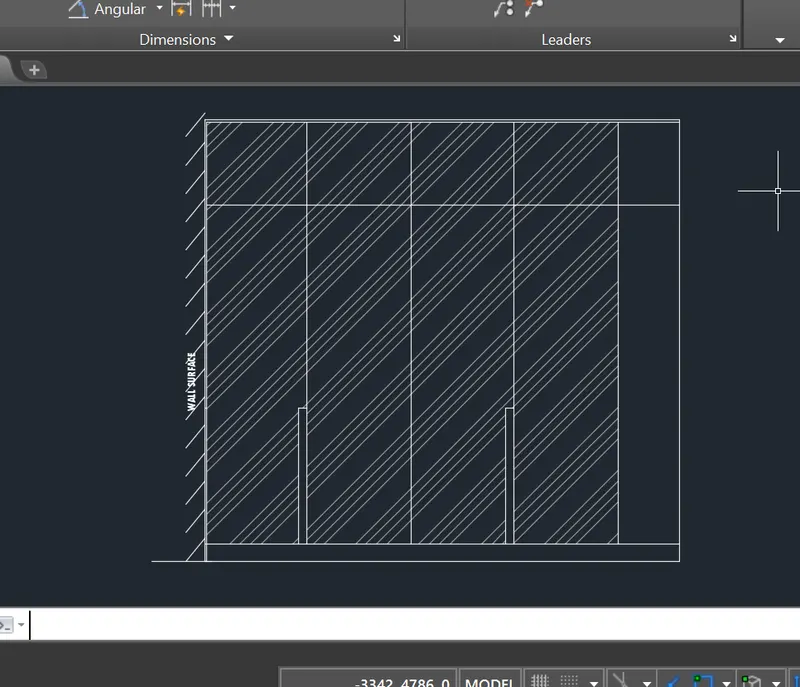
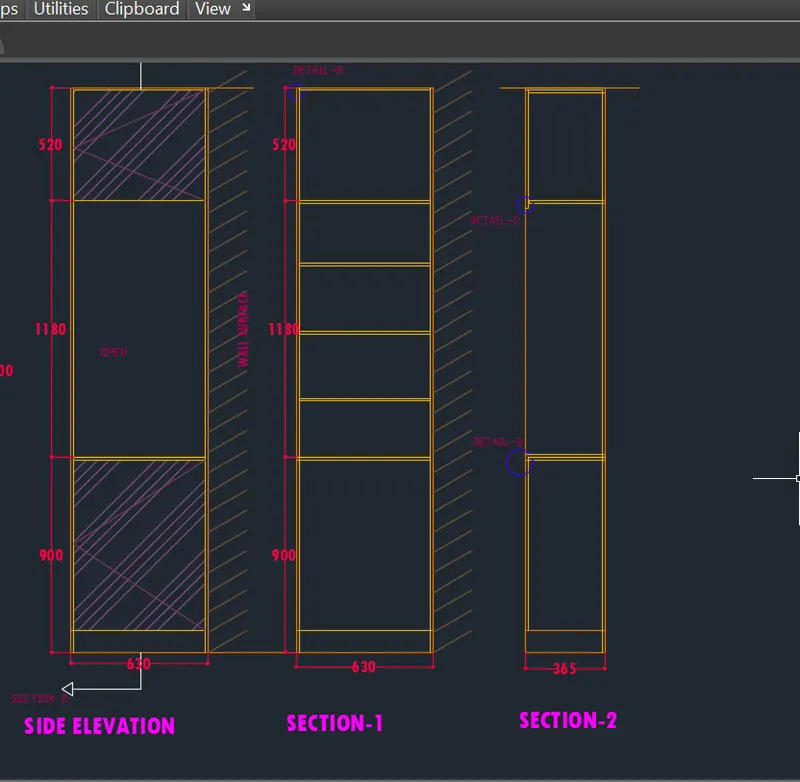
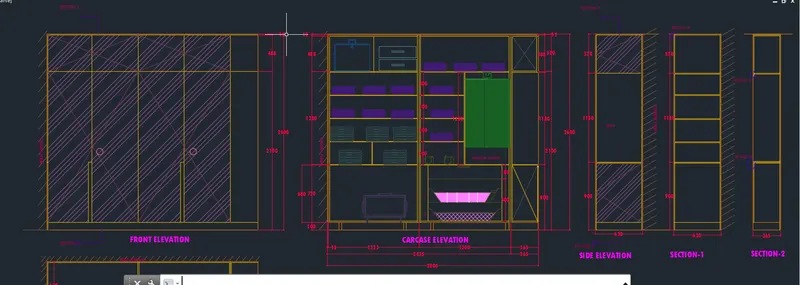
CARCASE ELEVATION:
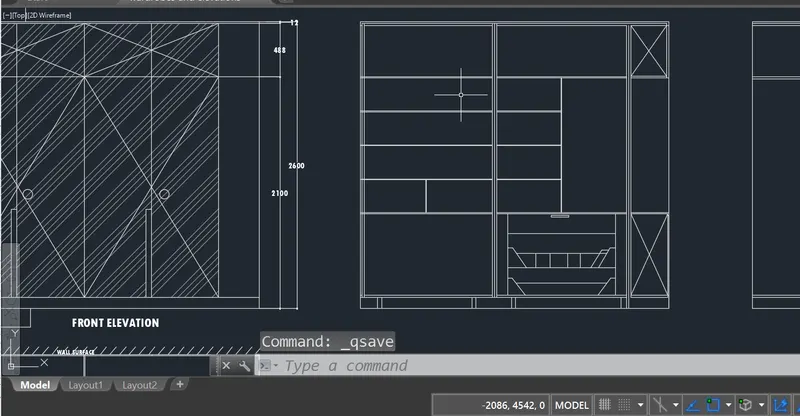
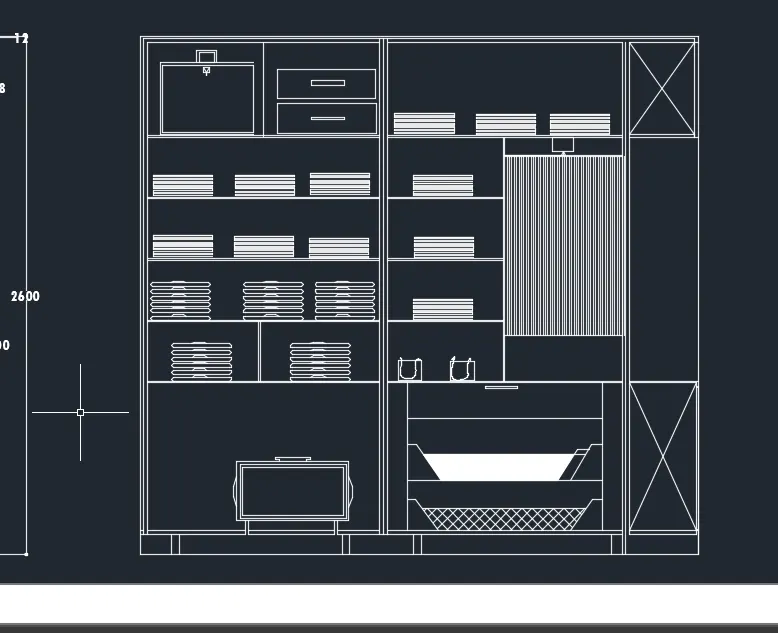
GIVE THE DIMLINEAR COMMAND TO THE CARCASE ELEVATION OF WARDROBE.
4. LAYER MANAGEMENT:
ABOUT LAYERS:
Layers are the primary tools for organizing the objects in a drawing by their function purpose.
layers are used to reduced the visual compexity of a drawing and improve display performance
by hiding the information that user does not need to see now. It is a good practice to create
the set of layers related to the work before you start drawing. Usesrs can seperate layers for
items like lines, dimensions, annotations and hatches and so on. Similarly, in a house plan,
the user can layer for the foundation, floor plan, doors, fixtures, electrical and so on.
Once you create the standard set of layers, you can save the drawing as a template file (.dwt)
that you can reuse when you start other drawings.
LAYER COMMAND:
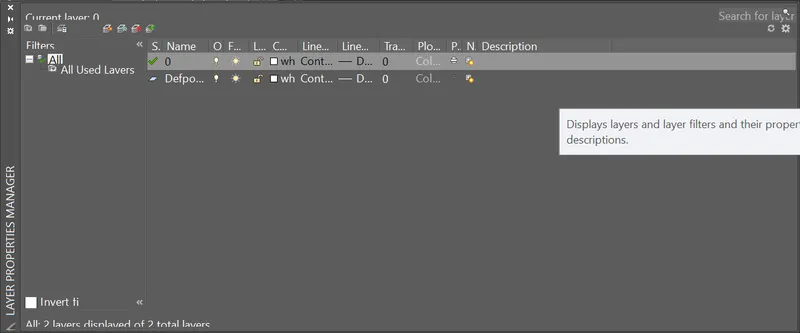
LAYER COMMAND is used access the layer Properties Manager, which is used to
manage the layer and their properties. In layer Properties Manager, you can add, delete and rename layers, change their properties
set property overrides in layout viewports and add layer descriptions.
PROCEDURE TO ACCESS:
1. Command : LAYER and press enter.
2. Shortcut key: LA and press enter.
3. Ribbon menu: Home>Layer panel>Layer Properties.
4. Access from: Menu bar> Format>Layer.
LAYER MANAGEMENT OPTIONS:
NEW LAYER: creates a layer with a default name. The new layer inherits the properties of the currently
selected layer in the layer list
NEWLAYER FROZEN VP IN ALL viewport- Creates a layer and freeze it inall existing layout viewports.
DELETE LAYER: Deletes selected layers.
The following layers cannot be deleted:
- Layers0 and defpoints.
- Layers containing objects, including objects in block definitions.
- The current layer
- Layers used in an external reference
- Layers in a partially opened drawings.
SET CURRENT- Sets the slected layer as the current layer. New objects automatically created on the current layer.
SORT- Click a column label to sort by that column.
COLUMN ORDER: Drag a column a new location in the list to change to the column order.
LAYER LIST OPTIONS:
LAYER LIST is used to modify the indiviual layer properties.
click the current setting to change the layer properties for the slected layer or group of layers.
Followings are varous options available to control the layerproperties.
NAME: Displays the name of the layer or filter.
ON: Turns the selected the layers on and off. When a layer is on, it is visible and available for plotting.
FREEZE: Freeze the sellected layers. Objects on frozen layers are not displayed, plotted, or regenetrated.
you can freeze layers to iprove performance and reduce regenerations time in complex drawings.
LOCK: Locks and un locks the slected the layers. Objects on a locked layer cannot be modified.
Objects on locked layers apear faded and a small icon is displayed when you hover over the object.
Open the WARDROBE plan.dwg file .
And, Type LA in the command box and press enter, the layer properties manager appears.
Now, a new layer is created with name as Layer 1.
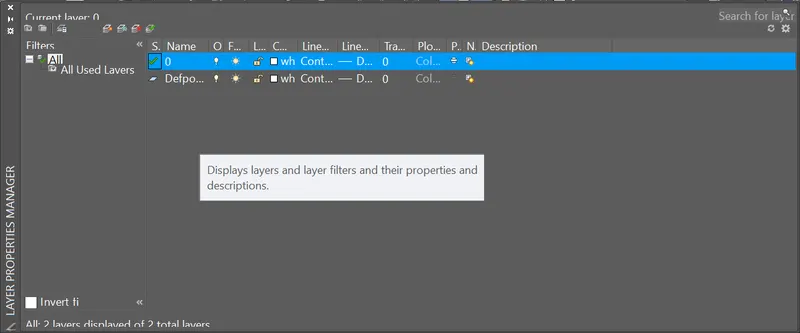
Now, a new layer is created with name as wall.
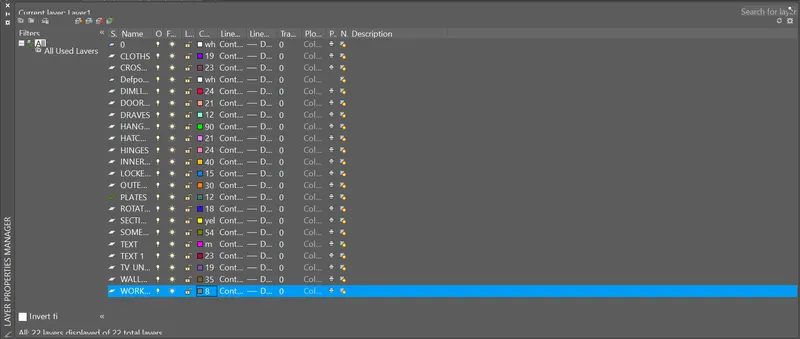
Repeat the same procedure and create all necessary layers with the given properties in the layer property table.
Create the layer are as shown in figure.
RESULT:
2. AIM:
To draw the elevation and details of a wardrobe.
And after sketching the drawing to provide the dimensions and text with use of layers.
And proper text styles and dimension methods too.
INTRODUCTION:
SETTING THE STANDARDS: In the following topics,
we will learn about the standard setting used in AutoCAD before starting the drafting process.
UNIT COMMAND: units command is used to control the presicion and display formats for coordinates,
distances, and angles.
For example, we can use inches or millimeters depending upon needs.
units types are decimal, architectural, engineering, fractional and scienticfic.
PROCEDURE:
1. command:UNITS press enter
2. shortcut key: UN press enter
3. Access from: Menubar>Format>Units
4. Access from: Applications menu>Drawing utilities>units.
set the units in DECIMAL ,Insertion scale in Millimeters. And press ok.
To save that settings.
LIMITS;
LIMITS command sets an invisible rectangular boundary inthe drawing area that can
limit the grid display and limit clicking the entire point locations.
PROCEDURE TO ACCESS:
1. command : LIMITS Press enter
2. Shortcut key: LIMI press enter.
Set the limits:
Z enter
ALL enter
1. LINE COMMAND: Type the line command.
2. TRIM COMMAND:
TRIM COMMAND is usd to delete the unwanted part of an object.
Procedure to access:
1. Command key: TRIM and press enter.
2. Shortcut key: TR and press enter.
3. Ribbon menu: Home> Modify Panel> TRim.
4. Access from: Menu bar>mOdify> Trim.
3. OFFSET COMMAND:
OFFSET command is used to create concentric circles,
parrallel lines and parallel curves from the existing curve the geometry.
Procedure to access:
1. Cpommand : OFFSET.
2. Shortcut key: O and press enter
3. Ribbon menu: Home>Modify panel>OFFSET
4. Access from: Menu bar> Modify> Offset.
Options:
Offset distance, Through, erase, layer.
4. HATCH COMMAND:
HATCH COMMAND is used to fill an enclosed area or selected objects with a selected hatch pattern, solid fill or a gradient fill.
When the ribbon ON, the Hatch Creation contextual tab is displayed. When the ribbon is OFF, the Hatch and Gradient
dialog box are displayed.
PROCEDURE TO ACCESS:
1. Command: HATCH and press
2. Shortcut key: H and pres enter.
3. Ribbon menu: Home> Draw panel> Hatch.
4. Access from: Menu Bar> Draw> Hatch.
The following prompts are displayed.
HATCHEDIT COMMAND :
HATCHEDIT COMMAND is used to modify the existing hatch properties such as pateern, scale and.
Once you execute this comand, software
will prompt you are to select existing hatch to edit.
Procedure to access:
1. command: HATCHEDIT and press enter.
2. shortcut key: HE and press enter.
3. Ribbon menu: Home> Modify panel> Hatch edit.
4. Access from: Menu Bar>draw>Hatchedit.
6. DIMENSION COMMAND:
LINEAR DIMENSION is used to measure and display the linear distance value of a line or between two points.
Linear dimension can be horizontal,vertical or aligned
PROCEDURE TO ACCESS:(Linear Dimension)
1. Command : DIMLI and press enter
2. Shortcut key : DLI and press enter
3. Riboon menu : Annotate> dimension panel> Linear.
4. Access from: Menu bar> Dimensions> Linear .
MODIFY the symbol and arrow styles.
After the specifying the start and end points, the software prompts as below
for more options.
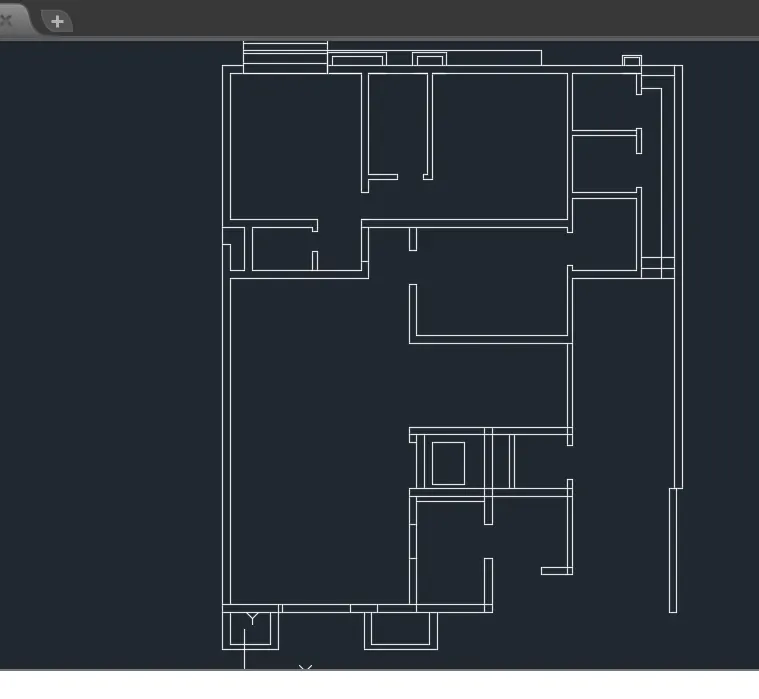
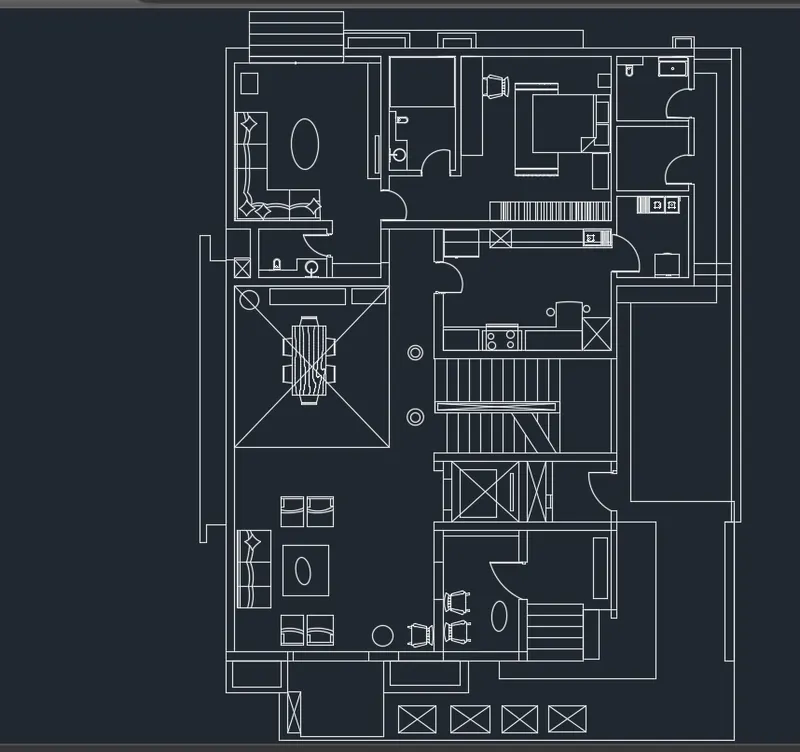
DRAW THE floor plan. By using xline command and trim command and extend command,etc as shown in above .
4. LAYER MANAGEMENT:
ABOUT LAYERS:
Layers are the primary tools for organizing the objects in a drawing by their function purpose.
layers are used to reduced the visual compexity of a drawing and improve display performance
by hiding the information that user does not need to see now. It is a good practice to create
the set of layers related to the work before you start drawing. Usesrs can seperate layers for
items like lines, dimensions, annotations and hatches and so on. Similarly, in a house plan,
the user can layer for the foundation, floor plan, doors, fixtures, electrical and so on.
Once you create the standard set of layers, you can save the drawing as a template file (.dwt)
that you can reuse when you start other drawings.
LAYER COMMAND:
LAYER COMMAND is used access the layer Properties Manager, which is used to
manage the layer and their properties. In layer Properties Manager, you can add, delete and rename layers, change their properties
set property overrides in layout viewports and add layer descriptions.
PROCEDURE TO ACCESS:
1. Command : LAYER and press enter.
2. Shortcut key: LA and press enter.
3. Ribbon menu: Home>Layer panel>Layer Properties.
4. Access from: Menu bar> Format>Layer.
LAYER MANAGEMENT OPTIONS:
NEW LAYER: creates a layer with a default name. The new layer inherits the properties of the currently
selected layer in the layer list
NEWLAYER FROZEN VP IN ALL viewport- Creates a layer and freeze it inall existing layout viewports.
DELETE LAYER: Deletes selected layers.
The following layers cannot be deleted:
- Layers0 and defpoints.
- Layers containing objects, including objects in block definitions.
- The current layer
- Layers used in an external reference
- Layers in a partially opened drawings.
SET CURRENT- Sets the slected layer as the current layer. New objects automatically created on the current layer.
SORT- Click a column label to sort by that column.
COLUMN ORDER: Drag a column a new location in the list to change to the column order.
LAYER LIST OPTIONS:
LAYER LIST is used to modify the indiviual layer properties.
click the current setting to change the layer properties for the slected layer or group of layers.
Followings are varous options available to control the layerproperties.
NAME: Displays the name of the layer or filter.
ON: Turns the selected the layers on and off. When a layer is on, it is visible and available for plotting.
FREEZE: Freeze the sellected layers. Objects on frozen layers are not displayed, plotted, or regenetrated.
you can freeze layers to iprove performance and reduce regenerations time in complex drawings.
LOCK: Locks and un locks the slected the layers. Objects on a locked layer cannot be modified.
Objects on locked layers apear faded and a small icon is displayed when you hover over the object.
Open the WARDROBE plan.dwg file .
And, Type LA in the command box and press enter, the layer properties manager appears.
Now, a new layer is created with name as Layer 1.
Now, a new layer is created with name as wall.
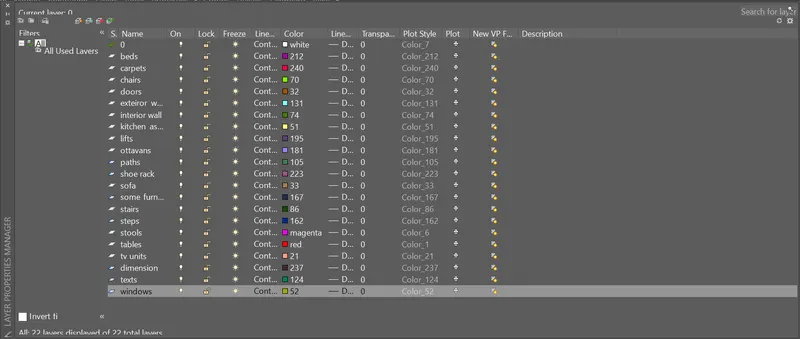
Repeat the same procedure and create all necessary layers with the given properties in the layer property table.
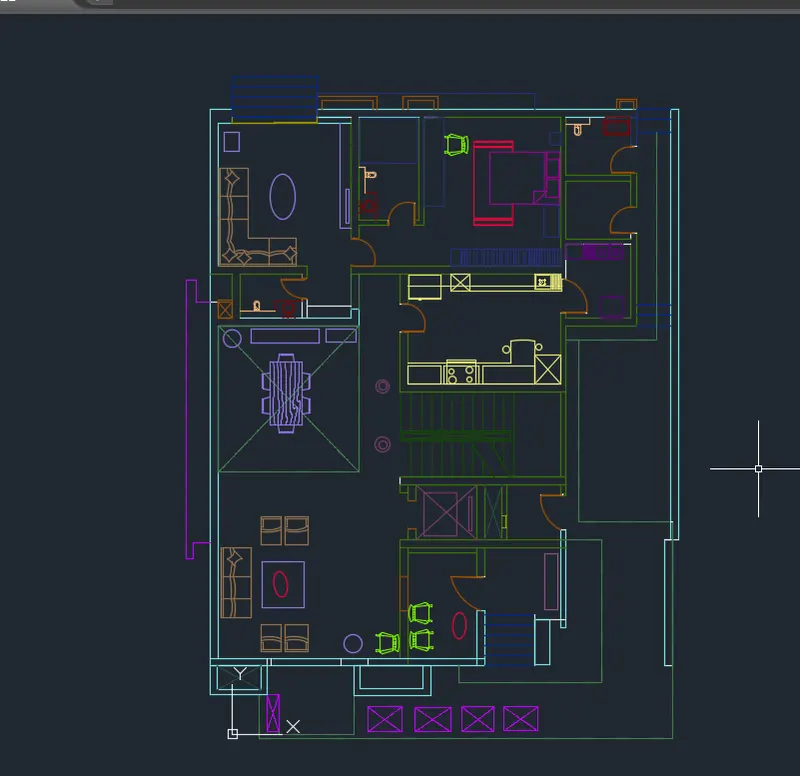
Create the layer are as shown in figure.
RESULTS:
3. AIM:
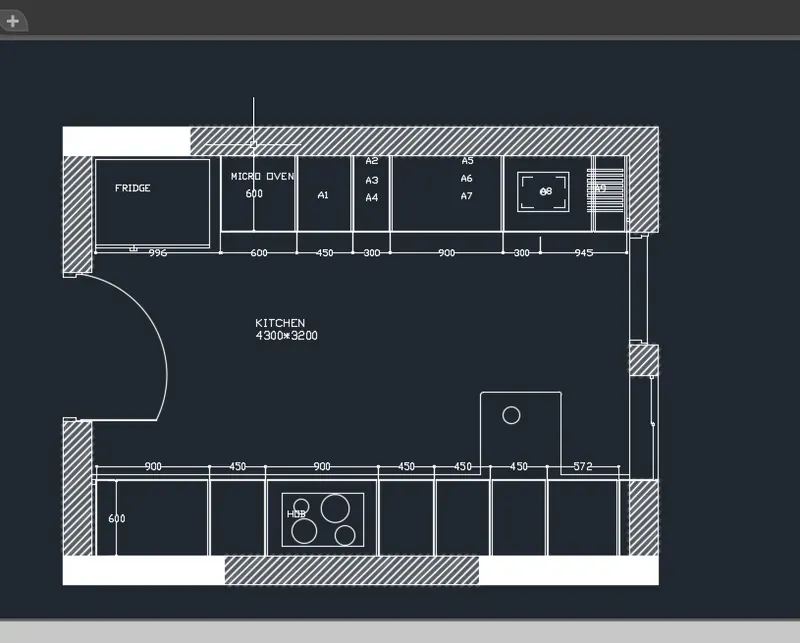
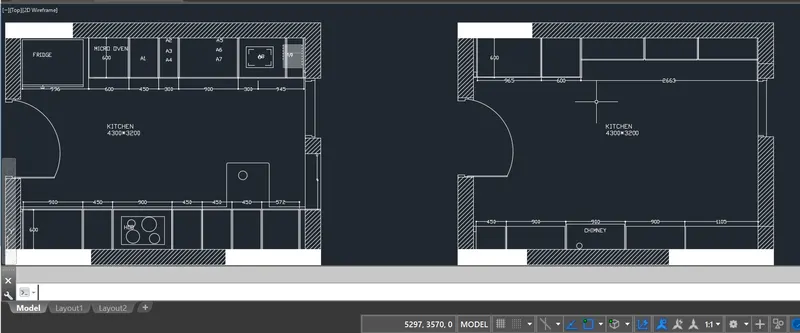
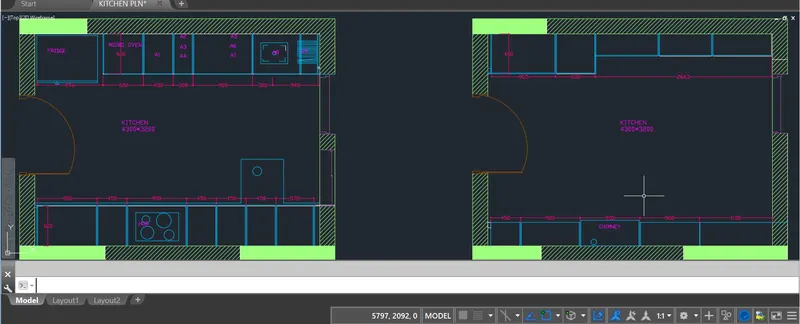
To draw the elevation and details of a KITCHEN PLAN.
And after sketching the drawing to provide the dimensions and text with use of layers.
And proper text styles and dimension methods too.
INTRODUCTION:
SETTING THE STANDARDS: In the following topics,
we will learn about the standard setting used in AutoCAD before starting the drafting process.
UNIT COMMAND: units command is used to control the presicion and display formats for coordinates,
distances, and angles.
For example, we can use inches or millimeters depending upon needs.
units types are decimal, architectural, engineering, fractional and scienticfic.
PROCEDURE:
1. command:UNITS press enter
2. shortcut key: UN press enter
3. Access from: Menubar>Format>Units
4. Access from: Applications menu>Drawing utilities>units.
set the units in DECIMAL ,Insertion scale in Millimeters. And press ok.
To save that settings.
LIMITS;
LIMITS command sets an invisible rectangular boundary inthe drawing area that can
limit the grid display and limit clicking the entire point locations.
PROCEDURE TO ACCESS:
1. command : LIMITS Press enter
2. Shortcut key: LIMI press enter.
Set the limits:
Z enter
ALL enter
1. LINE COMMAND: Type the line command.
2. TRIM COMMAND:
TRIM COMMAND is usd to delete the unwanted part of an object.
Procedure to access:
1. Command key: TRIM and press enter.
2. Shortcut key: TR and press enter.
3. Ribbon menu: Home> Modify Panel> TRim.
4. Access from: Menu bar>mOdify> Trim.
3. OFFSET COMMAND:
OFFSET command is used to create concentric circles,
parrallel lines and parallel curves from the existing curve the geometry.
Procedure to access:
1. Cpommand : OFFSET.
2. Shortcut key: O and press enter
3. Ribbon menu: Home>Modify panel>OFFSET
4. Access from: Menu bar> Modify> Offset.
Options:
Offset distance, Through, erase, layer.
4. HATCH COMMAND:
HATCH COMMAND is used to fill an enclosed area or selected objects with a selected hatch pattern, solid fill or a gradient fill.
When the ribbon ON, the Hatch Creation contextual tab is displayed. When the ribbon is OFF, the Hatch and Gradient
dialog box are displayed.
PROCEDURE TO ACCESS:
1. Command: HATCH and press
2. Shortcut key: H and pres enter.
3. Ribbon menu: Home> Draw panel> Hatch.
4. Access from: Menu Bar> Draw> Hatch.
The following prompts are displayed.
HATCHEDIT COMMAND :
HATCHEDIT COMMAND is used to modify the existing hatch properties such as pateern, scale and.
Once you execute this comand, software
will prompt you are to select existing hatch to edit.
Procedure to access:
1. command: HATCHEDIT and press enter.
2. shortcut key: HE and press enter.
3. Ribbon menu: Home> Modify panel> Hatch edit.
4. Access from: Menu Bar>draw>Hatchedit.
6. DIMENSION COMMAND:
LINEAR DIMENSION is used to measure and display the linear distance value of a line or between two points.
Linear dimension can be horizontal,vertical or aligned
PROCEDURE TO ACCESS:(Linear Dimension)
1. Command : DIMLI and press enter
2. Shortcut key : DLI and press enter
3. Riboon menu : Annotate> dimension panel> Linear.
4. Access from: Menu bar> Dimensions> Linear .
MODIFY the symbol and arrow styles.
After the specifying the start and end points, the software prompts as below
for more options.
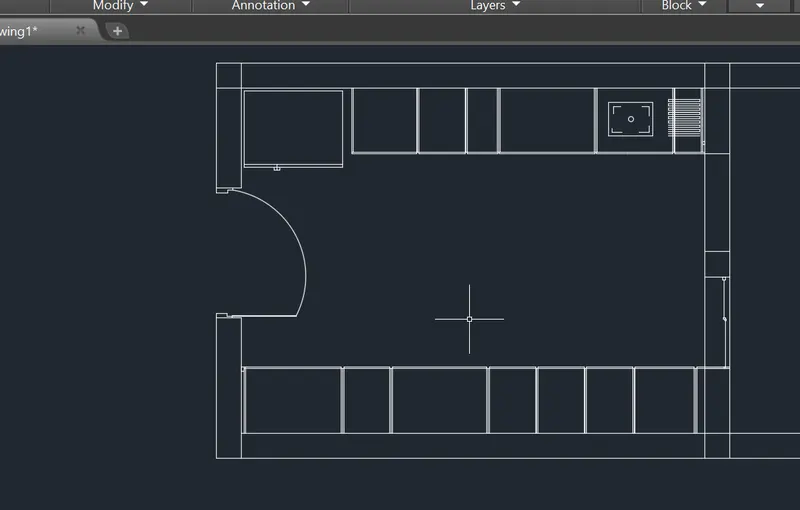
DRAW THE floor plan. By using xline command and trim command and extend command,etc as shown in above .
4. LAYER MANAGEMENT:
ABOUT LAYERS:
Layers are the primary tools for organizing the objects in a drawing by their function purpose.
layers are used to reduced the visual compexity of a drawing and improve display performance
by hiding the information that user does not need to see now. It is a good practice to create
the set of layers related to the work before you start drawing. Usesrs can seperate layers for
items like lines, dimensions, annotations and hatches and so on. Similarly, in a house plan,
the user can layer for the foundation, floor plan, doors, fixtures, electrical and so on.
Once you create the standard set of layers, you can save the drawing as a template file (.dwt)
that you can reuse when you start other drawings.
LAYER COMMAND:
LAYER COMMAND is used access the layer Properties Manager, which is used to
manage the layer and their properties. In layer Properties Manager, you can add, delete and rename layers, change their properties
set property overrides in layout viewports and add layer descriptions.
PROCEDURE TO ACCESS:
1. Command : LAYER and press enter.
2. Shortcut key: LA and press enter.
3. Ribbon menu: Home>Layer panel>Layer Properties.
4. Access from: Menu bar> Format>Layer.
LAYER MANAGEMENT OPTIONS:
NEW LAYER: creates a layer with a default name. The new layer inherits the properties of the currently
selected layer in the layer list
NEWLAYER FROZEN VP IN ALL viewport- Creates a layer and freeze it inall existing layout viewports.
DELETE LAYER: Deletes selected layers.
The following layers cannot be deleted:
- Layers0 and defpoints.
- Layers containing objects, including objects in block definitions.
- The current layer
- Layers used in an external reference
- Layers in a partially opened drawings.
SET CURRENT- Sets the slected layer as the current layer. New objects automatically created on the current layer.
SORT- Click a column label to sort by that column.
COLUMN ORDER: Drag a column a new location in the list to change to the column order.
LAYER LIST OPTIONS:
LAYER LIST is used to modify the indiviual layer properties.
click the current setting to change the layer properties for the slected layer or group of layers.
Followings are varous options available to control the layerproperties.
NAME: Displays the name of the layer or filter.
ON: Turns the selected the layers on and off. When a layer is on, it is visible and available for plotting.
FREEZE: Freeze the sellected layers. Objects on frozen layers are not displayed, plotted, or regenetrated.
you can freeze layers to iprove performance and reduce regenerations time in complex drawings.
LOCK: Locks and un locks the slected the layers. Objects on a locked layer cannot be modified.
Objects on locked layers apear faded and a small icon is displayed when you hover over the object.
Open the WARDROBE plan.dwg file .
And, Type LA in the command box and press enter, the layer properties manager appears.
Now, a new layer is created with name as Layer 1.
Now, a new layer is created with name as wall.
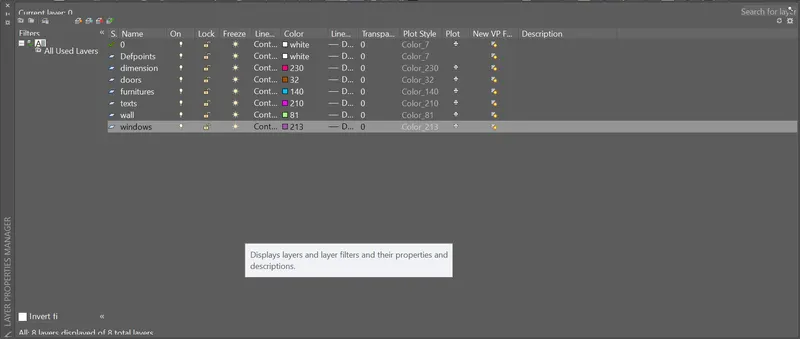
Repeat the same procedure and create all necessary layers with the given properties in the layer property table.
Create the layer are as shown in figure.
RESULT:
4. AIM:
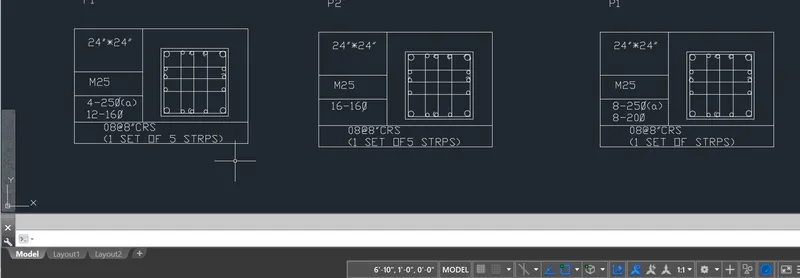
To draw the COLUMN DETAILS.
And after sketching the drawing to provide the dimensions and text with use of layers.
And proper text styles and dimension methods too.
INTRODUCTION:
SETTING THE STANDARDS: In the following topics,
we will learn about the standard setting used in AutoCAD before starting the drafting process.
UNIT COMMAND: units command is used to control the presicion and display formats for coordinates,
distances, and angles.
For example, we can use inches or millimeters depending upon needs.
units types are decimal, architectural, engineering, fractional and scienticfic.
PROCEDURE:
1. command:UNITS press enter
2. shortcut key: UN press enter
3. Access from: Menubar>Format>Units
4. Access from: Applications menu>Drawing utilities>units.
set the units in DECIMAL ,Insertion scale in Millimeters. And press ok.
To save that settings.
LIMITS;
LIMITS command sets an invisible rectangular boundary inthe drawing area that can
limit the grid display and limit clicking the entire point locations.
PROCEDURE TO ACCESS:
1. command : LIMITS Press enter
2. Shortcut key: LIMI press enter.
Set the limits:
Z enter
ALL enter
1. LINE COMMAND: Type the line command.
2. TRIM COMMAND:
TRIM COMMAND is usd to delete the unwanted part of an object.
Procedure to access:
1. Command key: TRIM and press enter.
2. Shortcut key: TR and press enter.
3. Ribbon menu: Home> Modify Panel> TRim.
4. Access from: Menu bar>mOdify> Trim.
3. OFFSET COMMAND:
OFFSET command is used to create concentric circles,
parrallel lines and parallel curves from the existing curve the geometry.
Procedure to access:
1. Cpommand : OFFSET.
2. Shortcut key: O and press enter
3. Ribbon menu: Home>Modify panel>OFFSET
4. Access from: Menu bar> Modify> Offset.
Options:
Offset distance, Through, erase, layer.
4. HATCH COMMAND:
HATCH COMMAND is used to fill an enclosed area or selected objects with a selected hatch pattern, solid fill or a gradient fill.
When the ribbon ON, the Hatch Creation contextual tab is displayed. When the ribbon is OFF, the Hatch and Gradient
dialog box are displayed.
PROCEDURE TO ACCESS:
1. Command: HATCH and press
2. Shortcut key: H and pres enter.
3. Ribbon menu: Home> Draw panel> Hatch.
4. Access from: Menu Bar> Draw> Hatch.
The following prompts are displayed.
HATCHEDIT COMMAND :
HATCHEDIT COMMAND is used to modify the existing hatch properties such as pateern, scale and.
Once you execute this comand, software
will prompt you are to select existing hatch to edit.
Procedure to access:
1. command: HATCHEDIT and press enter.
2. shortcut key: HE and press enter.
3. Ribbon menu: Home> Modify panel> Hatch edit.
4. Access from: Menu Bar>draw>Hatchedit.
6. DIMENSION COMMAND:
LINEAR DIMENSION is used to measure and display the linear distance value of a line or between two points.
Linear dimension can be horizontal,vertical or aligned
PROCEDURE TO ACCESS:(Linear Dimension)
1. Command : DIMLI and press enter
2. Shortcut key : DLI and press enter
3. Riboon menu : Annotate> dimension panel> Linear.
4. Access from: Menu bar> Dimensions> Linear .
MODIFY the symbol and arrow styles.
After the specifying the start and end points, the software prompts as below
for more options.
DRAW THE floor plan. By using xline command and trim command and extend command,etc as shown in above .
RESULT:
5.AIM:
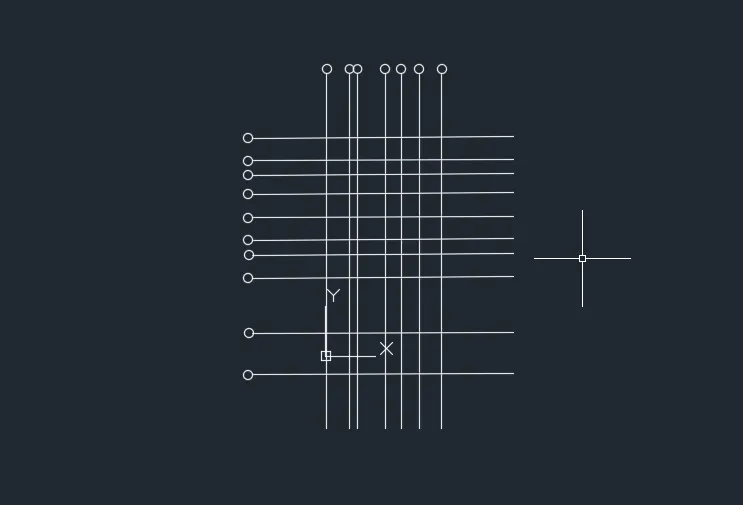
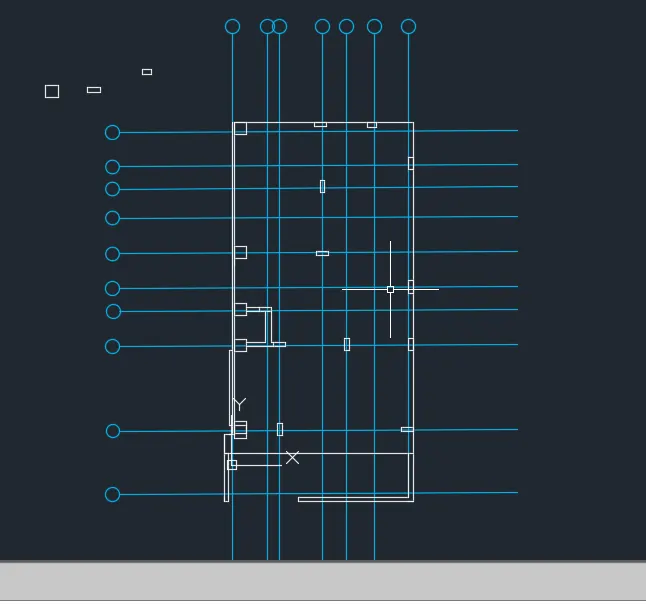
TO CREATE THE RAFT PLAN.
And after sketching the drawing to provide the dimensions and text with use of layers.
And proper text styles and dimension methods too.
INTRODUCTION:
SETTING THE STANDARDS: In the following topics,
we will learn about the standard setting used in AutoCAD before starting the drafting process.
UNIT COMMAND: units command is used to control the presicion and display formats for coordinates,
distances, and angles.
For example, we can use inches or millimeters depending upon needs.
units types are decimal, architectural, engineering, fractional and scienticfic.
PROCEDURE:
1. command:UNITS press enter
2. shortcut key: UN press enter
3. Access from: Menubar>Format>Units
4. Access from: Applications menu>Drawing utilities>units.
set the units in DECIMAL ,Insertion scale in Millimeters. And press ok.
To save that settings.
LIMITS;
LIMITS command sets an invisible rectangular boundary inthe drawing area that can
limit the grid display and limit clicking the entire point locations.
PROCEDURE TO ACCESS:
1. command : LIMITS Press enter
2. Shortcut key: LIMI press enter.
Set the limits:
Z enter
ALL enter
1. LINE COMMAND: Type the line command.
2. TRIM COMMAND:
TRIM COMMAND is usd to delete the unwanted part of an object.
Procedure to access:
1. Command key: TRIM and press enter.
2. Shortcut key: TR and press enter.
3. Ribbon menu: Home> Modify Panel> TRim.
4. Access from: Menu bar>mOdify> Trim.
3. OFFSET COMMAND:
OFFSET command is used to create concentric circles,
parrallel lines and parallel curves from the existing curve the geometry.
Procedure to access:
1. Cpommand : OFFSET.
2. Shortcut key: O and press enter
3. Ribbon menu: Home>Modify panel>OFFSET
4. Access from: Menu bar> Modify> Offset.
Options:
Offset distance, Through, erase, layer.
4. HATCH COMMAND:
HATCH COMMAND is used to fill an enclosed area or selected objects with a selected hatch pattern, solid fill or a gradient fill.
When the ribbon ON, the Hatch Creation contextual tab is displayed. When the ribbon is OFF, the Hatch and Gradient
dialog box are displayed.
PROCEDURE TO ACCESS:
1. Command: HATCH and press
2. Shortcut key: H and pres enter.
3. Ribbon menu: Home> Draw panel> Hatch.
4. Access from: Menu Bar> Draw> Hatch.
The following prompts are displayed.
HATCHEDIT COMMAND :
HATCHEDIT COMMAND is used to modify the existing hatch properties such as pateern, scale and.
Once you execute this comand, software
will prompt you are to select existing hatch to edit.
Procedure to access:
1. command: HATCHEDIT and press enter.
2. shortcut key: HE and press enter.
3. Ribbon menu: Home> Modify panel> Hatch edit.
4. Access from: Menu Bar>draw>Hatchedit.
6. DIMENSION COMMAND:
LINEAR DIMENSION is used to measure and display the linear distance value of a line or between two points.
Linear dimension can be horizontal,vertical or aligned
PROCEDURE TO ACCESS:(Linear Dimension)
1. Command : DIMLI and press enter
2. Shortcut key : DLI and press enter
3. Riboon menu : Annotate> dimension panel> Linear.
4. Access from: Menu bar> Dimensions> Linear .
MODIFY the symbol and arrow styles.
RESULT: