AutoCAD_Residence Floor Plan
AIM:
RESIDENCE FLOOR PLAN: A residence plan usually shows the layout of rooms, key dimensions, levels,
and materials and locations of fittings and applicances using conventions and symbols.
The recommended scales for floor plan are 1:200, 1:100 and 1:50.
INTRODUCTION:
This tutorial will explain the step by stpe procedure to draw a residence plan, floor plan of a building
as shown in the fgure below using XLINE command in AutoCAD. All dimensions are in INCHES.
DRAFTING PROCEDURE:
1. Begin a new project in Auotcad 2D modelling in space of the project with imperial template.
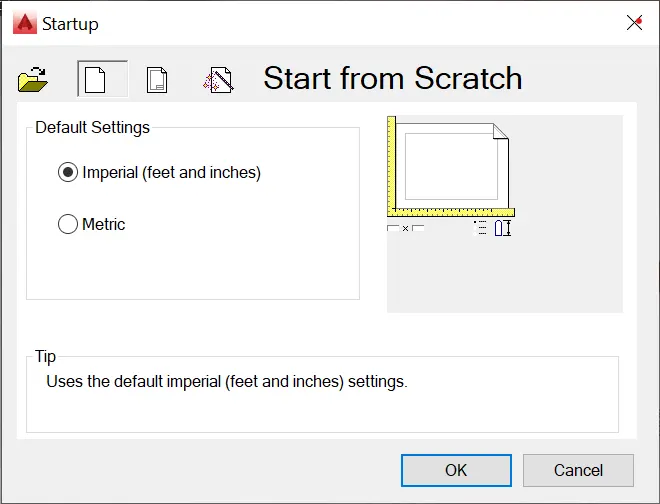
2. Create the necessary project elements.
3. Create the followings: Floor plan , walls, door, Window, stair using the properties given.
4. Assemble all the drawings in layer command: Layers
5. Save the drawing file as Building_ACA_Model.dwg.
6. Then, start the drawing in model space .
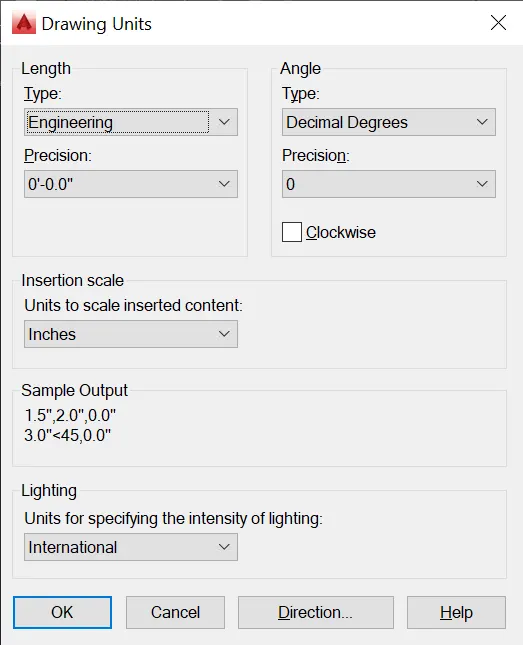
Set the units in engineering ,
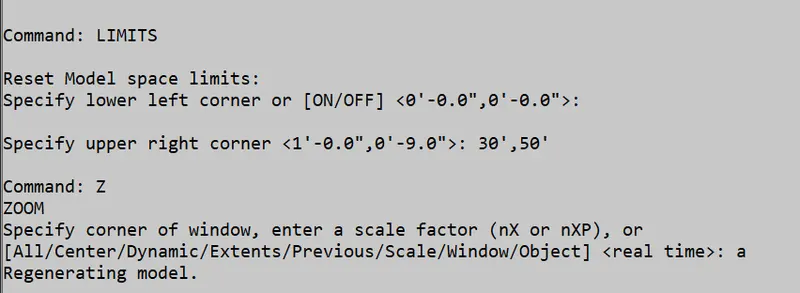
LIMIT COMMAND:
LIMITS command sets an invisible rectangular boundary in the drawing area that
can limit the grid display and limit clicking or entering point locations.
Procedure to access:
1. Command:LIMITS and press enter
2. Shortcut key: LIMI
STEP1:
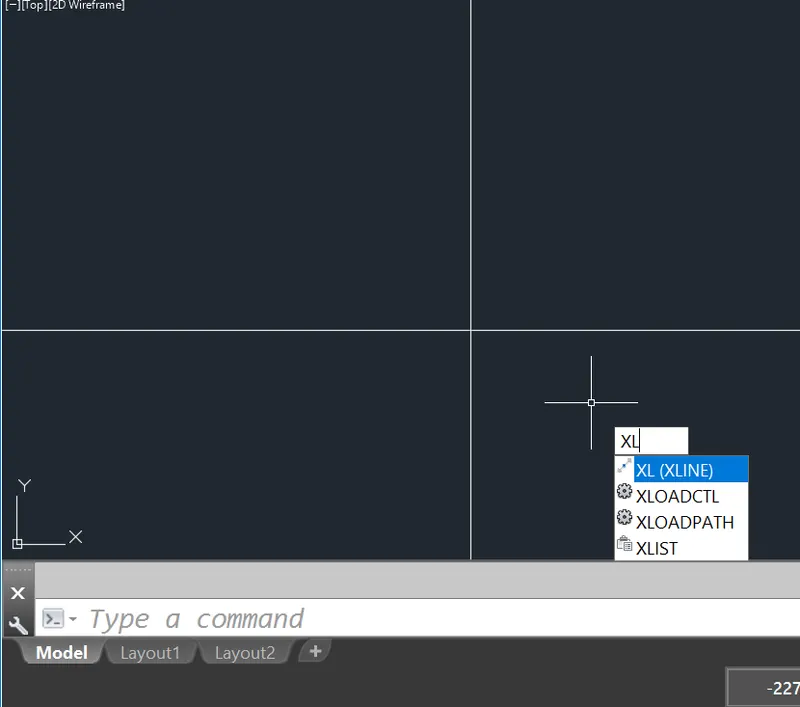
Create the XLINE: Creates a line of infinity length.
Type the Xline command in command box.
STEP2:
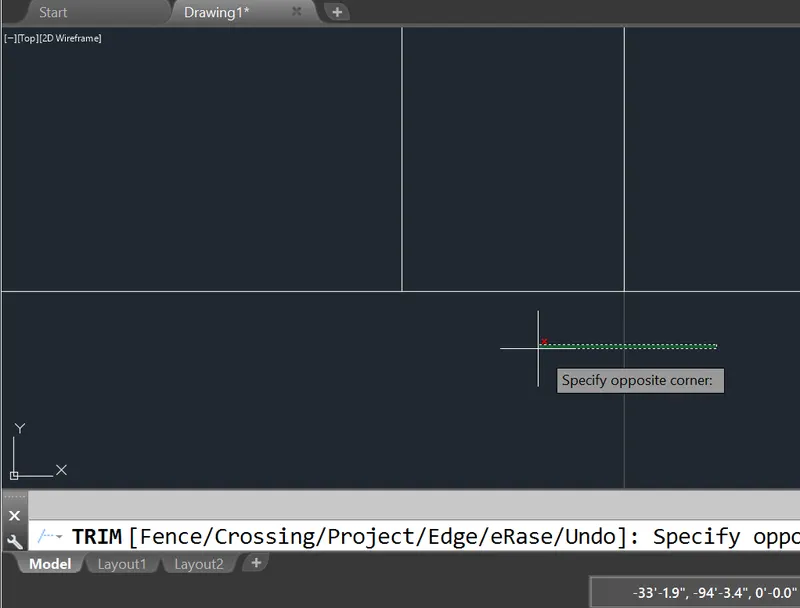
Type the TRIM comand: press enter.
Trim the unwanted lines .
STEP3:
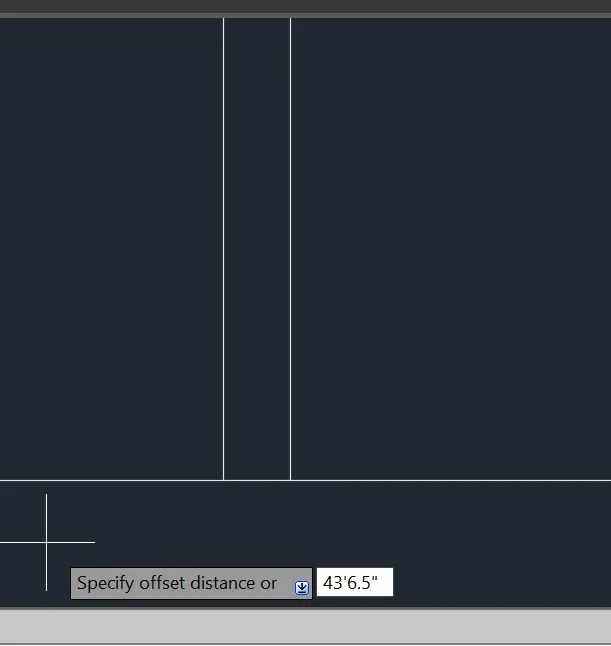
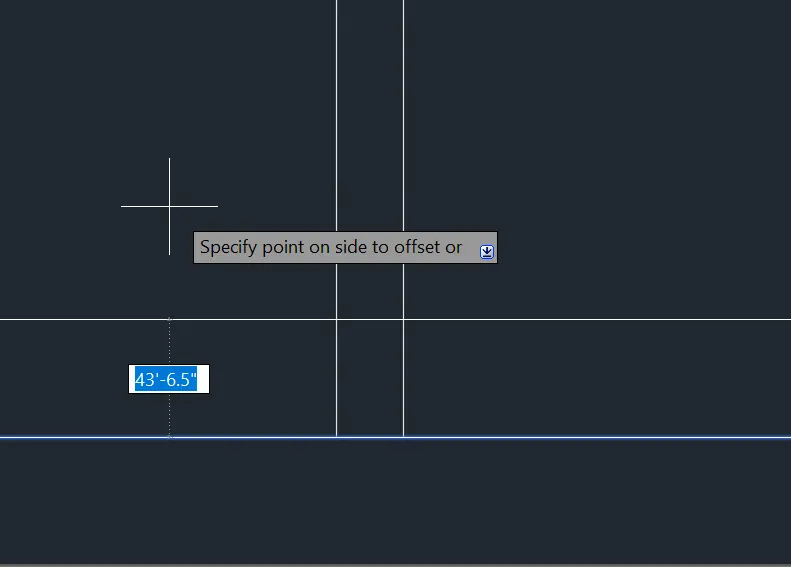
Type the offset command to offset the bottom line to through 43'6" and press enter.
STEP4:
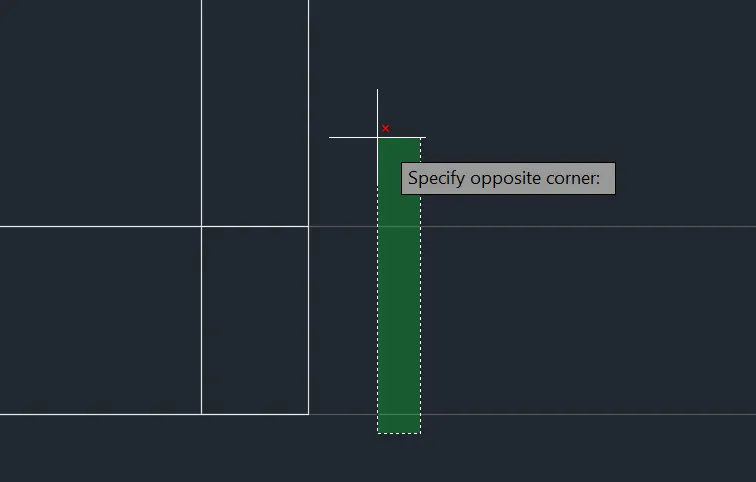
Type TRIM COMMAND : press enter
Trim unwanted lines as below figure.
STEP 5:
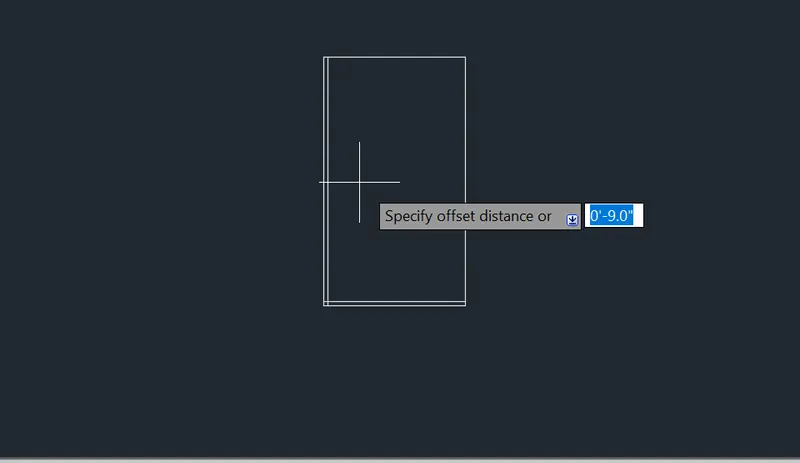
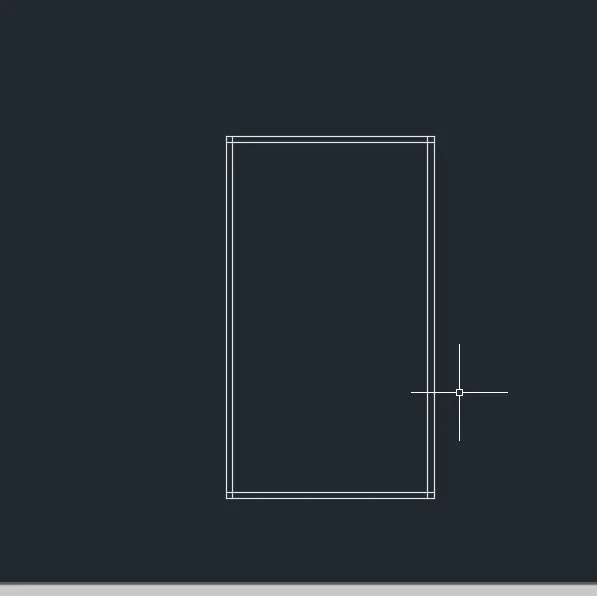
Type offset command : press enter.
offset the lines through 9" and press enter,
Then click the line to offset, and enter
STEP 6:
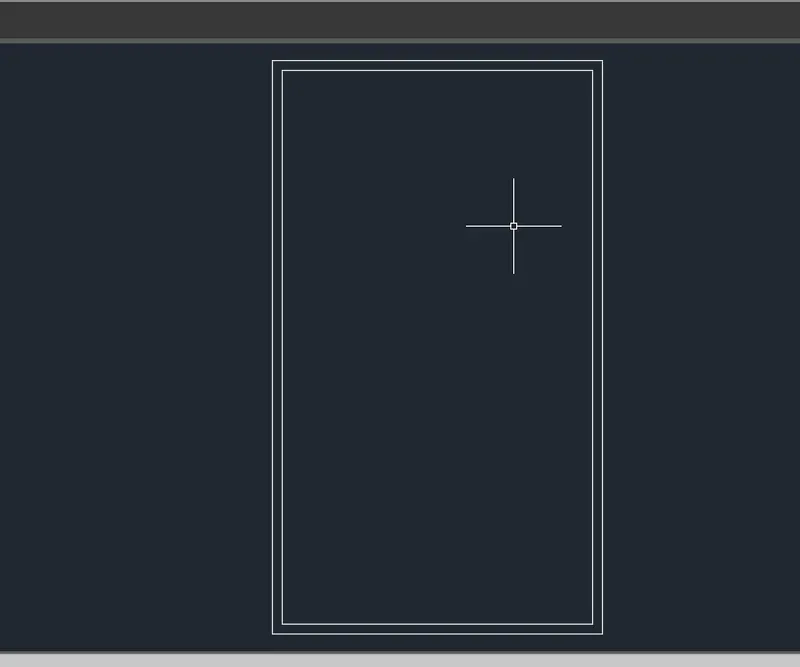
Again TRIM the lines inbetween the walls.
STEP 7:
Offset the line through 6' and press enter.
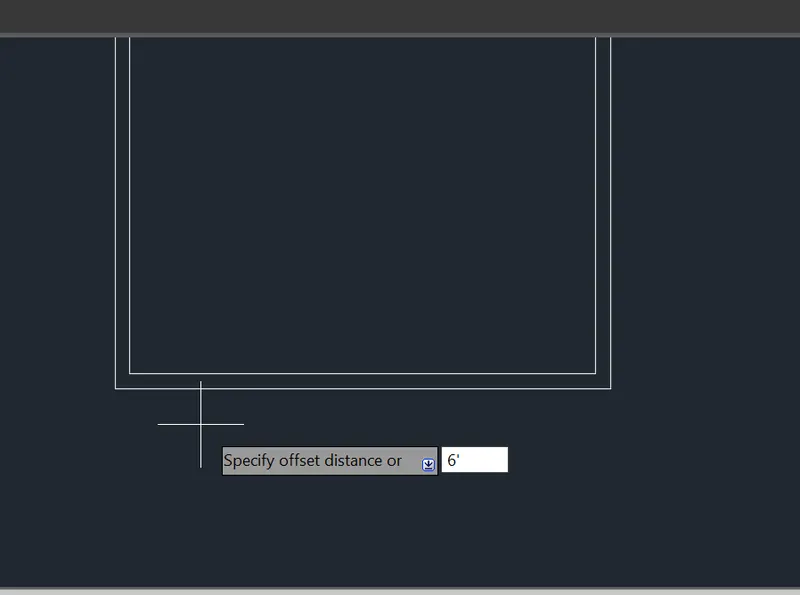
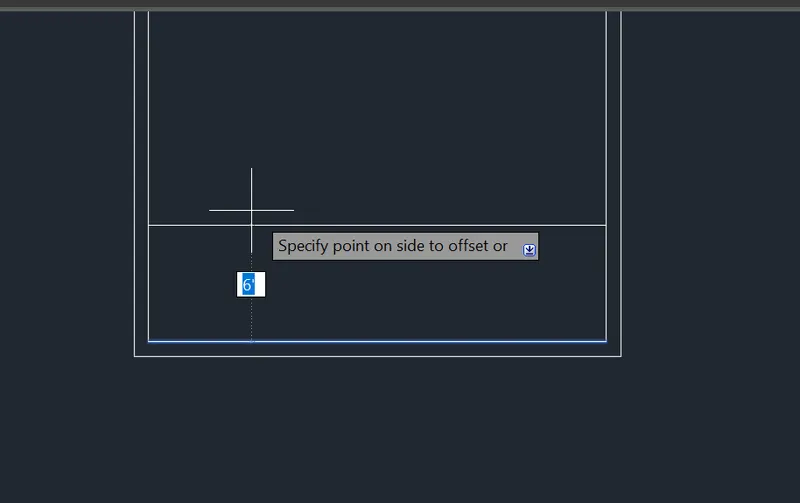
STEP 8:
Again offset the line through 9" and press enter.
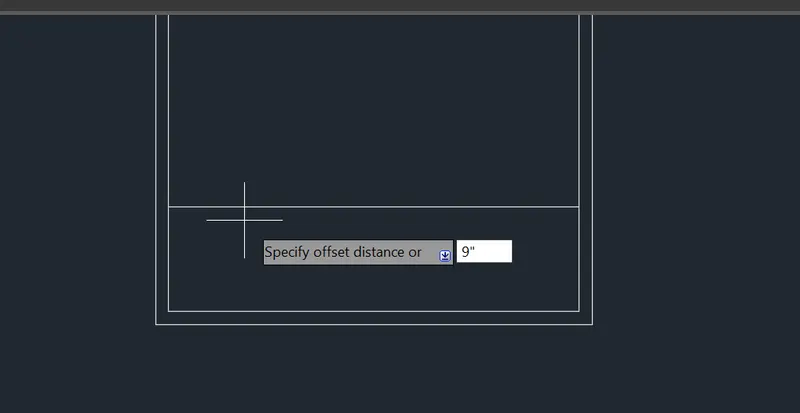
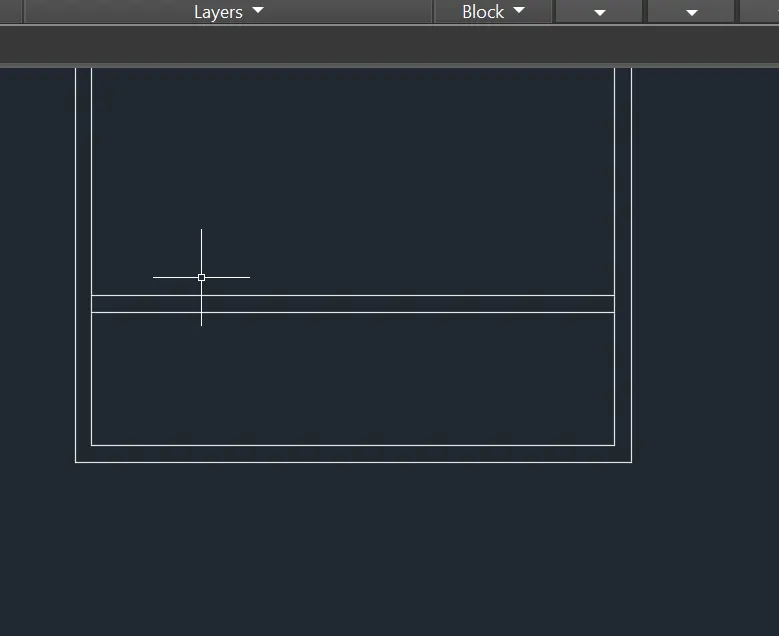
STEP 9:
Again offset the line through 12,-6.0" and press enter.
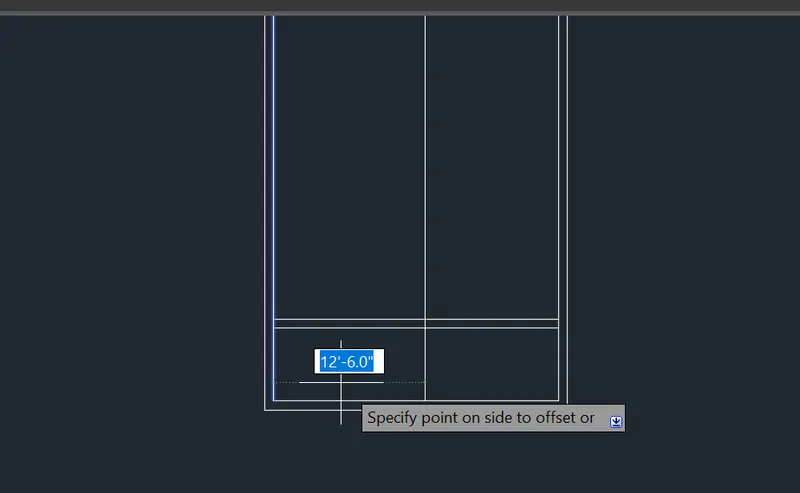
Again offset the line through 9" and press enter.
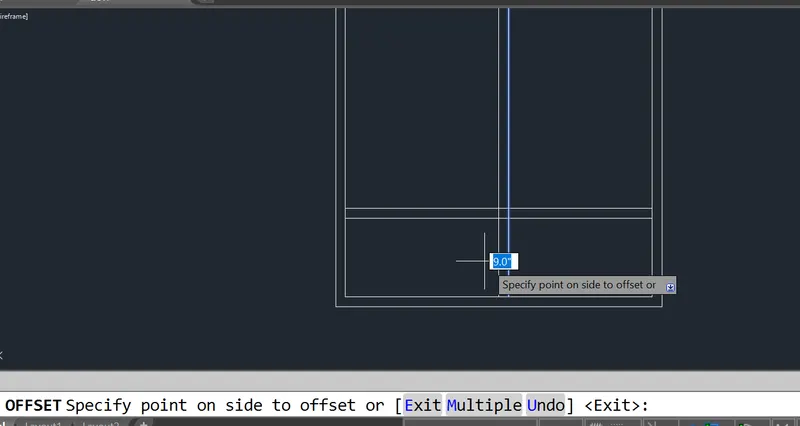
STEP 10:
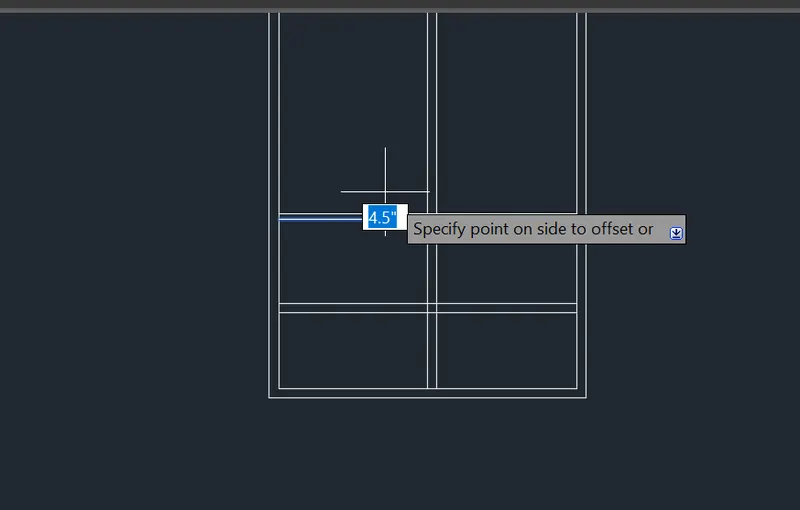
Again offset line through 6'8" and press enter; again offset the line through 4.5"
and press enter.
STEP 11:
Type trim command in command box and press enter
Trim the unwanted lines.
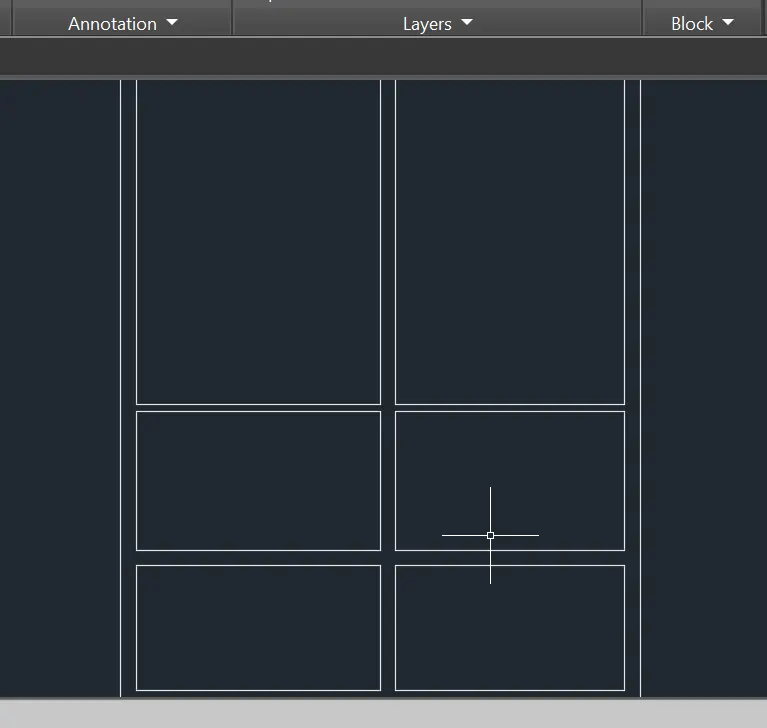
Type the offset command and press enter.
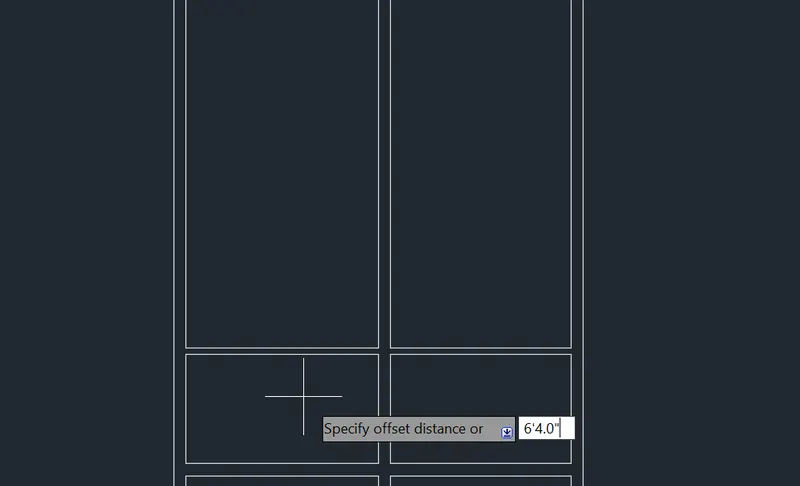
OFFSET the line through 6'4" and press enter.
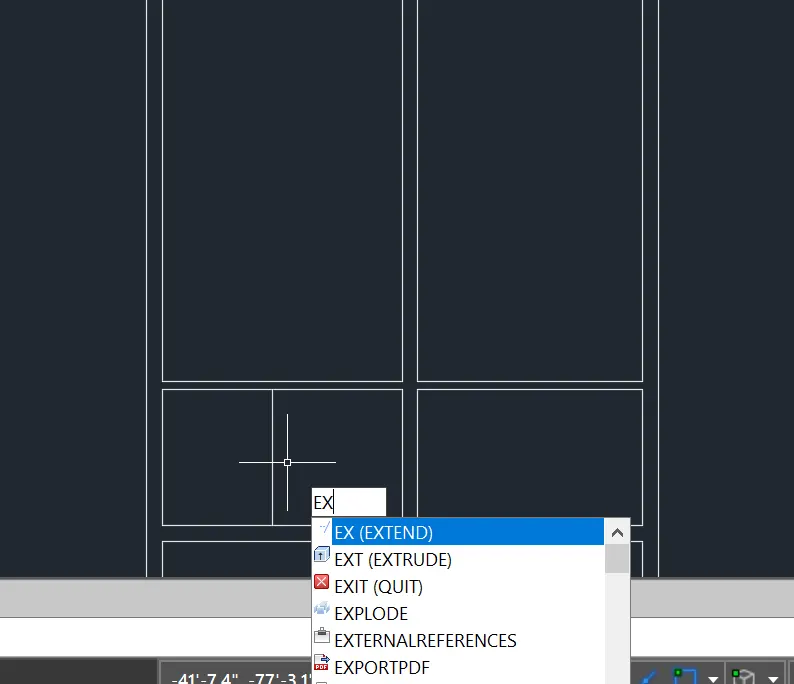
Type the EXTEND command and press enter.
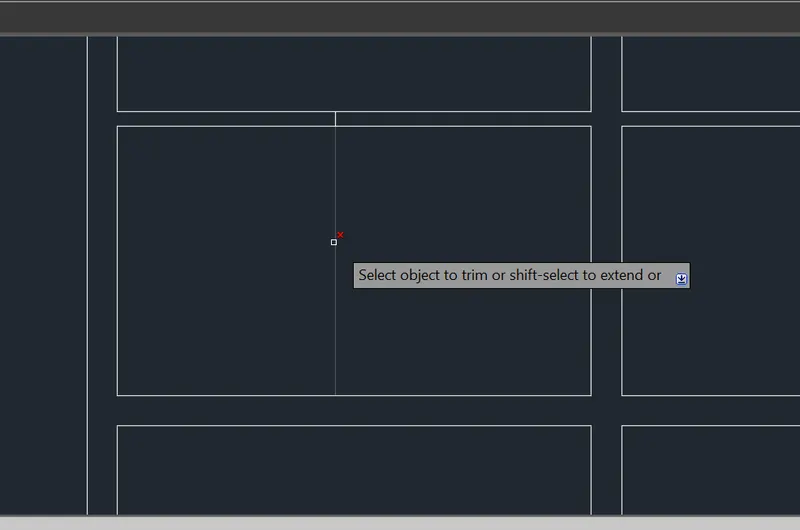
Type the TRIM command and press enter. trim the unwanted lines.
trim the line for door space.
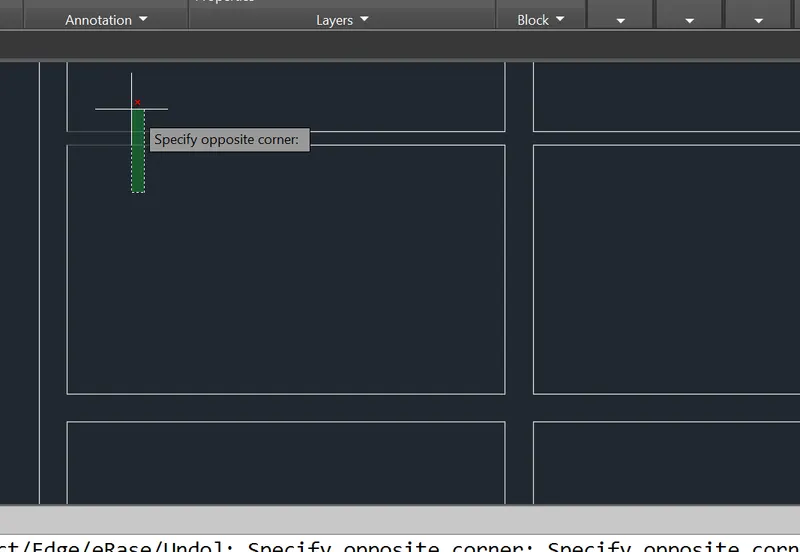
And look like this.
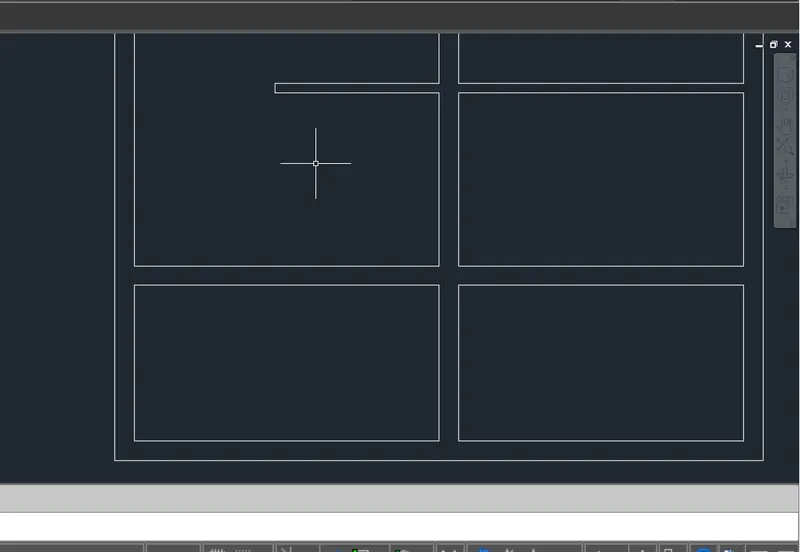
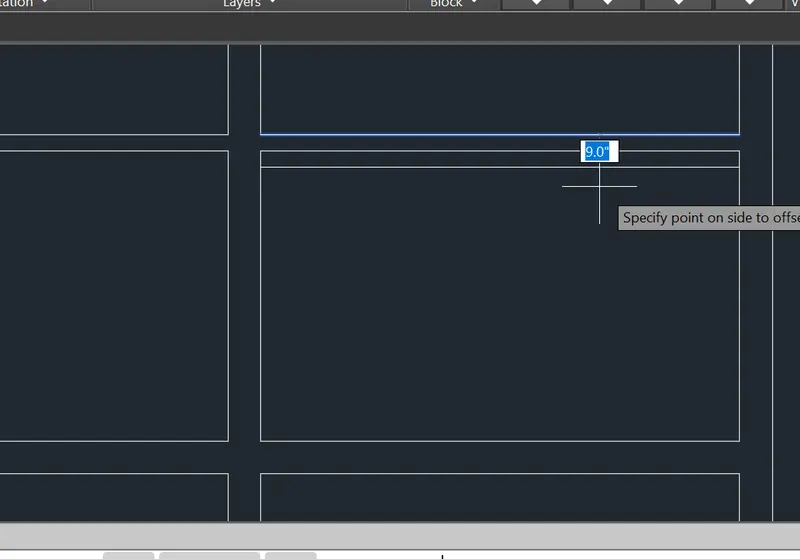
again offset the line through 9" and press enter.
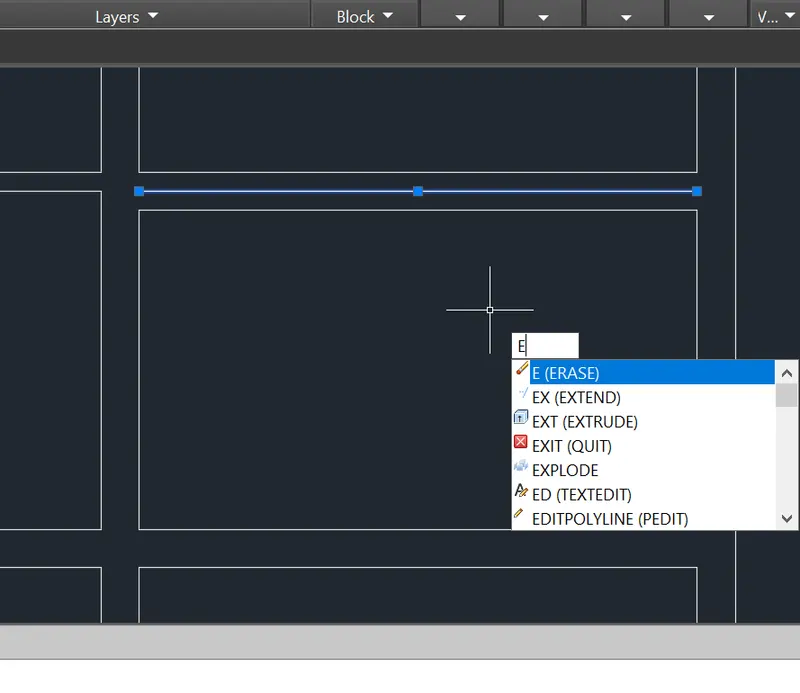
Type ERASE command and press enter , cilck the line to erase it.
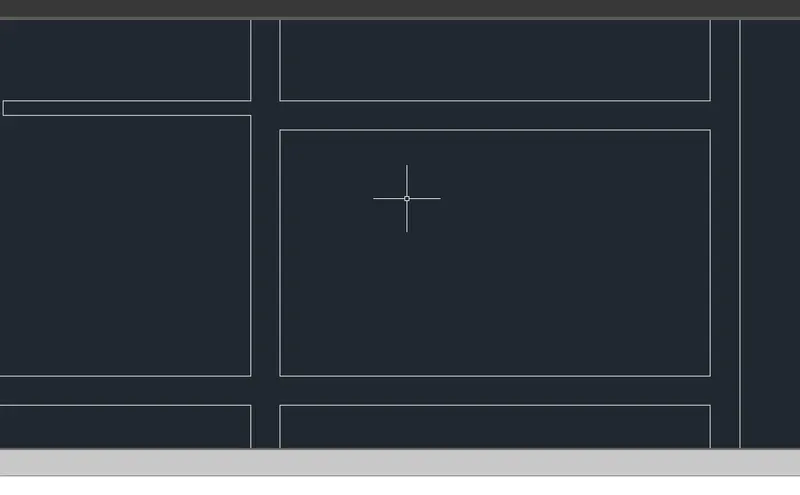
Again offset the line through 3'3.0" and press enter for door space.
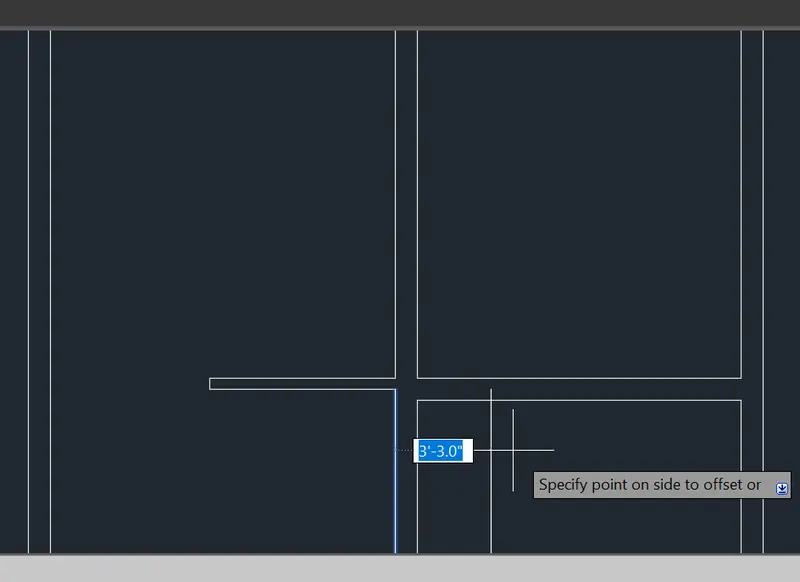
Then, TRIM the unwanted lines .
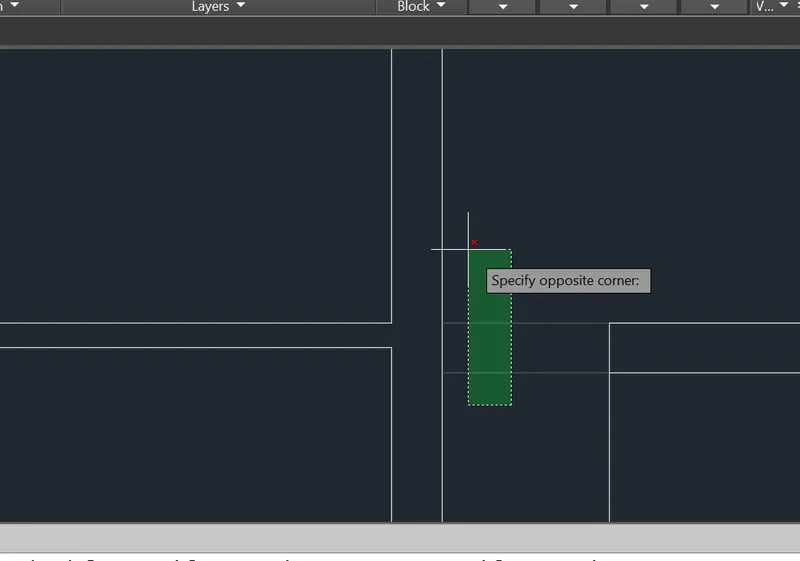
Look like this.
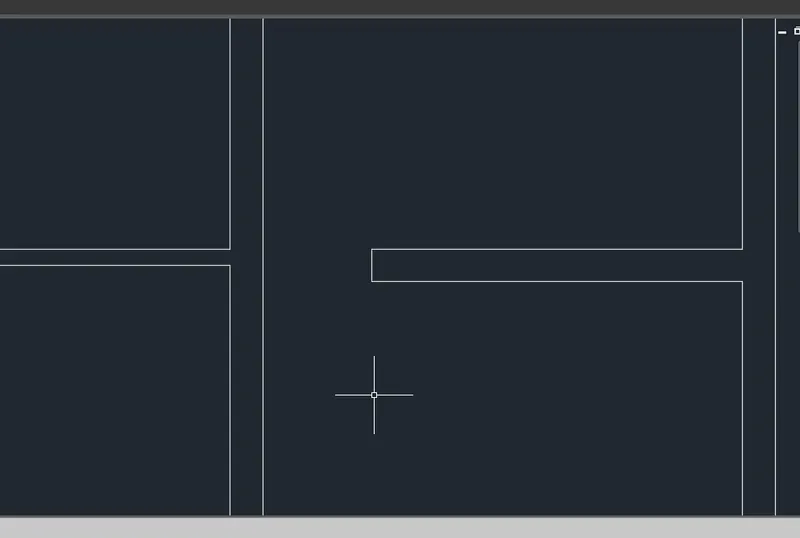
Again TRIM THE above line and press enter.
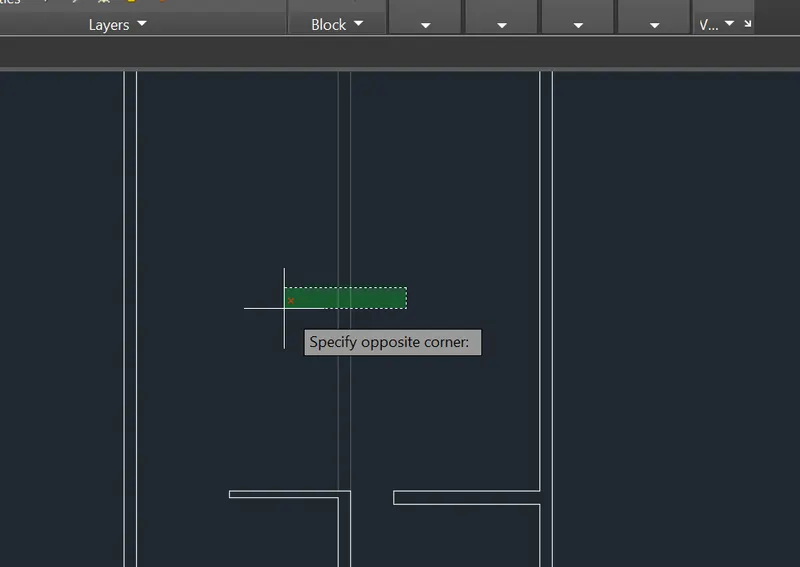
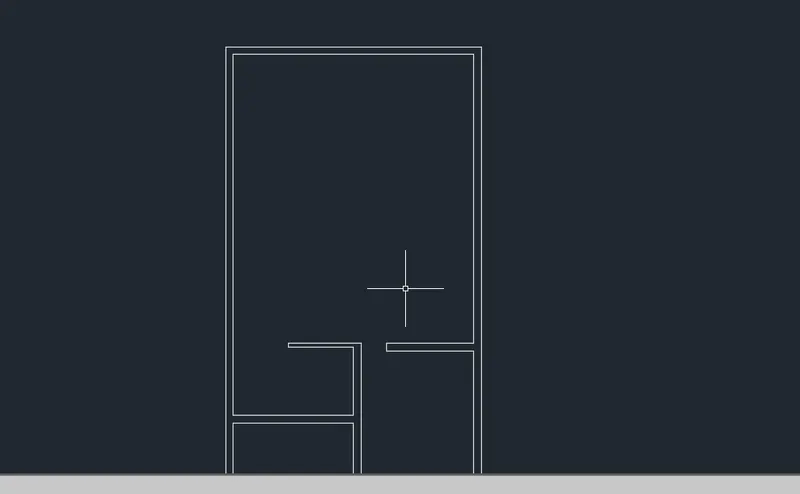
Again offset the line through 11' and press enter.
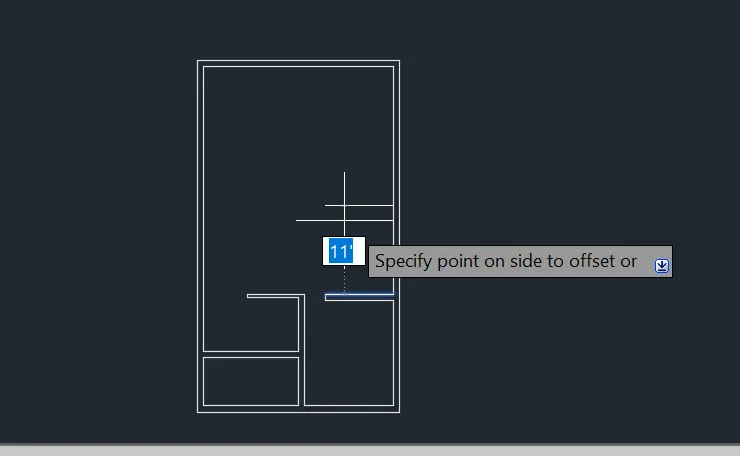
Again offset the line through 9" and press enter.
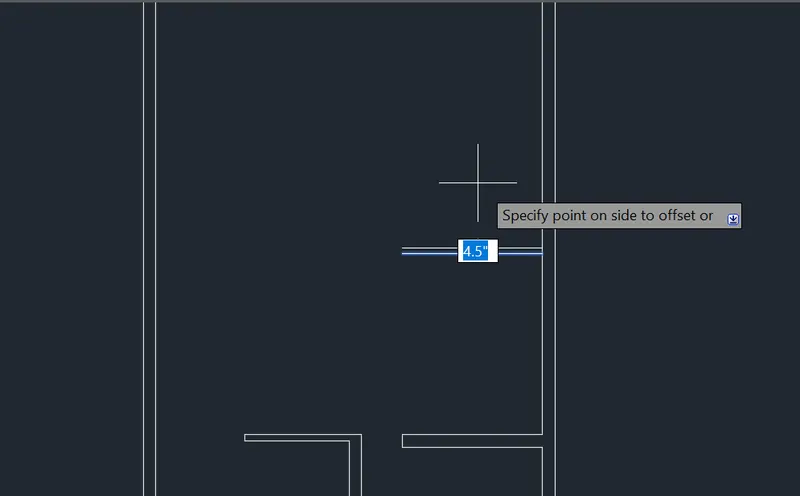
Again offset the line thorugh 8'1.5" and press enter.
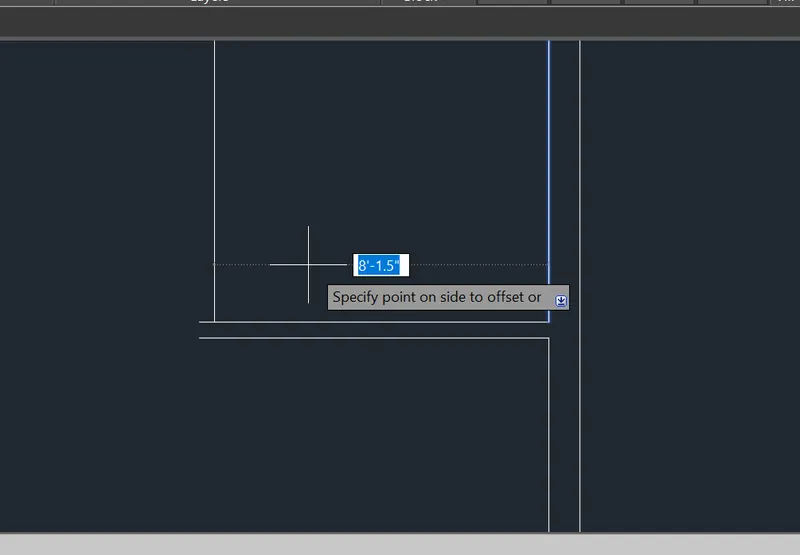
Again offset the line through 4.5" and press enter.
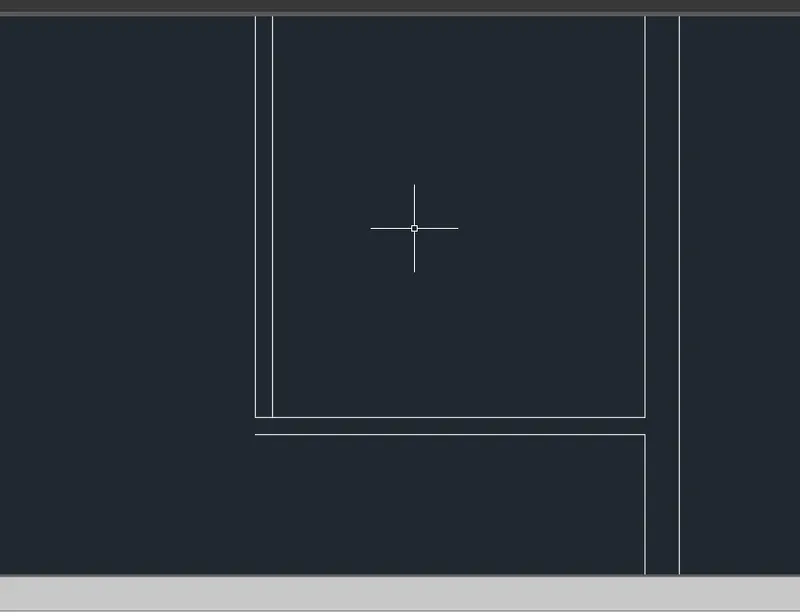
Type fillet command and press enter , give the radius 0 and press enter,
Then select the line and again press enter.
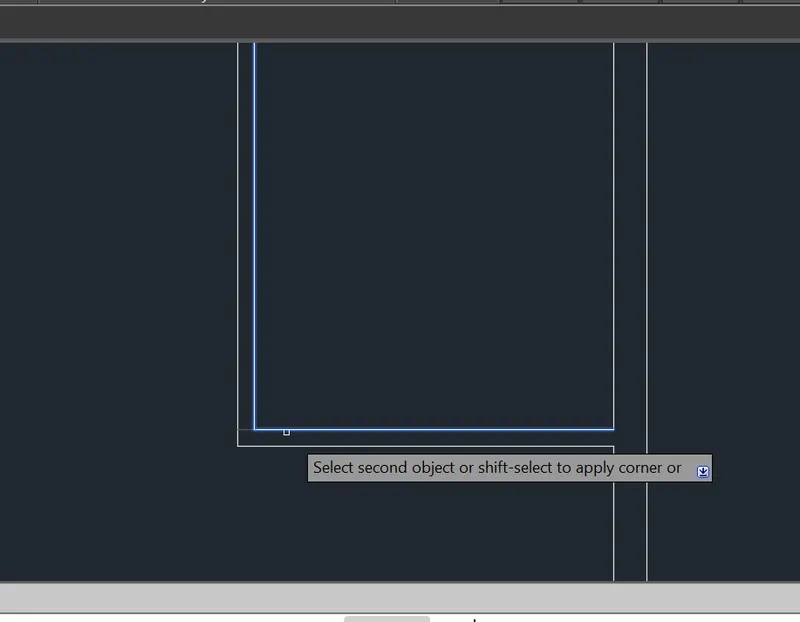
Type the offset command through 4'6.0" and press enter.
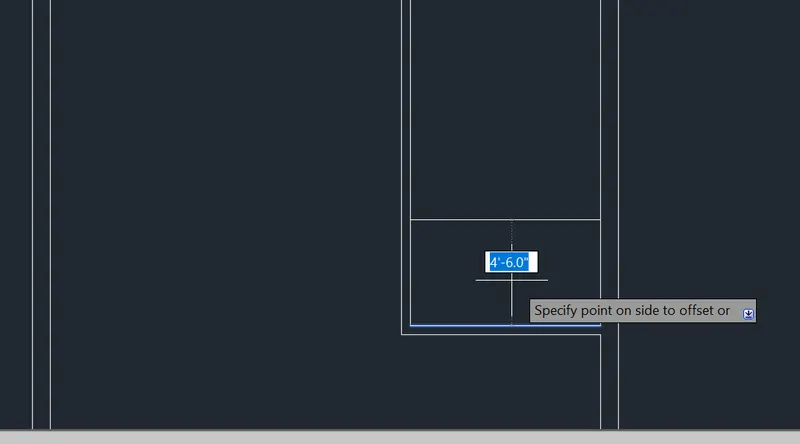
Again offset the line through 4.5" and press enter.
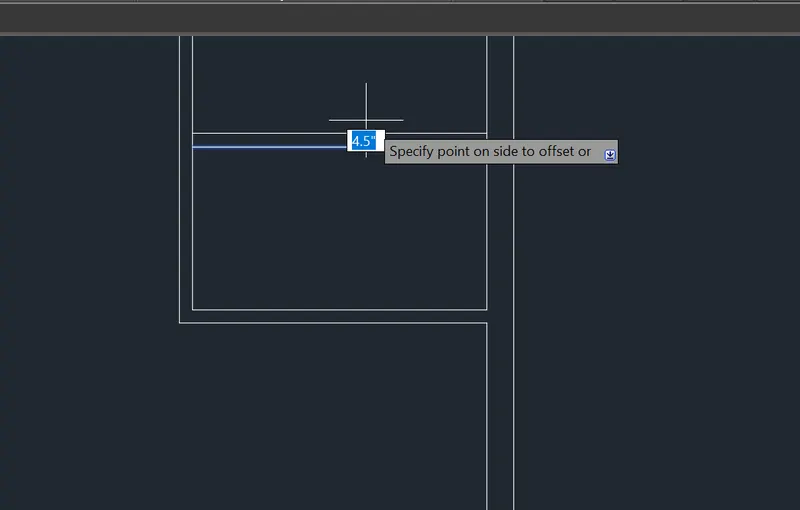
Again offset the line through 2'6.0" and press enter.
And TRIM the lines for door space.
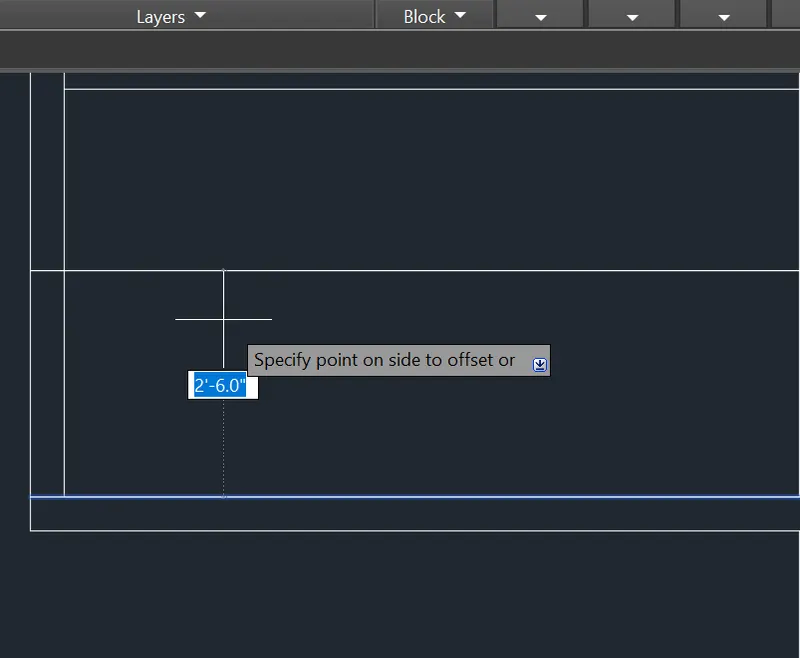
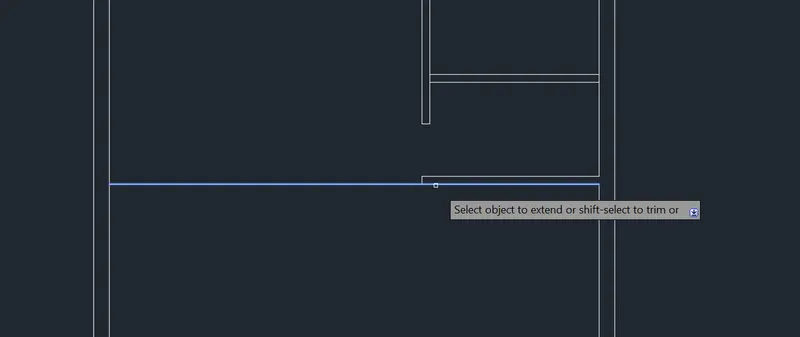
Again EXTEND THE LINE AND PRESS ENTER.
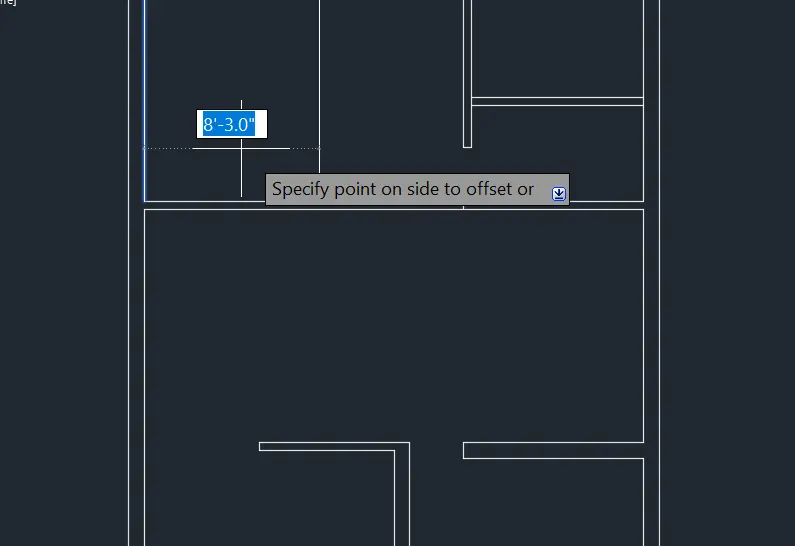
Again offset the line through 8'3.0" and press enter.
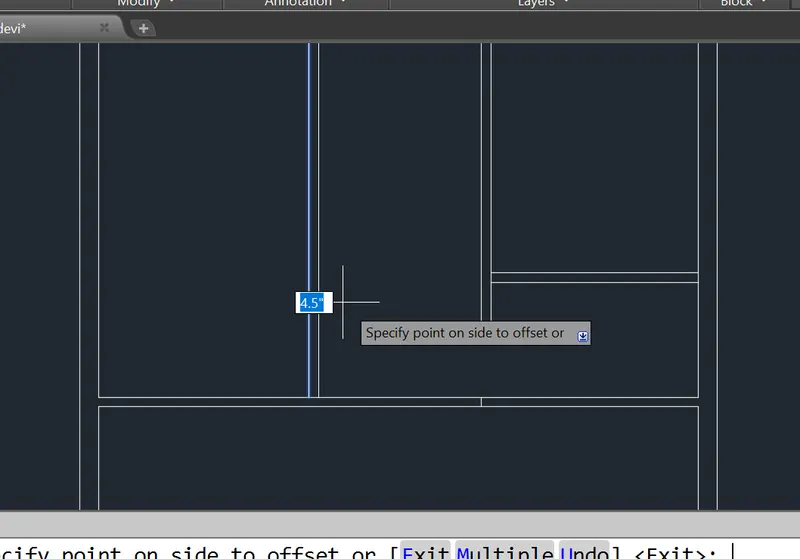
Then again offset the line through 4.5" and pres enter.
Then, TRIm the lines and press enter.
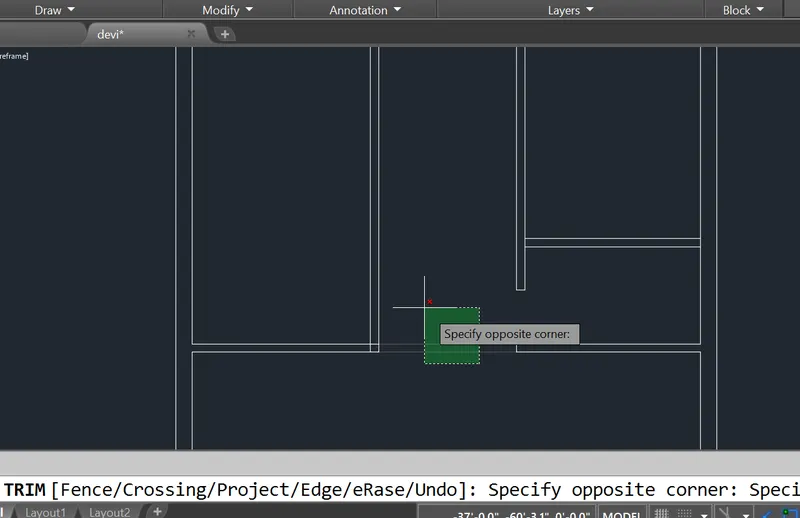
Type fillet to the command box and press enter.
fillet it.
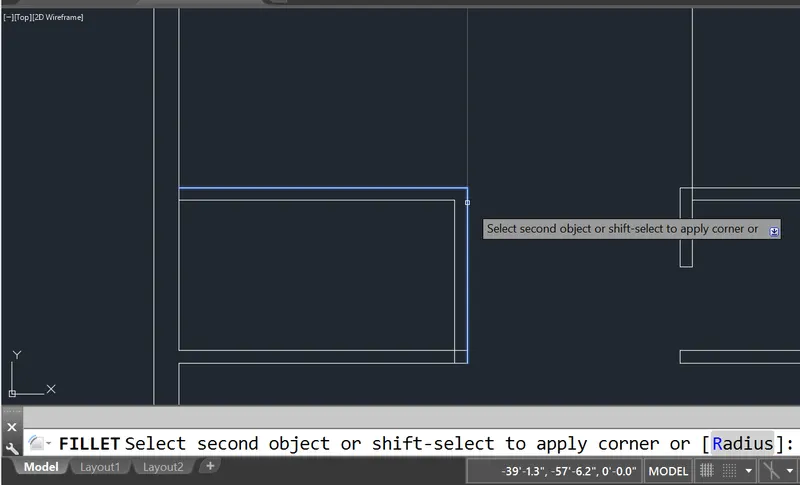
Again offset the line through 11' and press enter.
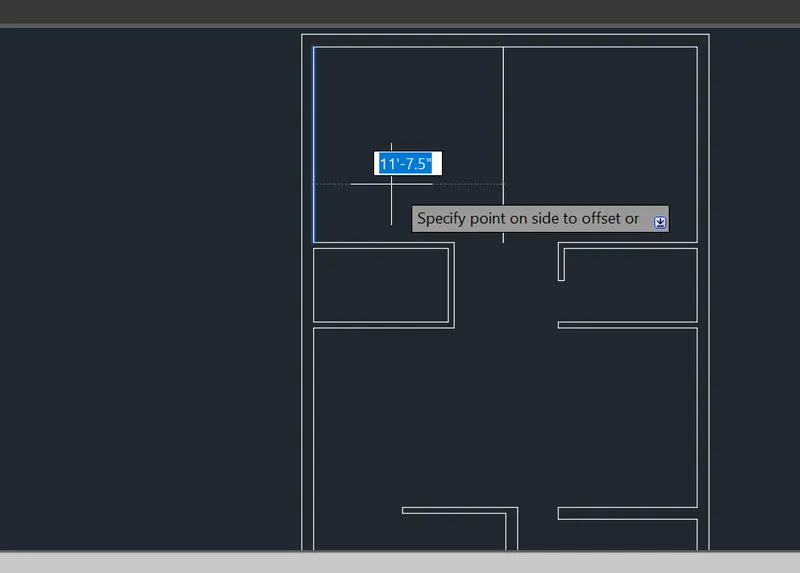
Again, offset the line through 4.5" and press enter.
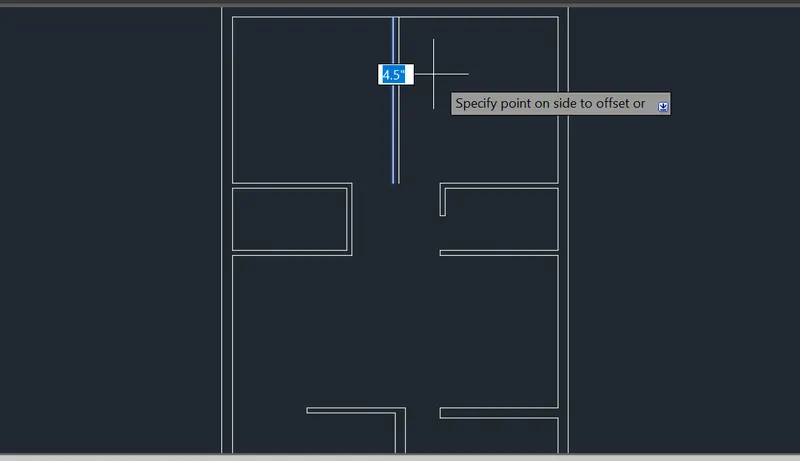
Then give the doors space of 2'6.0" offset command and press enter.
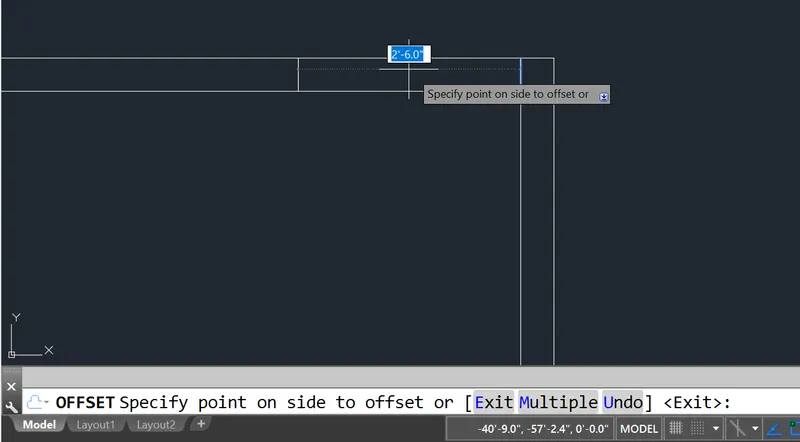
Trim the unwanted lines for door spaces.
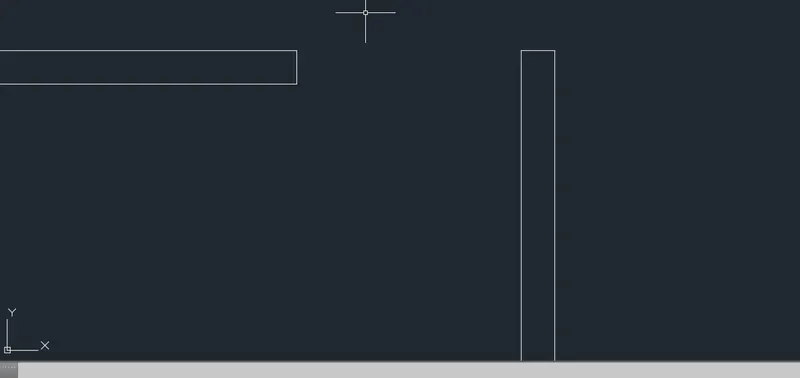
And offset hte line through 1'3" and, again offset the line through2'6.0" and press enter.
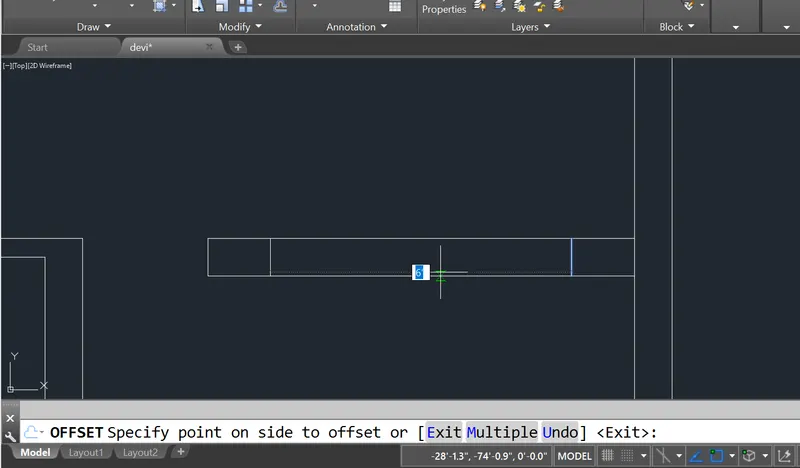
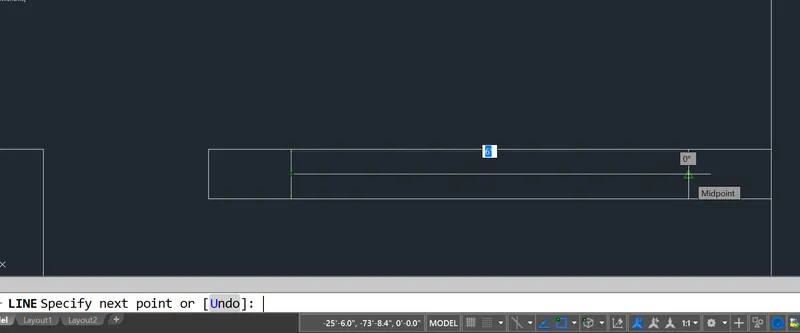
And tpe line command and press enter,
Pick the mid point and draw the line for window.
And press enter for Exist.
Offset the lin ethrough 3' and press enter for stairs.
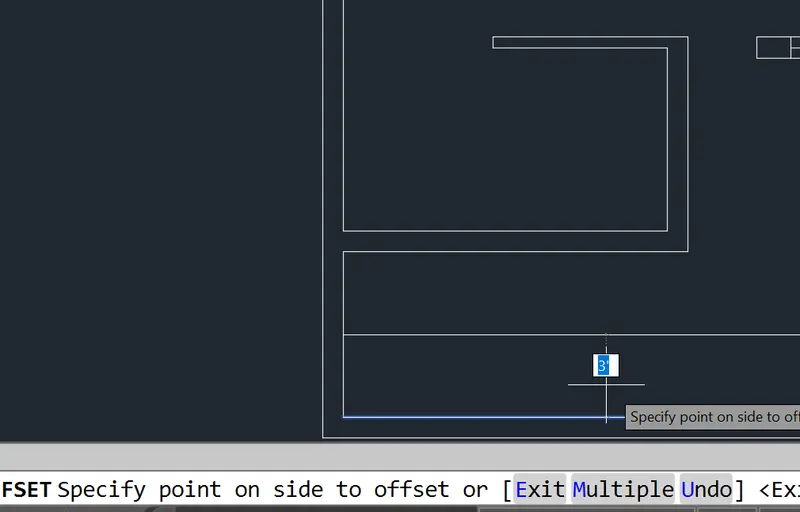
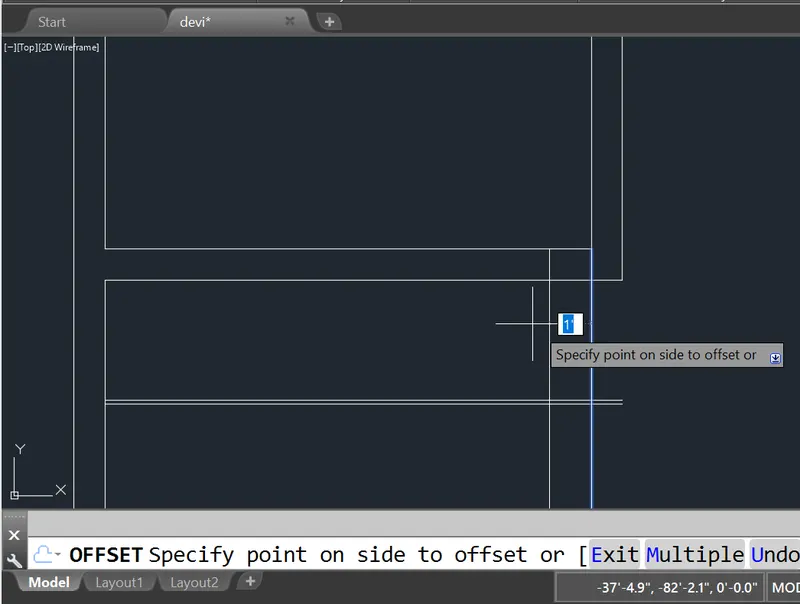
Again offset the line through 1' for the steps and press enter.
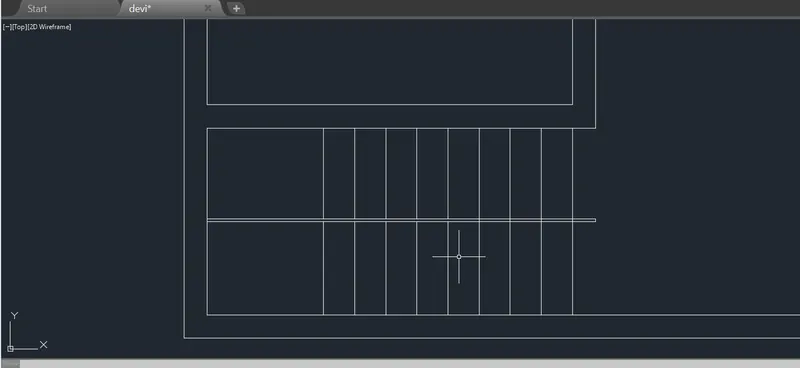
And pick the mid point and draw the line of croos sections, and press enter to exist.
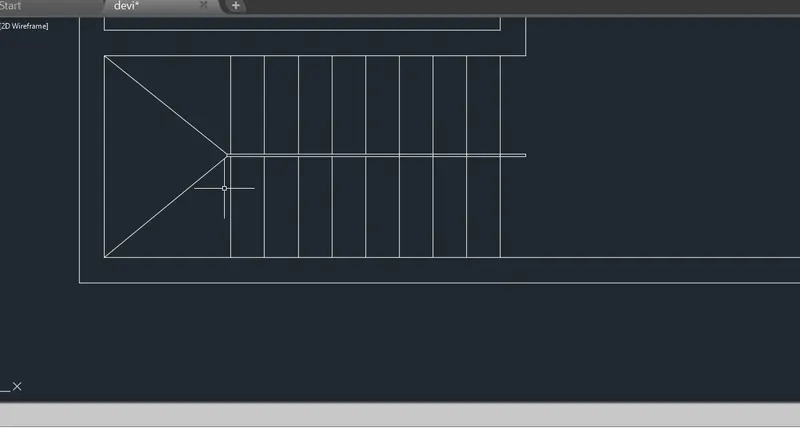
Give the arrow line to identify the upwards and downwards to the stairs.
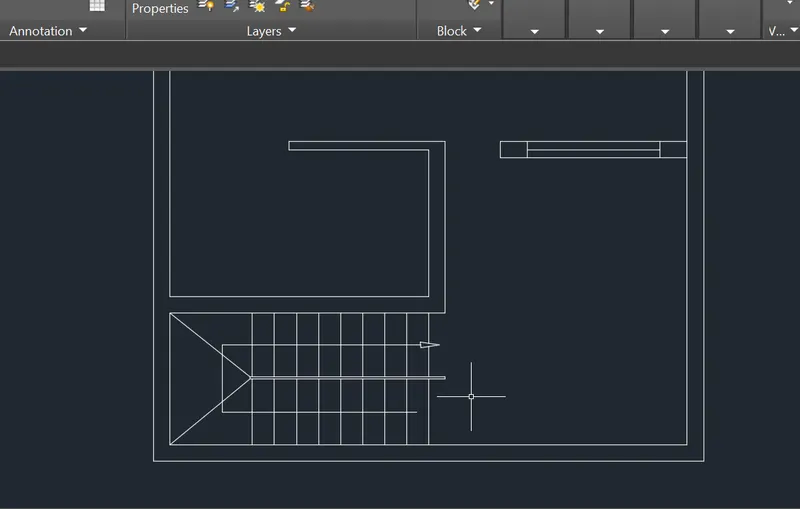
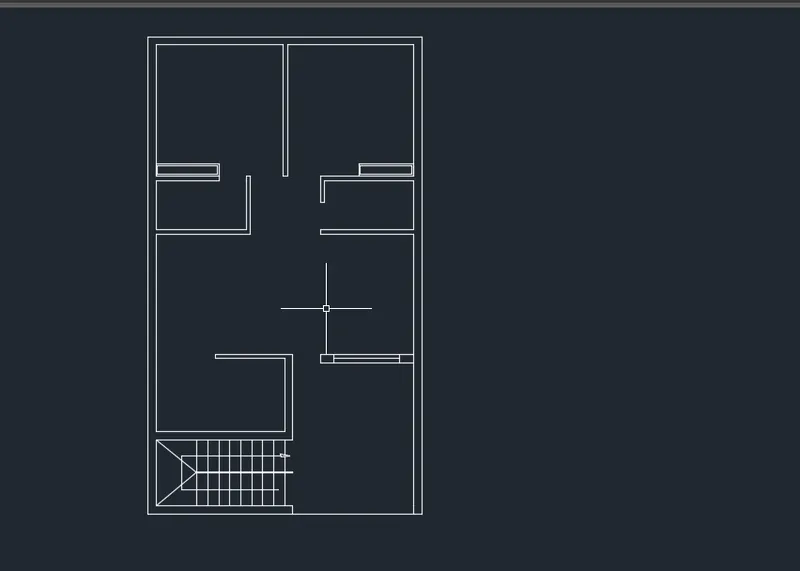
Now, complete the full floor plan without layers.
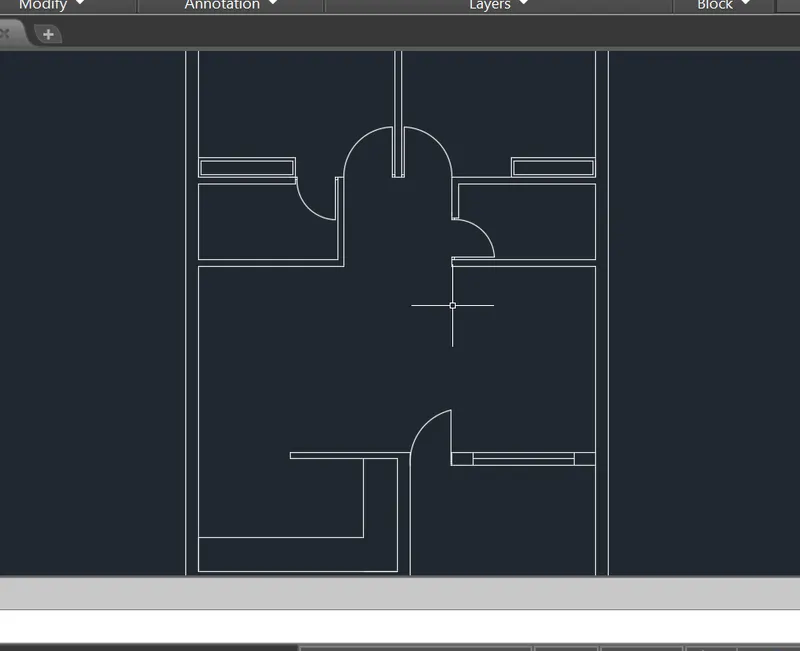
And create the doors, then move to drag the object then fix it.
Give the dimensions command and press enter ,
pick the lines enter it.
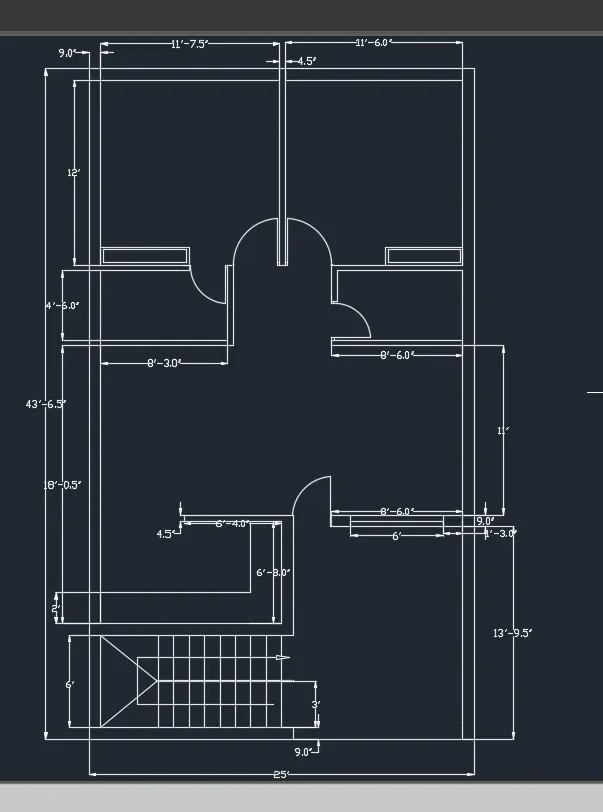
Step 12:
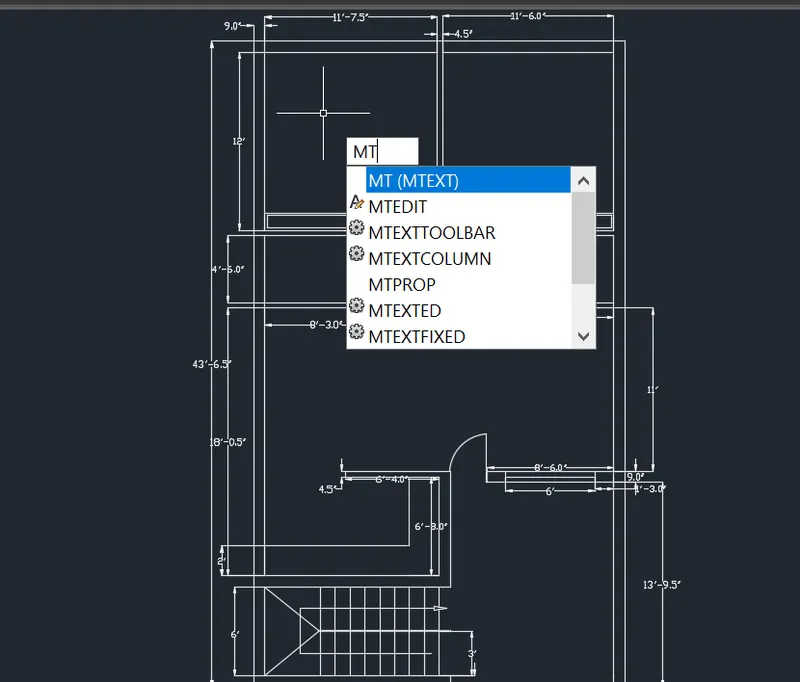
Type the MTExt command and press enter ,
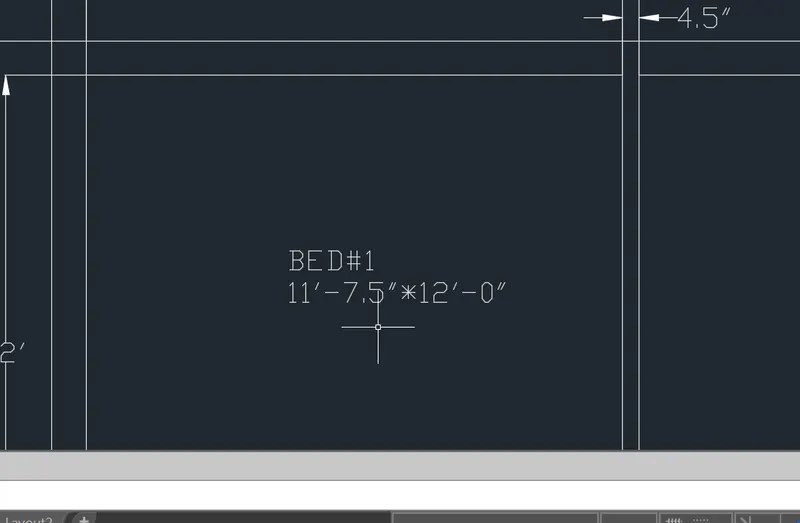
pick the point and type the tiles and names.
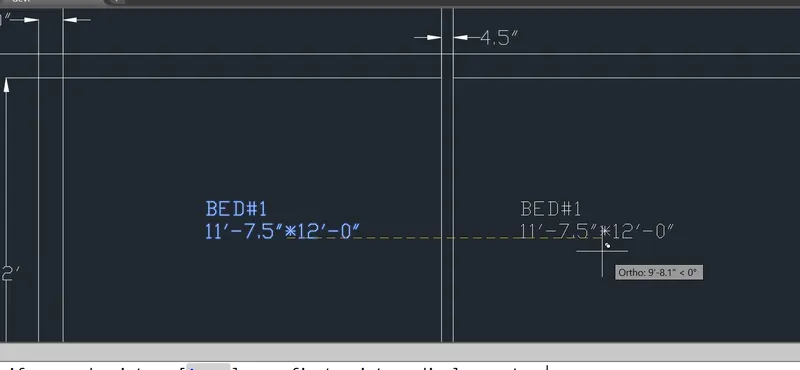
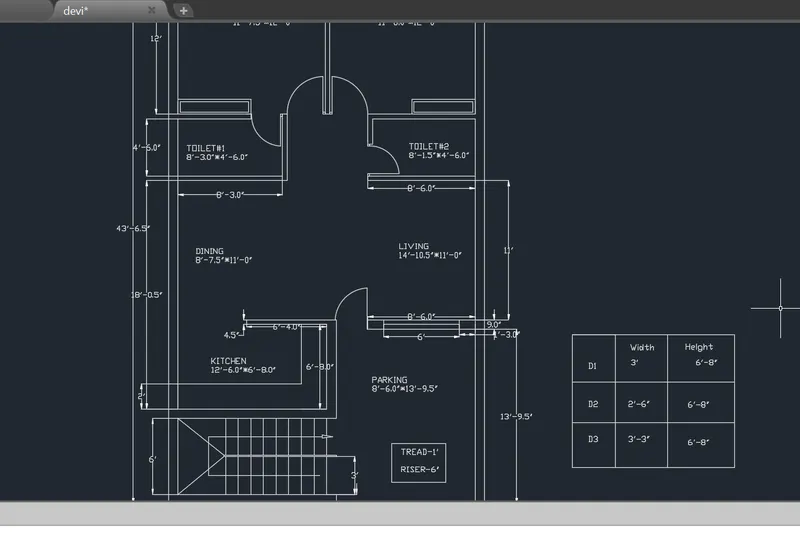
Finally,
give all texts, dimensions are it.
STEP 13:
LAYER MANAGEMENT:
ABOUT LAYERS:
Layers are the primary tools for organizing the objects in a drawing by their function purpose.
layers are used to reduced the visual compexity of a drawing and improve display performance
by hiding the information that user does not need to see now. It is a good practice to create
the set of layers related to the work before you start drawing. Usesrs can seperate layers for
items like lines, dimensions, annotations and hatches and so on. Similarly, in a house plan,
the user can layer for the foundation, floor plan, doors, fixtures, electrical and so on.
STEP 14:
Open the building floor plan.dwg file .
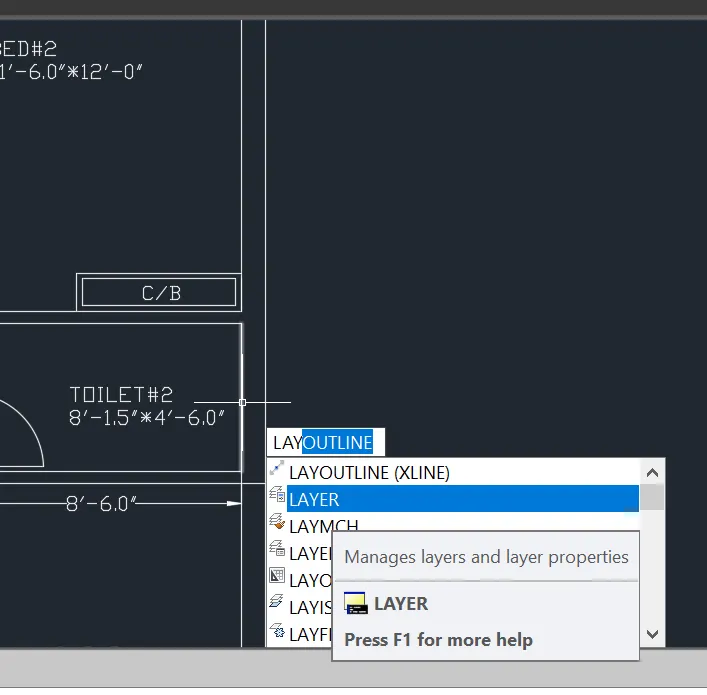
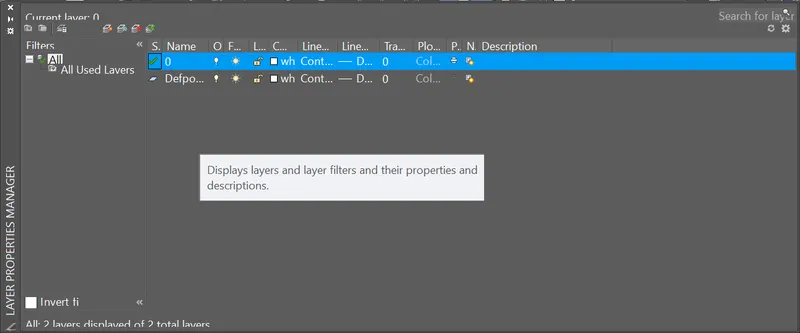
And, Type LA in the command box and press enter, the layer properties manager appears.
Now, a new layer is created with name as Layer 1.
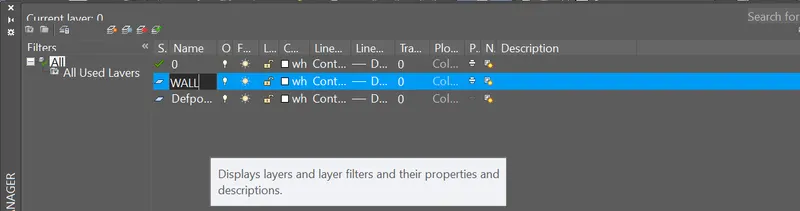
Now, a new layer is created with name as wall.
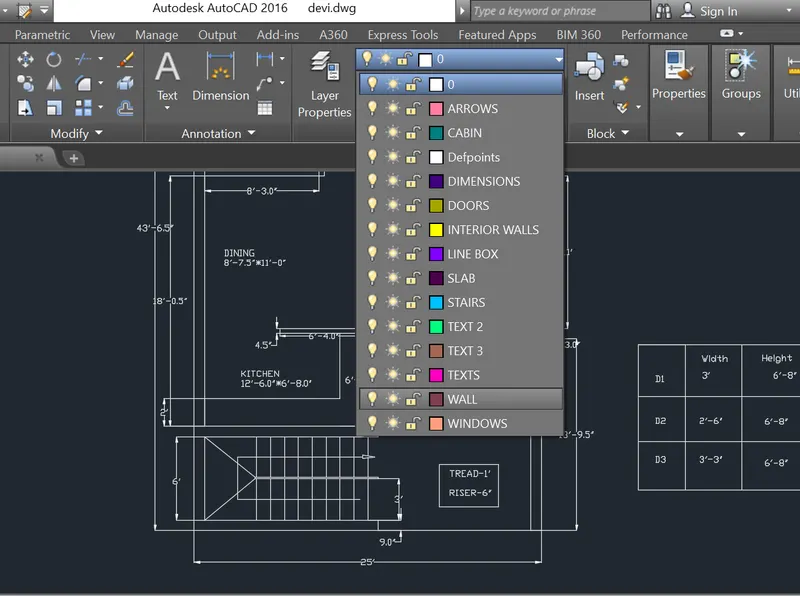
STEP15:
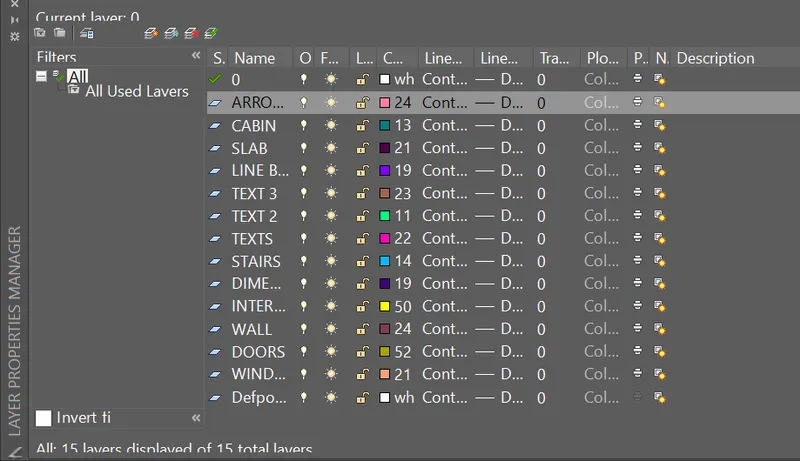
Repeat the same procedure and create all necessary layers with the given properties in the layer property table.
Create the layer are as shown in figure.
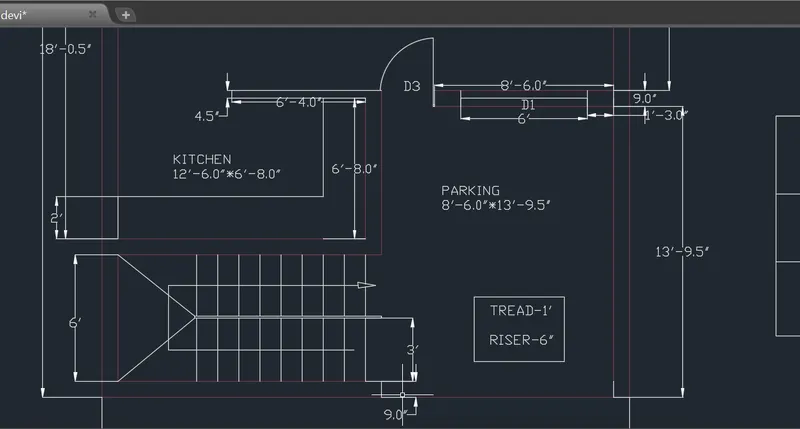
Step 16:
Adding objects into appropriate layers.
SElect the outer line from the drawing.
Then select the wall layer and press enter.
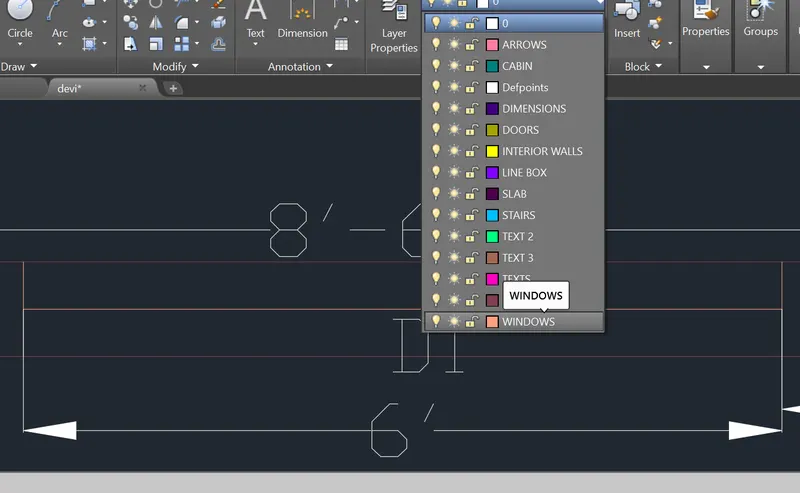
STEP 17:
Again repeat the same process to create the window layers, DIMENSIONS LAYERS , INNER WALLS, STAIRS , TEXTS, SLABS ,ETC...,
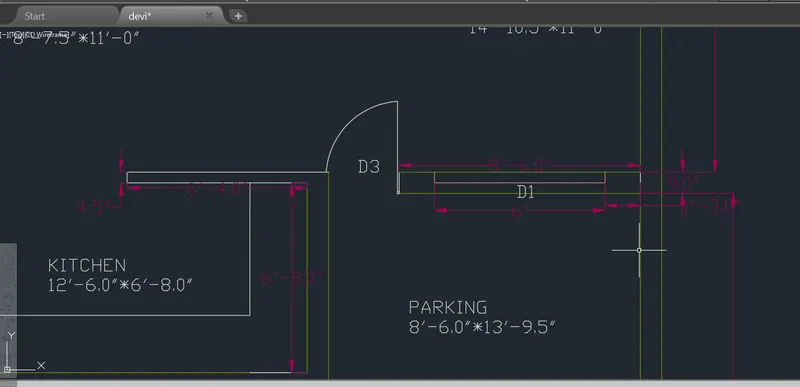
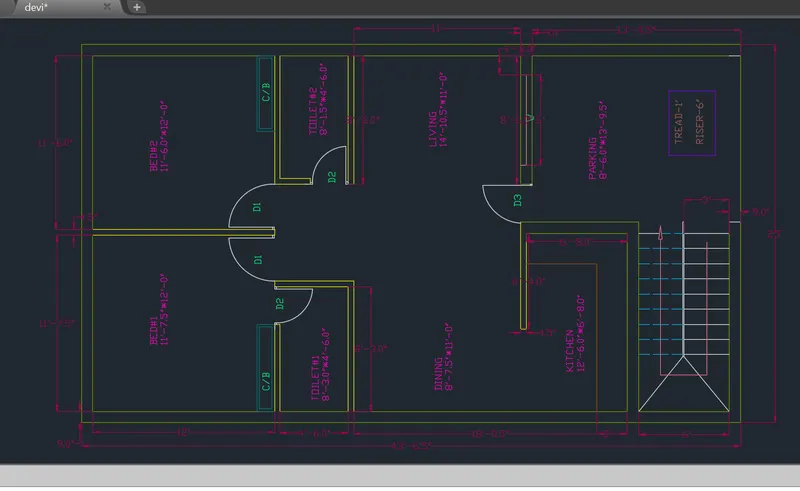
RESULT:
A RESIDENCE OF FLOOR PLAN IN AutoCAD Software(with layers) and ALL DIMENSIONS IN INCHES.
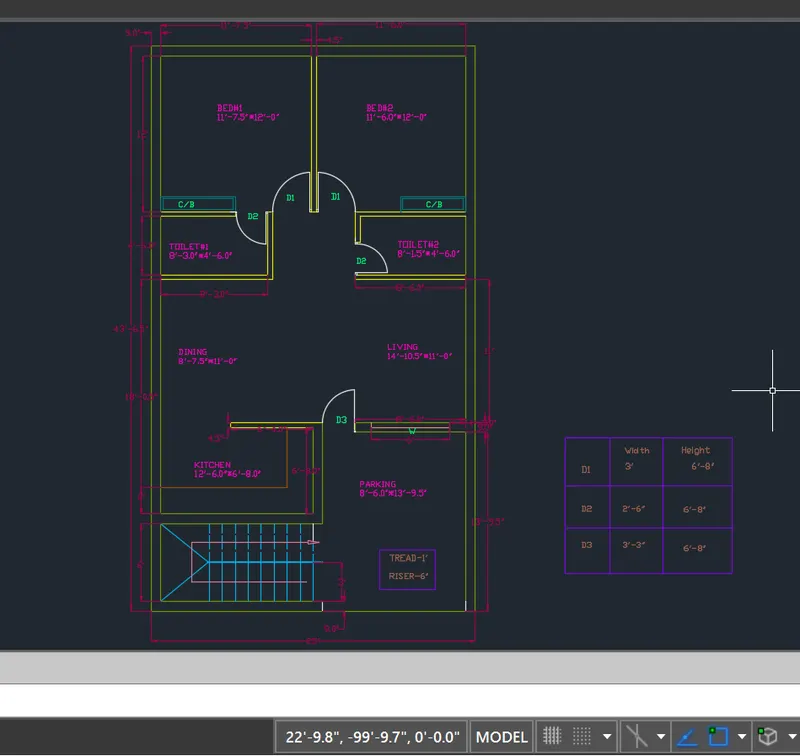
CHALLENGE 2: OUTDOOR CANOPY.
AIM:
To sketch the seating plan for an outdoor canopy.
Assume the dimensions for the seating.
Also, consider the dimensions in mm.
INTRODUCTION:
This tutorial will explain the step by step procedure to draw a seating plan for an outdoor canopy.
as shown in the fgure below using circle command in AutoCAD. All dimensions are in mm.
DRAFTING PROCEDURE:
1. Begin a new project in Auotcad 2D modelling in space of the project with imperial template.
2. Create the necessary project elements.
3. Create the followings: Floor plan , walls, door, Window, stair using the properties given.
4. Assemble all the drawings in layer command: Layers
5. Save the drawing file as Building_ACA_Model.dwg.
6. Then, start the drawing in model space .
Set the units in engineering ,
To save that settings.
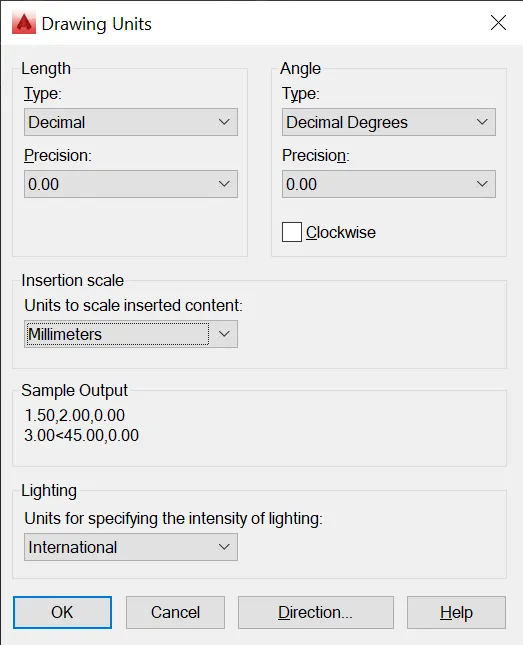
LIMIT COMMAND:
LIMITS command sets an invisible rectangular boundary in the drawing area that
can limit the grid display and limit clicking or entering point locations.
Procedure to access:
1. Command:LIMITS and press enter
2. Shortcut key: LIMI
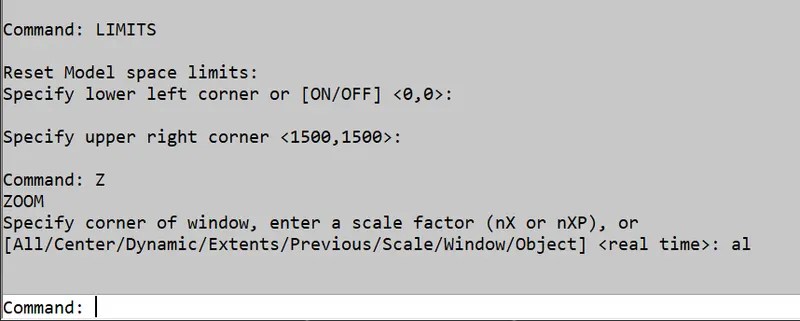
STEP 1:
Type the circle command and press enter,
pick the center, radius and press enter,
Pick the base point and press enter to draw the circle.
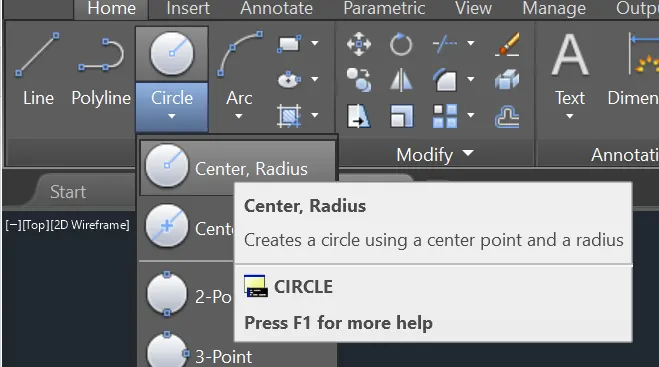
Select the base point and press enter.
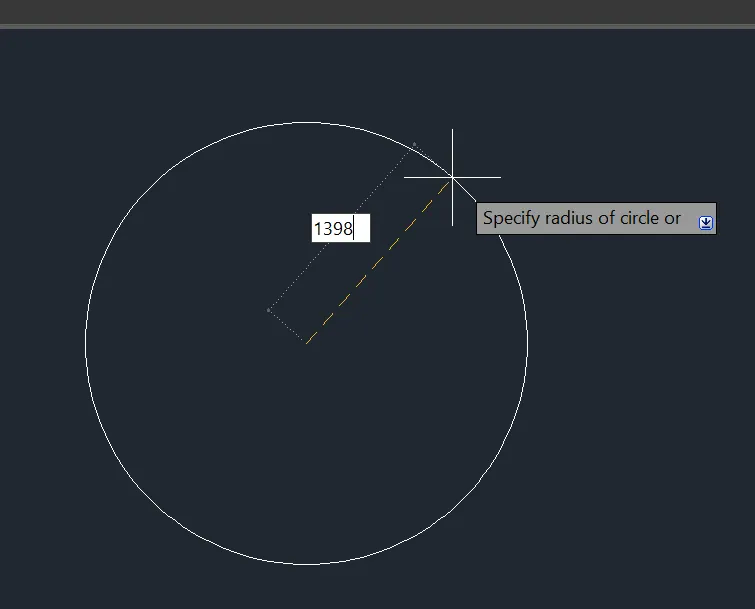
Again type circle command and pick center,radius and press enter to draw the cirlce in the center point of the 1st circle.
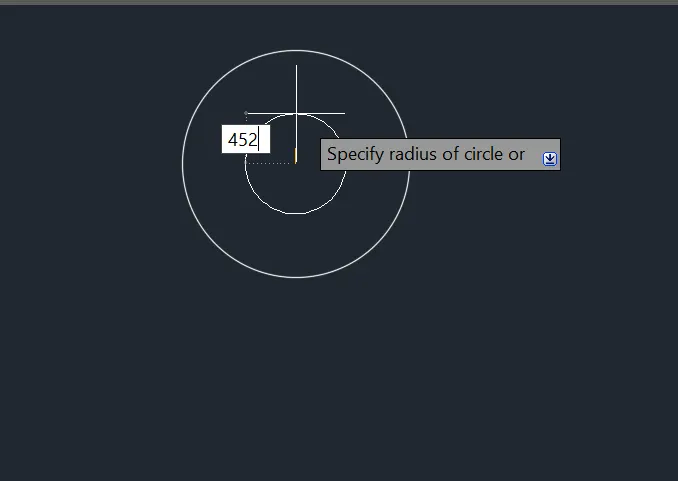
Then, draw the rectangle area 650 and press enter.
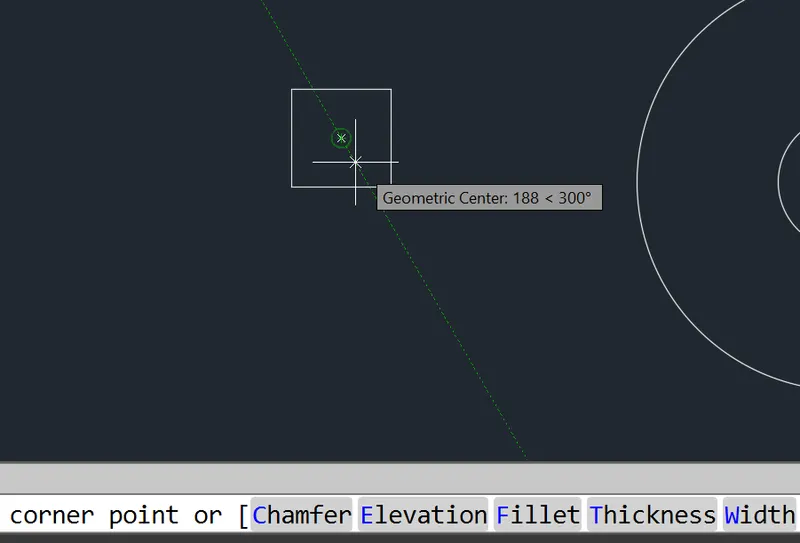
Type fillet command and press enter.
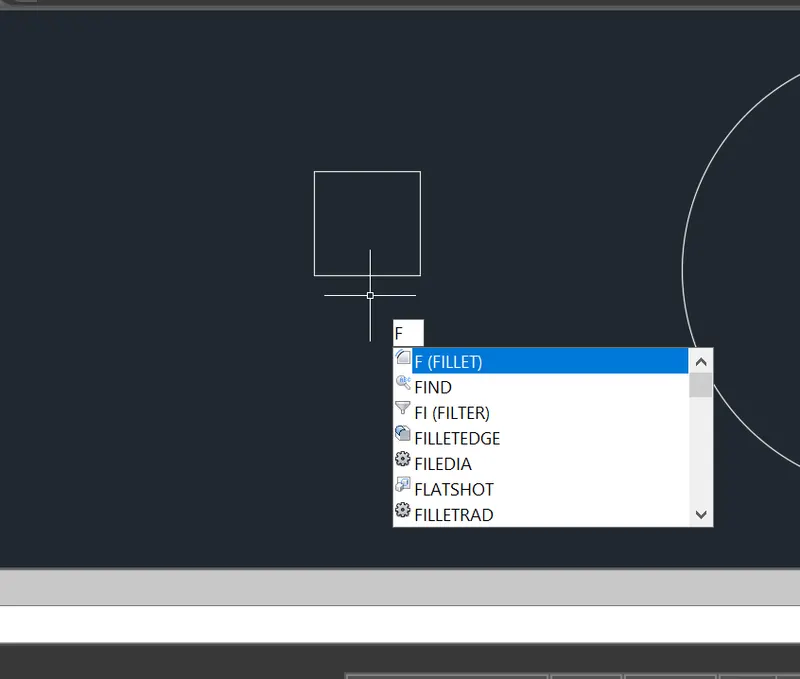
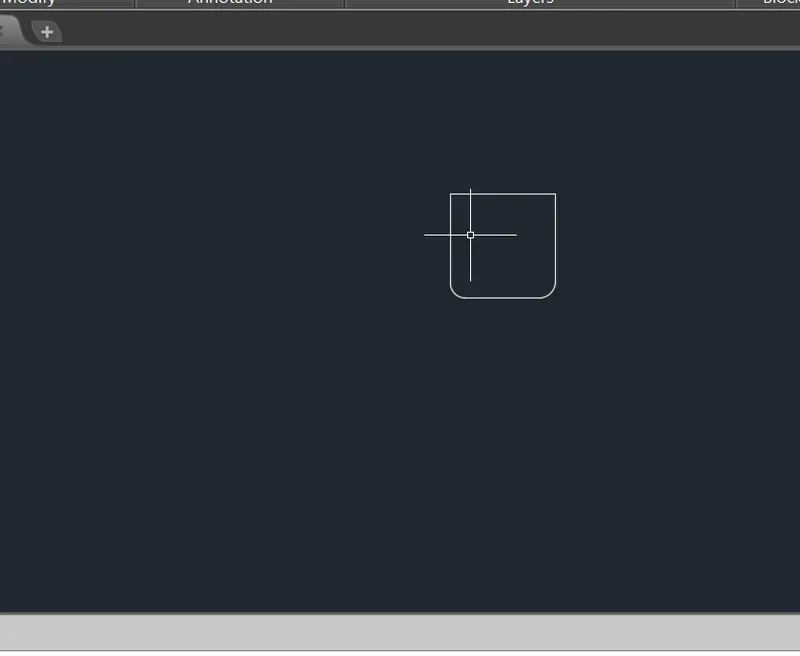
Select the base point and give radius 100 and click the select the objects and press enter.

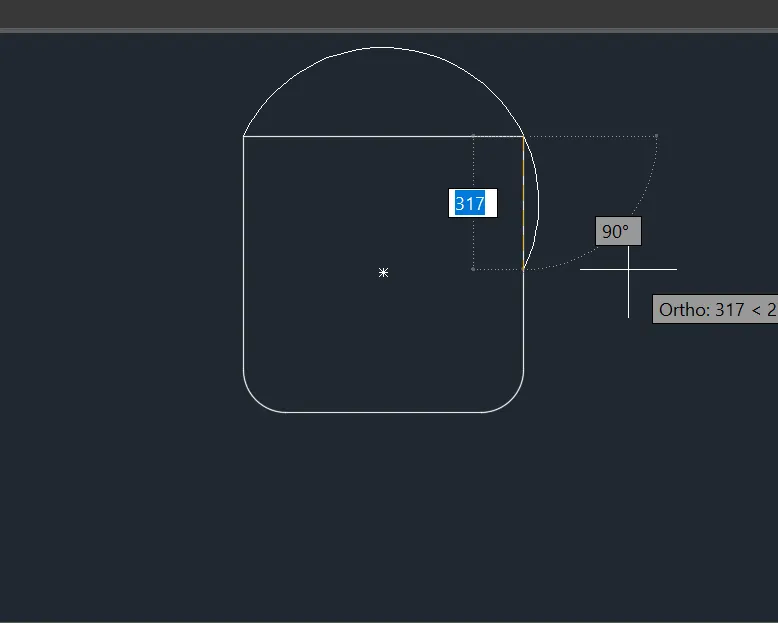
Type the arc command and, select the points to drop the arc an dpress enter.
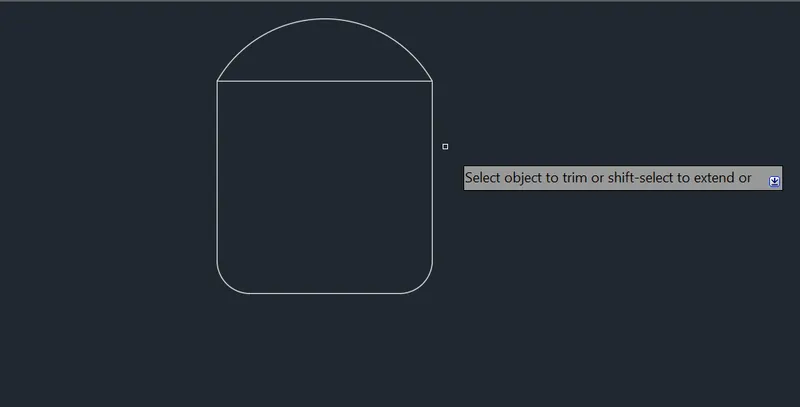
Type the TRIM command and press enter, select the line to trim it.
Type the offset the lines through 40mm and press enter.
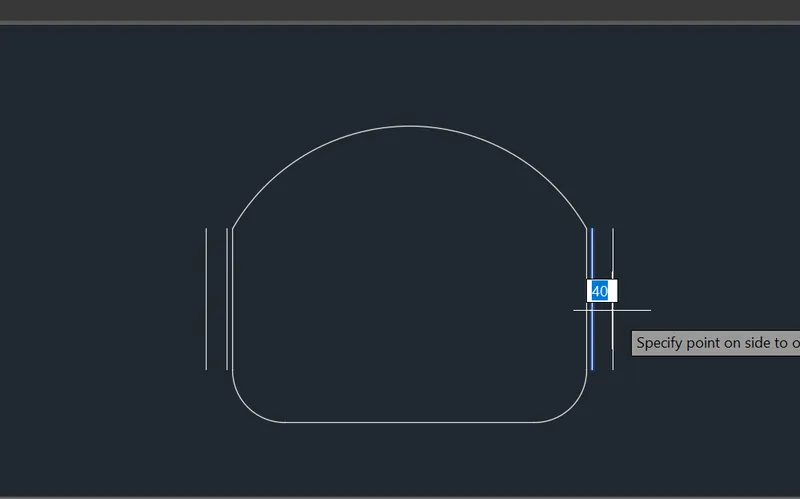
Again Trim the lines and press enter.
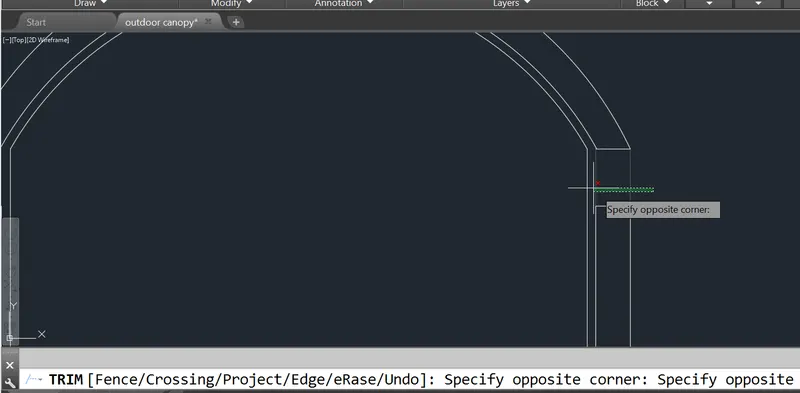
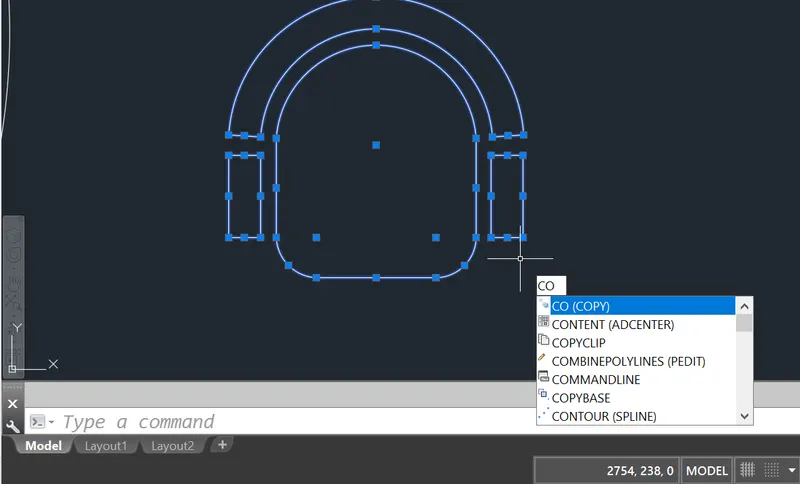
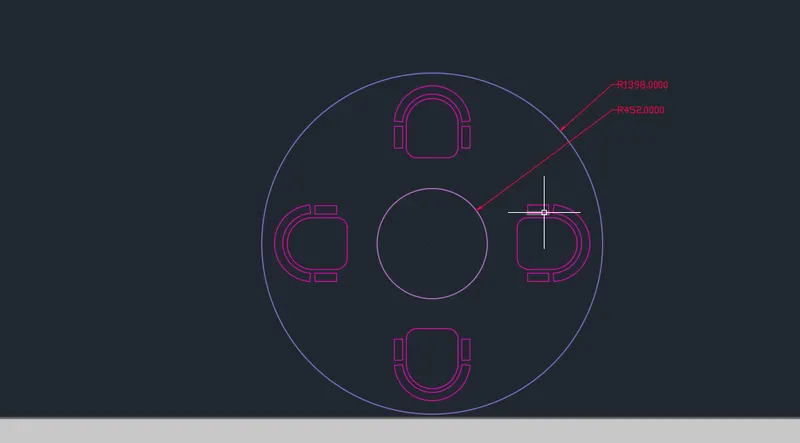
And complete the chair model.
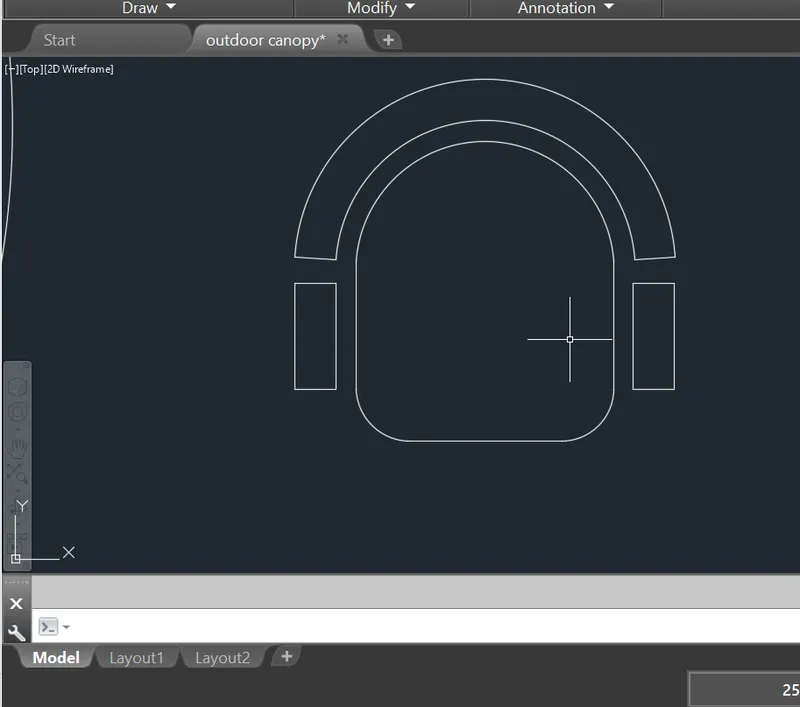
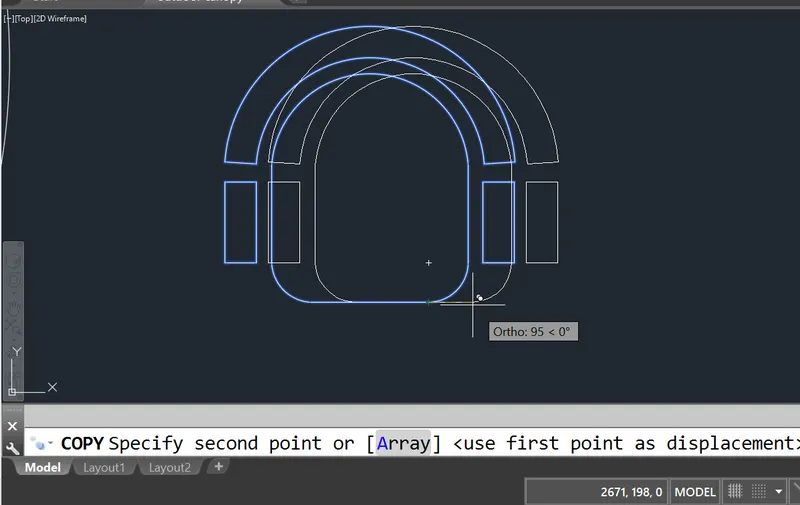
Select the model to copy it.
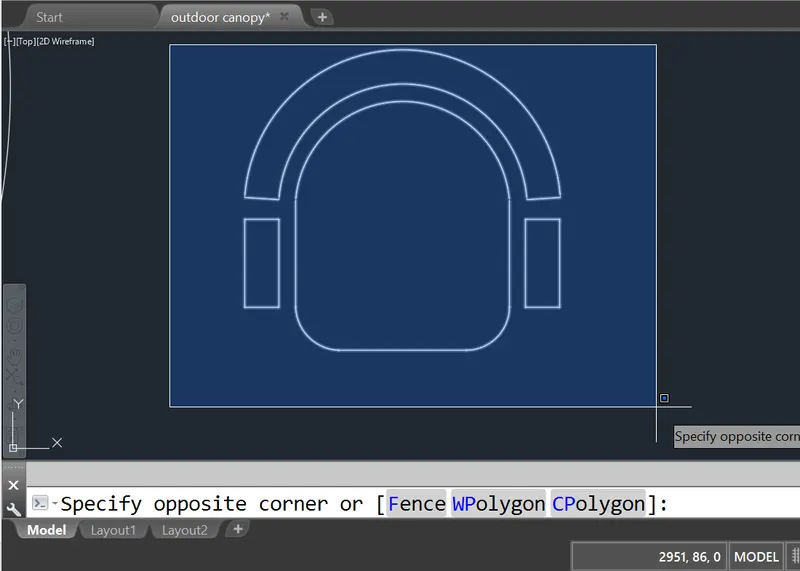
Type the copy command and press enter.
Type the rotate command and press enter, select the object to rotate.
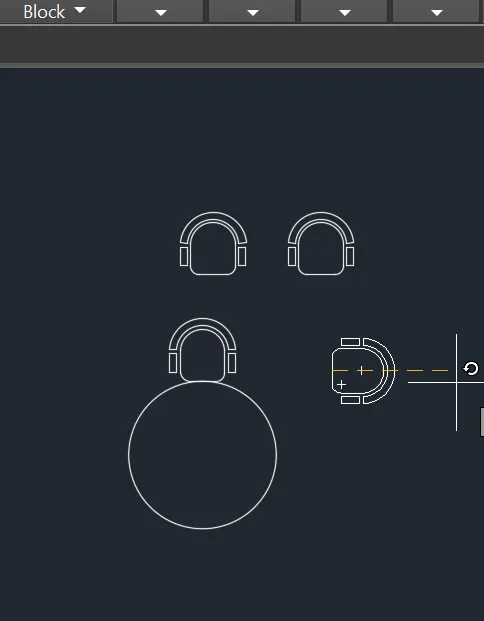
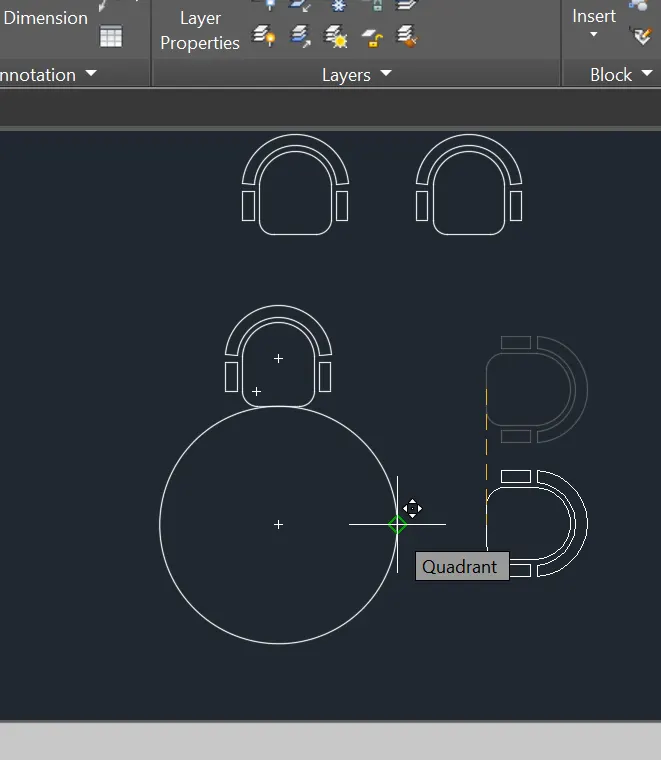
Finally, move the object to the circle.
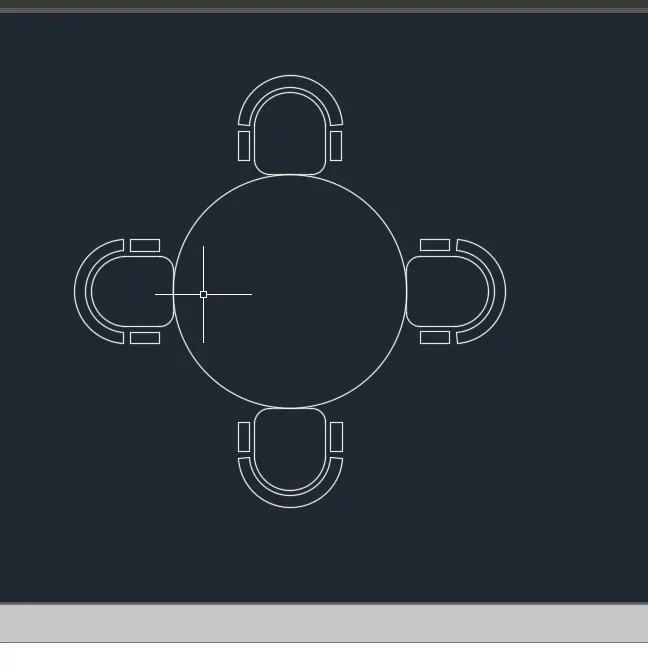
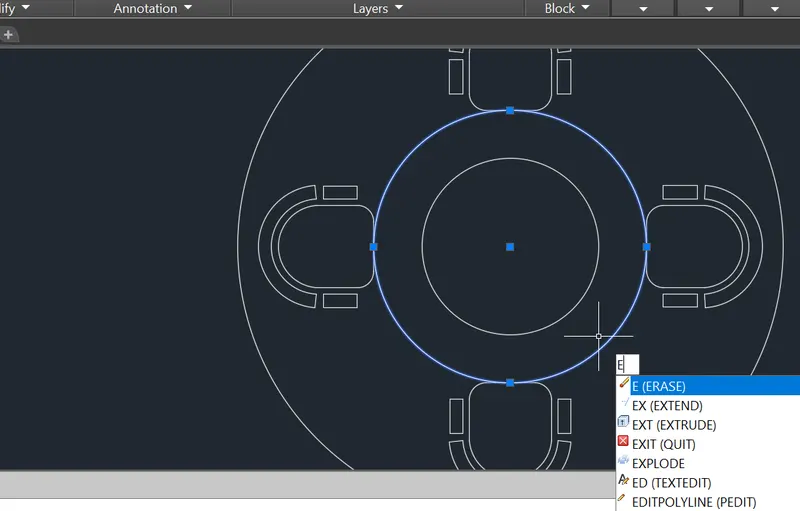
And type erase command and press enter to erase the center circle .
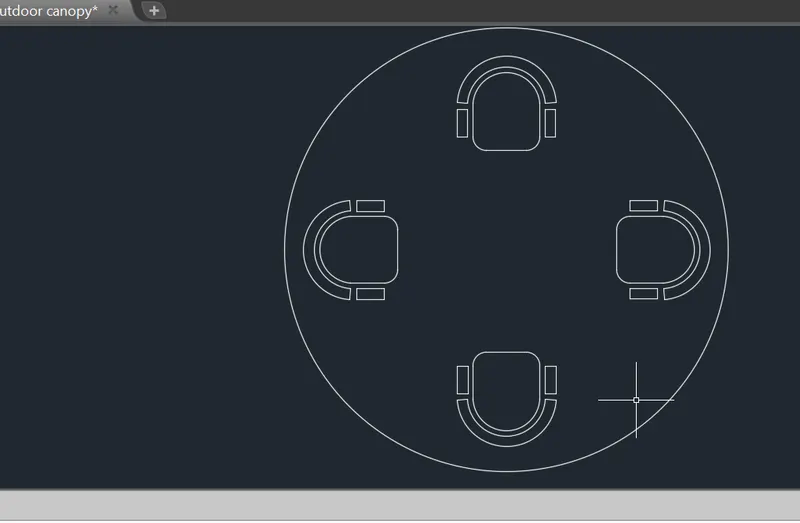
Give the Dimension command in it.
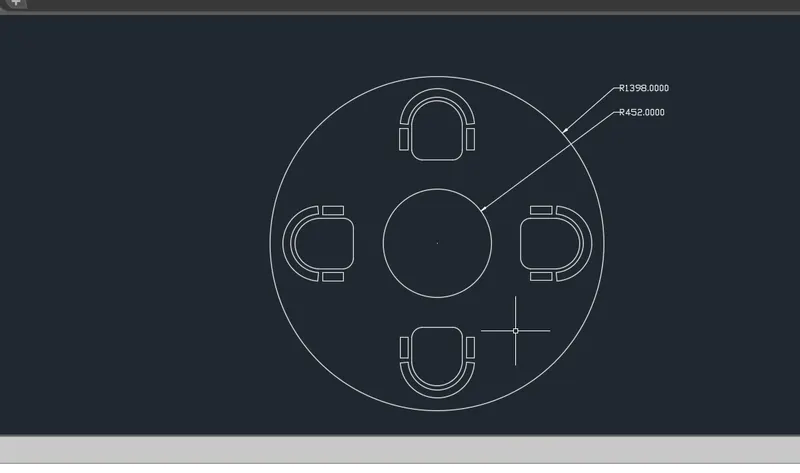
Type the layer command and press enter.
now, a new layer is created with name as Layer 1.
Now, a new layer is created with name as canopy,chairs,etc..,
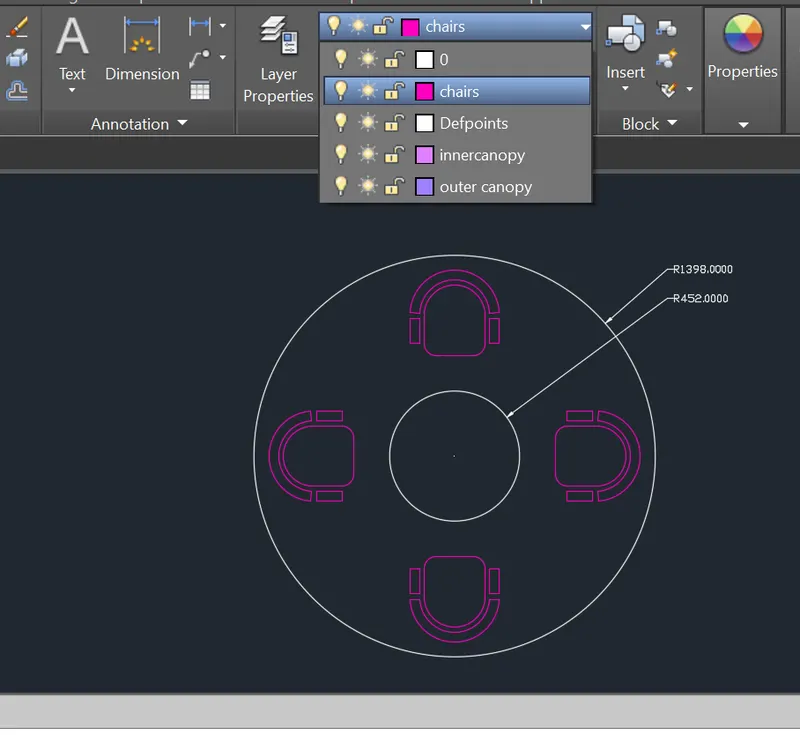
RESULT:
Finally complete the task in layers.
AIM:
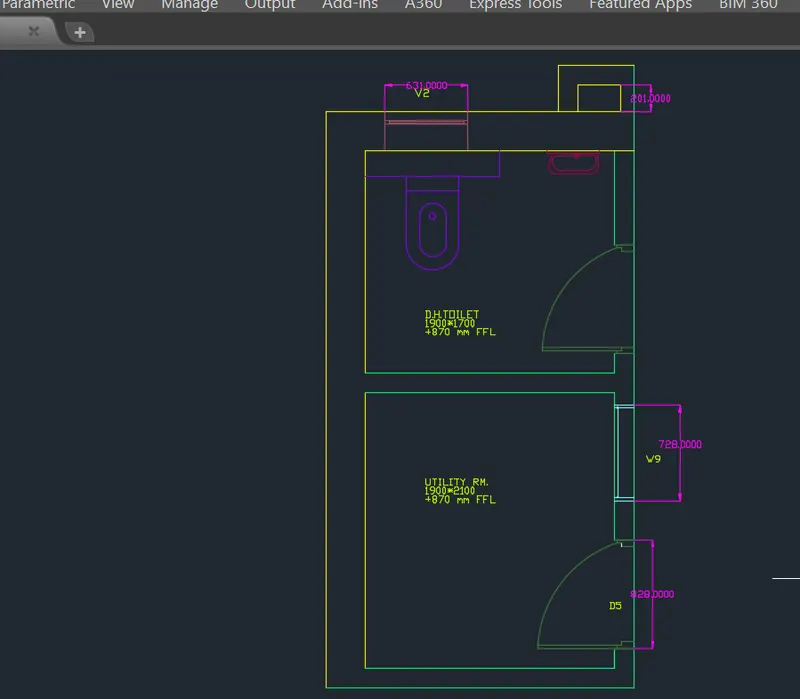
To Sketch the part plan for the toilers and utilities room.
INTRODUCTION:
This tutorial will explain the step by step procedure to draw a seating plan for an outdoor canopy.
as shown in the fgure below using circle command in AutoCAD. All dimensions are in mm.
DRAFTING PROCEDURE:
1. Begin a new project in Auotcad 2D modelling in space of the project with imperial template.
2. Create the necessary project elements.
3. Create the followings: Floor plan , walls, door, Window, stair using the properties given.
4. Assemble all the drawings in layer command: Layers
5. Save the drawing file as Building_ACA_Model.dwg.
6. Then, start the drawing in model space .
Set the units in engineering ,
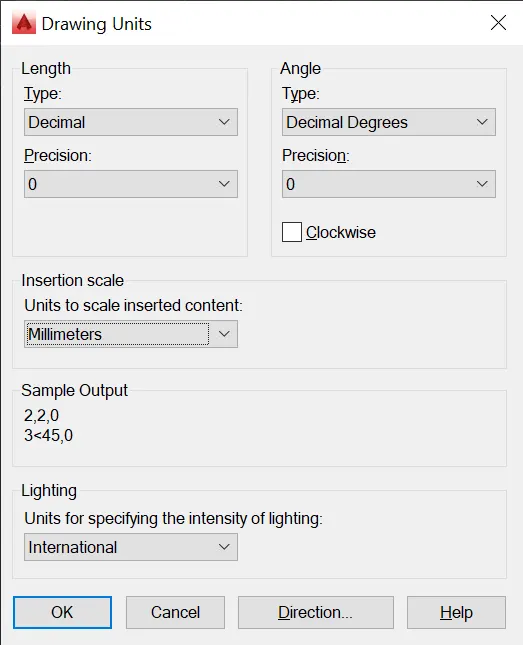
LIMIT COMMAND:
LIMITS command sets an invisible rectangular boundary in the drawing area that
can limit the grid display and limit clicking or entering point locations.
Procedure to access:
1. Command:LIMITS and press enter
2. Shortcut key: LIMI
STEP1:
Type the xline command and press enter.
select the pick point and horizantal, vertical and press enter.
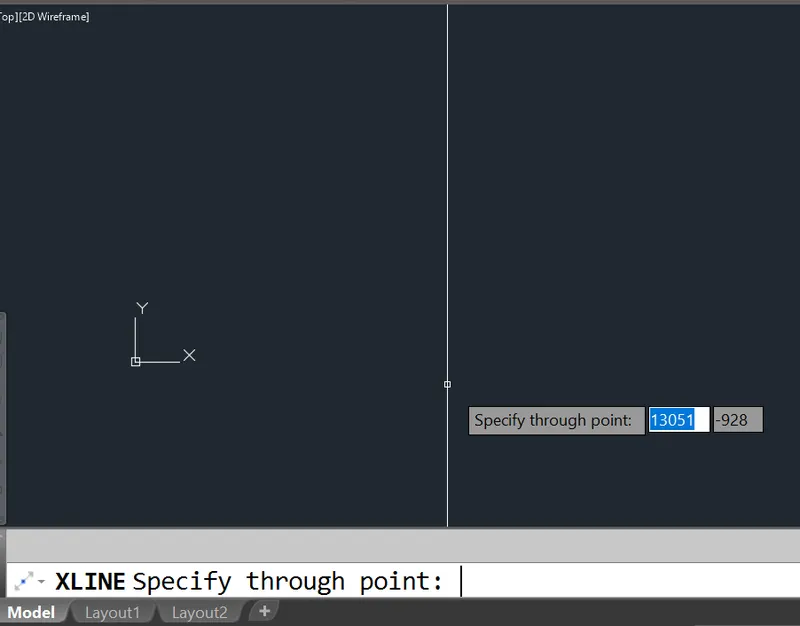
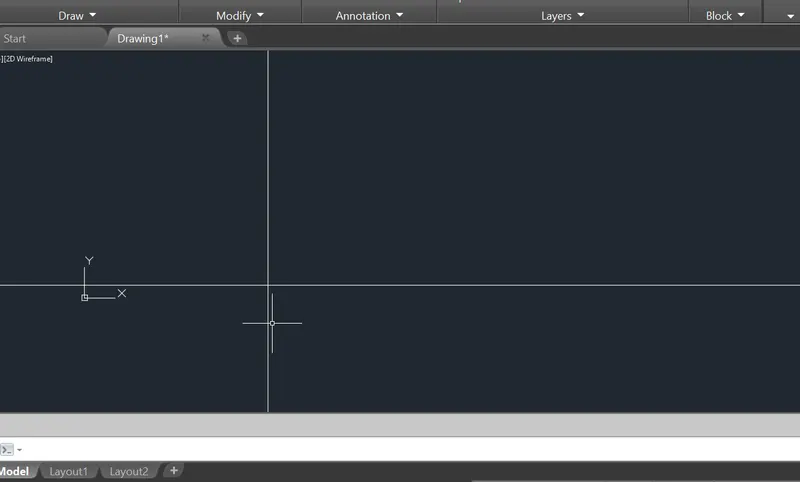
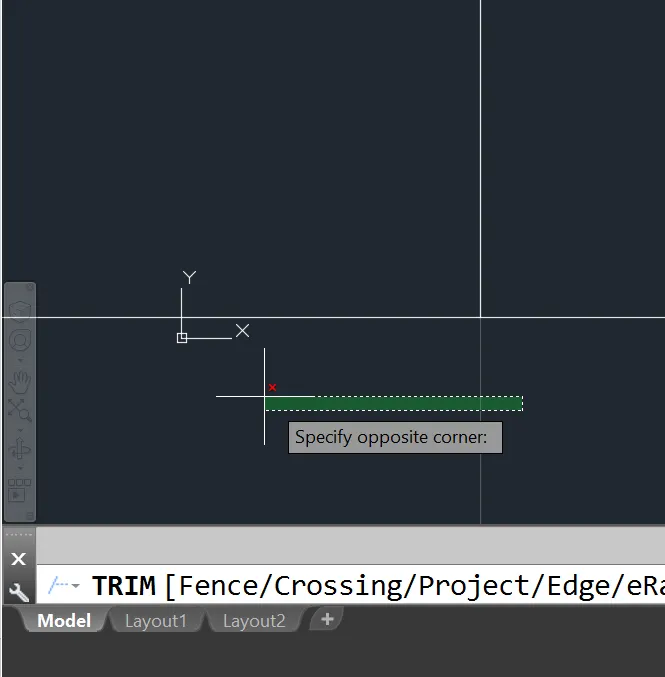
Then, Trim unwanted lines.
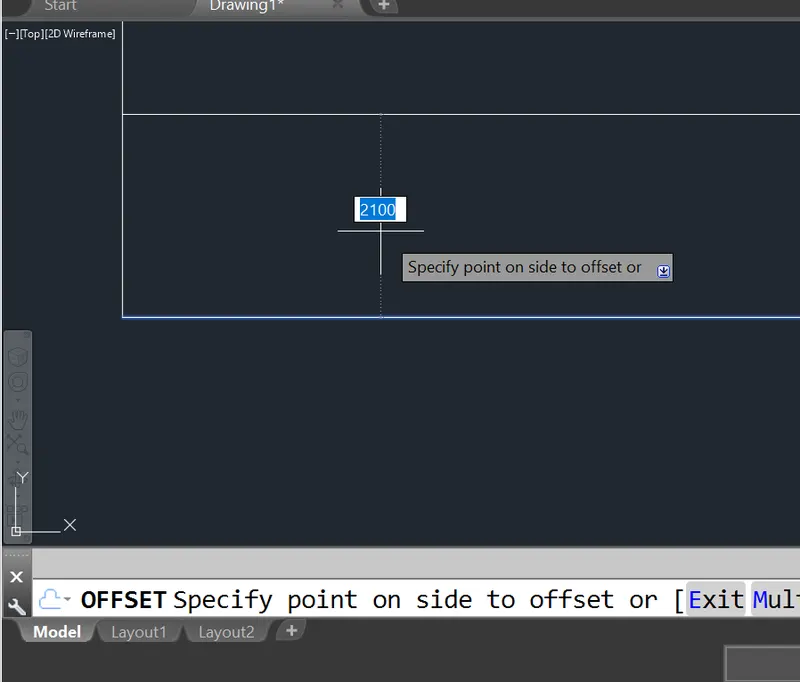
Offset line through 2100mm and press enter.
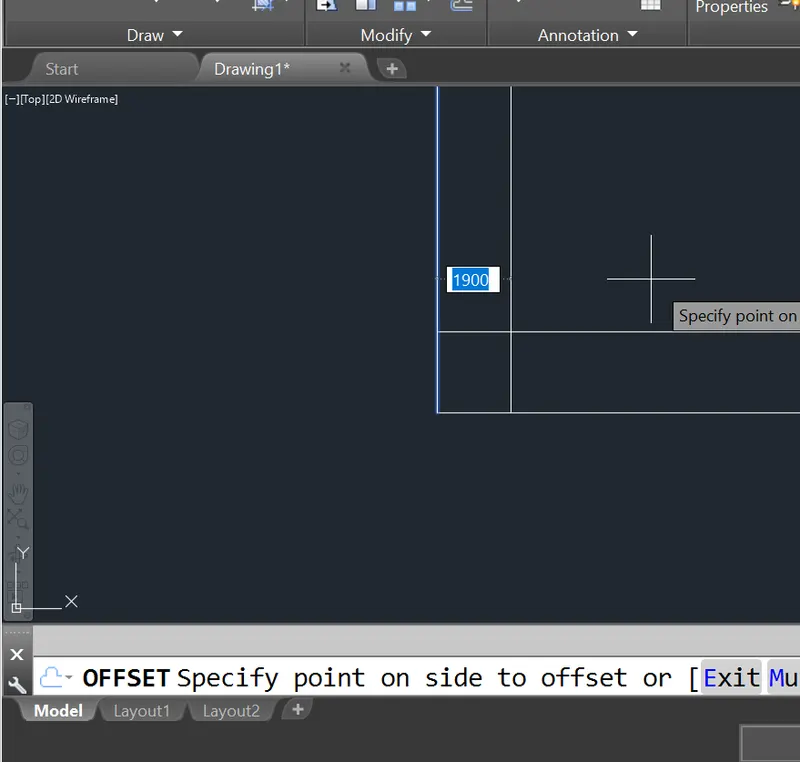
Again offset line through 1900mm and press enter.
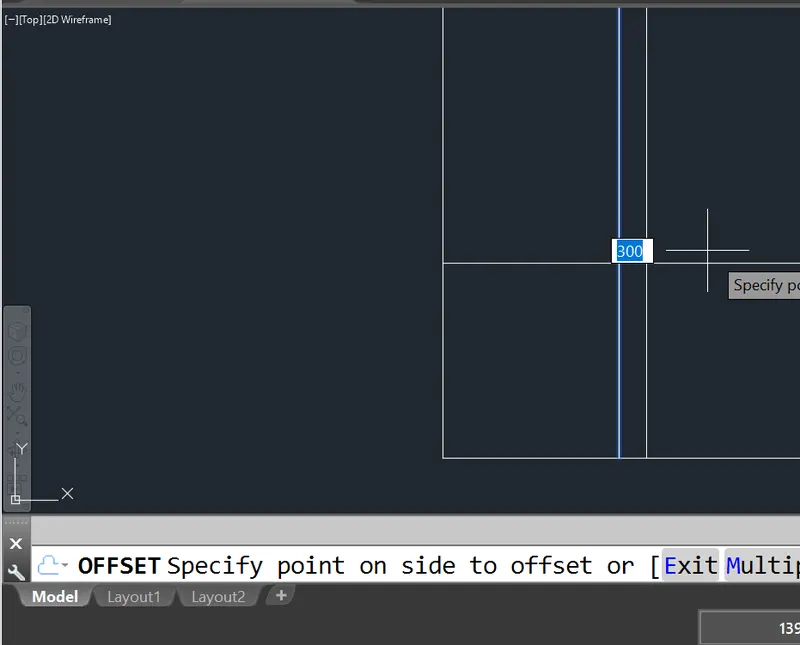
Again offset the line throught 300 and press enter.
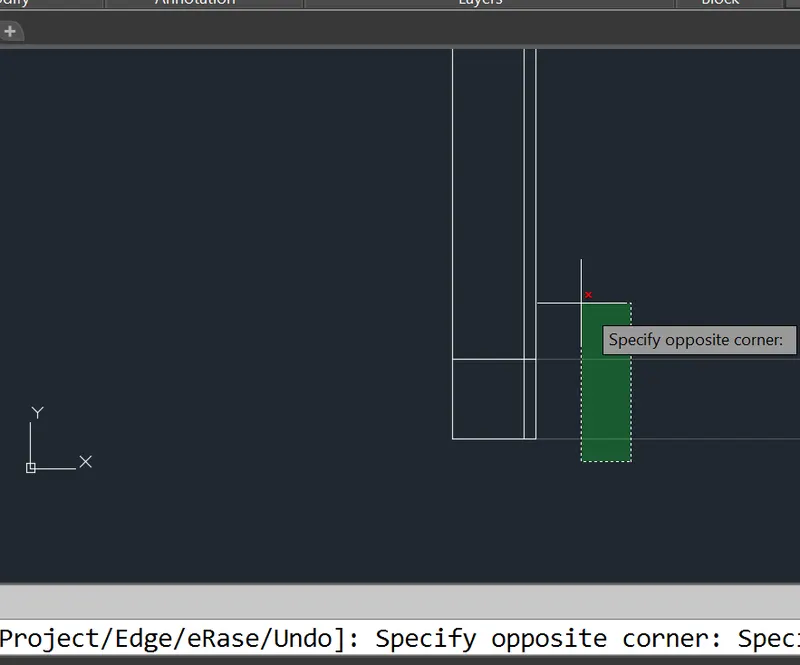
Again trim unwanted lines.
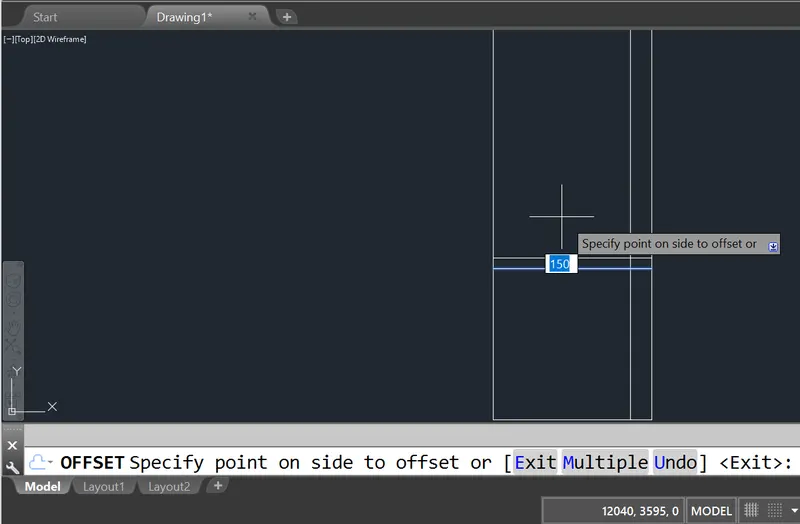
Again offest line through 150 and press enter.
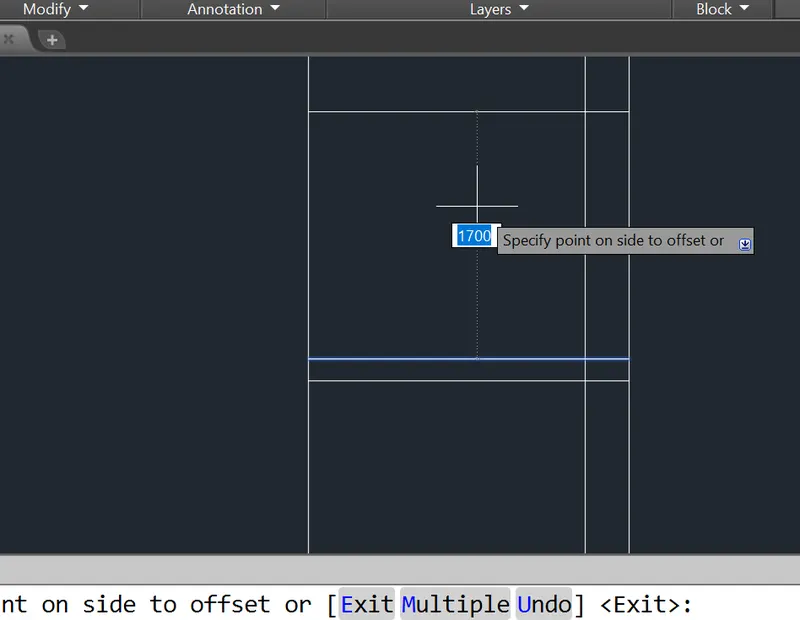
Again offset line through 1700 and press enter.
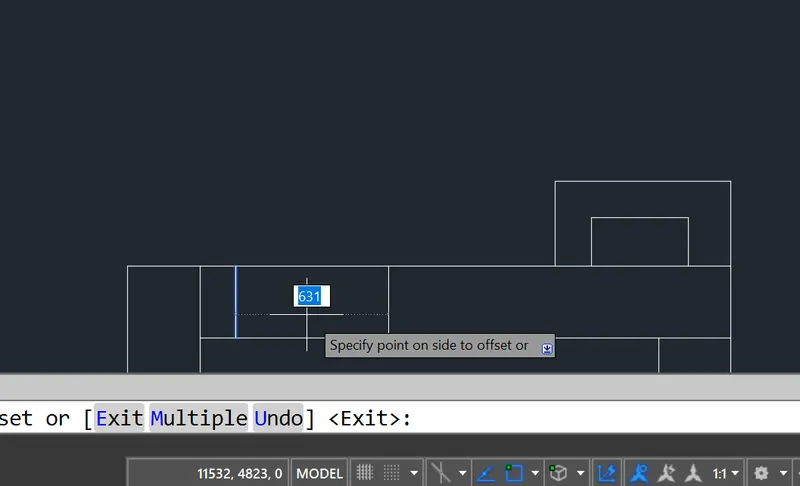
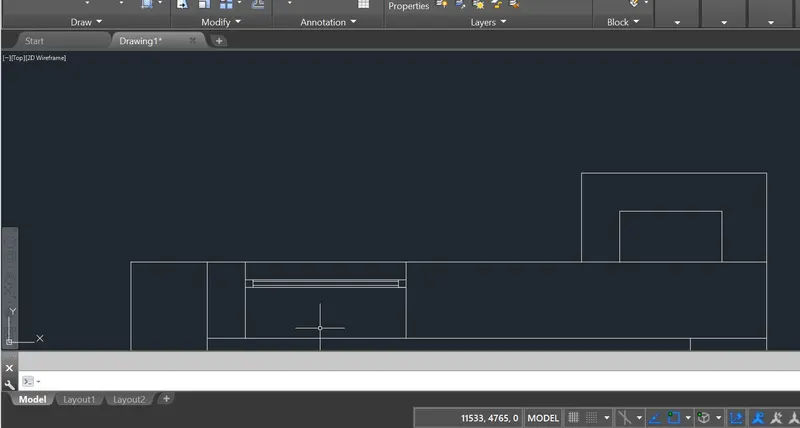
Create the door.by using line command
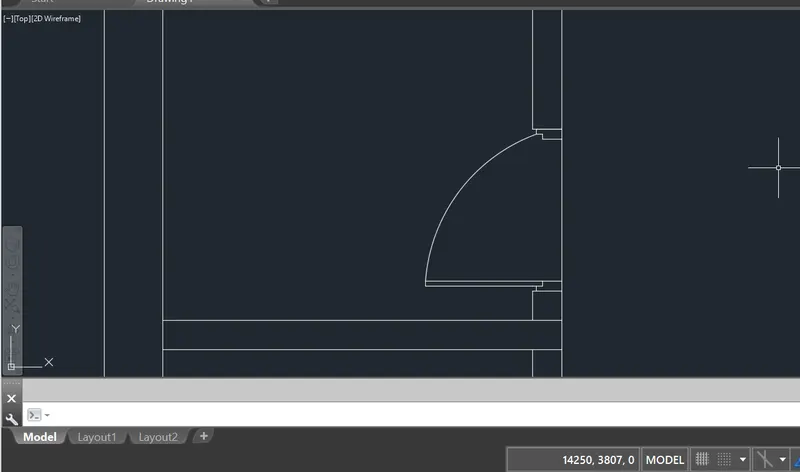
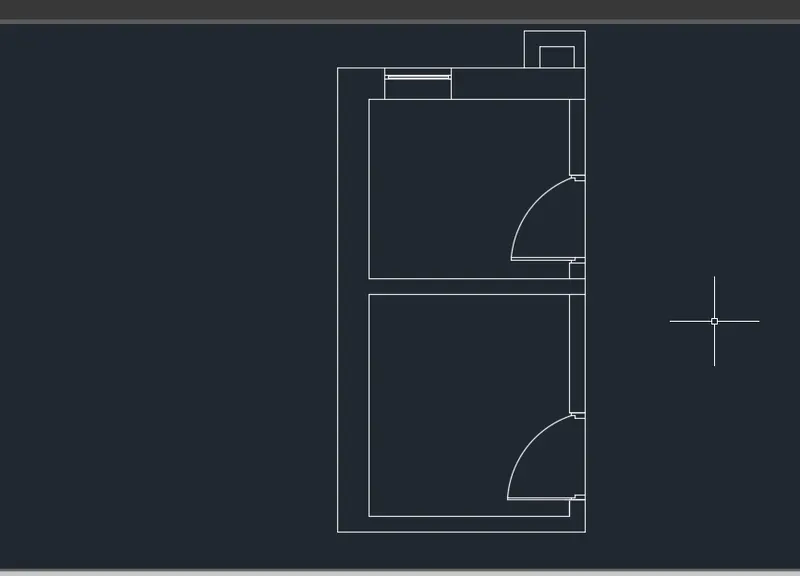
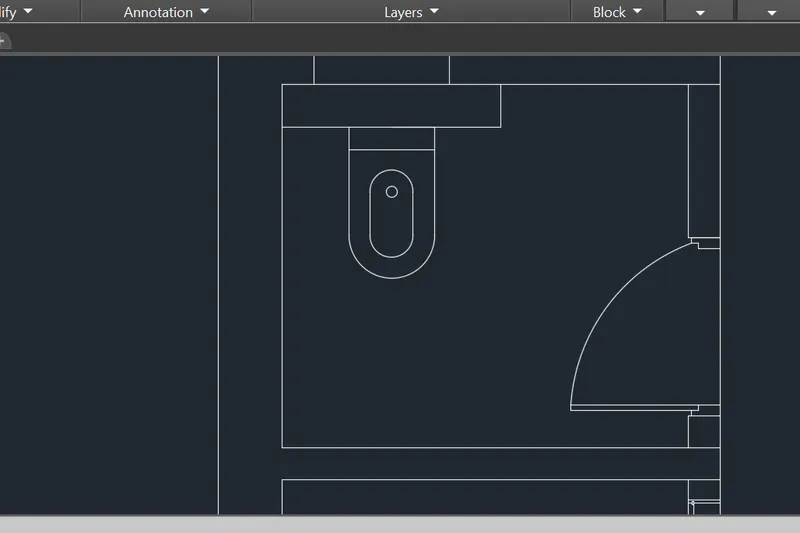
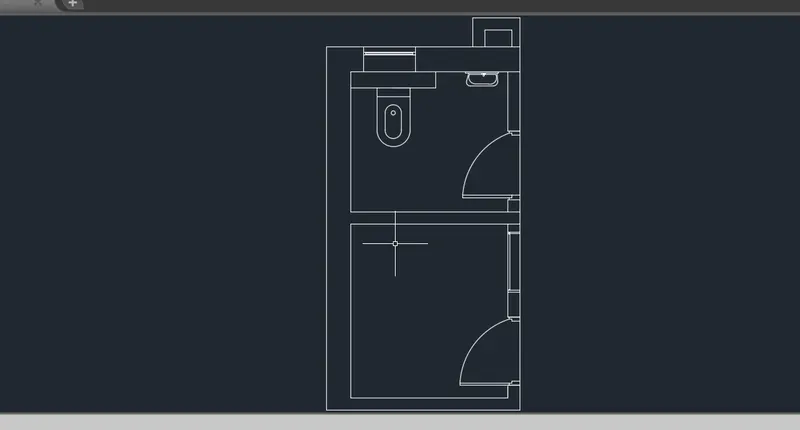
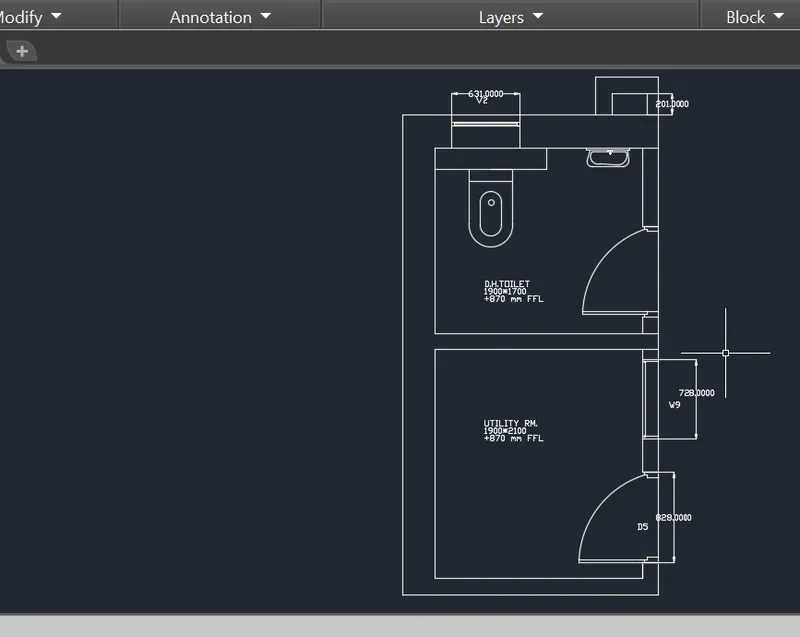
Now, create the layer, as type la in command box and press enter.
And create various layers of the drawing, like outer wall, inner wall, toilets, sink, dimensions, etc..,
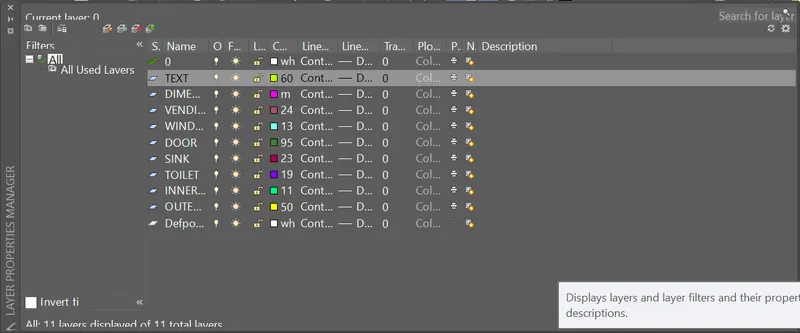
RESULT:
Finally, set the drawings above created layers.