Sketching and Editing
AIM:
This tutorial will explain step by step procedure of sketching
and editing tools from below diagrams and to create in AutoCAD.
INTRODUCTION:
SETTING THE STANDARDS: In the following topics,
we will learn about the standard setting usd in AutoCAD before starting the drafting process.
UNIT COMMAND: units command is used to control the presicion and display formats for coordinates,
distances, and angles.
For example, we can use inches or millimeters depending upon needs.
units types are decimal, architectural, engineering, fractional and scienticfic.
PROCEDURE:
1. command:UNITS press enter
2. shortcut key: UN press enter
3. Access from: Menubar>Format>Units
4. Access from: Applications menu>Drawing utilities>units.
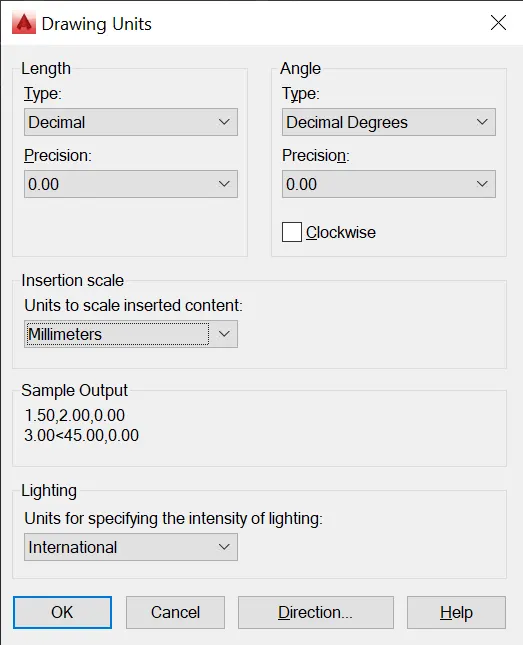
set the units in DECIMAL ,Insertion scale in Millimeters. And press ok.
To save that settings.
LIMITS;
LIMITS command sets an invisible rectangular boundary inthe drawing area that can
limit the grid display and limit clicking the entire point locations.
PROCEDURE TO ACCESS:
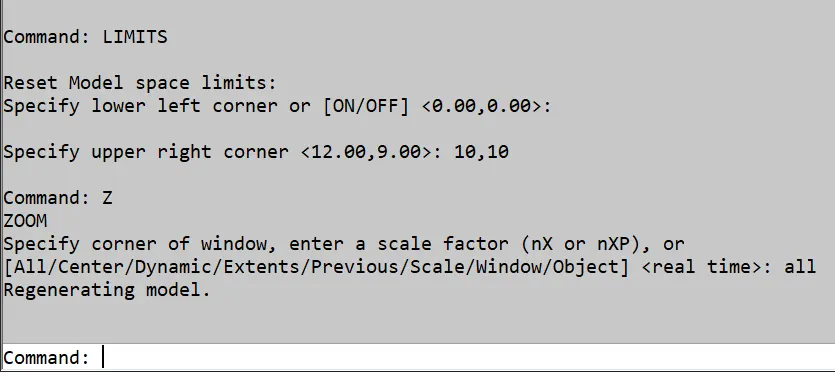
1. command : LIMITS Press enter
2. Shortcut key: LIMI press enter.
Set the limits:
LINE COMMAND: Type the line command.
Specificy the first point at 1,1 and press enter
Specify the next point @3.00<0 and press enter
Specify the next point @2.12<135 and press enter
specify the next point @2.83<135 and press enter
specify the next point @2.00< 180 and press enter
specify the next point close or undo :close press enter.
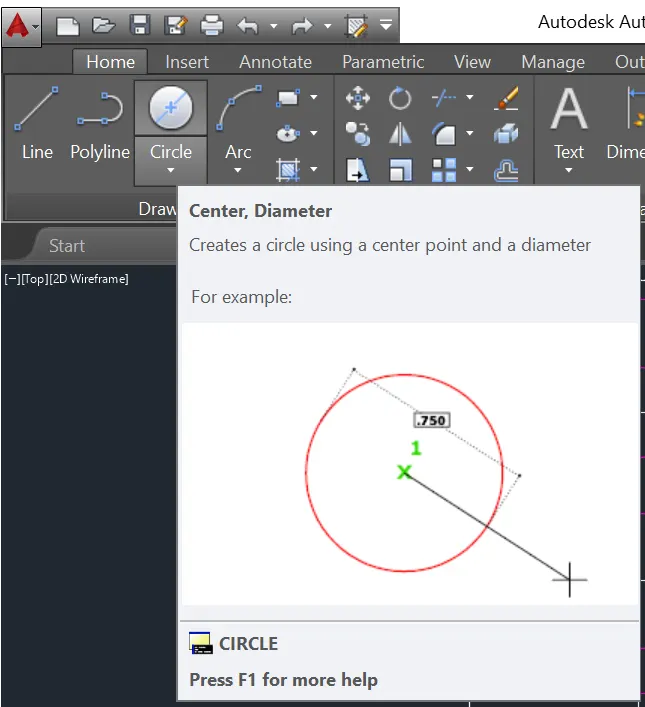
Then type circle in command box ,
shortcut key, "c" enter
pick the point 1.50,1.00
click the circle command to center,diameter.
Then, draw the circle in 1.00 point `phi`1.20
then again draw the circle in 2.50 point in `phi`0.80
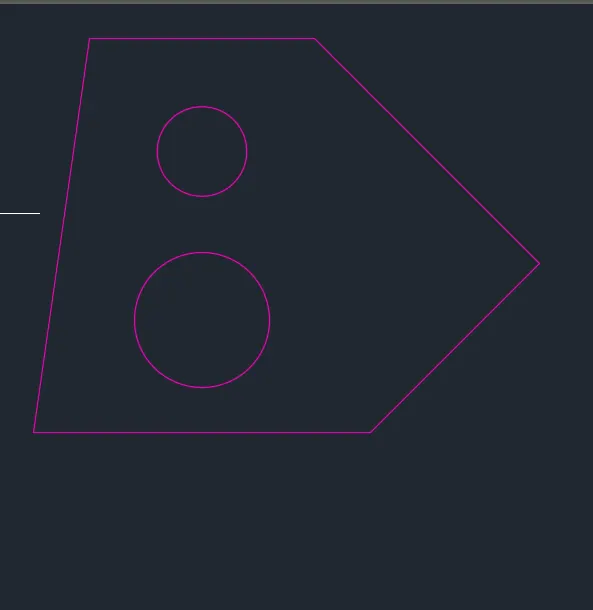
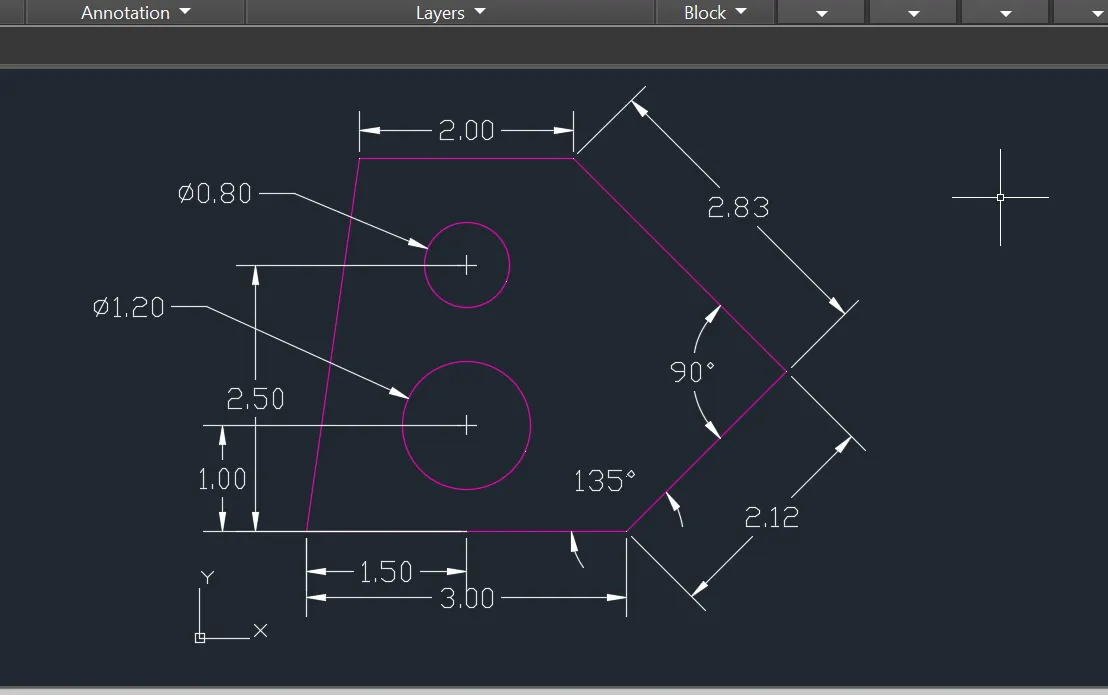
Create the dimensions pick the points of the line,
Enter the DIMLIN command on the command box,
Then, create the next angular dimension to the below diagram.
RESULT:
AIM:
This tutorial will explain step by step procedure of sketching
and editing tools from below diagrams and to create in AutoCAD.
INTRODUCTION:
SETTING THE STANDARDS: In the following topics,
we will learn about the standard setting used in AutoCAD before starting the drafting process.
UNIT COMMAND: units command is used to control the presicion and display formats for coordinates,
distances, and angles.
For example, we can use inches or millimeters depending upon structural needs.
units types are decimal, architectural, engineering, fractional and scienticfic.
PROCEDURE:
1. command:UNITS press enter
2. shortcut key: UN press enter
3. Access from: Menubar>Format>Units
4. Access from: Applications menu>Drawing utilities>units.
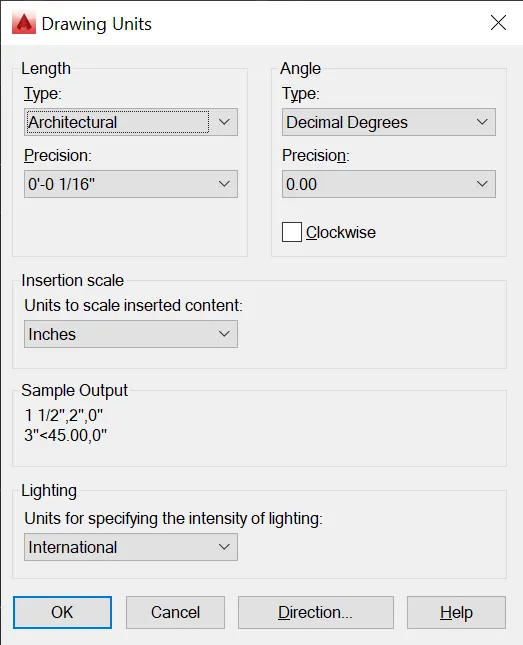
set the units in ARCHITECTURAL,Insertion scale in INCHES. And press ok.
To save that settings.
LIMITS;
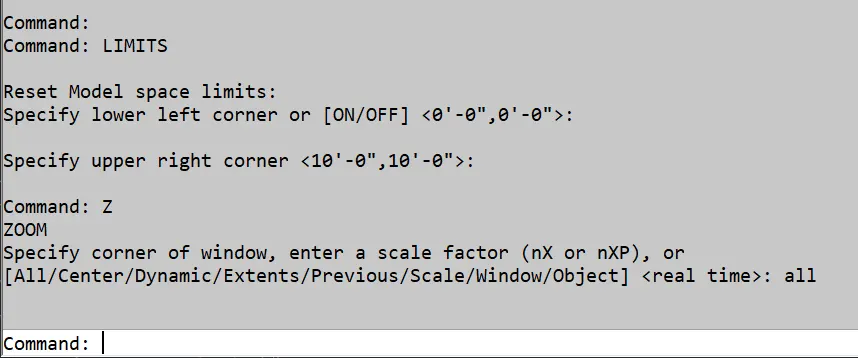
LIMITS command sets an invisible rectangular boundary inthe drawing area that can
limit the grid display and limit clicking the entire point locations.
PROCEDURE TO ACCESS:
1. command : LIMITS Press enter
2. Shortcut key: LIMI press enter.
Set the limits:
Enter the line command into command box:
1. Shortcut key: 'L' enter
Specify the first point at 1,1 and press enter,
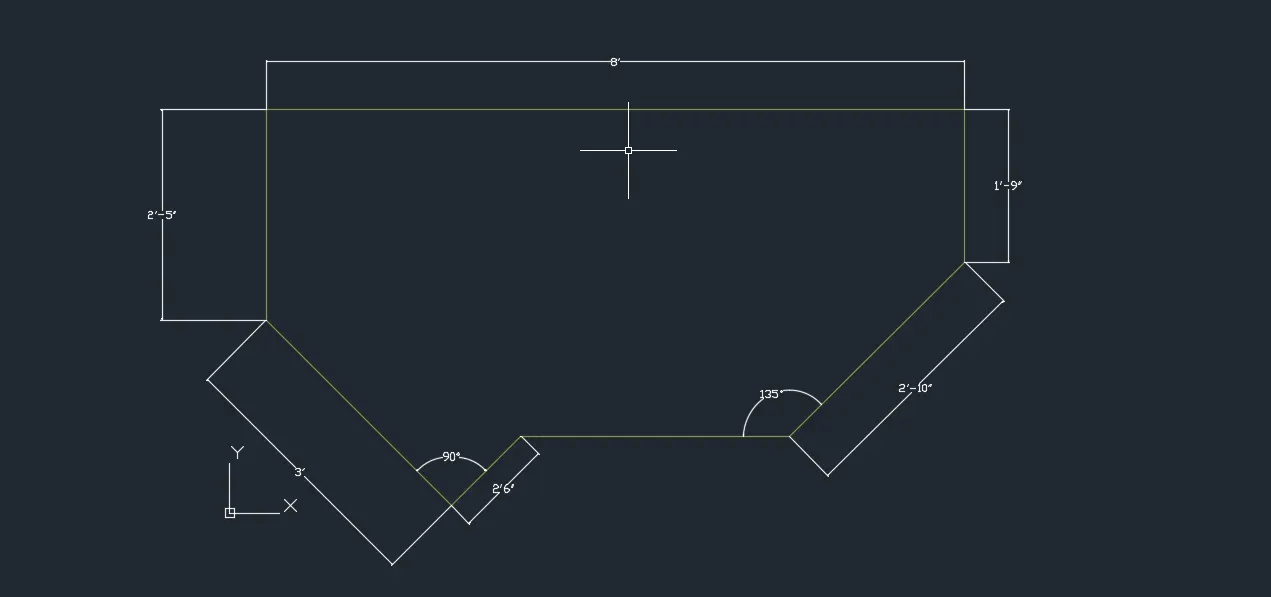
Specify the next point at @2'6"<135 and press enter
Specify the next point @3'0"<0 and press enter
Specify the next point @2'10"<45 and press enter
Specify the next point @1'9"<90 and press enter
Specify the next point @8'<180 and press enter
Specify the next point @2'5"<270 and press enter
Specify the next point close or undo: close and press enter.
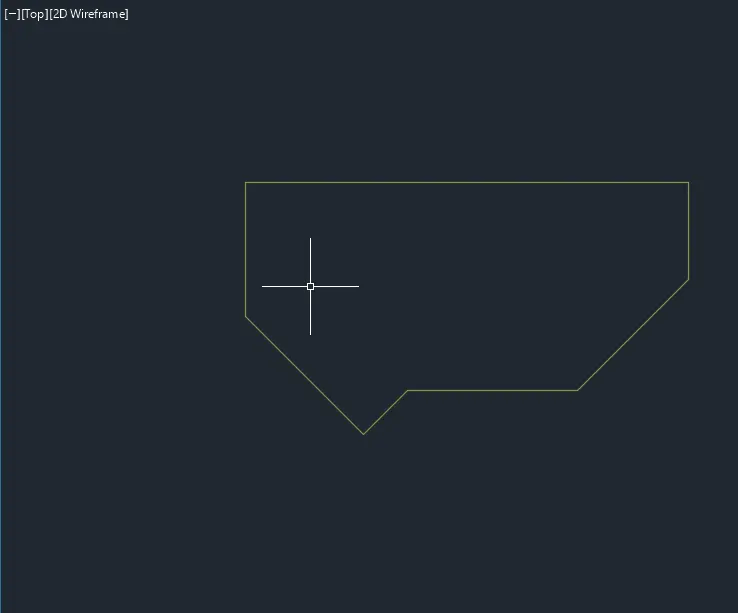
Set the dimension to the above diagram:
By using command angular dimensions, dimlinear.
RESULT:
AIM:
This tutorial will explain step by step procedure of sketching
and editing tools from below diagrams and to create in AutoCAD.
INTRODUCTION:
SETTING THE STANDARDS: In the following topics,
we will learn about the standard setting used in AutoCAD before starting the drafting process.
UNIT COMMAND: units command is used to control the presicion and display formats for coordinates,
distances, and angles.
For example, we can use inches or millimeters depending upon structural needs.
units types are decimal, architectural, engineering, fractional and scienticfic.
PROCEDURE:
1. command:UNITS press enter
2. shortcut key: UN press enter
3. Access from: Menubar>Format>Units
4. Access from: Applications menu>Drawing utilities>units.
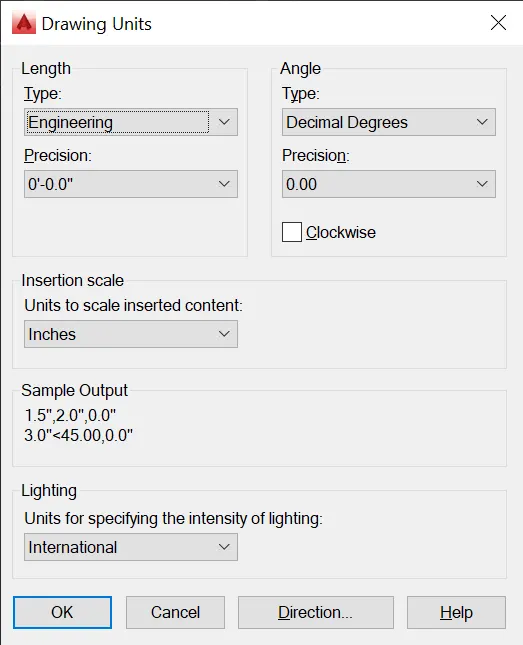
set the units in ENGINEERING,Insertion scale in INCHES. And press ok.
To save that settings.
LIMITS;
LIMITS command sets an invisible rectangular boundary in the drawing area that can
limit the grid display and limit clicking the entire point locations.
PROCEDURE TO ACCESS:
1. command : LIMITS Press enter
2. Shortcut key: LIMI press enter.
Set the limits:
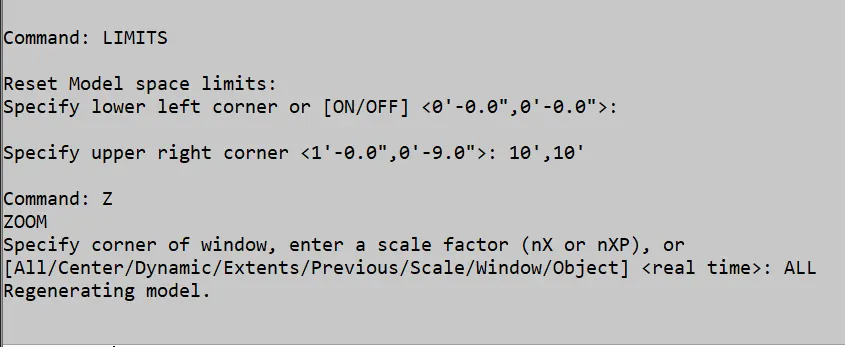
ENTER the line command :
Specify the first point at 1,1 and press enter
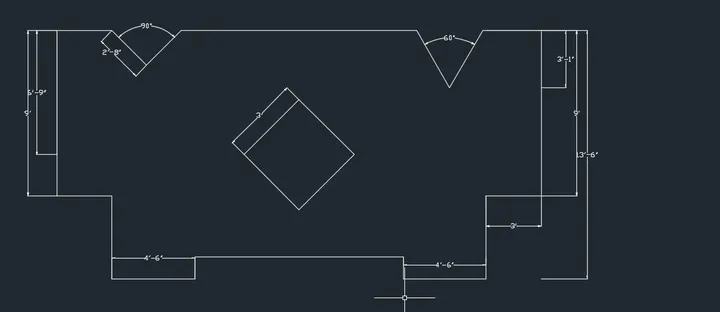
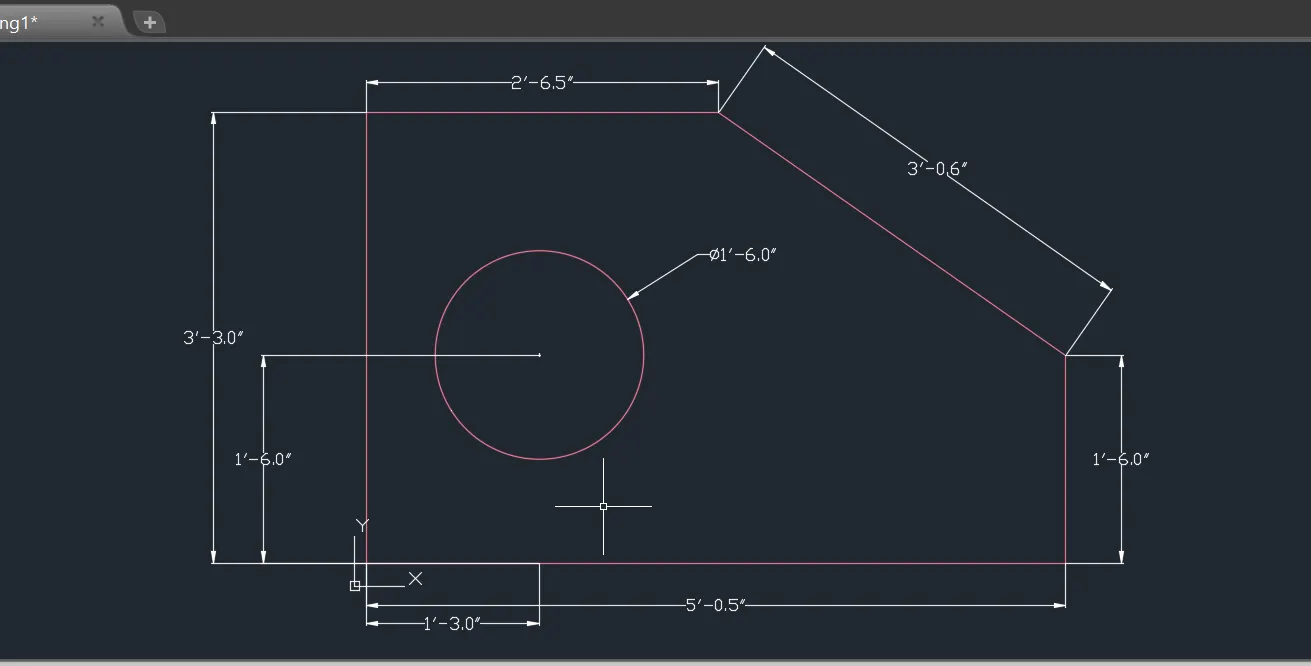
Specify the next point @5'-0.5"<0 and press enter
Specify the next point @1'-6.0"<90 and press enter
specify the next point @3'-0.6"<135 and press enter
Specify the next point @2'-6.5"<180 and press enter
Specify the next point @3'-3.0"<270 and press enter
Specify the next point close or undo and press enter.
Type the circle command and enter , pick the point 1'-6.0" dia. at the pick point
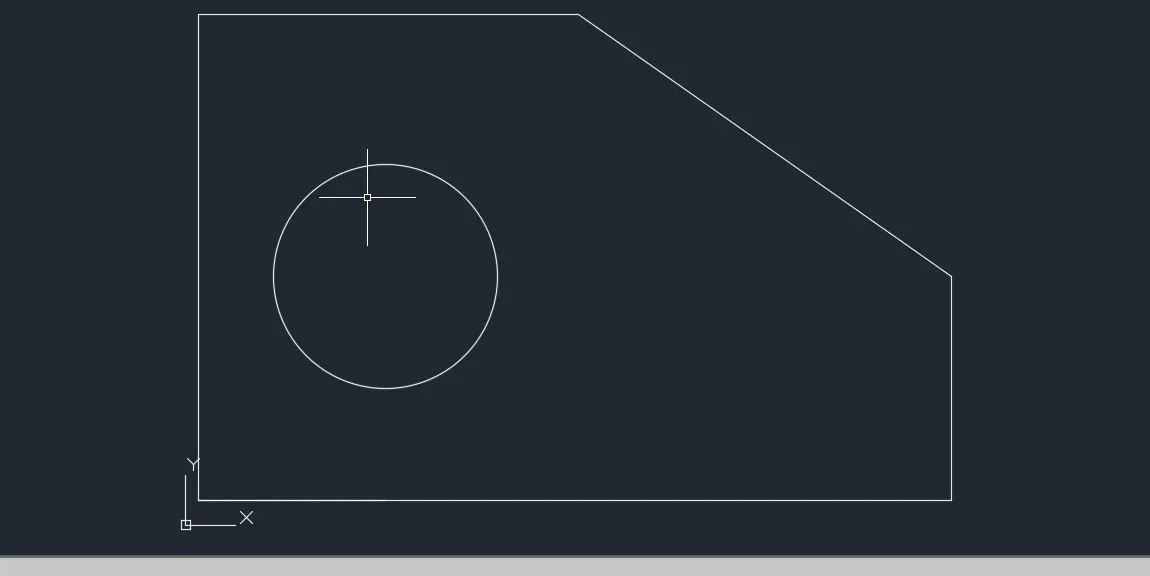
Give the dimensions to the diagram.
RESULT:
AIM:
This tutorial will explain step by step procedure of sketching
and editing tools from below diagrams and to create in AutoCAD.
INTRODUCTION:
SETTING THE STANDARDS: In the following topics,
we will learn about the standard setting usd in AutoCAD before starting the drafting process.
UNIT COMMAND: units command is used to control the presicion and display formats for coordinates,
distances, and angles.
For example, we can use inches or millimeters depending upon needs.
units types are decimal, architectural, engineering, fractional and scienticfic.
PROCEDURE:
1. command:UNITS press enter
2. shortcut key: UN press enter
3. Access from: Menubar>Format>Units
4. Access from: Applications menu>Drawing utilities>units.
set the units in DECIMAL ,Insertion scale in Millimeters. And press ok.
To save that settings.
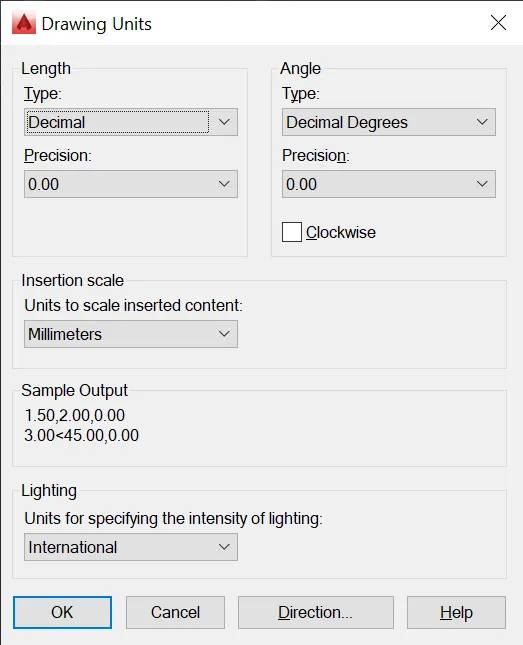
LIMITS;
LIMITS command sets an invisible rectangular boundary inthe drawing area that can
limit the grid display and limit clicking the entire point locations.
PROCEDURE TO ACCESS:
1. command : LIMITS Press enter
2. Shortcut key: LIMI press enter.
Set the limits:
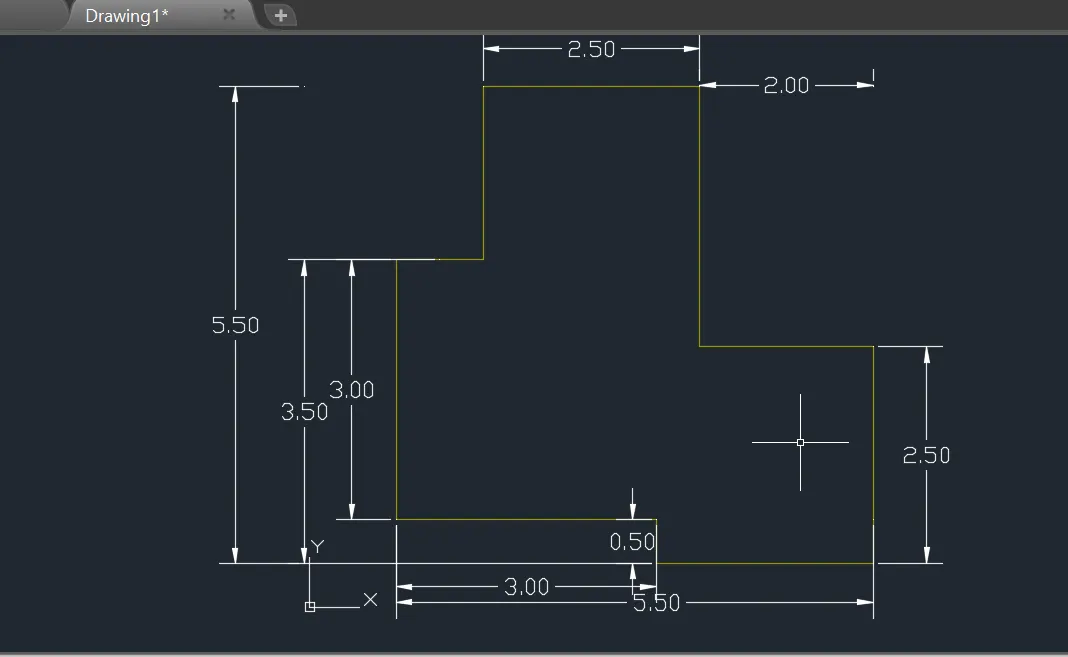
LINE COMMAND: Type the line command.
Specify the first point at 1,1 and press enter
Specify the next point @3.00<0 and press enter
Specify the next point @0.50<270 and press enter
Specify the next point @2.50<0 an dpress enter
Specify the next point @2.50<90 an dpress enter
Specify the next point @2.00<180 and press enter
Specifyt he next point @3.00<90 and press enter
Specify the next point @2.50<180 and pres enter
Specify the next point @2.00<270 and press enter
Specify the next point @1.00<180 and press enter
Specify the next point close or undo and close and press enter
Give the dimension to the drawing.
RESULT:
AIM:
This tutorial will explain step by step procedure of sketching
and editing tools from below diagrams and to create in AutoCAD.
INTRODUCTION:
SETTING THE STANDARDS: In the following topics,
we will learn about the standard setting usd in AutoCAD before starting the drafting process.
UNIT COMMAND: units command is used to control the presicion and display formats for coordinates,
distances, and angles.
For example, we can use inches or millimeters depending upon needs.
units types are decimal, architectural, engineering, fractional and scienticfic.
PROCEDURE:
1. command:UNITS press enter
2. shortcut key: UN press enter
3. Access from: Menubar>Format>Units
4. Access from: Applications menu>Drawing utilities>units.
set the units in DECIMAL ,Insertion scale in Millimeters. And press ok.
To save that settings.
LIMITS;
LIMITS command sets an invisible rectangular boundary inthe drawing area that can
limit the grid display and limit clicking the entire point locations.
PROCEDURE TO ACCESS:
1. command : LIMITS Press enter
2. Shortcut key: LIMI press enter.
Set the limits:
LINE COMMAND: Type the line command.
Specify the first point at 1,1 and press enter
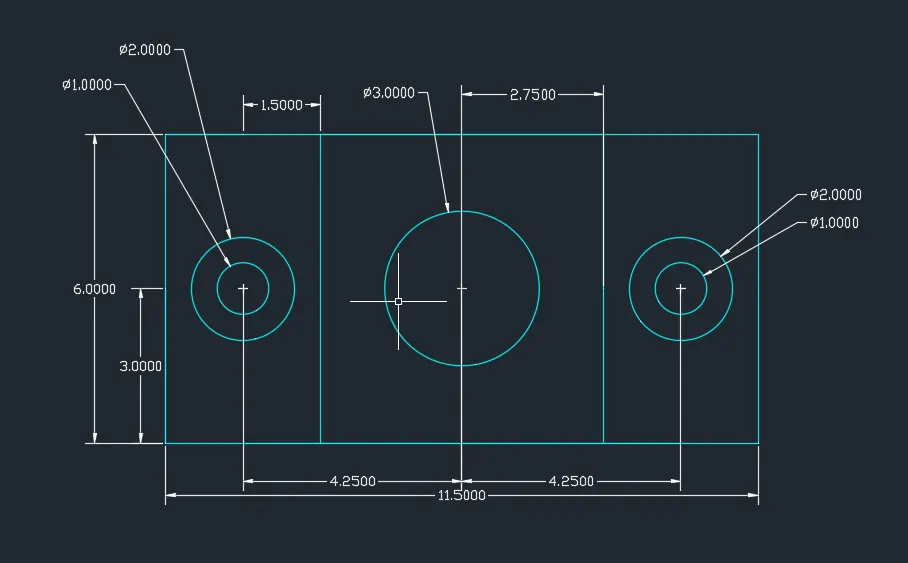
Specify the next point @11.50<0 and press enter
Specify the next point @6.00<90 and press enter
Specify the next point @11.50<180 an dpress enter
Specify the next point @6.00<270 an dpress enter
Specify the next point 1,11.50and press enter
Specify the point into mid point of the line 11.50 and press enter
Specify the next point @6.00<270 and pres enter
Then offset the line through 2.75 left and right and press enter
Pick the center point of the left side portion and type circle command and
specify the point diameter 2.00 and press enter
specify the point diameter 1.00 and press enter
Pick the center point of the right side portion and type circle command and
specify the point diameter 2.00 and press enter
specify the point diameter 1.00 and press enter
Specify the next point close or undo and close and press enter
Give the dimension to the drawing., Angular dimensions and diameter dimensions to it.
RESULT:
AIM:
This tutorial will explain step by step procedure of sketching
and editing tools from below diagrams and to create in AutoCAD.
INTRODUCTION:
SETTING THE STANDARDS: In the following topics,
we will learn about the standard setting usd in AutoCAD before starting the drafting process.
UNIT COMMAND: units command is used to control the presicion and display formats for coordinates,
distances, and angles.
For example, we can use inches or millimeters depending upon needs.
units types are decimal, architectural, engineering, fractional and scienticfic.
PROCEDURE:
1. command:UNITS press enter
2. shortcut key: UN press enter
3. Access from: Menubar>Format>Units
4. Access from: Applications menu>Drawing utilities>units.
set the units in DECIMAL ,Insertion scale in Millimeters. And press ok.
To save that settings.
LIMITS;
LIMITS command sets an invisible rectangular boundary inthe drawing area that can
limit the grid display and limit clicking the entire point locations.
PROCEDURE TO ACCESS:
1. command : LIMITS Press enter
2. Shortcut key: LIMI press enter.
Set the limits:
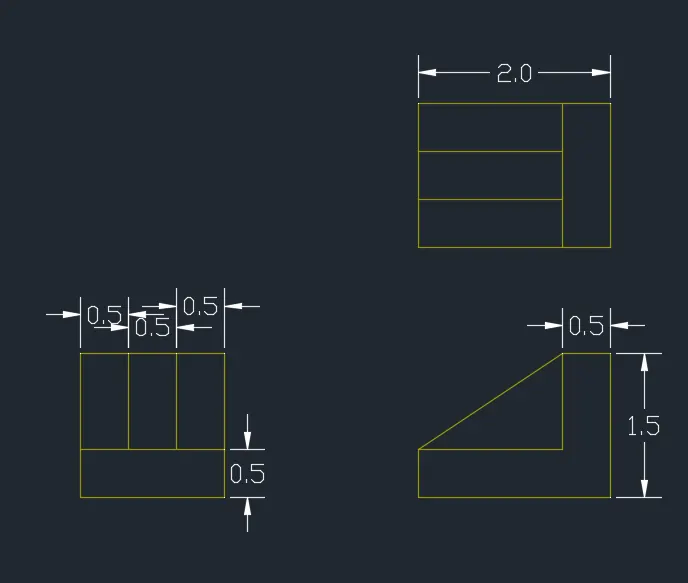
LINE COMMAND: Type the line command.
Specify the first point at 1,1 and press enter
Specify the next point @1.5<0 and press enter
Specify the next point @1.5<90 and press enter
Specify the next point @1.5<270 and press enter
Then, offset line through o.5 into 2 times .
again offset the line to the bottom line through 0.5
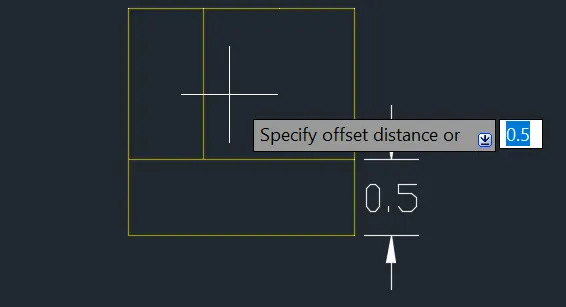
And give the dimensions to the first drawing
Again type the line command into the command box
specify the first point 1,2.5 and press enter
specify the next point @2.0<0 and press enter
specify the next point @1.5<90 and press enter
specify the next point @0.5<180 and press enter
specify the next point @1.0<270 and press enter
specify the next point @1.5<180 and press enter
specify the next point @2.5<30 and press enter
Then, give the dimesions in it.
Again type line command in command box,
And pick the base point to the 2nd drawing
Then draw the line in @2.0<0 and press enter
specify the next point @1.5<90 and press enter
specify the next point @2.0<180 and press enter
specify the next point @1.5<270 and press enter
And offset line above line thruogh 0.5 into two times
And then, trim the line select it and enter it
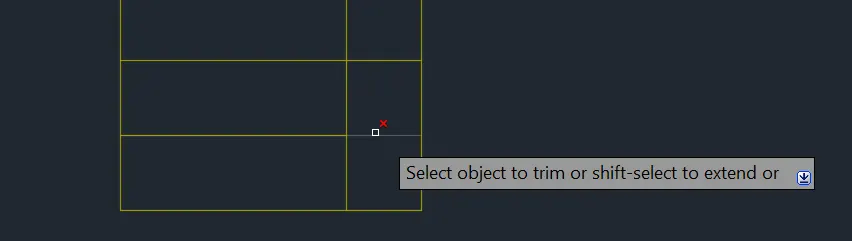
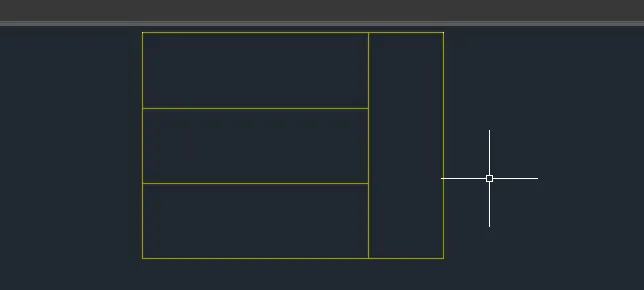
And then, give the dimensions to all drawings.
RESULT:
AIM:
This tutorial will explain step by step procedure of sketching
and editing tools from below diagrams and to create in AutoCAD.
INTRODUCTION:
SETTING THE STANDARDS: In the following topics,
we will learn about the standard setting usd in AutoCAD before starting the drafting process.
UNIT COMMAND: units command is used to control the presicion and display formats for coordinates,
distances, and angles.
For example, we can use inches or millimeters depending upon needs.
units types are decimal, architectural, engineering, fractional and scienticfic.
PROCEDURE:
1. command:UNITS press enter
2. shortcut key: UN press enter
3. Access from: Menubar>Format>Units
4. Access from: Applications menu>Drawing utilities>units.
set the units in DECIMAL ,Insertion scale in Millimeters. And press ok.
To save that settings.
LIMITS;
LIMITS command sets an invisible rectangular boundary inthe drawing area that can
limit the grid display and limit clicking the entire point locations.
PROCEDURE TO ACCESS:
1. command : LIMITS Press enter
2. Shortcut key: LIMI press enter.
Set the limits:
LINE COMMAND: Type the line command.
Specify the first point at 1,1 and press enter
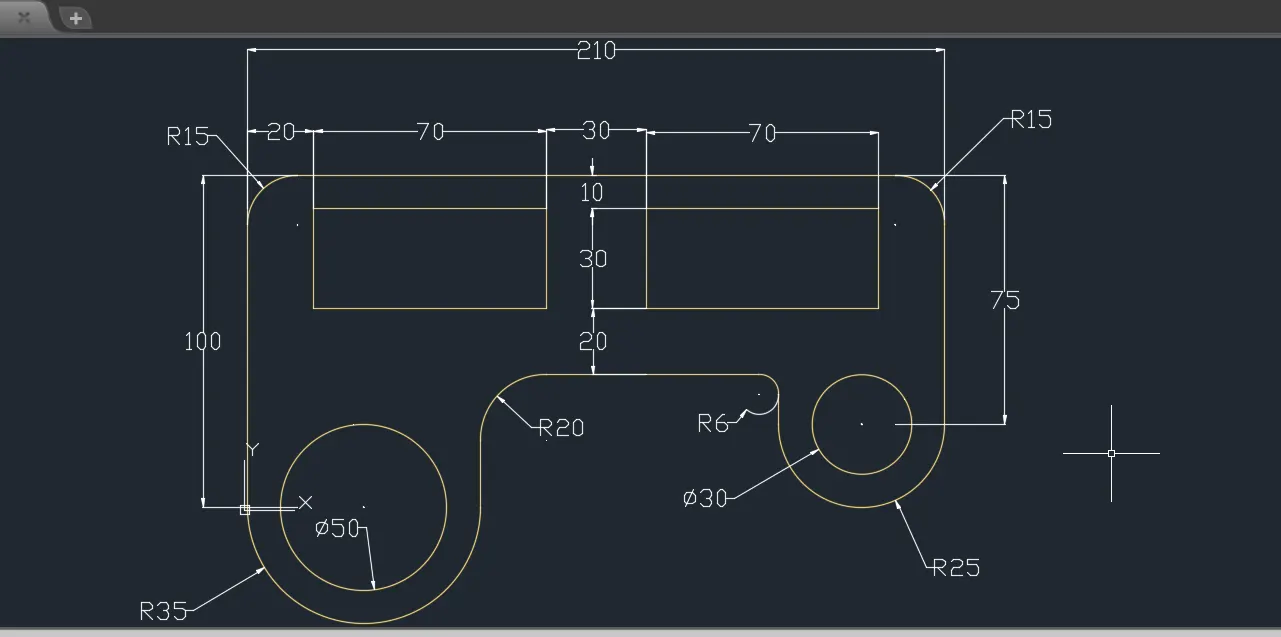
Specify the next point @100<90 and press enter
Specify the next point @210<0 and press enter
Specify the next point @75<270 and press enter
Type the circle command and pick the point 75<270 end point of it
Then, click the center, radius of the circle R25 and press enter and
again pick the center of the circle dia 30 and click circle command
in center diameter and press enter
Then, again pick the point 100 to draw the circle and click circle command in center,
radius through R35 and and press enter
and again pick the center of the circle to draw the circle of diameter at dia 50 in it.
then TRIM the circle of radius
Then, pick the rectangle and the value 30,70 and press enter
Then, type fillet in command box ,
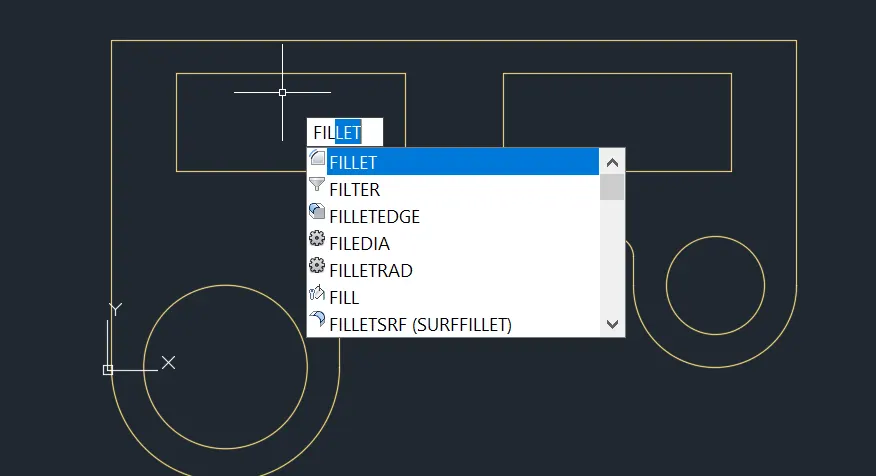
Then, pick the select point of fillet and give the value of the fillets.
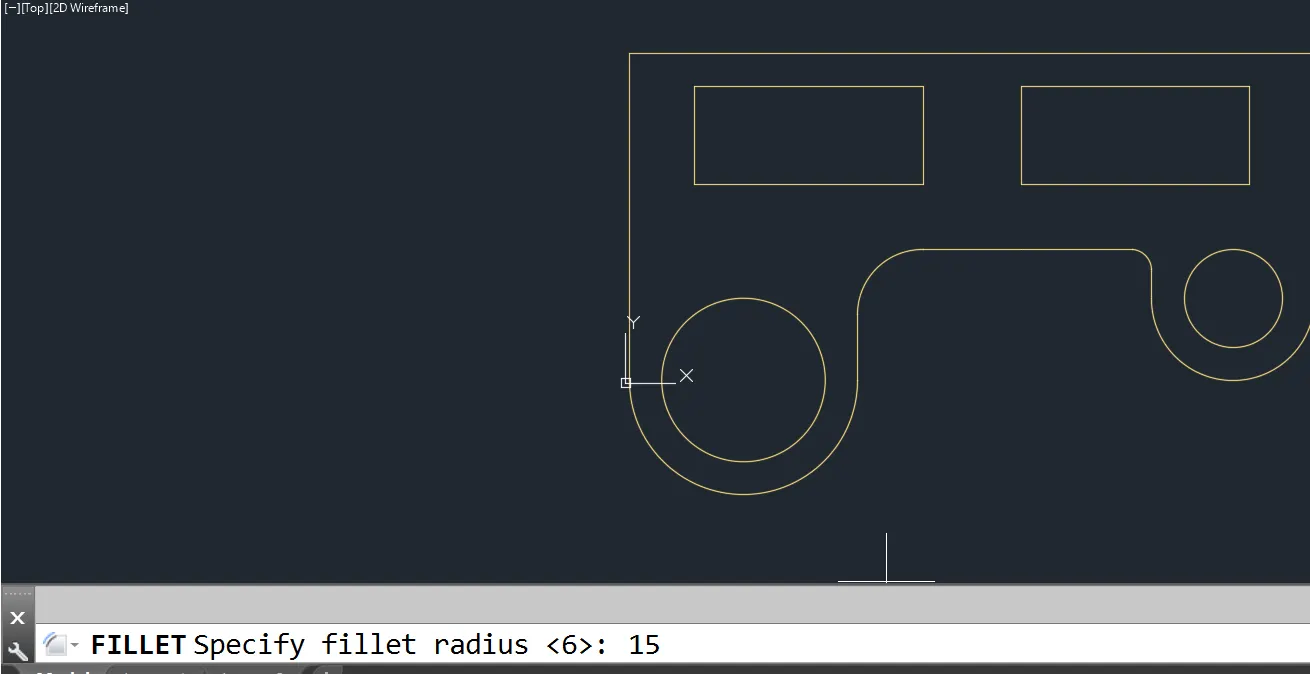
give the value of radius of the fillet,
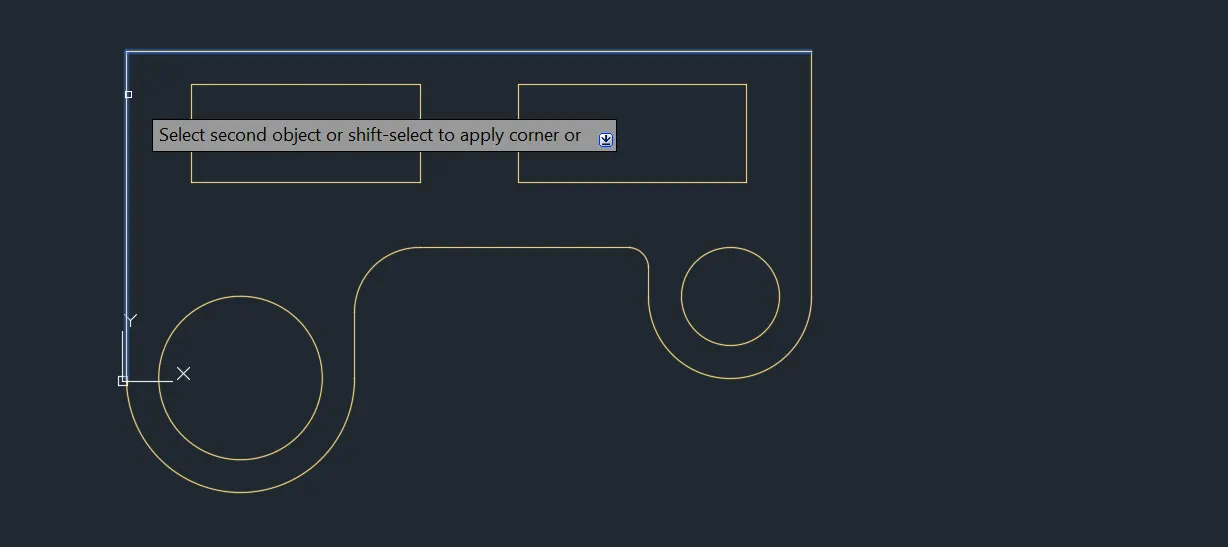
And press enter.
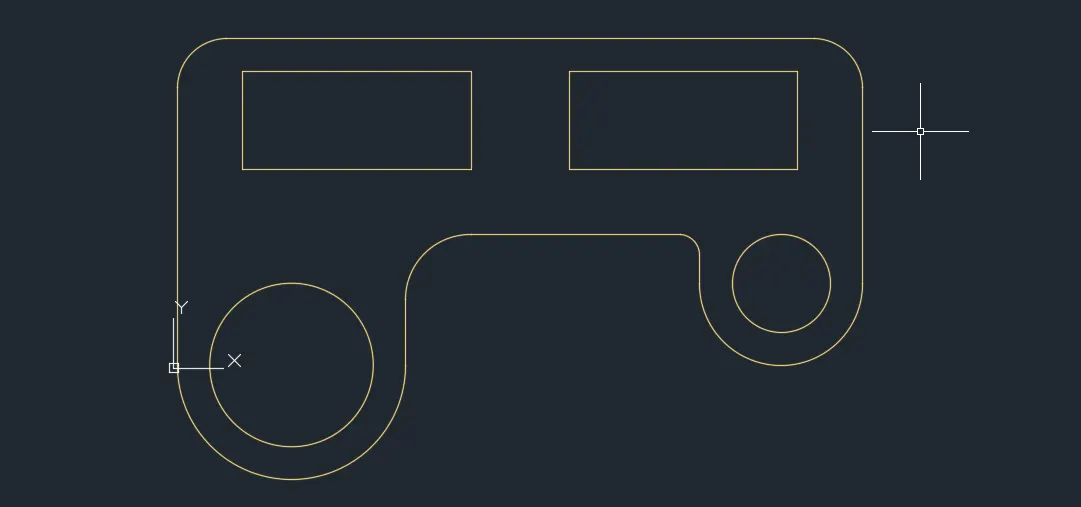
Finally we give dimensions to all the segments.
RESULT:
AIM:
This tutorial will explain step by step procedure of sketching
and editing tools from below diagrams and to create in AutoCAD.
INTRODUCTION:
SETTING THE STANDARDS: In the following topics,
we will learn about the standard setting usd in AutoCAD before starting the drafting process.
UNIT COMMAND: units command is used to control the presicion and display formats for coordinates,
distances, and angles.
For example, we can use inches or millimeters depending upon needs.
units types are decimal, architectural, engineering, fractional and scienticfic.
PROCEDURE:
1. command:UNITS press enter
2. shortcut key: UN press enter
3. Access from: Menubar>Format>Units
4. Access from: Applications menu>Drawing utilities>units.
set the units in DECIMAL ,Insertion scale in Millimeters. And press ok.
To save that settings.
LIMITS;
LIMITS command sets an invisible rectangular boundary inthe drawing area that can
limit the grid display and limit clicking the entire point locations.
PROCEDURE TO ACCESS:
1. command : LIMITS Press enter
2. Shortcut key: LIMI press enter.
Set the limits:
circle command: enter circle command
Specify the first point at 1,1 and press enter
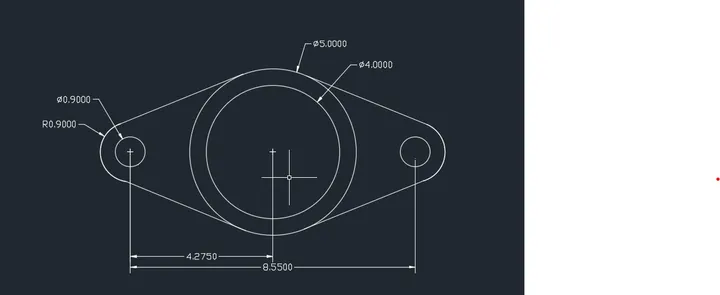
specify the next point center, diameter @ 4.00 and press enter
Specify the next point center, diameter @5.00 and press enter
Specify the next point center, diameter @0.90 and press enter
Specify the next point center, radius @0.90 and press enter
Specify the next point center, diameter @0.90 and press enter
Specify the next point center, radius @0.90 and press enter
Then, the join the circle with line like a tangent.
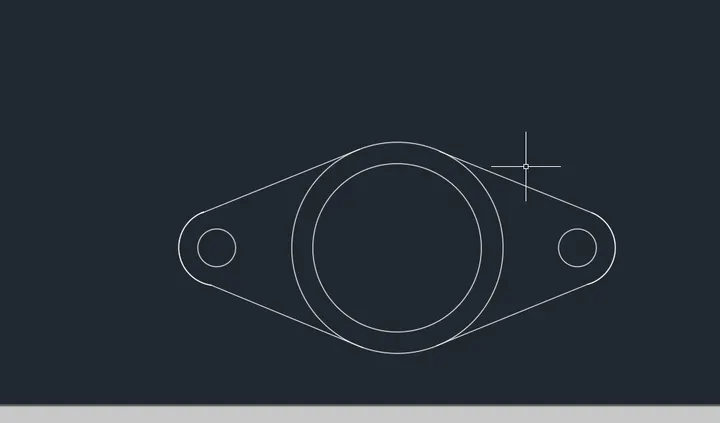
Give the dimensions in it.
RESULT:
AIM:
This tutorial will explain step by step procedure of sketching
and editing tools from below diagrams and to create in AutoCAD.
INTRODUCTION:
SETTING THE STANDARDS: In the following topics,
we will learn about the standard setting used in AutoCAD before starting the drafting process.
UNIT COMMAND: units command is used to control the presicion and display formats for coordinates,
distances, and angles.
For example, we can use inches or millimeters depending upon structural needs.
units types are decimal, architectural, engineering, fractional and scienticfic.
PROCEDURE:
1. command:UNITS press enter
2. shortcut key: UN press enter
3. Access from: Menubar>Format>Units
4. Access from: Applications menu>Drawing utilities>units.
set the units in ENGINEERING,Insertion scale in INCHES. And press ok.
To save that settings.
LIMITS;
LIMITS command sets an invisible rectangular boundary in the drawing area that can
limit the grid display and limit clicking the entire point locations.
PROCEDURE TO ACCESS:
1. command : LIMITS Press enter
2. Shortcut key: LIMI press enter.
Set the limits:
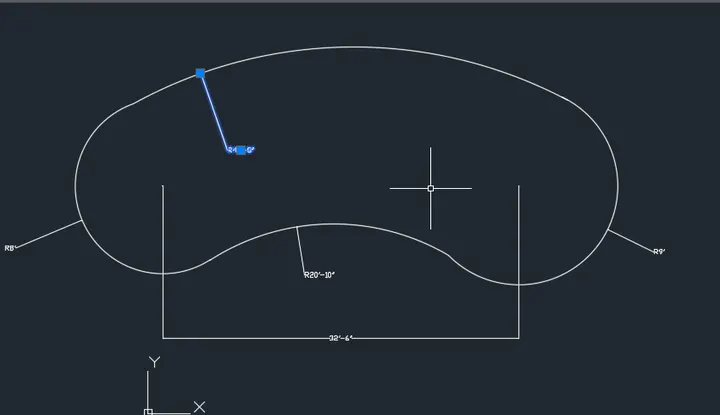
Type the circle command and press enter.
specify the next point to the center , radius R8' and press enter
Specify the next point to the center,radius R9'
in the distance of 32'-6" center of the circle and press enter
Specify the next point to the center, radius R41'-6" and press enter
Specify the next point to the center , radius R20'-10" and press enter
Give the dimensions to it.
RESULT:
AIM:
This tutorial will explain step by step procedure of sketching
and editing tools from below diagrams and to create in AutoCAD.
INTRODUCTION:
SETTING THE STANDARDS: In the following topics,
we will learn about the standard setting used in AutoCAD before starting the drafting process.
UNIT COMMAND: units command is used to control the presicion and display formats for coordinates,
distances, and angles.
For example, we can use inches or millimeters depending upon structural needs.
units types are decimal, architectural, engineering, fractional and scienticfic.
PROCEDURE:
1. command:UNITS press enter
2. shortcut key: UN press enter
3. Access from: Menubar>Format>Units
4. Access from: Applications menu>Drawing utilities>units.
set the units in ENGINEERING,Insertion scale in INCHES. And press ok.
To save that settings.
LIMITS;
LIMITS command sets an invisible rectangular boundary in the drawing area that can
limit the grid display and limit clicking the entire point locations.
PROCEDURE TO ACCESS:
1. command : LIMITS Press enter
2. Shortcut key: LIMI press enter.
Set the limits:
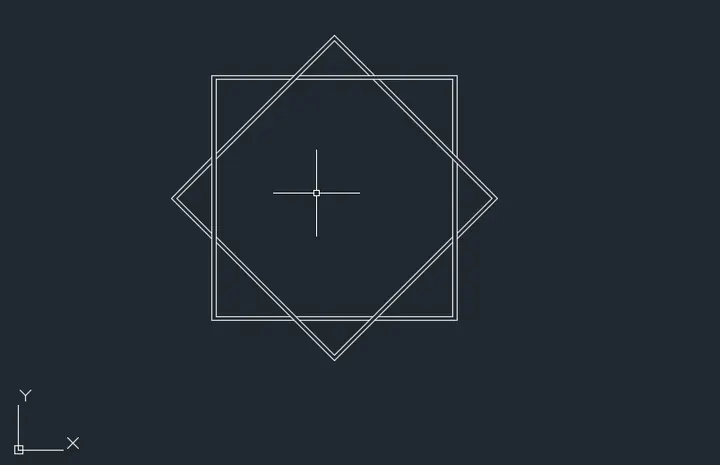
Type the polycon to the command box and press enter
And enter the sides of the polycon and press enter
Then select the inscribed cirlce and press enter
pick the base pointb and and press enter to place it
offset the polycon through 4.5" and press enter
Again
Type the polycon to the command box and press enter
And enter the sides of the polycon and press enter
Then select the inscribed cirlce and press enter
pick the base point and and press enter to place it
offset the polycon through 4.5" and press enter
RESULT:
AIM:
This tutorial will explain step by step procedure of sketching
and editing tools from below diagrams and to create in AutoCAD.
INTRODUCTION:
SETTING THE STANDARDS: In the following topics,
we will learn about the standard setting used in AutoCAD before starting the drafting process.
UNIT COMMAND: units command is used to control the presicion and display formats for coordinates,
distances, and angles.
For example, we can use inches or millimeters depending upon structural needs.
units types are decimal, architectural, engineering, fractional and scienticfic.
PROCEDURE:
1. command:UNITS press enter
2. shortcut key: UN press enter
3. Access from: Menubar>Format>Units
4. Access from: Applications menu>Drawing utilities>units.
set the units in ENGINEERING,Insertion scale in INCHES. And press ok.
To save that settings.
LIMITS;
LIMITS command sets an invisible rectangular boundary in the drawing area that can
limit the grid display and limit clicking the entire point locations.
PROCEDURE TO ACCESS:
1. command : LIMITS Press enter
2. Shortcut key: LIMI press enter.
Set the limits:
Type the line command in to the command box
Specify the first oint 1,1 and press enter
Specify the next point @4'-6" <0 and press enter
Specify the next point @1'2"<90 and press enter
Specify the next point @4'<90 and press enter
Specify the next point @9'<90 and press enter
Specify the next point @3'<0 and press enter
Specify the next point @2'8"<315 and press enter
Specify the next point @2'8"<90 and press enter
specify the next point @3'6"<0 and press enter
Then, mirror the object and click and select that
to whwerever u want it.
Type polycon in command box and pick base point
Select value of polycon and select inscribed circle and press enter
To create the polycon.
RESULT:
Give the dimension to it.