AutoCAD_Creation of Layout_Week 10
AIM:
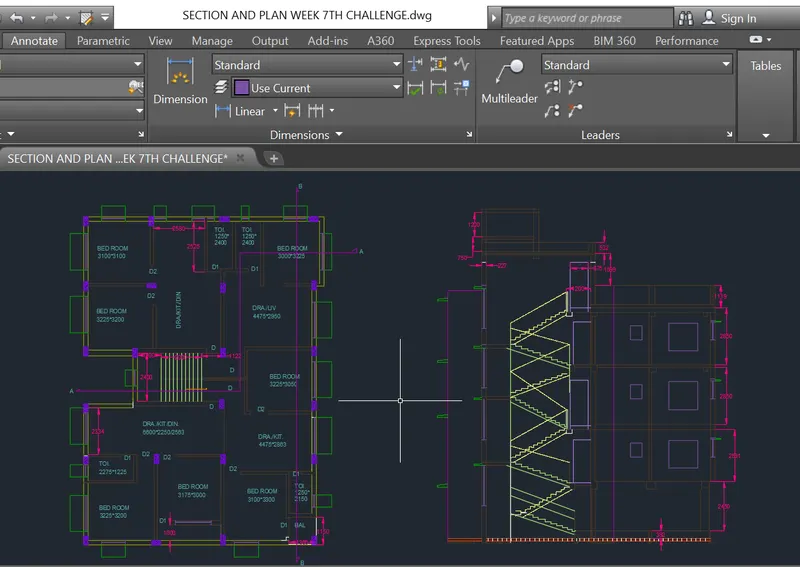
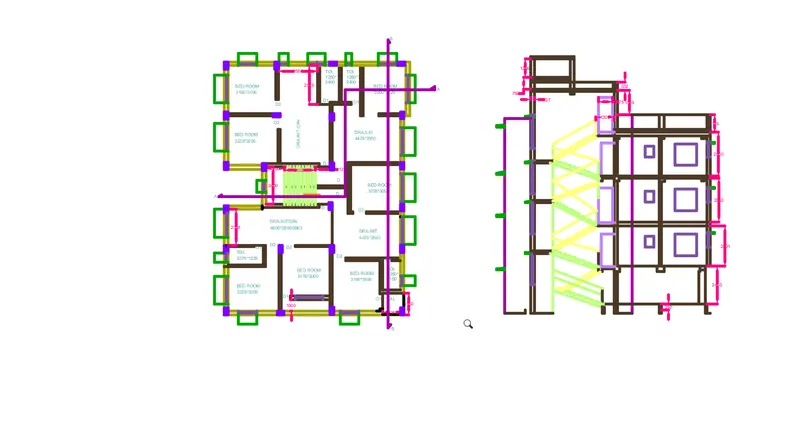
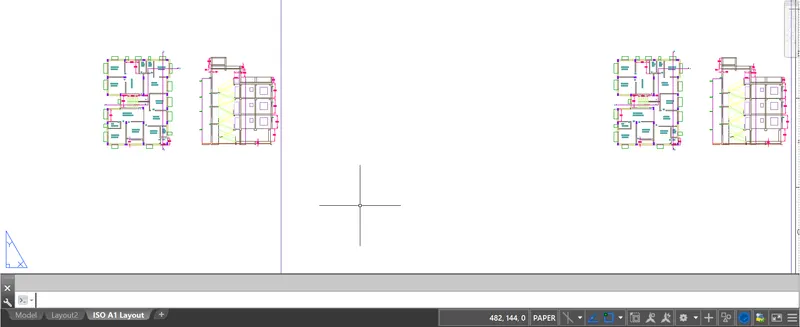
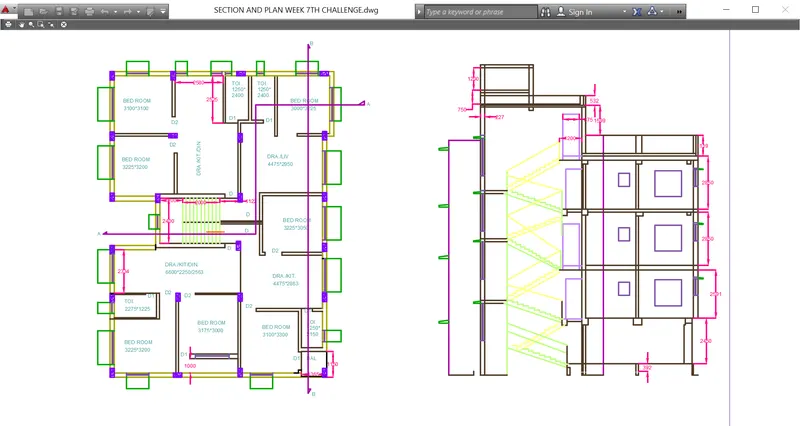
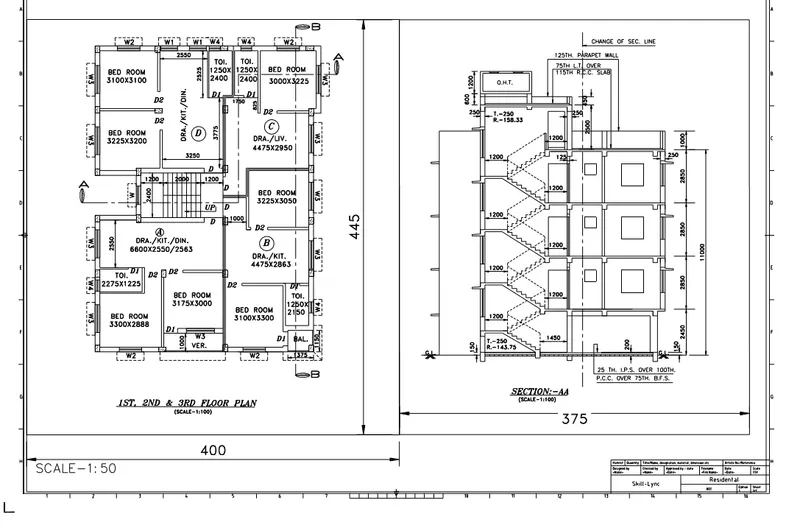
To Create a layout of the Plan and Section A of the project in Challenges 7,
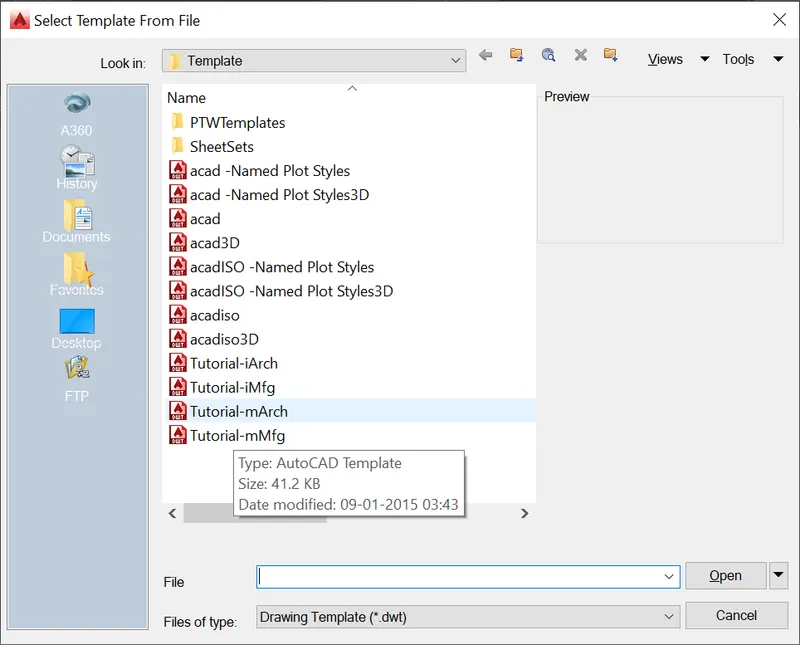
using the template TutorialmArch.dwt in a scale as given in the Figure.
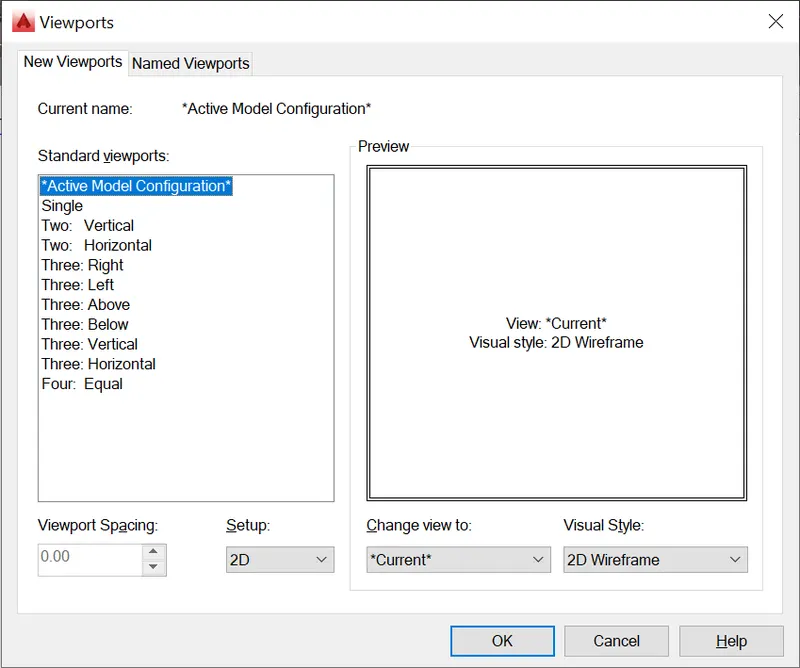
Use the MV command to create the viewport of the size as shown in Figure.
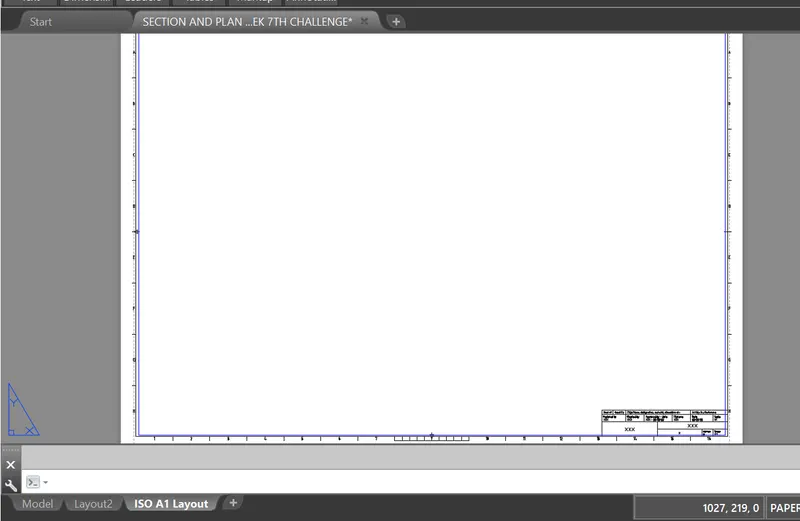
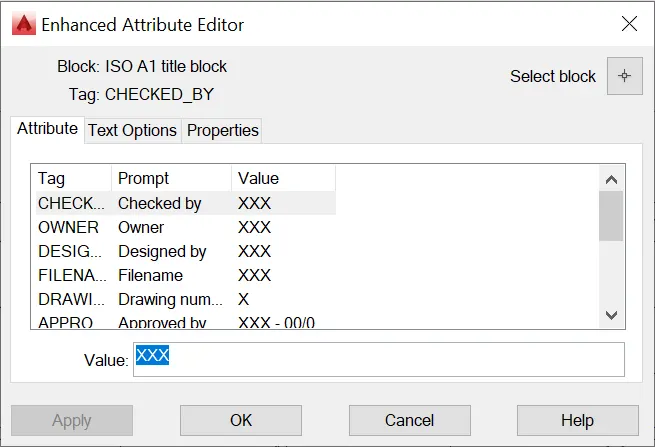
Also, use ATTEDIT command to edit the information in the title block.
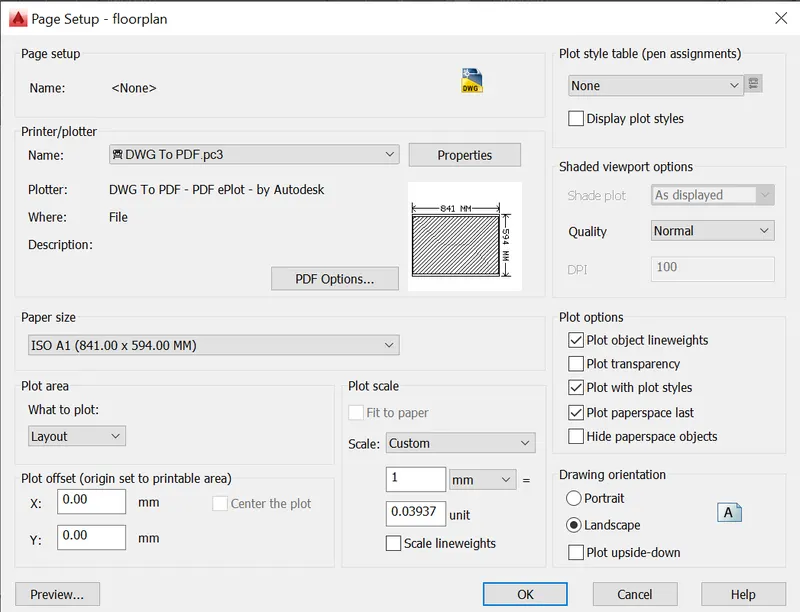
Use A1 size for the layout. Take a plot.
DESCRIPTION:
The plan is an essential documents for the building going to be construted.
The plan contains the various details of the building such as the floor plan and sections.
To draw the plan with necessary views,annotations, and other details in AUTOCAD.
You can use all the commands learned in AUTOCAD software to complete this drawing.
DRAFTING PROCEDURE:
1. Begin a new drawing file with imperial template.
2. Create standard border with title block.
3. Create the necessary layers and dimension styles with different properties.
4. Create the following views: layout details.
5. Create necessary dimensions, notes, joinery details and other annotations.
6. Organize the various the entities in the respective layer.
7. Save the drawing file as .dwg.
8. Scan the QR code to see the virtual model to better understanding.
INTRODUCTION:
SETTING THE STANDARDS: In the following topics,
we will learn about the standard setting used in AutoCAD before starting the drafting process.
UNIT COMMAND: units command is used to control the presicion and display formats for coordinates,
distances, and angles.
For example, we can use inches or millimeters depending upon needs.
units types are decimal, architectural, engineering, fractional and scienticfic.
PROCEDURE:
1. command:UNITS press enter
2. shortcut key: UN press enter
3. Access from: Menubar>Format>Units
4. Access from: Applications menu>Drawing utilities>units.
INTRODUCTION TO LAYOUT:
A layout is a 2D environment where you can specify the size of your drawing sheet, add a
title block, display multiple views of yours models and create dimensions and notes for your
drawings. In layout, there is two distinct working environments
called MODEL SPACES AND PAPER SPACE (layout space). Model space is a three - dimensional space
and the layout space is two-dimensional space. You can use multiple layout to show and provide details on the
various components of your models. You can vary the scale of the model view to show small details which are
part of a bigger three- dimensional model on standard -sized drawing sheets.
On the layout, you can create a many layout viewports as you like. Each layout viewport
is like a picture frame into model space, containing a view that display the model at the same
and oreintation that you specify. you can create a single layout viewport that fits the entire
layout or create the multiple layut viewports. Once you create a viewpor, you can changes its size,
properties, and also scale and move it as needed. you can also specify which layers should be in layers
in layout environment.
PAGESETUP COMMAND:
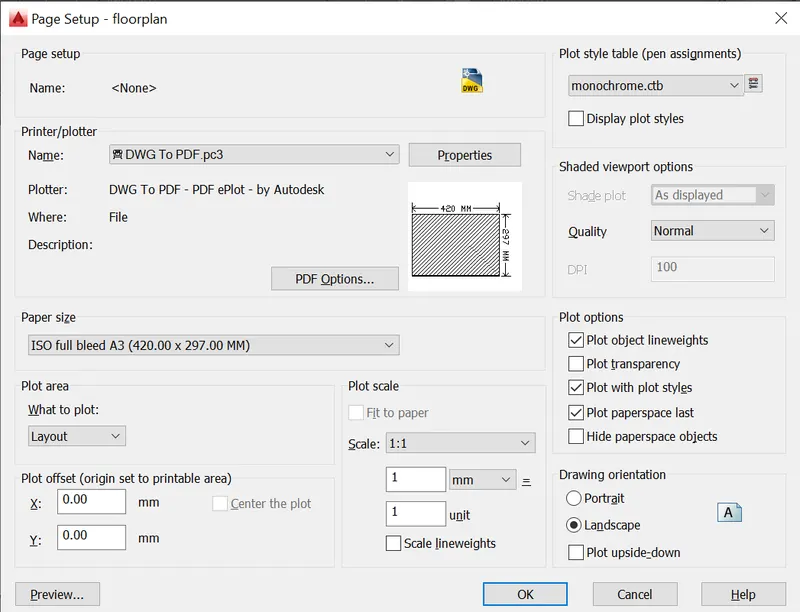
PAGESETUP command is used to control the page layout, plotting device, paper size, and other settings
for each new layout . A pagesetup is a collection of plot device and other setting that determine
the format of your final output. These settings are stored in the drawing file can be modified and applieed to other layouts.
Procedure to access.
1. Command : PAGESETUP and press enter.
2. Access from: Menu bar> File> Pagesetup manager
3. Access from: Application menu> Print>page> setup.
options - pagesetup manager.
Pagesetups - Displays the current page setup, sets a different page setup as current, creates a new pag setup modifies
an existing page setup, and imports, page setups otherdrawings.
SET CUURENT:
Set the selected page setup as the current page setup for the current layout.
You cannot set the current layout as the current page setup. Set current is not available for sheetsets.
NEW:
Displays the New pagwsetup dialog box, in which you can enter a name for the new page
setup and specify the page setup to use as a starting point.
MODIFY:
Displays the Page setup dialog box, in which you can edit the setting
for the selected page setup.
PAGE SETUP SETTING:
Displays information about the selected page setup. The page setup
window will appear when we create a new.
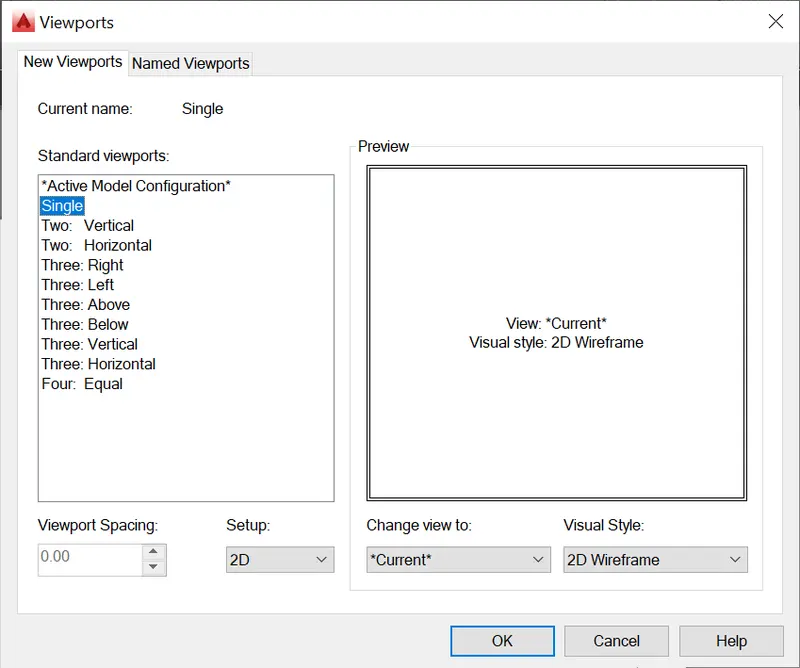
VPORTS COMMAND:
VPORTS comand is used to create the multiple viewports in model
space or paper space.
Procedure to access:
1. Command: -VPORTS and press.
2. Access from: Layout tab> Layout viewports.
Options
Corner of viewport - Specifies the location of the one corner of the rectangular viewport.
On - Turns on a viewport, making it active and making its objects visible.
Off - Turns off a viewports. When a viewport is off, its object are not displayed, and you cannot make that
viewport epends on the dimensions of the paper space view.
PLOT COMMAND:
PLOT COMAND is used to plot a drawing to a plotter, printer or file.
Procedure to access:
1. Command: PLOT and press
2. Shortcut key: Ctrl+P
3. Ribbon menu: output > Plot panel> Plot
4. Access from: Menu bar> File> Plot.
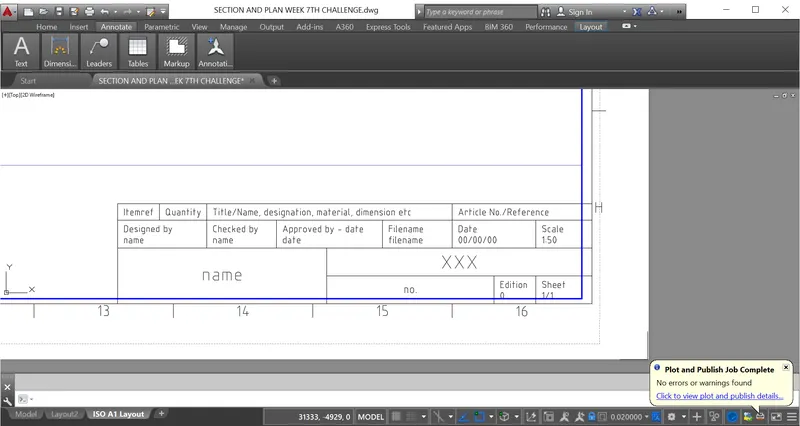
set the template as TUTORIAL-MARCH.
Edit the text in attribute command to double click it.
RESULT:
2.
AIM:
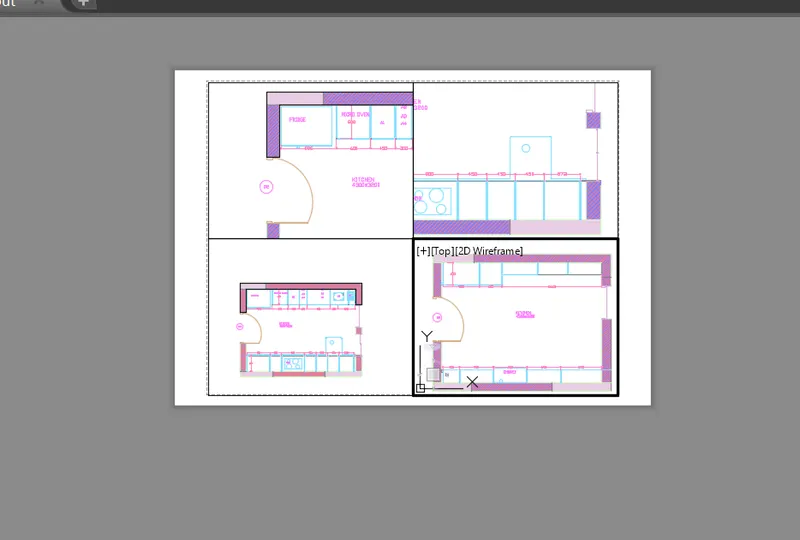
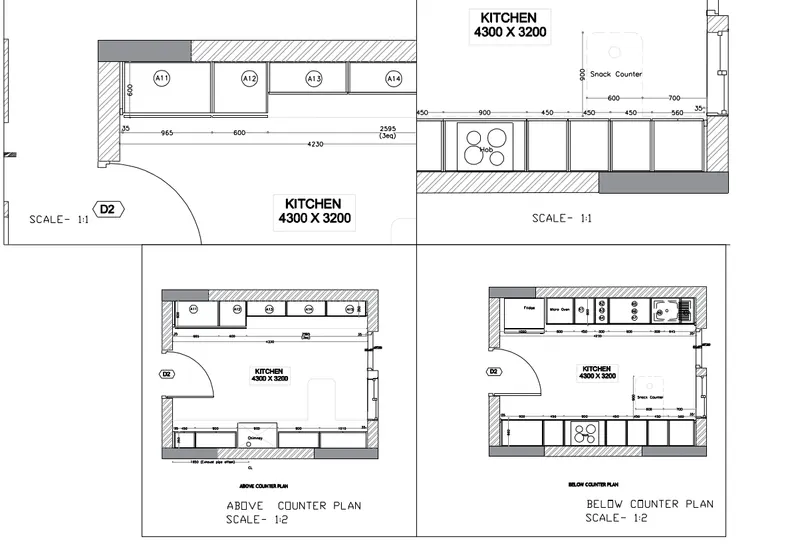
To Create a layout of the Kitchen drawn in Challenge 9 as shown in Figure.
Use the scale as shown in the Figure. Use A4 Size page for the layout.
Take a plot.
DESCRIPTION:
The plan is an essential documents for the building going to be construted.
The plan contains the various details of the building such as the floor plan and sections.
To draw the plan with necessary views,annotations, and other details in AUTOCAD.
You can use all the commands learned in AUTOCAD software to complete this drawing.
DRAFTING PROCEDURE:
1. Begin a new drawing file with imperial template.
2. Create standard border with title block.
3. Create the necessary layers and dimension styles with different properties.
4. Create the following views: layout details.
5. Create necessary dimensions, notes, joinery details and other annotations.
6. Organize the various the entities in the respective layer.
7. Save the drawing file as .dwg.
8. Scan the QR code to see the virtual model to better understanding.
INTRODUCTION:
SETTING THE STANDARDS: In the following topics,
we will learn about the standard setting used in AutoCAD before starting the drafting process.
UNIT COMMAND: units command is used to control the presicion and display formats for coordinates,
distances, and angles.
For example, we can use inches or millimeters depending upon needs.
units types are decimal, architectural, engineering, fractional and scienticfic.
PROCEDURE:
1. command:UNITS press enter
2. shortcut key: UN press enter
3. Access from: Menubar>Format>Units
4. Access from: Applications menu>Drawing utilities>units.
INTRODUCTION TO LAYOUT:
A layout is a 2D environment where you can specify the size of your drawing sheet, add a
title block, display multiple views of yours models and create dimensions and notes for your
drawings. In layout, there is two distinct working environments
called MODEL SPACES AND PAPER SPACE (layout space). Model space is a three - dimensional space
and the layout space is two-dimensional space. You can use multiple layout to show and provide details on the
various components of your models. You can vary the scale of the model view to show small details which are
part of a bigger three- dimensional model on standard -sized drawing sheets.
On the layout, you can create a many layout viewports as you like. Each layout viewport
is like a picture frame into model space, containing a view that display the model at the same
and oreintation that you specify. you can create a single layout viewport that fits the entire
layout or create the multiple layut viewports. Once you create a viewpor, you can changes its size,
properties, and also scale and move it as needed. you can also specify which layers should be in layers
in layout environment.
PAGESETUP COMMAND:
PAGESETUP command is used to control the page layout, plotting device, paper size, and other settings
for each new layout . A pagesetup is a collection of plot device and other setting that determine
the format of your final output. These settings are stored in the drawing file can be modified and applieed to other layouts.
Procedure to access.
1. Command : PAGESETUP and press enter.
2. Access from: Menu bar> File> Pagesetup manager
3. Access from: Application menu> Print>page> setup.
options - pagesetup manager.
Pagesetups - Displays the current page setup, sets a different page setup as current, creates a new pag setup modifies
an existing page setup, and imports, page setups otherdrawings.
SET CUURENT:
Set the selected page setup as the current page setup for the current layout.
You cannot set the current layout as the current page setup. Set current is not available for sheetsets.
NEW:
Displays the New pagwsetup dialog box, in which you can enter a name for the new page
setup and specify the page setup to use as a starting point.
MODIFY:
Displays the Page setup dialog box, in which you can edit the setting
for the selected page setup.
PAGE SETUP SETTING:
Displays information about the selected page setup. The page setup
window will appear when we create a new.
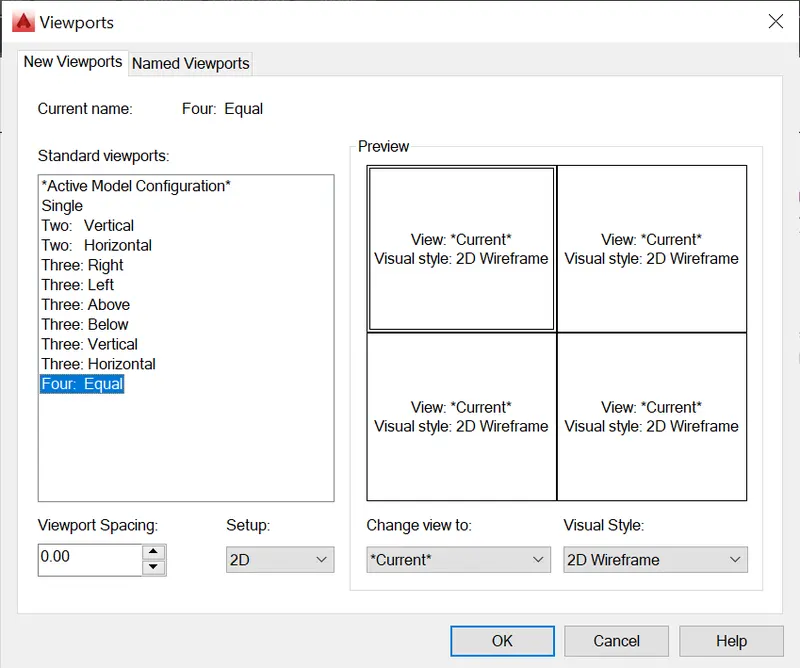
VPORTS COMMAND:
VPORTS comand is used to create the multiple viewports in model
space or paper space.
Procedure to access:
1. Command: -VPORTS and press.
2. Access from: Layout tab> Layout viewports.
Options
Corner of viewport - Specifies the location of the one corner of the rectangular viewport.
On - Turns on a viewport, making it active and making its objects visible.
Off - Turns off a viewports. When a viewport is off, its object are not displayed, and you cannot make that
viewport epends on the dimensions of the paper space view.
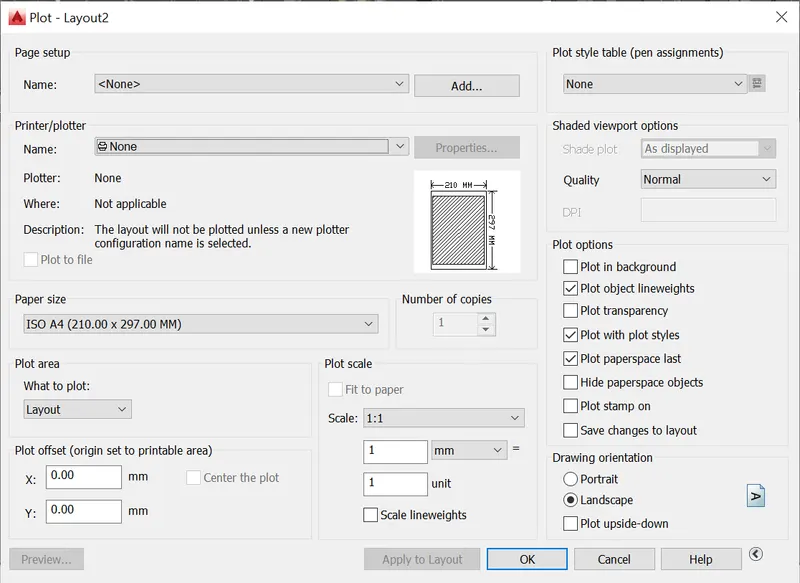
PLOT COMMAND:
PLOT COMAND is used to plot a drawing to a plotter, printer or file.
Procedure to access:
1. Command: PLOT and press
2. Shortcut key: Ctrl+P
3. Ribbon menu: output > Plot panel> Plot
4. Access from: Menu bar> File> Plot.
RESULT:
3. AIM:
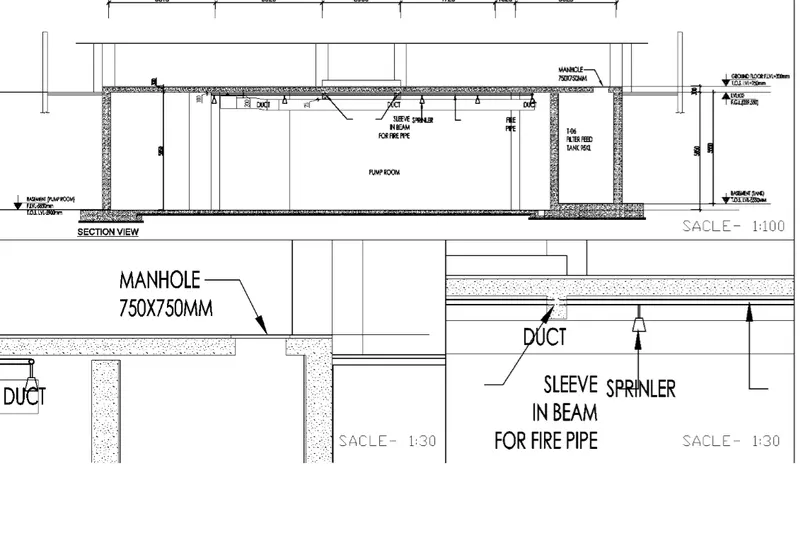
TO Create a layout of the section created in Challenges 9.
Use scale as mentioned in the Figure. Use MV command create multiple viewports.
Take a plot.
DESCRIPTION:
The plan is an essential documents for the building going to be construted.
The plan contains the various details of the building such as the floor plan and sections.
To draw the plan with necessary views,annotations, and other details in AUTOCAD.
You can use all the commands learned in AUTOCAD software to complete this drawing.
DRAFTING PROCEDURE:
1. Begin a new drawing file with imperial template.
2. Create standard border with title block.
3. Create the necessary layers and dimension styles with different properties.
4. Create the following views: layout details.
5. Create necessary dimensions, notes, joinery details and other annotations.
6. Organize the various the entities in the respective layer.
7. Save the drawing file as .dwg.
8. Scan the QR code to see the virtual model to better understanding.
INTRODUCTION:
SETTING THE STANDARDS: In the following topics,
we will learn about the standard setting used in AutoCAD before starting the drafting process.
UNIT COMMAND: units command is used to control the presicion and display formats for coordinates,
distances, and angles.
For example, we can use inches or millimeters depending upon needs.
units types are decimal, architectural, engineering, fractional and scienticfic.
PROCEDURE:
1. command:UNITS press enter
2. shortcut key: UN press enter
3. Access from: Menubar>Format>Units
4. Access from: Applications menu>Drawing utilities>units.
INTRODUCTION TO LAYOUT:
A layout is a 2D environment where you can specify the size of your drawing sheet, add a
title block, display multiple views of yours models and create dimensions and notes for your
drawings. In layout, there is two distinct working environments
called MODEL SPACES AND PAPER SPACE (layout space). Model space is a three - dimensional space
and the layout space is two-dimensional space. You can use multiple layout to show and provide details on the
various components of your models. You can vary the scale of the model view to show small details which are
part of a bigger three- dimensional model on standard -sized drawing sheets.
On the layout, you can create a many layout viewports as you like. Each layout viewport
is like a picture frame into model space, containing a view that display the model at the same
and oreintation that you specify. you can create a single layout viewport that fits the entire
layout or create the multiple layut viewports. Once you create a viewpor, you can changes its size,
properties, and also scale and move it as needed. you can also specify which layers should be in layers
in layout environment.
PAGESETUP COMMAND:
PAGESETUP command is used to control the page layout, plotting device, paper size, and other settings
for each new layout . A pagesetup is a collection of plot device and other setting that determine
the format of your final output. These settings are stored in the drawing file can be modified and applieed to other layouts.
Procedure to access.
1. Command : PAGESETUP and press enter.
2. Access from: Menu bar> File> Pagesetup manager
3. Access from: Application menu> Print>page> setup.
options - pagesetup manager.
Pagesetups - Displays the current page setup, sets a different page setup as current, creates a new pag setup modifies
an existing page setup, and imports, page setups otherdrawings.
SET CUURENT:
Set the selected page setup as the current page setup for the current layout.
You cannot set the current layout as the current page setup. Set current is not available for sheetsets.
NEW:
Displays the New pagwsetup dialog box, in which you can enter a name for the new page
setup and specify the page setup to use as a starting point.
MODIFY:
Displays the Page setup dialog box, in which you can edit the setting
for the selected page setup.
PAGE SETUP SETTING:
Displays information about the selected page setup. The page setup
window will appear when we create a new.
VPORTS COMMAND:
VPORTS comand is used to create the multiple viewports in model
space or paper space.
Procedure to access:
1. Command: -VPORTS and press.
2. Access from: Layout tab> Layout viewports.
Options
Corner of viewport - Specifies the location of the one corner of the rectangular viewport.
On - Turns on a viewport, making it active and making its objects visible.
Off - Turns off a viewports. When a viewport is off, its object are not displayed, and you cannot make that
viewport epends on the dimensions of the paper space view.
PLOT COMMAND:
PLOT COMAND is used to plot a drawing to a plotter, printer or file.
Procedure to access:
1. Command: PLOT and press
2. Shortcut key: Ctrl+P
3. Ribbon menu: output > Plot panel> Plot
4. Access from: Menu bar> File> Plot.
RESULT: