Week 6 - Creating connection for Rear door
CREATING CONNECTION FOR AUTOMOTIVE SIDE DOOR
AIM:
To deploy appropriate 1D connectors to the automotive rear door model.
OBJECTIVE:
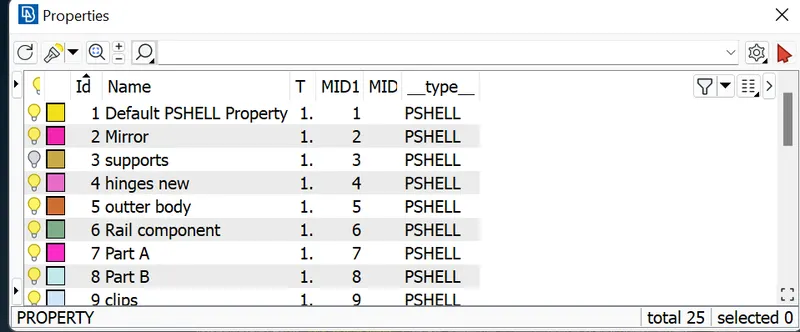
- To create separate PIDs for the car door.
- Creating RBE-3 CBUSH RBE-3 for weather strips.
- Creating RBE-2 1D Elements for bolt joints.
- Creating RBE-3 HEXA RBE-3 for spot weld joint.
- Creating OVERLAP SHELL for seam weld joint.
- Creating Hinge connections using RBE2 2 Nodes and RBE2 many Nodes.
- Deploying connections at the door handle.
- Perform connections for a FE model.
SOFTWARE USED:
- Preprocessing software- ANSA v 22.1.1
PROCEDURAL STEPS:
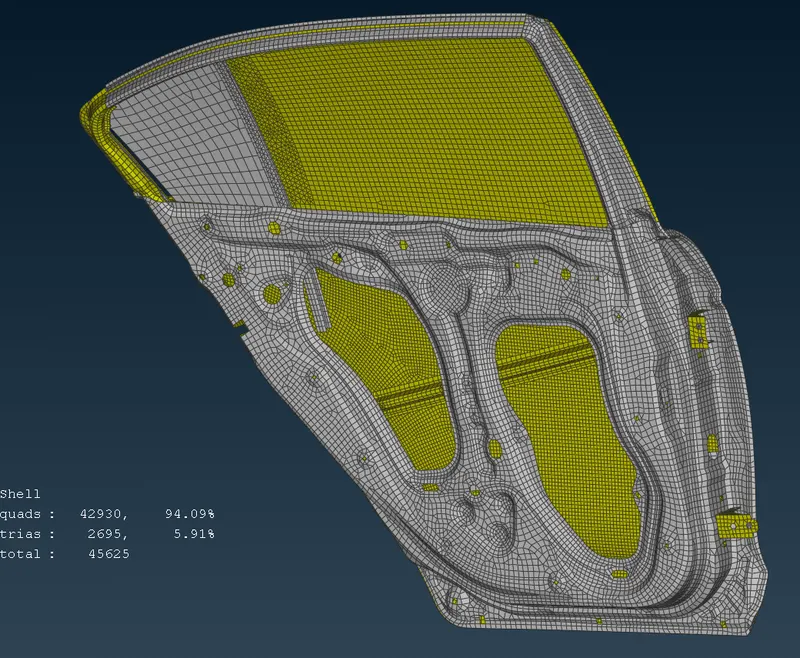
STEP 1: Importing the given autumotive side door model and it was seen to have meshed completely.
Then inspection of CAD model was done and no errors were found.
FE model of side door
STEP 2 : Creating different PIDs for the side door parts.
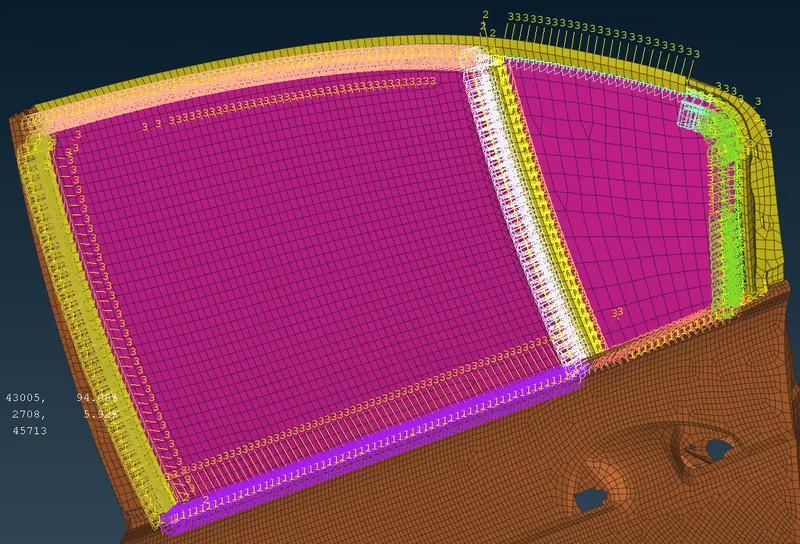
STEP 3 : Creating C-BUSH connections for weather strip in between mirrors and other bodies.
STEP 3A : Created curve by using MESH > PERIMETERS> FEAT2CURVE
1.Curve is converted in to spotline by CONVERT option.Then spot line is copy and move for C-BUSH connections requirements.
2. In CONNECTION MANAGER > select the SPOTLINE > Middle click > SPACING value =10mm
3. Then select the Mirrror PID and other Bodies PID by SHIFT+F1. Status OK.
4. Choose FE representation type as RBE-3 CBUSH RBE-3
5. Providing Search distance as (30min to 60 max ) depends upon to avoid connections failures.
6. In PBUSH selecting by SHIFT+? to provide the k values as K1=1,K2=1,K3=1,K4=10,K5=10,K6=10
7. Created CBUSH PID apply and realized it.
STEP 3B : The same procedure as follow for all sides of the 2 mirrors .
STEP 4 : Creating RBE-2 1D Elements for bolt joints.
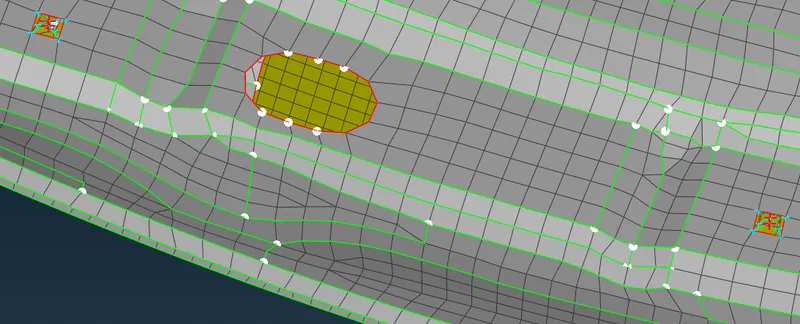
1. Creating BOLT connections in outter body, hinges and supports
2. Creating 3D point by TOPO > POINTS > ON COG .
3. Then 3Dpoint is converted into 3D BOLT by CONVERT option.
4. In CONNECTION MANAGER select the 3D point.
5. Then Choosed the 2 PIDS or more than 2 PIDS for 2 parllel holes.
6. Choose FE representation type as BOLT.
7. Provide the search distance as 20.
8. Created BOLT connections apply and realized it.
Bolt connection between hinges and supports.
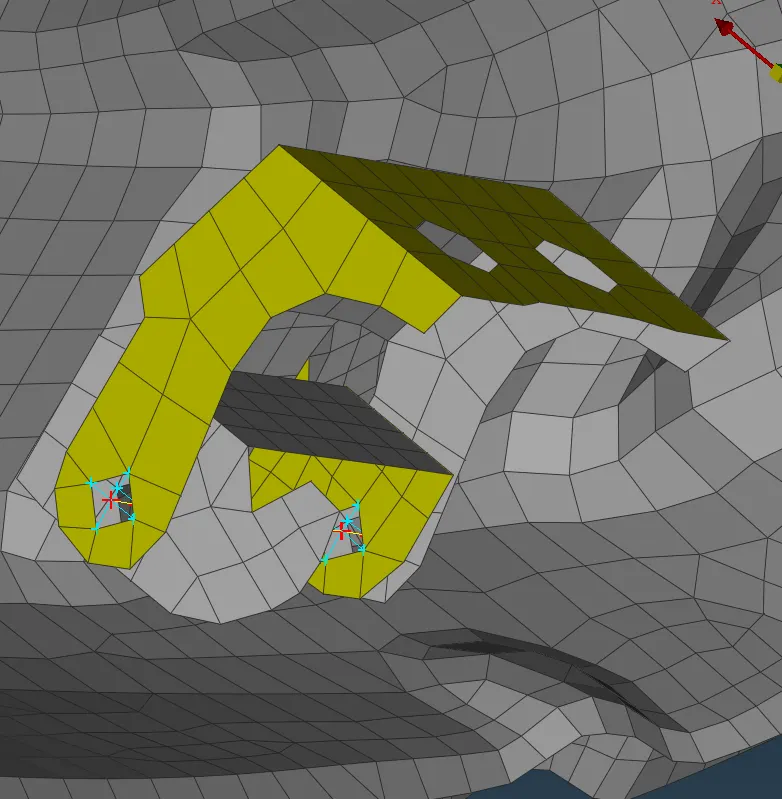
BOLT connections in outter body
STEP 5 : Creating RBE-3 HEXA RBE-3 for Spot weld joints.
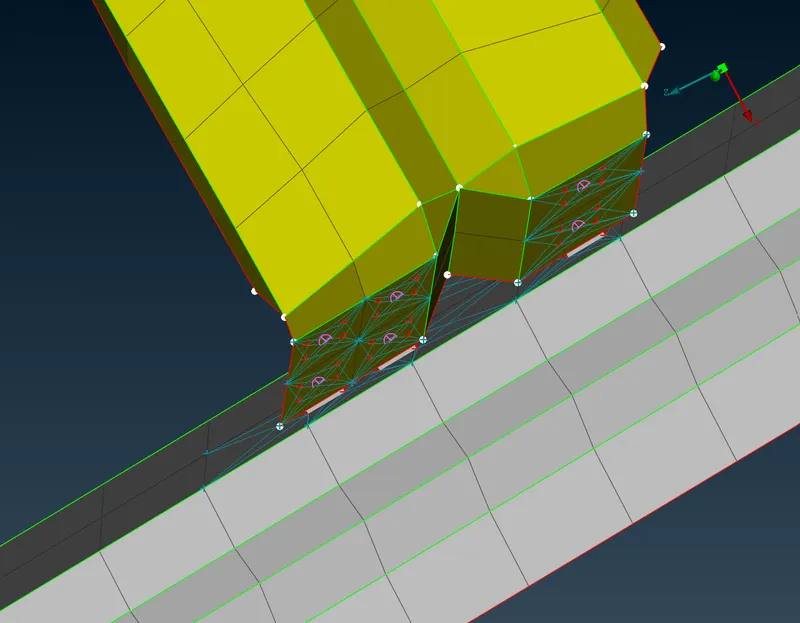
1. Creating Spot weld connection in between outter body and part A
2. Creating 3D point by TOPO > POINTS > ON COG .
3. Then 3D point is converted into spot weld point.
4. Using connection manager to select the spot weld point.
5. Select the two PIDs (outter body and part A) in where to be spot weld occurs.
6. Provide an FE representation RBE-3 HEXA RBE-3
7. Provide the search Distance value is 10mm.
8. Then create the Weld PID.double click apply and realize it.
Spot weld connection in between outter body and part A
STEP 5A : Creating Spot weld connection in between outter body and Rail component
1. Creating 3D point by TOPO > POINTS > ON COG .
2. Then 3D point is converted into spot weld point.
3. Using connection manager to select the spot weld point.
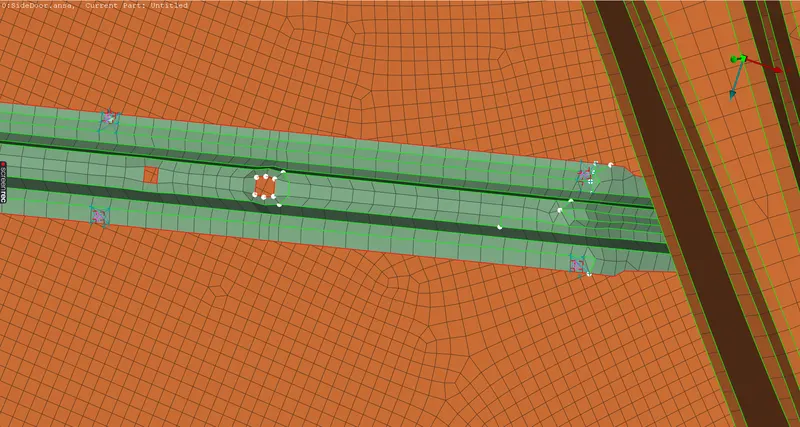
4. Select the two PIDs (outter body and Rail component) in where to be spot weld occurs.
5. Provide an FE representation RBE-3 HEXA RBE-3
6. Provide the search Distance value is 10mm.
7. Then create the Weld PID.double click apply and realize it.
Spot weld connection in between outter body and Rail component
STEP 5B : Creating Spot weld connection in between Clips and outter body.
1. Creating 3D point by TOPO > POINTS > ON COG .
2. Then 3D point is converted into spot weld point.
3. Using connection manager to select the spot weld point.
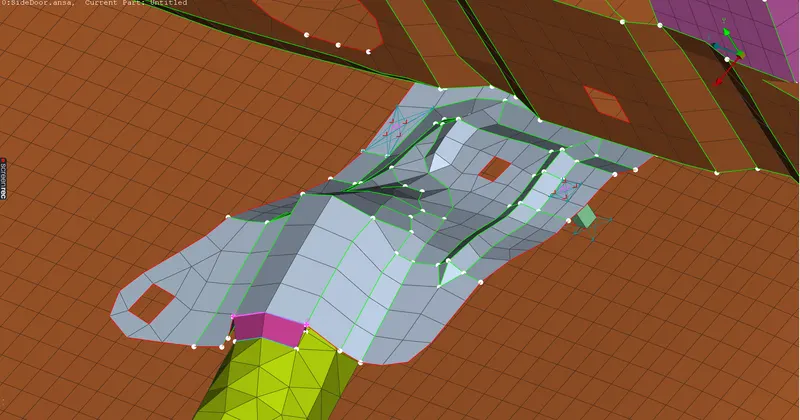
4. Select the two PIDs (Clips and outter body) in where to be spot weld occurs.
5. Provide an FE representation RBE-3 HEXA RBE-3
6. Provide the search Distance value is 10mm.
7. Then create the Weld PID.double click apply and realize it.
Spot weld connection in between Clips and outter body.
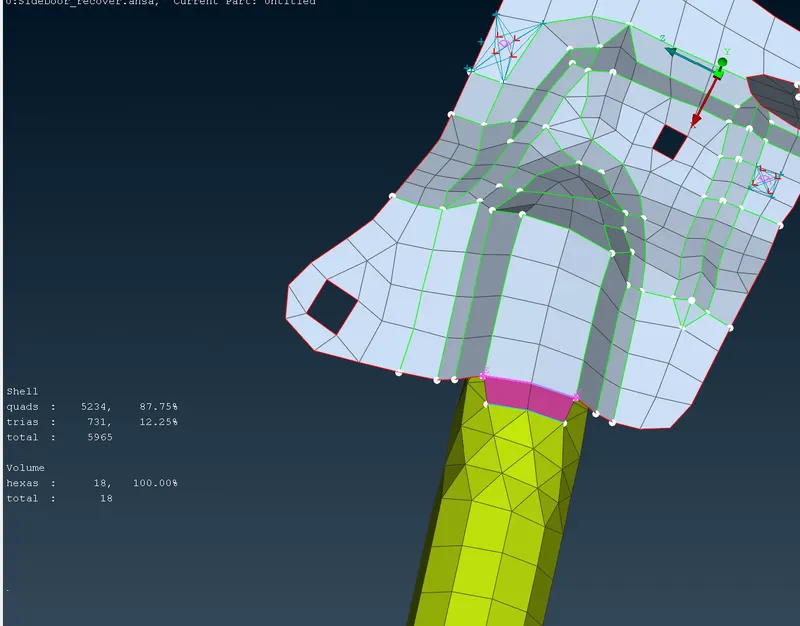
STEP 6: Creating overlap shell between between pipe and clips.
1. Creation of curve using MESH > PERIMETER > FEAT2CURVE .
2. To convert the curve into seam line by CONVERT option.
3. In connection manager selected the seam line and to select PID values for clips and pipes .
4. FE representation type as OVERLAP SHELL
5. Provide search distance value as 10mm
6. Choosed the proper base sheet and provide width value is 5mm as per the target element size.
7. Then creation of Weld PID of it , apply and realized it.
Seam weld connection between pipe and clips on one side
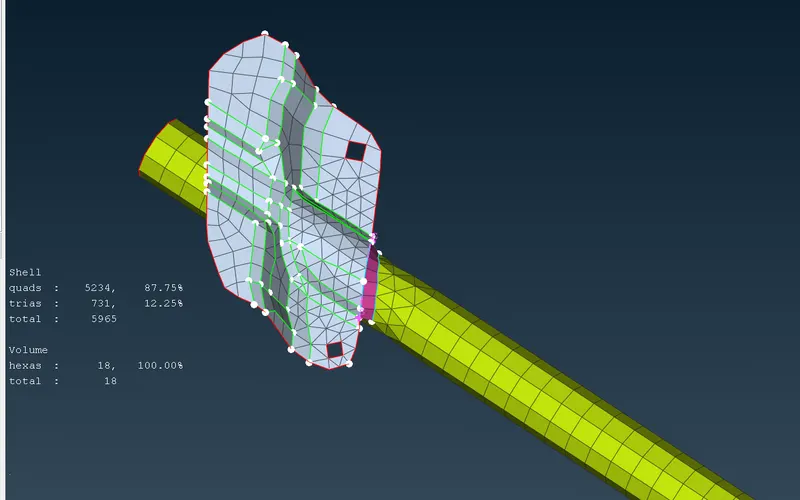
Seam weld connection between pipe and clips on one side
STEP 7 : Performing hinge connection using two nodes RBE2
1. To provide door rotation along Z-axis by choosing connections in hinges and supports.
2. NASTRAN deck > ELEMENTS > RBE2 > selected two nodes
3. Then set the values as 12345 to rotate along Z-direction.
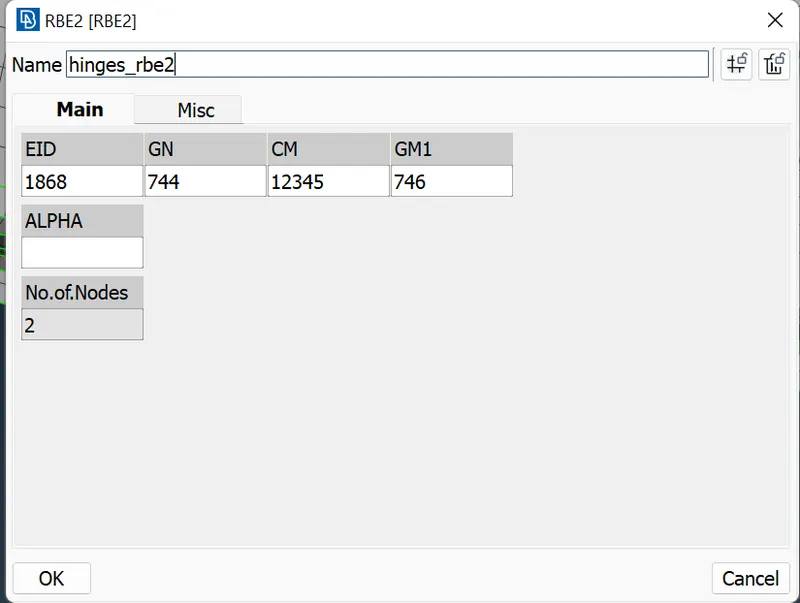
Hinge connections made by 2 NODES RBE-2
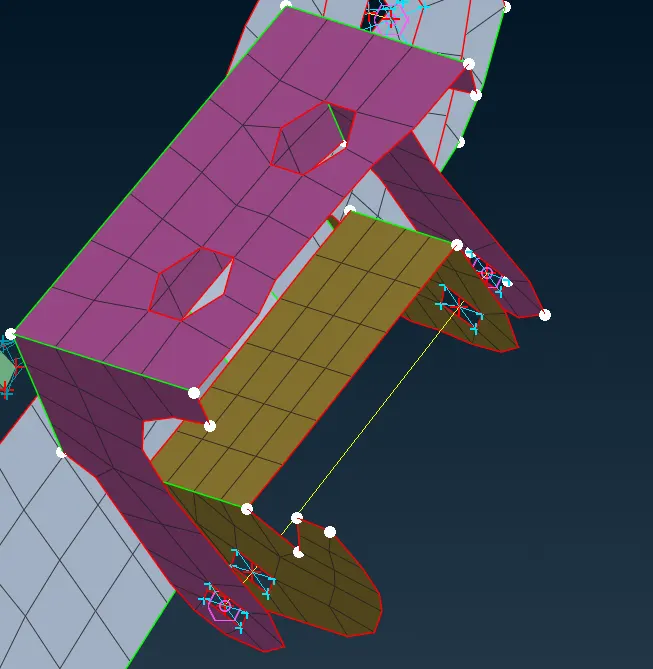
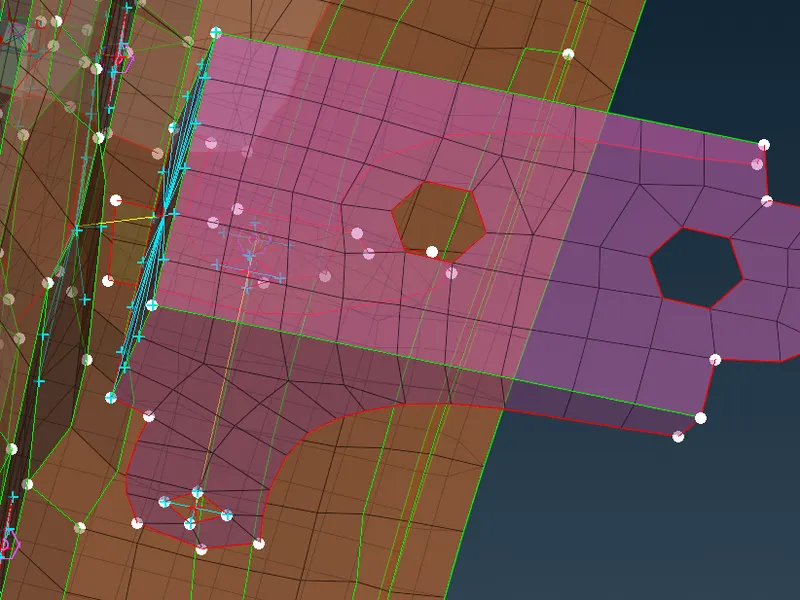
STEP 8 : Performing hinge connection between outter body and hinge using Many nodes RBE2.
NASTRAN deck > ELEMENTS > RBE2 > selected MANY NODES RBE2 > selected ELEMENTS > selected SLAVE NODES > selected MASTER NODES > OK.
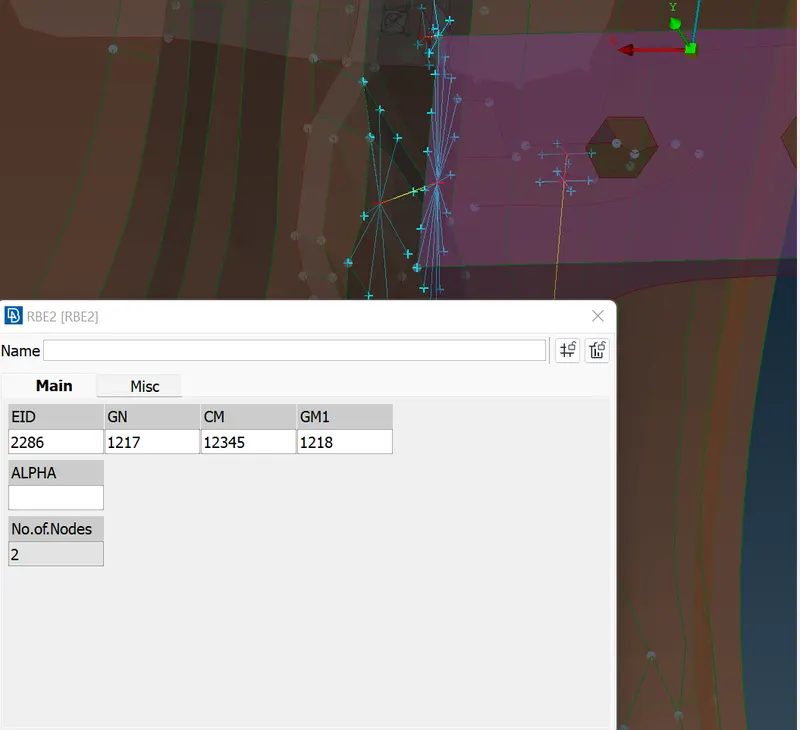
Hinge connection between outter body and hinge by many nodes RBE2
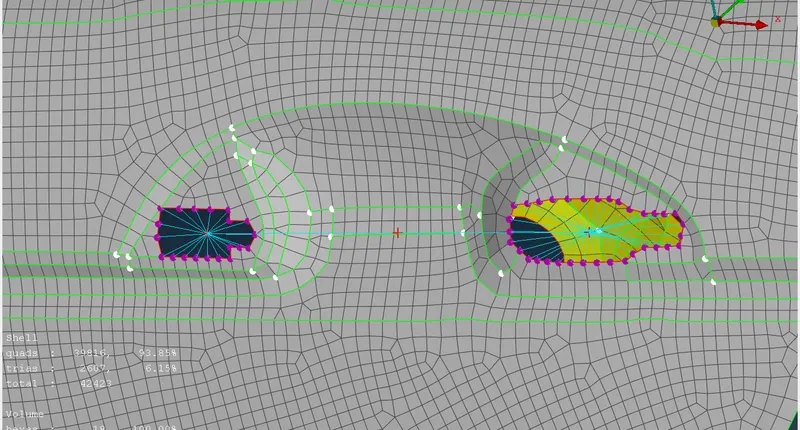
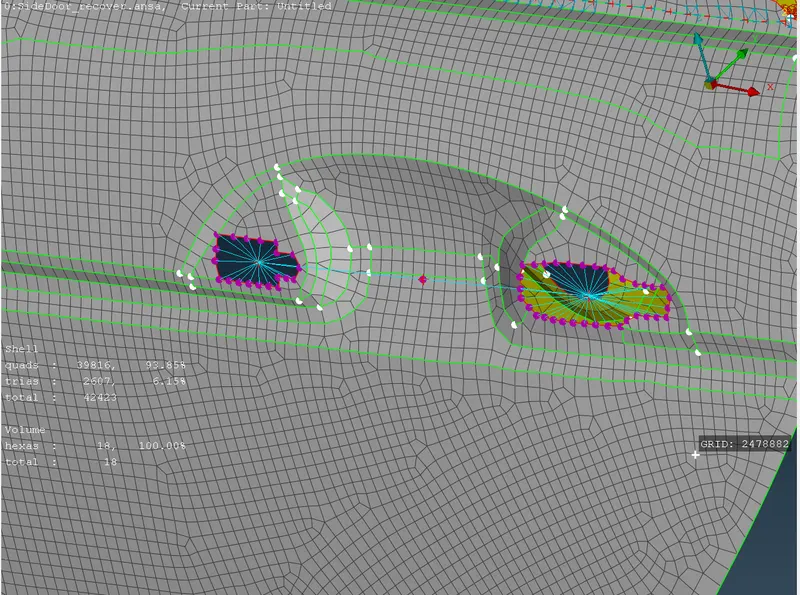
STEP 8 : Deploying Connection at the door handle .
1. NASTRAN DECK > RBE2 ELEMENTS > MANY NODES used to connect perimeter of the handle.
2. Then RBE2 elements with many nodes used to connect both master nodes, after connecting.
STEP 8A : The mass can be assigned by using NASTRAN DECK MODULE > ELEMENTS > CONMI > CONMI2 > NODES > selected the 2 nodes mass value =1E-4 in tons(1000kg)
After assigning the mass at the center master node , it will be represented as highlighted.
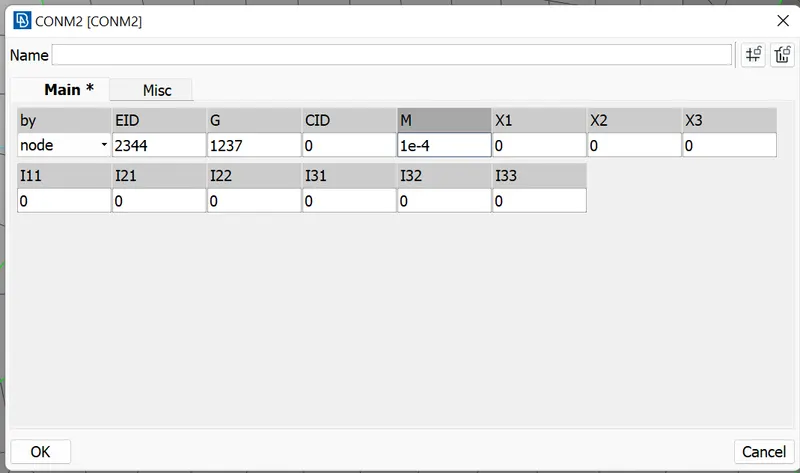
Center master node at the doorn handle bodies
`
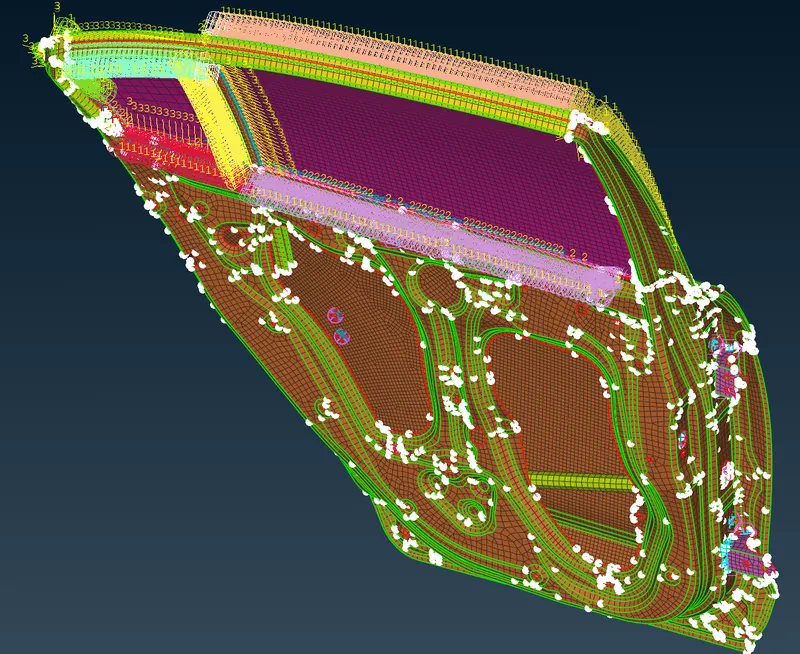
STEP 9 : Performed CBUSH,BOLT, SPOTWELD, SEAM WELD and HINGES connections for a FE model.
LEARNING OUTCOME :
- How to make separate PIDs for especially for connection types.
- How to make realized the connector successfully .
- How to debug a connector if its fallig from realization.
CONCLUSION:
Finally deployed the necessary connection for the given meshed side door model.