Week 4 - CHT Analysis on Exhaust port
Challenge – CHT Analysis on Exhaust Port.
Objective 1 – Conjugate heat transfer refers to the combined analysis of both fluid flow and heat transfer in systems where there are solid structure interacting with the fluid flow, leading to heat transfer between the solid structure and the surrounding fluid.
In traditional heat transfer analysis, such as in convective heat transfer analysis, only the heat transfer with in the fluid domain is considered, neglecting the thermal interaction with solid structure. However, in many real world scenarios, such as in electronics cooling, engine cooling and industrial processes, the interaction between solid components and surrounding fluid significantly affects the overall heat transfer behavior.
CHT analysis is crucial in understanding these systems accurately because it accounts for the thermal conduction with in solid structure as well as the convective heat transfer between the fluid and the solid surfaces. This enables engineers to predict more realistic temperature distribution, optimize design for better performance and ensure the structural integrity of components subjected to thermal loads.
CHT analysis finds applications in various fields including aerospace engineering, automotive engineering, electronics cooling, power generation and industrial processes. Computational fluid dynamics coupled with the heat transfer solver in commonly used to perform conjugate heat transfer simulation, allowing engineers to simulate complex fluid flow and heat transfer phenomena accurately.
Objective 2 – Performing refined meshing & simulation the results.
Geometry Setup:
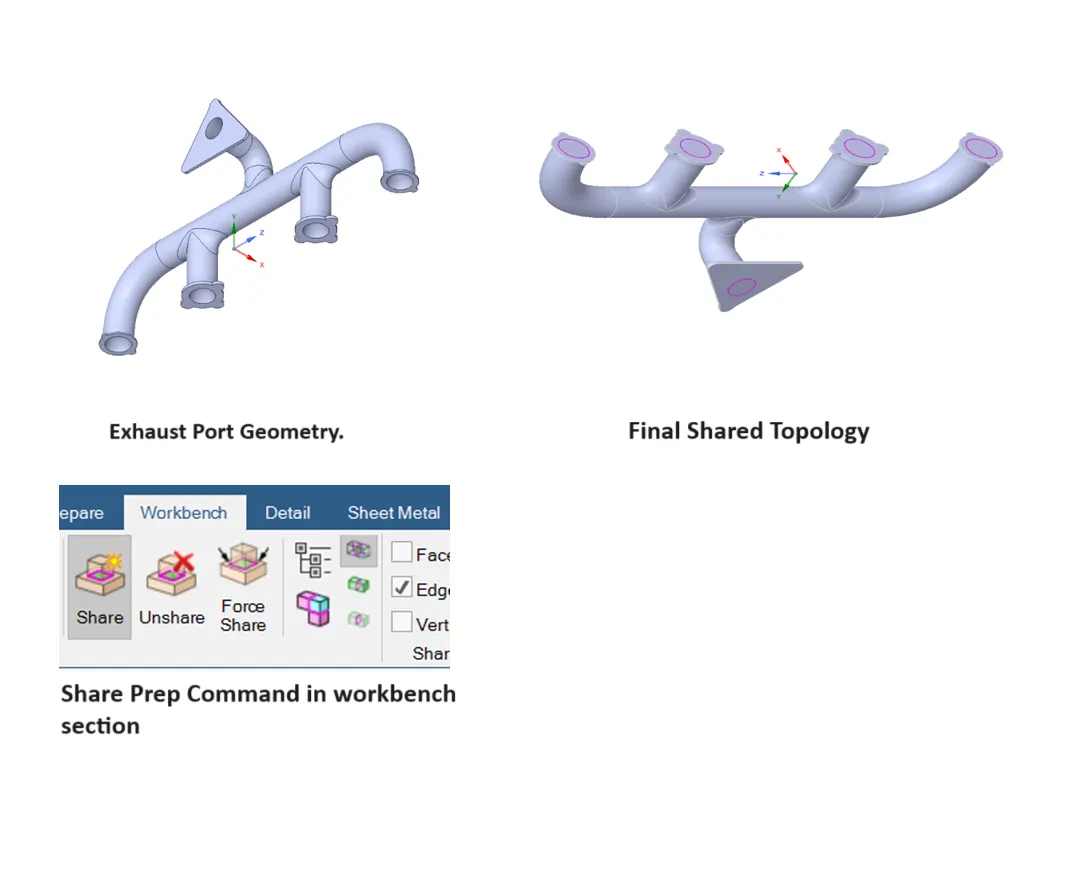
01. Load the exhaust port geometry in the Ansys space claim.
02. Extract volume by selecting the edge selection. Called the Volume extraction.
03. Name this volume by ‘Fluid volume’, where actual fluid can flow.
04. Move both the volume ‘Solid Volume & Fluid Volume’ in a single component, and select the share topology for both the volumes.
05. For getting the similar & attached mesh lines, we have to perform ‘Share Prep’ between both of the volume.
06. After successful setup ‘Share Prep’ in both of the volume, all the edges will be seen colored ‘purple’.
07. Total 11 faces and 15 edges were shared.
Mesh Setup:
01. Before starting meshing, name all the different part of the body.
01. Inlet
02. Outlet
03. Outer wall convection
04. Inflation layer
These are the total named selection of the body.
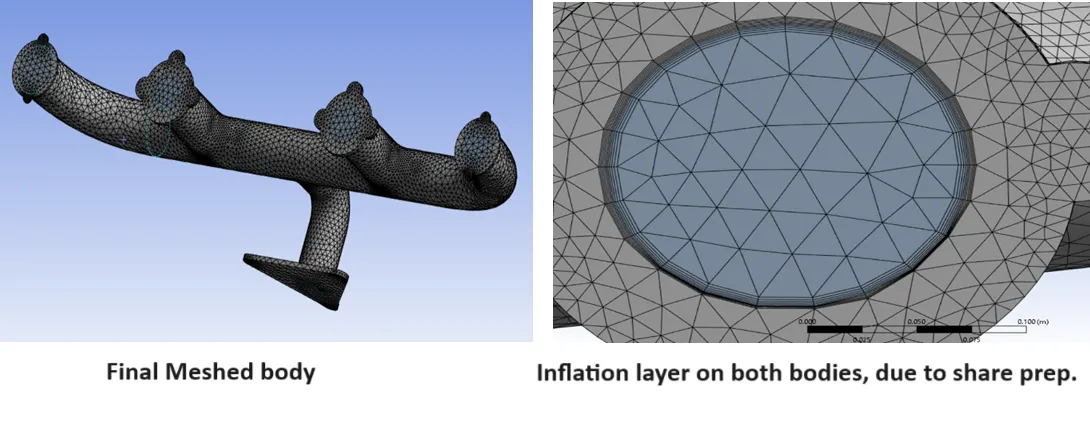
02. Firstly, generate the base line mesh, by generate mesh command.
03. Insert the ‘Body sizing’ for outer body, to get the refined mesh.
04. Construct the inflation layer in the ‘fluid volume’.
We will ensure that total mesh count should be less then 5 lacs.
Body Setup & Solution:
01. Check the mesh.
02. Enable the ‘Energy Equation’ on.
03. Select the viscosity model.
04. Check the material data. For fluid- Air, and for solid-aluminum is set, with the default values.
05. Setting up the initial values for the exhaust port.
a. Inlet – Inlet should be the velocity inlet – inlet velocity is 5 m/s.
b. Outlet – Outlet should be the pressure outlet – absolute pressure will be 0.
c. Outer wall convection – we have set the coefficient of heat transfer will be 20 W/m2. K.
06. Now get the initial conditions by initialization of the hybrid initialization.
07. Setting up the contour, after hybrid initialization. Named the contour for temperature contour for the selected named selection will appear the contour plot.
08. Set up animation file for the temperature contour.
Setup Results & Post processing.
01. Color the outer wall convection by variables – temperature.
02. Insert the stream lines from the inlet.
03. Insert the plane on the ‘xy’ plane. And color the plane by the ‘Wall heat convection’.
A.CFD Simulation with the base line mesh.
1. Element quality is 22%.
2. Element mesh count – 138998.
3. Viscosity model – K epsilon.
4. Element mesh size – 0.15 meter.
5. Element max size – 0.3 meter.
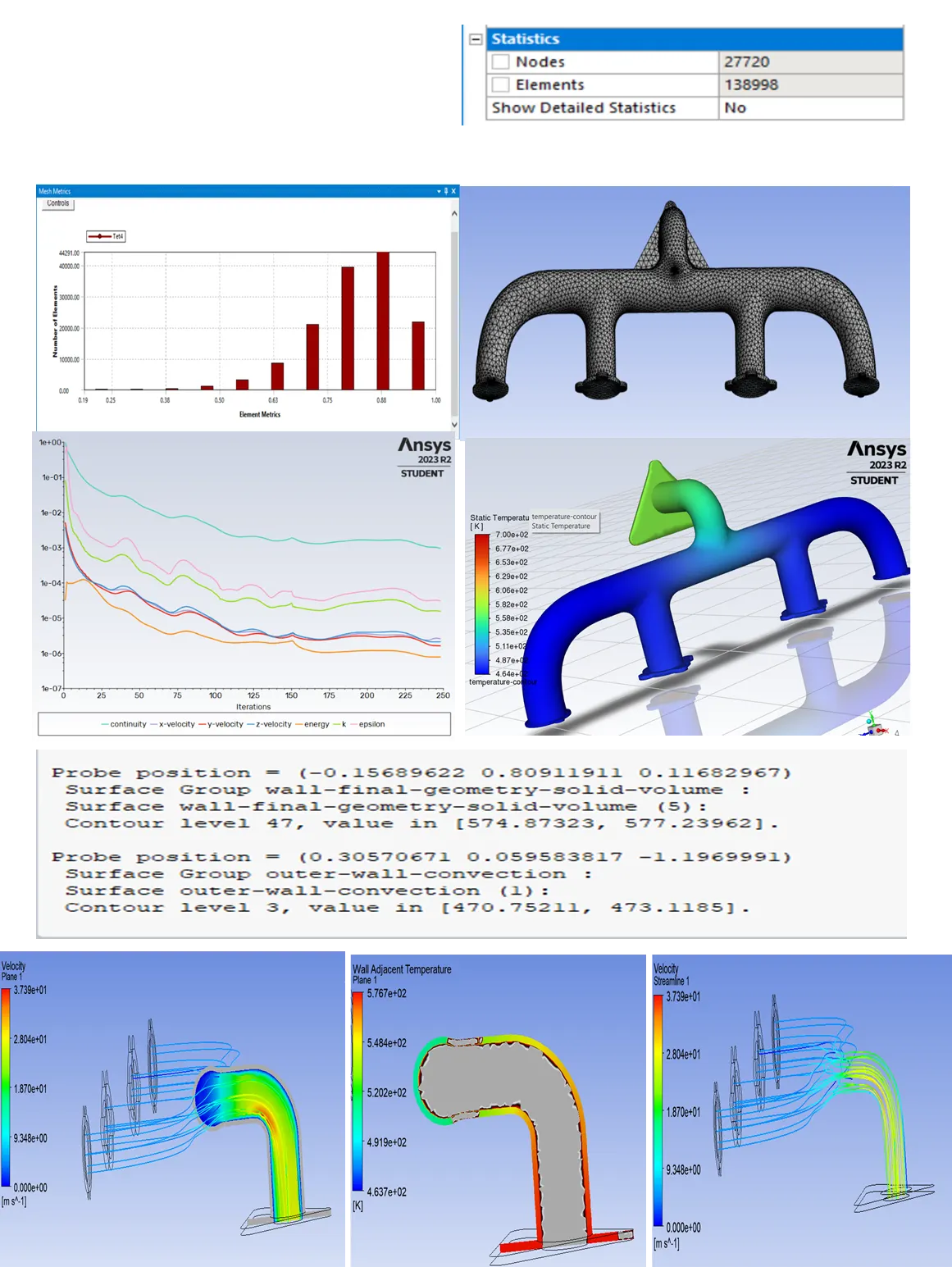 Solution is converged at 248 iterations
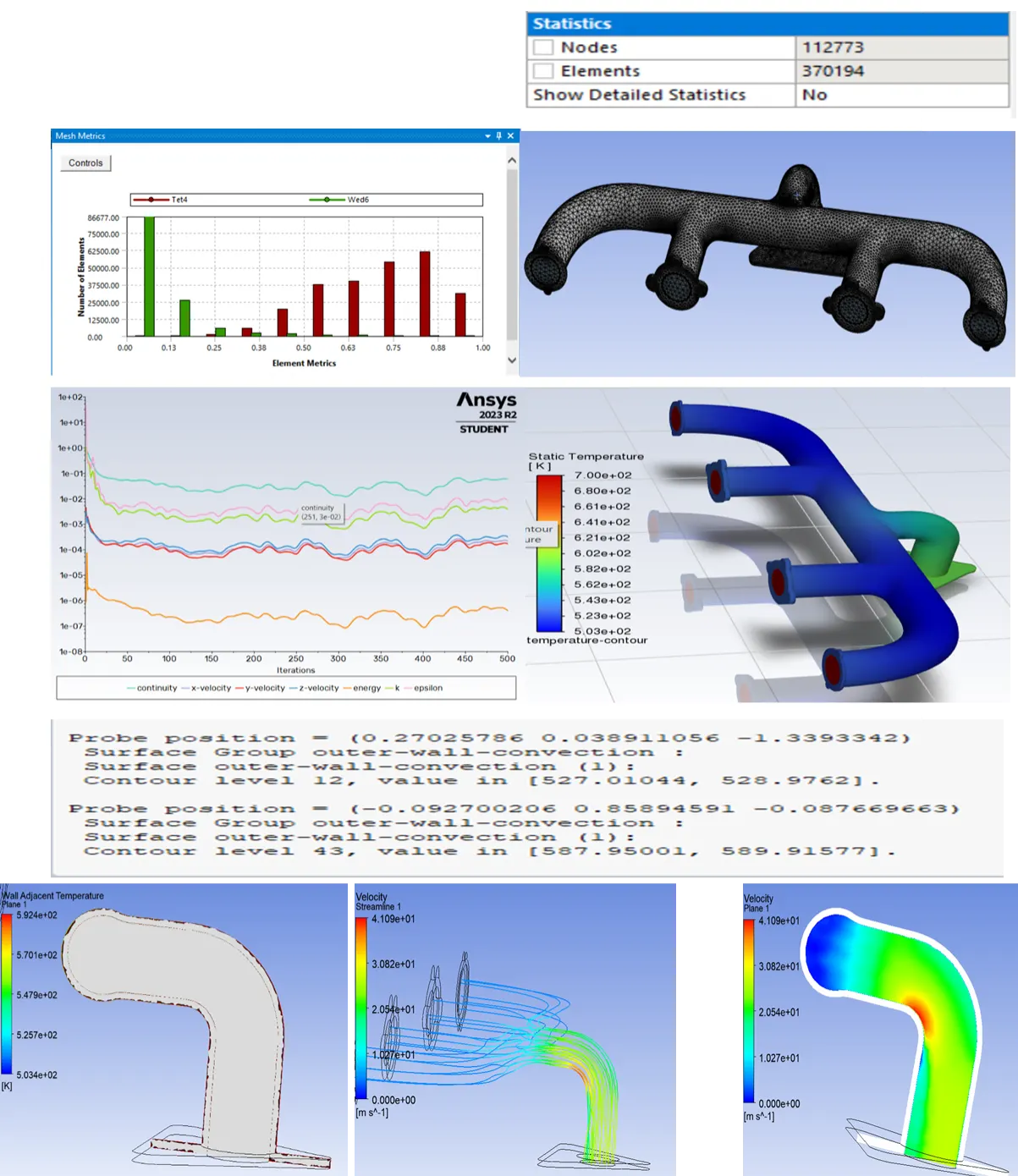
3. B. CFD Simulation with the refined mesh.
1. 1. Mesh quality found satisfactory.
2. 2. Element mesh count – 370194.
3. 3. Viscosity model – K epsilon.
4. 4. Default element mesh size – 0.15 meter.
5. 5. Element mesh size for ‘outer wall convection’ – 0.001 Meter.
6. 6.Inflation layer max size – 0.005 meter.
7. 7. Growth ratio – 1.2
8. 8. Numbers of inflation layer – 5.
9. 9. Inflation layer type – Total layer thickness.
10. Element max size – 0.3 meter.
C. CFD Simulation with the refined mesh.
1. 1. Mesh quality found satisfactory.
2. 2. Element mesh count – 371006
3. 3. Viscosity model – K Omega
4. 4. Default element mesh size – 0.15 meter.
5. 5. Element mesh size for ‘outer wall convection’ – 0.001 Meter.
6. 6. Inflation layer max size – 0.005 meter.
7. 7. Growth ratio – 1.2
8. 8. Numbers of inflation layer – 5.
9. 9. Inflation layer type – Total layer thickness.
10. Element max size - 0.3 meter.
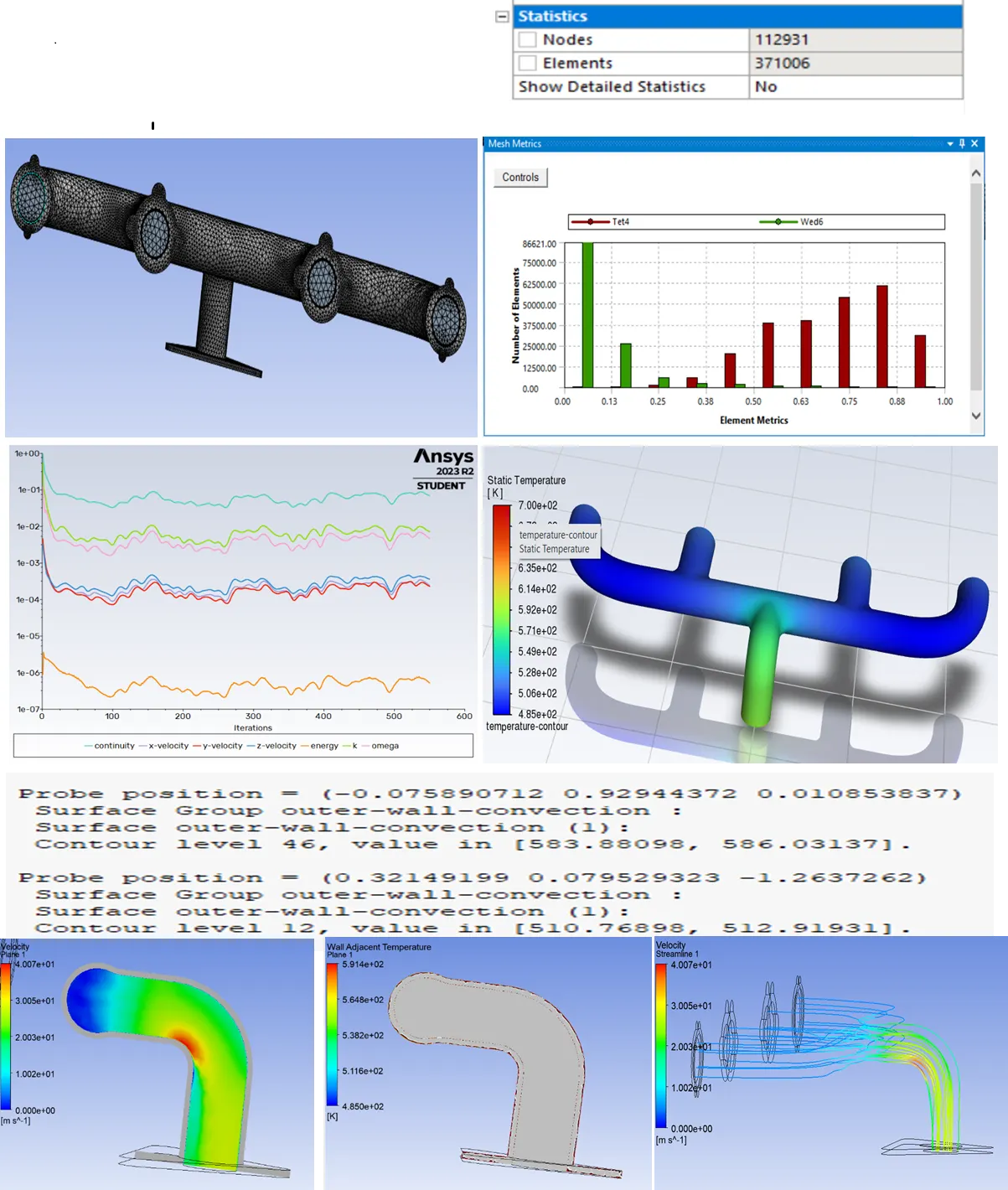
Conclusion:
As we have done the same simulation on the same body with different mesh counts. It was found out that, the exhaust port final portion experiencing very high temperature with respect to the other portion of the port. To conclude this phenomenon, we have created temperature & velocity plots. After seeing the different plots, it was concluded that the velocity is quite high at the bend portion of the exhaust port so that the temperature is also quite high as compared to the different portion of the exhaust port.
|
S.no |
Viscosity Model |
Mesh Length |
Inflation layer thickness |
Nos. of mesh count |
Temperature at Walls |
||
|
Outer wall mesh length |
Fluid region mesh length |
Near Inlet |
Near Outlet |
||||
|
1 |
K epsilon |
0.150 m |
0.150 m |
None |
138998 |
471 K |
575 K |
|
2 |
K epsilon |
0.001 m |
0.15 |
First layer height |
370194 |
527 K |
587 K |
|
3 |
k Omega |
0.001 m |
0.15 m |
First layer height |
371006 |
510 K |
583 K |
After seeing these results after simulation, it was concluded that as we have increased the total element count, we got some slight increase in the outer wall convection temperature made some differences in a drastic manner.