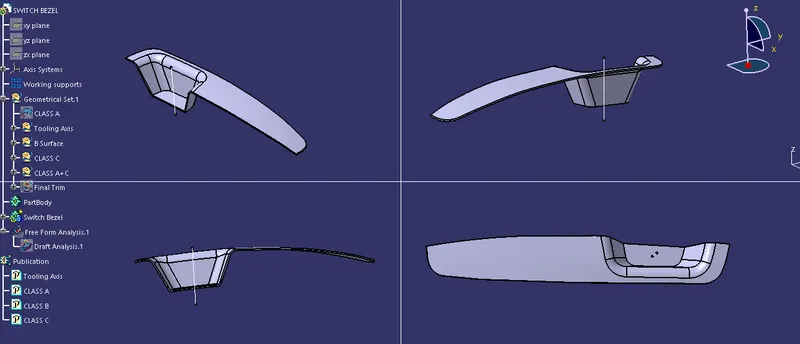
Week 9 - Challenge 2 - Switch Bezel Design
Tool axis creation procedure
1. Create a point and an axis system by extracting the base surface of the Switch Bezel and taking it as the reference.
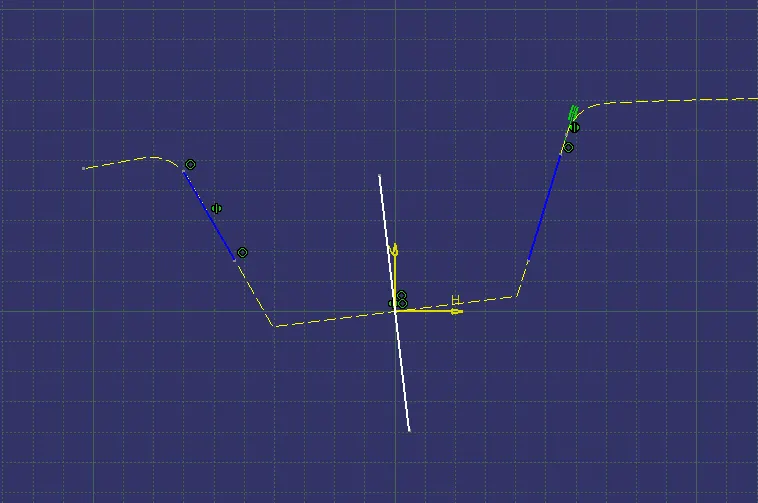
2. Inorder to clear tooling path along Y direction, Create a sketch with YZ plane and a point drawn on the extracted surface of the base as reference. Use Intersect 3D elements command on the Class A surface. Consider the two lines which are at an angle with Z axis and draw two refernce lines on them. Create a bisecting line considering these two lines. We shall call this line BL 1.
3. Similarly to clear tool path along X direction, create a sketch with XZ plane and the point. Consider the line which is at an angle with Z axis and draw a reference line on it and draw one more arbitrary line from the origin and a give an angle of 5.5 degree with the former line. We shall call this line BL 2.
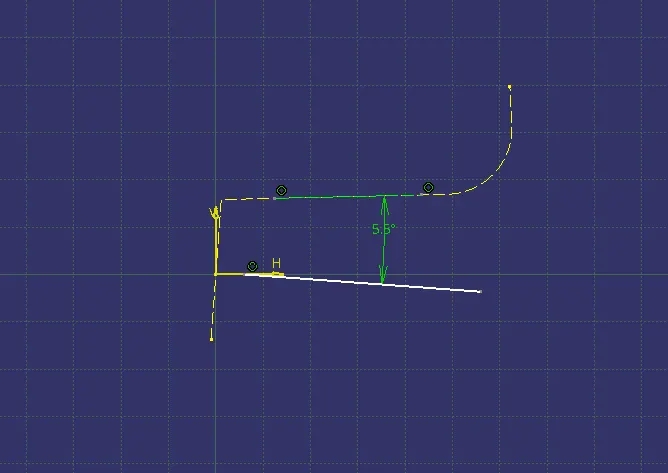
4. Create a bisecting line by choosing BL 1 and BL 2 as refernce and point on the extracted surface of the base.
5. The bisecting line generated is the main tooling axis.
6. Once done publish it for ease of access.
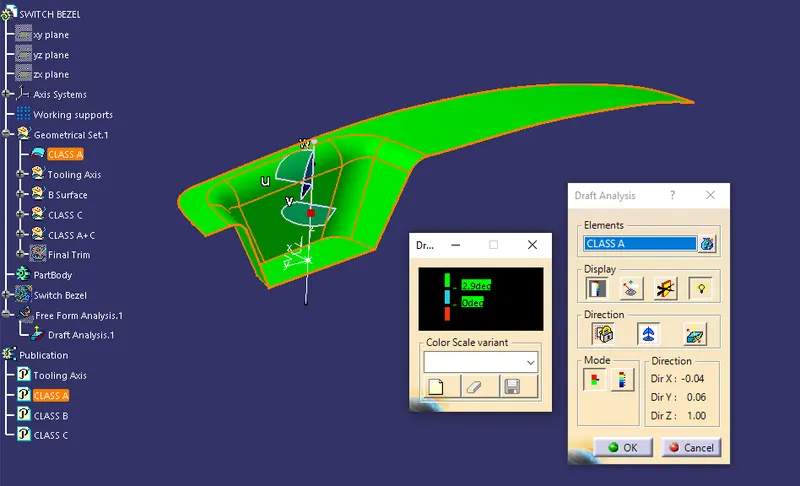
Draft Analysis procedure
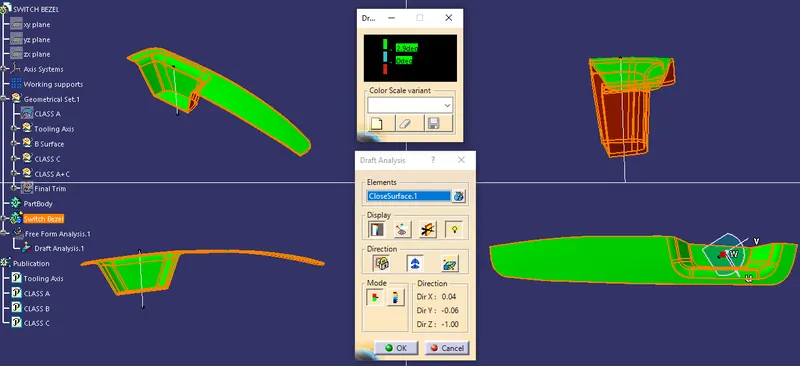
1. Change meshing mode to "material" in the view mode dialog box.
2. Click on draft analysis option.
3. Zoom out and locate the compass, drag and drop the compass to coincide the tool axis to define the new current draft direction.
4. Choose the class A surface/ Solid part to perform draft analysis.
5. Under display option, use the colour scale to analyze the dynamic draft of the component.
Draft Analysis Class A surface
Draft Analysis Solid Part