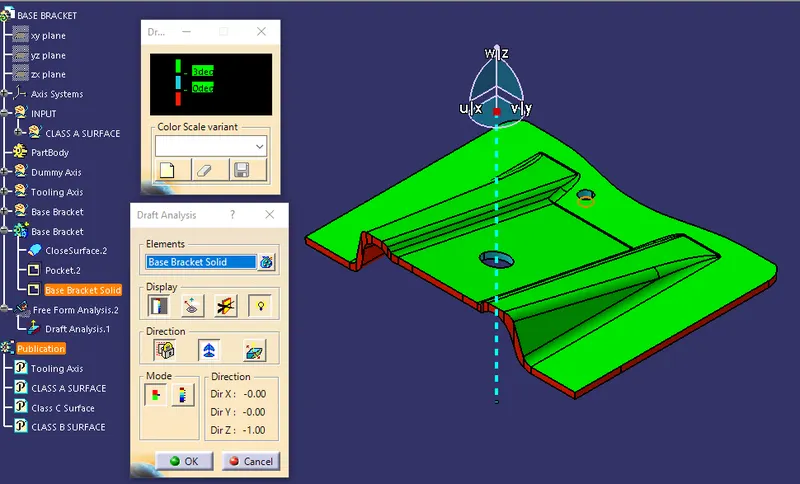
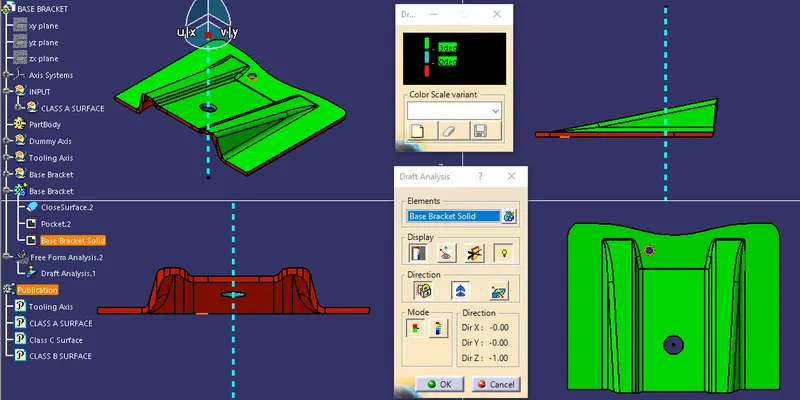
Week 9 - Challenge 1 - Base Bracket Design
Tool axis creation procedure
1. Create a point and an axis system at the center of the hole. The hole is considered center since it lies at the center of the part and the part being symmetric.
2. Inorder to clear tooling path along Z direction, Use Intersect command on YZ plane with the Class A surface. Similarly if it is required to clear tool path along X axis, Intersect XZ plane with the Class A surface.
3. A sketch is generated when the above operation is done. In the sketch formed, create a line by choosing the vertices in either direction which show most possible draft angle.
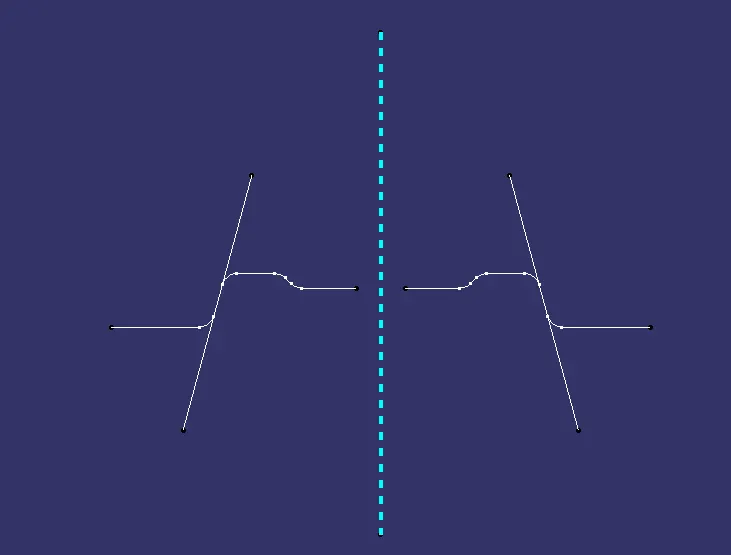
4. Create a bisecting line by choosing the two extended lines on either side of the axis and by choosing a point which is at the center of the circle/hole.
5. The bisecting line generated is the main tooling axis.
6. Once done publish it for ease of access.
Draft Analysis procedure
1. Change meshing mode to "material" in the view mode dialog box.
2. Click on draft analysis option.
3. Zoom out and locate the compass, drag and drop the compass to coincide the tool axis to define the new current draft direction.
4. Choose the class A surface/ Solid part to perform draft analysis.
5. Under display option, use the colour scale to analyze the dynamic draft of the component.
Draft Analysis
A small draft angle is provided to all area of the component for easy removal of the component from the tool. Draft analysis is used to analyze whether the component is manufacturable based on the draft condition applied.
Base Bracket
Draft analysis Class A surface
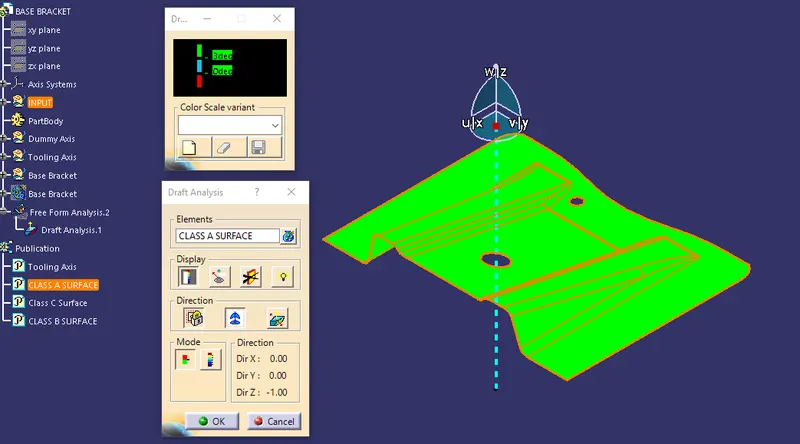
Dradft Analsyis for the part