Week 8 - Challenge 5 - Core & Cavity Design
AIM
Create Core and Cavity for the existing Switch Bezel design and Show Draft Analysis using existinng Tooling Axis.
OBJECTIVE
- Create Parting Surface and Parting Line for Switch Bezel.
- Create Core And Cavity Blocks.
- Show Draft Analysis Component with the Core and Cavity.
- Make Solid a Body Using Close Surface Feature from surface.
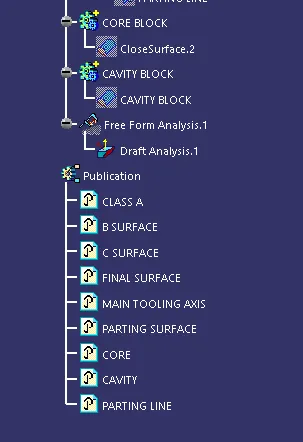
- Use Publicaton.
CORE AND CAVITY
CORE:
- Movablce side mold made the convex shape.
- Mold closes the cavity and core can make the geometry of the combined product.
- The resuting space is called cavity.
CAVITY:
- Molten plastic to enter the fixed side mold and its made concave shape.
- Mold cavity refered to having the cavity mold tooling.
METHODOLOGY
STEP-1
Open the existing Switch Bezel CATpart.
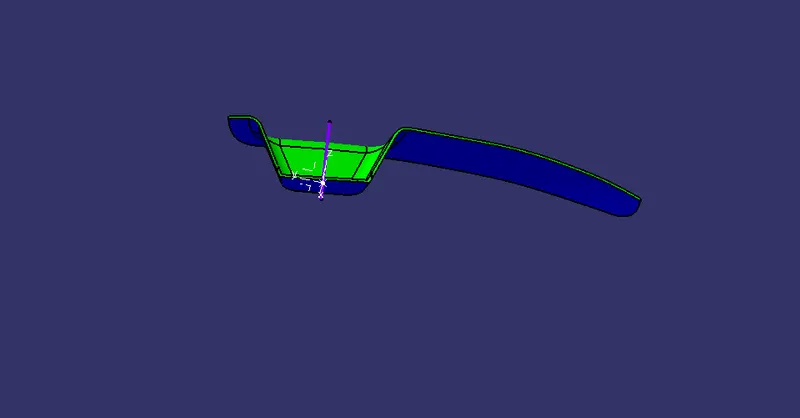
Below image is of Draft Analyzed Switch Bezel CATpart.
STEp-2
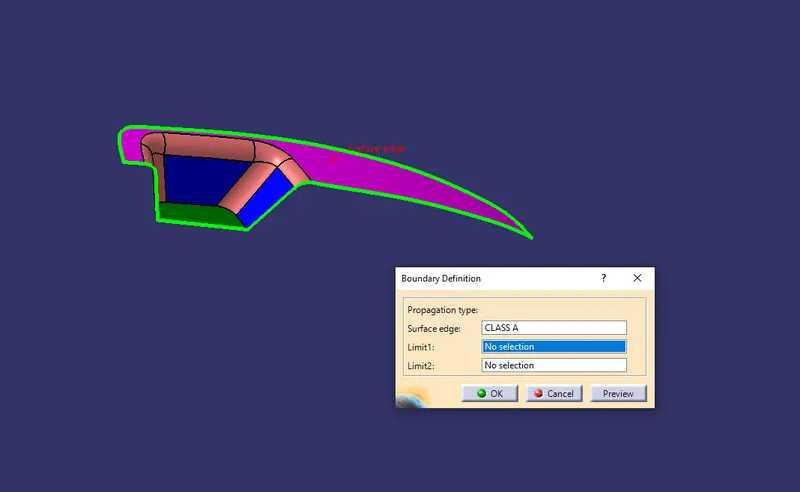
Show Class A Surface In that CATpart.
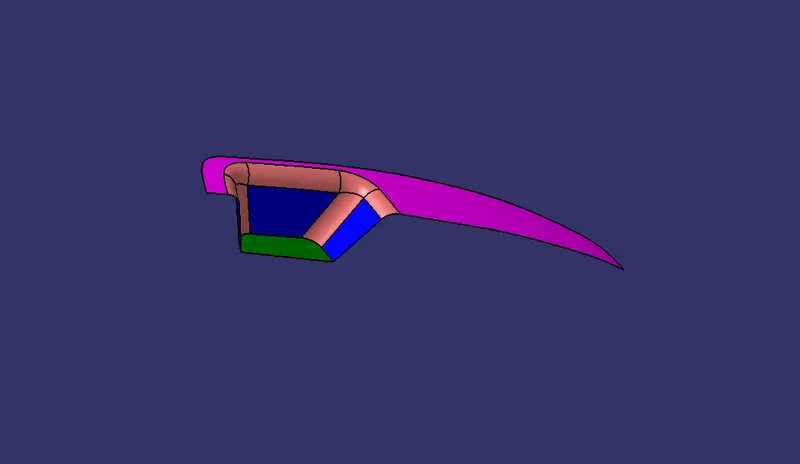
Perform boundry check on the Class A surface to ensure Class A is complete.
STEP-3
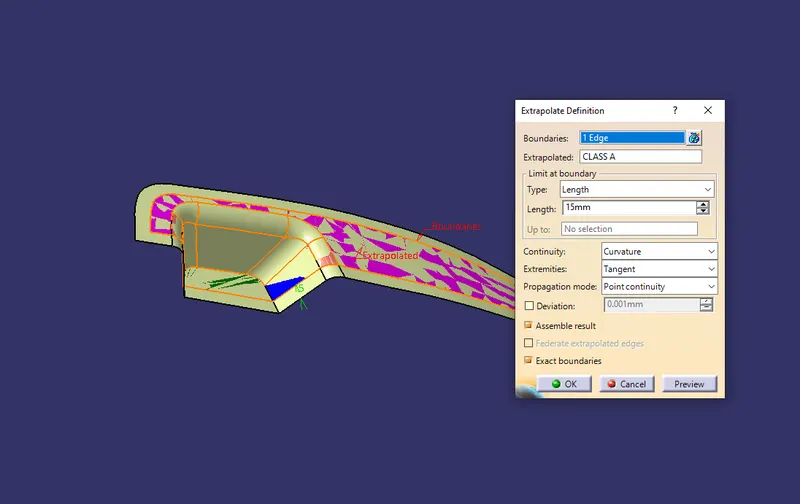
In this we have to extrapolate Class A surfcae for 15mm.
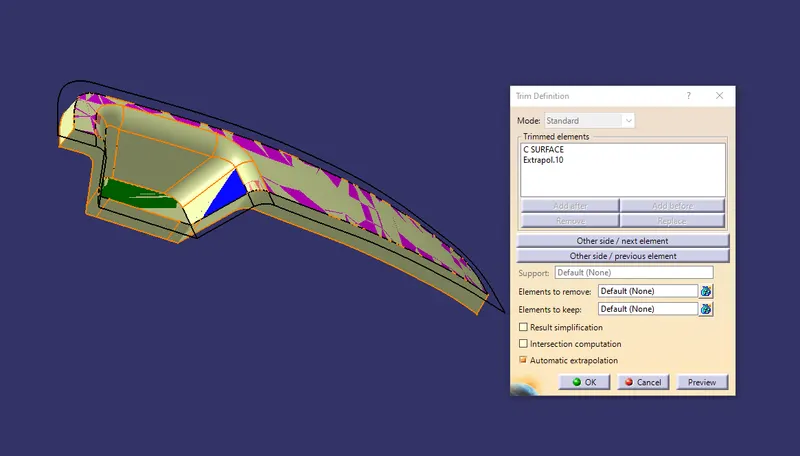
Then Trim it with Class C Surface.
STEP-4
PARTING SURFACE
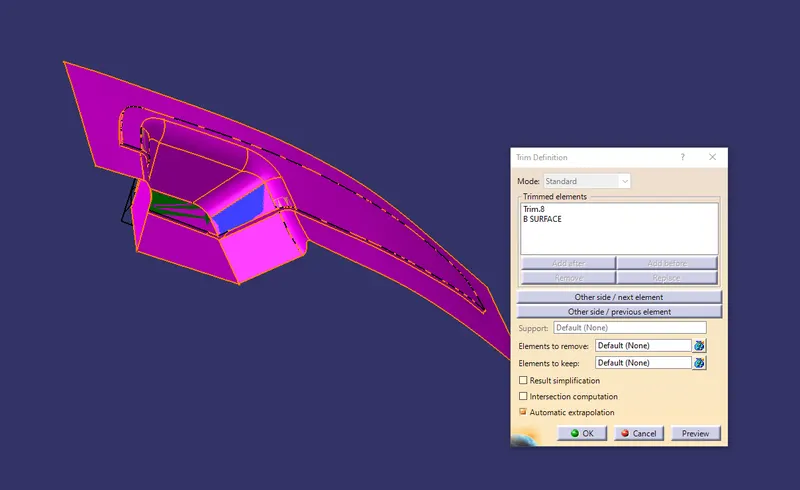
- A Parting Surface is a surface that separates the mold block into two parts – the core and the cavity. Usually Parting Surface are the biggest projection outline of the part.
- To createn it we have to trim the previous surface with Class B surface as shown below.
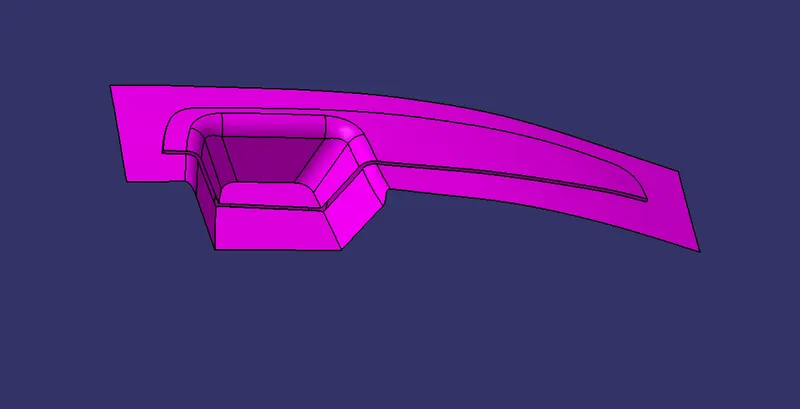
Parting Surface
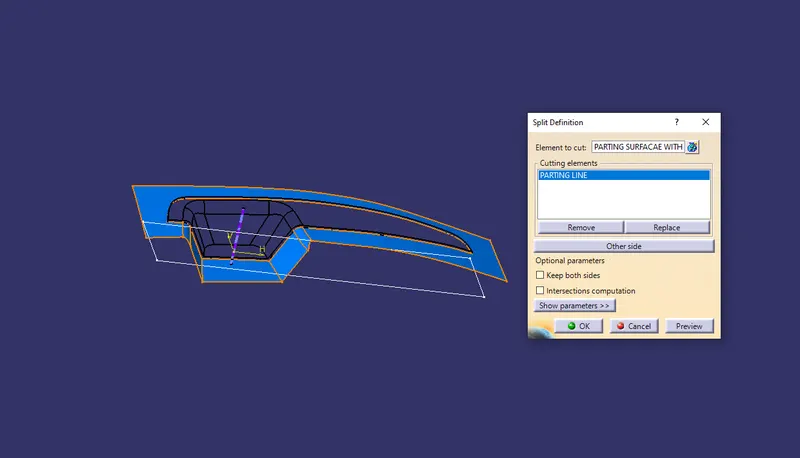
STEP-5
PARTING LINE
- A parting line, in industrial casting of molds, is the border line in which draft angles change direction. That is, it is the dividing line that splits the core and cavity halves of a molded part. It is sometimes a starting point for the mold parting surface.
- To show it create a intersection between B surface and Trimmed surface of A and C surface as shown in the below images.
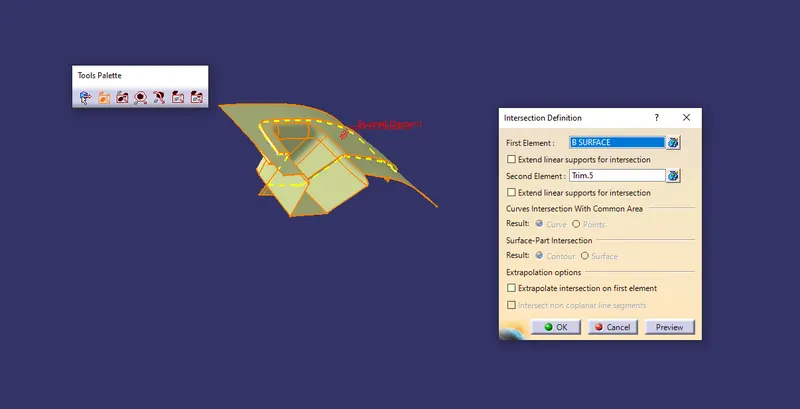
Parting Surface and Parting LIne Image:
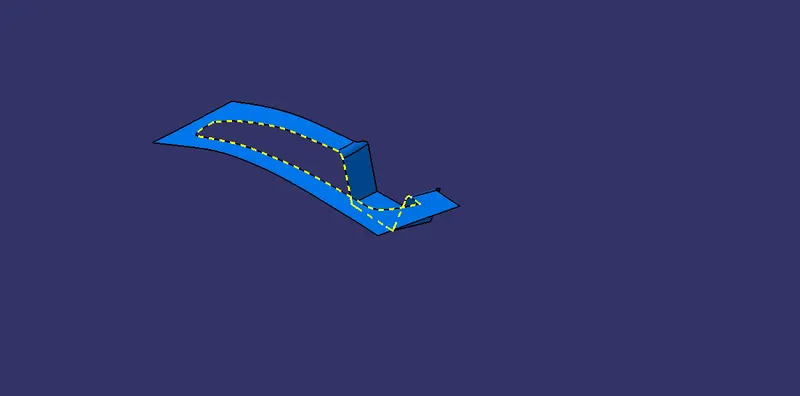
STEP-5
CORE AND CAVITY DESIGN
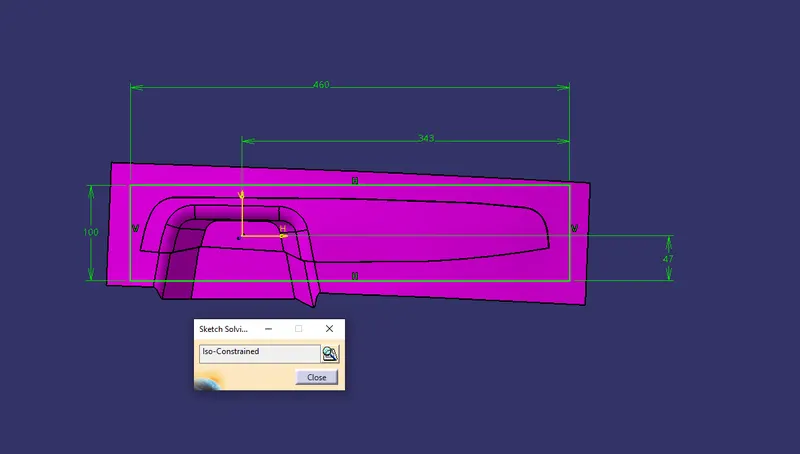
- Start sketching for the core and cavity as shown below.
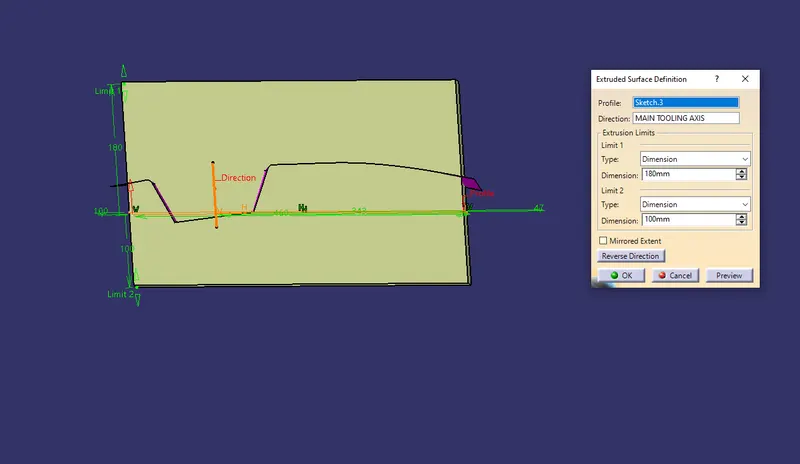
- Now extrude the sketch using Extrude Surface command in both direction as shown in the image.
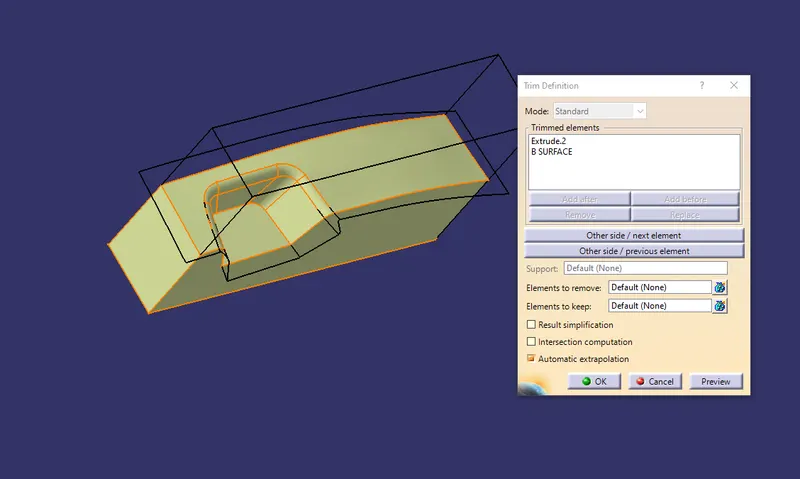
- For Cavity trim the Extrude surface with B surface.
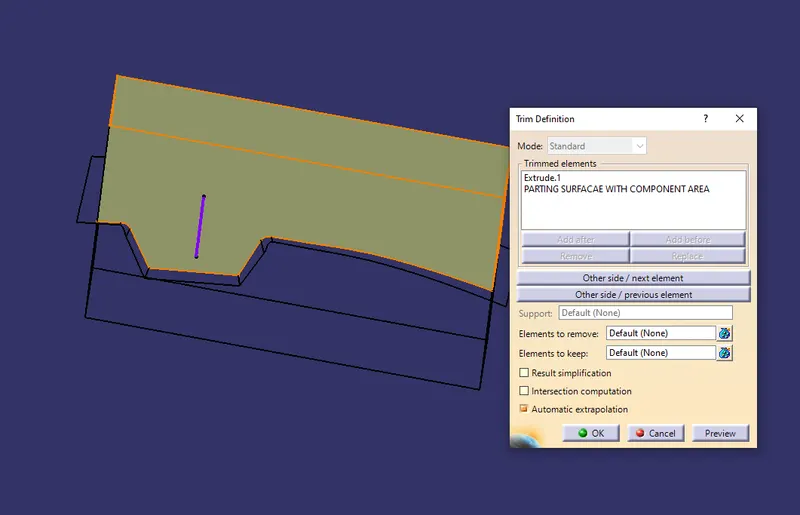
- Now for the Core trim the Extrude with Parting Surface with Component Area
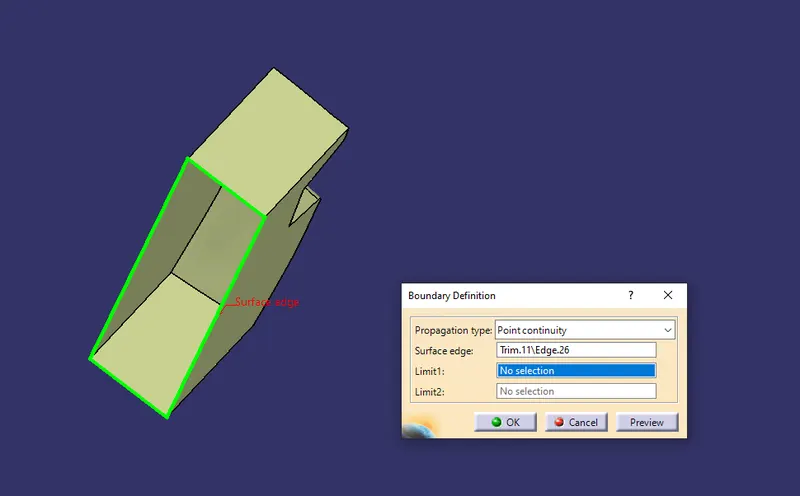
- To fill the bottom half of the Core and Cavity first use Boundry Command to create a boundry.
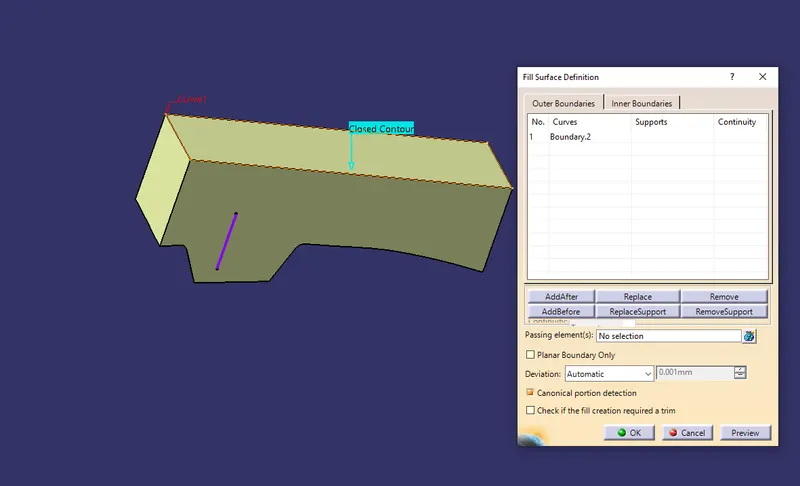
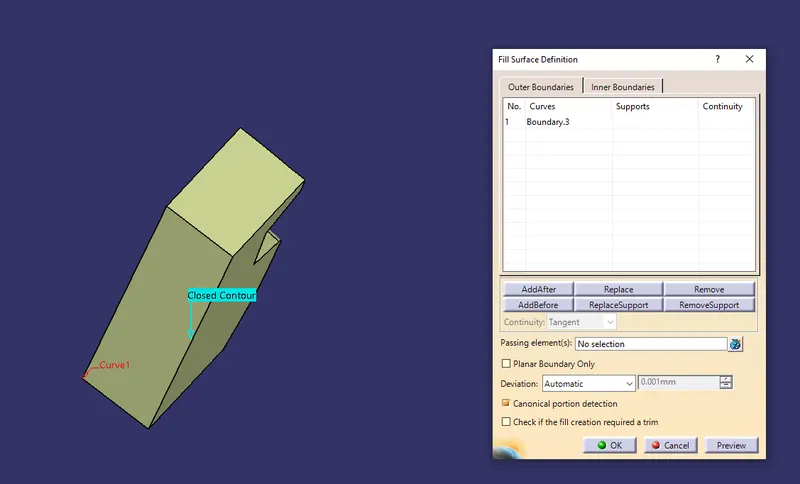
- Then use Fill command with boundry as reference to fill the gape for both Core and Cavity.
- After that use the created surfaces and trimmed Core & Cavity surfaces in the Join command for creating closed surface blocks of Core and Cavity as shown below images.
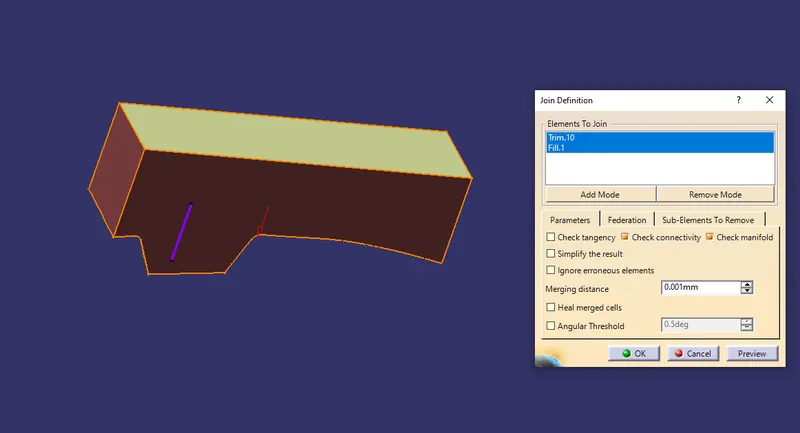
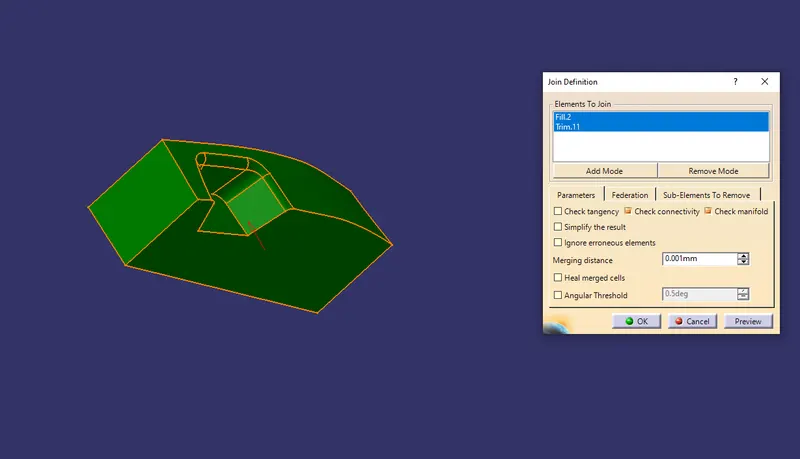
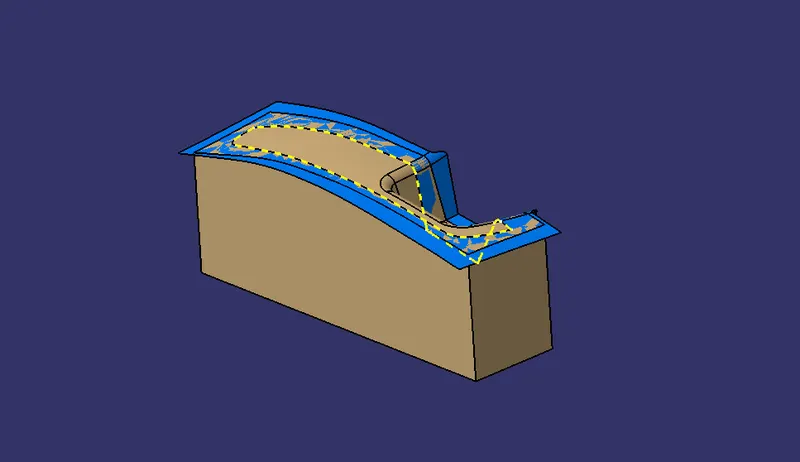
Core Image:
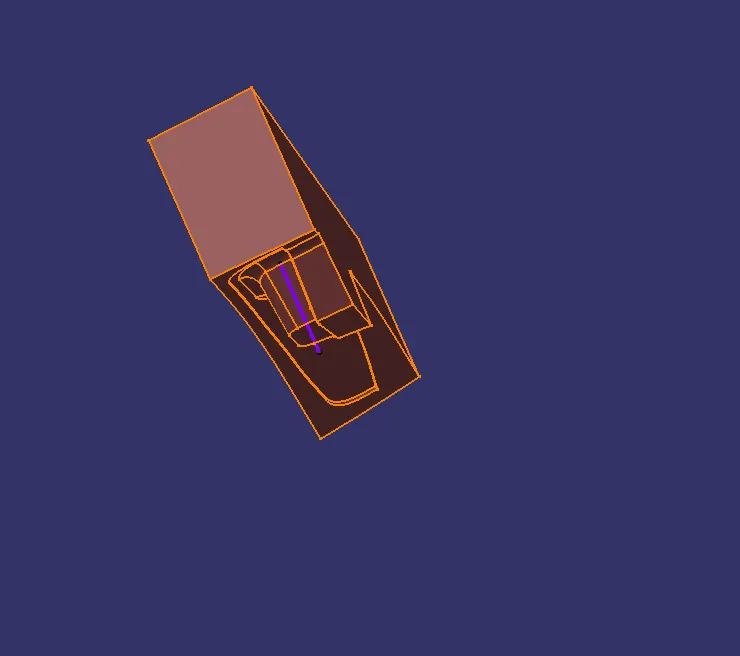
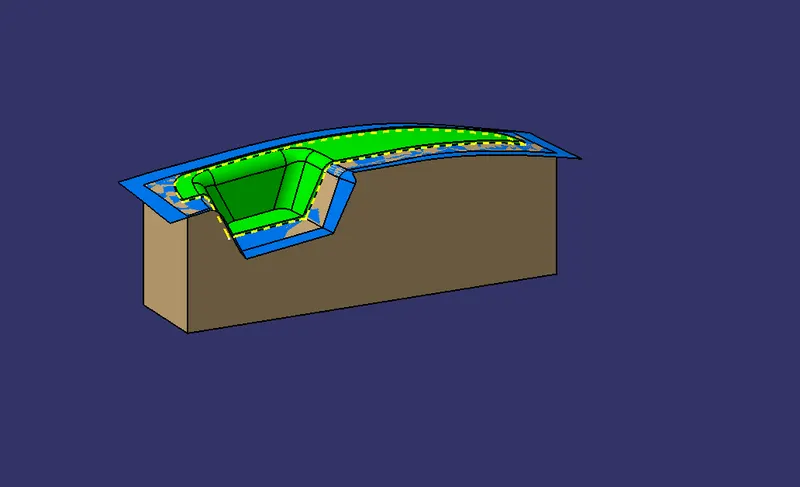
Cavity Image:
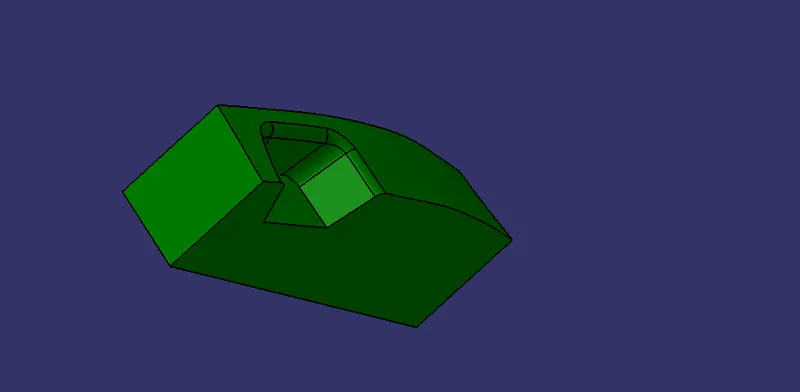
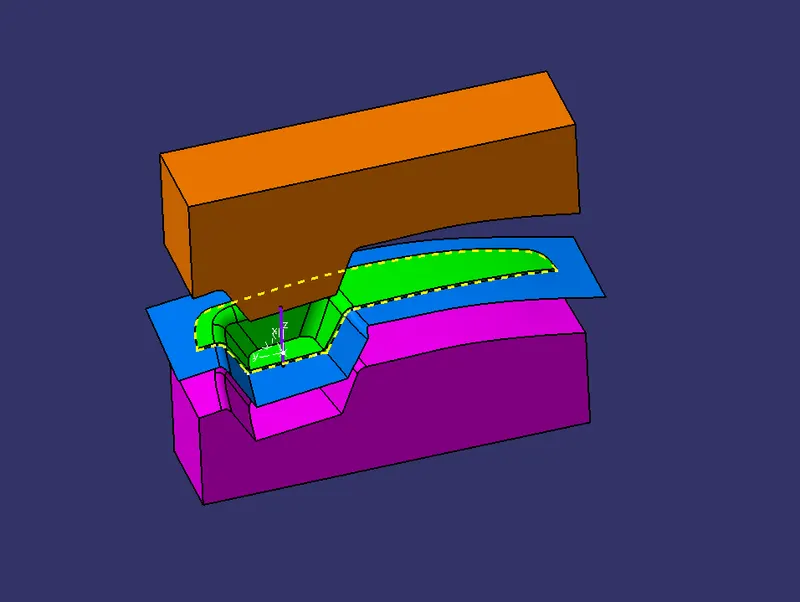
Core & Cavity Image:
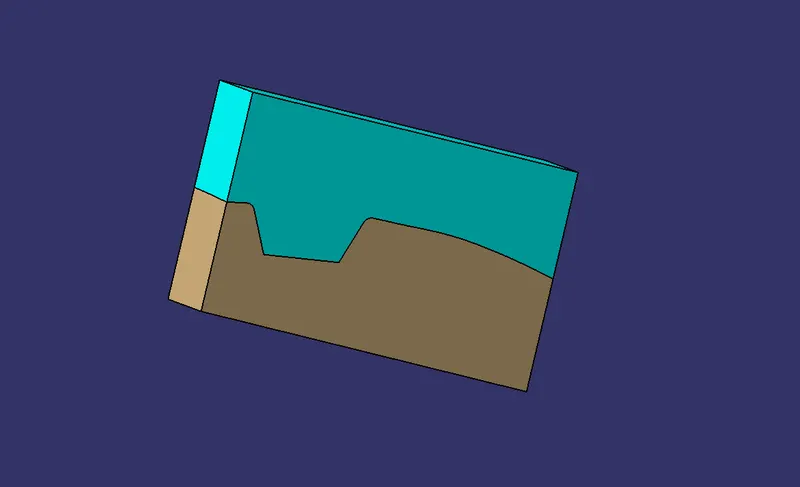
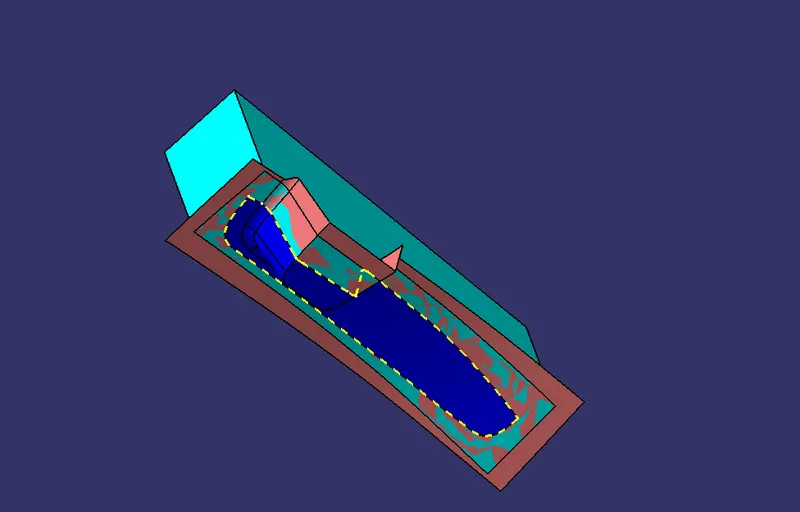
Core & Cavity with the Parting Surface, Parting Line and the Component Area in the below Images:
STEP-6
Create a intersection to show the Gap where the Component is Molded as shown below.
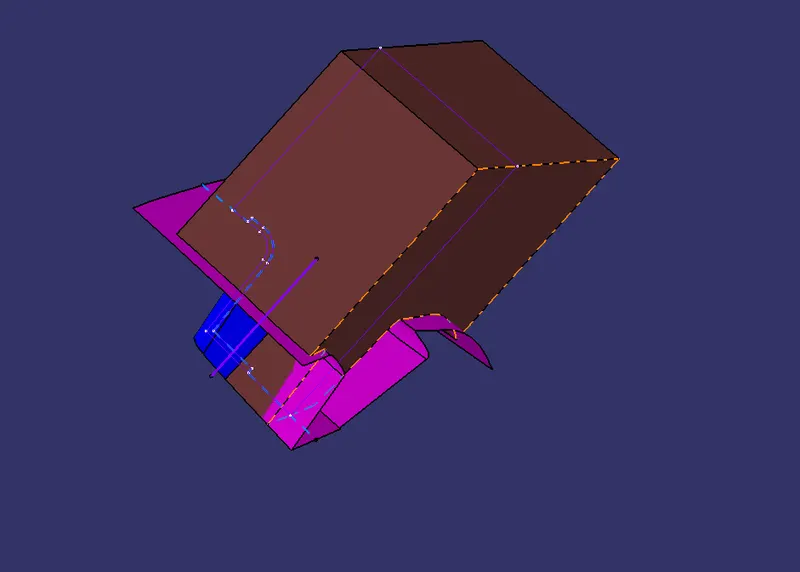
STEP-7
- Now create Solid Block of Core and Cavity using Closed Surface in the below images.
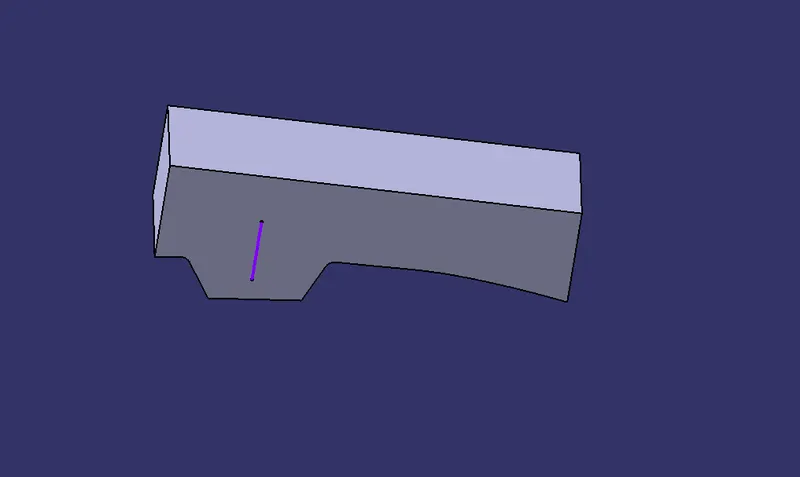
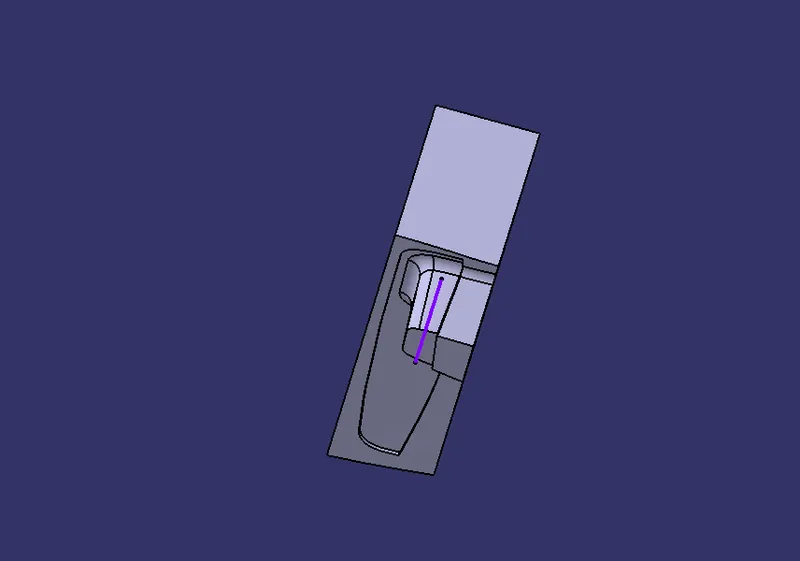
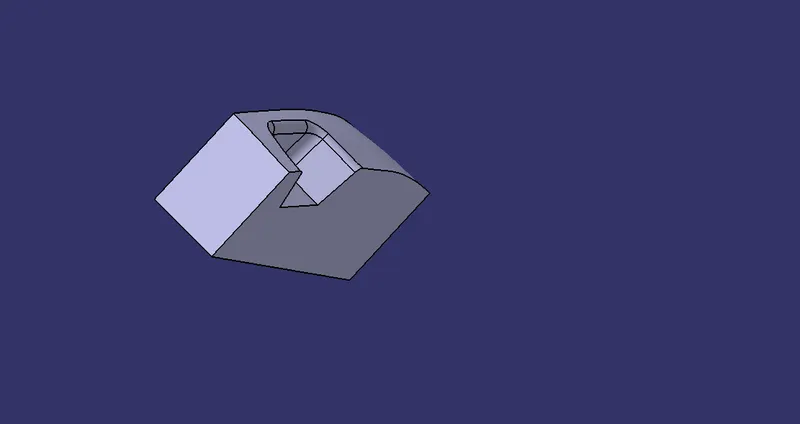
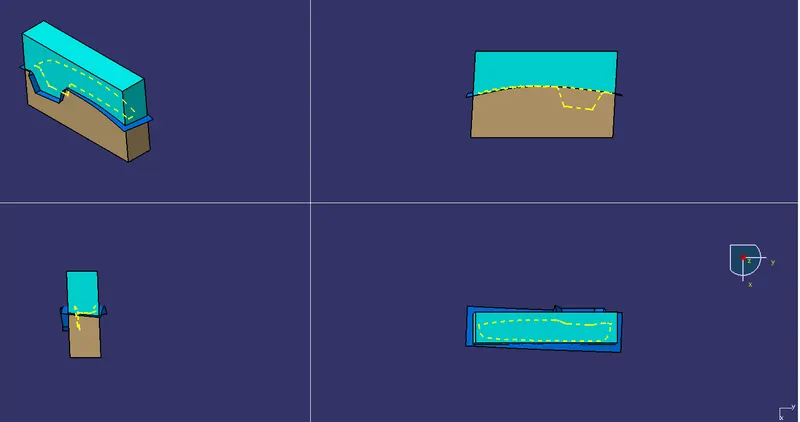
VIEWS (ISOMETRIC, FRONT, SIDE, TOP)
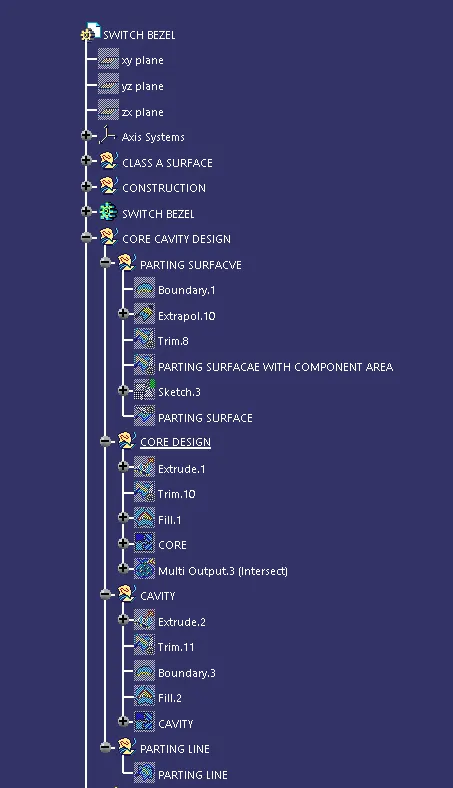
TREE STRUCTURE