Week 3
Creating Mid Surface and Generating Mesh on Hood Using BETA CAE ANSA
Aim: To create a Mid Surface and generate Mesh on hood panel.
Software used: BETA CAE ANSA
Steps Involved:
- To check all the Geometry errors and rectify them.
- To check the thickness of all components in the model.
- To extract the Mid Surface from the Geometry.
- To generate the Mesh with good flow in the given Quality criteria.
Tools Used during Geometry cleanup:
- Checks manager: It is used to check the errors in the geometry
- Release Cons: It is used to convert the triple cons into single cons
- Insert: It is used to insert a point on the cons.
- Topo: It is used to join the cons.
- Orient: It is used to change the orientation of the system.
- Fine: It is used to change the resolution of the 3D surfaces.
Tools Used during extraction of Mid surface:
- Offset: It is used to create cons or curves within the specific distance.
- Mid-surface: It is used to create the Mid surface of any surface directly.
Tools Used during Mesh Generation:
- Num +/-: It is used to increase or decrease the nodal number along the perimeter.
- Number: It is used to set edges number on perimeter segments.
- cut: It is used to cut an existing macro area from one node or Hot Point perpendicular to another selected perimeter.
- Best: It is used to generate mesh using all alternative pre-define algorithms and keep only the mesh of best quality.
- Reconstruct: It is used to Re-generate the mesh on FEM and Macro Areas.
- Smooth: It is used to Smoothing the mesh on selected Macro Area or FEM.
- Split: It is used to split shell and solid elements into smaller by selecting element edges and nodes.
- Swap: It is used to rotate the common edge of two shells.
- Join: It is used to join the triangular elements together.
Quality Criteria:
|
S. No |
Quality Criteria |
Value |
|
1. |
Target or Average length |
5 |
|
2. |
Minimum Length |
2 |
|
3. |
Maximum Length |
7 |
|
4. |
Aspect Ratio |
3 |
|
5. |
Warpage |
15 |
|
6. |
Skewness |
45 |
|
7. |
Jacobian |
0.7 |
|
8. |
Minimum Quad Angle |
45 |
|
9. |
Maximum Quad Angle |
135 |
|
10. |
Minimum Tria Angle |
30 |
|
11. |
Maximum Tria Angle |
120 |
|
12. |
Triangle percentage |
15 |
Procedure:
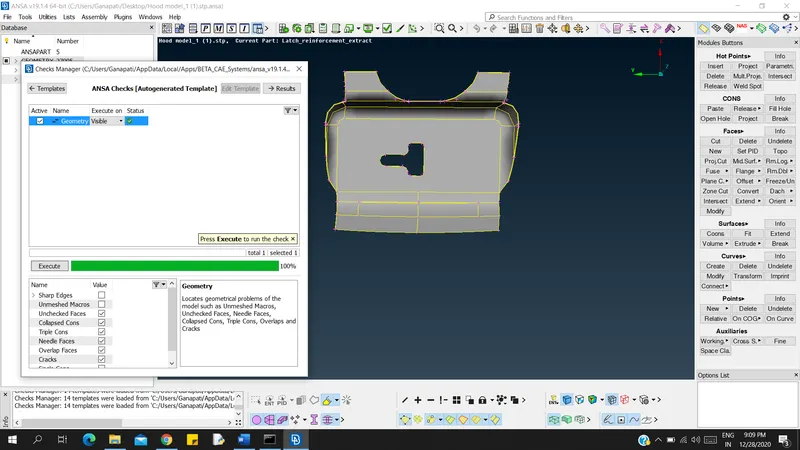
Step 1: Check for geometry errors and resolve them.
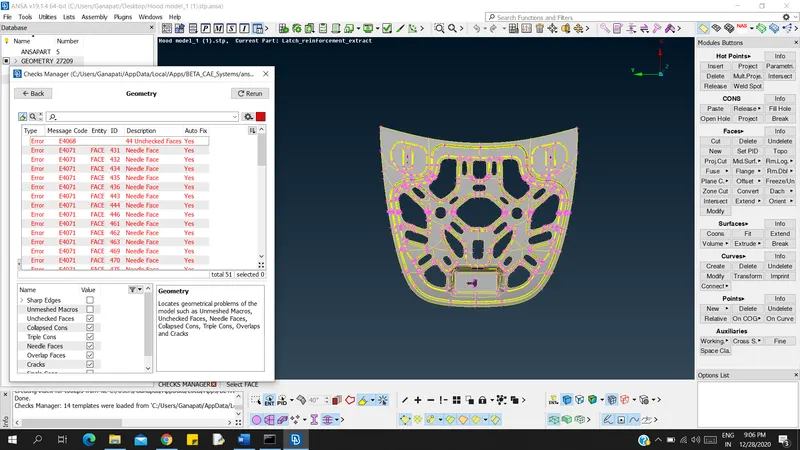
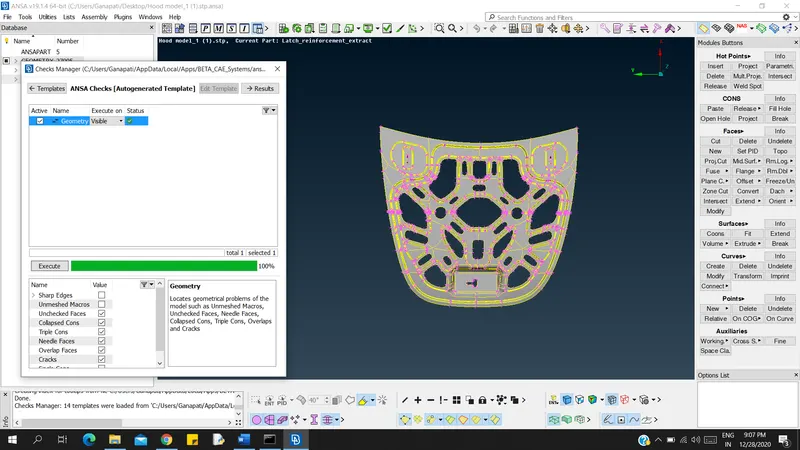
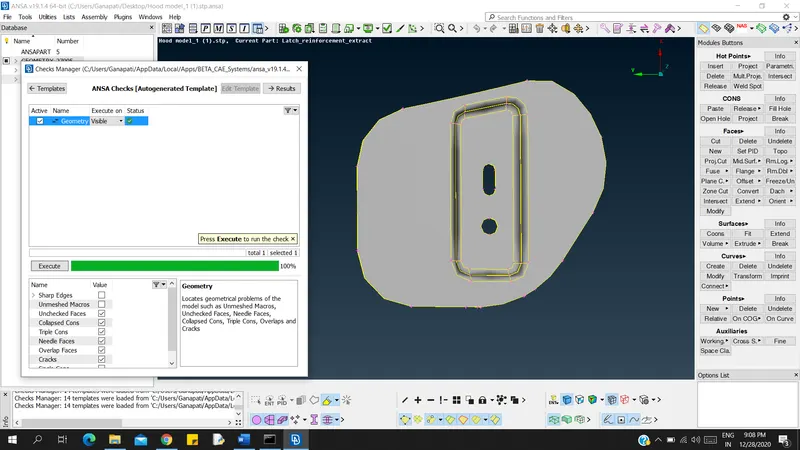
- After Importing the geometry and select one component using property manager tool and check for errors in geometry using checks manager. Repeat the process until all the errors in all components are rectified.
- In the first component there are total 51 errors and are fixed using the Auto-fix option available when you right click on the error. If still the errors appear then resolve it using commands like Release cons, Delete hotpoints, topo, delete faces.
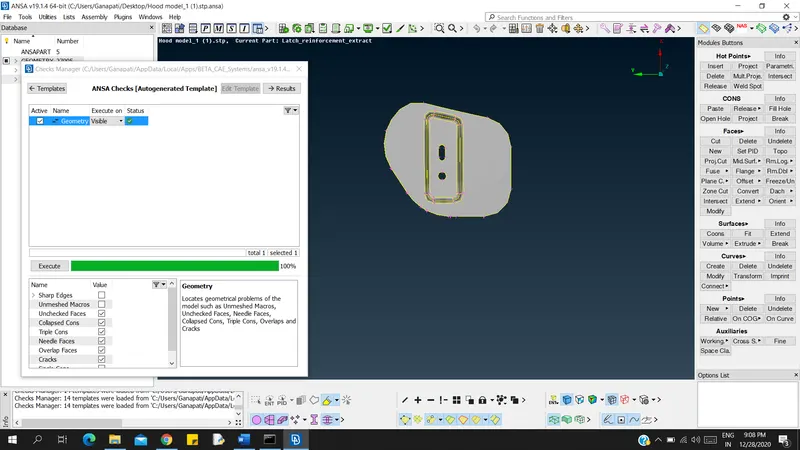
- In remaining components there are no errors present.
- After clearing all the errors fine the geometry for better resolution.
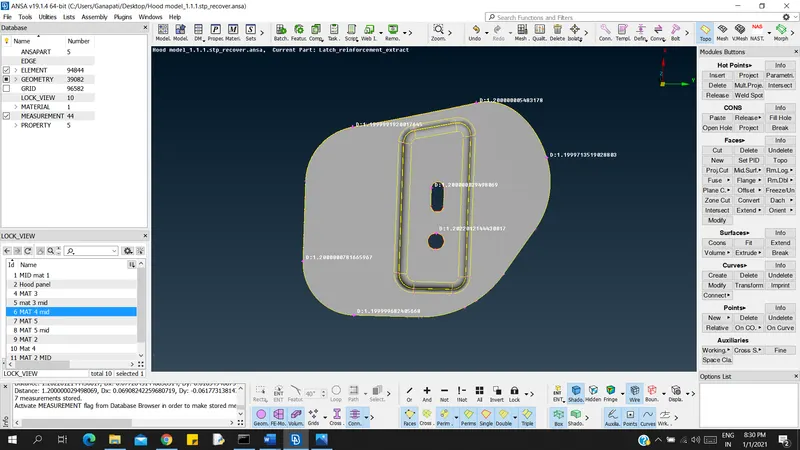
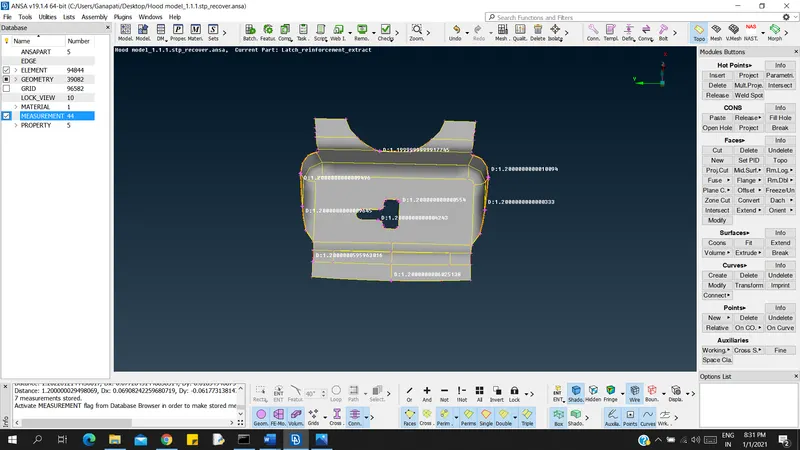
Step 2: Check the Thickness of all the components in the model
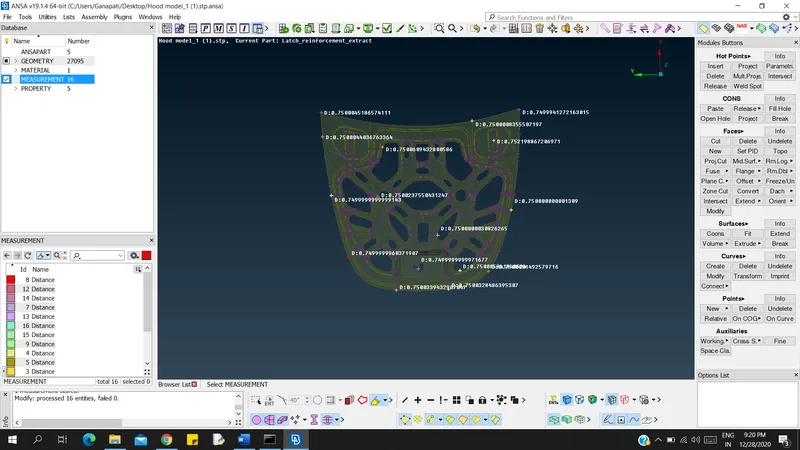
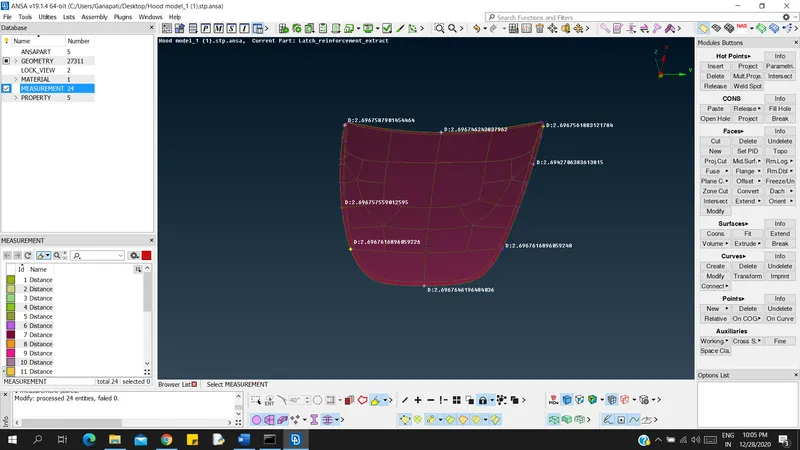
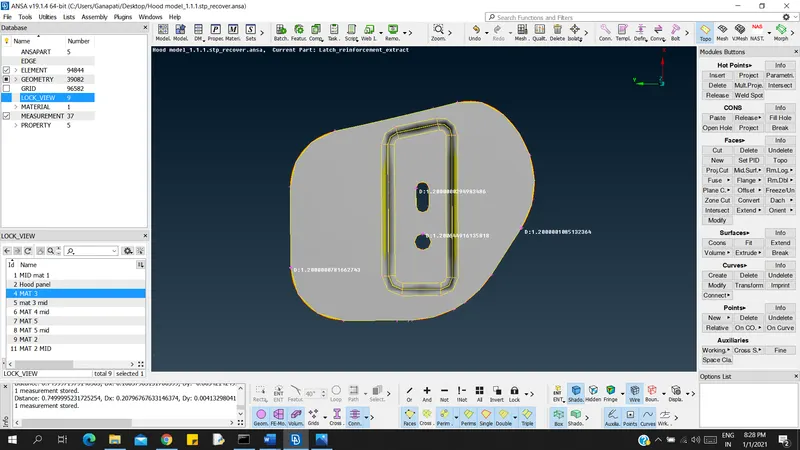
- To check the thickness of the component, select the measure option present in Utilities.
- Check the thickness between nodes of all the components and store the values.
Step 3: Extracting Mid Surface from the geometry.
- Each component is selected and mid surface is generated.
- To generate mid surface two options can be used.
- Using Auto Mid Surface.
- Using Offset.
- Using Auto Mid Surface option the mid surface for the entire geometry can be made at once. Whereas in Offset option one has to select the surface manually and generate the mid surface.
- Compared to Auto Mid Surface option using Offset gives high accuracy in mid surface generation.
- After generating the mid surface of every component, once again check for geometry checks. There should not be any triple cons present in the mid surface.
Step 4: Mesh generation
- Before generating the mesh, the Quality criteria should be given by pressing function f4 or by choosing quality criteria in utilities section.
- After giving the quality criteria, the mesh parameters should be given.
- To generate the mesh one can, use either Batch mesh or Best mesh option present in mesh generation section.
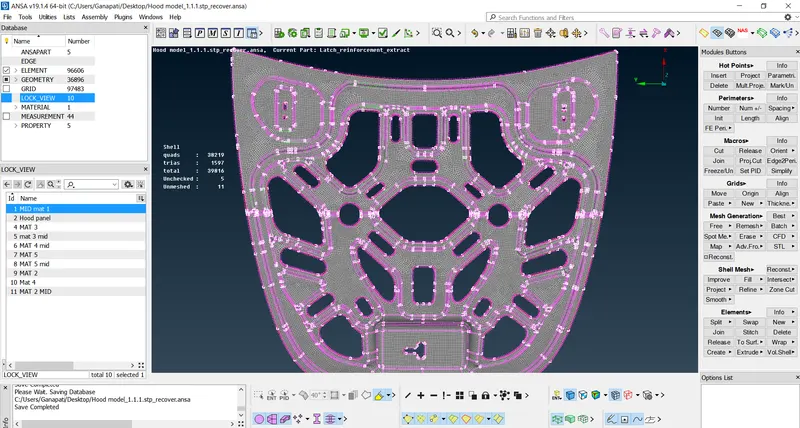
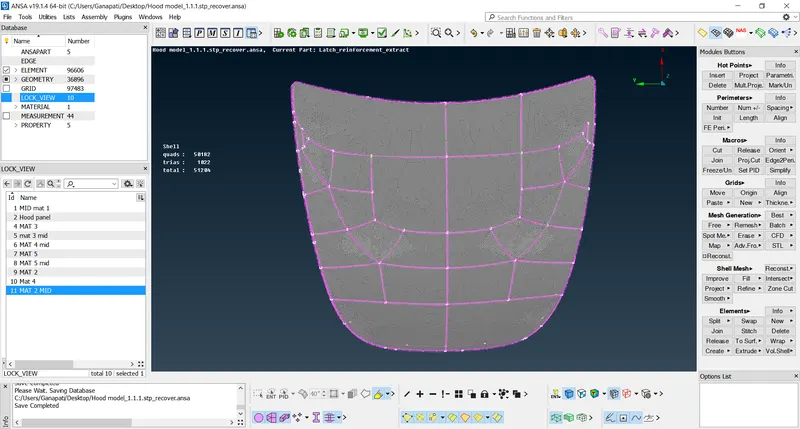
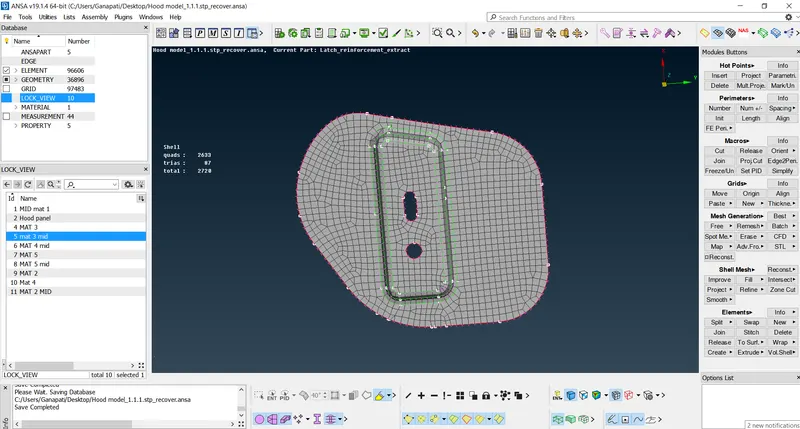
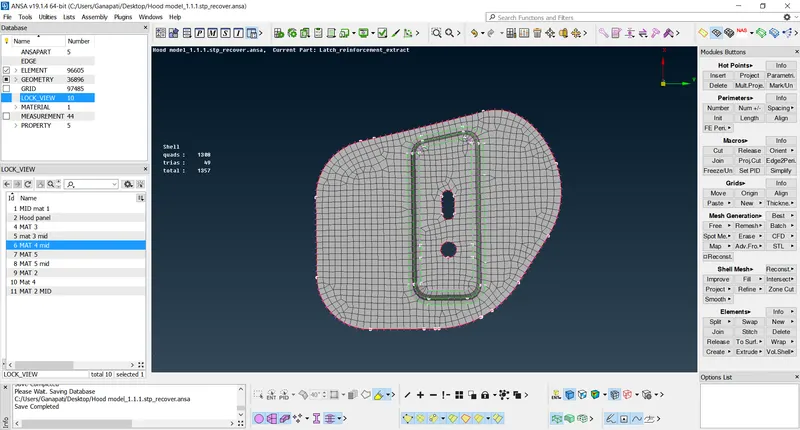
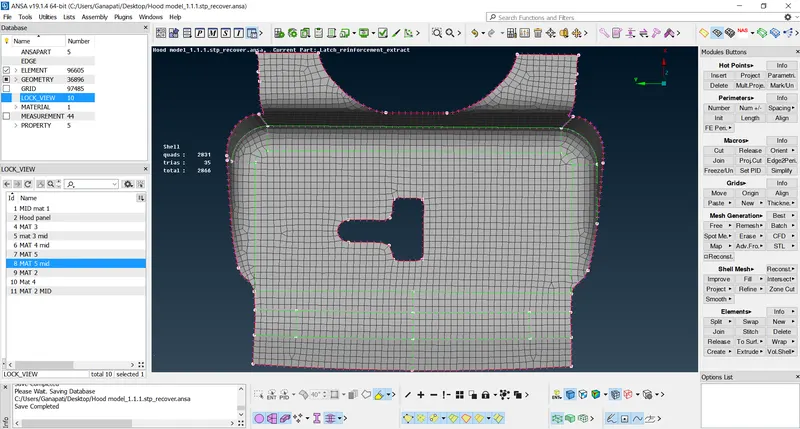
- Best mesh gives the good mesh flow compared to Batch mesh. After selecting the mesh option, we can either select the entire surface to mesh or we can divide the surface into smaller areas using the project cut option present in the macros section.
- To achieve the good mesh, flow the surface can be divided into rectangles where ever it is possible. After dividing the surfaces into rectangles, each rectangle can be meshed individually.
- If there are any fillets present on the geometry, good mesh flow can be achieved by making a horizontal cut (using proj.cut) can be made.
- If the mesh flow is not good, Reconstruct or Smooth option can be used to either to regenerate the mesh in the selected area or smoothen the mesh flow without regenerating.
- If there are tria elements present at the perimeter of the surface Num+/- option can be used to remove the trias and generate quad element at the perimeter.
- If two tria elements are adjacent to each other join option present in Elements can be used to form a quad element.
- After generating the mesh on the entire surface, the cuts made using proj.cut option are to be removed.
Points to be remembered:
- There should not be any tria elements on the fillets or around the perimeter or adjacent to the hole.
- There should not be any rotating quads or opposite trias present in the mesh.
- Quality criteria must be achieved in the model.
Conclusion:
- Good mesh flow can be achieved by making a rectangular cut on the surface and meshing the surface by using the Best mesh option. More number of quad elements and best mesh flow can be generated compared to the meshing which is done directly on the surface without any cuts.
- Using offset is the best option to generate the mid-surface as it gives good accuracy compared to the Auto mid-surface option.