REVIT_Usage of Collabrate tool_Week 6
1) Open an architectural template. Using the Manage tab set project base point and project shared coordinates for the project
AIM : To Open an architectural template. Using the Manage tab set project base point and project shared coordinates for the project.
TOOLS USED : Architectural, Grids, Manage.
PROCEDURE :
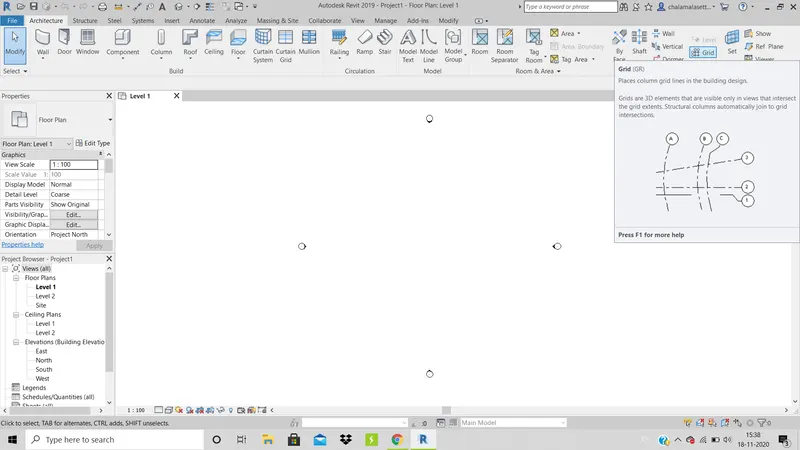
- Open a new file of architectural template, in the architecture tab click on grids options and draw a pair of horizontal and vertical grid and name them appropriately.
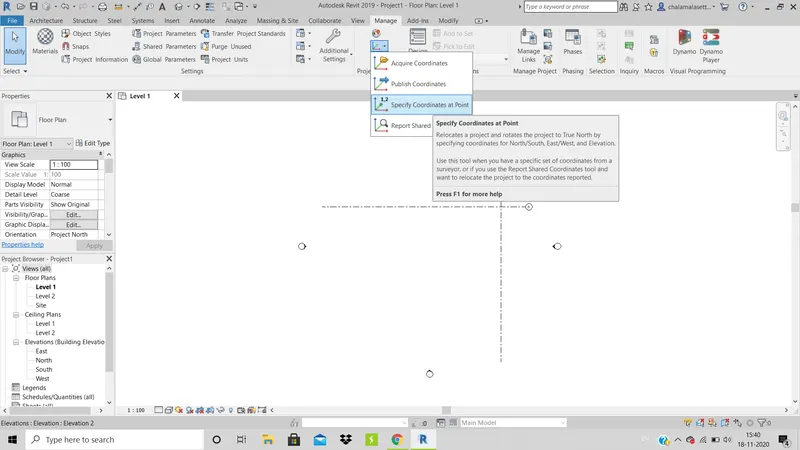
- Now go to manage menu and click on specify coordinates at point in coordinates tool.
- Then select a grid line and then a dilaodue box appears in which we need to set east west or north south to 0'0" and press ok.
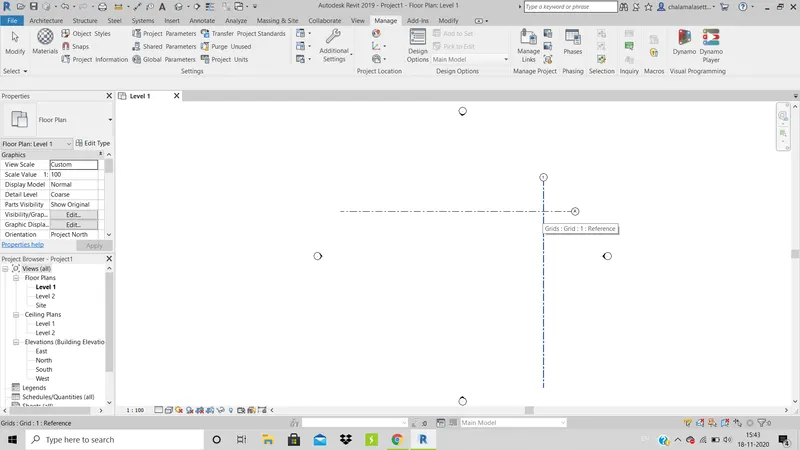
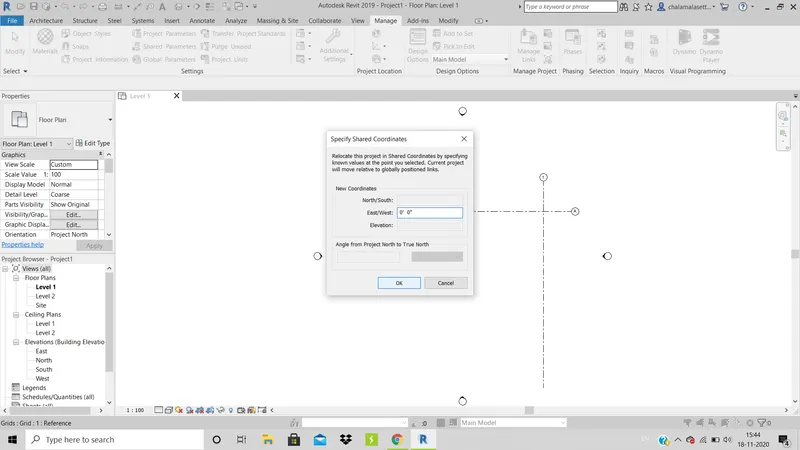
RESULT : The setting of refernce coordinates is done successfully.
2) Open another new file but with a structural template. Using manage tab set project parameters the same as the architectural model. Copy the parameters from the architectural model to the structural template or enter the parameters manually into the structural model
AIM : To open another new file but with a structural template using manage tab set project parameters the same as the architectural model and copy the parameters from the architectural model to the structural template or enter the parameters manually into the structural model
TOOLS USED : Structural, grid, manage, Coordinate, Collaborate.
PROCEDURE :
1. Create a new file with structural template, in the structure tab click on grids options and draw a pair of horizontal and vertical grid and name them appropriately.
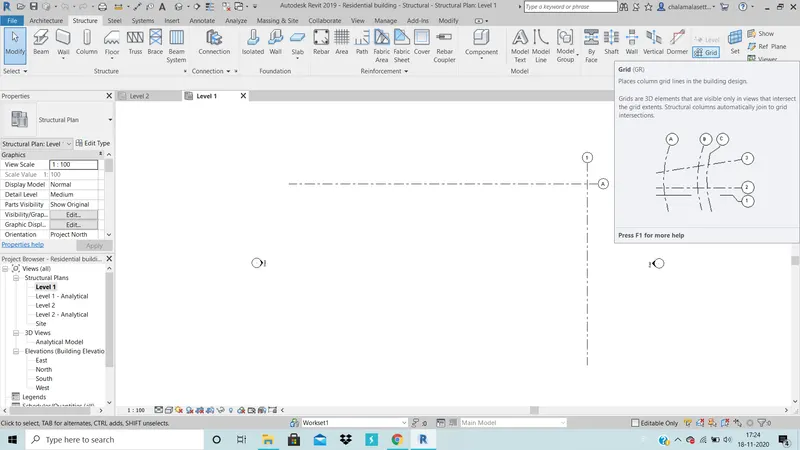
2.Now go to manage menu and click on specify coordinates at point in coordinates tool.
3. Then select a grid line and then a dilaogue box appears in which we need to set east west or north south to 0'0" and press ok.( manually defining parameters)
RESULT : The creation of structural template, defining parametres is done successfully.
3) Re-open the architectural model. Using the tools under the Collaborate tab make the architectural model a central model ( enabling simultaneous working on the model )
AIM : To re-open the architectural model. Using the tools under the Collaborate tab make the architectural model a central model ( enabling simultaneous working on the model )
TOOLS USED : Collaborate.
PROCEDURE :
1. Open the architectural file which is saved previously and click on collaborate option in collaborate tab, click on save the project and continue.
2. In the dialogue box that appears click on within your limit and click ok.
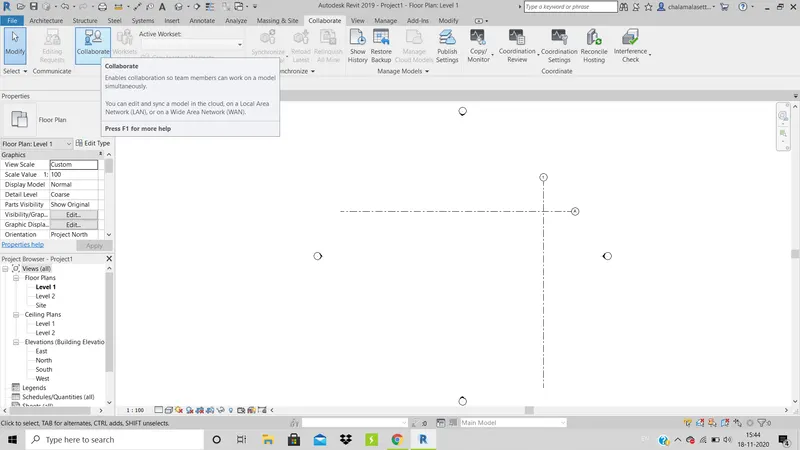
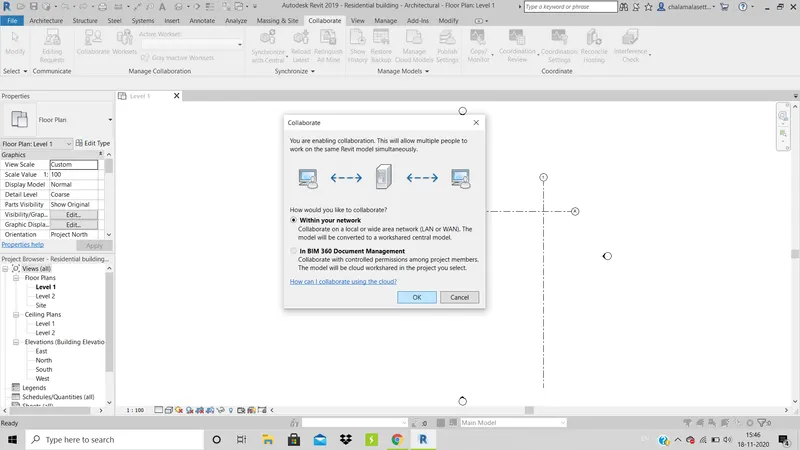
RESULT : The collaboration of architectural file is done successfully.
4) Create the Grids Longitudinal and Transverse pattern for the project similar to the task done in Week2
AIM : To create the grids longitudinal and transverse pattern for the project similar to the task done in week 2
TOOLS USED : Architectural, grids.
PROCEDURE :
1. Open the architectural file saved previously and click on architectural and select Grids, fixing the previously created grid lines as refernce.
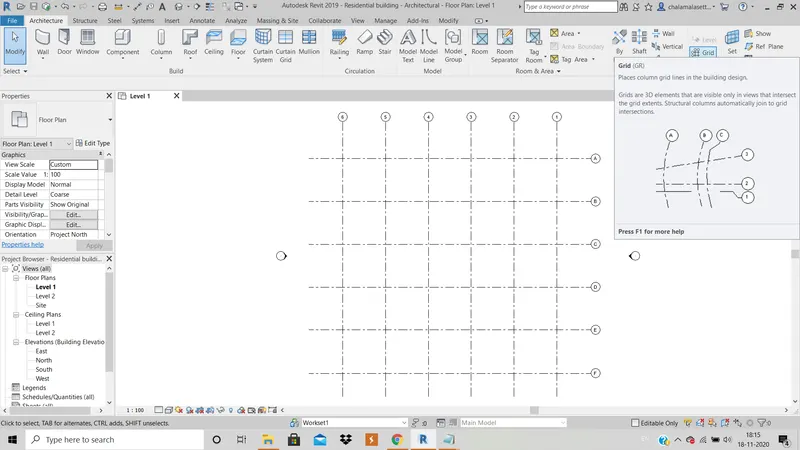
2. Take a appropriate offset (20') and draw grid lines parallel to reference lines forming grid pattern.
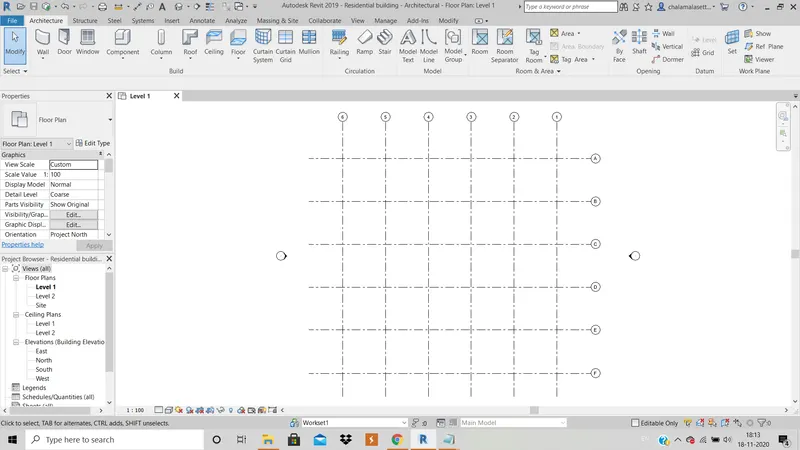
RESULT : The required grid pattern as done in week 2 is done successfully.
5) Synchronize the changes from the local copy to the central file of the architectural model.
AIM : To synchronize the changes from the local copy to the central file of the architectural model.
TOOLS USED : Manage, Collaborate, Synchronize
PROCEDURE :
1. Open the architectural file and click synchronize in the collaborate tab and click ok .
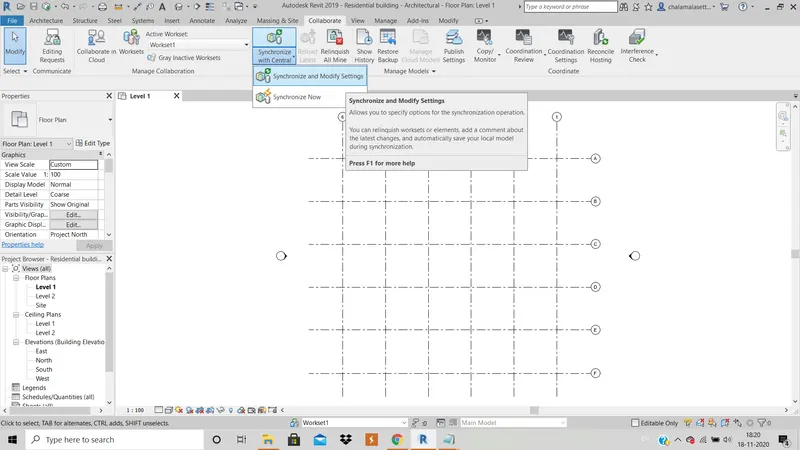
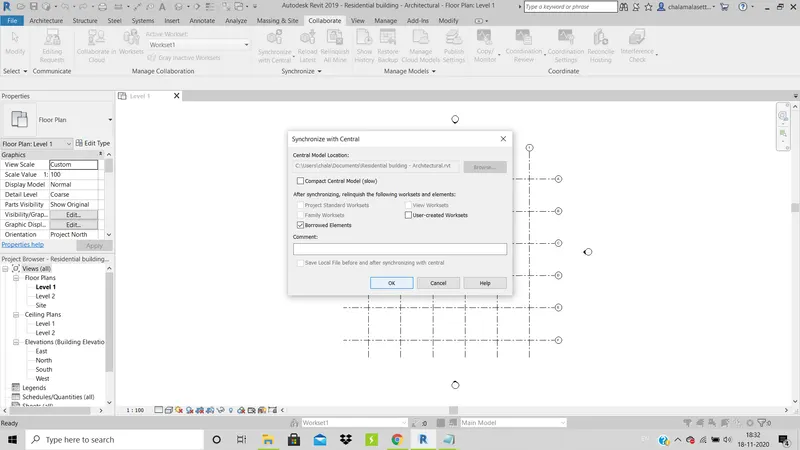
RESULT : The architectural file is synchronized successfully.
6) Open the structural model and using the collaborate tools to save the model as a central file.
AIM : To open the strctural model and using collaborate tools to save the model as a central file.
TOOLS USED : Collaborate.
PROCEDURE :
1. Open the previusly saved structural file and click on collaborate tool in collaborate tab.
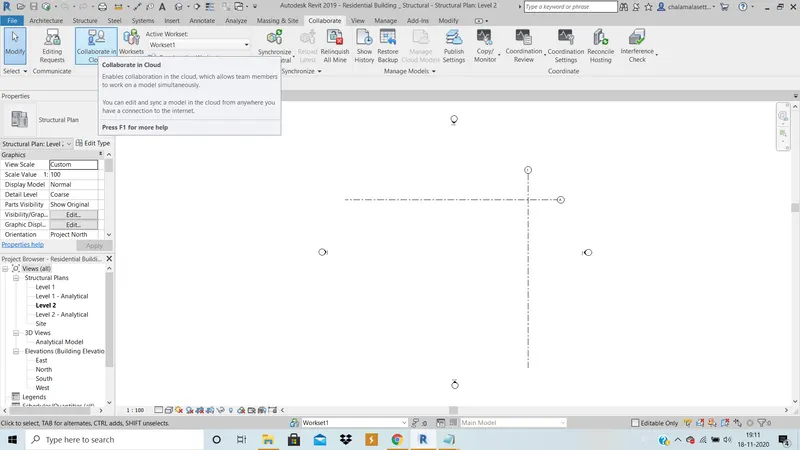
2. click on close button it asks to save the file then click on save (or) press ctrl+s.
RESULT : The structural file is successfully collaborated.
7) Under the Collaborate tab, select the grids and levels from the architectural model, and using Copy Monitor try to copy the grids to the structural model. See what happens when the copy monitored grid is moved around in the structural model
AIM : To select the grids and levels from the architectural model, and using Copy Monitor try to copy the grids to the structural model. See what happens when the copy monitored grid is moved around in the structural model.
TOOLS USED : Collaborate, Copy monitor, Copy and select link.
PROCEDURE :
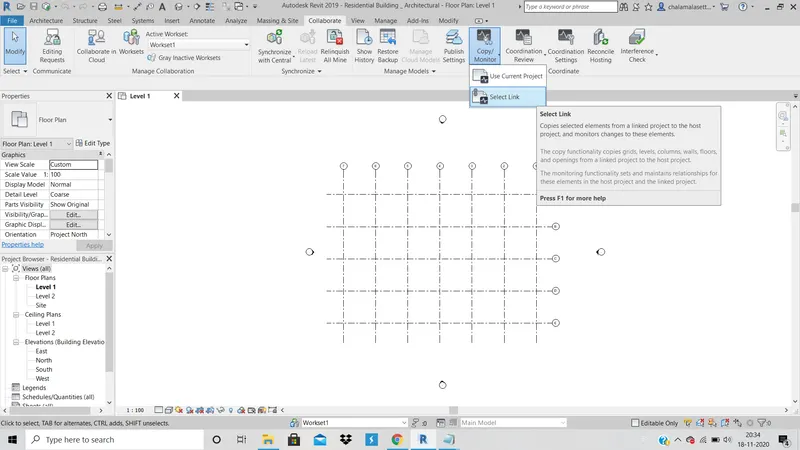
1. In architectural file, click on collaborate and click on copy monitor and select link to be linked withe original file.
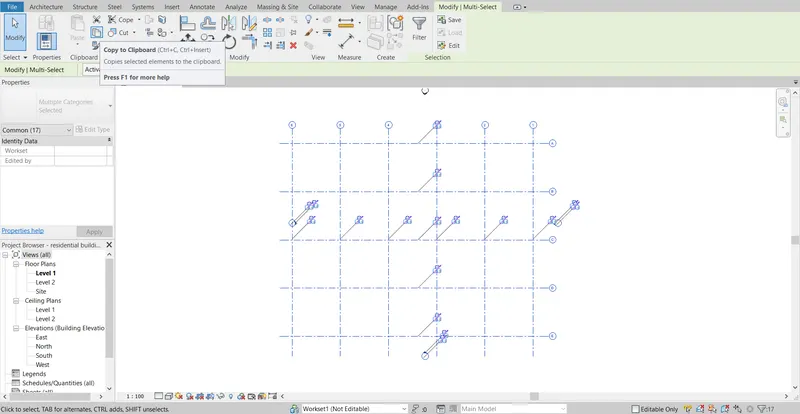
2. Select grids and levels and select multiple and then click copy.
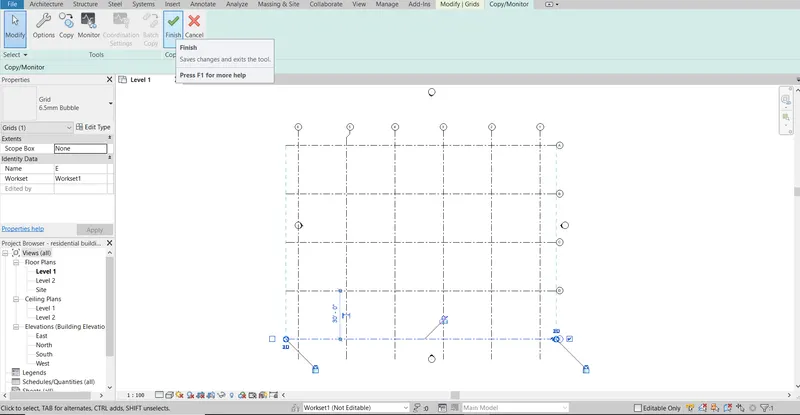
3. Click on finish command and now open structural file there paste from clipboard.
RESULT ; The required commands are done successfully.
8) Create another new file with a construction template. Save the new file as a central model. This file will include both architectural and structural model. Under the manage tab, Click manage links to link both architectural and structural files. Save the file and close all the files.
AIM : To create a new central model which has both architectural and structural models in it.
TOOLS USED: Manage, Manage links.
PROCEDURE :
1. Create a new file with construction template and name it as central_model
2. In the manage tab, click on manage links.
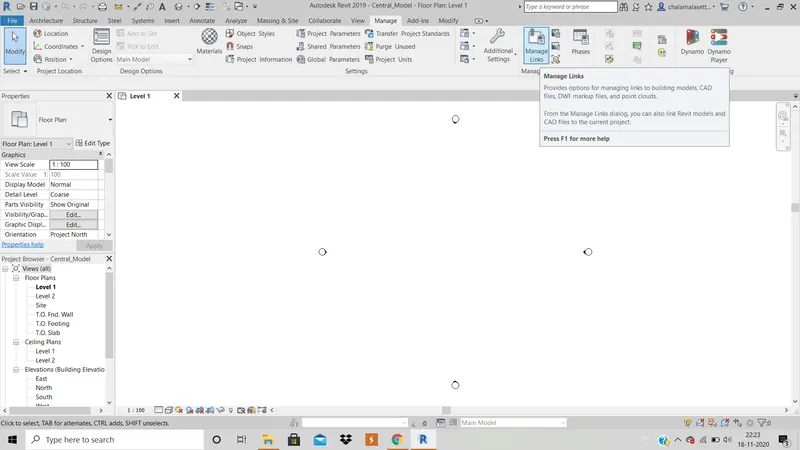
2. Click on ADD to add the architectural and structural revit files and click on ok.
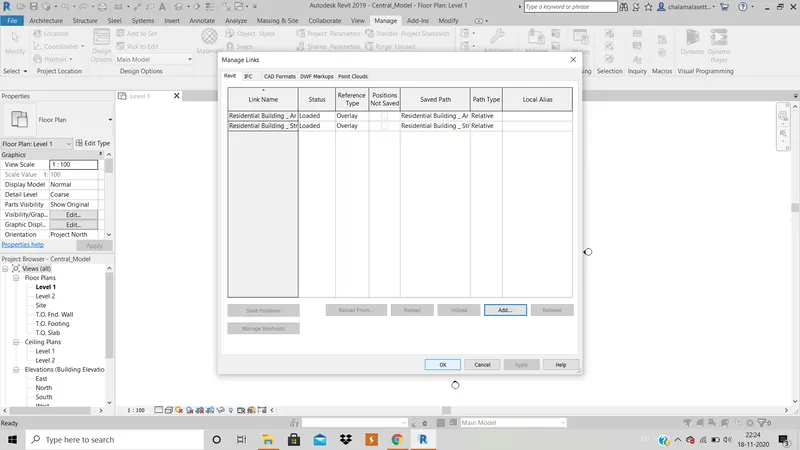
RESULT : The both architectural and structural files are linked into Central model file.
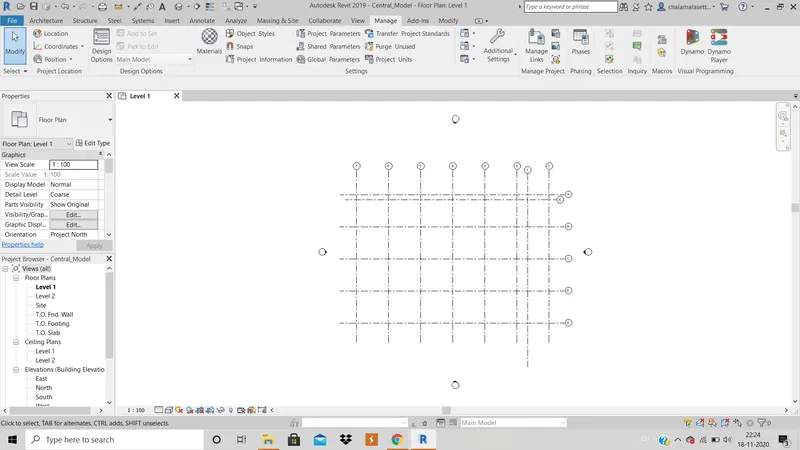
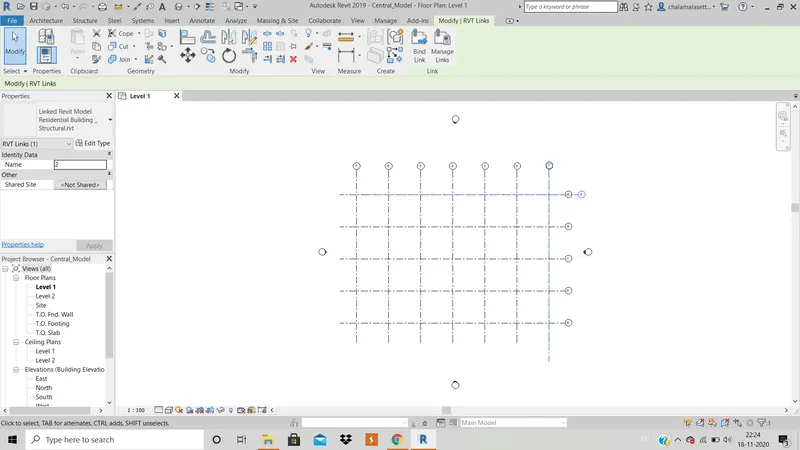
9) Are the grids from structural and architectural model matching in the construction template created? If yes the model is set up for project 2. If not work on the shared parameters and linking options under Manage links
( Hint: origin to origin, by shared coordinates or by project base point to base point ) to link the models in an appropriate manner
No, the grids from structural and architectural models arenot matching.
AIM : To match the base coordinates properly.
TOOLS USED : Position , Relocate position, Save.
PROCEDURE :
1. Open the central model file and click on relocate position in position menu in manage tab.
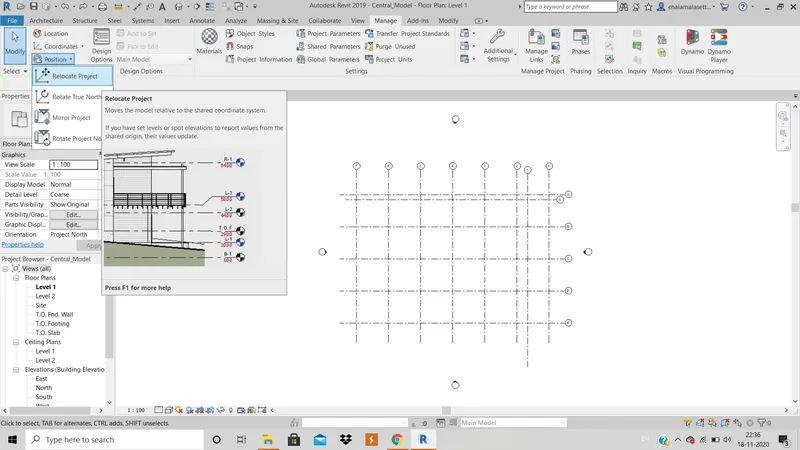
2. Now select the first point and second point which needs to be coincided i.e., select the base coordinates of both the files.
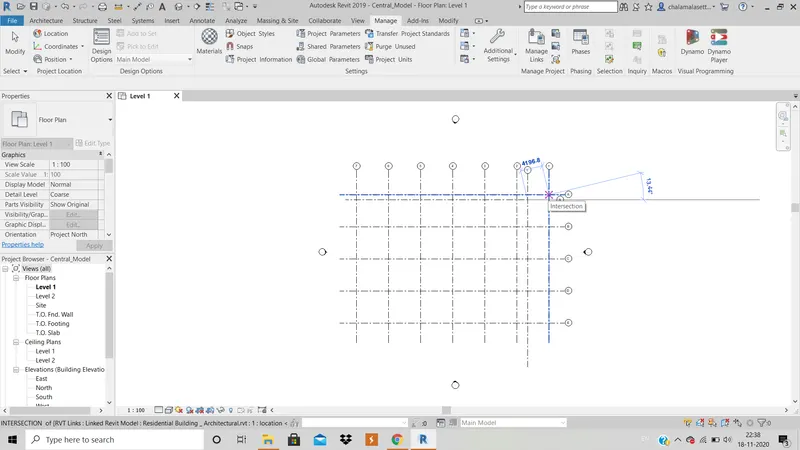
RESULT : The base coordinates are successfully coincided.
10) List a flow chart of a project tree set up in terms of Construction model, Architecture & Structure model, in this exercise and understand how many people can work on the same project using Revit simultaneously
CONSTRUCTION MODEL
ARCHITECTURAL STRUCTURAL
- Constructing buiding plan. Drawing grids
- Designing doors Placing columns
- Planning position of windows Placing foundations
- Creating walls Placing beams
- Creating floors Placing trusses
- Creating roof and celings. Adding structural walls
- Including particulars like staircase Adding ceiling etc
- Loading essential components etc.
Using manage link and linking all these into Central model.
In this process, architectural and structural disciplines can work simultaneously and synchronize with central model.