Project 1
Aim :
Route the wiring harness on given V-16 engine and prepare flatten view in CATIA V5. Apply all packaging rules and industry best practices.
Theory :
The given V-16 engine consist of following electrical components to which harness routing is required:
- 8+8 fuel injectors on the engine cylinders for both sides of the engine block (16 injectors), which are connected by a 4 pole connector with the wiring harness.
- 2 camshaft sensors on each engine block (4 camshaft sensors), which are connected by a 4 pole connector with the wiring harness.
- Engine coolant sensor at the centre of the engine between the two blocks, which is connected by a 2 pole connector, with the wiring harness.
- Engine oil temperature and pressure sensor fitted at the oil sump of the engine on both engine cylinder blocks, which are connected by a 2 pole connector with the wiring harness.
- 1 sensor to measure vehicle speed, which is connected by a 2 pole connector, with the wiring harness.
- 1 sensor to sense neutral positon of the transmission assembly, which is connected by a 2 pole connector, with the wiring harness.
- An interconnection connector to connect engine harness system to vehicle harness system.
Other equipments required to complete the wiring harness routing:
- Guiding channels to protect the harness routing from high heat zones of the engine wherever necessary.
- P-clamps to provide positive clamping and ensure clearance management for the routing wherever necessary.
- Sheetmetal brackets such as L-clips to mount the interconnection connector.
- Mounting clips to mount the connectors whenever required.
- Corrugated protection tubes to protect the wiring harness.
Assumpions and packing rules:
- Wiring harness routing shall provide ease in manufacturing, accessibility, easy removal and easy maintenance of attached equipments and routing harness.
- Wiring harness should be routed in such a way that it is easy to assemble on a vehicle.
- Wiring harness should be kept away from sharp environments like sheet metal brackets, panel edges, corners etc.
- Avoid harness routing and clipping in blind zone of operator during harness during installation.
- Ensure that routing meets the clearance requirements with the different surrounding parts.
- Routing shall provide enough slack for each branch to avoid additional stress on wire and terminal crimping joints but ensure that extra slack does not cause wiring harness foul with surrounding parts and impact desired clearance requirements.
- Enough clamps should be provided to ensure the positive clearance with surrounding and safety of wiring harness.
- Use of plastic guided channels are recommended to meet the clearances in critical areas if it is difficult to achieve by use of clamps.
- Branch length should be minimum 50mm.
- Minimum distance between clip and nearest branching point should be 25mm.
- Minimum distance between two breakouts should be 50mm.
- Limit the no. of branches from single branch point to 4.
- Ensure that harness protection is provided according to surrounding temperature, manufacturabilty and expected reliability.
- The min. bend radius is to be 1.4.
- Consider min 5% slack in the wiring harness if needed.
Procedure:
Step 1. Create context assembly product file:
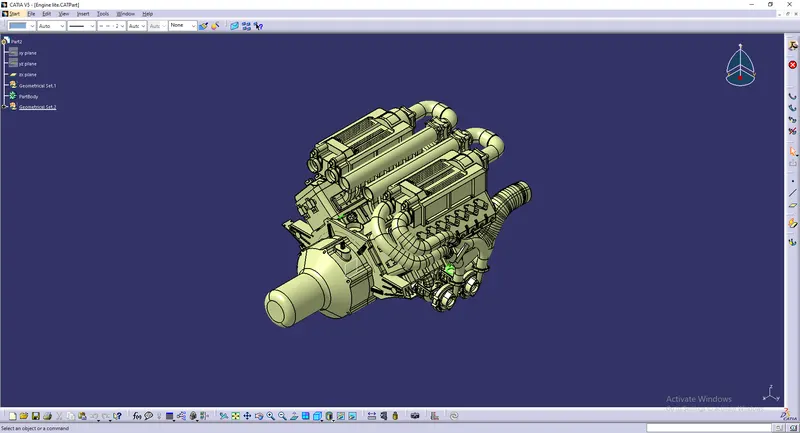
Image : Context assembly product file
Create context assembly as shown in the image above. The context assembly will contain 3D CAD data for the engine and engine harness geometrical bundle assembly. Any sheet metal component such as L-clip required will be added into the context assembly.
Step 2. Define the connectors electrically:
Before adding connectors into the geometrical bundle define all the required connectors electrically.
To define any connector electrically,
a. Create required geometrical parameters like bundle connection point, connector connection axis and cavity connection axis (if required) to the connector in the part design workbench as shown in the image below.
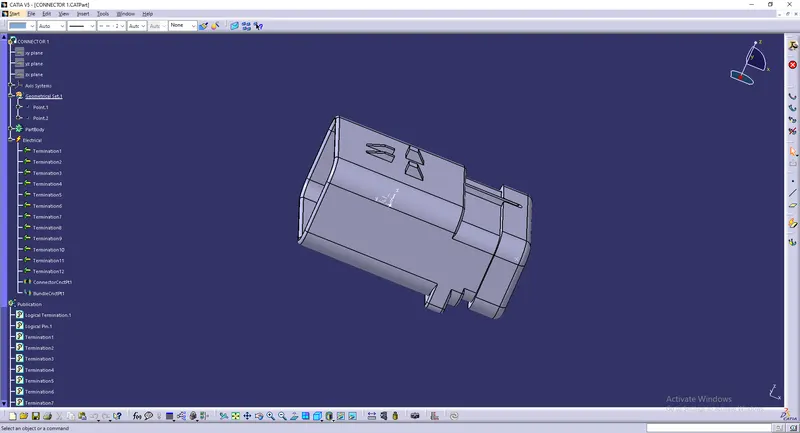
Image : Defining geometrical parameters
b. Now define connector with electrical properties such as connector connection point, bundle connection point and cavity connection point.
c.Go to electrical part design workbench and select connector command and input the no. of terminals as per the available connector.
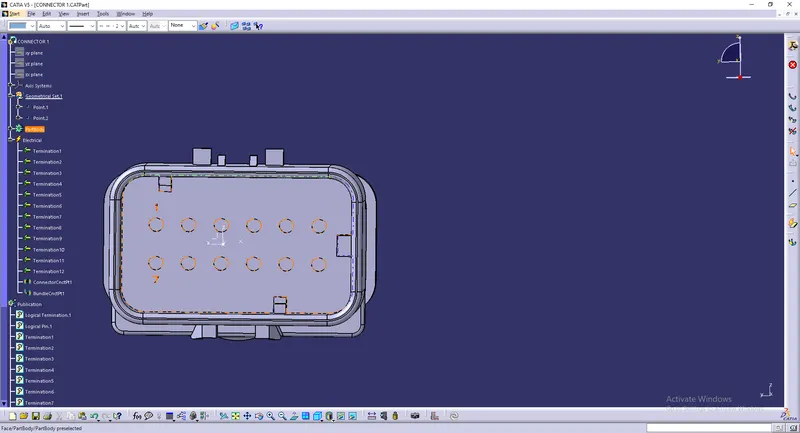
Image : Define given component as connector
d. Defining connector connection point using connector connection point command and define the parameters as shown in the image below.
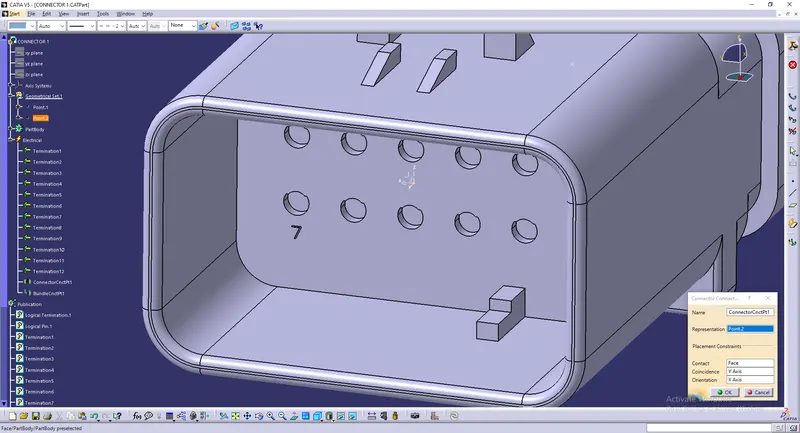
Image :Defining connector connection point
e. Define bundle connection point using bundle connection point command and define the parameters as below.
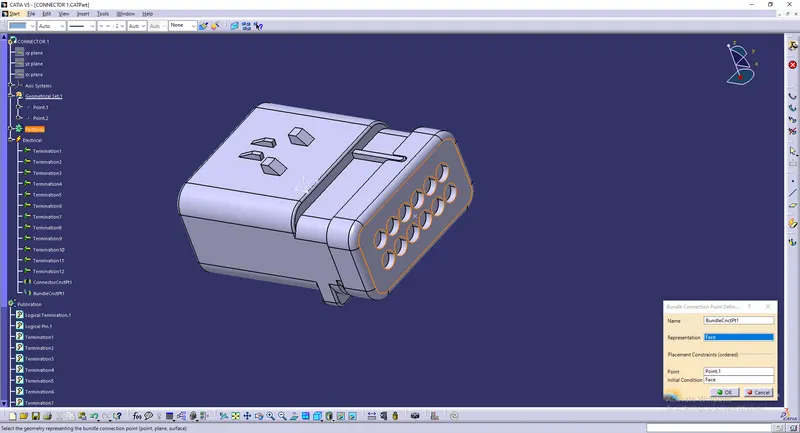
Image : Defining bundle connection point
Hence the connector is defined electrically.
Step 3. Inserting connectors into geometrical bundle and positioning them:
a. The connectors are inserted into the geometrical bundle and positioned onto the fuel injectors, camshaft sensors, vehicle speed sensor, neutral position sensor and engine coolant sensor as shown in the images below.
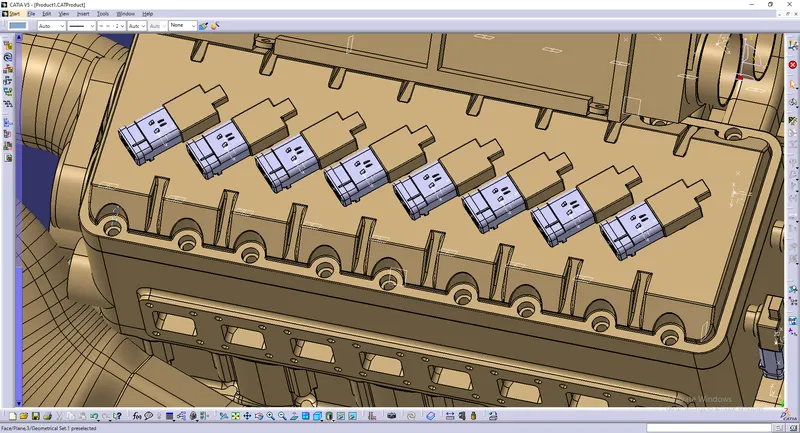
Image : Connectors connected to fuel injectors
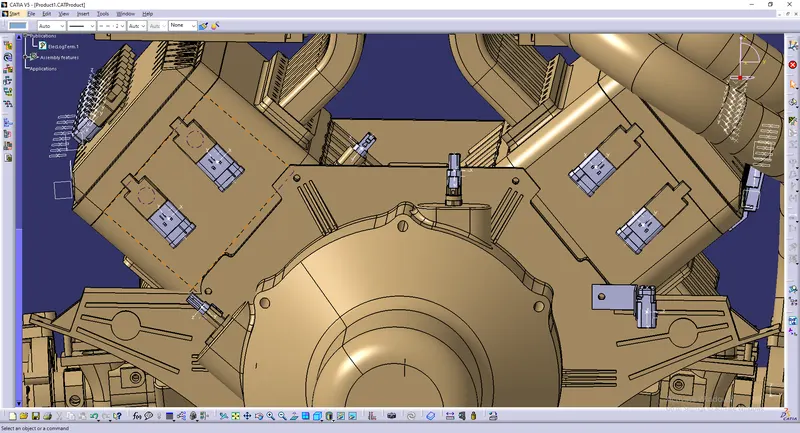
Image : Connectors connected to camshaft sensors, vehicle speed sensor, engine coolant sensor and neutral position sensor.
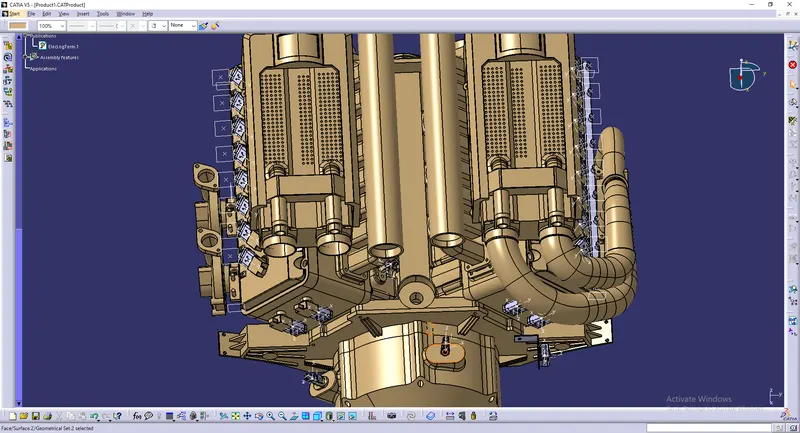
Image : All connectors positioned
Step 4. Adding sheet metal bracket for the interconnection connector.
A sheet metal bracket (L-clip) is added inside the context assembly to mount the interconnection connector. The L-clip is added inside the context assembly and not into the geometrical bundle since it will not be bought along with the wiring harness. Existing bolt on the engine is used to mount the sheet metal bracket. The bracket should be provided with a suitable locking feature in clockwise direction. The ribs on the current engine design can be taken into advantage for the locking purpose so that it cant rotate freely. The design idea should be discussed with engine design team while using the existing bolts and screws so that there wont be any disturbance for the normal functioning of the engine as well.
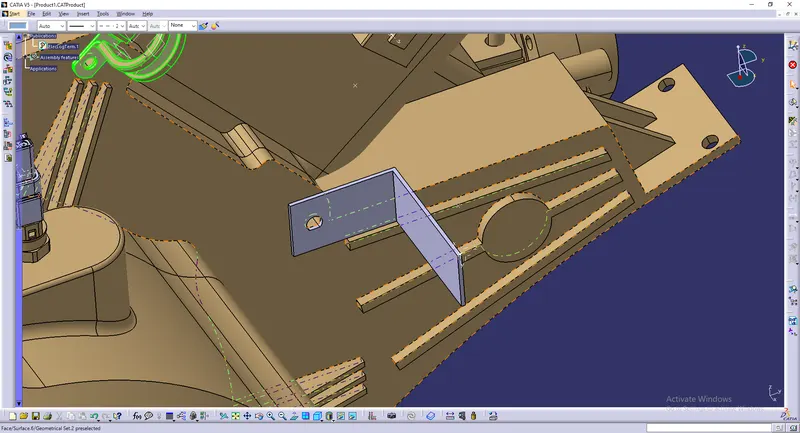
Image : Added sheet metal bracket on engine
Step 6. Mounting the interconnection connector on the sheetmetal bracket:
he interconnection connector is electrically connected with the mounting clip by using connect electrical devices command in the electrical assembly design workbench.
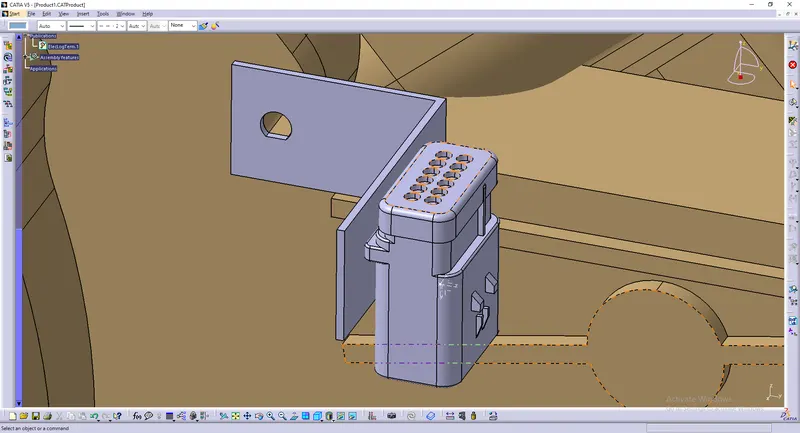
Image : Mounting clip and connector electrically connected
Step 7. Adding P-clamps to provide positive clamping for the wiring harness:
a. P-clamps should be defined with electrical properties before inserting into the geometrical bundle assembly.
First define geometrical parameters such as entry point, entry plane, exit point, exit plane and base plane as shown in the image below.
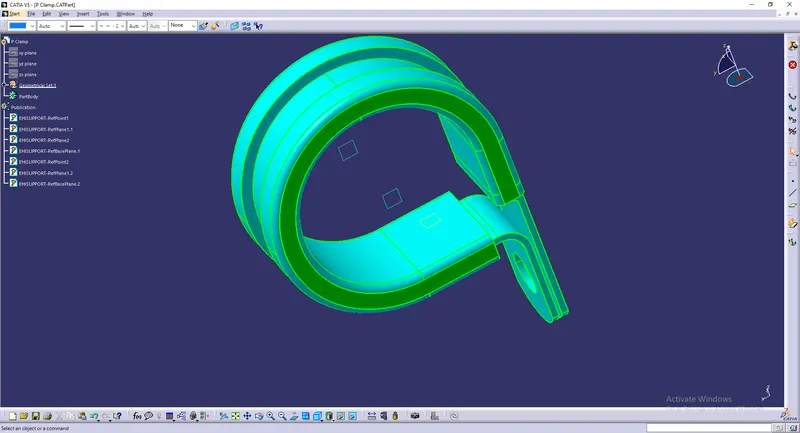
Image : Defining geometrical parameters to P clamp
b. Go to electrical part design workbench and define the P-clamps as support using support command and define the parameters as shown below.
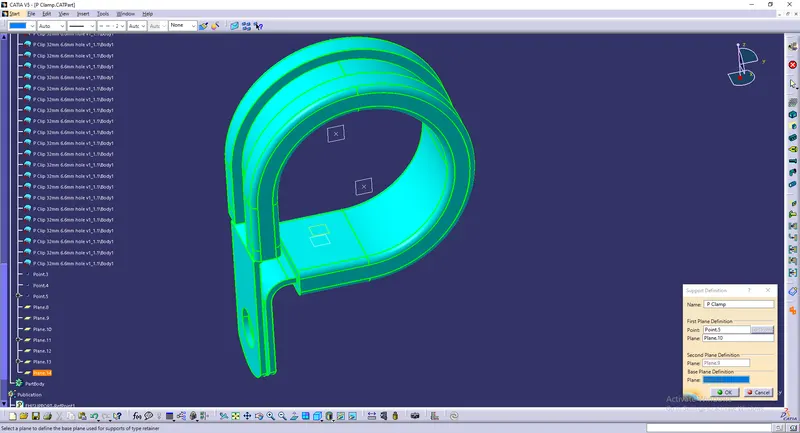
Image : Defining P clamp as support
c. Use support command again and select first plane definition as exit point and exit plane, this is done to obtain wiring entry from either sides of P-clamps.
d. P-Clamps are mounted on the existing bolts and screws to provide positive clamping and ensure proper clearance management for the wiring harness routing.
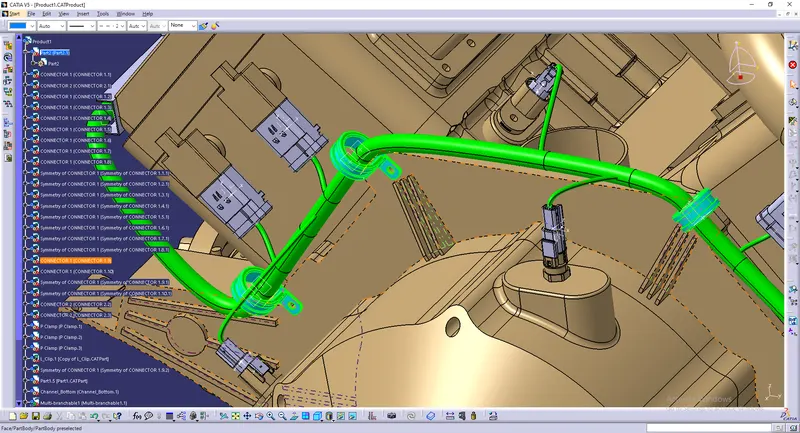
Image : P-clamps positioned on the engine
Step 8. Adding plastic guiding channels:
The given V-16 engine has 8 injectors both on the left and right side of the engine which are close to one another, hence using plastic guiding channels is the best option for easy and proper routing of the wiring harness and maintain clearance requirement of the wires from the high temperature parts of the engines.
Before adding guiding channels into the geometrical bundle assembly it is necessary to define electrical properties to it, which is done by following steps.
a. First create geometrical parameters such as bundle entry points, and external reference line in the part design workbench to route the wiring harness into the guiding channel as shown below.
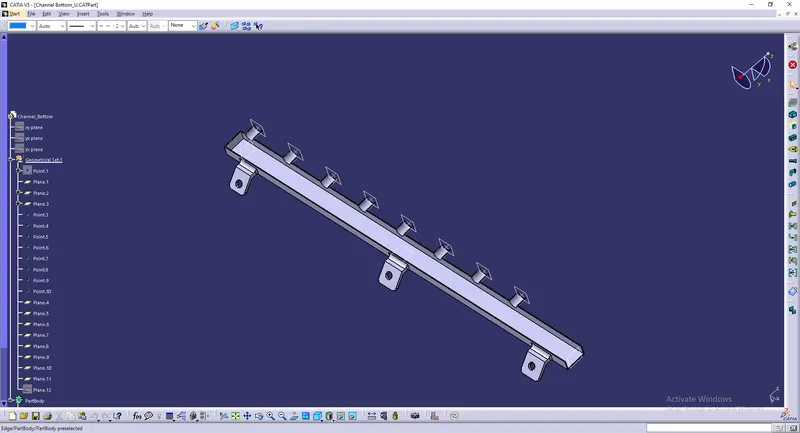
Image : Defining geometrical parameters for guiding channnels
b. Go to electrical part design and define the part as equipment using equipment command and define bundle connection points using bundle connection point command towards the entry points of the guiding channel as shown in the image below.
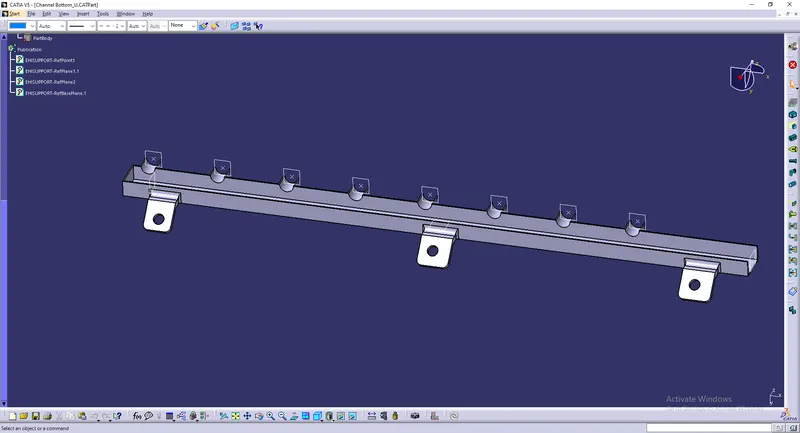
Image : Defining electrical proerties to guiding channel
Now insert the guiding channel into the geometrical bundle and position it accordingly as required, both on the left and right side of the engine as shown in the image below.
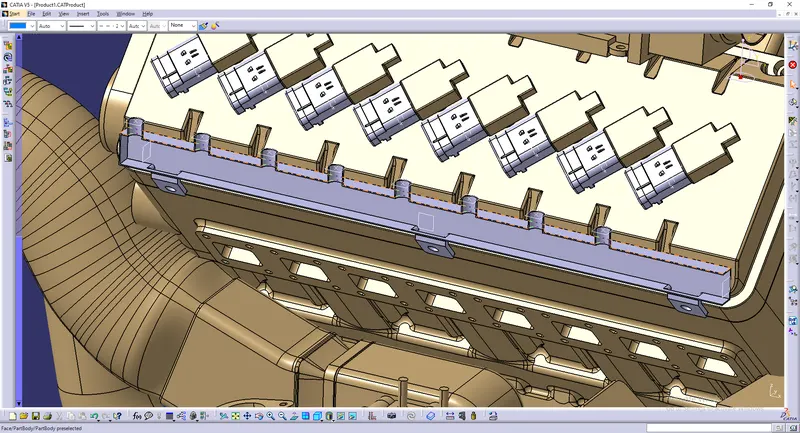
Image : Positioning guiding channel
Discuss with engine design team to provide additional tappings wherever required to mount the guiding channels with bolts and screws.
Now as all the components are inserted and positioned into the geometrical bundle, the assembly is ready to route the harness.
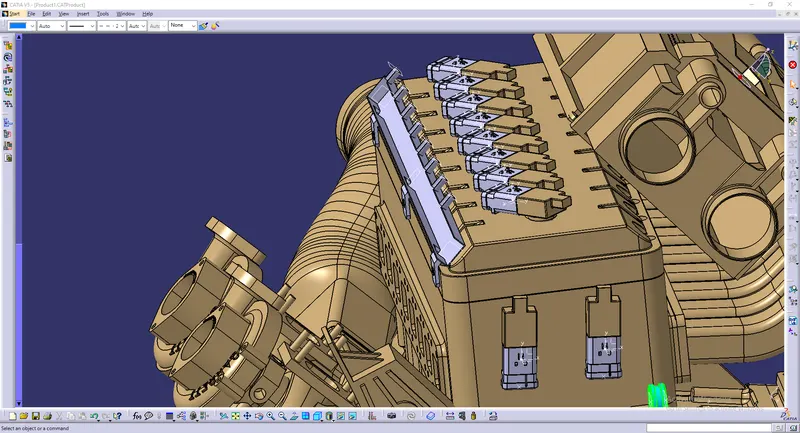
Step 9. Routing the wiring harness to the connectors:
Go to electrical harness assembly workbench and select geometrical bundle command and select the geometrical bundle in the model tree. Then select the multibranchable command to start the bundle routing and go to route definition.
i) The bundle routing starts from interconnection connector and then to the P-clamps and to the guiding channels.
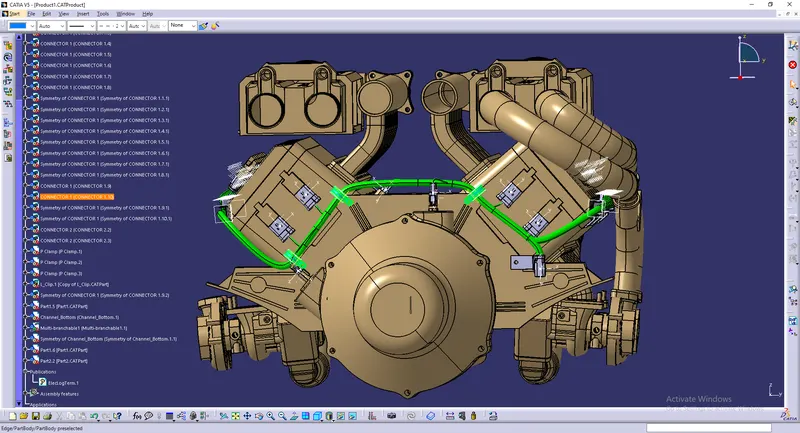
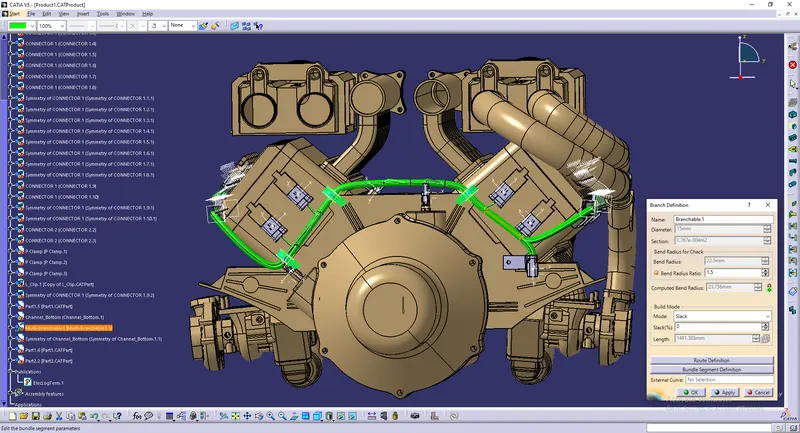
Image : Bundle routing from interconnection connector
ii) Addding branching points wherever necessary using add branch point command as shown below.
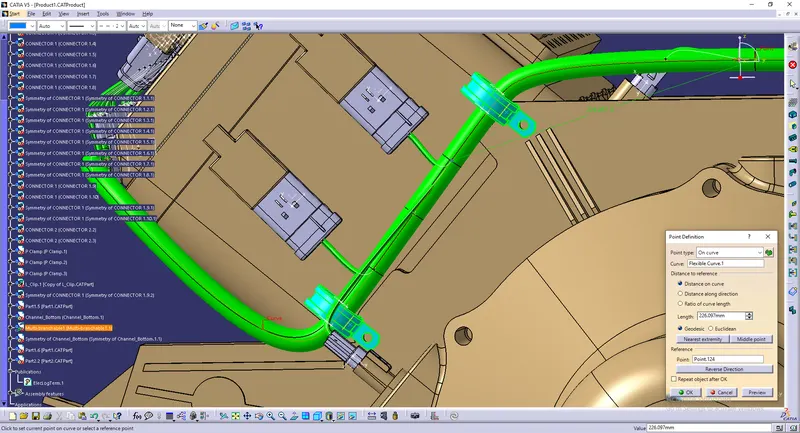
Image : Adding braching points
iii) Adding branches wherever necessary to connect the various connectors to the main branch as shown below using add branches command and routing definition into it.
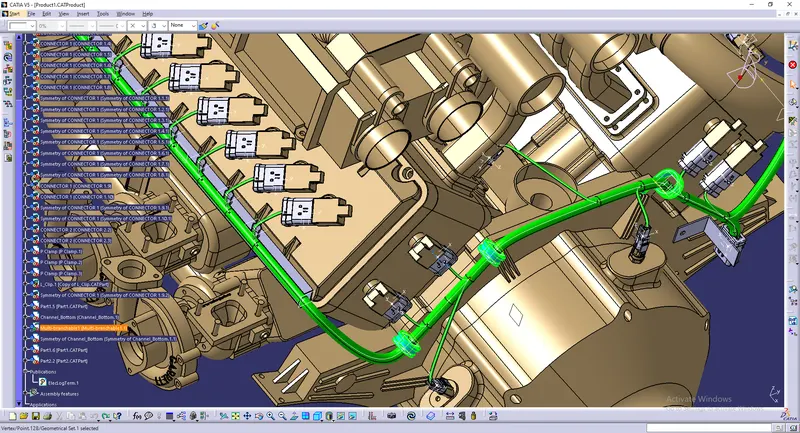
Image : Added branches
iv) To route the wiring harness through the guiding channels select external curve and click on the line in the guiding channel.
Image : Routing through guiding channel
v) Add branching points to the wiring bundle and add branches to to connect the wiring to the connectors at the injectors as shown below.
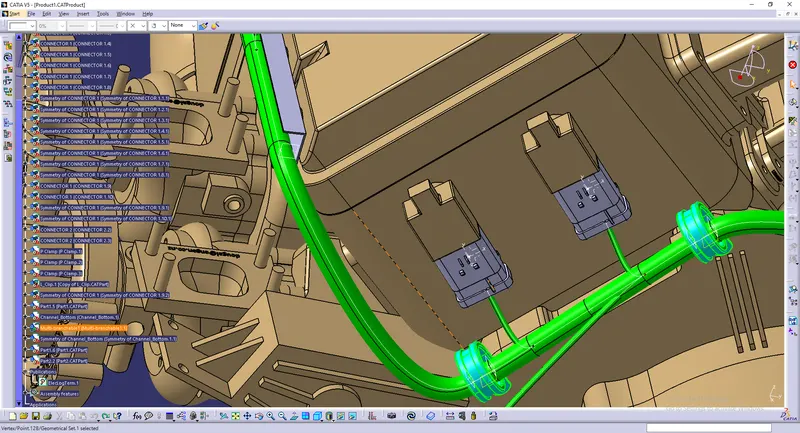
Image : Adding branching points to the branchable in guiding channel
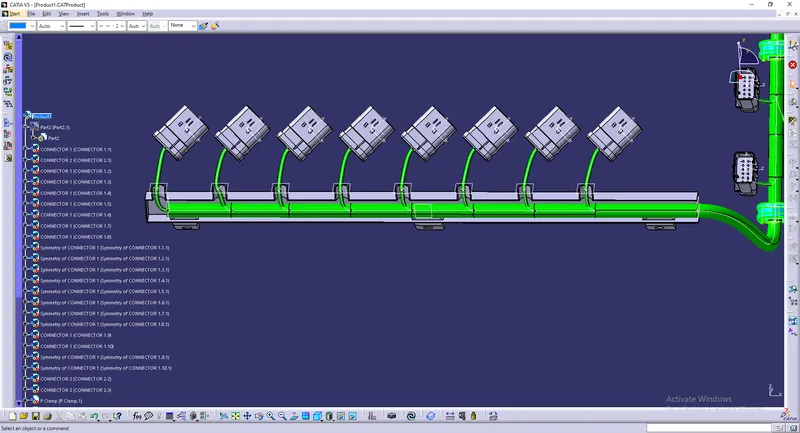
Image : Adding branches to the connect with the injector
Thus the routing is completed as shown below.
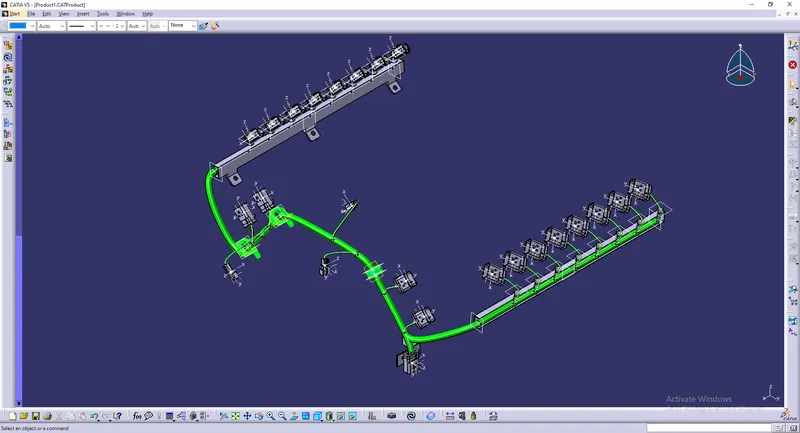
Image : Engine harness routing
vi) Add guiding channel top as shown in the image below.
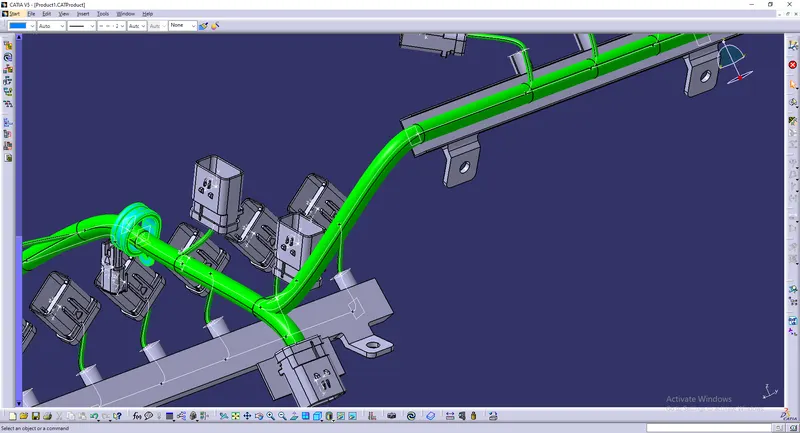
Step 10. Check bundle connectivity
To check bundle connectivity go to edit, select search option, go to advanced tab and select the workbench as electrical, type as bundle segment and attribute as fully connected and attribute criterian as true if, you want to check all connected bundle segments and false if you want to check all the unconnected bundle segments.
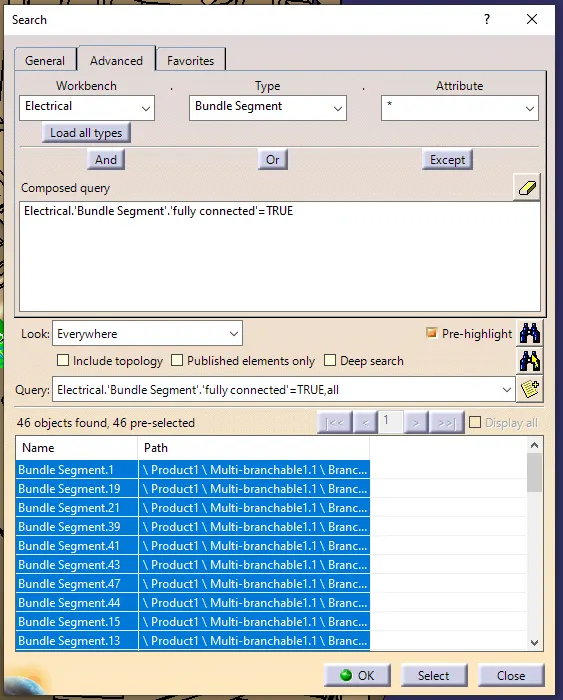
Image : Checking bundle connectivity
Now as the branches are fully connected we can proceed further for harness flattening.
Step 12. To create flatten view of the engine harness
i) Create a new product file and save it in the same folder where the wiring harness is saved.
ii) Go to Electrical harness flattening workbench and select harness flattening parameters and define harness flattening parameters into it as shown in the images below.
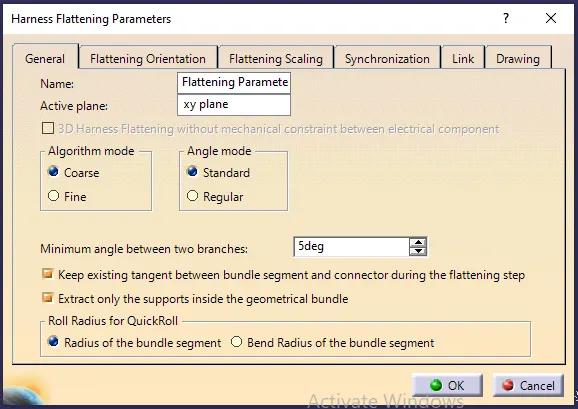
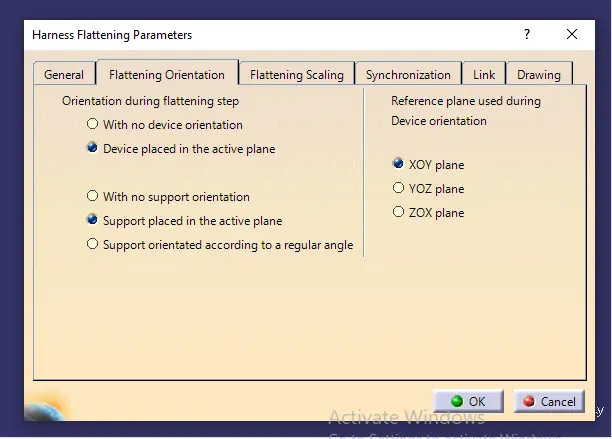
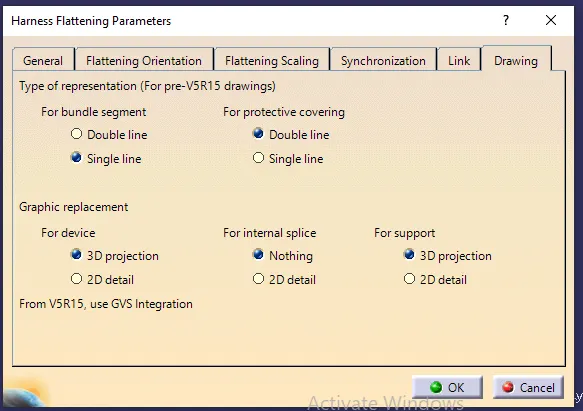
Images : Defining harness flattening parameters
ii) To import the harness file into the harness flatten file, select extract command and go to harness assembly window and click on the geometrical bundle. The harness routing is added into the harness flatten file as shown below.
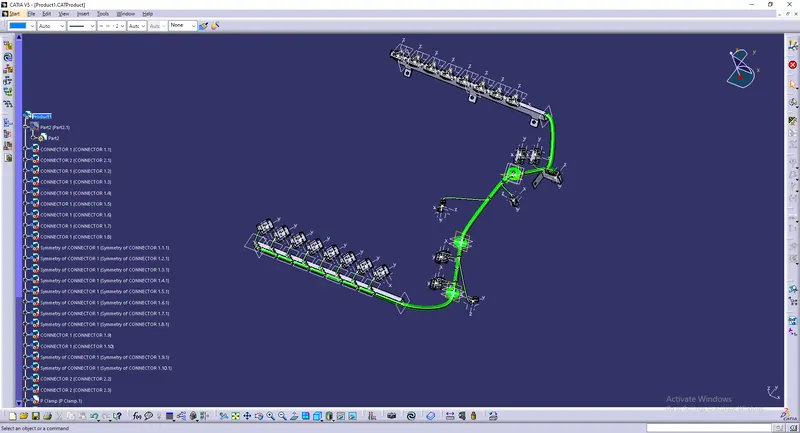
Image : Extracting harness into the flattening product file
iii) Go to flatten command and select the appropriate face and select all the branches of the wiring harness, the harness is flattened as shown below.
Image : Flatten command defining
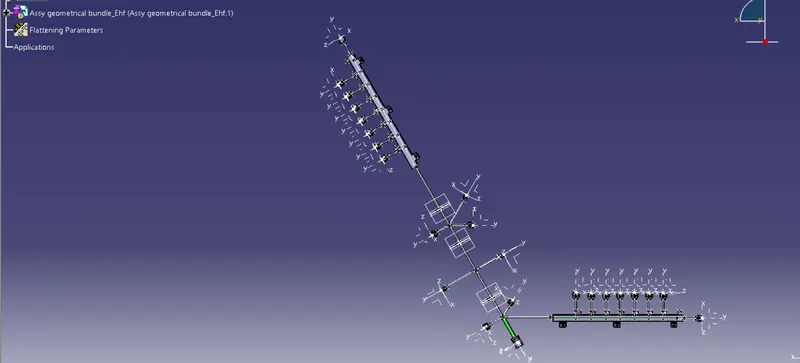
Image : Flattened harness
iv) Use rotate command to rotate the branches and make the wiring harness routing presentable in the drawing sheet. Following which the connectors and other devices are also to be manipulated in the assembly design workbench to give a proper view while drafting on the drawing sheet.
v) The flattening view is ready and can be used for drafting.
vi) Go to assembly design workbench, and select view from reference command and select the plane to add plane for the annotation, select flag note with leader and add annotations.
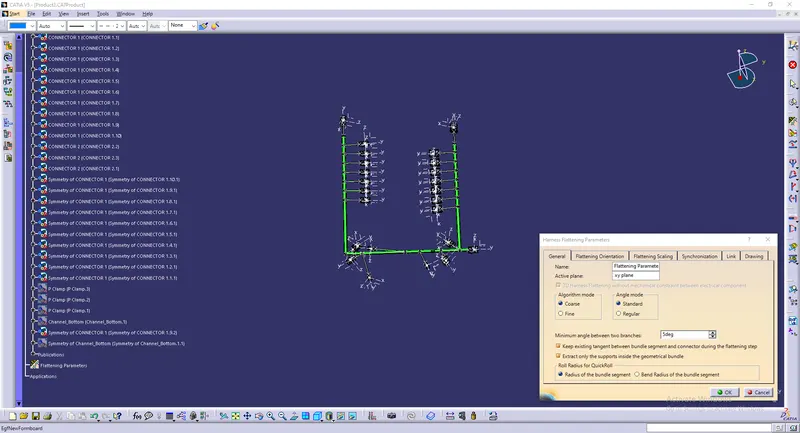
Image : Adding annotations
Step 13. Create drawing of the flattened harness
i) Go to new and select drawing to create a new drawing file.
ii) Select front view command, go to the flattened harness window and select a suitable face to create drafting of the harness. The wiring harness appears as shown below.
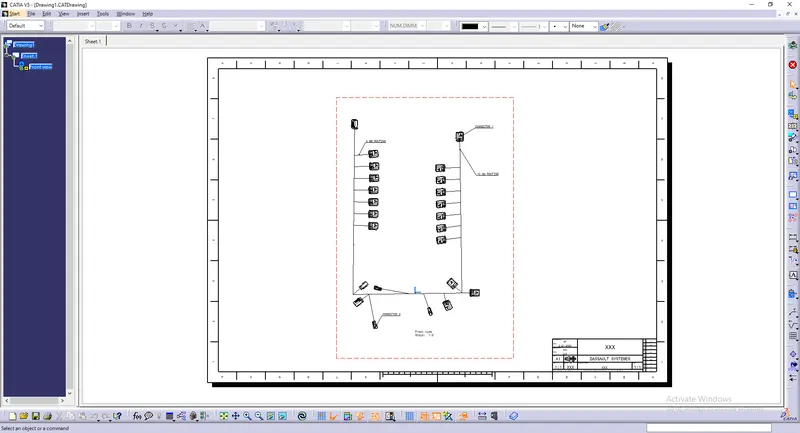
Image : Harness flatten drawing
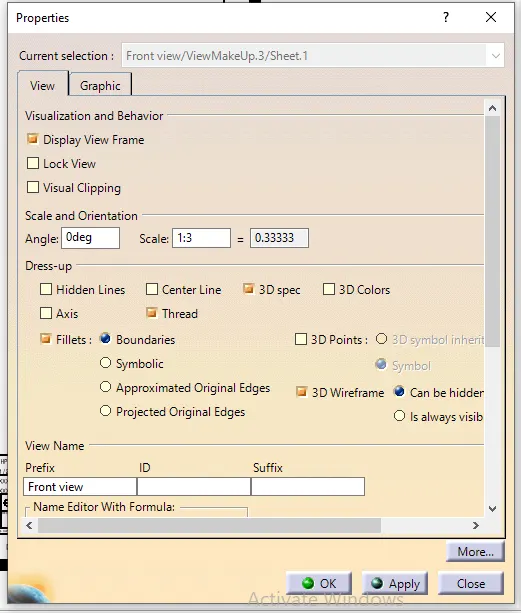
iii) To make the bundle segments visible right click on the drawing sheet and go to properties, in the view tab, highlight '3D wireframe' and 'is always visible' in the dress up settings.
The bundle segment appears in the wiring harness as shown below.
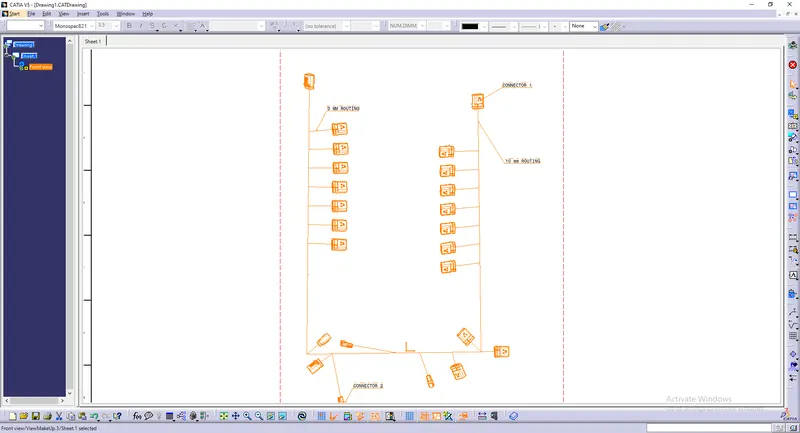
Image : Harness flatten drawing after highlighting wire frame
Conclusion: Thus the engine harness routing is completed and the flatten view drawing is created.