AutoCAD_Layout of Kitchen Cabinet, Elevation of a Residential Building and Industrial Building section_Week 9
Challenges Week-9
Submitted by Kanala Rahul Reddy
Commands Used in this challenge
- Line
- Rectangle
- Offset
- Trim
- Explode
- Circle
- Dimlinear
- Dimcontinue
- Move
- ATTDEF
- BATTMAN
- Block
- Blockedit
- Hatch
- Hatchedit
- Regen
1. Create the layouts of the Kitchen and provide hatches pattern as shown. Also, use blocks wherever required. Provide appropriate dimensions in the plan. Assume the size of doors, appliances and others as per the standards.
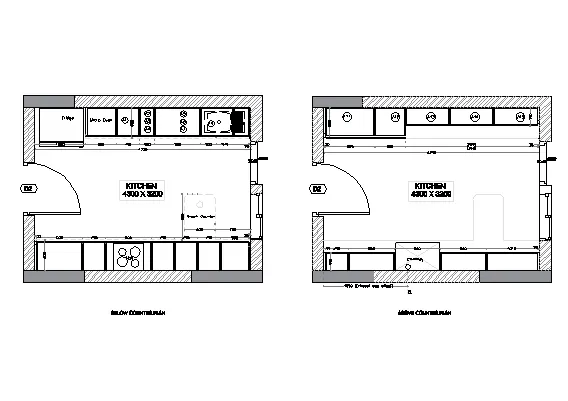
Aim: To create the Kitchen layout plans along with blocks and hatching as shown in the figure
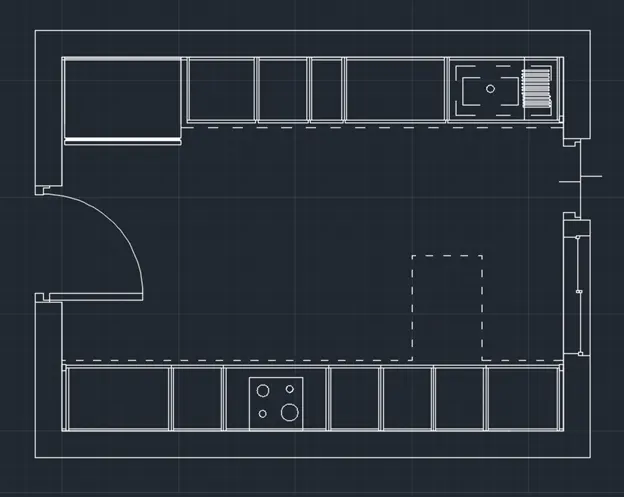
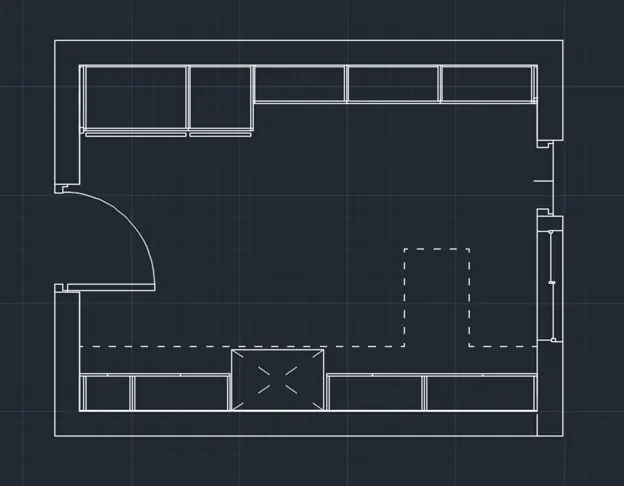
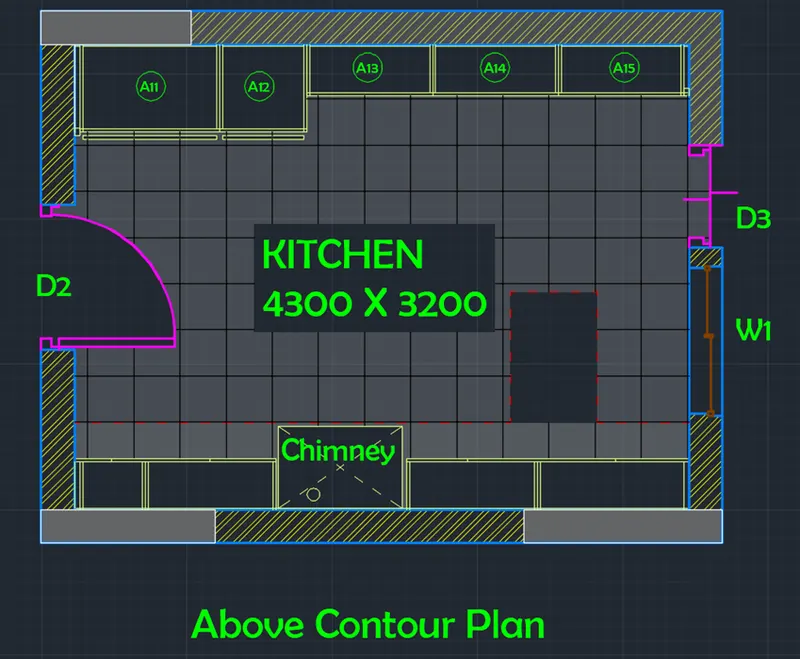
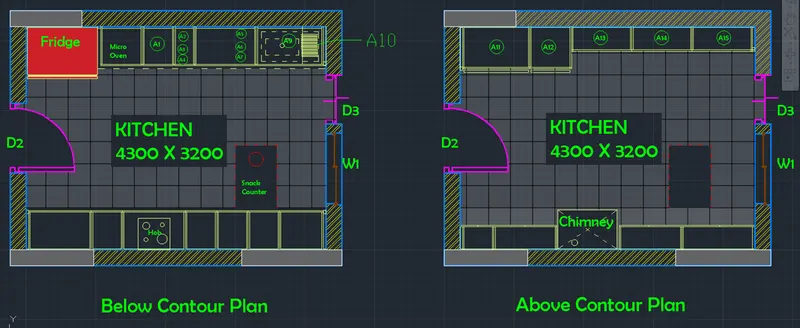
Introduction: Two kitchen plans are given one below contour plan and another above contour plan. Below contour plan consists of fridge, micro-oven, cup boards, hob, dishwasher etc. Above contour plan consists of cup boards, chimney etc. Blocks are created for kitchen components such as chimney, fridge, dish washer, hob, doors and windows. Hatching is present for the walls of the layout.
- Door 1 or D1 as 1000mm X 2100mm
- Door 2 or D2 as 1000mm X 2100mm
- Window 1 or W1 as 900mm X 1500mm
Procedure:
Open AutoCAD
In Startup settings start from scratch select metric (Meter)
Open grid and snap settings
- Change snap and grid spacing to 0.1
- Change major line every grid line to 10
- Turnoff adaptive grid
Type ‘un’ in command box and press enter
Change units’ type to decimal and precision to 0.00 and insertion scale to millimeters
Step 1: Creating Below contour plan
Type ‘rec’ or rectangle in the command box or select rectangle from the draw toolbar
- Specify first corner point: Select any point on the grid
- Specify other corner point or [ Area: Dimension: Rotation]: Click on dimensions
- Specify length for rectangle: Type 4.3 and press enter
- Specify width for rectangle: Type 3.2 and press enter and set the direction as first quadrant
Type ‘o’ or offset and press enter or click offset from the modify tool bar
- Specify offset distance: Type 0.23 and press enter
- Select object to offset: Select the rectangle drawn earlier and select the outside of the rectangle
- Explode two rectangles using explode command
- Create a door opening using line and trim command
Type ‘o’ or offset and press enter or click offset from the modify tool bar
- Specify offset distance: Type 0.6 and press enter
- Select object to offset: Select the bottom edge of the inner rectangle and select on top
Type ‘o’ or offset and press enter or click offset from the modify tool bar
- Specify offset distance: Type 0.04 and press enter
- Select object to offset: Select the last offset line and click on bottom
- Draw a line starting from left end of the last offset line and bottom left corner of the inner rectangle
Type ‘o’ or offset and press enter or click offset from the modify tool bar
- Specify offset distance: Type 0.035 and press enter
- Select object to offset: Select the line drawn earlier and click on right
Type ‘o’ or offset and press enter or click offset from the modify tool bar
- Specify offset distance: Type 0.9 and press enter
- Select object to offset: Select the last offset line and click on right
Type ‘o’ or offset and press enter or click offset from the modify tool bar
- Specify offset distance: Type 0.45 and press enter
- Select object to offset: Select the last offset line and click on right
Type ‘o’ or offset and press enter or click offset from the modify tool bar
- Specify offset distance: Type 0.9 and press enter
- Select object to offset: Select the last offset line and click on right
Type ‘o’ or offset and press enter or click offset from the modify tool bar
- Specify offset distance: Type 0.45 and press enter
- Select object to offset: Select the last offset line and click on right
- Select object to offset: Select the last offset line and click on right
- Select object to offset: Select the last offset line and click on right
Type ‘o’ or offset and press enter or click offset from the modify tool bar
- Specify offset distance: Type 0.63 and press enter
- Select object to offset: Select the last offset line and click on right
Type ‘o’ or offset and press enter or click offset from the modify tool bar
- Specify offset distance: Type 0.01 and press enter
- Select object to offset: Select the bottom edge of the inner rectangle and select on top
Type ‘o’ or offset and press enter or click offset from the modify tool bar
- Specify offset distance: Type 0.02 and press enter
- Select object to offset: Select the line offset at 0.035 from left and click on right
- Repeat the same process for all the offset lines drawn above
- Create hob using rectangle and circle commands
- Create the snack counter using line command and ISO dash space as line type with line type scale as 0.1
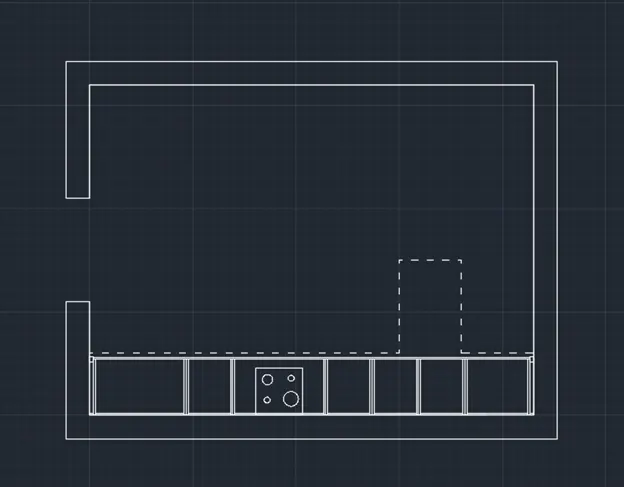
Type ‘o’ or offset and press enter or click offset from the modify tool bar
- Specify offset distance: Type 0.6 and press enter
- Select object to offset: Select the top edge of the inner rectangle and select on bottom
Type ‘o’ or offset and press enter or click offset from the modify tool bar
- Specify offset distance: Type 0.04 and press enter
- Select object to offset: Select the last offset line and click on top
Type ‘o’ or offset and press enter or click offset from the modify tool bar
- Specify offset distance: Type 0.01 and press enter
- Select object to offset: Select the top edge of the inner rectangle and select on bottom
- Draw a line starting from left end of the last offset line and bottom left corner of the inner rectangle
Type ‘o’ or offset and press enter or click offset from the modify tool bar
- Specify offset distance: Type 0.035 and press enter
- Select object to offset: Select the line drawn earlier and click on left
Type ‘o’ or offset and press enter or click offset from the modify tool bar
- Specify offset distance: Type 0.3 and press enter
- Select object to offset: Select the last offset line and click on left
Type ‘o’ or offset and press enter or click offset from the modify tool bar
- Specify offset distance: Type 0.645 and press enter
- Select object to offset: Select the last offset line and click on left
Type ‘o’ or offset and press enter or click offset from the modify tool bar
- Specify offset distance: Type 0.9 and press enter
- Select object to offset: Select the last offset line and click on left
Type ‘o’ or offset and press enter or click offset from the modify tool bar
- Specify offset distance: Type 0.3 and press enter
- Select object to offset: Select the last offset line and click on left
Type ‘o’ or offset and press enter or click offset from the modify tool bar
- Specify offset distance: Type 0.45 and press enter
- Select object to offset: Select the last offset line and click on left
Type ‘o’ or offset and press enter or click offset from the modify tool bar
- Specify offset distance: Type 0.6 and press enter
- Select object to offset: Select the last offset line and click on left
Create the fridge component using rectangle, 2 point circle and line command as shown in figure
- Doors and windows are created as per the step 3
- The result of step 1 after adding doors and windows is as follows
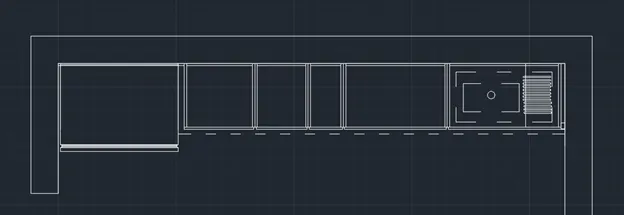
Step 2: Creating Below contour plan
- Using copy command, copy all the necessary components of below contour plan and paste at any point such as walls, doors and window
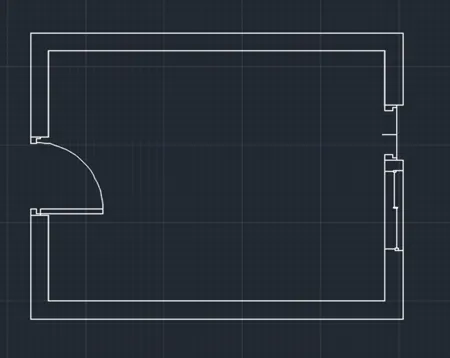
Type ‘o’ or offset and press enter or click offset from the modify tool bar
- Specify offset distance: Type 0.35 and press enter
- Select object to offset: Select the bottom edge of the inner rectangle and select on top
- Draw a line starting from left end of the last offset line and bottom left corner of the inner rectangle
Type ‘o’ or offset and press enter or click offset from the modify tool bar
- Specify offset distance: Type 0.035 and press enter
- Select object to offset: Select the line drawn earlier and click on right
Type ‘o’ or offset and press enter or click offset from the modify tool bar
- Specify offset distance: Type 0.45 and press enter
- Select object to offset: Select the last offset line and click on right
Type ‘o’ or offset and press enter or click offset from the modify tool bar
- Specify offset distance: Type 0.9 and press enter
- Select object to offset: Select the last offset line and click on right
- Select object to offset: Select the last offset line and click on right
- Select object to offset: Select the last offset line and click on right
Type ‘o’ or offset and press enter or click offset from the modify tool bar
- Specify offset distance: Type 1.01 and press enter
- Select object to offset: Select the last offset line and click on right
Type ‘o’ or offset and press enter or click offset from the modify tool bar
- Specify offset distance: Type 0.01 and press enter
- Select object to offset: Select the bottom edge of the inner rectangle and select on top
Type ‘o’ or offset and press enter or click offset from the modify tool bar
- Specify offset distance: Type 0.02 and press enter
- Select object to offset: Select the line offset at 0.035 from left and click on right
- Repeat the same process for all the offset lines drawn above
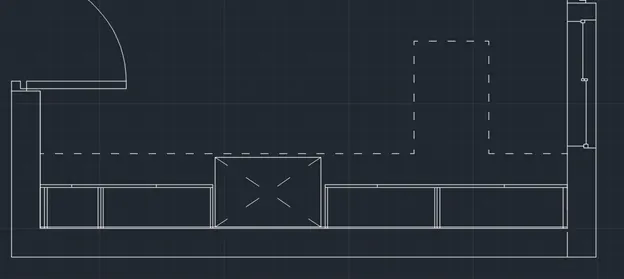
- Create the chimney in the 0.9 distance gap using a rectangle command
- Create the snack counter using line command and ISO dash space as line type with line type scale as 0.1
Type ‘o’ or offset and press enter or click offset from the modify tool bar
- Specify offset distance: Type 0.6 and press enter
- Select object to offset: Select the top edge of the inner rectangle and select on bottom
Type ‘o’ or offset and press enter or click offset from the modify tool bar
- Specify offset distance: Type 0.35 and press enter
- Select object to offset: Select the top edge of the inner rectangle and select on bottom
Type ‘o’ or offset and press enter or click offset from the modify tool bar
- Specify offset distance: Type 0.01 and press enter
- Select object to offset: Select the top edge of the inner rectangle and select on bottom
- Draw a line starting from left end of the last offset line and bottom left corner of the inner rectangle
Type ‘o’ or offset and press enter or click offset from the modify tool bar
- Specify offset distance: Type 0.035 and press enter
- Select object to offset: Select the line drawn earlier and click on right
Type ‘o’ or offset and press enter or click offset from the modify tool bar
- Specify offset distance: Type 0.965 and press enter
- Select object to offset: Select the last offset line and click on right
Type ‘o’ or offset and press enter or click offset from the modify tool bar
- Specify offset distance: Type 0.6 and press enter
- Select object to offset: Select the last offset line and click on right
- Draw a line starting from left end of the last offset line and bottom left corner of the inner rectangle of 0.35 distance
Type ‘o’ or offset and press enter or click offset from the modify tool bar
- Specify offset distance: Type 0.865 and press enter
- Select object to offset: Select the line drawn earlier and click on right
- Select object to offset: Select the last offset line and click on right
- Select object to offset: Select the last offset line and click on right
- Doors and windows are created as per the step 3
- Trim off extra portions
- The result of step 2 after adding doors and windows is as follows
Step 3: Creating Doors and windows
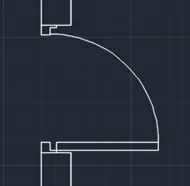
D2
- Select the line command and select the outer end of the door opening
- Draw a line of distance 0.08 and keep the curser to the right and draw a line of 0.05
- Keep the curser to down and draw a line of 0.06 and keep the curser to right and draw a line of 0.05 and draw a line perpendicular to bottom end
- Mirror the same created and paste it on the other side of door end
Type ‘rec’ or rectangle in the command box or select rectangle from the draw toolbar
- Specify first corner point: Select any point on the grid
- Specify other corner point or [ Area: Dimension: Rotation]: Click on dimensions
- Specify length for rectangle: Type 0.8 and press enter
- Specify width for rectangle: Type 0.06 and press enter and set the direction as first quadrant
Select start center end command from the dropdown of arc tool from draw tool bar
- Select the start point: Select the right edge of the shape drawn
- Select the center point: Select the bottom of rectangle drawn
- Select the end point: Select the bottom end of the shape drawn at the other door end
D3
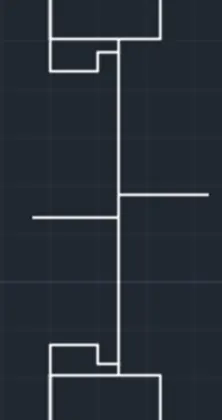
- Select the line command and select the outer end of the door opening
- Draw a line of distance 0.08 and keep the curser to the right and draw a line of 0.05
- Keep the curser to down and draw a line of 0.06 and keep the curser to right and draw a line of 0.05 and draw a line perpendicular to bottom end
- Mirror the same created and paste it on the other side of door end
- Draw a line connecting the top edges of boot the shapes
Window 1
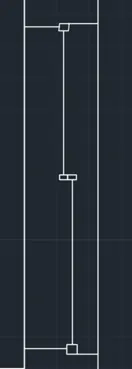
- Using rectangle command draw 2 rectangles at the center of the window
- Using g line command draw 2 lines from the midpoint of 2 rectangles to the opposite edges of window
- At the point of intersection of these lines draw 2 rectangles on both edges as shown in figure
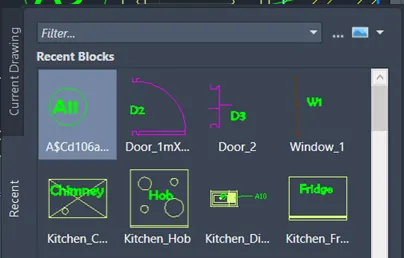
Convert all the components into blocks using block command
Step 4: Creating layers
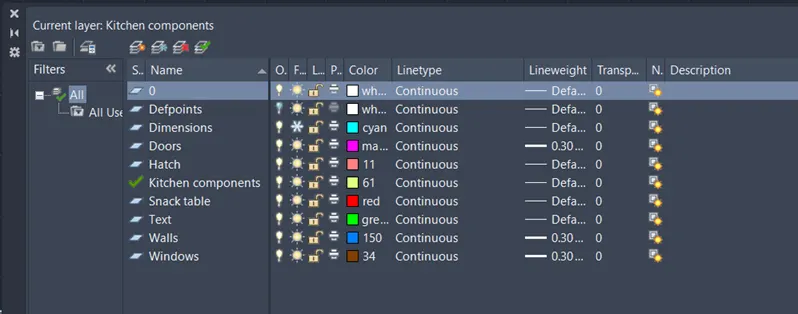
Open Layer properties and create new layers by clicking on new layer or right click on any layer and select new layer to create new layer
Layers are created as follows
Step 5: Hatching
Type Hatch in command box and click on hatch command
Click on options or settings in the command box
- Select hatch and type as predefined
- Select pattern as ANS132 for the walls and colour as yellow
- Set angle as 0 and scale as 0.008 as per the grid settings of drawing
- Click on preview for checking the hatch
- Press ok to assign the hatch
- Select the regions of wall for hatch
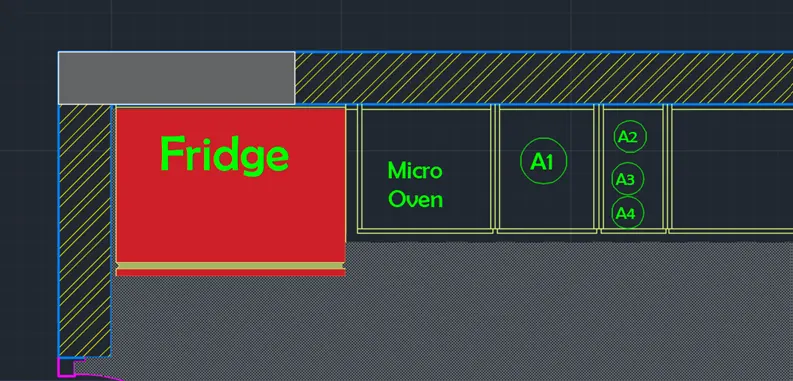
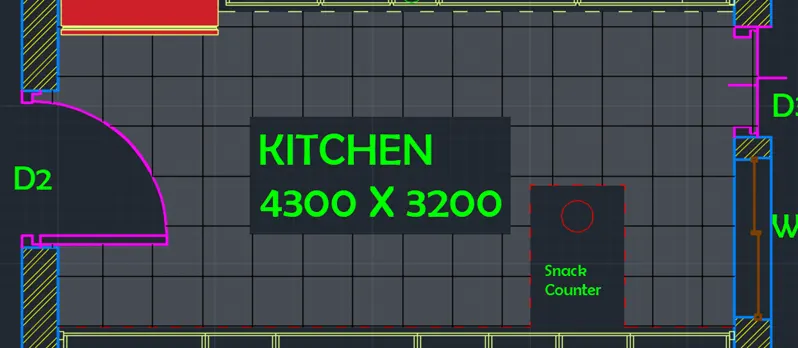
Repeat the same procedure for different types of components with different patterns along with floor patterns as follows
Result:
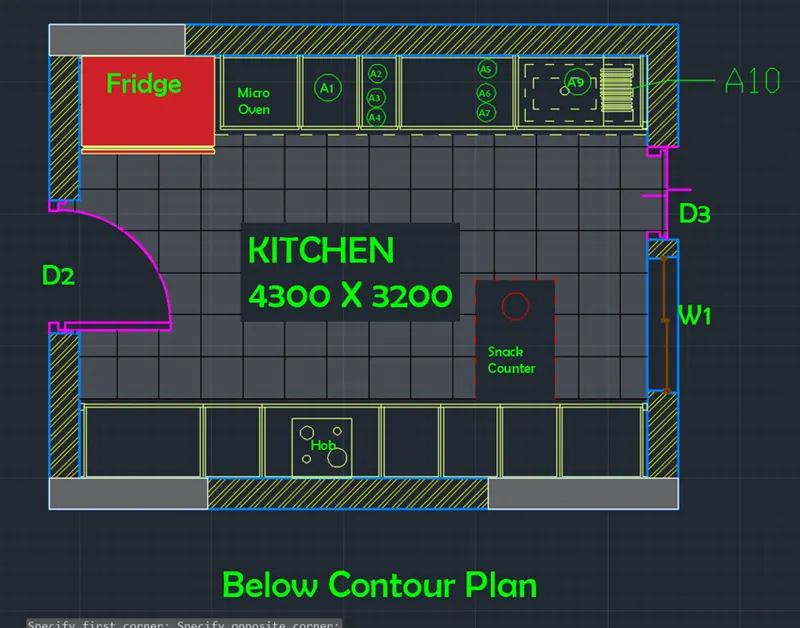
The result of this challenge consists two kitchen layouts, one below the contour plan and another above the contour plan. The wall thickness is assumed to be 230mm. The components of the kitchen are created as per dimensions given and some components such as hob, fridge, chimney and dishwasher to blocks. The doors and windows are created with assumed dimensions as they are not given in the figure and converted into blocks.
- All the dimensions mentioned are in mm
- Dimensions and text are assigned using dimension layer and text layers
- The resultant layouts of the kitchen plan after assigning layers to the respective components is as follows
- Below Contour Plan
2. Above Contour Plan
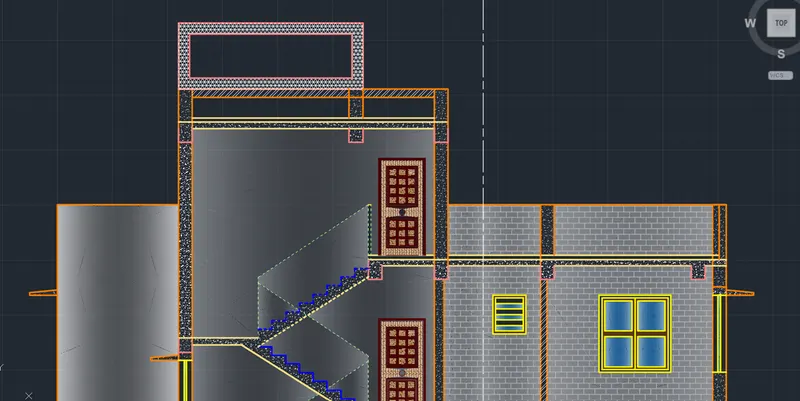
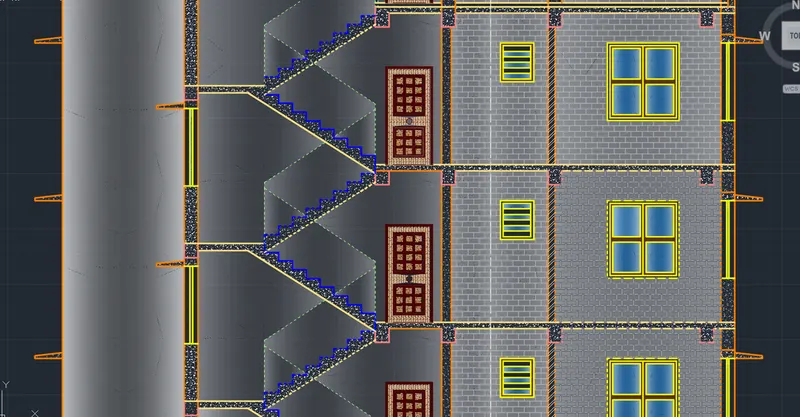
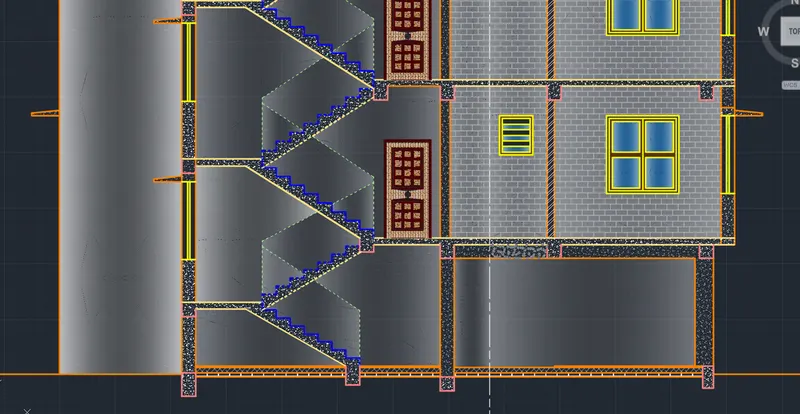
- Create the elevation of the plan created in the Challenges 7 and apply proper hatch in the walls, doors, windows, and other architectural elements. Refer to the dimensions in Plans and sections in Challenges 7.
Refer to the elevation that needed to be created.
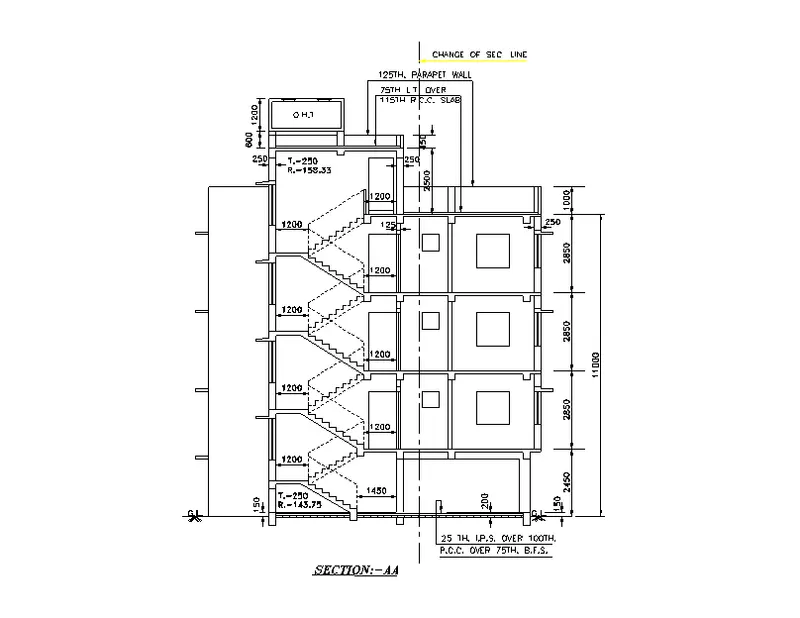
Aim: To create the floor plan, section AA and section BB as shown in the figure
Introduction: The section views AA and BB are drawn using projection lines from plan drawing. Hatching is to be done for the doors, windows and other architectural elements such as walls, columns etc. Dimensions and text are placed accordingly. The dimensions of doors and windows are assumed as follows
Procedure:
Open AutoCAD
In Startup settings start from scratch select metric (Meter)
Open grid and snap settings
- Change snap and grid spacing to 100
- Change major line every grid line to 10
- Turnoff adaptive grid
Type ‘un’ in command box and press enter
Change units’ type to decimal and precision to 0.00 and insertion scale to millimeters
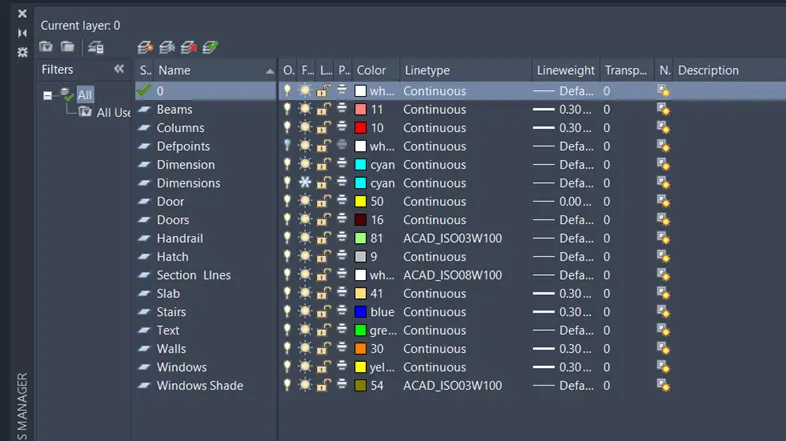
Step 1: Creating Layers
Open Layer properties and create new layers by clicking on new layer or right click on any layer and select new layer to create new layer
Layers are created as follows
Step 2: Creating Elevation
Plan view of the question in challenge 7 is imported using write block command
Open challenge 7 AutoCAD file and go to insert tab and on dropdown of create block click write block
- Click on ‘objects’
- Click on pick a point and select any corner
- Click on select objects and select all of plan view
- Set path and set file name and click on okay
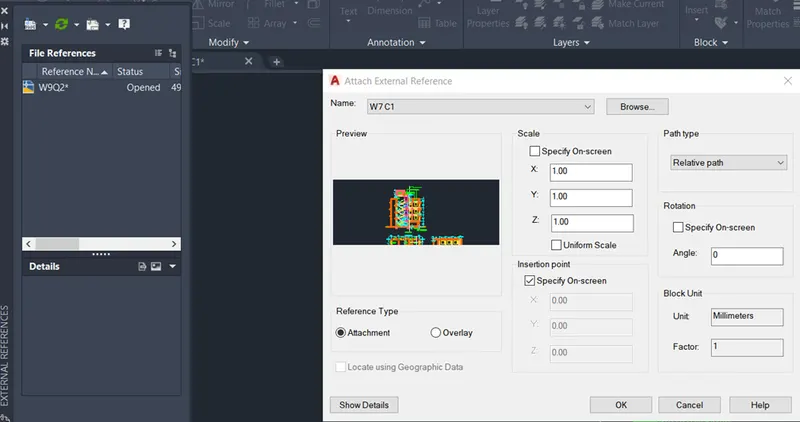
Open New drawing and using xref command import the plan view into current drawing
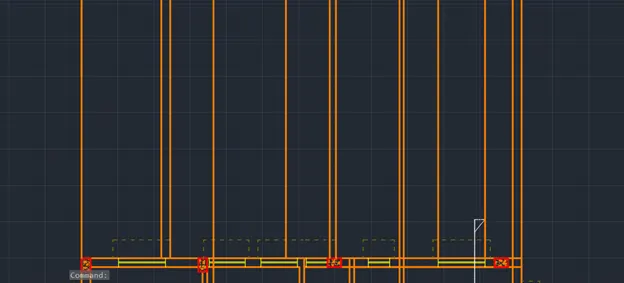
Using line command draw projection lines for all wall edges, window edges, and stairway limits along the section line AA as shown below
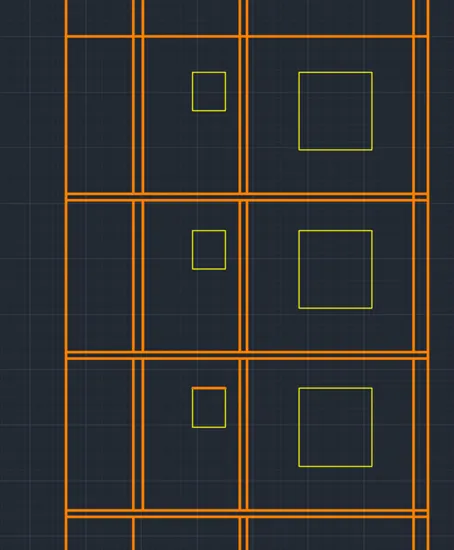
Using line command draw line at certain offset distance from the plan view, connecting all the projection lines
Type ‘o’ or offset and press enter or click offset from the modify tool bar
- Specify offset distance: Type 150 and press enter
- Select object to offset: Select the line drawn earlier and click on top
Type ‘o’ or offset and press enter or click offset from the modify tool bar
- Specify offset distance: Type 50 and press enter
- Select object to offset: Select the line drawn earlier and click on bottom
Type ‘o’ or offset and press enter or click offset from the modify tool bar
- Specify offset distance: Type 25 and press enter
- Select object to offset: Select the top offset line and click on bottom
Type ‘o’ or offset and press enter or click offset from the modify tool bar
- Specify offset distance: Type 100 and press enter
- Select object to offset: Select the top offset line and click on bottom
Type ‘o’ or offset and press enter or click offset from the modify tool bar
- Specify offset distance: Type 2450 and press enter
- Select object to offset: Select the line drawn at the beginning and click on top
Type ‘o’ or offset and press enter or click offset from the modify tool bar
- Specify offset distance: Type 2850 and press enter
- Select object to offset: Select the last offset line and click on top
- Select object to offset: Select the last offset line and click on top
- Select object to offset: Select the last offset line and click on top
Type ‘o’ or offset and press enter or click offset from the modify tool bar
- Specify offset distance: Type 115 and press enter
- Select object to offset: Select the last offset line and click on bottom
- Select object to offset: Select the last offset line and click on bottom
- Select object to offset: Select the last offset line and click on bottom
Trim off extra portions
Change the current layer to window layer
Draw a line connecting two window line projections at the first-floor level
Type ‘o’ or offset and press enter or click offset from the modify tool bar
- Specify offset distance: Type 800 and press enter
- Select object to offset: Select the line drawn and click on top
Using rectangle command draw a window with 1300X1400 as per W2 dimensions
Using rectangle command draw a window with 600X700 as per W4 dimensions
Copy the rectangles to all the floors as shown in figure
Trim off the outer extra potions
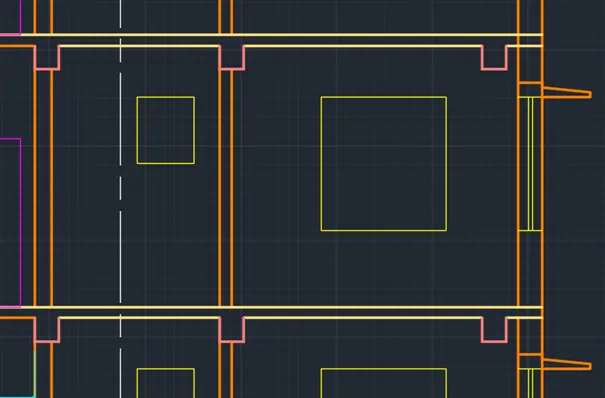
Using rectangle command draw beams of size 250X250 above all the walls
Draw the windows on the right wall in the plan according to step 4 window drawing method as shown in figure along with window shades
Change the layer to stairs
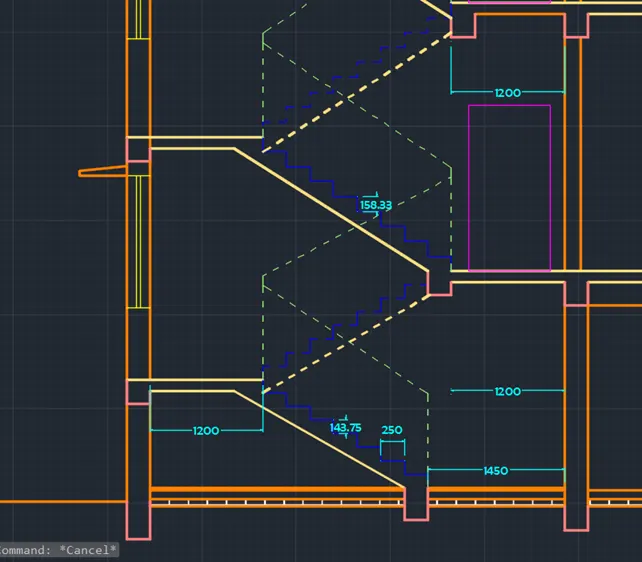
Draw an offset point of 1450mm from the right edge of stair way for the ground floor stairs
Draw an offset point of 1200mm from the left edge of stair way for the ground floor stairs
Type ‘l’ or line in command box and press enter
- Specify first point: Turn on OSNAP and click on the bottom point of the offset line drawn at 1450 from the right edge
- Specify next point: Turn on ortho mode and keep curser to top and type 143.75 and press enter
- Specify next point: Turn on ortho mode and keep curser to left and type 250 and press enter
- Specify next point: Turn on ortho mode and keep curser to top and type 143.75 and press enter
- Specify next point: Turn on ortho mode and keep curser to left and type 250 and press enter
Repeat the same process until landing is reached
Drawn land slab and stair way slab using line command
Type ‘l’ or line in command box and press enter
- Specify first point: Turn on OSNAP and click on the bottom point of the offset line drawn at 1200 from the right edge
- Specify next point: Turn on ortho mode and keep curser to top and type 143.75 and press enter
- Specify next point: Turn on ortho mode and keep curser to right and type 250 and press enter
- Specify next point: Turn on ortho mode and keep curser to top and type 143.75 and press enter
- Specify next point: Turn on ortho mode and keep curser to right and type 250 and press enter
Repeat the same process until first floor is reached
For the rest of the floor change the raiser height to 158.33
Using Line command drawn the hand rail using line type ISO dash space and line type scale 8.
Using rectangle command draw door of flat D at each floor entrance as shown in the figure above
Type ‘o’ or offset and press enter or click offset from the modify tool bar
- Specify offset distance: Type 75 and press enter
- Select object to offset: Select the top edge and click on top
Type ‘o’ or offset and press enter or click offset from the modify tool bar
- Specify offset distance: Type 1000 and press enter
- Select object to offset: Select the top edge and click on top
Type ‘o’ or offset and press enter or click offset from the modify tool bar
- Specify offset distance: Type 2500 and press enter
- Select object to offset: Select the top edge and click on top
Type ‘o’ or offset and press enter or click offset from the modify tool bar
- Specify offset distance: Type 450 and press enter
- Select object to offset: Select the last offset line and click on top
Trim the right portions of lines right of roof stairs and door
Draw the top tank using rectangle command
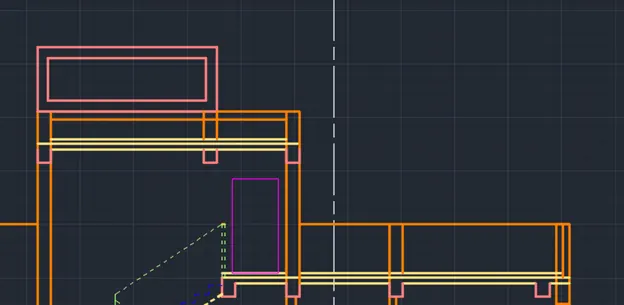
Trim off all the extra portions
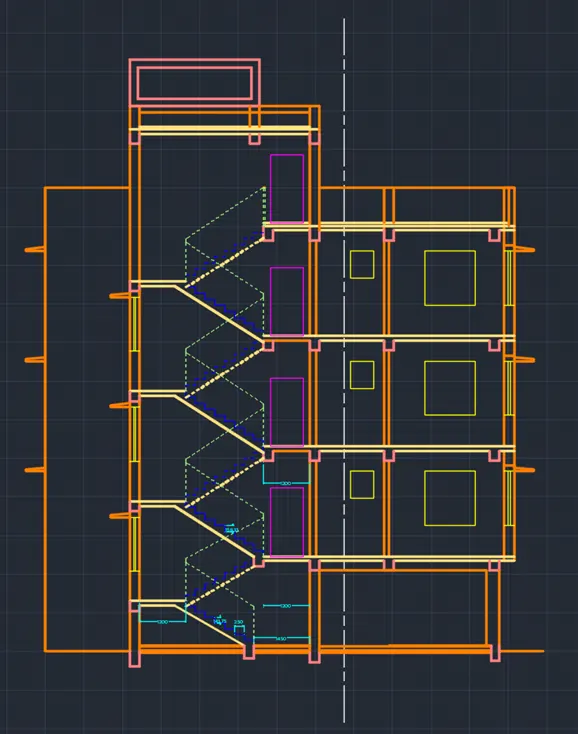
The final figure of section AA after assigning all the layers is as follows
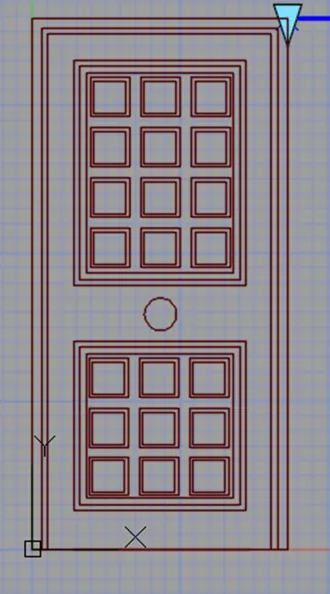
Door Block is added from the door types created in challenge 8 as follows
Step 5: Hatching
Type Hatch in command box and click on hatch command
Click on options or settings in the command box
- Select hatch and type as predefined
- Select pattern as AR-B816C for the walls and colour as grey
- Set angle as 0 and scale as 0.05 as per the grid settings of drawing
- Click on preview for checking the hatch
- Press ok to assign the hatch
- Select the regions of wall for hatch
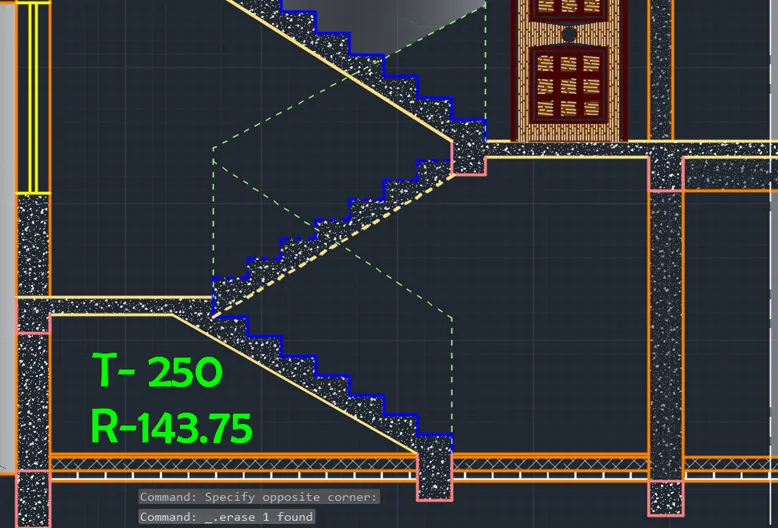
For columns, slab, stair slab and beams use AR-CONC as follows
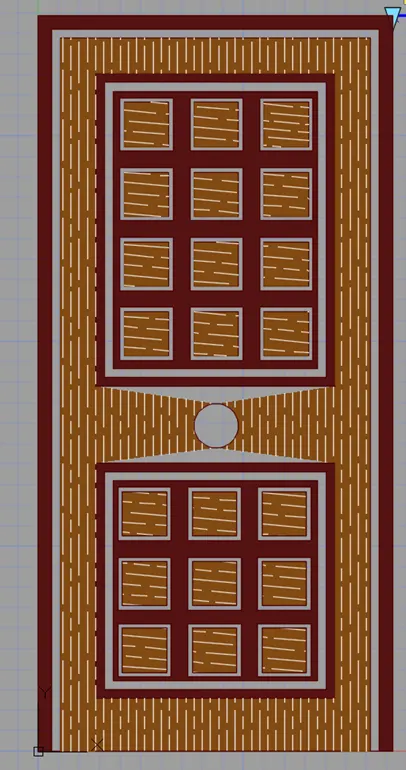
Door is hatched using ‘Ghost wood’ pattern and solid hatch done is block editor as follows
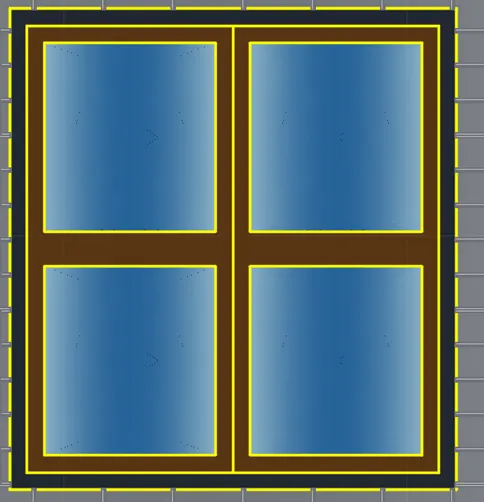
Windows and ventilators are hatched using ‘gradient fill’ as follows
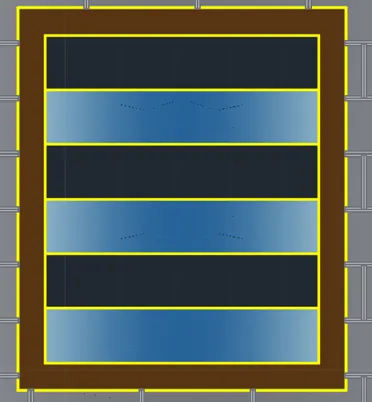
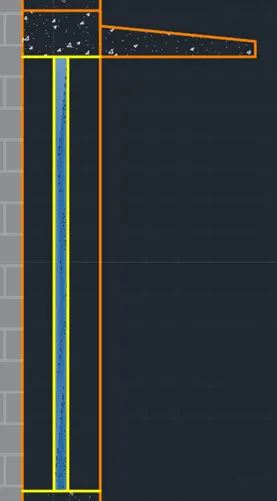
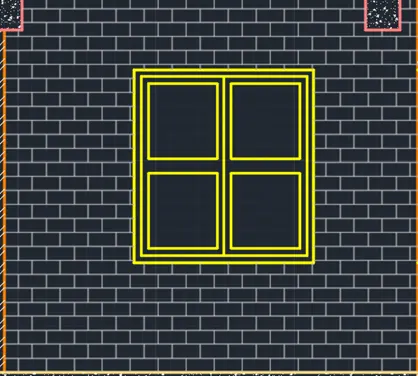
Apply gradient fill using gray and white colur with hatch transperency as 50 for all the walls
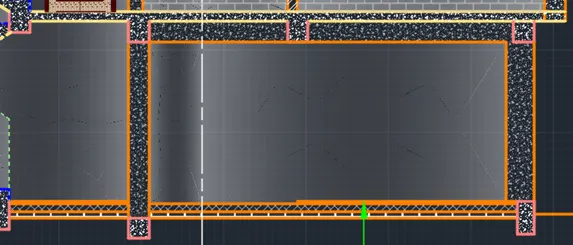
Repeat the same procedure for different types of components with different patterns and final figure is placed
Result:
Section view are drawn from projection lines from the plan view. Section view consists of stair way details, floor thickness and layers, and windows and ventilators. Hatch is added for all the components. Windows are hatched to get a window glass effect and doors are made with ghost wood pattern. Gradient with gray color is given to all parts of the elevation. The result provided consists of pics dividing each drawing to parts if necessary.
- All the dimensions mentioned are in meters
- Dimensions and text are assigned using dimension layer and text layers
- All components are assigned with respective layers and hatching is done for all columns and 75mm thick B.F.S.
- With text and dimensions and without hatch
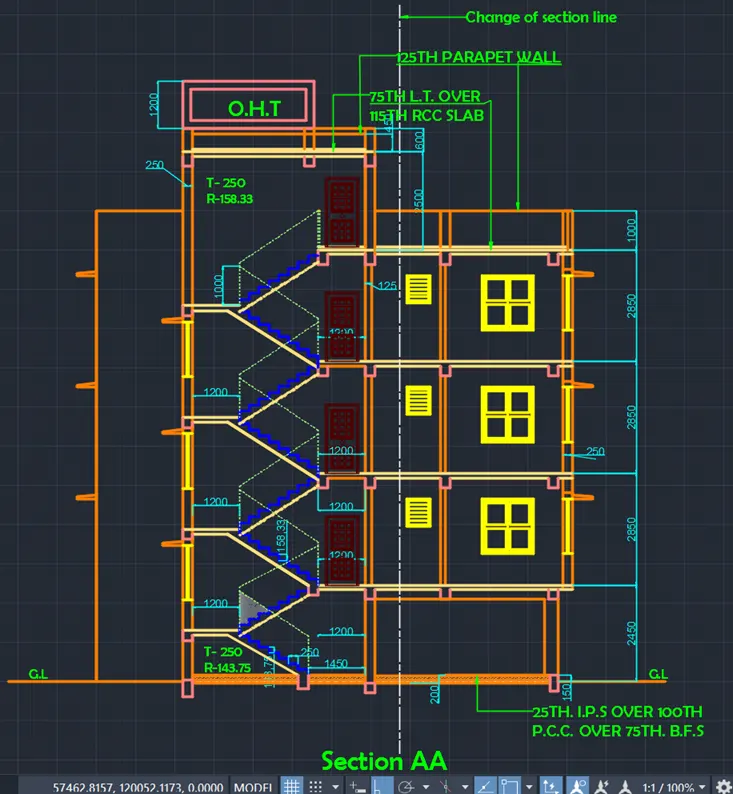
2. With Hatch and without text and dimensions
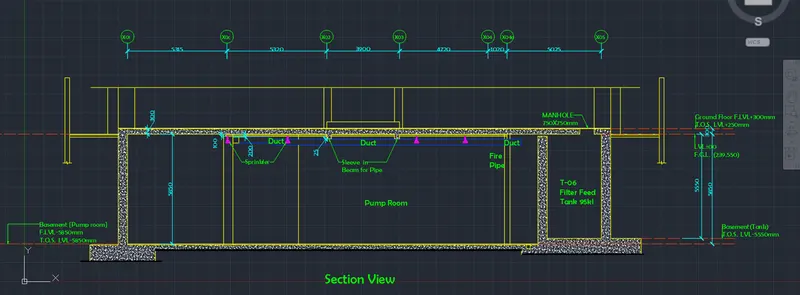
- Create the section view of an industrial building as shown in Figure. Provide appropriate hatches and dimensions wherever required. Also, provide annotations to the drawing.
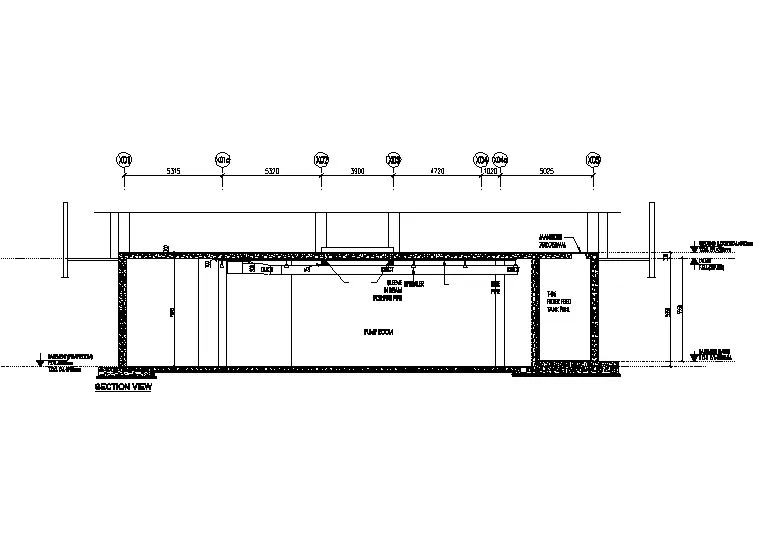
Aim: To create the section view of an industrial building as shown in the figure
Introduction: The section view is of underground components of an industrial building. Underground of industrial building consists of pump room, manhole for filter feed, dust below the floor, fire pipe etc. Pump room is 5850mm below the ground level where as filter feed is 5550mmbelow the ground level. Floor thickness is given as 300mm. Hatching is done to the walls and slabs of underground structure
Procedure:
Open AutoCAD
In Startup settings start from scratch select metric (Meter)
Open grid and snap settings
- Change snap and grid spacing to 100
- Change major line every grid line to 10
- Turnoff adaptive grid
Type ‘un’ in command box and press enter
Change units’ type to decimal and precision to 0.00 and insertion scale to millimeters
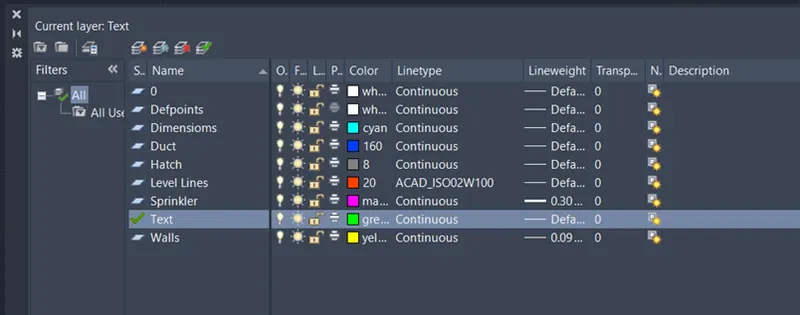
Step 1: Creating Layers
Open Layer properties and create new layers by clicking on new layer or right click on any layer and select new layer to create new layer
Layers are created as follows
Step 2: Creating Outer Walls
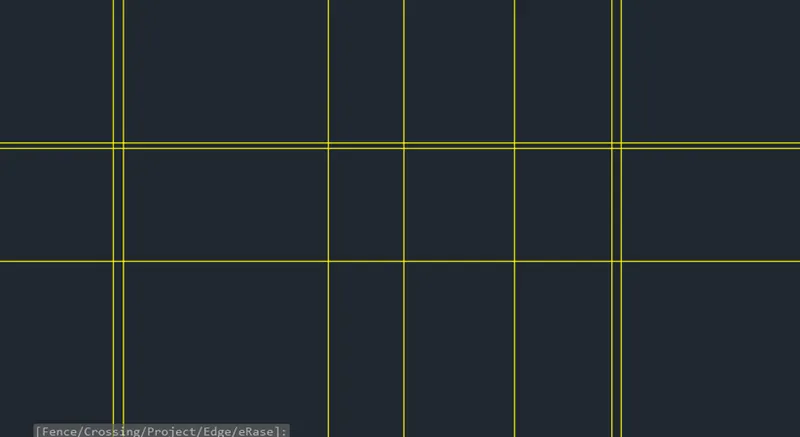
- Draw a horizontal x line at any point on the screen
- Offset the line to top to a distance of 5850mm
- Offset the last offset line to a distance of 300mm to the top
- Draw a vertical xline on any point on the top horizontal xline
- Offset the line to right to a distance of 10635mm
- Offset the last offset line to distance of 3900 to the right
- Offset the last offset line to distance of 5740 to the right
- Offset the last offset line to distance of 5025 to the right
- Offset the left and right edges to a distance of 500mm to left and right respectively
- Trim off the outer edges
- Offset the bottom edge of the top floor to a distance of 30mm to the bottom
- Offset the last offset line to a distance of 70mm to the bottom
- Offset the last offset line to a distance of 100mm to the bottom
- Draw the sprinkler pipe as shown in figure along with the duct pipe with given dimension and duct pipe thickness is 300mm

- Draw the manhole cover of 750mm wide at the right top edge of filter feed walls as follows
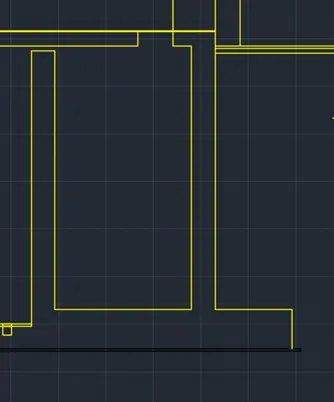
- The bottom addition thikness of the pump room slab is drawn using different layers as follows

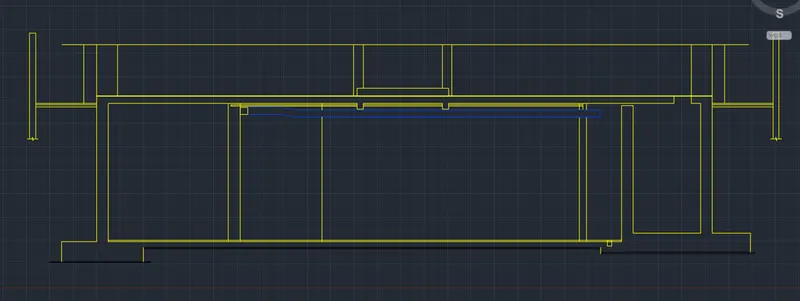
- The final figure after drawing columns and slabs along with top lines above ground floor is as follows
Step 3: Creating Blocks and attributes
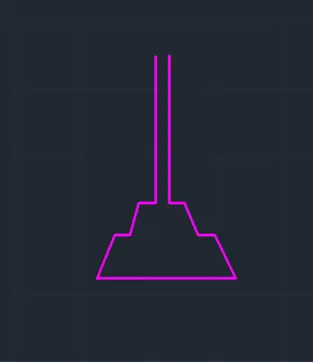
Creating sprinkler
- Sprinkler is created from line command drawing two parallel line
- Two rectangles are drawn with one bigger than the other and stretching the bottom edges
Creating Attribute
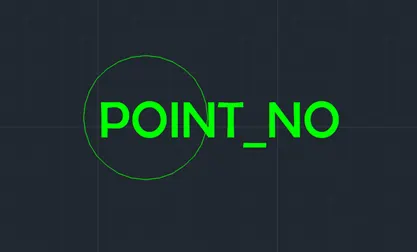
- Draw circle of radius 500mm
Go to insert tab and click on define attribute in block definition palette or type ATTDEF in command box
In the popup box
- Set mode as ‘lock position’
- Set tag as ‘Point_No’
- Set Prompt as ‘What is the Point Number?’
- Set default as ‘X0’
- Set justification as ‘left’
- Text style as per drawing text style ‘Berlin Sans FB’ and press okay
- Place the attribute in the center of the circle as follows
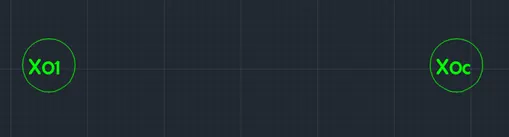
After inserting this block
Step 4: Hatching
Type Hatch in command box and click on hatch command
Click on options or settings in the command box
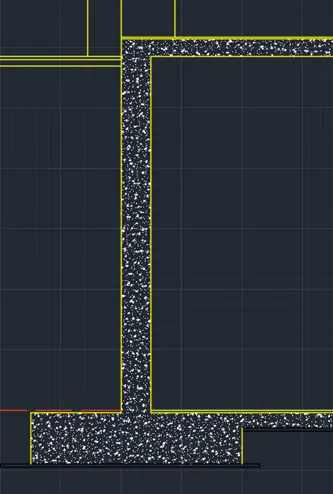
- Select hatch and type as predefined
- Select pattern as AR-CONC for the walls and colour as white
- Set angle as 0 and scale as 1 as per the grid settings of drawing
- Click on preview for checking the hatch
- Press ok to assign the hatch
- Select the regions of wall for hatch
Similarly hatch the bottom edges of the pump room with solid black color
Result:
The result of this challenge consists of underground pump room of an industrial building and filter feed. Both are nearly 6m below ground level. Sprinklers are placed at a top of pump room with duct at the top along with fire pipe. Filter feed is 5.55m blow ground level. Text and multileader annotations are created as per the drawing. Dimensions are also given as per the given drawing.
- All the dimensions mentioned are in meters
- Dimensions and text are assigned using dimension layer and text layers
- All components are assigned with respective layers and hatching is done.