Week 8-3D Tetra Meshing Challenge
Objective:
To create tetramesh for the given models by satisfying the required quality criteria.
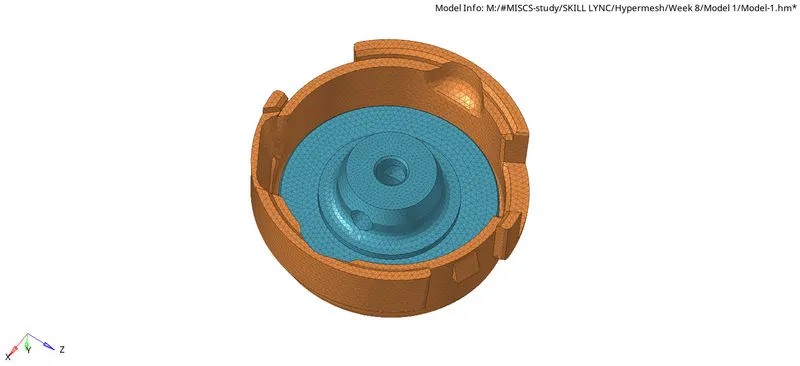
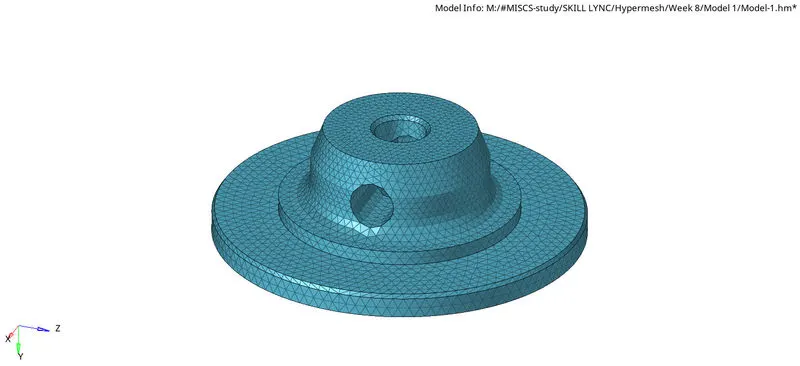
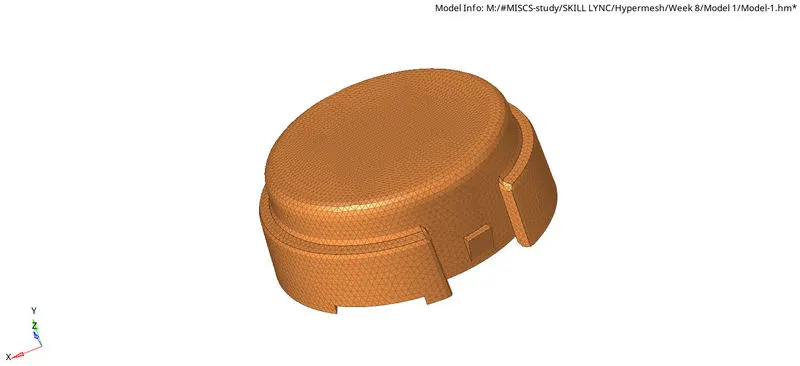
Model-1: Housing
Procedure: 2D to 3D conversion
- To import the cad model, goto New model > Import geometry and select the file to import.
- Initially, by using the toggle edge option, all the unneccesary construction lines can be suppressed.
- Other Manual cleanup methods are quick edit > toggle edge, quick edit > split surf, quick edit > washer split, quick edit > unsplit surf, quick edit > project point & quick edit > replace point.
- Remove all the unnecessary points by using the quick edit > add/remove point.
- Then goto preferences > Criteria file settings and update the quality criteria.
- For the model 1, as per the problem statement, tetramesh has to be created from 2D Tria mesh.
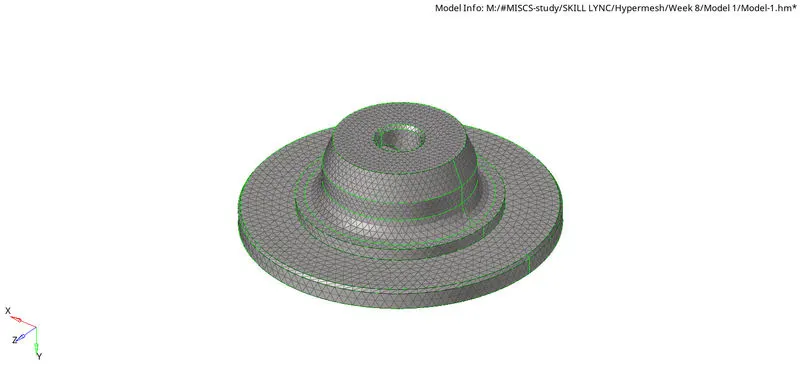
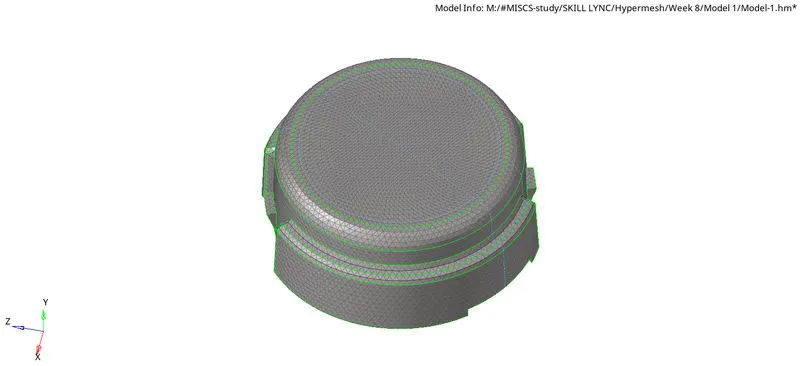
- Hence, the sufaces of the components should be meshed with tria elements complying to the given quality criteria.
- Next, in order to mesh the surfaces, goto 2D > Automesh and enter the mesh element size = 5.
- Choose the surface to be meshed and click on the mesh button.
- To check the element quality, goto Tools > Check elements or press F10 or goto 2D > elem cleanup.
- The failed elements can be corrected by using the elem cleanup or the elem quality index > cleanup tools or using any of the manual operations.
- To check if there are any duplicate elements present, press F10 > duplicates. If duplicates are present, then click on Save failed and goto Delete > elements > retrieve and delete the excess elements.
- Goto Tools > edges, select the surfaces and click on find edges to check if any of the elements are disconnected from the neighbouring elements. To rectify this, click on equivalance or goto > 2D replace and join the nodes manually.
- To create Tetra mesh, goto 3D > Tetramesh > choose all the 2d elements and click on mesh.
- To check the element quality, goto Tools > Check elements > 3D or press F10 > 3D.
- To rectify all the failed elements, perform 3D > Tetra mesh > Tetra remesh or use the node translate option to manually clear all the quality issues.
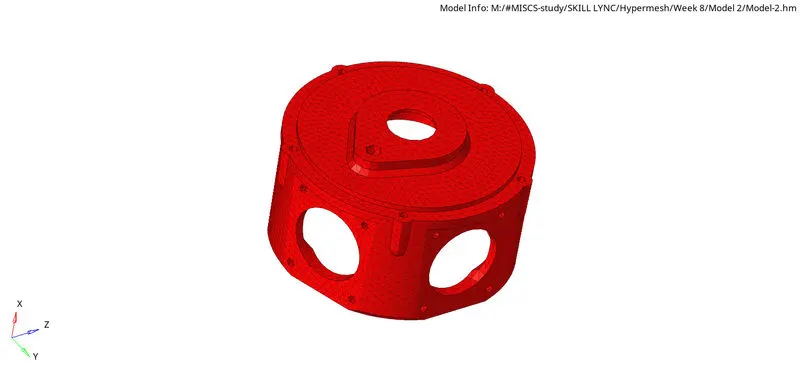
Model-2:
Procedure: Quicktetra
- To import the cad model, goto New model > Import geometry and select the file to import.
- Goto View > Browsers > Hypermesh > Utility to open the utility tab.
- Then goto Geom/Mesh > Quick Tetramesh, choose the components to which quick tetra has to be performed and enter the mesh size.
- Select the mesh type and click on Mesh.
- To check the element quality, goto Tools > Check elements > 3D or press F10 > 3D.
- To rectify all the failed elements, perform 3D > Tetra mesh > Tetra remesh or use the node translate option to manually clear all the quality issues.
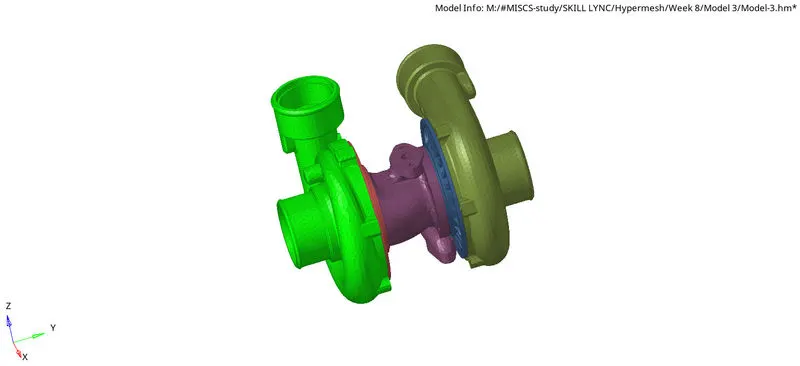
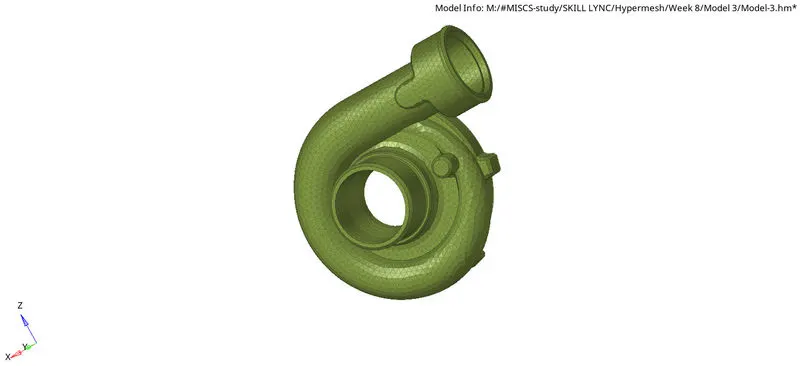
Model-3:
Procedure: Volume tetra
- To import the cad model, goto New model > Import geometry and select the file to import.
- Goto 3D > Tetramesh > Volume tetra, select the solid/surfaces to be meshed and enter the element size.
- Make sure that the use proximity and cleanup elements are checked and click on mesh.
- To check the element quality, goto Tools > Check elements > 3D or press F10 > 3D.
- To rectify all the failed elements, perform 3D > Tetra mesh > Tetra remesh or use the node translate option to manually clear all the quality issues.
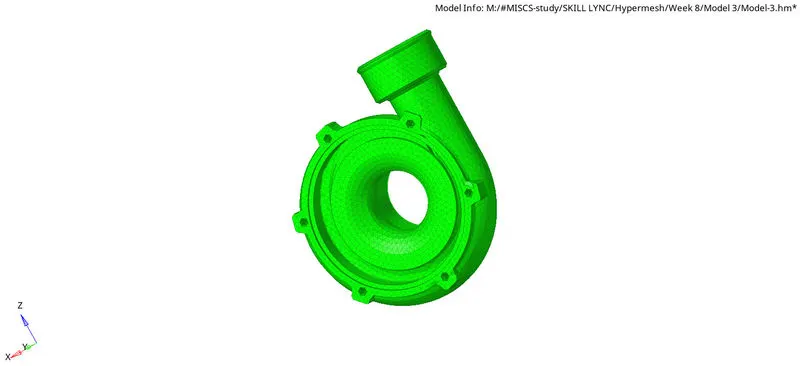
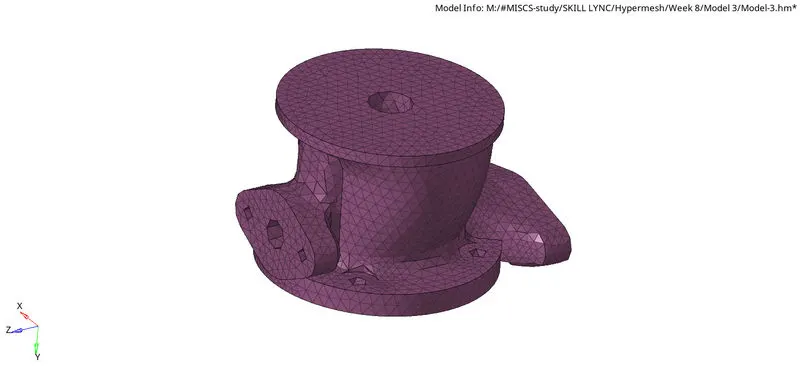
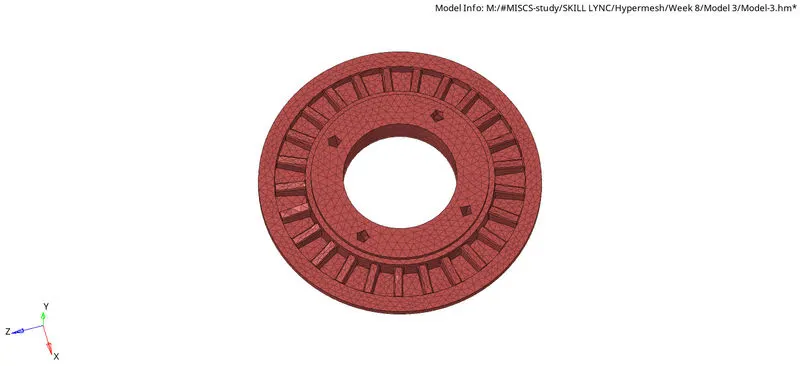
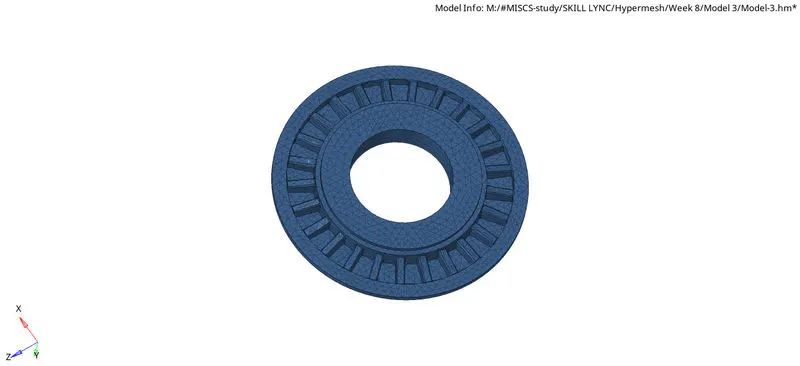
Result:
Thus, the components in the given models are meshed with tetra elements by satisfying the required quality criteria.