Wiring harness routing & packaging Rules Week 3 Challenge
Aim: Assign the electrical properties to the given components and also create the protective coverings.
Objectives:
- To assign the necessary electrical properties to the P clamp and define it as a support component.
- To define the given CAD data as Back Shell and assign necessary electrical properties.
- To create the protective coverings of corrugated tubes for the given dimensions and store them in a catalogue.
Defining the Electrical Properties of P Clamp:
- Download the given file from the link and open in CATIA V5. Use ‘Save As’ to save it as CAT Part.
- The part contains the metal clamp and the rubber covering to avoid contact of the harness and the metal clamp. Separate the surfaces of the metal clamp and the rubber seal.
- Use ‘Join’ command to join the metal clamp surfaces and use ‘Close Surface’ to make a solid part of the metal clamp.
- Follow the above step for the Rubber Seal as well.
- Go to ‘Part Design’ workbench and put points at the center of the clamp on the outermost surface of the rubber seal.
- Insert planes parallel to the outermost surface of the rubber seal and passing through the points defined earlier.
- Insert another plane on the base of the rubber seal on the inside of the clamp.
- Switch to ‘Electrical Part Design’ and use the ‘Define Support’ command to define the clamp as an electrical support so that the wire harness can pass through it.
- The wire harness can enter from both the sides of the clamp and also exit from both the sides of the clamp. In step 8, select appropriate planes and point to assign wire entry from one side.
- Repeat step 8 to assign wire harness entry from the other side.
- Add the part to the clamp catalogue.
- Save the part.
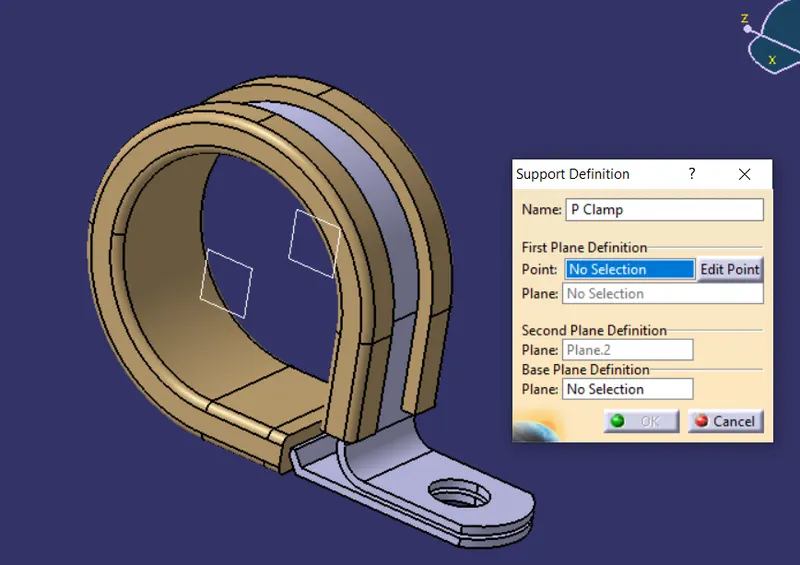
Fig. 1: Defining the P Clamp as a Electrical Support.
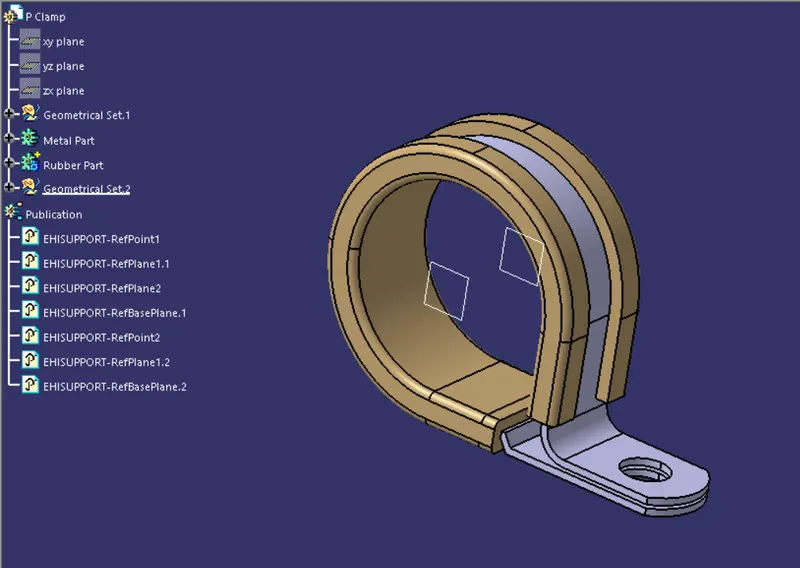
Fig. 2: Isometric view of the P Clamp.
Defining the given CAD data as electrical back shell component:
- Follow the given link to download the component.
https://www.te.com/usa-en/product-1738312-1.html - The CAD data is for a Back Shell from TE Connectivity.
- In ‘Part Design’ workbench, insert points at the center of the back-shell connecting surface and at the center of the bundle entry surface.
- Insert an axis system on the back-shell connecting surface such that Y-axis direction is the coincident and X-axis direction is oriented appropriately as shown.
- In the ‘Electrical Part Design’, use the ‘Define Back-shell’ command and define the body as a back-shell.
- Define the Back-Shell connection point as shown below.
- Define the other point as bundle entry point.
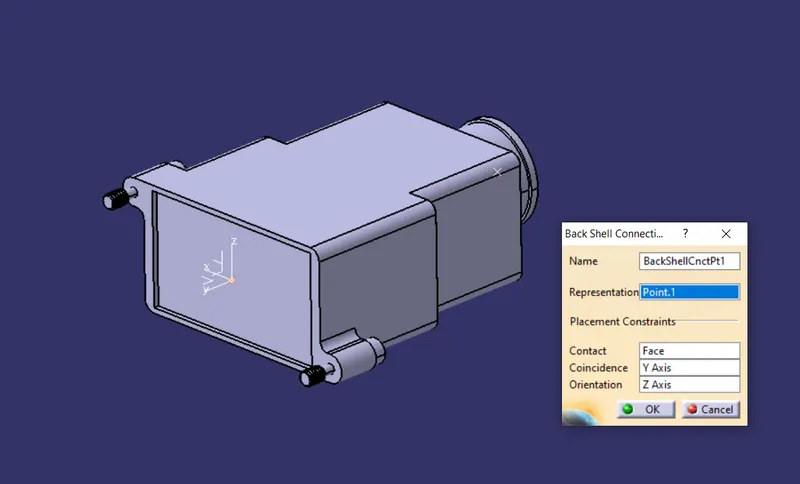
Fig. 3: Defining the back-shell connection point.
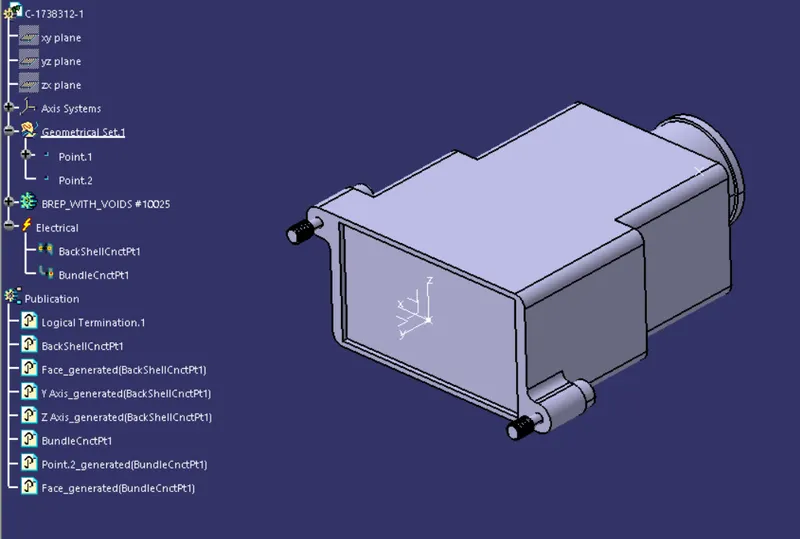
Fig. 4: Isometric view of the Back-Shell
Creating the Corrugated Tubes for the given dimensions:
- Open a new Part in Electrical Part Design workbench.
- Use ‘Protective Covering’ command to create a corrugated tube. Fill in the below dialog box appropriately.
- Save the part.
- Create a new ‘Catalogue Document’ and add a family named as ‘Slit COT’ and save it.
- Use the ‘Device Storage’ command to save the corrugated tube part in the catalogue.
- Follow the above steps for all the required corrugated tubes.
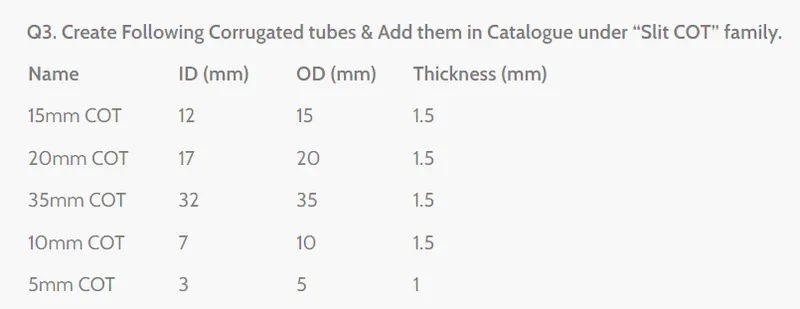
Fig. 5: Required corrugated tubes.
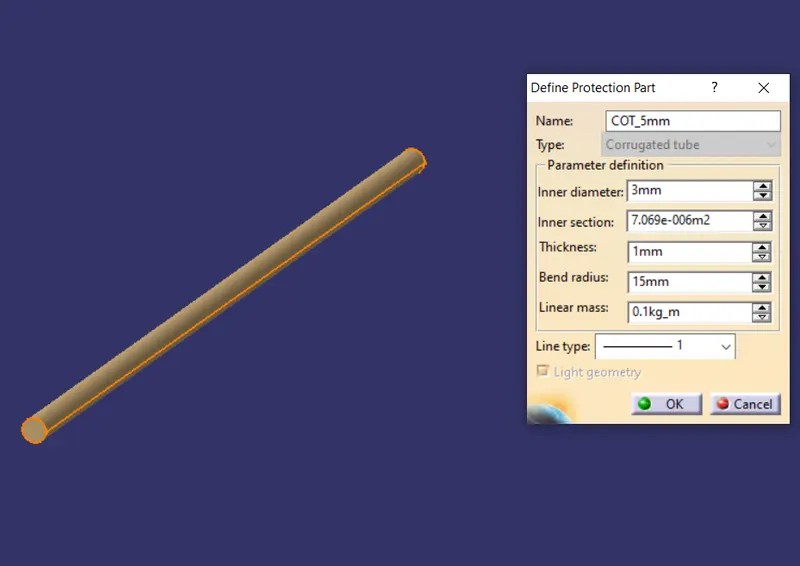
Fig. 6: Creating a corrugated tube.
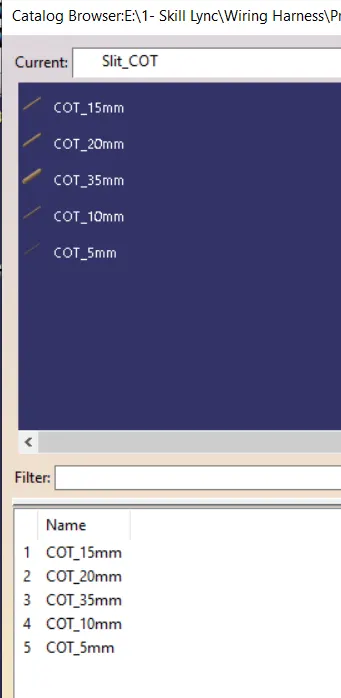
Fig. 7: Catalogue of all the above mentioned corrugated tubes.
Conclusion: The CAD data was electrically defined as per standard requirements.